Mmi AUDI A4 2018 Service Manual
[x] Cancel search | Manufacturer: AUDI, Model Year: 2018, Model line: A4, Model: AUDI A4 2018Pages: 403, PDF Size: 66.81 MB
Page 193 of 403
a co .... N ,....
N .... 0 0
3 co
-when the camera-based t raffic sign recogni
t ion* is malf unct ioning
¢ page 104
-when there are warnings from the camera-
based traffic sign recognit ion*
Switching traffic light information on and
off
-Se lect : I MENU I button > Audi connect > Tr affi c
li g ht inf orm ati on >
On(~) or Off (0 ).
A WARNING
-
-When traffic light information is shown, a l
so always pay attention to the traffic situa
t ion, the distance to other vehicles and the
area around the vehicle. The driver is always
responsible for assessing the traff ic situa
t ion .
-Always adapt your speed to the current
weather, road and traff ic conditions . The
displayed informat ion must never cause you
to ignore legal traffic regulations and pose a
safety risk.
-Regardless of the traffic light informat ion,
yo u should always monitor your speed using
the speedometer and make su re you are ad
hering to the legal speed limit .
-The traffic light information does not adjust
yo ur vehicle's speed to the speed recom
mendat ion shown in the display.
(D Tips
-Traffic light information is not yet ava ilable
i n a ll cit ies and is not nationwide .
-Units of measurement and language set
tings are displayed based on how they were
set in the MMI system se tt ings
¢ page 248 .
-Alw ays read the chapter r:¢> page 195, Audi
connect (Infotainment) general informa
tion .
Weather
Applies to vehicles with Audi connect (Infotainment)
Information on current weather conditions as
well as weather fo recasts for the selected search
a rea .
Audi c onn ect ( Inf ota inm ent )
.. Select and confirm Weather .
You can also disp lay the cu rrent weather condi
tio ns on the map , fo r example .
.. Select: left control button > on entry.
Flight information
Applies to vehicles with Audi connect (Infotainment)
Information on flights and current arrival/depar
ture times in the selected search area .
.. Select and confirm Flight inform ation .
City events
Applies to vehicles with Audi connect (Infotainment)
Info rmation on events in vario us categories in
the desired search area .
.. Select City E vent s > left cont rol button > cate
gory.
Online news
Applies to vehicles with Audi connect (Infotainment)
You can check the c urrent headlines of your fa
vo rite publications in th e MMI.
Requirement: yo ur myAud i accoun t must be sub
sc ribed to newsfeeds and your veh icle must be
connected to myAudi
r::¢> page 188.
.. Select: !M ENUI button> Audi conn ect> Online
new s>
desired newsfeed > a headline .
(i) Tips
If you have not s ubsc ribed to any pe rsonal
newsfeeds in your myAudi account, pre-con
figured newsfeeds will be displayed.
Twitter
Applies to vehicles with Audi connect (Infotainment)
You can access the most important functions in
your Twitter account through your MMI.
Requirement:
You must have connec ted your myAudi ac coun t
with Tw itter. You can find additional information
for this on line at
www .audiu sa. com /myaudi. ..,
191
Page 194 of 403
Audi connect (Infotainment)
You must have connected your vehicle with
myAudi
¢ page 188.
.,. Se lect: I MENU I button> Audi connect> Twitter
> left contro l button > desired function (for ex
amp le,
Trends ).
The following categories can be selected in the
Twitter menu:
- My tweets : News Feed and the Tweets you have
posted are listed.
- Home: the Tweets for everyone you follow are
displayed .
-Trends: topics on Twitter that are currently
popular within a country .
Different functions are available depending on
the Twitter category you have selected:
- New tweet : you can post a new tweet using
pre-made templates or using myAudi tem
plates that you have created yourself.
- Refresh : the selected Twitter function is re
freshed.
- Favorite: set a Tweet as favorite to show you
liked it.
-Retweet : you can quote a Tweet to share it with
others.
(D Tips
- Other settings such as account, language,
Tweet security and location settings
cannot
be changed in the MMI. These changes must
be made on the Twitter website.
- You can only connect
one Twitter account
with your myAudi account.
- Audi connect (Infotainment) makes it possi
ble to access Tw itter . Permanent avai lability
cannot be guaranteed, because that de
pends on Twitter.
Travel (travel guide)
Ap plies to veh icles with Audi co nnect (Infotainment)
You can use the Audi MMI connect opp to store
points of interest on your mobile device (such as
a smartphone) and then use them for route
guidance in the
MMI.
Requirement:
192
The Audi MMI connect app must be installed and
open on your mobi le device .
You must be logged into your myAudi account in
the
Audi MMI connect app and you must have se
l ected your vehicle.
The Wi-Fi function on your mobile device and on
the
MMI must be switched on.
The
MMI must be connected to the network .
"'Press: !MENU ! button> Audi connect> left con-
trol button >
Information category > Travel.
After opening the travel guide, trave l tips in your
area wi ll be displayed including current ratings as
well as the corresponding category .
"' Press the left control button to change the cat
egory (such as bars nearby).
A WARNING
-
-It is o nly safe to use tablets, laptops, mo
bi le devices and other similar devices when
the vehicle is stationary because, like all
loose objects, they could be thrown around
the inside of the vehicle in a crash and cause
serious injuries. Store these types of devices
secure ly while driving.
- Do not use any wire less devices on the front
seats within range of the airbags while driv
ing. Also read the warnings in the chapter
¢ page 275, Front airbags .
Q) Note
Always fo llow the information found in ¢@ in
Wi-Fi hotspot on page 194.
(D Tips
Units of measurement, language settings and
time are shown in the Infotainment system
display based on how they were set in the
MMI system settings ¢ page 248.
Audi connect (Infotainment) in navigation
App lies to : vehicles wit h a navigation system and Audi co n·
nec t (In fo ta inm ent)
... Select: !MENUI button> Audi connect > left
control button >
Navigation .
Page 195 of 403
a co .... N ,....
N .... 0 0
3 co
The follow ing Audi connect In fota inment services
are current ly available:
- Naviga tion wi th
online map view an d Street
View ¢ page 216.
-Point of Interest (POI) online search with
voi ce re cognition
(such as res taur ants): plan
rou te g uidance using t he M MI con trol panel
¢ page 208 and the voice recognition system
¢ page 168 .
-Set up des tina tions i n your M MI using yo ur
myAudi account or online map view
¢page 216 .
-Online traffic information : receive up-to -the
minute traffic info rmation about accidents,
road constr uction and other incidents
¢ page 220.
- Map update : import navigation map updates
directly to yo ur vehicle using an SD ca rd or as
an on line
update ¢ page 218.
(D Tips
-Fo r the map update A udi connect Infotain
ment service via SD card, check the current
software vers ion in your vehicle and t hen
check
www .audiusa.com/myaudi to see if a
newe r version is ava ilable. You can a lso have
t h e new navigation da ta insta lled by an Audi
dealer , w hich can be done for an add itio nal
c ha rge.
- Y ou can also find addi tiona l info rmation
abo ut the
map update onl ine a t
www.audiusa .com/myaudi .
Audi connect (Infotainment) on the phone
Applies to vehicles with Audi connect (Infotainment)
~ Se lect : I MENU I button > Audi connect > left
contro l button >
Communication .
The follow ing A udi con nect In fot ainm ent service s
a re cu rrent ly availab le:
- Stor ing contacts on yo ur computer using yo ur
myAudi Account and load ing the con ta cts in to
t h e M MI
direct ory ¢ page 185.
Audi connect (Infotainment)
Audi connect (Infotainment) in Media
menu
Applies to vehicles with Audi connect {Infota inment}
~ Sele ct : iME NUI button> Audi connect > right
control button >
Entertainment.
- Online media and Internet radio :
offers acce ss
t o d ifferent online media se rvices as well as I n
ternet radio an d ope ration th ro u gh the MMI us
ing the
Audi MMI connect app ¢ page 232.
Applies to: vehicles with Wi·Fi audio player
- Wi-Fi audio player : you can access the med ia
cen ter through a Wi-Fi connec ted med ia p layer
(su ch as a smartp hone)
¢ page 231.
_&. WARNING
It is only safe to use table ts, l aptops , m obile
d evi ces and other simila r devices whe n the ve
hicl e is stationary beca use, like a ll loose ob
j ects, they could be thrown aroun d the inside
of the vehicle in a crash an d cause serious in
jur ies. Store these types of devices sec urely
while driv ing .
(D Note
Always fo llow the information fo und in ¢ 0 in
Wi-Fi hotspot on page 194 .
(D Tips
-Also see the cha pter ¢ page 195, Audi con
nect (Infotainment) general information .
- For more in forma tion on the Wi -Fi a ud io
p layer a nd sup ported devices, contact an
authorized A udi dealer or authorized Audi
Service Facility.
Additional options
Applies to vehicles with Audi connect (Infotainment}
~ Select: ! M EN UI button> Audi connect > right
cont rol button .
The following options a re available in the Aud i
connect Infota inment serv ices overv iew :
Log in*
See ¢ page 188, Logging into myAudi in the vehi -
de. ~
193
Page 196 of 403
a co .... N ,....
N .... 0 0
3 co
Configuring the data
connection
Applies to vehicles with Aud i connect (Infotainment)
The data connection for Audi connect Infotain·
ment services is pre-configured at the factory .
However , if a configuration should be necessary,
you can adjust the following settings .
.,. Select: I MENU I button > right control button>
Connection manager .
.,. Select: right control button > Online settings>
Data connection settings .
Using the Data connection settings menu, you
can set when an Internet connection should be
made . T he Internet connect ion disconnects auto
matica lly on ce the requested Audi connect Info
tainment service no longer requires any data.
The fol low ing settings can be selected:
Audi connect (MMI)
With the Audi connect (MMI) f unction, you can
Allow or Deny the use of Audi connect Infotain ·
ment services if the connection is set to No re·
quest or With request .
Wi-Fi devices*
Using the Wi-Fi devices function, you can Allow
or Deny a connection to the In ternet.
A WARNING
-As the driver, do not allow usage of the Wi
Fi hotspot to distract you from driving, as
this could increase the risk of an accident.
-It is only safe to use tablets, laptops, mo·
bile devices and other s imilar dev ices when
the vehicle is stationary because, like all
loose objects, they could be thrown around
the inside of the vehicle in a crash and cause
serious injuries . Store these types of devices
securely whi le driving.
-Do not use any wireless devices on the front
seats within range of the airbags while driv·
ing. Also read the warnings in the chapter
t::> page 275, Front airbags.
Audi connect (Infotainment)
(D Note
Always fo llow the information found in ~0 in
Wi-Fi hotspot on page 194.
Audi connect (Infotainment) general
information
Audi connect Infotainment services
Applies to vehicles wit h Aud i connect (Infota inment)
@ Tips
-You can only use services supported by Aud i
connect (Infotainment) if you have the
op·
tional MMI Navigation plus equipment w ith
MMI touch* and Audi connect (Infotain
ment).
-Use of the L TE* mobile network standard is
not available in every country. Contact an
authorized Audi dealer or authorized Audi
Service Facility or your cell phone service
provider for additional information.
-Usage of Audi connect Infotainment serv
ices depends on the ava ilability of services
through third party providers.
-Audi connect Infotainment services are only
availab le within the cell phone network cov
erage from your cell phone service provider.
-Audi connect Infotainment services are
available in the USA. Audi connect Infotain·
ment services are currently not availab le in
Canada or in Mexico.
- Also read the information in the chapter
t::> page 175, Telephone.
- Availability, scope, providers, screen display
and costs of services may vary depending on
the country, model, model year, end device
and rates. For add itional information, v is it
www.audiusa.com .
-An initial registration/activation on the
myAudi platform at
www.audiusa.com/
myaudi
is requ ired to use individual serv
ices . You can contact an authorized Audi
dealer or Aud i connect (Infotainment) cus
tomer service at (87 7) SOS-AUDI (2834) to
195
Page 197 of 403
Audi connect (Infotainment)
receive information on options for expand
ing your usage and any costs that may re
sult.
- The Audi connect Infotainment services are
a Wi-Fi/Internet-based system . If the sys
tem does not function correctly even
though all of the requirements are met, please try again later or contact Audi con
nect customer service at 877-505-AUDI
(2834).
- For detailed information on Audi connect
(Infotainment) and the Terms of Use, refer
to
www.audiusa.com .
Data protection
App lies to veh icles with Audi connect (Infotainment)
(D Tips
- You can find additional information in your
MMI in the options menu for the selected
Audi connect Infotainment service and also
on line at
www.audiusa.com.
- Your privacy is important to us.
-AUDI AG collects, processes, shares
and
transmits your personal information in ac
cordance with legal regulations in order to
ensure proper function and availability of
the individual Audi connect Infotainment
services. You can view the complete, current
and valid Audi connect data protection poli
cy in your MMI. The myAudi platform is
available for to you to activate additional
Audi connect Infotainment services and to
transfer data to your vehicle, among other
services. A one-time registration is required
to establish a connection to your vehicle.
For this purpose, AUDI AG collects, process
es, transmits and uses your required per
sonal information as required for you to use
the services provided by AUDI AG. Your in
formation is not distributed to third parties .
Using your cell phone with your myAudi
196
platform allows you to transmit data for
your Audi connect Infotainment services
functions to your vehicle and you can allow
specific vehicle data to be transmitted from
your vehicle.
- By activating special information services
that are part of your Audi connect portfolio,
you can use these functions directly in your
vehicle by entering data to confirm your identity (to use social networks, for exam
ple) . To do this, the identification informa
tion you provided is forwarded with the re
quest to the respective service provider.
T hen you can access your personal content
using a secure connection. This content is
displayed in the vehicle for your use. Your
personal content is not stored within Audi
AG. The necessary connection information is processed and used for providing services
and the proper function of the services in
accordance with applicable legal guidelines.
- You can find additional information in your MMI in the options menu for the selected
Audi connect Infotainment service and also
online at
www.audiusa.com.
- By providing Audi connect Infotainment
services, Audi of America is authorized to
collect , process, transmit and transfer infor
mation about you and your vehicle. Addi
tional information can also be found in your
MMI in the options menu for the selected
Audi connect Infotainment service.
- Information on our data protection meas ures in conjunction with the mobile Audi
connect (Infotainment) application can be
found in the application's privacy policy. For additional information about the
www.audiusa.com/myaudi website or oth
er applications, websites or online services
connected to Audi, visit
www.audiusa.com/
privacy .
Page 199 of 403

Audi connect vehicle control
Audi connect vehicle
control
Introduction
Applies to veh icles with Audi co nnect vehicle control
With the Audi connect vehicle control services 1>,
you can access various information or use individ
ual functions in the
Audi MMI connect app or in
myAudi .
Audi connect vehicle control includes the follow
ing services:
- Remote locking and unlocking ¢
page 199.
-Vehicle status report <:!>page 199 .
-Parking location o page 199.
-Geofencing Alert r::!> page 200.
-Speed Alert o page 200 .
-Valet Alert o page 200 .
- Stolen Vehicle Locator o page 200.
-Online Audi service request o page 200.
(D Tips
-Accessing specific data or controlling func
tions remote ly depends on the charge level
of the vehicle battery. Therefore, these
funct ions only have limited availability after
switching off the ignit ion.
- The services are provided through a SIM
card installed in the vehicle. The cost of the
call and data connections is included in the
price for the services . Services are provided
assuming that the cell phone network re
quired for the installed S IM card is funct ion
in g and ready to operate. The available serv
ic es set by Aud i AG are only available within
the cell phone network coverage area for
the cell phone service provider selected by
Audi AG .
- You can also find more information on Audi
connect on line at www .audiusa .com .
ll In pr ep aratio n at t he tim e of p rinting. The ava ilab ilit y o f
the serv ice s offe re d depends on th e co untry and may
c han ge ove r tim e.
198
Setup
Applies to vehicles w it h Aud i connect vehicle control
To use Audi connect vehicle control services l),
please note the fo llowing :
Creating and verifying a user account
""Create an account at www.audiusa.com/myaudi
and verify it.
Setting a key user in the vehicle
Requirements : the ignit ion must be switched on .
Anothe r key user must not be set in the veh icle .
If necessary, reset the key user ¢
page 199.
""Select in the Infotainment system: IMENU ! but-
ton >
Audi connect > if necessary, Display
available functions >
right control button>
Audi connect user management > Key user >
Set key user .
"" Enter the user name for your ve rified account
and enter the IO-digit vehicle code. You can rub
the key tag for your remote control key to re
veal the vehicle code
r::!> page 38.
"" Select and confirm Log in .
You can now use the veh icle control services
through the
Audi MMI connect app or through
www.audiusa.com/myaudi .
Using vehicle control services in the Audi
MMI connect app
Requirement: your mobile devices must be com
patible.
"" Insta ll and start the
Audi MMI connect app on
your mobi le device .
"" Log in to the
Audi MMI connect app using your
user name and Audi online password and select
your vehicle .
(D Tips
-Store the vehicle code in a secure place. It
may be necessary to re-enter the vehicle
code.
Page 201 of 403
Audi connect vehicle control
Deactivating and activating parking position
-Se lect: I MENU I> Audi connect > Car Finder
parking position.
I f you do not set./, no location informat io n will
be sent to the se rver.
(D Tips
- The new parking location cannot be deter
mined w ith this service if the vehicle is
moved after shutting the vehicle off and
without switching the ignition on and off
again, for example when being towed or if
the veh icle is stolen.
- If the vehicle is moved and shut off again
using the second key, for example, the new
parking location is transmitted to the server
after switching the ignition off.
Geofencing Alert
Applies to vehicles with Audi connect vehicle control
You can set approved and forbidden zones for
your vehicle using this service. If your vehicle
leaves an approved :zone or enters a forbidden
zone, you will be notified by a push notificat ion
and/or an e-ma il. You can set up to five zones
and also ass ign time limits.
Requirement
-You must be verified as the primary user of your
vehicle on myAudi.
(D Tips
You can set on myAudi if you would like to be
notified via push notifications and/or e-mail.
Speed Alert
Applies to vehicles with Audi connect vehicle control
You can set up to two speed limits for your vehi
cle using this service . If your vehicle exceeds a set
speed limit, you will be notified by a push not ifi
cation and/or e-mail.
Requirement
- You must be verified as the primary user of your
vehicle on myAudi.
200
(D Tips
You can set on myAudi if you would like to be notified via push notifications and/or e-mail.
Valet Alert
Applies to vehicles with Audi connect vehicle control
If you give your vehicle over to a parking service,
you can set a zone and a speed limit using the
Audi MMI connect app. If the vehicle leaves the
zone or the exceeds the speed lim it, you will be
notified by a push notification and/or e-mail.
Requirement
- You must be verified as the primary user of your
veh icle on myAudi.
(D Tips
You can set on myAudi if you would like to be
notified via push notifications and/or e-mail.
Stolen Vehicle Locator
Applies to vehicles with Audi connect vehicle control
This service helps you to track your vehicle if it is
stolen.
Proceed as follows if there is a theft:
.. Contact the police . You receive a Case ID .
.. Call the service hotline and give your Case ID .
The service hotline will forward the established data to the police .
(D Tips
You receive the Audi Service hotline number
when you purchase your vehicle.
Online Audi service
request
Applies to vehicles with Audi connect vehicle control
Requirement: to be able to use on line Aud i serv
ic e request, you must activate the service at
www .audiusa.com/myaudi and select an author
iz ed Audi dealer or authorized Audi service facili
ty .
Page 205 of 403
Nav igatio n
Navigation
Opening navigation
Applies to: vehicles with navigation system
The navigation system directs you to your desti
nation , around traffic incidents and on alterna
tive routes, if desired .
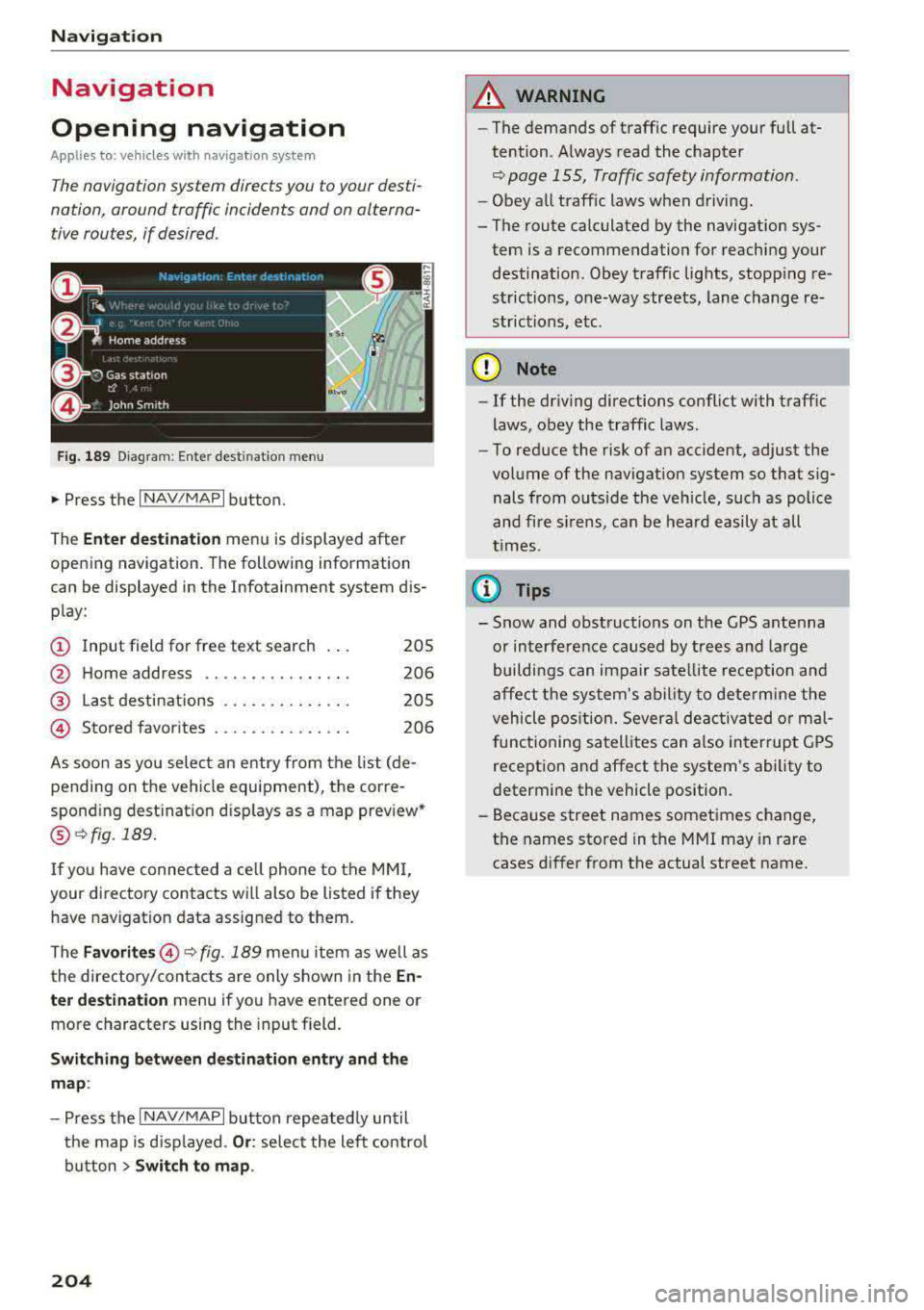
Fig. 189 Diagram: Ente r dest inatio n menu
• Press the I NAV/MAPI button.
The
Enter d estina tion menu is displayed after
opening navigation . The following information
can be displayed in the Infotainment system dis
play:
(D Input field for free text search 205
@ Home address . . . . . . . . . . . . . . . . 206
@ Last destinations . . . . . . . . . . . . . . 205
@ Stored favorites . . . . . . . . . . . . . . . 206
As soon as you select an entry from the list (de
pending on the vehicle equipment), the corre
spond ing dest ination d isp lays as a map prev iew*
@ ~ fig . 189.
If you have connected a cell phone to the MMI,
your directory contacts will also be listed if they
have navigation data assigned to them.
The
F avo rites @ ~fig. 189 menu item as we ll as
the directory/contacts are only shown in the
En ·
t e r d estination
menu if you have entered one or
more characters using the input field.
S w itc hin g betwe en dest inati on entry and th e
m ap :
- Press the I NAV/MAPI button repeated ly until
the map is displayed .
Or: select the left control
button
> Swi tch to map .
204
A WARNING
-The demands of traffic require your fu ll at
tention. Always read the chapter
~ page 155, Traffic safety information.
- Obey all traff ic laws when driving.
- The route calculated by the navigation sys- tem is a recommendation for reaching your destination. Obey traffic lights, stopping re
strictions, one-way streets, lane change re
strictions, etc.
{Q) Note
- If the dr iving directions conflict with traff ic
laws, obey the traffic laws.
- To reduce the risk of an accident, adjust the
volume of the navigation system so that sig nals from outs ide the veh icle, such as police
and fire s irens, can be heard easily at all
t imes.
@ Tips
- Snow and obstruct ions on the GPS antenna
or interference caused by trees and large
buildi ngs can impair satellite reception and
affect the sys tem's ability to dete rmine the
vehicle pos ition. Several deactivated or ma l
functioning satellites can also inter rupt GPS
reception and affect the system's ability to
determine the vehicle position.
- Because street names sometimes change, the names stored in the MMI may in rare cases differ from the actual street name .
Page 206 of 403
a co .... N ,....
N .... 0 0
3 co
Entering a destination
Free text search for destinations
Appl ies to: ve hicles with navigation system
With the free text search, you can enter the navi
gation destination data all at once in any order using the MMI touch control
pad* or the letter/
number speller (for example, 20 Main St., Los
Angeles). Likewise, you can sear ch for points of
interest, conta cts, previous destinations or fa
vorites to navigate to the desired address.
P ress the !NAV/MAP ! button repeatedly unt il the
Enter destination menu is displayed c::> page 204,
fig. 189 .
"'Push the cont rol knob up . T he input fie ld is d is
played @ c::> page 204, fig. 189.
-Ente r o ne or mo re search terms into the i nput
field .
- If avai lable, confirm the i nput suggestion * to
complete the entry or a word suggestion* . See
c::> page 162, Letter/number speller .
- Turn the cont rol knob to the rig ht to change
t h e results list .
- Se lect and conf irm a destination from the re -
su lts list .
- Se lect and confirm
Start route guidance .
The route displays as an overview in the map .
Route guidance is a lready active ..
Narrowing the search area
All countr ies/s ta tes are se lected a t the f actory
for the free text search .
- Se lect t he right control button
> Country /state
selection
i n the inp ut fie ld @ c::> page 204,
fig. 189.
- Se lect t he coun try o r state( .) that s hou ld be
searche d for in the free text se arch in or der to
nar row the n umbe r of res ults and increase the
search speed . The se lec ted entry in the coun
t ry/state se lection is stored .
Or: select All
countr ies/ states .
@ Tips
-The MMI input suggest ions de pend on the
l ast navigated destinations.
Na vigation
-Up to SO en tries can be stored in the last
destinations list.
- Add itiona l information on free tex t se arc hes
can be fo und under
c::>page 164.
Loading the last destination
Appl ies to: vehicles wi th navigat io n syste m
Your last des tina tion s are automatically stored
and can be loaded directly as a destination .
Requirement: a destina tion was a lready navigat
ed to .
"'Press the !NAV/MAPI b utton repeatedly unti l
t he
Enter destination men u is disp layed
c::> page 204, fig. 18 9.
Your last des tina tion is listed directly in the Enter
destination
menu unde r th e home address and
i dentified with the symbo l@
c::> page 204,
fig. 189.
- Select and confirm one of the last destinations
from the lis t.
- Select and confirm
Start route guidance .
Delet ing last destination s
-Select one of the last destinations from the list .
- Sele ct: r igh t con trol b utton
> Delete destina-
tion
> Delete this last de stination or Delete all
last destinat ions.
T he sele cted dest inat ion or all las t dest ina tions
is/are delete d and no lon ger d isplayed in the
En
ter destination
menu .
Entering an address
Applies to : vehicles wit h navigat ion syste m
As an alternative to free text sear ch, you can al
so enter an address in stages.
"' Press the !NAV/MAPI button repeatedly u ntil
t he
Enter destination men u is disp laye d
c::>page204, fig .189 .
"'Select: left control button > Enter address.
- Entering a destination using a country/state :
select and confi rm Country . Select and confi rm
a country/state directly from the list.
Or :
search for a co untry/state using the input fie ld . .,..
205
Page 207 of 403
Navig ation
-En te rin g a d estinati on using the Ci ty/ZIP
code :
select and confirm Cit y/ZIP . Enter a city
or a ZIP code.
Or : select and confirm a city from
the list.
-Se lect and confirm additional details about the
destination such as
S tre et , House numbe r or
Downto wn.
-Destination ent ry using a street inter section* :
Requirement: you must enter a street . Se lect
and confirm
Inte rsection . Select and confirm a
street d irectly from the list .
Or: search for a
street usi ng the input field.
-Select and confirm Start route guidance .
Selecting a destination from the map
Ap plies to: ve hicles w ith navigation system and MMI touch
A point on the mop con be used as the destina
tion.
- Adju st ing the scale : turn the control knob to
the left or right.
- Acti vating c ro sshairs : press the cont rol knob.
The crosshairs are shown on the map .
-Moving the crosshair s: move the crosshairs to
the destinat ion using the MMI touch control
pad*
c:> page 159.
-Setting as destinat ion : press the control knob
when the crosshairs are shown. If necessary,
select and confirm
Add as stopo ve r and then
Start route guidance .
-Hiding the cro sshai rs : press the I BACK I button.
Addition al inform atio n ab out th e loc ation of
the cro sshairs :
when you select map content us
ing the crosshairs, a display of available informa
tion appears (such as street name, address or points of
interest) @c:>poge 214, fig . 197.
206
Setting a home address/favorite as the
destination
App lies to: vehicles wi th navigat ion sys te m
You con quickly and easily start route guidance
to your home address using the home address
function. Favorites allow easier access to fre
quently used destinations.
.,. Press the I NAV /MAPI button repeatedly until
the
En ter dest inati on me nu i s displayed
c:>poge 204, fig . 189.
Setting a home address as the destination
Requirement: a home address m ust be stored
c:> page 212.
Your Home addr ess is shown directly in the Enter
d es tination
menu @ c:> page 204, fig. 189 .
-Select: Home address > Start route g uidance .
Setting a fa vor it e as the destination
Requirement: a favorite mus t be sto red as a des
tination
c:> poge212 .
-Enter at least the f irst three letters of t he de
sired favo rite in the free text sea rch input field.
T he favo rit es fo und a re shown in the Infotain
ment system
display @c:> page 204, fig . 189.
-Select and confirm t he des ired entry.
-Sele ct and confirm Start r oute guidanc e.
(D Tips
-Additional settings for the home address
can be found under
c:> page 212 .
-Additional settings for the favor ites can be
found under
c:> page 212 .