Mmi AUDI A4 2018 Repair Manual
[x] Cancel search | Manufacturer: AUDI, Model Year: 2018, Model line: A4, Model: AUDI A4 2018Pages: 403, PDF Size: 66.81 MB
Page 219 of 403
Navigation
Online map update
Applies to: vehicles w ith a nav igatio n system a nd Audi con
n ect (I nfotainment)
Using the online map update, you can update
the map material in your navigation system di
rectly from your vehicle.
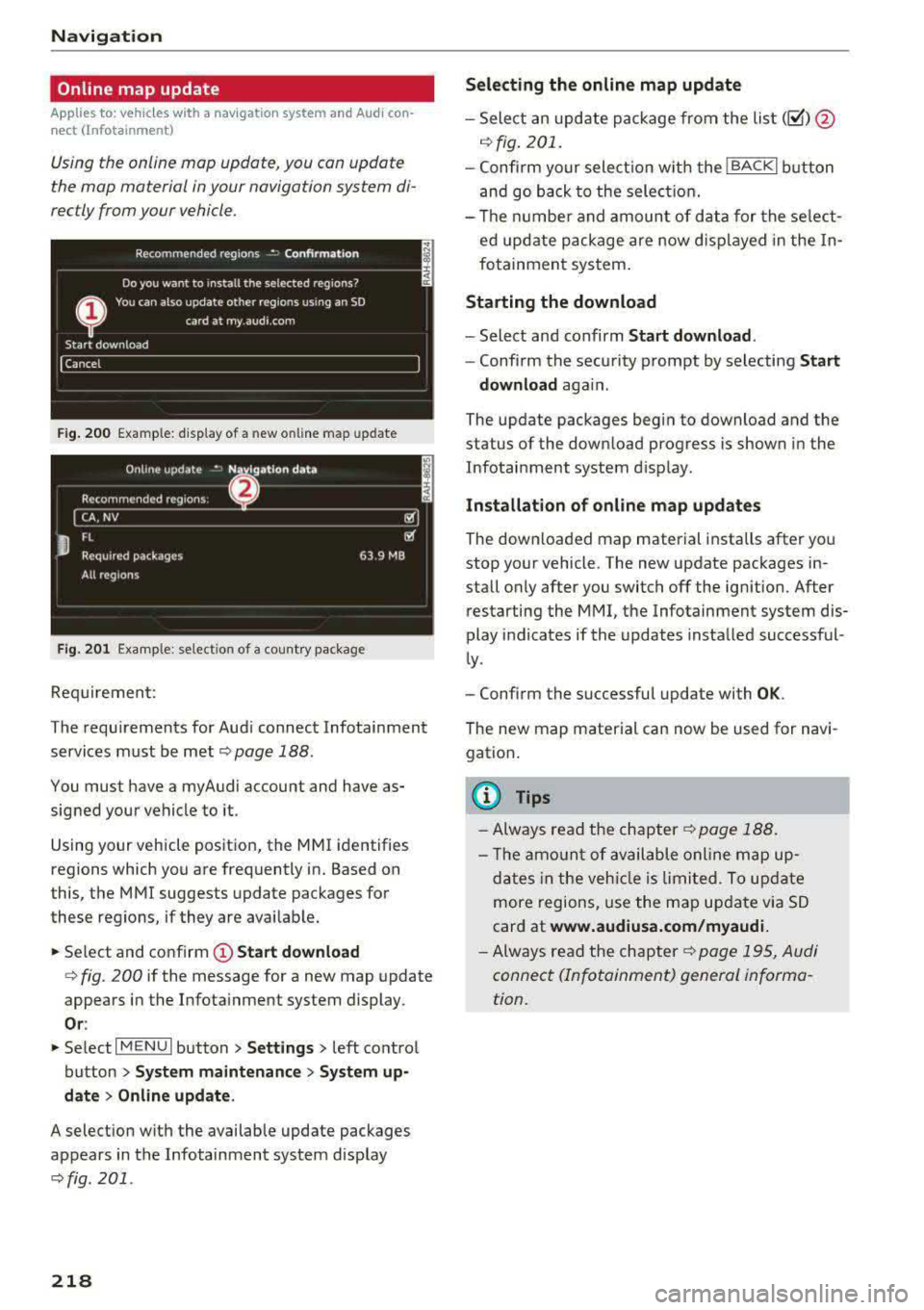
F ig. 20 0 Example: d isp lay of a new o nlin e map update
F ig . 201 Example: se lect io n of a cou ntry pac kage
Req uirement:
The requ irements for Aud i connect Infotainment
services must be met
¢ page 188.
You must have a my Audi account and have as
sig ned your ve hicle to it .
Using your vehicle pos itio n, the M MI identifies
regions which you a re frequently in. Based on
this, the MMI suggests update packages for
these regions, if they are avai lab le.
.,. Se lect and confirm (D Start download
q fig . 200 if the message for a new map update
appears i n the Infota inment system display.
Or :
.,. Se lect I MENU I button> Settings > left co ntro l
button >
System maintenance > System up
date > Online update .
A selection w ith the availab le update packages
appears in the Infotainment system disp lay
¢fig. 201 .
218
Selecting the online map update
-Sele ct an upd ate p ack age fro m the list(~ )@
.:;, fig . 201.
-Confi rm y our select io n w ith the I BACK I button
a nd go back to the sele ction.
- Th e nu mbe r and amoun t of d ata for the se le ct
ed upd ate pa ckage are n ow d is pla yed in the In
fo tainmen t sys tem .
Starting the download
-Select an d confirm Start download .
-Confi rm the secu rity p rompt by selecting Start
download
aga in .
The update packages begin to download and the
status of the down load progress is shown in the
Infotainment system d is p lay.
Installation of online map update s
The downloa ded map material installs after yo u
stop yo ur vehicle . The new update pac kages in
stall o nly after you switch
off the ign ition. After
restarting the MMI, t he Infotainment system dis
play i ndicates if the updates insta lled successf ul
l y .
- Confirm the successful update with
OK .
The new map material can now be used for navi
gation .
@ Tips
-Alw ays re ad the ch apter¢ p age 1 88.
- Th e am ount o f available onlin e m ap u p-
d at es in th e veh icle i s lim ited. To update
more regions, use the ma p up date v ia SD
card at
www.audiusa.com/myaudi.
- Always read the cha pter¢ p ag e 19 5, Au di
connect (In fo ta inment) genera l inf orma
tion .
Page 220 of 403
Traffic information
Introduction
Applies to: ve hicles with nav iga tion system
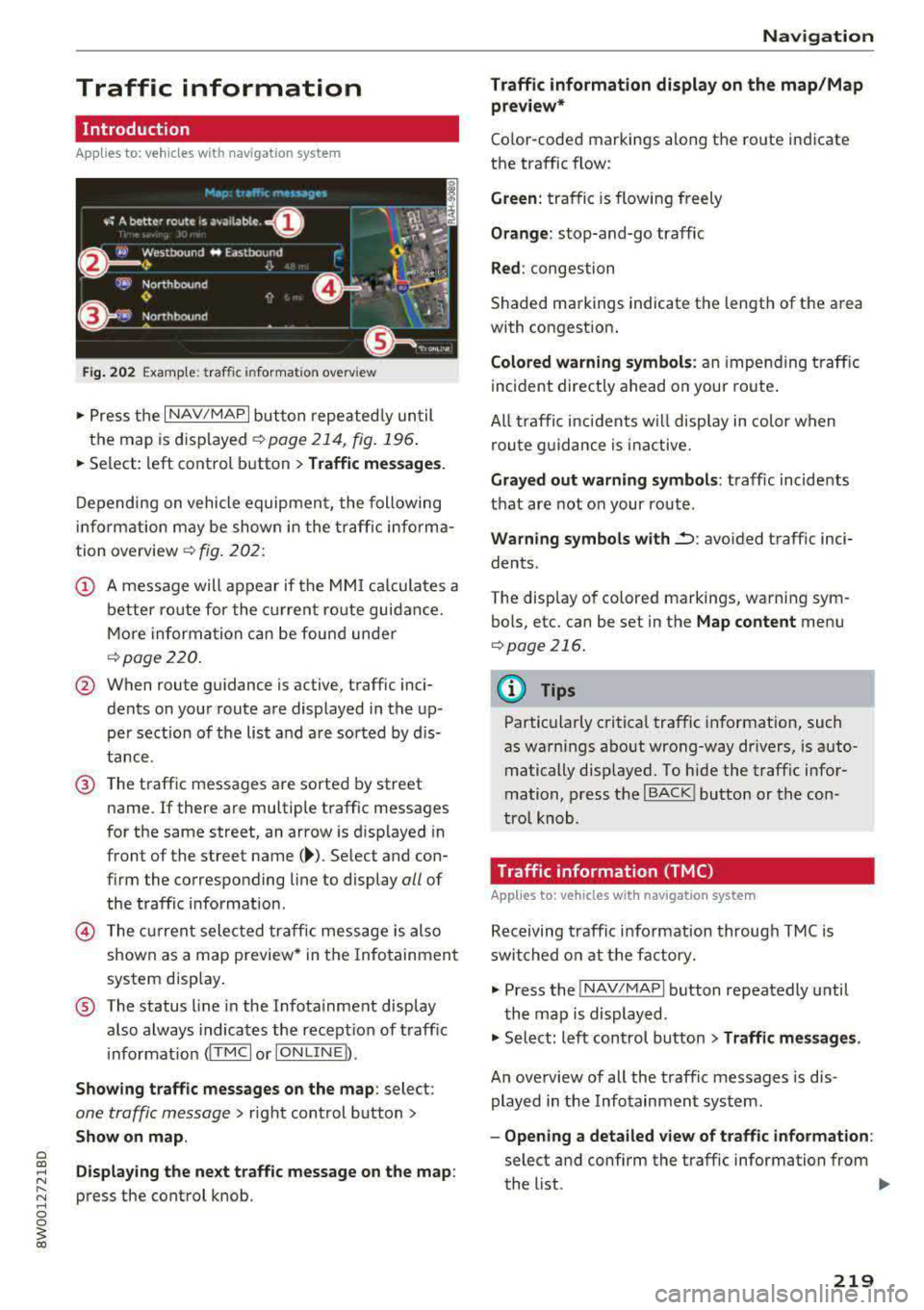
Fig. 202 Example: traffic information overview
"P ress the I NAV/MAPI button repeatedly until
the map is displayed
c>page 214, fig. 196 .
"Se lect: left control button > Traffic messages .
Depending on vehicle equipment, the following
information may be shown in the traffic informa
tion overview
c> fig. 202:
@ A message will appear if the MMI calculates a
better route for the current route guidance.
More information can be found under
c>page220.
@ When route guidance is active, traffic inci
dents on your route are displayed in the up
per sect ion of the list and are sorted by dis
tance.
@ The traffic messages are sorted by street
name.
If there are multiple traffic messages
for the same street, an arrow is d isplayed in
front of the street
name( ~). Select and con
firm the corresponding line to display
all of
the traffic information .
© The current selected traffic message is also
shown as a map preview * in the Infotainment
system disp lay .
® The status line in the Infotainment display
also always indicates the recept ion of traffic
i nformation
dT MCI or IONLINE b.
Showing traffic messages on the map: select:
one traffic message> right control button>
Show on map.
Displaying the next traffic message on the map :
press the control knob.
Navigation
Traffic information display on the map/Map
preview*
Color -coded markings along the route indicate
the traffic flow:
Green: traffic is flowing freely
Orange: stop-and-go traffic
Red: congestion
Shaded markings indicate the length of the area
with congestion.
Colored warning symbols: an impe nding traffic
incident directly ahead on your route .
All traffic incidents w ill display in color when
route guidance is inactive.
Grayed out warning symbols : traffic incidents
that are not on your route .
Warning symbols with~: avoided traff ic inci
dents .
The display of colored markings, warning sym bols, etc. can be set in the
Map content menu
c>page 216.
(@ Tips
Particularly critical traffic information, such
as warnings about wrong-way dr ivers, is auto
matically disp layed. To hide the traffic infor
mation, press the
I BACK ! button or the con
tro l knob.
Traffic information (TMC)
App lies to : veh icles w ith navigat ion syste m
Receiving traffic information through TMC is
switched on at the factory.
"Press the INAV/MAPI button repeatedly until
the map is displayed.
" Select: left control button > Traffic messages.
An overview of all the traffic messages is dis
played in the Infotainment system .
-Opening a detailed view of traffic information:
select and confirm the traffic information from
the list.
..,
219
Page 221 of 403
Navig ation
(D Tips
- TMC traffic reports are not avai lab le in Can
ada. For more information, please contact
Sirius Canada.
- Critical traffic information, such as warn
ings about wrong-way drivers, is automati
cally displayed. To hide the traffic informa
tion, press the
I BACK I button or the control
knob.
Better route
A pp lies to: ve hicles w ith navigation system
By receiving traffic information through TMC,
your MMI calculates a better route
-if available -
and the possible time saved for the current route
guidance . You can decide yourself which route
you would like to use.
~ Press the I NAV/MAPI button repeatedly until
the map is d isplayed .
Requirement: route guidance must be active.
If your MMI has calculated a better route than
the c urrent ro ute guidance, the message
A bette r
route is a vailable.
appears for several seconds
along w ith the time that may be saved. A better
route is indicated in the map v iew by the symbol
tS ¢ page 214, fig . 197 .
A message a lso appears in the traff ic information
overview (i)¢page219, fig. 202.
Apply bette r route
- Press the right contro l button .
- Se lec t and confirm the bet ter rou te.
- T he better route is used for the route guidance
and the ro ute is recalculated.
Online traffic information
A ppl ies to: ve hicles w ith a nav igatio n system a nd Audi con·
n ect (Infotainment)
The MMI can receive real-time online traffic in
formation about congestion, accidents, road
construction and other incidents .
Requirement: the requirements for Audi connect
(Infotainment) must be met
¢ page 188.
220
~ Switch ing online traffic information on and
off :
select I NAV/MAP I b utton> right control
button >
Online tr affic dat a on (~) or off (0).
~ Press the I NAV/MAPI button repeatedly until
the map is displayed.
~ Select: left control button > Traffic messages.
The online traff ic information will also be dis
played in the on line map
v iew ¢ page 216 or on
the standard map
¢page 214, fig. 196 .
If!ONLINEI traffic information cannot be re
ce ived, then traffic information will automatical
l y be rece ived through
! TMCI ¢ page 219 .
@ Tips
-Online traffic i nformation is not availab le in
Canada.
- Always read the
chapter¢ page 195, Audi
connect (Infotainment) general informa
tion.
- Hav ing the Online traffic data funct ion
switched on provides the most accurate re
ports of traffic situations as well as traffic
forecasting. Your vehicle transm its and
processes its anonymo us, encrypted posi
t ion info rmation a t regular i nte rvals to the
t raffic data provider. If you do not want to
u se th is, you c an sw itch off the
online traf
fic information
funct io n at any time.
- Th e
online traffic information netwo rk is
c u rren tly not available in all countries, and
the coverage is not na tionwi de. F or addi
tional information, visi t
www.audiusa.com .
Page 223 of 403
Radio
Radio
Opening the radio
The radio supports the FM, AM and SiriusXM*
(satellite radio) bands. Using the HD Radio
re
ceiver also allows you to receive radio stations
on the FM and AM bands in digital format.
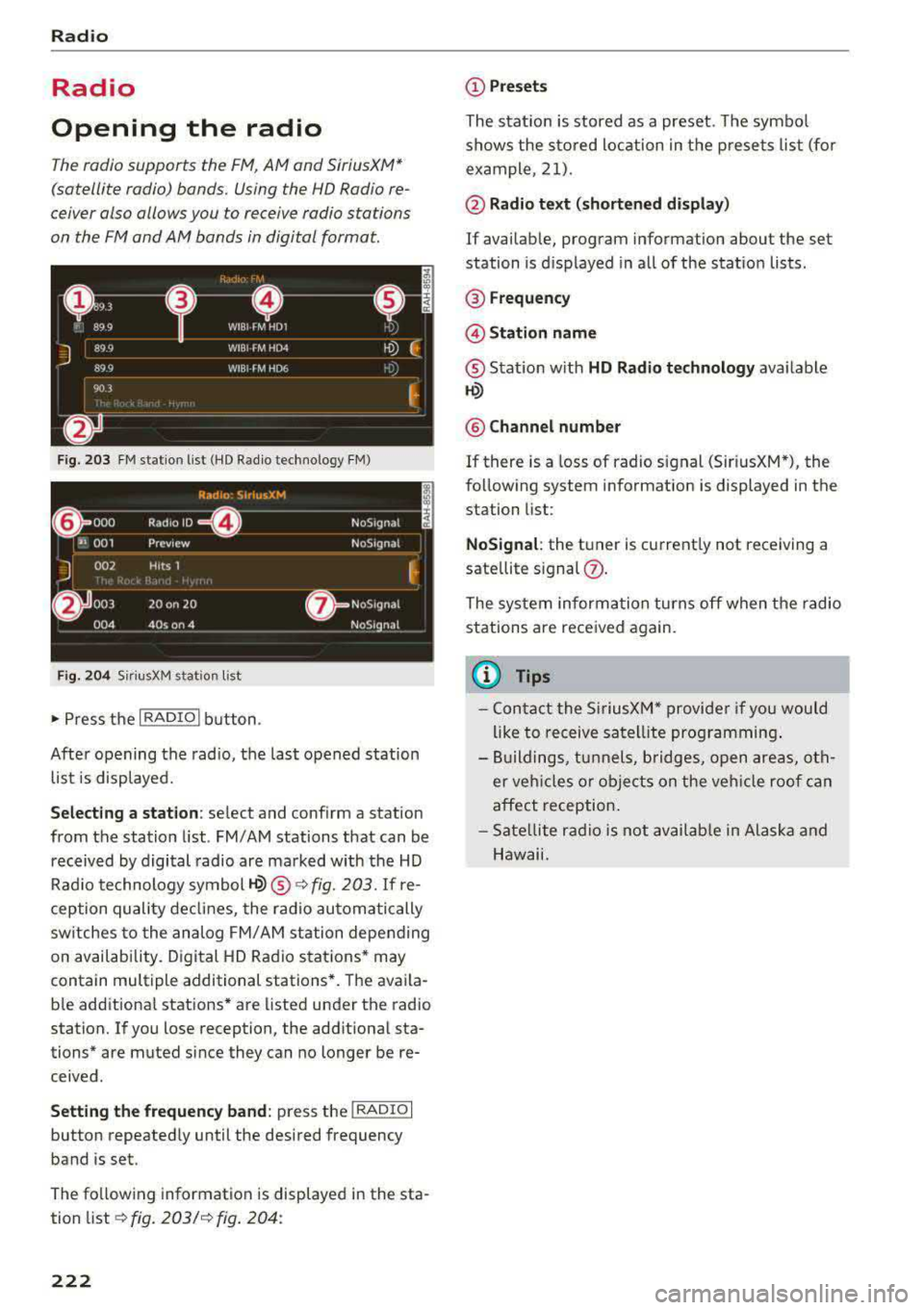
F ig . 203 FM station list (HD Radio technology FM)
F ig. 2 04 Siri usXM stat ion list
~ Press t he I RADIO I button .
After opening the radio, the last opened station
list is displayed.
S e le cting a station : select and conf irm a station
from the station list . FM/ AM stations that can be
received by digital radio are marked with the HD
Rad io technology symbol
1-Q) ® ¢fig. 203. If re
ception quality declines, the radio automatically
sw itches to the analog FM/AM station depending
on availability. Digital HD Radio stations* may
contain multiple additional stations*. The avai la
b le additional stations* are listed under the radio
station. If you lose reception, the additional sta
tions* are muted since they can no longer be
re
ceived .
Setting the fr equ ency band : press the I RADIO I
button repeated ly until the desired frequency
band is set.
The fo llowing information is displayed in the sta
tion
list ¢ fig. 203/ ¢ fig. 204:
222
(D Pre set s
The stat ion is stored as a preset. The symbo l
shows the sto red loc ation in the p resets list (for
example, 21) .
@ Radio text (s horten ed di spl ay)
If availab le, program information about the set
station is d isplayed in all of the statio n lists .
® Frequenc y
@Stati on name
® Stat ion w ith HD Radio technol ogy ava ilable
~
® Chann el numbe r
If there is a Loss of radio signal (Sir i usXM*), the
following system information is displayed in the
station list:
N oSignal : the tuner is current ly not receiving a
sate llite
signal (!).
The system informa tion turns off when the radio
stations are received again.
@ Tips
- Con tact the SiriusXM" provide r if you would
like to receive satel lite programming .
- Buildings, tunnels, bridges, open areas, oth
er veh icles o r objects on the veh icle roof can
affect reception.
- Sate llite rad io is not avai lab le in Alaska and
Hawaii.
Page 227 of 403
Radio
The following settings can be selected, depend
ing on the band that is selected :
Station names (FM)
Varia ble:
sc roll ing text transmitted by the FM
s ta tions is shown in the Infotainment system dis
p lay .
Fixed : scrolling text transm itted by the FM sta
tions is no t sh own in the Infota inment system
d isp lay. On ly the cu rrent sect io n of the scro lling
text is disp layed.
FM /AM HD Radio*
You can sw itch HD Rad io recept ion on o r off .
Station sorting (Siriu sXM*)
You can set the station sorting for SiriusXM sta
tion lists* by:
- Channel number: the stations are sorted in as
cending order according to their station num
ber.
- Channel name : the stations are listed in a lpha
betica l order.
- First category, then channel number : the sta
tions are sorted by their category and then by
their channe l numbers.
- First category, then channel name : the sta
tions are sorted by their category and then by
their channe l names.
Category filter (SiriusXM* )
The stations shown in the s ta tion lis t can be fi l
tered by your pe rsonal prefe rences and by pro
gram type. The program categories that yo u can
select depend on what is offered by yo ur provid
er. Select the
All catego ries option to deactivate
all filter options and display all ava ilable stations
i n the satellite station list.
Troubleshooting
Problem Solution Show "Now Playing" screen
When
the fun ct io n is switched on~ and the st a
tions or presets list is open, the display w ill
switch to the
Show "Now Playing " screen view
after approximate ly five
seconds ~ page 224. De
pending on avai lab ility, information abo ut the
set stat ion (such as stat ion name, artist and sta
tion logo) is displayed in this v iew .
Prefe rred picture vi ew*
You can set your preferred screen view for the
Show "Now Playing " screen ~ page 224.
-Station logo : the st ation logo is displayed, de
pending on ava ilability .
-Cover art : the album cove r is d isplayed if availa -
ble.
Gracenote online database *
Requirement: the MMI must be co nnected to the
Intern et. Th e
Cover art option m ust be selected
~ page 226, Pr eferred picture vi ew *.
When the funct io n is switched on~, the alb um
cover or genre cover for the song that is p lay ing
i s loaded from the Gracenote online da tabase,
depe nd ing on ava ilability.
Subscription status (SiriusXM }*
This opt io n is available when your subscr ipt io n is
about to expire or has already expired . The expi
r ation date for your license is displayed .
Call to SiriusXM *: the contact info rmation for
you r sate llite radio provider is d isplayed . To call
you r sate llite rad io provider using the MMI, press
Call to Siriu sXM*.
A station with poo r reception is no longer Store the stat ion as a preset in advance . Access the p re-
displayed in the station l ist once you sets using the presets
list~ page 225.
swit ch to a d ifferen t sta tion.
226
Page 228 of 403
a co .... N ,....
N .... 0 0
3 co
Media
Introduction
There are various media drives and connections
avai lable in the MMI. For example, you can play
audio/video* fi les from the Jukebox* or connect
your mobile device to the Audi mus ic interface*
and operate it through the MMI.
Notes
General information
Media and format restrictions:
the MMI (includ
ing the SD card reader and the USB storage
de
vice connection*) was tested with a variety of
products and media on the market. However,
there may be cases where individual devices or
media and audio/video files* may not be recog
nized, may play only w ith restrictions, or may not
play at al l.
Digital Rights Management: please note that
the audio/video* files are subject to copyright
protection .
The media drives do not play fi les that are pro
tected by ORM and that are ident ified with the
symbol
l'.D.
Data security: never store important data on SD
cards, the Jukebox*, CDs/DVDs or mobile devices.
Audi AG is not responsible for damaged or lost
files and media.
Loading times : the more files/fo lders/play lists
that are on a storage medium, the longer it will
take to load the audio/video* files. Audi recom
mends using storage media that only contain
au
dio/video files*. To decrease the t i me it takes to
load audio/v ideo files*, create subfolders (for
ex
ample, fo r the art ist or album). The loading time
will also increase when importing fi les.
Additional information : when playing, audio
files are automatically displayed w ith any add i
tional information that is stored (such as the
ar
tist, track and album cover). If this information is
not available o n the storage medium, the MMI
will check the Grace note metadata database .
Media
However, in some cases, the additional informa
tion may not be displayed.
Restricted functionality : reset the Media set
tings
t o the factory default settings if functional
ity is restr icted
¢ page 249.
If functionality is restricted, reset the Jukebox*
to the factory default settings ¢ page 249.
For information about the properties of support
ed media and fi le formats, see
¢page 242 .
(D Note
Always follow the information found in ¢ @ in
Wi-Fi hotspot on page 194.
CD/DVD operation
CD /DVD and format restrictions :
the functiona li
ty of individ ual storage media may be limited due
to the variety of b lank CDs/DVDs available and
the various capacities. Audio CDs or video DVDs
with copy protection, CDs/DVDs that do not con
form to the standard and multi session CDs may
have limited playback or may not play at a ll. Audi
recommends finaliz ing the recording process
when creat ing mult isess ion CDs. Mult isess ion is
not supported for DVDs.
Using CDs/DVDs, the CD dr ive or the DVD drive :
to ensure correct, high-quality playback and to
prevent damage to the dr ive or disc read ing
er
rors, always store CDs/DVDs in a protective
s leeve and do not expose them to direct sunlight.
Do
not u se:
- Damaged, dirty or scratched CDs/DVDs
- Single CDs/DVDs with 3 in (8 cm) d iameter
- CD/DVDs that are not round
- CDs/DVDs with labe ls
- Protective rings
- Clean ing CDs
Thermal protection switch: CD/DVD playback
may be temporarily unavailable if outside tem
peratures are extremely hot or cold. A thermal
protect io n sw itch is insta lled to p rotect the CD/
DVD and the laser.
Laser devices : laser devices are divided into safe-
ty classes 1 to 4 in accordance with DIN IEC 76
.,._
227
Page 229 of 403
Media
(CO) 6/VDE 0837. The optical readers that are in
stalled conform to safety class
1. Lasers in this
class are very weak and well shielded, so there is no danger if used correctly.
Media drives
SO card reader
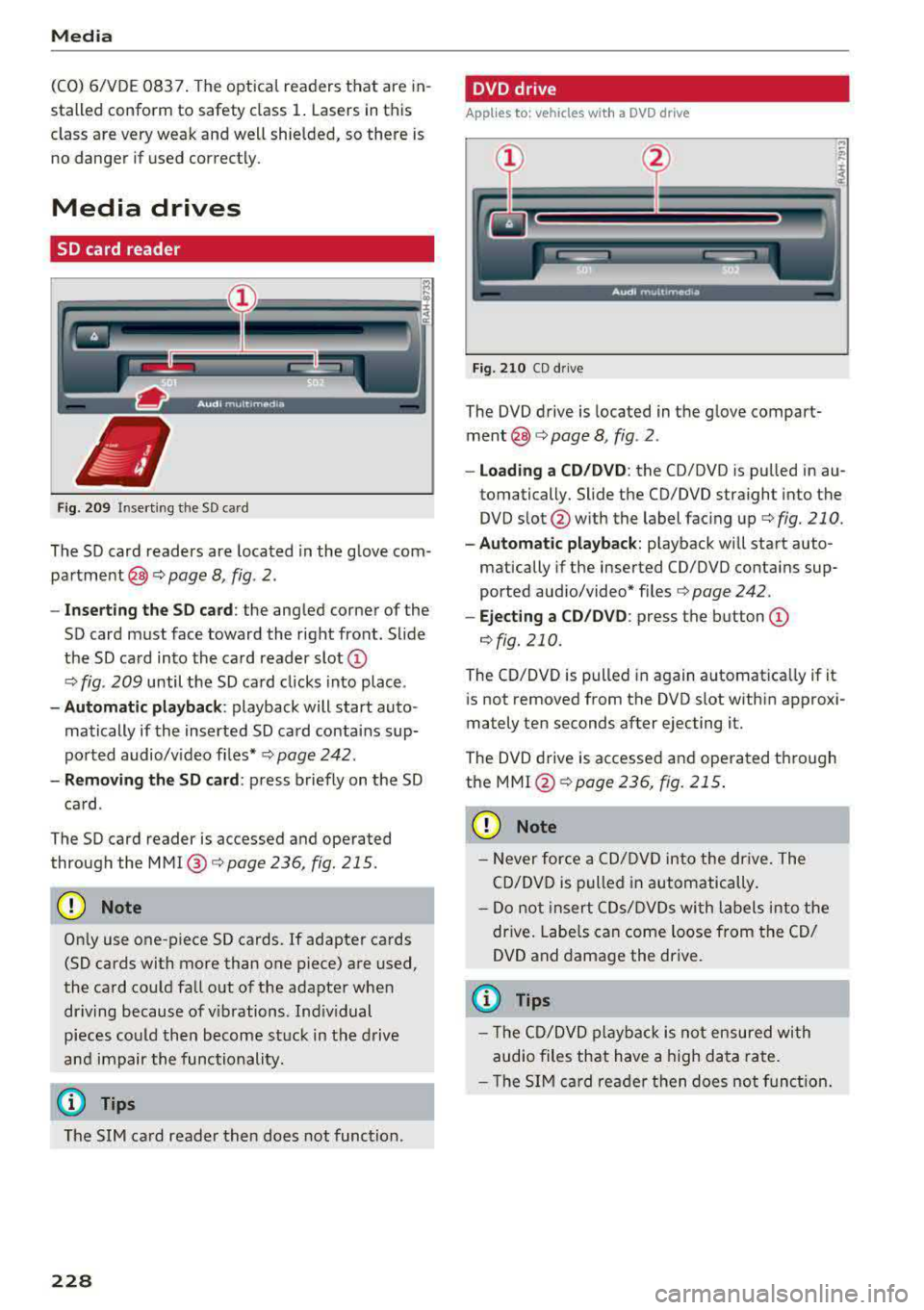
Fig. 209 In serting the SD card
The SD card readers are located in the glove com
partment @c::>
page 8, fig. 2.
- Inserting the SD card: the angled corner of the
SD card must face toward the right front. Slide
the SD card into the card reader slot
CD
c::> fig . 209 until the SD card clicks into place .
-Automatic playback : playback will start auto
matically if the inserted SD card contains sup
ported audio/v ideo f iles* c::>
page 242.
-Removing the SD card : press briefly on the SD
card .
The SD card reader is accessed and operated
through the
MMI @c::>page236, fig. 215.
CD Note
Only use one-piece SD cards. If adapter cards
(SD cards with more than one piece) are used,
the card could fall out of the adapter when
driving because of vibrations . Ind iv idual
pieces could then become stuck in the drive
and impair the functionality.
(0 Tips
The SIM card reader then does not function.
228
DVD drive
Applies to : vehicles wit h a DVD drive
Fig. 210 CD drive
The DVD drive is located in the glove compart
ment@c::> page 8, fig . 2 .
- loading a CD/DVD: the CD/DVD is pulled in au
tomatically. Slide the CD/DVD straight into the
DVD slot @with the label facing up c::>
fig. 210.
-Aut omatic playback : playback will start auto-
matically if the inserted CO/DVD contains sup
ported aud io/video* files c::>
page 242.
-Ejecting a CD/DVD : press the button CD
¢fig. 210.
The CD/DVD is pulled in again automat ica lly if it
is not removed from the DVD slot within approxi
mately ten seconds after ejecting it.
The DVD drive is accessed and operated through
the
MMI @¢poge 236, fig. 215 .
CD Note
-Never force a CD/DVD into the drive. The
CD/DVD is pulled in automatically.
- Do not insert CDs/DVDs with labels into the
drive. Labels can come loose from the CD/
DVD and damage the drive.
(D Tips
- The CD/DVD playback is not ensured with
audio files that have a high data rate.
- Th e SIM card reader then does not function.
Page 230 of 403
a co .... N ,....
N .... 0 0
3 co
CD drive
Applies to: vehicles wit h a CD drive
Fig. 211 CD drive
The CD drive is located in the glove compartment
@c>page 8, fig. 2 .
-Loading a CD: the CD is pulled in automatically .
Slide the CD straight into the CD
slot @
c> fig. 211 with the label facing up.
-Automatic playback : playback will start auto
matically if the inserted CD conta ins supported
audio files
c> page 243, CD drive.
- Ejecting a CD: press the button (D c> fig. 211.
Th@ CD is pulled in again automatically if it is not
removed from the slot w it hi n ten seconds of
ejecting it .
The CD drive is accessed and operated through
the MMI
c>page 236.
(D Note
- Never force a CD into the drive. The CD is
pulled in automatically.
- Do not ins ert CDs with labels into the drive.
Labels can come loose from the CD and
damage the drive.
(D Tips
C D playback cannot be guaranteed with audio
files that have a high data rate.
Media
Jukebox
Applies to: vehicles w ith Jukebox
After you have filled the Jukebox with music and/
or videos, for example from your SD card, you
can play these files directly from the Jukebox .
The Jukebox memory capacity is approximately
10 CB .
.,. Press the I MEDIA ! button. Press the left control
button unti l the sources overv iew
c> page 236
is displayed. Select and confirm Jukebox .
Adding files to the Jukebox
- Press the !MEDIA ! button. Press the left control
button unti l the sources overv iew
c> page 236
is displayed . Select one of the following sources
t o copy to the Jukebox: SD card*, CD-ROM*,
DVD-ROM*, USB storage device*.
Requirement: the media center (for example,
tracks, albums) must be open .
-Selecting an entry : select an entry from the
media center. Se lect : right contro l button
>
Copy to Jukebox > This entry or Entire list.
Requirement: the playlist must be open. See
c>page239 .
-Selecting a track : select the track that is cur
rently playing . Select: r ight control button
>
Copy to jukebox > This track or Entire album
or This artist .
Requirement: a v ideo file must be playing.
- Select: r igh t control button
> Copy to Jukebox .
The copying process begins. The status of the
copy ing process is shown in the MMI.
-Hiding the importing process : select and con
firm
Continue copying in background . Theim
porting process is hidden .
-Canceling the importing process: select and
confirm
Cancel copying : Or: remove the source
that is being imported. Files already copied re
main.
Requirement: the copying process must be active
in the background.
- Showing the copying process: select: right
control button
> Copying in progress.
229
Page 231 of 403
Media
When importing, the audio files are automatical
ly sorted into the media center categories based
on the stored addit ional information
¢ page 237. The copied video files are stored in
t he media center under the
Videos category.
Playing the Jukebox
Requirement: the Jukebox must contain audio/
video fi les
¢ page 229, Adding files to the Juke
box.
The Jukebox is accessed and operated through
the
MMl (D¢page236, fig . 215.
Displaying Jukebox memory capacity
Select: right control button > Jukebox memory
capacity .
Information about the Jukebox memory
cap acity and the number of sto red tracks is dis
p la yed.
Deleting tracks from the Jukebox1
)
Requ irement: the Jukebox must contain audio/
video fi les.
- Delet ing an entry: select an entry from the
Jukebox media center . Select: right control but
ton
> Delete from jukebox > This entry or En
tire list.
- The status of the deleting process is shown in
the MMI. Jukebox playback stops during the de
leting process and starts again automatically
once the dele tion is complete .
0 Note
Do not import aud io/video files when the en
gine is t urned off because this will drain the
veh icle battery.
(D Tips
- Tracks from aud io CDs cannot be imported
to the Jukebox for legal reasons .
- Files that have already been imported are
automat ically recognized and cannot be
copied to the Jukebox again.
- It is not possible to play audio/v ideo* files
in the CD/DVD* drive while importing them.
1> N ot i n t he Playback view.
230
- Th e Juk ebox does not provide an export
function due to legal reasons .
- Files or tracks without additional stored in
formation a re listed as
Unknown . Audi rec
ommends adding additional information
(such as ID3 tags) to audio files.
- Reset the
Jukebox to the factory defau lt
settings when selling your vehicle
¢ page 249.
Bluetooth audio player
App lies to: vehicles wi th Blue toot h audio playe r
With the Bluetoo th audio player, you can play
music wirelessly from your Bluetooth-capable
device (such as a cell phone) through the MMI .
Requirement: the vehicle must be stationary and
the Bluetooth function on your Bluetooth device
and the
Bluetooth audio player ¢ page 250 in
the
MMI must both be sw itched on .
-Connecting a Bluetooth device: press the
!MEDIA ! button. Press the left control button
until the sources overview is displayed . Select
and confirm
Bluetooth audio player @
¢page 236, fig. 216 .
-If necessary, select and confirm, Not connected
> Connect Bluetooth audio player . The Blue
tooth device search starts. Follow the instruc
tions in the MMI.
- Select and confirm the desired Bluetooth de
vice from the list. The
MMI generates a PIN for
the connection.
- Select and confirm
Yes.
-Enter the PIN for connecting on your Bluetooth
dev ice.
Or : if the PIN is already displayed on
your Bl uetoo th device , confi rm it in the Blue
tooth device and in the
MMI. The time allowed
for entering the PIN is limited to approximately
30 seconds.
The media is started and operated thro ugh the
mobile device o r the
MMI, depending on the de-
vice being used.
..,.
Page 232 of 403
@ Tips
-Check for any connection requests on your
Bluetooth device.
- Multiple Bluetooth audio players can be
connected to the MMI, but only one mobile
device can be active.
- Bluetooth protocols AVRCP (1.0/1.3/1.4)
and A2DP are supported.
- Note the volume setting on your Bluetooth device. Audi recommends setting your
mo
bile device to the maximum volume when
using it as a Bluetooth audio player.
- The supported media functions (such as
shuffle) depend on the Bluetooth device
be
ing used.
- For more information on the supported
de
vices, visit www.audiusa.com/bluetooth or
contact an authorized Audi dealer or author
ized Audi Service Facility.
Wi-Fi audio player
Applies to: vehicl es with Wi ·F i audio player
Using the Wi-Fi audio player media source on the
MMI, you can connect and operate your Wi-Fi-ca
pable media player (such as a smartphone) to
wirelessly play music from your media player
li
brary. The media player is connected through the
vehicle's Wi-Fi hotspot. A UPnP Server app or an
integrated UPnPIDLNA server on your media
player is required to access your media player
li
brary.
Requirement: the Wi-Fi function on your media
player must be switched on. The
Audi MMI con·
nect
app or a UPnP server app must be installed
on your media player .
Or: you must be using a
media player with an integrated UPnP/DLNA
server.
- Connecting a media player: press the I MEDIA !
button. Press the left control button until the
sources
overview¢ page 236 is displayed . Se
lect and confirm Wi-Fi audio player (J)
¢page 236, fig . 216 .
~ -If necessary, select and confirm Wi-Fi off>
;::; Turn on Wi-Fi to activate Wi-Fi in the MMI. Se-,....
:::l Leet Wi·Fi settings, if necessary. Select the 0 0
3
same settings on the wireless media player
that are used for the Wi-Fi hotspot.
-Starting the Wi-Fi audio player: start the Audi
MMI connect
app or a UPnP server app, or set
media permissions on your media player.
Operating the media player: the media player is
operated through the MMI.
- Press the left control button repeatedly until
the
Folders menu item appears. Select and con
firm
Folders.
-Playing music from the media player: select
and confirm
Media center .
Web radio:
see ¢ page 232.
A WARNING
= -
-As the driver, do not allow usage of the Wi
Fi hotspot to distract you from driving, as
this could increase the risk of an accident.
- It is only safe to use tablets, laptops, mo·
bile devices and other similar devices when
the vehicle is stationary because, like all
loose objects, they could be thrown around
the inside of the vehicle in a crash and cause
serious injuries . Store these types of devices
securely while driving.
- Do not use any wireless devices on the front
seats within range of the airbags while driv
ing. Also read and follow the warnings in
¢ page 2 75, Front airbags.
(D Note
Always follow the information found in ¢Q) in
Wi-Fi hotspot on page 194.
(D Tips
-Always read the chapter¢ page 195, Audi
connect (Infotainment) general informa
tion.
- Please note that a Wi-Fi connection does
not automatically make it possible to use
the Internet. For additional information,
see
¢ page 188.
- To avoid interruptions during playback, de
activate the power saving function on the
media player or connect it to a charger.
231