instrument cluster AUDI A4 2021 Owner´s Manual
[x] Cancel search | Manufacturer: AUDI, Model Year: 2021, Model line: A4, Model: AUDI A4 2021Pages: 304, PDF Size: 107.89 MB
Page 146 of 304

Driver assistance
— System functions may not be available if
the ESC is limited or switched off, or if
there is a malfunction.
NU ee elie
Applies to: vehicles with Audi pre sense basic
Audi pre sense basic is automatically active at
speeds of approximately 20 mph (30 km/h) and
higher. Audi pre sense basic can trigger preemp-
tive safety measures during emergency braking
and dangerous braking maneuvers as well as in
unstable driving situations, such as oversteering
or understeering > page 143, Audi pre sense
safety measures.
The message Audi pre sense Bo / (@) will warn
you about the danger.
Z\ WARNING
Observe the safety precautions and note the
limits of the assist systems, sensors, and
cameras > page 117.
ON Tee ee La)
Applies to: vehicles with Audi pre sense city
Within the limits of the system, Audi pre sense
city can warn about an impending front end colli-
sion and brake the vehicle strongly, if necessary.
The system uses the camera behind the wind-
shield and is available at speeds above approxi-
mately 6 mph (10 km/h).
Driving situations
The situations to which the system reacts de-
pends on the vehicle speed.
Automatic braking interventions are available at
vehicle speeds up to approximately 50 mph
(85 km/h).
Up to speeds of approximately 50 mph
(85 km/h), the system may react to the following
situations:
— Pedestrians are moving inside your lane
144
Up to speeds of approximately 155 mph
(250 km/h), the system may react to the follow-
ing situations:
—Avehicle driving ahead clearly applies the
brakes
— When approaching a vehicle ahead that is clear-
ly traveling more slowly
— When approaching a stationary vehicle
Prewarning
To warn about detected dangers, Audi pre
sense 1) / {@) will appear in the instrument clus-
ter and an audio signal will sound.
A brief application of the brakes
If a collision is imminent, there may be an acute
warning using a brief application of the brakes.
You
will also be warned about the danger by an
indicator in the instrument cluster display. You
may only be able to avoid a collision by swerving
or braking strongly.
Automatic braking force increase
If there is an impending collision and you are not
applying the brakes enough, the braking force
may be increased, depending on the situation.
Automatic braking
If you do not react to the acute warning, the sys-
tem may apply the brakes with strong braking
force within the limits of the system in order to
reduce the speed of impact in the event of a colli-
sion.
If the brakes are applied until the vehicle is sta-
tionary, © / Please take over! will appear in
the instrument cluster and you must take over
control of the vehicle.
ZA\ WARNING
— Observe the safety precautions and note the
limits of the assist systems, sensors, and
cameras > page 117.
— Audi pre sense cannot overcome natural
physical laws. It is a system designed to as-
sist and it cannot prevent a collision in every
circumstance. The driver must always inter-
vene. The driver is always responsible for
braking at the correct time. Do not let the >
Page 148 of 304

Driver assistance
— Swerve assist does not react to pedestrians,
animals, crossing objects, and objects not
detected as vehicles.
Gi) Tips
— System functions may not be available if the
ESC is limited or switched off, or if there is a
malfunction.
— An indicator in the instrument cluster will
inform you when there is an intervention.
Turn assist
Applies to: vehicles with turn assist
When turning left), turn assist can help to re-
duce the risk of a collision with an oncoming ve-
hicle by using braking action to keep your vehicle
in its lane. The function is only available when
the turn signal is turned on and at speeds up to
approximately 6 mph (10 km/h).
ZA WARNING
— Observe the safety precautions and note the
limits of the assist systems, sensors, and
cameras > page 117.
— The turn assist does not react to pedes-
trians, animals, crossing objects, and ob-
jects not detected as vehicles.
@) Tips
— System functions may not be available if the
ESC is limited or switched off, or if there is a
malfunction.
— An indicator in the instrument cluster will
inform you when there is an intervention.
PNM lm e es)
Applies to: vehicles with Audi pre sense
You can switch Audi pre sense and the associated
systems on or off, or adjust them individually.
The adjustment options depend on the vehicle
equipment.
2) When making a right turn in countries with left-hand drive
vehicles.
2) Incertain countries
146
> Applies to MMI: Select on the home screen: VE-
HICLE > Driver assistance > Audi pre sense.
Setting the prewarning
You can adjust the warning time for the prewarn-
ing”) individually (Early/Medium/Late) or switch
the prewarning off.
Set the warning time for the early warning to
Early at first. If you feel that the prewarnings ap-
pear too early, then set the warning time to Me-
dium. The Late warning time should only be set
in special circumstances.
(i) Tips
— If Audi pre sense is switched off, it switches
on again automatically once the ignition is
switched on again).
— Switch Audi pre sense off when you are not
using public streets, when loading the vehi-
cle onto a vehicle carrier, train, ship, or oth-
er type of transportation, or when towing
the vehicle. This can help to prevent an un-
desired intervention from the Audi pre
sense system.
— Certain settings are automatically stored
and assigned to the remote control key be-
ing used.
Applies to: vehicles with Audi pre sense
re) or is displayed when there is a malfunc-
tion, the Audi pre sense functions may be un-
available or may be limited.
A message that indicates the cause and possible
solution
may appear with some displays. The
weather conditions may be too poor or a sensor
may be covered. Bring the vehicle to a full stop,
switch the ignition off, and clean the area in front
of the sensors > page 119.
If the message still appears after switching the
ignition on again, have an authorized repair facili-
ty correct the malfunction as soon as possible.
Page 168 of 304
Telephone
Mobile device reminder signal
Applies to: vehicles with Audi phone box
When the device reminder signal is switched on,
you will be notified that your mobile device is still
in the Audi phone box when you leave the vehicle.
Requirement: your mobile device must be located
in the Audi phone box (if Qi-capable) or connect-
ed to the Audi music interface with a USB adapt-
er, and the Audi smartphone interface must be
active or your iPhone must be connected to the
MMI via Bluetooth and charging using a USB
adapter connected to the Audi music interface.
> Applies to: MMI: Select on the home screen:
SETTINGS > General > Reminder signal and
mobile device charging.
The following settings may be available, depend-
ing on vehicle equipment:
— Signal tone
— Off
Spoken cue
this setting is switched on at the factory.
Mobile device notes: reminder, charge level
When this function is switched on, the charge
status of your mobile device is displayed. You will
also be reminded not to forget your mobile de-
vice when Leaving the vehicle.
Using the telephone
Accessing the telephone functions
Applies to: vehicles with telephone
Gi
© Ly cyl,
B a0 a8
> a PY =.)
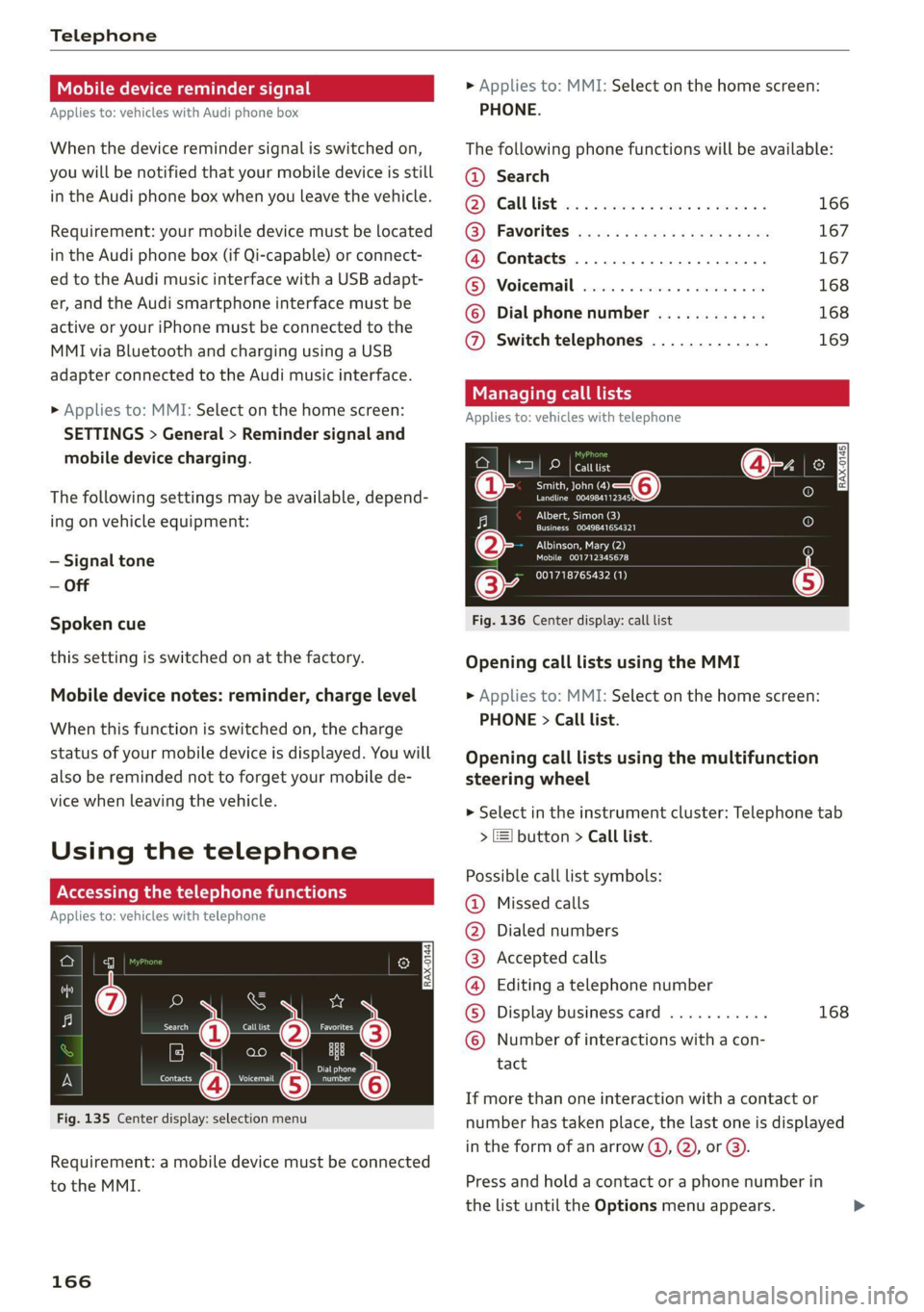
Fig. 135 Center display: selection menu
Requirement: a mobile device must be connected
to the MMI.
166
> Applies to: MMI: Select on the home screen:
PHONE.
The following phone functions will be available:
@ Search
GB! CAULLISE cscs x a cress x x onoowne x x vreeatn « 166
()! Favorites! eee ss cee ss ears se Pes 167
@ Contacts ..................00. 167
MEY! Voicemail. csiciss . csesese s sxsxece v = 208 168
© Dial phone number ............ 168
@ Switch telephones ............. 169
Managing call lists
Applies to: vehicles with telephone
2D | catttist
eee o—@
Pec CPE | RAX-0145]
CNet ed)
Cree aL eoer |
Albinson, Mary (2)
SOME e271
001718765432 (1)
Fig. 136 Center display: call list
Opening call lists using the MMI
> Applies to: MMI: Select on the home screen:
PHONE > Call list.
Opening call lists using the multifunction
steering wheel
> Select in the instrument cluster: Telephone tab
> ) button > Call list.
Possible call list symbols:
Missed calls
Dialed numbers
Accepted calls
Editing a telephone number
Display business card ........... 168
QOOOCLO Number of interactions with a con-
tact
If more than one interaction with a contact or
number has taken place, the last one is displayed
in the form of an arrow @), @), or @).
Press and hold a contact or a phone number in
the list until the Options menu appears.
Page 169 of 304
8W1012721BC
Telephone
Depending on your mobile device, the following
options may be available:
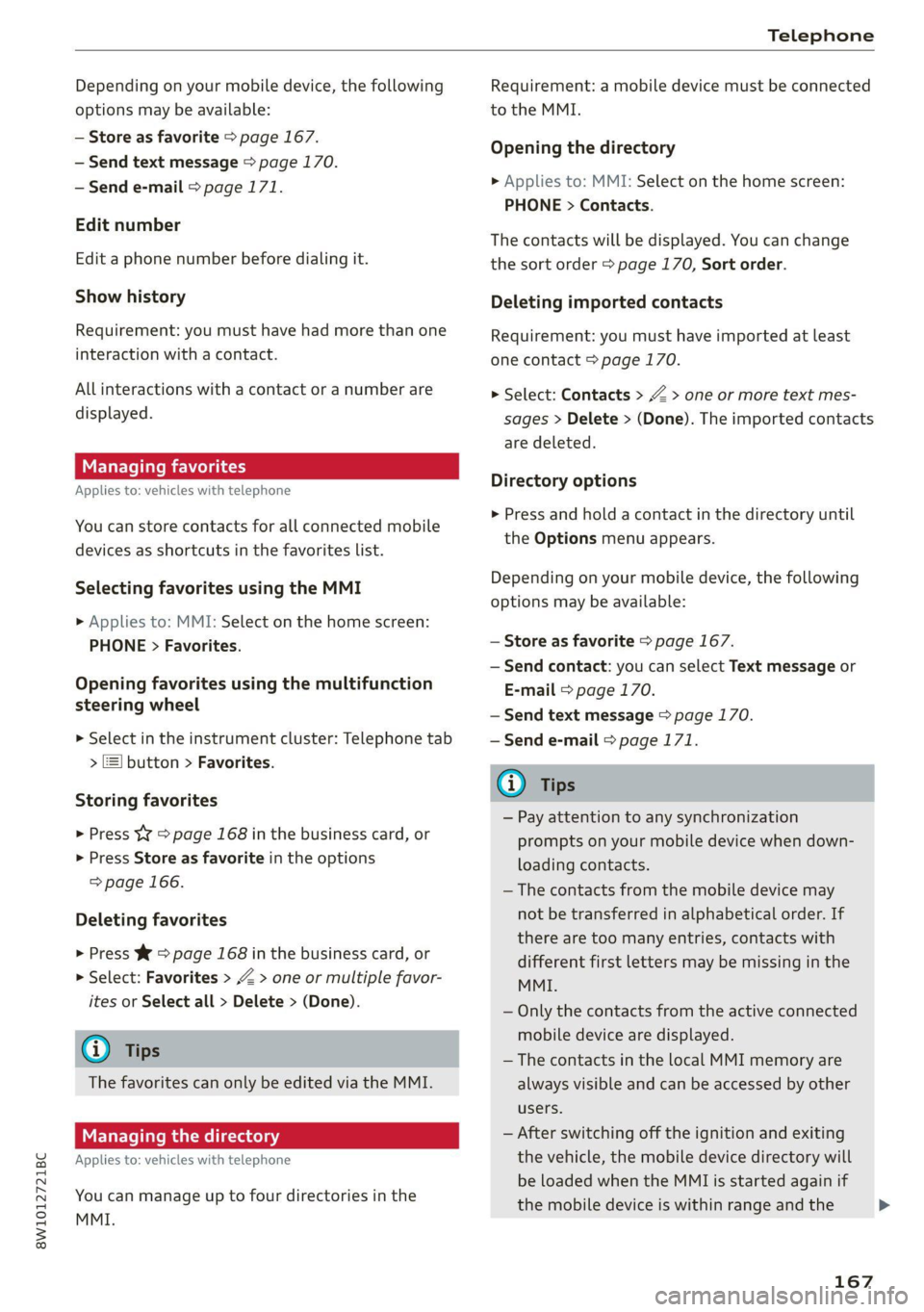
— Store as favorite > page 167.
— Send text message > page 170.
— Send e-mail > page 171.
Edit number
Edit a phone number before dialing it.
Show history
Requirement: you must have had more than one
interaction with a contact.
All interactions with a contact or a number are
displayed.
Managing favorites
Applies to: vehicles with telephone
You can store contacts for all connected mobile
devices as shortcuts in the favorites list.
Selecting favorites using the MMI
> Applies to: MMI: Select on the home screen:
PHONE > Favorites.
Opening favorites using the multifunction
steering wheel
> Select in the instrument cluster: Telephone tab
> 2) button > Favorites.
Storing favorites
> Press YY page 168 in the business card, or
> Press Store as favorite in the options
=> page 166.
Deleting favorites
> Press W © page 168 in the business card, or
> Select: Favorites > Z > one or multiple favor-
ites or Select all > Delete > (Done).
@) Tips
The favorites can only be edited via the MMI.
Managing the directory
Applies to: vehicles with telephone
You can manage up to four directories in the
MMI.
Requirement: a mobile device must be connected
to the MMI.
Opening the directory
> Applies to: MMI: Select on the home screen:
PHONE > Contacts.
The contacts will be displayed. You can change
the sort order > page 170, Sort order.
Deleting imported contacts
Requirement: you must have imported at least
one contact > page 170.
> Select: Contacts > Z > one or more text mes-
sages > Delete > (Done). The imported contacts
are deleted.
Directory options
> Press and hold a contact in the directory until
the Options menu appears.
Depending on your mobile device, the following
options may be available:
— Store as favorite > page 167.
— Send contact: you can select Text message or
E-mail > page 170.
— Send text message > page 170.
— Send e-mail > page 171.
i) Tips
— Pay attention to any synchronization
prompts on your mobile device when down-
loading contacts.
— The contacts from the mobile device may
not be transferred in alphabetical order. If
there are too many entries, contacts with
different first letters may be missing in the
MMI.
— Only the contacts from the active connected
mobile device are displayed.
— The contacts in the local MMI memory are
always visible and can be accessed by other
users.
— After switching off the ignition and exiting
the vehicle, the mobile device directory will
be loaded when the MMI is started again if
the mobile device is within range and the
167
>
Page 183 of 304
8W1012721BC
Navigation
Navigation
Opening navigation
Applies to: vehicles with navigation system
Fig. 139 Route guidance not started
The navigation system directs you to your desti-
nation, around traffic incidents, and on alterna-
tive routes, if desired.
Opening navigation
» Applies to: MMI: Press NAVIGATION on the
home screen.
After accessing the navigation for the first time,
the map is displayed.
Opening navigation using the multifunction
steering wheel
> Applies to: multifunction steering wheel: Select
the Navigation tab in the instrument cluster.
> To display navigation when route guidance has
started, select in the instrument cluster: the
button > Map.
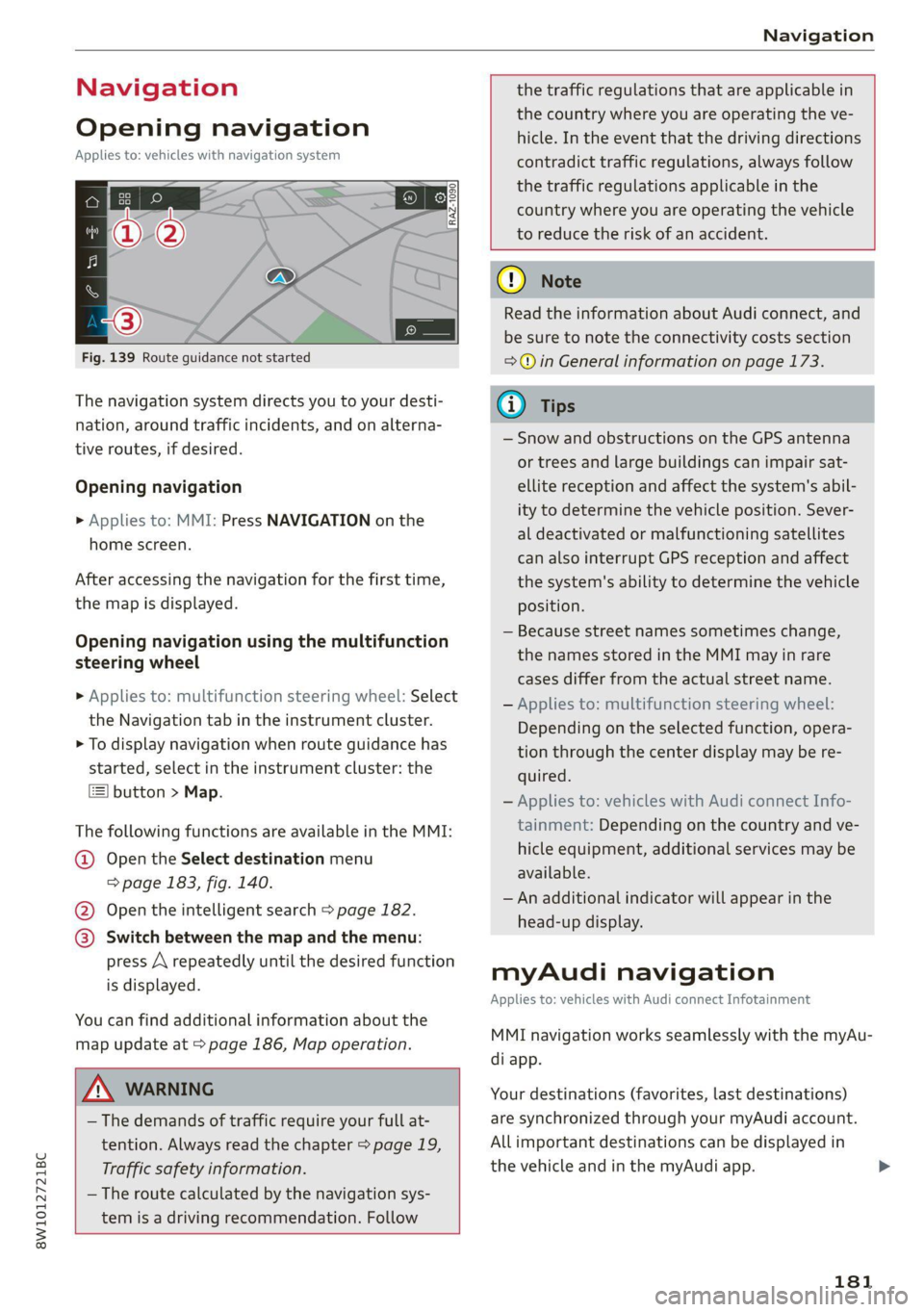
The following functions are available in the MMI:
@ Open the Select destination menu
=> page 183, fig. 140.
@ Open the intelligent search > page 182.
@ Switch between the map and the menu:
press A repeatedly until the desired function
is displayed.
You can find additional information about the
map update at > page 186, Map operation.
ZA WARNING
— The demands of traffic require your full at-
tention. Always read the chapter > page 19,
Traffic safety information.
— The route calculated by the navigation sys-
tem is a driving recommendation. Follow
the traffic regulations that are applicable in
the country where you are operating the ve-
hicle. In the event that the driving directions
contradict traffic regulations, always follow
the traffic regulations applicable in the
country where you are operating the vehicle
to reduce the risk of an accident.
() Note
Read the information about Audi connect, and
be sure to note the connectivity costs section
=>© in General information on page 173.
(i) Tips
— Snow and obstructions on the GPS antenna
or trees and large buildings can impair sat-
ellite reception and affect the system's abil-
ity to determine the vehicle position. Sever-
al deactivated or malfunctioning satellites
can also interrupt GPS reception and affect
the system's ability to determine the vehicle
position.
— Because street names sometimes change,
the names stored in the MMI may in rare
cases differ from the actual street name.
— Applies to: multifunction steering wheel:
Depending on the selected function, opera-
tion through the center display may be re-
quired.
— Applies to: vehicles with Audi connect Info-
tainment: Depending on the country and ve-
hicle equipment, additional services may be
available.
— An additional indicator will appear in the
head-up display.
myAudi navigation
Applies to: vehicles with Audi connect Infotainment
MMI navigation works seamlessly with the myAu-
di app.
Your destinations (favorites, last destinations)
are synchronized through your myAudi account.
All important destinations can be displayed in
the vehicle and in the myAudi app.
181
Page 185 of 304
8W1012721BC
Navigation
Check the spelling of the term that was
searched or check the search area
=> page 182.
— Distances to points of interest are displayed
as a straight-line distance from your current
location. The actual distance from your cur-
rent location to the point of interest is up-
dated automatically. The list of points of in-
terest that were found is not resorted when
this happens.
Select destination
Applies to: vehicles with navigation system
| perce cae
D || w 9
A Last Cea a
| Cesare Pics
a
RAX-0146
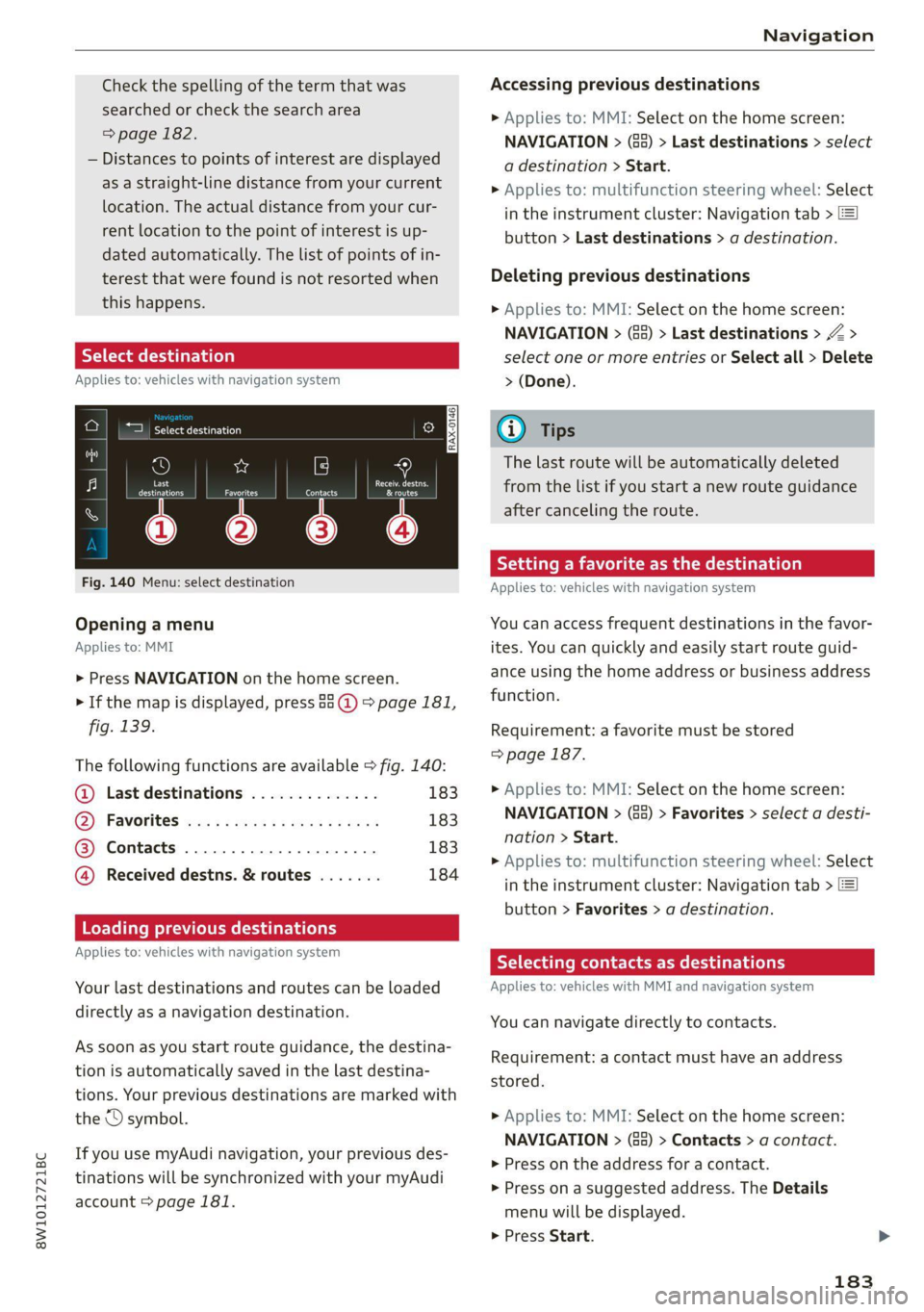
Fig. 140 Menu: select destination
Opening a menu
Applies to: MMI
> Press NAVIGATION on the home screen.
> If the map is displayed, press 88 @) > page 181,
fig. 139.
The following functions are available > fig. 140:
@ Last destinations e 183
Q), FaVOrites was scenes sy ones es eras 183
@ Contacts ...................., 183
@ Received destns. & routes ....... 184
Loading previous destinations
Applies to: vehicles with navigation system
Your last destinations and routes can be loaded
directly as a navigation destination.
As soon as you start route guidance, the destina-
tion is automatically saved in the last destina-
tions. Your previous destinations are marked with
the © symbol.
If you use myAudi navigation, your previous des-
tinations will be synchronized with your myAudi
account > page 181.
Accessing previous destinations
> Applies to: MMI: Select on the home screen:
NAVIGATION > (8) > Last destinations > select
a destination > Start.
> Applies to: multifunction steering wheel: Select
in the instrument cluster: Navigation tab >
button > Last destinations > a destination.
Deleting previous destinations
>» Applies to: MMI: Select on the home screen:
NAVIGATION > (85) > Last destinations > Z >
select one or more entries or Select all > Delete
> (Done).
Gi) Tips
The last route will be automatically deleted
from the list if you start a new route guidance
after canceling the route.
Setting a favorite as the destination
Applies to: vehicles with navigation system
You can access frequent destinations in the favor-
ites. You can quickly and easily start route guid-
ance using the home address or business address
function.
Requirement: a favorite must be stored
=> page 187.
> Applies to: MMI: Select on the home screen:
NAVIGATION > (Ga) > Favorites > select a desti-
nation > Start.
> Applies to: multifunction steering wheel: Select
in the instrument cluster: Navigation tab >
button > Favorites > a destination.
SY lad dled ee Cully
Applies to: vehicles with MMI and navigation system
You can navigate directly to contacts.
Requirement: a contact must have an address
stored.
» Applies to: MMI: Select on the home screen:
NAVIGATION > (5) > Contacts > a contact.
> Press on the address for a contact.
> Press on a suggested address. The Details
menu will be displayed.
> Press Start.
183
Page 187 of 304
8W1012721BC
Navigation
Selecting map content (such as POIs) as the
destination
Requirement: map content must be displayed
=>page 191.
> Press on map content on the map (for example,
ii).
Selecting the destination
> Select: 4 > Start.
Route guidance will be activated and the map will
be displayed > page 185, fig. 142.
ST) ee mee EL
Applies to: vehicles with navigation system
You can enter additional destinations during ac-
tive route guidance.
Entering a stopover
Requirement: route guidance must be active.
> Enter a destination > page 182.
Displaying stopovers or the route plan
All destinations are listed in the route plan.
> Press on Pin the side menu on the map
=> page 185, fig. 142.
Editing stopovers
> Press on Pin the side menu on the map
=> page 185, fig. 142.
> Adding a stopover: Select: Add destination >
select a destination > Add to route.
> Moving a stopover: press Z. Touch the > sym-
bol and move the entry to the desired position.
Press Done.
> Deleting a stopover: Select: Z > one or more
entries or Select all > Delete > (Done).
Stopping route guidance
Applies to: vehicles with navigation system
Requirement: route guidance must be active and
the map must be displayed.
> Applies to: MMI: Press BX > page 185, fig. 142.
> Applies to: multifunction steering wheel: Select
in the instrument cluster: Navigation tab >
button > Cancel route guidance.
Map
Applies to: vehicles with navigation system
eee)
Pn ae
ie ie [Mena
Fig. 143 Marked map object
Opening the map
Applies to: MMI
> Press NAVIGATION on the home screen.
> If necessary, press /\ to display the map.
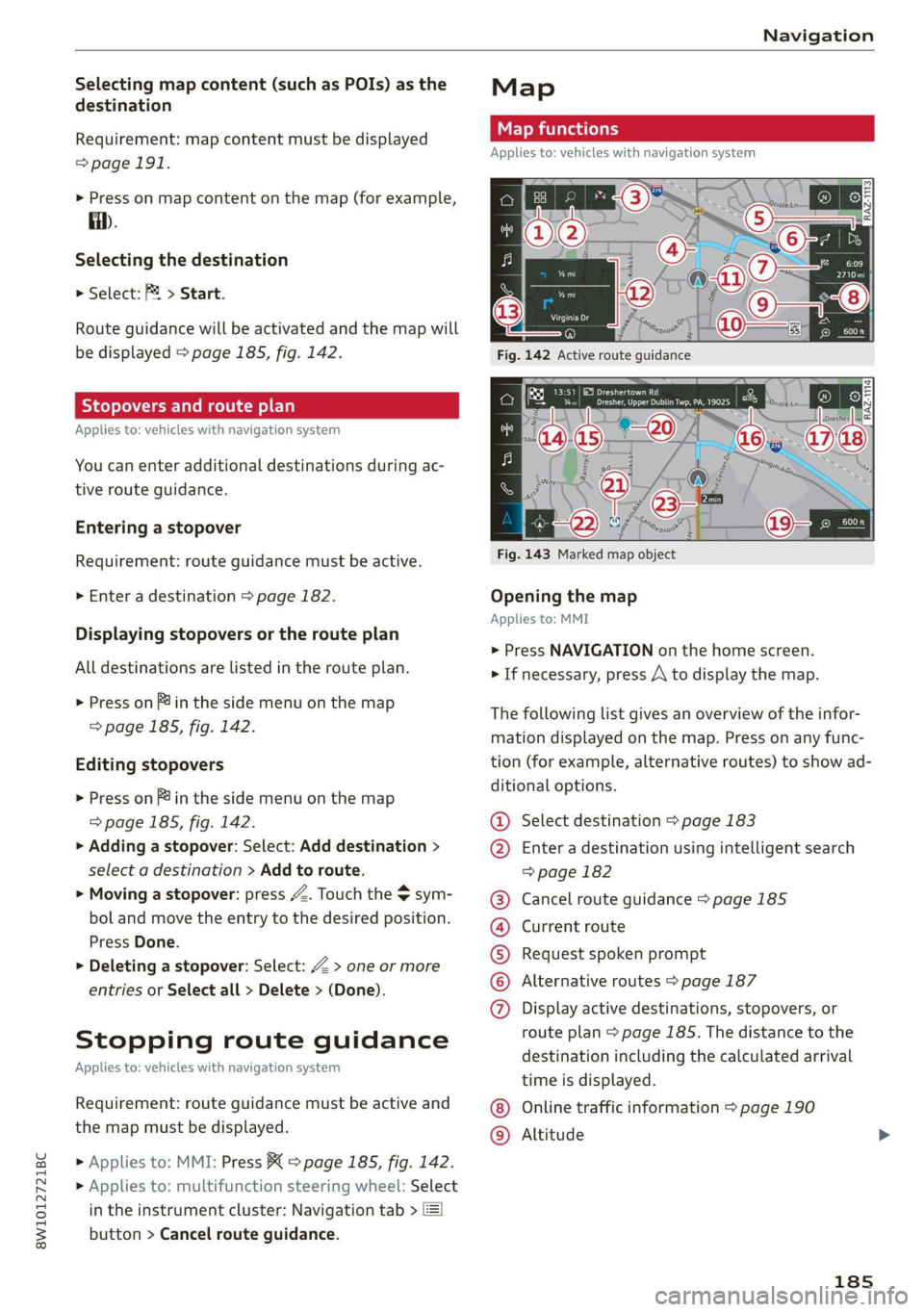
The following list gives an overview of the infor-
mation displayed on the map. Press on any func-
tion (for example, alternative routes) to show ad-
ditional options.
Select destination > page 183
Enter a destination using intelligent search
=> page 182
Cancel route guidance > page 185
Current route
Request spoken prompt
Alternative routes > page 187
COOH
OO
Display active destinations, stopovers, or
route plan > page 185. The distance to the
destination including the calculated arrival
time is displayed.
Online traffic information > page 190
Altitude ©®
185
Page 189 of 304
8W1012721BC
Navigation
@) Tips
Certain gestures may not be available on all
touch displays or in every menu.
te guidance
Applies to: vehicles with navigation system and Audi virtual
cockpit
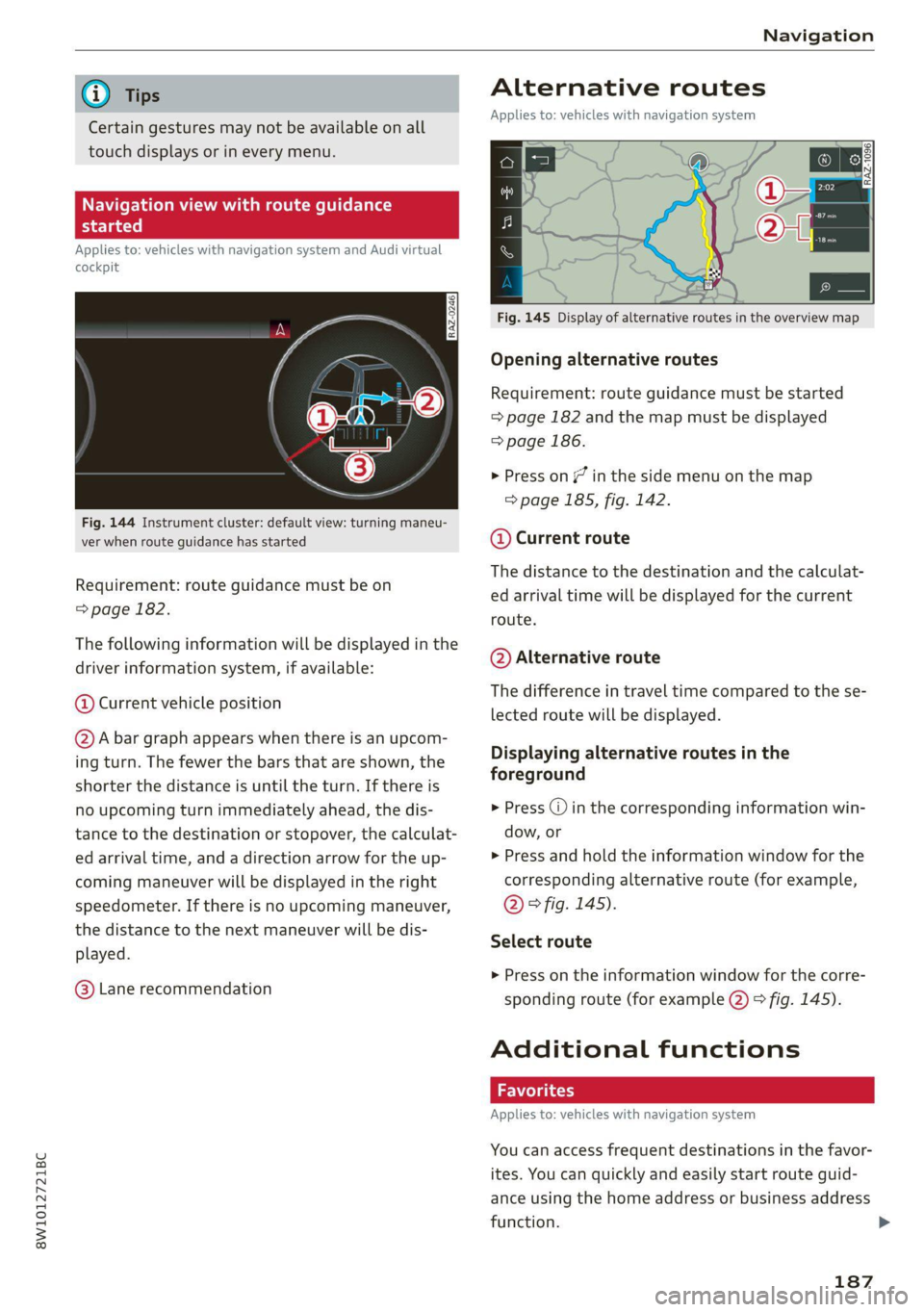
Fig. 144 Instrument cluster: default view: turning maneu-
ver when route guidance has started
Requirement: route guidance must be on
=> page 182.
The following information will be displayed in the
driver information system, if available:
@ Current vehicle position
@A bar graph appears when there is an upcom-
ing turn. The fewer the bars that are shown, the
shorter the distance is until the turn. If there is
no upcoming turn immediately ahead, the dis-
tance to the destination or stopover, the calculat-
ed arrival time, and a direction arrow for the up-
coming maneuver will be displayed in the right
speedometer. If there is no upcoming maneuver,
the distance to the next maneuver will be dis-
played.
@® Lane recommendation
Alternative routes
Applies to: vehicles with navigation system
3 S|
ny < &
Fig. 145 Display of alternative routes in the overview map
Opening alternative routes
Requirement: route guidance must be started
= page 182 and the map must be displayed
=> page 186.
> Press on (7 in the side menu on the map
=> page 185, fig. 142.
@ Current route
The distance to the destination and the calculat-
ed arrival time will be displayed for the current
route.
@ Alternative route
The difference in travel time compared to the se-
lected route will be displayed.
Displaying alternative routes in the
foreground
> Press @ in the corresponding information win-
dow, or
> Press and hold the information window for the
corresponding alternative route (for example,
@° fig. 145).
Select route
> Press on the information window for the corre-
sponding route (for example @) > fig. 145).
Additional functions
Favorites
Applies to: vehicles with navigation system
You can access frequent destinations in the favor-
ites. You can quickly and easily start route guid-
ance using the home address or business address
function.
187
Page 193 of 304
8W1012721BC
Navigation
OTN eee late celeurl ela)
Applies to: vehicles with navigation system and online traffic
information
The MMI can receive real-time online traffic infor-
mation about congestion, accidents, road con-
struction, and other incidents.
Requirement: the MMI must be connected to the
Internet > page 173, Audi connect. Traffic infor-
mation must be switched on in the MMI
>page 191.
Traffic information will be displayed on the
standard map > page 185, fig. 142.
Online traffic information is also displayed on the
standard map > page 188.
G) Tips
— Having the online traffic information func-
tion switched on provides the most accurate
reports of traffic situations and traffic fore-
casting. Your vehicle transmits and process-
es its anonymous, encrypted position infor-
mation at regular intervals to the traffic da-
ta provider. You can switch off data transfer
at any time > page 278.
— The online traffic information network is
not available in all countries, and the cover-
age is not nationwide.
Settings
Applies to: vehicles with navigation system
You can adjust the navigation system settings in
the instrument cluster and in the MMI display
separately. The settings depend on the country
and vehicle equipment.
Accessing settings
> Applies to: MMI: Select on the home screen:
NAVIGATION > ©}.
Accessing settings using the multifunction
steering wheel
> Applies to: multifunction steering wheel: Select
in the instrument cluster: Navigation tab >
button.
Please note that a setting applied to the multi-
function steering wheel is only valid for the in-
strument cluster map.
Map settings
Satellite map: see > page 188.
Traffic: you can display current traffic informa-
tion on the map.
— Free flowing traffic
— Traffic obstructions
— Traffic incidents
Map colors
— Automatic: the map display adapts to the light-
ing conditions (for example, by changing from
day to night when driving through a tunnel).
— Day or Night
Map orientation
— 2D heading-up map/2D north-up map: the
current vehicle position is displayed. The map is
oriented in the direction of travel or to the
north.
— 3D heading-up map: the current vehicle posi-
tion is shown on a three-dimensional map and
is aligned to the direction of travel.
— Overview: the entire route from the vehicle po-
sition to the destination or the next stopover is
displayed on the map. The map is oriented to
the north.
Automatic zoom
— On: the map scale is adapted automatically de-
pending on the type of road being traveled (ex-
pressway, highway, other roads) so that you al-
ways have an optimal overview of the road
ahead. When route guidance is active, the scale
is adjusted automatically for a better detailed
view when there are upcoming maneuvers.
— Intersection: when route guidance is active, the
scale is adjusted automatically for a better de-
tailed view when there are upcoming maneu-
vers.
— Off
MMI map contents/Map content: you can switch
the display of additional information (such as
POIs) on the map in the center display on or off. >
191
Page 196 of 304

Radio
> Select the radio/media tab in the instrument > To select a station or a source, turn and press
cluster. the left thumbwheel.
> To switch between radio and media, select the
button > Switch to radio/Switch to media. @) Tips
> Turn the left thumbwheel to display the station
Applies to: multifunction steering wheel: De-
list. 5 .
, : = pending on the selected function, operation
> fe switch to a different source, press the [=] through the MMI may be required.
utton.
Radio functions
[RAX-0191
Cora ei)
tee
Fig. 149 Center display: left side: playback view of radio functions, right side: sources
Operating The following functions may be available depend-
ing on the selected radio station/podcast* and > Applies to: MMI: To open the playback view @,
the vehicle equipment: select on the home screen: RADIO > Source > a
category > a station/podcast*.
> Applies to: MMI: To open the sources (2), select
on the home screen: RADIO > Source.
Symbol/Description | Description
® ao Displaying categories in a frequency band.
@ Source Displays sources in the Radio menu.
© Frequency band Shows the current station frequency band.
Indicates that on demand content is playing. The MMI must be con-
© ON nected to the Internet and a data plan must be available for this
=> page 177.
@ w/e See > page 196.
& Settings > page 199.
Depending on availability, you can switch between the image views:
press on the station logo. Use one finger to swipe to the right or left
to switch between the Station logo and Cover art (album cover). Al-
so see > page 199, Online additional data.
© Station logo
194