reset AUDI A5 2021 User Guide
[x] Cancel search | Manufacturer: AUDI, Model Year: 2021, Model line: A5, Model: AUDI A5 2021Pages: 318, PDF Size: 85.96 MB
Page 111 of 318

8W7012721BB
Driving
> Turn the engine off again.
> Grasp the socket wrench with both hands and
carefully pull it upward to remove.
> Reinsert the cover and rubber mat.
ZX WARNING
— Only use the parking lock emergency release
if the vehicle is secured against rolling
= page 104. An unsecured vehicle may roll,
which increases the risk of an accident.
— Only activate the emergency release while
on a level surface or a slight slope.
—To reduce the risk of an accident, you must
not drive when the emergency release is ac-
tivated.
@) Note
Due to the risk of damage, carefully remove
the socket wrench when you reset the parking
lock.
Messages
& Transmission: malfunction! Safely stop vehi-
cle
Do not continue driving. Stop the vehicle as soon
as possible in a safe location and secure it so it
does not roll > page 104. See an authorized Audi
dealer or authorized Audi Service Facility for as-
sistance.
fi Transmission: too hot. Please stop vehicle
Do not continue driving. Select "P" and contact an
authorized Audi dealer or authorized Audi Service
Facility for assistance.
[8] Transmission: too hot. Please adapt driving
style
The transmission temperature has increased sig-
nificantly. Drive very cautiously or take a break
from driving until the temperature returns to the
normal range and the indicator light turns off.
[8] Transmission: malfunction! You can contin-
ue driving. See owner's manual
There is a system malfunction in the transmis-
sion. You may continue driving. Drive to an au-
thorized Audi dealer or authorized Audi Service
Facility soon to have the malfunction corrected.
fl Transmission: malfunction! You can contin-
ue driving with limited function. Please contact
Service
There is a system malfunction in the transmis-
sion. The transmission is switching to emergency
mode. This mode only shifts into certain gears or
may no longer shift at all. The engine may stall.
Drive to an authorized Audi dealer or authorized
Audi Service Facility immediately to have the
malfunction corrected.
[@] Transmission: malfunction! You can contin-
ue driving with limited function. No reverse
gear
There is a system malfunction in the transmis-
sion. The transmission is switching to emergency
mode. This mode only shifts into certain gears or
may no longer shift at all. The engine may stall.
You cannot engage the reverse gear. Drive to an
authorized Audi dealer or authorized Audi Service
Facility immediately to have the malfunction cor-
rected.
[8] Transmission: malfunction! You can contin-
ue driving in D until engine is off
There is a system malfunction in the transmis-
sion. The transmission is switching to emergency
mode. If you turn the engine off, you will not be
able to select any other gears after restarting the
engine. Drive to an authorized Audi dealer or au-
thorized Audi Service Facility immediately to have
the malfunction corrected.
i Danger of rolling away! P not possible.
Please apply parking brake
— The parking lock was released using the emer-
gency release > page 108. Or
— The parking lock can no longer be engaged.
Drive to an authorized Audi dealer or author-
ized Audi Service Facility immediately to have
the malfunction corrected. Secure the vehicle
against rolling before exiting the vehicle
=> page 104.
il Selector lever: malfunction! Gear change on-
ly possible if using both shift paddles.
109
>
Page 117 of 318

8W7012721BB
Driving
pressed. To reduce the risk of an accident,
do not inadvertently press the accelerator
pedal and always shift into “P” when the ve-
hicle is stopped.
— If the power supply fails, you cannot set the
parking brake once it is released, or release
it if it is set. Secure the vehicle against roll-
ing before exiting the vehicle > page 104.
See an authorized Audi dealer or authorized
Audi Service Facility for assistance.
G) Tips
— On steep inclines, especially when in trailer
mode, the vehicle may roll backwards unin-
tentionally when starting to drive. To reduce
the risk of this happening, pull and hold the
switch while pressing the accelerator
pedal. If enough drive power has built up at
the wheels and the vehicle does not roll
backwards, then release the switch to start
to drive.
— If you leave the vehicle when “D” or “R” are
engaged, the parking brake will be set auto-
matically.
— Noises when the parking brake is set and re-
leased are normal and are not a cause for
concern.
— The parking brake goes through a self-test
cycle at regular intervals when the vehicle is
stopped. Any noises associated with this are
normal.
Emergency braking function
Emergency braking should only be used in an
emergency, if the standard brake pedal is mal-
functioning or obstructed. When the emergency
braking function is activated, the braking effect is
similar to a heavy braking maneuver.
> Pull and hold the © switch while driving.
> An audio warning signal will sound and emer-
gency braking will begin.
> If you press the accelerator pedal, emergency
braking will be canceled.
ZA\ WARNING
Heavy braking while driving through curves or
in poor road or weather conditions can cause
the vehicle to slide or the rear of the vehicle to
swerve, which increases the risk of an acci-
dent.
Messages
ERG / ) Parking brake: malfunction! Safely
stop vehicle. See owner's manual
GG / @ Parking brake: malfunction! Please
release parking brake
If one of the two messages appears, there is a
malfunction in the parking brake. If the message
appears while stationary, check if the parking
brake is released and can be reset. If this is the
case, switch the ignition off and back on.
If the message stays on, if the parking brake can-
not be released, or if the message appears while
driving, do not continue driving. Secure the vehi-
cle against rolling before exiting the vehicle
= page 104. See an authorized Audi dealer or au-
thorized Audi Service Facility for assistance.
gw Parking brake: malfunction! Please contact
Service
There is a malfunction in the parking brake. Drive
to an authorized Audi dealer or authorized Audi
Service Facility immediately to have the malfunc-
tion corrected. Do not park the vehicle on inclines
and secure it against rolling before exiting the ve-
hicle > page 104.
/ Parking brake: warning! Vehicle parked
too steep
The braking force may not be enough to secure
the vehicle from rolling away. Park the vehicle in
a place with less of an incline.
fa f Parking brake: applied
The parking brake is set. Press and hold the brake
pedal to release the parking brake.
Take over!
115
Page 120 of 318

Driving dynamic
Driving dynamic
Audi drive select
Introduction
Applies to: vehicles with Audi drive select
Drive select makes it possible to experience dif-
ferent types of vehicle characteristics in one vehi-
cle. With different driving modes, the driver can
switch the setting, for example from sporty to
comfortable. This allows you to adjust the set-
tings to your personal preferences. This makes it
possible to combine settings such as a sporty
drivetrain setting with comfortable steering.
Selecting an Audi drive select mode
Applies to: vehicles with Audi drive select
The sie button is located above the selector lever
in the center console.
> Press the left or right arrow key until the de-
sired mode appears in the MMI. Or:
» Applies to MMI: Select on the home screen: VE-
HICLE > Audi drive select.
You can change the driving mode when the vehi-
cle is stationary or while driving. If traffic per-
mits, briefly remove your foot from the accelera-
tor pedal after changing modes so that the mode
you have selected will be activated for the drive
system.
The following modes may be available depending
on the equipment:
Comfort - Provides a comfort-oriented vehicle
setup and is suited for long drives on highways.
Auto
- Provides an overall comfortable yet dy-
namic driving feel and is suited for everyday use.
Dynamic - Gives the driver a sporty driving feel
and is suited to a sporty driving style. The “S”
driving program is selected.
Individual - Provides the option for personalized
vehicle settings. Press to configure the mode
= page 118, Individual settings.
118
G) Tips
When the ignition is being switched on, indi-
vidual systems, such as the drive system, will
be reset to a balanced setting. Select the cur-
rent mode again to attain its full configura-
tion.
Selecting RS mode
Applies to: RS models
In RS models, there are two individual adjustable
RS modes instead of the individual mode.
Selecting the mode
> Press the fase button on the multi-function
steering wheel to switch between the RS modes
and the last selected Audi drive select mode.
Or:
> Applies to MMI: Select on the home screen: VE-
HICLE > Audi drive select.
Adjusting the mode
> Applies to MMI: Select on the home screen: VE-
HICLE > Audi drive select.
> Press ¥ to configure the respective RS mode
=> page 118, Individual settings.
Individual settings
Applies to: vehicles with Audi drive select
The equipment in your vehicle will determine
which settings you can adjust.
Drive
The drive system will react to accelerator pedal
moves more quickly or in a more balanced man-
ner. The shift points are located in higher or low-
er engine speed ranges on vehicles with automat-
ic transmissions.
Depending on the setting, the drive power at the
rear axle will be distributed with the sport differ-
ential* to be more sporty or moderate
=> page 121.
In RS models, the sport differential is adjusted
using a separate menu item.
Page 136 of 318
Driving information
> To start timing a new lap after driving a lap, se-
lect New lap in the menu. This starts timing
the next lap at the same time.
After completing a lap, the difference between
the last lap and the previous best lap time will be
won un indicated with a “~” or “+”.
Pausing timing and displaying a split time
> To insert a pause @ select Pause in the menu.
> To resume timing, select Resume in the menu.
> To display a split time, select Split time in the
menu. The split time appears for approxi-
mately ten seconds in the instrument cluster.
The current lap timing will continue running.
Canceling lap timing
The timing of the current lap will stop. The lap
time will be erased and will not be included in the
statistics.
> Select Cancel lap in the menu.
Resetting the time
> Select Reset lap times in the menu.
G) Tips
—A maximum of 99 lap times can be meas-
ured.
— If timing is paused, you can continue it later
even if you switch the ignition off.
— Saved lap times cannot be individually de-
leted from the total results.
— The saved lap timer values will remain after
switching the ignition off.
Eye e latte)
Applies to: vehicles with lap timer
Displaying lap statistics
You can display the number of laps driven
the fastest lap “+”, the slowest lap “-”, and the
average time “®” in the instrument cluster.
>» Select in the instrument cluster: Vehicle func-
tions tab > ] button > Lap statistics.
D_ Not available in all countries
134
> Turn the thumbwheel down or up to display the
individual lap times.
> To return to the lap timing that was started, se-
lect the =] button > Lap times.
Resetting lap statistics
Requirement: the lap statistics menu must be
displayed.
> To reset the lap statistics, press and hold the
left thumbwheel until the message No lap
times have been recorded yet. appears.
G) Tips
The lap statistics list the lap times for the last
30 laps. The fastest and slowest lap times out
of up to 99 measured laps are also displayed.
Acceleration
measurement”)
Introduction
Applies to: vehicles with acceleration measurement
With the acceleration measurement, you can
measure the time that you need to reach a specif-
ic speed/distance. Keep in mind that the environ-
mental conditions and tire properties can affect
the results of the measurement.
Opening the acceleration measurement
> Select in the instrument cluster: vehicle func-
tions tab > =] button > Acceleration measure.
ZA\ WARNING
Your focus should always be on driving your
vehicle safely. As the driver, you have com-
plete responsibility for safety in traffic. Only
use the acceleration measurement function
on closed courses to reduce the risk of acci-
dents.
Using the acceleration measurement
Applies to: vehicles with acceleration measurement
Requirement: the acceleration measurement
must be opened.
Page 148 of 318
Driver assistance
This may also occur in some situations when
there is no apparent obstacle.
> Press the brake pedal to slow your vehicle
down.
ZA WARNING
— Observe the safety precautions and note the
limits of the assist systems, sensors, and
cameras > page 126.
— If the message B& ready to drive!) appears,
your vehicle will start driving even if there is
an obstacle between your vehicle and the ve-
hicle ahead. To reduce the risk of an acci-
dent, always make sure there are no obsta-
cles between your vehicle and the vehicle
driving ahead.
@) Tips
For safety reasons, the adaptive cruise control
will only be active if
— The driver's safety belt is fastened
— All doors and the hood are closed
— Your vehicle is not stopped for a long period
of time
Driver intervention request
Applies to: vehicles with Audi adaptive cruise control
al 3
S| ny
x cc
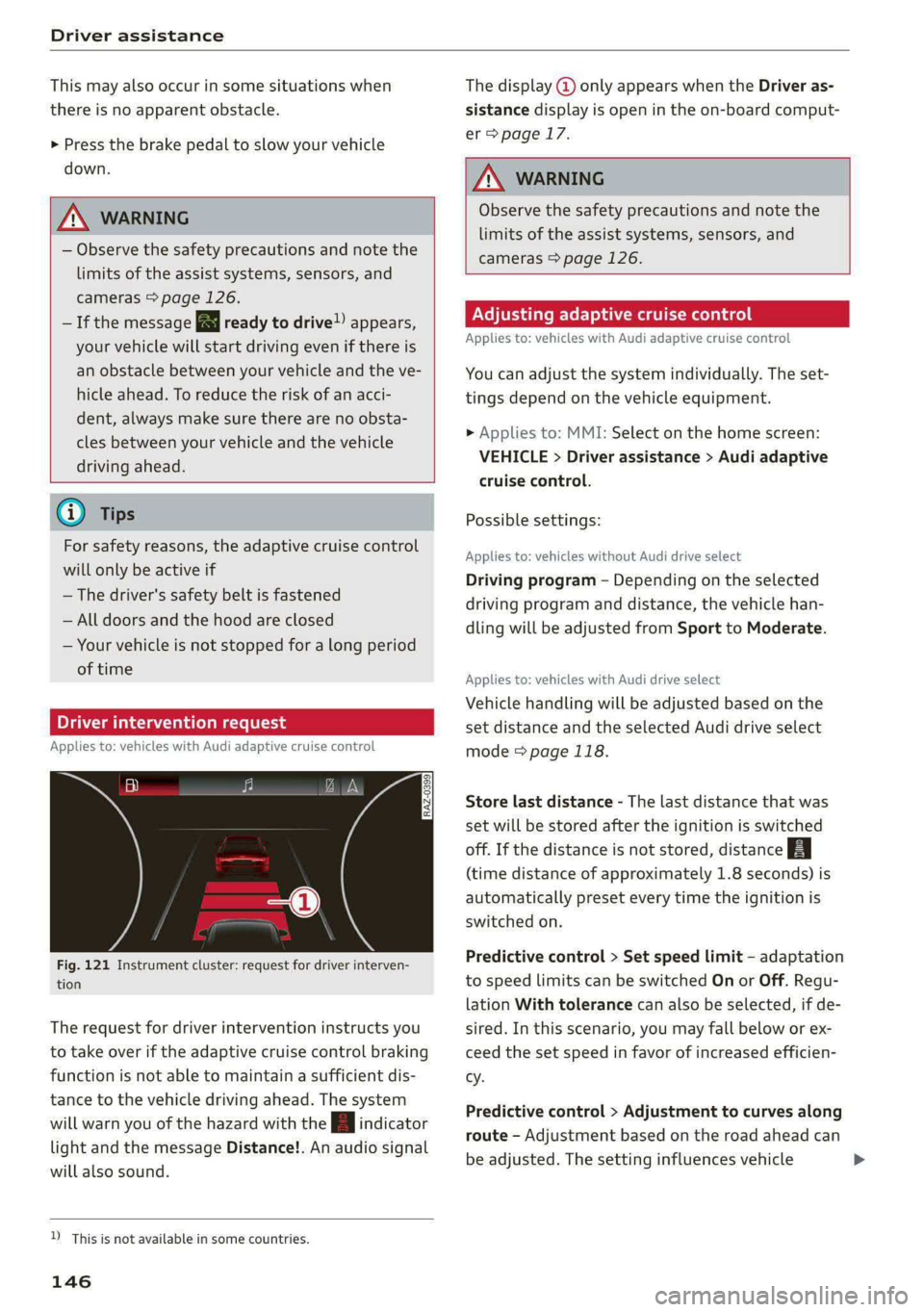
Fig. 121 Instrument cluster: request for driver interven-
tion
The request for driver intervention instructs you
to take over if the adaptive cruise control braking
function is not able to maintain a sufficient dis-
tance to the vehicle driving ahead. The system
will warn you of the hazard with the indicator
light and the message Distance!. An audio signal
will also sound.
D_ This is not available in some countries.
146
The display @ only appears when the Driver as-
sistance display is open in the on-board comput-
er > page 17.
Z\ WARNING
Observe the safety precautions and note the
limits of the assist systems, sensors, and
cameras > page 126.
Adjusting adaptive cruise control
Applies to: vehicles with Audi adaptive cruise control
You can adjust the system individually. The set-
tings depend on the vehicle equipment.
> Applies to: MMI: Select on the home screen:
VEHICLE > Driver assistance > Audi adaptive
cruise control.
Possible settings:
Applies to: vehicles without Audi drive select
Driving program - Depending on the selected
driving program and distance, the vehicle han-
dling will be adjusted from Sport to Moderate.
Applies to: vehicles with Audi drive select
Vehicle handling will be adjusted based on the
set distance and the selected Audi drive select
mode > page 118.
Store last distance - The last distance that was
set will be stored after the ignition is switched
off. If the distance is not stored, distance
(time distance of approximately 1.8 seconds) is
automatically preset every time the ignition is
switched on.
Predictive control > Set speed limit - adaptation
to speed limits can be switched On or Off. Regu-
lation With tolerance can also be selected, if de-
sired.
In this scenario, you may fall below or ex-
ceed the set speed in favor of increased efficien-
cy.
Predictive control > Adjustment to curves along
route - Adjustment based on the road ahead can
be adjusted. The setting influences vehicle >
Page 206 of 318
Radio
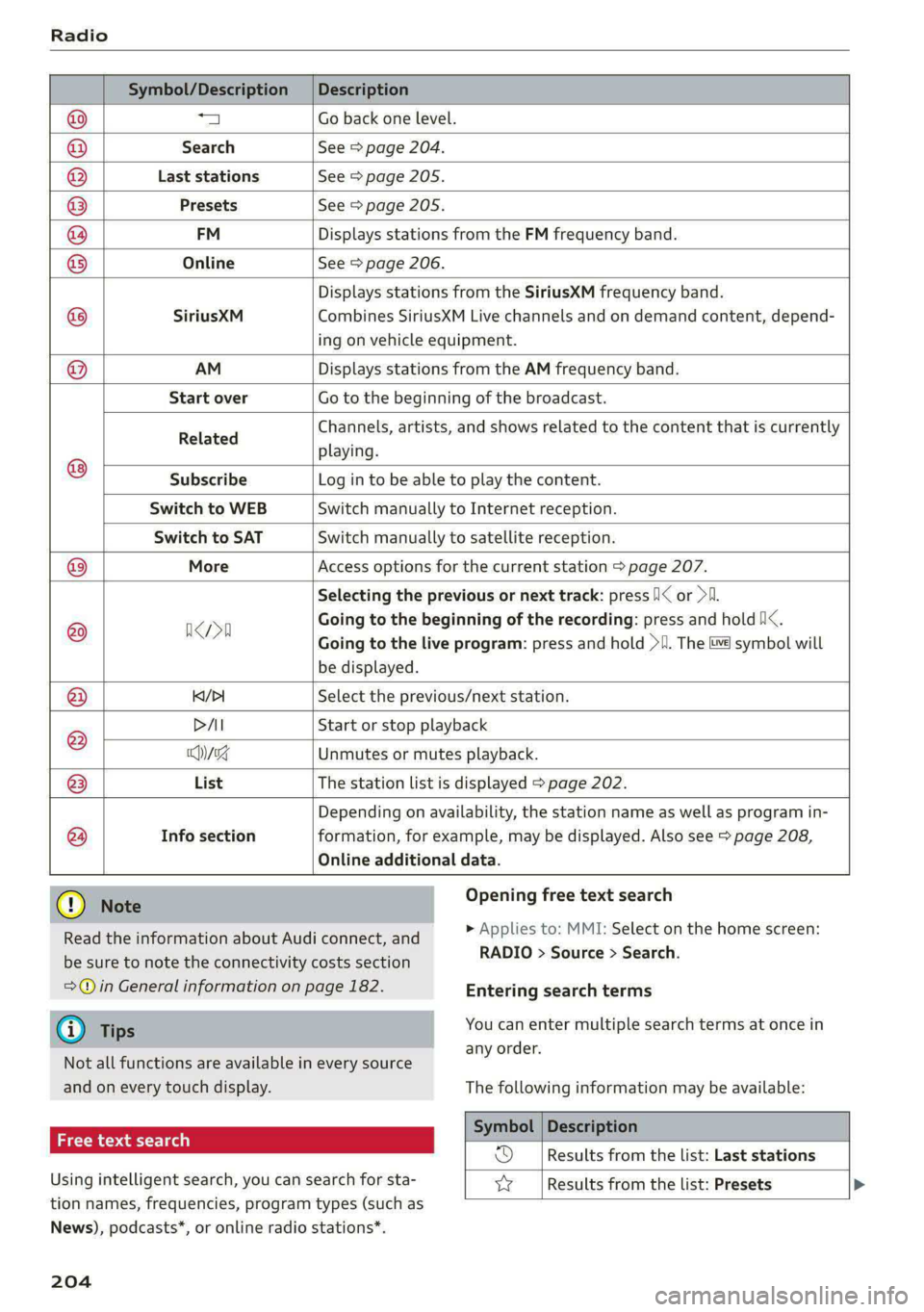
Symbol/Description | Description
a Go back one level.
Search See > page 204.
Last stations See > page 205.
Depending on availability, the station name as well as program in-
© @
@
® Presets See > page 205.
FM Displays stations from the FM frequency band.
® Online See > page 206.
Displays stations from the SiriusXM frequency band.
@ SiriusXM Combines SiriusXM Live channels and on demand content, depend-
ing on vehicle equipment.
@ AM Displays stations from the AM frequency band.
Start over Go to the beginning of the broadcast.
Related Channels, artists, and shows related to the content that is currently
playing.
® Subscribe Log in to be able to play the content.
Switch to WEB Switch manually to Internet reception.
Switch to SAT Switch manually to satellite reception.
@® More Access options for the current station > page 207.
Selecting the previous or next track: press /I< or >I.
@ aca Going to the beginning of the recording: press and hold Ni<.
Going to the live program: press and hold >I. The i symbol will
be displayed.
@ K/>I Select the previous/next station.
DAI Start or stop playback
® Msg Unmutes or mutes playback.
@ List The station list is displayed > page 202.
@
Info section
formation, for example, may be displayed. Also see > page 208,
Online additional data.
Read the information about Audi connect, and
be sure to note the connectivity costs section
=@ in General information on page 182.
@) Tips
Not all functions are available in every source
and on every touch display.
Free text search 2
Using intelligent search, you can search for sta- vy
tion names, frequencies, program types (such as
Opening free text search
> Applies to: MMI: Select on the home screen:
RADIO > Source > Search.
Entering search terms
You can enter multiple search terms at once in
any order.
The following information may be available:
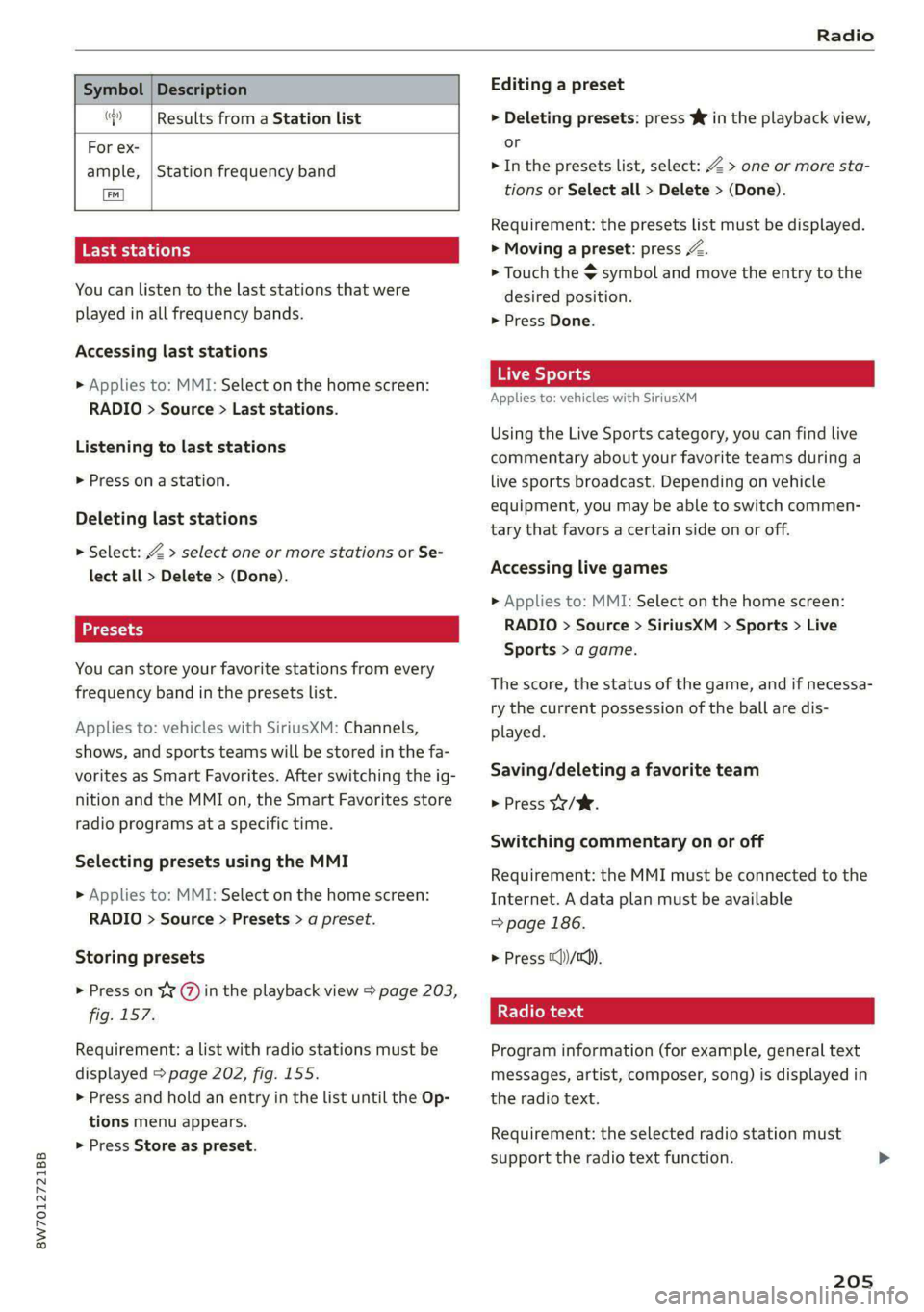
Symbol | Description
Results from the list: Last stations
Results from the list: Presets
News), podcasts*, or online radio stations*.
204
Page 207 of 318
8W7012721BB
Radio
Symbol | Description
(| Results from a Station list
For ex-
ample,
LETS at tba (ey
You can listen to the last stations that were
played in all frequency bands.
Station frequency band
Accessing last stations
> Applies to: MMI: Select on the home screen:
RADIO > Source > Last stations.
Listening to last stations
> Press ona station.
Deleting last stations
> Select: Z > select one or more stations or Se-
lect all > Delete > (Done).
You can store your favorite stations from every
frequency band in the presets List.
Applies to: vehicles with SiriusXM: Channels,
shows, and sports teams will be stored in the fa-
vorites as Smart Favorites. After switching the ig-
nition and the MMI on, the Smart Favorites store
radio programs at a specific time.
Selecting presets using the MMI
» Applies to: MMI: Select on the home screen:
RADIO > Source > Presets > a preset.
Storing presets
> Press on Y¥ (7) in the playback view > page 203,
fig: 157:
Requirement: a list with radio stations must be
displayed > page 202, fig. 155.
> Press and hold an entry in the list until the Op-
tions menu appears.
> Press Store as preset.
Editing a preset
> Deleting presets: press Ww in the playback view,
or
> In the presets list, select: Z > one or more sta-
tions or Select all > Delete > (Done).
Requirement: the presets list must be displayed.
> Moving a preset: press A.
> Touch the $ symbol and move the entry to the
desired position.
> Press Done.
Live Sports
Applies to: vehicles with SiriusXM
Using the Live Sports category, you can find live
commentary about your favorite teams during a
live sports broadcast. Depending on vehicle
equipment, you may be able to switch commen-
tary that favors a certain side on or off.
Accessing live games
> Applies to: MMI: Select on the home screen:
RADIO > Source > SiriusXM > Sports > Live
Sports > a game.
The score, the status of the game, and if necessa-
ry the current possession of the ball are dis-
played.
Saving/deleting a favorite team
> Press W/W.
Switching commentary on or off
Requirement: the MMI must be connected to the
Internet. A data plan must be available
=> page 186.
> Press (<))/tc).
eel (olay
Program information (for example, general text
messages, artist, composer, song) is displayed in
the radio text.
Requirement: the selected radio station must
support the radio text function.
205
Page 210 of 318
Radio
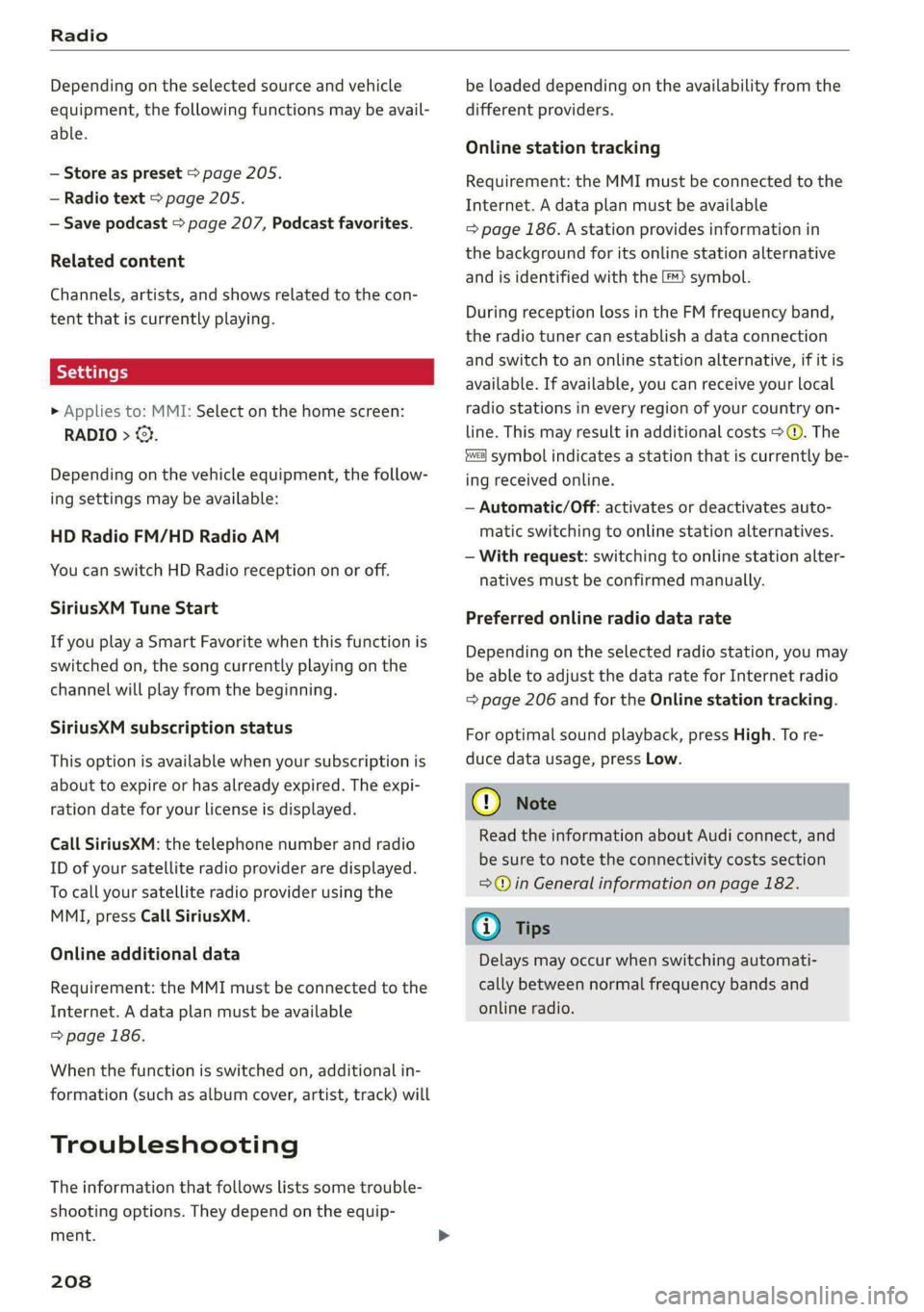
Depending on the selected source and vehicle
equipment, the following functions may be avail-
able.
— Store as preset > page 205.
— Radio text > page 205.
— Save podcast > page 207, Podcast favorites.
Related content
Channels, artists, and shows related to the con-
tent that is currently playing.
> Applies to: MMI: Select on the home screen:
RADIO > ©}.
Depending on the vehicle equipment, the follow-
ing settings may be available:
HD Radio FM/HD Radio AM
You can switch HD Radio reception on or off.
SiriusXM Tune Start
If you play a Smart Favorite when this function is
switched on, the song currently playing on the
channel will play from the beginning.
SiriusXM subscription status
This option is available when your subscription is
about to expire or has already expired. The expi-
ration date for your license is displayed.
Call SiriusXM: the telephone number and radio
ID of your satellite radio provider are displayed.
To call your satellite radio provider using the
MMI, press Call SiriusXM.
Online additional data
Requirement: the MMI must be connected to the
Internet. A data plan must be available
=> page 186.
When the function is switched on, additional in-
formation (such as album cover, artist, track) will
Troubleshooting
The information that follows lists some trouble-
shooting options. They depend on the equip-
ment.
208
be loaded depending on the availability from the
different providers.
Online station tracking
Requirement: the MMI must be connected to the
Internet. A data plan must be available
=> page 186. A station provides information in
the background for its online station alternative
and is identified with the ™} symbol.
During reception loss in the FM frequency band,
the radio tuner can establish a data connection
and switch to an online station alternative, if it is
available. If available, you can receive your local
radio stations in every region of your country on-
line. This may result in additional costs >@®. The
symbol indicates a station that is currently be-
ing received online.
— Automatic/Off: activates or deactivates auto-
matic switching to online station alternatives.
— With request: switching to online station alter-
natives must be confirmed manually.
Preferred online radio data rate
Depending on the selected radio station, you may
be able to adjust the data rate for Internet radio
=> page 206 and for the Online station tracking.
For optimal sound playback, press High. To re-
duce data usage, press Low.
©) Note
Read the information about Audi connect, and
be sure to note the connectivity costs section
=@ in General information on page 182.
G) Tips
Delays may occur when switching automati-
cally between normal frequency bands and
online radio.
Page 211 of 318
8W7012721BB
Radio
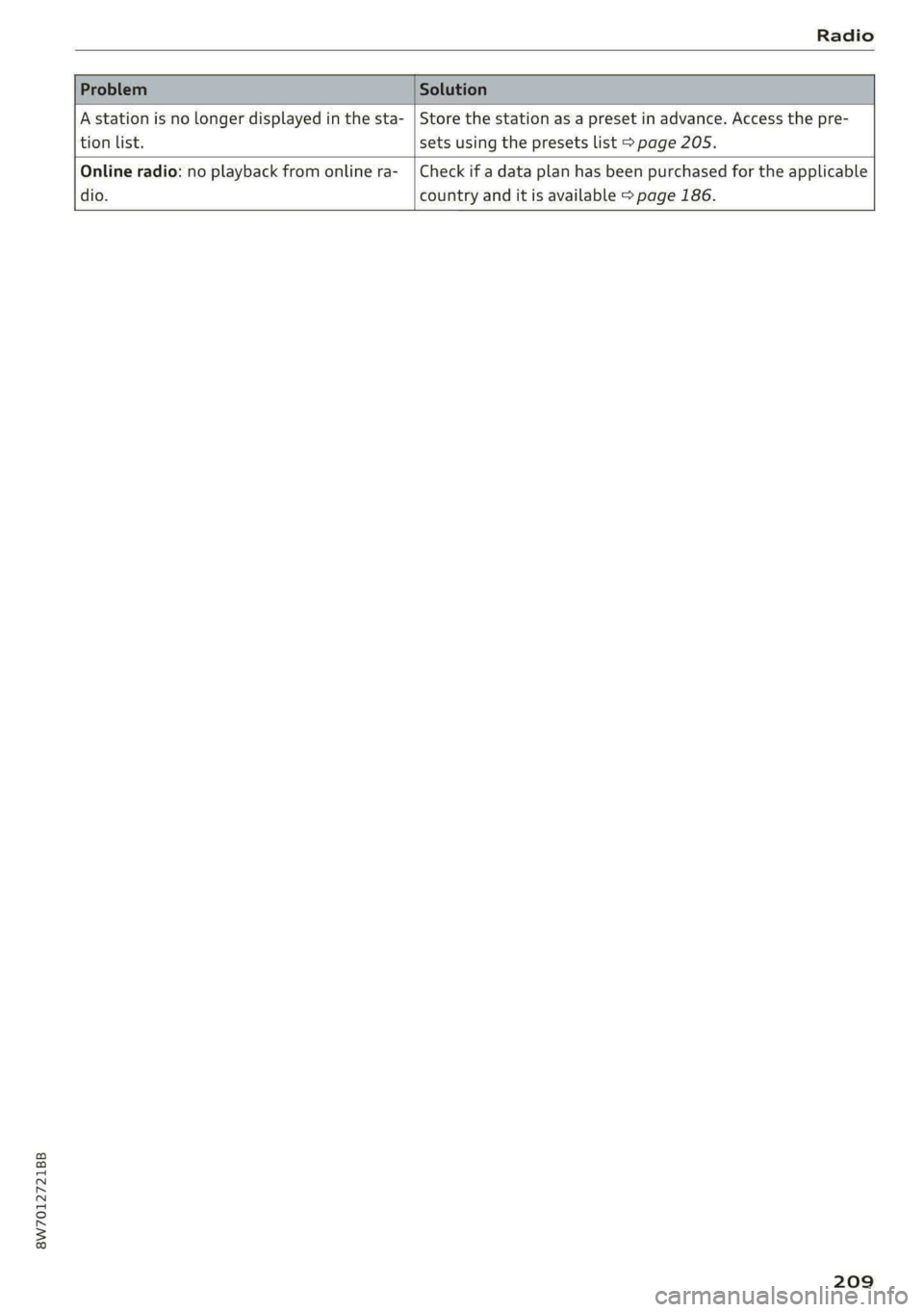
A station is no longer displayed in the sta- | Store the station as a preset in advance. Access the pre-
tion list. sets using the presets list > page 205.
Online radio: no playback from online ra-_ | Check if a data plan has been purchased for the applicable
dio. country and it is available > page 186.
209
Page 212 of 318
Media
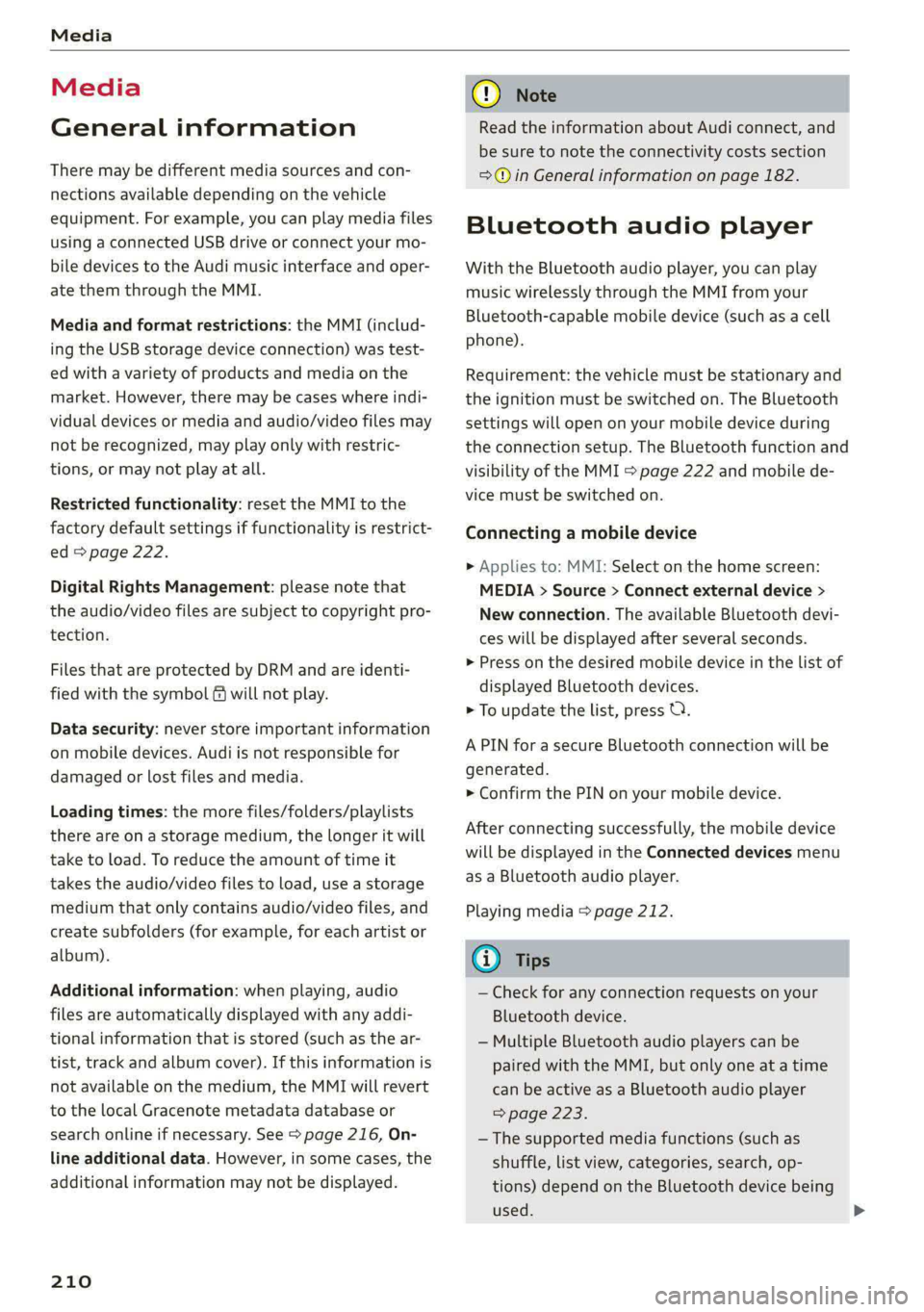
Media
General information
There may be different media sources and con-
nections available depending on the vehicle
equipment. For example, you can play media files
using a connected USB drive or connect your mo-
bile devices to the Audi music interface and oper-
ate them through the MMI.
Media and format restrictions: the MMI (includ-
ing the USB storage device connection) was test-
ed with a variety of products and media on the
market. However, there may be cases where indi-
vidual devices or media and audio/video files may
not be recognized, may play only with restric-
tions, or may not play at all.
Restricted functionality: reset the MMI to the
factory default settings if functionality is restrict-
ed > page 222.
Digital Rights Management: please note that
the
audio/video files are subject to copyright pro-
tection.
Files that are protected by DRM and are identi-
fied with the symbol f@ will not play.
Data security: never store important information
on mobile devices. Audi is not responsible for
damaged or lost files and media.
Loading times: the more files/folders/playlists
there are on a storage medium, the longer it will
take to load. To reduce the amount of time it
takes the audio/video files to load, use a storage
medium that only contains audio/video files, and
create subfolders (for example, for each artist or
album).
Additional information: when playing, audio
files are automatically displayed with any addi-
tional information that is stored (such as the ar-
tist, track and album cover). If this information is
not available on the medium, the MMI will revert
to the local Gracenote metadata database or
search online if necessary. See > page 216, On-
line additional data. However, in some cases, the
additional information may not be displayed.
210
C@) Note
Read the information about Audi connect, and
be sure to note the connectivity costs section
=@ in General information on page 182.
Bluetooth audio player
With the Bluetooth audio player, you can play
music wirelessly through the MMI from your
Bluetooth-capable mobile device (such as a cell
phone).
Requirement: the vehicle must be stationary and
the ignition must be switched on. The Bluetooth
settings will open on your mobile device during
the connection setup. The Bluetooth function and
visibility of the MMI = page 222 and mobile de-
vice must be switched on.
Connecting a mobile device
> Applies to: MMI: Select on the home screen:
MEDIA > Source > Connect external device >
New connection. The available Bluetooth devi-
ces will be displayed after several seconds.
> Press on the desired mobile device in the list of
displayed Bluetooth devices.
> To update the list, press OQ.
A PIN for a secure Bluetooth connection will be
generated.
> Confirm the PIN on your mobile device.
After
connecting successfully, the mobile device
will be displayed in the Connected devices menu
as a Bluetooth audio player.
Playing media > page 212.
G) Tips
— Check for any connection requests on your
Bluetooth device.
— Multiple Bluetooth audio players can be
paired with the MMI, but only one at a time
can be active as a Bluetooth audio player
=> page 223.
— The supported media functions (such as
shuffle, list view, categories, search, op-
tions) depend on the Bluetooth device being
used.