infotainment AUDI A5 COUPE 2018 Workshop Manual
[x] Cancel search | Manufacturer: AUDI, Model Year: 2018, Model line: A5 COUPE, Model: AUDI A5 COUPE 2018Pages: 409, PDF Size: 67.63 MB
Page 175 of 409
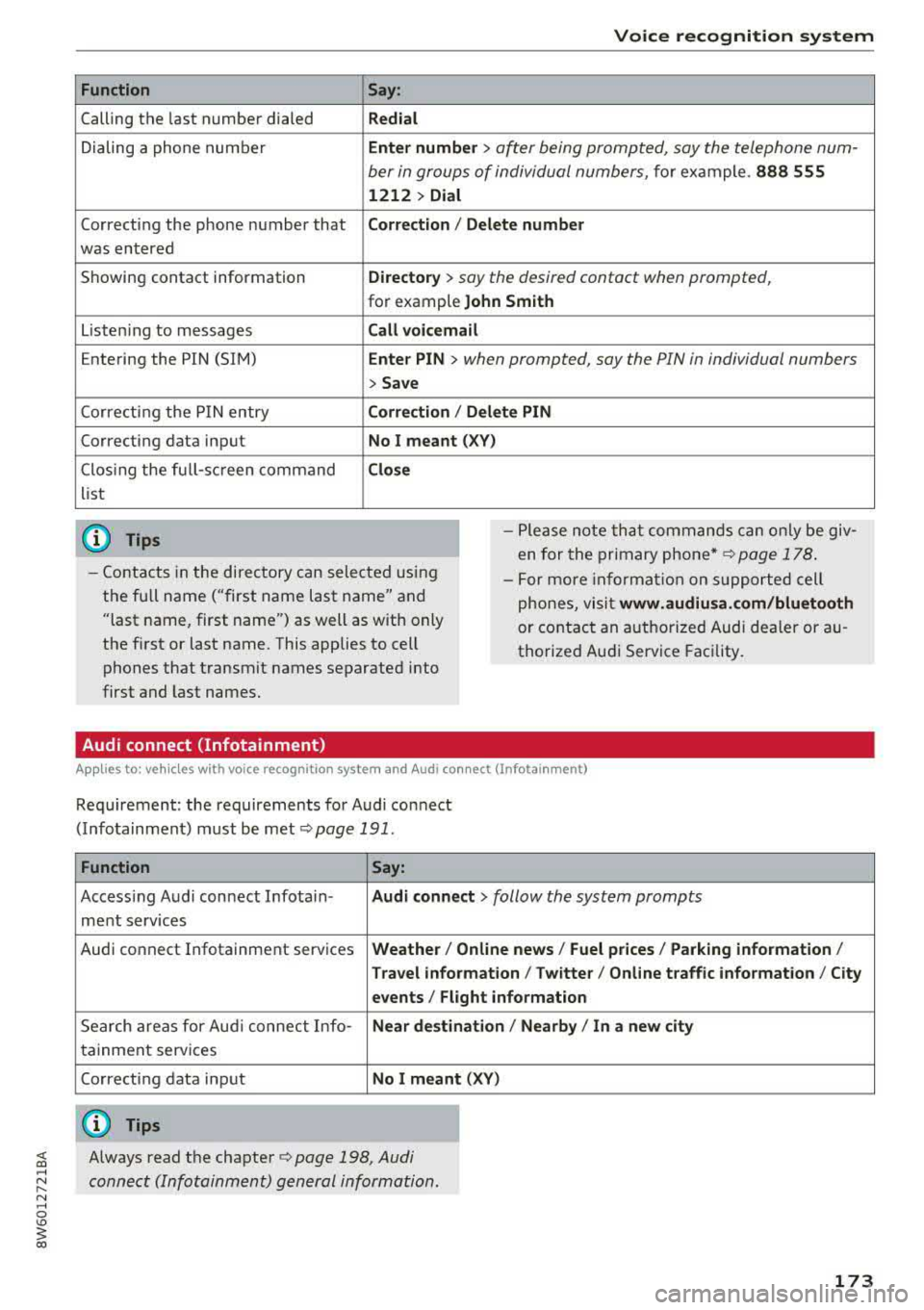
Function
Calling the last number dialed
Dialing a phone numbe r
Correcting the phone number that
was entered
Showing contact information
L isten ing to messages
Entering the PIN (SIM)
Corre cting the P IN entry
Correcting data input
Clos ing the full-sc reen command
list
@ Tips
Voice recognition system
Say :
Redial
Enter number
> ofter being prompted, soy the telephone num-
ber in groups of individual numbers,
fo r example. 888 555
1212 > Dial
Corr ection
I Delete numb er
Directory
> soy the desired contact when prompted,
for example John Sm ith
Call voicemail
Ente r PIN
> when prompted, soy the PIN in individual numbers
> Save
C o rr ection / Delete PIN
No I meant ( XV)
Close
- Please note that comm ands can only be giv
en for the primary
phone *~ page 178 .
-Contacts in the directory can sele cted us ing
the fu ll name ("first name last name" and
"last name, first name") as well as with only
the f irst or last name. This applies to cell
phones that transmit names separated into
first and last names. -
For more informat ion on s upported cell
phones, visi t
www.audiusa. com /bluetooth
or contact an a uthorized Audi dea ler or au
thorized Audi Service Facility.
Audi connect (Infotainment)
A ppl ies to: ve hicles with vo ice recognition system and Audi co nnect (Infotainment)
Requirement: the requirements for Audi connect
(Infotainment) m ust be
met ¢ page 191 .
Function Say:
Accessing Audi connect Infotain-Aud i connect > follow the system prompts
ment serv ices
Audi connect Infotainment services
Weather / Online new s/ Fuel pr ices/ Parking information /
T rav el info rmation / Twitte r/ Onl ine t raffic info rmation / City
e v ents / Flight informat ion
Search areas for Aud i connect Info-Near de stin ation / Nearb y/ In a new city
tainment serv ices
Correcting data input
No I meant (XV)
(D Tips
;;§ Always read the chapter ¢ page 198, Audi ....
~ connect (Infotainment) general information.
N .... 0 \0
3
Page 176 of 409
Voice recognition system Messages (Audi connect (Infotainment))
Applies to: vehicles with voice recognition system and Audi connect (Infotainment)
Requirement : a ce ll phone w ith a n active MAP
(Message Access Profi le) mus t be connected to
t he MMI
¢page 183 .
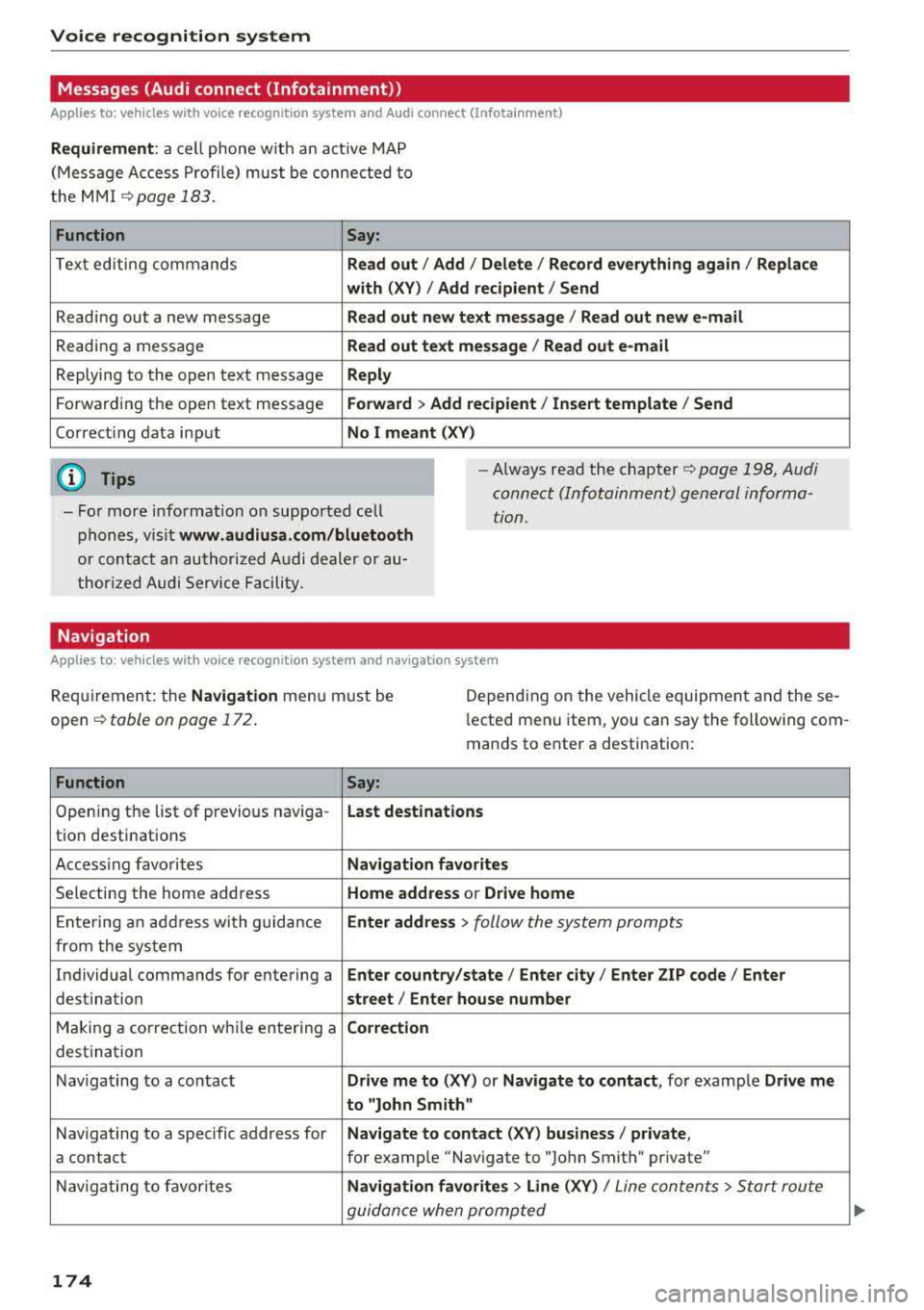
Function Say:
T ext ed iti ng commands Read out /Add i/ Delete / Re cord everything again / Replace
with (XV )/ Add recipient / Send
Reading out a new message Read out new te xt me ssage / Re ad out new e-mail
Reading a message Read out text message / Read out e-mail
Replying to the open text message Reply
Forwarding the open text message Forward > Add recipient / Insert template / Send
Correcti ng data inp ut No I meant (XV)
@ Tips
-Fo r more information on suppo rted cell
p hones, v is it www .audiusa.com /bluetooth
or contact an authori zed A udi dealer or au
thori zed Audi Service Facili ty.
-Always read the chapter¢ page 198 , Audi
connect (Infotainment) general informa
tion.
Navigation
Applies to : vehicles with voice recognition system and navigation system
Requiremen t: the Navigation menu m ust be
open
¢ table on page 172 .
Depending on the vehicle equipmen t an d these
l ected menu item, you can say the following com
mands to enter a destination:
Function Say:
Open ing the list of previous naviga -Last destinati ons
tio n destinations
Access ing favo rites Navigation favorites
Selecting the home add ress Home address or Drive home
E nte ring a n add ress wi th guidance Enter address
> follow the system prompts
from the system
Individua l comma nds for entering a Enter country/state / Ente r city / Enter ZIP code / Enter
destination street/ Enter house number
Making a co rrection wh ile entering a Correction
destination
Naviga ting to a contact Drive me to
(XY) or Navigate to contact , for examp le Drive me
to "John
Smit h"
Navigating to a specific address for Navigate to conta
ct (XV ) business / private ,
a contact for example "Navigate to "John Smith " private"
Nav iga ting to f avorite s Navigation favorites > Line (XV) /
Line contents> Start route
guidan ce when promp ted
174
Page 177 of 409
<( a, .... N ,....
N .... 0 \0
3 a,
Voice recognition system
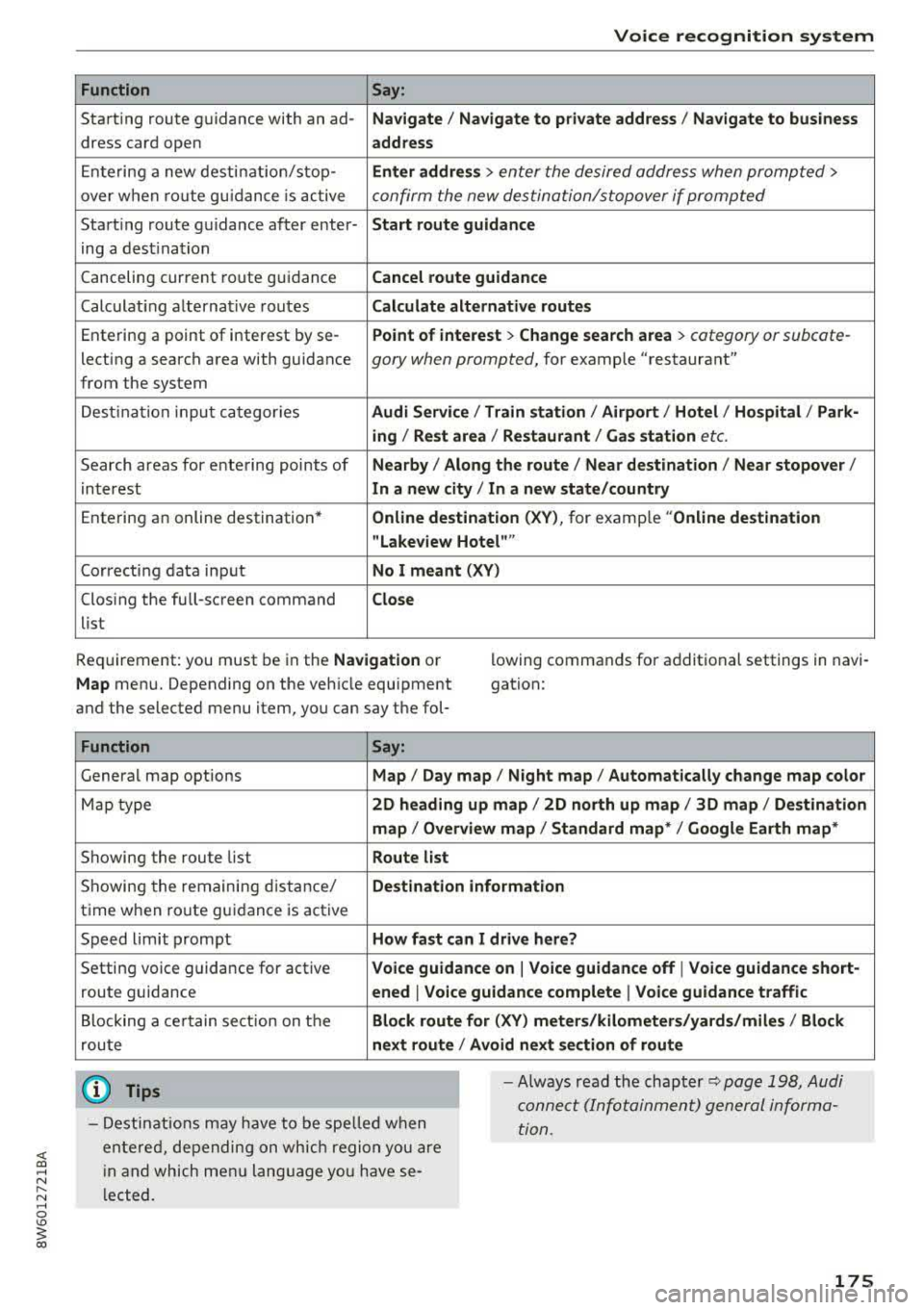
Function Say:
Starting route g uidance with an ad-Navigate / Navigate to p riv ate addre ss / Na vig ate to bu siness
dress card open address
Ente ring a new desti nat ion/stop-Enter addre ss > enter the desired address when prompted>
over when ro ute gu idance is ac tive confirm the new des tination/stopover if prompted
Start ing route guidance after enter-Start rout e guidance
ing a dest ination
Canceling current route guidance
Cancel route guidance
Calculat ing alternative routes Calculate alternative route s
Entering a point of interest by se-Point of interest > Change search area > category or subcote-
lecting a search area with guidance gory when prompted, for example "restaurant"
from the system
Dest ina tion i nput ca tegor ies
Audi Service / Train station /Airport / Hot el / Ho spita l / Park-
ing / Re st area / Restaurant / G as station
etc.
Search areas for entering points of Nearby/ Along the route I Near destination / Ne ar stopover /
interest In a new city/ In a new stat e/country
Entering an online destination* Online de stinat ion (XV), for examp le " Online de stination
" Lake view Hotel" "
Correcting data input No I meant (XV)
Clos ing the full-screen command C lo se
list
Requirement: you must be in the
Navigation or
Map menu. Depending on the vehicle equipment
and the selected menu item, you can say the fol-l
owing commands for additional settings in navi
gation:
Function Say:
General map options Map/ Da y map / N ight map / Automat icall y chang e map color
Map type 2D heading up map / 2D north up map / 3D map / De stination
map / Ov ervi ew map / Standard map* / Googl e Earth map *
Showing the route list Route list
Showing the remaining distance/ Destination information
time when route guidance is active
Speed limit prompt
How fa st can I dri ve her e?
Setting voice guidance for active Voice guidance on I Vo ice guidance off I V oice guidance short-
route guidance ened I Voi ce guidance complete I V oice guidance traffic
Blocking a ce rtain section on the Block route for (XV ) m ete rs/ kilometers /yards /mil es/ Block
route next rou te I Avoid n ext se ction of r oute
(D Tips
- Destinations may have to be spe lled when
entered, depending on which region you are
i n and which men u lang uage you have se
l ected. -
Always read the chapter
¢ pag e 198, Audi
conne ct (Infotainment) general informa
tion.
175
Page 184 of 409
Telephone
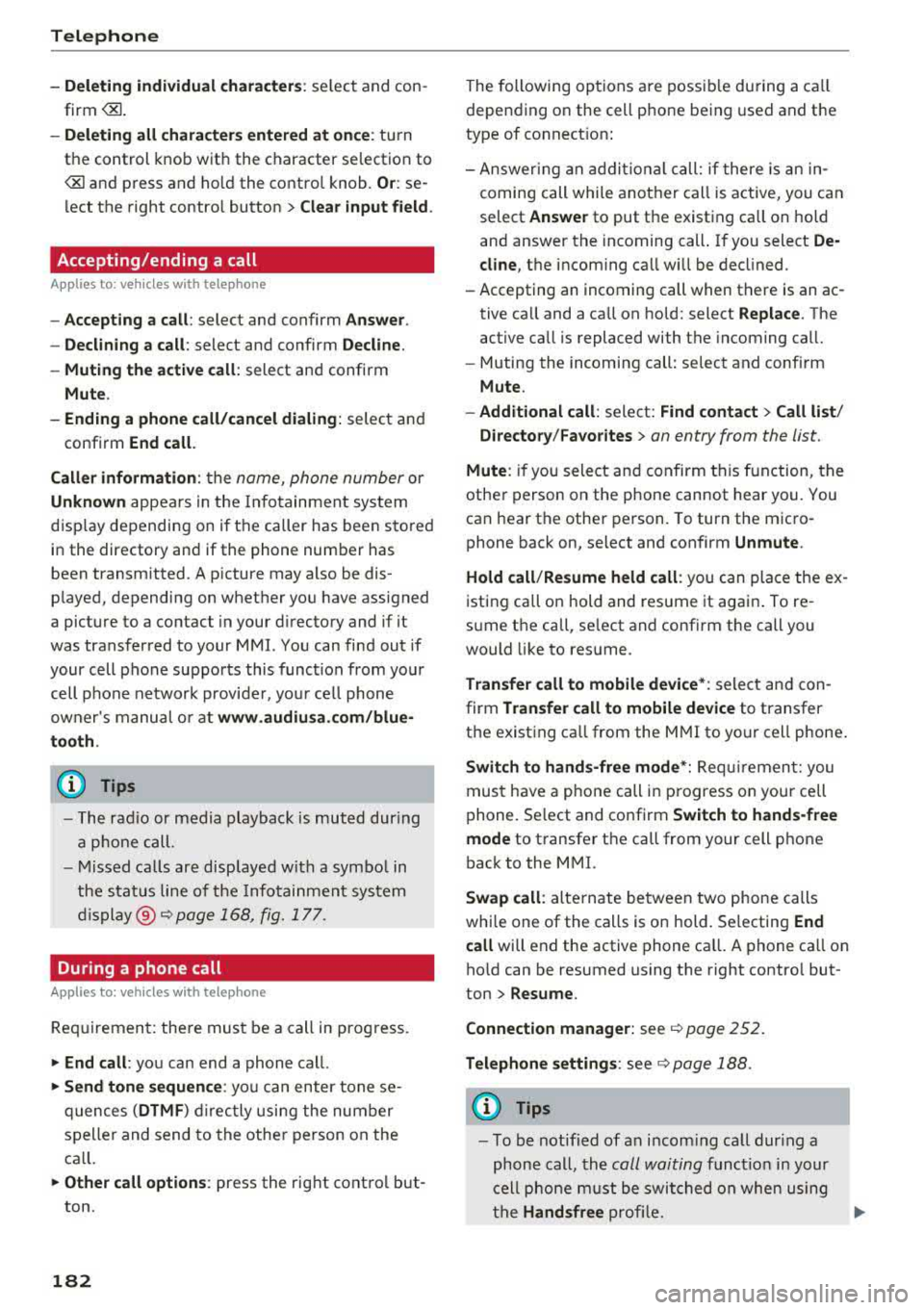
-Dele ting i ndi vidual charact ers: se lect and con
firm
the control knob with the character selection to
> Clear input field .
Accepting/ending a call
Applies to: veh icles w ith telephone
-Ac cepting a call : select and confirm Answer .
-Declining a call : select and confirm Decline.
-Muting the active call : select and confirm
Mute .
-Ending a phone call /cancel dialing: select and
confirm End call.
C all er information : the
name, phone number or
Unkno wn appears in the Infotainment system
disp lay depending on if the caller has been stored
in the directory and if the phone number has
been transmitted . A p icture may also be dis
played, depending on whether you have assigned
a picture to a contact in your d irectory and if it
was transferred to your MMI. You can find out if
your cell phone supports this function from your cell phone network provider, your ce ll phone
owner's manual o r at www.audiu sa .c o m /blue
to oth .
(D Tips
-The rad io or media playback is muted during
a p hone call.
-Missed ca lls are displayed with a symbo l in
the stat us line of the Infotainment system
display @¢ page 168, fig. 177.
During a phone call
Applies to: vehicles with telephone
Req uirement: the re mus t be a call in progress .
.,. End call: you can end a phone cal l.
i-Send tone sequ ence : you can enter tone se
quences (DTMF ) direc tly using the number
speller and send to the othe r person on the
ca ll.
.,. Other c all options : press the right control but
ton.
182
The following options a re possib le du ring a ca ll
depending on the cell phone being used and the
type of connect ion:
-Answering an addit ional call: if there is an in
coming call while another call is active, you can
select Answer to put the existing ca ll on hold
and answer the incoming call . If you select De·
cline , the incoming call will be declined .
-Accepting an incoming call when there is an ac
tive call and a call on ho ld: select Replace. The
active call is replaced with the incoming call.
-Muting the incoming call: select and conf irm
Mute .
-Additional call : select: Find co ntac t > Call li st /
Dir ecto ry/F avor ites
> an entry from the list.
Mute : if you select and confirm this function, the
other person on the phone cannot hear you. You
can hear the other person. To turn the micro
phone back on, select and confirm Unmute.
Ho ld call /Resume h eld call : you can place the ex
isting call on hold and resume it again . To re
sume t he call, se lect and confirm the call you
would like to resume.
Tran sfer c all to mobile de vice*: select and con
firm Transfer call to mobile de vice to transfer
the existing ca ll from the M MI to your cell phone .
Switch t o hand s-free mode *: Req uiremen t: you
must have a p hone call in p rogress on your cell
phone. Se lect and confirm Switch t o hands-free
mode to transfer the call from your cell phone
back to the MMI.
Swap call : alternate between two phone calls
while one of the calls is on hold. Se lecting End
c a ll will end the active phone ca ll. A phone ca ll on
ho ld can be resumed using the right cont ro l but
ton> Resume .
Connection manage r: see
¢ page 252 .
Tel ephone setting s: see ¢ page 188 .
(D Tips
-To be notified of a n incom ing call dur ing a
phone call, the
call waiting funct ion in your
c ell phone m ust be switched on when using
the Hand sfree profi le.
IJll-
Page 185 of 409
<( a, .... N ,....
N .... 0 \0
3 a,
-You can o bta in more information from your
ce ll phone service prov ider or from your cell
phone user guide .
-When leaving the vehicle, the Bl uetooth
connection to the ce ll phone w ill automati
ca lly disconnect . Depending on you r cell
phone, phone ca lls in progress may be auto
matically redirected from the MMI to your
ce ll phone and you ca n cont inue the call o n
you r phone.
-The display of an i ncoming phone call in the
Infotainment system d is p lay may still be
v is ible fo r a few s econds after a call is an
swered/ig nored depending on the cell
p ho ne in us e.
Making an emergency call
Appl ies to: vehicles with telephone
.,. Select: I MENU I but ton > Telephone > left con
t ro l button >
Enter number > Enter emergency
ca ll number (for example, 911) >
OK.
_&. WARNING
-Beca use your p hone wo rks with radio s ig
nals, a connection cannot be guara nteed un
der all ci rcumstances. Do not rely on only
yo ur phone w hen it comes to essent ial com
mu nication (suc h as a med ica l emer gency).
-Always follow the instructions g iven by t he
e me rge ncy perso nnel d uring an emergency
ca ll a nd only end t he call whe n they inst ruct
yo u t o do so.
(j) Tips
Eme rge ncy nu mbers are not the same every
where. Fi nd ou t which eme rge ncy nu mber is
used in yo ur current lo ca ti on .
Favorites
Applies to: vehicl es with telep hone
Up to 50 co n ta cts, in addition to the voicemail
num ber, can be s tored in any order in the fav or
ites lis t.
.,. Select: I M ENU I butto n >Telephone > left con
t ro l bu tton .
Telephone
Storing an existing phone number as a
favorite:
-Select an d confirm Call list /Directory.
-Select a contact or phone n umbe r from the list.
- Sele ct: r igh t co ntro l but to n >
Store as favorite .
-En ter a name for the favor ite or s elect a sug-
gestion .
- Select and confirm
Store .
Renaming stored favorites
-Select: Favorites > a favorite from the list.
-Select the right cont ro l button> Rename fa-
vorite .
Moving stored favorites
-Select: Favorites > a favori te from the list .
-Select the rig ht c ontro l bu tton> Move favorite .
-Select an d confirm the loca tion of the selected
favorite .
Deleting a stored favorite
-Select: Favorites > a favorite from the list.
-Select the rig ht cont ro l button > Delete favor-
ite
> Delete this favorite or Delete all favor
ites .
Messages
' Text messages
Applies to: cell phones with Bluetooth Message Access Profile
(MAP)
Depending an the cell phone being used and the
cell phone network contract, you can receive and
send text messages using the
MMI .
Requirement
A cell phone must be connected to the MM I via
B luetoot h MAP ( Message Access Profi le)
9 page 178.
.,. Sele ct: ! ME NUI bu tton> Telephone > left con
trol button >
Text message (MyPhone )/Text
message (secondary phone )* .
Write new text message
Se lect a nd con firm Write new text me ssage .
-Using a template : select and confirm the de
sired templa te from the list .
183
Page 186 of 409
Telephone
-Writing your ow n te xt*: select and confirm D o
not use t empl ate.
Enter text using the MMI
touch contro l pad* or the letter speller.
-Enter one or mo re recipients.
-Se lect and confirm Se nd .
lnbox
Displays all received text messages.
S ent
Displays all sent text messages .
Outbox
Displays all text messages to be sent .
Drafts
Displays all text messages that have not yet been
sent and stored text messages.
(D Tips
-Please note that you may have to act ivate
the receiving and sending of text messages
i n your cell phone depend ing on the SIM
card being used (for example, when using a
Multi-SIM). You can obtain mo re informa
tion from your cell phone service provider or
from your cell phone user g uide.
-Fo r more information on suppo rted cell
phones, v is it
www .audiu sa.com /bluetooth
or contact an authorized A udi dealer or au
thorized Audi Service Facility .
-You need a cell phone with Message Access
Profile that also supports the sending func
tion to be able to send text messages
through the MMI.
Message options
Applies to: cell phones with Bluetooth Message Access Profile
(MAP)
.,. Se lect: IT ELI button > left control button > te xt
message (M yPhone )/te xt me ssage (secondary
phone )* > In bo x/S ent/Outbo x
> right control
button.
The fo llow ing options may be availab le depend
ing on the se lected menu .
1> Not available in a ll la n guage s.
184
Storing a text me ssage as a template
Ten text message temp lates are s to red in the
MM I. You can
save up to ten additiona l tem
plates .
-Create a text message.
-Select and confirm Store a s te mplat e.
Resume l ast te xt mes sage
The last ed ited text message can be resumed.
Reply*
A reply can be sent for the se lected message in
t h e
Inbo x.
Forward
The selected text message ca n be forwarded to a
diffe rent recipient.
Send again*
The selected text message can be resent.
Delete th is te xt me ssage *
The selected text message can be deleted.
Read out1
)
You can have the MMI read an open text mes
sage .
Text messaging settings*
To display when a new text message is received,
activate the
Te xt mes sage not ificat ion s. New
text messages a re ind icated w ith an enve lope
121
in the Infotainment system display status l ine .
Connection manager
See¢ page 252.
Wi-Fi setting s
See ¢page 197 .
Telephone settings
See ¢page 188.
Page 188 of 409
Telephone
Delete this message*
The selected e -mail ca n be deleted.
Read out1
)
You can have the MMI read an open e-ma il.
E-mail settings*
To display when a new e -mail is received, activate
the
E-mail notifications . New e-mails are indicat
ed w ith an enve lope
121 in the Infotainment sys
tem display status line.
Connection manager
See ~page 252.
Wi-Fi settings
See !=)page 197.
Telephone settings
See !=)page 188.
(D Tips
-Messages that are deleted in the MMI are
also automatically deleted in the connected
cell phone.
-You cannot read any messages while driv
i ng.
Listening to voicemail
A pp lies to: ve hicles w ith tele phone
~ Se lect: I MENU I button >Telephone> left con
trol button. Select and confirm
Call list/Direc
tory /Favorites > Voicemail.
-Entering the voicemail number: enter the de
s ir ed number. Select and confirm
OK .
-Dialing the voicemail number: select and con
firm
Voicemail.
@ Tips
-This service must be set up and activated in
advance by the cell phone service provider.
You can obta in more information from your
cell phone service prov ider.
1> Not availab le in all languages.
186
-Th e voicemail number depends on the cell
phone service provider.
Directory
Opening the directory
Applies to : vehicles wit h te lepho ne
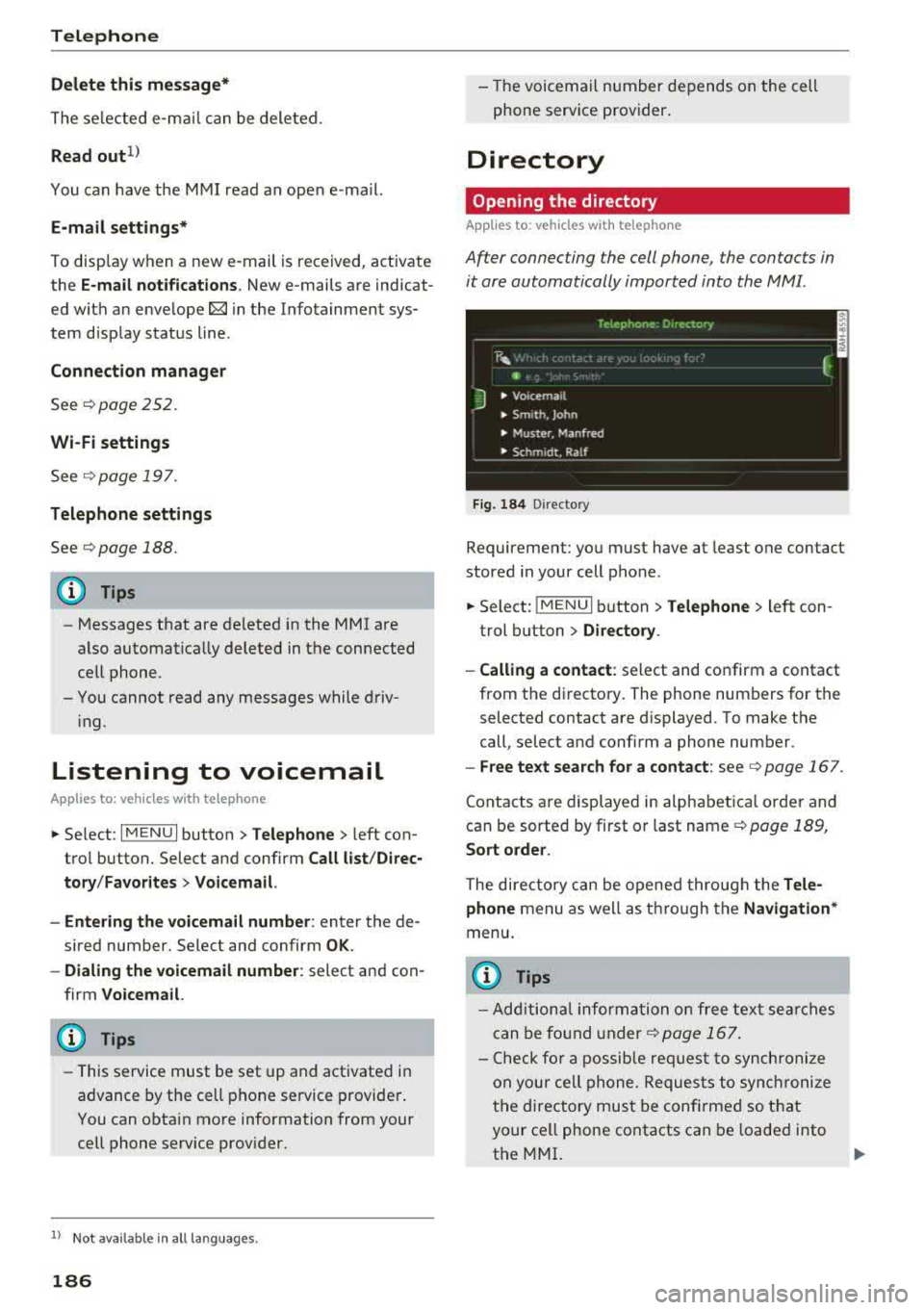
Af ter connecting the cell phone, the contacts in
it are automatically imported into the MMI.
__________ 1 _ e _1.e _ p_ h_o _n _e _· _D _,_
·e _c_t _o _r, _· _________ ,
~ m f
J • Voicemai l
• Sm,th. John
• Muster. Manfred
• Schmidt. Ralf
Fig . 184 D irectory
Requirement: you must have at least one contact
stored in your cell phone.
~ Select: !MENUI button> Telephone> left con
trol button >
Directory .
- Calling a contact :
select and confirm a contact
from the directory. The phone numbers for the
selected contact are displayed. To make the
call, select and confirm a phone number.
-Free text search for a contact: see Q page 167.
Contacts are displayed in alphabetical order and
can be sorted by first or last name
Q page 189,
Sort order .
The directory can be opened through the Tele·
phone
menu as well as through the Navigation*
menu .
@ Tips
-Additional informatio n on free text searches
can be found under
Q page 167.
-Check for a possible request to synchronize
on you r cell phone . Requests to synchronize
the directory must be confirmed so that
your cell phone contacts can be loaded into
the MMI.
Page 190 of 409
Telephone
cell phone. Audi recommends editing cell
p hone contacts d irect ly in the ce ll phone .
- Only the co ntacts in the loca l M MI memory
ca n be ed ite d or de leted .
Importing and exporting contacts
App lies to: ve hicles w ith tele phone
Con ta cts in vCard forma t (. vcf) can be impor ted
in to the directory or e xported .
Requi remen t: a n SD c ard must be inse rted in one
of the S D card readers*
r=;, page 2 31 or a U SB
s to rage dev ice m ust be connected to the Audi
m usic interface *
r=;,page 236 or the require
ments for Au di connect Infotainment se rvices *
m ust be met
r=;, page 191.
~ Se lect: I MENU I but ton > Telephone > left con
tro l button
> Directory.
~ Se lect: rig ht contro l butto n > Directory set
tings .
- Importing contacts from a storage device :
se
l ect and confirm
Import contacts > SD card 1 /
SD card 2 or USB device 1 /USB device 2
> de
sired contacts
> Start import .
- Exporting contacts to a storage device :
select
and confirm
Export contacts > SD card 1 /SD
card 2 or USB device 1 /USB device 2
> desired
contacts
> Start export .
- Selecting all contacts at once to import /ex
port :
select and confi rm Import contacts /Ex
port contacts > SD card 1 /SD card 2
or USB de
vice 1 /USB device 2 > All > Start import /Start
export .
(D Tips
-Always read the c hap ter r=;, page 198, Audi
connect (Infotainm ent) general informa
tion.
- Fo r additional informa tion on t he myAudi
account, v is it
www .audiusa.com/myaud i.
-The imported contacts are stored in the lo
ca l m emory of the directory .
1> Depends on th e co nnected cell p ho n e.
188
- A max imum of 1,0 00 contacts can be im
ported . You can check t he directory memory
capacity at any
t ime r=;, page 189 .
-Never save impo rtant data on memory ca rds
or USB storage devices . A ud i is not responsi
ble fo r damaged o r lost fi les an d media.
- Contacts t hat were dow nloaded from a ce ll
phone cannot be exported .
- There sho uld be no ot her files or fo lde rs on
t h e storage medium containing the contacts
to be impo rted.
Additional settings
Telephone settings
App lies to : vehicles wi th telepho ne
~ Sele ct: !ME NUI bu tton> Telephone > righ t co n-
t rol button >
Telephone settings .
Call options*
Call forwarding :
you can switch the forwarding
of i ncom ing ca lls to yo ur voicemai l o r to another
phone numbe r on and off. You can che ck if the
funct io n is act ivated or deactivated w it h Ch eck
status .
Call waiting :
you are alerted to an incom ing ca ll
d ur ing a pho ne c all when the fun ct io n is swit ched
o n~ -You can che ck if the func tion is a ct ivate d
o r d eact iva te d wi th
Check status .
Send own telephone number :
sending your
phone numbe r with an o utgo ing call c an be ac ti
vate d and dea ct ivate d. Wit h the
Network -de
pendent
setting, the setti ng listed in t he con
tract w it h t he ce ll phone serv ice p rovider is used.
The sett ings on ly apply to the
Telephone men u in
the MMI. Please note that the settings o n your
ce ll phone wi ll apply after disconnect ing the
B luetoot h connection. You can check if the f unc
tion is activated or deactivated with
Check sta
tus .
Ringtone and volume settings
1l
U sing the Mute telephone function, you can
switch the r ingtone p layback through the M MI
speaker on and off. You can play the r ingtones
Page 193 of 409
<( a, .... N ,....
N .... 0 \0
3 a,
Audi connect (Infotainment)
Introduction
Applies to vehicles with Audi connect (Infotainment)
With Audi connect Infotainment services, on line information is transmitted directly to the vehicle
and then integrated .
A WARNING
To reduce the risk of an accident, only use
Audi connect Infotainment services when
road and traffic conditions permit. Always
read and follow the notes
in~ page 158,
Traffic safety information.
Setup
Requirements for Audi connect
(Infotainment)
Applies to vehicles with Audi connect (Infotainment)
-
The data connection for Audi connect Infota in
ment se rvices is made through an embedded SIM
card (eSIM card) that is equipped in the vehicle.
The fol low ing requirements must be met to use
the embedded SIM card:
- You have already reg istered at
www.audiusa.com /myaudi and ass igned ave
hicle.
- You have also already logged in to your myAudi account under
Audi connect plan for the em
bedded SIM card and accepted the terms of use
given there. For additiona l information, contact
an authorized Aud i dea ler or authorized Audi
Service Facility.
Then your Audi connect Infota inment serv ices are
activated and can be used in your veh icle.
(D Tips
-After the free subscription has ended or the
data volume has been used up, data packets
can be purchased for the use of Audi con
nect Infotainment services. You can find ad
ditional information about fees and pur
chasing at
www.audiusa.com/myaudi.
Audi connect (Infotainment)
-Read this chapter before operating
~ page 198, Audi connect (Infotainment)
general information.
Configuration through myAudi
Audi connect (Infotainment) configuration
Applies to vehicles with Audi connect (Infotainment)
Some Audi connect Infotainment services must
be configured through your personal myAud i ac
count before using them for the first time.
- If you do not have a personal myAudi account
yet, you can register on line at
www.audiusa.com/myaudi.
- Add your vehicle to your myAudi account.
- Activate/config ure the A udi connect (Infotain-
ment) services you would like for your veh icle in
your myAudi account.
- For some Audi connect Infotainment services,
you may also have to enter your myAudi user
data or your myAudi PIN when accessing serv
ices in the MMI to connect your veh icle to
myAudi .
For detailed information on configuration, visit
www.audiusa.com/myaudi.
Logging into myAudi in the vehicle
Applies to vehicles with Audi connect (Infotainment)
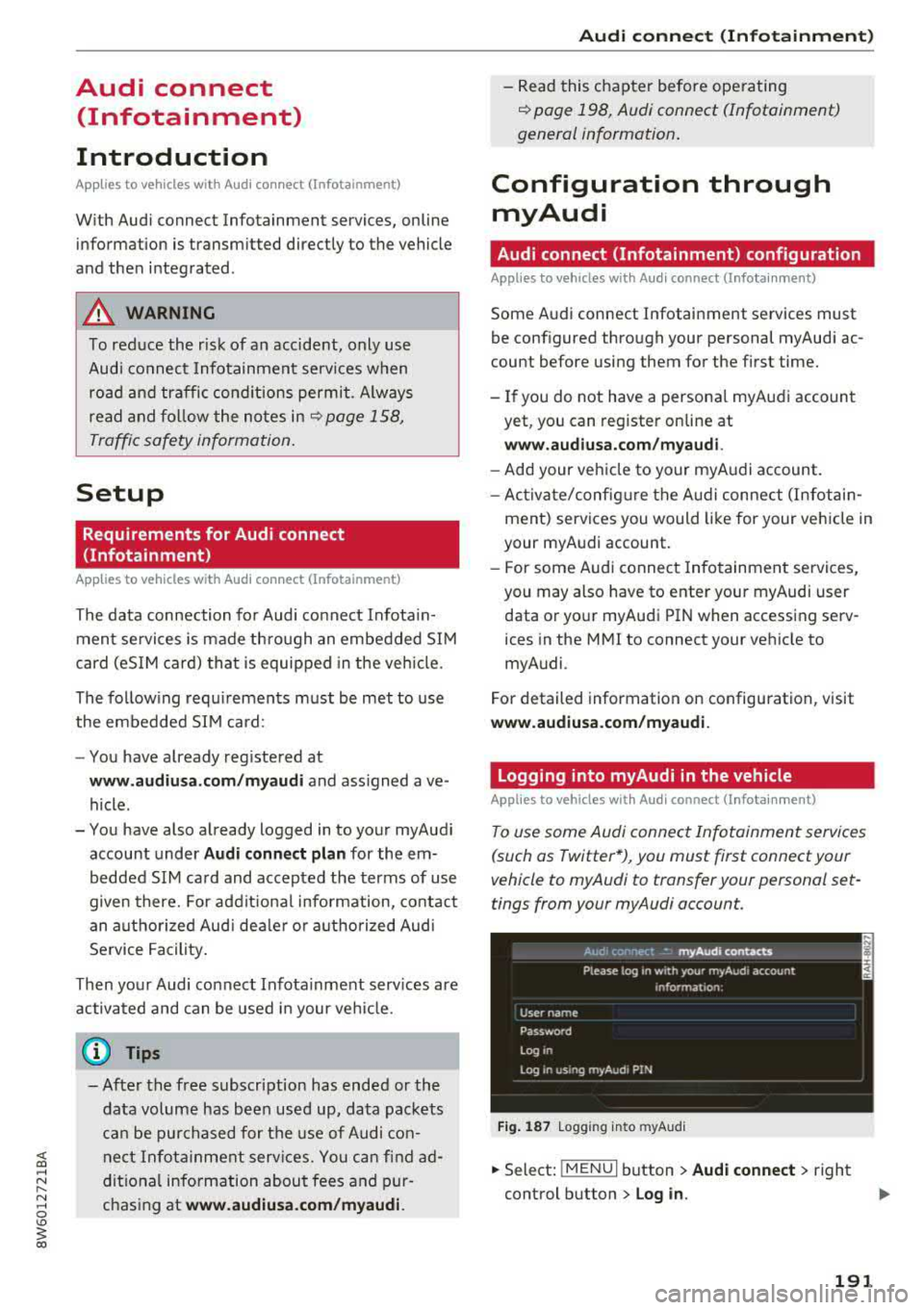
To use some Audi connect Infotainment services
(such as Twitter*), you must first connect your
vehicle to myAudi to transfer your personal set
tings from your myAudi account.
Fig. 187 L ogg ing into myAudi
.,. Select: !MENUI button> Audi connect> right
control button >
Log in .
191
Page 194 of 409
Audi connect (Infotainment)
~ Enter your myAudi user data. Or: enter your
eight-digit myAudi PIN .
~ Confirm your entry with OK.
Then you can open your persona l settings from
your myAudi account in your vehicle.
(D Tips
You can receive your myAudi P IN if you have
set up a myAudi account. For additional infor
mation, see
www.audiusa .com/myaudi .
Opening Audi connect
(Infotainment)
A pp lies to veh icles with Audi co nnect (Infotainment)
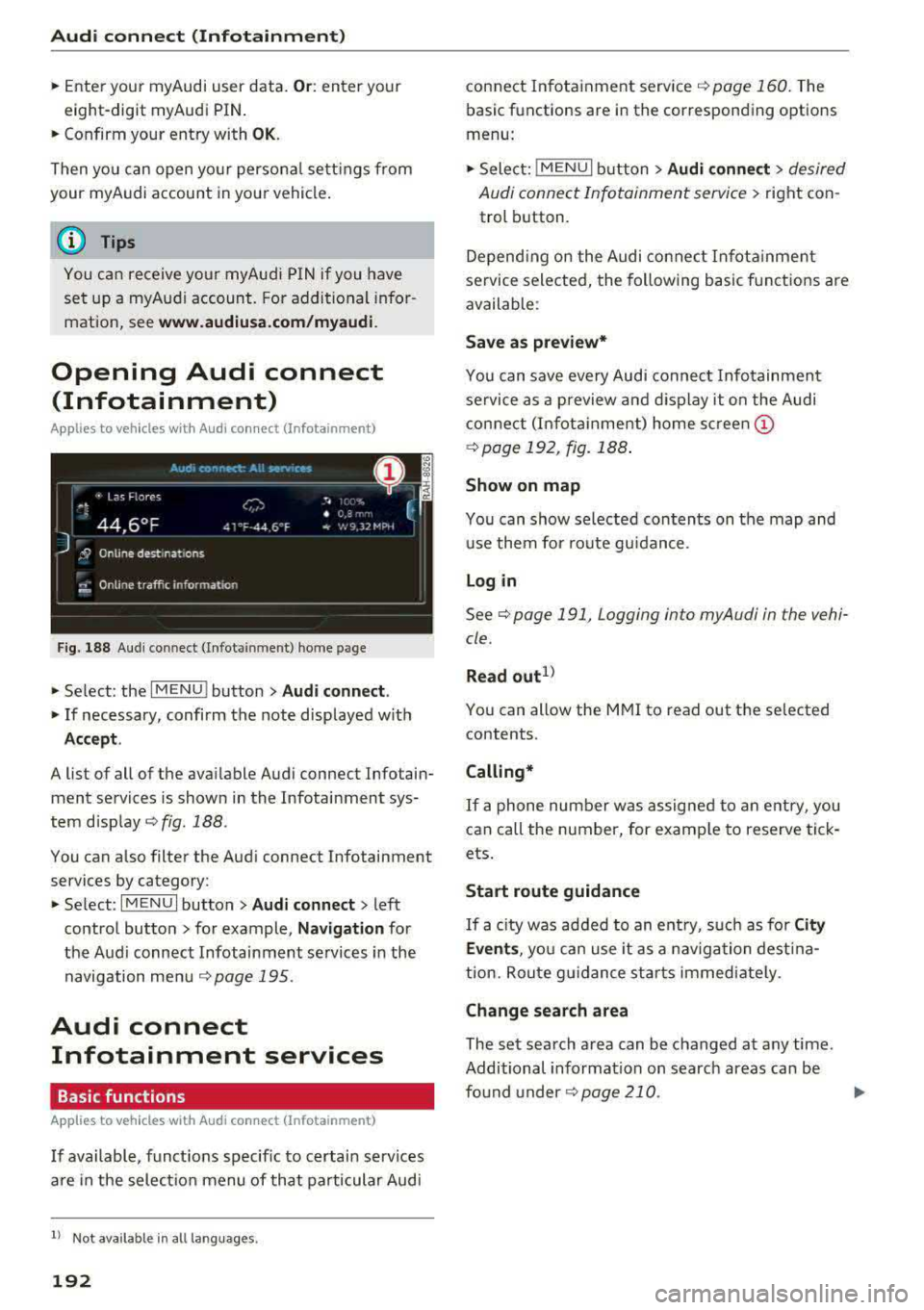
Fig. 188 Aud i connect ( Infotainmen t) ho me page
~ Select: the IMENU ! button> Audi connect .
~ If necessary, confirm the note displayed with
Accept.
A list of all of the available Audi connect Infotain
ment services is shown in the Infotainment sys
tem display
~ fig. 188.
You can also filter the Audi connect Infotainment
services by category:
~ Select: I M ENU I button > Audi connect > left
contro l button> for example,
Navigation for
the Aud i connect Infotainment services in the
navigation
menu ¢ page 195 .
Audi connect
Infotainment services
Basic functions
Applies to veh icles with Audi co nnect (Infotainment)
If available, funct ions specific to certain services
are in the selection menu of that particular Audi
l) Not available in all languages.
192
connect Infotainment service ¢ page 160. The
basic functions are in the corresponding options
menu:
~ Select: ! MENUI button> Audi connect> desired
Audi connect Infotainment service>
right con
trol button .
Depending on the Audi connect Infotainment
service selected, the following basic functions are
available :
Save as preview*
You can save every Audi connect Infotainment
service as a preview and display it on the Audi
connect (Infotainment) home screen
(D
¢ page 192, fig. 188 .
Show on map
You can show selected contents on the map and
use them for route guidance.
Log in
See¢ page 191, Logging into myAudi in the vehi
cle .
Read
out1>
You can allow the MMI to read out the selected
contents .
Calling*
If a phone number was assigned to an entry, you
can call the number, for examp le to reserve tick
ets.
Start route guidance
If a city was added to an entry, such as for City
Events ,
you can use it as a navigation destina
tion. Route gu idance starts immediate ly.
Change search area
The set search area can be changed at any time.
Additional information on search areas can be
fo und
under ¢page210 .