infotainment AUDI A6 2017 Owner's Manual
[x] Cancel search | Manufacturer: AUDI, Model Year: 2017, Model line: A6, Model: AUDI A6 2017Pages: 280, PDF Size: 70.24 MB
Page 97 of 280
co
co
.... N
" N .... 0 0 <..:l '
Appl ies to: ve hicles with Audi adaptive cruise co ntro l
.,. Se lect: t he ICAR I fu nction bu tton > ( Car) *Sys
tem s
control button > Driver as sis tance > Audi
braking guard .
System -
Switch the bra kin g g ua rd On/ Off. When
you swit ch the ig nition on, the message
Braking
guard: Off
appears if t he sys tem is switched o ff.
Early warning -The distance and approac h warn
i ngs i n the display can be sw itched
On/ Off.
@ Tips
- Your settings are automatically stored and
ass igned to the remote cont rol key bei ng
used.
- If you restric t or sw itch off the ESC, the
braking gua rd also sw itches itself off
¢ page 12 1.
- Switch braking guard off when yo u are load
i ng t he ve hicle on to a vehicle ca rr ier, t rain,
shi p or other type o f transportation. This
c a n p reven t undesired w arnings from the
br akin g guard system.
Messages
App lies to: ve hicles with Audi adaptive cruise co ntro l
Braking guard: Off
This message appea rs if the sys tem is switc hed
off through the In fota inme nt system . Otherwise ,
if the system is tur ned off, the informa tion ap
pears every time shortly after the start of t he
tr ip.
The message also appears if the system is not
avai la bl e d ue to a ma lfunction or if the ESC is
switched off~
page 121. If this is the case, the
system w ill not prov ide warnings about a possi
b le co llision.
Braking guard : engaged
This message appea rs if a sha rp bra ke press ure
was applied due to an ac ute wa rn ing.
ACC: unavailable
ACC and Audi braking guard: Unavailable
Assist
T he system cannot gua rantee that it will detect
objects co rrectly and is sw itched off . The sensors
have been moved or are faulty. The p re sense
funct ions may a lso be affected . D rive to an au
t h orized Audi dea ler or authorized Audi Service
Facility immed iate ly to have the malfunction cor
rected .
ACC: Currently unavailable. No sensor vis ion
ACC and Audi braking guard: Cu rrently unavail
able. No sensor vision
Th is mess age appears if the senso r view i s ob
str ucted, for examp le by leaves, snow , heavy
spray or dirt. Clean the sensors¢
page 88,
fig. 90 .
ACC : Currently unavailabl e. Gradient too steep
The road exceeds the maximum poss ible angle
fo r safe adaptive c ruise cont rol operat io n. Adap
t ive cr uise control is sw itched off.
ACC: only available in D, Sor M
Se lect the D/S or M selector lever position.
ACC : Currently unavailable. Parking brake ap •
plied
The ad apt ive cr uise cont rol system sw itches off
a utoma tica lly if the parking brake is se t.
ACC: Currently unavailable . Stability control
( ESC) input .
This message appears if the Electronic Stab iliza
t ion Control (ESC) is taking action to stab ilize the
vehicle . In t his case, adaptive cruise control
switches off automatically .
ACC off: Manual control!
This message appears when adaptive cruise con
trol cannot set the parking brake. P ress the brake
pedal to prevent the vehicle from ro lling.
• ••
T h ree white do ts appear if a setting canno t be se
l ecte d w it h t he oper ati ng leve r. For ex ample, this
h appens if a daptive cr uise con trol c annot sta rt
driv ing a utomat ica lly in stop -and -go traff ic be
ca use the dr iver has not fastene d their safety
belt . ..,.
95
Page 98 of 280
Ass is t
D oor open
The adaptive c ruise contro l system cannot sw itch
on when a door is open.
Stat ionar y obj ect ah ead
This message appears if you would like to switch
adapt ive cruise control on and there is a station
ary object or obstacle directly ahead of your vehi
cle .
Audi active Lane assist
Description
Appl ies to: ve hicles w ith Audi active lane assist
Active lane assist detects lane marker lines with
in the limits of the system using a camera in the
windshield. If you are approaching a detected lane marker line and it appears likely that you
will leave the lane, the system will warn you with
correct ive steering . You can ove rride th is steer ing
at any time . If you pass over a line, the steer ing
wheel will v ibrate l ightly. In order for this warn
ing vib ration to occur, it must fi rst be sw itched
on in the Infotainment sys tem . Active lane assist
is ready for operation when the lane marker line
is detected on at least one side of the vehicle .
The system is designed for driving on express
ways and highways and therefore only activates
at speeds above approximately 40 mph (65 km/
h).
A pp lies to: ve hicles w ith s ide assist
If you activate a turn sig na l when active lane as
sist is ready and it classifies a lane change as crit
ical because of vehicles traveling alongside you or
approaching you, there will be noticeab le correc
tive steering shortly before you leave the lane.
This will attempt to keep your vehicle in the lane.
A ppl ies to: ve hicles w ithout s ide ass ist
The system will not warn you before crossing a
lane marker line if yo u have activated the tu rn
signa l. In this case, it ass umes that you are
changing lanes intentiona lly .
A ppl ies to: ve hicles with adaptive cruise co ntrol
The corrective stee ring is targeted based on the
driving situat ion . In addition to the lane marker
96
li nes, the system can a lso take into account other
objects such as guard rails. If they are detected in close prox imity to the ve hicle, active lane assist
helps prevent the vehicle from dr iving too close
to them. There is a lso pass ing ass istance. The
system does not provide any corrective steering if i t detects that you are pass ing another vehicle .
A WARNING
-The system warns the drive r that the vehicle
is leaving the lane using cor rect ive steering.
The drive r is always responsible fo r keeping
the vehicle within the lane.
- The system can help you keep the vehicle in
the lane, but it does not drive by itse lf. Al
ways keep your hands on the steering
wheel.
- Cor rective steering m ay no t occur in certain
si tuations, such as during heavy braking.
- There may be cases where t he camera does
not recognize all lane marker lines . Correc
tive steering can only take place on the s ide
of the vehicle where lane marker lines are
detected.
- Other road structures or objects could possi
bly be identified unintent ionally as lane
marker lines. As a result, corrective steering
may be unexpected or may not occur.
- The camera view can be restricted, for ex
ample by vehicles driving ahead or by rain,
snow, heavy spray or light shining into the
camera . This can result in active lane ass ist
not detecting the lane marker lines or de
tect ing them inco rrectly .
- Under certain cond it ions such as ruts in the
road, a banked roadway or crosswinds, the
corrective steer ing alone may not be enough
to keep the vehicle in the m iddle of the lane.
- For safety reasons, act ive la ne assist must
no t be use d when there are poor road and/
or weather condi tions such as slippery
roads, fog, gravel, heavy rain, snow and the potential for hydrop laning. Using active lane
assist under these conditions may increase
the risk of a crash.
Page 106 of 280
Ass is t
Switching on /off
Applies to: vehicles with night vision assist
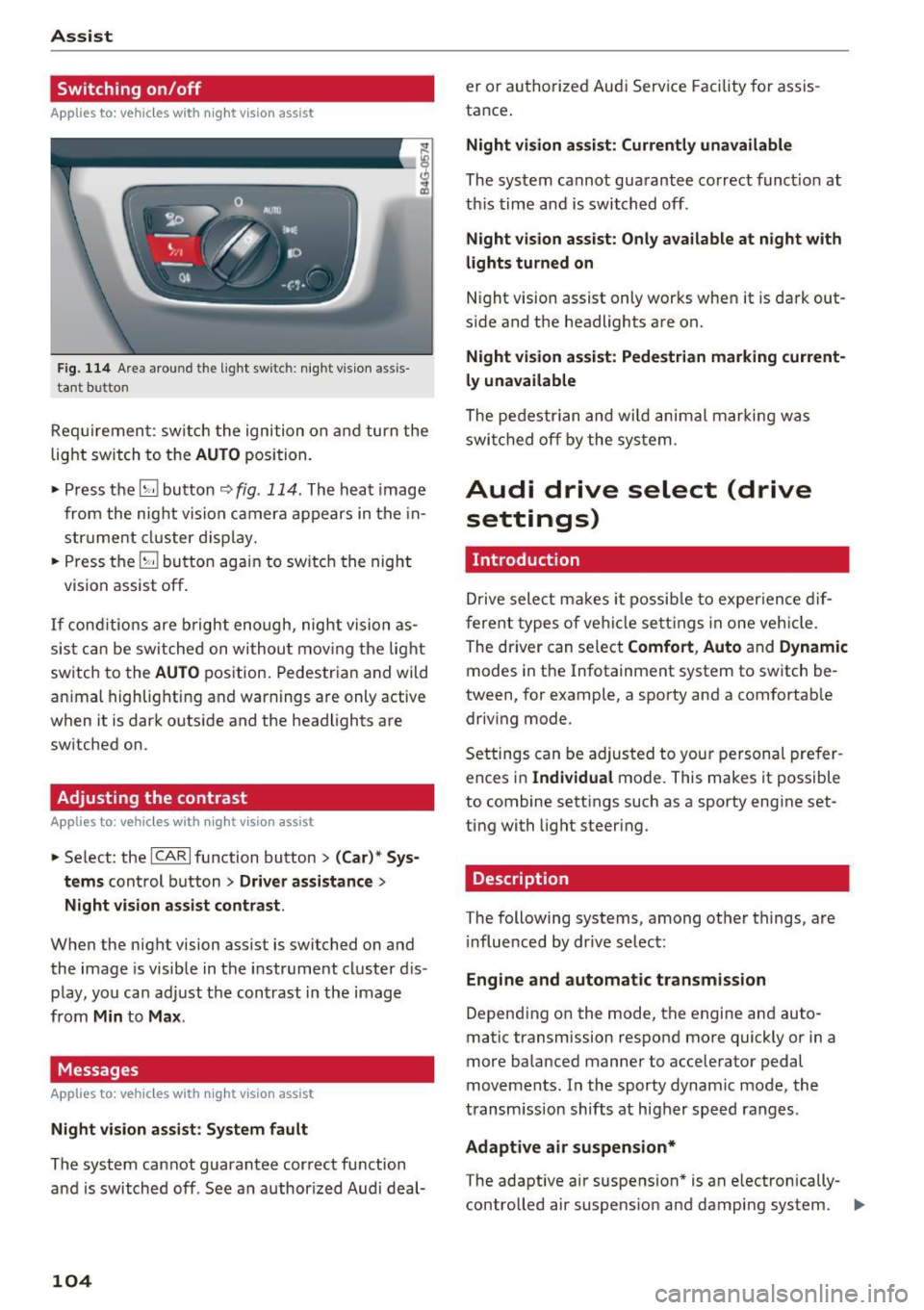
Fig. 114 Are a aro und th e light sw itc h: n ight v is ion assis
ta nt b utto n
Req uiremen t: sw itch the ignition on and turn the
light switch to the
AUTO position.
• Press the
[g button ~ fig. 114 . The heat image
from the nig ht vision camera appears in the in
strume nt cluster d isplay.
• Press the
(g button again to switch the night
vision assist off .
If conditions are b right enough, night vision as
sis t can be switched on withou t mov ing the light
switch to the
AUTO position. Pedestrian and wild
an imal highlighting and warnings are only active
when it is da rk outs ide and the headlights are
sw itched on .
Adjusting the contrast
Applies to: vehicles with night vision assist
• Select : the ICARlfunction button > (C ar)* S ys
t e ms
control button > Dri ver assistance >
Night vi sion a ssis t contrast .
When the night vision assist is switched on and
the image is visible in the instrument cluster d is
p lay, you can adjust the contrast in the image
from
Min to Ma x.
Messages
Applies to: vehicles with night vision assist
Ni ght vision assist : S ystem fau lt
The system cannot guarantee correct function
and is switched off . See an author ized Audi deal-
104
er or authori zed Aud i Service Facility for assis
tance .
Night vi sion a ssis t: Curren tly unavailable
The system cannot guarantee correct funct io n at
th is time and is switched off .
Night vis ion ass ist: O nly ava ilabl e a t n ight with
lights turned on
N ight vision assist only works when it is dark out
s ide and the headlights are on.
Night vis ion a ssist: Pede st ria n marking current
l y unavailab le
The pedestrian and wi ld animal marki ng was
swi tched off by the system .
Audi drive select (drive
settings)
Introduction
D rive select makes it possib le to exper ience dif
ferent types of ve hicle settings in one veh icle .
The dr iver can select
Comfort , Auto and Dynamic
modes in the Infotainment system to switch be
tween, for example, a sporty and a comfortab le
driv ing mode .
Settings can be adjusted to your persona l prefer
ences in
Individua l mode. This makes it possible
to combine settings such as a sporty engine set
ting with light steering.
Description
T he following systems, among other things, are
i nfluenced by dr ive select:
Eng ine and aut om atic transmi ssion
Depend ing on the mode, th e engine and auto
matic transmission respond more quickly or in a
more balanced manner to acceler ator pedal
movements. In the sporty dynamic mode, the
transm ission shifts at higher speed ranges .
Adaptive air su spen sion*
The adaptive a ir suspension * is an e lectronically
controlled air suspens ion and damping system. ..,_
Page 108 of 280
Ass is t
Selecting the driving mode
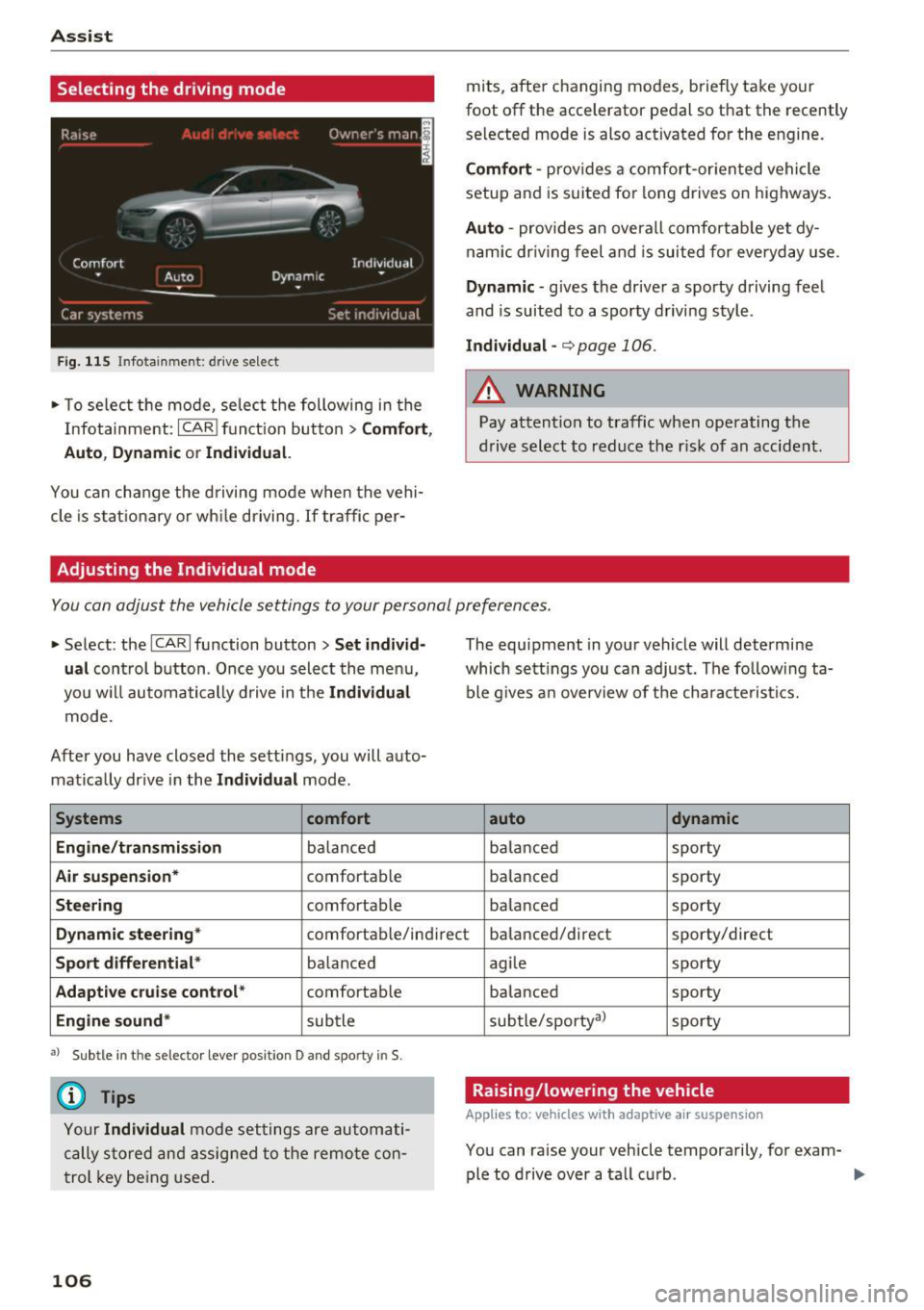
Fi g. 115 Infotainment: drive select
.- T o select the mode, selec t the following in the
Infota inment:
ICARI fun ct ion button> C o mf ort ,
Auto , D ynami c or Individual.
You can change the d riving mode when the vehi
cle is s tat io nary or wh ile driving. If traffic per-
Adjusting the Individual mode
mits, after changing modes, briefly take your
foot off the accelerator pedal so that the recently
se lected mode is also activated for the engine.
Comf ort -prov ides a comfort-or iented vehicle
setup and is s uited for long drives on highways.
Auto -provides an overa ll comfortab le yet dy
nam ic dr iving feel and is suited for everyday use.
Dynamic -gives the drive r a sporty driving feel
and is suited to a sporty driving style .
Indiv idual -¢ page 106.
_& WARNING
Pay attention to traff ic when operating the
d rive select to reduce the r isk of an accident .
-
You can adjust the vehicle settings to your personal preferences .
.-Select : the ICARI function button > S et individ
ual
control b utton . Once you select the menu,
you w il l automatically drive in t he
Indi vidua l
mode .
After you have closed the settings, you will auto
mat ica lly dr ive in the
Individual mode .
Systems comfort
Engine /tran smi ssion
balanced
Air su spen sion * comfortab le
Steering comfortab le The
equipment in your vehicle will determine
which sett ings you can adjust. The following ta
ble g ives a n overview of the characte ristics.
auto dynamic
balanced sporty
ba lanced sporty
ba lanced sporty
Dynamic steering * comfortab le/indirect balanced/direct sporty/direct
Sport differentia l* ba lanced
Ada pti ve cr uise cont rol * comfortab le
Engine sound * subtle
•> Subtle in th e selector leve r position D and sporty in S.
© Tips
Your Individual mode setting s are automati
cally sto red and assig ned to the remo te con
trol key being used .
106
agile sporty
balanced sporty
subtle/sporty al
sporty
Raising/lowering the vehicle
Applies to: vehicles with adaptive a ir suspension
You can raise your vehicle temporarily, for exam-
ple to drive over a ta ll curb . ...,
Page 110 of 280
Parking systems
Parking systems
General information
Applies to: vehicles with parking system plus/rearview cam
era/peripheral camera
Depending on your vehicle's equipment , various
parking aids will help you when parking and ma
neuvering.
The
parking system plus assists you when park
ing by audibly and visually indicating objects de
tected
in front of and behind the vehicle
¢page 109.
The
rearview camera shows the area behind the
vehicle in the Infotainment system display. This
display assists you when you are cross or parallel parking
¢ page 110. The parking system plus
functions are also available
¢ page 109.
The
peripheral cameras assist you with parking
and maneuvering. You are aided by various cam
eras depending on the vehicle equipment level
¢ page 113. The parking system plus functions
are also available
¢ page 109.
A WARNING
-Always look for traffic and check the area
around your vehicle by looking at it directly
as well. The parking system cannot replace
the driver's attention. The driver is always responsible when entering or leaving a park
ing space and during similar maneuvers.
- Please note that some surfaces, such as
clothing, are not detected by the system .
-
-Sensors and cameras have blind spots in
which people and objects cannot be detect ed . Be especially cautious of small children
and animals.
- The sensors can be displaced by impacts or
damage to the radiator grille, bumper,
wheel housing and the underbody . The park
ing system may be impaired as a result.
Have an authorized Audi dealer or author
ized Audi Service Facility check their func
tion .
- Make sure the sensors are not obstructed by stickers, deposits or other materials. If they
are, the sensor function could be impaired.
108
For additional information on cleaning, see
¢page 231.
(D Note
-Some objects are not detected or displayed
by the system under certain circumstances:
- Objects such as barrier chains, trailer draw
bars, vertical poles or fences
- Objects above the sensors such as wall ex
tensions
- Objects with certain surfaces or structures
such as chain link fences or powder snow
- If you continue driving closer to a low ob
ject, it may disappear from the sensor range. Note that you will no longer be
warned about th is obstacle .
- Keep enough distance from the curb to re
duce the risk of damage to the rims .
(D Tips
-The system may provide a warning even
though there are no obstacles in the cover
age area in some situations, such as :
- certa in road surfaces or when there is tall
grass.
- external ultrasonic sources such as from
cleaning vehicles .
- in heavy rain, snow, or thick vehicle ex
haust.
- We recommend that you practice parking in
a traffic-free location or parking lot to be
come familiar with the system . When doing
this, there should be good light and weath
er conditions.
- You can change the volume and pitch of the
signals as well as the display
¢ page 118.
- Please refer to the instructions for towing a
trailer located in
¢page 118.
- What appears in the infotainment d isplay is
somewhat time-delayed.
- Th e sensors must be kept clean and free of
snow and ice for park aid to operate .
Page 113 of 280
co
co
.... N
" N .... 0 0 <.,;) 'SI"
-For objects that do not touch the ground,
such as the bumper of a parked vehicle, a
tra iler hitch or the rear of a truck. Do not
use the orientation lines in this case .
- If driven from a level surface onto an in
cline, or a downward slope.
- If driven toward protrud ing objects .
- If the vehicle is carrying too much load in
the rear.
- Applies to: vehicles with air s uspension: the
accuracy of the orientation lines and bl ue
surfaces decreases when the vehicle is raised/lowered
Q page 104.
(D Note
- Always read and follow the applicable warn
ings
Q 0 in General information on
page 108 .
-The orange-colored orientation lines in the
Infotainment display show the vehicle path
based on the steering wheel angle . The
front of the vehicle swings out more than
the rear of the veh icle . Mainta in plenty of
distance so that an exterio r mirror or a cor
ner of t he ve hicle does not co llide w it h any
obstacles.
Switching on/off
Applies to : vehicles wit h rearv iew came ra
Switching on
.,. Shift into reve rse , or
.,. Press t he
P' #A bu tton in the cente r console
Q page 109, fig . 117 . A short conf irmation
tone sounds and the LED in the button turns
on.
Switching between the r earview camera and
optical di splay
.,. Press t he Graphic control button ®
Q page 111, fig. 122 to see the opt ica l display.
.,. Press the
Rear view contro l button to see the
rearview camera image.
Switching off
.,. Drive faster than 6 mph ( 10 km/h), or
.,. Press the P•
11A button, or
.,. Switch the ign ition off .
Parking systems
(D Tips
-The visua l display in the left part of the d is
play sho uld he lp you detect the critical veh i-
cle areas.
- You can change the vol ume and pitch of the
signa ls as well as the d isplay
Q page 118.
Perpendicular parking
Applies to : veh icles w it h rearv iew camera
This view may be used when parking in a garage
or in a parking space .
Fig. 1 22 In fota inme nt syste m: a im ing at a park in g space
Fi g. 123 Infot ainment syste m: alig ning t he vehicl e
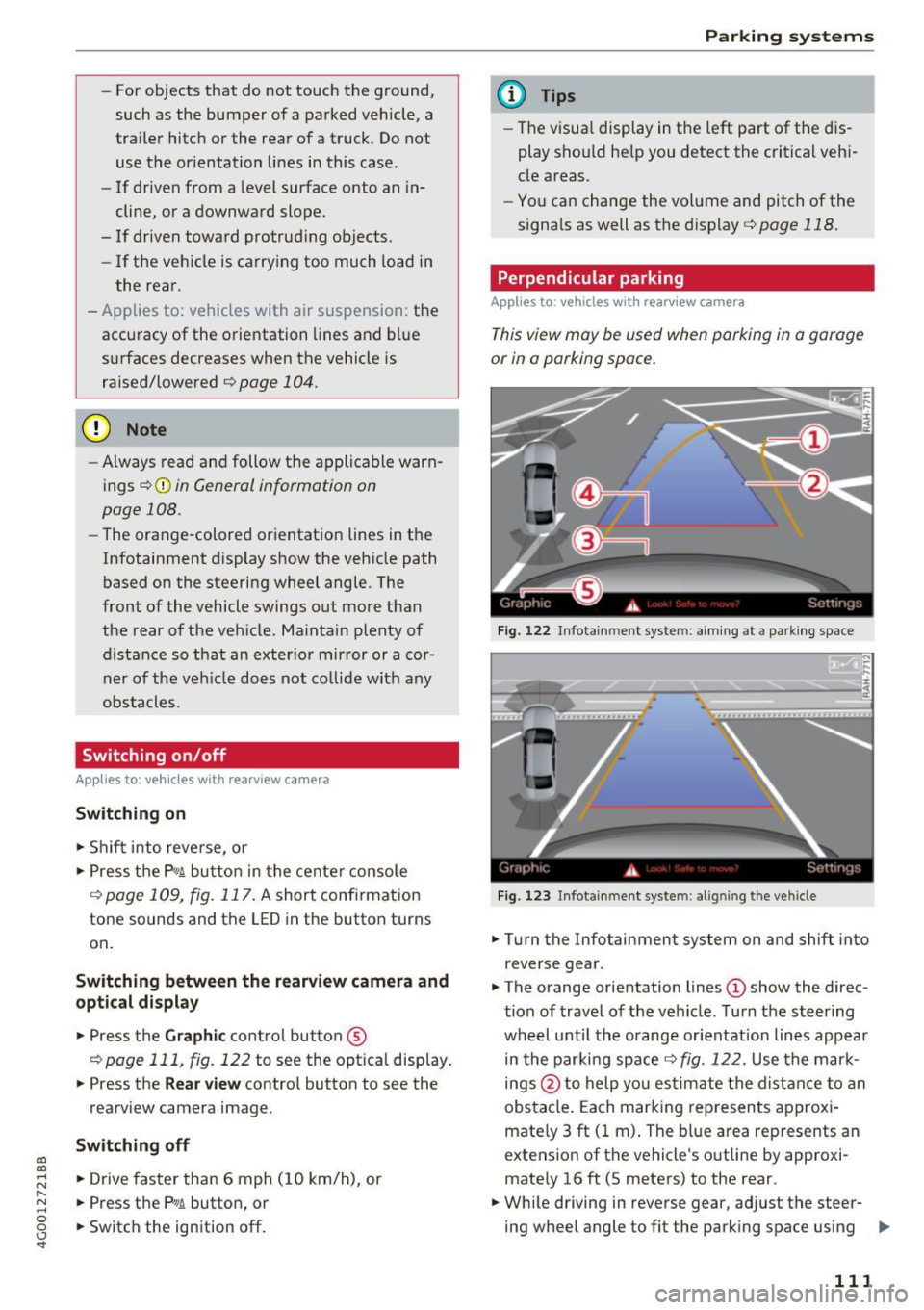
.,. Turn the Infotainment system on and shift into
reverse gear .
.,. The orange orientation lines
(D show the direc
tion of trave l of the vehicle . Turn the steering
whe el unti l the orange orientation lines appear
in the parking space
Q fig. 122. Use the mark
ings @to help you es timate the distance to an
obs ta cl e. Each mar king represen ts approxi
mately 3 ft ( 1 m) . The blue area represents an
extens ion of the vehicle 's o utline by app roxi
mately 16 ft (5 meters) to the rear .
.,. Wh ile driving in reverse gear , adjust the steer-
ing wheel angle to fit the park ing space using ..,_
111
Page 114 of 280
Parking system s
the orange orientation lines for assistance
¢ A in General informat ion on page 110 , ¢0
in General information on page 111 . @ repre
sents the rear bumper . At the very latest, stop
the vehicle when the red orientation line©
borders an object .
Parallel parking
Appl ies to: ve hicles w ith rearview ca mera
This view may be used when parallel parking
along the side of a stree t.
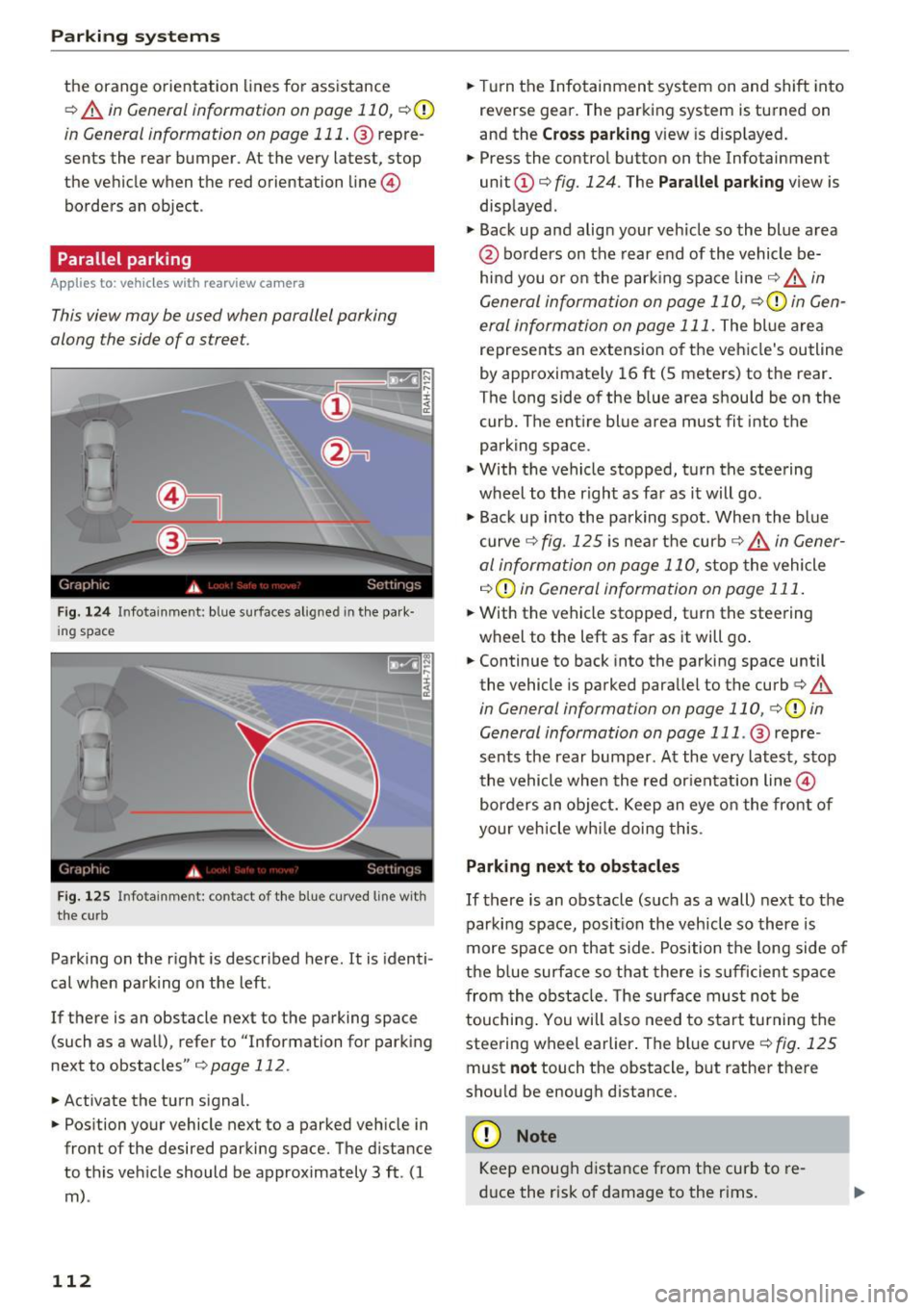
Fig. 124 In fotainment : blue surfaces alig ned in t he pa rk·
ing spac e
Fig . 1 25 Infotainme nt: conta ct of th e bl ue curv ed lin e with
the cu rb
Parking on the right is described here. It is identi
cal when parking on the left .
If there is an obstacle next to the parking space (such as a wall), refer to "Information for park ing
next to obstacles" ¢
page 112.
• Activate the turn signal.
• Position your vehicle next to a parked veh icle in
front of the desired parking space. The distance
to this vehicle should be approximately 3 ft . (1
m) .
112
• Turn the Infotainment system on and shift into
reverse gear. The parking system is turned on
and the
C ross par king view is disp layed .
• Press the contro l button on the Infotainment
unit
(D ¢ fig. 124. The Pa rallel pa rking view is
displayed .
.,. Back up and align your veh icle so the blue area
@ borders on the rear end of the vehicle be
hi nd you o r o n the parking space line ¢.&.
in
General information on page 110,
¢ 0 in Gen
eral information on page 111.
The blue area
represents an extension of the vehicle's outline
by approx imate ly 16 ft (5 meters) to the rear .
The long side of the blue area should be on the
curb. The ent ire blue area must fit into the
parking space .
.,. With the vehicle stopped, turn the steering
wheel to the r ight as far as it will go .
.,_ Back up into the parking spot . When the blue
curve ¢
fig. 125 is near the curb¢.&. in Gener
al information on page 110,
stop the vehicle
¢ (i) in Gen eral information on page 111 .
.,. With the vehicle stopped, turn the steering
wheel to the left as far as it will go .
• Continue to back into the parking space until
the vehicle is parked parallel to the curb¢
A
in General information on page 110, ¢0 in
General information on page 111 .
@ repre
sents the rear bumper. At the very latest, stop
the vehicle whe n the red or ientation line©
borders an object. Keep an eye o n the front of
your veh icle wh ile doing this .
Parking next to obstacles
If there is an obstacle (such as a wall) next to the
parking space, posi tion the vehicle so there is
more space on that s ide. Position the long side of
the b lue surface so that there is s ufficient space
from the obstacle. The surface must no t be
touching . You will a lso need to sta rt turning the
steer ing wheel earlier . The bl ue curve ¢
fig. 125
must not touch the obstacle, but rather the re
shou ld be enough distance.
(D Note
Keep enough distance from t he curb to re
d uce the risk of damage to the r ims.
Page 115 of 280
co
co
.... N
" N .... 0 0 <.,;) 'SI"
@ Tips
The left or right orientation lines and surfaces
will be displayed, depending on the turn sig nal being used.
Peripheral cameras
Introduction
Applies to: vehicles with peripheral cameras
With this equipment, the parking system plus*
c::!;> page 109 is supplemented with various periph
e ral cameras.
Depending on vehicle equipment, you are provid
ed with the following views: area around the ve
hicle, front corner view and rear corner view, view
in front of the vehicle and behind the vehicle.
General information
Applies to: vehicles with pe ripheral came ras
);
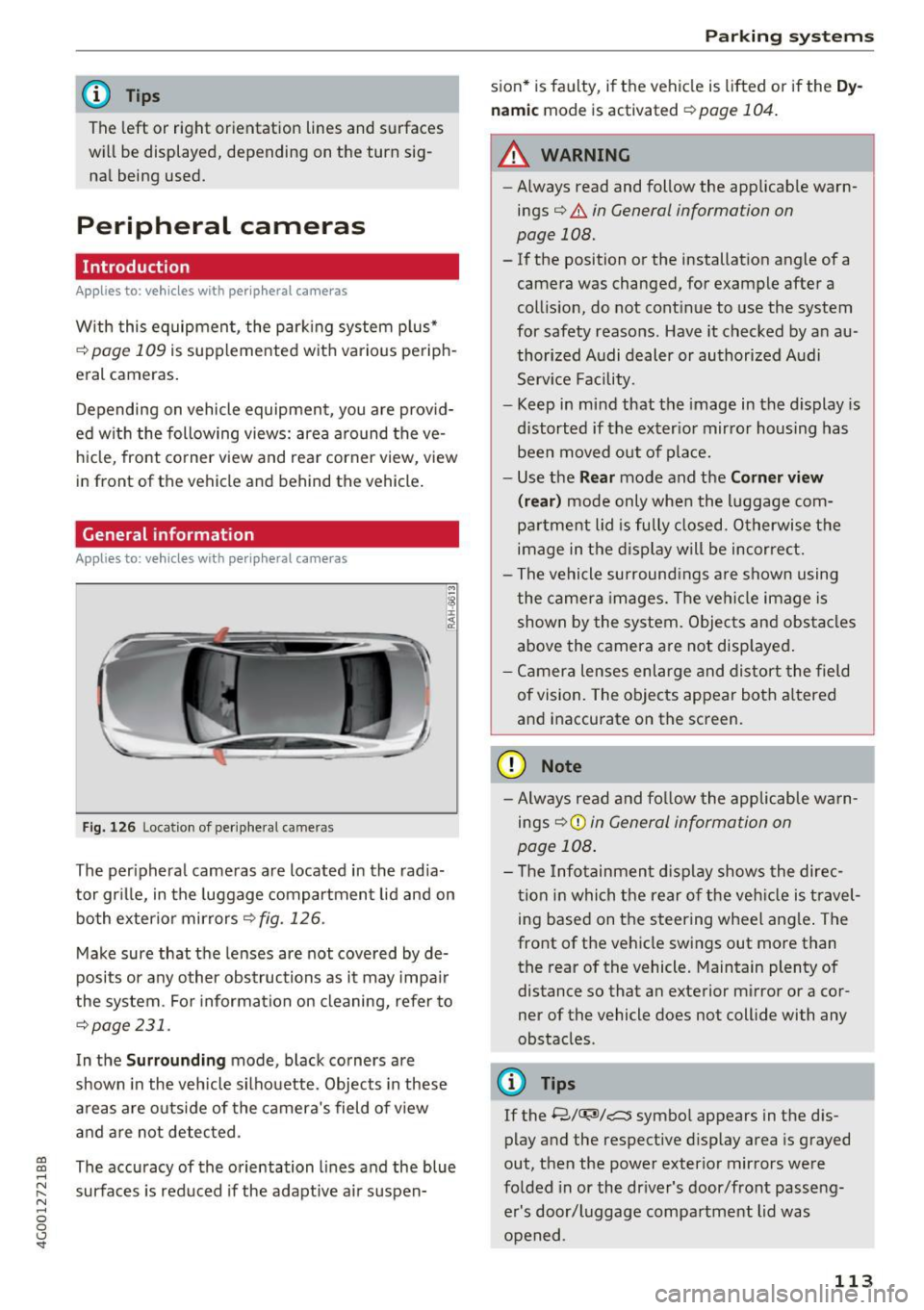
Fig. 126 Locatio n of peripheral came ras
The peripheral cameras are located in the radia
tor grille, in the luggage compartment lid and on
both exterior mirrors
r::!;> fig . 126.
Make sure that the lenses are not covered by de
posits or any other obstructions as it may impair
the system . For information on cleaning, refer to
¢page 231.
In the Surrounding mode, black corners are
shown in the vehicle silhouette. Objects in these
areas are outside of the camera's field of view
and are not detected .
The accuracy of the orientation lines and the blue
surfaces is reduced if the adaptive air suspen-
Parking systems
sion* is faulty, if the vehicle is lift ed or if the Dy
namic
mode is activated ¢ page 104.
.&_ WARNING
-
-Always read and follow the applicable warn-
ings¢ .&.
in General information on
page 108.
- If the position or the installation angle of a
camera was changed, for example after a
collision, do not continue to use the system
for safety reasons . Have it checked by an au
thorized Audi dealer or authorized Audi
Service Facility .
- Keep in mind that the image in the display is
distorted if the exterior mirror housing has
been moved out of place.
- Use the
Rear mode and the Corner view
(rear)
mode only when the luggage com
partment lid is fully closed . Otherwise the
image in the display will be incorrect.
- The vehicle surroundings are shown using
the camera images. The vehicle image is
shown by the system. Objects and obstacles
above the camera are not displayed.
- Camera lenses enlarge and distort the field
of vision. The objects appear both altered
and inaccurate on the screen.
(D Note
- Always read and follow the applicable warn
ings
9 (£) in General information on
page 108.
- The Infotainment display shows the direc
tion in which the rear of the vehicle is travel
ing based on the steering wheel angle. The
front of the vehicle swings out more than
the rear of the vehicle. Maintain plenty of
distance so that an exterior mirror or a cor
ner of the vehicle does not collide with any
obstacles .
@ Tips
If the 8/u;ri/r::::::5, symbol appears in the dis
play and the respective display area is grayed
out, then the power exterior mirrors were
folded in or the driver's door/front passeng
er's door/luggage compartment lid was
opened .
113
Page 116 of 280
Parking systems
Switching on or off
Applies to: vehicles with per ipheral cameras
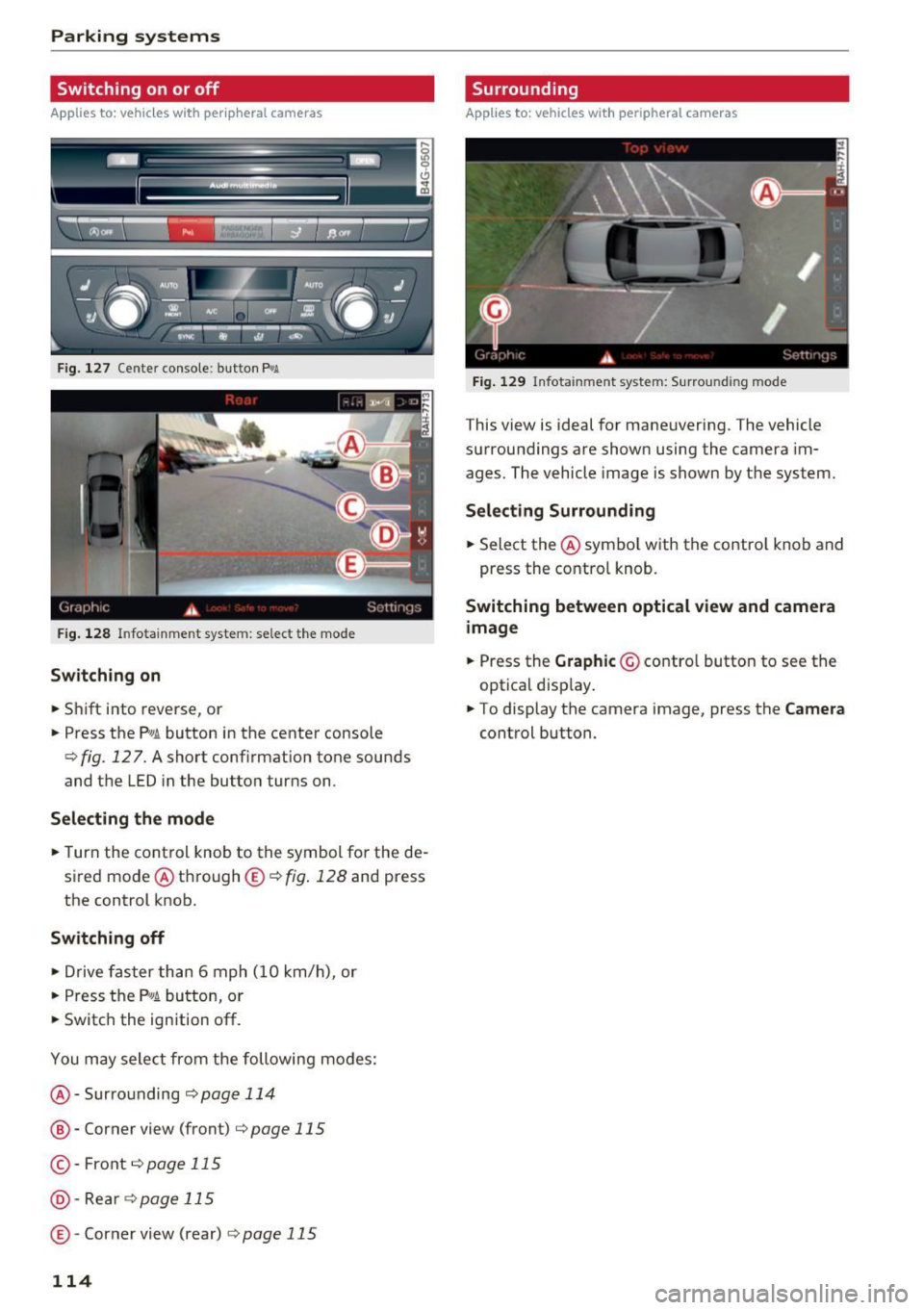
F ig. 127 Center console: button P.A
F ig . 128
Infotainment system: select the mode
Switching on
.. Shift into reverse, or
.. Press the P"'A button in the center console
c> fig. 12 7. A short confirmation tone sounds
and the LED in the button turns on.
Selecting the mode
.. Turn the cont rol knob to the symbol for the de
sired mode @ through ®¢
fig. 128 and press
the control knob.
Switching off
.. Drive faster than 6 mph (10 km/h), or
.. Press the P
1#~ button, or
.. Switch the ign ition off.
You may select from the following modes:
@ -Surrounding
c>page 114
® -Corner view (front) c> page 115
© -Front¢ page 115
@-Rear c>page 115
® -Corner view (rear) c> page 115
114
Surrounding
Applies to: vehicles with peripheral cameras
Fig. 129 Infot ainment system: Surround ing mode
This view is ideal for maneuvering. The vehicle
surroundings are shown using the camera im
ages. The vehicle image is shown by the system.
Selecting Surrounding
.. Select the@ symbo l with the contro l knob and
press the control knob.
Switching between optical view and camera
image
.. Press the Graphic © control button to see the
optical display .
.. To display the camera image, press the
Camera
control button .
Page 117 of 280
co
co
.... N
" N .... 0 0 <..:l 'SI"
Corner view (front)/Corner view (rear)
Applies to: vehicles with peripheral cameras
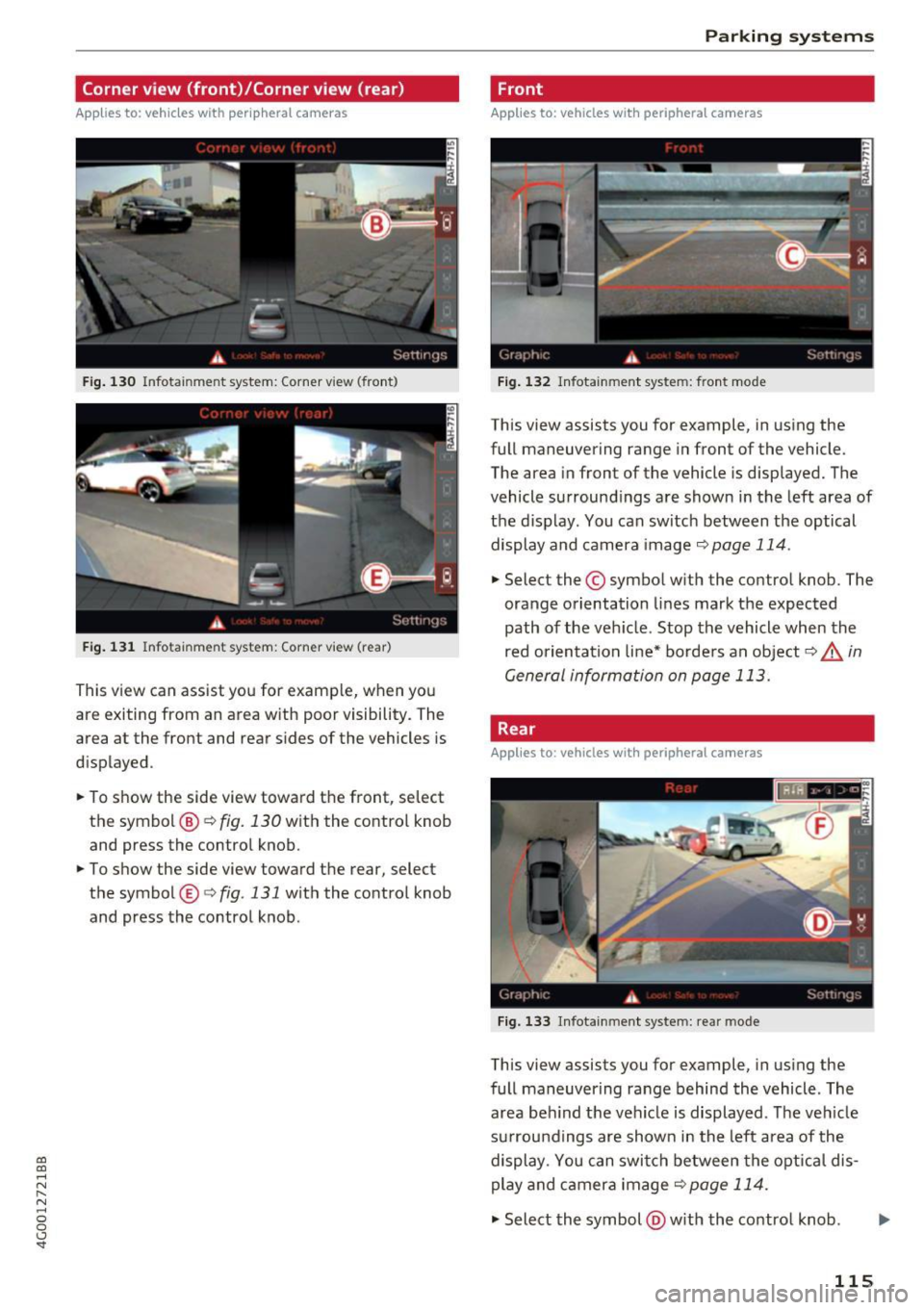
Fig . 130 Infotainment system: Corner view (front)
Fig . 131 Infotainment system: Corner view (rear)
This view can assist you for examp le, when you
are exiting from an area w ith poor visibility. The
area at the front and rear s ides of the vehicles is
displayed .
.. To show the side view toward the front, select
the symbol ®
9 fig. 130 with the contro l knob
and press the control knob .
.. To show the side view toward the rear, select
the symbol ®
q fig. 131 with the control knob
and press the control knob .
Parking systems
Front
Applies to: vehicles with peripheral cameras
Fig. 132 Infot ainme nt system: front mode
This view assists you for example, in using the
full maneuvering range in front of the vehicle.
The area in front of the vehicle is displayed. The
vehicle surround ings are shown in the left area of
the display . You can switch between the optical
display and camera image
q page 114 .
.. Select the © symbol with the control knob. The
orange orientation lines mark the expected
path of the vehicle. Stop the vehicle when the
red orientation line* borde rs an object
q & in
General information on page 113.
Rear
Applies to: vehicles with peripheral cameras
Fig. 133 Infotainmen t system: rea r mo de
This view assists you for example, in using the
full maneuvering range behind the vehicle. The
area be hind t he vehicle is displayed. The vehicle
s ur rou ndings are shown in the left area of the
display. You can switch between the optical dis
play and ca mera image
9page 114.
.. Select the symbol @with the contro l knob . Ill>-
115