steering AUDI A6 2018 Owner's Manual
[x] Cancel search | Manufacturer: AUDI, Model Year: 2018, Model line: A6, Model: AUDI A6 2018Pages: 266, PDF Size: 41.38 MB
Page 99 of 266

a co .... N
" N .... 0 0 \.J '
disp lay *.
White line(s) Active lane assist is activated and ready to provide warnings .
Red line(s) Active lane assist warns yo u
(left or right) before leaving a lane
c> fig. 101. In addit ion, the
steering wheel vibra tes light ly.
Gray line(s) Active lane ass ist is activ ated,
b ut not ready to give warning
c> fig . 102 .
Messages in the instrument cluster display
If t he ac tive lane ass ist switches off automat ic al
l y, the indicator lig ht in the display turns off and
one of the following messages appears :
Audi active lane assis t: Currently unavailabl e.
No camera view
This message appea rs if the came ra is u nable to
detect t he lines. This co uld happen if:
- The camera field of v iew
c> page 96, fig . 100 is
dirty or covered in ice. C lea n this area on the
wi ndsh ield .
- The camera field of v iew is fogged over . Wait
u nt il the fog has cleared before sw itch ing the
active lane assist on again .
- T he system has been unab le to detect the lanes
fo r an extended pe riod of time due to road con
dit ions. Sw itch act ive lane assist bac k on when
t h e lines are mo re visible .
Audi active lane a ssist : Currently unavailable
T here is a temporary active lane assist malf unc
tion . Try sw itching the act ive lane assist on aga in
l a ter.
Audi active lane as sist : System fault!
D rive to an autho rized Aud i de aler o r a uth o rized
Aud i Service Facility immediately to have t he
malfunction corrected.
Audi active lane as sist: Please take over steering
T his message appea rs if you are not steering by
yourself . If t his is t he case, active lane assist does
n ot swi tch off, but it is "no t ready " to prov ide a
war ning. The system c an help you keep t he ve hi-
A ss istance systems
cle in the lane . Howeve r, you are responsible for
driving the ve hicle and m ust steer it yourse lf .
A WARNING
--
Note that messages may be de layed or not
d isplayed o n ve hicles w ith accessories mount
ed on the steering wheel, such as a steer ing
whee l spinne r knob . Always keep your hands
on the steering wheel.
Adjusting the vibration warning
App lies to: veh icles w it h Audi act ive lane ass ist
.,. Select: the I CAR ! funct io n button > (Car) * Sys
tem s
contro l butto n > Driver as sistance > Audi
activ e lane assi st.
Vibration warning
You can switch the add it io nal vibration warn ing
i n t he steer ing whee l on or off .
(D Tips
Your settings are automatically stored and as
s igned to the remote co ntro l key being used .
97
Page 104 of 266
Assistance systems
that are between approximately 32 ft (10 m) and
295
ft (90 m) in front of the vehicle and within
the detection zone. Within the limits of the sys
tem
c:> page 102, a pedestrian or wild animal de
tected when the low beams are switched on is
highlighted in yellow
c:> fig. 108. Animal recogni
tion is not active within highly developed areas.
The system only detects large wild animals such
as deer.
(D Tips
If another display such as navigation replaces
the image from the night vision assist
the~--,
symbol appears in a tab c:>fig. 109. You can
access night vision assist using the multifunc
tion steering wheel buttons
c:> page 20.
Pedestrian and wild animal warning
Applies to: vehicles with night vision assist
Fig . 110 Inst rument cluster :® pedestrian warning, ®
wild animal warning
Fig. 111 In strument cl uster: ® pedestrian warning/ @
w ild an imal warning, when the night vision assist image is
n ot selected in the instrument cl uster display
Image in the instrument cluster/head-up
display*
If there are pedestrians or wild animals in an
area in front of your vehicle that is classified as
102
critical, the system will direct your attention to
this :
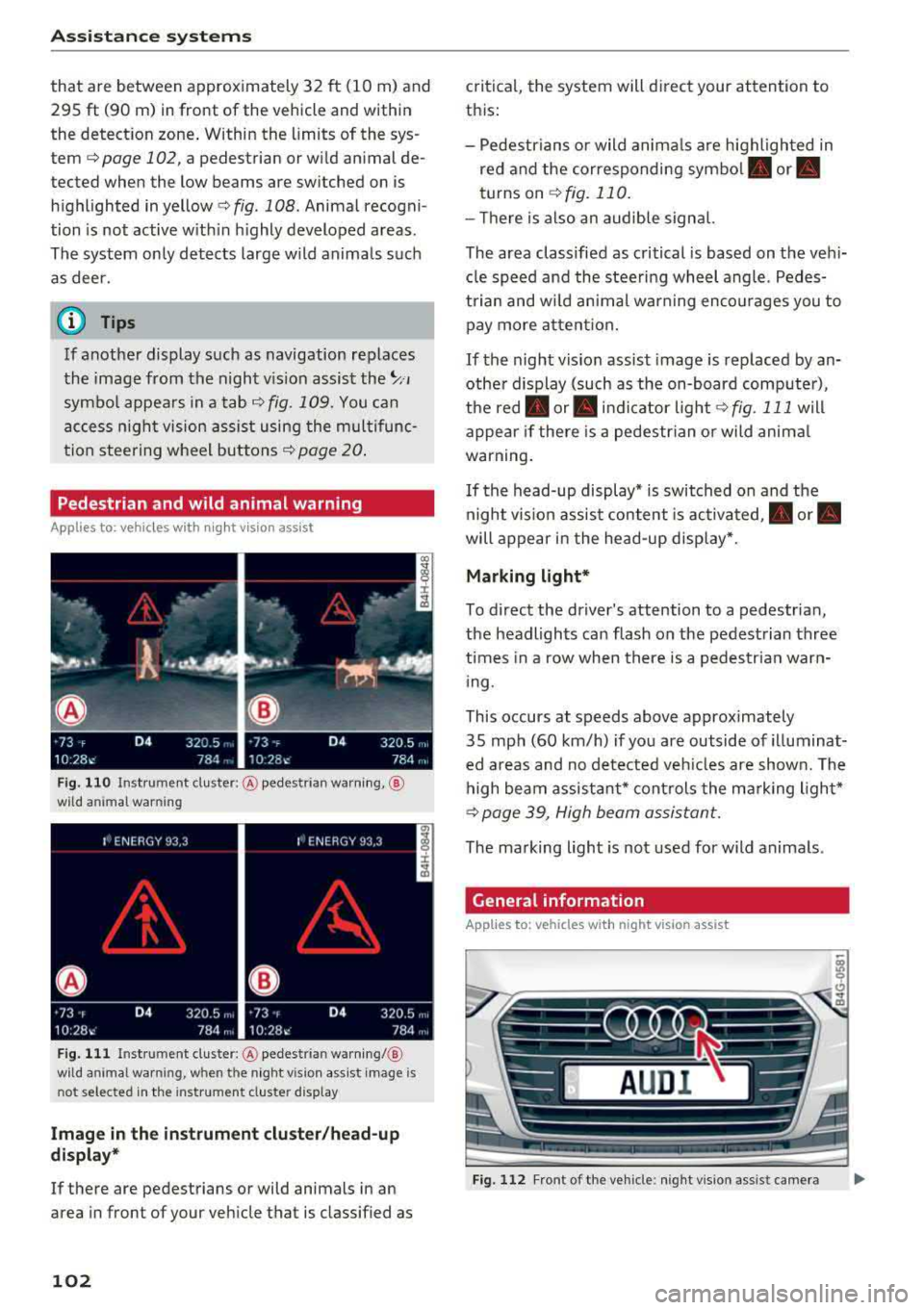
- Pedestrians or wild animals are highlighted in
red and the corresponding
symbol . or.
turns on c:>fig. 110.
- There is also an audible signal.
The area classified as critical is based on the vehi
cle speed and the steering wheel angle. Pedes
trian and wild animal warning encourages you to pay more attention.
If the night vision assist image is replaced by an
other display (such as the on-board computer),
the
red . or. indicator light c:> fig. 111 will
appear if there is a pedestrian or wild animal
warning.
If the head-up display* is switched on and the
night vision assist content is activated, .
or.
will appear in the head-up display*.
Marking light*
To direct the driver's attention to a pedestrian,
the headlights can flash on the pedestrian three
times in a row when there is a pedestrian warn
ing.
This occurs at speeds above approximately
35 mph (60 km/h) if you are outside of illuminat
ed areas and no detected vehicles are shown. The
high beam assistant* controls the marking light*
c:> page 39, High beam assistant.
The marking light is not used for wild animals .
General information
Applies to: vehicles with night vision assist
Fig. 112 Fro nt of the vehicl e: night vision assist camera
Page 106 of 266

Assistance systems
Messages
App lies to: ve hicles w ith night v isio n ass ist
Night vision assist: System fault
The system cannot guarantee correct function
and is switched off . See an author ized Audi deal
er or authorized Audi Service Facility for assis
tance .
Night vision assist: Currently unavailable
The system cannot guarantee correct function at
this t ime and is switched off.
Night vision assist: Only available at night with
lights turned on
Night vision assist onl y works when it is dar k out
side and the head lights are on.
Night vision assist: Pedestrian marking current
ly unavailable
The pedestrian and wild animal marking was
sw itched off by the system.
Audi drive select (drive
settings)
Introduction
Drive select makes it possible to experience dif
ferent types of vehicle settings in one vehicle .
The driver can se lect
Comfort , Auto and Dynamic
modes in the Inf ota inme nt system to switch be
tween, for example, a sporty and a comfo rtable
driving mode .
I n the
Individual mode, the sett ings can be ad
justed to your perso nal preferences. This makes
it poss ible to comb ine settings such as a spo rty
engine setting with light steering.
Description
The following systems, among other things, are
influenced by drive select:
Engine and automatic transmission
Depending on the mode , the engine and a uto
mat ic tran smission respond more quickly or in a
mo re balanced manner to accelerator peda l
104 movements
. In the sporty dynamic mode, the
transmission shifts at higher speed ranges.
Adaptive air suspension*
The adaptive a ir suspens ion* is an electron ically
controlled air suspension and damping system.
The adjustment depends on the driving mode se
l ected, steering movements, the driver's braking
and acce leration, and as the road surface, vehicle
speed and load.
The vehicle ground clearance depends on the
mode selected and the speed . When you are in
the
auto mode, the highway setting is activated
when you drive above 75 mph (120 km/h) for
more than 30 seconds. The ground clearance is
i ncreased automatically if the speed drops below
44 mph (70 km/h) for more than 120 seconds .
Steering
The power steering adapts. Indirect steering that
moves easily as in comfort mode is especia lly
su ited to long drives on a highway. The dynamic
mode provides sporty, direct steering.
App lies to: vehicles wit h dynamic steer ing
The steering ratio changes based on vehicle
speed in order to maintain optimum steering ef
fort for the driver at all times. Th is sets the steer
i ng to be less sensitive at h igher speeds in order
to provide improved veh icle control. At reduced
speeds, steering is more direct in o rder to keep
t h e steer ing effort as minimal as possible whe n
the driver is maneuvering the vehicle. At low and
average speeds, dynamic steering* additionally
provides more responsive steering performance.
Sport differential*
As a component of the all whee l dr ive system
(quattro)
~ page 123, the sport differe ntial dis
tributes the driving power to the rear axle de
pending on the situation. The distribution of
power varies from ba lanced (comfort) to sporty
(dynamic) depending on the se lected mode. The
goal is a high level of agility and ability to accel
erate on curves. The vehicle is very responsive to
steering.
IJIJ,
Page 107 of 266

a co .... N
" N .... 0 0 \.J '
The cornering light adapts the high beams to the
direc tion of the curve depending on the speed .
The pivoting action and the lighting also adapt to
the mode .
Adaptive cruise control*
The behav ior when accele rating can be adjusted
from comfortab le to sporty, depen ding on the
drive select mode . Adaptive cr uise cont rol a lso
responds to the driving behavior of the ve hicle
ahead in a more conservative or sporty manner.
Engine sound*
The engine sound adapts to the cur rent mode
an d can be subtle to sporty .
(UJ) Note
Applies to: vehicles with adaptive air suspension
-Make sure the re is eno ugh clearance above
and below t he ve hicle when par king . The
height of the vehicle (ground clearance) can
change once it is pa rked due to tempe rature
fluctuations , changes to the load conditions
and c hanges to the driv ing modes .
-When transport ing the veh icle on a car car
r ier, tra in, sh ip or by other means, only t ie
the veh icle dow n at the runni ng surface of
t h e tires, wh ich is the outer circ umference .
Secur ing the ve hicle at t he a xle co mpo
nen ts, suspe nsio n str uts or tow ing eyes is
not permi tted be cause the p ress ure in the
air sus pension str uts can change during
transport. The vehicle may not be secured
sufficiently if this happens .
Adjusting the Individual mode
Ass istance systems
(D Tips
-In some models, the maximum ve hicle
speed can only be reached in t he auto and
dynamic modes.
-T he S selector lever position automatica lly
engages if the dynamic mode is selected.
- Applies to: vehicles with dynamic steering:
operati ng no ise is heard when sta rting or
stopp ing the engine. T his does not ind icate
a prob lem.
Selecting the driving mode
.. To select the mode, select the follow ing in the
Infota inment:
!CARI function b utton> Comfort ,
Auto , Dynamic or Individual.
You can change the driv ing mode when the veh i
cle is stationary or while driving . If traff ic per
mits , afte r changing modes, briefly take your
foot off the accelerator pedal so t hat the recently
selected mo de is also ac tiva ted fo r th e e ngine.
Comfort -provides a comfort-or iented vehicle
setup a nd is s uited fo r long d rives o n highways .
Auto -provides an ove rall comfortab le yet dy
nam ic dr iving feel and is suited for everyday use .
Dynamic -gives the driver a sporty driving fee l
and is suited to a sporty driving style .
Individual -q page 105.
A WARNING ~ -
Pay attention to traffic w hen ope rating the
d rive select to reduce the r isk o f an accident.
You con adjust the vehicle settings to your personal preferences .
.,. Select : t h e ICARI fu nction bu tton > Set individ
ual
con trol button . Once yo u select the me nu,
yo u wi ll au tomatically drive in t he
Indi vidual
mode.
Afte r you have closed the se tt ings, you will a uto
mat ica lly dr ive i n the
Individual mode . T
he equ ipment in yo ur vehicle will dete rm ine
wh ich se tt ings you can adjust. The fo llow ing ta -
ble g ives an overview o f the characteristics .
.,_
105
Page 108 of 266

Assistance systems
Systems comfort auto dynamic
Engine/transmission
balanced balanced sporty
Air suspension* comfortable balanced sporty
Steering comfortable balanced sporty
Dynamic steering* comfortable/ind i recil: ba lan ced/d irect sporty/direct
Sport differential * balanced
Adaptive cruise control* comfortable
Engine sound * subtle
al Subtle in the selector lever position "D" an d sporty in "S".
(D Tips
Your Individual mode settings are automati
cally stored and assigned to the remote con
trol key being used .
Raising/lowering the vehicle
App lies to: ve hicles w ith a daptive a ir s uspens io n
You can raise your vehicle temporarily , for exam
p le to drive ove r a tall cu rb.
Raising the vehicle
"' Select the following in the Infotainment sys
tem : the
!CARI function button> Raise control
button.
"'W ait for the ar rows or segments in the Info
tainment system display to stop blinking and
the vehicle to reach its fina l position .
Lowering the vehicle
"'To lower the vehicle, select the following in the
Infotainment system: the
! CAR I function button
>
Lower control button.
"' Wait for the arrows or segments in the Info
tainment system display to stop blinking and
the vehicle to lower complete ly .
{LlJ) Note
- Remember that your vehi cle is not suitable
for driving offroad even when it is raised.
There is not enough ground clearance.
- If the vehicle is raised, it wi ll lo wer auto
matically when driving 62 mp h (100 km/h)
or faster.
106
ag ile sporty
ba lan ced sporty
subtle/sportyal sporty
Messages
Applies to: vehicles wi th adap tive a ir suspension
Air suspension: Vehicle is too high. Controlling
level. ..
Air suspension: Vehicle is too low. Controlling
level. ..
The driver message switches off when the leve l
contro l process is comp lete.
Page 110 of 266
Parking systems
Parking system plus
Description
Applies to: ve hicles with park ing system p lus
Parking system plus provides audio and v isual
signals when parking .
C>
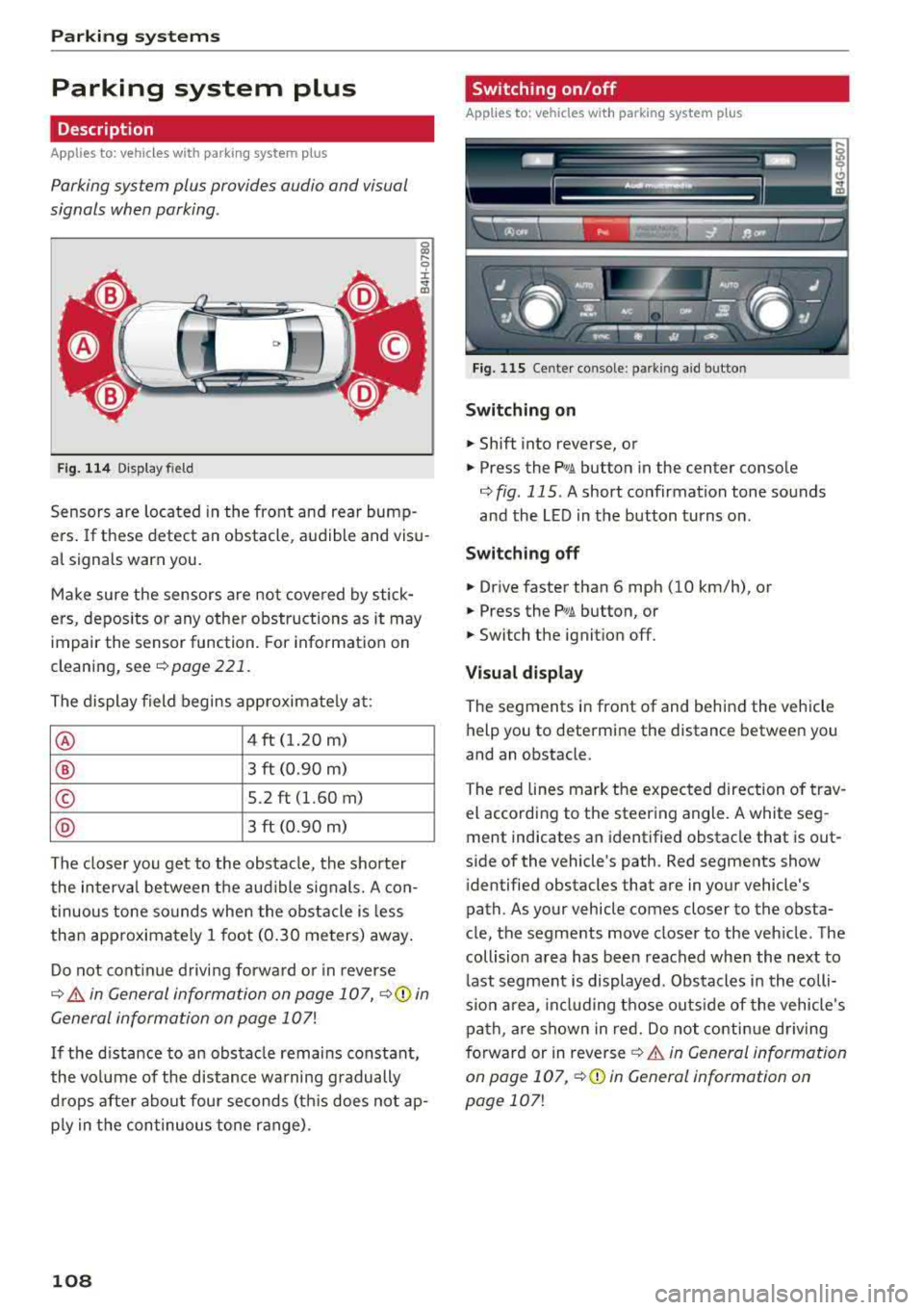
Fig. 114 Disp la y fi eld
Sensors are located in the front and rear bump
ers. If these detect an obstacle , audible and visu
al signals warn you.
Make sure the sensors are not covered by stick
ers, depos its or any other obstructions as it may
impair the sensor function. For information on
cleaning, see
¢ page 221.
The display field begins approximately at:
® 4 ft (1.20 m)
® 3 ft (0.90 m)
© 5.2 ft (1.60 m)
@ 3 ft (0.90 m)
The closer you get to the obstacle, the shorter
the interval between the audible signals. A con
tinuous tone sounds when the obstacle is less
than approximately 1 foot (0.30 meters) away.
Do not continue driving forward or in reverse
¢ & in General information on page 10 7, ¢ ([) in
General information on page 107!
If the distance to an obstacle remains constant,
the volume of the distance warning gradually
drops after about four seconds (th is does not ap
p ly in the continuous tone range) .
108
Switching on/off
Applies to : vehicles with parking system plus
Fig. 115 Center console : par kin g aid b utto n
Switching on
.. Shift into reverse, or
.. Press the PwA button in the center console
¢ fig. 115 . A short confirmation tone sounds
and the LED in the button turns on .
Switching off
.. Drive faster than 6 mph (10 km/h), or
.. Press the PwA button, or
.. Switch the ignition off.
Visual display
The segments in front of and behind the vehicle
help you to determine the distance between you
and an obstacle .
The red lines mark the expected direction of trav
el according to the steering angle. A white seg
ment indicates an identified obstacle that is out
side of the vehicle's path . Red segments show
identified obstacles that are in your vehicle's
path. As your vehicle comes closer to the obsta
cle, the segments move closer to the vehicle . The
collision area has been reached when the next to
last segment is displayed . Obstacles in the colli
s io n area, including those outside of the vehicle 's
path , are shown in red. Do not continue driving
forward or in
reverse ¢ & in General information
on page 107 ,
¢(D in General information on
page
107!
Page 112 of 266

Parking syste m s
-For objects that do not touch the ground,
such as the bumper of a parked vehicle, a
trailer hitch or the rear of a truck. Do not
use the orientation lines in this case.
- If driven from a level surface onto an in
cline, or a downward slope.
- If driven toward protruding objects.
-If the vehicle is carrying too much load in
the rear.
- Applies to: vehicles with air sus pension: the
accuracy of the orientation lines and blue
surfaces decreases when the vehicle is raised/lowered
¢page 104.
(D Note
- Always read and follow the applicable warn
ings
¢ 0 in General information on
page 107.
-The orange-colored orientation lines in the
Infotainment display show the vehicle path
based on the steering wheel angle. The
front of the vehicle swings out more than
the rear of the veh icle . Maintain plenty of
distance so that an exterio r mirror or a cor
ner of the veh icle does not co llide w ith any
obstacles.
Switching on/off
Applies to : ve hicles with rearv iew camera
Sw itching on
~ S hi ft into reve rse, or
• P ress the P' #.!\. button in the cente r console
¢
page 108, fig. 115 . A short conf irmat ion
tone sounds and the LED in the button turns
on .
Sw itching between the rearview camera and
optical display
~ Press the Graph ic contro l button ®
¢ page 110, fig. 120 to see the opt ica l disp lay.
• Press the R ear view control button to see the
rearview camera image.
Switching off
• Drive faster than 6 mph (10 km/h), or
• Press the P" '.!\. button, or
~ Switc h the ignition off.
110
@ Tips
-The visua l display in the left part of the dis
play should he lp you detect the crit ica l vehi-
cle areas.
- You can change the vol ume and pitch of the
signals as well as the display¢
page 117.
Perpendicular parking
App lies to : vehicles wit h rearv iew camera
This view may be used when parking in a garage
or in a parking space.
Fig. 120 Infota inment system: aiming at a park ing space
Fig. 121 Infota inment system : alig ning the vehicle
~ Turn the Infotainment system on and shift into
reverse gear.
• The orange orie ntation lines (!) show the vehi
cle 's direction of travel. Turn the steering wheel
until the orange o rientation lines appear in the
parking space ¢
fig. 120. Use the markings @
to he lp you estima te the distance to an obsta
cle . Each marking represents approximate ly 3
ft (1 m). The b lue area represents an extension
of the vehicle's outline by approximately 16 ft
(5 meters) to the rear.
~ Wh ile driving in reverse gear, adjust the steer-
ing wheel angle to
fit the park ing space using ..,.
Page 113 of 266

a co ,...,
N
" N ,...,
0 0 \,;J '
¢ A in General information on page 109, ¢(D
in General information on page 110 .@ repre
sents the rear bumper . At the very latest, stop
the vehicle when the red orientation
line @
borders an object .
Parallel parking
Applies to: veh icles with rearview camera
This view may be used when parallel parking
along the side of a stree t.
Fig . 122 In fota inment : blue surfaces alig ned in the pa rk ·
i ng space
Fi g. 123 In fo ta inm ent: c onta ct of the blue curv ed li ne with
the curb
Parking on the r ight is described here. It is identi
cal when parking on the left .
If there is an obstacle next to the parking space (such as a wall), refer to "Information for park ing
next to obstacles" ¢
page 111.
.. Activate the turn signal.
.. Position your vehicle next to a parked veh icle in
front of the desired parking space. The d istance
to this vehicle should be approximately 3 ft . (1
m) .
Parking systems
.. T urn the Infotainment system on and shift into
reverse gear. The parking system is turned on
and the
C ros s parking view is d isp layed .
.. Press the contro l button on the Infotainment
unit @¢ fig. 122 . The Parallel parking view is
disp layed .
.. Back up and alig n your veh icle so the blue area
@ bo rders on the rear end of the vehicle be
hind you o r on the park ing spa ce
line ¢&_ in
General information on page 109,
¢ (Din Gen
eral information on page 110.
The blue area
represents an extension o f the vehicle's outline
by approximate ly 16 ft (5 meters) to the rear.
T he long side of the b lue area s hou ld be on the
curb. The entire blue area must fit into the
parking space .
.,. With the vehicle stopped, turn the steering
wheel to t he right as far as it will go .
.,. Back up into the parking spot . Whe n the blue
curve ¢
fig. 123 is nea r the curb ¢&_ in Gener
al information on page 109,
stop the vehicle
¢ Ci) in General information on pag e 110 .
.. With the vehicle stopped, t urn the steering
wheel to the left as far as it will go .
.. Continue to back into the parking space until
the vehicle is parked para llel to the curb ¢
A
in General informa tion on page 109, ¢ @ in
General information on page 110 .@ repre ·
sents the rear bumper. At the very latest, stop
the vehicle when the red or ien tat io n line
@
borders an object. Keep an eye o n the front of
your veh icle w hile doing this.
Parking next to obstacles
If there is an obstacle (such as a wall) next to the
parking space, position the veh icle so there is
more space on that side . Position the long side of
the b lue surfa ce so t hat there is sufficient spa ce
from the obstacle . T he su rface must not be
touchi ng . You will a lso need to s tart tu rning the
steering wheel earlier . The blue curve
¢ fig . 123
must not touch the obstacl e, b ut rather there
should be enough d istance .
(D Note
Keep enough distance from t he curb to re -
duce the risk of damage to the r ims.
111
Page 114 of 266

Parking syste m s
@ Tips
The left or right orientation lines and surfaces
will be displayed, depending on the turn sig nal being used.
Peripheral came ras
Introduction
Applies to : vehicles with peripheral cameras
With this equipment, the parking system plus*
¢ page 108 is supplemented with various periph
eral cameras.
Depending on vehicle equipment, you are prov id
ed w ith the following views: area around the ve
hicle, front corner view and rear corner view , view
in front of th e vehicle and behind the veh icle .
General information
Applies to: vehicles w ith peripheral cameras
Fig. 12 4 Loca tion of peripheral ca meras
The periphera l cameras are located in the radia
tor gr ille, in the luggage compartment lid and on
both exter ior mirrors
¢ fig . 124.
Make sure that the lenses are not covered by de
posits or any other obstructions as it may impa ir
the system . For information on cleaning, see
¢ page 221 .
In the Surro und ing mode, black corners are
shown in the vehicle s ilhouette. Objects in these
areas a re outside of the camera's field of v iew
and are not detected .
The accuracy of the orientation lines and the blue
surfaces is reduced if the adaptive air suspen-
112
sion* is fau lty, if the ve hicle is lifted or if the Dy
nam ic
mode is activat ed ¢ page 104 .
A WARNING
-Always read and follow the applicable warn
ings¢&. in General information on
page 107.
-If the position or the installation angle of a
camera was changed, for example after a
collision, do not continue to use the system
for safety reasons. Have it checked by an au thorized Audi dealer or authorized Audi
Serv ice Facility .
-Keep in mind that the image in the display is
incorrect if the exterior mirror housing has
been moved out of p lace.
-Use the R ear mode and the C orner vie w
( rear )
mode only when the luggage com
pa rtment l id is completely closed . Other
wise the image in the disp lay w ill be incor
rect.
-The area around the vehicle is shown us ing
the camera images. The veh icle image is
shown by the system. Objects and obstacles
above the camera are not displayed .
-Camera lenses enlarge and distort the field
of vision. The objects appear both altered
and inaccurate on the screen .
(D Note
-Always read and fol low the applicable warn
ings
¢ 0 in General information on
page 107.
- T he Infotainmen t display shows the direc
t ion in which the rear of the vehicle is travel
ing based on the steering wheel ang le . The
front of the veh icle swings out more than
the rear of the vehicle. Maintain plenty of
distance so that an exterior m irror or a cor
ner of the vehicle does not collide with any
obstacles.
@ Tips
If the 8/cr;;fl/r::=s symbo l appears in the dis
play and the respective display area is grayed
out, then the powe r exter ior mirrors were
Page 117 of 266

a co ,...,
N
" N ,...,
0 0 <..:l '
this mode.
.,. To cross park, parallel park or position the vehi
cle in front of a tra iler*, press the control but
ton ® on the control panel repeatedly until the
symbol for the des ired mode is selected.
Perpendicular parking
App lies to: vehicles with peripheral cameras
This view may be used when parking in a garage
or in a parking space.
F ig . 132 Infotainment system: aiming at a parking space
Fig. 133 Infotainment system: aligning the vehicle
Requirement: cross parking must be selected
qpage 114 .
.,. The orange orientation lines (I) show the vehi
cle's direction of travel. Turn the steering wheel
until the orange or ientat io n lines appear in t he
parking space
q fig. 132 . Use the mark ings @
to help yo u estimate the distance to an obsta
cl e. Each marking represen ts approximately 3
ft (1 m) . The blue area represents an extens ion
of the vehicle's outl ine by approximately 16 ft
(S meters) to the rear.
.,. While driv ing in reverse gear, adjust the steer
ing wheel ang le to fit the parking space using
Parking systems
the orange orientat ion lines for assistance
q &. in General information on page 112, q(D
in General information on page 112.@repre
sents the rear bumper. You should stop revers
ing at the latest when the red orientation line
@ borders an object¢&. in General informa
tion on page 109.
Parallel parking
Applies to: vehicles with peripheral cameras
This view may be used when parallel parking
along the side of a street.
Fig . 134 In fotainment: blue surfaces al ig ned i n the park ·
in g space
Fig. 135 In fotainme nt: contact of the blue curved line w ith
the curb
Parking on the right is described here. It is identi·
cal when parking on the left.
If there is an obstacle next to the parking space
(such as a wall), refer to Information for parking
next to obstacles
q page 116.
.,. Activate the turn signal.
.,. Position your vehicle next to a parked vehicle in
front of the desired parking space. The distance
to this vehicle shou ld be approximately 3 ft. ( 1
m). ..,.
115