lock AUDI A6 2020 Workshop Manual
[x] Cancel search | Manufacturer: AUDI, Model Year: 2020, Model line: A6, Model: AUDI A6 2020Pages: 316, PDF Size: 86.41 MB
Page 119 of 316
4K0012721BD
Trailer towing
there are unfavorable road, weather, and/or wind
conditions. This especially applies when driving
downhill.
Hill
When you start driving uphill or downhill, trailers
may tilt or sway sooner than when driving ona
level surface. If small swaying movements have
already occurred, you can stabilize the trailer by
firmly braking immediately. Never attempt to
“straighten out” the trailer by accelerating.
Downshift before driving on hills to utilize the en-
gine braking effect > A\.
Brakes
When using a trailer with overrun brakes, first
brake gently then quickly. This reduces the risk of
jerking while braking if the trailer wheels lock up.
Engine coolant temperature
Pay attention specifically to the coolant tempera-
ture display when there are high outside temper-
atures, and when driving on long inclines
=> page 14. Shift to a higher gear in a timely man-
ner.
ZX WARNING
Constant braking causes the brakes to over-
heat and can substantially reduce braking per-
formance, increase braking distance, or cause
complete failure of the brake system.
117
Page 133 of 316
4K0012721BD
Driver assistance
An additional indicator appears in the head-up
display*.
Changing the cruise control speed
Applies to: vehicles with cruise control system
> To increase or decrease the cruise control speed
in small increments, tap the lever up to the
first level toward @)/G) > page 130, fig. 99.
> To increase or decrease the cruise control speed
in larger increments, tap the lever up to the
second level toward )/C).
> To increase or decrease the cruise control speed
continuously, tap and hold the lever at the first
or second level toward @)/C).
Overriding or deactivating the cruise
control speed
Applies to: vehicles with cruise control system
You can override or deactivate the cruise control
system. When you deactivate the system, your
cruise control speed will be stored and you can
resume that speed.
Requirement: the system must be switched on
and activated.
Overriding
> To temporarily override the cruise control
speed, press the accelerator pedal.
> Once you release the accelerator pedal, the sys-
tem will adjust back to the stored cruise control
speed.
If you override the cruise control system for a
long period of time, the cruise control system
will be deactivated. The Gg or [9] indicator
light will be displayed and the cruise control
speed will be saved.
Deactivating
> To deactivate the cruise control speed, press
the lever toward (2) (not locked into place)
=> page 130, fig. 99, or
> Press the brake pedal.
ZX WARNING
Resting your foot on the accelerator pedal
could override the cruise control. This will pre-
vent braking interventions by the system.
Seem Lela
Applies to: vehicles with cruise control system
When you switch the system off completely, the
cruise control speed will be deleted.
Requirement: the system must be switched on.
> To switch the system off, press the lever toward
@ (locked into place) > page 130, fig. 99, or:
> Switch the ignition off.
Applies to: vehicles with cruise control system
Gs / §) Speed control system: currently un-
available. See owner's manual
If the indicator light turns on and this message
appears, the cruise control system has been deac-
tivated. There is a temporary malfunction, for ex-
ample the brakes are overheating. Switch the
cruise control system on again later.
Efficiency assist
Applies to: vehicles with efficiency assist
Efficiency assist can assist the driver with predic-
tive information in order to reduce fuel consump-
tion. Depending on vehicle equipment, the sys-
tem may access data from the navigation system,
the camera behind the windshield, and the radar
sensors.
Adjusting the efficiency assist
You can adjust efficiency assist functions individ-
ually. The settings depend on the vehicle equip-
ment.
— Predictive messages > page 132.
— Predictive control > page 133.
— Accelerator pedal feedback > page 97.
131
Page 154 of 316

Driver assistance
Exit warning
Applies to: vehicles with exit warning system
B4M-0065
Fig. 118 Front door: warning strip (diagram)
General information
Within system limits, the exit warning system
can detect traffic approaching from behind such
as vehicles, and provide assistance based on this
information when you are exiting the vehicle
=> fig. 117. The system uses the data from the ra-
dar sensors at the rear corners of the vehicle.
Displays and warnings
If you pull a door handle while the vehicle is sta-
tionary and an object classified as critical is ap-
proaching, the warning strip @ and the display
on the exterior mirror (2) will light up on the cor-
responding side of the vehicle. The opening of
the door will also be slowed briefly.
If the door is opened, the displays on that side
will flash. If another road user that is classified
as critical is approaching while a door is already
open, the displays on that door will turn on.
The same messages apply for the exit warning
system and side assist > page 151.
152
Switching the exit warning on and off
— The system can be switched on and off in the
MMI & page 121.
ZX WARNING
— Follow the safety precautions and note the
limits of the assist systems, sensors, and
cameras > page 118.
— Always pay attention to traffic and to the
area around your vehicle. The exit warning
system does not replace the attention of the
vehicle occupants. The vehicle occupants are
always responsible for opening the doors
and exiting the vehicle.
— The exit warning system does not respond
to people and cannot warn you about every
type of approaching objects, such as cyclists.
Always monitor the traffic as well as the ve-
hicle's surroundings with direct eye contact.
— The display may not appear in time when
vehicles are approaching very quickly.
— The exit warning system does not react to
stationary objects or pedestrians.
— The exit warning system will not provide
alerts if your vehicle is pulled too far into
the parking space so that it is hidden by ad-
jacent vehicles.
GY tn.
@ Tips
— The exit warning system can be available for
up to approximately three minutes after un-
locking the vehicle and opening the door as
well as after switching off the ignition. Then
the displays flash briefly and the system
switches off.
— For an explanation on conformity with the
FCC regulations in the United States and the
Industry Canada regulations, see
=> page 296.
Page 156 of 316

Driver assistance
as well as the vehicle's surroundings with di-
rect eye contact.
— The system may not react if vehicles are ap-
Proaching very fast.
@ Tips
For an explanation on conformity with the
FCC regulations in the United States and the
Industry Canada regulations, see > page 296.
Emergency assist
Applies to: vehicles with emergency assist
General information
Within the limits of the system, the emergency
assist detects if the driver is inactive. In these in-
stances, the system warns the driver, assumes
control of the vehicle if necessary, and brings the
vehicle automatically to a stop in the lane.
Regardless of the speed, the emergency assist is
automatically available when the adaptive cruise
assist* is activated. When the adaptive cruise as-
sist® is deactivated, the system is only active at
speeds higher than approximately 40 mph
(65 km/h).
Emergency assist functions
Within the limits of the system, the emergency
assist monitors the driver’s steering, accelerator,
and brake pedal activity. Depending on the se-
verity of the situation, it may initiate visual, au-
dio, and haptic warnings in stages:
— Reduces the speed
— Messages
— Lowers the volume of the Infotainment system
— Audible warning
— Tightening of the safety belt
—A brief application of the brakes
D_ This function is not available in every market and on all ve-
hicle equipment levels.
154
If the driver remains inactive despite the warn-
ings, the emergency assist controls the vehicle
within the limits of the system:
— The Audi pre sense preemptive safety measures
are triggered > page 146.
— The vehicle will stay in the lane and will be
braked to a stop.
— As soon as the vehicle comes to a full stop, the
emergency flashers are activated and the vehi-
cle prepares for the vehicle passengers to be
rescued. The parking brake is set, “P” gear is
engaged, the doors are unlocked, and the inte-
rior lighting is activated. If there is no move-
ment for several seconds, the emergency call ))
will be made if necessary.
Overriding the emergency assist
You can override the emergency assist > A\:
— Move the steering wheel. Or
— Press the brake pedal. Or
— Press the accelerator pedal distinctly.
When stationary, you can end the emergency as-
sist by leaving the "P" position or releasing the
parking brake > page 104.
Switching the emergency assist on and off
The system can be switched on and off in the
MMI & page 121.
Messages
1f E or EB is displayed when there is a malfunc-
tion, the emergency assist functions may be un-
available or may be limited.
A message that indicates the cause and possible
solution may appear with some displays. The
weather conditions may be too poor or a sensor
may be covered. Clean the area in front of the
sensors > page 120 and try to turn on the sys-
tems again later.
If the malfunction remains, drive to an author-
ized Audi dealer or authorized Audi Service Facili-
ty immediately to have the malfunction correct-
ed.
Page 162 of 316
Parking and maneuvering
If Avis displayed, the respective ultrasonic sensor
is icy or dirty. Clean the area in front of the
sensors > page 120.
If one of the symbols continues to be displayed,
drive immediately to an authorized Audi dealer or
authorized Audi Service Facility to have the mal-
function repaired.
ZA WARNING
— Follow the safety precautions and note the
limits of the assist systems, sensors, and
cameras © page 118.
— Sensors and cameras have spots in which
the surrounding area cannot be detected.
Objects, animals, and people may only be
detected with limitations may not be detect-
ed at all. Always monitor the traffic and the
vehicle's surroundings directly and do not
become distracted.
©) Note
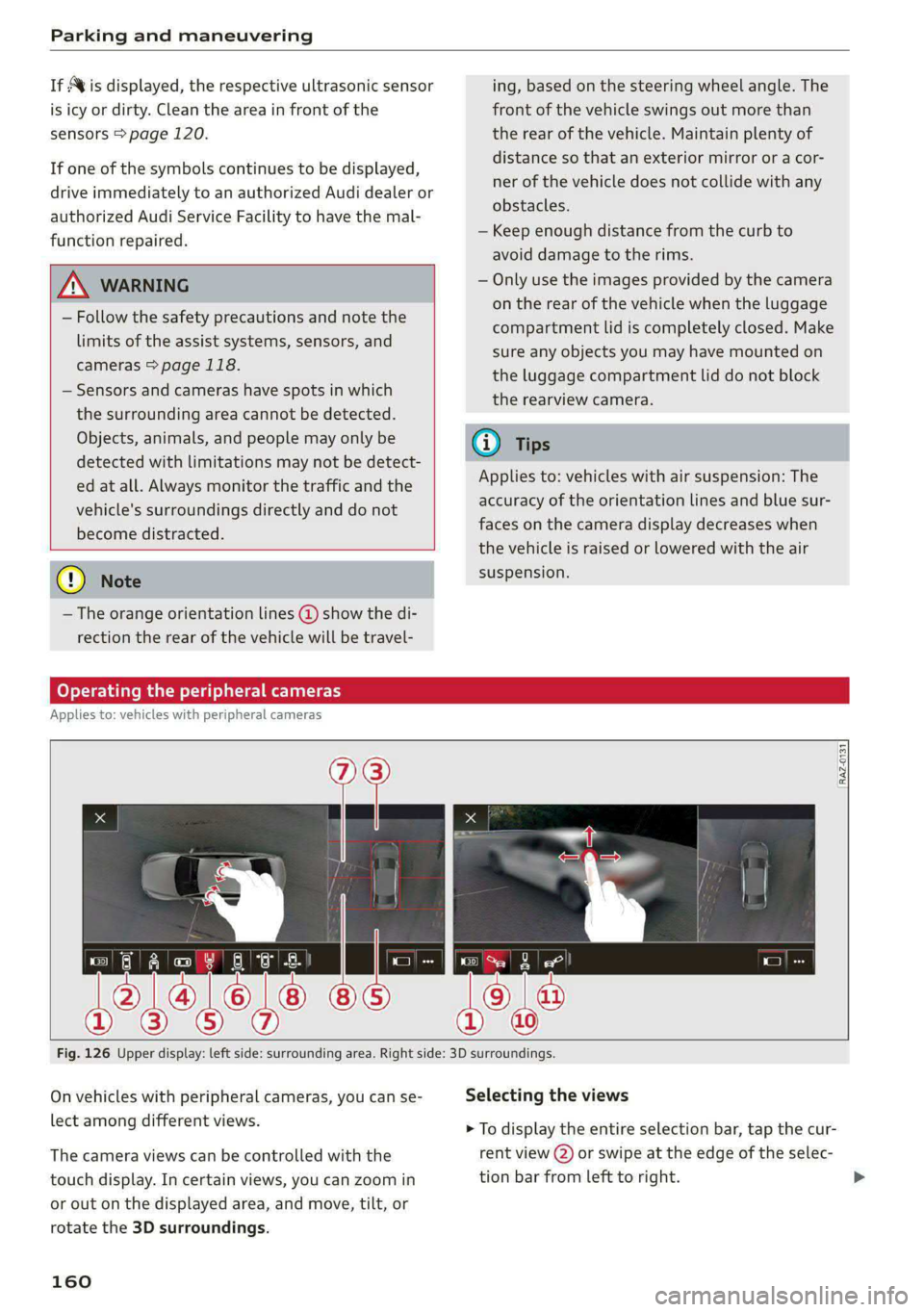
—The orange orientation lines @ show the di-
rection the rear of the vehicle will be travel-
ing, based on the steering wheel angle. The
front of the vehicle swings out more than
the rear of the vehicle. Maintain plenty of
distance so that an exterior mirror or a cor-
ner of the vehicle does not collide with any
obstacles.
— Keep enough distance from the curb to
avoid damage to the rims.
— Only use the images provided by the camera
on the rear of the vehicle when the luggage
compartment lid is completely closed. Make
sure any objects you may have mounted on
the luggage compartment lid do not block
the rearview camera.
@) Tips
Applies to: vehicles with air suspension: The
accuracy of the orientation lines and blue sur-
faces on the camera display decreases when
the vehicle is raised or lowered with the air
suspension.
Operating the peripheral cameras
Applies to: vehicles with peripheral cameras
RAZ.0131
Fig. 126 Upper display: left side: surrounding area. Right side: 3D surroundings.
On vehicles with peripheral cameras, you can se-
lect among different views.
The camera views can be controlled with the
touch display. In certain views, you can zoom in
or out on the displayed area, and move, tilt, or
rotate the 3D surroundings.
160
Selecting the views
> To display the entire selection bar, tap the cur-
rent view (2) or swipe at the edge of the selec-
tion bar from left to right.
Page 164 of 316
Parking and maneuvering
Symbol/Descrip-
Description
tion P
Rear tires
This view helps you to detect the distance between the rear wheels and
the curb when parking.
In these views, you can see the areas surrounding the vehicle in 3D when
® 3D surroundings | parking. The vehicle surrounding views are created from the camera im-
ages and sensor data. The vehicle image is shown by the system > A\.
ZX WARNING
— Follow the safety precautions and note the
limits of the assist systems, sensors, and
cameras > page 118.
— The Surroundings and 3D surroundings are
created from the individual camera images.
The vehicle image is shown by the system.
Objects and obstacles above the camera are
not displayed.
@) Note
Only use the images provided by the camera
on the rear of the vehicle when the luggage
compartment lid is completely closed. Make
sure any objects you may have mounted on
the luggage compartment lid do not block the
rearview camera.
@) Tips
— Depending on the selected gear, it will auto-
matically switch between the Front and
Rear views. If you switch the view manually,
the automatic front/rear camera change will
be temporarily deactivated.
— When first activated while a forward gear is
engaged, the Front corner is displayed.
162
Rear cross-traffic assist
Applies to: vehicles with rear cross-traffic assist
Fig. 128 Upper display: rear cross-traffic assist display
General information
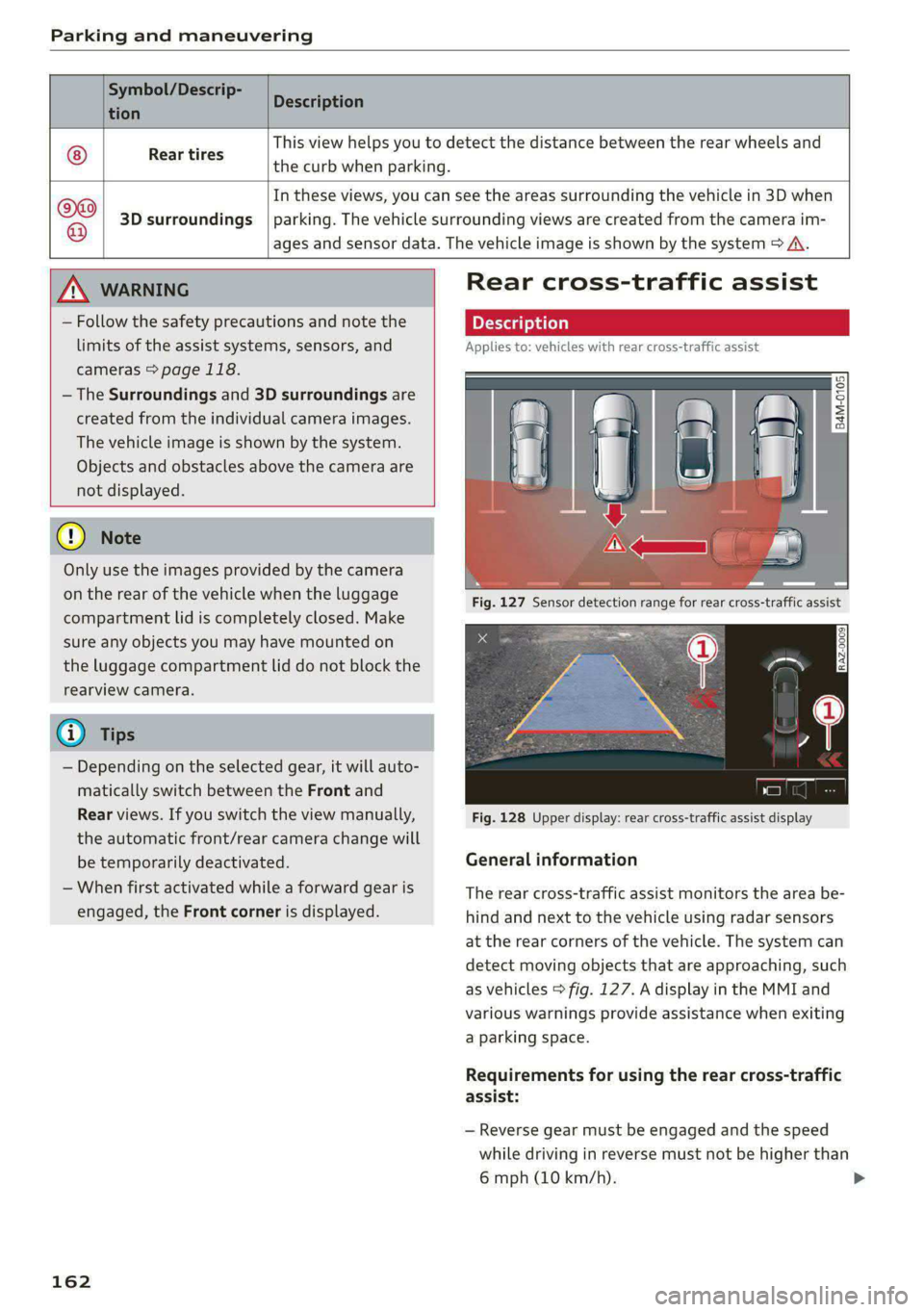
The rear cross-traffic assist monitors the area be-
hind and next to the vehicle using radar sensors
at the rear corners of the vehicle. The system can
detect moving objects that are approaching, such
as vehicles > fig. 127. A display in the MMI and
various warnings provide assistance when exiting
a parking space.
Requirements for using the rear cross-traffic
assist:
— Reverse gear must be engaged and the speed
while driving in reverse must not be higher than
6 mph (10 km/h).
Page 169 of 316

4K0012721BD
Telephone
braking maneuvers, which increases the risk
of
an accident. Store objects securely while
driving.
— The mobile device may become hot during
wireless charging. Pay attention to the tem-
perature of your mobile device and be care-
ful when removing it from the Audi phone
box.
— An alternating magnetic field is used for
wireless charging. Maintain a minimum dis-
tance of approximately 2.4 in (6 cm) to the
Audi phone box charging plate. The thresh-
olds for prolonged exposure at this distance
comply with ICNIRP1998. Therefore, inter-
actions such as irritation of sensory organs,
malfunctions of active implants (such as
pacemakers, infusion pumps, or neurosti-
mulators) or effects on passive implants
(such as prosthetic limbs) is highly unlikely.
If you have an implant, consult a medical
specialist if you have any questions. You can
also switch the function for wireless charg-
ing in the Audi phone box on and off. You
can continue to charge your mobile device
using a cable connection.
@) Note
Applicable to U.S.A.
Operation of the Audi phone box is subject to
the following requirements of the Federal
Communications Commission:
— This is a CONSUMER device.
— BEFORE USE, you MUST REGISTER THIS DE-
VICE with your wireless provider and have
your provider’s consent. Most wireless pro-
viders consent to the use of signal boosters.
Some providers may not consent to the use
of this device on their network. If you are
unsure, contact your service provider.
— You MUST operate this device with approved
antennas and cables as specified by the
manufacturer. Antennas MUST be installed
at least 20 cm (8 inches) from any person.
— You MUST cease operating this device im-
mediately if requested by the FCC or a li-
censed wireless service provider.
— WARNING: E911 location information may
not be provided or may be inaccurate for
calls served by using this device.
@) Note
Applicable to Canada
In Canada, operation of a Zone Enhancer,
such as an Audi Phone Box, is subject to the
following requirements of the Innovation,
Science and Economic Development Canada
(ISED):
— This is a CONSUMER device.
— BEFORE USE, you MUST meet all require-
ments set out in CPC-2-1-05.
— You MUST operate this device with approved
antennas
and cables as specified by the
manufacturer. Antennas MUST NOT be in-
stalled within 20 cm of any person.
— You MUST cease operating this device im-
mediately if requested by ISED or a licensed
wireless service provider.
— WARNING: £911 location information may
not be provided or may be inaccurate for
calls served by using this device.
Gi) Tips
— Only one mobile device at a time can be
charged wirelessly in the Audi phone box.
— Strong transmission quality* cannot be
guaranteed if more than one mobile device
is in the box.
—To reduce the risk of malfunctions, make
sure the mobile device is positioned correct-
ly in the Audi phone box.
— Make sure there are no objects between the
Audi phone box and the mobile device.
— Placing the mobile device in a bag or protec-
tive sleeve inside the Audi phone box can in-
terfere with the connection to the external
antenna”*.
— Metallic objects in the Audi phone box block
the wireless charging of your mobile device
and calls made using the exterior antenna”*.
—The maximum charging output is 5 W.
—The charging time and temperature will vary
depending on the mobile device being used.
167
>
Page 182 of 316

Audi connect
services. The cell phone network, for exam-
ple, must be available to use these services.
Applies to: vehicles with Audi connect vehicle control
> Register at my.audi.com.
> Set the key user > page 31.
> Install the myAudi app on your mobile device
and log in with your access information.
@ Tips
It may also be necessary to enter your 4-digit
PIN set at my.audi.com when accessing some
Audi connect vehicle control services.
Yate)
Applies to: vehicles with Audi connect vehicle control
Depending on the country and the vehicle equip-
ment, the following services may be available:
Locking and unlocking the vehicle by remote
control
Requirement: the vehicle must be parked and the
ignition must be switched off.
This service allows you to unlock or lock your ve-
hicle.
Vehicle status report
This service transfers driver information system
data to a server. Depending on the vehicle equip-
ment, certain data may be accessed, such as the
remaining range or mileage. The values may dif-
fer from the values displayed in the vehicle.
Car Finder
This service transmits the parking location to a
server when the ignition is switched off. The vehi-
cle location, your location, or the route to your
vehicle can be displayed. The new parking loca-
tion cannot be determined with this service if the
vehicle is moved after shutting the vehicle off
and without switching the ignition on and off
again, for example if the vehicle is towed or sto-
len.
180
Online Audi service request
Requirement: the service must be activated on-
line at my.audi.com and an authorized Audi deal-
er or authorized Audi service facility must be se-
lected.
This service transmits service-relevant data to
your selected authorized Audi dealer or author-
ized Audi service facility. They will contact you
before your next service appointment.
Stolen Vehicle Locator
This service assists you in locating your vehicle if
it is stolen.
— Contact the police. You receive a Case ID.
— Call the service hotline and give your Case ID.
The service hotline will forward the established
data to the police. You receive the Audi Service
hotline number when you purchase your vehicle.
Alert services
Requirement: a key user must be set in the vehi-
cle > page 180.
You can adjust the following services in the
myAudi app. You will be notified by a push notifi-
cation and/or e-mail if an alarm is triggered for
your vehicle.
— Geofencing Alert: a permitted/prohibited zone
was entered.
— Speed Alert: a set speed was exceeded.
— Valet Alert: a set speed was exceeded or a per-
mitted/prohibited zone was entered.
ZA\ WARNING
Do not ignore messages and warning or indi-
cator lights that turn on in the vehicle be-
cause of the information in the vehicle status
report. This could lead to break downs in on
the road, accidents and serious injuries.
@) Tips
For some services, you can select if you would
like to be notified with a push notification
and/or an e-mail.
Page 195 of 316
4K0012721BD
Navigation
Personal route
assistance
Applies to: vehicles with navigation system and personal
route assistance
Your MMI can learn the routes that you drive fre-
quently (such as your daily commute to work and
back) and suggest route guidance based on the
current vehicle position.
When the function is switched on, the MMI re-
cords the routes driven regardless of whether or
not you are using navigation.
Without starting route guidance, your MMI can
check the traffic conditions and shows possible
traffic incidents for the possible routes to be driv-
en.
Opening personal routes
Requirement: personal route assistance must be
switched on > page 199. Route guidance must
not be active. A notification is displayed.
> The MMI displays up to three suggestions.
Press on a suggestion. Route guidance will
start.
Better routes
If there are major traffic incidents, the MMI will
display a notification regardless of the selected
menu. If the MMI has calculated a better route,
you can select it as the route.
> Press on the notification.
As soon as you switch off personal route assis-
tance, your personal routes will no longer be re-
corded. Routes that were already stored remain
stored.
Deleting personal routes
> Applies to: MMI: Select on the home screen:
NAVIGATION > <2} > Personal route assistance
> Delete recordings from the last 24 hours or
Delete all personal routes and destinations.
@® Tips
If personal route assistance is switched off
and you press F%, the personal route assis-
tance settings will be displayed > page 199.
Alternative routes
Applies to: vehicles with navigation system
ya
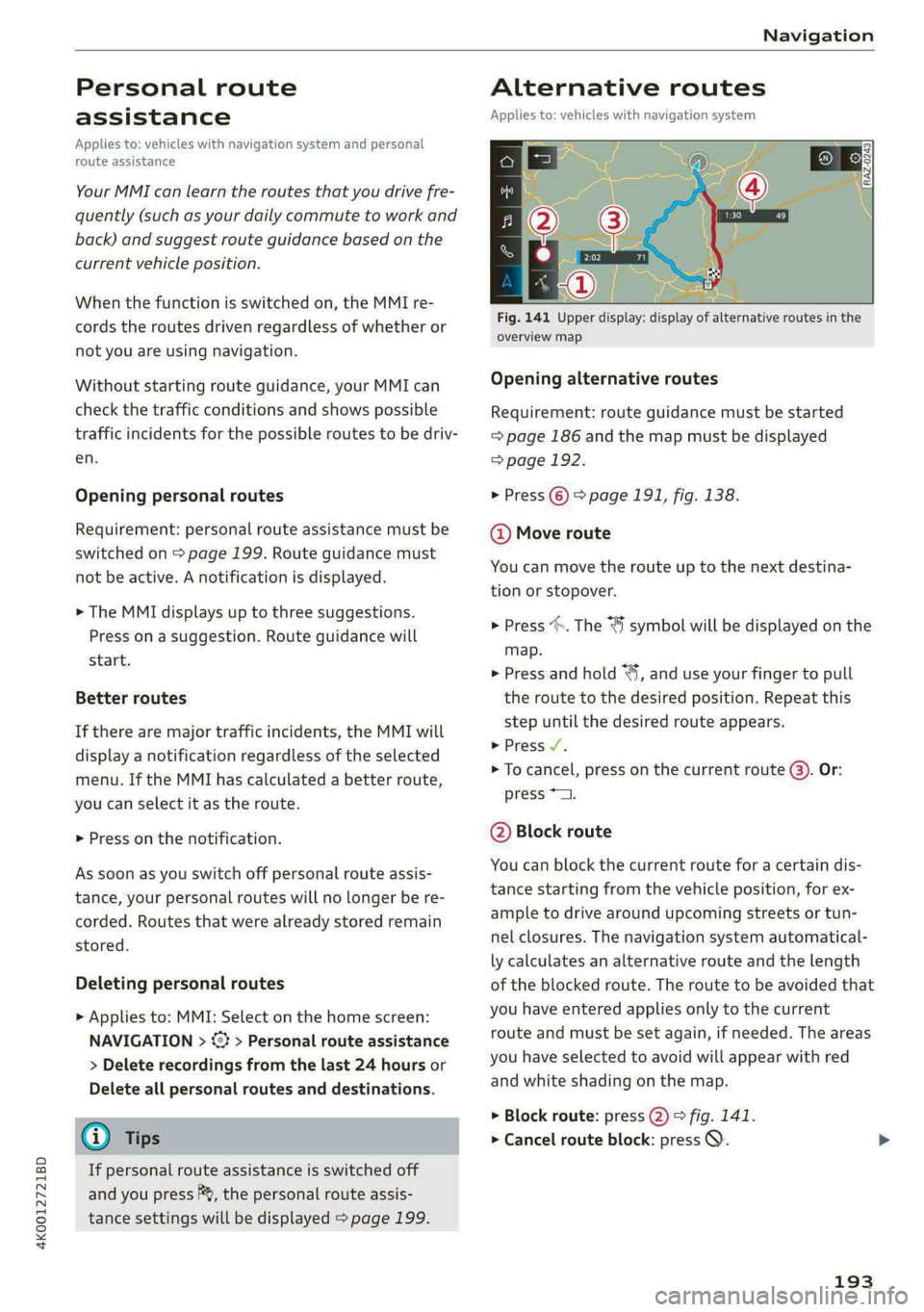
Fig. 141 Upper display: display of alternative routes in the
overview map
Opening alternative routes
Requirement: route guidance must be started
= page 186 and the map must be displayed
=> page 192.
> Press ©) > page 191, fig. 138.
@ Move route
You can move the route up to the next destina-
tion or stopover.
> Press “. The “} symbol will be displayed on the
map.
> Press and hold
step until the desired route appears.
> Press V.
> To cancel, press on the current route (3). Or:
press ~J.
@ Block route
You can block the current route for a certain dis-
tance starting from the vehicle position, for ex-
ample to drive around upcoming streets or tun-
nel closures. The navigation system automatical-
ly calculates an alternative route and the length
of the blocked route. The route to be avoided that
you have entered applies only to the current
route and must be set again, if needed. The areas
you have selected to avoid will appear with red
and white shading on the map.
> Block route: press 2) > fig. 141.
> Cancel route block: press Q.
193
Page 213 of 316
4K0012721BD
Media
— The supported media functions (such as
shuffle, list view, categories, search, op-
tions) depend on the Bluetooth device being
used.
— Note the volume setting on your Bluetooth
device. AUDI AG recommends setting your
mobile device to the maximum volume
when using it as a Bluetooth audio player.
—Aselection of supported Bluetooth devices
can be found in the database for tested mo-
bile devices at www.audi.com/bluetooth.
Online media
Applies to: vehicles with Audi connect Infotainment and on-
line media
You can play and operate various online media
services, such as music streaming services, using
the MMI.
Requirement: a supported online media service
must be available in the country where the vehi-
cle is being operated.
Connect online media
> Connect the MMI to the Internet > page 177.
> Switch on the Wi-Fi hotspot in the MMI
> page 181.
>» Applies to: MMI: Select on the home screen:
MEDIA > Source > Connect online media.
> Switch the Wi-Fi function on in your mobile de-
vice and connect it to the MMI Wi-Fi hotspot
=> page 178.
> Install and start the myAudi app on your mo-
bile device.
> Log in to your myAudi account in the myAudi
app and select your vehicle.
Your mobile device must be connected to the
MMI and must be highlighted. When you press
the highlighted device, it will be disconnected
from the MMI.
Starting online media
> Applies to: MMI: Select on the home screen:
MEDIA > Source. All online media services sup-
ported in your country will be displayed.
>» Press on the desired online media service and
follow the system instructions.
ZA WARNING
—To reduce the risk of an accident, only use
Audi connect services and the Wi-Fi hotspot
only if the traffic situation permits it. Read
and follow the guidelines provided in
=> page 20, Traffic safety information.
— It is only safe to use tablets, laptops, mobile
devices and other similar devices when the
vehicle is stationary because, like all loose
objects, they could be thrown around the in-
side of the vehicle in a crash and cause seri-
ous injuries. Store these types of devices se-
curely while driving. Also read the warnings
in the chapter > page 69.
CG) Note
— Read the information about Audi connect,
and be sure to note the connectivity costs
section >@ in General information on
page 177.
— There generally are additional costs when
using an online media service account, espe-
cially when it is used internationally.
(i) Tips
— Depending on the Internet connection and
network traffic, the connection may discon-
nected when online media sources are play-
ing.
— Online media usage depends on the service
availability of the third party provider.
— Audi AG simply makes the access to online
media services possible through the MMI
and does not take any responsibility for the
contents of the online media services.
— Depending on the mobile device being used,
there may be interruptions during media
playback and when using the myAudi app.
To avoid interruptions, do not lock the
screen on your mobile device and keep the
myAudi app in the foreground.
211