tow AUDI A6 2020 Owners Manual
[x] Cancel search | Manufacturer: AUDI, Model Year: 2020, Model line: A6, Model: AUDI A6 2020Pages: 316, PDF Size: 86.41 MB
Page 4 of 316
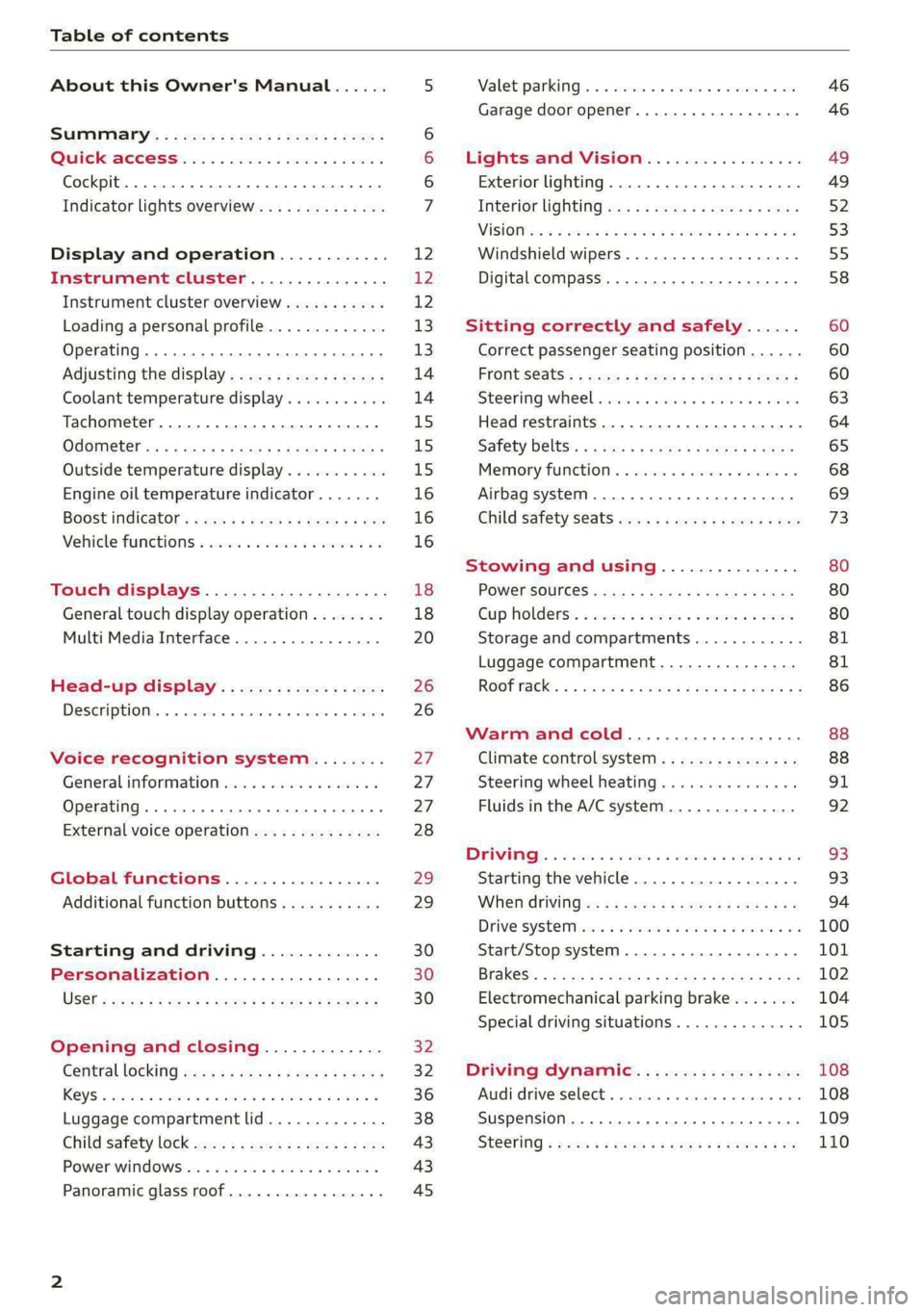
Table of contents
About this Owner's Manual......
SUMIMALY: ; « ss6% : osen ss sean cs poe s
QC CCeS Skis: si esis a 6 ores os ewe
Cockpit... 2... ee eee eee eee
Indicator lights overview...........0.
Display and operation............
Instrument cluster...............
Instrument cluster overview...........
Loading a personal profile.............
Operating. ........ 20.00. cece eee eee
Adjusting the display.................
Coolant temperature display...........
Tachometer............. eee eee eee
OdOMELEF as + 2 ams < gay & = pemE se ROR «
Outside temperature display...........
Engine oil temperature indicator.......
Boost indicator’: vos + 2 xeeg es meme a 2 oes
Vehicle functions « sisi ss em ee omen ees
Touch displays....................
General touch display operation........
Multi Media Interface................
Head-up display..................
DeSGriPtionis << seorve so mses w + axocune & ovorene
Voice recognition system........
General information.................
Operating... 0... cece eee eee eee
External voice operation..............
Global functions.................
Additional function buttons...........
Starting and driving.............
Personalization..................
Luggage compartment lid.............
Child safety lock sae < « see8 cs vena ee oes
Power windowSiin: ss sew. 4 sve eo scares a
Panoramic glass roof.................
NOD
OO
13)
14 14
15
15
15
16
16
16
18 18
20
26
26
27 27 27 28 29 29 30 30 30
32
32
36 38
43 43 45
Valetiparking «= s ss-ec «x ences ov cusee a 2 oe 46
Garage door opener..........---00 eee 46
Lights and Vision................. 49
Exterior lighting...................0. 49
Interior ligQhting ss =e aves sy cows so owas §2
ViSIOM a « 3 sees 2s oman 2 mena = HOR © oe 53
Windshield wipers................05- 55
Digital compass..............--.0000- 58
Sitting correctly and safely...... 60
Correct passenger seating position...... 60
FrontS@ats:: 2 ss«s < = scws ¢ » sees + = eee e 60
Steering wheel sie < «cries + eee ss oeree 63
Head restraints..................000. 64
Safety DEltS': < sews + x neue 3 e eas Fe Hae 65
Memory function . « scion ss cee ve ero ee 68
Airbag system... .. 2.6... eee eee eee 69
Child
safety seats...............-000- 73
Stowing and using............... 80
POWEPFSOUICES csisu ¢ ¢ avons 8 Baws 2s Re 80
Gup holders'. ¢ scr 2 + wen 2 = wee 2 oe een 80
Storage and compartments............ 81
Luggage compartment............... 81
ROOf FaGK:: « = seve x ¢ saws 2 & noes 2 8 ewe es 86
Warm and cold.................65 88
Climate control system.............0- 88
Steering wheel heating............... 91
Fluids in the A/C system. ............. 92
DEIN): «wesc 3 seen 3 @ ares 6 vo eee 6 2 es 93
Starting the vehicle.................. 93
WHER ATIVING ius s = eres s treme x 2 ees £2 94
DFiVe SYStEM sce 5s cesses 6 2 vase oo case sw 100
Start/Stop system. ...........000000- 101
Brakes: « 5 saa,a 2 aauaa & = aauee @ 3 mawee & & Bane 102
Electromechanical parking brake....... 104
Special driving situations.............. 105
Driving dynamic.................. 108
Audi drivesselects. « cscas + 6 conan + « cneen + we 108
Suspension ....... 00.00 ese eee eee eee 109
St@Gritig « cas s+ mews ve mews ve Hees ee os 110
Page 5 of 316
4K0012721BD
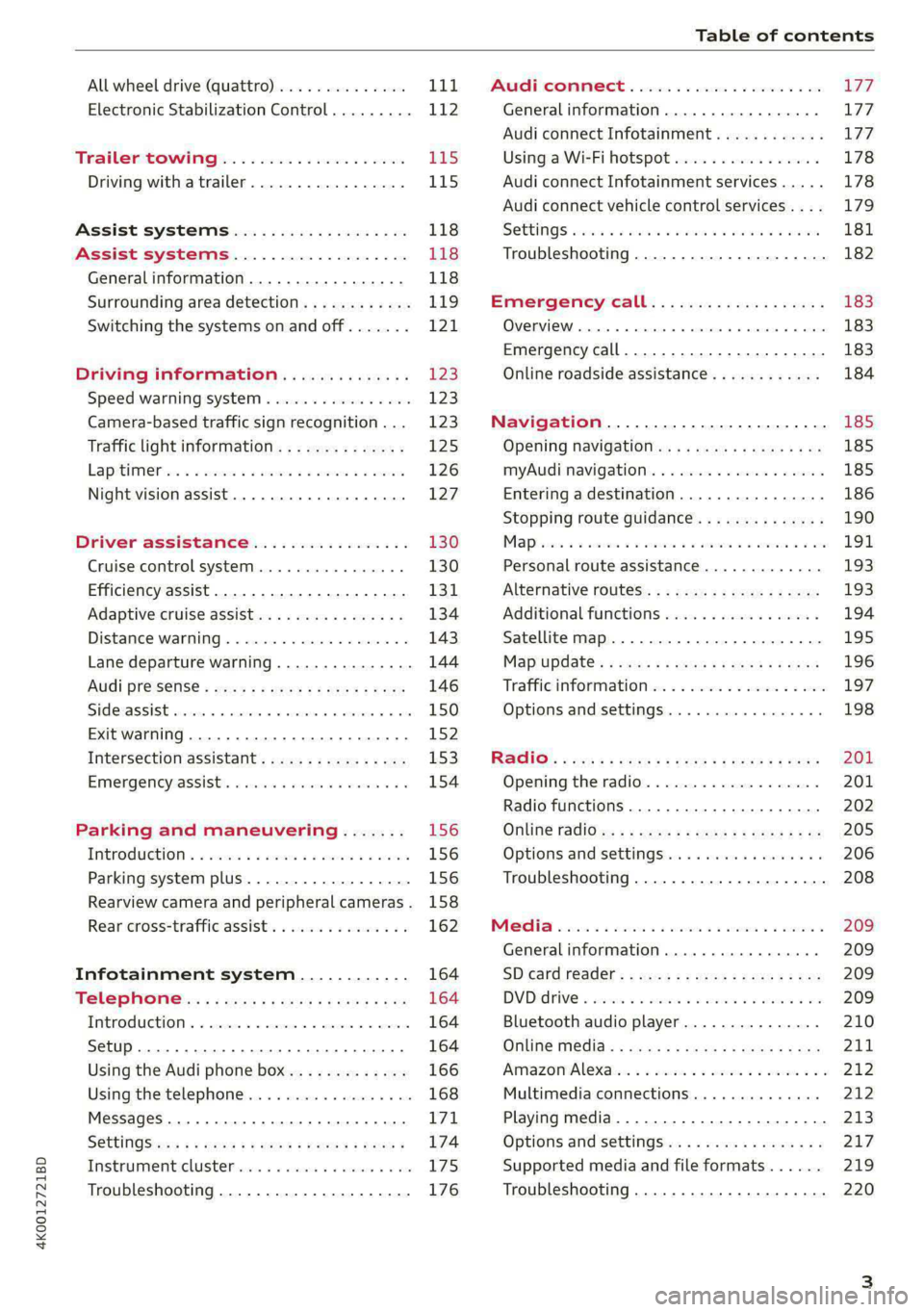
Table of contents
All wheel drive (quattro).............. Lid,
Electronic Stabilization Control......... 112
Tratlerstowlinigg.. «eck 6 wecns 6 o aes £45
Driving with atrailer................. 115
Assist systems................... 118
Assist systems................... 118
General information. . 118
Surrounding area detection............ 119
Switching the systems on and off....... 121,
Driving information.............. 123
Speed warning system................ 12:3
Camera-based traffic sign recognition... 123
Traffic light information.............. 125
Lapitimeron + 3 ssa oo aeenvs o 6 seaeene & 6 sense 126
Night vision assist... ............000. 127
Driver assistance................. 130
Cruise control system............00-5 130
Efficiency assist..............2--000. 131
Adaptive cruise assist................ 134
Distance warning ..............00000. 143
Lane departure warning............... 144
Audi presense............-.22--000 146
Side assist... 0... eee cece eee eee 150
Exit warning ...........-.02.0 ese eeee 152
Intersection assistant................ 153
EMergeneysassisti. «swe & wesaos a x wore e as 154
Parking and maneuvering....... 156
INtroduction « & wesc 2 2 senses oe mame 2% eee 156
Parking system plus...............04. 156
Rearview camera and peripheral cameras. 158
Rear cross-traffic assist............00. 162
Infotainment system............ 164
Tele pAONnG.: s «cian 2 mwag sy eager 164
IMEROMUCHION « & cseece « « cavnwen ws x oezane % « onerens 164
Setup... ee eee eee ee 164
Using the Audi phone box............. 166
Using the:telephomesss << sisi « « cvsses + © a0 168
MessageS ... 0... 0. cece eee eee 171
SOttiNngS swiss & cawis + # ees + peewee s Hewes 174
Instrumenticlustetivess so sssie 6 once a i ove 175
Troubleshooting............-..000005 176
PAC COMIMBCE 's. cesses 5 6 cise 6 v eseees wo one 177
General information................- 177
Audi connect Infotainment............ 177
Using a Wi-Fi hotspot................ 178
Audi connect Infotainment services..... 178
Audi connect vehicle control services.... 179
S@ttiNgS sess oo canoe + sen wv ween we Ra 181
Troubleshooting..............--.0005 182
Emergency call................... 183
OVERVIEW ovens « suse » 0 uncuem » 0 comes x 6 ene 183
Emergency call...................00. 183
Online roadside assistance............ 184
Navigation........................ 185
Opening navigation.................. 185
myAudi navigation................... 185
Entering adestination................ 186
Stopping route guidance.............. 190
Mapes + 5 cscs 2 6 wren oo amma © 8 awn 8 ow 191
Personal route assistance............. 193
Alternative routes.............2--00. 193
Additional functions................. 194
Satellite map 195
Map update.... 196
Traffic information w. «sess 2 2 even as sore 197
Options and settings................. 198
RAGIG:: «cas cs seus cs pemg 2 ¢ eww +o ee 201
Opening the radio...............00.. 201
Radio functions................00055 202
Online radio's: ss sees = + ewes sv Hewes ee 205
Options and settings..............00e 206
Troubleshooting.............---000ee 208
PROS wesc as soaen 6 3 sonweme 3 7 meen 6 eo 209
Generalinformation................. 209
SD card redder’. «2223 is seaxserenes ees 209
DVDidiiVe
« sisi 5 2 sere 2 6 were 2 8 worm © ee 209
Bluetooth audio player............... 210
Online Medias ¢ sis ¢ = eases 4s Haw a eee 211
Amazon’Alexains = «esis 2 a eee 2 wane 3 os 212
Multimedia connections............-. 212
Playing media...............0--00005 213
Options and Settingsis« ¢ ¢ woos sy wawu aa 217
Supported media and file formats...... 219
Troubleshooting............0-seee eee 220
Page 6 of 316

Table of contents
Audi smartphone interface...... Z21,
Setup... eee eee ee eee 221
TrOuUBLESHOOtING wees « & wees « 2 eos so eee 222
Additional settings.............. 223
System settingS.......0seeecceeveees 223
Connected devices ...... 0.0... 000 e eee 224
Legalinformation..................5 225
Maintenance and Care........... 227
Checking and Filling............. 227
Fuel... 2. cece eee eee eee eee 227
Refuelingjecs ss sees se ane + eeee § s peme 228
Emissions control system...........4. 230
Engine compartment................. 231
ERGINGOtls seus 2 x seme « ¥ neue =e oRBER Fae 234
Cooling:system . « sscses v < ssesens vo eevee so ave 238
Brake fluid... 2... eee eee eee 240
Electrical SySteMi wis ¢ scm ae mews eg ey 240
Battery: « & cess 6 6 ceva © 5 mews « wenn ¥ © oi 241
Windshield washer system...........- 243
Service interval display............... 244
Wheels ........ 0... eee 245
Wheels and Tires . . 245
Tire pressure monitoring system....... 263
Care and cleaning................ 266
General
information................. 266
Car washess « siscica ea suasen a i wana # w auavars a a 266
Cleaning and care information......... 267
Taking your vehicle out of service....... 271
Do It Yourself .................... 272
Emergency assistance........... 272
General information..............0.. 272
Equipment.........-...00 2. cece eee 272
Tire Mobility’ Kit « sc ss ces scans 8 ees 272
Replacing wheels................-00. 274
Space-saving spare tire............... 278
Collapsible spare tire..............02. 278
JUITIP'SESPCING « cores s « weve « ¥ eerws & 2 cores 279
TOWING senses <2 seexsie s > costeine © « serene « o samenes 281
Fuses and bulbs.................. 284
FUSCSiercs i & accaans ao cena ooo mero wom ROI & 284
Bulbs. .... 0... eee eee eee eee eee 288
Customer information........... 289
Data privacy..................000. 289
Image recording............seeeeeees 289
Datamemoniesy. « s sscams sv sume ov ene a 0s 289
Transmitted information.............. 290
Accessories and technical
CHANGES... 1... eee eee eee 293
Warranty......... 00-000. e eee eee 293
Audi Literature Shop..............00. 293
Driving in other countries............. 293,
Maintenance, repairs, and technical
MOGIFIcAatIONS vase x x mem = x saw x 2 sue 293
Accessories and parts................ 295
Reporting Safety Defects.............. 295
Declaration
of compliance for
telecommunications equipment and
electronic systems............---0000- 296
Wechinicaldata:... . secs. s wen es ews 298
Identification data................00. 298
Vehicle dataiscs: = s xews 2s eens sp oes ye 298
Index... 0.2... eee 300
Page 21 of 316
4K0012721BD
Touch displays
tating
Applies to: touch displays
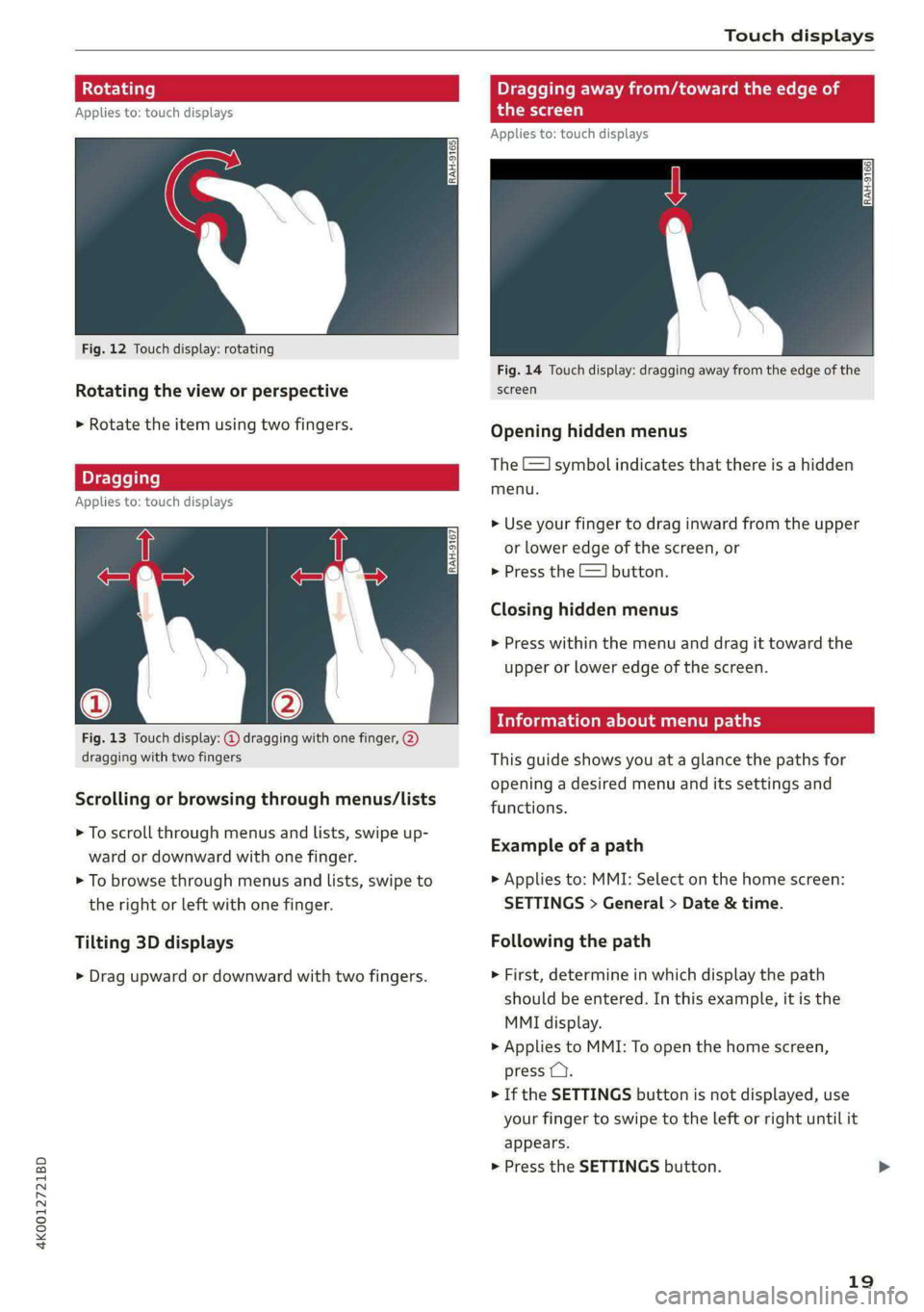
Fig. 12 Touch display: rotating
Rotating the view or perspective
> Rotate the item using two fingers.
gging
Applies to: touch displays
Fig. 13 Touch display: @ dragging with one finger, @
dragging with two fingers
Scrolling or browsing through menus/lists
> To scroll through menus and lists, swipe up-
ward or downward with one finger.
> To browse through menus and lists, swipe to
the right or left with one finger.
Tilting 3D displays
> Drag upward or downward with two fingers.
Dragging away from/toward the edge of
the screen
Applies to: touch displays
Fig. 14 Touch display: dragging away from the edge of the
screen
Opening hidden menus
The E=] symbol indicates that there is a hidden
menu.
>» Use your finger to drag inward from the upper
or lower edge of the screen, or
> Press the =] button.
Closing hidden menus
> Press within the menu and drag it toward the
upper or lower edge of the screen.
celal elie l Lele maaal te y- Lay
This guide shows you at a glance the paths for
opening a desired menu and its settings and
functions.
Example of a path
> Applies to: MMI: Select on the home screen:
SETTINGS > General > Date & time.
Following the path
> First, determine in which display the path
should be entered. In this example, it is the
MMI display.
>» Applies to MMI: To open the home screen,
press ().
> If the SETTINGS button is not displayed, use
your finger to swipe to the left or right until it
appears.
> Press the SETTINGS button.
19
Page 22 of 316

Touch displays
> If the General button is not displayed, swipe
toward the left or right with one finger until it
appears.
>» Press the General button.
> If the Date & time button is not displayed,
swipe upward or downward with one finger un-
tilit appears.
> Press the Date & time button.
@) Tips
If a menu or symbol is in parentheses in the
path, for example, (General) or (423), then it is
an optional menu item that does not need to
be used in every system.
You can adjust or turn off the MMI touch display
feedback.
> Applies to MMI: Select on the home screen:
SETTINGS > Display & brightness > MMI.
Possible settings:
— Brightness
— Touchscreen Feedback
Multi Media Interface
Airlie lia acoder)
Audi recommends performing certain Infotain-
ment system functions, such as entering a desti-
nation, only when the vehicle is stationary. Al-
ways be prepared to stop operating the Infotain-
ment system in the interest of your safety and
the safety of other road users.
ZA\ WARNING
Only use the Infotainment system when road,
traffic, weather, and visibility conditions per-
mit and always in a way that allows you to
maintain complete control over your vehicle.
@ Tips
Certain functions are not available while driv-
ing.
20
Wine mela mel mela
Switching the MMI on or off
> To switch the MMI off, press and hold the
On/Off knob > page 29, fig. 21 until the up-
per display and all Infotainment system func-
tions are switched off.
> To switch the MMI on, press the On/Off knob.
Restarting the MMI
>» Press and hold the On/Off knob for at least 10
seconds.
Switching displays on or off
> To switch the upper display off, press [Jon the
lower display.
> To switch the upper display on, touch the upper
display or press [Jon the lower display.
> To switch both displays on or off, press and hold
Co] on the lower display.
Introduction
You can display and operate Infotainment system
and vehicle functions using both of the Multi Me-
dia Interface (MMI) touch displays.
Configuration wizard
After starting for the first time, the configuration
wizard helps you to set up the vehicle, for exam-
ple to set the desired system language and con-
nect a telephone.
> Follow the instructions in the display.
> Applies to: MMI: To access the configuration
wizard at a later time, select on the home
screen: HELP > Configuration wizard.
Tool tips
Tool tips are displayed on the upper display after
starting for the first time. They introduce various
MMI functions to you.
> Follow the instructions in the display.
> Applies to: MMI: To access the tool tips at a lat-
er time, select on the home screen: SETTINGS
> Help > Show tool tips.
> Applies to: MMI: To receive additional tool tips,
select on the home screen: HELP > Tool tips >
Basic information or Expert information.
Page 25 of 316
![AUDI A6 2020 Owners Manual 4K0012721BD
Touch displays
Using the notification center
> To open the notification center, pull the status
bar downward, or
> Press the E=] button on the status bar.
> To apply quick setting](/img/6/57584/w960_57584-24.png "AUDI A6 2020 Owners Manual 4K0012721BD
Touch displays
Using the notification center
> To open the notification center, pull the status
bar downward, or
> Press the E=] button on the status bar.
> To apply quick setting")
4K0012721BD
Touch displays
Using the notification center
> To open the notification center, pull the status
bar downward, or
> Press the E=] button on the status bar.
> To apply quick settings, press the respective
symbol (@).
> To obtain additional information about a notifi-
cation, press it.
> To delete a notification, pull it toward the right
edge of the screen.
> If there are more than four notifications in the
notification center, the older notifications will
be hidden. To display the older notifications,
drag
your finger upward on the screen.
Setting displayed content
You can set whether some notifications should be
displayed.
> To set the displayed content, press &@, or
> Applies to MMI: Select on the home screen:
SETTINGS > Notifications.
> Select and confirm which notifications should
be displayed.
Possible quick settings
Symbol Description
Apply sound settings
Open menu settings
Manage connected devices
Manage personal profiles
Set date and time
= Set displayed content in the noti-
fication center
Depending on the vehicle equipment, you can op-
erate various functions in the function bar.
Description
Switch Start/Stop system on or
off
Switch hill descent assist on or off
Opens the garage door opener
function
Symbol Description
Press: adjust sunshade
Press and hold: convenience
opening and closing
Press: shows settings for the
head-up display
Press and hold: switches the
head-up display on or off
Press: switches the upper display
on or off
Press and hold: switches both dis-
plays on or off
Syirelada the)
By creating shortcuts, you have quick access to
various items, such as radio stations, frequently
used contacts, or vehicle settings.
Adding shortcuts
The «++ buttons in the upper display indicate, for
example, if a selected radio station can be added
to the shortcuts. Depending on the context, you
may also be able to add items from a list to the
shortcuts.
> Press +++ or press and hold an item ina list.
>» Press Save as a shortcut. The selected item will
be added to the shortcuts on the lower display
and displayed as a tile.
Using shortcuts
> Press the oat (4) > page 21, fig. 15 button in the
function bar on the lower screen. The saved
shortcuts will be displayed or hidden.
> To access the stored function, press the respec-
tive tile.
Moving or deleting shortcuts
> Press and hold a shortcut on the lower display.
> To adjust the order of the shortcuts, drag a
shortcut to the desired location.
> To delete a shortcut, press ®.
23
Page 29 of 316

4K0012721BD
Voice recognition system
Voice recognition system
General information
Applies to: vehicles with voice recognition system
You can operate many functions in the vehicle
easily using voice commands.
Using the voice recognition system optimally
> Speak clearly and distinctly at a normal volume.
Speak louder when driving faster.
» Emphasize the words in the commands evenly
and do not leave long pauses.
> Close the doors, the windows, and the sunroof*
to reduce background noise. Make sure that
passengers are not speaking when you are giv-
ing a voice command.
> Do not direct the vents toward the hands-free
microphone, which is in the roof headliner near
the front interior lights.
> Only the driver should speak to the system, be-
cause the handsfree microphone is aimed to-
ward this seating position.
ZA WARNING
— Direct your full attention to driving. As the
driver, you have complete responsibility for
safety in traffic. Only use the functions in
such a way that you always maintain com-
plete control over your vehicle in all traffic
situations.
— Do not use the voice recognition system in
emergencies because your voice may change
in stressful situations. The system may take
longer to dial the number or may not be
able to dial it at all. Dial the emergency
number manually.
G) Tips
There are no voice guidance* prompts when a
dialog is active.
Operating
Applies to: vehicles with voice recognition system
(2 ELE
Pat) 5 ce
Where is a
Connect >
Diala
coy n
ey
Os 4
Cog
Fig. 19 Upper display: voice recognition system
Switching the voice recognition system on or
off
Requirement: the ignition and the MMI must be
switched on. A system language supported by
the voice recognition system must be set. There
must be no phone calls in progress and the park-
ing aid must not be active.
> To switch the voice recognition system on,
briefly press the «€ button on the multifunction
steering wheel, or depending on the context,
press w¢ in the upper display.
> To switch the voice recognition system off,
press and hold the « button on the multifunc-
tion steering wheel, or say or press Cancel (a).
Using the voice recognition system
In the voice recognition system menu, possible
commands or help settings are displayed for the
current dialog @).
> Say the desired command after the signal tone.
> To receive additional help for the current dia-
log, say or press Help (2).
> To pause voice recognition, say or press Pause
@. To reactivate voice recognition, press @)
again or briefly press the «€ button on the mul-
tifunction steering wheel.
> Applies to: MMI: Select on the home screen:
SETTINGS > General > Speech dialog system >
Allow commands during voice output. If the
function is switched on, you can simply say a
new command during a prompt.
Activating the online recognizer
Applies to: vehicles with online recognizer
You can activate the online recognizer for addi-
tional functions and to improve the results of
27
>
Page 38 of 316
Opening and closing
Interior/towing protection monitor
The alarm will be triggered if there are move-
ments detected in the vehicle interior (for exam-
ple, by animals) or if there is a change in the vehi-
cle angle (for example, when the vehicle is being
towed).
You can prevent the alarm from being triggered
by deactivating the interior/towing protection
monitor.
Deactivating the interior/towing protection
monitor
There are the following options for deactivating
the interior/towing protection monitor:
> Press the & button on the vehicle key a second
time within two seconds. Or
» Applies to: vehicles with convenience key:
Touch the sensor on the door handle a second
time within two seconds. Or
> Turn the mechanical key in the door lock to the
close position a second time within 2 seconds.
If you lock the vehicle, then the interior/towing
protection monitor will stay off until the next
time the vehicle is unlocked.
ZX WARNING
No one, especially children, should stay in the
vehicle when it is locked from the outside, be-
cause the windows can no longer be opened
from the inside. Locked doors make it more
difficult for emergency workers to enter the
vehicle, which puts lives at risk.
(i) Tips
The interior/towing protection monitor only
functions correctly when the windows and the
panorama glass roof* are closed.
36
RAZ-0621
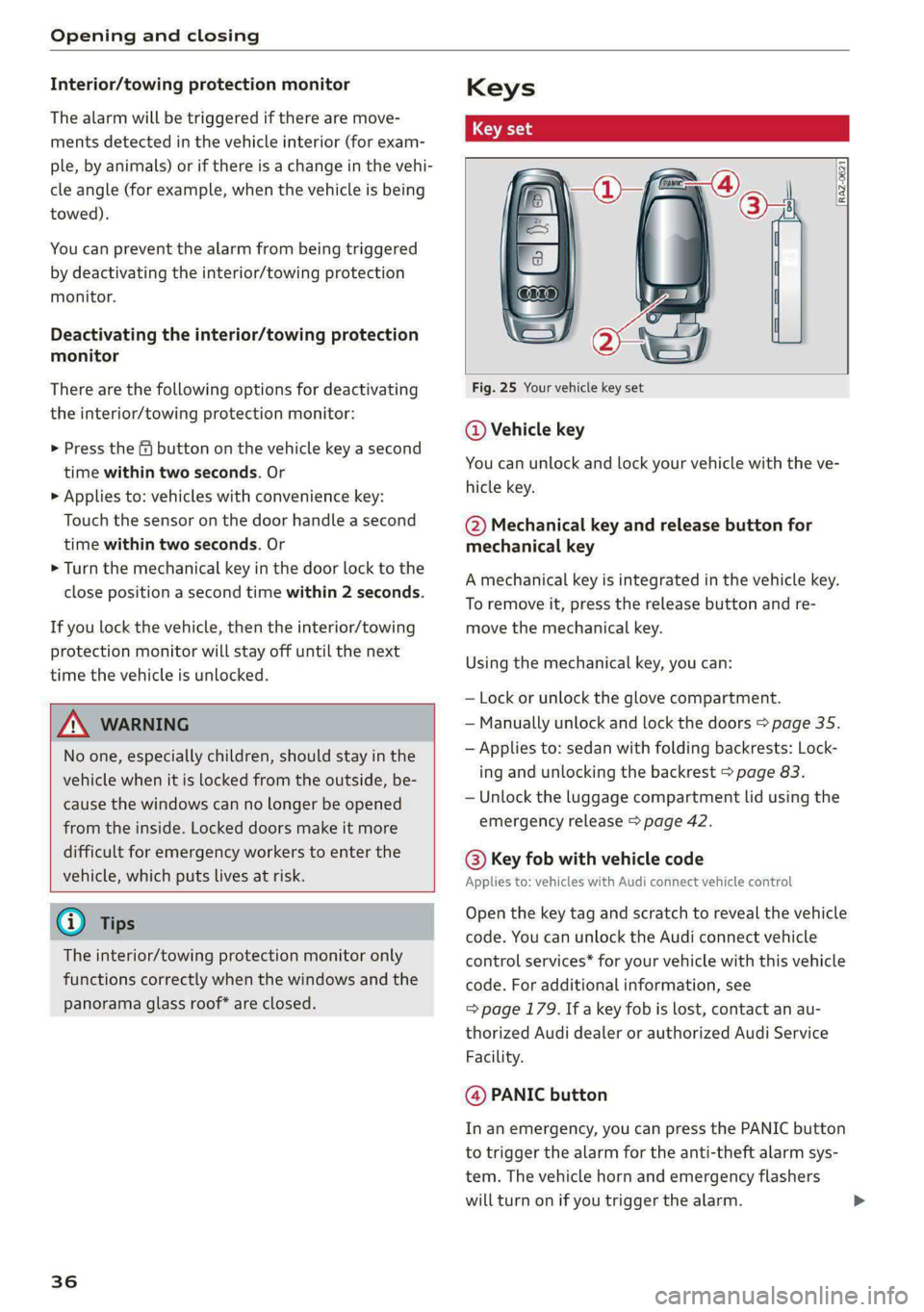
Fig. 25 Your vehicle key set
@ Vehicle key
You can unlock and lock your vehicle with the ve-
hicle key.
@ Mechanical key and release button for
mechanical key
A mechanical key is integrated in the vehicle key.
To remove it, press the release button and re-
move the mechanical key.
Using the mechanical key, you can:
— Lock or unlock the glove compartment.
— Manually unlock and lock the doors > page 35.
— Applies to: sedan with folding backrests: Lock-
ing and unlocking the backrest > page 83.
— Unlock the luggage compartment lid using the
emergency release > page 42.
@ Key fob with vehicle code
Applies to: vehicles with Audi connect vehicle control
Open the key tag and scratch to reveal the vehicle
code. You can unlock the Audi connect vehicle
control services* for your vehicle with this vehicle
code. For additional information, see
=> page 179. If a key fob is lost, contact an au-
thorized Audi dealer or authorized Audi Service
Facility.
@ PANIC button
In an emergency, you can press the PANIC button
to trigger the alarm for the anti-theft alarm sys-
tem. The vehicle horn and emergency flashers
will turn on if you trigger the alarm.
Page 47 of 316
4K0012721BD
Opening and closing
Panoramic glass roof
Operating the p mic glass roof
Cel m dar Le(-)
Applies to: vehicles with panoramic glass roof and roof sun-
shade
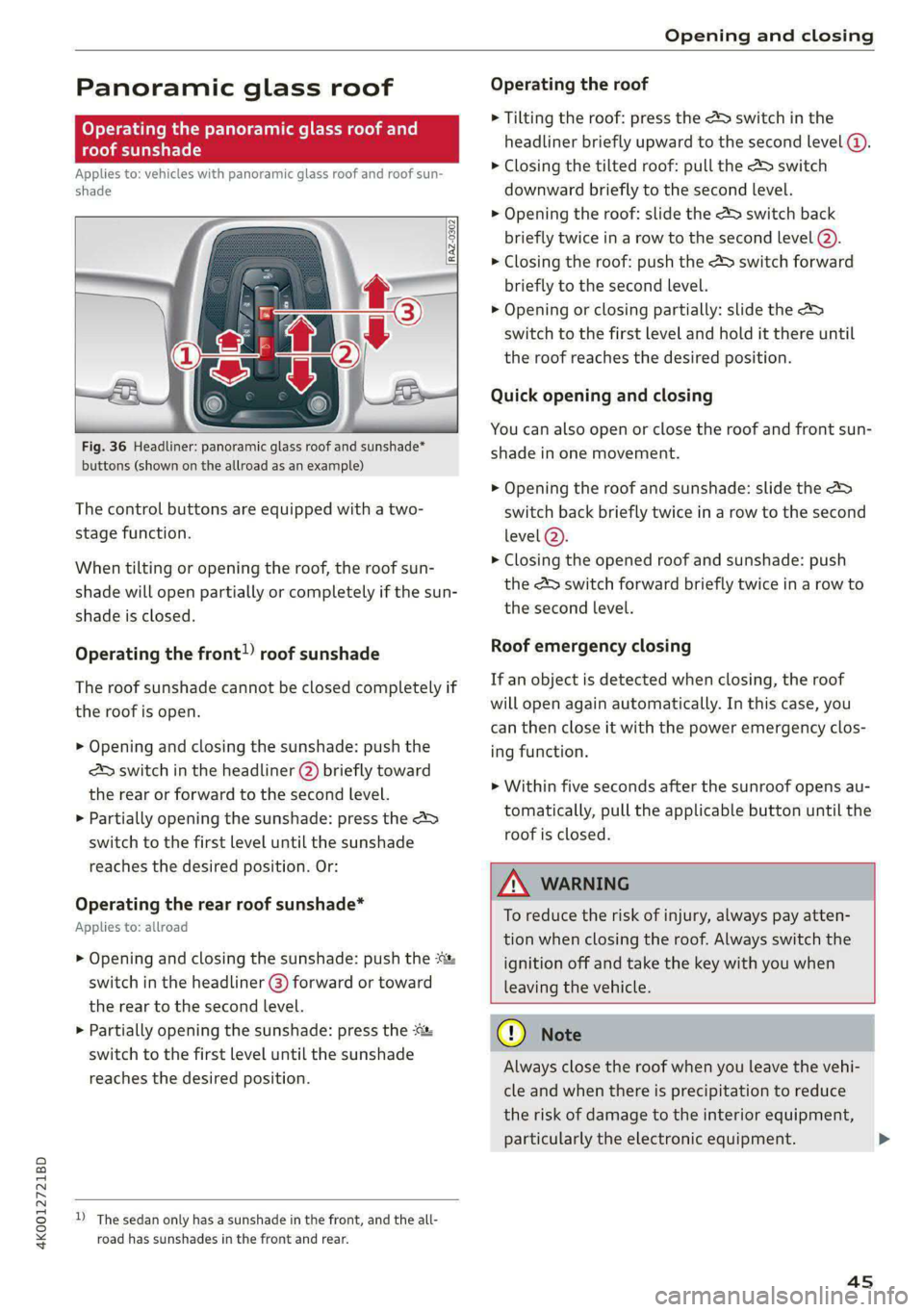
Fig. 36 Headliner: panoramic glass roof and sunshade*
buttons (shown on the allroad as an example)
The control buttons are equipped with a two-
stage function.
When tilting or opening the roof, the roof sun-
shade will open partially or completely if the sun-
shade is closed.
Operating the front!) roof sunshade
The roof sunshade cannot be closed completely if
the roof is open.
> Opening and closing the sunshade: push the
SD switch in the headliner @) briefly toward
the rear or forward to the second Level.
> Partially opening the sunshade: press the >
switch to the first level until the sunshade
reaches the desired position. Or:
Operating the rear roof sunshade*
Applies to: allroad
> Opening and closing the sunshade: push the -&&
switch in the headliner (@) forward or toward
the rear to the second level.
> Partially opening the sunshade: press the
switch to the first level until the sunshade
reaches the desired position.
1) The sedan only has a sunshade in the front, and the all-
road has sunshades in the front and rear.
Operating the roof
> Tilting the roof: press the 2S switch in the
headliner briefly upward to the second level @).
> Closing the tilted roof: pull the 2 switch
downward briefly to the second level.
> Opening the roof: slide the A> switch back
briefly twice in a row to the second level @).
> Closing the roof: push the 2> switch forward
briefly to the second level.
> Opening or closing partially: slide the A>
switch to the first level and hold it there until
the roof reaches the desired position.
Quick opening and closing
You can also open or close the roof and front sun-
shade in one movement.
> Opening the roof and sunshade: slide the 2>
switch back briefly twice in a row to the second
level @).
> Closing the opened roof and sunshade: push
the Ad switch forward briefly twice in a row to
the second level.
Roof emergency closing
If an object is detected when closing, the roof
will open again automatically. In this case, you
can then close it with the power emergency clos-
ing function.
> Within five seconds after the sunroof opens au-
tomatically, pull the applicable button until the
roof is closed.
ZX WARNING
To reduce the risk of injury, always pay atten-
tion when closing the roof. Always switch the
ignition off and take the key with you when
leaving the vehicle.
@) Note
Always close the roof when you leave the vehi-
cle and when there is precipitation to reduce
the risk of damage to the interior equipment,
particularly the electronic equipment.
4s
>
Page 54 of 316

Lights and Vision
— you are the last car in a traffic jam so that
all other vehicles approaching from behind
can see your vehicle
— your vehicle has broken down or you are
having an emergency
— your vehicle is being towed or if you are tow-
ing another vehicle
Messages
If the 8; indicator light turns on, a bulb has
failed. The displayed message indicates the cause
and possible solutions. If one of the messages
does not turn off, drive immediately to an author-
ized Audi dealer or authorized Audi Service Facili-
ty to have the malfunction repaired.
BB) Audi adaptive light: malfunction! See own-
er's manual
Adaptive light* is not working. The headlights
still function. Drive immediately to an authorized
Audi dealer or authorized Audi Service Facility to
have the malfunction repaired.
High beam assistant: malfunction! See own-
er's manual
You can still switch the high beams on or off
manually. Drive immediately to an authorized
Audi dealer or authorized Audi Service Facility to
have the malfunction repaired.
High beam assistant: currently unavailable.
Camera view limited due to surroundings.
This message appears if the camera's visual field
is blocked. The system will switch itself off. Try
switching the systems on again later.
Automatic headlights: malfunction! See
owner's manual
The light/rain sensor is malfunctioning. The low
beams remain switched on at all times for safety
reasons with the AUTO light function. Drive im-
mediately to an authorized Audi dealer or author-
ized Audi Service Facility to have the malfunction
repaired.
52
Interior lighting
Front interior lighting
Fig. 40 Headliner: interior lighting
Interior lighting buttons
axs* — Interior lighting on/off
4 - Door contact switch on/off. The interior light-
ing is controlled automatically.
Touch-sensitive reading lights
> To turn a reading light on or off, touch the sur-
face @ briefly.
> To activate the manual dimming function,
touch the surface @ when the light is switched
off and keep touching it until the desired
brightness is reached.
Rear interior lighting
Fig. 41 Headliner: reading lights
Reading lights
> To switch the reading lamp on or off, press the
‘ button @.
> To activate the manual dimming function*,
touch the surface when the light is switched off
“¥ @ and keep touching it until the desired
brightness is reached.