128 AUDI A6 2021 Owner´s Manual
[x] Cancel search | Manufacturer: AUDI, Model Year: 2021, Model line: A6, Model: AUDI A6 2021Pages: 332, PDF Size: 119.45 MB
Page 12 of 332
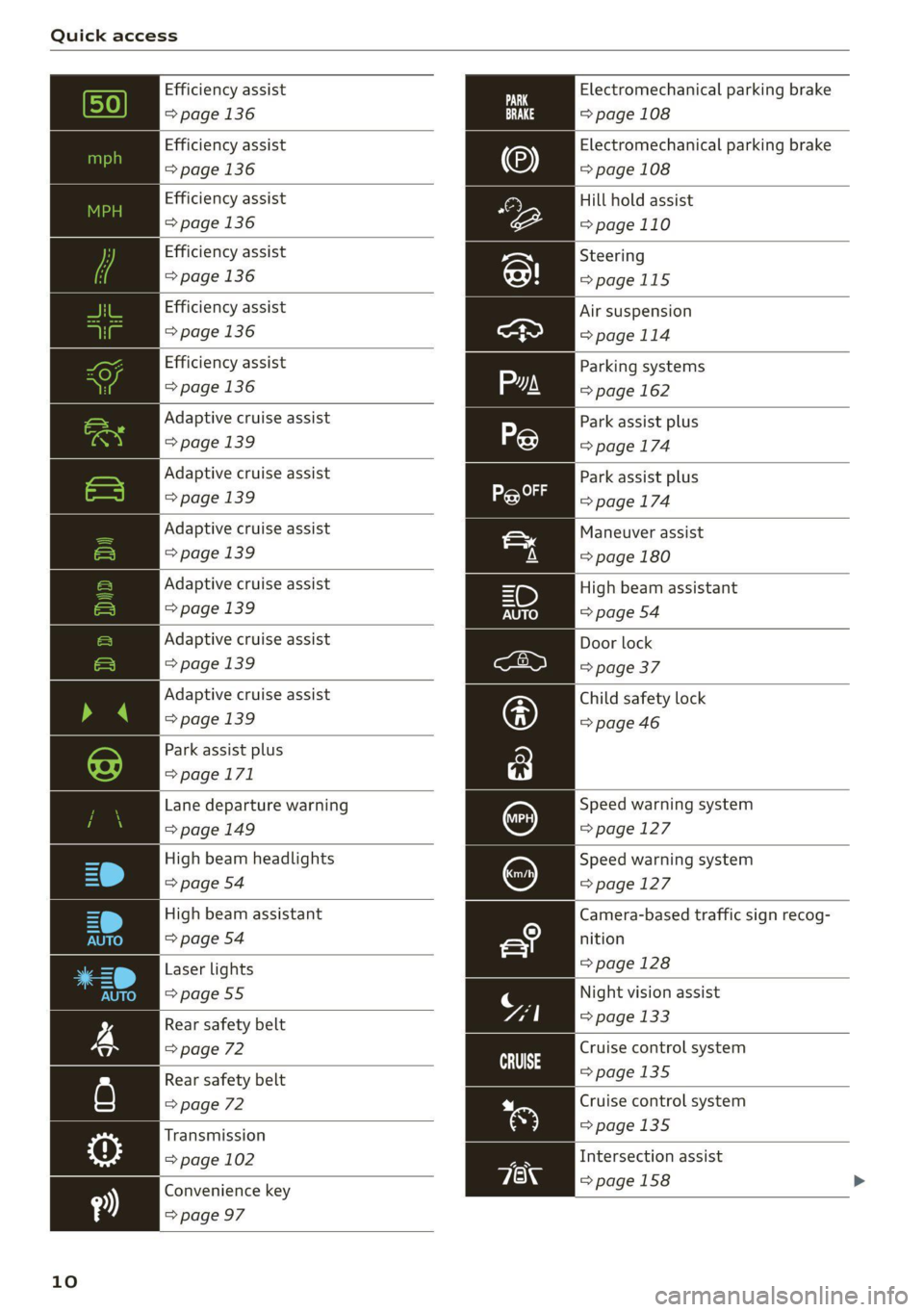
Quick access
Efficiency assist Electromechanical parking brake
=> page 136 => page 108
Efficiency assist
=> page 136
Electromechanical parking brake
=> page 108
Hill hold assist
=> page 110
Efficiency assist
=> page 136
Efficiency assist
> page 136
Steering
>page 115
Efficiency assist
> page 136
Air suspension
=>page 114
Efficiency assist
> page 136
Parking systems
=> page 162
Adaptive cruise assist
> page 139
Park assist plus
=> page 174
Adaptive cruise assist
=> page 139
Park assist plus
=>page 174
Adaptive cruise assist
> page 139
Adaptive cruise assist
=> page 139
Adaptive cruise assist
> page 139
Adaptive cruise assist
=> page 139
Park assist plus
>page 171
Lane departure warning
=> page 149
High beam headlights
=> page 54
Maneuver assist
=> page 180
High beam assistant
=> page 54
Door lock
=> page 37
Child safety lock
=> page 46
Speed warning system
=> page 127
Speed warning system
=>page 127
Camera-based traffic sign recog-
nition
> page 128
High beam assistant
=> page 54
Laser lights
=>page 55 Night vision assist
Rear safety belt => page 133
=> page 72 Cruise control system
Rear safety belt >page 135
=> page 72
Transmission
O; => page 102
Convenience key
=> page 97
10
Cruise control system
=>page 135
Intersection assist
=>page 158
Page 130 of 332

Driving information
— If traffic signs do not conform to the standard
format
— If traffic signs are damaged or bent
— If traffic signs are displayed on sign holders
with electronic signs
— If the traffic signs or the roadways have
changed, and the navigation data is no longer
up-to-date
Z\ WARNING
— Observe the safety precautions and note the
limits of the assist systems, sensors, and
cameras > page 122.
— Under some circumstances, traffic sign rec-
ognition may not detect traffic signs correct-
ly or detect them at all. As a result, the sys-
tem may not display the correct speed limit
or any speed limit.
@) Tips
— Traffic sign recognition does not adapt your
vehicle's speed to match the speed Limit.
— The display in the instrument cluster is
based on the units of measurement used for
speed in the country where the vehicle is be-
ing operated. As a result, a display of 50 in
the instrument cluster can mean either mph
or km/h, depending on the country.
Applies to: vehicles with camera-based traffic sign recognition
Accessing traffic sign recognition
> Select in the instrument cluster: vehicle func-
tions tab > Traffic signs.
Setting a traffic sign based speed warning
> Applies to MMI: Select on the home screen: VE-
HICLE > Driver assistance > (<3) > Speed warn-
ing.
You can select a warning threshold. If you exceed
this, then the current detected speed limit will be
shown in the display with an exclamation point
for the duration that it is exceeded and it will
blink for a short time.
128
IY ett Tel -1
Applies to: vehicles with camera-based traffic sign recognition
Traffic sign recognition: currently unavaila-
ble. Camera view limited due to surroundings
The camera’s visual field is covered. Clean the
windshield.
Traffic sign recognition: currently limited.
See owner's manual
This message appears if navigation system data
is not available, for example on newly-construct-
ed roads. The speed limit display will be tempo-
rarily limited, which increases the risk of an incor-
rect display. If this message continues to appear,
drive immediately to an authorized Audi dealer or
authorized Audi Service Facility to have the mal-
function repaired.
No traffic sign information available
Depending on the area, there is no valid naviga-
tion data and no speed limits were detected. This
may also appear if there is a recommended
speed, but no speed limit (for example when
driving on and off the expressway).
Malfunction! See owner's manual
The system may not function correctly so it has
been switched off. See an authorized Audi dealer
or authorized Audi Service Facility for assistance.
Function currently unavailable. See owner's
manual
If this message appears on vehicles without cam-
era-based traffic sign recognition, then the traffic
light
information function is currently unavaila-
ble. See > page 130.
Page 171 of 332

4K0012721BE
Parking and maneuvering
© Two-car garages”
@ Tips
— If there is enough space in a two-car garage,
the system automatically selects the park-
ing position in front of the vehicle that the
driver has selected.
— You can also drive into a perpendicular park-
ing space yourself and then activate the sys-
tem. If this is the case, the front of the vehi-
cle should already be in the space () so that
the sensors can measure the space.
(oy oy a] for exiting parking spaces
Applies to: icles with assisted parking
Fig. 128 Overview of options for exiting a parking space
Depending on the vehicle equipment, the follow-
ing options for exiting parking spaces may be
available:
@ Leaving perpendicular parking spaces»)
@ Leaving parallel parking spaces
@® Exiting parking spaces in garages)
2 Only remote controlled parking.
Parking space search
Applies to: vehicles with assisted parking
S g 3
3]
&
Fig. 129 Upper display: activated parking space search
Activating the parking space search
> Press P@ in the lower display. Or:
> To activate the parking space search when the
parking aid is activated, press Pe in the upper
display.
Searching for parking spaces
> Drive forward to the row of parking spaces at a
low speed. For the best parking results, the ve-
hicle should be approximately 3 feet (1 m) from
the row of parking spaces.
> The parking space search is first done on the
side of your lane. To switch the side for the
parking space search, activate the turn signal
for that side. Depending on vehicle equipment,
you may also be able to press on the side next
to your vehicle in the upper display.
Selecting the parking space
If the system finds a parking space that could be
suitable for the vehicle length and width, it will
be displayed. The system automatically suggests
a parking option @.
If the parking space allows different parking op-
tions, they can be selected manually. Press one of
the suggested parking options @).
Starting the parking process
Once the vehicle has reached the correct position,
a P will appear above the selected parking space
©. The roof in the parking aid display @) may
show the required braking or driving direction.
169
>
Page 178 of 332

Parking and maneuvering
cannot be guaranteed for all types of mobile de-
vices. The availability depends on the following
factors, among others:
— Brand and build version of the mobile device
— Version of the mobile device operating system
— Software version of the app used
— Individual settings on the mobile device
ZA\ WARNING
— Observe the safety precautions and note the
limits of the assist systems, sensors, and
cameras © page 122.
— There is a risk of an accident if an incompati-
ble mobile device is used. If there is a dis-
play indicating that functionality is restrict-
ed, the vehicle’s reaction speed may be im-
ZA\ WARNING
Observe the safety precautions and note the
limits of the assist systems, sensors, and
cameras > page 122.
paired due to reduced transmission speed.
Parking options?)2)
Applies to: vehicles with remote park assist plus
Depending on the vehicle equipment, you may
have the following options when using remote
controlled parking:
Driving into parking spaces
— Parallel parking on the left or right side of the
street @) > page 168, fig. 126
— Driving forward or backing into perpendicular
parking spaces (2)/@) > page 168, fig. 126.
— Parking in one-car or two-car garages) 6)/@)
=> page 168, fig. 127
Exiting parking spaces
— Leaving perpendicular parking spaces @)
=> page 169, fig. 128.
— Exiting parallel parking spaces @).
— Exiting one-car or two-car garages?) @).
D_ System availability may be limited depending on the mar-
ket.
2) In preparation at the time of printing.
3) Applies to: vehicles with remote park assist plus with ga-
rage function
176
G) Tips
— When parking in garages, you can be
straight in front of the garage or at a slight
angle in front of the garage. You will have
the best results when you align and stop
your vehicle as straight as possible in front
of the garage.
— If there is enough space in a two-car garage,
the system automatically selects the park-
ing position in front of the vehicle that the
driver has selected.
Parking with the my. app)2)
Applies to: vehicles with remote park assist plus
[raz-o341]
Fig. 132 Upper display: remote controlled parking - pre-
paring the vehicle
Requirements
> The setup has been completed.
> You are logged into the vehicle with your myAu-
di user.
> Bluetooth is switched on in the mobile device
and in the MMI > page 234.
» A suitable parking space has been found anda
parking option selected, for example in a ga-
rage (4).
> The vehicle must initially be stationary.