phone AUDI A7 2020 Owners Manual
[x] Cancel search | Manufacturer: AUDI, Model Year: 2020, Model line: A7, Model: AUDI A7 2020Pages: 310, PDF Size: 81.29 MB
Page 5 of 310
4K8012721BC
Table of contents
Assist systems...................
Assist systems...................
General informationiie: « . cies. ene es
Surrounding area detection............
Switching the systems on and off.......
Driving information..............
Speed warning system..............-.
Camera-based traffic sign recognition...
Traffic light information..............
LEP SEUIME Pins 5 5 sarc % w esenwes 0 0 sxeene 4 6 cece
Night vision assist..............000..
Driver assistance.................
Cruise control system.............0--
EfTClenGyOSSISt saws « « cawe « x caw « « aaw
Adaptive cruise assist................
Distance warning.................0-5
Lane departure warning...............
Audi pressense « swiss se seca « seuve » srevese
Side assist... 0.0... cece eee ee eee
Exit WarKING sees 5 x meus 5 2 eee 5 oe eee es
Intersection assistant................
Emergency assist.............0..0...
Parking and maneuvering.......
TinErOGUGHION s & awames « a saswese « = smossen a w asians
Parking system plus..............0005
Rearview camera and peripheral cameras .
Rear cross=traffieassist. « cnc x nea s «x
Infotainment system............
Telephone)... « - cseswis ss eee oo eave 6 vee
Introduction................ 0.00 eee
Using the Audi phone box.............
Using the telephone..................
M@SSaQ@S ans = : eenu sy eRe ys aeeS so ees
SOttinG Sica sa aus oe seca + warems ¥ wee
Instrument cluster...............000.
Troubleshooting sass ss eee ss ees ss ees
PIC P-COM TE CG occ. 5 5 soseeee 6 5 serie oo eee
Generalinformation.................
Audi connect Infotainment............
Using a Wi-Fi hotspot................
Audi connect Infotainment services.....
Audi connect vehicle control services. ...
SOPGINGS sacs +o aeowens w evewens a x euswoe a» eemeoe 178
Troubleshooting..............2.ee eee 179
Errengenieycalls: « «ec i vais sean s 180
Overview... .. 02... eee eee eee 180
Emergency call «is. .cesess eesu es reese 180
Online roadside assistance............ 181
Navigation................0 eee eee 182
Opening navigation.................. 182
myAudi navigation................04. 182
Entering adestination................ 183
Stopping route guidance.............. 187
Ma picwsns s % suweave a & sumcous ¥ & semeaus wo canes a a ona 188
Personal route assistance............. 190
Alternative routes’. << ses << eee + + verre 190
Additional functions................. 191
Satellite map............... 02 eee 192
Map Update: « eves 2» exaw ¢ » eee cv cea 193
Traffic informationies « ¢ osc +o eee sv ewe 194
Options and settings...............0. 195
Troubleshooting «<< = neces s yews sp es 197
Radio... .... ieee 198
Opening the radio................... 198
Radio functions ses. s ease ss eeen es veo 199
Options and settings................. 203
Troubleshooting............+-eeee eee 204
PS weiicse os aviesse ss aoawous aw sues © oreniKe 205
General information................. 205
SD card reader's = esas < ¢ cows < eae s x Hee 205
DYD:diive « ssc: © 2 sence © o couwoe wo evenene © oe 205
Bluetooth audio player............... 206
Online Media : : eves se sees se eeen te oes 207
AmazoniAlex@ios: « cim «2 en se wns a 2 207
Multimedia connections.............. 208
Playing ti@dia:s ss swe: so agus 5 o eeu ss oe 209
Options and settings...............0. 213
Supported media and file formats...... 215
Troubleshooting ...........0eeceeneee 216
Page 6 of 310
Table of contents
Audi smartphone interface...... uy
Setup... eee eee ee eee 217
TrOuUBLESHOOtING wees « & wees « 2 eos so eee 218
Additional settings.............. 219
System settingS.......0seeecceeveees 219
Connected devices ...... 0.0... 000 e eee 220
Legalinformation..................5 221
Maintenance and Care........... 223
Checking and Filling............. 223
Fuel... 2. cece eee eee eee eee 223
Refuelingjecs ss sees se ane + eeee § s peme 224
Emissions control system...........4. 227
Engine compartment................. 227
ERGINGOtls seus 2 x seme « ¥ neue =e oRBER Fae 230
Cooling:system . « sscses v < ssesens vo eevee so ave 234
Brake fluid... 2... eee eee eee 236
Electrical SySteMi wis ¢ scm ae mews eg ey 236
Battery: « & cess 6 6 ceva © 5 mews « wenn ¥ © oi 237
Windshield washer system...........- 239
Service interval display............... 240
Wheels ........ 0... eee 241
Wheels and Tires . . 241
Tire pressure monitoring system....... 258
Care and cleaning................ 261
General information................. 261
Car washess « siscica ea suasen a i wana # w auavars a a 261
Cleaning and care information......... 262
Taking your vehicle out of service....... 266
Troubleshooting................. 267
Emergency assistance........... 267
General information..............0.. 267
Equipment.........-...00 2. cece eee 267
Tire Mobility’ Kit « sc ss ces scans 8 ees 267
Replacing wheels................-00. 269
Space-saving spare tire............... 273
Jump starting.....................0. 273.
TOWING scsvss = ¢ wesos « § eeons & 2 Keres 4 = HES 275
Fuses and bulbs.................. 278
FUSES an + x css 5 © ames + © eRe = Beem He 278
BULDSisi0e svowave 4 6 oniuen a a stants a Hanon w 8 ave 281
Customer information........... 282
Data privacy..................000. 282
Image recording............seeeeeees 282
Datamemoniesy. « s sscams sv sume ov ene a 0s 282
Transmitted information.............. 283
Accessories and technical
CHANGES... 1... eee eee eee 286
Warranty......... 00-000. e eee eee 286
Audi Literature Shop..............00. 286
Driving in other countries............. 286
Maintenance, repairs, and technical
MOGIFIcAatIONS vase x x mem = x saw x 2 sue 286
Accessories and parts................ 288
Reporting Safety Defects.............. 288
Declaration of compliance for
telecommunications equipment and
electronic systems............---0000- 289
Technical data..................8. 291
Identification data................00. 291
Vehicle dataiscs: = s xews 2s eens sp oes ye 291
Index... 0.2... eee 293
Page 9 of 310
4K8012721BC
Quick access
— Vehicle key holder
@_ Depending on equipment:
— Starting the engine when there is
@ MalfUNGHON, « s cess oc worms « vase 91
— Audi musicinterface .......... 208
— Audi phone box ............... 163
HSDicardireader’ « « swesiis sv canes ¥ ave 205
@9 Electromechanical parking brake
BUtEON sssccws oa aves 0 x wasnt x x secu Y 101
@) Automatic transmission selector
LOVER arcane oo cevenes man comme ow eens oe 92
@ START ENGINE STOP} button .... 90
@3) Steering wheel adjustment ...... 63
@4 Lever for:
— Cruise control system ......... 127
— Adaptive cruise assist .......... 131
@5) Data link connector for On Board
Diagnostic System (OBD) ........ 282
@8 Buttons for:
-Lights ...............2..000. 48
—All-weather lights ............ 48
—Rear fog lights ............... 48
@) Hood release ...........0...0.. 229
Button for:
— Luggage compartment lid ...... 39
@9) Exterior mirror adjustment ...... 53
69 Buttons for:
— Power windows .............. 42
—Child safety lock .............. 42
@) Tips
Some the equipment listed here is only instal-
led in certain models or is available as an op-
tion.
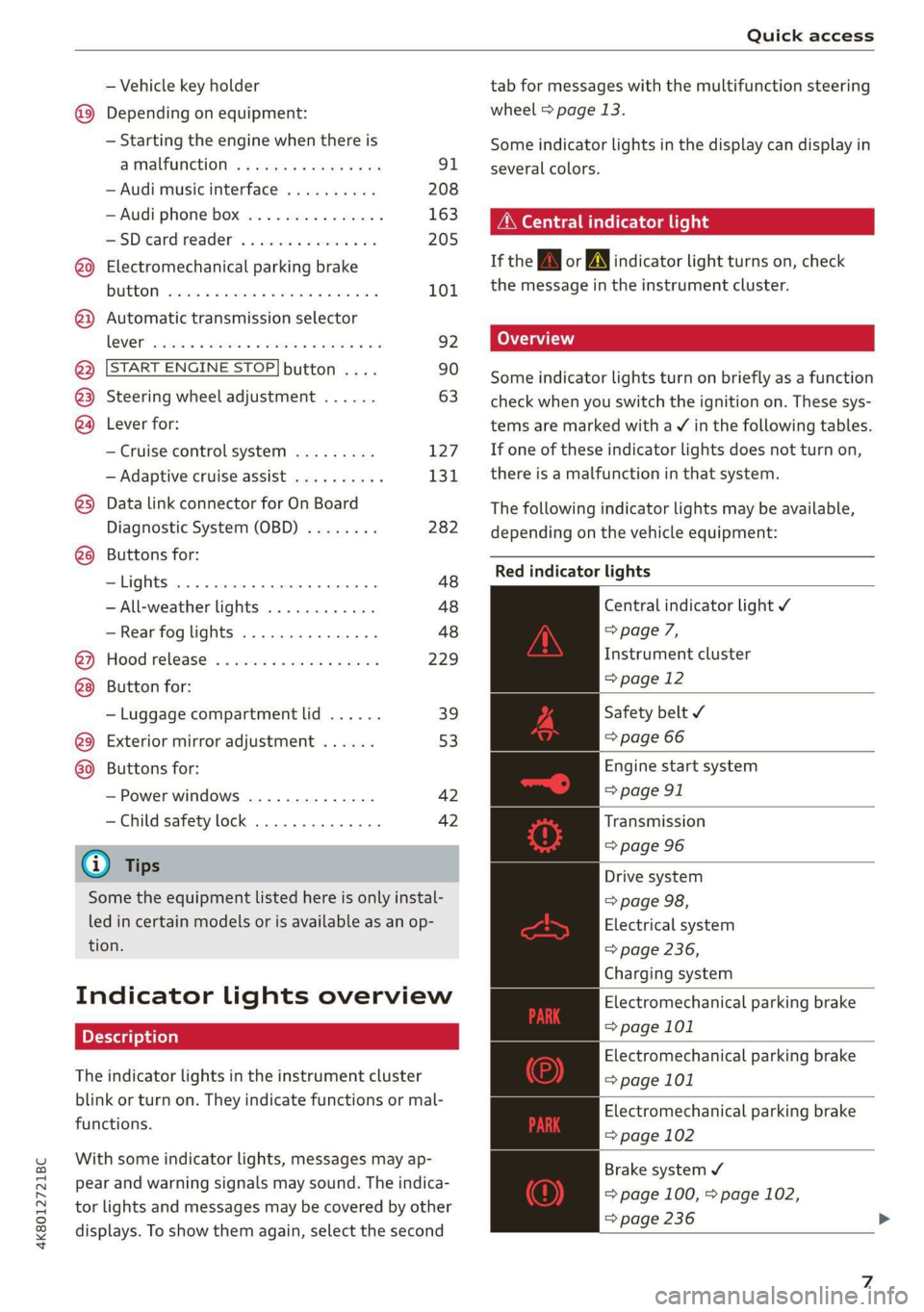
Indicator lights overview
The indicator lights in the instrument cluster
blink or turn on. They indicate functions or mal-
functions.
With some indicator lights, messages may ap-
pear and warning signals may sound. The indica-
tor lights and messages may be covered by other
displays. To show them again, select the second
tab for messages with the multifunction steering
wheel > page 13.
Some indicator lights in the display can display in
several colors.
OMe ella Lins
If the AN or A indicator light turns on, check
the message in the instrument cluster.
Some indicator lights turn on briefly as a function
check when you switch the ignition on. These sys-
tems are marked with a V in the following tables.
If one of these indicator lights does not turn on,
there is a malfunction in that system.
The following indicator lights may be available,
depending on the vehicle equipment:
Red indicator lights
Central indicator light ¥
> page 7,
Instrument cluster
=> page 12
Safety belt ¥
=> page 66
Engine start system
=> page 91
Transmission
=> page 96
Drive system
=> page 98,
Electrical system
=> page 236,
Charging system
Electromechanical parking brake
=> page 101
Electromechanical parking brake
=> page 101
Electromechanical parking brake
=> page 102
Brake system ¥
= page 100, > page 102,
=> page 236
Page 16 of 310
![AUDI A7 2020 Owners Manual Instrument cluster
Returning to functions at higher levels
> Press the 5 button @).
Opening and closing the menu
> Press the [=] button ©.
Selecting and confirming a function
Requirement: a](/img/6/57597/w960_57597-15.png "AUDI A7 2020 Owners Manual Instrument cluster
Returning to functions at higher levels
> Press the 5 button @).
Opening and closing the menu
> Press the [=] button ©.
Selecting and confirming a function
Requirement: a")
Instrument cluster
Returning to functions at higher levels
> Press the 5 button @).
Opening and closing the menu
> Press the [=] button ©.
Selecting and confirming a function
Requirement: a menu or list must be displayed.
> To select a function, turn the left thumbwheel
@ to the desired function.
> To confirm a selection, press the left thumb-
wheel (2).
Switching the view
> Press the VIEW button @) > page 14.
The following tabs may be available, depending
on vehicle equipment:
First tab Vehicle functions > page 16
Second tab | Driver messages (this is only dis-
played if at least one indicator
light/message is being displayed)
Third tab Night vision assist (this is only dis-
played if the night vision assist
has been activated) > page 124
Fourth tab | Radio > page 198
Media
> page 209
Fifth tab Telephone > page 173
Sixth tab Navigation > page 182
Adjusting the display
Fig. 7 -Applies to: Audi virtual cockpit- Upper display: ad-
justing the display
Switching the view
Applies to: Audi virtual cockpit
> Press the VIEW button to switch between the
default view @) and the enhanced view @).
14
Adjusting the layout
Applies to: Audi virtual cockpit
Depending on the vehicle equipment, various lay-
outs may be available.
> Applies to: MMI: Select on the home screen:
SETTINGS > Display & brightness > Virtual
cockpit.
> To adjust the desired layout, press ().
Adjusting the additional display
Applies to: Audi virtual cockpit
Depending on the vehicle equipment, the addi-
tional displays that can be selected may vary.
> Applies to: MMI: Select on the home screen:
SETTINGS > Display & brightness > Virtual
cockpit > (Configure).
> Select the desired additional display.
Reducing the display
Depending on the vehicle equipment, you can
hide the central area in the instrument cluster.
> Applies to: analog instrument cluster: Press the
VIEW button on the multifunction steering
wheel.
> Applies to: Audi virtual cockpit: Select on the
instrument cluster: vehicle functions tab >
button > Reduced display.
Coolant temperature
display
Applies to: vehicles with a coolant temperature indicator
The coolant temperature display @ > page 12
only functions when the ignition is switched on.
To reduce the risk of engine damage, please ob-
serve the following notes about the temperature
ranges.
Cold range
If only the LEDs at the bottom of the gauge turn
on, the engine has not reached operating tem-
perature yet. Avoid high engine speeds, full accel-
eration, and heavy engine loads.
Normal range
The engine has reached its operating tempera-
ture once the LEDs up to the center of the gauge >
Page 20 of 310
Touch displays
Touch displa
General touch display
operation
Applies to: touch displays
The touch display is controlled through the
touchscreen. Operation is very similar to operat-
ing a smartphone.
All touch displays in the vehicle can be operated
with the gestures described in the following in-
formation.
@) Tips
Certain gestures may not be available on all
touch displays or in every menu.
al)
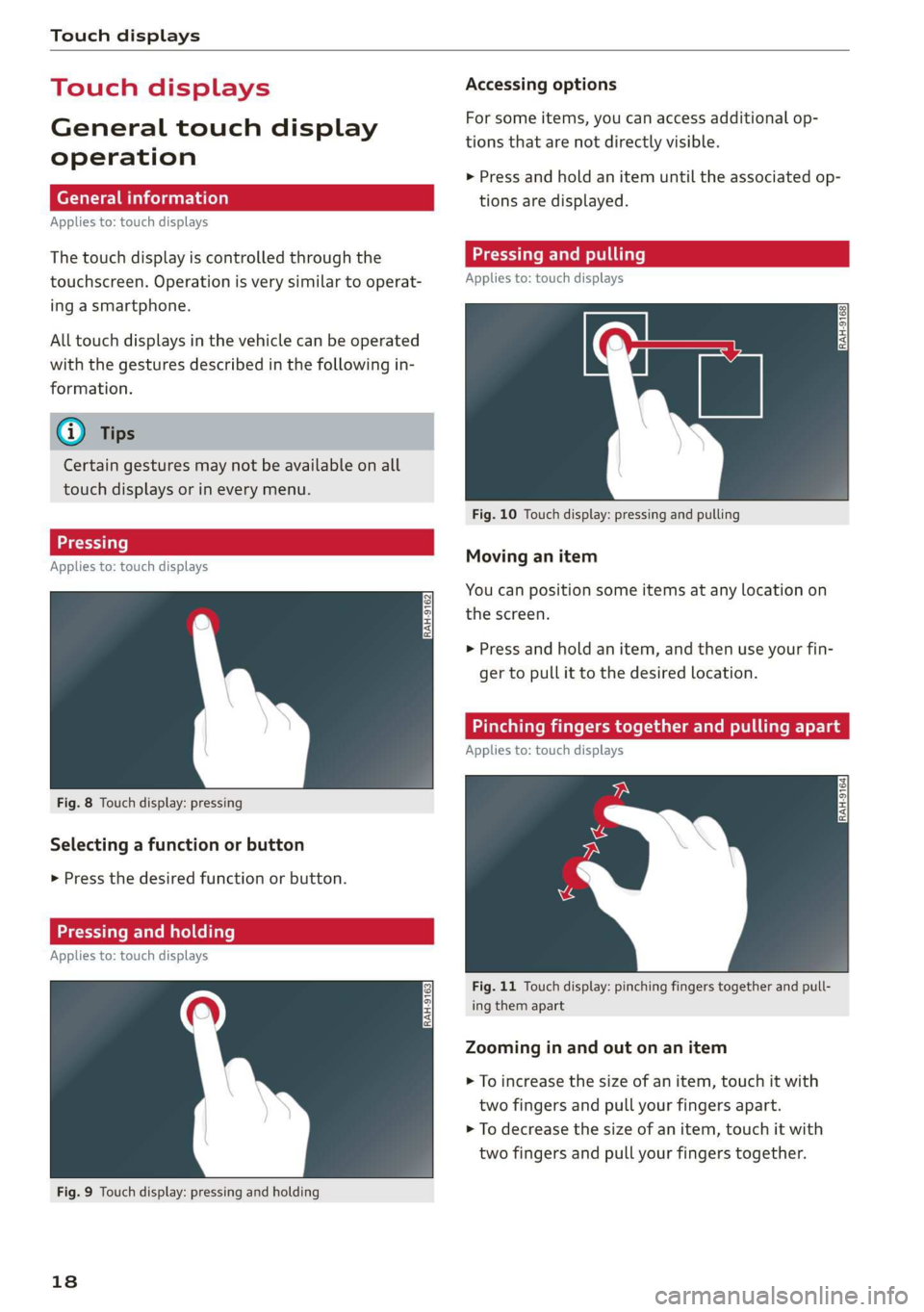
Applies to: touch displays
Fig. 8 Touch display: pressing
Selecting a function or button
> Press the desired function or button.
Pressing and holding
Applies to: touch displays
Fig. 9 Touch display: pressing and holding
18
Accessing options
For some items, you can access additional op-
tions that are not directly visible.
>» Press and hold an item until the associated op-
tions are displayed.
Applies to: touch displays
Fig. 10 Touch display: pressing and pulling
Moving an item
You can position some items at any location on
the screen.
> Press and hold an item, and then use your fin-
ger to pull it to the desired location.
Pinching fingers together and pulling apar
Applies to: touch displays
Fig. 11 Touch display: pinching fingers together and pull-
ing them apart
Zooming in and out on an item
> To increase the size of an item, touch it with
two fingers and pull your fingers apart.
> To decrease the size of an item, touch it with
two fingers and pull your fingers together.
Page 22 of 310
Touch displays
> If the General button is not displayed, swipe
toward the left or right with one finger until it
appears.
>» Press the General button.
> If the Date & time button is not displayed,
swipe upward or downward with one finger un-
tilit appears.
> Press the Date & time button.
@) Tips
If a menu or symbol is in parentheses in the
path, for example, (General) or (423), then it is
an optional menu item that does not need to
be used in every system.
You can adjust or turn off the MMI touch display
feedback.
> Applies to MMI: Select on the home screen:
SETTINGS > Display & brightness > MMI.
Possible settings:
— Brightness
— Touchscreen Feedback
Multi Media Interface
Airlie lia acoder)
Audi recommends performing certain Infotain-
ment system functions, such as entering a desti-
nation, only when the vehicle is stationary. Al-
ways be prepared to stop operating the Infotain-
ment system in the interest of your safety and
the safety of other road users.
ZA\ WARNING
Only use the Infotainment system when road,
traffic, weather, and visibility conditions per-
mit and always in a way that allows you to
maintain complete control over your vehicle.
@ Tips
Certain functions are not available while driv-
ing.
20
Wine mela mel mela
Switching the MMI on or off
> To switch the MMI off, press and hold the
On/Off knob > page 29, fig. 21 until the up-
per display and all Infotainment system func-
tions are switched off.
> To switch the MMI on, press the On/Off knob.
Restarting the MMI
>» Press and hold the On/Off knob for at least 10
seconds.
Switching displays on or off
> To switch the upper display off, press [Jon the
lower display.
> To switch the upper display on, touch the upper
display or press [Jon the lower display.
> To switch both displays on or off, press and hold
Co] on the lower display.
Introduction
You can display and operate Infotainment system
and vehicle functions using both of the Multi Me-
dia Interface (MMI) touch displays.
Configuration wizard
After starting for the first time, the configuration
wizard helps you to set up the vehicle, for exam-
ple to set the desired system language and con-
nect a telephone.
> Follow the instructions in the display.
> Applies to: MMI: To access the configuration
wizard at a later time, select on the home
screen: HELP > Configuration wizard.
Tool tips
Tool tips are displayed on the upper display after
starting for the first time. They introduce various
MMI functions to you.
> Follow the instructions in the display.
> Applies to: MMI: To access the tool tips at a lat-
er time, select on the home screen: SETTINGS
> Help > Show tool tips.
> Applies to: MMI: To receive additional tool tips,
select on the home screen: HELP > Tool tips >
Basic information or Expert information.
Page 24 of 310
Touch displays
Configuring quick access
> Press and hold a button on the home screen
display area or in the quick access bar.
> To move a button to the quick access bar, pull it
from the display area to the quick access bar.
> To adjust the placement of the buttons in the
quick access bar, pull them to the desired posi-
tion in the bar.
> Press Done to complete the configuration.
@) Tips
The position of © cannot be adjusted.
Display area
You can freely change the location of the buttons
on the home screen display area.
Configuring the display area
> Press and hold a button on the home screen
display area.
> To adjust the placement of the buttons, pull
them to the desired locations.
> Press Done to complete the configuration.
Switching between menu pages
If a menu contains multiple menu pages, febatea iS
displayed in the display area. The white bar
shows the location of the current menu page.
> To switch between menu pages, swipe your fin-
ger to the right or Left.
Of OB On
Of of af
CO o8 of
Fig. 16 Upper display: common symbols in the status bar
[RAZ-0782
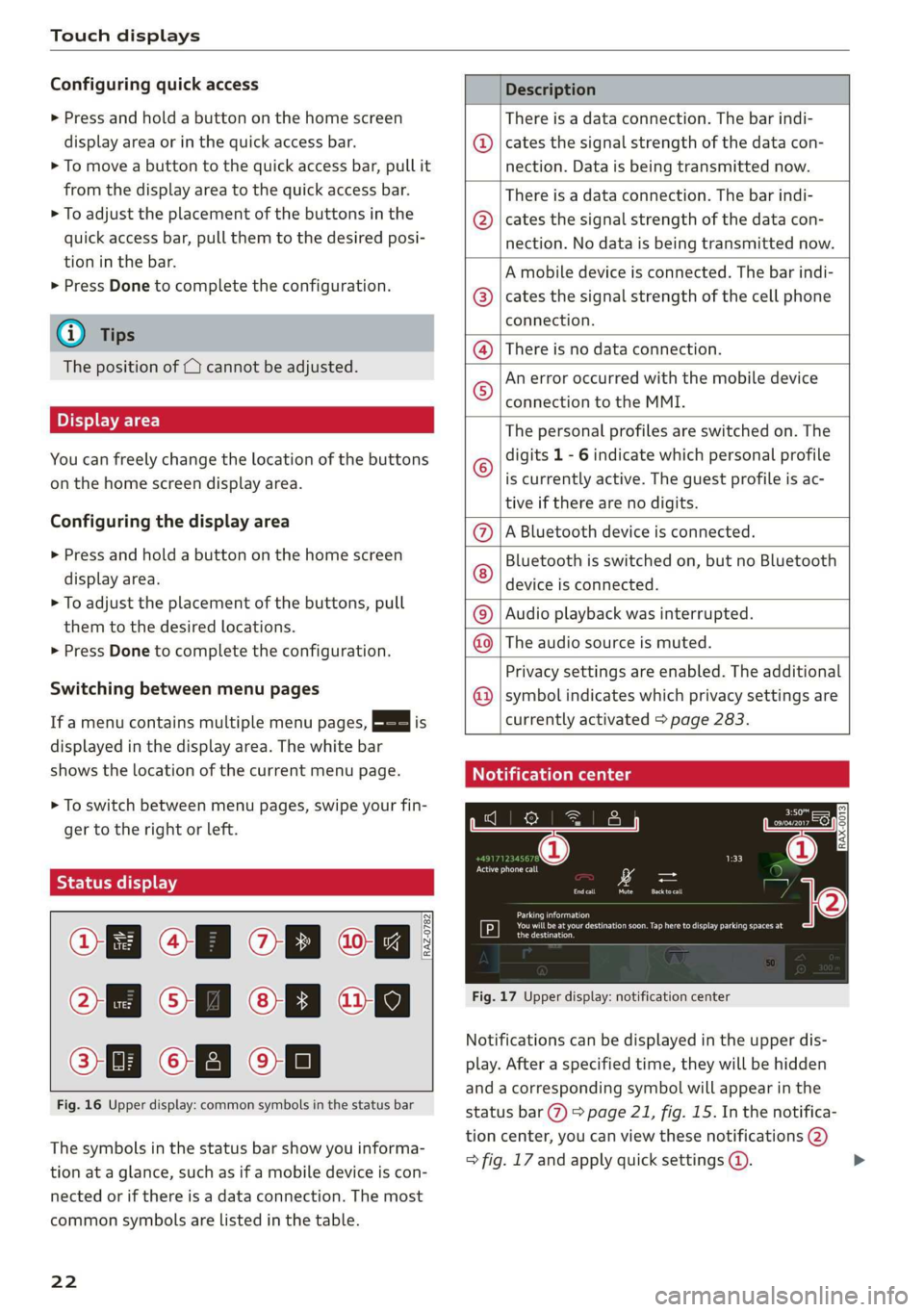
The symbols in the status bar show you informa-
tion at a glance, such as if a mobile device is con-
nected or if there is a data connection. The most
common symbols are listed in the table.
22
Description
There is a data connection. The bar indi-
cates the signal strength of the data con-
nection. Data is being transmitted now.
There is a data connection. The bar indi-
cates the signal strength of the data con-
nection. No data is being transmitted now.
A mobile device is connected. The bar indi-
cates the signal strength of the cell phone
connection.
® There is no data connection.
An error occurred with the mobile device
connection to the MMI. @
The personal profiles are switched on. The
digits 1 - 6 indicate which personal profile
is currently active. The guest profile is ac-
tive if there are no digits.
A Bluetooth device is connected.
Bluetooth is switched on, but no Bluetooth
device is connected. ©®e
©
Audio playback was interrupted.
The audio source is muted. @|©
Privacy settings are enabled. The additional
symbol indicates which privacy settings are ©
currently activated > page 283.
Notification center
ll
RAX-0013
reuse
Sear)
You will be at your destination soon. Tap here to display parking spaces at
[P] eesti
Fig. 17 Upper display: notification center
Notifications can be displayed in the upper dis-
play. After a specified time, they will be hidden
and a corresponding symbol will appear in the
status bar (2) > page 21, fig. 15. In the notifica-
tion center, you can view these notifications @)
> fig. 17 and apply quick settings @. >
Page 29 of 310
4K8012721BC
Voice recognition system
Voice recognition system
General information
Applies to: vehicles with voice recognition system
You can operate many functions in the vehicle
easily using voice commands.
Using the voice recognition system optimally
> Speak clearly and distinctly at a normal volume.
Speak louder when driving faster.
» Emphasize the words in the commands evenly
and do not leave long pauses.
> Close the doors, the windows, and the sunroof*
to reduce background noise. Make sure that
passengers are not speaking when you are giv-
ing a voice command.
> Do not direct the vents toward the hands-free
microphone, which is in the roof headliner near
the front interior lights.
> Only the driver should speak to the system, be-
cause the handsfree microphone is aimed to-
ward this seating position.
ZA WARNING
— Direct your full attention to driving. As the
driver, you have complete responsibility for
safety in traffic. Only use the functions in
such a way that you always maintain com-
plete control over your vehicle in all traffic
situations.
— Do not use the voice recognition system in
emergencies because your voice may change
in stressful situations. The system may take
longer to dial the number or may not be
able to dial it at all. Dial the emergency
number manually.
G) Tips
There are no voice guidance* prompts when a
dialog is active.
Operating
Applies to: vehicles with voice recognition system
(2 ELE
Pat) 5 ce
Where is a
Connect >
Diala
coy n
ey
Os 4
Cog
Fig. 19 Upper display: voice recognition system
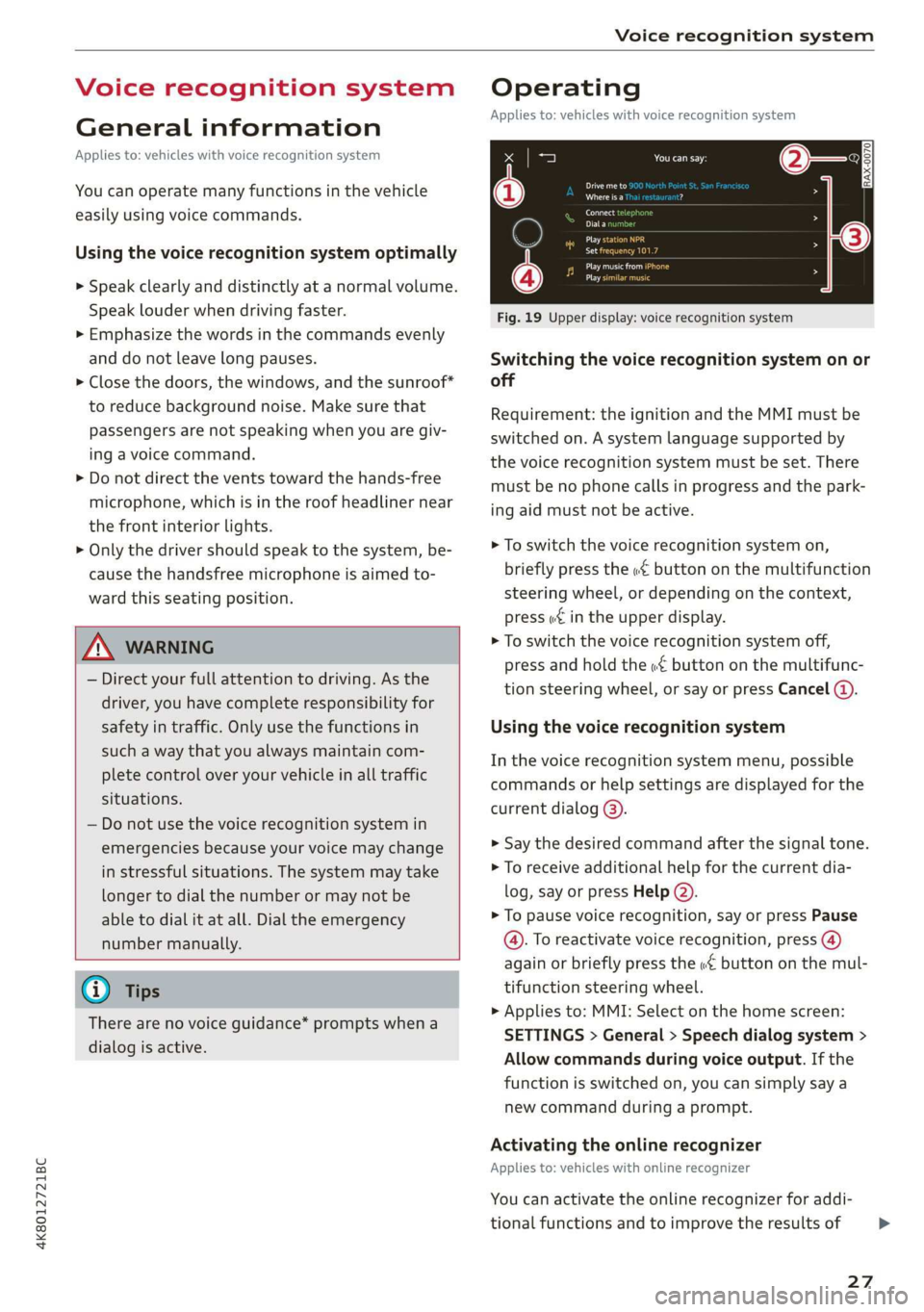
Switching the voice recognition system on or
off
Requirement: the ignition and the MMI must be
switched on. A system language supported by
the voice recognition system must be set. There
must be no phone calls in progress and the park-
ing aid must not be active.
> To switch the voice recognition system on,
briefly press the «€ button on the multifunction
steering wheel, or depending on the context,
press w¢ in the upper display.
> To switch the voice recognition system off,
press and hold the « button on the multifunc-
tion steering wheel, or say or press Cancel (a).
Using the voice recognition system
In the voice recognition system menu, possible
commands or help settings are displayed for the
current dialog @).
> Say the desired command after the signal tone.
> To receive additional help for the current dia-
log, say or press Help (2).
> To pause voice recognition, say or press Pause
@. To reactivate voice recognition, press @)
again or briefly press the «€ button on the mul-
tifunction steering wheel.
> Applies to: MMI: Select on the home screen:
SETTINGS > General > Speech dialog system >
Allow commands during voice output. If the
function is switched on, you can simply say a
new command during a prompt.
Activating the online recognizer
Applies to: vehicles with online recognizer
You can activate the online recognizer for addi-
tional functions and to improve the results of
27
>
Page 30 of 310
Voice recognition system
voice recognition. A supported menu language
must be selected. When there is an active Inter-
net connection, the spoken command is evaluat-
ed in the vehicle and online.
> When you switch on the voice recognition sys-
tem for the first time, a menu for the online
recognizer opens. Or:
> Applies to: MMI: Select on the home screen:
SETTINGS > General > Speech dialog system >
Consent to speech dialog system online recog-
nizer.
> Read the licensing agreements and accept
them.
Activating Amazon Alexa!)
Applies to: vehicles with Amazon Alexa Integration
You can activate Amazon Alexa to access special
additional functions. A supported menu lan-
guage must be selected. A reduced number of
commands are available during this.
Requirement: you must be logged in to your
myAudi account in the vehicle. The online recog-
nizer must be activated.
> Applies to: MMI: Select on the home screen:
USER > Connect to Amazon Alexa.
> Follow the instructions in the display.
> After connecting successfully, turn on the voice
recognition system as normal > page 27,
Switching the voice recognition system on or
off, say the activation word “Alexa”, and then
say the desired command.
@) Note
Read the information about Audi connect, and
be sure to note the connectivity costs section
=@ in General information on page 174.
External voice operation
Applies to: vehicles with external speech dialog system
You can access and control the voice operation on
a connected mobile device through your vehicle.
2) AUDI AG provides access to services from third party pro-
viders. Permanent availability cannot be guaranteed, be-
cause that depends on the third party provider.
238
Switching external voice operation on or off
Requirement: the ignition and the MMI must be
switched on. A mobile device must be connected
to the MMI with the Handsfree profile
= page 161. The mobile device being connected
must have voice control that can be controlled
externally. There must be no phone calls in prog-
ress and the parking aid must not be active.
> To switch on the external voice operation, press
and hold the «€ button longer on the multifunc-
tion steering wheel.
> To switch off the external voice operation, press
and hold the «€ button longer on the multifunc-
tion steering wheel or press Cancel.
Using external voice operation
> Say the desired command after the signal tone.
> To reactivate voice recognition when it is
paused, press the «¢ button briefly on the mul-
tifunction steering wheel or press Resume.
(i) Tips
AUDI AG simply provides access to control
your mobile device with voice operation and
does not assume any responsibility for the
content and commands within the external
voice control.
Page 31 of 310
4K8012721BC
Global functions
Global functions
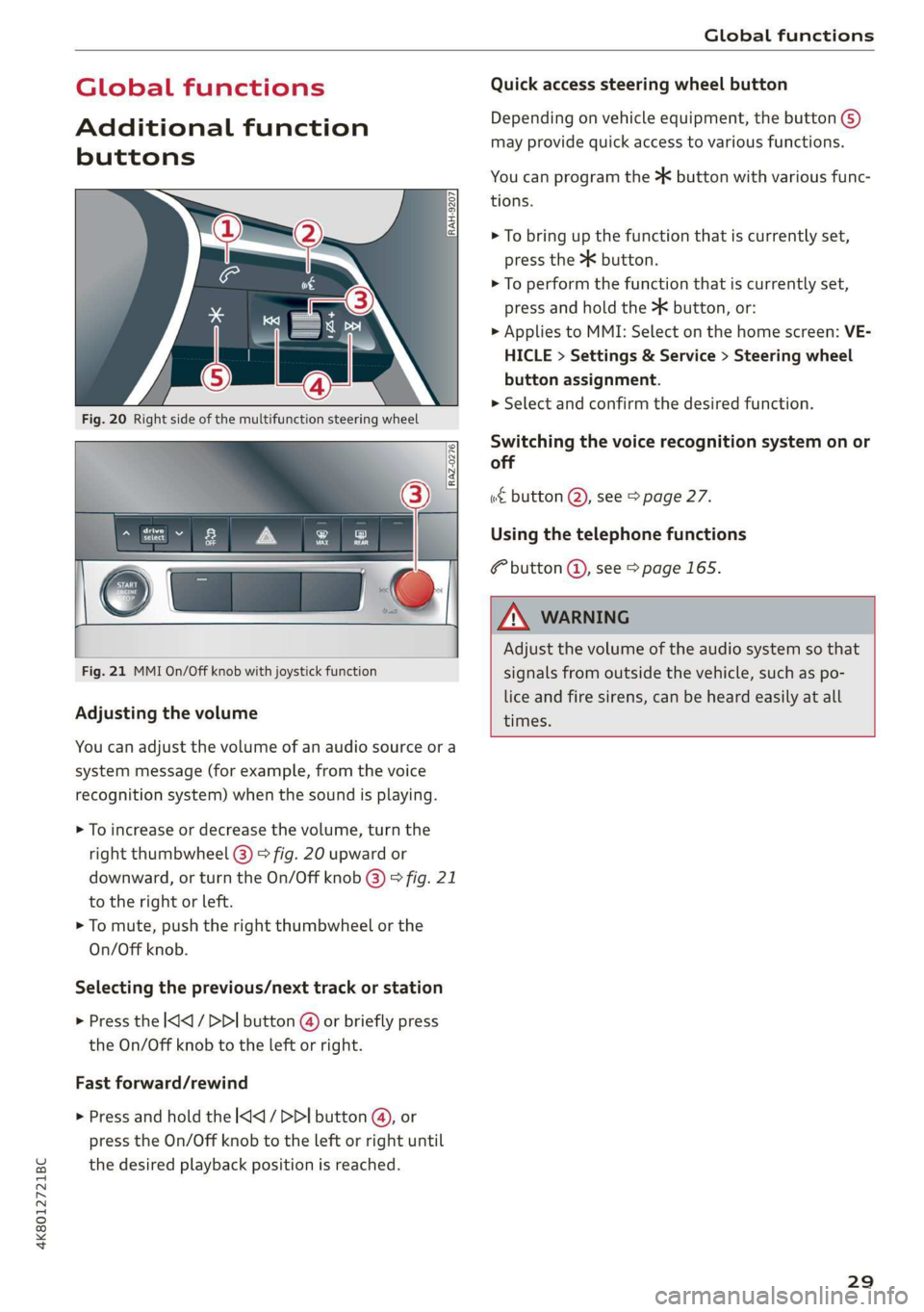
Additional function
buttons
Fig. 21 MMI On/Off knob with joystick function
Adjusting the volume
You can adjust the volume of an audio source or a
system message (for example, from the voice
recognition system) when the sound is playing.
> To increase or decrease the volume, turn the
right
thumbwheel @) © fig. 20 upward or
downward, or turn the On/Off knob @) ° fig. 21
to the right or left.
> To mute, push the right thumbwheel or the
On/Off knob.
Selecting the previous/next track or station
> Press the l
Fast forward/rewind
> Press and hold the ] button @, or
press the On/Off knob to the left or right until
the desired playback position is reached.
Quick access steering wheel button
Depending on vehicle equipment, the button @)
may provide quick access to various functions.
You can program the >K button with various func-
tions.
> To bring up the function that is currently set,
press the >K button.
> To perform the function that is currently set,
press and hold the >K button, or:
> Applies to MMI: Select on the home screen: VE-
HICLE > Settings & Service > Steering wheel
button assignment.
» Select and confirm the desired function.
Switching the voice recognition system on or
off
w€ button @), see > page 27.
Using the telephone functions
F button @, see > page 165.
ZA WARNING
Adjust the volume of the audio system so that
signals from outside the vehicle, such as po-
lice and fire sirens, can be heard easily at all
times.
29