infotainment AUDI A8 2017 Owner's Guide
[x] Cancel search | Manufacturer: AUDI, Model Year: 2017, Model line: A8, Model: AUDI A8 2017Pages: 354, PDF Size: 88.68 MB
Page 124 of 354
Parking system s
You can choose between three different views in
this mode.
.,. To cross park, parallel park or position the vehi
cle in front of a tra iler*, press the control but
ton ® on the contro l pane l repeatedly unt il the
symbol for the des ired mode is selected .
Perpendicular parking
Applies to: ve hicles w ith perip hera l cameras
This view may be used when parking in a garage
or in a parking space .
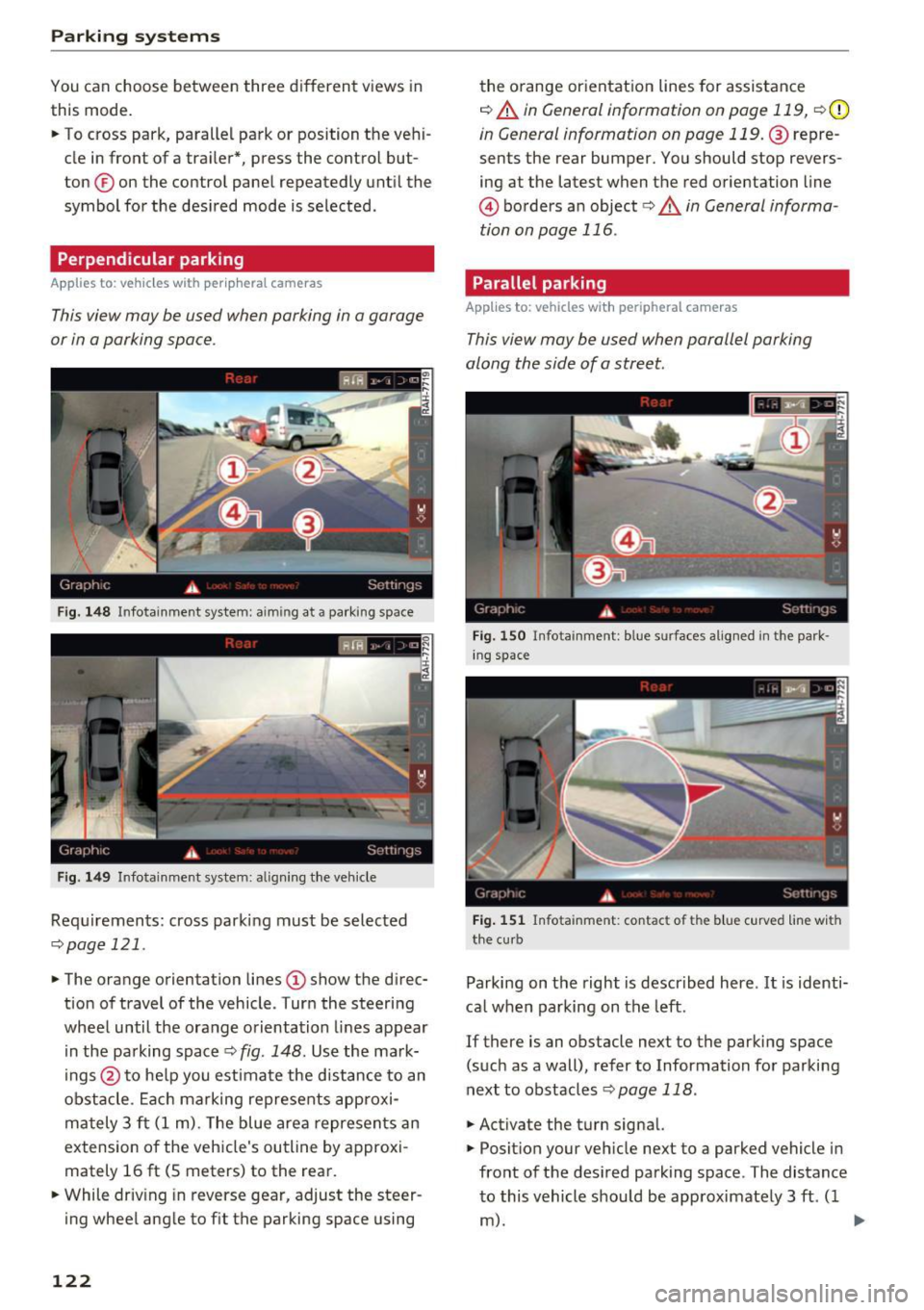
Fig . 14 8 Infotainment system: aiming at a parking space
Fig . 149 Infotainment system: aligning the veh icle
Requ irements: cross parki ng must be selected
q page 121 .
.,. The orange orientation lines (D show the d irec
tion of travel of the vehicle . Turn the steering
wheel until the orange orientation lines appear i n the pa rking space
¢ fig. 148 . Use the ma rk
ings @to he lp you estimate the distance to an
obstacle . Ea ch marking represents approxi
ma tely 3 ft (1 m). The blue area represents an
extension o f the vehicle's outline by approxi
mately 16
ft (S meters) to the rear.
.,. While driv ing in reverse gear, adjust the steer
ing wheel angle to f it the parking space using
122
the o range or ientation lines for assistance
q A in General information on page 119, q (D
in General information on page 119. @repre
sents the rear bumper. You should stop revers
ing at the latest when the red o rientation line
@ borders an object<=>.&. in General informa
tion on page 116.
Parallel parking
App lies to: vehicles wit h peripheral cameras
This view may be used when parallel parking
along the side of a street.
Fi g. 15 0 In fota inment: blue surfaces alig ned in the park
in g space
Fig. 151 Infota inment: contact of the blue c urved line w ith
the cu rb
Parking on the right is descr ibed here . It is identi
ca l when parking on the left.
If there is an obstacle next to the parking space (such as a wall), refer to Information fo r parking
next to obstacles
q page 118 .
.,. Activate the turn signal.
.,. Posit ion your veh icle next to a parked vehicle in
front of the des ired park ing space . The distance
to this vehicle should be approximate ly 3 ft. ( 1
m). ..,.
Page 125 of 354
.. Turn the Infotainment system on and shift into
reverse gear. The parking system is turned on
and the
Cross park ing view is displayed.
.. Press the control button on the Infotainment
unit @¢
page 118, fig. 138. The Para llel pa rk
ing
view is displayed .
.. Back up and align your vehicle so the blue area
@ borders on the rear end of the vehicle be
hind you or on the parking space line¢.,&.
in
General information on page 119, ¢(Din Gen
eral information on page 119 .
The blue area
rep resents an extension of the vehicle's outline
by approximately 16 ft (5 meters) to the rear .
The long s ide of the blue area should be on the
curb. The entire b lue area must f it into the
parking space .
.. With the vehicle stopped, turn the steering
wheel to the r ight as far as it w ill go .
.. Back into the parking space until the b lue curve
¢
fig . 151 touches the cu rb ¢.,&. in General in
formation on page 119, ¢(Din General infor
mation on page 119.
Stop the vehicle .
.. With the vehicle stopped, turn the steering
whee l to the left as far as it will go.
.. Continue to back into the parking space until
the vehicle is parked parallel to the curb¢
/A
in General information on page 119, ¢(Din
General information on page 119.@
repre
sents the rear bumper . At the very latest, stop
the vehicle when the red o rie ntation line@
bo rders an object . Keep an eye on the front of
you r vehicle while doing this.
Parking next to obstacles
If there is an obstacle (such as a wall) next to the
parking space, pos ition the vehicle so t here is
mo re space on that side. Position the long s ide of
the blue area so that there is s ufficient space
from the obje ct. The area must not be on the ob
stacle . You will also need to start tu rning the
steering whee l earlier. The blue curve
¢
page 118, fig . 139 must n ot touch the obsta
cle, but rather there should be enough distance.
@ Tips
C)
~ The left or right orientation lines and surfaces
"' ~ w ill be displayed, depending on the turn sig-
8 na l being used. 0 :r
Trailer mode
Applies to : vehicles wit h peripheral cameras a nd tra iler hitch
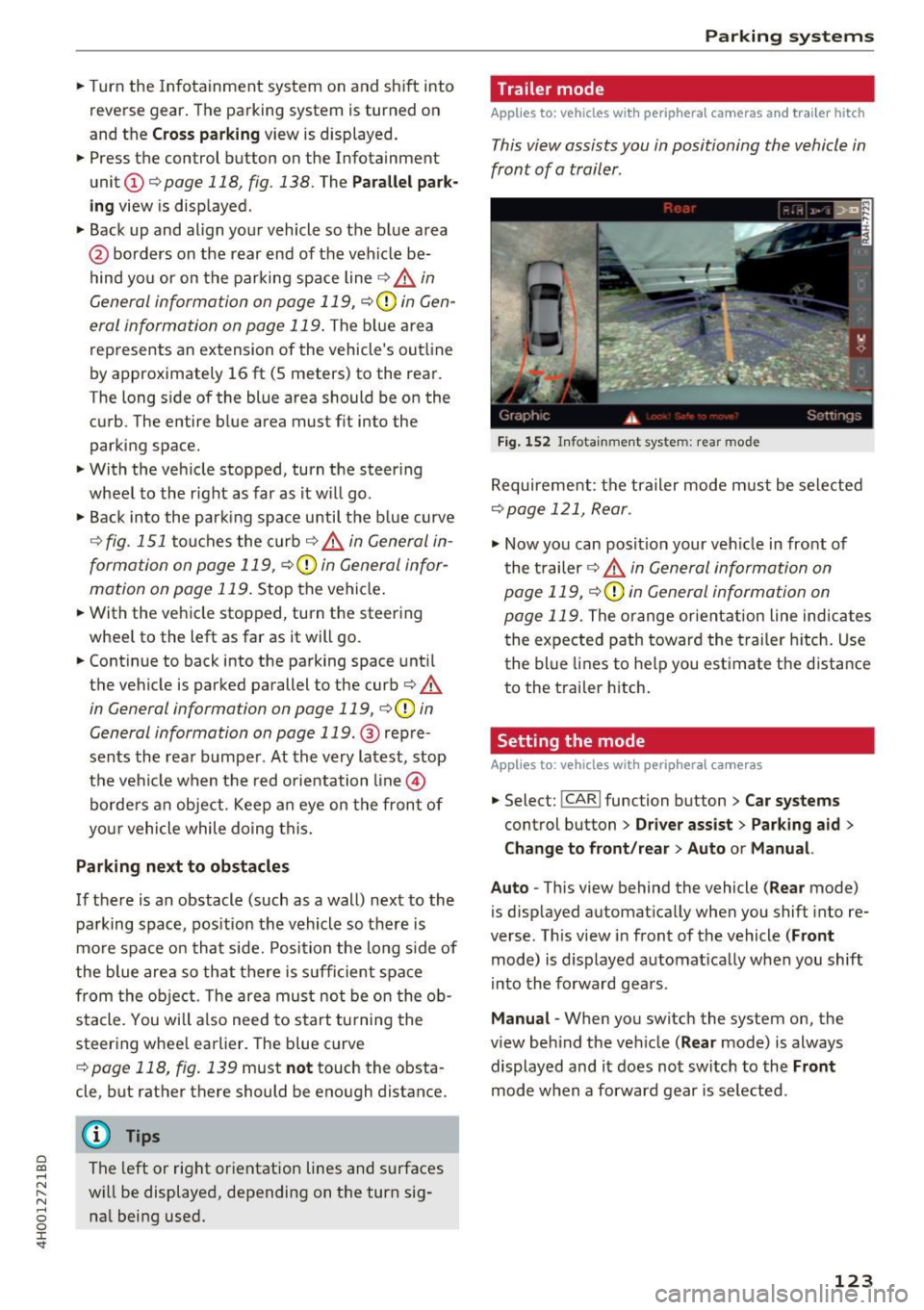
This view assists you in positioning the vehicle in
front of a trailer .
Fig. 15 2 In fotainment system: rear mo de
Requirement: the trailer mode m ust be selected
¢page 121, Rear .
.,. Now yo u can posit ion your ve hicle in front of
the t railer
¢ .,&. in General information on
page 119,
¢ (Din General information on
page 119.
The orange orient ation line indicates
the expected path toward the trailer h itch. Use
the blue lines to help you est imate the distance
to the trailer hitch.
Setting the mode
Applies to : vehicles wit h peripheral ca meras
.,. Select: !CAR ! function button> Car systems
control button > Driver assi st > Pa rking aid >
Change to front /re ar > Auto or Manual.
Auto -
This view behind the vehicle (Rear mode)
is d isplayed automat ically when you shift into re
verse. Th is view in front of the vehicle
( Front
mode) is d isplayed automat ica lly when you shift
i n to the forward gea rs.
Manu al -When you switch the system on, the
view beh ind the ve hicle
(Rear mode) is always
displayed and it does not switch to the
Front
mode when a forward gear is se lected .
123
Page 126 of 354

Parking systems
Adjusting the display
and the warning tones
Applies to: vehicl es with parking system plus/rearview cam
era/per ipheral came ra
The display and warning tones can be adjusted in
the Infotainment.
~ Select: the ICARI function button > Car systems
control button > Driver assist > Parking aid.
Display
On* -
An optical display is shown for the parking
system plus, a rearview camera image is shown
for the rearview camera*.
Off -When the parking system is switched off,
only audib le signals are given.
Signal tones
Front volume -
volume for the front area
Rear volume -volume for the rear area
Front frequency -frequency for the front area
Rear frequency -frequency for the rear area
Entertainment volume -when the parking sys
tem is turned on, the volume of the audio/video
source is lowered.
The new ly selected level is demonstrated briefly
by the sound generator.
{!) Tips
- The warning tones can also be adjusted di
rectly by the v isual disp lay or the picture
from the camera. Simply press the
Settings
contro l button .
- Changed settings are act ivated when the
parking system is switched on aga in.
- The settings for volume and frequency are automat ically saved and assigned to the re
mote control key being used.
Error messages
Applies to: ve hicles w ith parking system plus/rearview cam
era/peripheral came ra
There is an error in the system if the LED in the
P,YA button is blinking and you hear a continuous
alarm for a few seconds after switching on the
124
parking system or when the pa rking system is al
ready activated . If the error is not corrected be
fore you switch off the ignition, the LED in the
P wA
button will blink the next time you switch on the
parking system by shifting into reverse.
Parking system plus*
If a sensor is faulty, the~ symbol will appear in
front of/behind the vehicle in the Infotainment display. If a rear sensor is faulty, on ly obstacles
that are in areas @and @ are displayed
c>page 115, fig . 130. If a front sensor is faulty,
only obstacles that are in areas © and @are dis
played. There is a lso a system malfunction if all
segments around the vehicle are red or if no seg
ments are disp layed.
Peripheral cameras*
There is a system malfunc tion if the ~· symbol
appears and the corresponding display area is
shown in blue. The camera is not working in this
a rea.
Drive to an authorized Audi dealer or authorized
Audi Service Facility immediately to have the
malfunction corrected .
Trailer hitch
Applies to: vehicles with parking system plus/rearv iew cam
era/peripheral cameras and t ra iler hitc h
For vehicles using the trailer socket, the parking
system rear sensors are not activated when you
shift into reverse gear or when you press the P
1
1.A
button . This results in the following restrictions .
Parking system plus*
There is no distance warning for the rear. The
front sensors remain activated. The visual display
switches to trailer mode.
Rearview camera* /Peripheral cameras*
There is no distance warning for the rear. The
front senso rs remain activated . The visua l display
switches to trailer mode . The rearview camera
image will not show the orientation lines and the
blue surfaces .
Ill-
Page 136 of 354

Multi Media Interface
Multi Media Interface
Traffic safety information
Audi recommends performing certain Infotain
ment system functions, such as entering a desti nation, only when the vehicle is stationary . Al
ways be prepared to stop operat ing the Infotain
ment system in the interest of your safety and
the safety of other road users.
_& WARNING
Only use the Infotainment system when traf
fic cond itions permit and always in a way that
allows you to maintain complete control over
your vehicle.
Introduction
The Multi Media Interface, or MMI for short ,
combines various systems for communication ,
navigation and entertainment in your Audi. You
can operate the MMI using the MMI control pan
el, the multifunction steering wheel or the voice
recognition system*.
F ig. 154 MMI control panel with MMl touch control pad
MMI control panel overview
(D MMI touch control pad . . . . . . . . . 136
@ Buttons for open ing menus
directly . . . . . . . . . . . . . . . . . . . . . . 135
@ On/Off knob . . . . . . . . . . . . . . . . . 134
@ Arrow buttons . . . . . . . . . . . . . . . . 135
® Control buttons . . . . . . . . . . . . . . . 135
@ Control knob . . . . . . . . . . . . . . . . . 135
(J) IBACK!bu tton . . . . . . . . . . . . . . . . 135
134
Switching the MMI on
and off
The MMI switches on and off automatically with
the ignition. It can also be switched on or off
manually .
-Switching on manually : press the On/Off knob
@ briefly
c;, page 134, fig. 154. Or: press the
! MENU ! button or one of the buttons to directly
open the menus @,=;,
page 135, fig . 155.
When the system is switched on, the last menu
that was selected is displayed and the last audio
source that was selected begins play ing .
-Switching off manually: press and hold the
On/Off knob @
c;, page 134, fig. 154 until the
MMI switches off. If the MMI has been switch
ed off manually, it does
not switch on again au
tomatically the next time the ignition is switch
ed on .
The MMI can still be operated for approximately
ten minutes after switching the ignition off. If
you do not press any buttons or the control knob
on the MMI control panel with in this t ime, the
MMI switches off automatically.
(D Tips
-The MMI switches off automatically if the
engine is not running and the vehicle bat
tery is low.
- There may be delays when extending or re
tracting the display.
Adjusting the volume
The volume of an audio source or a system mes
sage (for example, from the voice recognition
system) can be adjusted directly while the sound
is ploying using the On/Off knob.
- Increasing or decreasing the volume: turn the
On/Off knob@¢
page 134, fig. 154 to the
right or left .
-Muting or pausing: press the On/Off knob@
c;, page 134, fig. 154 briefly . Or: turn the On/
Off knob to the left . ..,.
Page 137 of 354
C) C0 ....
"' " "' .... 0 0 :r
@ c:>
page 134, fig. 154 briefly . Or: turn the
On/Off knob to the r ight.
@ Tips
Volumes that are too high or too low are au
tomatically adjusted to a set level when the
MMI is switched on .
Infotainment display
The Infotainment display switches on automati
cally when the MMI folds out . T he MMI folds in
automatically when it is switched off.
Adjusting the Infotainment display brightnes s:
see c:> page 206.
(D Tips
- If the vehicle has a cell phone prep*, the In
fotainment system display will automatical
l y extend whenever there is an incoming
phone cal l.
- Use the
arrow buttons to switch stations,
for example, when listening to the radio, af
ter the disp lay has retracted in.
MMI operation
(
'---
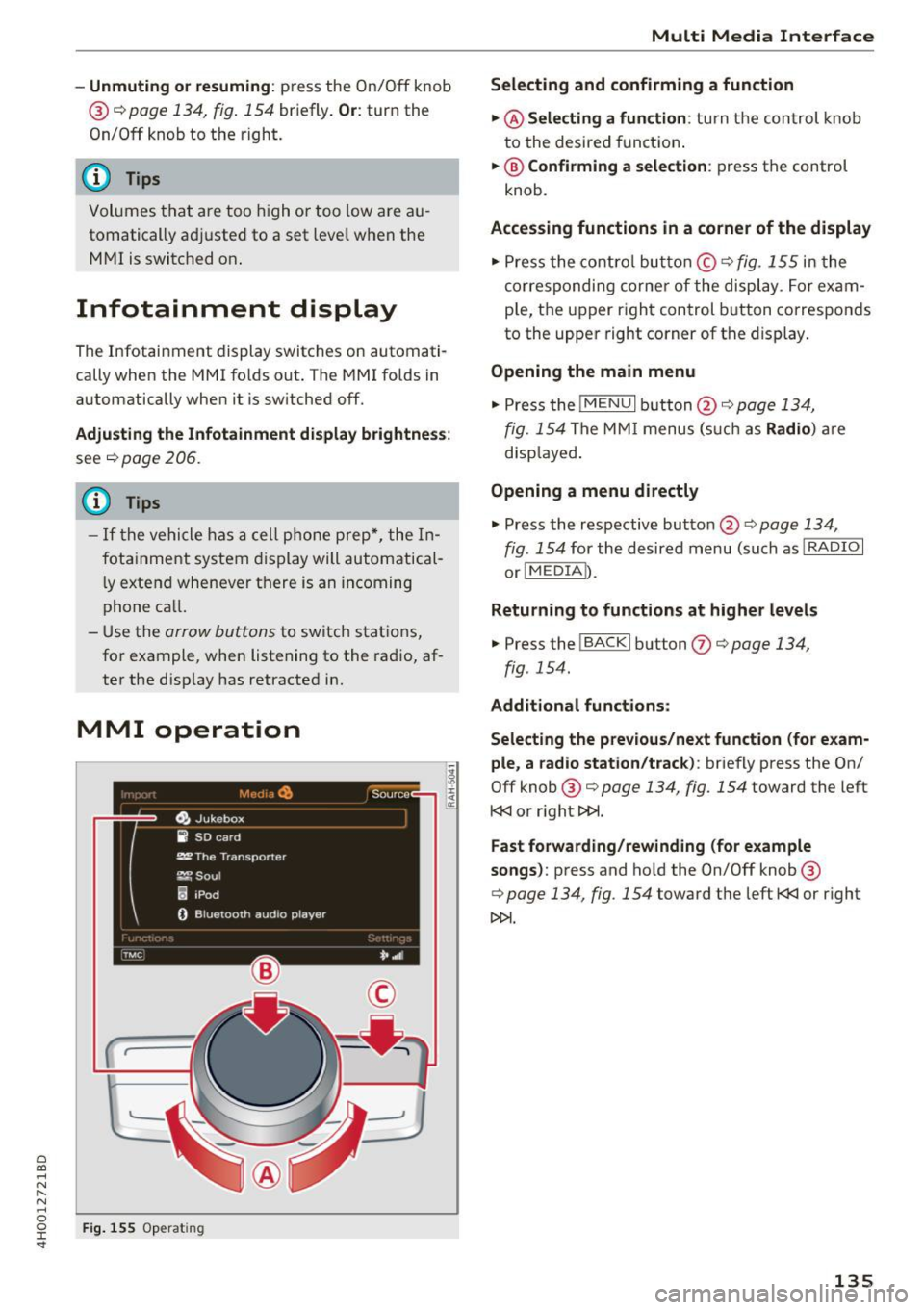
Fig. 155 Opera ting
Multi Media Interface
Selecting and confirming a function
.,. @ Selecting a function :
turn the control knob
to the desired funct ion .
.,. @ Confirming a selection: press the control
knob .
Accessing functions in a corner of the display
.,. Press the control button© ~ fig. 155 in the
corresponding corner of the display . For exam
ple, the upper right control button corresponds
to the upper right corner of the display.
Opening the main menu
.,. Press the !M ENU I button @c:> page 134,
fig. 154 The MMI menus (such as Radio ) are
disp layed .
Opening a menu directly
.,. Press the respective button @¢ page 134,
fig. 154 for the desired menu (such as l RADIO I
or! MEDIA I).
Returning to functions at higher levels
.,. Press the !BACKI button (J) c:> page 134,
fig . 154 .
Additional functions :
Selecting the previous/next function (for exam
ple , a radio station/track) :
briefly press the On/
Off knob @ c:>
page 134, fig. 154 toward the left
l
Fast forwarding/rewinding (for example
songs):
press and ho ld the On/Off knob @
c:>
page 134, fig . 154 toward the left l
135
Page 143 of 354
0 co .... N ,..... N .... 0 0 :c '
Appl ies to: vehicles with vo ice recog nitio n system
You con operate many Infotainment functions
conveniently by speaking .
Requirement: the ignition and the MM I must be
switched on~
page 134 , there must be no phone
call in progress and the parking system m ust not
be active .
~ Switching on : briefly press the~ button @
~ page 11, fig. 7 on the m ultif unction steering
whee l* and say the desired command after the
Beep .
~ Switching off : press and hold the l2;J button .
Or: press any button on the MMI control panel.
~ Canceling : press the 10, I button and say a new
command.
Or : say the command Canc el.
Input as sistance
The system gu ides you through the input with
visua l and audio feedback .
-Vi su al input a ssistance : after turning on voice
recognition, a d isplay with a select ion of possi
ble commands appears in the Infotainment dis
play . The command d isplay can be turned on or
off in the ma in menu using the
S etup MMI con
t rol button.
- Aud io input assi stance : to have the possible
commands read, turn the voice recognition sys
tem o n and say
Help .
For the system to underst and you:
Speak clearly and distinct ly at a normal volume.
Speak louder when driving faster.
Emphasize the words in the commands even ly
and do not leave long pauses .
D o not speak a command when the voice recogni
tion system is mak ing an anno uncement.
C lose the doors, the windows a nd the sunroof* to
reduce background noise . Make su re that passen
gers are not speaking when you are giving a voice
command.
Voice recognition system
Do not d irect the air vents toward the hands free
microphone, which is on the roof headliner near
the front inte rior lights .
Only use the system from the dr iver's seat be
ca use the hands free microphone is directed to
ward that seat .
Additional settings
Additional settings, such as individual speech
training
based on yo ur voice, the Command dis
play
or the prompt volume , can be adjusted in
the main men u using the
Setup MMI control but
ton
~ page 205.
A WARNING
--Direct your full attention to dr iv ing. As the
driver, you have complete responsibility for
safety in traff ic. Only use the functions in
such a way that you a lways maintain com
plete control over your vehicle in all traffic
situa tions.
- Do not use the voice recognition system in
emergencies beca use your voice may change
in stressfu l situations. It may ta ke longe r to
dia l the numbe r or the sys tem may not be
a ble to dia l it at all. Dia l the emergency
number manually.
@ Tips
- The d ialog pauses w hen the re is a n incom
ing phone call and will con tinue if yo u ig
nore the cal l. T he d ia log ends if you answer
the ca ll.
- Yo u can select an item in the list using ei
ther the vo ice recogn it io n sys tem or the
cont rol knob.
Command overview
information
Applies to: vehicles with voice recogn it ion system
The following overv iews describe the commands
that can be used to operate the MMI using the
vo ice recognit io n system .
Alternative commands are separated by a
" I", for
example, say:
Telephone I (or) Na vigation I (or)
Rad io . .,..
141
Page 149 of 354

C) C0 ....
"' " "' .... 0 0 :r
• Select the ITEL I button > Sea rc h for new cell
phone
¢ fig . 161 . The avai lab le Bluetooth devi
ces are shown in the Infotainment system dis
play.
Or : search for the MMI using the B lue
tooth device search on your cell phone.
• Select and confirm the desired cell phone from
the list of displayed Bluetooth devices.
.. Select and confirm
Hand sfre e. The MMI gener
ates a PIN for the connection setup¢
fig. 161 .
• Se lect and confirm Y es.
• Ente r th e PI N for connecting on your ce ll
phone.
Or : if the P IN is already d isp layed on
your ce ll phone, confirm it in the cell phone and
in the MMI. The time a llowed for entering the
PIN is limited to approximately 30 seconds .
P ay at ten tion to any additional system prompts
displayed on your cell phone, for example if the
system should connect automatically in the fu
ture . Depending on the cell phone, you may have
to conf irm download ing the directory separately.
After connec ting successfull y
After connecting successfully, the s ignal strength
symbo l® ¢
page 138, fig. 159 and the Blue
tooth symbo l@ appear i n the status line of the
Infotainment disp lay. In addition, the cell phone
contacts are automatically loaded in the MMI di rectory. This process can take several minutes,
depend ing on the number of contacts.
If all of the memory capacity is fi lled, you will be
asked to replace the contacts from one cell phone when connect ing another cell phone. With
the opt ion
Restri cted use of t ele ph one , only con
tacts in the cell phone and the local MMI memory
are available ¢
page 150.
0 Note
Always follow the informat ion found in ¢ (Din
Wi-Fi hotspot on page 160.
(D Tips
- You only have to pair your dev ice one t ime.
Bluetooth dev ices that a re already pa ired
a utomat ically connect to the MMI whe n
t h ey are within range and t he ignit ion is
swi tched on.
Teleph one
- Authoriz ing the MMI connection in your cell
phone wi ll speed up the a utomatic connec
tion .
- Several cell phones can be paired to the
MMI, but only one cell phone can be actively
connected.
- A B luetooth device that is already paired
with the MMI will be d isconnected if anoth
er device is paired .
- When leaving the veh icle, the Bluetooth
connect ion to the cell phone will automati
cally disconnect .
- You can obtain more information from your
cell phone service provider or from yo ur cell
phone user gu ide. For informat ion on us ing
the te lephone , visit
www .aud iusa .com /
bluetooth
or contact your authorized Audi
dea ler or authorized Audi Se rvice Facility .
Opening the telephone
Applies to: vehicles wit h telepho ne
Fig . 163 Telephone functions
Requirement: a ce ll phone must be connected to
the MMI
¢page 146.
.. Select the ITE LI button.
T he last ac tive te lephone menu is s hown in the
Infotainment display . Press the
ITEL ! button in
the
Telephone menu again to access the tele
phone functions .
T he following telephone functions are available
¢ fig. 163:
@ List of received calls .......... .
@ List of missed ca lls .. ... ...... .
@ List of d ialed numbers . .... ... .
@ Directory .... .. .. .. ..... ..... .
148
148
148
150 ..,_
147
Page 151 of 354
Storing a phone number
Storing a new phone number
Applies to: vehicles with telephone
You can store a new phone number as a contact
in the directory
¢page 153.
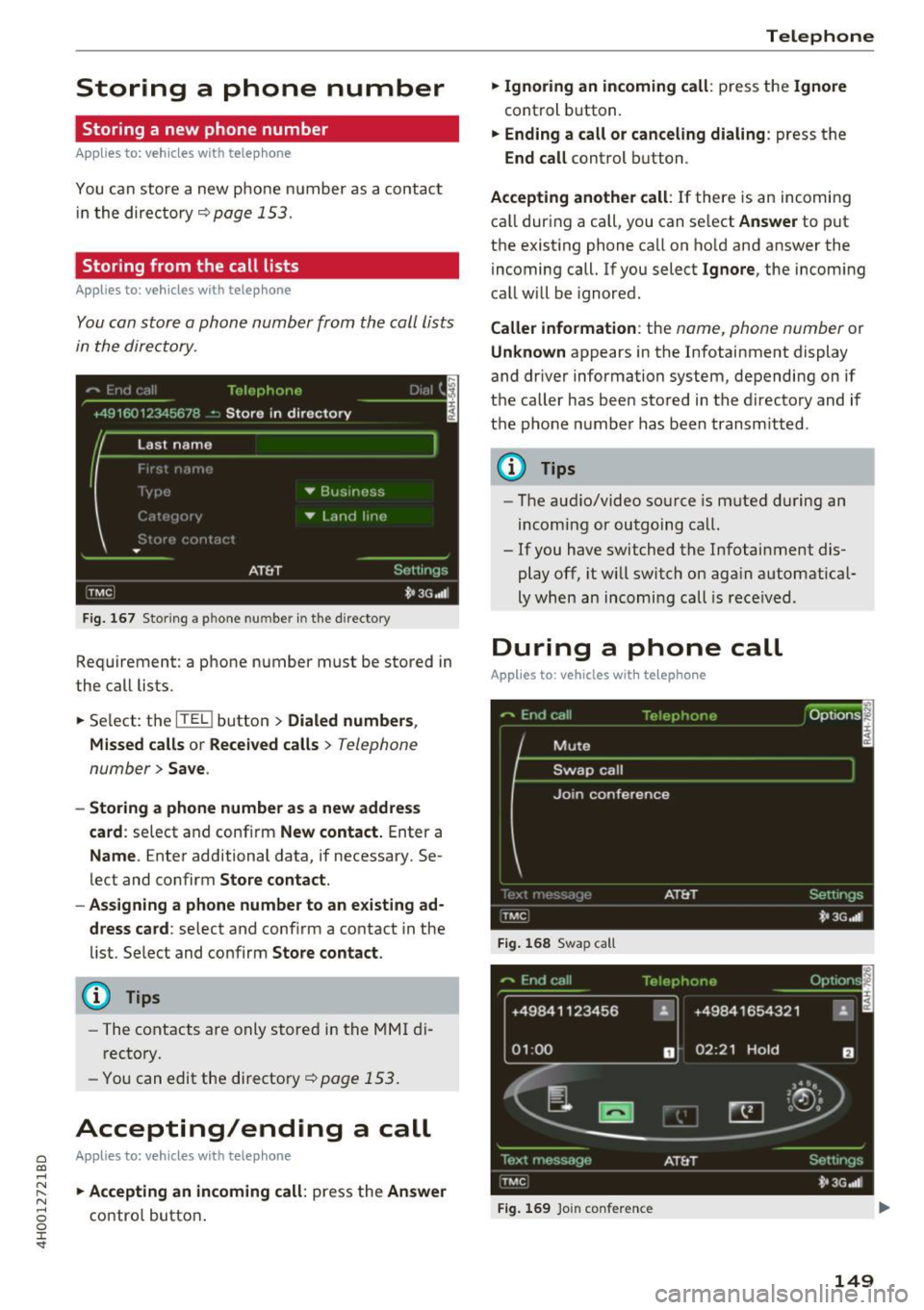
Storing from the call lists
Applies to: vehicles with telephone
You can store a phone number from the call lists
in the directory .
Fig. 167 Stor ing a p hone nu mbe r in the directory
Requirement: a phone number must be stored in
the call lists.
• Select: the
ITKl button > Dialed numbers ,
Missed calls
or Received calls> Telephone
number>
Save .
- Storing a phone number as a new address
card :
select and confirm New contact. Enter a
Name . Enter additional data, if necessary. Se
lect and confirm
Store contact.
- Assigning a phone number to an existing ad
dress card :
select and confirm a contact in the
list. Select and confirm
Store contact.
@ Tips
-The contacts are only stored in the MMI di
rectory .
- You can edit the directory¢
page 153 .
Accepting/ending a call
0 Applies to: vehicles with telephone C0 ....
~ • Accepting an incoming call: press the Answer N
8 contro l button . 0 :r
• Ignoring an incoming call: press the Ignore
control button.
• Ending a call or canceling dialing : press the
End call control button.
Accepting another call : If there is an incoming
ca ll during a call, you can select
Answer to put
the existing phone call on hold and answer the
incoming call. If you select
Ignore, the incom ing
call will be ignored.
Caller information : the name, phone number or
Unknown appears in the Infotainment display
and driver information system, depending on if
the caller has been stored in the directory and if
the phone n umber has been transm itted .
@ Tips
-The audio/video source is muted during an
incoming or outgoing call.
- If you have switched the Infotainment dis play off, it will switch on aga in automatical
ly when an incoming call is received .
During a phone call
Applies to: vehicles with telephone
Fig. 168 Swap ca ll
+49841123456 ~
01 :00 D
Fig. 169 Join conference
149
Page 152 of 354
Telephone
Requirement: the re must be a call in progress.
.,. Se lect the
Option s control button.
-Making an additional call : select Additional
call
> Directory or a call list> an entry in the
list.
- Accepting an incom ing call when there i s an
active call and a call on hold :
select Answer.
The act ive call is repla ced with the incoming
ca ll.
Add it ional functions include:
Mute : if you se lect and confirm this function, the
other person on the phone cannot hea r you. You
can hear the other person .
Hold/Resume : you can put an active phone call
on hold and resume it.
On hold and the d uration
of the phone call is shown in the Infota inment
d isplay .
Swap call : you can alternate between two phone
calls at t he same time . One of the calls w ill be on
hold.
End call ends the active phone call. A phone
call that is on hold stays on hold and can be re
sumed us ing the
Options control bu tton and Re
sume .
Join conference :
a party on hold and up to five ac
tive parties (depending on the network) ca n be
added to a confe rence cal l. To make an add itiona l
call , put all pa rticipants i n the curren t confe rence
call on hold using
Hold . Press the Options con
trol bu tton. Se lect and co nfirm
Additional call
a nd se lec t a phone number from the Call list o r
t he
D irectory , or select Enter number. To add
this party to the conference call, select
Join con
ference .
With Resume , all part icipants are taken
off hold .
Show conference participants shows a ll
partic ipants.
(D Tips
- To be notified of an incoming call during a
phone ca ll, t he
Call waiting funct ion in your
cell phone must be switched on when us ing
the ha ndsfree p rofile
( Handsfree ).
-The display of an incoming phone call in the
Infotainment system d isp lay may still be
v is ible for a few seconds de pending on t he
ce ll phone in use . If you use t he
Replace or
150
Ignore fu nctions in the MMI whil e the dis
play is still visib le, the active phone call may
end .
Emergency call functions
Applies to: vehicles with telephone
Requirement: a ce ll phone must be connected to
the MMI
c!;> page 146.
.,. Sele ct: !T ELi bu tton > Enter number > Enter
emergency call number (for example, 911)
>
OK.
.. Setting an automatic emergency call* : select
the
ITEL I button> Sett ings control button>
Telephone settings > Auto. emerg. call.
A WARNING -
- Because yo ur phone works with rad io sig
na ls, a co nnection cannot be guaranteed un
de r all ci rcumsta nces. Do not rely o n only
y o ur p ho ne w hen it co mes to essenti al co m
m uni cat io n (s uch as a medical emer gen cy).
- Always follow t he inst ru cti ons give n by the
em ergen cy pe rsonne l dur ing an e merg ency
c a ll and only end the call when they instruc t
you to do so.
(D Tips
E mergen cy nu mbe rs a re n ot t he same every
whe re. Find o ut wh ich emergency n umber is
u se d in your cur ren t loc ation .
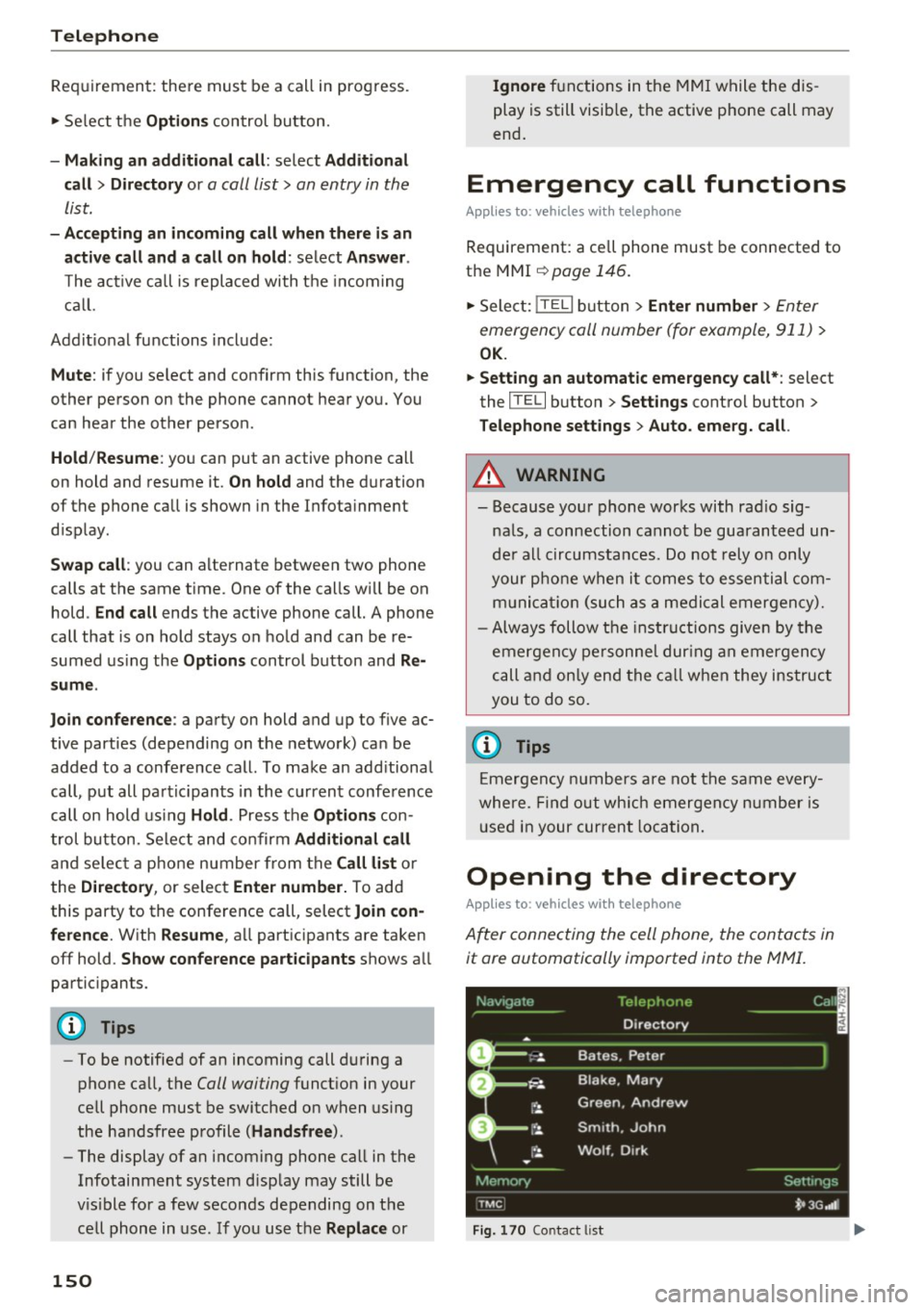
Opening the directory
Applies to: vehicles with telephone
After connecting the cell phone, the contacts in
it are automatically imported into the MMI .
Fig. 170 Contactlist
Page 155 of 354
C) C0 ....
"' " "' .... 0 0 :r
contacts
Applies to: vehicl es with telep hone
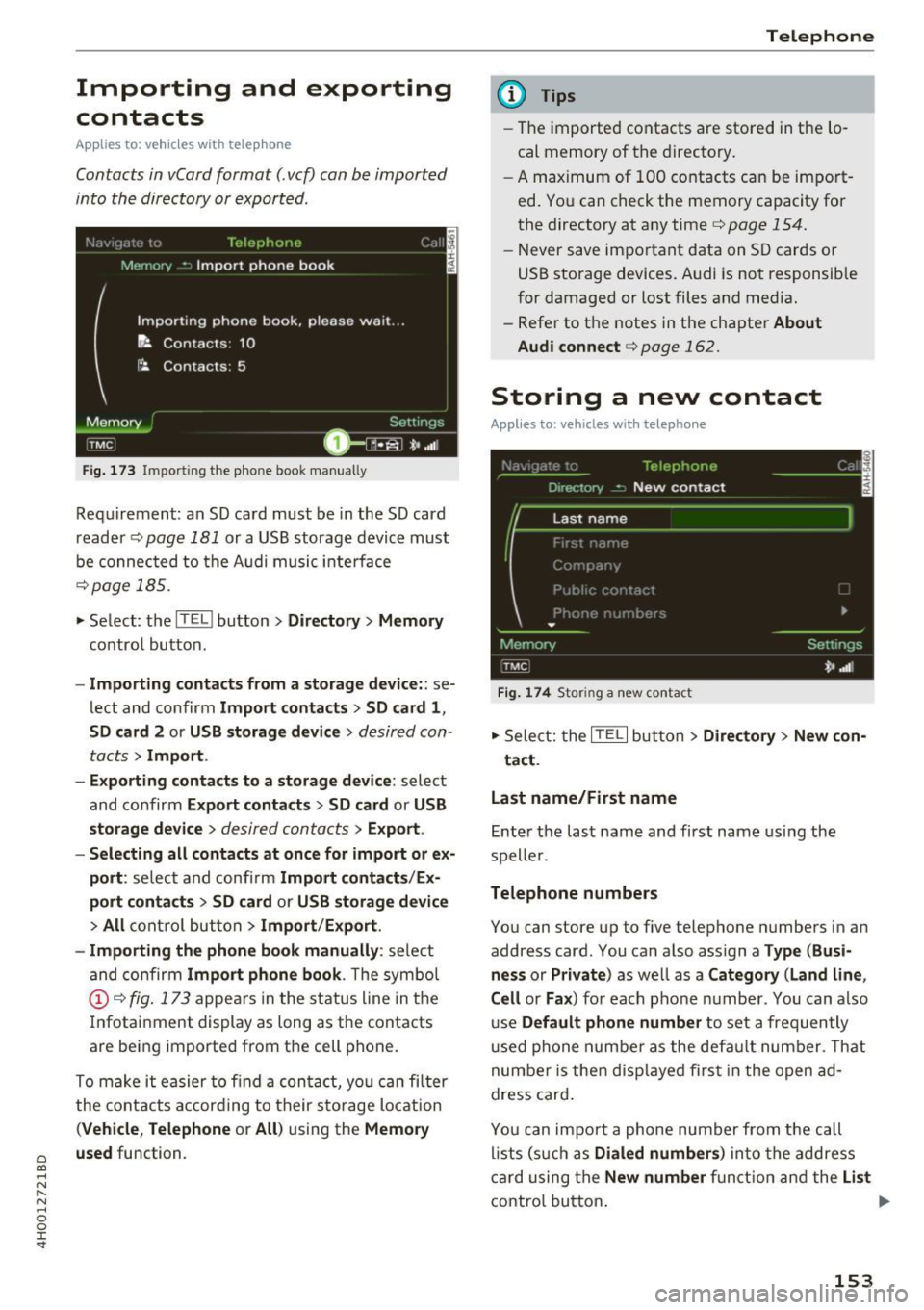
Contacts in vCard format(. vcf) can be imported
into the directory or exported .
Fig. 173 Importing the phone book manually
Requirement: an SD card must be in the SD card
reader
c=;, page 181 or a USB storage device must
be connected to the A udi music inte rface
c:> page 185 .
.. Select: the lffilJ button > Directory > Memory
contro l button.
- Importing contacts from a sto rage device: : se
lect and confirm
Import conta cts > SD card 1 ,
SD c ard
2 or USB stora ge device > desired con
tacts
> I mport .
- Ex po rting contact s to a stor age d evice:
select
and confirm
Ex port conta cts> SD card or USB
storag e device
> desired contacts > Export .
- Se lecting all contact s at once for import or ex
port :
select and confi rm Import contact s/Ex
port conta ct s
> SD card or USB sto rage devi ce
> All control but ton > Import /Export .
- Importing the ph one b ook manually :
select
and confirm
Import phone book . The symbol
© c:> fig . 173 appea rs in the status line in the
Infotainment display as long as the contacts
are being imported from the cell phone.
To make it easier to find a con tact, you can filter
the contacts according to their sto rage location
(Vehi cle, Telep hone or All ) using the Memor y
u sed
function.
Teleph one
(D Tips
- The imported contacts are stored in the lo
cal memory of the directory.
- A maximum of 100 contacts can be import
ed. You can check the memory capacity for
the directory at any time
c:> page 154.
- Never save important data on SO cards or
USB storage devices. Audi is not responsible
for damaged or lost files and media.
- Refer to the notes in the chapter
About
Audi connect
c:> page 162.
Storing a new contact
Applies to: vehicles with telephone
F ig . 1 74 Stor ing a new contact
.,. Select: the IT ELI but ton> Directory > New con -
t ac t.
Last name/First n ame
Ente r the last name and first name using the
speller .
Telephone numbers
You can store up to five telephone numbers in an
address card. You can also assign a
Type (Busi
n ess
or Private ) as well as a Category (Land line ,
C ell
or Fa x) for each phone numbe r. You can also
use
Default phone numb er to set a frequently
u sed phone numbe r as the defa ult number. That
number is then disp layed firs t in the open ad
dress card .
You can import a phone number from the call l ists (such as
Di aled number s) into the address
card using the
New number f u nct ion and the List
contro l button . Ill>
153