change time AUDI A8 2018 User Guide
[x] Cancel search | Manufacturer: AUDI, Model Year: 2018, Model line: A8, Model: AUDI A8 2018Pages: 356, PDF Size: 54.71 MB
Page 114 of 356
Ass is tanc e system s
In the sporty dynamic mode, the transmission
shifts at higher speed ranges.
Air su spen sion
The adaptive air suspension/adaptive air suspen
sion spo rt* is an e lectron ica lly contro lled a ir sus
pens ion and damping system . The adjustment
depends on the driving mode selected, steering movements, the driver's braking and accelera
tion , and as the road surface, vehicle speed and
load . A sporty sett ing is generally used in vehicles
with adap tive a ir suspension sport*.
The vehicle ground clearance depends on the mode se lected and the speed . When you are in
the auto or dynamic mode, the h ighway sett ing is
activated when you dr ive above 75 mph (120 km/
h) for more than 30 seconds . The ground clear
ance is increased automatically if the speed
drops below 44 mph (70 km/h) for more than 120 seconds .
Stee ring
The power steer ing adap ts . Indirect steer ing that
moves easily as in comfort mode is especially
suited to long drives on a h ighway . The dynam ic
mode p rovides spo rty , d irect steering.
Applies to: vehicles with dynamic steering
The steering ratio changes based on vehicle
speed in order to ma intain optimum steering ef
fort for the dr ive r at all times . This sets the steer
i n g to be less sensit ive at hig he r speeds in o rder
to p rovide imp roved vehicle contro l. At reduced
speeds, steer ing is more direct in order to keep
the steering effort as minima l as possib le when
the driv er is maneuvering the v ehicl e. At low and
average speeds, dynamic steering* addit ionally
provides more responsive steering performance.
Sport diff ere ntial *
As a component of the all wheel drive system (quattro)
¢ page 131, the sport differential dis
tributes the driving power to the rear axle de
pending on the situation. The distribution of
power va ries from balanced (comfort) to sporty
(dynamic) depending on the selec ted mode . The
goal is a high level of agility and ab il ity to accel
erate on curves . The ve hicle is very respons ive to
steer ing .
112 Corn
ering light *
The co rnering ligh t adapts the hig h beams to the
direction of the curve depending on the speed.
The pivoting action and the lighting also adapt to
the mode.
Adaptive cruise cont rol*
The be hav io r whe n accelerat ing ca n be adjusted
from comfortable to sporty, depending on the drive select mode. Adaptive cruise control also
responds to the driving behavior of the vehicle
ahead in a more cons ervative or sporty manner.
Engine sound *
The eng ine sound adapts to the c urrent mode
and can be subtle to spo rty.
{[» Note
- Make s ure there is enough clearance above
and be low the vehicle when pa rk ing . T he
heig ht of t he ve hicle can change on ce it is
parked d ue to temperature fluctuations,
changes to the load conditions and changes
to the driv ing modes, which can affect clear
ance .
- When transporting the vehicle on a car car
rier, train, ship or by other means, on ly tie
the vehicle down at the runn ing surface of
the tires, which is the outer c ircumference.
Securing the vehicle at the axle compo
nents, suspens ion struts o r tow ing eyes is
not pe rm itted because the p ressure i n the
air suspe nsion s truts ca n change d uring
t ra nspo rt. The vehi cle may not be secu red
sufficiently i f th i s happens.
(D Tips
- In some mo dels, the max imum ve hicle
speed can only be reached in t he auto and
dynamic modes.
- Th e S se lector lever posi tion a utomat ic all y
engages if the dynami c mode is selected.
- In ve hicl es tha t h ave dynam ic stee rin g*, op
erat ing no ise is he ard when sta rting o r stop
ping the engine . This does no t indi ca te a
prob lem.
Page 117 of 356
u. co .... N
" N .... 0 0 :c '
General information
A pp lies to: ve hicles with pa rk in g system p lus/rearview cam
era/peripheral camera
Depending on your vehicle 's equipment, various
pa rking aids wi ll help you when parking and ma
ne uvering.
The
p arki ng sys tem plu s assists you when park
ing by aud ibly and visua lly indicating objects de
tected in front of and behind the vehicle
¢ page 116.
The re arv ie w ca mer a shows the area beh ind the
veh icle in the Infotainment system d isplay. This
d isplay assists you when you are cross or parallel
pa rking
¢ page 117 . The park ing system p lus
functions are also available
¢ page 116.
The periph eral ca mera s give var ious views to
h e lp you whe n pa rking or maneuver ing
¢ page 120. T he pa rking system pl us functions
are also availab le
¢ page 116.
& WARNING
-Always look for traffic and check the area
around your vehicle by looking at it direct ly
as well. The parking system cannot replace
the driver's attent ion. The driver is always
responsible when enter ing or leav ing a park
ing space and during similar maneuvers.
- Please note that some surfaces, such as
clothing, are not detected by the system .
-
-Sensors and cameras have blind spots in
wh ich people and objects cannot be detect
ed . Be especially caut ious of small children
and animals .
- The sensors can be displaced by impacts or
damage to the radiator gr ille, bumper,
wheel housing and the underbody . The park
ing system may be impa ired as a result.
Have a n author ized A udi dealer or author
ized Audi Serv ice Facility check their func
tion .
- Make s ure the senso rs a re not obstructed by
stickers, deposits o r other materia ls. If they
are, the sensor function could be impaired.
For additiona l information on cleaning, see
¢ page 306.
Parking syste m s
@ Note
-Some objects are not detected or disp layed
by the system under certain circumstances:
- objects such as barrier cha ins, tra iler draw
bars, vertical po les or fences
- objects above the sensors such as wall ex
tensions
- objects with certain surfaces or structures
such as cha in link fences or powder snow
- If you continue driving closer to a low ob
ject, it may disappear from the sensor range . Note that you will no longer be
wa rned about t his obstacle.
(D Tips
-The system may provide a warning even
tho ugh the re are no obstacles in the cover
age area in some situations, such as:
- certain road surfaces or when there is tall
grass
- externa l ultrasonic sources such as from
cleaning vehicles
- in heavy rain, snow, or th ick vehicle ex
haust
- We recommend tha t you practice par king in
a traffic-free location or parking lot to be
come fami liar with the system . W hen doing
this, there sho uld be good light and weath
er conditions.
- You can change the volume and pitch of the
signa ls as well as the
display ¢ page 125.
-Please refer to the instructions for towing a
trai ler located in
r:!:> page 125 .
-What appears in the infotainment display is
somewhat time-delayed .
- T he sensors m ust be kept clean and free of
snow and ice for the parking aid to operate .
115
Page 127 of 356
u. co .... N
" N .... 0 0 :c '
A ppl ies to : ve hicles w ith parkin g system plus/rearv iew cam
era/peripheral ca mera
The display and warning tones can be adjusted in
the Infotainment.
~ Se lect : the ICARI fu nction button > Car systems
contro l button > Driver assistance > Parking
aid .
Display
On * -
an op tical d isp lay is shown for the par kin g
system plus, a rearv iew camera image is s hown
for the rearview camera *.
Off -when the p arking sys tem is sw itche d off,
on ly audib le sign als are give n.
Signal tones
Front volume -
volume for the front area
Rear volume -volume for the rear area
Front frequency -frequency for the front area
Rear frequency -frequen cy fo r the rea r area
Music volume during nav . prompts -the volume
of the a udio/video so urce is lowe red when t he
pa rking system is turned o n
The new ly selected leve l is demonstrated briefly
by the sound generator .
(D Tips
-The wa rning tones ca n also be ad justed d i
r ectly by the vis ual d isp lay or the pictu re
from the camera. Simply p ress the
Settings
control bu tton.
- Changed sett ings are ac tivated whe n the
p arking system is switched o n aga in.
- The settings for volume and frequency are
a utomat ica lly saved and ass igned to the re
mo te con trol key be ing used.
Error messages
A pp lies to: ve hicles with parking system plus/rearview cam
era/per ipheral ca mera
There is an erro r in the system if the LED in the
Pw , button is b link ing and yo u hear a continuous
Parking systems
alarm for a few seconds after sw itch ing on the
par king system or w hen the pa rking system is a l
r eady activated. If the erro r is not cor rected be
fo re you switch off the ignition, the
LED in the Pw ,
button w ill blink the next time you switch on the
park ing system by shifting into reverse.
Parking system plus*
If a senso r is fa ulty, the~ symbo l will appear i n
front of/beh ind the vehicle in the Infotainment
display. If a rear sensor is faulty, on ly obstacles
t h at are i n areas @and @ are shown
Q page 116, fig . 129 . If a front se nsor is faulty,
o n ly obs tacles tha t are in a reas © and @are
shown. The re is a lso a sys tem ma lf u nct ion if all
seg ments arou nd the veh icle are red or if no seg
me nts are disp laye d.
Peripheral cameras*
The re is a system malfu nction if t he 00 • symbol
appea rs and the co rresponding d isp lay area is
s h own in bl ue. The camera is not wo rking in t his
are a.
Drive to an authorized A udi dealer or authorized
Audi Se rvice Facility immed iate ly to have the
malfu nction corrected.
Trailer hitch
App lies to: vehicles wit h parking system pl us/rea rv iew cam
e ra/peri phe ra l cameras an d tra ile r hitc h
When the trailer socket is in use, the par king sys
tem rear sensors are not act ivated when you sh ift
into reverse gear or when yo u press t he
p, ,1 A but
ton. This res ults in the following rest rict ions.
Parking system plus*
The re is no distance warning for the rear. The
front senso rs remain activated. T he v isua l disp lay
switches to trailer mode.
Rearview camera*/peripheral cameras*
T he re is no distance warning for the rea r. The
front senso rs remain activated . The visua l disp lay
switches to trailer mode. The rearview came ra
i mage will not s how the orie ntation lines and t he
bl ue surfaces.
IJJ,-
125
Page 155 of 356
lL t:0 ....
"' ......
"' .... 0 0 :c '
Applies to: veh icles wit h te lephone
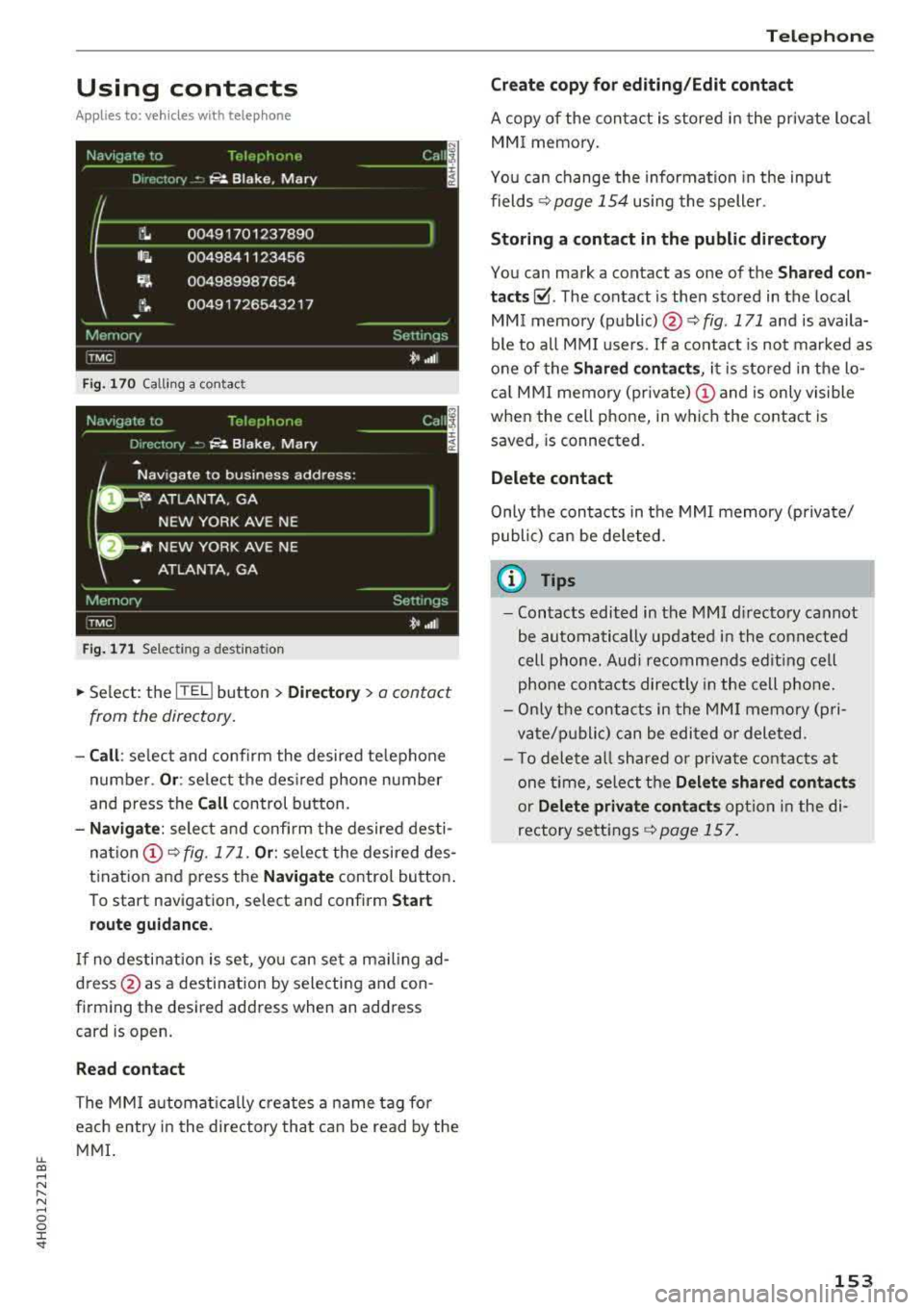
Fig. 170 Calling a con tact
Fig. 171 Selec ting a destina tion
.,. Select : the ITEL ! button > Directory> a contact
from the directory.
- Call : select and confirm the desired telephone
number.
Or : select the desired phone number
and press the
Call control button.
-Navigate: select and confirm the desired desti
nation (!)¢ fig. 171. Or: select the desired des
tination and press the
Navigate control button.
To start navigation, select and confirm
Start
route guidance.
If no destination is set, you can set a mailing ad
dress @as a destination by selecting and con
firming the desired address when an address
card is open.
Read contact
The MMI automatically creates a name tag for
each entry in the directory that can be read by the
MMI.
Telephone
Create copy for editing/Edit contact
A copy of the contact is stored in the private local
MMI memory.
You can change the information in the input
fields
¢ page 154 using the speller.
Storing a contact in the public directory
You can mark a contact as one of the Shared con
tacts~ -The contact is then stored in the local
MMI memory
(public) @¢ fig. 171 and is availa
ble to all MMI users. If a contact is not marked as
one of the
Shared contacts, it is stored in the lo
cal MMI memory (private)
(D and is only visible
when the cell phone, in which the contact is saved, is connected.
Delete contact
Only the contacts in the MMI memory (private/
public) can be deleted.
u) Tips
- Contacts edited in the MMI directory cannot
be automatically updated in the connected
cell phone. Audi recommends editing cell
phone contacts directly in the cell phone .
- Only the contacts in the MMI memory (pri
vate/public) can be edited or deleted .
- To delete all shared or private contacts at
one time, select the
Delete shared contacts
or Delete private contacts option in the di
rectory settings
r::!;> page 157.
153
Page 161 of 356
lL t:0 ....
'"" ......
'"" .... 0 0 :c '
connection
type @HJ) ¢ page 139, fig . 158.
You can now use Audi connect.
• Select: the I MENU I button > Audi connect .
• Confirm the prompt ask ing to connect to the
Inte rnet with
Y es.
Remo ving th e Audi SIM c ard
•Presson the Audi SIM card briefly. The card is
released from the slot. Remove the Audi SIM
card .
A WARNING
The card reader must a lways be closed while
driving for safety reasons.
(D Note
-Audi connect is des igned for use only w ith
the provided Audi SIM card. Aud i AG is not
liable for the consequences of using other
S IM cards.
-If a SIM card of a d ifferent size is inserted i n
the SIM card reader instead of an Audi SIM
ca rd, do not under any circumstances re
move th is card yourse lf due to the risk of
damaging the SIM card reader. Contact an
authorized Audi dealer or authorized Audi
Service Facility.
(D Tips
To use your cell phone, you can connect your it through the
Hand sfree Bluetooth profile
¢ page 147 .
-Audi does not provide support for other SIM
cards.
-A udi recommends using only the provided
Audi SIM card.
-You can spec ify when the MMI connects to
the Internet
¢ page 162. The Internet con
nection disconnects automatically once the
requested Audi connect service no longer re
quires any data packets.
-T he data connection for Audi connect serv
ices is preconfigured at the factory . You can
change the data connection at any time if
Audi connec t
you need to adjust the configuration
¢page 162.
Operating the browser
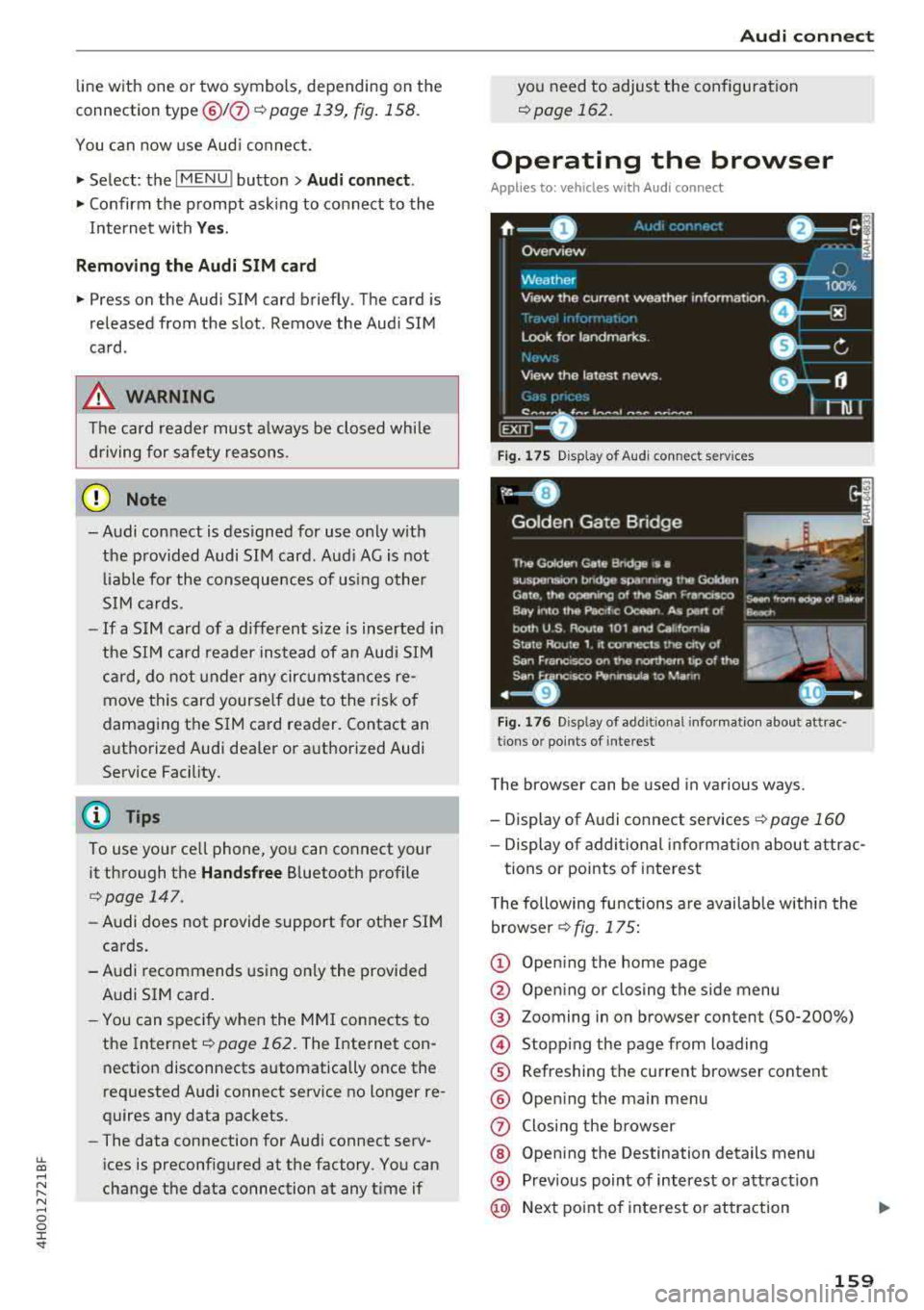
Applies to: veh icles w ith Aud i connect
F ig . 175 D isp la y of Audi conn ect servi ces
Fig . 1 76 Disp lay o f add it ional infor matio n abou t att rac ·
tion s or po ints of intere st
The browser can be used in various ways .
-Display of Audi connect services <=>page 160
-Display of additional informat ion about attrac-
tions or points of interest
T he following functions are available within the
browser <=> fig. 175:
© Open ing the home page
@ Open ing or closing the side menu
® Zooming in on browser content (50-200%)
© Stopping the page from loading
® Refreshing the current browser content
® Open ing the main menu
(J) Closing the browser
@ Opening the Destination details menu
® Prev ious point of interest or attract ion
@ Next point of interest or attraction
159
Page 168 of 356
Navigation
Navigation
Opening navigation
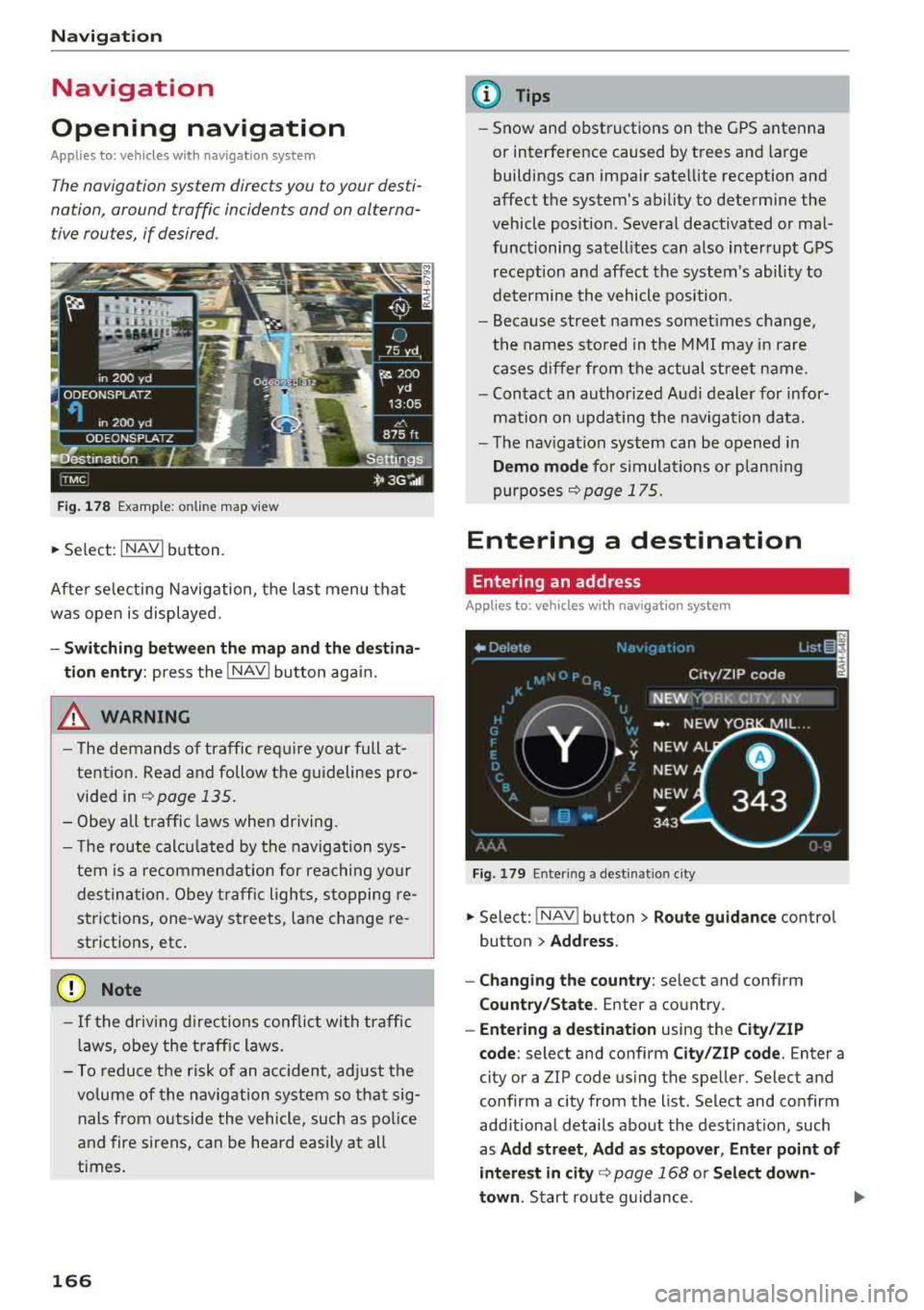
Applies to: vehicles with navigation system
The navigation system directs you to your desti
nation , around traffic incidents and on alterna
tive routes, if desired .
Fig. 178 Example: on lin e map v iew
.. Select : INAVI button.
After selecting Navigation, the last menu that
was ope n is displayed.
- Switching between the map and the destina
t ion entry:
press the !NAV ! button again.
,&. WARNING
-The demands of traffic require your full at
tention. Read and follow the guidelines pro
vided in
i=;,poge 135.
-Obey all traffic laws when driving.
- The route calcu lated by the navigation sys-
tem is a recommendat ion for reaching your
destination. Obey traffic lights, stopping re
strictions, one-way streets , lan e change re
strictions, etc.
@ Note
- If the driving directions conflict with traffic
laws, obey the traffic laws.
- To reduce the risk of an accident, adjust the
volume of the navigation system so that sig
nals from outside the vehicle, such as police
and fire sirens, can be heard easily at all
times.
166
.
@ Tips
- Snow and obstructions on the GPS antenna
or interference caused by trees and large
buildings can impair satellite reception and
affect the system's ability to determine the
vehicle position. Several deactivated or mal
functioning satellites can also interrupt GPS reception and affect the system's ability to
determine the vehicle position .
- Because street names somet imes change,
the names stored in the MMI may in rare
cases differ from the actual street name.
- Contact an authorized Audi dealer for infor
mation on updating the navigation data.
- The navigation system can be opened in
Demo mode for s imulations or plann ing
purposes
re;, page 175.
Entering a destination
Entering an address
Applies to : vehicles with navigat ion system
Fig . 179 En ter ing a destina tion city
.. Select: !NAV ! button > Route guidance contro l
button
> Address .
- Changing the country:
select and conf irm
Country/State . Enter a country .
- Entering a destination using the City/ZIP
code:
select and confirm City/ZIP code. Enter a
city or a ZIP code using the spe ller. Select and
confirm a city from the list. Select and confirm
add itional details about the dest ination, such
as
Add street , Add as stopover, Enter point of
interest in
city re;, page 168 or Select down
town .
Start route guidance.
Page 185 of 356
DVD changer
Applies to: vehicles wit h DVD changer
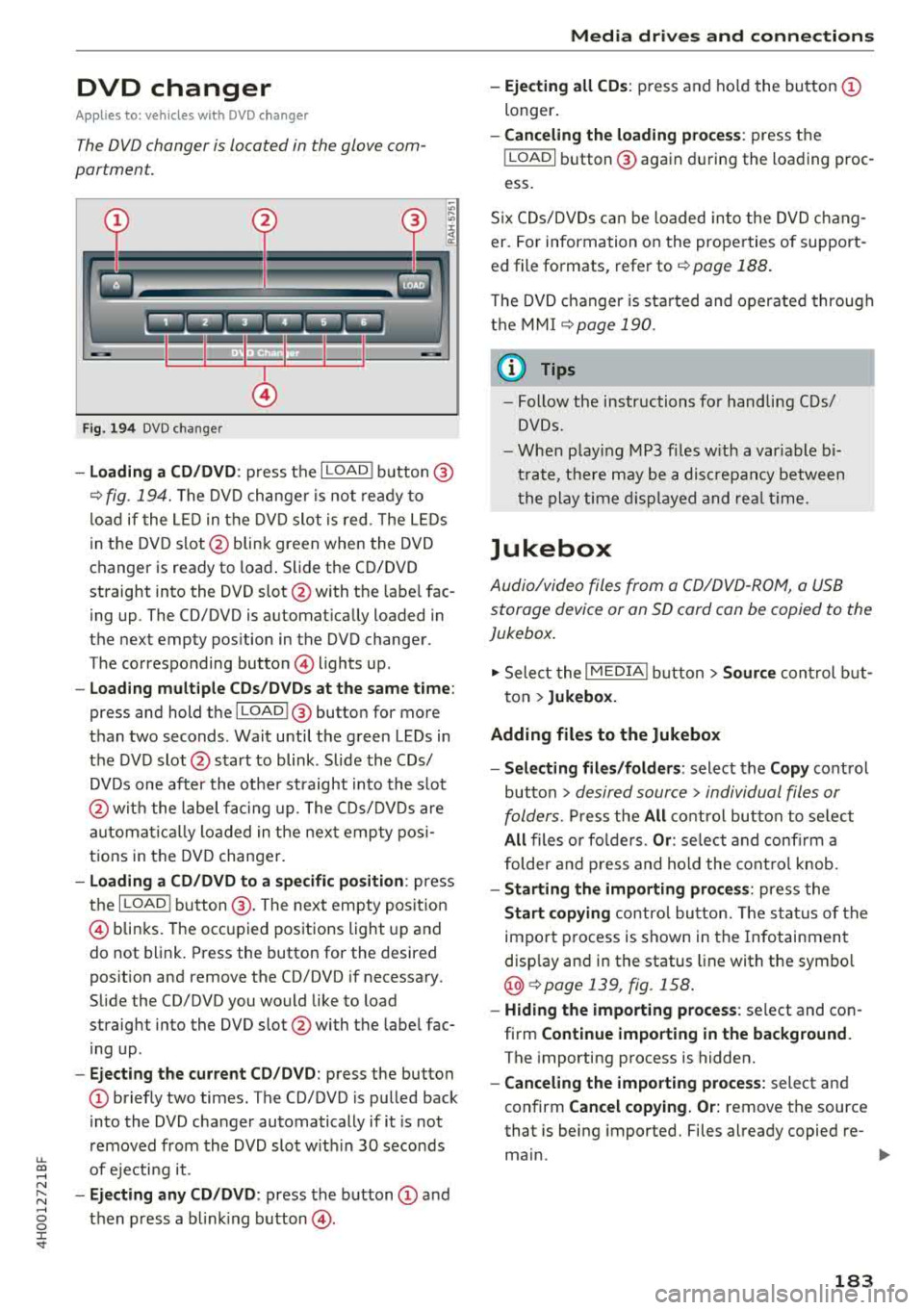
The DVD changer is located in the glove com
partment.
0
F ig. 194 DVD changer
-Loading a CD/DVD : press the I LOADI button @
¢ fig. 194. The DVD changer is not ready to
load if the LED in the DVD slot is red . T he LEDs
in the DVD slot @ blink green when the DVD
changer is ready to load . Slide the CD/DVD
straight into the DVD slot @with the labe l fac
ing up. The CD/DVD is automat ically loaded in
the next empty pos ition in the DVD changer .
The corresponding button © lights up .
-Load ing mult iple CDs/DVDs at the same time:
press and hold the I LOADl @button for more
than two seconds . Wait until the green LEDs in
the DVD slot@start to blink . Slide the CDs/
DVDs one after the othe r straight into the s lot
@ wit h the label facing up. The CDs/DVDs are
a ut omatica lly loaded in t he next empty posi
tions in the DVD changer.
-Loading a CD/DVD to a specific position: press
the I
L OAD ! button @. The next empty posit ion
© blinks. The occupied positions light up and
do not blink. Press the button for the desired
position and remove the CD/DVD if necessary.
Slide the CD/DVD you would like to load
straight into the DVD slot @with the label fac
ing up .
-Ejecting the current CD/DVD: press the button
CD briefly two times. The CD/DVD is pulled back
i nto the DVD changer automatically if it is not
removed from the DVD slot with in 30 seconds
u.
~ of ejecti ng it .
~ -Ejecting any CD/DVD : press the button CD and
~ then press a blinking button @. 0 :c '
-Ejecting all CDs : press and ho ld the button CD
longer .
-Canceling the loading process : press the
!LOAD! button @ again during the loading proc
ess.
Six CDs/DVDs can be loaded into the DVD chang
er. For information on the properties of support
ed file formats, refer to
¢ page 188.
T he DVD changer is sta rted and operated through
the MMI
¢ page 190.
@ Tips
-Follow the instructions for handling C Ds/
DVDs.
- When playing MP3 files with a variable bi
trate, there may be a disc repancy between
th e play time displayed and rea l time.
Jukebox
Audio/video files from a CD/DVD-ROM, a USB
storage device or an SD card can be copied to the
Jukebox.
.,. Select the I MEDIAi button> Source control but
ton >
Jukebox.
Adding files to the Jukebox
- Selecting files/folders :
select the Copy control
button
> desired source > individual files or
folders.
Press the All control button to select
All files or folders. Or : select and confirm a
folder and press and hold the control knob.
-Starting the importing process : press the
Start copying control button. The status of the
import process is shown in the Infotainment
disp lay and in the status line with the symbo l
@¢page 139, fig . 158.
-Hiding the importing process : select and con
firm
Continue importing in the background.
The importing process is hidden.
-Canceling the importing process: select and
confirm
Cancel copying. Or: remove the source
that is being imported. Files already copied re-
main.
IJI>-
183
Page 195 of 356
u. co .... N
" N .... 0 0 :c '
Requi rement : a vi deo DVD mus t be p layin g and
the passwo rd mus t be ente red (t he passwo rd se t
at t he factory is "1234").
Pl ayba ck of v ideo DV Ds can be res tricted using
par ent al contro l. Sele ct an d conf irm the co nt ent
r at ing (s uc h as
Level 5 ). E ight diffe rent Content
rating
l eve ls can be set for pa rental control. Fo r
e xamp le, if you se lect Leve l S* for the parenta l
control leve l, all DVDs from leve l 1-5 can be
p layed. Video DVDs with a higher leve l will not
p lay. All rest rict ions are ca nce led when the f unc
tion is sw itched
Off .
You can change t he cur rent password using the
Change password funct ion.
(D Tips
- Not a ll video DVDs have pa rental contro l.
- The
Repeat options and Random playback
fu nct ions sw itch off a utomat ica lly w hen the
source changes in the
Media men u.
- Password entry w ill be loc ke d for a pproxi
mately one m inute if you enter t he in co rrect
passw ord three times in a row . O nl y an au
thorized Audi dea ler ca n reset the parenta l
contro l password.
- The
Track display f unction is n ot ava ila ble
fo r th e Ju kebox o r a c onnected iP od
c::> pag e 192.
-The DV D drive only sup ports the D TS (D igi
ta l Theate r Systems) aud io for mat.
Play ing media
193
Page 196 of 356
Rear Seat Entertainment
Rear Seat Entertainment
RSE components
overview
A pp lies to: ve hicles w ith Rea r Seat En te rtainment
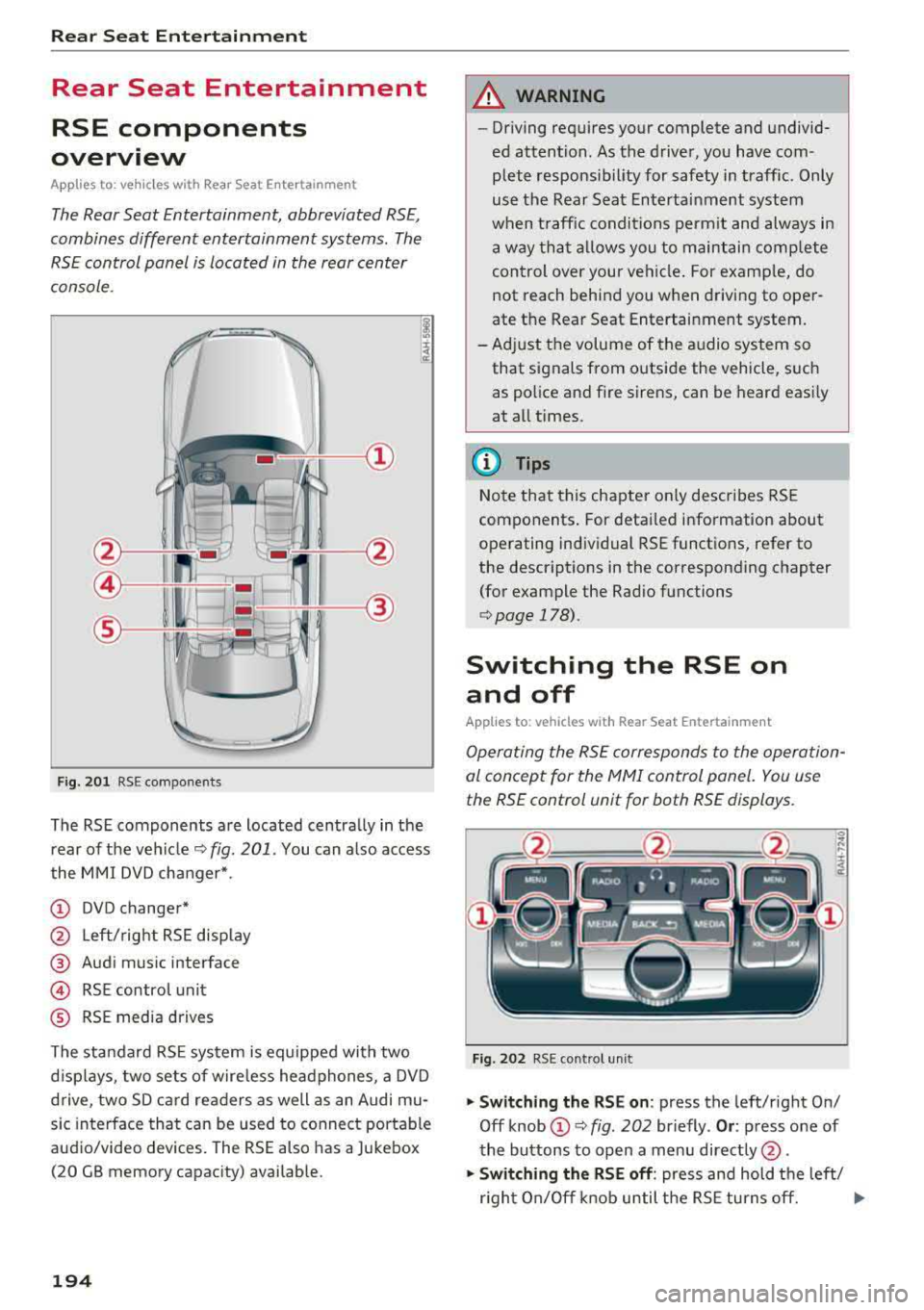
The Rear Seat Entertainment, abbreviated RSE,
combines different entertainment systems . The
RSE control panel is located in the rear center
console .
Fig. 201 RSE components
The RSE components are located centrally in the
rear of the vehicle
c:.> fig. 201 . You can also access
the MMI DVD changer*.
(D DVD changer*
@ Left/right RSE display
@ Audi music interface
@ RSE contro l unit
® RSE media drives
The standard RSE system is equipped with two
d isplays, two sets of wire less headphones, a DVD
drive, two SD card readers as well as an Audi mu
sic interface that can be used to connect portable
audio/video devices. The RSE also has a Jukebox
(20 GB memory capacity) availab le.
194
A WARNING
,-
- Driving requires your complete and undivid-
ed attention. As the driver, you have com
plete responsib ility for safety in traffic. Only
use the Rear Seat Entertainment system
when traffic conditions permit and always in
a way that allows you to maintain comp lete
control over your vehicle . For examp le, do
not reach behind you when driving to oper
ate the Rear Seat Entertainment system.
-Adjust the volume of the audio system so
that signals from outside the vehicle, such
as police and fire sirens, can be heard easily
at all times.
(D Tips
Note that this chapter on ly describes RSE
components . For detailed information about
operating individual RSE functions, refer to
the descriptions in the corresponding chapter
(for example the Rad io functions
r::.> page 178).
Switching the RSE on
and off
App lies to: vehicles with Rear Seat Entertainment
Operating the RSE corresponds to the operation
al concept for the
MMI control panel. You use
the RSE control unit for both RSE displays.
Fig. 202 RSE cont rol unit
.,. Switching the RSE on : press the left/right On/
Off knob
(D c:.> fig . 202 br iefly . Or: press one of
the buttons to open a menu directly @.
.,. Switching the RSE off: press and hold the left/
r ight On/Off knob until the RSE turns off.
.,..
Page 199 of 356
lL t:0 ....
"' ......
"' .... 0 0 :c -
(reset)
Applies to: vehicl es with Rea r Seat E nte rtainment
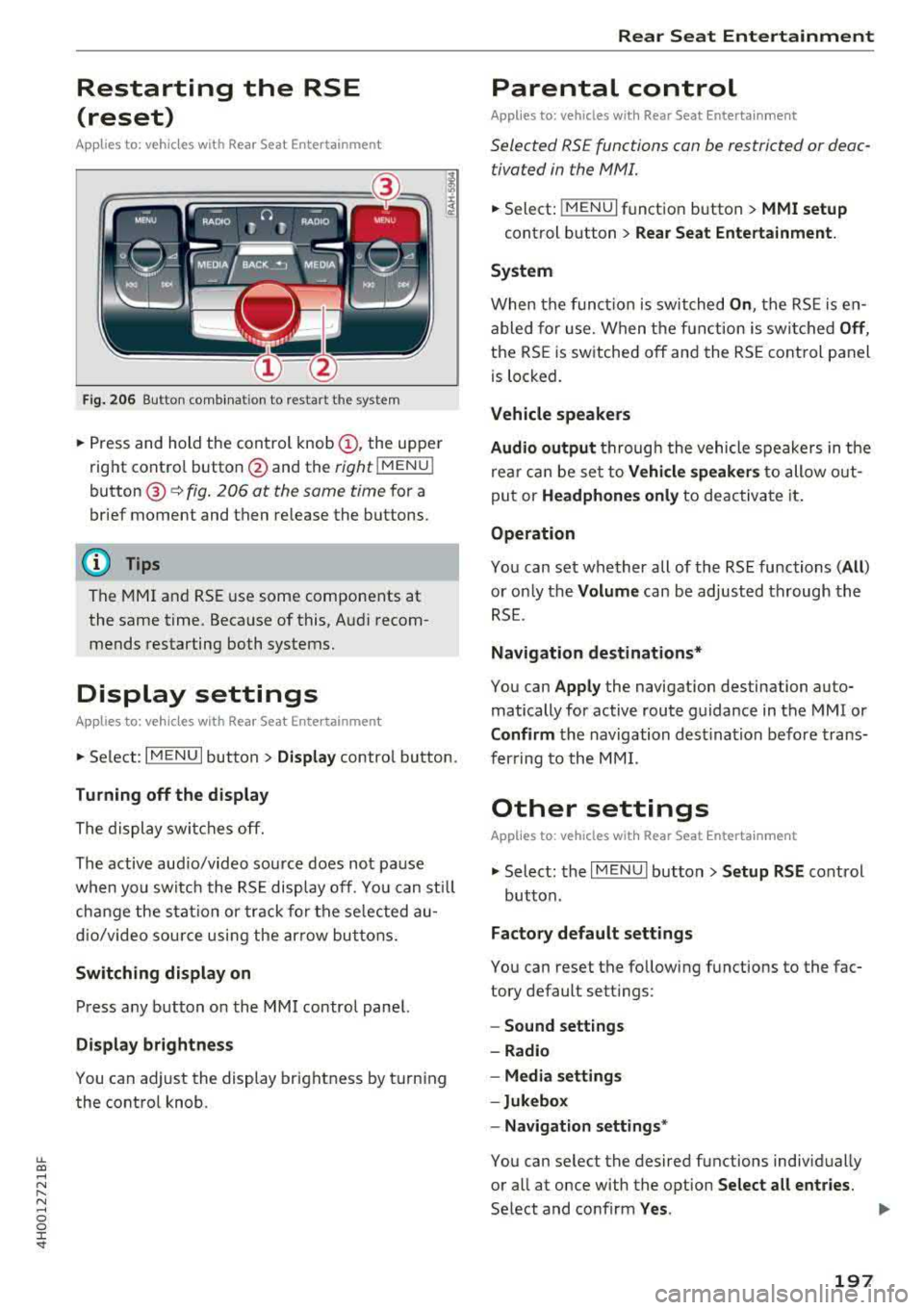
Fig. 206 Button comb inat ion to restart the system
• Press and hold the control knob (D, the upper
right control button @and the
right lMENU i
button @¢fig. 206 at the same time for a
brief moment and then release the buttons.
(D Tips
The MMI and RSE use some components at
the same time. Because of this, Audi recom
mends restarting both systems.
Display settings
Applies to: vehicles with Rea r Seat E nte rtainment
• Se lect : I MENU I button > Display control button.
Turning off the display
The display switches off.
The active aud io/video source does not pa use
when you switch the RSE display off. You can sti ll
change the stat io n or track for the selected au
dio/video source using the arrow buttons.
Switching display on
Press any button on the MMI control panel.
Display brightness
You can adjust the display brightness by turning
the control knob.
Rear Seat Entertainment
Parental control
Appl ies to: vehicles wit h Rear Seat Enterta inment
Selected RS£ functions can be restricted or deac
tivated in the
fv1fv11.
• Select: j MENUI f u nct ion button> MMI setup
control button > Rear Seat Entertainment.
System
When the function is switched On , the RSE is en
abled for use. When the function is switched
Off ,
the RSE is switched off and the RSE control panel
is locked.
Vehicle speakers
Audio output
thr ough the vehicle speakers in the
rear can be set to
Vehicle speakers to allow out
put or
Headphones only to deactivate it.
Operation
You can set whether all of the RSE functions (All )
or on ly the Volume can be adjusted through the
RSE .
Navigation destinations*
You can Apply the navigation destination auto
matically for active route guidance in the MMI or
Confirm the navigation destination before trans
ferring to the MMI.
Other settings
Applies to: vehicles with Rear Seat Entertainment
• Select: the I MENU I button> Setup RSE cont rol
button.
Factory default settings
You can reset the following functions to the fac
tory default settings:
- Sound settings
- Radio
- Media settings
-Jukebox
- Navigation
settings*
You can select the desired functions individually
or all at once with the option
Select all entries.
Select and confirm Yes . ..,
197