USB port AUDI A8 2018 Owners Manual
[x] Cancel search | Manufacturer: AUDI, Model Year: 2018, Model line: A8, Model: AUDI A8 2018Pages: 356, PDF Size: 54.71 MB
Page 156 of 356
Telephone
Importing and exporting
contacts
Applies to: ve hicles with telep hone
Contacts in vCard format( . vcf) can be imported
into the directory or e xported.
r·~, J'.' J, j) I· l,
Memory
TPlephor1f-~
Import phone book
Importing phone book. please wait. ..
If~ Contacts: 10
f ~ Contacts: 5
i ., ~
Memory
iTMC I
Settings
D ~ i, .. ,i:
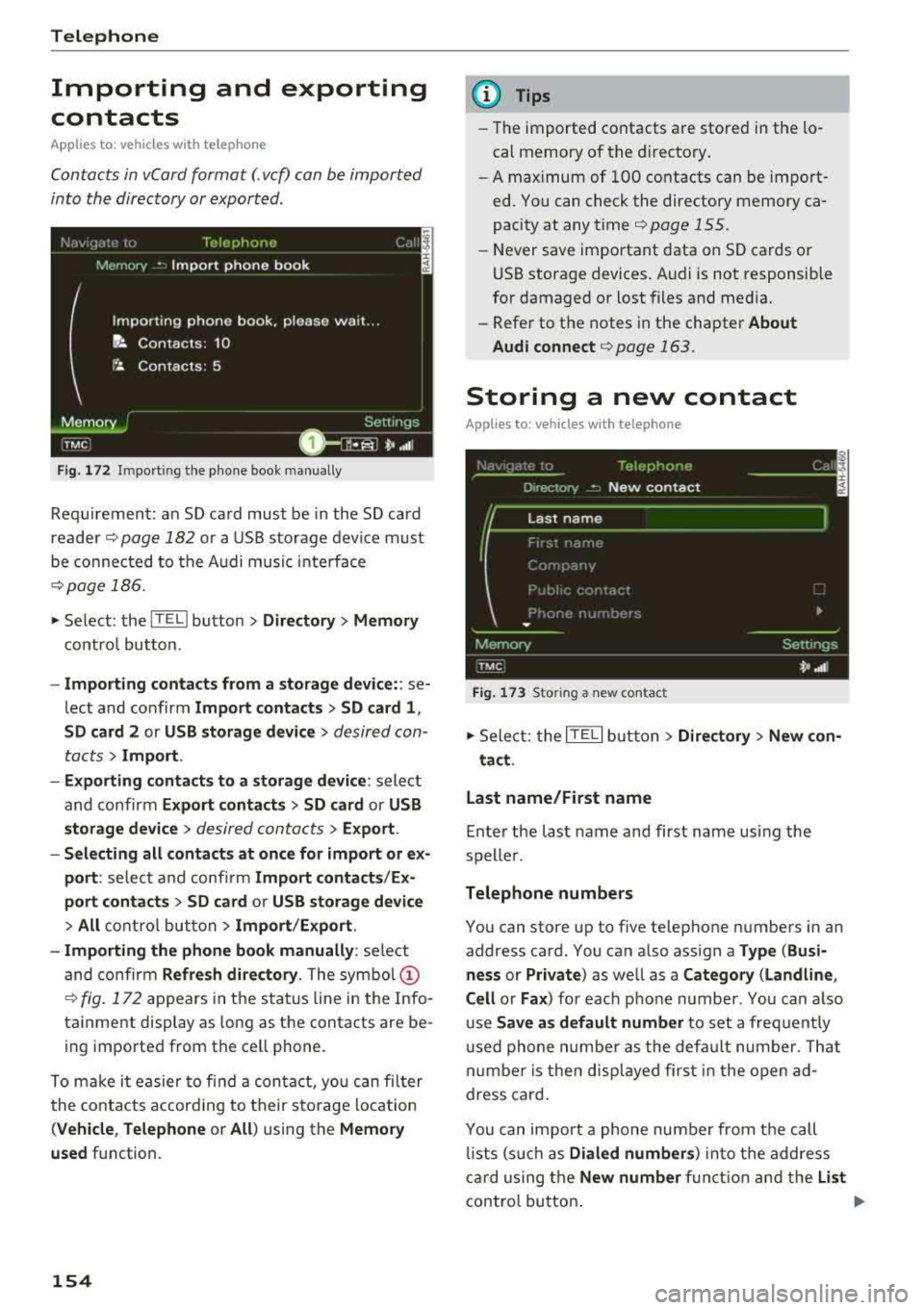
F ig . 1 72 Im port ing t he p hone book man ually
Req uiremen t: an SD ca rd must be in the SD card
reader
c:> page 182 or a USB storag e dev ice must
be co nnec ted to t he A udi musi c in terface
c:> page 18 6 .
.. Se lect: the IT EL! bu tton > Directory > Memory
contro l but to n.
- Import ing contacts from a storage device: : se
lect and confirm Import contacts > SD card 1 ,
SD card
2 or USB storage device > desired con
tacts
> Import .
- Exporting contacts to a storage device :
select
and co nfirm
Export contacts > SD card or USB
storage device
> desired con ta cts > Export .
- Selecting all contacts at once for import or ex
port :
select a nd confi rm Import contacts /Ex
port conta ct s
> SD card or USB storage device
> All c o ntrol but ton > Import /Export .
- Importing the phon e book manually :
select
and co nfirm
Refresh directory . The symbo l (D
c:> fig. 1 72 ap pears in t he st atus line in the Info
tainment display as long as the contacts are be
ing imported from the ce ll phone.
To ma ke it eas ier to fi nd a con ta ct, yo u can fi lter
the co nta cts accor ding to their s to ra ge lo cation
(Vehicle , Telephone or All ) using the Memo ry
used
function.
154
@ Tips
- The imported contacts are stored in the lo
cal memory of the directory .
- A max imum of 100 contacts can be impo rt
ed. Yo u can check the directory memory ca
pacity at any time
c:> page 155.
- Never save important data on SD cards or
USB storage devices. A udi is not responsible
for damaged or lost files and media .
- Refe r to the notes in the chapter
About
Audi connect
c:> page 163.
Storing a new contact
Applies to: vehicles with telephone
Fig. 173 Storing a new contact
.,. Sele ct: the IT ELI bu tton > Directory > New con -
tact .
Last name/First name
E nter the last name and first name usi ng the
speller.
Telephone numbers
You can store up to f ive telephone number s in an
address card. You can a lso ass ign a
Type (Busi
ness
or Private ) as well as a Category (Landline ,
Cell
or Fa x) for eac h pho ne numbe r. You can a lso
u se
Save as default number to set a freq uent ly
u sed phone n umbe r as the def ault numbe r. T h at
n umbe r is then d isp laye d firs t in t he open ad
dress card .
Yo u can impor t a phone nu mber from t he call
lis ts (s uch as
Dialed number s) into the addre ss
c ar d using the
New number fu nct ion and the List
contro l bu tto n. ""
Page 183 of 356
u. co .... N
" N .... 0 0 :c '
connections
Introduction
There are various media drives and connections
ava ilable i n the MMI. For example, you can play
aud io/video* f iles through the Jukebox, or you
can connect a portable device to the Audi music in te rface* a nd ope rate it throug h the MM I.
Notes
General information
Media and format restr ictions :
the MMI (includ
ing the SD card reader and the USB storage de
vice connect ion*) was tested w ith a var iety of
products and media on the market. However,
there may be cases where ind iv idual devices or
media and aud io/video files* may not be recog
niz ed, may play o nly w it h rest rictio ns, o r may no t
p lay at a ll.
The MM I media dr ives do not suppo rt W indows
M edia Audio 9 Vo ice, W indows Media Aud io 9
L oss less and Windows Media
9 Pr ofessional for
mats .
Digital Rights Management : please note that
the audio/v ideo* fi les are subject to copy right
p rotection.
The med ia drives do not play f iles that are pro
tected by DRM and that are ident ified w ith the
symbo l
i'.D.
Data se curity : Never store important data on the
memory cards, the Jukebox, CDs/DVDs or porta
b le aud io devices . Audi is not responsib le for
damaged or lost fi les and med ia.
Loading times : the more files/fo lders/playlists
that are on a storage medium, the longer it will
take to load the aud io/v ideo* fi les . Audi recom
mends us ing storage med ia that o nly conta in a u
d io/video files*. To de cre ase the time it takes to
l oad audio/v ideo f iles*, c reate subfo lders ( for ex
ample, for the a rtist o r album). The loading time
will also increase when importing fi les .
Additional information : when playing, aud io
fi les are a utomatica lly displayed with any addi -
Media drives and conn ection s
tiona l information t hat is stored (such as t he ar
tist, track and a lbum cover) . If this information is
not avai lab le on t he storage medium, the MMI
will check Gracenote . However, in some cases,
the addit ional information may not be d isplayed .
Restricted functionality : if functionality is re
stricted, reset the
Media setting s to the factory
defau lt settings
¢ page 207.
Reset the Jukebox to the factory defa ult settings
if functiona lity is
restricted ¢ page 207.
Fo r i nforma tion abo ut the p roper ties of support
ed med ia an d file forma ts , see
¢ page 187 .
(UJ) Note
Always fo llow the information fo und in ¢ (i} in
Wi -Fi
hot spo t on page 161.
CD/DVD operation
CD /DVD and format re striction s:
the functiona li
ty of individ ua l storage media may be limited due
to the va riety of b lank CDs/DVDs avai lab le and
the various capacities. Audio CDs or video DVDs
with copy protection, CDs/DVDs that do not con
form to the standard and mult i sess ion CDs may
have l imited playback or may not play at all. Audi
r ecommends finaliz ing the reco rding process
whe n creat ing mult isess ion C Ds. Mult isess ion is
not supported for DV Ds.
Handling CD s/DVDs and the DVD drive : to en
su re good, high-quality sound reproduction and
to prevent damage to the dr ive or d isc read ing er
r ors, always s to re CDs/DVDs in a protective
s leeve and do no t expose t hem to direct s unligh t.
Do
not u se :
- Damaged, dirty o r sc ratched CDs/ DVDs
- Single CDs/DVDs (3 inch/8 cm d iame ter)
- CD/DVDs tha t are not round
- CDs/DVDs w ith labe ls
- Protective rings
- Clean ing CDs
Thermal protection switch : CD/DV D playback
may be tempora rily unavai lab le if o uts ide tem
peratu res are extremely hot or co ld . A t hermal
181
Page 185 of 356
DVD changer
Applies to: vehicles wit h DVD changer
The DVD changer is located in the glove com
partment.
0
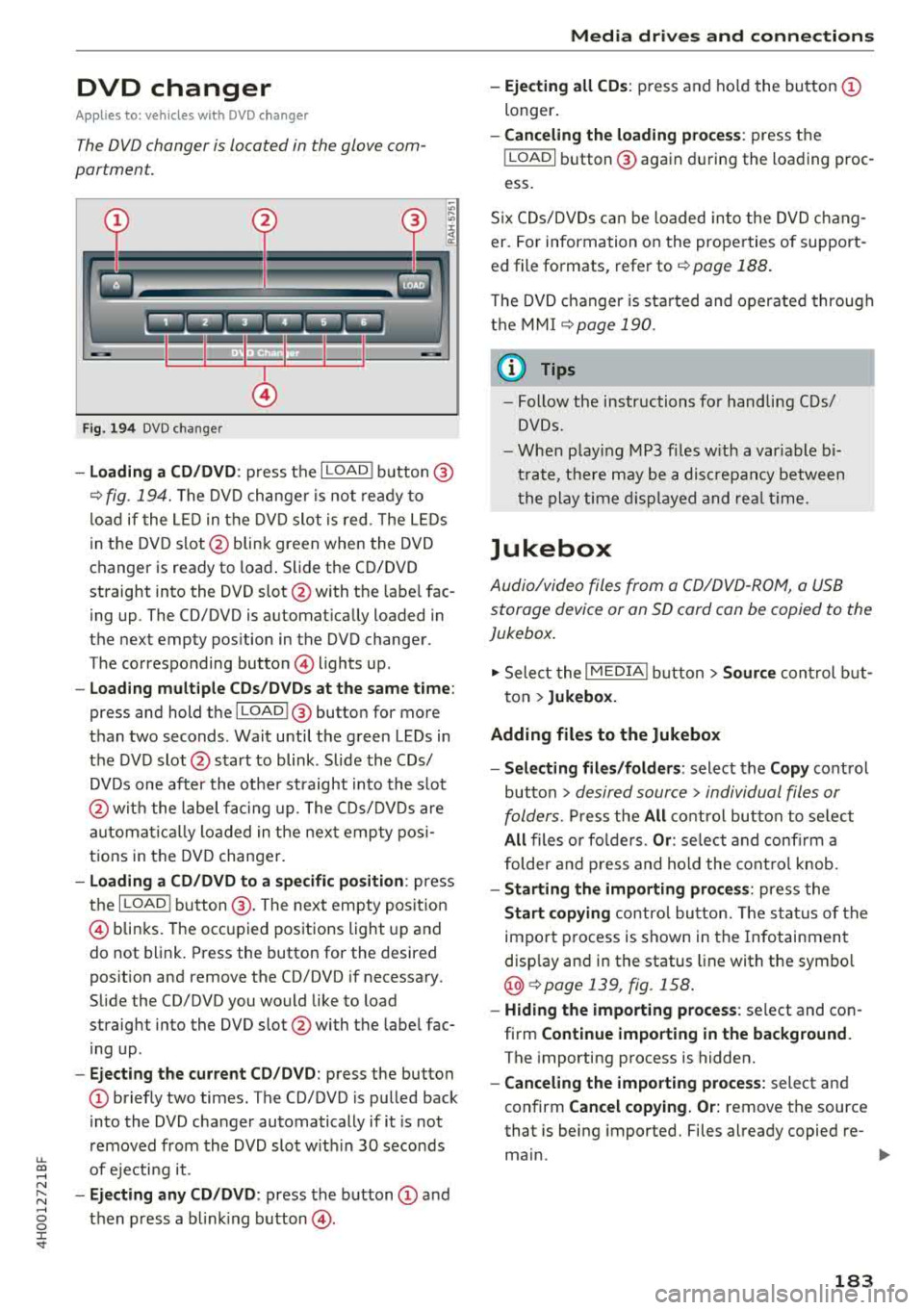
F ig. 194 DVD changer
-Loading a CD/DVD : press the I LOADI button @
¢ fig. 194. The DVD changer is not ready to
load if the LED in the DVD slot is red . T he LEDs
in the DVD slot @ blink green when the DVD
changer is ready to load . Slide the CD/DVD
straight into the DVD slot @with the labe l fac
ing up. The CD/DVD is automat ically loaded in
the next empty pos ition in the DVD changer .
The corresponding button © lights up .
-Load ing mult iple CDs/DVDs at the same time:
press and hold the I LOADl @button for more
than two seconds . Wait until the green LEDs in
the DVD slot@start to blink . Slide the CDs/
DVDs one after the othe r straight into the s lot
@ wit h the label facing up. The CDs/DVDs are
a ut omatica lly loaded in t he next empty posi
tions in the DVD changer.
-Loading a CD/DVD to a specific position: press
the I
L OAD ! button @. The next empty posit ion
© blinks. The occupied positions light up and
do not blink. Press the button for the desired
position and remove the CD/DVD if necessary.
Slide the CD/DVD you would like to load
straight into the DVD slot @with the label fac
ing up .
-Ejecting the current CD/DVD: press the button
CD briefly two times. The CD/DVD is pulled back
i nto the DVD changer automatically if it is not
removed from the DVD slot with in 30 seconds
u.
~ of ejecti ng it .
~ -Ejecting any CD/DVD : press the button CD and
~ then press a blinking button @. 0 :c '
-Ejecting all CDs : press and ho ld the button CD
longer .
-Canceling the loading process : press the
!LOAD! button @ again during the loading proc
ess.
Six CDs/DVDs can be loaded into the DVD chang
er. For information on the properties of support
ed file formats, refer to
¢ page 188.
T he DVD changer is sta rted and operated through
the MMI
¢ page 190.
@ Tips
-Follow the instructions for handling C Ds/
DVDs.
- When playing MP3 files with a variable bi
trate, there may be a disc repancy between
th e play time displayed and rea l time.
Jukebox
Audio/video files from a CD/DVD-ROM, a USB
storage device or an SD card can be copied to the
Jukebox.
.,. Select the I MEDIAi button> Source control but
ton >
Jukebox.
Adding files to the Jukebox
- Selecting files/folders :
select the Copy control
button
> desired source > individual files or
folders.
Press the All control button to select
All files or folders. Or : select and confirm a
folder and press and hold the control knob.
-Starting the importing process : press the
Start copying control button. The status of the
import process is shown in the Infotainment
disp lay and in the status line with the symbo l
@¢page 139, fig . 158.
-Hiding the importing process : select and con
firm
Continue importing in the background.
The importing process is hidden.
-Canceling the importing process: select and
confirm
Cancel copying. Or: remove the source
that is being imported. Files already copied re-
main.
IJI>-
183
Page 188 of 356
Media dri ve s and connection s
Audi music interface
Introduction
Applies to: vehicles with Audi music interface
You can connect a portable device (such as an
MP3 player) to the Audi music interface using a
special adapter cable* and operate the device through the MMI.
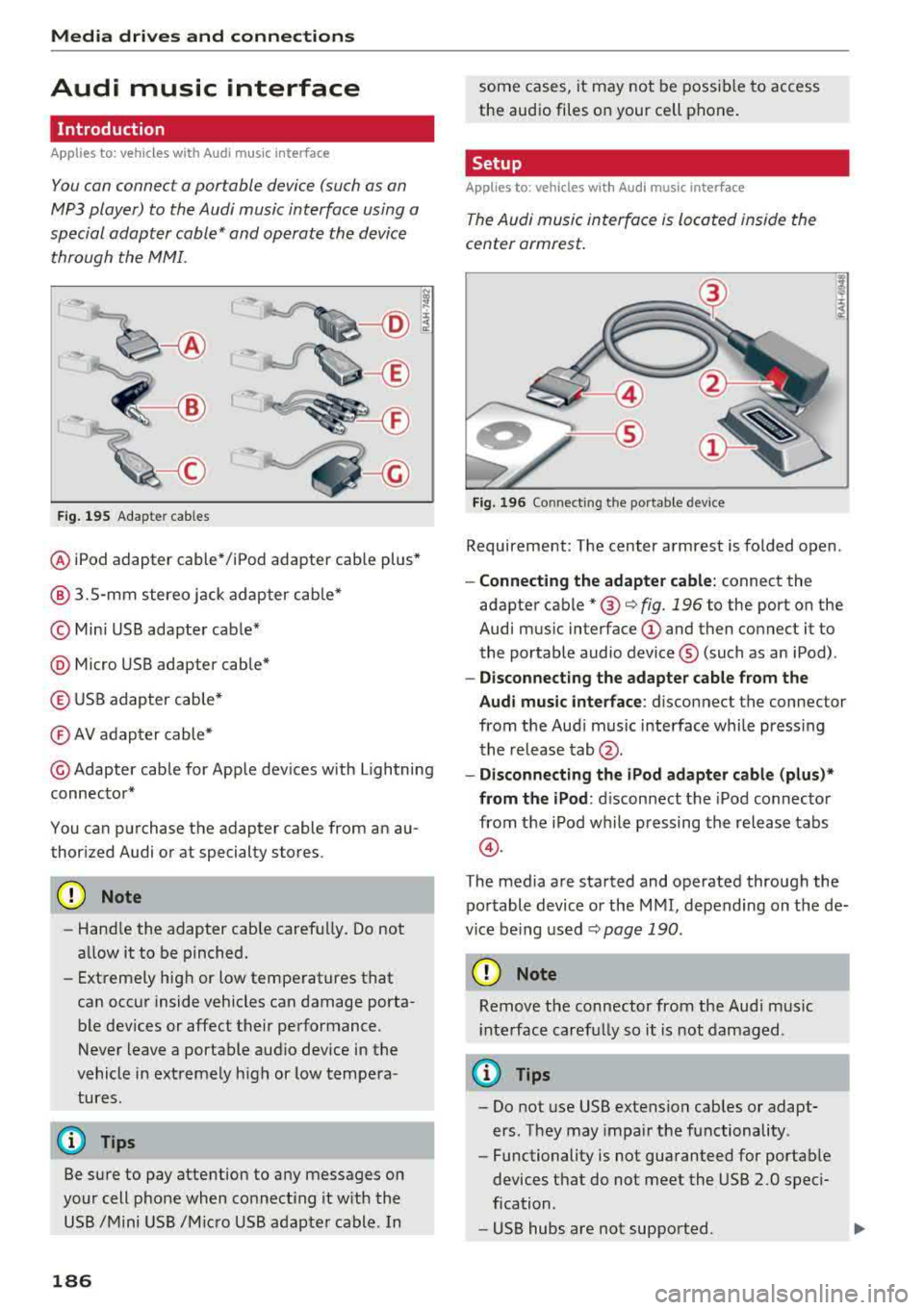
F ig. 195 Adap ter cables
® iPod adapter cable* /iPod adapter cable plus*
@ 3.5-mm stereo jack adapter cable*
© Mini USB adapter cab le*
@ Micro USB adapter cable*
© USB adapter cable*
® AV adapter cable*
@ Adapter cable for Apple dev ices with Lightning
connector*
You can purchase the adapter cable from an au
thorized Audi or at specialty stores.
@ Note
-Handle the adapter cable carefu lly. Do not
allow it to be pinched.
- Extremely high or low temperatures that
can occur inside vehicles can damage porta
ble dev ices or affect their performance .
Never leave a portable audio device in the
vehicle in extremely high or low tempera
tures.
(D Tips
Be sure to pay attention to any messages on
your cell phone when connect ing it w ith the
USB /Mini USB /M icro USB adapter cable. In
186
some cases, it may not be possible to access
the audio files on your cell phone.
Setup
Applies to: vehicles with Audi music interface
The Audi music interface is Located inside the
center armrest.
F ig. 196 Connecting th e portable device
Requirement: The center armrest is folded open .
-Connect ing the ad apter cabl e: connect the
adapter cable
* @ c:> fig . 196 to the port on the
Aud i mus ic interface
(D and then connect it to
the portable audio device ® (such as an iPod).
-Discon necting the adapter c able from the
Aud i m usic i nterf ace :
d isconnect the connector
from the Aud i music interface whi le press ing
the release
tab @.
-Disconne cti ng the iPo d adapter cabl e (plu s)*
from th e iPod :
disconnect the iPod connector
from the iPod while pressing the release tabs
@ .
The media are started and operated through the
portable device or the MMI, depending on the de
vice be ing used
.:;, page 190 .
(D Note
Remove t he connector from the Aud i mus ic
i nte rface carefully so it is not damaged.
@ Tips
- Do not use USB extension cables or adapt
ers . They may impair the functionality .
- Functionality is not guaranteed for portab le
devices t hat do not meet the USB 2.0 speci
fication .
- USB hubs are not supported.
Page 189 of 356
u. co ..... N
" N ..... 0 0 :c '
cannot be connected to the iPod adapter
ca
b le (p lus)* . Connect these devices using the
optiona l 3.5 mm stereo jack adapter cable*.
-For video p layback, you ca n also connect
your iPod using the AV adapter cable*. You
also need an App le AV cable to do this. For
more information on the App le AV cable,
re
fer to your iPod user guide .
-The Apple Lightning connector does not
support v ideo p layback.
Media dr ives and conn ection s
-iPod/iPhone malfunctions also affect t he
operation of the MMI. Reset yo ur iPod/
iPhone if this happens.
-For important information on operating
your iPod/iPhone, refe r to the user g uide fo r
the device. A udi recommends updating the
iPod/ iPhone software to the latest version.
-For more in fo rmat io n about the Aud i music
interface and suppo rted devices, v is it
www .audi.com /bluetooth or contact an au
thorized A udi dealer .
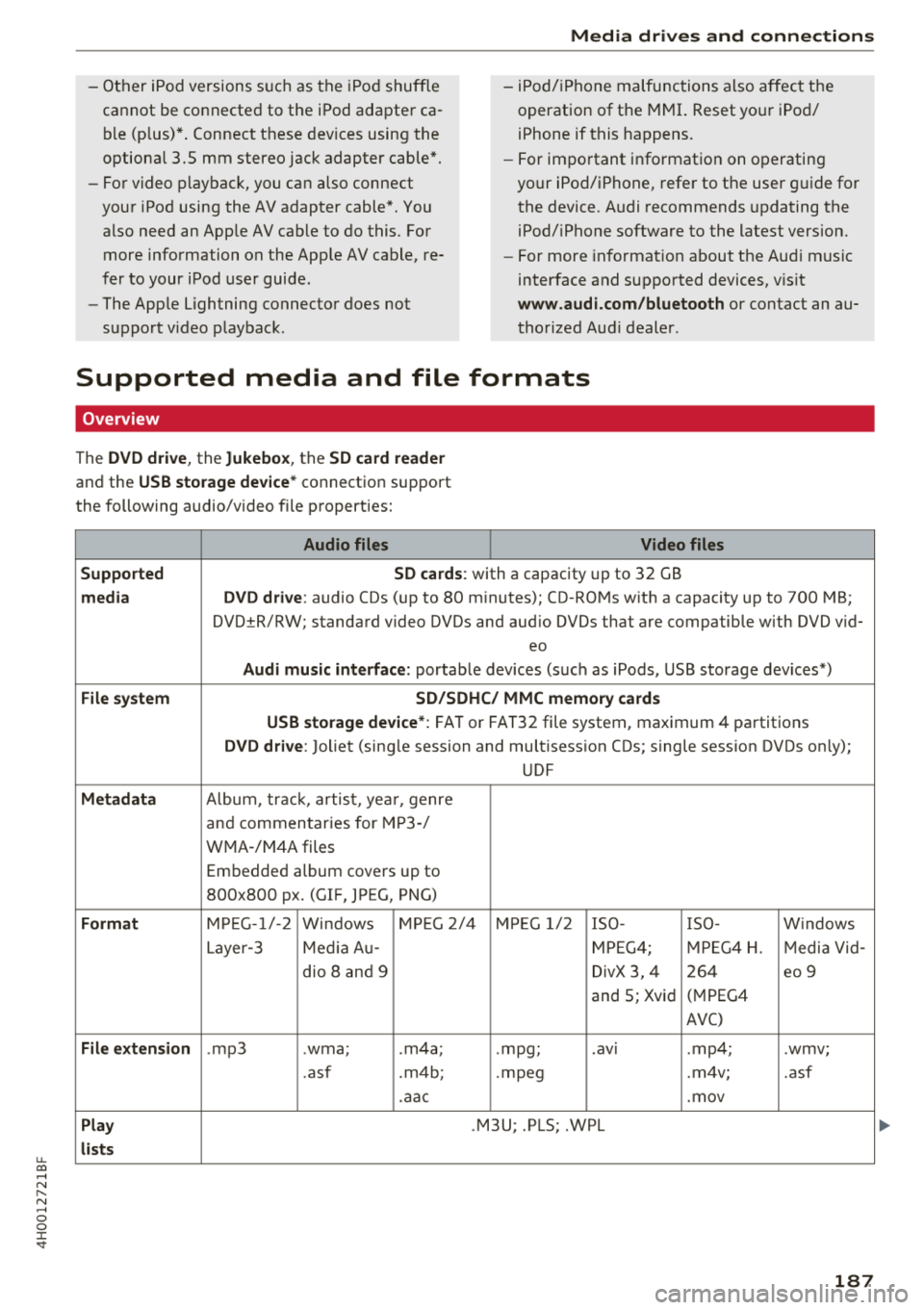
Supported media and file formats
Overview
The DVD drive , the Jukebox, the SD card reader
and the USB storage device* connectio n support
the following audio/video file properties:
Audio files Video files
Supported SD cards:
with a capacity up to 32 GB
media DVD drive: audio CDs (up to 80 m inutes); CD -RO Ms w ith a capacity up to 700 MB;
DVD±R/RW; standard video DVDs and audio DVDs that are compatible with DVD v id-
eo
Audi music int erface : portab le devices (such as iPods, USB storage dev ices*)
File system SD/SDHC/ MMC memory card s
USB storage device* :
FAT or FAT32 file system, maximum 4 partitions
DVD drive: Joliet (sing le session and multisess ion CDs; single sess ion DVDs on ly);
UDF
Metadat a Album, tra ck, artis t, ye ar, genre
and commen taries for M P3-/
W MA-/M4A files
Embedded album covers up to
800x800 px. (GIF, JPEG, PNG)
Format M PE G-1 /-2
Windows M PEG 2/4 M PEG 1/ 2 ISO- I SO - W indows
Layer -3 Me dia A u- MPEG4; MPE G4 H. Media Vid -
dio 8 an d 9 DivX 3, 4 264 eo 9
and 5; Xvid (
M PEG4
AVC)
File e xtension .mp3 .wma; .m4a; .mpg; .
av ,
.mp4; .wmv;
.asf .m4b; . mpeg .m 4v; .asf
.aa c .mov
Play .M3U; .PLS; .WPL
lists
187
Page 190 of 356
Media drive s and conn ection s
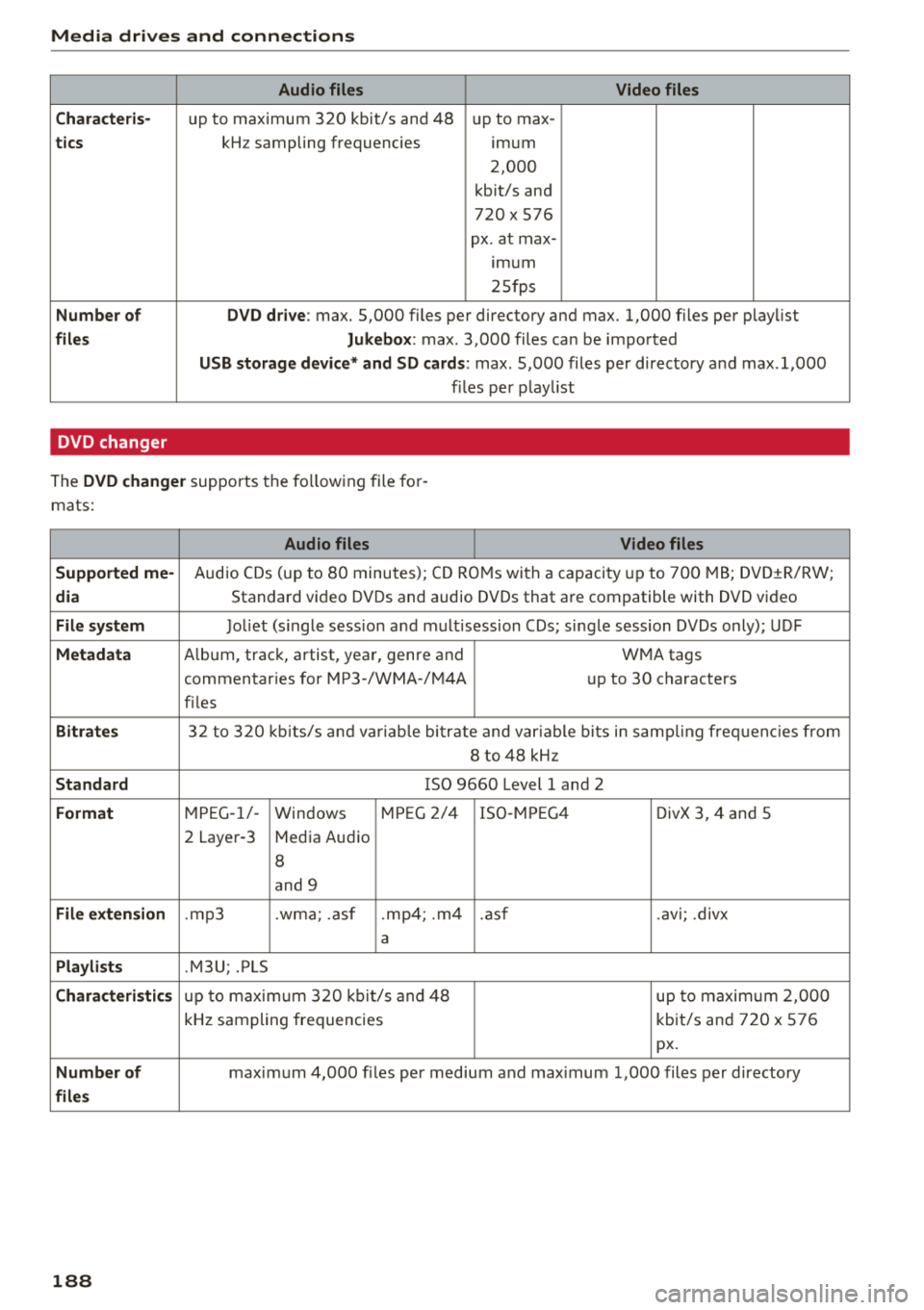
Audio files Video files
C ha ra cte ris-
up to maximum 320 kbit/s and 48 up to max -
tics kHz sampling frequencies imum
2,000
kbit/s and
720
X 576
px. at max-
Imum
25fps
Number of DV D dri ve : max. 5,000 files per directory and max. 1,000 files per playlist
files Jukebo x: max . 3,000 files can be imported
USB storage de vic e* and SD card s: max . 5,000 files per directory and max .1,000
f il es per play list
DVD changer
The DVD change r supports the fo llowing file fo r
mats:
Audio files Video files
Support ed me-
Audio CDs (up to 80 minutes); CD RO Ms with a capacity up to 700 MB; DVD±R/RW;
dia Standard video DVDs and audio DVDs that are compatible with DVD video
File system Joliet (s ingle sess ion a nd mult i session CDs; single session DVDs only); UDF
Metadata A lbum, track, artist, year, genre and
WMA tags
commentaries for MP3-/WMA -/M4A up to 30 characters
fi les
Bi tra tes 32 to 320 kb its/s a nd va riab le bitrate and var iable b its in samp ling freq uenc ies from
8 to 48 kHz
S tand ard ISO 9660 Level 1 and 2
Fo rmat M PEG-1/-
Windows MP
EG 2/4 ISO-MP EG4
DivX 3, 4 and 5
2 Layer-3 Media Audio
8
and 9
File exten sion .mp3 .wma; .asf .mp4; .m4 .asf .avi; .divx
a
Pla ylists .M3U; .PLS
Chara cteri stic s up to maxim um 320 kb it/s and 48 up to maximum 2,000
kHz sampling frequencies kbit/s and 720 x 576
px.
Numb er of maximum 4,000 f iles per medium and max imum 1,000 files per directory
file s
188
Page 192 of 356
Playing media
Playing media
Accessing media
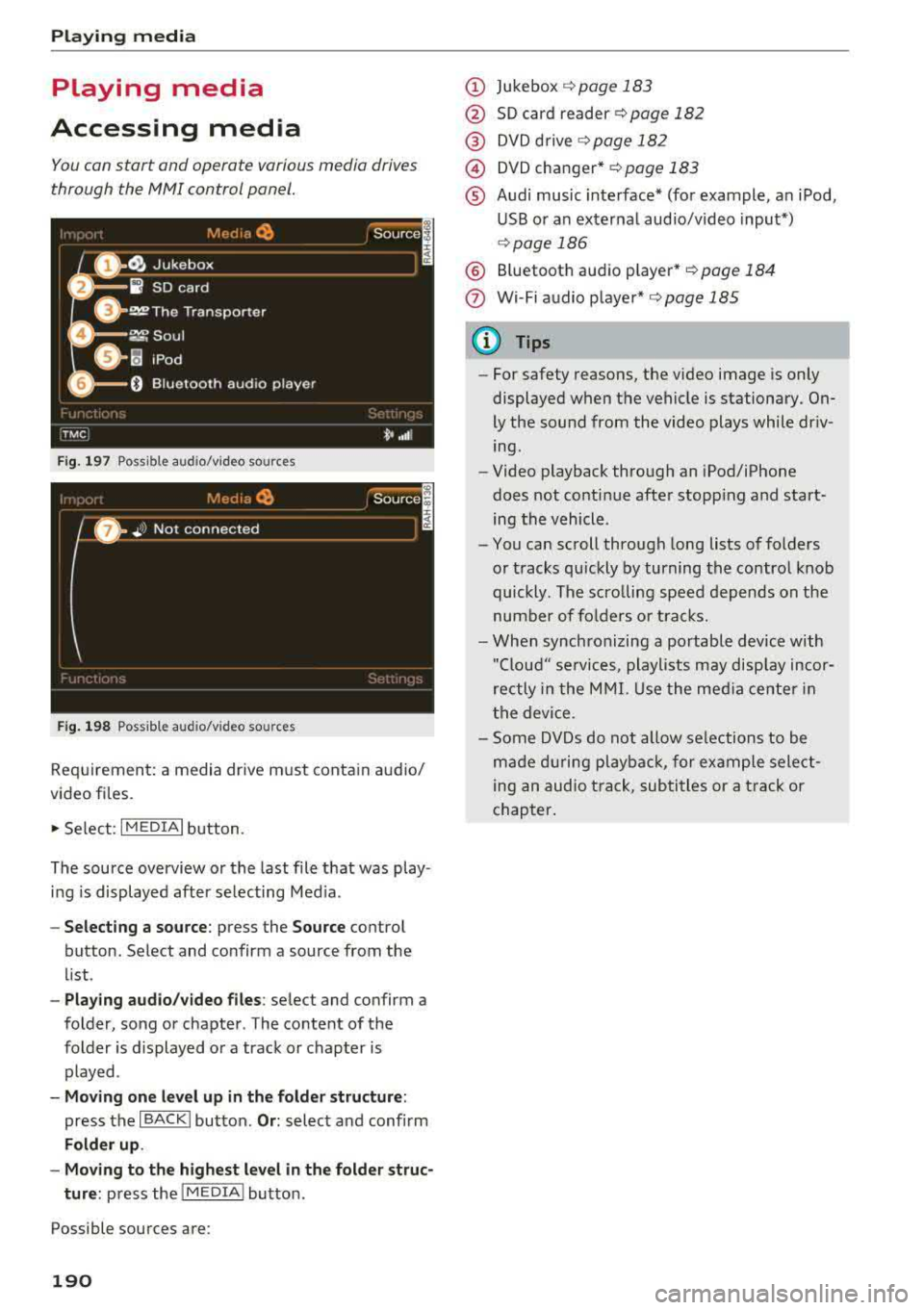
You con start and operate various media drives
through the
fvtfvtl control panel.
F ig. 197 Possible audio/video sources
Fig . 19 8 Possible aud io/video sources
Requirement: a media drive m ust cont ain audio/
video files.
., Select: I MEDIAi button.
The source overview or the last file that was play
i n g is displayed afte r se lecting Med ia .
- Selecting a source : press the Source control
button. Select and confirm a source from the
l ist .
-Play ing audio /video files : select and confirm a
folder, song or chapter. The content of the
folder is displayed or a track or chapter is
played .
-Mo ving one l eve l up in the folder struct ure:
press the I BACKI button. Or : select and confirm
Folder up .
- Movin g to th e highest level in the folder str uc
ture :
press the I MEDIA i button.
Possible sources are:
190
(D Jukebox ¢page 183
@ SD card reader¢ page 182
@ DVD d rive ¢ page 182
@) DVD changer* r::!:>poge 183
® Audi music interface* (for example, an iPod,
USB or an externa l audio/v ideo input*)
¢ page 186
® Bluetooth aud io p layer* <::!; page 184
(!) Wi-Fi audio player*¢ page 185
{!) Tips
-For safety reasons, the video image is only
displayed when the vehicle is stationary.
On
ly the sound from the video plays while dr iv
ing .
- Video playback through an iPod/iPhone
does not conti nue after stopp ing and start
ing the vehicle.
- You can scroll through long lists of folders
or tracks qu ickly by turning the control knob
quickly. The scro lling speed depends on the
number of fo lders o r tracks.
- When synchronizing a portable device w ith
"Clou d" services, playlists may disp lay incor
rectly in the M MI. Use the med ia ce nter in
t h e device.
- Some DVDs do not allow selections to be
ma de d uring playbac k, for ex ample sele ct
ing an audio track, subtitles or a t rack or
chapter .
Page 201 of 356
lL t:0 ....
"' ......
"' .... 0 0 :c '
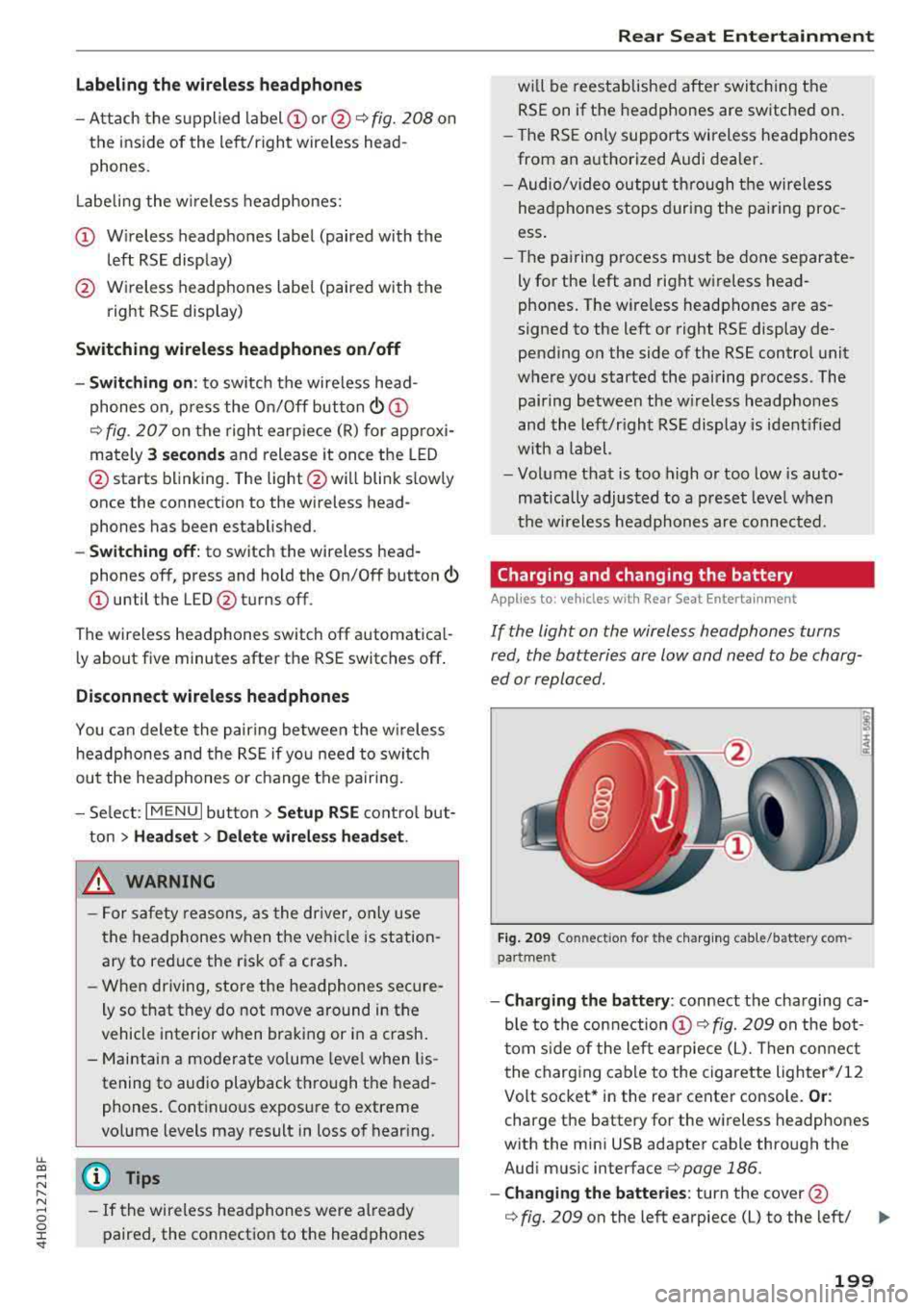
-Attach the supplied label CD or @ ¢ fig. 208 on
the inside of the lef t/right wire less head
phones .
L abeling the w ireless headphones:
CD W ireless headphones label (paired with the
left RSE disp lay)
@ Wireless headphones labe l (paired with the
right RSE display)
Switching w irel ess headphones on /off
- Swit ching on : to switch the wireless head
phones on, p ress the On/ Off
button
¢ fig. 207 on the right earp iece (R) for approxi
mately
3 sec ond s and release it once the LED
@ starts blinking. The light @will blink s lowly
once the connection to the wireless head phones has been established .
-Sw itching off : to switch the wireless head
phones off, press and hold the On/Off button
CD until the LED @turns off.
The wireless headphones switch off automatical ly about five minutes after the RSE switches off .
Disconnect wireless headphones
You can delete the pairing between the w ireless
h eadphones and the RS E if yo u need to switch
out the headphones o r change the pairing.
- Se lect :
IM ENU I button > Setup RSE cont rol but
ton
> Head set > Delet e wirele ss heads et.
& WARNING
- F or safety reasons, as the dr iver, only use
the headphones when the vehicle is station ary to reduce the risk of a crash.
- When driving, store the headphones secure
ly so that they do not move around in the
vehicle interior when bra king or in a crash .
- Maintai n a mode rate vo lume leve l when lis
tening to audio playback through the head
phones. Continuo us expos ure to extreme
volume levels may result in loss of hear ing.
(D Tips
- If the wireless headphones were already
paired, the connection to the headphones
-
Rear Seat Entertainment
wi ll be reestablished after switc hing the
RSE on if the headphones are switched on.
- The RSE on ly supports wireless headphones
from an authorized Audi dealer .
- Audio/video output through the wire less
headphones stops during the pai ring proc
ess.
- The pairing process must be done separate
ly for the left and right wireless head
phones. The wire less headphones are as
signed to the left or right RSE display de
pending on the side of the RSE control unit
where you started the pairing process . The
pairing between the w ireless headp hones
and the left/right RSE display is ident ified
w ith a label.
- Volume that is too high or too low is auto
matically adjusted to a p reset leve l when
the wireless headphones are connected .
Charging and changing the battery
Applies to: vehicles with Rear Seat Entertainment
If the light on the wireless headphones turns
red, the batteries are low and need to be charg
ed or replaced.
F ig . 209 Co nn ectio n fo r th e charg ing cab le /battery co m
pa rt me nt
- Charging the battery : connect the charging ca
ble to the connection
CD ¢ fig. 209 on the bo t
t om s ide of the left ea rpiece (L). Then con nect
the charging cable to the cigarette lighter */12
Volt socket* in the rear center console.
Or :
charge the battery for the wireless headp hones
w ith the min i USB adapter cable th rough the
Aud i mus ic interface
¢ page 186.
- Ch anging th e batterie s: turn the cover@
¢ fig. 209 on the left earpiece (L) to the left/ IJI,,-
199
Page 203 of 356
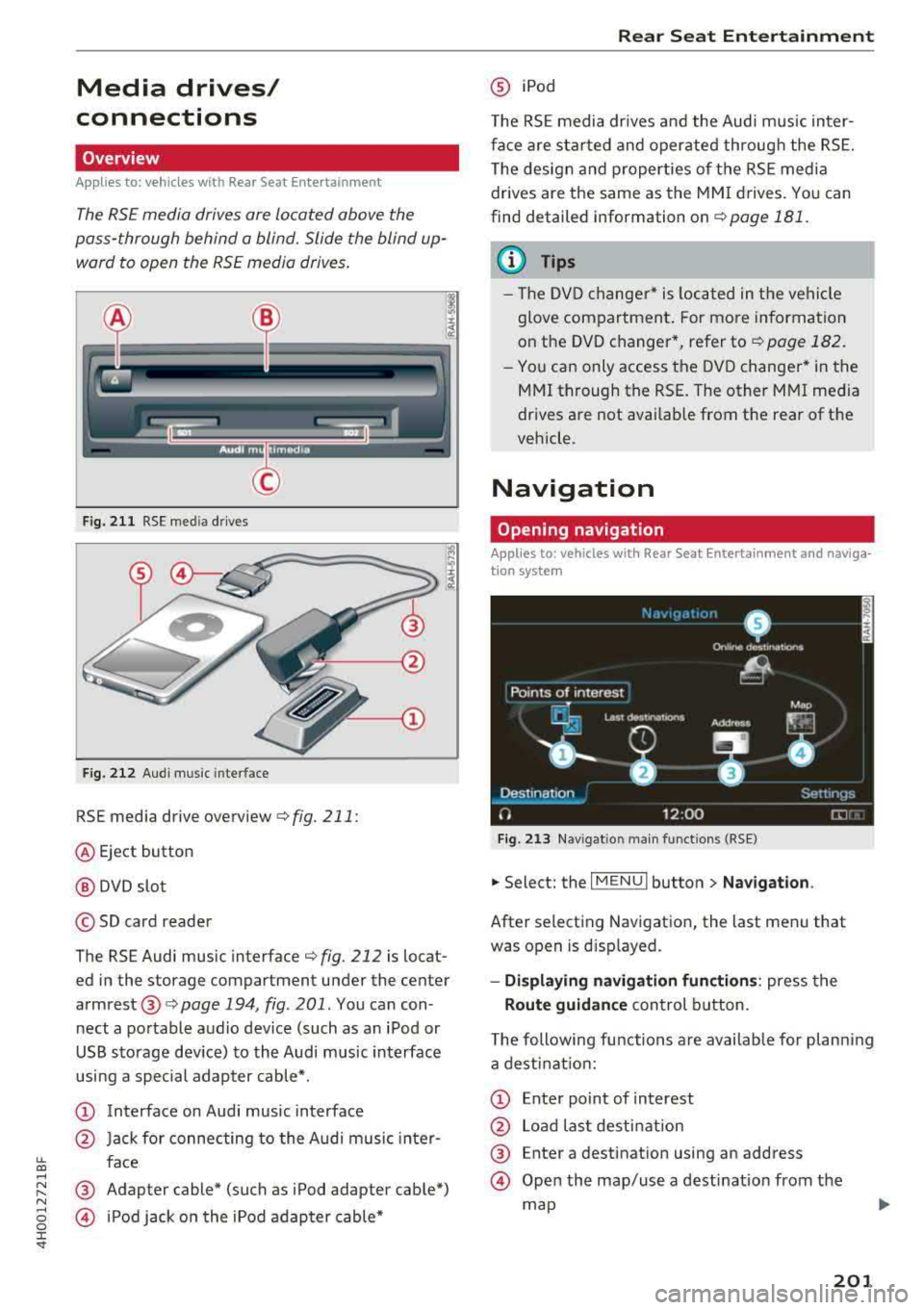
Media drives/
connections
Overview
A pp lies to: ve hicles with Rea r Seat E nte rtainment
The RS£ media drives are Located above the
pass-through behind a blind. Slide the blind up
ward to open the RS£ media drives .
Fig. 211 RSE media drives
Fig. 212 Audi music interface
RSE media drive overview c:> fig. 211:
@ Eject button
@ DVD slot
© SD card reader
The RSE Audi music interface
c:> fig. 212 is locat
ed in the storage compartment under the center
armrest@c:> page 194, fig . 201. You can con
nect a portable audio device (such as an iPod or
USB storage dev ice) to the Audi music interface
usi ng a special adapter cable*.
CD Interface on Audi music interface
@ Jack for connecting to the Audi music inter-
~ face ....
~ ® Adapter cable* (such as iPod adapter cable*) N
§ @ iPod jack on the iPod adapter cable*
:c '
@ iPod
T he RSE media dr ives and the Audi music in ter
face are sta rted and operated through the RSE.
The design and properties of the RSE media
drives are the same as the MMI drives. You can
find detailed information on
c:> page 181.
(D Tips
- The DVD changer* is located in the vehi cle
glove compartment . For more information
on the DVD changer*, refer
tor=;, page 182.
-You can only access the DVD changer* in the
MMI through the RSE. The other MMI media
drives are not availab le from the rear of the
vehicle.
Navigation
Opening navigation
App lies to: vehicles wi th Rear Sea t E nterta inment and naviga
t ion syste m
Fig. 213 Na vigat io n ma in funct ions (RSE)
.,. Select: the I MENU I button> Navigation .
After selecting Navigation, the last menu that
was open is displayed.
-Displaying navigation functions: press the
Route guidance control button.
The following functions are available for planning
a destination:
CD Enter po int of interest
@ Load last destination
® Enter a destination using an address
@ Open the map/use a destination from the
map
201