service AUDI E-TRON 2019 Owners Manual
[x] Cancel search | Manufacturer: AUDI, Model Year: 2019, Model line: E-TRON, Model: AUDI E-TRON 2019Pages: 310, PDF Size: 81.91 MB
Page 223 of 310
4KE012721BB
Media
@) Note
— Pull the cable out of the Audi music inter-
face carefully so that the USB ports are not
damaged.
— Use a USB extension cable to connect devi-
ces that have an integrated USB connector
(such as a USB stick) to reduce the risk of
damage to your USB device and the Audi
music interface.
— Extremely high or low temperatures that
can occur inside vehicles can damage mobile
devices and/or impair their performance.
Never leave mobile devices in the vehicle in
extremely high or low temperatures.
@ Tips
— Always follow the information found in
=> page 75.
— When you switch the ignition off, the USB
ports are still supplied with power until the
energy management intervenes.
— Do not use an additional adapter cable or
USB extension cable to connect mobile devi-
ces to the Audi music interface that already
have a cable or that must be connected with
a USB adapter cable (> page 220, fig. 153).
Using an additional adapter or US extension
cable may impair functionality.
— Functionality is not guaranteed for mobile
devices that do not conform to the USB 2.0
specification.
— USB hubs are not supported.
— Video playback through the Audi music in-
terface is not supported on Apple and MTP
devices (such as smartphones).
— iPod or iPhone malfunctions also affect the
operation of the MMI. Reset your mobile de-
vice in these situations.
— Audi recommends updating the iPod or
iPhone software to the latest version. Refer
to your mobile device owner's manual for
more information.
— The USB adapter on the Audi music inter-
face will support iPod touch or iPhone devi-
ces from the 5th generation or newer with
the lightning connector.
— For more information about the Audi music
interface and supported devices, check the
Audi database for mobile devices at www.
audiusa.com/mp3 or contact an authorized
Audi dealer or authorized Audi Service Fa-
cility.
Playing media
The following sources can be selected depending
on the vehicle equipment:
— Amazon Alexa > page 220
—SD card > page 217.
— USB © page 220.
— DVD drive > page 218
— Connect external device: you can connect ex-
ternal devices via Bluetooth and use the Blue-
tooth audio player > page 218, or you can con-
nect an external device directly to the Audi mu-
sic interface > page 220.
— Connect online media > page 219.
Accessing media
Playing media files using the MMI
> Applies to: MMI: Select on the home screen:
MEDIA > Source > a source. Depending on the
connected device or online media service”, the
symbol for a source may change. The device
name may be displayed (for example: my-
Phone).
> Select a track from the categories in the media
center > page 222.
Playing media files using the multifunction
steering wheel
Requirement: a media drive must contain media
files > page 221.
> Select the Radio/Media tab using the multi-
function steering wheel.
> Turn the left thumbwheel to display the play-
list.
> To switch to a different source, press the [=|
button.
> To select a media file or a source, turn and
press the left thumbwheel.
221
Page 224 of 310
Media
> To switch between radio and media, select the
button > Switch to radio/Switch to media.
@ Tips
— For safety reasons, the video image is only
displayed when the vehicle is stationary. On-
ly the sound from the video plays while driv-
ing.
— Applies to: multifunction steering wheel:
Depending on the selected function, opera-
tion through the MMI may be required.
3 g 5
Ig BS
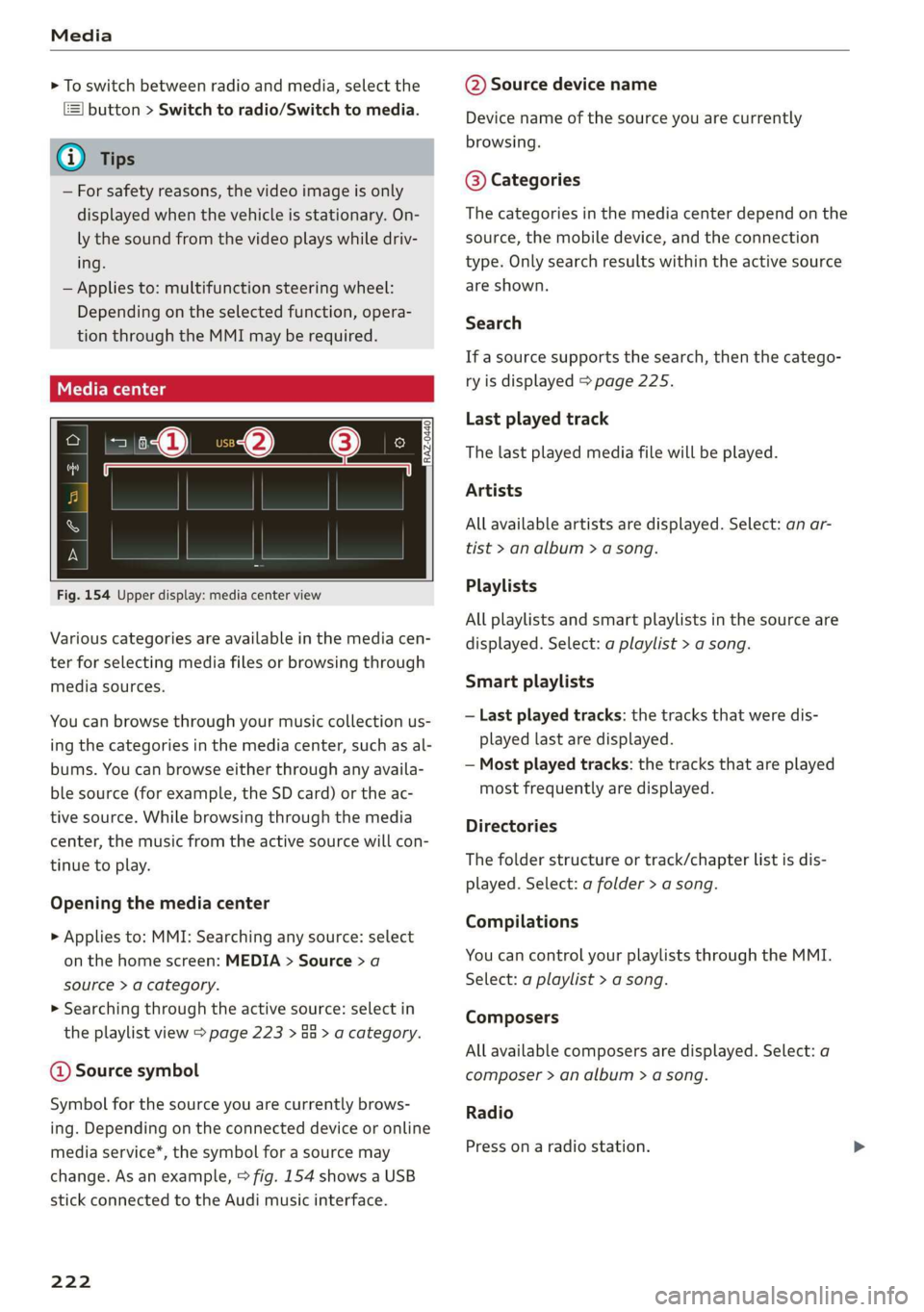
Fig. 154 Upper display: media center view
Various categories are available in the media cen-
ter for selecting media files or browsing through
media sources.
You can browse through your music collection us-
ing
the categories in the media center, such as al-
bums. You can browse either through any availa-
ble source (for example, the SD card) or the ac-
tive source. While browsing through the media
center, the music from the active source will con-
tinue to play.
Opening the media center
> Applies to: MMI: Searching any source: select
on the home screen: MEDIA > Source > a
source > a category.
> Searching through the active source: select in
the playlist view > page 223 > an > a category.
@ Source symbol
Symbol for the source you are currently brows-
ing. Depending on the connected device or online
media service*, the symbol for a source may
change. As an example, > fig. 154 shows a USB
stick connected to the Audi music interface.
222
@ Source device name
Device name of the source you are currently
browsing.
@® Categories
The categories in the media center depend on the
source, the mobile device, and the connection
type. Only search results within the active source
are shown.
Search
If a source supports the search, then the catego-
ry is displayed > page 225.
Last played track
The last played media file will be played.
Artists
All available artists are displayed. Select: an ar-
tist
> an album > a song.
Playlists
All playlists and smart playlists in the source are
displayed. Select: a playlist > a song.
Smart playlists
— Last played tracks: the tracks that were dis-
played last are displayed.
— Most played tracks: the tracks that are played
most frequently are displayed.
Directories
The folder structure or track/chapter list is dis-
played. Select: a folder > a song.
Compilations
You can control your playlists through the MMI.
Select: a playlist > a song.
Composers
All available composers are displayed. Select: a
composer > an album > a song.
Radio
Press ona radio station.
Page 225 of 310
4KE012721BB
Media
Audio books
You can control your audio books on the MMI.
Press on an audio book.
Podcasts
You can control your podcasts through the MMI.
Select: a podcast > a podcast episode.
Genres
All available genres are displayed. Select: a genre
> an artist > an album > a song.
Videos
All available video files are displayed. Press ona
video.
Tracks
All available tracks are displayed. Press ona
track.
Albums
All available albums are displayed. Select: an al-
bum > a track.
@) Note
Applies to: vehicles with Audi connect Infotainment
— Cloud services and category radio always re-
quire an Internet connection.
elem irad (lary
— Read the information about Audi connect,
and be sure to note the connectivity costs
section >@ in General information on
page 184.
G@) Tips
— Only the categories supported by the medi-
um are available.
— For safety reasons, the video image is only
displayed when the vehicle is stationary. On-
ly the sound from the video plays while driv-
ing.
—When synchronizing a portable device with
Cloud services, playlists may display incor-
rectly
in the MMI. Use the media center in
the device.
(i) Tips
Applies to: iPod/iPhone
Also read the information on the Audi music
interface and the supported devices
=> page 220.
Romy
0:32 | -2:48
RAX-0098
tae)
Hymn
Brad:
ait)
rae
rs
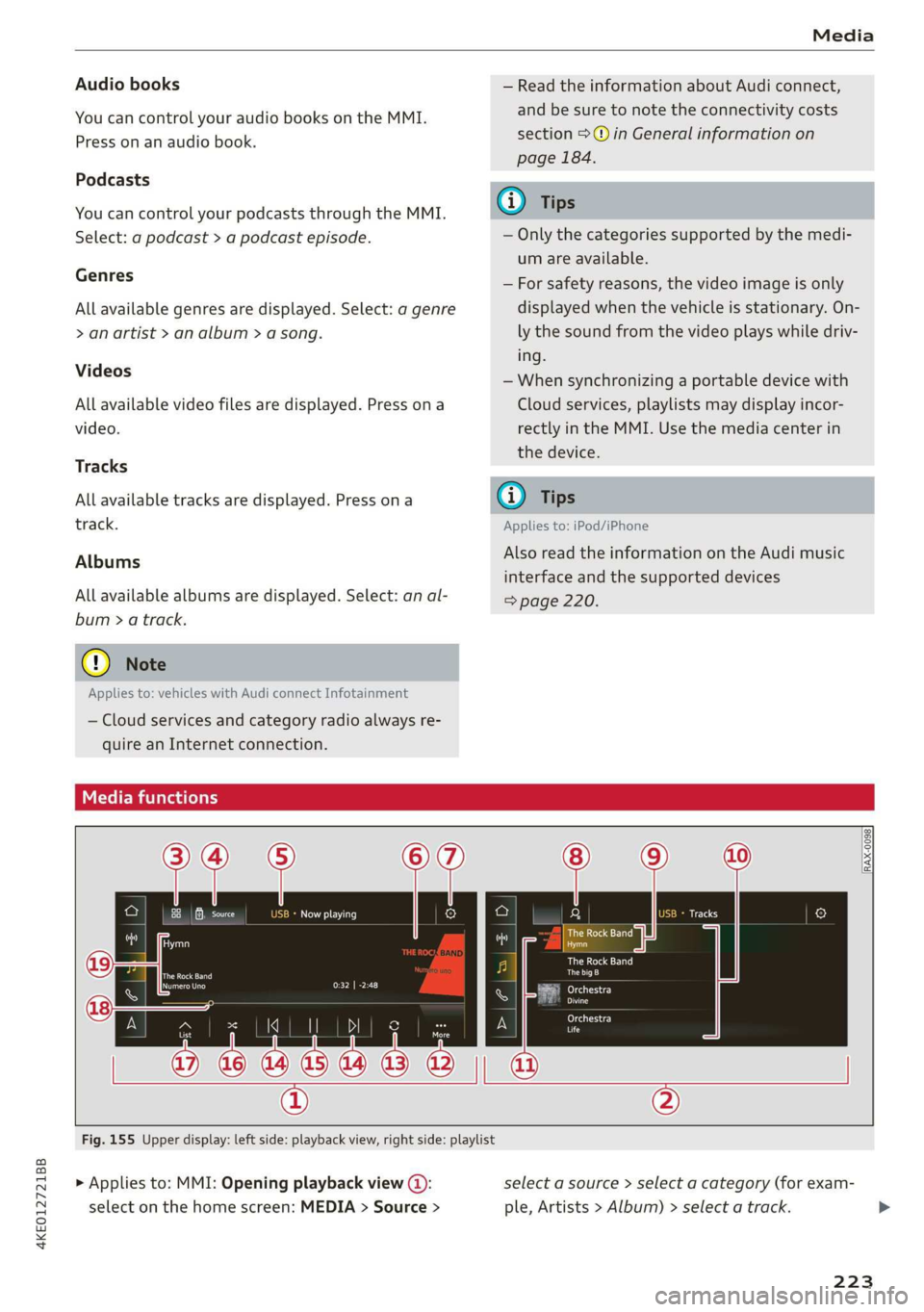
Fig. 155 Upper display: left side: playback view, right side: playlist
> Applies to: MMI: Opening playback view (@):
select on the home screen: MEDIA > Source >
select a source > select a category (for exam-
ple, Artists > Album) > select a track.
223
Page 231 of 310
4KE012721BB
Audi smartphone interface
Audi smartphone
interface
Setup
Applies to: vehicles with Audi smartphone interface
You can connect your smartphone to the MMI
with a cable or wirelessly* using the Audi smart-
phone interface. Certain content on your smart-
phone is adapted in the MMI while driving and
can be operated through the MMI.
Requirement
The vehicle must be stationary and the ignition
must be switched on.
iPhone generation 5 or higher with Lightning
connector and iOS 7.1.2 operating system or
higher, or
A smartphone with the Android Auto app and An-
droid 5.0 Lollipop operating system or higher is
required.
> Applies to: MMI: Select on the home screen:
SETTINGS > Connected devices > Audi smart-
phone interface > New connection.
> Connect your smartphone to the Audi music in-
terface > page 220 using a USB adapter
=> page 220, fig. 153, or
> To connect your iPhone wireless*, switch on the
Bluetooth function and Wi-Fi on your iPhone.
Open the CarPlay settings in your iPhone. In the
MMI, press on your smartphone in the list of
displayed devices.
> To update the list, press O.
> Follow the system instructions.
>» Pay attention to any additional system prompts
on your smartphone, if applicable.
Applies to: MMI: If you declined use of Apple Car-
Play or Android Auto the first time you connected
your smartphone, then select on the home
screen: SETTINGS > Connected devices > Audi
smartphone interface > a smartphone.
> Follow the system instructions.
mobile devices while driving, because this in-
creases the risk of an accident.
ZA\ WARNING
Driving requires your complete and undivided
attention. As the driver, you have complete re-
sponsibility for safety in traffic. Never operate
() Note
Read the information about Audi connect, and
be sure to note the connectivity costs section
=> page 184.
G) Tips
— The functions that can be used depend on
the following factors, among others:
—The brand of your smartphone
—The version of the operating system in
your smartphone
— The software version of the app used
— The USB adapter cable and correct connec-
tion
— Your cell phone service provider
— The customized settings on your smart-
phone
— One of the factors above or a combination
of any of them could cause your smart-
phone to be incompatible with the Audi
smartphone interface. Compatibility cannot
be guaranteed for all types of smartphones.
For more information and assistance, refer
to the user guide and the manufacturer of
your smartphone.
— Please note that you can only connect your
smartphone via the front Audi music inter-
face in order to use the Audi smartphone in-
terface.
— Wireless CarPlay* is not available in all
countries.
— Wireless CarPlay* is only available if your ve-
hicle is registered through a certain option
in the mobile phone network > page 185,
Embedded SIM card. Make sure the function
= page 181, Turn on car phone or data
module is switched on.
— If the connected smartphone has voice con-
trol, you can operate your smartphone using
the external voice recognition system
=> page 25.
— The menu language shown in the MMI is
based on the settings in your smartphone.
229
>
Page 232 of 310
Audi smartphone interface
— Some MMI functions are not available when — AUDI AG merely provides access to third
there is an active Audi smartphone interface party services through the MMI and does
connection. not assume any responsibility for the con-
— You cannot connect any mobile devices via tent of these services.
Bluetooth when an Apple CarPlay connec-
tion is active.
— Usage of the Audi smartphone interface de-
pends on the availability of services through
third party providers.
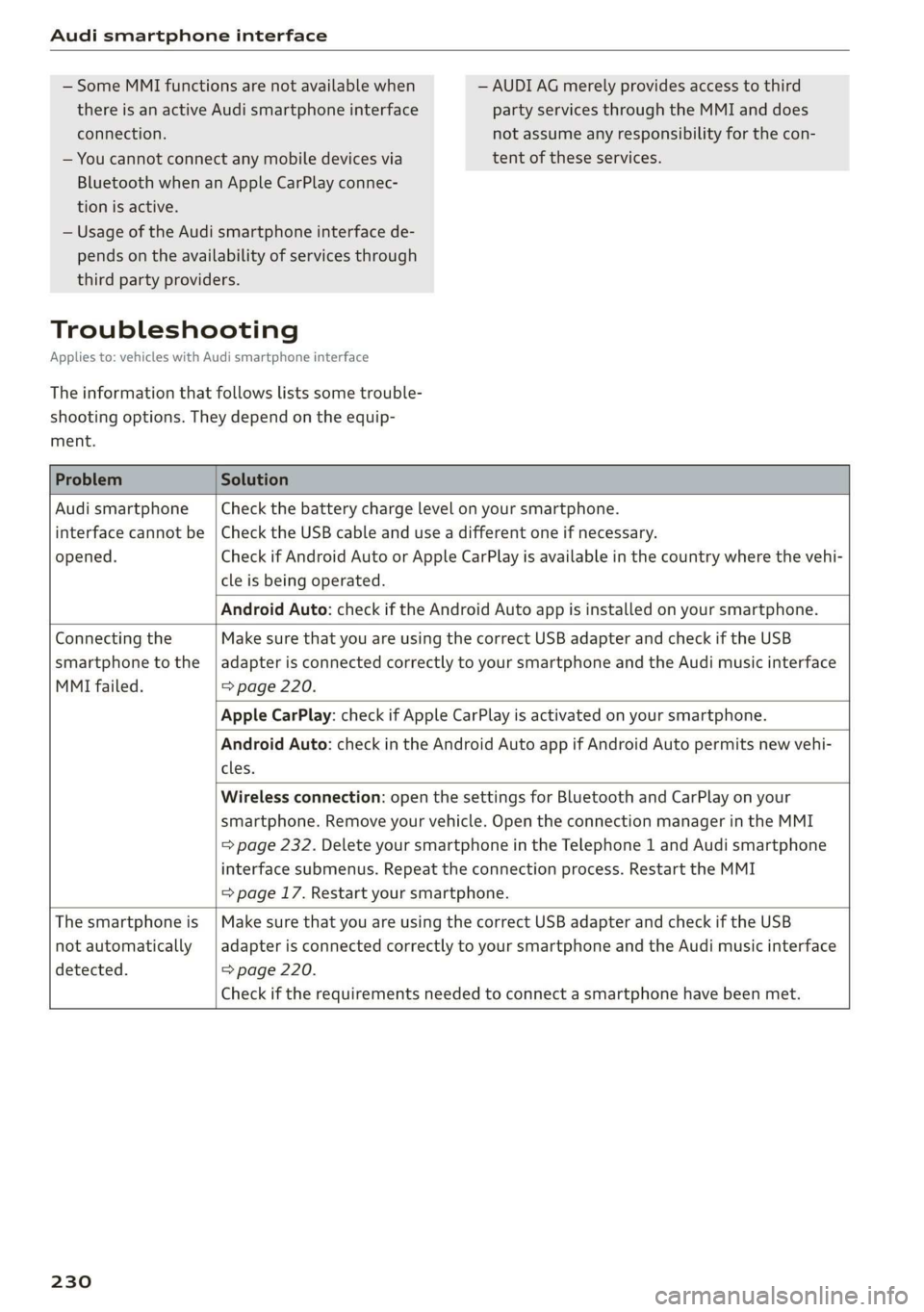
Troubleshooting
Applies to: vehicles with Audi smartphone interface
The information that follows lists some trouble-
shooting options. They depend on the equip-
ment.
Problem Solution
Audi smartphone
interface cannot be
opened.
Check the battery charge level on your smartphone.
Check the USB cable and use a different one if necessary.
Check if Android Auto or Apple CarPlay is available in the country where the vehi-
cle is being operated.
Android Auto: check if the Android Auto app is installed on your smartphone.
Connecting the
smartphone to the
MMI failed.
Make sure that you are using the correct USB adapter and check if the USB
adapter is connected correctly to your smartphone and the Audi music interface
=> page 220.
Apple CarPlay: check if Apple CarPlay is activated on your smartphone.
Android Auto: check in the Android Auto app if Android Auto permits new vehi-
cles.
Wireless connection: open the settings for Bluetooth and CarPlay on your
smartphone. Remove your vehicle. Open the connection manager in the MMI
=> page 232. Delete your smartphone in the Telephone 1 and Audi smartphone
interface submenus. Repeat the connection process. Restart the MMI
=> page 17. Restart your smartphone.
The smartphone is
not automatically
detected.
Make sure that you are using the correct USB adapter and check if the USB
adapter is connected correctly to your smartphone and the Audi music interface
=> page 220.
Check if the requirements needed to connect a smartphone have been met.
230
Page 234 of 310
Additional settings
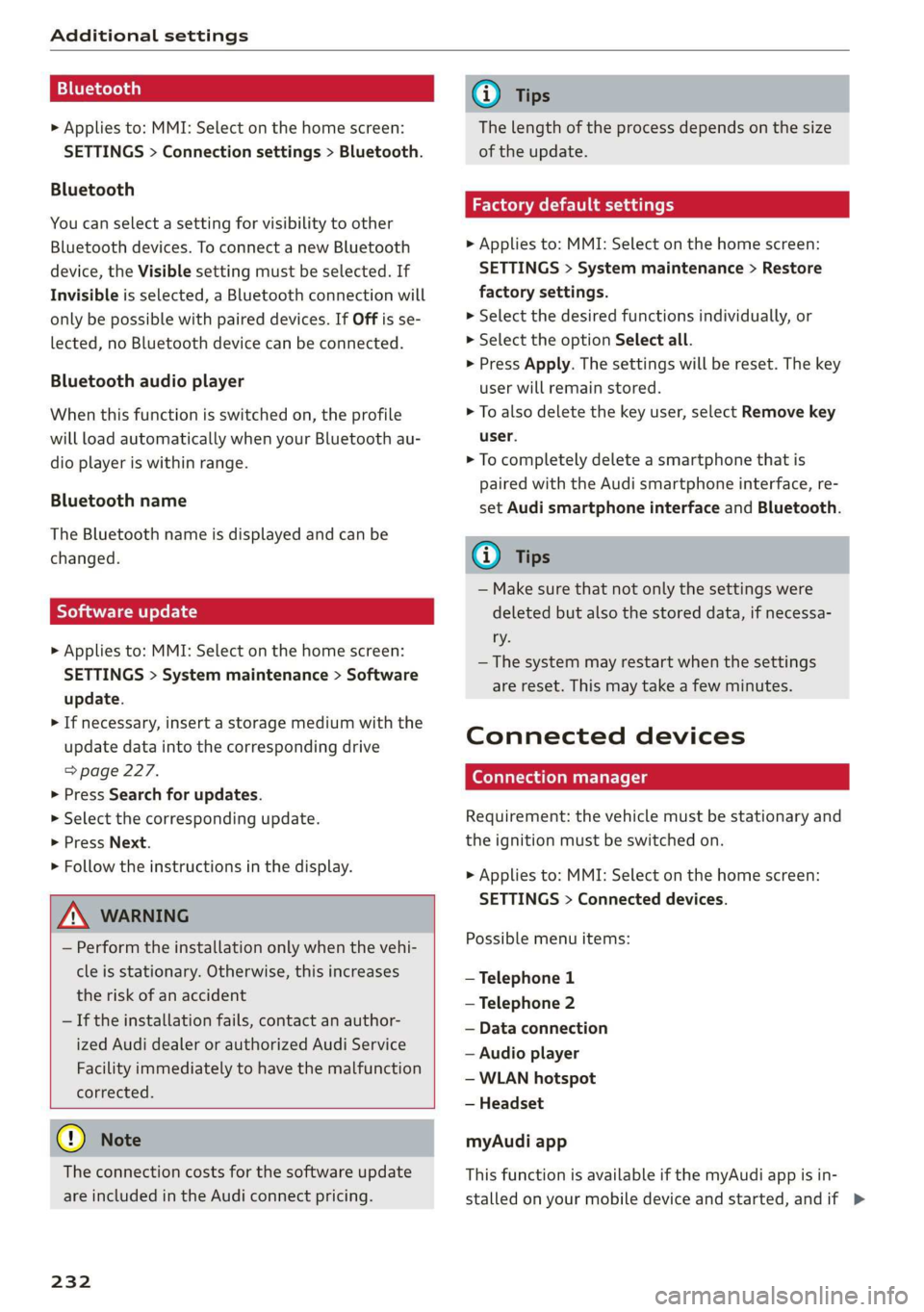
Bluetooth
> Applies to: MMI: Select on the home screen:
SETTINGS > Connection settings > Bluetooth.
Bluetooth
You can select a setting for visibility to other
Bluetooth devices. To connect a new Bluetooth
device, the Visible setting must be selected. If
Invisible is selected, a Bluetooth connection will
only be possible with paired devices. If Off is se-
lected, no Bluetooth device can be connected.
Bluetooth audio player
When this function is switched on, the profile
will load automatically when your Bluetooth au-
dio player is within range.
Bluetooth name
The Bluetooth name is displayed and can be
changed.
Software update
> Applies to: MMI: Select on the home screen:
SETTINGS > System maintenance > Software
update.
> If necessary, insert a storage medium with the
update data into the corresponding drive
=> page 227.
> Press Search for updates.
> Select the corresponding update.
> Press Next.
> Follow the instructions in the display.
Z\ WARNING
— Perform the installation only when the vehi-
cle is stationary. Otherwise, this increases
the risk of an accident
— If the installation fails, contact an author-
ized Audi dealer or authorized Audi Service
Facility immediately to have the malfunction
corrected.
@) Note
The connection costs for the software update
are included in the Audi connect pricing.
232
G) Tips
The length of the process depends on the size
of the update.
Factory default settings
> Applies to: MMI: Select on the home screen:
SETTINGS > System maintenance > Restore
factory settings.
> Select the desired functions individually, or
> Select the option Select all.
> Press Apply. The settings will be reset. The key
user will remain stored.
> To also delete the key user, select Remove key
user.
> To completely delete a smartphone that is
paired with the Audi smartphone interface, re-
set Audi smartphone interface and Bluetooth.
G) Tips
— Make sure that not only the settings were
deleted but also the stored data, if necessa-
ry.
— The system may restart when the settings
are reset. This may take a few minutes.
Connected devices
(eye e Ts ( Us
Requirement: the vehicle must be stationary and
the ignition must be switched on.
> Applies to: MMI: Select on the home screen:
SETTINGS > Connected devices.
Possible menu items:
— Telephone 1
— Telephone 2
— Data connection
— Audio player
— WLAN hotspot
— Headset
myAudi app
This function is available if the myAudi app is in-
stalled on your mobile device and started, andif >
Page 237 of 310
4KE012721BB
Checking and Filling
Checking and Filling
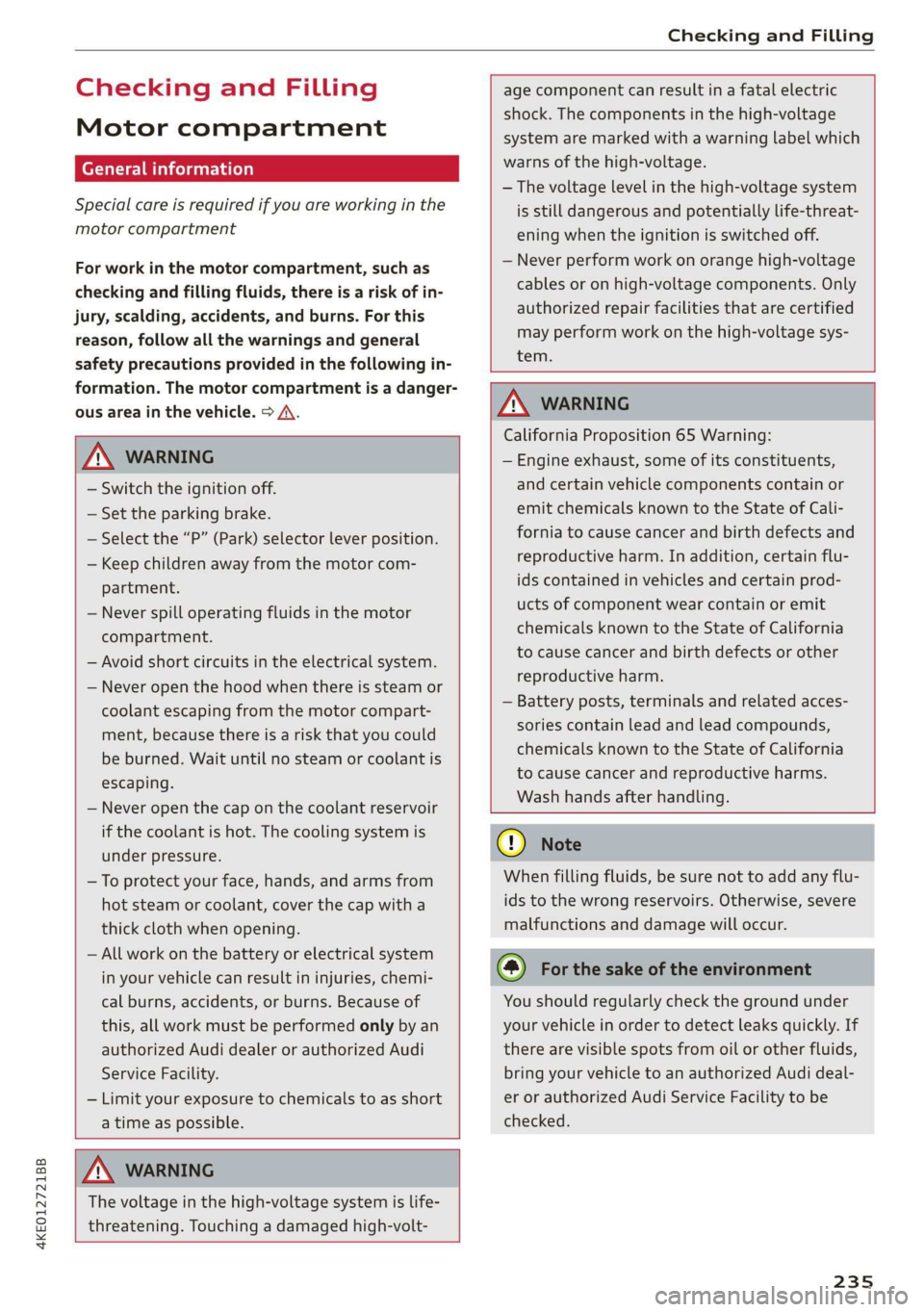
Motor compartment
General information
Special care is required if you are working in the
motor compartment
For work in the motor compartment, such as
checking and filling fluids, there is a risk of in-
jury, scalding, accidents, and burns. For this
reason, follow all the warnings and general
safety precautions provided in the following in-
formation. The motor compartment is a danger-
ous area in the vehicle. > A.
age component can result in a fatal electric
shock. The components in the high-voltage
system are marked with a warning label which
warns of the high-voltage.
— The voltage level in the high-voltage system
is still dangerous and potentially life-threat-
ening when the ignition is switched off.
— Never perform work on orange high-voltage
cables or on high-voltage components. Only
authorized repair facilities that are certified
may perform work on the high-voltage sys-
tem.
ZA WARNING
— Switch the ignition off.
— Set the parking brake.
— Select the “P” (Park) selector lever position.
— Keep children away from the motor com-
partment.
— Never spill operating fluids in the motor
compartment.
— Avoid short circuits in the electrical system.
— Never open the hood when there is steam or
coolant escaping from the motor compart-
ment, because there is a risk that you could
be burned. Wait until no steam or coolant is
escaping.
— Never open the cap on the coolant reservoir
if the coolant is hot. The cooling system is
under pressure.
— To protect your face, hands, and arms from
hot steam or coolant, cover the cap with a
thick cloth when opening.
— All work on the battery or electrical system
in your vehicle can result in injuries, chemi-
cal burns, accidents, or burns. Because of
this, all work must be performed only by an
authorized Audi dealer or authorized Audi
Service Facility.
— Limit your exposure to chemicals to as short
a time as possible.
ZA WARNING
California Proposition 65 Warning:
— Engine exhaust, some of its constituents,
and certain vehicle components contain or
emit chemicals known to the State of Cali-
fornia to cause cancer and birth defects and
reproductive harm. In addition, certain flu-
ids contained in vehicles and certain prod-
ucts of component wear contain or emit
chemicals known to the State of California
to cause cancer and birth defects or other
reproductive harm.
— Battery posts, terminals and related acces-
sories contain lead and lead compounds,
chemicals known to the State of California
to cause cancer and reproductive harms.
Wash hands after handling.
ZA\ WARNING
The voltage in the high-voltage system is life-
threatening. Touching a damaged high-volt-
() Note
When filling fluids, be sure not to add any flu-
ids to the wrong reservoirs. Otherwise, severe
malfunctions and damage will occur.
@) For the sake of the environment
You should regularly check the ground under
your vehicle in order to detect leaks quickly. If
there are visible spots from oil or other fluids,
bring your vehicle to an authorized Audi deal-
er or authorized Audi Service Facility to be
checked.
235
Page 239 of 310
4KE012721BB
Checking and Filling
[RAZ-0572
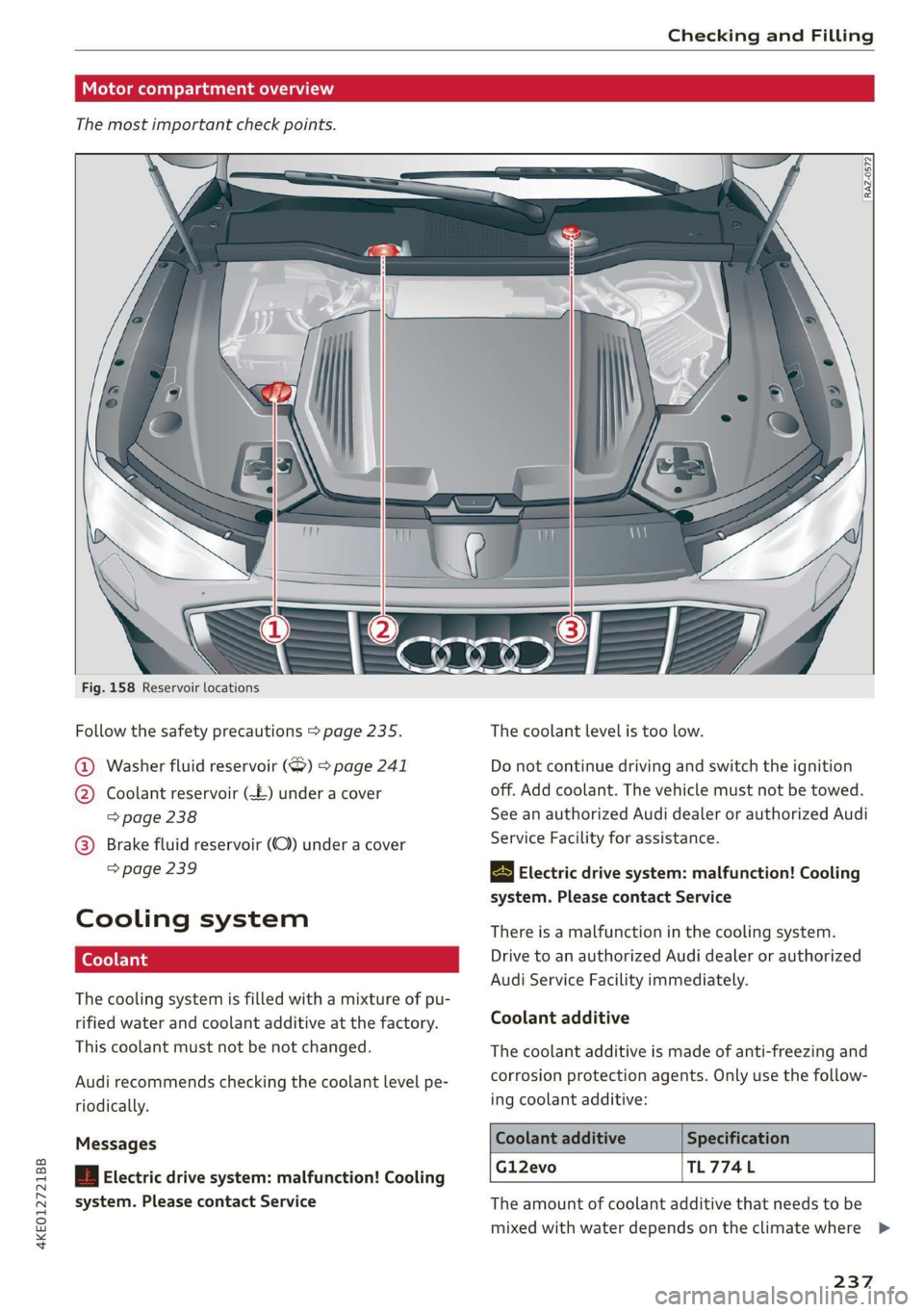
Fig. 158 Reservoir locations
Follow the safety precautions > page 235. The coolant level is too low.
1) Washer fluid reservoir (7) > page 241 Do not continue driving and switch the ignition
) Coolant reservoir (£-) under a cover off. Add coolant. The vehicle must not be towed.
> page 238 See an authorized Audi dealer or authorized Audi
(GB) @) Brake fluid reservoir (OC) under a cover
> page 239 Electric drive system: malfunction! Cooling
system. Please contact Service
Service Facility for assistance.
Cooli ng system There is a malfunction in the cooling system.
| Drive to an authorized Audi dealer or authorized
Audi Service Facility immediately.
The cooling system is filled with a mixture of pu-
rified water and coolant additive at the factory. Coolant additive
This coolant must not be not changed. The coolant additive is made of anti-freezing and
Audi recommends checking the coolant level pe- corrosion protection agents. Only use the follow-
riodically. ing coolant additive:
Messages Coolant additive Specification
Gl12evo TL774L
| Electric drive system: malfunction! Cooling
system. Please contact Service The amount of coolant additive that needs to be
mixed with water depends on the climate where >
237
Page 240 of 310
Checking and Filling
the vehicle will be operated. If the coolant addi-
tive percentage is too low, the coolant can freeze
and cause damage.
Coolant Freeze protec-
additive tion
Warm min. 40% min. -13 °F
regions max. 45% (25°)
Cold min. 50% max. -40 °F
regions max. 55% (-40 °C)
@) Note
— Before winter weather begins, have an au-
thorized Audi dealer or authorized Audi
Service Facility check if the coolant additive
in your vehicle matches the percentage ap-
propriate for the climate. This is especially
important when driving in colder climates.
— If the appropriate coolant additive is not
available in an emergency, do not add any
other additive. Using other additives in-
creases the risk of damage. If this happens,
only use water and restore the correct mix-
ture ratio with the specified coolant additive
as soon as possible.
— Only refill with new coolant.
— Radiator sealant must not be mixed with
the coolant.
Coolant level
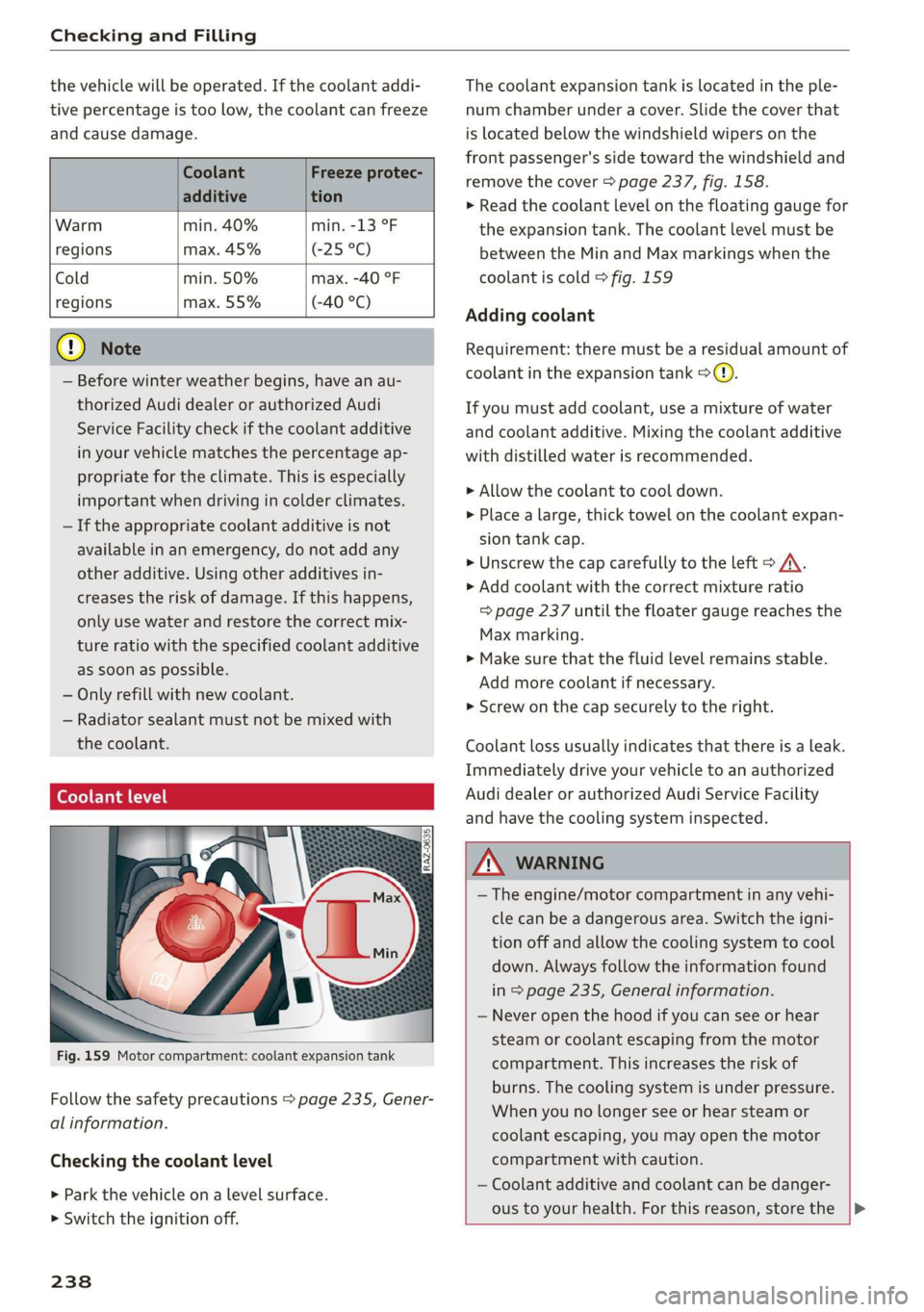
Fig. 159 Motor compartment: coolant expansion tank
Follow the safety precautions > page 235, Gener-
al information.
Checking the coolant level
> Park the vehicle on a level surface.
> Switch the ignition off.
238
The coolant expansion tank is located in the ple-
num chamber under a cover. Slide the cover that
is located below the windshield wipers on the
front passenger's side toward the windshield and
remove the cover > page 237, fig. 158.
> Read the coolant level on the floating gauge for
the expansion tank. The coolant level must be
between the Min and Max markings when the
coolant is cold > fig. 159
Adding coolant
Requirement: there must be a residual amount of
coolant in the expansion tank >@).
If you must add coolant, use a mixture of water
and coolant additive. Mixing the coolant additive
with distilled water is recommended.
> Allow the coolant to cool down.
> Place a large, thick towel on the coolant expan-
sion tank cap.
> Unscrew the cap carefully to the left > A\.
> Add coolant with the correct mixture ratio
=> page 237 until the floater gauge reaches the
Max marking.
> Make sure that the fluid level remains stable.
Add more coolant if necessary.
> Screw on the cap securely to the right.
Coolant loss usually indicates that there is a leak.
Immediately drive your vehicle to an authorized
Audi dealer or authorized Audi Service Facility
and have the cooling system inspected.
Z\ WARNING
— The engine/motor compartment in any vehi-
cle can be a dangerous area. Switch the igni-
tion off and allow the cooling system to cool
down. Always follow the information found
in > page 235, General information.
— Never open the hood if you can see or hear
steam or coolant escaping from the motor
compartment. This increases the risk of
burns. The cooling system is under pressure.
When you no longer see or hear steam or
coolant escaping, you may open the motor
compartment with caution.
— Coolant additive and coolant can be danger-
ous to your health. For this reason, store the |>
Page 241 of 310
4KE012721BB
Checking and Filling
coolant in the original container and away
from children. There is a risk of poisoning.
@) Note
— Do not add coolant if the expansion tank is
empty. Air could enter the cooling system
and increase the risk of damage. If this is
the case, do not continue driving. See an au-
thorized Audi dealer or authorized Audi
Service Facility for assistance.
— If coolant must be added multiple times
within two months, drive immediately to an
authorized Audi dealer or authorized Audi
Service Facility because there is a risk of
damage.
Brake fluid
BFV-0229|
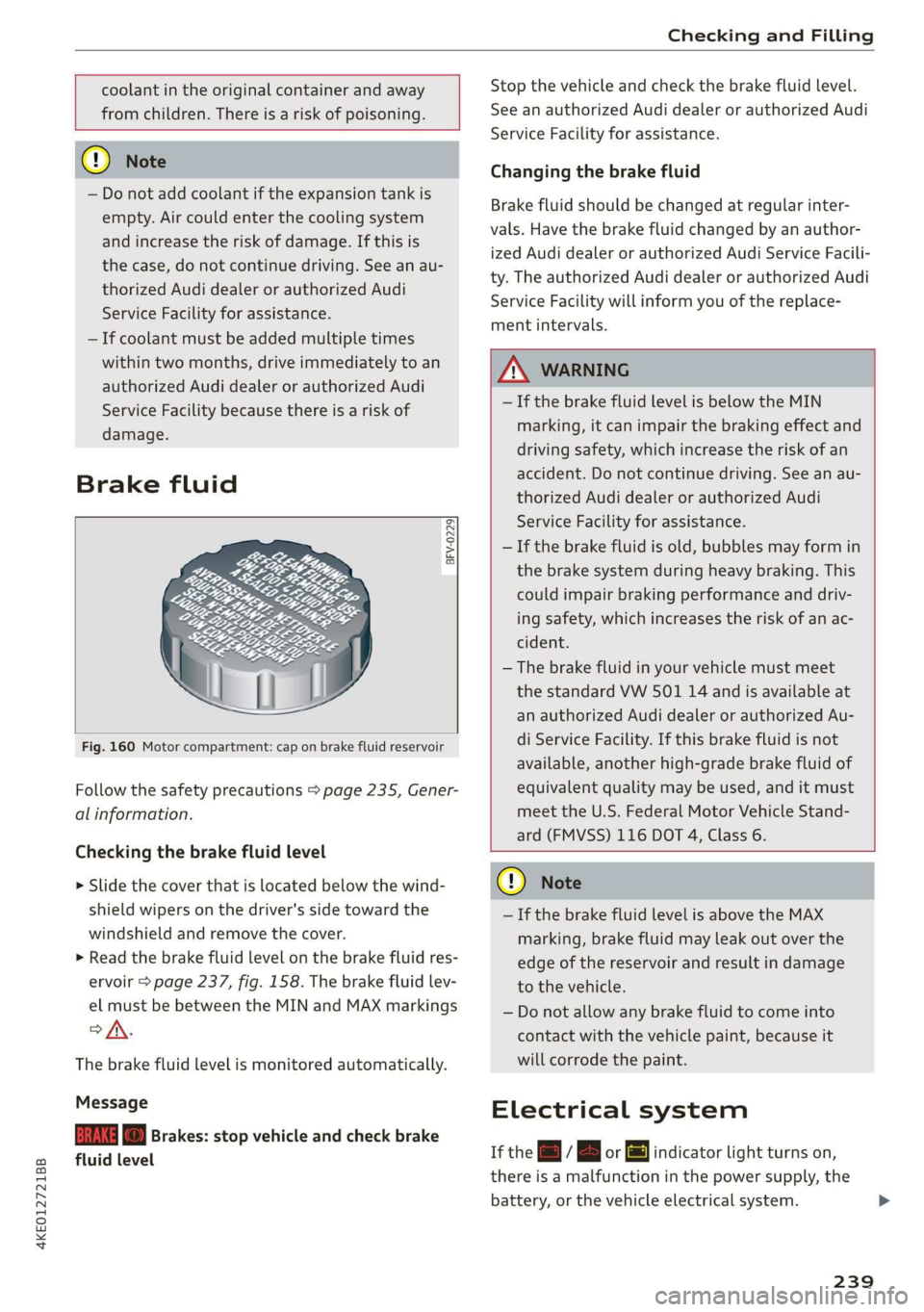
Fig. 160 Motor compartment: cap on brake fluid reservoir
Follow the safety precautions > page 235, Gener-
al information.
Checking the brake fluid level
> Slide the cover that is located below the wind-
shield wipers on the driver's side toward the
windshield and remove the cover.
> Read the brake fluid level on the brake fluid res-
ervoir > page 237, fig. 158. The brake fluid lev-
el must be between the MIN and MAX markings
of.
The brake fluid level is monitored automatically.
Message
EG f) Brakes: stop vehicle and check brake
fluid level
Stop the vehicle and check the brake fluid level.
See an authorized Audi dealer or authorized Audi
Service Facility for assistance.
Changing the brake fluid
Brake fluid should be changed at regular inter-
vals. Have the brake fluid changed by an author-
ized Audi dealer or authorized Audi Service Facili-
ty. The authorized Audi dealer or authorized Audi
Service Facility will inform you of the replace-
ment intervals.
Z\ WARNING
— If the brake fluid level is below the MIN
marking, it can impair the braking effect and
driving safety, which increase the risk of an
accident. Do not continue driving. See an au-
thorized Audi dealer or authorized Audi
Service Facility for assistance.
— If the brake fluid is old, bubbles may form in
the brake system during heavy braking. This
could impair braking performance and driv-
ing safety, which increases the risk of an ac-
cident.
— The brake fluid in your vehicle must meet
the standard VW 501 14 and is available at
an authorized Audi dealer or authorized Au-
di Service Facility. If this brake fluid is not
available, another high-grade brake fluid of
equivalent quality may be used, and it must
meet the U.S. Federal Motor Vehicle Stand-
ard (FMVSS) 116 DOT 4, Class 6.
@) Note
— If the brake fluid level is above the MAX
marking, brake fluid may leak out over the
edge of the reservoir and result in damage
to the vehicle.
— Do not allow any brake fluid to come into
contact with the vehicle paint, because it
will corrode the paint.
Electrical system
If the =] / B or [ml indicator light turns on,
there is a malfunction in the power supply, the
battery, or the vehicle electrical system.
239