charging AUDI E-TRON 2019 Owner's Guide
[x] Cancel search | Manufacturer: AUDI, Model Year: 2019, Model line: E-TRON, Model: AUDI E-TRON 2019Pages: 310, PDF Size: 81.91 MB
Page 185 of 310
4KE012721BB
Telephone
Problem Solution
Pairing the mobile device to the
MMI failed.
Make sure the requirements for connecting a cell phone have been
met > page 170, or
make sure you did not accidentally decline the PIN for establishing
a connection on your cell phone. If necessary, repeat the pairing
process > page 170.
After pairing, not all contacts or
no contacts have been loaded in-
to the MMI.
Avoid using special characters in names.
Avoid using contact groups on your cell phone.
Check for prompts on your mobile device when connecting via
Bluetooth.
Certain telephone functions are
grayed out or not available.
The telephone functions depend on the mobile device service pro-
vider and the mobile device you are using. You can obtain more in-
formation from your mobile device service provider, in your mobile
device user guide, or online at www.audiusa.com/bluetooth.
Some telephone functions may
be switched off or not available,
even though the mobile device is
supported.
On corporate phones, some Bluetooth settings may not be com-
patible or the mobile device Bluetooth function may be deactivat-
ed. You can obtain more information from your system adminis-
trator.
Applies to: vehicles with Audi
phone box: Wireless charging of
your mobile device is not working
or has been interrupted.
Check if wireless charging with the Audi phone box is switched on.
Check if your mobile device is Qi-capable.
Check if your mobile device is positioned correctly in the Audi
phone box > page 171 and no other objects are between them.
The MESSAGES menu is not avail-
able.
Check if the Show messages option is on your mobile device and it
is enabled.
183
Page 189 of 310
4KE012721BB
Audi connect
services. The cell phone network, for exam-
ple, must be available to use these services.
Applies to: vehicles with Audi connect vehicle control
> Register at my.audi.com.
> Set the key user > page 28.
> Install the myAudi app on your mobile device
and log in with your login information.
G@) Tips
It may also be necessary to enter your 4-digit
PIN set at my.audi.com when accessing some
Audi connect vehicle control services.
Yate]
Applies to: vehicles with Audi connect vehicle control
Depending on the country and the vehicle equip-
ment, the following services may be available:
Remote locking and unlocking
Requirement: the vehicle must be parked and the
ignition must be switched off.
This service allows you to unlock or lock your ve-
hicle.
Vehicle status report
This service transfers driver information system
data to a server. Depending on the vehicle equip-
ment, certain data may be accessed, such as the
remaining range or mileage. The values may dif-
fer from the values displayed in the vehicle.
Car Finder
This service transmits the parking location to a
server when the ignition is switched off. The vehi-
cle location, your location, or the route to your
vehicle can be displayed. The new parking loca-
tion cannot be determined with this service if the
vehicle is moved after shutting the vehicle off
and without switching the ignition on and off
again, for example if the vehicle is towed or sto-
len.
Online Audi service request
Requirement: the service must be activated on-
line at my.audi.com and an authorized Audi deal-
er or authorized Audi service facility must be se-
lected.
This service transmits service-relevant data to
your selected authorized Audi dealer or author-
ized Audi service facility. They will contact you
before your next service appointment.
Stolen Vehicle Locator
This service assists you in locating your vehicle if
it is stolen.
— Contact the police. You receive a Case ID.
— Call the service hotline and give your Case ID.
The service hotline will forward the established
data to the police. You receive the Audi Service
hotline number when you purchase your vehicle.
Trip data
Depending on the vehicle equipment, certain
driver information system data is transmitted to
a server. An overview of your trips with the values
from the short-term memory/long-term memory
can be displayed, for example, the driving dura-
tion. The values may differ from the values dis-
played in the vehicle.
Remote charging
Requirement: the ignition must be switched off
when changing the charging mode.
You can start the charging process remotely with
the service.
— Charging mode: immediate charging or delayed
charging (timer)
— Program the timer
— Deactivate or activate the timer
For additional information, see > page 105.
Auxiliary climate control
Requirement: the ignition must be switched off
when starting or stopping climate control.
You can control the climate control in your vehi-
cle remotely using these services.
187
>
Page 190 of 310
Audi connect
— Start or stop climate control
— Program the timer
— Deactivate or activate the timer
For additional information, see > page 84.
Geofencing Alert
Requirement: a key user must be set in the vehi-
cle > page 28.
This service allows you to set permitted and for-
bidden zones for your vehicle as well as set time
limits for these zones. If your vehicle leaves a
permitted zone or enters a forbidden zone, you
will be notified with a push notification and/or an
e-mail.
Speed Alert
Requirement: a key user must be set in the vehi-
cle > page 28.
You can set up to two speed limits for your vehi-
cle using this service. If your vehicle exceeds a set
speed limit, you will be notified with a push noti-
fication and/or e-mail.
Valet Alert
Requirement: a key user must be set in the vehi-
cle > page 187.
If you give your vehicle to a parking service, you
can set a zone and a speed limit using the myAu-
di app. If the vehicle leaves the zone or exceeds
the speed limit, you will be notified with a push
notification and/or e-mail.
ZA WARNING
— Do not ignore messages and warning or indi-
cator lights that turn on in the vehicle be-
cause of the information in the vehicle sta-
tus report. This could lead to break downs in
on the road, accidents and serious injuries.
— Only perform charging functions on the
high-voltage battery if the vehicle is shut off
correctly, is connected to a suitable socket
and if the ignition is switched off.
188
G) Tips
For some services, you can select if you would
like to be notified with a push notification
and/or an e-mail.
Settings
(et) telat -Matian celia
> Applies to: MMI: Select on the home screen:
SETTINGS > Connection settings > Mobile
phone network.
Depending on the country, vehicle equipment,
and connection type, the following functions may
be available:
Data connection settings
Using the Data connection settings menu, you
can set when the system should connect to the
Internet. The Internet connection disconnects
automatically once the requested Audi connect
Infotainment service no longer requires any data.
— Data roaming: data roaming is switched off at
the factory. To use a data connection outside of
the country, data roaming must be switched
on. The setting is stored for the current SIM
card or the mobile device that is currently con-
nected.
— Allow MMI online services: when this function
is switched on, a data connection is automati-
cally established in order to use Audi connect
Infotainment services.
— Allow Wi-Fi devices: when this function is
switched on, you can allow or deny Internet
connections.
Access point
The connection is configured automatically based
on the SIM card being used. The following values
can be changed. You can obtain more information
from your cell phone service provider.
— Access Point Name (APN): the access point de-
pends on the cell phone service provider and is
assigned automatically.
— User name: your cell phone service provider as-
signs the user name for your online profile. >
Page 200 of 310
Navigation
Weather at the destination: Requirement:
the MMI must be connected to the Internet
= page 184, Audi connect.
©) Display of distance/driving time to the des-
tination
@) Note
Read the information about Audi connect, and
be sure to note the connectivity costs section
=@ in General information on page 184.
Selecting a destination from the map
Applies to: vehicles with navigation system
A point on the map can be used as the destina-
tion.
Opening the map
Applies to: MMI
> Press NAVIGATION on the home screen.
> If necessary, press A to display the map.
Adjusting the scale
> Select: 9/ > select a scale.
Marking the destination
> Press and hold a point on the map until a mark-
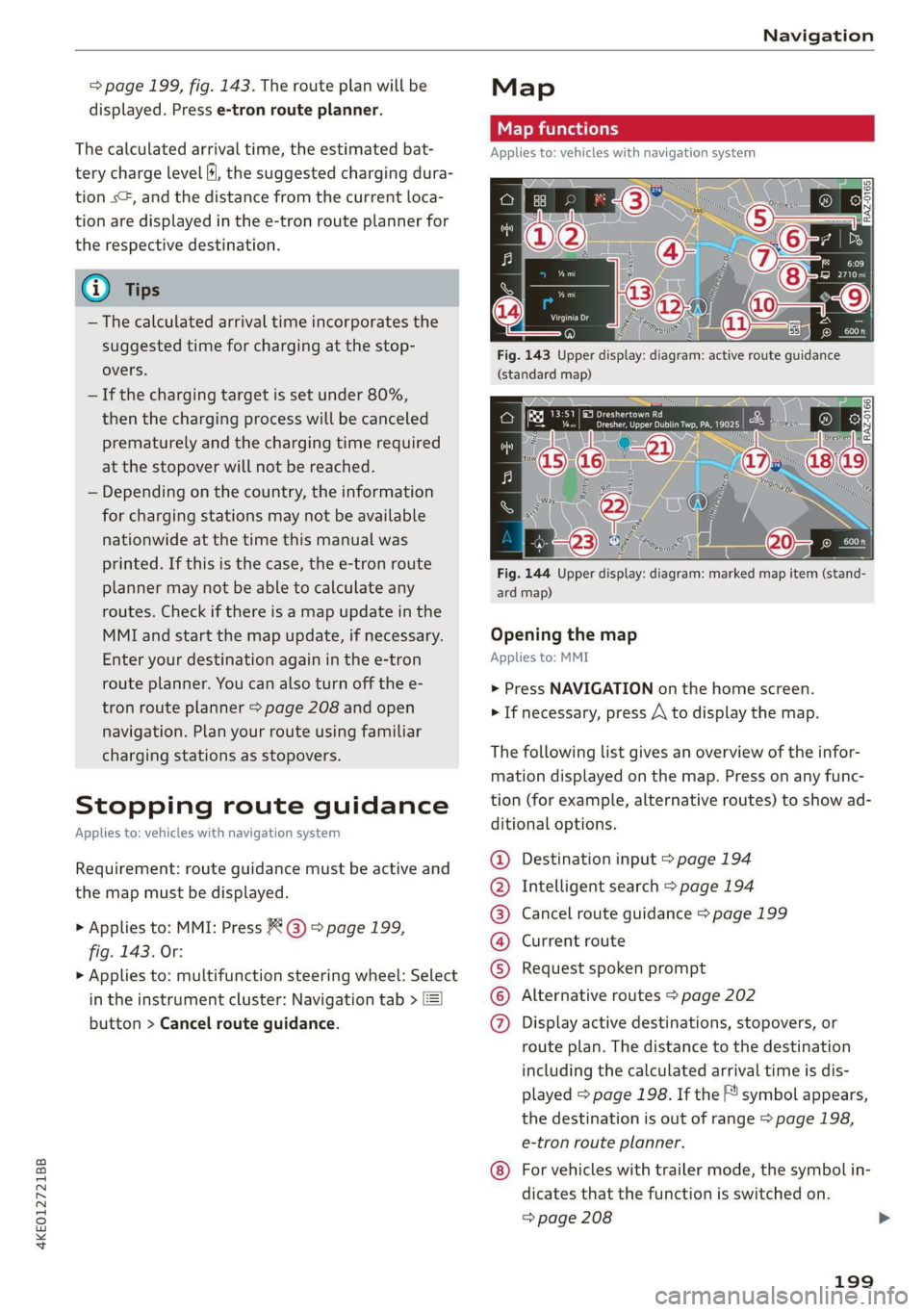
ing appears @i) > page 199, fig. 144. Or: the
address of the selected destination is displayed
> page 199, fig. 144.
Setting the map content (such as POIs) as
the destination
Requirement: map content must be displayed
=> page 207.
> Press on map content on the map (for example,
@) > page 199, fig. 144).
Selecting the destination
> Select: @) > page 199, fig. 144. Or:
> To display destination details, press on G6)
=> page 199, fig. 144 > Start.
Route guidance will be activated and the map will
be displayed > page 199, fig. 143.
198
Stopovers and route plan
Applies to: vehicles with navigation system
You can enter additional destinations during ac-
tive route guidance.
Entering a stopover
Requirement: route guidance must be active.
> Enter a destination > page 194.
Displaying stopovers or the route plan
All destinations are listed in the route plan.
> Press on (7) > page 199, fig. 143 on the map.
Editing stopovers
> Press on 2%) > page 199, fig. 143 on the map.
> Adding a stopover: Select: Add destination >
select a destination > Add.
> Moving a stopover: press Z. Touch the $ sym-
bol and move the entry to the desired position.
Press Done.
> Deleting a stopover: Select: Z > one or more
entries or Select all > Delete > (Done).
Coal welll e
Applies to: vehicles with navigation system and e-tron route
planner
The MMI includes the charging stations along
the route, if the destination cannot be reached
with the current battery charge level.
Requirement: the e-tron route planner must be
switched on > page 207. The charging target
must be set to at least 80% > page 110.
If the destination is out of range, a fast route
with stopovers for charging is automatically sug-
gested.
> To access alternative routes with stopovers for
charging, press (7 before you accept the e-tron
route plan.
> To start the suggested route guidance, press
Accept.
> To display the route, press 1 on the map
=> page 199, fig. 143.
> To access the route planner later, press @ on
the map when route guidance is active
Page 201 of 310
4KE012721BB
Navigation
=> page 199, fig. 143. The route plan will be
displayed. Press e-tron route planner.
The calculated arrival time, the estimated bat-
tery charge level (4, the suggested charging dura-
tion sG, and the distance from the current loca-
tion are displayed in the e-tron route planner for
the respective destination.
— The calculated arrival time incorporates the
suggested time for charging at the stop-
overs.
— If the charging target is set under 80%,
then the charging process will be canceled
prematurely and the charging time required
at the stopover will not be reached.
— Depending on the country, the information
for charging stations may not be available
nationwide at the time this manual was
printed. If this is the case, the e-tron route
planner may not be able to calculate any
routes. Check if there is a map update in the
MMI and start the map update, if necessary.
Enter your destination again in the e-tron
route planner. You can also turn off the e-
tron route planner > page 208 and open
navigation. Plan your route using familiar
charging stations as stopovers.
Stopping route guidance
Applies to: vehicles with navigation system
Requirement: route guidance must be active and
the map must be displayed.
> Applies to: MMI: Press & @ = page 199,
fig. 143. Or:
> Applies to: multifunction steering wheel: Select
in the instrument cluster: Navigation tab >
button > Cancel route guidance.
Map
Map functions
Applies to: vehicles with navigation system
eo -
Fig. 144 Upper display: diagram: marked map item (stand-
ard map)
Opening the map
Applies to: MMI
> Press NAVIGATION on the home screen.
> If necessary, press /\ to display the map.
The following list gives an overview of the infor-
mation displayed on the map. Press on any func-
tion (for example, alternative routes) to show ad-
ditional options.
Destination input > page 194
Intelligent search > page 194
Cancel route guidance > page 199
Current route
Request spoken prompt
Alternative routes > page 202
QOOOOOHO Display active destinations, stopovers, or
route plan. The distance to the destination
including the calculated arrival time is dis-
played = page 198. If the F! symbol appears,
the destination is out of range > page 198,
e-tron route planner.
For vehicles with trailer mode, the symbol in-
dicates that the function is switched on.
=> page 208
199
Page 222 of 310
Media
Amazon Alexa
Applies to: vehicles with Amazon Alexa Integration
You can play various Amazon Alexa content using
the MMI. The voice recognition system is used to
operate it.
Requirement: Amazon Alexa must be activated
=>page 25.
> Start Amazon Alexa using the voice recognition
system.
> Applies to: MMI: Select on the home screen:
MEDIA > Source > Amazon Alexa.
() Note
Read the information about Audi connect, and
be sure to note the connectivity costs section
=> page 184.
Multimedia connections
USB adapter cable
[RAH-9202
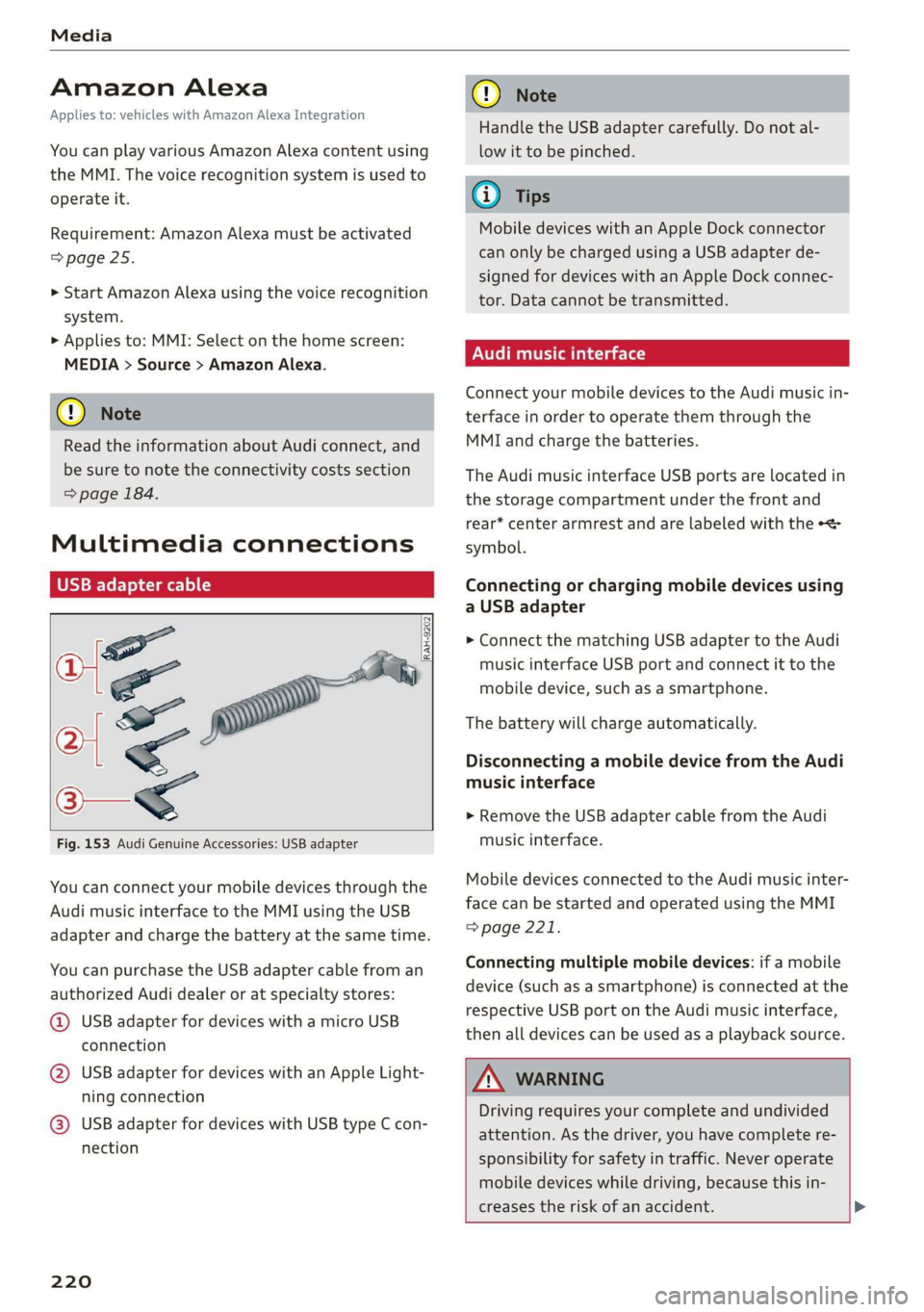
Fig. 153 Audi Genuine Accessories: USB adapter
You can connect your mobile devices through the
Audi music interface to the MMI using the USB
adapter and charge the battery at the same time.
You can purchase the USB adapter cable from an
authorized Audi dealer or at specialty stores:
@ USB adapter for devices with a micro USB
connection
@ USB adapter for devices with an Apple Light-
ning connection
@ USB adapter for devices with USB type C con-
nection
220
C@) Note
Handle the USB adapter carefully. Do not al-
low it to be pinched.
G) Tips
Mobile devices with an Apple Dock connector
can only be charged using a USB adapter de-
signed for devices with an Apple Dock connec-
tor. Data cannot be transmitted.
Audi music interface
Connect your mobile devices to the Audi music in-
terface in order to operate them through the
MMI and charge the batteries.
The Audi music interface USB ports are located in
the storage compartment under the front and
rear* center armrest and are labeled with the «<>
symbol.
Connecting or charging mobile devices using
a USB adapter
> Connect the matching USB adapter to the Audi
music interface USB port and connect it to the
mobile device, such as a smartphone.
The battery will charge automatically.
Disconnecting a mobile device from the Audi
music interface
> Remove the USB adapter cable from the Audi
music interface.
Mobile devices connected to the Audi music inter-
face can be started and operated using the MMI
=> page 221.
Connecting multiple mobile devices: if a mobile
device (such as a smartphone) is connected at the
respective USB port on the Audi music interface,
then all devices can be used as a playback source.
ZA\ WARNING
Driving requires your complete and undivided
attention. As the driver, you have complete re-
sponsibility for safety in traffic. Never operate
mobile devices while driving, because this in-
creases the risk of an accident. >
Page 243 of 310
4KE012721BB
Checking and Filling
ZA\ WARNING
California Proposition 65 Warning:
— Battery posts, terminals and related acces-
sories contain lead and lead compounds,
chemicals known to the State of California
to cause cancer and reproductive harms.
Wash hands after handling.
@) Note
If the vehicle will be parked for long periods
of time, protect the 12 Volt vehicle battery
against the cold so that it will not “freeze”
and become damaged. Have the battery
charged by an authorized Audi dealer or au-
thorized Audi Service Facility > page 241,
Charging the 12 Volt vehicle battery.
12 Volt vehicle battery
Explanation of warnings:
Always wear eye protection.
Battery acid is highly corrosive. Always
wear protective gloves and eye protection.
forbidden.
A highly explosive mixture of gases can
A» form when charging batteries.
Always keep children away from battery
@) acid and the battery.
Always follow the instructions in the oper-
® Fire, sparks, open flame, and smoking are
@/
fQ | ating manual.
@) For the sake of the environment
» ¥ Do not dispose of lead batteries in
household trash. They contain harmful sub-
stances, such as sulfuric acid and lead, and al-
so recyclable raw materials. Contact an au-
thorized Audi dealer or authorized Audi Serv-
ice Facility for more information.
Charging the 12 Volt vehicle battery
The vehicle cannot be operated when the 12 Volt
vehicle battery is drained. The vehicle battery
must not be charged under any circumstances.
Contact an authorized Audi dealer or authorized
Audi Service Facility.
() Note
The charging of the vehicle battery requires
specialized knowledge and technology.
— The vehicle battery may only be charged by
an
authorized Audi dealer or authorized Au-
di Service Facility. Otherwise, the electronic
systems in the vehicle may be severely dam-
aged.
— The jump start pins in the motor compart-
ment are designed specifically for qualified
technicians.
Windshield washer
system
B4M-0135)
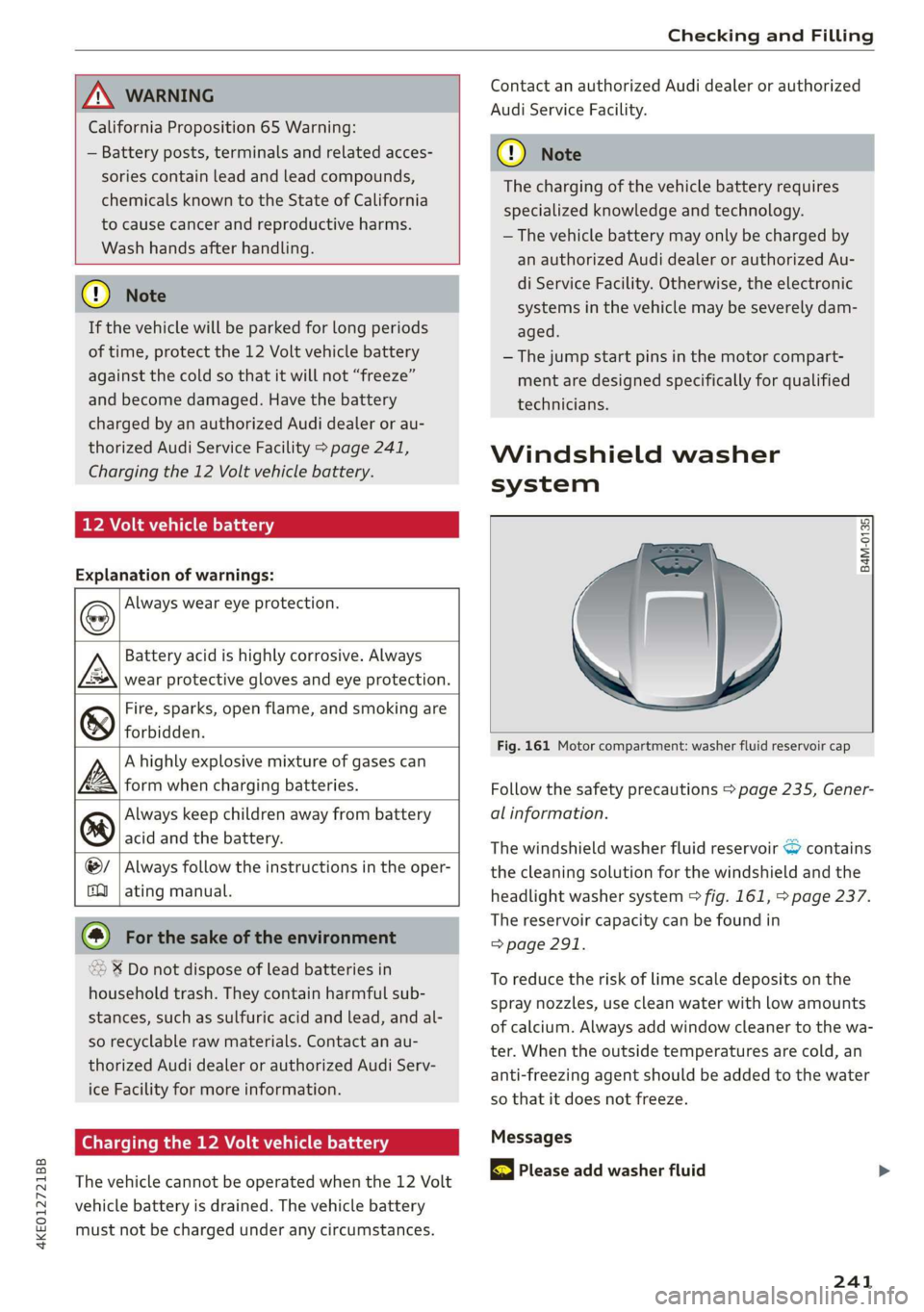
Fig. 161 Motor compartment: washer fluid reservoir cap
Follow the safety precautions > page 235, Gener-
al information.
The windshield washer fluid reservoir contains
the cleaning solution for the windshield and the
headlight washer system > fig. 161, > page 237.
The reservoir capacity can be found in
=> page 291.
To reduce the risk of lime scale deposits on the
spray nozzles, use clean water with low amounts
of calcium. Always add window cleaner to the wa-
ter. When the outside temperatures are cold, an
anti-freezing agent should be added to the water
so that it does not freeze.
Messages
| Please add washer fluid
241
Page 267 of 310
4KE012721BB
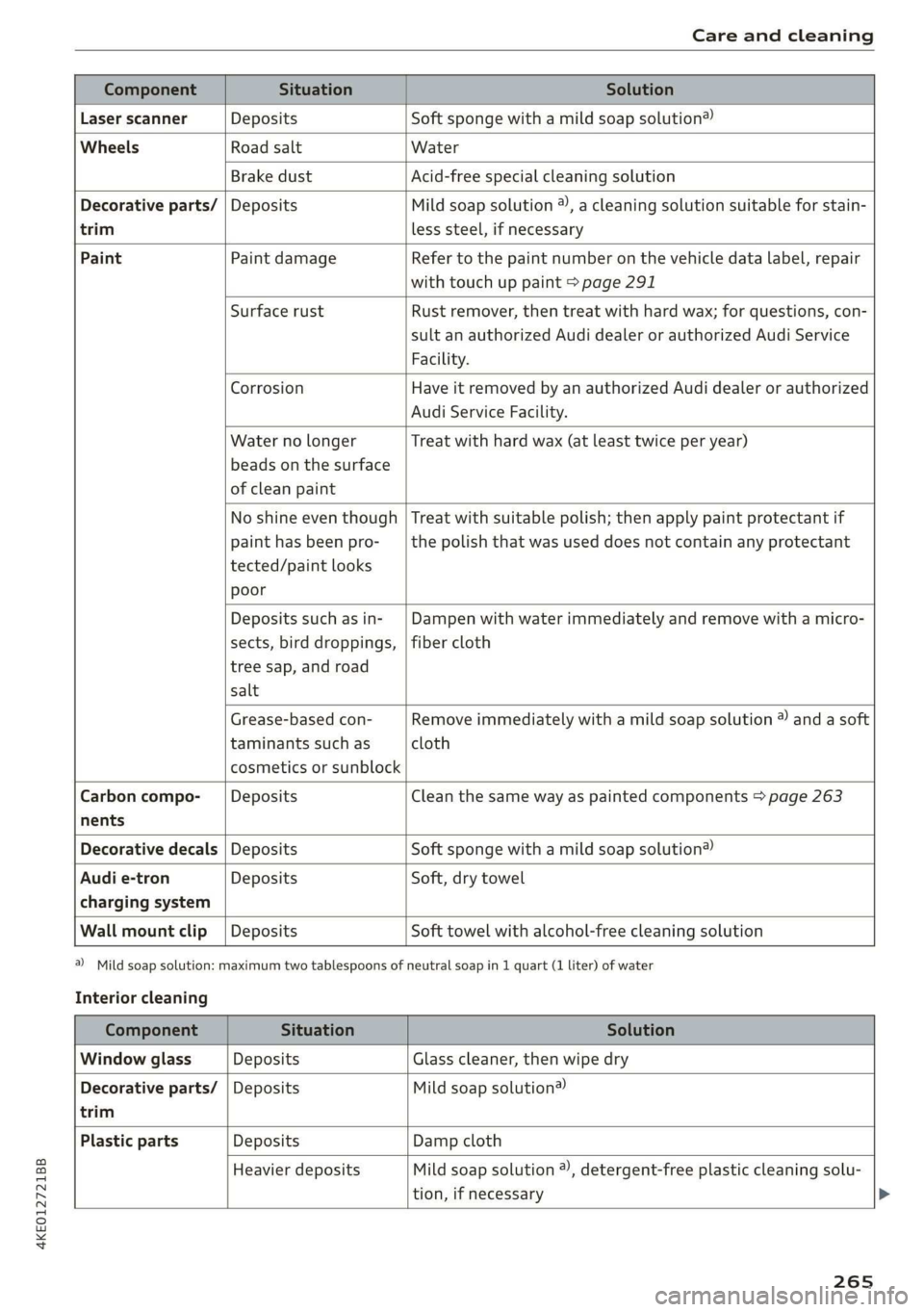
Care and cleaning
trim
Component Situation Solution
Laser scanner Deposits Soft sponge with a mild soap solution®
Wheels Road salt Water
Brake dust Acid-free special cleaning solution
Decorative parts/ | Deposits Mild soap solution ®), a cleaning solution suitable for stain-
less steel, if necessary
Paint Paint damage Refer to the paint number on the vehicle data label, repair
with touch up paint > page 291
Surface rust Rust remover, then treat with hard wax; for questions, con-
sult an authorized Audi dealer or authorized Audi Service
Facility.
Corrosion Have it removed by an authorized Audi dealer or authorized
Audi Service Facility.
Water no longer
beads on the surface
of clean paint
Treat with hard wax (at least twice per year)
No shine even though
paint has been pro-
tected/paint looks
poor
Treat with suitable polish; then apply paint protectant if
the polish that was used does not contain any protectant
Deposits such as in-
sects, bird droppings,
tree sap, and road
salt
Dampen with water immediately and remove with a micro-
fiber cloth
Grease-based con-
taminants such as
cosmetics or sunblock
Remove immediately with a mild soap solution ® and a soft
cloth
Carbon compo- __| Deposits Clean the same way as painted components > page 263
nents
Decorative decals | Deposits Soft sponge with a mild soap solution®
Audi e-tron Deposits Soft, dry towel
charging system
Wall mount clip | Deposits Soft towel with alcohol-free cleaning solution
Interior cleaning
a) Mild soap solution: maximum two tablespoons of neutral soap in 1 quart (1 liter) of water
Component Situation Solution
Window glass Deposits Glass cleaner, then wipe dry
Decorative parts/ | Deposits Mild soap solution®
trim
Plastic parts Deposits Damp cloth
Heavier deposits Mild soap solution ®), detergent-free plastic cleaning solu-
tion, if necessary
265
Page 268 of 310
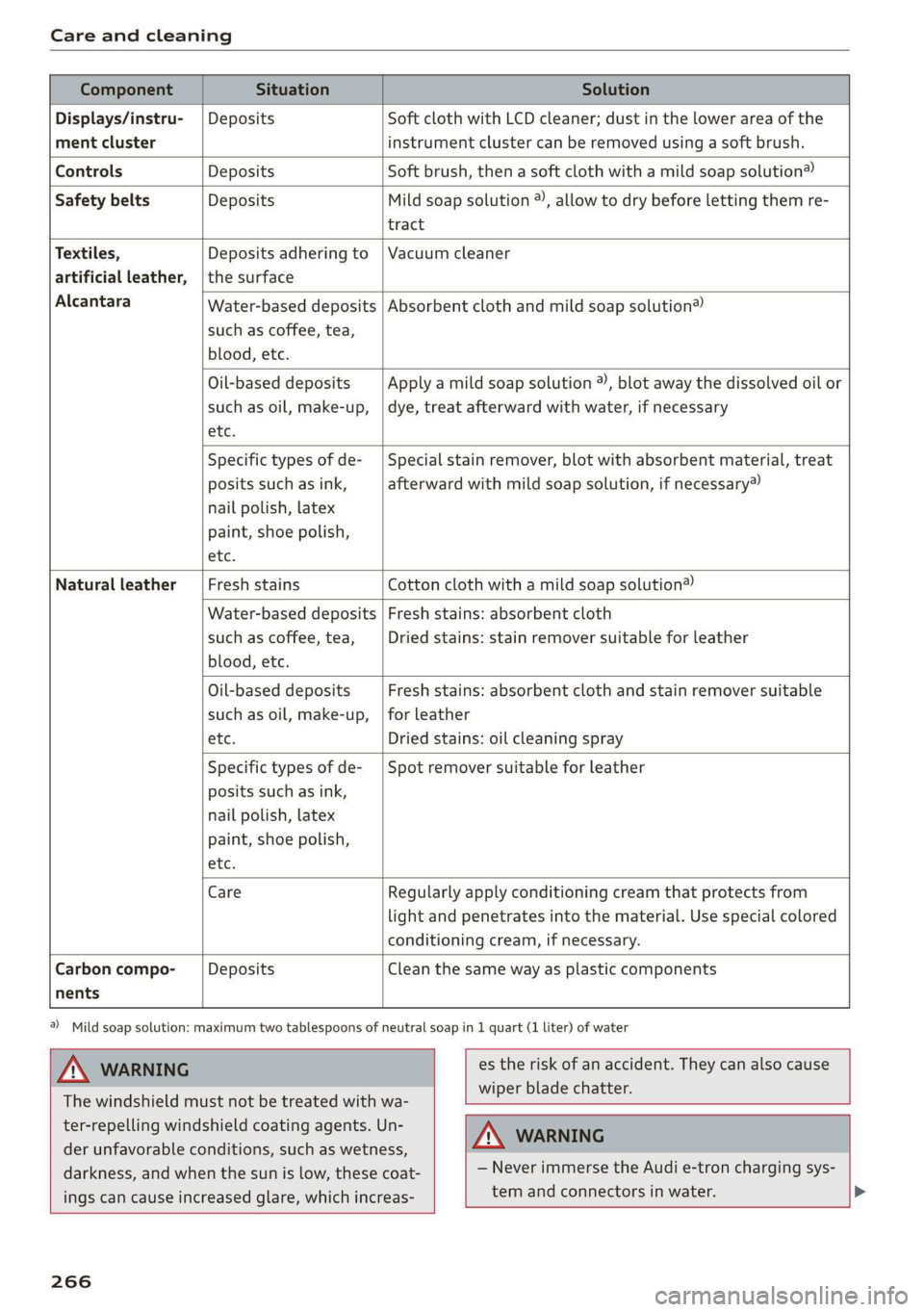
Care and cleaning
Water-based deposits
such as coffee, tea,
blood, etc.
Component Situation Solution
Displays/instru- | Deposits Soft cloth with LCD cleaner; dust in the lower area of the
ment cluster instrument cluster can be removed using a soft brush.
Controls Deposits Soft brush, then a soft cloth with a mild soap solution®
Safety belts Deposits Mild soap solution ), allow to dry before letting them re-
tract
Textiles, Deposits adhering to | Vacuum cleaner
artificial leather, |the surface
Alcantara Absorbent cloth and mild soap solution®
Oil-based deposits
such as oil, make-up,
etc.
Apply a mild soap solution ®), blot away the dissolved oil or
dye, treat afterward with water, if necessary
Specific types of de-
posits such as ink,
nail polish, latex
paint, shoe polish,
etc.
Special stain remover, blot with absorbent material, treat
afterward with mild soap solution, if necessary®
Natural leather Fresh stains Cotton cloth with a mild soap solution®
Water-based deposits
such as coffee, tea,
blood, etc.
Fresh stains: absorbent cloth
Dried stains: stain remover suitable for leather
Oil-based deposits
such as oil, make-up,
etc.
Fresh stains: absorbent cloth and stain remover suitable
for leather
Dried stains: oil cleaning spray
Specific types of de-
posits such as ink,
nail polish, latex
paint, shoe polish,
etc.
Spot remover suitable for leather
nents
Care Regularly apply conditioning cream that protects from
light and penetrates into the material. Use special colored
conditioning cream, if necessary.
Carbon compo- Deposits Clean the same way as plastic components
2) Mild soap solution: maximum two tablespoons of neutral soap in 1 quart (1 liter) of water
Z\ WARNING es the risk of an accident. They can also cause
wiper blade chatter.
The windshield must not be treated with wa-
ter-repelling windshield coating agents. Un-
der
unfavorable conditions, such as wetness,
darkness, and when the sun is low, these coat-
ings can cause increased glare, which increas-
ZA WARNING
— Never immerse the Audi e-tron charging sys-
tem and connectors in water.
266
Page 269 of 310
4KE012721BB
Care and cleaning
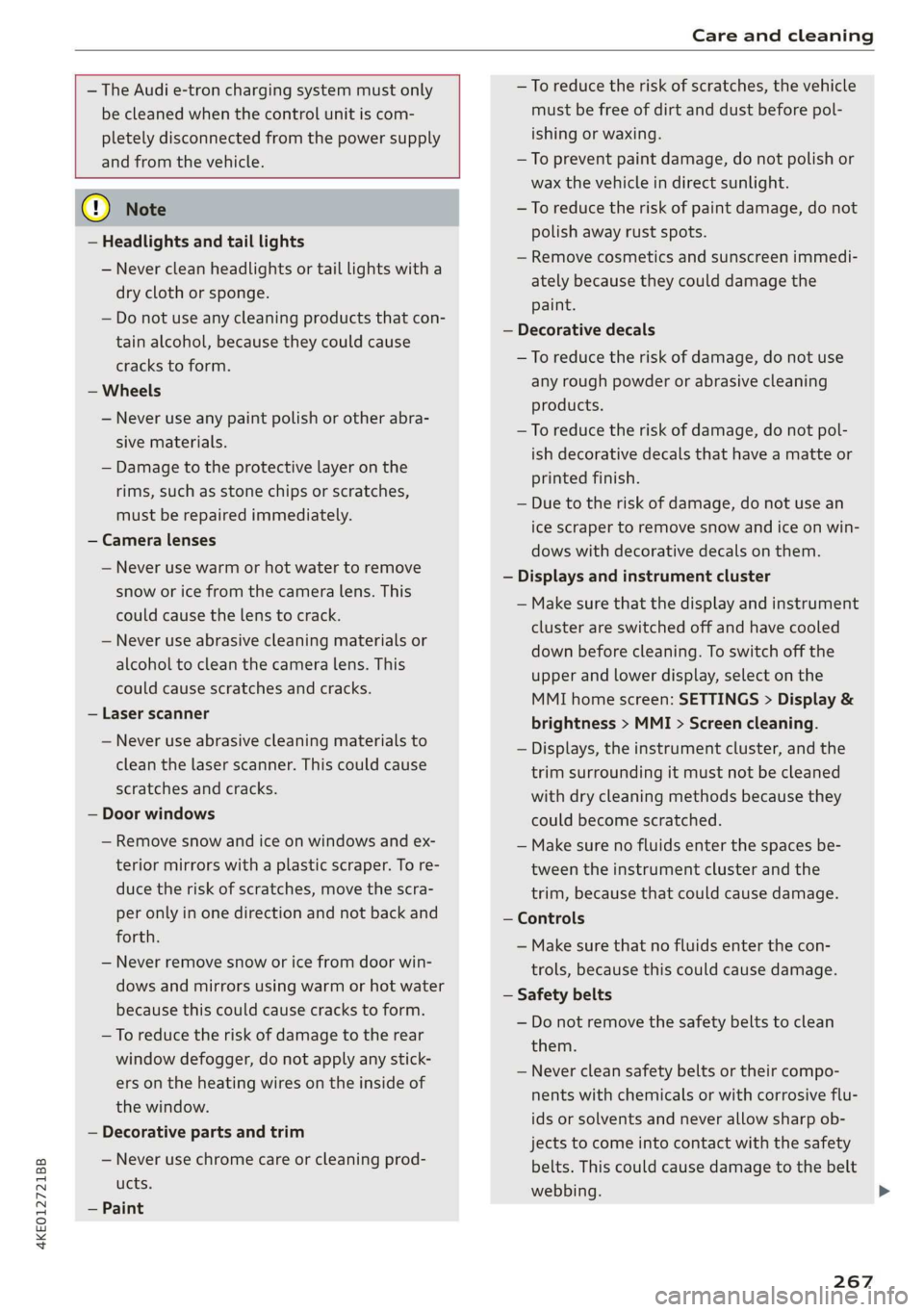
— The Audi e-tron charging system must only
be cleaned when the control unit is com-
pletely disconnected from the power supply
and from the vehicle.
@) Note
— Headlights and tail lights
— Never clean headlights or tail lights with a
dry cloth or sponge.
— Do not use any cleaning products that con-
tain alcohol, because they could cause
cracks to form.
— Wheels
— Never use any paint polish or other abra-
sive materials.
— Damage to the protective layer on the
rims, such as stone chips or scratches,
must be repaired immediately.
— Camera lenses
— Never use warm or hot water to remove
snow or ice from the camera lens. This
could cause the lens to crack.
— Never use abrasive cleaning materials or
alcohol to clean the camera lens. This
could cause scratches and cracks.
— Laser scanner
— Never use abrasive cleaning materials to
clean the laser scanner. This could cause
scratches and cracks.
— Door windows
— Remove snow and ice on windows and ex-
terior mirrors with a plastic scraper. To re-
duce the risk of scratches, move the scra-
per only in one direction and not back and
forth.
— Never remove snow or ice from door win-
dows and mirrors using warm or hot water
because this could cause cracks to form.
—To reduce the risk of damage to the rear
window defogger, do not apply any stick-
ers on the heating wires on the inside of
the window.
— Decorative parts and trim
— Never use chrome care or cleaning prod-
ucts.
— Paint
—To reduce the risk of scratches, the vehi cle
must be free of dirt and dust before pol-
ishing or waxing.
—To prevent paint damage, do not polish
wax the vehicle in direct sunlight.
or
— To reduce the risk of paint damage, do not
polish away rust spots.
— Remove cosmetics and sunscreen immedi-
ately because they could damage the
paint.
— Decorative decals
—To reduce the risk of damage, do not use
any rough powder or abrasive cleaning
products.
— To reduce the risk of damage, do not pol-
ish decorative decals that have a matte
printed finish.
— Due to the risk of damage, do not use a
or
n
ice scraper to remove snow and ice on win-
dows with decorative decals on them.
— Displays and instrument cluster
— Make sure that the display and instrument
cluster are switched off and have cooled
down before cleaning. To switch off the
upper and lower display, select on the
MMI home screen: SETTINGS > Display &
brightness > MMI > Screen cleaning.
— Displays, the instrument cluster, and the
trim surrounding it must not be cleaned
with dry cleaning methods because they
could become scratched.
— Make sure no fluids enter the spaces be-
tween the instrument cluster and the
trim, because that could cause damage
— Controls
— Make sure that no fluids enter the con-
trols, because this could cause damage
— Safety belts
— Do not remove the safety belts to clean
them.
— Never clean safety belts or their compo:
nents with chemicals or with corrosive flu-
ids or solvents and never allow sharp ob-
jects to come into contact with the safety
belts. This could cause damage to the belt
webbing.
267
>