wheel AUDI E-TRON 2019 Workshop Manual
[x] Cancel search | Manufacturer: AUDI, Model Year: 2019, Model line: E-TRON, Model: AUDI E-TRON 2019Pages: 310, PDF Size: 81.91 MB
Page 160 of 310
Driver assistance
G) Tips
For an explanation on conformity with the
FCC regulations in the United States and the
Industry Canada regulations, see > page 289.
Emergency assist
Applies to: vehicles with emergency assist
General information
Within the limits of the system, the emergency
assist detects if the driver is inactive. In these in-
stances, the system warns the driver, assumes
control of the vehicle if necessary, and brings the
vehicle automatically to a stop in the lane.
Regardless of the speed, the emergency assist is
automatically available when the adaptive cruise
assist* is activated. When the adaptive cruise as-
sist* is deactivated, the system is only active at
speeds higher than approximately 40 mph
(65 km/h).
Emergency assist functions
Within the limits of the system, the emergency
assist monitors the driver’s steering, accelerator,
and brake pedal activity. Depending on the se-
verity of the situation, it may initiate visual, au-
dio, and haptic warnings in stages:
— Reduces the speed
— Messages
— Lowers the volume of the Infotainment system
— Audible warning
— Tightening of the safety belt
—A brief application of the brakes
If the driver remains inactive despite the warn-
ings, the emergency assist controls the vehicle
within the limits of the system:
— The Audi pre sense preemptive safety measures
are triggered > page 150.
— The vehicle will stay in the lane and will be
braked to a stop.
— As soon as the vehicle comes to a full stop, the
emergency flashers are activated and the vehi-
) This function is not available in every market and on all ve-
hicle equipment levels.
158
cle prepares for the vehicle passengers to be
rescued. The parking brake is set, “P” gear is
engaged, the doors are unlocked, and the inte-
rior lighting is activated. If there is no move-
ment for several seconds, the emergency call
will be made if necessary.
Overriding the emergency assist
You can override the emergency assist > A\:
— Move the steering wheel. Or
— Press the brake pedal. Or
— Press the accelerator pedal distinctly.
When stationary, you can end the emergency as-
sist by leaving the "P" position or releasing the
parking brake > page 93.
Switching the emergency assist on and off
The system can be switched on and off in the
MMI & page 126.
Messages
1g or is displayed when there is a malfunc-
tion, the emergency assist functions may be un-
available or may be limited.
A message that indicates the cause and possible
solution may appear with some displays. The
weather conditions may be too poor or a sensor
may be covered. Clean the area in front of the
sensors > page 124, fig. 97 and try to turn on
the systems again later.
If the malfunction remains, drive to an author-
ized Audi dealer or authorized Audi Service Facili-
ty immediately to have the malfunction correct-
ed.
ZX WARNING
— Follow the safety precautions and note the
limits of the assist systems, sensors, and
cameras > page 123.
— The emergency assist is an assist system
that should only be used in cases of emer-
gency to take over control of the vehicle and
bring it to a stop. >
Page 165 of 310
4KE012721BB
Parking and maneuvering
> Press the & button in the center console. When
switching on, a brief tone sounds and the LED
in the button turns on. Or
> Select 1 on the upper display if the visual dis-
tance indicator is shown > page 161, fig. 126.
Switching on automatically
The system switches on automatically when re-
verse gear is engaged while the drive system is
active. A brief tone will sound.
Switching off automatically
The system switches off automatically when driv-
ing forward faster than 6 mph (10 km/h).
ZA WARNING
Follow the safety precautions and note the
limits of the assist systems, sensors, and
cameras > page 123.
Warnings
Applies to: vehicles with rearview camera/peripheral cameras
Fig. 130 Upper display: distance view
When parking with the rearview camera or pe-
ripheral camera, the parking system plus audio
and visual warnings* will also assist you
=>page 161.
For vehicles with peripheral cameras, the area
surrounding the vehicle is shown on the side of
the display. You can switch between the optical
display and camera image > page 167.
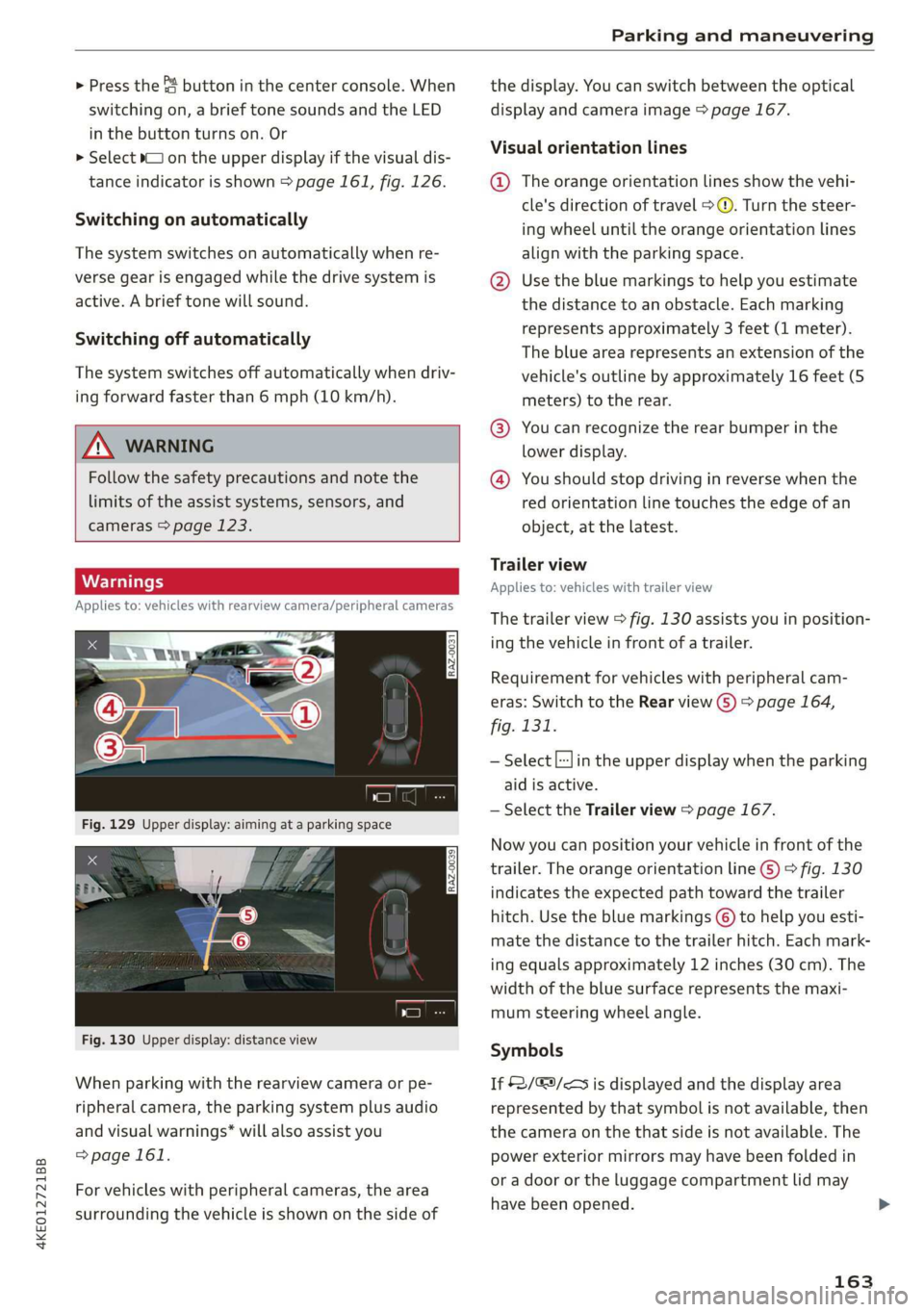
Visual orientation lines
@ The orange orientation lines show the vehi-
cle's direction of travel > ©. Turn the steer-
ing wheel until the orange orientation lines
align with the parking space.
@ Use the blue markings to help you estimate
the distance to an obstacle. Each marking
represents approximately 3 feet (1 meter).
The blue area represents an extension of the
vehicle's
outline by approximately 16 feet (5
meters) to the rear.
@® You can recognize the rear bumper in the
lower display.
@ You should stop driving in reverse when the
red orientation line touches the edge of an
object, at the latest.
Trailer view
Applies to: vehicles with trailer view
The
trailer view > fig. 130 assists you in position-
ing the vehicle in front of a trailer.
Requirement for vehicles with peripheral cam-
eras: Switch to the Rear view G) > page 164,
fig. 131.
— Select |:-}in the upper display when the parking
aid is active.
— Select the Trailer view > page 167.
Now you can position your vehicle in front of the
trailer. The orange orientation line ©) > fig. 130
indicates the expected path toward the trailer
hitch. Use the blue markings © to help you esti-
mate the distance to the trailer hitch. Each mark-
ing equals approximately 12 inches (30 cm). The
width of the blue surface represents the maxi-
mum steering wheel angle.
Symbols
If $2/&9/< is displayed and the display area
represented by that symbol is not available, then
the camera on the that side is not available. The
power exterior mirrors may have been folded in
or a door or the luggage compartment lid may
have been opened.
163
Page 166 of 310
Parking and maneuvering
If # is displayed, there is a system malfunction
and the display area represented by that symbol
is not available. The camera is not working in this
area.
If Nis displayed, the respective ultrasonic sensor
is icy or dirty. Clean the area in front of the sen-
sors > page 124, fig. 97.
If one of the symbols continues to be displayed,
drive immediately to an authorized Audi dealer or
authorized Audi Service Facility to have the mal-
function repaired.
ZA\ WARNING
— Follow the safety precautions and note the
limits of the assist systems, sensors, and
cameras > page 123.
— Sensors and cameras have spots in which
the surrounding area cannot be detected.
Objects, animals, and people may only be
detected with limitations may not be detect-
ed at all. Always monitor the traffic and the
vehicle's
surroundings directly and do not
become distracted.
©) Note
— The orange orientation lines @) show the di-
rection the rear of the vehicle will be travel-
ing, based on the steering wheel angle. The
front of the vehicle swings out more than
the rear of the vehicle. Maintain plenty of
distance so that an exterior mirror or a cor-
ner of the vehicle does not collide with any
obstacles.
— Keep enough distance from the curb to
avoid damage to the rims.
— Only use the images provided by the camera
on the rear of the vehicle when the luggage
compartment lid is completely closed. Make
sure any objects you may have mounted on
the luggage compartment lid do not block
the rearview camera.
G) Tips
— Applies to: vehicles with air suspension: The
accuracy of the orientation lines and blue
surfaces on the camera display decreases
when the vehicle is raised or lowered with
the air suspension.
— There is no distance warning for the rear
and the sides* when trailer towing mode is
detected. The front sensors remain activat-
ed. The visual display switches to trailer
mode. The rearview camera image will not
show the orientation lines and the blue sur-
faces. There is no guarantee the functions
will switch off when using a retrofitted trail-
er hitch.
Oe lee maleate
Applies to: vehicles with peripheral cameras
RAZ-0131
Fig. 131 Upper display: left side: surrounding area. Right side: 3D surroundings.
164
Page 167 of 310
4KE012721BB
Parking and maneuvering
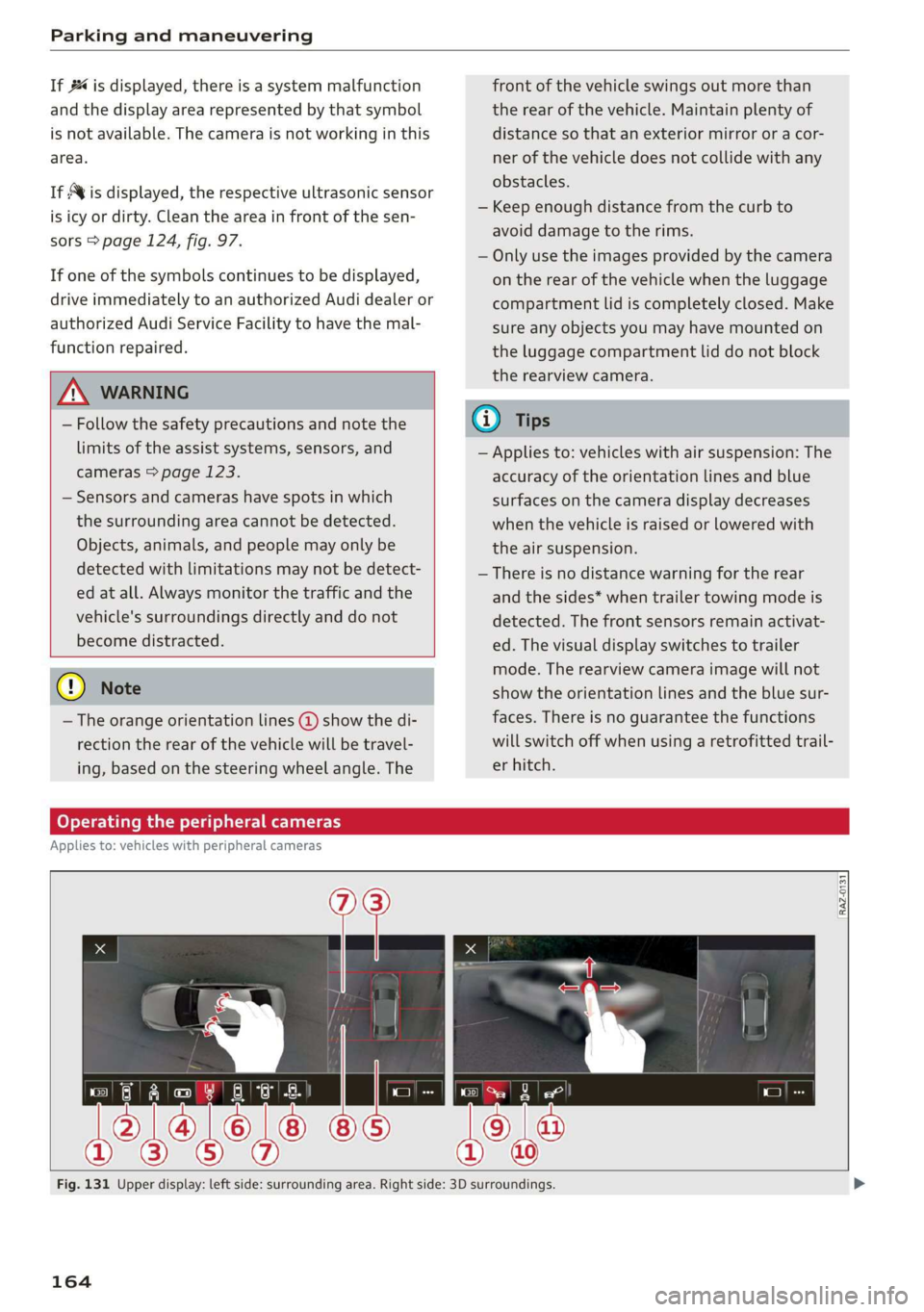
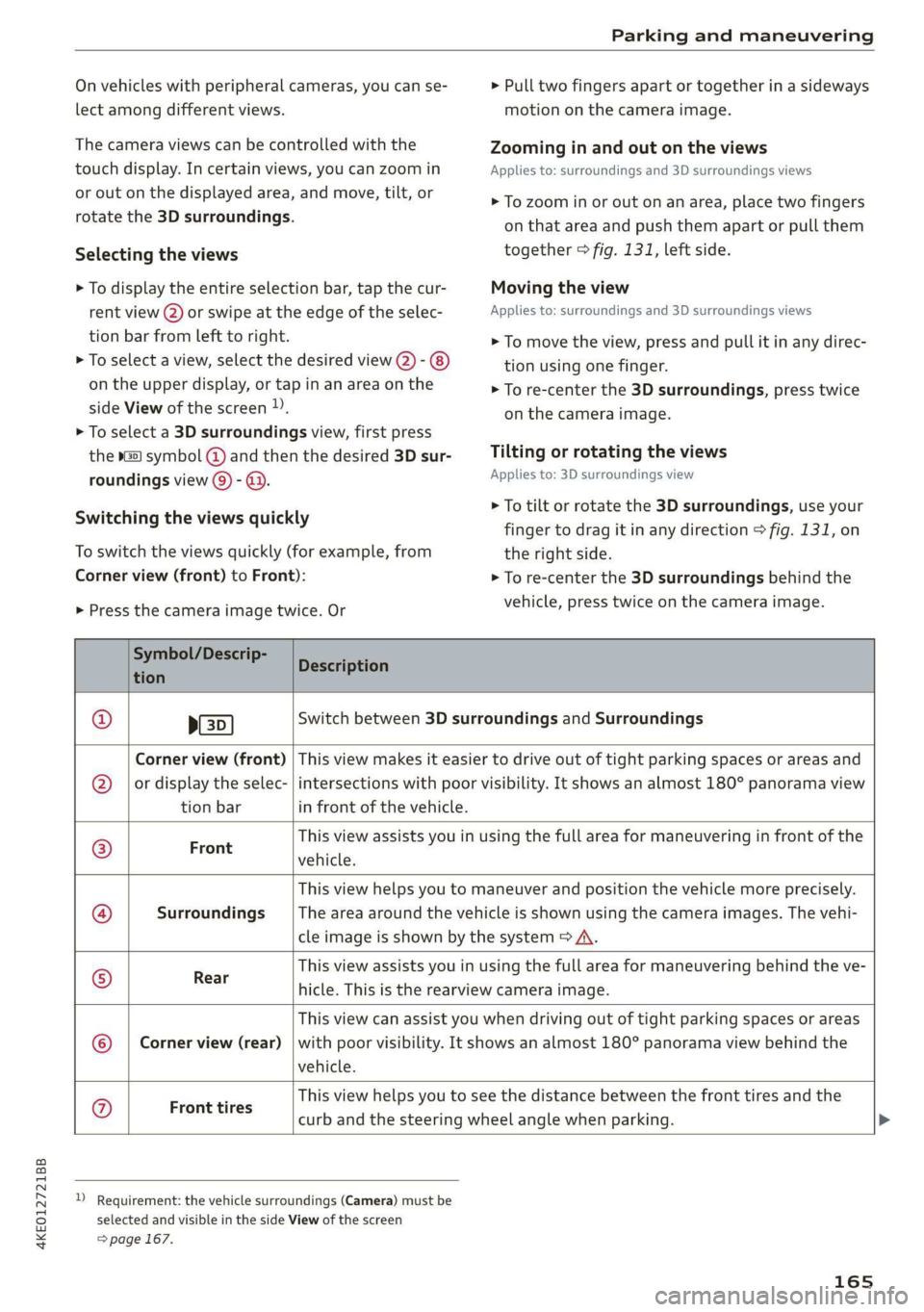
On vehicles with peripheral cameras, you can se-
lect among different views.
The camera views can be controlled with the
touch display. In certain views, you can zoom in
or out on the displayed area, and move, tilt, or
rotate the 3D surroundings.
Selecting the views
> To display the entire selection bar, tap the cur-
rent view (2) or swipe at the edge of the selec-
tion bar from left to right.
> To select a view, select the desired view @) -
on the upper display, or tap in an area on the
side View of the screen )).
> To select a 3D surroundings view, first press
the Gal symbol (@) and then the desired 3D sur-
roundings view ©) - @.
Switching the views quickly
To switch the views quickly (for example, from
Corner view (front) to Front):
> Press the camera image twice. Or
> Pull two fingers apart or together in a sideways
motion on the camera image.
Zooming in and out on the views
Applies to: surroundings and 3D surroundings views
> To zoom in or out on an area, place two fingers
on that area and push them apart or pull them
together > fig. 131, left side.
Moving the view
Applies to: surroundings and 3D surroundings views
> To move the view, press and pull it in any direc-
tion using one finger.
> To re-center the 3D surroundings, press twice
on the camera image.
Tilting or rotating the views
Applies to: 3D surroundings view
> To tilt or rotate the 3D surroundings, use your
finger to drag it in any direction > fig. 131, on
the right side.
> To re-center the 3D surroundings behind the
vehicle, press twice on the camera image.
Symbol/Descrip-
Description
tion P
ED)
Switch between 3D surroundings and Surroundings
Corner view (front) | This view makes it easier to drive out of tight parking spaces or areas and
or display the selec-
tion bar
intersections with poor visibility. It shows an almost 180° panorama view
in front of the vehicle.
Front
This view assists you in using the full area for maneuvering in front of the
vehicle.
Surroundings
This view helps you to maneuver and position the vehicle more precisely.
The area around the vehicle is shown using the camera images. The vehi-
cle image is shown by the system > A\.
Rear
This view assists you in using the full area for maneuvering behind the ve-
hicle. This is the rearview camera image.
Corner view (rear)
This view can assist you when driving out of tight parking spaces or areas
with poor visibility. It shows an almost 180° panorama view behind the
vehicle.
Ge}
©
|®;|
©
|}8)
©
|e
Front tires
This view helps you to see the distance between the front tires and the
curb and the steering wheel angle when parking.
) Requirement: the vehicle surroundings (Camera) must be
selected and visible in the side View of the screen
=> page 167.
165
Page 168 of 310
Parking and maneuvering
Symbol/Descrip-
Description
tion P
Rear tires
the curb when parking.
This view helps you to detect the distance between the rear wheels and
@
3D surroundings
In these views, you can see the areas surrounding the vehicle in 3D when
parking. The vehicle surrounding views are created from the camera im-
ages and sensor data. The vehicle image is shown by the system > A\.
ZX WARNING
— Follow the safety precautions and note the
limits of the assist systems, sensors, and
cameras © page 123.
— The Surroundings and 3D surroundings are
created from the individual camera images.
The vehicle image is shown by the system.
Objects and obstacles above the camera are
not displayed.
@) Note
Only use the images provided by the camera
on the rear of the vehicle when the luggage
compartment lid is completely closed. Make
sure any objects you may have mounted on
the luggage compartment lid do not block the
rearview camera.
@) Tips
— Depending on the selected gear, it will auto-
matically switch between the Front and
Rear views. If you switch the view manually,
the automatic front/rear camera change will
be temporarily deactivated.
— When first activated while a forward gear is
engaged, the Corner view (front) is dis-
played.
166
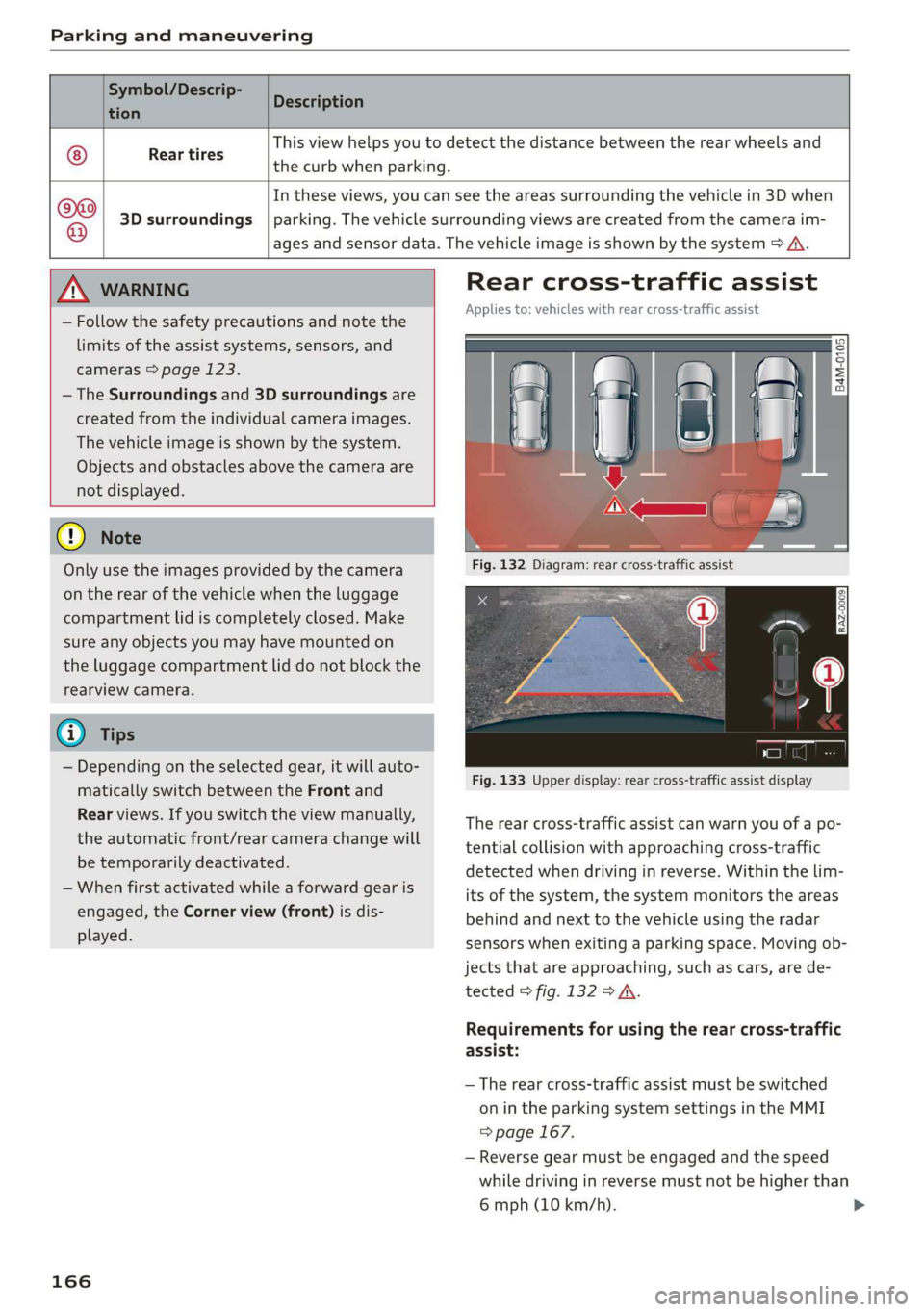
Rear cross-traffic assist
Applies to: vehicles with rear cross-traffic assist
B4M-0105
Fig. 133 Upper display: rear cross-traffic assist display
The rear cross-traffic assist can warn you of a po-
tential collision with approaching cross-traffic
detected when driving in reverse. Within the lim-
its of the system, the system monitors the areas
behind and next to the vehicle using the radar
sensors when exiting a parking space. Moving ob-
jects that are approaching, such as cars, are de-
tected > fig. 132 > A.
Requirements for using the rear cross-traffic
assist:
— The rear cross-traffic assist must be switched
on in the parking system settings in the MMI
=> page 167.
— Reverse gear must be engaged and the speed
while driving in reverse must not be higher than
6 mph (10 km/h).
Page 178 of 310
Telephone
— Only the contacts of the mobile device being
actively used are displayed.
— The contacts from the mobile device may
not be transferred in alphabetical order. If
there are too many entries, contacts with
different first letters may be missing in the
MMI.
— If contacts are loaded from the mobile de-
vice into the MMI, the contacts on the SIM
card will no longer be displayed in the MMI.
—The contacts in the local MMI memory are
always visible and can be accessed by other
users.
— After switching off the ignition and exiting
the vehicle, the mobile device directory will
be loaded when the MMI is started again if
the mobile device is within range and the
Bluetooth function is switched on in the mo-
bile device and the MMI.
— Only the contacts in the local MMI memory
can be deleted.
eT mM lee
Applies to: vehicles with telephone
> Applies to: MMI: Select on the home screen:
PHONE > Voicemail.
Requirement: there must be no voicemail num-
ber stored.
— Entering the voicemail number: enter the de-
sired number. Press OK.
Requirement: a voicemail number must be stor-
ed.
— Dialing the voicemail number: press Voice-
mail. The call begins immediately.
@ Tips
— This service must be set up and activated in
advance by the cell phone service provider.
You can obtain more information from your
cell phone service provider.
— The voicemail number depends on the cell
phone service provider.
176
Dialing a telephone number
Applies to: vehicles with telephone
Depending on the vehicle equipment, you have
the following options for dialing a phone num-
ber:
— Using text input in the MMI > page 21.
— Using voice operation > page 24.
Making an emergency call
Applies to: vehicles with telephone
Requirement: a mobile device must be connected
to the MMI via Bluetooth.
> Applies to: MMI: Select on the home screen:
PHONE > Dial number > the emergency call
number specific to the country (for example,
911) > Dial.
Z\ WARNING
— Because your phone works with radio sig-
nals, a connection cannot be guaranteed un-
der all circumstances. Do not rely on only
your phone when it comes to essential com-
munication (such as during a medical emer-
gency).
— Always follow the instructions given by the
emergency personnel during an emergency
call and only end the call when they instruct
you to do so.
Gi) Tips
Emergency numbers are not the same every-
where. Find out which emergency number is
used in your current location.
Answering/ending a call
Applies to: vehicles with telephone
Applies to: vehicles with multifunction steering wheel plus
> To accept or end a call, press the @ button on
the multifunction steering wheel. For opera-
tion, see > page 12.
You can use the following options on the MMI
when there is an incoming call:
— Answering an incoming call: press Answer. >
Page 184 of 310
Telephone
Contacts in vCard format (.vcf) can be imported
or exported from the MMI.
— Importing contacts from a storage medium:
Select: Import contacts > Search for import
data > SD card 1 or USB device 1/USB device 2
> desired contacts or Select all contacts > Start
import.
— Exporting contacts to a storage device: Re-
quirement: Only previously imported contacts
can be exported. Select: Export contacts > Find
source for exporting > SD card 1 or USB device
1/USB device 2 > desired contacts or Select all
contacts > Start export.
@ Tips
— Always read and follow the chapter on Audi
connect > page 184.
— For more information about the myAudi ac-
count, visit my.audi.com.
— The imported contacts are stored in the lo-
cal MMI memory.
— Never save important data on memory cards
or USB storage devices. Audi is not responsi-
ble for damaged or lost files and media.
— Contacts that were downloaded from a mo-
bile device cannot be exported.
— There should be no other files or folders on
the storage medium containing the contacts
to be imported.
— Apple devices and MTP devices (such as
smartphones) are not recognized as USB
storage devices.
Mobile phone network settings
Applies to: vehicles with telephone
Applies to: MMI: Select on the home screen: SET-
TINGS > Connection settings > Mobile phone
network.
Troubleshooting
Applies to: vehicles with telephone
The information that follows lists some trouble-
shooting options. They depend on the equip-
ment.
182
Switching the car phone or data module on*
Applies to: vehicles with car phone/data module
See > page 181.
Instrument cluster
WC) areda)
Applies to: vehicles with multifunction steering wheel and
telephone
In the instrument cluster display, you can control
the MMI functions with the multifunction steer-
ing wheel. For operation, see > page 12 and
=> page 26, Additional function buttons.
Requirement: the Telephone tab must be select-
ed in the instrument cluster.
> Press the [=] button.
Possible options:
— Call list: Requirement: the call list must con-
tain a phone number.
— Favorites: Requirement: favorites must be stor-
ed in the MMI.
— Switch telephones: Requirement: two cell
phones must be connected to the MMI.
— Back to call: Requirement: there must be a call
in progress.
G) Tips
— The call list can only be edited via the MMI.
— Depending on the selected function, it may
be necessary to use the MMI.
Page 195 of 310
4KE012721BB
Navigation
Navigation
Opening navigation
Applies to: vehicles with navigation system
The navigation system directs you to your desti-
nation, around traffic incidents, and on alterna-
tive routes, if desired.
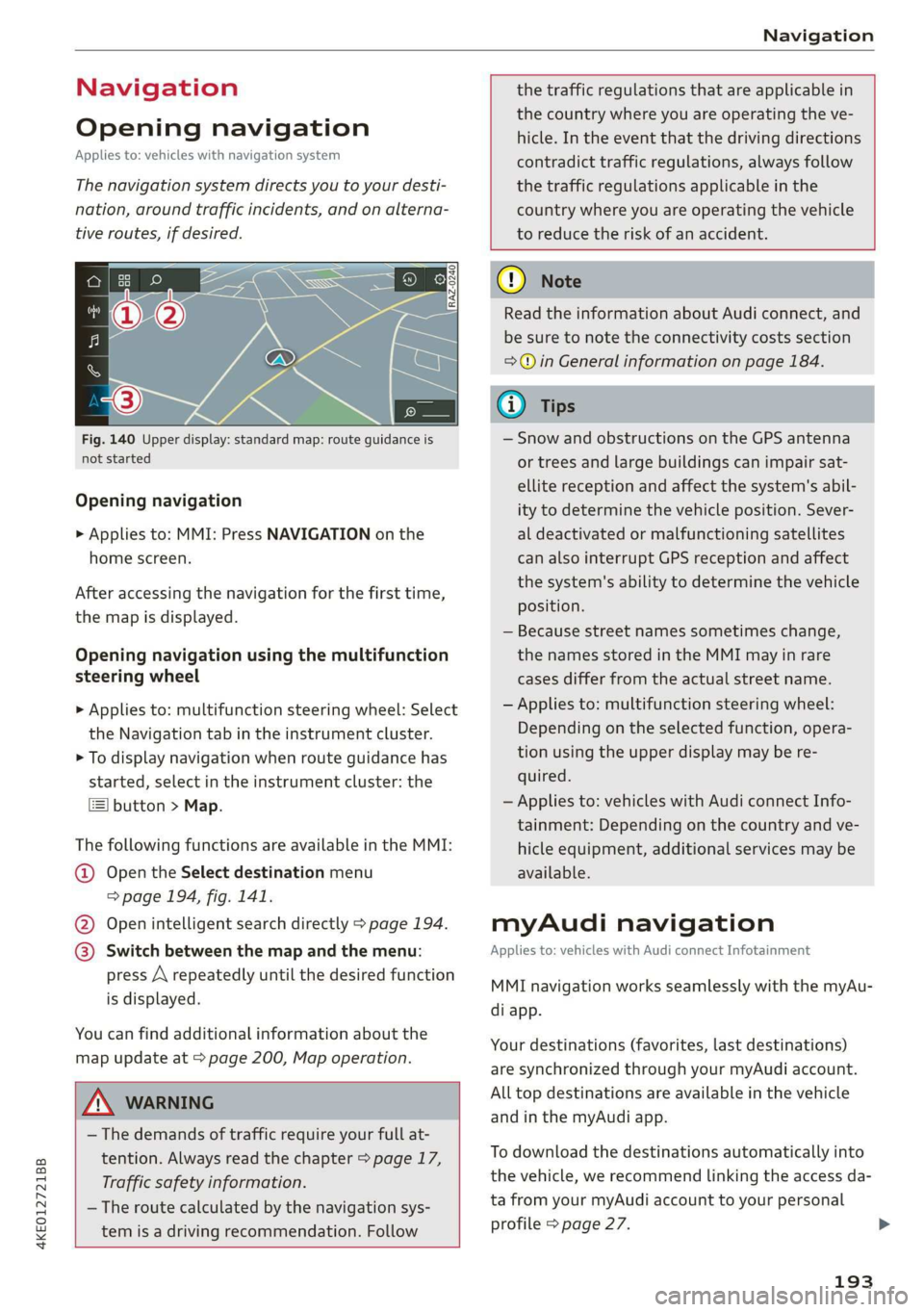
Fig. 140 Upper display: standard map: route guidance is
not started
Opening navigation
> Applies to: MMI: Press NAVIGATION on the
home screen.
After accessing the navigation for the first time,
the map is displayed.
Opening navigation using the multifunction
steering wheel
> Applies to: multifunction steering wheel: Select
the Navigation tab in the instrument cluster.
> To display navigation when route guidance has
started, select in the instrument cluster: the
button > Map.
The following functions are available in the MMI:
@ Open the Select destination menu
=> page 194, fig. 141.
@ Open intelligent search directly > page 194.
@ Switch between the map and the menu:
press A repeatedly until the desired function
is displayed.
You can find additional information about the
map update at > page 200, Map operation.
the traffic regulations that are applicable in
the country where you are operating the ve-
hicle. In the event that the driving directions
contradict traffic regulations, always follow
the traffic regulations applicable in the
country where you are operating the vehicle
to reduce the risk of an accident.
ZX WARNING
— The demands of traffic require your full at-
tention. Always read the chapter > page 17,
Traffic safety information.
— The route calculated by the navigation sys-
tem is a driving recommendation. Follow
@) Note
Read the information about Audi connect, and
be sure to note the connectivity costs section
=> in General information on page 184.
iG) Tips
— Snow and obstructions on the GPS antenna
or trees and large buildings can impair sat-
ellite reception and affect the system's abil-
ity to determine the vehicle position. Sever-
al deactivated or malfunctioning satellites
can also interrupt GPS reception and affect
the system's ability to determine the vehicle
position.
— Because street names sometimes change,
the names stored in the MMI may in rare
cases differ from the actual street name.
— Applies to: multifunction steering wheel:
Depending on the selected function, opera-
tion using the upper display may be re-
quired.
— Applies to: vehicles with Audi connect Info-
tainment: Depending on the country and ve-
hicle equipment, additional services may be
available.
myAudi navigation
Applies to: vehicles with Audi connect Infotainment
MMI navigation works seamlessly with the myAu-
di app.
Your destinations (favorites, last destinations)
are synchronized through your myAudi account.
All top destinations are available in the vehicle
and
in the myAudi app.
To download the destinations automatically into
the vehicle, we recommend linking the access da-
ta from your myAudi account to your personal
profile > page 27.
193
Page 197 of 310
4KE012721BB
Navigation
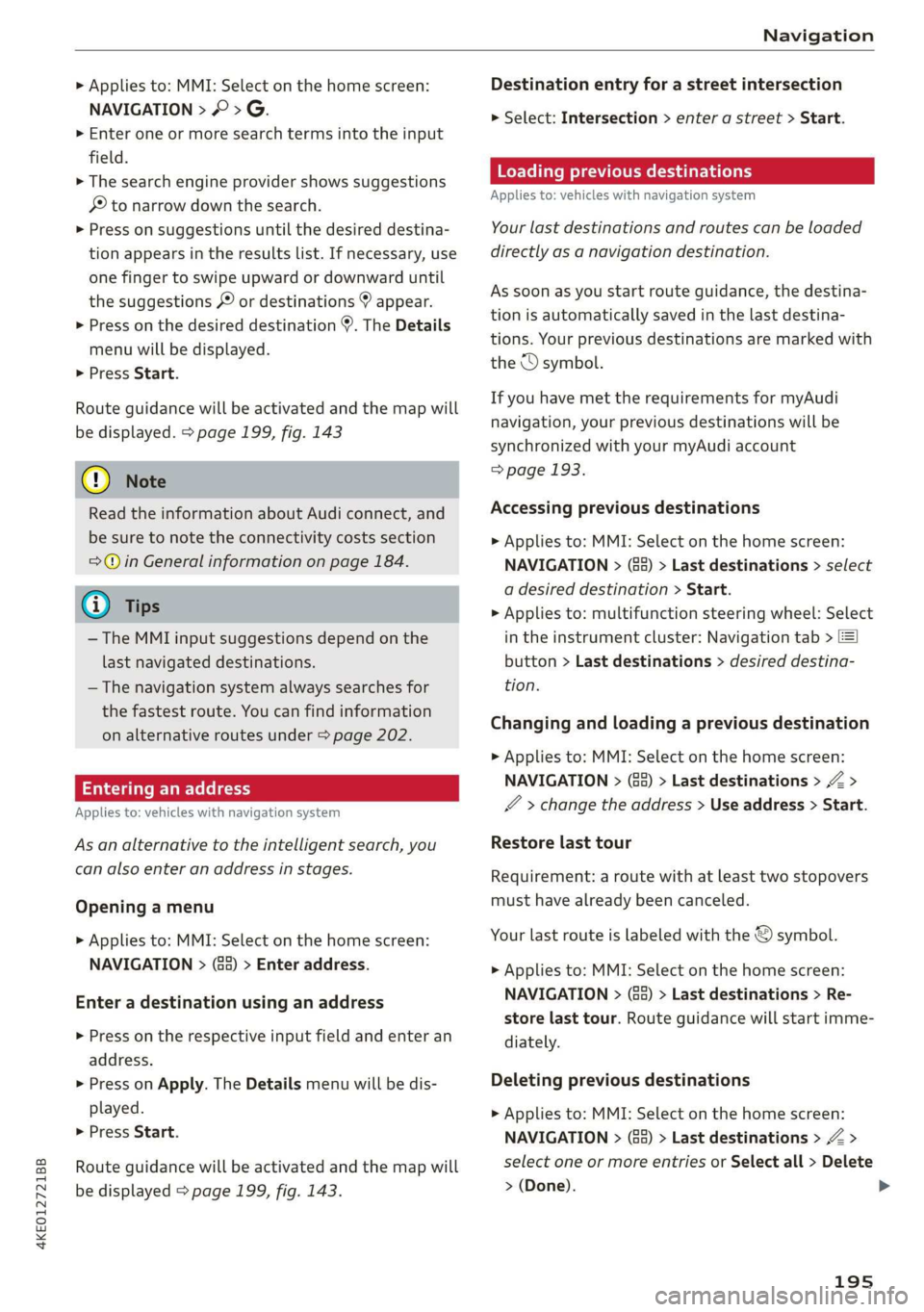
> Applies to: MMI: Select on the home screen:
NAVIGATION > © >G.
> Enter one or more search terms into the input
field.
> The search engine provider shows suggestions
£ to narrow down the search.
> Press on suggestions until the desired destina-
tion appears in the results list. If necessary, use
one finger to swipe upward or downward until
the suggestions © or destinations 9 appear.
> Press on the desired destination 9. The Details
menu will be displayed.
> Press Start.
Route guidance will be activated and the map will
be displayed. > page 199, fig. 143
@) Note
Read the information about Audi connect, and
be sure to note the connectivity costs section
=@ in General information on page 184.
@) Tips
— The MMI input suggestions depend on the
last navigated destinations.
— The navigation system always searches for
the fastest route. You can find information
on alternative routes under > page 202.
uate REL Lee)
Applies to: vehicles with navigation system
As an alternative to the intelligent search, you
can also enter an address in stages.
Opening a menu
> Applies to: MMI: Select on the home screen:
NAVIGATION > (G8) > Enter address.
Enter a destination using an address
> Press on the respective input field and enter an
address.
> Press on Apply. The Details menu will be dis-
played.
> Press Start.
Route guidance will be activated and the map will
be displayed > page 199, fig. 143.
Destination entry for a street intersection
> Select: Intersection > enter a street > Start.
Loading previous destinations
Applies to: vehicles with navigation system
Your last destinations and routes can be loaded
directly as a navigation destination.
As soon as you start route guidance, the destina-
tion is automatically saved in the last destina-
tions. Your previous destinations are marked with
the © symbol.
If you have met the requirements for myAudi
navigation, your previous destinations will be
synchronized with your myAudi account
> page 193.
Accessing previous destinations
> Applies to: MMI: Select on the home screen:
NAVIGATION > (5) > Last destinations > select
a desired destination > Start.
> Applies to: multifunction steering wheel: Select
in the instrument cluster: Navigation tab > [=]
button > Last destinations > desired destina-
tion.
Changing and loading a previous destination
> Applies to: MMI: Select on the home screen:
NAVIGATION > (88) > Last destinations > Z >
7 > change the address > Use address > Start.
Restore last tour
Requirement: a route with at least two stopovers
must have already been canceled.
Your last route is labeled with the © symbol.
> Applies to: MMI: Select on the home screen:
NAVIGATION > (G5) > Last destinations > Re-
store last tour. Route guidance will start imme-
diately.
Deleting previous destinations
> Applies to: MMI: Select on the home screen:
NAVIGATION > (8) > Last destinations > Z >
select one or more entries or Select all > Delete
> (Done).
195
>
Page 198 of 310
Navigation
@ Tips
The last route will be automatically deleted
from the list if you start a new route guidance
after canceling the route.
Setting a favorite as the destination
Applies to: vehicles with navigation system
You can access frequent destinations in the fa-
vorites. You can quickly and easily start route
guidance using the home address or business ad-
dress function.
Requirement: a favorite must be stored
=> page 202.
> Applies to: MMI: Select on the home screen:
NAVIGATION > (&8) > Favorites > select a de-
sired destination > Start. Or
> Applies to: multifunction steering wheel: Select
in the instrument cluster: Navigation tab > [=]
button > Favorites > desired destination.
POIs (point of interest)
Applies to: vehicles with a navigation system and Audi con-
nect Infotainment
Search for points of interest such as restaurants.
If the MMI is connected to the Internet, points of
interest will be automatically included in the
search.
> Applies to: MMI: Select on the home screen:
NAVIGATION > (G5) > Points of interest.
The system always searches in the search area
that is currently selected > table on page 196.
> Searching for points of interest: enter the
name of a POI.
> Searching for a point of interest in a specific
category: Select: a category (for example, res-
taurants) > a point of interest.
> Changing the search area: Requirement: route
guidance must be active. Press (a)/2:9/B! repeat-
edly until the desired search area > table on
page 196 is selected.
Sorting points of interest
Requirement: the MMI must be connected to the
Internet > page 184, Audi connect. You must
have a category selected.
196
> Press on the respective symbol for sorting until
the desired sorting order is selected.
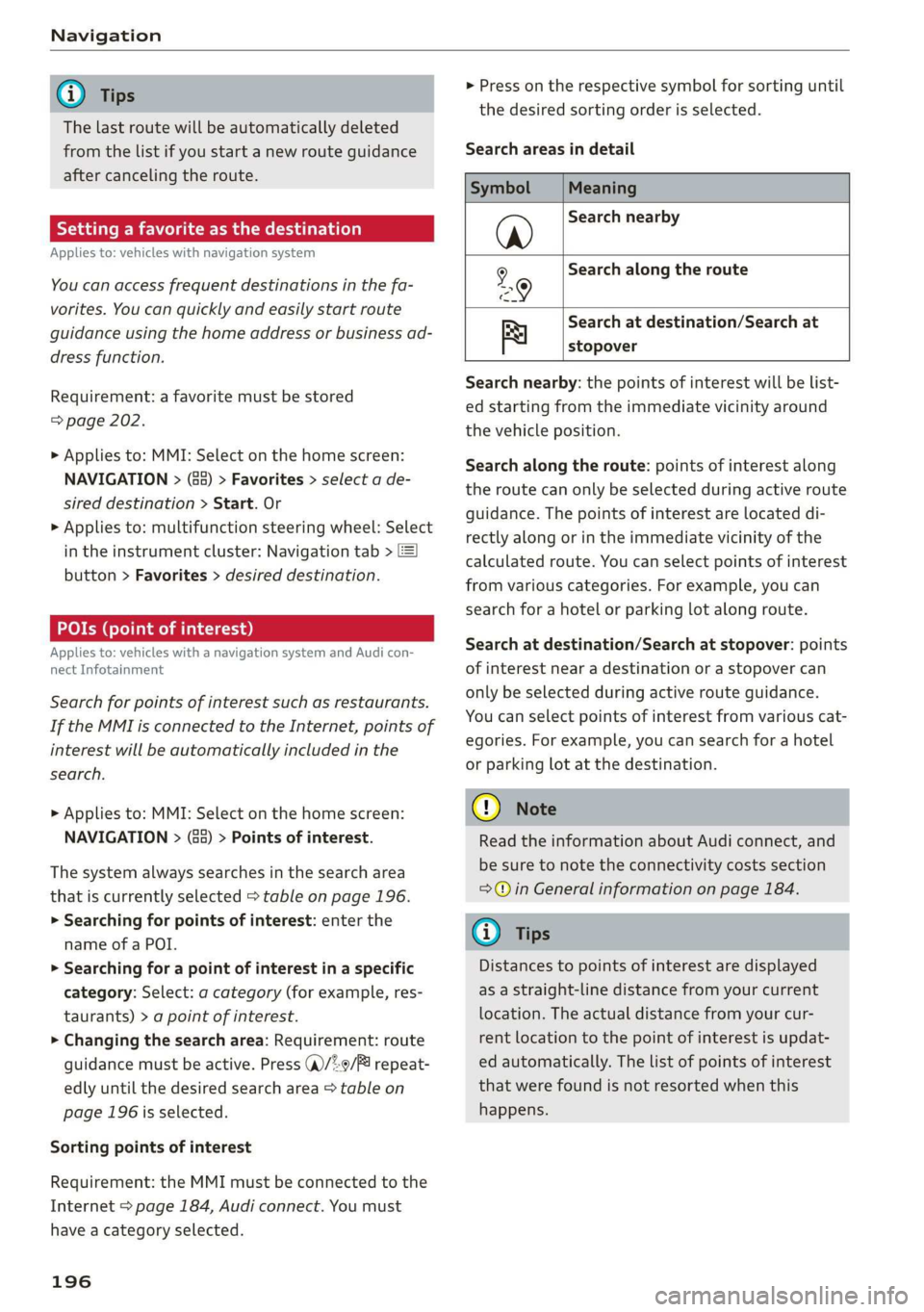
Search areas in detail
Symbol Meaning
@ Search nearby
9 Search along the route
Search at destination/Search at
Be stopover
Search nearby: the points of interest will be list-
ed starting from the immediate vicinity around
the vehicle position.
Search along the route: points of interest along
the route can only be selected during active route
guidance. The points of interest are located di-
rectly along or in the immediate vicinity of the
calculated route. You can select points of interest
from various categories. For example, you can
search for a hotel or parking lot along route.
Search at destination/Search at stopover: points
of interest near a destination or a stopover can
only be selected during active route guidance.
You can select points of interest from various cat-
egories. For example, you can search for a hotel
or parking lot at the destination.
CG) Note
Read the information about Audi connect, and
be sure to note the connectivity costs section
=@ in General information on page 184.
(i) Tips
Distances to points of interest are displayed
as a straight-line distance from your current
location. The actual distance from your cur-
rent location to the point of interest is updat-
ed automatically. The list of points of interest
that were found is not resorted when this
happens.