wheel AUDI E-TRON 2019 Repair Manual
[x] Cancel search | Manufacturer: AUDI, Model Year: 2019, Model line: E-TRON, Model: AUDI E-TRON 2019Pages: 310, PDF Size: 81.91 MB
Page 201 of 310
4KE012721BB
Navigation
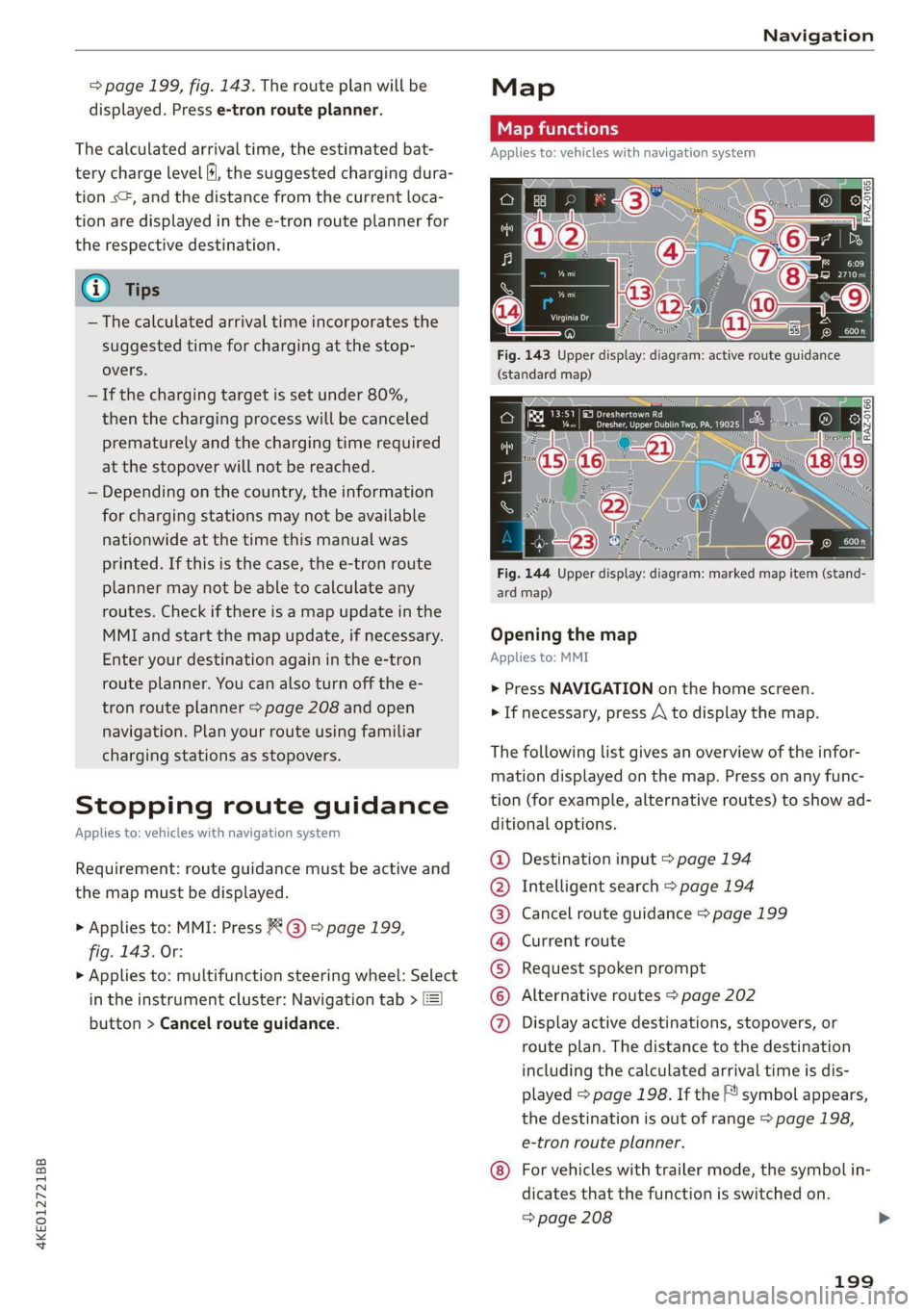
=> page 199, fig. 143. The route plan will be
displayed. Press e-tron route planner.
The calculated arrival time, the estimated bat-
tery charge level (4, the suggested charging dura-
tion sG, and the distance from the current loca-
tion are displayed in the e-tron route planner for
the respective destination.
— The calculated arrival time incorporates the
suggested time for charging at the stop-
overs.
— If the charging target is set under 80%,
then the charging process will be canceled
prematurely and the charging time required
at the stopover will not be reached.
— Depending on the country, the information
for charging stations may not be available
nationwide at the time this manual was
printed. If this is the case, the e-tron route
planner may not be able to calculate any
routes. Check if there is a map update in the
MMI and start the map update, if necessary.
Enter your destination again in the e-tron
route planner. You can also turn off the e-
tron route planner > page 208 and open
navigation. Plan your route using familiar
charging stations as stopovers.
Stopping route guidance
Applies to: vehicles with navigation system
Requirement: route guidance must be active and
the map must be displayed.
> Applies to: MMI: Press & @ = page 199,
fig. 143. Or:
> Applies to: multifunction steering wheel: Select
in the instrument cluster: Navigation tab >
button > Cancel route guidance.
Map
Map functions
Applies to: vehicles with navigation system
eo -
Fig. 144 Upper display: diagram: marked map item (stand-
ard map)
Opening the map
Applies to: MMI
> Press NAVIGATION on the home screen.
> If necessary, press /\ to display the map.
The following list gives an overview of the infor-
mation displayed on the map. Press on any func-
tion (for example, alternative routes) to show ad-
ditional options.
Destination input > page 194
Intelligent search > page 194
Cancel route guidance > page 199
Current route
Request spoken prompt
Alternative routes > page 202
QOOOOOHO Display active destinations, stopovers, or
route plan. The distance to the destination
including the calculated arrival time is dis-
played = page 198. If the F! symbol appears,
the destination is out of range > page 198,
e-tron route planner.
For vehicles with trailer mode, the symbol in-
dicates that the function is switched on.
=> page 208
199
Page 209 of 310
4KE012721BB
Navigation
Traffic information will be displayed on the
standard map > page 199, fig. 143.
Online traffic information is also displayed on the
standard map > page 204.
) Note
Read the information about Audi connect, and
be sure to note the connectivity costs section
=@ in General information on page 184.
@ Tips
— Having the Online traffic information func-
tion switched on provides the most accurate
reports of traffic situations and traffic fore-
casting. Your vehicle transmits and process-
es its anonymous, encrypted position infor-
mation at regular intervals to the traffic da-
ta provider. You can switch off data transfer
at any time > page 284.
— The online traffic information network is
not available in all countries, and the cover-
age is not nationwide.
Options and settings
Applies to: vehicles with navigation system
Context-specific functions and settings may be
available depending on the vehicle equipment.
Requirement: a list with navigation destinations
(such as last destinations) must be displayed.
> Press and hold an element until the Options
menu is displayed.
Store as favorite
See > page 202.
Edit address
You can edit an address for the next destination
entry and navigate to the destination. Select: Ed-
it address > enter a street > Use address > Start.
If the address is permanently stored (for exam-
ple, in the favorites), the stored entry will not be
changed.
Change address
See > page 202, Favorites.
Entering an address
See > page 203, Contacts as navigation destina-
tions.
Change name
See > page 202, Favorites.
Save as a shortcut
See > page 20, Shortcuts.
Settings
Applies to: vehicles with navigation system
You can adjust the navigation system settings in
the instrument cluster and in the MMI display
separately. The settings depend on the country
and vehicle equipment.
Accessing settings
> Applies to: MMI: Select on the home screen:
NAVIGATION > ©}.
Accessing settings using the multifunction
steering wheel
> Applies to: multifunction steering wheel: Select
in the instrument cluster: Navigation tab >
button.
Please note that a setting applied to the multi-
function steering wheel is only valid for the in-
strument cluster map.
Map settings
Satellite map: see > page 204.
Show range: see > page 204.
Traffic: you can display current traffic informa-
tion on the map. See > page 200, Traffic infor-
mation display on the map or map preview
— Free flow of traffic
— Traffic obstructions
— Traffic information
207
Page 212 of 310
![AUDI E-TRON 2019 Repair Manual Radio
Radio
Opening the radio
Cet Sted
7 a P Leh
M
a aan HD2
Wt | The Rock Band
@ 102.9 FM-HDC HD3
Se ea
Ce Cite 0}
RAZ-0324 Coleen y-\>) (0119)
(ole) Me ar aT]
Pea
The Rock Band - Nu](/img/6/57624/w960_57624-211.png "AUDI E-TRON 2019 Repair Manual Radio
Radio
Opening the radio
Cet Sted
7 a P Leh
M
a aan HD2
Wt | The Rock Band
@ 102.9 FM-HDC HD3
Se ea
Ce Cite 0}
RAZ-0324 Coleen y-\>) (0119)
(ole) Me ar aT]
Pea
The Rock Band - Nu")
Radio
Radio
Opening the radio
Cet Sted
7 a P Leh
M
a aan HD2
Wt | The Rock Band
@ 102.9 FM-HDC HD3
Se ea
Ce Cite 0}
RAZ-0324 Coleen y-\>) (0119)
(ole) Me ar aT]
Pea
The Rock Band - Numero uno
(ole IT
Cece
(ley a Os
Fig. 150 Upper display: SiriusXM channel list
The radio supports the FM, AM and SiriusXM*
(satellite radio) bands. Using the HD Radio receiv-
er also allows you to receive radio stations on the
FM and AM bands in digital format.
Depending on the station list, the following in-
formation may be displayed:
@ Station list
Shows the station that is currently playing.
The station list updates automatically.
@ Stations
Depending on availability, the station name
as well as program information, for example,
may be displayed.
@ HD Radio technology
FM/AM stations that can be received by digi-
tal radio are marked with the HD Radio tech-
nology symbol 4).
If reception quality declines, the radio auto-
matically switches to the analog FM/AM sta-
tion depending on availability.
@ Additional stations
Digital HD Radio stations* may contain multi-
ple additional stations*. If you lose recep-
210
tion, the additional stations* are muted since
they can no longer be received.
© Radio ID
Your radio ID and contact data for your satel-
lite radio provider are displayed.
© Channel number
@ Smart Favorite
See 9 page 213.
Adjusting the radio using the MMI
> Applies to: MMI: To set a station, select on the
home screen: RADIO > Source > select a sta-
tion list > select a station.
> Applies to: MMI: To set a frequency band, select
on the home screen: RADIO > Source a fre-
quency band.
> To select a frequency, follow the instructions
under > page 212, Free text search.
Adjusting the radio using the multifunction
steering wheel
Requirement: radio mode must be on.
» Select the Radio/Media tab using the multi-
function steering wheel.
> To switch between radio and media, select the
button > Switch to radio/Switch to media.
> Turn the left thumbwheel to display the station
list.
> To switch to a different source, press the
button.
> To select a station or a source, turn and press
the left thumbwheel.
(i) Tips
— Contact the SiriusXM* provider if you would
like to receive satellite programming.
— Buildings, tunnels, bridges, open areas, oth-
er vehicles or objects on the vehicle roof can
affect reception.
— Satellite radio is not available in Alaska and
Hawaii.
— Applies to: multifunction steering wheel:
Depending on the selected function, opera-
tion through the MMI may be required.
Page 223 of 310
4KE012721BB
Media
@) Note
— Pull the cable out of the Audi music inter-
face carefully so that the USB ports are not
damaged.
— Use a USB extension cable to connect devi-
ces that have an integrated USB connector
(such as a USB stick) to reduce the risk of
damage to your USB device and the Audi
music interface.
— Extremely high or low temperatures that
can occur inside vehicles can damage mobile
devices and/or impair their performance.
Never leave mobile devices in the vehicle in
extremely high or low temperatures.
@ Tips
— Always follow the information found in
=> page 75.
— When you switch the ignition off, the USB
ports are still supplied with power until the
energy management intervenes.
— Do not use an additional adapter cable or
USB extension cable to connect mobile devi-
ces to the Audi music interface that already
have a cable or that must be connected with
a USB adapter cable (> page 220, fig. 153).
Using an additional adapter or US extension
cable may impair functionality.
— Functionality is not guaranteed for mobile
devices that do not conform to the USB 2.0
specification.
— USB hubs are not supported.
— Video playback through the Audi music in-
terface is not supported on Apple and MTP
devices (such as smartphones).
— iPod or iPhone malfunctions also affect the
operation of the MMI. Reset your mobile de-
vice in these situations.
— Audi recommends updating the iPod or
iPhone software to the latest version. Refer
to your mobile device owner's manual for
more information.
— The USB adapter on the Audi music inter-
face will support iPod touch or iPhone devi-
ces from the 5th generation or newer with
the lightning connector.
— For more information about the Audi music
interface and supported devices, check the
Audi database for mobile devices at www.
audiusa.com/mp3 or contact an authorized
Audi dealer or authorized Audi Service Fa-
cility.
Playing media
The following sources can be selected depending
on the vehicle equipment:
— Amazon Alexa > page 220
—SD card > page 217.
— USB © page 220.
— DVD drive > page 218
— Connect external device: you can connect ex-
ternal devices via Bluetooth and use the Blue-
tooth audio player > page 218, or you can con-
nect an external device directly to the Audi mu-
sic interface > page 220.
— Connect online media > page 219.
Accessing media
Playing media files using the MMI
> Applies to: MMI: Select on the home screen:
MEDIA > Source > a source. Depending on the
connected device or online media service”, the
symbol for a source may change. The device
name may be displayed (for example: my-
Phone).
> Select a track from the categories in the media
center > page 222.
Playing media files using the multifunction
steering wheel
Requirement: a media drive must contain media
files > page 221.
> Select the Radio/Media tab using the multi-
function steering wheel.
> Turn the left thumbwheel to display the play-
list.
> To switch to a different source, press the [=|
button.
> To select a media file or a source, turn and
press the left thumbwheel.
221
Page 224 of 310
Media
> To switch between radio and media, select the
button > Switch to radio/Switch to media.
@ Tips
— For safety reasons, the video image is only
displayed when the vehicle is stationary. On-
ly the sound from the video plays while driv-
ing.
— Applies to: multifunction steering wheel:
Depending on the selected function, opera-
tion through the MMI may be required.
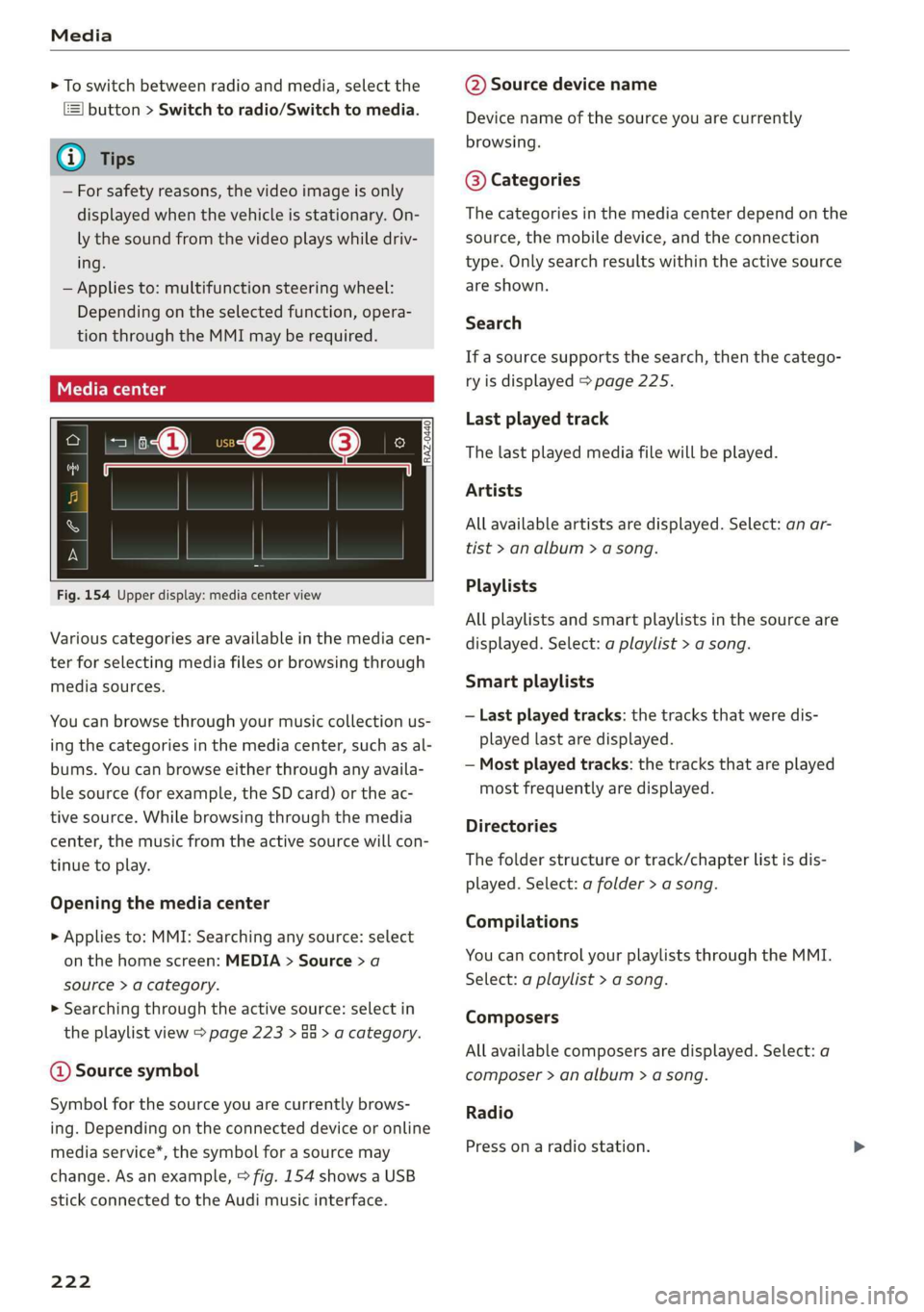
3 g 5
Ig BS
Fig. 154 Upper display: media center view
Various categories are available in the media cen-
ter for selecting media files or browsing through
media sources.
You can browse through your music collection us-
ing
the categories in the media center, such as al-
bums. You can browse either through any availa-
ble source (for example, the SD card) or the ac-
tive source. While browsing through the media
center, the music from the active source will con-
tinue to play.
Opening the media center
> Applies to: MMI: Searching any source: select
on the home screen: MEDIA > Source > a
source > a category.
> Searching through the active source: select in
the playlist view > page 223 > an > a category.
@ Source symbol
Symbol for the source you are currently brows-
ing. Depending on the connected device or online
media service*, the symbol for a source may
change. As an example, > fig. 154 shows a USB
stick connected to the Audi music interface.
222
@ Source device name
Device name of the source you are currently
browsing.
@® Categories
The categories in the media center depend on the
source, the mobile device, and the connection
type. Only search results within the active source
are shown.
Search
If a source supports the search, then the catego-
ry is displayed > page 225.
Last played track
The last played media file will be played.
Artists
All available artists are displayed. Select: an ar-
tist
> an album > a song.
Playlists
All playlists and smart playlists in the source are
displayed. Select: a playlist > a song.
Smart playlists
— Last played tracks: the tracks that were dis-
played last are displayed.
— Most played tracks: the tracks that are played
most frequently are displayed.
Directories
The folder structure or track/chapter list is dis-
played. Select: a folder > a song.
Compilations
You can control your playlists through the MMI.
Select: a playlist > a song.
Composers
All available composers are displayed. Select: a
composer > an album > a song.
Radio
Press ona radio station.
Page 235 of 310
4KE012721BB
Additional settings
the mobile device is connected with the vehicle’s
Wi-Fi hotspot.
Audi smartphone interface
You can connect your smartphone to the MMI
=> page 229.
@) Note
Always follow the information found in
=> page 184.
Connection options
Connecting a device
Requirement: Bluetooth visibility must be acti-
vated in the MMI > page 232 and mobile device.
> Select a menu item, for example Telephone 1.
> To search for and connect your mobile device,
press the New connection button > page 170.
Selecting a connected device
> Select a menu item, for example Telephone 1.
> Select your mobile device from the list of con-
nected devices. The connection will be made.
Disconnecting a connected device
> Select a menu item, for example Telephone 1.
> Press on the connected mobile device. The se-
lected device will be disconnected from the
MMI.
Additional options
Depending on the selected function, additional
options
may be available.
> Press and hold a Bluetooth device until the Op-
tions menu is displayed.
> Select one of the items in the menu.
Bluetooth profiles
You can switch desired profiles on or off.
Favorite*
To set a paired mobile device as the default
phone, activate this function.
When the mobile device is in range and the Blue-
tooth function on the mobile device and in the
MMI is switched on, the default phone will be
given priority over the other Bluetooth devices
and will be connected directly to the MMI.
Legal information
General information
Information on the software licenses can be
found online at www.audi.com/softwareinfo.
ieee mm awe
> Applies to: MMI: Select on the home screen:
SETTINGS > General.
License subscription
Version information
Legal information
Possible options:
— Software information
— About Audi connect
Audi smartphone interface
Applies to: vehicles with Audi smartphone interface
Requirement: a smartphone must be connected
to the MMI page 229.
> Applies to: MMI: Select on the home screen:
SETTINGS > Connected devices > Audi smart-
phone interface.
> Press and hold an item until the associated op-
tions are displayed.
> Press Legal notes.
sida area
Requirement: the vehicle must be stationary.
> Applies to: vehicles with multifunction steering
wheel: Select in the instrument cluster: Vehicle
functions tab > page 12.
> Press the [=] button on the multifunction steer-
ing wheel until the display appears.
233
>
Page 245 of 310
4KE012721BB
Wheels
Wheels Wheels
and Tires
General information
> Check your tires regularly for
damage, such as punctures,
cuts, cracks, and bulges. Remove
foreign objects from the tire
tread.
>If driving over curbs or similar
obstacles, drive slowly and ap-
proach the curb at an angle.
>Have faulty tires or rims re-
placed immediately.
>Protect your tires from oil and
grease.
>Mark tires before removing
them so that the same running
direction can be maintained if
they are reinstalled.
>Lay tires flat when storing and
store them ina cool, dry location
with as little exposure to light as
possible.
A WARNING
—Never drive faster than the
maximum permitted speed for
your tires. This could cause the
tires to heat up too much. This
increases the risk of an acci-
dent because it can cause the
tire to burst.
—Always adapt your driving to
the road and traffic condi-
tions. Drive carefully and re-
duce your speed on icy or slip-
pery roads. Even winter tires
can lose traction on black ice.
() Note
—Please note that summer and
winter tires are designed for
the conditions that are typical
in those seasons. Audi recom-
mends using winter tires dur-
ing the winter months. Low
temperatures significantly de-
crease the elasticity of summ-
er tires, which affects traction
and braking ability. If summer
tires are used in very cold tem-
peratures, cracks can form on
the tread bars, resulting in
permanent tire damage that
can cause loud driving noise
and unbalanced tires.
—Burnished, polished or
chromed rims must not be
used in winter driving condi-
tions. The surface of the rims
does not have sufficient corro-
sion protection for this and
could be permanently dam-
aged by road salt or similar
substances.
243
Page 246 of 310
Wheels
Tire designations
© 2 2 x ©
oO
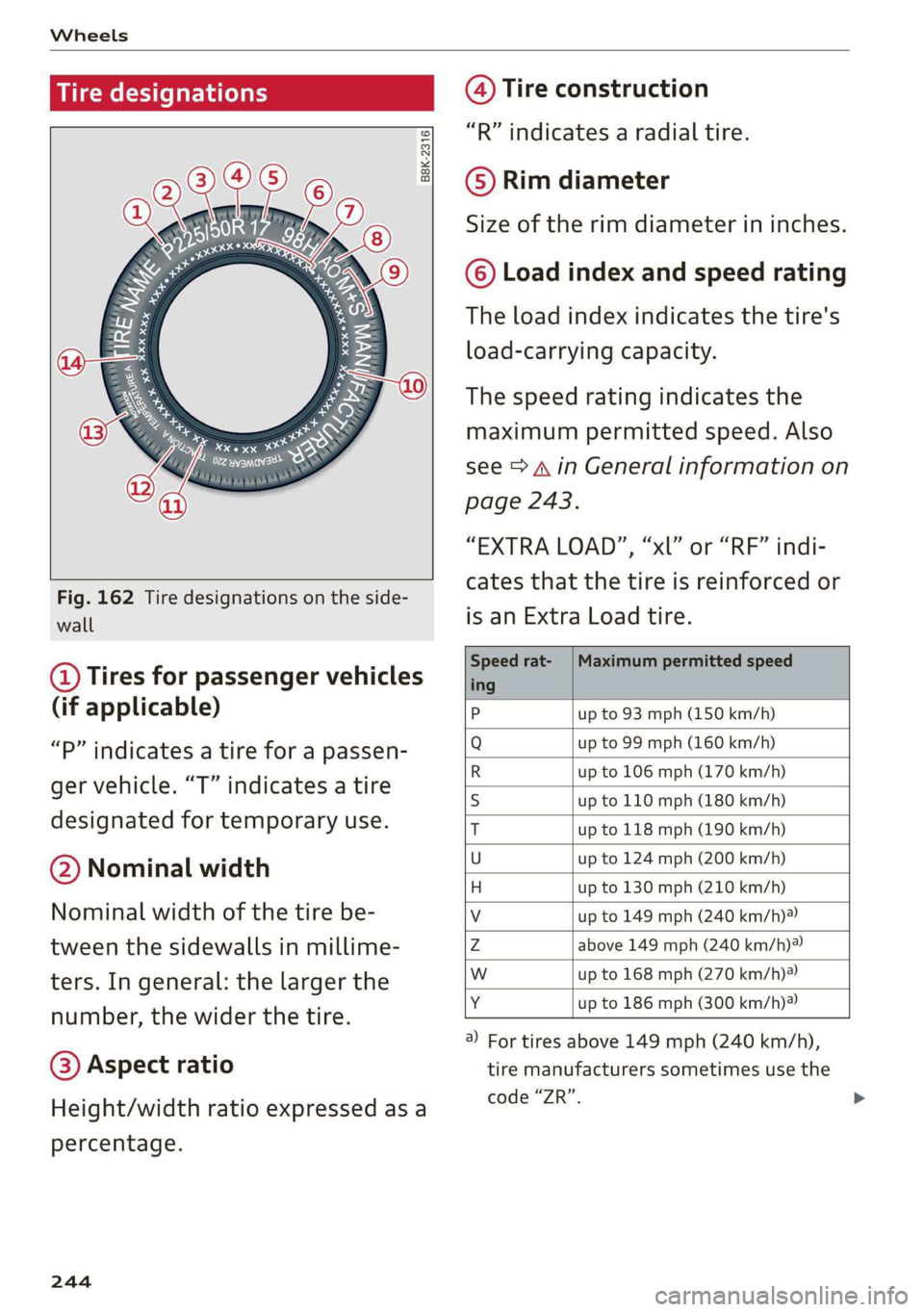
Fig. 162 Tire designations on the side-
wall
@ Tires for passenger vehicles
(if applicable)
“P” indicates a tire for a passen-
ger vehicle. “T” indicates a tire
designated for temporary use.
@ Nominal width
Nominal width of the tire be-
tween the sidewalls in millime-
ters. In general: the larger the
number, the wider the tire.
@) Aspect ratio
Height/width ratio expressed as a
percentage.
244
@) Tire construction
“R” indicates a radial tire.
©) Rim diameter
Size of the rim diameter in inches.
© Load index and speed rating
The load index indicates the tire's
load-carrying capacity.
The speed rating indicates the
maximum permitted speed. Also
see > A in General information on
page 243.
“EXTRA LOAD”, “xl” or “RF” indi-
cates that the tire is reinforced or
is an Extra Load tire.
Speed rat- /Maximum permitted speed
ing
P up to 93 mph (150 km/h)
Q up to 99 mph (160 km/h)
R up to 106 mph (170 km/h)
s up to 110 mph (180 km/h)
T up to 118 mph (190 km/h)
U up to 124 mph (200 km/h)
H up to 130 mph (210 km/h)
Vv up to 149 mph (240 km/h)?
Zz above 149 mph (240 km/h)?)
w up to 168 mph (270 km/h)?
Y up to 186 mph (300 km/h)
@) For tires above 149 mph (240 km/h),
tire manufacturers sometimes use the
code “ZR”.
Page 247 of 310
4KE012721BB
Wheels
@) US DOT number (TIN) and
manufacture date
The manufacture date is listed on
the tire sidewall (it may only ap-
pear on the inner side of the tire):
DOT... 2218...
means, for example, that the tire
was produced in the 22nd week of
the year 2018.
Audi Original Tires
Audi Original equipment tires
with the designation “AO” have
been specially matched to your
Audi. When used correctly, these
tires meet the highest standards
for safety and handling. An au-
thorized Audi dealer or author-
ized Audi Service Facility will be
able to provide you with more in-
formation.
(Q) Mud and snow capability
“M/S” or “M+S” indicates the tire
is suitable for driving on mud and
snow. /\ indicates a winter tire.
Composition of the tire cord
and materials
The number of plies indicates the
number of rubberized fabric lay-
ers in the tire. In general: the
more layers, the more weight a
tire can carry. Tire manufacturers
must also specify the materials
used in the tire. These include
steel, nylon, polyester and other
materials.
@ Maximum permitted load
This number indicates the maxi-
mum load in kilograms and
pounds that the tire can carry.
@ Uniform tire quality grade
standards for treadwear,
traction and temperature
resistance
Treadwear, traction, and tempera-
ture ranges > page 260.
@ Running direction
The arrows indicate the running
direction of unidirectional tires.
You must always follow the speci-
fied running direction
=> page 274.
Maximum permitted
inflation pressure
This number indicates the maxi-
mum pressure to which a tire can
be inflated under normal operat-
ing conditions.
245
Page 248 of 310
Wheels
Glossary of tire and loading
terminology
Accessory weight
means the combined weight (in
excess of those standard items
which may be replaced) of auto-
matic transmission, power steer-
ing, power brakes, power win-
dows, power seats, radio, and
heater, to the extent that these
items are available as factory-in-
stalled equipment (whether in-
stalled or not).
Aspect ratio
means the ratio of the height to
the width of the tire in percent.
Numbers of 55 or lower indicate a
low sidewall for improved steer-
ing response and better overall
handling on dry pavement.
Bead
means the part of the tire that is
made of steel wires, wrapped or
reinforced by ply cords and that is
shaped to fit the rim.
Bead separation
means a breakdown of the bond
between components in the bead.
246
Cord
means the strands forming the
plies in the tire.
Cold tire inflation pressure
means the tire pressure recom-
mended by the vehicle manufac-
turer for a tire of a designated
size that has not been driven for
more than a couple of miles (kilo-
meters) at low speeds in the three
hour period before the tire pres-
sure is measured or adjusted.
Curb weight
means the weight of a motor ve-
hicle with standard equipment in-
cluding the maximum capacity of
fuel, oil, and coolant, air condi-
tioning and additional weight of
optional equipment.
Extra load tire
means a tire designed to operate
at higher loads and at higher in-
flation pressures than the corre-
sponding standard tire. Extra load
tires may be identified as “XL”,
“xl”, “EXTRA LOAD”, or “RF” on
the sidewall.