battery AUDI E-TRON 2020 Owner's Manual
[x] Cancel search | Manufacturer: AUDI, Model Year: 2020, Model line: E-TRON, Model: AUDI E-TRON 2020Pages: 316, PDF Size: 85.96 MB
Page 115 of 316
4KE012721BE
High-voltage system
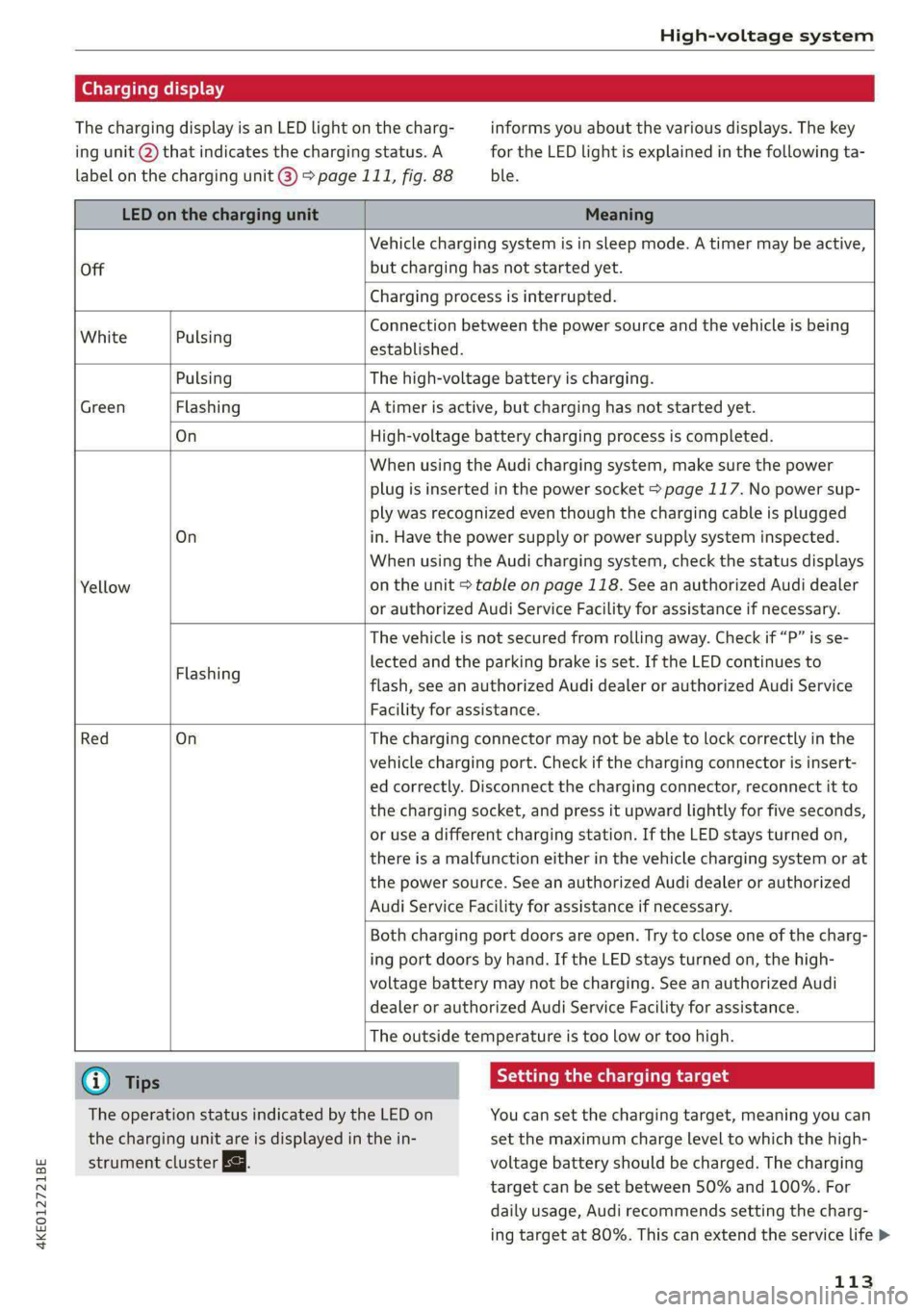
Charging display
The charging display is an LED light on the charg- informs you about the various displays. The key
ing unit @ that indicates the charging status. A for the LED light is explained in the following ta-
label on the charging unit @) 9 page 111, fig. 88 ble.
LED on the charging unit Meaning
Off
Vehicle charging system is in sleep mode. A timer may be active,
but charging has not started yet.
Charging process is interrupted.
White Pulsing
Connection between the power source and the vehicle is being
established.
Pulsing The high-voltage battery is charging.
Green Flashing A timer is active, but charging has not started yet.
On High-voltage battery charging process is completed.
On
Yellow
When using the Audi charging system, make sure the power
plug is inserted in the power socket > page 117. No power sup-
ply was recognized even though the charging cable is plugged
in. Have the power supply or power supply system inspected.
When using the Audi charging system, check the status displays
on the unit > table on page 118. See an authorized Audi dealer
or authorized Audi Service Facility for assistance if necessary.
Flashing
The vehicle is not secured from rolling away. Check if “P” is se-
lected and the parking brake is set. If the LED continues to
flash, see an authorized Audi dealer or authorized Audi Service
Facility for assistance.
Red On
The charging connector may not be able to lock correctly in the
vehicle charging port. Check if the charging connector is insert-
ed correctly. Disconnect the charging connector, reconnect it to
the charging socket, and press it upward lightly for five seconds,
or use a different charging station. If the LED stays turned on,
there is a malfunction either in the vehicle charging system or at
the power source. See an authorized Audi dealer or authorized
Audi Service Facility for assistance if necessary.
Both charging port doors are open. Try to close one of the charg-
ing port doors by hand. If the LED stays turned on, the high-
voltage battery may not be charging. See an authorized Audi
dealer or authorized Audi Service Facility for assistance.
The outside temperature is too low or too high.
G) Tips Seem Melee mle (id
The operation status indicated by the LED on You can set the charging target, meaning you can
the charging unit are is displayed in the in- set the maximum charge level to which the high-
strument cluster Eg. voltage battery should be charged. The charging
target can be set between 50% and 100%. For
daily usage, Audi recommends setting the charg-
ing target at 80%. This can extend the service life >
113
Page 116 of 316

High-voltage system
of the high-voltage battery. Before long trips,
Audi recommends setting the charging target at
100% for the highest possible range.
> Applies to: MMI: Select on the home screen:
VEHICLE > Charging & Efficiency > Charging.
> When the timer is displayed, swipe your finger
on the display toward the right.
> Press on the right section of the battery charge
level display.
> Set the desired charging target.
If you set the charging target lower than the
current battery charge level while charging,
then the charging process will be canceled. If
you set the charging target above the current
battery charge level again, then the charging
process will resume. This does not apply if you
are charging at a charging station, where you
have authenticated yourself manually. If this
is the case, authenticate yourself again at the
charging station.
Setting the timer
By setting a timer, you determine when your vehi-
cle should reach the desired charging target.
When the timer is activated, it will be run regu-
larly at the set time. In addition to the charging
target, you can also specify if your vehicle should
be heated or cooled to the temperature set in the
climate control system. You can turn on multiple
timers at the same time. The active timer is indi-
cated by the respective number in © in the upper
section of the display.
> Applies to: MMI: Select on the home screen:
VEHICLE > Charging & Efficiency > Charging.
> When the charging target is displayed, swipe
your finger on the display toward the left.
Multiple timers are displayed that you can set
separately.
> To set a timer, select > in the line for the de-
sired timer.
> Select one ore more days of the week and select
Next.
> Set the desired departure time and select OK.
114
> To also activate the climate control with a tim-
er, select fF.
> To turn ona timer, select CD.
> To activate the timer that is turned on, select
©. A colored bar will turn on in the button.
If the set departure time for the timer is too
soon, the desired charging target may not be
reached.
@ Tips
It is not possible to charge using the timer at
some charging stations.
Advanced charging settings
With the advanced charging settings, you can de-
fine
addresses at which certain charging settings
should apply (for example, charging target, mini-
mum charge). If your vehicle is in the vicinity of
the address, the charging settings will be auto-
matically applied.
> Applies to: MMI: Select on the home screen:
VEHICLE > Charging & Efficiency > Charging >
<2} > Advanced charging settings.
> To define new settings for a certain address, se-
lect +. Follow the instructions in the display.
> To edit existing settings for a certain address,
press the respective button.
> To delete existing settings for a certain ad-
dress, select Z.
as CS Ae)
In case of malfunction, you can manually release
the charging port door or the charging connec-
tor.
Fig. 89 Motor compartment: emergency release
Page 117 of 316

4KE012721BE
High-voltage system
Manually releasing the charging port door
> Open the hood > page 241.
> Open the cover in the motor compartment on
the side of the applicable charging port.
> Loosen the red loop @) ° fig. 89 from the re-
tainer and then pull on the loop carefully >@.
> If necessary, open the charging port door by
hand.
> After releasing manually, secure the loop on
the retainer and close the cover.
> Drive to an authorized Audi dealer or author-
ized Audi Service Facility immediately to have
the malfunction corrected.
Manually releasing the charging connector
If you are not able to pull the charging connector
out of the vehicle charging port, there may bea
malfunction. You must use the emergency re-
lease to release the vehicle charging connector.
Requirement: the “P” gear must be selected and
the vehicle must be unlocked.
> End the charging process > page 111.
> Open the hood > page 241.
> Open the cover in the motor compartment on
the side of the applicable charging port.
> Loosen the yellow loop (2) > fig. 89 from the re-
tainer and then pull on the loop carefully >@.
> Remove the charging connector.
> After releasing manually, secure the loop on
the retainer and close the cover.
> Drive to an authorized Audi dealer or author-
ized Audi Service Facility immediately to have
the malfunction corrected.
If the charging connector still cannot be removed
after using the emergency release, see an author-
ized Audi dealer or authorized Audi Service Facili-
ty for assistance.
@) Note
Only pull on the loop until you feel resistance.
You will not hear it release. If you continue to
pull, you could damage the emergency re-
lease mechanism.
Messages
If the or =] indicator light turns on, then the
range is low or very low. Charge the high-voltage
battery.
Warning! Please check the charging unit
cover. See owner's manual
This message appears if the charging port door is
open while driving. Stop the vehicle as soon as
possible and try to close the charging port door
using the button @) % page 111, fig. 87 or by
hand. If the charging port door cannot close
and/or the message continues to appear, drive to
an authorized Audi dealer or authorized Audi
Service Facility immediately and have the mal-
function corrected > A\ in Charging on page 112;
=>@© in Charging on page 112.
B AC charging system: malfunction! Please
contact Service
B DC charging system: malfunction! Please
contact Service
This message appears if there is a malfunction in
the charging system. Drive to an authorized Audi
dealer or authorized Audi Service Facility immedi-
ately.
Incompatible charging system. Please check
charging system
This message appears when the charging system
is incompatible. Only charge using the Audi
charging system that is designed for your vehicle.
fa Charging system: malfunction
This message appears if there is a malfunction in
the vehicle charging infrastructure or the charg-
ing station. Use a different charging station. If
this message does not turn off, contact an au-
thorized Audi dealer or authorized Audi Service
Facility.
Charging equipment
Introduction
Depending on the vehicle equipment, the Audi e-
tron compact charging system may be available.
115
>
Page 125 of 316

4KE012721BE
High-voltage system
> Push the control unit in the direction of the ar-
row toward the rear > fig. 93 and let it lock into
place.
> Wrap the excess length of cable around the
charging connector mount @) when you are not
charging the high-voltage battery.
> Plug the power cable into the socket (2).
> After charging, you can hook the vehicle charg-
ing connector to the charging connector mount
©.
Locking and unlocking the Audi charging
system
> You can lock or unlock the Audi charging sys-
tem using the key provided by turning it to the
lock position @) or the unlock position 6).
Removing the Audi charging system
> Remove the power cable connector from the
socket (2).
» Unwind the cable from the charging connector
mount (2).
> To loosen the control unit from the bracket,
push the locking mechanism @) upward.
/\ WARNING
Observe the safety precautions in the assem-
bly instructions for the wall mount clip.
123
Page 177 of 316
4KE012721BE
Telephone
A PIN for a secure Bluetooth connection will be
generated.
> Confirm the PIN on your mobile device, or
> Enter the PIN for connecting on your cell
phone. The time allowed for entering the PIN is
limited to approximately 30 seconds.
> Follow the system instructions.
> Pay attention to any other system prompts on
the MMI and on your cell phone.
After connecting successfully
See > page 174, After connecting successfully.
Switching between two mobile devices
Requirement: phone 1 and phone 2 must be con-
nected to the MMI.
>» Applies to: MMI: Select on the home screen:
PHONE > ¢{].
Disconnecting a mobile device
Applies to: vehicles with telephone
The mobile device will be disconnected from the
MMI and removed from the list of paired devices.
> To disconnect a connected device, use the con-
nection manager = page 238.
Using the Audi phone
box
Applies to: vehicles with Audi phone box
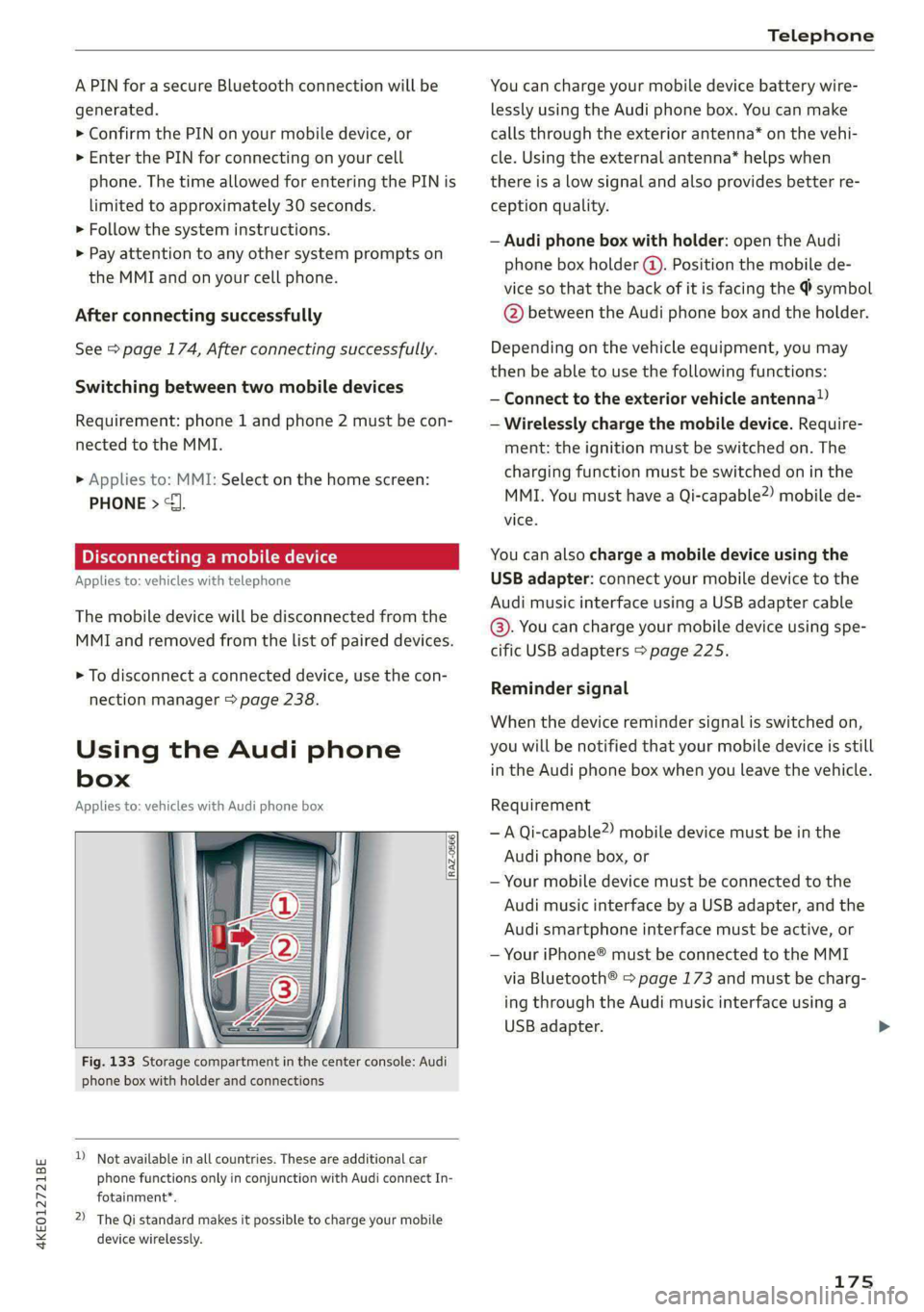
Fig. 133 Storage compartment in the center console: Audi
phone box with holder and connections
) Not available in all countries. These are additional car
phone functions only in conjunction with Audi connect In-
fotainment*.
2) The Qi standard makes it possible to charge your mobile
device wirelessly.
You can charge your mobile device battery wire-
lessly using the Audi phone box. You can make
calls through the exterior antenna* on the vehi-
cle. Using the external antenna* helps when
there is a low signal and also provides better re-
ception quality.
— Audi phone box with holder: open the Audi
phone box holder (@). Position the mobile de-
vice so that the back of it is facing the @ symbol
@ between the Audi phone box and the holder.
Depending on the vehicle equipment, you may
then be able to use the following functions:
— Connect to the exterior vehicle antenna?)
— Wirelessly charge the mobile device. Require-
ment: the ignition must be switched on. The
charging function must be switched on in the
MMI. You must have a Qi-capable2) mobile de-
vice.
You can also charge a mobile device using the
USB adapter: connect your mobile device to the
Audi music interface using a USB adapter cable
@. You can charge your mobile device using spe-
cific USB adapters > page 225.
Reminder signal
When the device reminder signal is switched on,
you will be notified that your mobile device is still
in the Audi phone box when you leave the vehicle.
Requirement
— A Qi-capable?) mobile device must be in the
Audi phone box, or
— Your mobile device must be connected to the
Audi music interface by a USB adapter, and the
Audi smartphone interface must be active, or
— Your iPhone® must be connected to the MMI
via Bluetooth® > page 173 and must be charg-
ing through the Audi music interface using a
USB adapter.
175
Page 191 of 316
4KE012721BE
Audi connect
Services
Applies to: vehicles with Audi connect Infotainment
Depending on the country and the vehicle equip-
ment, the following services may be available:
Weather information
Applies to: MMI
> Press WEATHER on the home screen.
Editing settings: Select: WEATHER > Ga.
Adding a location: select: In a new city > enter
the desired location.
> To permanently set weather for a location,
press on a location.
> To always show the weather based on the vehi-
cle position, press on the crosshairs.
Requirement: route guidance must be active.
> To show the weather at the destination, press
on B&.
Removing a location: select: Z > one or more lo-
cations or Select all > Delete.
Online news
> Applies to: MMI: Press NEWS on the home
screen.
If you logged in to myAudi in your vehicle
= page 27, personalized newsfeeds can be dis-
played.
Access to Twitter
Requirement: you must have connected your ve-
hicle with myAudi > page 27. You must have con-
nected your myAudi account with Twitter.
You can only connect one Twitter account with
your myAudi account. Not all settings can be ad-
justed in the MMI. Some can only be adjusted
through the Twitter website.
> Applies to: MMI: Select on the home screen:
NEWS > G5. Press on a Twitter entry in the list.
Access to the calendar
Requirement: the myAudi app must be installed
and open on your mobile device. Access to your
)) Depends on the country and equipment. These services
are available for a limited time.
calendar must be enabled on your mobile device.
You must be logged into the myAudi app with
your myAudi login data and you must have select-
ed your vehicle. The Wi-Fi function on your mo-
bile device and the MMI must be enabled and
your mobile device must be paired to the MMI
Wi-Fi hotspot > page 188.
You can display the your mobile device calendar
on the MMI.
» Applies to: MMI: Press CALENDAR on the home
screen.
Z\ WARNING
Always follow the information found in > A\
in General information on page 187.
@) Note
Always follow the information found in >@ in
General information on page 187.
Audi connect vehicle
control services
Applies to: vehicles with Audi connect vehicle control
With Audi connect vehicle control services 1), you
can utilize various services using the myAudi app
or online at my.audi.com.
ZA\ WARNING
Always follow the information found in > A\
in General information on page 187.
@) Tips
— Accessing specific data or controlling func-
tions remotely depends on the charge level
of the vehicle battery. Therefore, these
functions only have limited availability after
switching off the ignition.
— An eSIM card establishes the Internet con-
nection for Audi connect vehicle control
services. The costs for this are included in
the price of Audi connect vehicle control >
189
Page 193 of 316
4KE012721BE
Audi connect
— Start or stop climate control
— Program the timer
— Deactivate or activate the timer
For additional information, see > page 85.
Alert services
Requirement: a key user must be set in the vehi-
cle > page 190.
You can adjust the following services in the
myAudi app. You will be notified by a push notifi-
cation and/or e-mail if an alarm is triggered for
your vehicle.
— Geofencing Alert: a permitted/prohibited zone
was entered.
— Speed Alert: a set speed was exceeded.
— Valet Alert: a set speed was exceeded or a per-
mitted/prohibited zone was entered.
ZA\ WARNING
— Do not ignore messages and warning or indi-
cator lights that turn on in the vehicle be-
cause of the information in the vehicle sta-
tus report. This could lead to break downs in
on the road, accidents and serious injuries.
— Only perform the climate control functions
if your vehicle was shut off correctly and the
ignition is switched off.
— Only perform charging functions on the
high-voltage battery if the vehicle is shut off
correctly, is connected to a suitable socket
and if the ignition is switched off.
@) Tips
For some services, you can select if you would
like to be notified with a push notification
and/or an e-mail.
Settings
Ce) atolnl Mariano) 4
> Applies to: MMI: Select on the home screen:
SETTINGS > Connection settings > Mobile
phone network.
Depending on the country, vehicle equipment,
and connection type, the following functions may
be available:
Data connection settings
Using the Data connection settings menu, you
can set when the system should connect to the
Internet. The Internet connection disconnects
automatically once the requested Audi connect
Infotainment service no longer requires any data.
— Data roaming: data roaming is switched off at
the factory. To use a data connection outside of
the country, data roaming must be switched
on. The setting is stored for the current SIM
card or the mobile device that is currently con-
nected.
— Allow MMI online services: when this function
is switched on, a data connection is automati-
cally established in order to use Audi connect
Infotainment services.
— Allow Wi-Fi devices: when the function is
switched on, mobile devices can use the Inter-
net connection through the Wi-Fi hotspot.
Access point
The connection is configured automatically based
on the SIM card being used. The following values
can be changed. You can obtain more information
from your cell phone service provider.
— Access Point Name (APN): the access point de-
pends on the cell phone service provider and is
assigned automatically.
— User name: your cell phone service provider as-
signs the user name for your online profile.
— Password: your cell phone service provider as-
signs the password for your online profile.
— Apply settings: saves the changed settings.
— Reset configuration: resets the connection set-
tings.
Data usage counter
Your current data usage is displayed.
— Reset counter: you can reset your usage statis-
tics to zero.
— Warning limit: you can set a warning limit for
your data usage (GB/MB).
191
>
Page 204 of 316
Navigation
@® More: see > page 211, Options.
@ Weather: Requirement: the MMI must be
connected to the Internet > page 187, Audi
connect. Also see > page 189.
® Applies to: MMI and telephone
Call: Requirement: a mobile device must be
connected to the MMI = page 173. You will
make a direct call to the phone number that
is stored for the destination.
© Start: starts navigation to the displayed des-
tination directly. The map will be displayed
= page 204, Map operation.
@ Parking: press Parking to search for a park-
ing space at the destination. You can use the
parking space as the destination or stopover.
Details: Requirement: the MMI must be con-
nected to the Internet > page 187, Audi con-
nect.
© Weather at the destination: Requirement:
the MMI must be connected to the Internet
=> page 187, Audi connect.
Display of distance/driving time to the des-
tination
@) Note
Read the information about Audi connect, and
be sure to note the connectivity costs section
=@ in General information on page 187.
Selecting a destination from the map
Applies to: vehicles with navigation system
A point on the map can be used as the destina-
tion.
Opening the map
Applies to: MMI
> Press NAVIGATION on the home screen.
> If necessary, press A to display the map.
Adjusting the scale
> Select: / > select a scale.
Marking the destination
> Press and hold a point on the map until a mark-
ing appears @1) > page 203, fig. 143. Or: the
address of the selected destination is displayed
> page 203, fig. 143.
202
Selecting map content (such as POIs) as the
destination
Requirement: map content must be displayed
=> page 211.
> Press on map content on the map (for example,
@) > page 203, fig. 143).
Selecting the destination
> Select: @) > page 203, fig. 143. Or:
> To display destination details, press on 9
=> page 203, fig. 143 > Start.
Route guidance will be activated and the map will
be displayed > page 203, fig. 142.
SS) ree meee) EL
Applies to: vehicles with navigation system
You can enter additional destinations during ac-
tive route guidance.
Entering a stopover
Requirement: route guidance must be active.
> Enter a destination > page 198.
Displaying stopovers or the route plan
All destinations are listed in the route plan.
> Press on @) > page 203, fig. 142 on the map.
Editing stopovers
> Press on 7) 9 page 203, fig. 142 on the map.
> Adding a stopover: Select: Add destination >
select a destination > Add.
> Moving a stopover: press Z. Touch the > sym-
bol and move the entry to the desired position.
Press Done.
> Deleting a stopover: Select: Z > one or more
entries or Select all > Delete > (Done).
Come eC lle
Applies to: vehicles with navigation system and e-tron route
planner
The MMI includes the charging stations along the
route, if the destination cannot be reached with
the current battery charge level.
Page 227 of 316
4KE012721BE
Media
Amazon Alexa
Applies to: vehicles with Amazon Alexa Integration
You can play various Amazon Alexa content using
the MMI. The voice recognition system is used to
operate it.
Requirement: Amazon Alexa must be activated
=>page 25.
> Start Amazon Alexa using the voice recognition
system.
> Applies to: MMI: Select on the home screen:
MEDIA > Source > Amazon Alexa.
@) Note
Read the information about Audi connect, and
be sure to note the connectivity costs section
=> page 187.
Multimedia connections
USB adapter cable
OL
a| =
oS
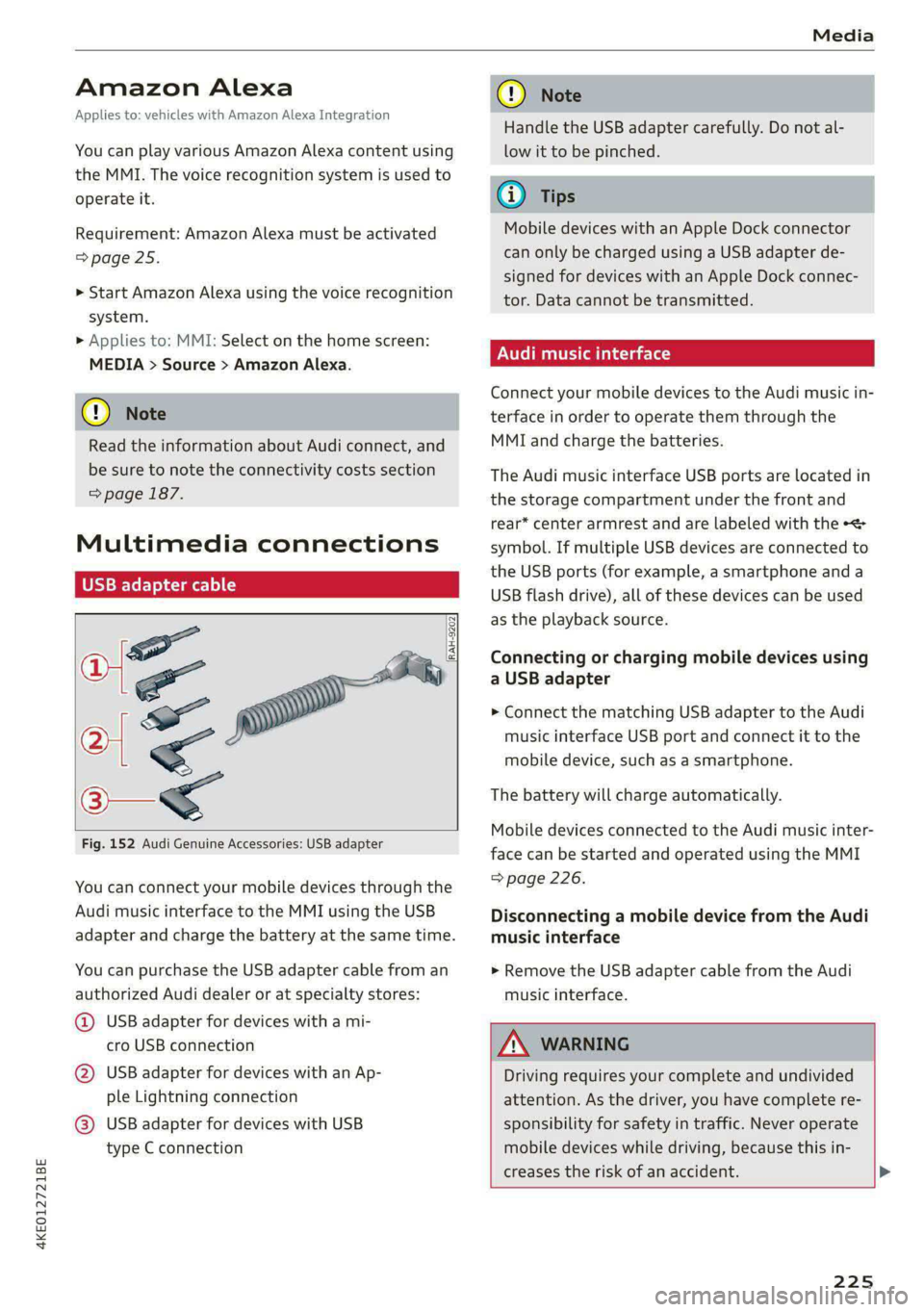
Fig. 152 Audi Genuine Accessories: USB adapter
[RAH-9202.
\
You can connect your mobile devices through the
Audi music interface to the MMI using the USB
adapter and charge the battery at the same time.
You can purchase the USB adapter cable from an
authorized Audi dealer or at specialty stores:
@ USB adapter for devices with a mi-
cro USB connection
@ USB adapter for devices with an Ap-
ple Lightning connection
@ USB adapter for devices with USB
type C connection
CG) Note
Handle the USB adapter carefully. Do not al-
low it to be pinched.
@ Tips
Mobile devices with an Apple Dock connector
can only be charged using a USB adapter de-
signed for devices with an Apple Dock connec-
tor. Data cannot be transmitted.
ONU reason Tale)
Connect your mobile devices to the Audi music in-
terface in order to operate them through the
MMI and charge the batteries.
The Audi music interface USB ports are located in
the storage compartment under the front and
rear* center armrest and are labeled with the «<>
symbol. If multiple USB devices are connected to
the USB ports (for example, a smartphone and a
USB flash drive), all of these devices can be used
as the playback source.
Connecting or charging mobile devices using
a USB adapter
> Connect the matching USB adapter to the Audi
music interface USB port and connect it to the
mobile device, such as a smartphone.
The battery will charge automatically.
Mobile devices connected to the Audi music inter:
face can be started and operated using the MMI
=> page 226.
Disconnecting a mobile device from the Audi
music interface
> Remove the USB adapter cable from the Audi
music interface.
ZA WARNING
Driving requires your complete and undivided
attention. As the driver, you have complete re-
sponsibility for safety in traffic. Never operate
mobile devices while driving, because this in-
creases the risk of an accident. >
225
Page 235 of 316
4KE012721BE
Media
@) Tips
— The media sources do not support the Win-
dows Media Audio 9 Voice format.
— For compressing MP3 files, AUDI AG recom-
mends a bit rate of at least 160 kbit/s. The
display showing the remaining play time
may differ for audio files with variable bit
rate.
— Special characters (such as those in ID3 tag
information) may display differently or may
Troubleshooting
The information that follows lists some trouble-
shooting options. They depend on the equip-
not always display, depending on the sys-
tem language.
—The manufacturer of the storage device can
provide information about its “USB Device
Subclass”.
— Some MTP player functions are not support-
ed, such as rating music tracks and video
playback.
ment.
Problem Solution
Audi music interface/Bluetooth
audio player: the mobile device is
not supported.
Read the instructions in the chapter > page 225, Multimedia
connections/> page 223, Bluetooth audio player.
Audi music interface: the mobile
device is not recognized as a
source.
For many mobile phones or mobile devices, playback is not possi-
ble when the battery level is too low (less than 5% charge level).
The mobile device will only be recognized as a media source in
the MMI after connecting if the battery charge level is sufficient.
Audi music interface: malfunc-
tions during audio playback
through an iPod/iPhone.
The Bluetooth audio player function is switched on. Switch this
function off > page 237 when you are not using the Bluetooth
audio player.
Audi music interface: audio play-
back through the connected mo-
bile device is not possible.
Make sure the USB mode M7P is selected in the settings on your
mobile device.
Bluetooth audio player: interfer-
ence with track display and audio
playback.
Playback interference can occur when using the Bluetooth audio
player if a music player app from a third party provider is open.
AUDI AG recommends using the integrated media player on your
Bluetooth device (such as a smartphone).
Online media: connection failed
between the MMI and the myAudi
app.
To establish a connection to the MMI, the MMI connection switch
must be switched on in the myAudi app status screen.
Online media: no playback of on-
line media.
Check if a suitable data plan has been purchased.
Wi-Fi hotspot: your Wi-Fi device is
disconnected from the Wi-Fi hot-
spot.
Make sure the network optimization functions are switched off in
the Wi-Fi settings or in the network settings for your Wi-Fi de-
vice. For additional information, refer to the user guide for your
Wi-Fi device.
233