page 51 AUDI Q2 2021 Owner´s Manual
[x] Cancel search | Manufacturer: AUDI, Model Year: 2021, Model line: Q2, Model: AUDI Q2 2021Pages: 364, PDF Size: 87.77 MB
Page 147 of 364
Intelligent technology
CO
< o rN
iv
rN
t-H
o < 00
Intelligent technology
Electronic stabilisation
control (ESC)
Description
The electronic stabilisation control (ESC) increa
ses the car's stability. It reduces the tendency to
skid and improves the stability and roadholding
of the vehicle. The ESC detects critical handling
situations, such as understeer, oversteer and
wheelspin
on the driven wheels. It stabilises the
vehicle by braking individual wheels or by reduc
ing the engine torque. The indicator
lamp^
in
the instrument cluster starts flashing as soon as
the ESC intervenes.
The following systems are integrated in the ESC:
Anti-lock brake system (ABS)
ABS prevents the wheels from locking up under
braking until the vehicle has reached a virtual
standstill.
You can continue to steer the vehicle
even when the brakes are on
full.
Keep your foot
on the brake pedal and do not pump the brakes.
You will feel the brake pedal puLsate while the
anti-lock brake system is working.
Brake assist system
The brake assist system can shorten the braking
distance. The braking force is automatically boos
ted if
you
press the brake pedal quickly in an
emergency. You must keep pressing the brake
pedal until the danger has passed. On
vehides
with adaptive cruise control*, the response of the
brake assist system will be more sensitive if you
are too close to the vehicLe in front.
Traction control system (ASR)
In the event of
wheelspin,
the traction control
system reduces the engine torque to match the
amount of grip available. This helps the car to
start moving, accelerate or climb a gradient.
Electronic differential lock (EDL)
When the EDL detects wheelspin, it brakes the
spinning wheel and directs the power to the
oth
er driven wheel (or wheels on quattro* versions).
This function is not available at high speeds.
To prevent the disc brake of the braked wheel
from overheating, the EDL cuts out automatically
if subjected to excessive loads. The vehicLe can
still be driven. The EDL will switch on again auto
matically when the brake has cooled down.
Steering recommendation
The ESC helps to stabilise the vehicle by changing
the steering wheel torque.
Trailer stabilisation system
Applies to: vehicles with trailer stabilisation system
Trailers have a tendency to sway. If the
ESC
de
tects that the trailer is swaying and this is affect
ing the towing vehicLe, it will automatically brake
the vehicle in order to stabilise the trailer
^>page
97.
Selective wheel torque control
Selective wheel torque control intervenes when
cornering by braking the wheel(s) on the inside of
the bend individually as required. This enables
precision cornering.
Multicollision brake assist system
The "multicollision brake assist system" can help
to reduce the risk of skidding and further
colli
sions during an accident. If the airbag control
unit detects that
a
collision has taken place up
wards of
a
certain speed, the vehicle is braked by
the
ESC.
The vehicle will not be braked automatically if:
- the driver presses the accelerator,
- or the
ESC,
the brake system or the vehicle's
electrical system are not fully functional.
WARNING
- The grip provided by the ESC and the inte
grated systems is still subject to the physi
cal limits of adhesion. Always bear this in
mind,
especially on wet or sLippery roads. If
you notice the systems cutting in, you
should reduce your speed immediately to
suit the road and traffic conditions. Do not
let
the extra safety provided tempt you into
taking any risks when driving - this can
cause accidents.
145
Page 150 of 364
Intelligent technology
/K
WARNING
- When applying
the
brakes
to
clean
off
de
posits
on the
pads and discs, select
a
clear,
dry
road.
Be sure
not to
inconvenience
or
en
danger other road users;
do not
risk an
acci
dent.
- Never
let the car
coast with
the
engine
switched
off
(this can cause accidents).
(T)
CAUTION
- Never
let the
brakes "drag"
by
leaving your
foot on
the
pedal when you
do not
really
in
tend
to
brake. This overheats
the
brakes,
re
sulting
in
longer stopping distances
and
greater wear.
- Before driving down
a
long,
steep gradient,
it
is
advisable
to
reduce speed
and
select
a
lower gear.
In
this way you will make use
of
the engine braking effect and relieve
the
load
on the
brakes.
If
you
still have
to use
the brakes,
it is
better
to
brake firmly
at in
tervals than
to
apply
the
brakes continuous-
Ly
-
If
the brake servo
is out of
action,
you must
apply considerably more pressure
to the
brake pedal than you normally would.
-
If
you
wish
to
equip
the
car with accessories
such as a front spoiler
or
wheel covers,
it is
important that
the
flow
of air to the
front
wheels
is not
obstructed, otherwise
the
brakes can overheat.
Electro-mechanical
power steering
Electro-mechanical power steering assists
the
driver when steering.
The degree
of
power assistance
is
adapted elec
tronically,
depending
on the
speed.
Warning/indicator lamps
and
driver
messages
| Do not drive vehicle: steering defective
If the warning lamp lights
up
permanently
and
the message appears, there
may be
a power
steering failure.
Stop
the
vehicle
in a
safe place
as
soon
as
possi
ble.
Do
NOT drive on. Obtain professional assis
tance.
S
Steering malfunction: you can continue driv
ing
If the indicator Lamp Lights up,
the
steering
re
sponse
may be
heavier
or
lighter than usual.
In
addition,
it is
possible that
the
steering wheel
will
be off
centre when driving
in a
straight line.
Drive slowly
to
a qualified workshop and have
the
fault rectified.
Note
You
can
drive
on if
the warnina/indicator
g/
Lamp
||
or y
|
lights
up
only briefly
Four-wheel drive
(quattro)
Applies to: vehicles with four-wheel drive
On
quattro models
the
engine power is distrib
uted
to all
four wheels.
General notes
On four-wheel drive vehicles,
the
engine power
is
distributed
to all
four wheels. The distribution
of
power
is
controlled automatically according
to
your driving style and
the
road conditions. Also
refer
to
^>page
145,
Electronic stabilisation con
trol
(ESC).
The four-wheel drive
is
specially designed
to
complement
the
superior engine power
of
your
Audi.
This combination gives
the car
exceptional
handling
and
performance capabilities
-
both
on
normal roads and
in
more difficult conditions,
such
as
snow and
ice.
Even
so (or
perhaps espe
cially
for
this reason),
it is
important
to
observe
certain safety points
<=> A-
Winter tyres
Thanks
to its
four-wheel drive, your
car
will have
plenty
of
traction
in
winter conditions, even with
•
148
Page 151 of 364
Intelligent technology
the standard tyres. Nevertheless, we still recom
mend that winter tyres or all-season tyres should
be fitted on all four wheels when winter road
conditions are expected, mainly because this will
give a better braking response.
Snow chains
On roads where snow chains are mandatory, this
also applies to cars with four-wheel drive
Opcrge
309, Snow chains.
Replacing tyres
On vehicles with four-wheel drive, all four tyres
must have the same rolling circumference. Also
avoid using tyres with varying tread depths
tapage
305,
New wheels or tyres.
Off-roader?
Some models do not have enough ground clear
ance to be used on rough tracks and uneven ter
rain,
so it is best to avoid off-road driving.
A WARNING
- Even with four-wheel drive, you should al
ways adjust your speed to suit the condi
tions.
Do not let the extra safety provided
tempt you into taking any risks when driving
- this can cause accidents.
- The braking ability of your car is limited by
the grip of the tyres. In this respect, your
car is no different from a car without four-
wheel drive. So do not be tempted to drive
too fast on icy or slippery roads just because
the car still has good acceleration in these
conditions - risk of accident!
- On wet roads bear in mind that the front
wheels may start to "aquaplane" and lose
contact with the road if the car is driven too
fast. If this should happen, there will be no
sudden increase in engine speed to warn the
driver, as with a front-wheel drive car. So do
not drive too fast in the wet: adjust your
speed to suit the conditions (accident risk).
CO
rN
IV
rN
•-i
00
Power management
This system helps to ensure reliable
starting
The
power management controls the distribu
tion of electrical energy and thus helps to ensure
that there is always enough power available to
start the engine.
If
a
vehicle with a conventional electrical system
is left parked for
a
long time, the vehicle battery
will gradually lose its charge because certain
electrical equipment (such as the immobiliser)
continues to draw current even when the ignition
is off. In some cases there may not be enough
power available to start the engine.
Your vehicLe is equipped with an intelligent pow
er management system to control the distribu
tion of electrical energy. This significantly im
proves reliability when starting the engine, and
also prolongs the life of the vehicle battery.
The main functions incorporated in the power
management system are battery diagnosis, re
sidual current management and dynamic power
management.
Battery diagnosis
The battery diagnosis function constantly regis
ters the condition of the vehicle battery. Sensors
detect the battery voltage, battery current and
battery temperature. This enables the system to
calculate the current power level and charge
con
dition of the vehicle battery.
Residual current management
The residual current management reduces power
consumption while the vehicle is parked. It
con
trols the supply of power to the various electrical
components while the ignition is switched off.
The system takes the battery diagnosis data into
consideration.
Depending on the power Level of the vehicle bat
tery, the individual electrical components are
switched off one after the other to prevent the
vehicle battery from losing too much charge and
to ensure that the engine can be started reliably. •
149
Page 152 of 364
Intelligent technology
Dynamic power management
While the vehicle is moving, this function distrib
utes the available power to the various electrical
components and systems according to their re
quirements. It ensures that on-board systems do
not consume more electrical power than is being
generated,
and thus maintains the maximum
possible vehicle battery power level.
® Note
- The power management system is not able
to overcome the given physical limits.
Please remember that the power and life of
the vehicle battery are limited.
- If the indicator lamp
|3 ^page
31 appears,
the starting ability may be impaired.
Starting ability has first priority.
Short trips, city traffic and low temperatures all
place a heavy load on the vehicLe battery. In
these conditions a large amount of power is
con
sumed,
but only
a
small amount is supplied. The
situation is also critical if electrical equipment is
in use when the engine is not running. In this
case power is consumed when none is being
gen
erated.
In these situations you will be aware that the
power management system is intervening to
con
trol the distribution of electrical power.
When the vehicle is parked for long periods
If
you
do not drive your vehicle for a period of
several days or weeks, the power management
will gradually shut off the on-board systems one
by one, or reduce the amount of current they are
using.
This limits the amount of power consumed
and helps to ensure reliable starting even after a
long period. Certain convenience features, such
as remote controL unlocking, may not be availa
ble.
These functions will be restored when you
switch on the ignition and start the engine.
150
With the engine switched off
If
you
listen to the radio or use the other info
tainment functions when the engine is not
run
ning,
this will discharge the vehicle battery.
The infotainment display will show a warning
message before the battery power drops to a Lev
el where the starting ability is impaired. This
message warns you that the system you are using
will soon be switched off automatically. You
should therefore start the engine if
you
wish to
continue using the system.
When the engine is running
Although the alternator generates electrical
power, the vehicle battery can still become dis
charged while the vehicle is being driven. This can
occur when a lot of power is being consumed but
only
a
small amount supplied, especially if the
vehicle battery is not fully charged initially.
To restore the necessary energy balance, the sys
tem
will
then temporarily shut off the electrical
components that are using a lot of power, or re
duce the current they are consuming. Heating
systems in particular use a Large amount of elec
trical power. If
you
notice, for instance, that the
seat heating* or the rear window heater is not
working,
they may have been temporarily switch
ed off or regulated to a lower heat output. These
systems will be available again as soon as
suffi
cient electrical power is available.
You may also notice that the engine runs at a
slightly faster idling speed. This is quite normal,
and no cause for concern. The increased idling
speed allows the alternator to meet the greater
power requirement and charge the vehicLe bat
tery at the same time.
Information saved in the
control units
The vehicle is fitted in the factory with electronic
control units that, among other things, control
the engine and the gearbox. The controL units al
so monitor the exhaust system and the airbags.
The control units continually analyse data rele
vant to the vehicLe while you are driving. In the •
Page 154 of 364
Multi
Media Interface
Multi
Media Interface
Notes on traffic safety
You should only use certain infotainment system
functions, e.g.
entera
navigation destination,
while the vehicle is stationary. Always be pre
pared to stop operating the infotainment system
in the interest of your own safety and that of
oth
er road users.
A WARNING
Only operate the infotainment system when
the traffic conditions allow you to do so safely
and when you can maintain proper control of
your vehicLe - risk of accident!
(T)
Note
Certain functions are not available while the
vehicle is in motion.
Introduction
The Multi Media Interface (MMI) combines
dif
ferent communication, navigation* and
enter
tainment systems in your Audi. You can operate
your MMI system via the MMI control console,
the multi-function steering wheel or the speech
dialogue system*.
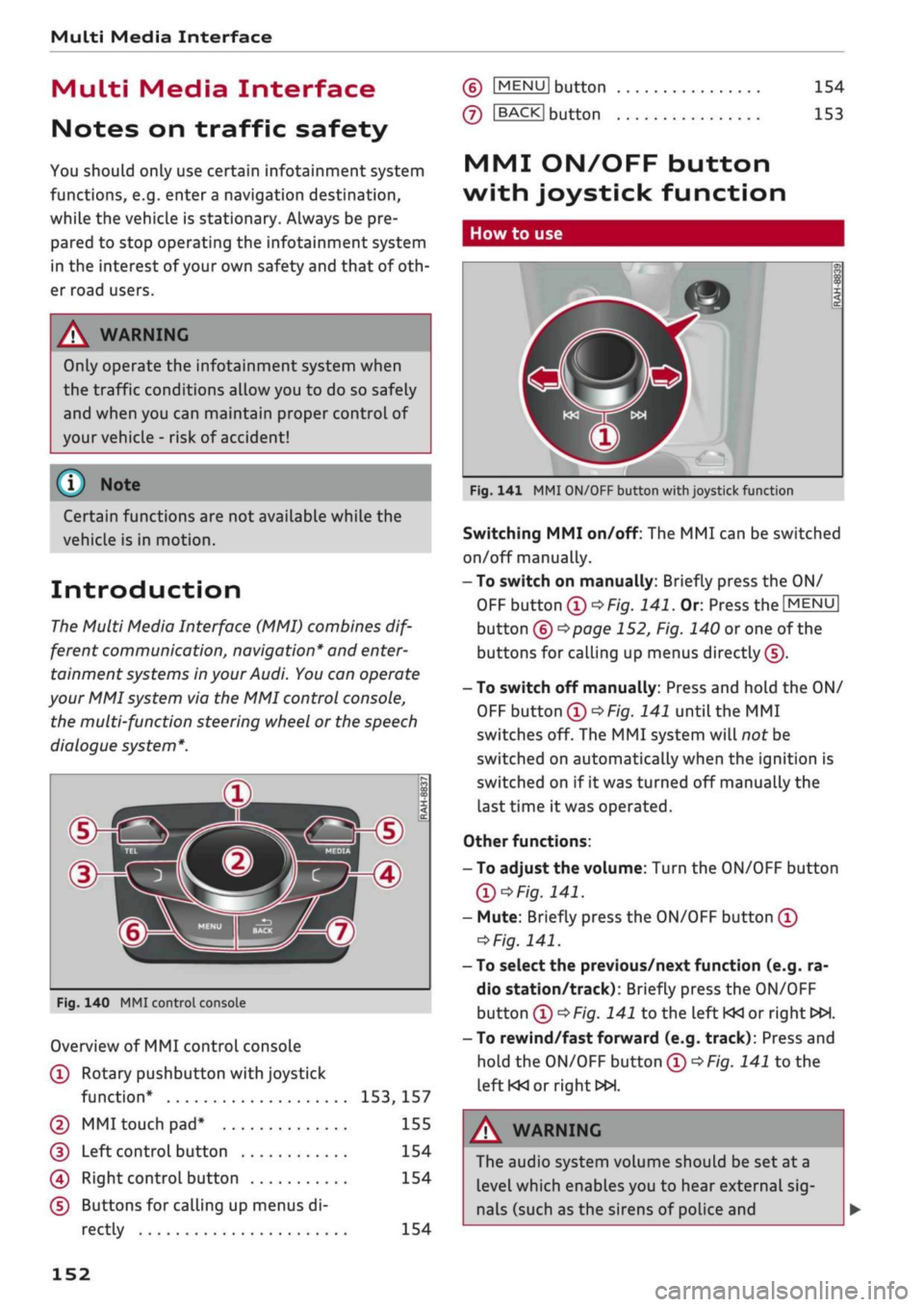
d>^3
ZLMH®
Fig.
140 MMI control console
Overview of MMI control console
(T)
Rotary pushbutton with joystick
function*
153,
157
© MMI touch
pad*
155
(D
Left controL button 154
0
Right control button 154
(D Buttons for calling up menus di
rectly 154
(6)
IMENU1
button
(7)
IBACKI
button
154
153
MMI ON/OFF button
with joystick function
How to use
Fig.
141 MMI ON/OFF button with joystick function
Switching MMI on/off: The MMI can be switched
on/off manually.
-To switch on manually: Briefly press the ON/
OFF
button
(D^F/g.
141.
Or. Press the
[MENU]
button (6)
^>page
152, Fig. 140 or one of the
buttons for calling up menus directly (J).
- To switch off manually: Press and hold the ON/
OFF
button
®^>F/g.
141 until the MMI
switches off. The MMI system will not be
switched on automatically when the ignition is
switched on if it was turned off manually the
last time it was operated.
Other functions:
- To adjust the volume: Turn the ON/OFF button
Ql^Fig.
141.
- Mute: Briefly press the ON/OFF button
(Î)
*Fig.
141.
- To select the previous/next function (e.g. ra
dio station/track): Briefly press the ON/OFF
button
(i)t>Fig.
141 to the left KM or right
WH.
-To rewind/fast forward (e.g. track): Press and
hold the ON/OFF button
(T)^Fig.
141 to the
left KM
or right»!.
A WARNING
The audio system volume should be set at a
level which enables you to hear external
sig
nals (such as the sirens of police and
152
Page 155 of 364
Multi Media Interface
emergency vehicles) clearly - failure to do so
could result in an accident.
CO
<
o
rN
iv
rN
t-H
o
< 00
©
Note
If the engine is switched off and the vehicle
battery charge level is low, the MMI system
will be switched off automatically.
Infotainment display
Switching on/off
- To switch on/off manually: Press the
^
but
ton
@ tapage
10, Fig. 2.
You can operate certain functions using the MMI
ON/OFF button with joystick function when the
MMI is switched on but the display is switched
off
o
page 152.
Notes on the illustrations of the displays
The
display type depends on the equipment
fit
ted in your vehicle.
87.6 MHz
88./
MHz
90.0 MHz
96.6 MHz
Fig.
142 Display
type
A
87.6 MHz
88.7 MHz
ij
90.0 MHz
r
90.5 MHz
91.5 MHz
96.6 MHz
1
©^
1
FM
L 1
3
i
i
Fig.
143 Display type B
Additional content (e.g. album covers, maps)
may be shown on display type
B®
oF/'g.
143. As
the other content is almost identical for both dis
play types, the illustrations in this Owner's
Man
ual primarily show display type A, depending on
the topic.
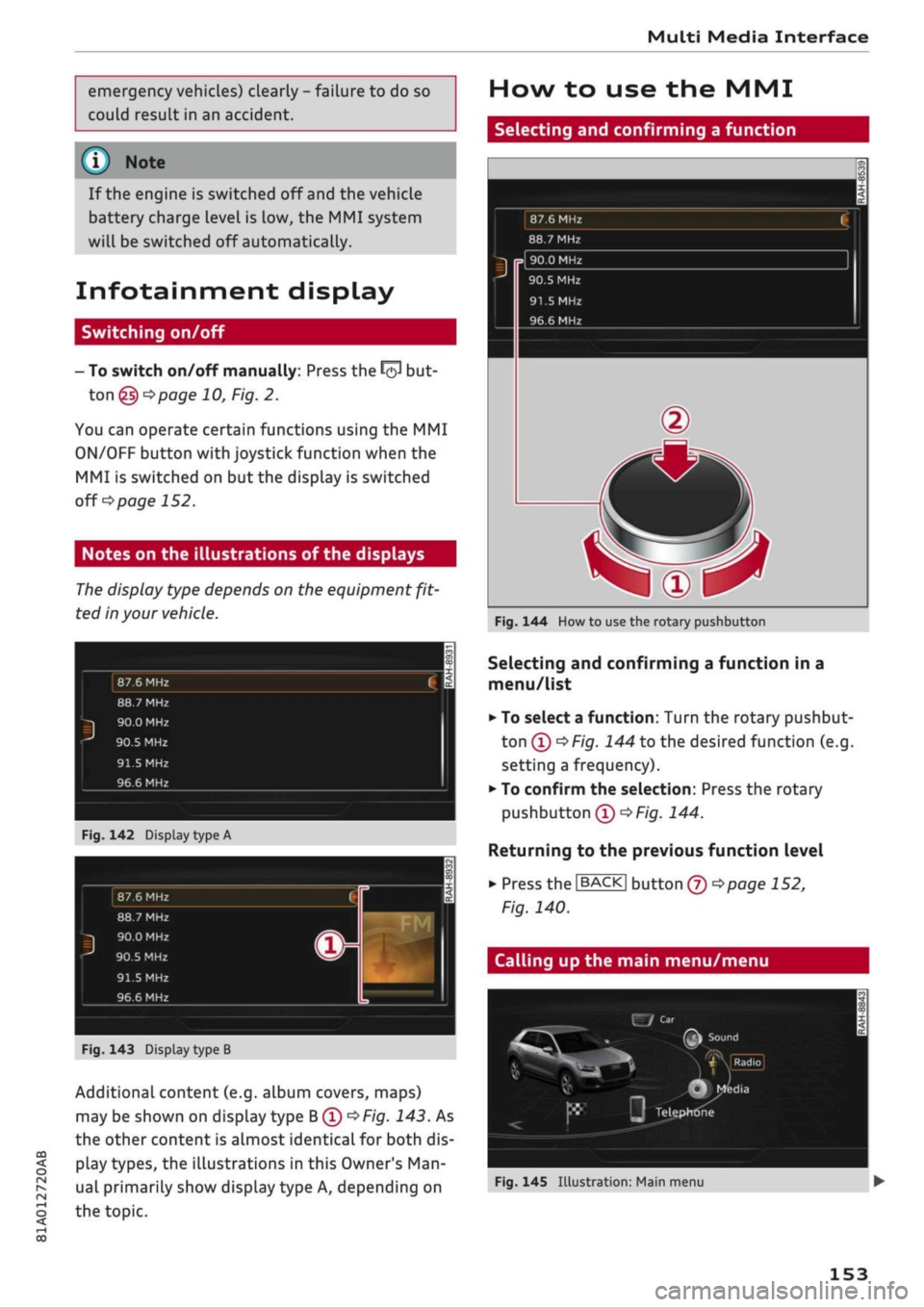
How to use the MMI
Selecting and confirming a function
87.6 MHz
88.7 MHz
90.0 MHz
90.5 MHz
91.5 MHz
96.6 MHz
Fig.
144 How to use the rotary pushbutton
Selecting and confirming a function in a
menu/list
• To select a function: Turn the rotary pushbut
ton®
^>Fig.
144 to the desired function (e.g.
setting a frequency).
•
To confirm the selection: Press the rotary
pushbutton
(T)
OFig.
144.
Returning to the previous function level
•
Press the
I
BACK
|
button
® *>page
152,
Fig. 140.
Calling up the main menu/menu
J
x,.
•'.w
•^£j: •
V."
.
F
Fig.
145
Illustrât
E/Car
(TM
Sound
^%
\
* VlKadiol •
*
M
J
Q
Mfedia
II
Telephone
on:
Main menu
• •
.
153
Page 156 of 364
Multi Media Interface
Calling up the main menu
•
Press the button marked
[MENU
|(g)
tapage
152, Fig. 140. The MMI menus (e.g. Ra
dio) will be displayed
of/g.
145. You can then
use the rotary pushbutton to select and
con
firm a function.
Calling up a menu directly
•
Press the corresponding button to call up me
nus
directly (§) ^>page
152, Fig. 140 in the di
rection of the menu you require (e.g.
I
RADIO
|),
You can then use the rotary pushbutton to se
lect and confirm a function.
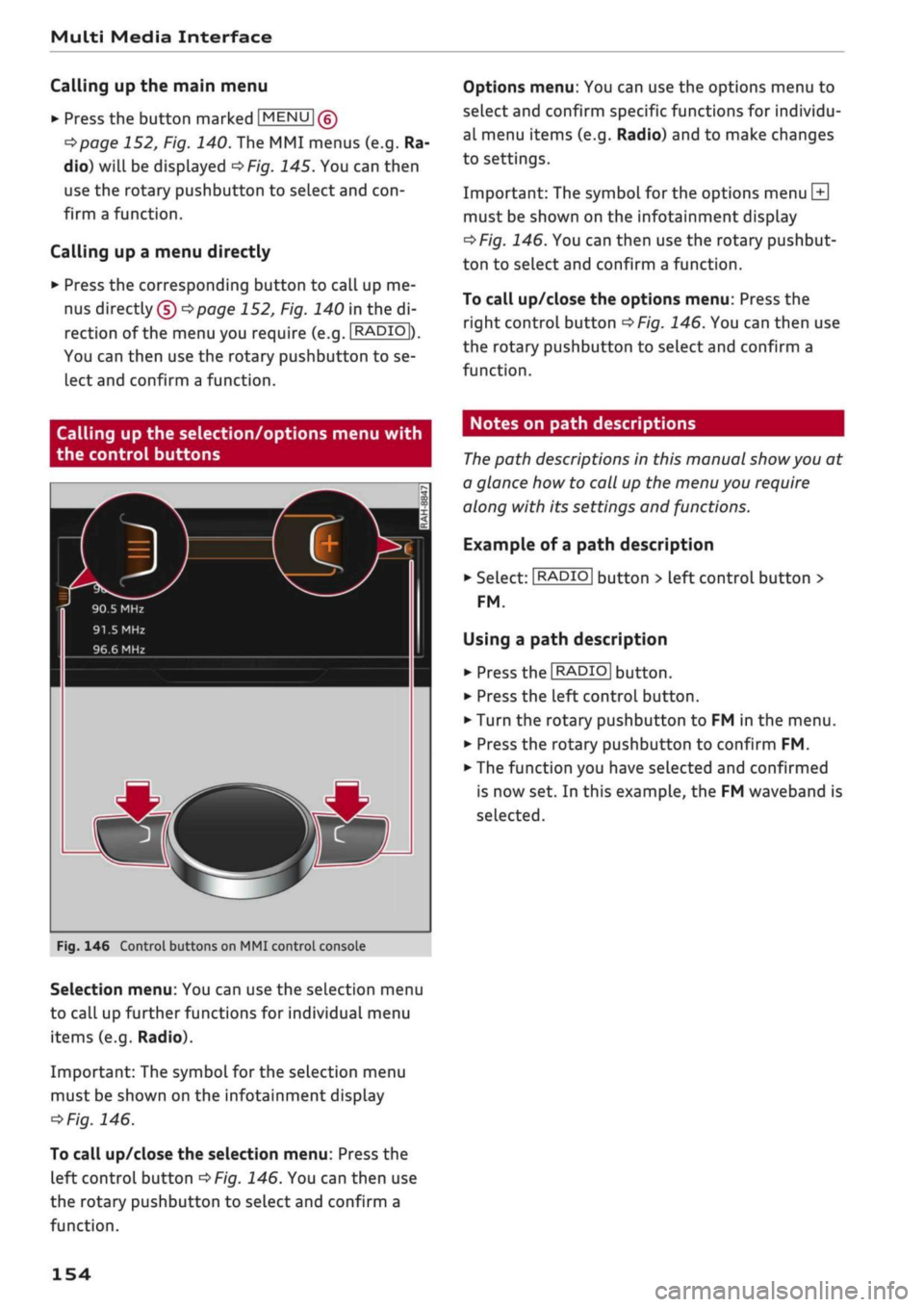
Options menu: You can use the options menu to
select and confirm specific functions for individu
al menu items (e.g. Radio) and to make changes
to settings.
Important: The symbol for the options menu
L±|
must be shown on the infotainment display
^>Fig.
146. You can then use the rotary pushbut
ton to select and confirm a function.
To call up/close the options menu: Press the
right control button
^>Fig.
146. You can then use
the rotary pushbutton to select and confirm a
function.
Calling up the selection/options menu with
the control buttons
90.5 MHz
91.5
MHz
96.6 MHz
r
Fig.
146 Control buttons on MMI control console
Selection menu: You can use the selection menu
to call up further functions for individual menu
items (e.g. Radio).
Important: The symbol for the selection menu
must be shown on the infotainment display
ï>Fig.
146.
To call up/close the selection menu: Press the
left control button
^>Fig.
146. You can then use
the rotary pushbutton to select and confirm a
function.
Notes on path descriptions
The
path descriptions in this manual
show
you at
a glance how to call up the menu you require
along with its settings and functions.
Example of a path description
•
Select:
I
RADIO|
button > left control button >
FM.
Using a path description
• Press the
I
RADIO
I
button.
•
Press the left control button.
•
Turn the rotary pushbutton to FM in the menu.
•
Press the rotary pushbutton to confirm FM.
•
The function you have selected and confirmed
is now set. In this example, the FM waveband is
selected.
154
Page 157 of 364
Multi Media Interface
MMI touch
MMI touch pad
Applies to: vehicles with MMI touch
You
can enter data on the MMI touch pad with
the help of handwriting recognition.
(•/-wrmgolstadt,
Mùhlhausen,
85049
(•)
(D)
Miinchsmiinster,
85126
® (D)
Petershausen,
Muhldorf, 85238
Fig.
147 Entering a navigation destination via the MMI
touch pad
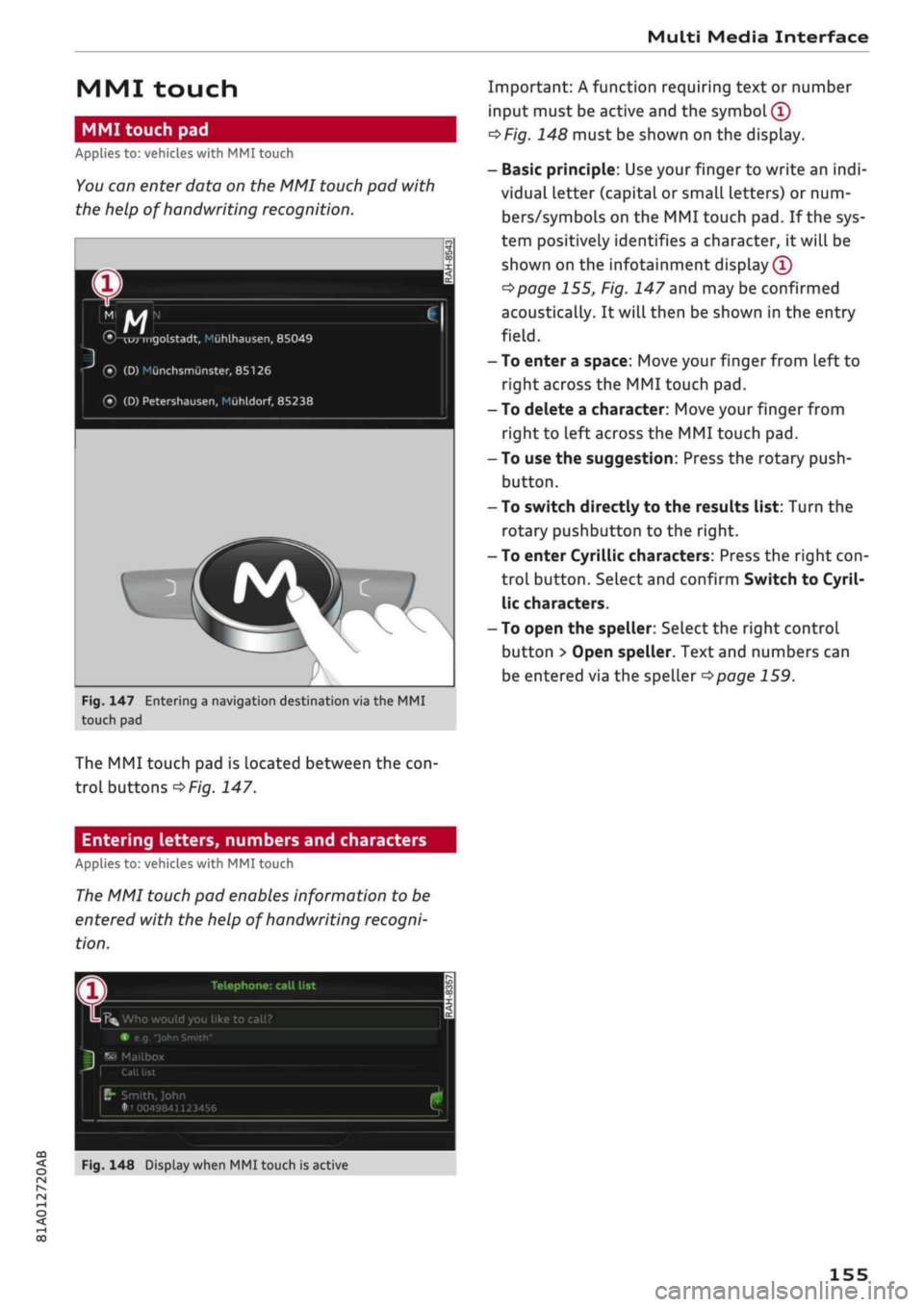
The MMI touch pad is located between the
con
troL buttons
^>Fig.
147.
Entering letters, numbers and characters
Applies to: vehicles with MMI touch
The
MMI touch pad enables information to be
entered with the help of handwriting recogni
tion.
Important: A function requiring text or number
input must be active and the
symbol (T)
oF/g.
148 must be shown on the display.
- Basic principle: Use your finger to write an
indi
vidual letter (capital or small letters) or num
bers/symbols on the MMI touch pad. If the sys
tem positively identifies a character, it will be
shown on the infotainment display
(Î)
^>page
155, Fig. 147 and may be confirmed
acoustically. It will then be shown in the entry
field.
- To enter a space: Move your finger from left to
right across the MMI touch pad.
- To delete a character: Move your finger from
right to left across the MMI touch pad.
- To use the suggestion: Press the rotary push
button.
- To switch directly to the results list: Turn the
rotary pushbutton to the right.
- To enter Cyrillic characters: Press the right
con
trol button. Select and confirm Switch to Cyril
lic characters.
- To open the speller: Select the right control
button > Open speller. Text and numbers can
be entered via the speller
^>page
159.
Telephone: call list
K%
Who would you like to call?
•
e.g
"John Smith"
^
Mailbox
B"
Smith, John
•"i 0049841123456
CO
<
O rN IV rN
i-H
00
Fig.
148 Display when MMI touch is active
155
Page 158 of 364
Multi Media Interface
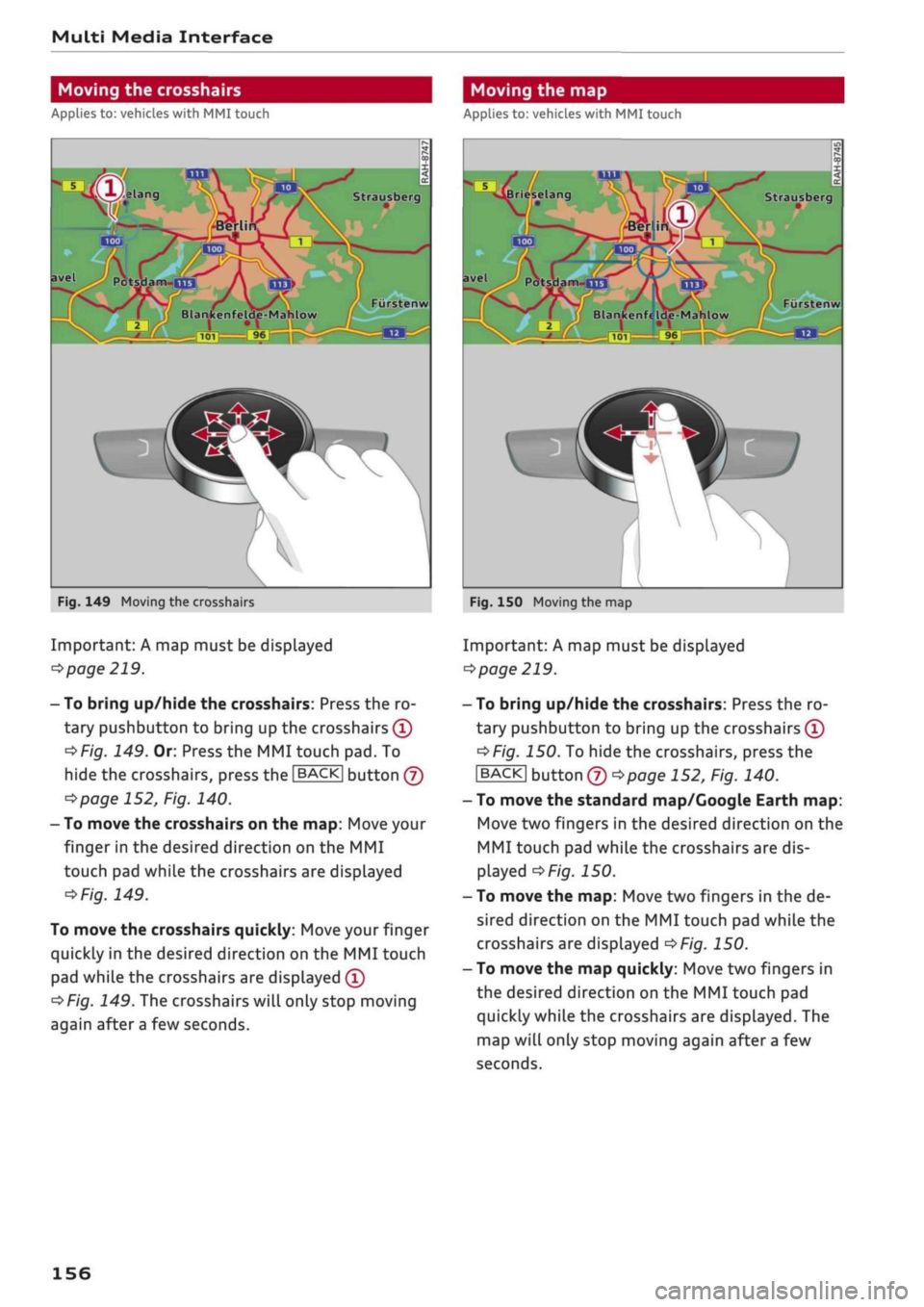
Moving the crosshairs
Applies to: vehicles with MMI touch
Moving the map
Applies to: vehicles with MMI touch
Strausberg
Potsdam-UJ3
/
101
9l
kenfelde-Mahlow
Fiirstenw
Fig.
149 Moving the crosshairs
Important: A map must be displayed
•=>
page 219.
- To bring up/hide the crosshairs: Press the ro
tary pushbutton to bring up the crosshairs
(Î)
*>Fig.
149. Or: Press the MMI touch pad. To
hide the crosshairs, press the
JBACK|
button
(J)
^>page
152, Fig. 140.
- To move the crosshairs on the map: Move your
finger in the desired direction on the MMI
touch pad while the crosshairs are displayed
^Fig.
149.
To move the crosshairs quickly: Move your finger
quickly in the desired direction on the MMI touch
pad while the crosshairs are displayed
(Î)
^Fig.
149. The crosshairs will only stop moving
again after
a
few seconds.
Briesela Strausberg
avel
PotsHam-na
Furstenw
Blankenfe Ide-Mahlow
L
•J
Fig.
150 Moving the map
Important: A map must be displayed
•=>
page 219.
- To bring up/hide the crosshairs: Press the ro
tary pushbutton to bring up the crosshairs
(T)
•=>F/g.
150. To hide the crosshairs, press the
|BACK| button
® ^>page
152, Fig. 140.
- To move the standard map/Google Earth map:
Move two fingers in the desired direction on the
MMI touch pad while the crosshairs are dis
played
^>Fig.
150.
- To move the map: Move two fingers in the de
sired direction on the MMI touch pad while the
crosshairs are displayed
^>Fig.
150.
- To move the map quickly: Move two fingers in
the desired direction on the MMI touch pad
quickly while the crosshairs are displayed. The
map will only stop moving again after
a
few
seconds.
156
Page 159 of 364
Multi Media Interface
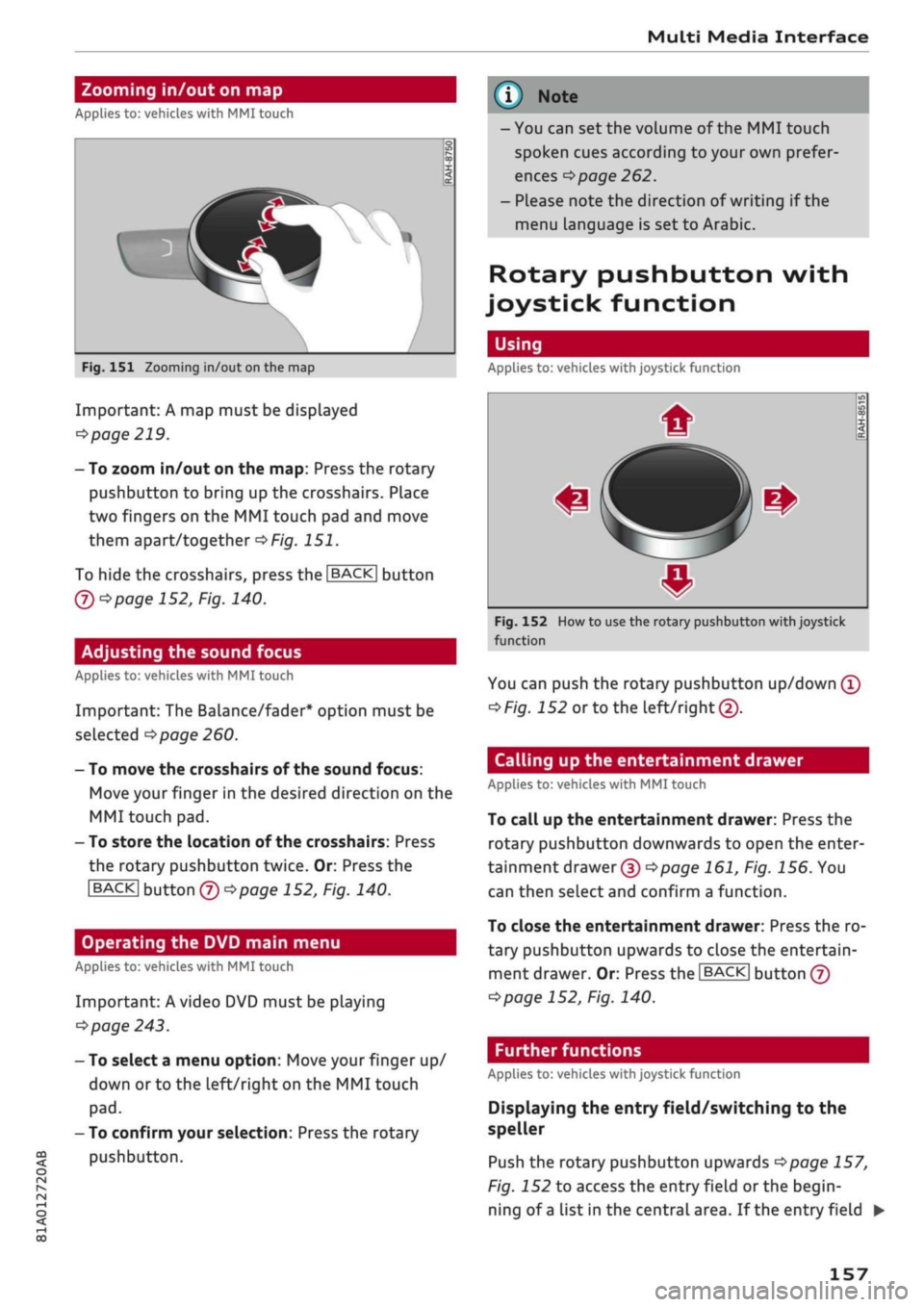
Zooming in/out on map
Applies
to: vehicles with MMI touch
CO
rN
IV
rN
•-i
00
Fig.
151 Zooming in/out on the map
Important: A map must be displayed
^>page
219.
- To zoom in/out on the map: Press the rotary
pushbutton to bring up the crosshairs. Place
two fingers on the MMI touch pad and move
them apart/together
^>Fig.
151.
To hide the crosshairs, press the
I
BACK] button
Q)*>pagel52,
Fig. 140.
Adjusting the sound focus
Applies
to: vehicles with MMI touch
Important: The
Balance/fader*
option must be
selected
•=>page
260.
- To move the crosshairs of the sound focus:
Move your finger in the desired direction on the
MMI touch pad.
-
To
store the location of the crosshairs: Press
the rotary pushbutton twice. Or: Press the
I
BACK|
button
® t>page
152, Fig. 140.
Operating the DVD main menu
Applies
to: vehicles with MMI touch
Important: A video DVD must be playing
o
page 243.
- To select a menu option: Move your finger up/
down
or to
the
Left/right
on the MMI touch
pad.
- To confirm your selection: Press the rotary
pushbutton.
\J
Note
-You can set the volume of the MMI touch
spoken cues according to your own prefer
ences
^>
page 262.
- Please note the direction of writing if the
menu language is set to Arabic.
Rotary pushbutton with
joystick function
Using
Applies
to: vehicles with joystick function
Fig.
152
function
m[
How
to
#
#
use
the rotary pushbuttc
in
m
op
i <
cc
0
n
with joystick
You can push the rotary pushbutton up/down
(T)
^>Fig.
152
or
to the
Left/right©.
Calling up the entertainment drawer
Applies
to: vehicles with MMI touch
To call up the entertainment drawer: Press the
rotary pushbutton downwards to open the enter
tainment drawer®
^>page
161, Fig. 156. You
can then select and confirm a function.
To close the entertainment drawer: Press the ro
tary pushbutton upwards to close the entertain
ment drawer. Or: Press the |BACK| button
@
opage
152, Fig. 140.
Further functions
Applies
to: vehicles with joystick function
Displaying the entry field/switching to the
speller
Push the rotary pushbutton upwards
^>page
157,
Fig. 152 to access the entry field or the begin
ning of
a
list in the central area. If the entry field •
157