audio AUDI Q2 2021 Owner´s Manual
[x] Cancel search | Manufacturer: AUDI, Model Year: 2021, Model line: Q2, Model: AUDI Q2 2021Pages: 364, PDF Size: 87.77 MB
Page 164 of 364

Multi Media Interface
©
©
©
©
©
©
©
©
©
@
@
©
©
©
©
©
Symbol/
marking
Signal strength bars for
telephone
Exclamation mark on the
telephone
Signal strength bars for
data connection*
2C/3C/LTE*
Mute function
Roaming
Import procedure
Options menu*
Bluetooth*
Scrolling bar
Entry field
MMI touch*
Rotary control
Checkbox
Selection list
Battery*
Description
Reception strength for the telephone
Indicates missed calls
Reception strength of the active connection, or
PIN:
Enter
the
SIM PIN code
PUK:
Enter
the PUK code
SIM:
Insert
the
SIM card
Network coverage of the active connection
^>page
203
2G:
GSM
network
3G:
UMTS network
LTE*:
LTE network
Audio source muted
^>page
261
Connected mobile
phone/SIM
card inserted in SIM card reader* or
embedded SIM card has left its mobile network
Import/update of contacts in the directory/call list
Select and confirm specific functions for individual menu items and
make changes to settings.
Bluetooth device connected
•=>page 2371'•=>page
173
Signifies a long list.
You can move within lists by turning the rotary pushbutton
Entries that can be changed using the speller for letters/numbers
^page
159 or the MMI touch
pad*
^page
155
Can be used via the MMI touch pad
Settings for the selected function can be made by turning the rotary
pushbutton
You can switch certain functions on
(vf
or off
•
by pressing the ro
tary pushbutton.
Settings for the selected function that can be called up by pressing
the rotary pushbutton
Battery charge level of the connected mobile phone during wireless
charging
162
Page 172 of 364
Speech dialogue system
Applies to: vehicles with speech dialogue system
Important: You must be in the Media menu. You may be able to say the following commands
depending on the medium active:
Function
Selecting a source directly
Selecting audio/video* files from
the
jukebox*
Selecting audio files from an iPod
(source: Audi music interface*)
Navigating in a structure of folders/
list
Selecting random playback
Correcting an entry
Closing the full list of commands
Say:
Jukebox* / CD / DVD / SD card 1 / SD card 2 / Audi music inter
face*
/ iPhone* / USB* / Bluetooth* / Wi-Fi* / Medium (XY),
e.g.
"Rachel's player"
Media favourites / Artists / Albums / Genres / Tracks / Play-
lists / Videos
Artists / Albums / Genres / Tracks / Playlists / Composers /
Podcasts / Audiobooks
Folder up / Line (XY)
Switch on random playback / Switch off random playback
No,
I meant (XY)
Close
Natural commands
Applies to: vehicles with speech dialogue system and natural commands
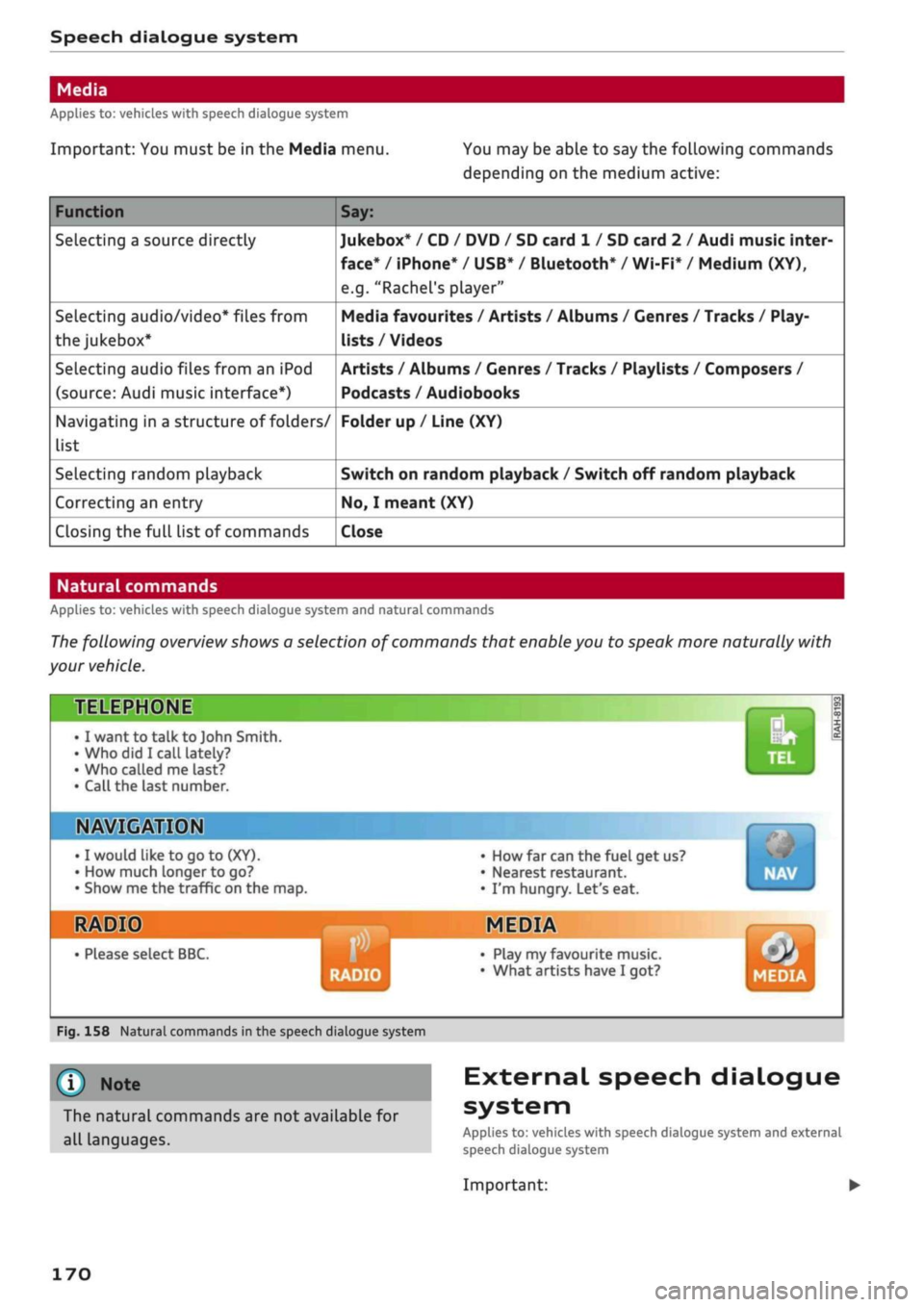
The following overview shows a selection of commands that enable you to speak more naturally with
your vehicle.
TELEPHONE
• I want to talk to John Smith.
•Who did I
call lately?
• Who called me last?
• Call the last number.
IN»
©MM
I would
like to go to
(XY).
How much longer to go?
Show me the traffic on the map.
HIS
• Please select BBC.
• How far can the fuel get us?
• Nearest restaurant.
• I'm hungry. Let's eat.
MEDIA
RADIO
• Play my favourite music.
• What artists have I got? MEDIA
Fig.
158 Natural commands in the speech dialogue system
©
Note
The natural commands are not available for
all languages.
External speech dialogue
system
Applies to: vehicles with speech dialogue system and external
speech dialogue system
Important:
170
Page 203 of 364
Audi connect (infotainment)
CO
< o rN
IN
rN
•-H
00
new version is available at my.audi.com.
You can also have the new navigation data
installed by an Audi deaLer (carries addition
al charges).
- Further information on the myAudi special
destinations and the map update can be
found online at my.audi.com.
Audi connect (infotainment) for telephones
Applies
to: vehicles with Audi connect (infotainment)
© CAUTION
•
Select: |MENU| button
>
Audi connect
>
left
control button
>
Communication.
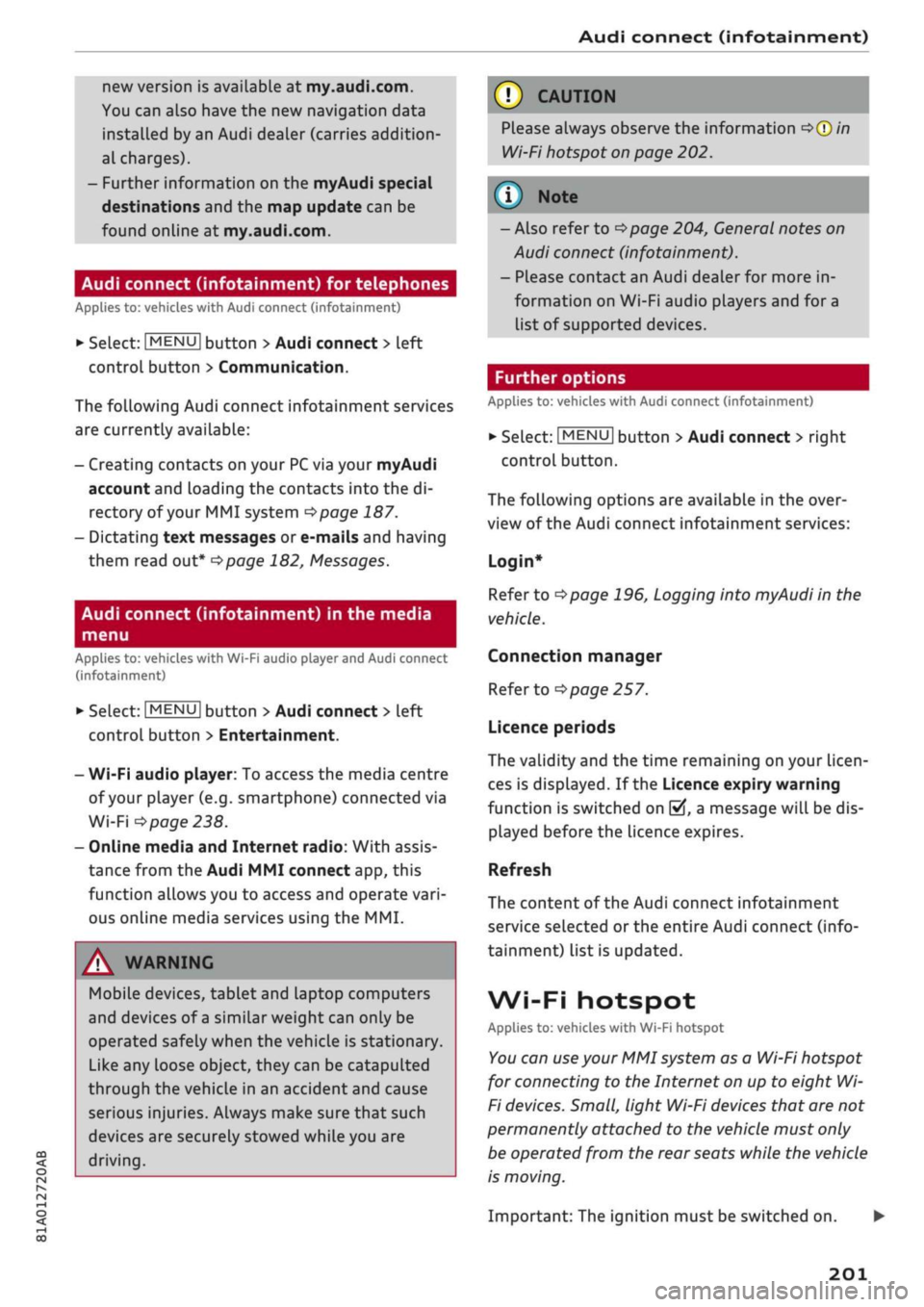
The following Audi connect infotainment services
are currently available:
- Creating contacts on your
PC
via your myAudi
account and loading the contacts into the di
rectory of your MMI system
^>page
187.
- Dictating text messages or e-mails and having
them read out*
^>page
182, Messages.
Audi connect (infotainment) in the media
menu
Applies
to: vehicles with Wi-Fi audio player and Audi connect
(infotainment)
*•
Select: |MENU| button
>
Audi connect
>
left
control button > Entertainment.
- Wi-Fi audio player: To access the media centre
of your player (e.g. smartphone) connected via
Wi-Fi
<=>
page 238.
- Online media and Internet radio: With assis
tance from the Audi MMI connect app, this
function allows you to access and operate
vari
ous online media services using the MMI.
A WARNING
Mobile devices, tablet and Laptop computers
and devices of
a
similar weight can only be
operated safely when the vehicle is stationary.
Like any Loose object, they can be catapulted
through the vehicle in an accident and cause
serious injuries. Always make sure that such
devices are securely stowed while you are
driving.
Please always observe the information
=>®
in
Wi-Fi hotspot on page 202.
- Also refer to
opage
204, General notes on
Audi connect (infotainment).
- Please contact an Audi dealer for more in
formation on Wi-Fi audio players and for a
list of supported devices.
Further options
Applies
to: vehicles with Audi connect (infotainment)
•
Select: |MENU| button
>
Audi connect
>
right
control button.
The following options are available in the over
view of the Audi connect infotainment services:
Login*
Refer to
^>page
196, Logging into myAudi in the
vehicle.
Connection manager
Refer to
^>page
257.
Licence periods
The validity and the time remaining on your licen
ces is displayed. If the Licence expiry warning
function is switched on
(vj,
a message will be dis
played before the licence expires.
Refresh
The content of the Audi connect infotainment
service selected or the entire Audi connect (info
tainment) list is updated.
Wi-Fi hotspot
Applies
to: vehicles with Wi-Fi hotspot
You
can
use
your MMI system as a Wi-Fi hotspot
for connecting to the Internet on up to eight Wi-
Fi
devices.
Small, light Wi-Fi
devices
that are not
permanently attached to the vehicle must only
be operated from the rear seats while the vehicle
is moving.
Important: The ignition must be switched on.
201
Page 207 of 364
Audi connect (infotainment)
- SIM card in the card reader* is not a data
SIM card
- SIM card in the card reader* is defective/
not valid
- Network is switched automatically due to
a low signal strength/data rate of the Wi-
Fi hotspot, the eSIM*
or
the SIM card in
the card reader*
- Connection to Wi-Fi hotspot interrupted
-Applies when using the embedded SIM
card:
The data connection costs for Audi connect
infotainment services are included in the
price of Audi connect (infotainment). This
does not include services which use the Wi-
Fi hotspot, such as online media
<^>page
239. These services require
addi
tional paid data plans
^page
197. For more
information on prices and purchasing,
please visit my.audi.com.
- Applies when using your own SIM
card:
The
connection via the eSIM card
^page
191 is
disconnected when you use your own SIM
card.
All data connections for all Audi
con
nect infotainment services will use your SIM
card.
Depending on your network provider,
you may be charged for this service, espe
cially if
you
are using the system abroad.
We therefore strongly recommend
that
you
use an unlimited data
plan.
For more infor
mation,
contact your service provider.
- Please note that it is your responsibility to
take precautions regarding data protection,
anti-virus protection and protection against
loss of data on mobile devices used to
con
nect to the Internet via the Wi-Fi hotspot.
© Note
- In vehicles without Audi connect (infotain
ment)*, the Wi-Fi hotspot can only be used
for the Wi-Fi audio player*. A data connec
tion to the Internet cannot be established.
- Further information on Audi connect info
tainment services can be found on the Inter
net at www.audi.com.
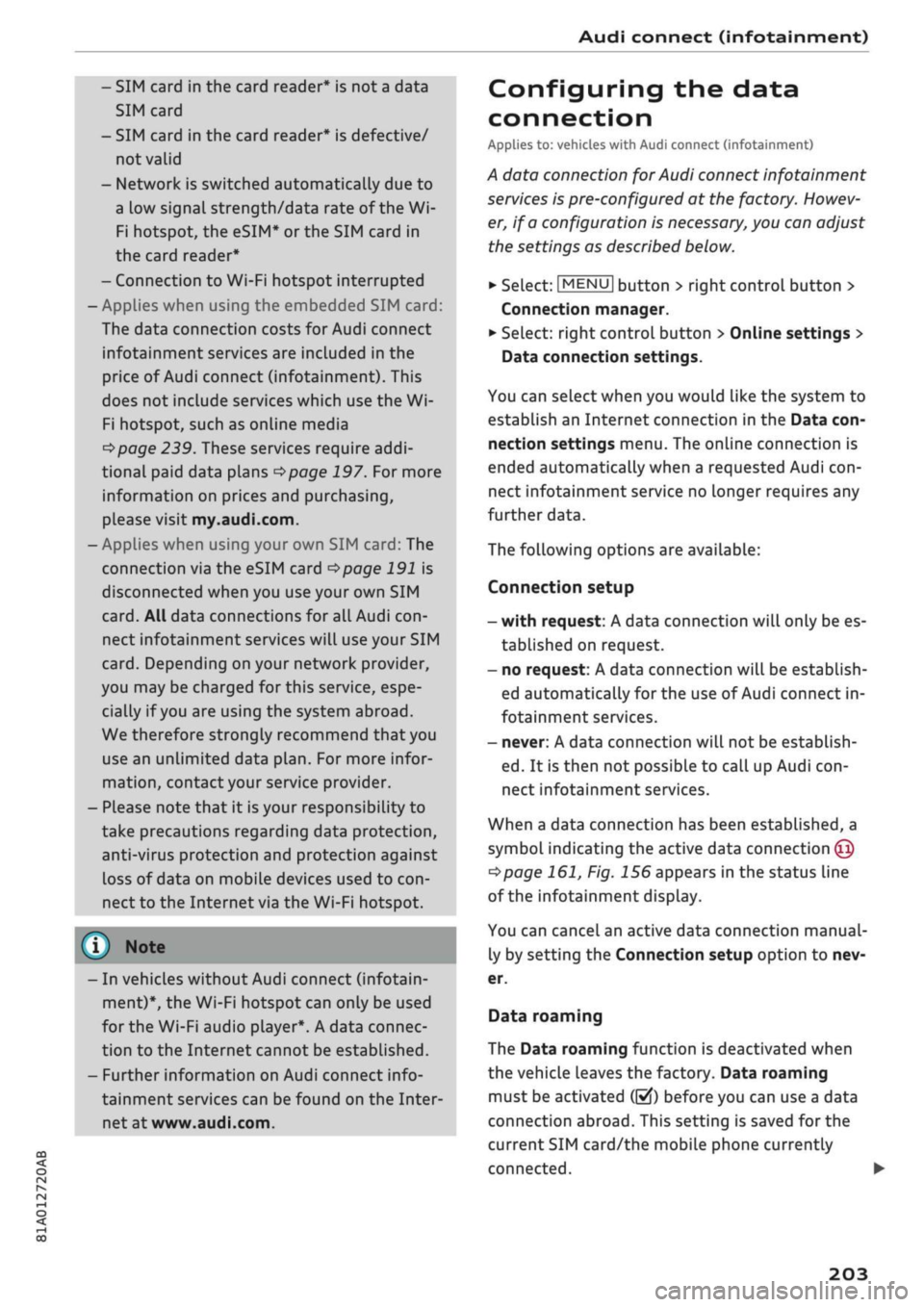
Configuring the data
connection
Applies to: vehicles with Audi connect (infotainment)
A data connection for Audi connect infotainment
services is pre-configured at the factory. Howev
er, if
a
configuration is
necessary,
you can adjust
the settings as described below.
•
Select:
MENU|
button > right control button >
Connection manager.
•
Select: right control button > Online settings >
Data connection settings.
You can select when you would like the system to
establish an Internet connection in the Data
con
nection settings menu. The online connection is
ended automatically when a requested Audi
con
nect infotainment service no longer requires any
further data.
The following options are available:
Connection setup
- with request: A data connection will only be es
tablished on request.
- no request: A data connection will be establish
ed automatically
for
the use of Audi connect in
fotainment services.
- never: A data connection will not be establish
ed.
It is then not possible to call up Audi
con
nect infotainment services.
When a data connection has been established, a
symboL
indicating the active data connection ©
^page
161, Fig. 156 appears in the status line
of
the infotainment display.
You can cancel an active data connection manual
ly by setting the Connection setup option to nev
er.
Data roaming
The Data roaming function is deactivated when
the vehicle leaves the factory. Data roaming
must be activated
((vj)
before you can use a data
connection abroad. This setting is saved for the
current SIM card/the mobiLe phone currently
connected.
•
203
Page 210 of 364
Audi connect (infotainment)
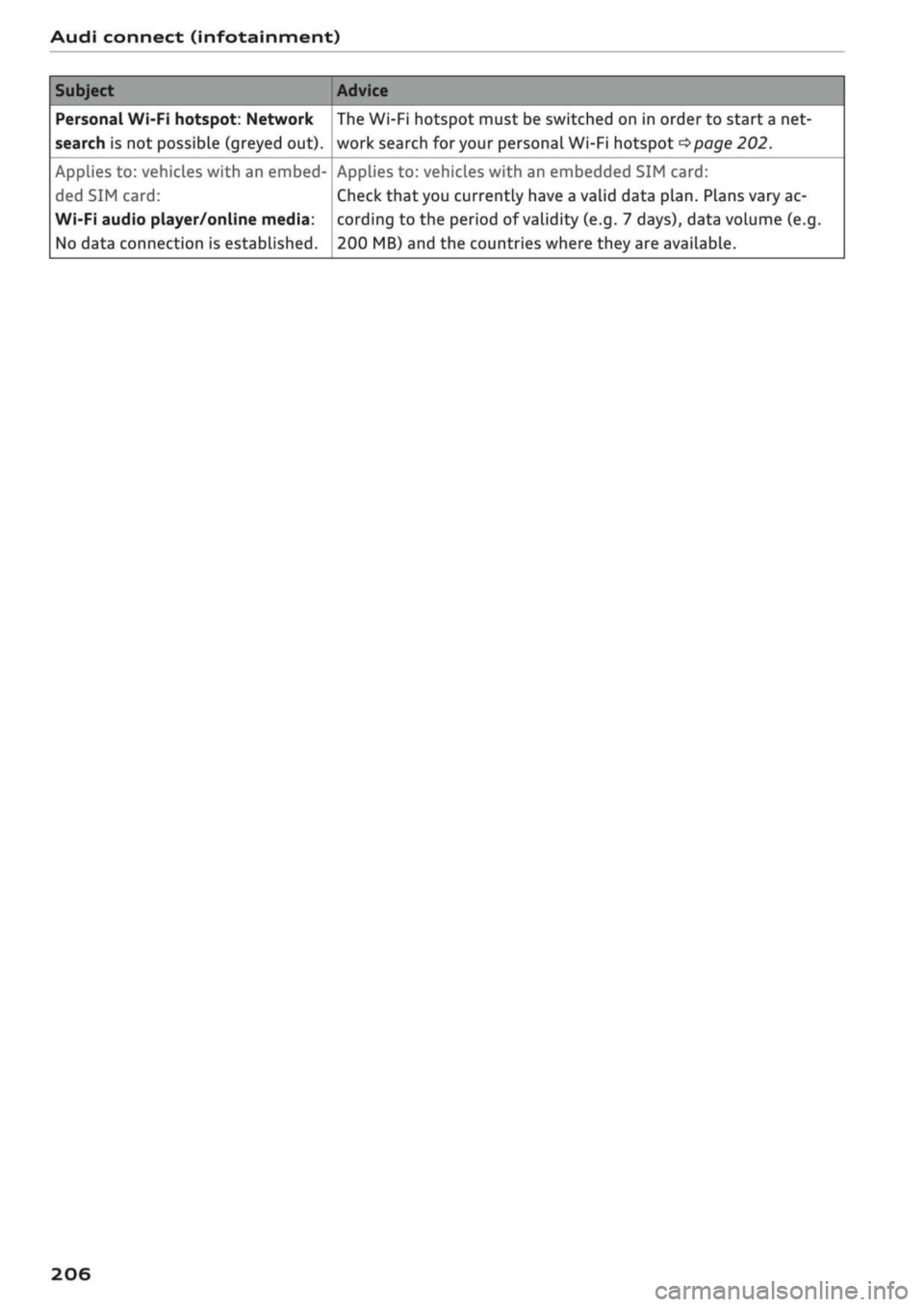
Subject
Personal Wi-Fi hotspot: Network
search is not possible (greyed out).
Applies to: vehicles with an embed
ded SIM
card:
Wi-Fi audio player/online media:
No data connection is established.
Advice
The Wi-Fi hotspot must be switched on in order to start
a
net
work search
for
your personal Wi-Fi hotspot
<=>page
202.
Applies to: vehicles with an embedded SIM
card:
Check that you currently have a valid data
plan.
Plans vary ac
cording to the period of validity (e.g. 7 days), data volume (e.g.
200 MB) and the countries where they are available.
206
Page 232 of 364
Radio
Radio
Calling up the radio
menu
The
radio supports the following wavebands:
FM,
AM, DAB* (digital radio).
You
can use the HD
Radio
receiver*
to receive radio stations from the
FM/AM wavebands
digitally.
© Note
„
. Radio: FM/DAB
BS
AKT
^j9
BAYERN 1
-^
The Rock Band - Hymn
"
BAYERN 2
BAYERN 3
'Hf»l)
BR-KLASS
Events
Culture
News
Light
/Z^
O
•^^
•
T^M
:
m
Fig.
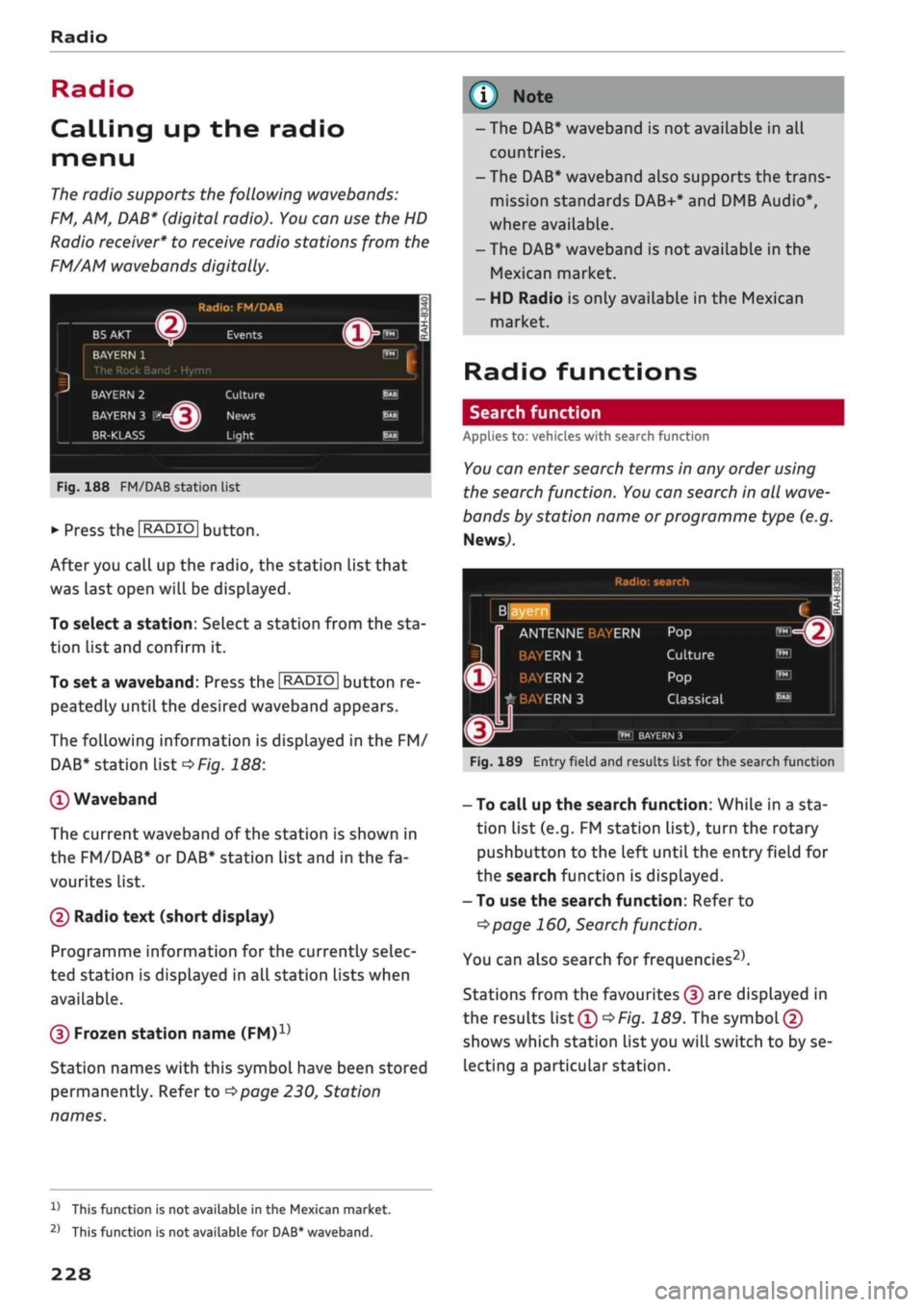
188 FM/DAB station list
•
Press the
I
RADIO[
button.
After you call up the radio, the station list that
was last open will be displayed.
To select a station: SeLect
a
station from the sta
tion List and confirm it.
To set a waveband: Press the
I RADIO |
button re
peatedly until the desired waveband appears.
The following information is displayed in the FM/
DAB*
station List
<*Fig.
188:
©Waveband
The current waveband of the station is shown in
the FM/DAB* or DAB* station list and in the fa
vourites list.
(D Radio text (short display)
Programme information for the currently seLec
ted station is displayed in all station lists when
available.
(D Frozen station name
(FM)1'
Station names with this symbol have been stored
permanently. Refer to
^page
230, Station
names.
- The DAB* waveband is not available in all
countries.
- The DAB* waveband also supports the trans
mission standards DAB+* and DMB Audio*,
where available.
- The DAB* waveband is not available in the
Mexican market.
- HD Radio is only available in the Mexican
market.
Radio functions
Search function
Applies to: vehicles with search function
You
can enter
search
terms in any order using
the search function.
You
can search in all
wave
bands by station name or programme type (e.g.
News,).
Radio: search
ANTENNE
ERN
Culture ERN 1
ERN 2
#BAYERN3
Classical
r'M
BAYERN 3
Fig.
189 Entry field and results list for the search function
- To call up the search function: While in a sta
tion list (e.g. FM station list), turn the rotary
pushbutton to the left until the entry field for
the search function is displayed.
- To use the search function: Refer to
^>page
160, Search function.
You can also search for frequencies2'.
Stations from the favourites
(f)
are displayed in
the results list®
^>Fig.
189. The symbol©
shows which station list you will switch to by se
lecting a particular station.
V
This function is not available in the Mexican market.
2)
This function is not available for DAB* waveband.
228
Page 238 of 364
Media
Media
Introduction
The MMI system includes various media drives
and provides various options for connecting
devi
ces.
For example, you can play audio/video* files
from the jukebox* or connect mobile devices to
the Audi music interface* and operate it via the
MMI.
Notes
General information
Media and format limitations: The MMI system
(including the SD card reader and the connection
for
the USB mass storage device*) has been tes
ted for use with many of the products and media
currently available on the market. However,
there may be some devices/media and audio/vid
eo*
files that are not supported or cannot be
played,
or the functionality may be limited under
certain circumstances.
Digital rights management: Please note that
copyright Law applies to audio/video* files.
The MMI media drives do not support DRM-pro-
tected files; these files are marked with the sym
bol S.
Data storage: Never store important data on SD
cards,
the jukebox*, CDs/DVDs or mobile devices.
AUDI AC shall not accept any liability whatsoever
for
the loss of files and media.
Loading times: The more files, folders or play
lists are stored on a storage device, the longer it
will take to load the audio files/video* files. We
recommend using a storage device which
con
tains only audio/video* files. If
you
want to re
duce the time it takes to load the audio/video*
files,
you can create subfolders (e.g. for an artist
or album). The loading time will be extended ad
ditionally if
you
are importing data.
Metadata: Metadata stored on audio files (e.g.
artists, tracks, album covers) will be displayed
automatically when the files are played. If this
information is not stored on the relevant medi
um,
the MMI system will use the database of
metadata from Gracenote. Nevertheless, meta
data may not be displayed in some cases.
Restricted performance: If
you
experience re
stricted performance, reset the Media settings
to the factory defaults
^page
256.
If
you
experience restricted performance from
the Jukebox*, reset it to the factory settings
<=>
page 256.
For information on the characteristics of the sup
ported media and file formats, please refer to
opage
249 onwards.
CAUTION
Please always observe the information
<=>(J)in
Wi-Fi hotspot on page 202.
CD/DVD mode
CD/DVD and format limitations: In view of the
variety of CDs/DVDs and the difference in memo
ry capacities, the functionality may be restricted
in the case of some storage devices. Under cer
tain circumstances, audio CDs/video DVDs that
are copy-protected or CDs/DVDs that do not com
ply with the standard audio format, and multi-
session CDs cannot be played at all, or the func
tionality may be limited. We recommend always
finalising the burning process when creating
multisession
CDs. Multisession is not supported
for DVDs.
Handling CDs/DVDs, the CD drive or the DVD
drive:
To ensure perfect, high-quality playback
and avoid scanning errors or damage to the me
dia drive, always store CDs/DVDs in a suitable
case and do not expose them to direct sunlight.
Do not use:
- Damaged, dirty or scratched CDs/DVDs
- Single CDs/DVDs (diameter 8 cm)
- Non-circular CDs/DVDs (shape CDs)
- CDs/DVDs with stickers
- Protective rings
- Cleaning discs
Thermal cut-out: In the case of unusually hot or
cold outside temperatures, it is possible that CD/
DVD playback will temporarily not be possible. A •
234
Page 239 of 364
Media
CO
< o rN
IV
rN
i—i
o <
•H
00
thermal cut-out is installed to protect the CD/
DVD and the reading laser.
Laser devices: Laser devices are divided into the
safety classes 1 to 4, as specified by DIN
IEC
76
(CO) 6/VDE 0837. The optical readers installed in
your vehicle are classified as safety class 1. La
sers used in devices that fall into this category
are very weak and well screened, so there is no
danger if used correctly.
Media drives
SD card readers
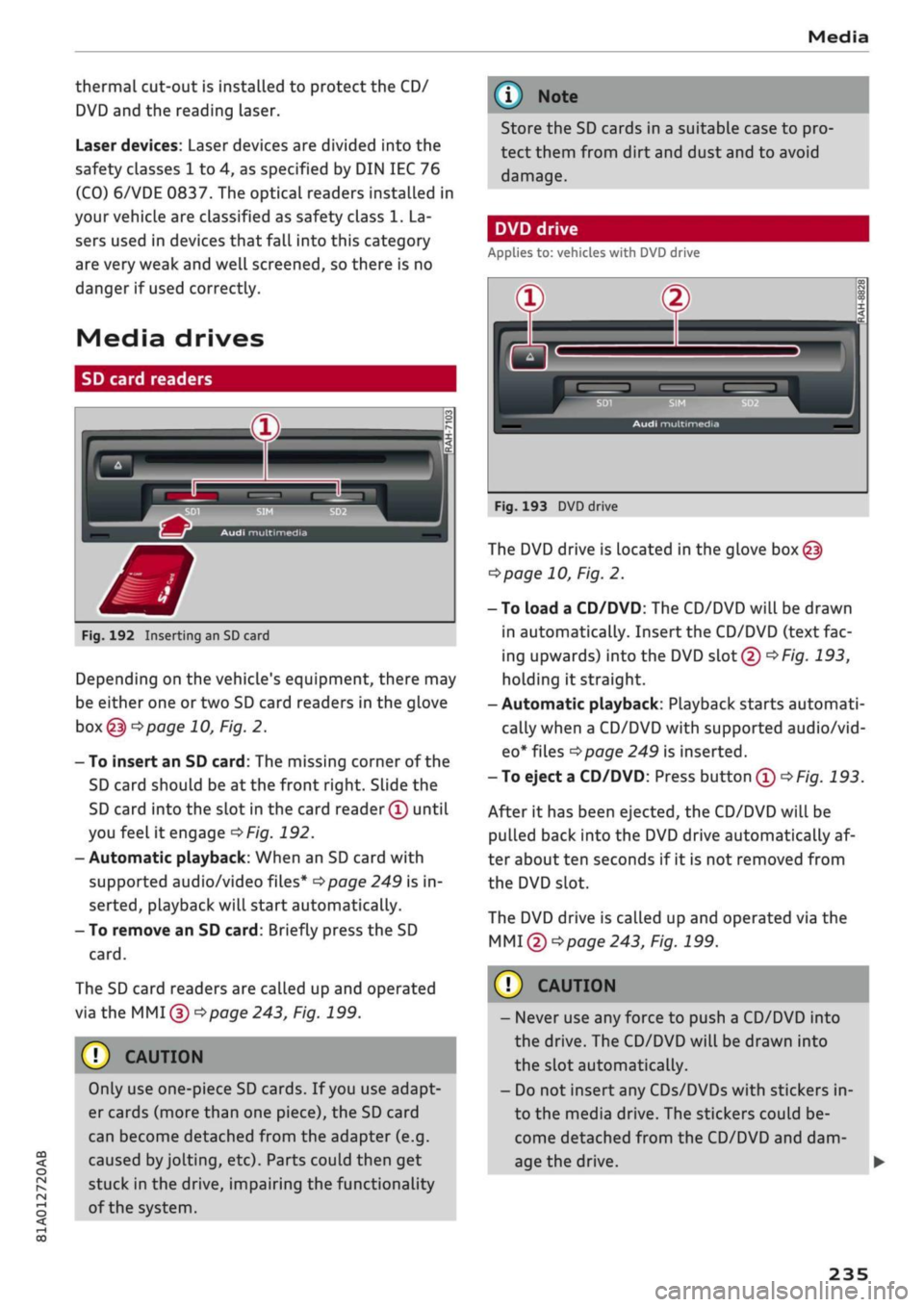
Fig.
192 Inserting an SD card
Depending on the vehicle's equipment, there may
be either one or two SD card readers in the glove
box@ tapage
10, Fig. 2.
- To insert an SD card: The missing corner of the
SD card should be at the front right. Slide the
SD card into the slot in the card reader® until
you
feel
it engage
^>Fig.
192.
- Automatic playback: When an SD card with
supported audio/video files*
^>page
249 is in
serted,
playback will start automatically.
- To remove an SD card: Briefly press the SD
card.
The SD card readers are called up and operated
via the MMI
© ^page
243, Fig. 199.
© CAUTION
Only use one-piece SD cards. If
you
use adapt
er cards (more than one piece), the SD card
can become detached from the adapter (e.g.
caused
by
jolting,
etc). Parts could then get
stuck in the drive, impairing the functionality
of the system.
Store the SD cards in a suitable case to pro
tect them from dirt and dust and to avoid
damage.
DVD drive
Applies to: vehicles with DVD drive
J
®
_
rt™
w-
Audi multimedia
00
(N
00
°p
I <
_J
___
Fig.
193 DVD drive
The DVD drive is located in the glove
box@
^>page
10, Fig. 2.
-To load a CD/DVD: The CD/DVD will be drawn
in automatically. Insert the CD/DVD (text fac
ing upwards)
into
the DVD slot©
OF/g.
193,
holding it straight.
-Automatic playback: Playback starts automati
cally when a CD/DVD with supported audio/vid
eo*
files
^>page
249 is inserted.
-To eject a CD/DVD: Press button®
^F/g.
193.
After it has been ejected, the CD/DVD will be
pulled back into the DVD drive automatically af
ter about ten seconds if it is not removed from
the DVD slot.
The DVD drive is called up and operated via the
MMI
©
^>page
243, Fig. 199.
CAUTION
- Never use any force to push a CD/DVD into
the drive. The CD/DVD will be drawn into
the slot automatically.
- Do not insert any CDs/DVDs with stickers in
to the media drive. The stickers could be
come detached from the CD/DVD and dam
age the drive.
235
Page 240 of 364
Media
i)
Note
Playback cannot be guaranteed if the CD/DVD
contains audio/video files with a high data
rate.
CD drive
Applies to: vehicles with CD drive
Jukebox
Applies to: vehicles with jukebox
Audi
multimedia
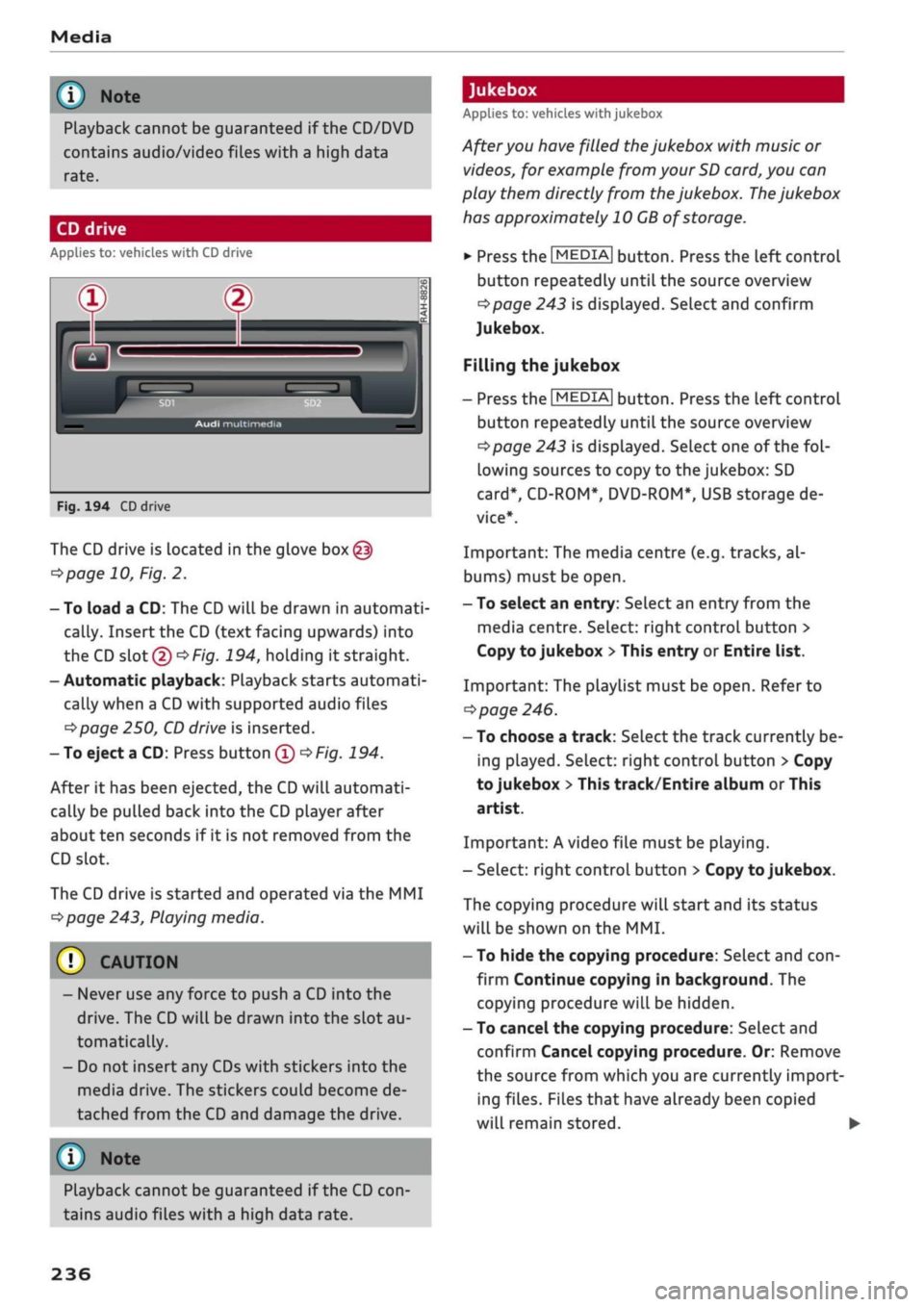
Fig.
194 CD drive
The CD drive is located in the glove
box@
^>page
10, Fig. 2.
- To load a CD: The
CD
will be drawn in automati
cally. Insert
the
CD (text facing upwards) into
the CD slot
©oF/g.
194, holding it straight.
- Automatic playback: Playback starts automati
cally when a
CD
with supported audio files
^>page
250,
CD
drive is inserted.
- To eject a CD: Press button ®
^>Fig.
194.
After it has been ejected, the
CD
will automati
cally be pulled back into the CD player after
about ten seconds if it is not removed from the
CD slot.
The
CD
drive is started and operated via the MMI
^>page
243, Playing media.
CAUTION
- Never use any force to push a CD into the
drive.
The
CD
will be drawn into the slot au
tomatically.
- Do not insert any CDs with stickers into the
media drive. The stickers could become de
tached from the CD and damage the drive.
© Note
After you have filled the jukebox with music or
videos, for example from your
SD
card, you can
play them directly from the jukebox. The jukebox
has approximately 10
GB
of storage.
•
Press the |MEDIA| button. Press the left control
button repeatedly until the source overview
^page
243 is displayed. SeLect and confirm
Jukebox.
Filling
the
jukebox
- Press the |MEDIA| button. Press the left control
button repeatedly until the source overview
*=>page
243 is displayed. SeLect one of the
fol
lowing sources to copy to the jukebox: SD
card*,
CD-ROM*, DVD-ROM*, USB storage de
vice*.
Important: The media centre (e.g. tracks, al
bums) must be open.
- To select an entry: Select an entry from the
media centre. SeLect: right control button >
Copy to jukebox
>
This entry or Entire list.
Important: The playlist must be open. Refer to
ï>
page 246.
- To choose a track: Select the track currently be
ing played. Select: right control button
>
Copy
to jukebox
>
This track/Entire album
or
This
artist.
Important: A video file must be playing.
-Select: right control button > Copy to jukebox.
The copying procedure will start and its status
will be shown on the MMI.
- To hide the copying procedure: Select and
con
firm Continue copying in background. The
copying procedure will be hidden.
- To cancel the copying procedure: Select and
confirm Cancel copying procedure. Or: Remove
the source from which you are currently import
ing files. Files that have already been copied
will remain stored. •
Playback cannot be guaranteed if the CD
con
tains audio files with a high data rate.
236
Page 241 of 364
Media
Important: Copying must be in progress in the
background.
- To display the copy procedure: SeLect: right
control button
>
Active copy procedure.
During the copying procedure, the audio files are
automatically sorted according to the categories
in the media centre based on the metadata stor
ed for the files
^page
244. The video files cop
ied can be found in the Videos category of the
media centre.
Playing from the jukebox
Important:
The
jukebox must contain audio/vid
eo files
opage
236, Filling the jukebox.
The jukebox is called up and operated via the
MMI
®
<>page
243, Fig. 199.
Displaying the jukebox memory capacity
SeLect: right control button
>
Jukebox memory
capacity. Information on the jukebox memory ca
pacity and the number of stored tracks will be
displayed.
Deleting tracks from the jukebox1'
Important:
The
jukebox must contain audio/vid
eo files.
- Delete entry: Select an entry from the
juke
box's media centre. SeLect: right control button
> Delete from jukebox
>
This entry or Entire
list.
- The status of the deletion process will be
shown on the MMI. During the deletion process
the playback of the jukebox is interrupted; it is
started again automatically once the deletion
process has been completed.
(7) CAUTION
Only copy audio/video files while the engine is
running;
otherwise the vehicle battery will be
discharged
© Note
For legal reasons it is not possible to copy
tracks from audio CDs onto the jukebox
1)
Not in the Playback view.
- Files that have already been copied are de
tected automatically and cannot be copied
to
the
jukebox again.
- It is not possible to play audio/video files*
in the CD/DVD* drive while they are being
copied.
- For legal reasons there is no export function
for
the jukebox.
- Files or tracks that do not include stored
metadata are listed as Unknown. Audi rec
ommends that you mark the audio files with
the corresponding metadata (e.g. ID3 tags).
- When handing over your vehicle e.g. to a
new buyer, reset the jukebox to the factory
settings
^>page
256.
Bluetooth audio player
Applies to: vehicles with Bluetooth
You
can use the Bluetooth audio player to play
music
from
your Bluetooth-enabled
device
(e.g.
smartphone) wirelessly via the MMI.
Important: To connect a Bluetooth device, the
vehicle must be stationary and the Bluetooth
function of your Bluetooth device and the Blue
tooth audio player
^>page
258 function of the
MMI system must be switched on.
- To connect a Bluetooth device: Press the
|MEDIA| button. Press the left control button
repeatedly until the source overview is dis
played.
Select and confirm Bluetooth audio
player
© ^>page
243, Fig. 200.
- You may need to select and confirm Not
con
nected > Connect Bluetooth audio player. The
system will start searching for Bluetooth
devi
ces.
Follow the instructions given by the MMI.
- Select and confirm the desired Bluetooth de
vice from the List. The MMI will generate a PIN
to establish the connection.
- Select and confirm Yes.
- Enter the PIN on your Bluetooth device to es
tablish a connection. Or: If the PIN is already
being displayed on your Bluetooth device,
please confirm it on the device. You have about
30 seconds to enter the PIN. •
237