phone AUDI Q2 2021 Owner´s Manual
[x] Cancel search | Manufacturer: AUDI, Model Year: 2021, Model line: Q2, Model: AUDI Q2 2021Pages: 364, PDF Size: 87.77 MB
Page 80 of 364

Driving
This message appears
and a
buzzer sounds
if
you
open
the
driver's door while
the
engine
is
run
ning.
Pressing start/stop button again will switch
off
engine.
This message appears
if
you press
the
ISTART
ENGINE
STOPI*
button while
the
vehicle
is moving
<^>page
77,
Emergency
Off
function.
Engine start system: fault. Please contact work
shop
A fault
has
occurred when starting
the
engine
au
tomatically (automatic start function). Drive
to a
qualified workshop soon
and
have
the
fault
recti
fied.
To
start
the
engine, turn
the
ignition
key to
position
@
^>page
74 or
press
the
ISTART
ENGINE
STOPl
button and hold the
key/button until
the
engine starts.
D
Key not
recognised. See owner's manual
This message appears
if
there
is no
convenience
key inside
the
vehicle
or if
the system cannot
de
tect
or
identify
the
key. This
can
happen,
for ex
ample,
if
the radio signal from
the key is
obstruc
ted
by a
metal briefcase
or
similar,
or if the key
battery
is
weak. Electronic equipment, such
as
mobile phones,
can
also interfere with
the
radio
signal from
the key.
The engine
can
still
be
started
or
stopped
if
this
happens (please refer
to
^page
79).
C]
Remote control key: hold back
of key
against marked area.
See
owner's manual
If
the
indicator lamp lights
up and the
message
appears,
a
malfunction
has
occurred
^>page
79.
3
Key not in
vehicle?
3
Remote control key:
key not
recognised.
Is
key still
in
vehicle?
If
the
indicator
lampGB
Lights
up and the
mes
sage appears,
the
convenience
key
was removed
from
the
vehicle while
the
engine
was
running.
If
the convenience
key is not in the
vehicle
you
will
not
be
able
to
switch
on the
ignition
or
restart
the engine after
it has
been switched
off. You
will
also
not be
able
to
lock
the
vehicle from
the
out
side.
Please press brake pedal
This message appears
on
vehicles with
an
auto
matic gearbox
if
you
try to
start
the
engine
with
out first pressing
the
brake pedal.
Please press clutch pedal
This message appears
if
you
try to
start
the en
gine without first pressing
the
clutch pedal.
The
engine will only start
if
you press
the
clutch
ped
al.
Please engage
N or P
This message will appear
if
you
try to
start
or
switch
off the
engine when
the
selector lever
is
not
in N or P. The
engine
can
then
not be
started
or switched
off.
Switch
off
ignition before leaving
car.
Battery
is
being discharged
This message appears
and the
buzzer sounds
if
you open
the
driver's door while
the
ignition
is
switched
on.
Switch
off
the ignition
to
prevent
the vehicle battery from being discharged.
Shift
to P,
vehicle can roll away. Doors can only
be locked
in P
For safety reasons, this message will appear
if
the selector Lever
of the
automatic gearbox
is not
in position P when
you
switch
off the
ignition.
Put
the selector lever
in
position
P;
otherwise
the ve
hicle
can
roll away
and
cannot
be
locked.
78
Page 155 of 364
Multi Media Interface
emergency vehicles) clearly - failure to do so
could result in an accident.
CO
<
o
rN
iv
rN
t-H
o
< 00
©
Note
If the engine is switched off and the vehicle
battery charge level is low, the MMI system
will be switched off automatically.
Infotainment display
Switching on/off
- To switch on/off manually: Press the
^
but
ton
@ tapage
10, Fig. 2.
You can operate certain functions using the MMI
ON/OFF button with joystick function when the
MMI is switched on but the display is switched
off
o
page 152.
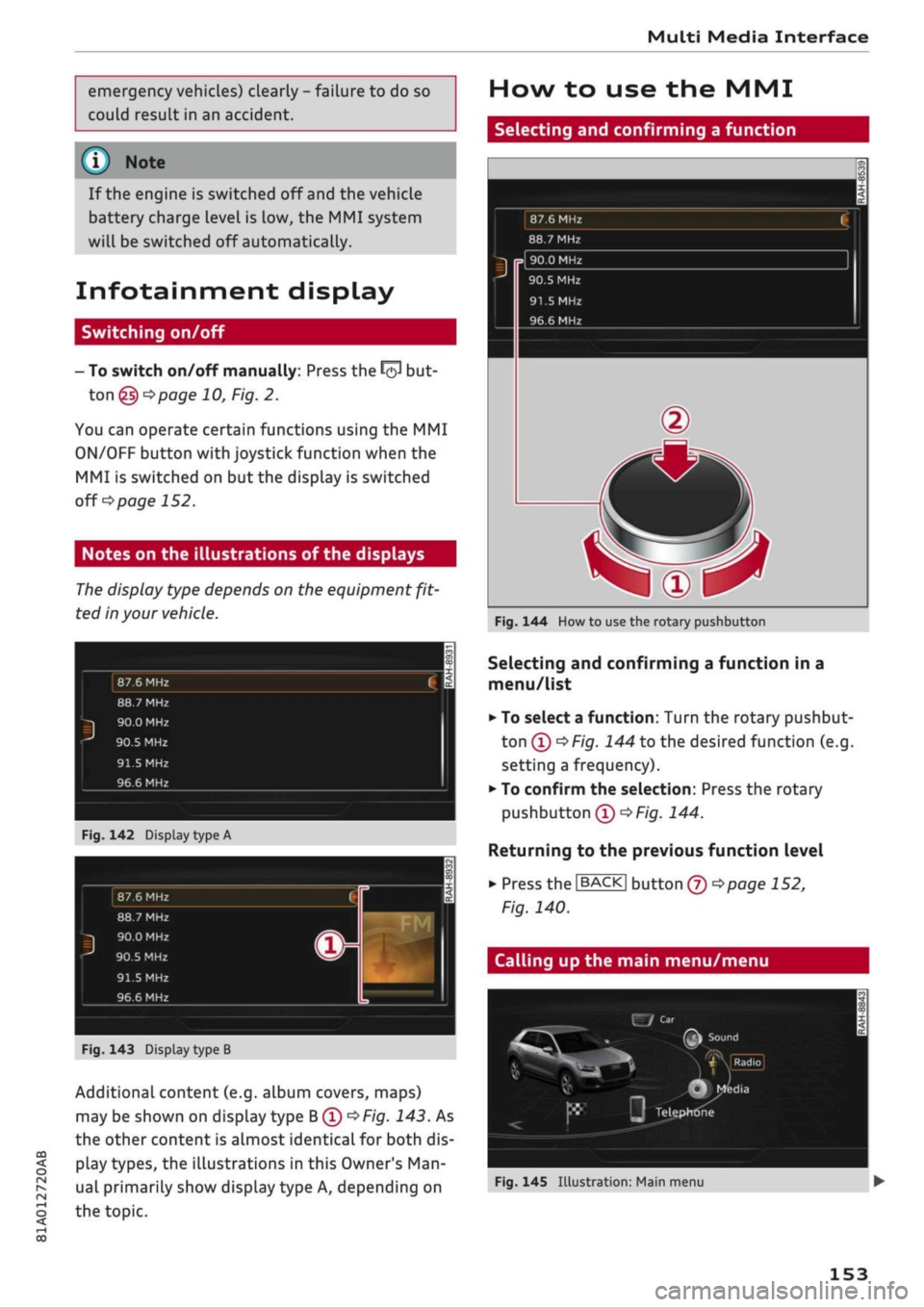
Notes on the illustrations of the displays
The
display type depends on the equipment
fit
ted in your vehicle.
87.6 MHz
88./
MHz
90.0 MHz
96.6 MHz
Fig.
142 Display
type
A
87.6 MHz
88.7 MHz
ij
90.0 MHz
r
90.5 MHz
91.5 MHz
96.6 MHz
1
©^
1
FM
L 1
3
i
i
Fig.
143 Display type B
Additional content (e.g. album covers, maps)
may be shown on display type
B®
oF/'g.
143. As
the other content is almost identical for both dis
play types, the illustrations in this Owner's
Man
ual primarily show display type A, depending on
the topic.
How to use the MMI
Selecting and confirming a function
87.6 MHz
88.7 MHz
90.0 MHz
90.5 MHz
91.5 MHz
96.6 MHz
Fig.
144 How to use the rotary pushbutton
Selecting and confirming a function in a
menu/list
• To select a function: Turn the rotary pushbut
ton®
^>Fig.
144 to the desired function (e.g.
setting a frequency).
•
To confirm the selection: Press the rotary
pushbutton
(T)
OFig.
144.
Returning to the previous function level
•
Press the
I
BACK
|
button
® *>page
152,
Fig. 140.
Calling up the main menu/menu
J
x,.
•'.w
•^£j: •
V."
.
F
Fig.
145
Illustrât
E/Car
(TM
Sound
^%
\
* VlKadiol •
*
M
J
Q
Mfedia
II
Telephone
on:
Main menu
• •
.
153
Page 157 of 364
Multi Media Interface
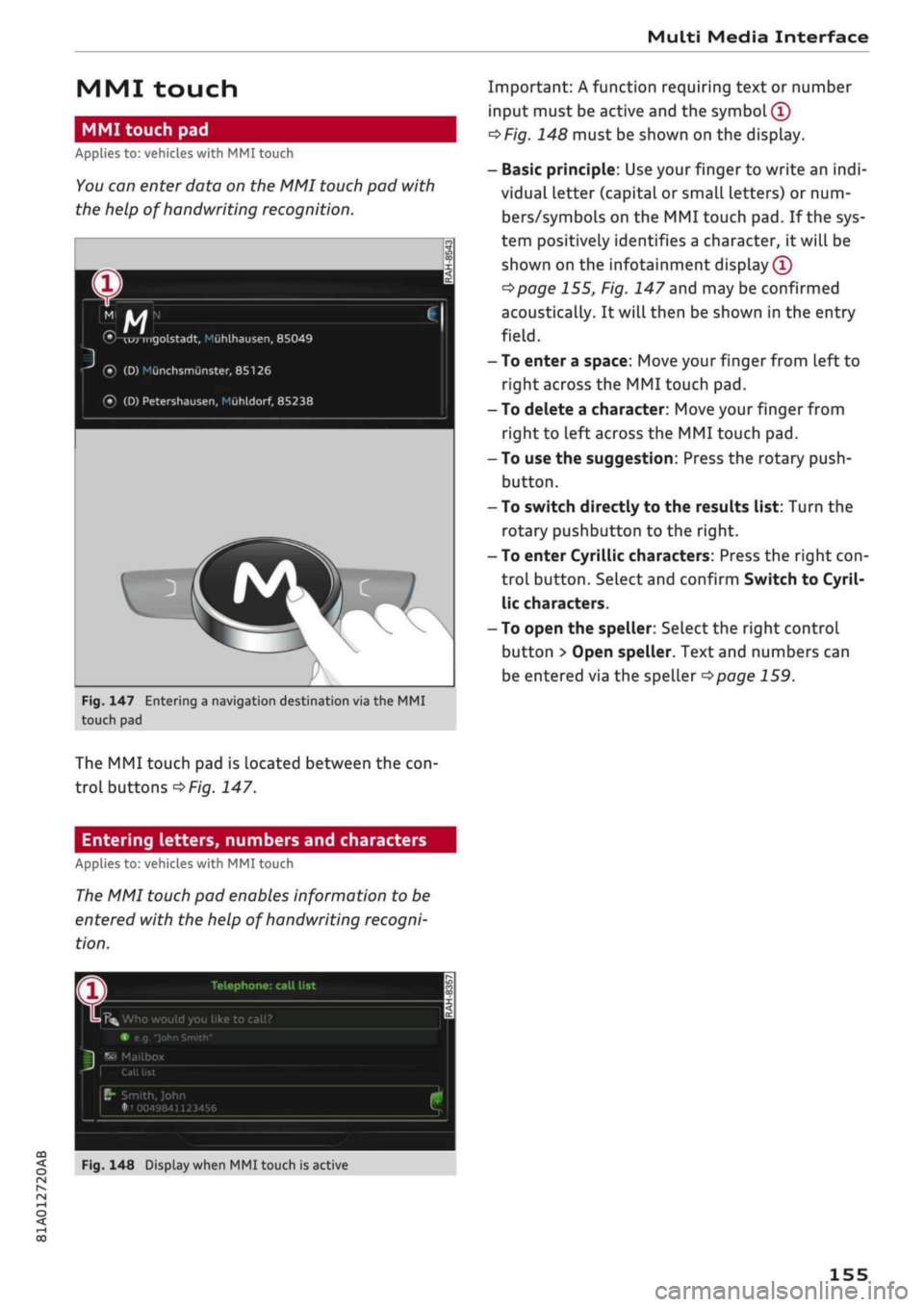
MMI touch
MMI touch pad
Applies to: vehicles with MMI touch
You
can enter data on the MMI touch pad with
the help of handwriting recognition.
(•/-wrmgolstadt,
Mùhlhausen,
85049
(•)
(D)
Miinchsmiinster,
85126
® (D)
Petershausen,
Muhldorf, 85238
Fig.
147 Entering a navigation destination via the MMI
touch pad
The MMI touch pad is located between the
con
troL buttons
^>Fig.
147.
Entering letters, numbers and characters
Applies to: vehicles with MMI touch
The
MMI touch pad enables information to be
entered with the help of handwriting recogni
tion.
Important: A function requiring text or number
input must be active and the
symbol (T)
oF/g.
148 must be shown on the display.
- Basic principle: Use your finger to write an
indi
vidual letter (capital or small letters) or num
bers/symbols on the MMI touch pad. If the sys
tem positively identifies a character, it will be
shown on the infotainment display
(Î)
^>page
155, Fig. 147 and may be confirmed
acoustically. It will then be shown in the entry
field.
- To enter a space: Move your finger from left to
right across the MMI touch pad.
- To delete a character: Move your finger from
right to left across the MMI touch pad.
- To use the suggestion: Press the rotary push
button.
- To switch directly to the results list: Turn the
rotary pushbutton to the right.
- To enter Cyrillic characters: Press the right
con
trol button. Select and confirm Switch to Cyril
lic characters.
- To open the speller: Select the right control
button > Open speller. Text and numbers can
be entered via the speller
^>page
159.
Telephone: call list
K%
Who would you like to call?
•
e.g
"John Smith"
^
Mailbox
B"
Smith, John
•"i 0049841123456
CO
<
O rN IV rN
i-H
00
Fig.
148 Display when MMI touch is active
155
Page 162 of 364
Multi Media Interface
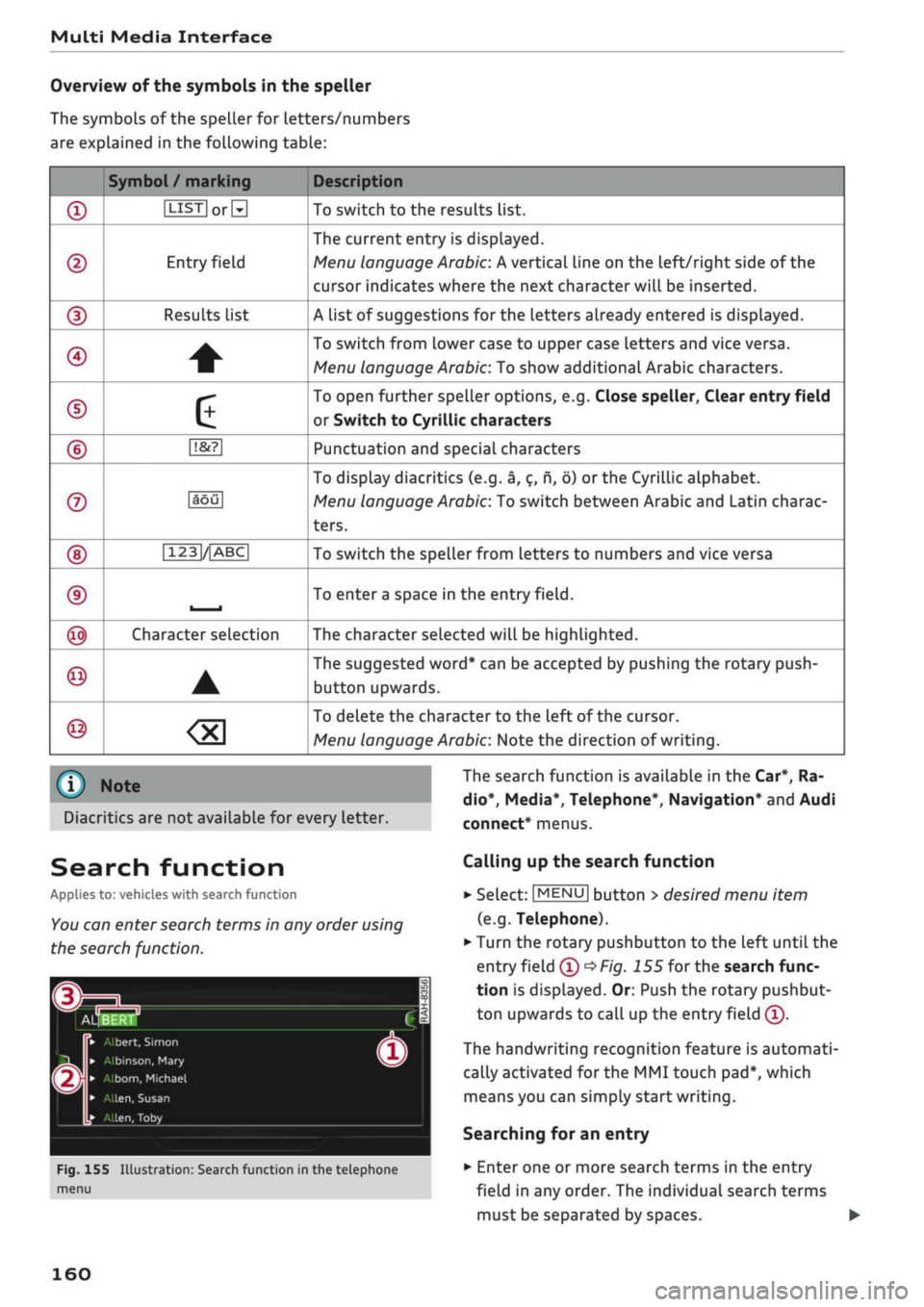
Overview of the symbols in the speller
The symbols of the speller for
Letters/numbers
are explained in the following table:
©
®
0
©
©
©
©
©
©
©
©
Symbol / marking
|LlST|orM
Entry field
Results list
•
É
[T&?1
àôû
|123|/|ABC|
.
Character selection
•
Description
To switch to the results list.
The current entry is displayed.
Menu language Arabic: A vertical Line on the
left/right
side of the
cursor indicates where the next character will be inserted.
A list of suggestions for the letters already entered is displayed.
To switch from lower case to upper case letters and vice versa.
Menu language Arabic: To show additional Arabic characters.
To open further speller options, e.g. Close speller, Clear entry field
or Switch to Cyrillic characters
Punctuation and special characters
To display diacritics (e.g. â, ç, n,
ô)
or the Cyrillic alphabet.
Menu language Arabic: To switch between Arabic and Latin charac
ters.
To switch the speller from letters to numbers and vice versa
To enter a space in the entry
field.
The character selected will be highlighted.
The suggested word* can be accepted by pushing the rotary push
button upwards.
To delete the character to the left of the cursor.
Menu language Arabic: Note the direction of writing.
Diacritics are not available for every letter.
Search function
Applies to: vehicles with search function
You
can enter
search
terms in any order using
the search function.
The search function is available in the Car*, Ra
dio*,
Media*, Telephone*, Navigation* and Audi
connect* menus.
Calling up the search function
m
Il
ALW
i
@
Fig-
men
•
Albert, Simon
•
A.binson,
Mary
•
Albom,
Michael
•
Allen, Susan
f
Allen, Toby
155 Illustration:
j
Search function in the
1
1
i
ê
telephone
•
a
m
'
m
•
co
§
•
SeLect:
1MENU|
button
>
desired menu item
(e.g.
Telephone).
•
Turn the rotary pushbutton to the Left until the
entry field
(i)
^>Fig.
155 for the search func
tion is displayed. Or: Push the rotary pushbut
ton upwards to call up the entry field
(Î).
The handwriting recognition feature is automati
cally activated for the MMI touch
pad*,
which
means you can simply start writing.
Searching for an entry
•
Enter one or more search terms in the entry
field in any order. The individual search terms
must be separated by spaces. •
160
Page 163 of 364
Multi Media Interface
The system may make suggestions to complete
your entry* (f)
oFig.
155 depending on
what
you
have entered. Further entries containing the
search terms entered will be displayed in the list
of
results
(2).
If the desired term is not yet displayed, continue
entering Letters until it appears.
The first few letters of the search terms will of
ten be sufficient to bring up a list of results. In
the Telephone* menu, for example, write the
ini
tials of the contact you are looking for, separat
ing them with a space.
Confirming an autocomplete suggestion
Important: An autocomplete suggestion* (J)
•=>F/g.
155
must be displayed.
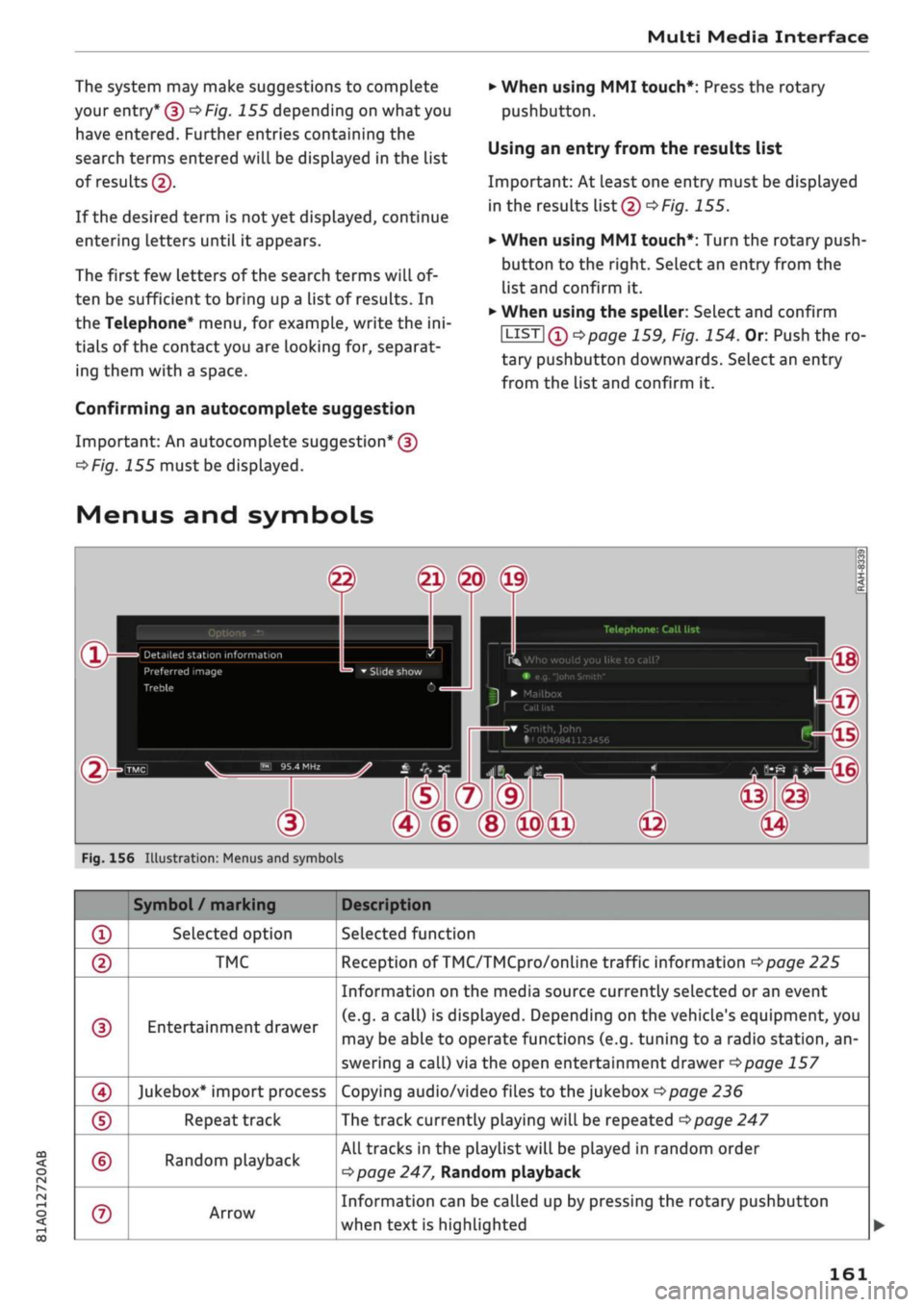
Menus and symbols
•
When using MMI touch*: Press the rotary
pushbutton.
Using an entry from the results list
Important: At least one entry must be displayed
in the results List (2)
^>Fig.
155.
*•
When using MMI touch*: Turn the rotary push
button to the right. SeLect an entry from the
list and confirm it.
•
When using the speller: SeLect and confirm
I
LIST
I Qo page
159, Fig. 154. Or: Push the ro
tary pushbutton downwards. Select an entry
from the list and confirm it.
0
19
Telephone: Call list
Detailed station information Who would you like to call? Preferred image
e.g.
John Smith
•
Mailbox
th,
John 049841123456
®
®l@
Fig.
156 Illustration: Menus and symbols
CO
<
O
rN
IN
rN
t-H
o <
®
©
©
0
©
©
©
Symbol/
marking
Selected option
TMC
Entertainment drawer
Jukebox* import process
Repeat track
Random playback
Arrow
Description
Selected function
Reception of TMC/TMCpro/online traffic information
^>page
225
Information on the media source currently selected or an event
(e.g.
a call) is displayed. Depending on the vehicle's equipment, you
may be able to operate functions (e.g. tuning to a radio station, an
swering a call) via the open entertainment drawer
^>page
157
Copying audio/video files to the jukebox
•=>page
236
The track currently playing will be repeated
Opage
247
All tracks in the playlist will be played in random order
Opage
247, Random playback
Information can be called up by pressing the rotary pushbutton
when text is highlighted
161
Page 164 of 364

Multi Media Interface
©
©
©
©
©
©
©
©
©
@
@
©
©
©
©
©
Symbol/
marking
Signal strength bars for
telephone
Exclamation mark on the
telephone
Signal strength bars for
data connection*
2C/3C/LTE*
Mute function
Roaming
Import procedure
Options menu*
Bluetooth*
Scrolling bar
Entry field
MMI touch*
Rotary control
Checkbox
Selection list
Battery*
Description
Reception strength for the telephone
Indicates missed calls
Reception strength of the active connection, or
PIN:
Enter
the
SIM PIN code
PUK:
Enter
the PUK code
SIM:
Insert
the
SIM card
Network coverage of the active connection
^>page
203
2G:
GSM
network
3G:
UMTS network
LTE*:
LTE network
Audio source muted
^>page
261
Connected mobile
phone/SIM
card inserted in SIM card reader* or
embedded SIM card has left its mobile network
Import/update of contacts in the directory/call list
Select and confirm specific functions for individual menu items and
make changes to settings.
Bluetooth device connected
•=>page 2371'•=>page
173
Signifies a long list.
You can move within lists by turning the rotary pushbutton
Entries that can be changed using the speller for letters/numbers
^page
159 or the MMI touch
pad*
^page
155
Can be used via the MMI touch pad
Settings for the selected function can be made by turning the rotary
pushbutton
You can switch certain functions on
(vf
or off
•
by pressing the ro
tary pushbutton.
Settings for the selected function that can be called up by pressing
the rotary pushbutton
Battery charge level of the connected mobile phone during wireless
charging
162
Page 165 of 364
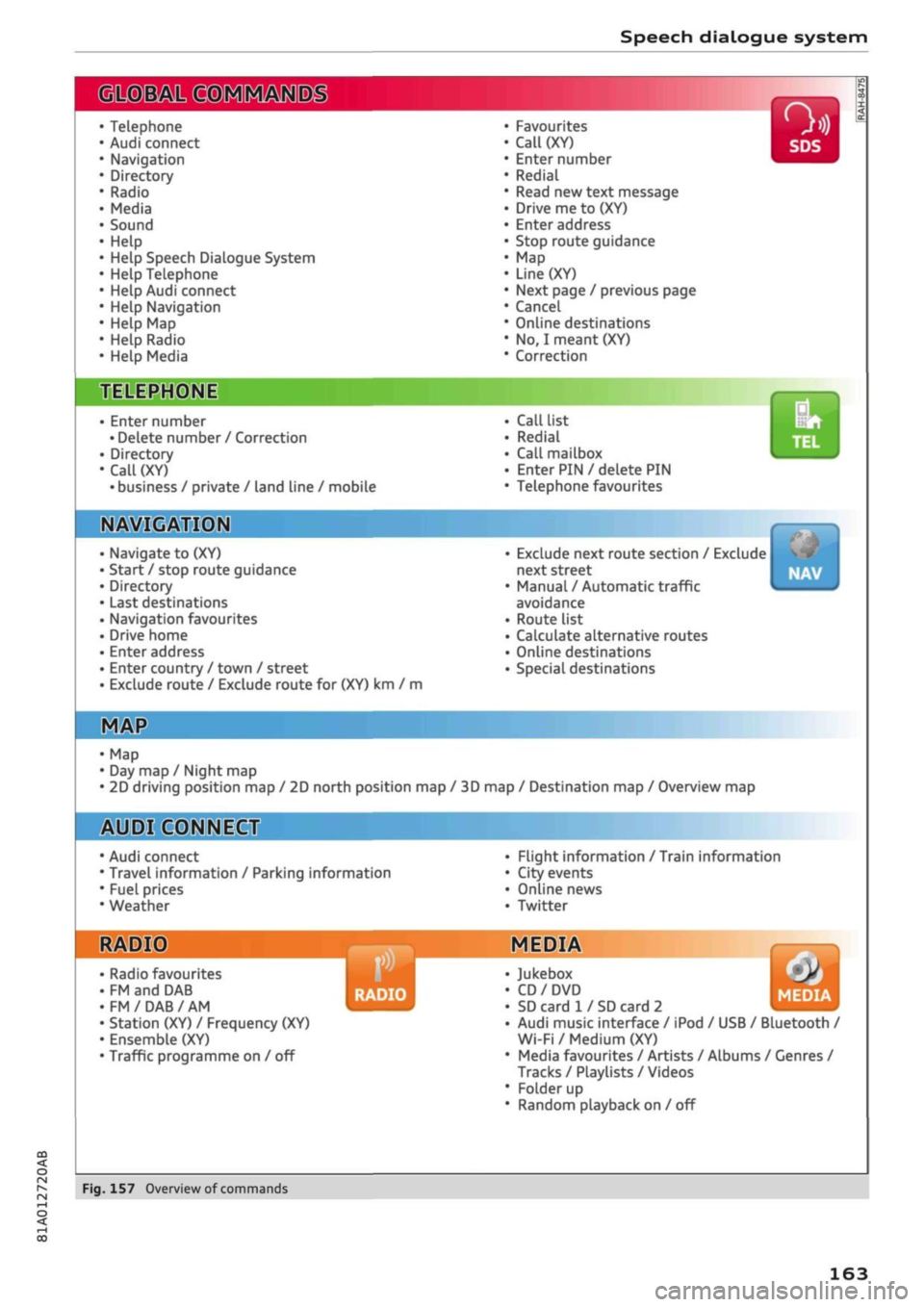
Speech dialogue system
• Telephone
• Audi connect
• Navigation
• Directory
• Radio
• Media
• Sound
• Help
• Help Speech Dialogue System
• Help Telephone
• Help Audi connect
• Help Navigation
• Help
Map
• Help Radio
• Help Media
SIIPCMI
Enter number
• Delete number
/
Correction
Directory
Call (XY)
• business
/
private
/
land line
/
mobile
NAVIGi
mm
• Navigate
to (XY)
• Start
/
stop route guidance
• Directory
• Last destinations
• Navigation favourites
• Drive home
• Enter address
• Enter country
/
town
/
street
• Exclude route
/
Exclude route
for
(XY)
km / m
• Favourites
• Call
(XY)
• Enter number
• Redial
• Read
new
text message
• Drive
me to (XY)
• Enter address
• Stop route guidance
•
Map
• Line
(XY)
• Next page
/
previous page
• Cancel
• Online destinations
•
No, I
meant
(XY)
• Correction
Call list
Redial
Call mailbox
Enter PIN
/
delete
PIN
Telephone favourites
Exclude next route section
/
Exclude
next street
Manual
/
Automatic traffic
avoidance
Route list
Calculate alternative routes
Online destinations
Special destinations
Map
Day
map /
Night
map
2D driving position
map / 2D
north position
map / 3D map /
Destination
map /
Overview
map
Flight information
/
Train information
City events
Online news
Twitter
^iuiDit(5.Q:NiNE:(aH
• Audi connect
• Travel information
/
Parking information
• Fuel prices
• Weather
RADIO MEDIA
RADIO MEDIA
• Radio favourites
• FM
and DAB
•FM/DAB/AM
• Station (XY)
/
Frequency
(XY)
• Ensemble
(XY)
• Traffic programme
on / off
Jukebox
CD/DVD
SD card
1 /
SD card
2
Audi music interface
/
iPod
/
USB
/
Bluetooth
/
Wi-Fi/Medium
(XY)
Media favourites
/
Artists
/
Albums
/
Genres
/
Tracks
/
Playlists
/
Videos
Folder
up
Random playback
on / off
Fig.
157
Overview
of
commands
00
163
Page 166 of 364
Speech dialogue system
Speech dialogue system
How to use the speech
dialogue system
Applies to: vehicles with speech dialogue system
You
can operate many infotainment functions
conveniently by voice.
Important: The ignition and the MMI system
must be switched on
^>page
152, you must not
be talking on the phone, and the parking aid
must not be active.
•
To switch on: Briefly press the
0
button (J)
^>page
17, Fig. 12/(3)
^>page
18, Fig. 14 on
the multi-function steering wheel and give a
spoken command after the beep signal.
*•
To switch off: Press and hold the
0
button for
several seconds. Or: Press the
0
button.
•
To pause: Say the command Pause. To end the
pause,
press the
S
button.
•
To make a correction: Say the command Cor
rection.
Input help
The system guides you through the input routine
with cues and messages.
- Input help messages on screen: After the
speech dialogue system is switched on, a selec
tion of possible commands will be shown. The
command display can be switched on or off as
required.
Select:
|MENU|
button
>
Settings >
left control button > MMI settings
>
Speech
dialogue system.
- Spoken input help
cues:
To have the system
play the commands currently possible, switch
on the speech dialogue system and say Help.
How to help the system understand you
Speak clearly in a normal volume. Speak louder if
you are driving fast.
Speak in a normal tone without long pauses.
Close doors, windows and sun roof* to reduce
background noise. Make sure that passengers are
not talking when you say a command.
Keep the air outlets of the air distribution system
pointed away from the microphone, which is fit
ted in the vicinity of the front interior lights in
the headliner.
The system should only be operated by the driv
er, since the handsfree microphone is directed
towards the driver.
Other settings
Refer to
^>page
262.
© No
-The dialogue is paused when an incoming
telephone call is received; you can continue
the dialogue by ignoring the
call.
If
you
an
swer the
call,
the dialogue will be cancelled.
- No navigation cues* or traffic announce
ments are played when a dialogue is
run
ning.
- You can select an entry from a list both via
the speech dialogue system and using the
rotary pushbutton.
- The speech dialogue system does not sup
port commands in Arabic, Norwegian or
Hungarian.
Notes on the overviews
of commands
Applies to: vehicles with speech dialogue system
The following overviews show you the commands
that you can give to operate the MMI via the
speech dialogue system. •
A WARNING
- Please direct your full attention to the road
at all times! As the driver, you have full re
sponsibility for the safety of the vehicle and
other road users.
For
this reason, you should
only use the functions in a manner that al
lows you to maintain control of the vehicle
in all situations - accident risk!
- The speech dialogue system must not be
used in cases of emergency, since the voice
changes in stressful situations. This could
result in a failed or delayed telephone
con
nection.
Always dial emergency numbers
manually!
164
Page 167 of 364
Speech dialogue system
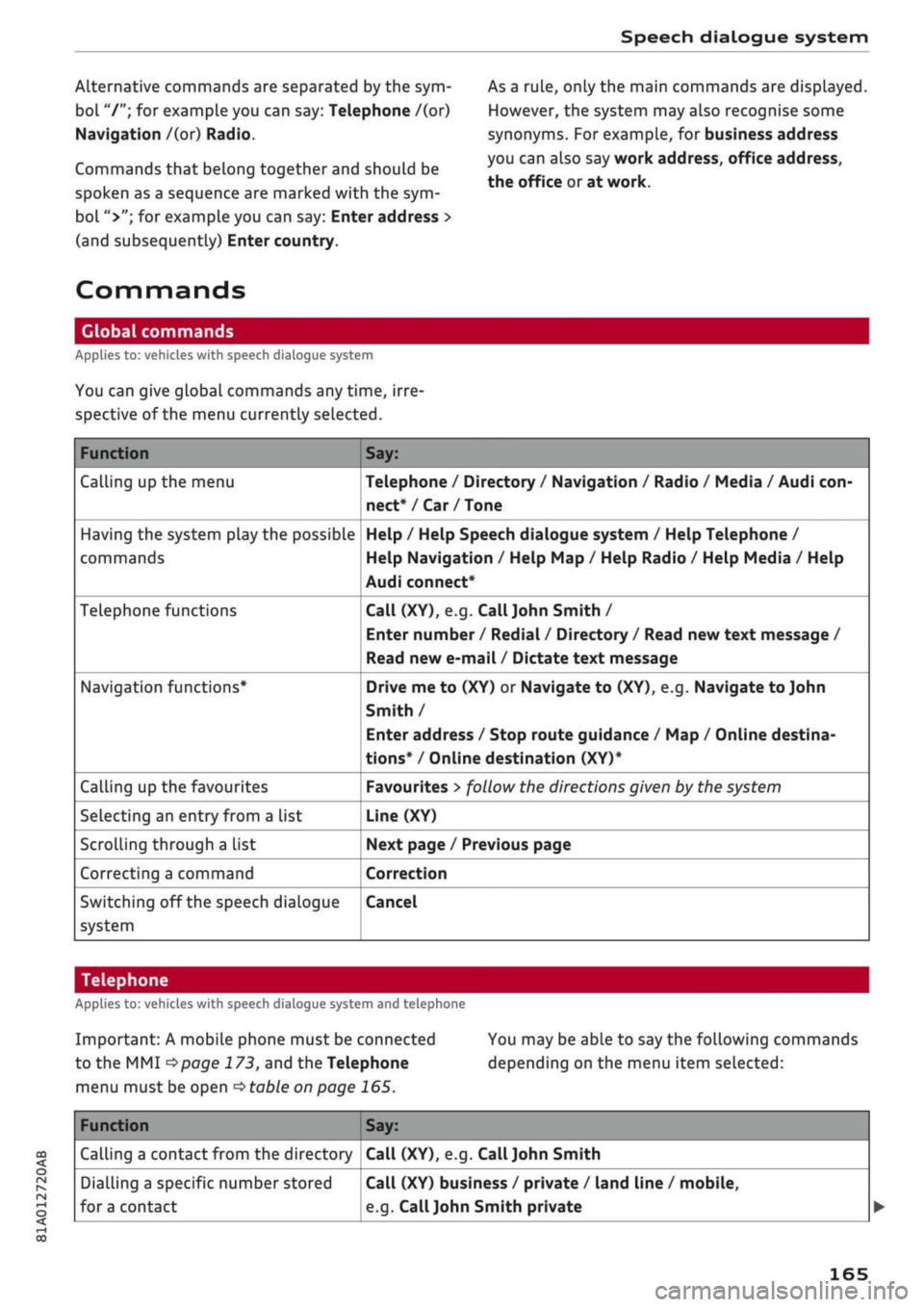
Alternative commands are separated by the sym
bol "/"; for example you can say: Telephone /(or)
Navigation /(or) Radio.
Commands that belong together and should be
spoken as a sequence are marked with the sym
bol ">"; for example you can say: Enter address >
(and subsequently) Enter country.
As a rule, only the main commands are displayed.
However, the system may also recognise some
synonyms. For example, for business address
you can also say work address, office address,
the office or at work.
Commands
Global commands
Applies to: vehicles with speech dialogue system
You can give global commands any time, irre
spective of the menu currently selected.
Function
Calling up the menu
Having the system play the possible
commands
Telephone functions
Navigation functions*
Calling up the favourites
Selecting an entry from a List
Scrolling through a list
Correcting a command
Switching off the speech dialogue
system
Say:
Telephone / Directory / Navigation / Radio / Media / Audi
con
nect*/Car/Tone
Help / Help Speech dialogue system / Help Telephone /
Help Navigation / Help Map / Help Radio / Help Media / Help
Audi connect*
Call (XY), e.g.
Call John
Smith /
Enter number / Redial / Directory / Read new text message /
Read new e-mail / Dictate text message
Drive me to (XY) or Navigate to (XY), e.g. Navigate to John
Smith /
Enter address / Stop route guidance / Map / Online destina
tions*
/ Online destination (XY)*
Favourites
>
follow the directions given by the system
Line (XY)
Next page / Previous page
Correction
Cancel
CO
<
O
rN
IN
rN
00
Telephone
Applies to: vehicles with speech dialogue system and telephone
Important: A mobile phone must be connected
to the MMI
^>page
173, and the Telephone
menu must be open
stable
on page 165.
You may be able to say the following commands
depending on the menu item selected:
Function
Calling a contact from the directory
Dialling a specific number stored
fora
contact
Say:
Call (XY), e.g. Call
John
Smith
Call (XY) business / private / land line / mobile,
e.g.
Call
John
Smith private
165
Page 168 of 364

Speech dialogue system
Function
Dialling a phone number when an
address card is open
Calling a contact from the favour
ites list
Displaying the call list
Calling the last number dialled
Dialling a telephone number
Correcting an entered phone num
ber
Displaying contact information
Listening to voice mail messages
Entering the SIM PIN code
Correcting an entered PIN
Correcting an entry
Closing the full List of commands
Say:
Call / Call business number / Call private number / Call land
line / Call business mobile
Telephone favourites
>
desired contact when requested
>
Dial
Call list
Redial
Enter number
>
enter phone number in blocks of individual dig
its when requested, e.g. 07441 234
567
> Dial
Correction / Delete number
Directory
>
desired contact when requested,
e.g.
John Smith
Call mailbox
Enter PIN
>
enter PIN in individual digits when requested >
Store
Correction / Delete PIN
No,
I meant (XY)
Close
© Note
- If
you
have a mobile phone that transmits
first names and surnames separately, you
can select directory contacts both by enter
ing the full name
("first
name, surname" or
"surname, first name") and by saying only
the first name or surname.
- Please note that commands can only be
spoken for the main teLephone*
^>page
173.
- For more information on which mobile
phones are supported, please go online
(e.g.
www.audi.com/bluetooth) or contact
an Audi dealer.
Audi connect (infotainment)
Applies to: vehicles with speech dialogue system and Audi connect (infotainment)
Important: The requirements for Audi connect
(infotainment) must be met
^>page
191.
Function
Calling up an Audi connect infotain
ment service
Audi connect infotainment services
Search areas for Audi connect info
tainment services
Correcting an entry
Say:
Audi connect
>
follow the directions given by the system
Weather / Online news / Fuel prices / Parking information /
Travel information / Twitter / Online traffic information / City
events / Flight information / Train information
In vicinity of destination / In immediate vicinity / In new town
No,
I meant (XY)
166