service AUDI Q2 2021 Owner´s Manual
[x] Cancel search | Manufacturer: AUDI, Model Year: 2021, Model line: Q2, Model: AUDI Q2 2021Pages: 364, PDF Size: 87.77 MB
Page 257 of 364

Audi smartphone interface
CO
rN
IV
rN
t-H
o <
Audi smartphone
interface
Setting
upx)
Applies to: vehicles with Audi smartphone interface
You
can connect your smartphone to the MMI
system via the Audi smartphone interface. Some
of the content
on
your smartphone is displayed
in an optimised
screen
format on the infotain
ment display and can be operated via the MMI
control console.
Important
The vehicle must be stationary, and the ignition
must be switched on.
iPhone 5 or later with Lightning connector and
operating system iOS 7.1.2 or higher or:
Smartphone with Android Auto app and operat
ing system Android 5.0 Lollipop or later.
• Connect your smartphone to the Audi music in
terface
opage
241 via a USB adapter
^> page
240, Fig. 196.
•
Select and confirm Activate Apple CarPlay or
Activate Android Auto now.
•
Follow the instructions given by the system.
• Please note any system queries on your smart
phone.
If
you
decline the use of Apple CarPlay or Android
Auto the first time you connect your smartphone,
you can start the Audi smartphone interface at a
later time via the connection manager.
•
SeLect:
|MENU|
button
>
Audi smartphone in
terface > Switch to connection manager.
•
Connect your smartphone to the Audi music in
terface via a USB adapter
^>page
240, Fig. 196.
*•
Select and confirm Audi smartphone in Con
nection manager
<3>page
257. You can select
your smartphone from the list of devices al
ready connected
^page
258.
•
Follow the instructions given by the system.
© CAUTION
Please always observe the information
=>®
in
Wi-Fi hotspot on page 202.
- The functions you can use depend on a num
ber of factors including:
-The brand of your smartphone
-The operating system version of your
smartphone
- The software version of the app in use
- The USB adapter/cable and the correct
connection
- Your mobile network/service provider
- The individual settings on your smart
phone
- One or several of the factors listed above
can result in your smartphone being incom
patible with the Audi smartphone interface.
We regret that it is not possible to guaran
tee compatibility for all types of smart
phone.
For further information and support,
please refer to the operating manual of your
smartphone or contact its manufacturer.
- If the smartphone you have connected has a
voice controL feature, you can control your
smartphone using the external speech
con
trol system
^>page
170.
-The menu language displayed on the MMI is
based on the setting on your smartphone.
- The time displayed on the MMI is based on
the setting on your smartphone.
- Some of the MMI functions are not available
while an Apple CarPlay or Android Auto
con
nection is active.
- You cannot use mobile devices via Bluetooth
when an Apple CarPlay connection is active.
- If
you
have inserted your own mini SIM card
in the SIM card reader* for making phone
calls,
the SIM card will be used exclusively
for
a
data connection when the Audi smart
phone interface and the car phone function*
^page
172 are active.
x)
Not available in all markets.
253
Page 262 of 364

System settings
- To connect a new device: Press the rotary push
button.
Select Bluetooth audio player. Search
for and connect a mobile device.
- List of devices already bonded: Select a Blue
tooth device from the list of all devices which
have already been bonded.
Wi-Fi audio player*
Important: The Wi-Fi hotspot* on the MMI sys
tem
<=>page
201 and your mobiLe phone must be
activated.
- To connect a new device: Press the rotary push
button.
Search for and connect
a
Wi-Fi enabled
device.
- To disconnect a Wi-Fi audio player: Deactivate
Wi-Fi on your Wi-Fi enabled device. The device
will be removed from the list automatically.
© CAUTION
Please always observe the information
•=>©
in
Wi-Fi hotspot on page 202.
Directory
Applies to: vehicles with telephone
You
can display the contacts from (other) mobile
phones.
Important: No mobiLe phones are connected to
the MMI via the Bluetooth remote SIM Access
Profile or the Handsfree profile.
- Connect new device: You can search for and
connect
a
new mobile phone. Or: Slide your
own mini SIM card into the slot in the SIM card
reader* until you feel it engage
^>page
176,
Fig. 160.
- List of devices already bonded: Select your mo
bile phone from the list of all mobiLe phones
which have already been bonded.
Audi smartphone
Applies to: vehicles with Audi smartphone interface
-
Connect
your mobile phone to the Audi music
interface
^>page
241 via a USB adapter
•=>page
240, Fig. 196.
- SeLect your mobile phone from the List of mo
bile phones already connected.
Further options
Further options may be available in the connec
tion manager via the right control button de
pending on the function selected.
Delete Bluetooth device*
The selected mobile phone/mobile device will be
disconnected from the MMI system and removed
from the list of devices already connected.
Display Bluetooth profiles*
You can Connect or Disconnect the Handsfree,
Car phone*, Messages*, Directory/contacts and
Bluetooth audio player profiles individually.
Bluetooth settings*
- Bluetooth: Select and confirm a discoverability
setting
for
the Bluetooth connection. Select
visible to make the MMI visible to other
devi
ces.
Select invisible to make the MMI invisible
to other devices. Devices which have already
been bonded can connect via Bluetooth even
when discoverability is deactivated. Select off
to switch discoverability off. It is then not pos
sible to establish a Bluetooth connection.
- Bluetooth audio player: When this function is
switched on
(vf,
the Bluetooth audio player is
available as a source in the Media menu.
- Bluetooth name: The Bluetooth name of the
MMI system (e.g. "AUDI MMI 2017") is dis
played and can be changed.
Online settings*
- Data connection settings: Refer to
^>page
203,
Configuring the data connection.
- Data usage meter: The number of the data
packets sent/received via the MMI system is
displayed.
Select Reset data meter to reset the
usage statistics to zero.
- Connection status: The mobiLe network provid
er for data services and the network status are
displayed.
Wi-Fi settings*
Refer to
^>page
201, Wi-Fi hotspot.
258
Page 263 of 364

System settings
Store as default telephone
Applies to: vehicles with telephone
Important: A mobile phone must be connected
to the MMI system
^>page
173.
This mobile phone will be prioritised over other
Bluetooth devices and connected as soon as it is
within range. For this to occur, the Bluetooth
function of both the mobile phone and the MMI
must be switched on. The connected mobile
phone is shown at the top of the device list.
SIM PIN settings*
Applies to: option using your own SIM card
- Automatic PIN entry: When this function is
switched on
[vf,
the SIM PIN is stored in the
MMI after it has been entered for the first time.
You can save the PIN codes of four different
SIM cards on the MMI. If this function is
switched off
O,
the PIN currently stored in the
MMI will be deleted. If the automatic PIN entry
function is activated, the system does not ask
you to enter your SIM PIN explicitly.
- Deactivate PIN query: The system does not ask
for the SIM PIN when you switch it on. The au
tomatic PIN entry function is ignored in this
case.
- Change PIN: You can change the PIN code for
your SIM
card.
First enter the existing PIN code
for
your SIM
card.
The SIM PIN code can only
consist of numbers from 0 to 9. The new SIM
PIN code has to be entered twice, as a precau
tionary measure, and is stored on the SIM
card.
Network settings*
- Registration: To dial into your service provid
er's mobile network automatically or to select a
network manually from the list of available
networks.
- Network selection: You can use this function to
select the available networks for the current
position of the vehicLe. This function is only
available when the manual setting is activated
for registration.
Apple CarPlay sound settings/Android Auto
< sound settings
PI
Applies to: vehicles with Audi smartphone interface
fN
§
Refer to
^>page
260.
About Apple
CarPlay/About
Android Auto
Applies to: vehicles with Audi smartphone interface
Here you will find legal information about using
Apple CarPlay/Android Auto and information
about data transfer for specific devices.
Delete CarPlay device/Delete Android Auto
device
Applies to: vehicles with Audi smartphone interface
Important: Your mobile phone must no longer be
connected to the Audi music interface via a USB
adapter.
To remove your mobile phone from the list of
mobile phones already connected, select and
confirm Delete CarPlay device or Delete Android
Auto device.
© Note
Some SIM cards do not allow the SIM PIN
query to be deactivated
System update
•
Select:
|MENU|
button > Settings > left control
button > System maintenance.
- System update: Insert the storage medium
with the update data into the appropriate drive
tapage
235. Select and confirm the appropri
ate drive > Start update. The duration of this
process depends on the size of the update.
- Reset driver installation: The media driver
package selected is reset to the factory de
faults.
- Version information: Information on the soft
ware version of the MMI and the navigation da
tabase* is displayed. In addition, you can use
the Software information function to display
information on the MMI's software and licence
conditions.
259
Page 285 of 364

Airbag system
Airbag system
Description of airbag
system
General notes on airbag system
The airbag is an integral part of the car's passive
safety system.
In conjunction with the three-point seat belts,
the airbag system gives the front occupants
addi
tional protection for the head and chest in the
event of a severe frontal collision.
In a severe side collision the side airbags and the
head-protection airbags reduce the risk of injury
to the occupants
•=>
A-
In addition to their normal function of protecting
the occupants in a collision, the seat belts also
hold them in a position where the airbags can in
flate properly and provide maximum protection.
The airbag system will only work with the
igni
tion on. The airbag system is monitored electron
ically; the airbag warning lamp indicates whether
the system is functioning properly.
The main parts of the airbag system are:
-The electronic monitoring system (control unit
and sensors)
- The two front airbags
- The front side airbags
-The head-protection airbags
- The indicator Lamp
Q
in the instrument cluster
There is a fault in the airbag system if the
warning lamp
- does not come on when the ignition is switched
on.
- does not go out about 4 seconds after the
igni
tion is switched on.
- goes out and then comes on again after the ig
nition is switched on.
- comes on or flickers while the car is moving.
CO
< o rN
iv
rN
t-H
o <
A WARNING
- The airbags are not a substitute for the seat
belts;
they are an integral part of the car's
overall passive safety system. The airbags
can only offer effective protection if the oc
cupants are wearing their seat belts. For
this reason it is very important to wear the
seat belts at all times
^>page
275, Why is it
so important to use seat belts?.
The seat belts and airbags can only provide
maximum protection if the occupants are
seated correctly
^>page
58, Front seats.
•
If you do not wear a seat belt, if you lean
forward,
or are not seated correctly while
the vehicle is in motion, you are at greater
risk of injury should the airbag system be
triggered in an accident.
Components of the airbag system are loca
ted in various parts of the vehicLe. If repairs
to other vehicle components make it neces
sary to perform work on the airbag system
or to remove or install parts of the airbag
system,
this may cause damage to the air-
bag system. As a result, the airbags may not
inflate correctly or may not be triggered at
all in an accident situation. For this reason,
you should always have the work carried out
by a qualified workshop.
If a fault should occur in the airbag system,
have the system checked immediately by a
qualified workshop. Otherwise the system
may fail to trigger in an accident.
Do not attempt to modify components of
the airbag system in
anyway.
Never make any alterations to the front
bumper
or
the body.
Do not remove the front seats.
The airbag system can only be activated
once;
if the airbag has been triggered, the
system must be replaced. Should the airbag
system or airbag modules have to be re
placed,
the qualified workshop carrying out
the replacement will document all details.
•
If any repair work is required
or
the airbag
and restraint systems have to be replaced,
have the work carried out by your authorised
Audi dealer or a qualified workshop which
adheres to the Audi factory standards. This
will minimise the risk of injury.
If you sell the vehicle, remember to pass on
the complete Service Wallet to the new
owner. If any of the airbags have been
281
Page 301 of 364
Checking and topping up fluids
A WARNING
- To avoid the risk of being scalded, never
open the bonnet if
you
see steam or coolant
escaping from the engine compartment.
Wait until no steam or coolant can be seen
before opening the bonnet.
- For safety reasons the bonnet must always
be completely closed when the vehicle is
moving.
After closing it always check that it
is properly secured. It should not be possi
ble to
lift
the front edges of the bonnet.
Should you notice that the bonnet is not
safely secured when the vehicle is moving,
stop the vehicle immediately and close the
bonnet properly, otherwise it could cause an
accident.
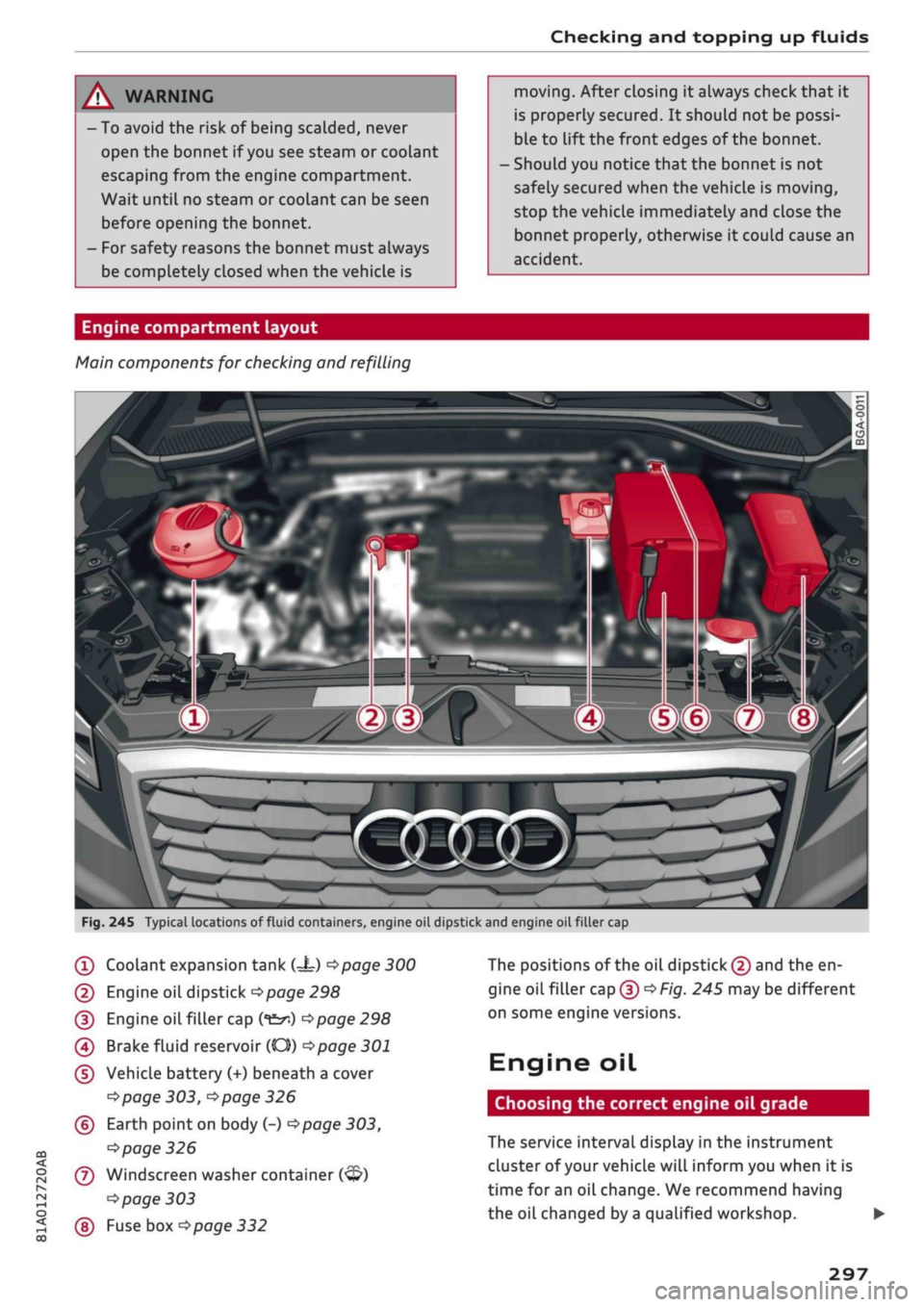
Engine compartment layout
Main components for checking and refilling
CO
< o rN
iv
rN
t-H
o <
?
Fig.
245 Typical locations of fluid containers, engine oil dipstick and engine
oilfiller
cap
(T)
Coolant expansion tank
C=t)
<^page
300
(2) Engine oil dipstick
Opage
298
(3) Engine
oilfiller
cap
(*&*)
Opage
298
(4) Brake fluid reservoir (CO))
^>page
301
(5) Vehicle battery (+) beneath a cover
^page
303,
^page
326
(?) Earth
point
on
body
(-)•=>page
303,
^>page
326
(7) Windscreen
washer
container
(<3?)
^>page
303
(§)
Fuse box
^page
332
The positions of the oil
dipstick
(2) and the en
gine
oilfiller
cap(D^F/'g.
245 may be different
on some engine versions.
Engine oil
Choosing the correct engine oil grade
The service interval display in the instrument
cluster of your vehicle will inform you when it is
time for an oil change. We recommend having
the oil changed by
a
qualified workshop. •
297
Page 302 of 364
Checking and topping up fluids
If
you
have to top up the oil between oil changes,
use the grades of oil specified in the table in ac
cordance with VW standards.
You will need to know whether
- the vehicLe is being serviced based on the
flexi
ble or fixed oil change service (see last service
record).
- the vehicle has a petrol or diesel engine (see
sticker on inside of fuel tank flap).
Petrol engines
Diesel engines
Oil Change Service
Flexible
VW 504 00
VW 507 00
Fixed
VW 502 00
With diesel
particulate
fil
ter:
VW 507 00
Without diesel
particulate
fil
ter:
VW 505 00
Audi recommends
ÇÇastrol
(MMMM'
FriOFSSskimL
Audi recommends LongLife high-performance
engine oil from Audi Genuine Parts
© Note
If the oil grades specified in the table are not
available, you can use one of the
folLowing
grades as a substitute. To prevent damage to
the engine, this should not be done more
than once between oil changes and no more
than 0.5 litres should be used.
- Petrol engines: ACEA A3 or API SN (API SM)
standard
- Diesel engines: ACEA C3 or API CJ-4 stand
ard
© Note
The flexible oil change service is not available
for all models in all countries.
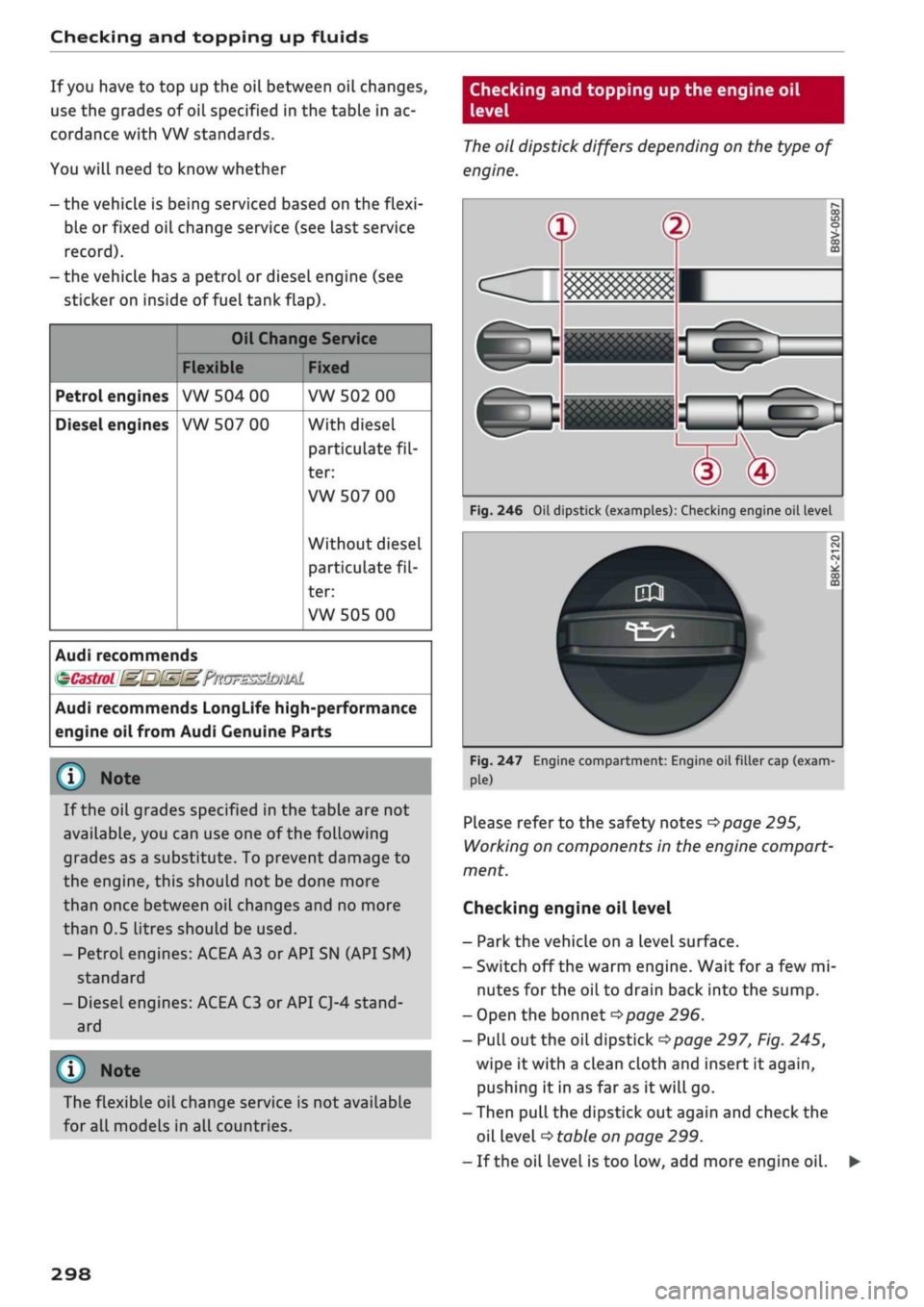
Checking and topping up the engine oil
level
The
oil dipstick differs depending on the type of
engine.
Fig.
246 Oil dipstick (examples): Checking engine oil level
Fig.
247 Engine compartment: Engine oil filler cap
(exam-
pLe)
Please refer to the safety notes
opage
295,
Working on components in the engine compart
ment.
Checking engine oil level
- Park the vehicle on a level surface.
- Switch off the warm engine. Wait for
a
few mi
nutes for the oil to drain back into the sump.
- Open the bonnet
opage
296.
-
PuLl
out the oil dipstick
^>page
297, Fig. 245,
wipe it with a clean cloth and insert it again,
pushing it in as far as it will go.
- Then pull the dipstick out again and check the
oil level
•=>
table on page 299.
- If the oil level is too Low, add more engine oil.
298
Page 308 of 364
Checking and topping up fluids
© CAUTIO
-The anti-freeze concentration must be
matched to the climate of the country in
which you are driving. If the concentration
is too
high,
damage to the car may result.
- Never put in radiator anti-freeze or other
additives.
- Never use washer fluid which contains paint
thinners or solvents as it can damage the
paintwork.
Service interval display
The
service interval display detects when the
next
service
is due
for
your vehicle.
There are two service interval dispLay levels:
- Inspection or oil change reminder: After a cer
tain mileage, a service reminder will appear in
the instrument cluster dispLay each time the ig
nition is switched on/off. The distance or time
remaining will be shown briefly.
- Inspection or oil change due: When your
vehi
cle is due for an inspection, oil change or
both,
the corresponding reminder Inspection
due!,
Oil change due! or Oil change and inspection
due!
will appear briefly after you switch the ig
nition on/off.
Checking the service intervals
On the infotainment system, you can look up the
distance and time remaining until the next oil
change or next service inspection. Select the
fol
lowing on the infotainment system:
|MENU|
but
ton > Car
>
left control button > Servicing &
checks
>
Service intervals.
Applies
to: vehicles with flexible oil change service
You cannot check the service interval on a new
vehicle until it has been driven for about 500 km.
Qualified workshops reset the service interval af
ter the oil is changed. The distance to the next oil
change is initially displayed based on the driving
profile prior to the oil change. Your own personal
driving profile is used subsequently to calculate
the remaining distance. Frequent cold starts or
short trips place extra demands on the engine oil
with the result that the oil has to be changed
more often.
Resetting the display
Your qualified workshop resets the service inter
val display after each service.
It is very important that you reset the oil change
dispLay if
you
change the oil yourself. The
next
oil
change will be due after
a
fixed service interval.
To reset the display, select the following on the
infotainment system:
|MENU|
button > Car
>
left
control button > Servicing & checks
>
Service in
tervals
>
Reset oil change interval.
(J) CAUTION
- Do not reset the oil change interval display
unless you have changed the oil.
- Keeping to the correct service intervals is
crucial for the operation, service life and re
sidual value of the vehicle (and especially
for the life of the engine). Services must al
ways be carried out promptly, even if the
mileage is Low.
304
Page 312 of 364
Wheels
- Incorrect tyre pressures increase tyre wear
and adversely affect vehicle braking and
handling - risk of accident!
(7) CAUTION
Replace any lost valve caps to prevent dam
age to the tyre valves.
(#) For
the sake of the environment
- Under-inflated tyres will increase the fuel
consumption.
- Driving with the tyre pressures adjusted to
the comfort setting* may also result in in
creased fuel consumption.
©
We recommend always using the tyre pres
sure setting
(T)
for partial loads and the set
ting
(?) for
full loads.
Wheel bolts and rims
Wheel bolts
The wheel bolts should be clean and turn easily.
A special adapter is required to turn the
anti-
theft wheel bolts*
^
page 321.
Rims
Rims with a bolted rim flange* or bolted trim
parts*
consist of several components. A special
technique is applied to bolt these components
together. Never attempt to repair or dismantle
them
o
A-
A,
WARNING
If the wheel bolts have not been tightened or
serviced correctly, they can come loose, and
you could lose control of the vehicLe - risk of
accident! For the correct tightening torque,
refer to
^page
324, After changing a wheel.
- Make sure that the wheel bolts and threads
in the wheel hubs are always clean and free
from grease.
- Only use wheel bolts that are designed to
match the rims on your car.
- Always have damaged rims repaired by a
qualified workshop. Never attempt to repair
or dismantle rims yourself - risk of accident!
Winter tyres
In winter road conditions winter tyres will consid
erably improve the car's handling. Due to their
type of construction (width, rubber compound,
tread pattern), summer tyres give less grip on ice
and snow.
•
Winter tyres must be fitted on all four wheels.
•
Only use winter tyres of the correct type ap
proved for your vehicle.
•
Please note that the maximum permissible
speed for winter tyres may be lower than for
summer tyres
•=> A-
Your specialist retailer can
advise you of the maximum speed
for
your
tyres.
•
After fitting the wheels you must always check
the tyre pressures
^>page
307.
Winter tyres Lose their effectiveness when the
tread is worn down to a depth of 4 mm. The per
formance of winter tyres is also severely impaired
by ageing, even if the tread is still much deeper
than 4 mm.
A WARNING
- Never exceed the maximum approved speed
for your tyres. This causes the tyres to over
heat and can even result in a blow-out - risk
of accident!
- Always adapt your driving style to the pre
vailing road and traffic conditions. Drive
carefully and reduce your speed on icy or
slippery roads. Even winter tyres lose their
grip on black ice.
(^)
For the sake of the environment
Summer tyres should be fitted again as soon
as possible; they give better handling on
roads which are free of snow and ice. They are
quieter, do not wear so quickly and reduce
fuel consumption. •
308
Page 321 of 364
Care of vehicle and cleaning
CO
rN
IV
rN
•-i
00
- It is much easier to remove dead insects if
the car has been waxed recently.
- Regular waxing can help protect against
surface rust.
Taking the vehicle out of
service
If
you
wish to
take
your vehicle
out
of service for
a long period of time, contact
a
qualified work
shop.
Here you will receive advice on necessary
measures, for example regarding corrosion pro
tection,
servicing and storage. In addition, please
observe the general notes on the vehicle battery
^>page
302.
317
Page 349 of 364
Index
A
A/C (automatic air conditioner) 69
A/C (manual air conditioner) 67
ABS
see Anti-lock brake system (ABS) 145
Accelerator pedal 272
Accessories 60
Active Lane assist
see Audi active lane assist 123
Adaptive cruise control
see Audi adaptive cruise control
Ill
Adaptive light
see Audi adaptive light 49
AdBlue 292
Driver messages 292
Refilling 293
Remaining range 292
Additional phone 175, 257
Advanced key
see Convenience key 76
Airbag
Deactivating front passenger's airbag ... 288
Air conditioner (automatic) 66
Adjusting air outlets 71
AUTO (automatic mode) 69
Controls 69
Default settings 66
Description 66
Drive select 131
Key-coded settings 66
Supplementary heater 66
Synchronisation 69
Air conditioner (manual) 66
Adjusting air outlets 71
Controls 67
Default settings 66
Description 66
Key-coded settings 66
Supplementary heater 66
Air distribution, adjusting
Automatic air conditioner 70
Heating/ventilation system and manual air
conditioner 67
CO
rN
IV
rN
i-H
00
Air outlets, adjusting 71
Automatic air conditioner 70
Heating/ventilation system and manual air
conditioner 67
Air recirculation mode
Automatic air conditioner 70
Heating/ventilation system and manual air
conditioner 68
Alarm system
see Anti-theft alarm system 42
All-season tyres
see All-weather tyres 308
All-weather Lights 49
All-weather tyres 308
Alterations to the vehicle 340
AMI
see Audi music interface 240, 241
Android Auto
see Audi smartphone interface 253
Announcements (traffic programme)
Volume 261
Anti-dazzle interior mirror 54
Anti-freeze
Coolant 299
Windscreen washer system 303
Anti-lock brake system (ABS) 145
Anti-theft alarm system 42
Anti-theft wheel bolts 321
Apple CarPlay
see Audi smartphone interface 253
Armrest (front centre) 58
Ashtray 59
ASR
see Traction control system (ASR) 145
Audi active lane assist 123
Cleaning area around camera 313
Driver messages 125
Audi adaptive cruise control
Ill
Cleaning sensor 313
Distance indicator, distance warning .... 118
Driver messages 119
Traffic
jam assist 117
Audi adaptive light 49, 131
Audi connect (infotainment) 191,203
Data protection 205
Overview of services 197
345