service AUDI Q2 2021 Owner´s Manual
[x] Cancel search | Manufacturer: AUDI, Model Year: 2021, Model line: Q2, Model: AUDI Q2 2021Pages: 364, PDF Size: 87.77 MB
Page 169 of 364
Speech dialogue system
Please always note the information in the
chapter
<^>page
204, General notes on Audi
connect (infotainment).
Messages - Audi connect (infotainment)
Applies to: vehicles with speech dialogue system and Audi connect (infotainment)
Important
A SIM card with a messaging and data option
must be inserted in the SIM card reader*
<^>page
192.
Alternatively, a SIM card with a data option must
be inserted in the SIM card reader and a mobile
phone with activated MAP (Message Access Pro
file) must be connected to the MMI
^>page
173.
The declaration of consent must have been ac
cepted
^page
183.
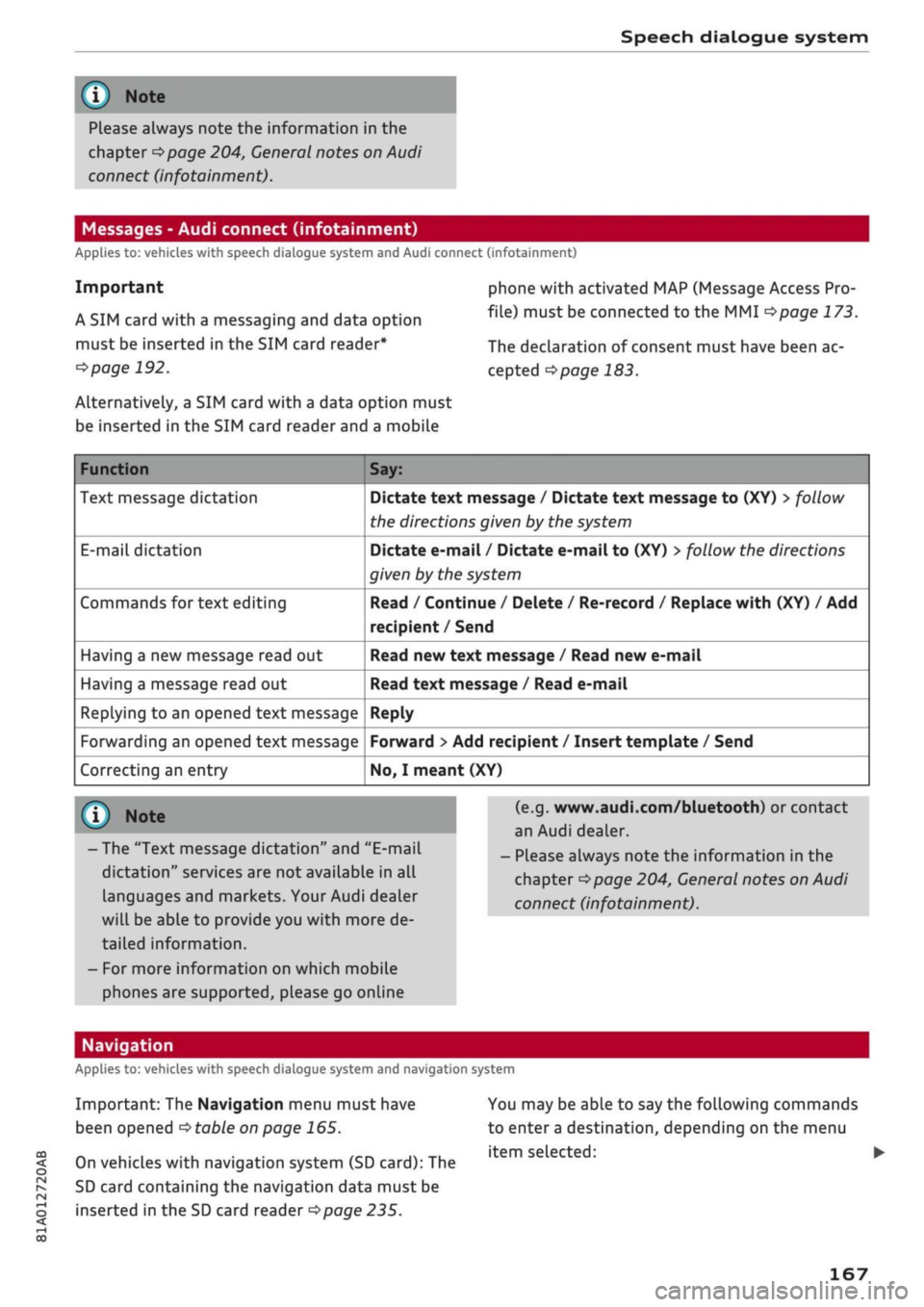
Function
Text message dictation
E-mail
dictation
Commands for text editing
Having a new message read out
Having a message read out
Replying to an opened text message
Forwarding an opened text message
Correcting an entry
Say:
Dictate text message / Dictate text message to (XY) > follow
the directions given by the system
Dictate e-mail / Dictate e-mail to (XY)
>
follow the directions
given by the system
Read / Continue / Delete / Re-record / Replace with (XY) / Add
recipient /Send
Read new text message / Read new e-mail
Read text message / Read e-mail
Reply
Forward
>
Add recipient / Insert template / Send
No,
I meant (XY)
© Note
- The "Text message dictation" and "E-mail
dictation"
services are not available in all
languages and markets. Your Audi dealer
will be able to provide you with more de
tailed information.
- For more information on which mobile
phones are supported, please go online
(e.g.
www.audi.com/bluetooth) or contact
an Audi dealer.
- Please always note the information in the
chapter
Opage
204, General notes on Audi
connect (infotainment).
CO
< o rN
IN
rN
t-H
o < 00
Navigation
Applies to: vehicles with speech dialogue system and navigation system
Important: The Navigation menu must have
been opened
•=>
table on page
165.
On vehicles with navigation system (SD card): The
SD card containing the navigation data must be
inserted in the SD card reader
<=s>page
235.
You may be able to say the following commands
to enter a destination, depending on the menu
item selected: •
167
Page 170 of 364
Speech dialogue system
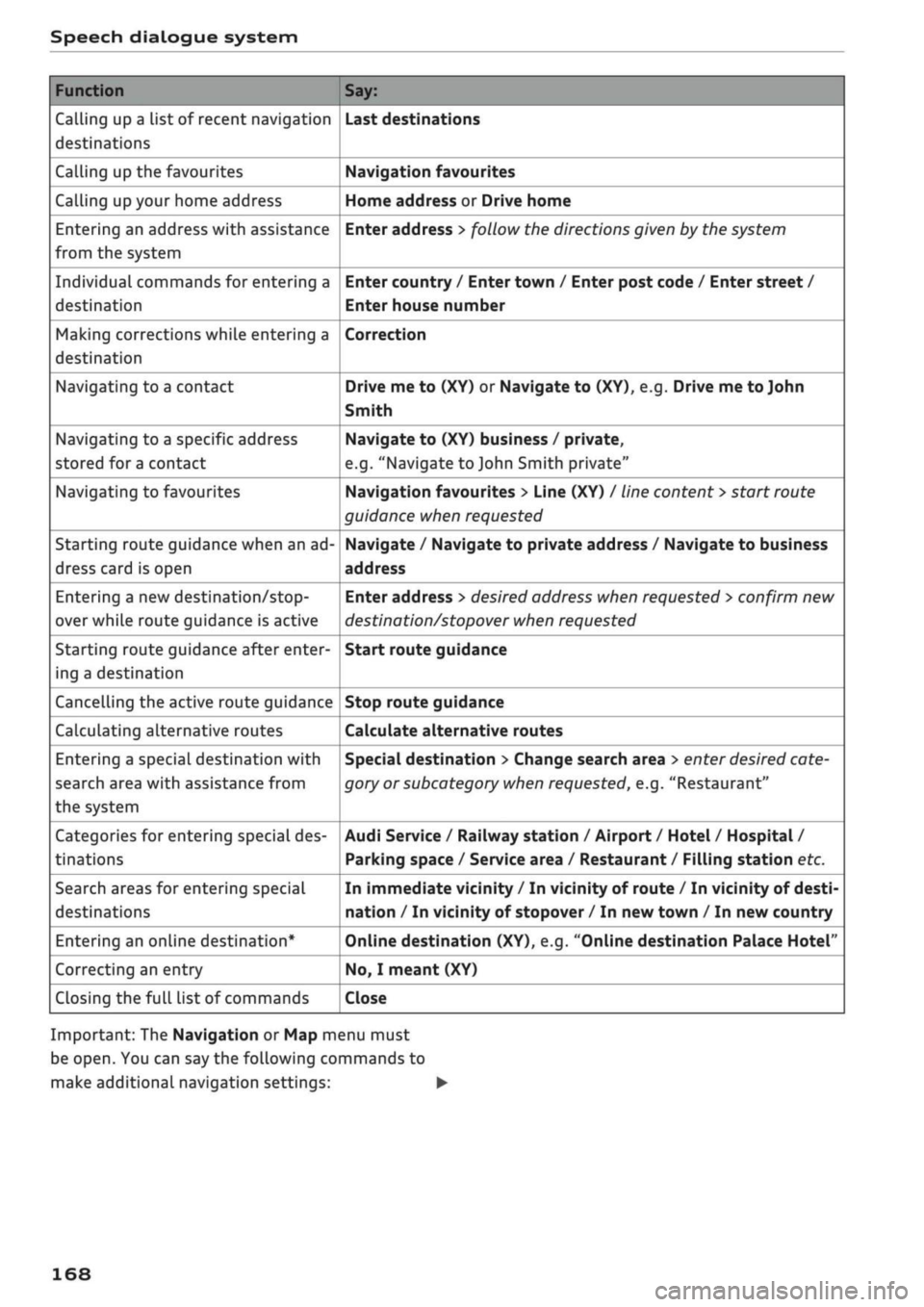
Function
Calling up a list of recent navigation
destinations
Calling up the favourites
Calling up your home address
Entering an address with assistance
from the system
Individual commands for entering a
destination
Making corrections while entering a
destination
Navigating to a contact
Navigating to a specific address
stored for a contact
Navigating to favourites
Starting route guidance when an ad
dress card is open
Entering a new
destination/stop
over while route guidance is active
Starting route guidance after enter
ing a destination
Cancelling the active route guidance
Calculating alternative routes
Entering a special destination with
search area with assistance from
the system
Categories for entering special des
tinations
Search areas for entering special
destinations
Entering an online destination*
Correcting an entry
Closing the full List of commands
Say:
Last destinations
Navigation favourites
Home address or Drive home
Enter address > follow the directions given by the system
Enter country / Enter town / Enter post code / Enter street /
Enter house number
Correction
Drive me to (XY) or Navigate to (XY), e.g. Drive me to John
Smith
Navigate to (XY) business / private,
e.g.
"Navigate to John Smith private"
Navigation favourites > Line (XY) / line content
>
start route
guidance when requested
Navigate / Navigate to private address / Navigate to business
address
Enter address
>
desired address when requested
>
confirm new
destination/stopover when requested
Start route guidance
Stop route guidance
Calculate alternative routes
Special destination > Change search area > enter desired cate
gory or subcategory when requested, e.g. "Restaurant"
Audi Service / Railway station / Airport / Hotel / Hospital /
Parking space / Service area / Restaurant / Filling station etc.
In immediate vicinity / In vicinity of route / In vicinity of desti
nation / In vicinity of stopover / In new town / In new country
Online destination (XY), e.g. "Online destination Palace Hotel"
No,
I meant (XY)
Close
Important: The Navigation or Map menu must
be open. You can say the following commands to
make additional navigation settings: •
168
Page 173 of 364
Speech dialogue system
CO
â
rN
IN
rN
•-i
•H
00
The ignition and the MMI system must be switch
ed on.
You must not be speaking on the phone.
The parking aid and the Audi speech dialogue sys
tem must not be active.
A mobile phone must be connected to the MMI
system via the Handsfree profile
Opage
173.
The mobile phone connected must feature a
speech dialogue function that can be controlled
externally.
•
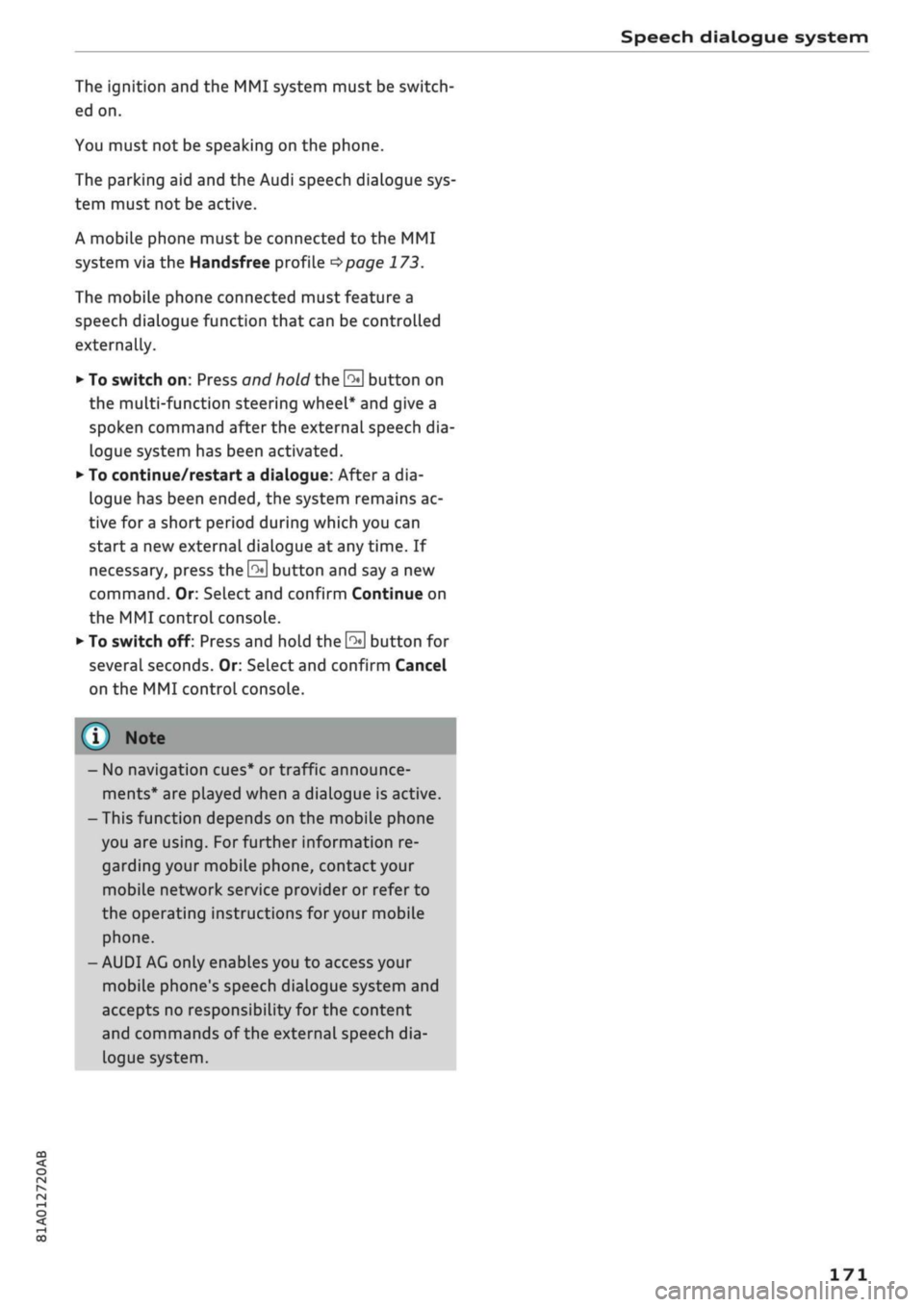
To switch
on:
Press and hold the
S
button on
the multi-function steering wheel* and give a
spoken command after the external speech dia
logue system has been activated.
•
To continue/restart a dialogue: After
a
dia
logue has been ended, the system remains ac
tive for
a
short period during which you can
start a new external dialogue at any time. If
necessary, press
the S
button and say a new
command.
Or: SeLect and confirm Continue on
the MMI control console.
•
To switch off: Press and hold the
\2*\
button for
several seconds. Or: Select and confirm Cancel
on the MMI control console.
© Note
- No navigation cues* or traffic announce
ments* are played when a dialogue is active.
-Thisfunction
depends on the mobile phone
you are using. For further information re
garding your mobile phone, contact your
mobile network service provider or refer to
the operating instructions
for
your mobile
phone.
- AUDI AG only enables you to access your
mobile phone's speech dialogue system and
accepts no responsibility for the content
and commands of the external speech dia
logue system.
171
Page 174 of 364

Telephone
- Do not carry a mobile phone in your breast
pocket directly over the pacemaker when
the phone is switched on.
-If you suspect interference, switch the
mobile phone off immediately.
- The speech dialogue system*
^>page
164
must not be used in cases of emergency,
since the voice changes in stressful situa
tions.
This could result in a failed or delayed
telephone connection. Always dial emergen
cy numbers manually!
- Switch off your mobile phones in all areas
where there may be a risk of explosion. Re
member that these areas may not always be
adequately marked. Such places are filling
stations, fuel and chemical storage facilities
or transport vehicles and other places where
fumes, chemicals (e.g. from leaking
pro
pane or fuel vapours in vehicles or build
ings) or large quantities of dust particles
(e.g.
from flour, wood or metal) could accu
mulate in the air. This warning also applies
to all other places where you would normal
ly switch off your engine.
- Today's driving conditions require the full
attention of drivers. Please always note the
information in the chapter
^>page
152,
Notes on traffic safety.
Telephone
Introduction
Applies to: vehicles with telephone
You have different options for making calls in
your vehicle via the MMI; this depends on your
vehicle's equipment and the features of your mo
bile phone.
Handsfree operation
After connecting your mobile phone to the MMI
system via Bluetooth, you can operate the hands-
free system and the telephone functions conven
iently via the MMI. Your phone calls will be made
via the antenna of your mobile phone.
With the Audi phone box*, you can use the
vehi
cle's external aerial to make calls. The use of the
external aerial reduces radiation in the vehicle
and also ensures better reception quality
^>page
177.
Car
phone#1)
As part of Audi connect (infotainment)*, the Audi
phone box* includes a car telephone function
which can be used via a separate mini SIM card in
the SIM card reader* or an
rSAP-enabled
mobile
phone.
With the car telephone function, you can
use the vehicle's external aerial to make calls.
The use of the external aerial reduces radiation in
the vehicle and also ensures better reception
quality
^>page
177.
Once a connection has been established success
fully, you can also change the profiles at a later
time.
Refer to
^>page
257, Connection manag
er.
/\
WARNING
-According to health organisations, mobile
phones may interfere with the function of
pacemakers. A minimum distance of 20 cm
should be kept between the mobile phone
aerial and the pacemaker.
Not available in all markets. On vehicles with Audi connect
(infotainment)* and Audi phone
box*
Please always observe the information
^>®in
Wi-Fi hotspot on page 202.
(T)
Note
-The maximum range of the Bluetooth
con
nection is limited to the interior of the
vehi
cle.
The connection can be susceptible to in
terference from other electronic devices.
- For information regarding which Bluetooth
connections and functions your mobile
phone supports, contact your mobile net
work service provider or consult the mobile
device database
at
www.audi.com/blue-
tooth.
•
172
Page 175 of 364

Telephone
- We recommend using the vehicle's Wi-Fi
hotspot* when the car phone* is in use so
that
your mobile phone's apps retain access
to the Internet.
- When the car phone function* is active, Audi
connect (infotainment)* is only available us
ing
your
own SIM card
^>page
191.
Setting up
Connecting a mobile phone via Bluetooth
Applies
to: vehicles with telephone
Does
this PIN match the PIN on your
Bluetooth
device?
967536
Fig.
159
PIN display for entry on mobile phone
Important
The vehicle must be stationary, and the ignition
must be switched on.
The Bluetooth function and the discoverability
option of the MMI system
Opcge
258 and the
mobile phone must be activated.
The mobile phone you would like to connect must
not be connected to any other Bluetooth device.
The MMI must not be connected to a mobile
phone.
A mini SIM card must not be inserted in the SIM
card reader*.
Connecting a mobile phone
•
Select: |MENU| button
>
Telephone
>
Connect
mobile phone
>
Find new devices > Continue.
The available Bluetooth devices will be shown
on the infotainment display. Or: Select:
|MENU|
button > Settings > left control button > MMI
settings > Connection manager
^>page
257.
•
Select and confirm the desired mobile phone
from the list of Bluetooth devices shown.
• The MMI will generate a PIN for the connection
*Fig.
159.
•
Select and confirm Yes.
•
Enter the PIN to establish a connection on your
mobiLe phone. Or: If the PIN is already being
displayed on your mobile phone, confirm it on
the phone and on the MMI. You have about 30
seconds to enter the PIN.
•
You may need to enter the PIN for your SIM
card
intheMMl".
•
Please note any additional system queries on
your mobiLe phone, e.g. whether the phone
should connect automatically in the future. On
some mobiLe phones, you may also need to
download the directory and allow access to
your messages separately.
After connecting successfully
After the connection has been established suc
cessfully, you will be shown a short message
con
taining information on the profiles used to estab
lish the connection. You can also change the pro
files afterwards. Select: |MENU| button > Set
tings > left control button > MMI settings
>
Con
nection manager
<=$page
257.
In addition, the contacts on the mobile phone are
automatically loaded into the directory of the
MMI.
This may take several minutes, depending
on how many contacts are stored on the mobile
phone.
Applies
to: vehicles with Audi connect (infotainment)
•
If
you
have successfully connected your mobile
phone via the Bluetooth remote SIM Access
Profile, you can use either the embedded SIM
card
2)
or your own SIM card to use Audi
con
nect infotainment services.
•
Confirm the system query with either Yes or
No.
For more information on Audi connect (in
fotainment), please refer to
^>page
191.
*•
Yes:
All data connections for all Audi connect
infotainment services will be established by a
CO
<
o
rN
IN
rN
t-H
o
<
-1'
Not available in all markets. Applies to mobile phones
with
Bluetooth remote SIM Access Profile on vehicles with
Audi
connect (infotainment)* and Audi phone box*.
2)
SIM card installed in vehicle at factory.
173
Page 176 of 364

Telephone
mobile network provider via the embedded SIM
card1)
^page
191. Your mobile phone will be
connected via Handsfree only
^>page
172, and
you will not be able to use the car telephone
function*
^>page
172.
•
No: All data connections for all Audi connect in
fotainment services will use your own SIM
card.
All connections via the embedded SIM
card1*
will be disconnected, and you will be able to
use the car telephone function*
^>page
172.
You can now use Audi connect infotainment serv
ices.
Applies to: vehicles with Audi connect (infotainment)
•
You can configure your vehicle's mobiLe Wi-Fi
hotspot*2)
and the Audi connect infotainment
services* immediately after connecting an
rSAP-enabled
mobile phone
^page
191. Or:
Select [TÊT]
button > right control button >
Connection manager
>
right controL button >
Wi-Fi settings.
Using the function Store as default telephone in
the Connection manager, you can store one of
your connected mobile phones as the default
phone
^>page
258.
(T)
CAUTION
Please always observe the information
^©/n
Wi-Fi hotspot on page 202.
- You can adjust further settings for connec
ted mobile phones using the connection
manager
^>page
257.
- You can also search for the MMI system via
the Bluetooth device search function on
your mobiLe phone.
- Bluetooth devices only have to be bonded
once.
Any devices that have already been
bonded to the MMI system are connected
automatically when the Bluetooth function
11
SIM card installed in vehicle at factory.
2'
Not available in all markets.
3)
The number of possible attempts depends on the SIM
card.
is switched on, the devices are within range
of the car and the ignition is on. The mobile
phone last connected is given priority.
-You will need to authorise the MMI connec
tion on your mobile phone to enable auto
matic connection.
- Please note any system queries on your mo
bile phone, e.g. whether the phone should
connect automatically in the future. On
some mobile phones, you may also need to
download the directory and allow access to
your text messages separately.
- You receive the SIM PIN code from your mo
bile network service provider together with
the SIM
card.
If
you
enter the SIM PIN code
incorrectly three
times35
in a row, the SIM
card will be be blocked. A PUK (personal un
blocking key) must be entered in order to
reactivate the SIM
card.
-The Bluetooth connection between the sys
tem and the mobile phone is automatically
terminated when you leave the car. Depend
ing on the mobile phone, telephone calls
may be transferred automatically from the
MMI to your mobile phone so that you can
continue talking.
- For further information regarding your mo
bile phone, contact your mobile network
service provider or refer to the operating in
structions for your mobile phone. For infor
mation on using a phone in your car, please
go online (e.g. www.audi.com/bluetooth)
or ask an Audi dealer.
174
Page 178 of 364
Telephone
previously connected as an additional phone
will be connected automatically as the
pri
mary phone.
-You can send and receive messages on both
the primary phone and additional phone
^>page
178, Fig. 162. You do not have to
swap the primary phone and additional
phone to do so.
- Using the function Store as default tele
phone in the Connection manager, you can
store one of your connected mobile phones
as the default phone
^>page
258.
Making and receiving calls using your own
mini SIM card
Applies to: vehicles with Audi connect (infotainment) and
Audi phone box
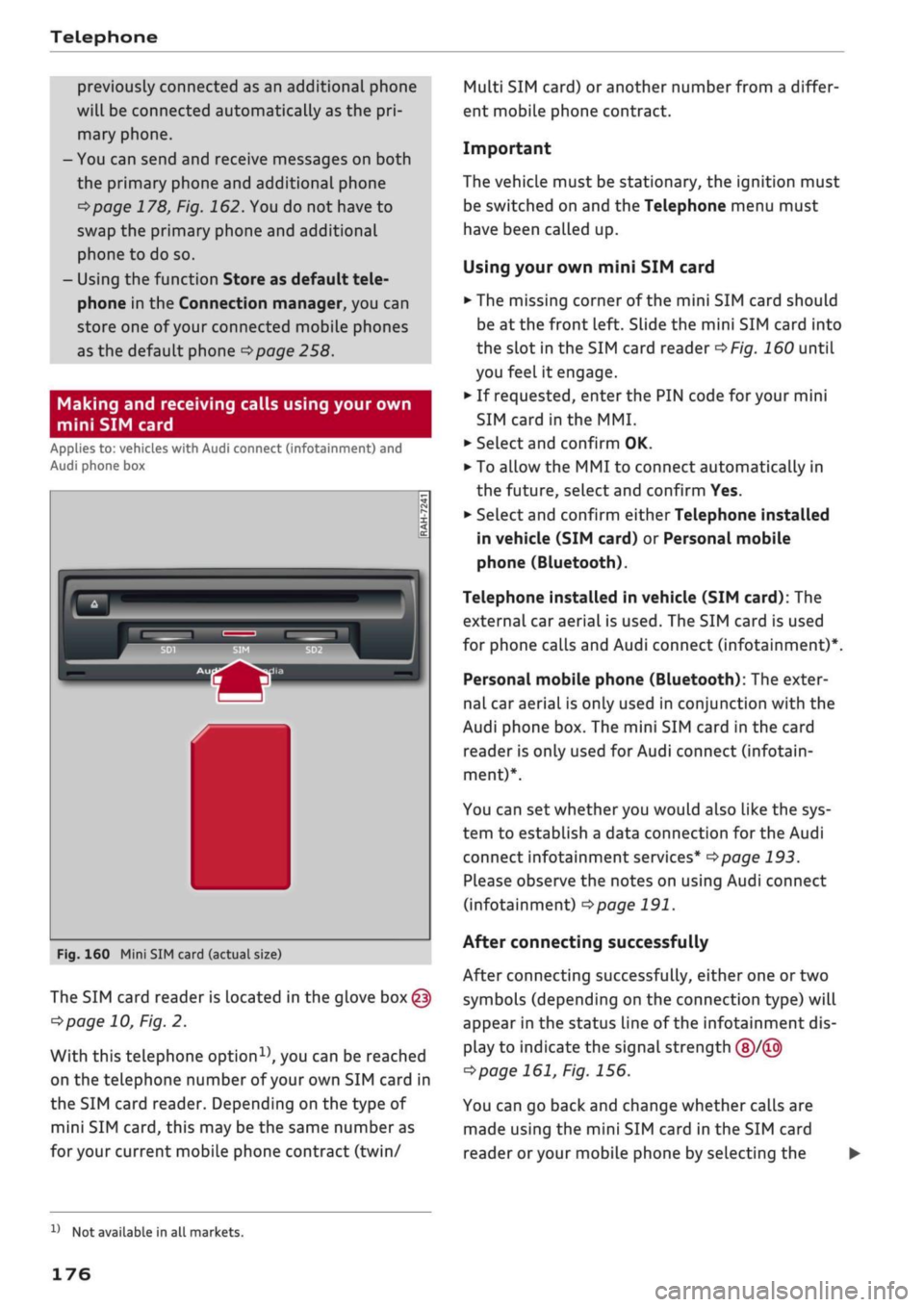
Fig.
160 Mini SIM card (actual size)
The SIM card reader is located in the glove
box@
^>page
10, Fig. 2.
With this telephone
option15,
you can be reached
on the telephone number of your own SIM card in
the SIM card reader. Depending on the type of
mini SIM
card,
this may be the same number as
for
your current mobile phone contract (twin/
Multi SIM card) or another number from a differ
ent mobile phone contract.
Important
The vehicle must be stationary, the ignition must
be switched on and the Telephone menu must
have been called up.
Using your own mini SIM card
• The missing corner of the mini SIM card should
be at the front Left. Slide the mini SIM card into
the slot in the SIM card reader
of/g.
160 until
you feel it engage.
•
If requested, enter the PIN code for your mini
SIM card
in
the MMI.
•
SeLect and confirm OK.
•
To allow the MMI to connect automatically in
the future, select and confirm Yes.
•
Select and confirm either Telephone installed
in vehicle (SIM card) or Personal mobile
phone (Bluetooth).
Telephone installed in vehicle (SIM card): The
external car aerial is used. The SIM card is used
for phone calls and Audi connect (infotainment)*.
Personal mobile phone (Bluetooth): The exter
nal car aerial is only used in conjunction with the
Audi phone box. The mini SIM card in the card
reader is only used for Audi connect (infotain
ment)*.
You can set whether you would also like the sys
tem to establish a data connection for the Audi
connect infotainment services*
^>page
193.
Please observe the notes on using Audi connect
(infotainment)
°=>page
191.
After connecting successfully
After connecting successfully, either one or two
symbols (depending on the connection type) will
appear in the status line of the infotainment dis
play to indicate the signal strength
(§)/©
tapage
161, Fig. 156.
You can go back and change whether
caLls
are
made using the mini SIM card in the SIM card
reader
or
your mobile phone by selecting the
x)
Not available in all markets.
176
Page 179 of 364

Telephone
|MENU|
button
>
Settings
>
left control button >
MMI settings > Connection manager
•=>
page 257.
In addition, the contacts on the mobile phone are
automatically loaded into the directory of the
MMI.
This may take several minutes, depending
on how many contacts are stored on the mobile
phone.
Removing a mini SIM card
• Briefly press the mini SIM
card.
The card will
then eject from the slot. Remove the mini SIM
card.
© CAUTION
-To avoid damaging the SIM card reader, on
ly use mini SIM cards
(25
mm x
15
mm)
^Fig.
160. Please contact your service pro
vider for more information on mini SIM
cards.
- Should you have inserted a different SIM
card size in the SIM card reader, do not un
der any circumstances attempt to remove it
yourself as this may damage the SIM card
reader. Please contact
a
qualified workshop.
- If
you
use SIM card adapters, the vibrations
caused by the movement of the vehicle may
cause the SIM card to become detached
from the adapter - risk of damage to the
SIM card reader.
If your mobile phone does not support the re
mote SIM Access Profile (e.g. iPhone), you can
use the contacts from your mobile phone by
connecting the mobiLe phone to the system
via the Directory/contacts profile
•=>
page 258.
Using the Audi phone
box
Applies
to: vehicles with Audi phone box
You
can use the Audi phone box to charge your
mobile phone's battery.
You
can use the vehicle's
external aerial to make calls, which reduces
radi
ation in the vehicle and also ensures better re
ception quality.*
Fig.
161 Audi phone
box
with
connections
The Audi phone box is Located in the centre
con
sole beneath the armrest©
opage
10, Fig. 2
Important: A mobile phone must be connected
via Bluetooth
^>page
173.
The following options are available:
- To establish a connection with the external car
aerial15:
Place your mobiLe phone onto the
mid
dle of the telephone symbol in the Audi phone
box
^>Fig.
161 with the phone's display facing
upwards. When doing so, make sure that there
are no objects between the Audi phone box and
the mobile phone.
- To charge a mobile phone wirelessly: Place
your
Qi
compatible25 mobile phone onto the
middle of the
<]>
symbol in the Audi phone box
oFig.
161 with the phone's display facing up
wards. The mobile phone
wiLl
be charged.
- To charge a mobile phone via a USB adapter:
Connect your mobile phone to the USB charging
socket
(TjoF/g.
161 using a USB adapter cable.
You can charge your mobiLe phone using special
USB adapters
^>page
240, Fig. 196. •
CO
<
O
rN
IN
rN
t-H
o
< 00
^
Not available in all markets. Additional car telephone
function
only with Audi connect (infotainment)*.
2)
The Qi standard enables you to charge your mobile phone
wirelessly.
177
Page 181 of 364

Telephone
Dialling a number
Applies to: vehicles with telephone
CO
<
O
rN
IN
rN
•-i
00
Call list
-ï3
Enter phone number
Please enter a phone number.
0800AUDISERVI
Fig.
164 Speller for numbers
MyPhone: Call list
Huber, Anton
B*
Mayer, Susanne
Schmidt,
Ralf
!
/01237890
2014-03-18
12:25
PM
2014-03-18
11:45
AM
2014-03-18
1:40 PM
2014-03-18
Fig.
165 Dialling a telephone number from the call list
•
Select:
|MENU|
button
>
Telephone
>
left
con
trol button.
Call list
Important: The call list must contain a telephone
number.
Turn the rotary pushbutton to show the call list.
Select and confirm the desired telephone num
ber in the call List.
Symbols in the call
UstoFig.
165:
(T)
Missed calls
(2) Numbers dialled
(D Received calls
SeLect: a contact from the list
>
right control but
ton.
-
Call:
To call the selected contact.
- Connect additional phoneVSwitch primary &
additional phone*: Refer to
^page
175.
- Edit number before making
call:
To edit a tele
phone number before making a
call.
Select and
confirm OK to use the changes. Or: Press the
Left control button to go back without making
the changes.
- Send text message: To send the selected
con
tact
a
text message.
- Delete call list: Select and confirm if
you
wish
to Delete this entry or Delete all entries.
- Store as favourite: To store the selected
con
tact as a favourite.
- Show contact details: Refer to
opage
186.
- Connection manager: Refer to
^>page
257.
- Bluetooth settings: Refer to
=>page
258.
- Online settings: Refer to
^page
258.
- Wi-Fi settings: Refer to
<=>page
201, Wi-Fi
hotspot.
-Telephone settings: Refer to
^>page
187.
Favourites
Important: A telephone number or
a
contact
must have been added as a favourite
^>page
181.
Select and confirm a favourite in the favourites
list.
Directory
Important: You must have stored a contact on
your mobile phone.
SeLect and confirm a telephone number in the di
rectory
Opage
185.
Enter number
- To enter a telephone number using numbers:
Enter
a
telephone number using the speller for
numbers
^>Fig.
164.
- To enter a telephone number using letters: Se
lect and confirm
|ABC|
using the speller for
numbers. Enter
a
series of letters, e.g. AUDI-
SERVICE
using the speller for letters.
- To dial a telephone number: Select and
con
firm
down
wards. Select and confirm OK.
-To delete letters/numbers individually: Select
and confirm
- To delete all the numbers/letters you have en
tered at once: With the selection line activated,
turn the rotary pushbutton to
hold the rotary pushbutton. Or: Select the right
control button > Clear entry field.
179
Page 182 of 364

Telephone
Answering/ending a call
Applies to: vehicles with telephone
- To answer a
call:
Select and confirm Answer.
- To decline a
call:
Select and confirm Ignore.
- To mute an active
call:
Select and confirm
Mute.
- To end a call/cancel the dialling process: Se
lect and confirm End
call.
Caller information: Depending on whether the
caller is stored in the directory and whether the
telephone number is transmitted with the
call,
the caller's name, his/her telephone number or
Unknown will appear on the infotainment dis
play. A photo of the caller may also be shown if
one has been assigned to the contact in your mo
biLe phone and transmitted to the MMI. You can
find out if your mobiLe phone supports this func
tion by asking your mobile network provider,
con
sulting your mobile phone's operating manual or
visiting www.audi.com/bluetooth.
- Media playback or the radio
is
muted auto
matically
during a call
- A symbol is displayed in the status line of
the infotainment display if there are any
missed calls
(f)
<^>page
161, Fig. 156
During a telephone call
Applies to: vehicles with telephone
Important: A call must be in progress.
•
End
call:
You can end the
call.
•
Send tone sequence: You can enter DTMF
tones ("touch-tones") directly using the speller
for numbers. These are then sent to the person
you are speaking to.
•
Further call options: Press the right control
button.
The following options may be available during a
call depending on the mobile phone being used
and the type of connection:
-To answer
a
further
call:
If
you
are already talk
ing on the phone when someone else calls, se
lect Answer to place the current call on hold
and to answer the incoming
call.
If
you
select
Ignore, the incoming
call
will be declined.
- To answer
a
further call when you are talking
on the phone and have another call on
hold:
Se
lect Replace. The current call will be replaced
by the incoming
call.
-To mute an incoming
call:
Select and confirm
Mute.
- Further
call:
Select Find contact
>
Call list/Di
rectory/Favourites > an entry from the
list.
Switch microphone off: If
you
select and confirm
this option, the caller will no longer be able to
hear
you;
you will still be able to hear the caller.
SeLect and confirm Switch microphone on to
switch the microphone back on.
Hold/Resume: You can put
a
call on hold and re
trieve it later from the hold queue. Select and
confirm a
call
to resume it.
Transfer call to mobile phone*: Select and
con
firm Transfer call to mobile phone to transfer
your current call from the MMI to your mobile
phone.
Retrieve
call*:
Important: A call must be in pro
gress.
Select and confirm Retrieve call to trans
fer the current call back to the MMI from your
mobile phone.
Switch:
You can switch between two phone calls
(one of them will be on hold at any given time).
Select End call to end whichever call is active.
The call on hold will remain in the hold queue
and can be continued by pressing the right
con
troL button > Resume.
Conference: Up to five callers and one caller on
hold can take part in a conference (depending on
the mobile network service provider).
- To add participants: Select the left control but
ton > Call list/Directory/Favourites
>
an entry
in the
list.
- SeLect the right control button:
- Hold: To put all existing conference partici
pants on
hold.
- Resume: To resume the conference with all
participants. •
180