Tire AUDI Q2 2021 Owner´s Manual
[x] Cancel search | Manufacturer: AUDI, Model Year: 2021, Model line: Q2, Model: AUDI Q2 2021Pages: 364, PDF Size: 87.77 MB
Page 41 of 364
Doors and windows
® For the sake of the environment
CO
<
O
rN
iv
rN
i—i
o < 00
Used batteries must be disposed of appropri
ately and must not be discarded with ordinary
household waste.
Note
The new battery must be of the same type as
the original one in the remote control key.
Re-synchronising the remote control key
If the remote control key fails to lock/unlock the
vehicle, it will be necessary to re-synchronise the
system.
•
Press
thed]
button on the remote control.
•
Unlock the driver's door within 30 seconds by
turning the key in the lock
^>page
41.
*•
Press
button [a] or
[â].
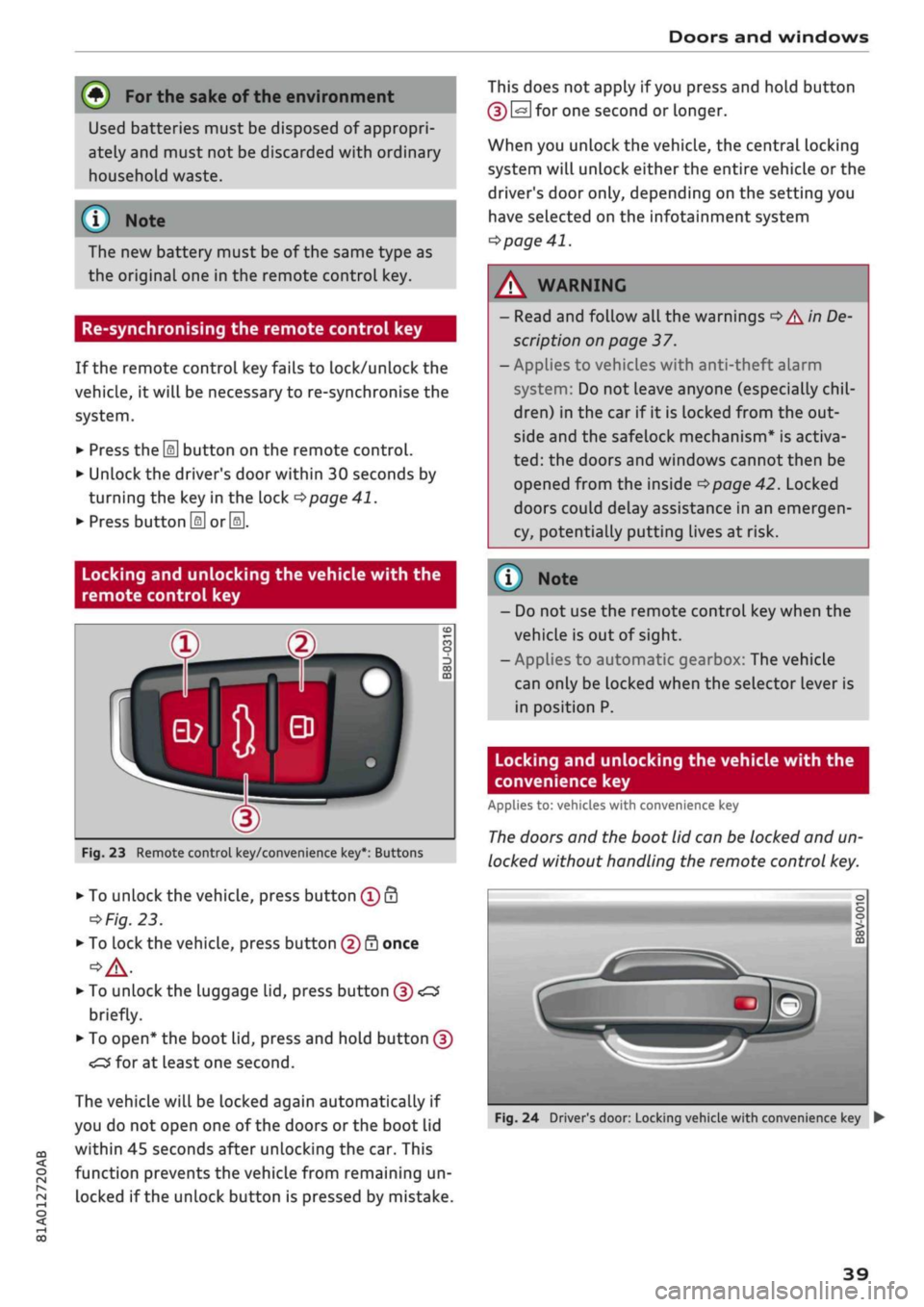
Locking and unlocking the vehicle with the
remote control key
Fig.
23 Remote control key/convenience key*: Buttons
•
To unlock the vehicle, press button
® â
o
Fig.
23.
•
To lock the vehicle, press button
(f)
0 once
•
To unlock the luggage lid, press button (5)
•£$
briefly.
•
To open* the boot lid, press and hold button (J)
The vehicle will be locked again automatically if
you do not open one of the doors or the boot lid
within 45 seconds after unlocking the car. This
function prevents the vehicle from remaining un
locked if the unlock button is pressed by mistake.
This does not apply if
you
press and hold button
(D
@
for one second or longer.
When you unlock the vehicle, the central locking
system will unlock either the entire vehicle or the
driver's door only, depending on the setting you
have selected on the infotainment system
•=>
page 41.
WARNING
- Read and follow
all
the warnings
•=>
A'n
De-
scription
on page 37.
- Applies to vehicles with anti-theft alarm
system:
Do not leave anyone (especially
chil
dren) in the car if it is locked from the out
side and the safelock mechanism* is activa
ted:
the doors and windows cannot then be
opened from the inside
<=>page
42. Locked
doors could delay assistance in an emergen
cy, potentially putting lives at risk.
(T)
Note
- Do not use the remote
vehicle is out of sight.
- Applies to automatic g
control key
earbox: The
when the
vehicle
can only be locked when the selector lever is
in position P.
Locking and unlocking the vehicle with the
convenience key
Applies to: vehicles with convenience key
The
doors and the boot lid can be locked and un
locked without handling the remote control key.
Fig.
24 Driver's door: Locking vehicle with convenience key •
39
Page 43 of 364

Doors and windows
CO
s
rN
rN
t-H
o <
- The central locking switch is still operative
when the ignition is switched off and will
automatically lock the entire vehicle when
the [H
button is pressed.
-The central locking switch inside the vehicle
is not operative if
you
lock the vehicle from
the outside.
© Not
The doors and the boot lid are Locked auto
matically when the vehicle reaches a speed of
about 15 km/h (Auto Lock)
^>page
37. You
can unlock the vehicle again via the
â
button
in the central locking switch.
Adjusting the settings for the central
locking
system
You
can use the infotainment system to select
which functions are controlled via the central
locking system.
•
Select the following on the infotainment sys
tem:
|MENU|
button > Car
>
left control button
> Vehicle settings > Central locking.
Doors to unlock - You can select whether all
doors or only the driver's door are unlocked by
the central locking system. The boot lid will also
be unlocked if
you
select all. If
you
select driver's
door on vehicles with convenience key*, only one
door will be unlocked (whichever door you grip by
the handle).
When the driver's door setting is activated, you
can still unlock all the doors and the boot lid by
pressing the
M
button on the remote control key
twice.
Long press to open windows - The convenience
open/close function can be activated/deactivated
•=>
page 47.
Lock when
driving^
- If
you
activate this func
tion,
the whole vehicle is Locked automatically
when you are driving.
Fold mirrors* - If
you
activate this function, the
exterior mirrors are folded in automatically when
the vehicle is Locked.
Locking and unlocking the doors manually
Fig.
26 Driver's door lock
*m
@
Fig.
27 End face of (open) door: Locking manually
If the central locking system should fail to work,
the doors must be locked/unlocked separately.
Locking and unlocking the driver's door
• To unlock the driver's door, turn the key to the
unlock position
(T)
^>Fig.
26
<>(J).
•
To lock the driver's door, move the selector lev
er to position
P
(automatic gearbox) and turn
the key to the Lock position (2) once
•=>
A.-
Applies to vehicles with anti-theft alarm system:
Switch on the ignition or press the
\M
button on
the remote control key after opening the driver's
door. Otherwise the alarm will be triggered.
The system will unlock either all the doors or only
one of the doors, depending on the settings you
have chosen on the infotainment system
•=>
page 41. •
1J
This function is not available on all export versions.
41
Page 112 of 364
Driver assist systems
key in use. If you change to a different type
of trailer, you may need to change the maxi
mum trailer speed setting.
- Information is also provided in the head-up
display*.
- Please note
that
the navigation system (SD
card)*
is immediately no longer available if
the SD card is removed from the SD card
reader.
Driver messages
Applies to: vehicles with camera-based traffic sign
recogni
tion
EJ
Traffic sign recognition: currently unavaila
ble.
No camera view
This message will appear if the camera view is
obstructed
^>page
108. The system will switch
it
self off.
EJ
Traffic sign recognition: currently restricted
This message appears, for instance, in the event
of a navigation system fault. The Limited func
tionality may cause fewer speed limits to be dis
played (which increases the possibility of an er
ror).
Traffic sign based speed warning: currently
unavailable. See owner's manual
No warning will be given if the selected warning
threshold is exceeded.
Traffic sign recognition: system fault
The function of the system is impaired; the sys
tem will be deactivated. Drive to a qualified
workshop soon.
No traffic sign recognised
No relevant navigation data are available, and no
speed limit has been detected.
Traffic sign recognition: outside operational
area
Function unavailable in this country
The vehicLe is being driven in a country outside
the system's operational area.
Rest recommendation
General notes
Applies to: vehicles with rest recommendation
Under certain conditions, the system can detect
that the driver needs to take a break.
At the beginning of a trip, the system monitors
the driver's general steering style. Using this as a
reference, the system continuously compares the
current steering input at speeds of between 60
km/h and 200 km/h. If the evaluation of the
steering input implies a lapse in the driver's
con
centration,
the system will then recommend a
break
^>page
111,
Instrument cluster display.
The rest recommendation function is designed
for journeys on motorways and major roads.
System limitations
The rest recommendation function may misinter
pret the steering input in certain driving situa
tions,
such as the following:
- On twisty roads.
- On rough roads.
- In poor weather.
- During performance driving.
- When the driver's attention is distracted.
Resetting the system
The system is automatically reset if
you...
- switch off the ignition.
- release the driver's seat belt and open the driv
er's door.
- drive slower than 60 km/h for a while. If you
subsequently increase your speed again, the
system will reevaluate the driving style.
/\
WARNING
- Never drive when you are
tired.
As a driver
you are always responsible for ensuring that
you
are
fit to drive.
- On
Long
journeys, make sure to take
quate breaks at regular intervals.
ade-
- The system cannot always tell if
you
need a
break.
110
Page 203 of 364
Audi connect (infotainment)
CO
< o rN
IN
rN
•-H
00
new version is available at my.audi.com.
You can also have the new navigation data
installed by an Audi deaLer (carries addition
al charges).
- Further information on the myAudi special
destinations and the map update can be
found online at my.audi.com.
Audi connect (infotainment) for telephones
Applies
to: vehicles with Audi connect (infotainment)
© CAUTION
•
Select: |MENU| button
>
Audi connect
>
left
control button
>
Communication.
The following Audi connect infotainment services
are currently available:
- Creating contacts on your
PC
via your myAudi
account and loading the contacts into the di
rectory of your MMI system
^>page
187.
- Dictating text messages or e-mails and having
them read out*
^>page
182, Messages.
Audi connect (infotainment) in the media
menu
Applies
to: vehicles with Wi-Fi audio player and Audi connect
(infotainment)
*•
Select: |MENU| button
>
Audi connect
>
left
control button > Entertainment.
- Wi-Fi audio player: To access the media centre
of your player (e.g. smartphone) connected via
Wi-Fi
<=>
page 238.
- Online media and Internet radio: With assis
tance from the Audi MMI connect app, this
function allows you to access and operate
vari
ous online media services using the MMI.
A WARNING
Mobile devices, tablet and Laptop computers
and devices of
a
similar weight can only be
operated safely when the vehicle is stationary.
Like any Loose object, they can be catapulted
through the vehicle in an accident and cause
serious injuries. Always make sure that such
devices are securely stowed while you are
driving.
Please always observe the information
=>®
in
Wi-Fi hotspot on page 202.
- Also refer to
opage
204, General notes on
Audi connect (infotainment).
- Please contact an Audi dealer for more in
formation on Wi-Fi audio players and for a
list of supported devices.
Further options
Applies
to: vehicles with Audi connect (infotainment)
•
Select: |MENU| button
>
Audi connect
>
right
control button.
The following options are available in the over
view of the Audi connect infotainment services:
Login*
Refer to
^>page
196, Logging into myAudi in the
vehicle.
Connection manager
Refer to
^>page
257.
Licence periods
The validity and the time remaining on your licen
ces is displayed. If the Licence expiry warning
function is switched on
(vj,
a message will be dis
played before the licence expires.
Refresh
The content of the Audi connect infotainment
service selected or the entire Audi connect (info
tainment) list is updated.
Wi-Fi hotspot
Applies
to: vehicles with Wi-Fi hotspot
You
can
use
your MMI system as a Wi-Fi hotspot
for connecting to the Internet on up to eight Wi-
Fi
devices.
Small, light Wi-Fi
devices
that are not
permanently attached to the vehicle must only
be operated from the rear seats while the vehicle
is moving.
Important: The ignition must be switched on.
201
Page 225 of 364
Navigation
Adjust route*: Move your finger
over
the MMI
touch padVrotary pushbutton to adjust the route
on the overview map.
Map settings
Applies
to: vehicles with navigation system
•
Press the
|NAV/MAP|
button repeatedly until
the map is displayed.
•
Select: right control button > Map settings.
Depending on the function seLected, you can use
the following settings:
Map colours
day/night: The map is displayed with a
Light/dark
background colour.
automatic: The colour of the map changes to
match the current light conditions (e.g. from day
to night when driving through tunnels).
Map display
Standard: Refer to
opage
219, Fig. 182.
Google Earth*: Refer to
^>page
222, Fig. 183.
Traffic*1);
Refer to
^>page
225, Fig. 187.
Map orientation
destination: The map indicates the destination
and is set to face north.
2D driving position/2D north map: The map de
picts the vehicle's current position. The map is
set to face the direction of travel or north.
3D driving position*: The current vehicle
posi
tion is displayed in a three-dimensional map, and
the map is set to face the direction of
travel.
If
the map scale is more than 100 km, the map is
set to
face north.
overview: The entire route from the vehicle
posi
tion to the final destination or next stopover is
displayed on the map. The map scale varies ac
cording to the Length of the route and is adapted
automatically. The map is set to face north.
Route information
The display of route information such as the
street you are currently on, upcoming turn-offs,
traffic information or special destinations on the
current route can be switched on/off.
Automatic zoom
on:
The map scale is adjusted automatically ac
cording to the category of the road you are on
(motorway, major
road,
other road) to ensure
that
you always have the best possible overview
of the route ahead. When there is an upcoming
turn-off, the map display will also be automati
cally adjusted so that you have a more detailed
view.
intersection: When route guidance is active and
there are upcoming turn-offs, the map dispLay
will temporarily switch to a more detailed scale
so that the road layout can be identified more
easily.
off: The map scale you have set will remain
unal
tered.
Map content
The dispLay of map content such as weather in
formation,
traffic information or favourite desti
nations can be switched on and off.
The weather* is shown on the map if the scale is
set to 5 km or more
^>page
216, Fig. 179.
CO
rN
IV
rN
t-H
o <
x)
This function is not available in the Mexican market.
221
Page 228 of 364

Navigation
The
new
maps
can now be
used
for
navigation.
© CAUTION
If
you
cancel
a
map
update download,
the da
ta already downloaded
is
permanently
de
leted.
The
appropriate update package can
be
downloaded again
by
selecting
the
]MENU|
button > Settings > left control button
>
Sys
tem maintenance > System update.
© Note
- Please always note
the
information
in the
chapter
^>page
191,
Audi connect (infotain
ment).
- Because
of
the high level
of
data usage
when downloading large country update
packages
or the
entire package,
we
recom
mend that
in
these cases you download
the
data
on
your computer from your myAudi
account, save them
on an
SD card
and
then
import them
to
your
MMI
system. Further
information
can
be found
on the
Internet
at
my.audi.com.
- Please always note
the
information
in the
chapter
^>page
204,
General notes
on
Audi
connect (infotainment).
myAudi special
destinations
Introduction
Applies
to:
vehicles with navigation system
You
can
import your myAudi special destinations
in
two
ways:
- Importing myAudi special destinations
via the
online update*
^page
224.
- Importing myAudi special destinations
to the
MMI using
an SD
card. Further information
can
be found
on the
Internet
at
my.audi.com.
myAudi special destinations (online
update)
Applies
to:
vehicles with navigation system
and
Audi connect
(infotainment)
You
can download your myAudi special destina
tions from your myAudi account while
in the
ve
hicle
and
use them
for
route guidance.
Important:
You must have a myAudi account and have stored
myAudi special destinations.
You must have already sent myAudi special desti
nations from myAudi
to
your vehicle.
This function
is not
available
in the
Mexican
market.
•
Select:
|NAV/MAP|
button > left control button
> Special destinations
>
myAudi special desti
nations.
•
If
you
have already imported myAudi special
destinations, select
the
right control button
>
Import myAudi special destinations.
•
Log in
with your myAudi user data/myAudi
PIN
if necessary.
The
update sources available will
be listed
on the
infotainment display.
•
Select and confirm Online update.
Selecting myAudi special destinations
to
import
- SeLect
all the
myAudi special destinations
de
sired from
the
list
((vft.
- Select and confirm Start download.
Starting download
The size
of
the myAudi special destinations selec
ted
is
shown
on the
infotainment dispLay.
- Confirm
the
download again
by
selecting Start
download.
The myAudi special destinations will
be
downloa
ded,
and the
download status will
be
shown
on
the infotainment display.
- To finish importing
the new
myAudi special
destinations, confirm
the
update
by
selecting
OK.
•
224
Page 240 of 364
Media
i)
Note
Playback cannot be guaranteed if the CD/DVD
contains audio/video files with a high data
rate.
CD drive
Applies to: vehicles with CD drive
Jukebox
Applies to: vehicles with jukebox
Audi
multimedia
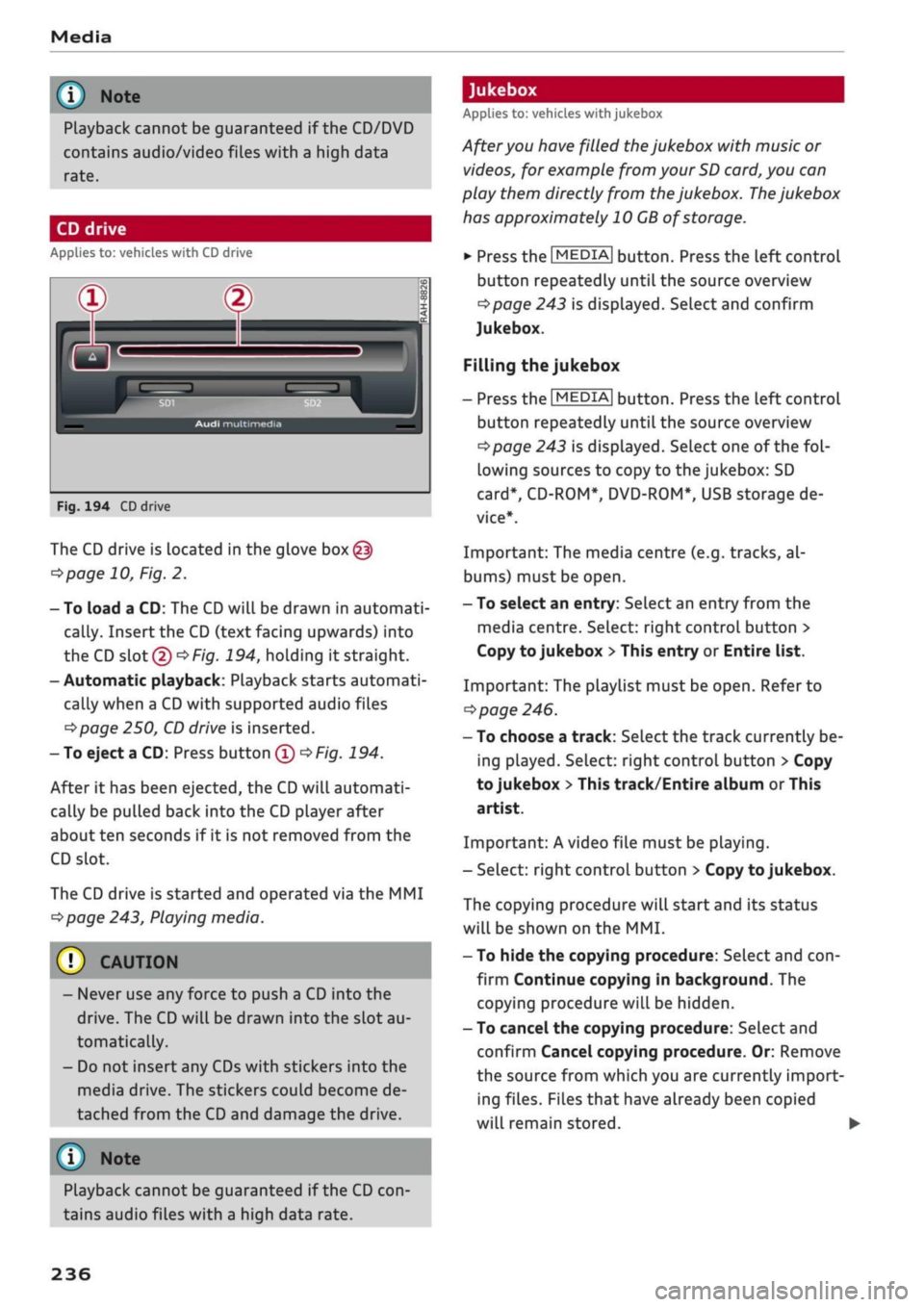
Fig.
194 CD drive
The CD drive is located in the glove
box@
^>page
10, Fig. 2.
- To load a CD: The
CD
will be drawn in automati
cally. Insert
the
CD (text facing upwards) into
the CD slot
©oF/g.
194, holding it straight.
- Automatic playback: Playback starts automati
cally when a
CD
with supported audio files
^>page
250,
CD
drive is inserted.
- To eject a CD: Press button ®
^>Fig.
194.
After it has been ejected, the
CD
will automati
cally be pulled back into the CD player after
about ten seconds if it is not removed from the
CD slot.
The
CD
drive is started and operated via the MMI
^>page
243, Playing media.
CAUTION
- Never use any force to push a CD into the
drive.
The
CD
will be drawn into the slot au
tomatically.
- Do not insert any CDs with stickers into the
media drive. The stickers could become de
tached from the CD and damage the drive.
© Note
After you have filled the jukebox with music or
videos, for example from your
SD
card, you can
play them directly from the jukebox. The jukebox
has approximately 10
GB
of storage.
•
Press the |MEDIA| button. Press the left control
button repeatedly until the source overview
^page
243 is displayed. SeLect and confirm
Jukebox.
Filling
the
jukebox
- Press the |MEDIA| button. Press the left control
button repeatedly until the source overview
*=>page
243 is displayed. SeLect one of the
fol
lowing sources to copy to the jukebox: SD
card*,
CD-ROM*, DVD-ROM*, USB storage de
vice*.
Important: The media centre (e.g. tracks, al
bums) must be open.
- To select an entry: Select an entry from the
media centre. SeLect: right control button >
Copy to jukebox
>
This entry or Entire list.
Important: The playlist must be open. Refer to
ï>
page 246.
- To choose a track: Select the track currently be
ing played. Select: right control button
>
Copy
to jukebox
>
This track/Entire album
or
This
artist.
Important: A video file must be playing.
-Select: right control button > Copy to jukebox.
The copying procedure will start and its status
will be shown on the MMI.
- To hide the copying procedure: Select and
con
firm Continue copying in background. The
copying procedure will be hidden.
- To cancel the copying procedure: Select and
confirm Cancel copying procedure. Or: Remove
the source from which you are currently import
ing files. Files that have already been copied
will remain stored. •
Playback cannot be guaranteed if the CD
con
tains audio files with a high data rate.
236
Page 241 of 364
Media
Important: Copying must be in progress in the
background.
- To display the copy procedure: SeLect: right
control button
>
Active copy procedure.
During the copying procedure, the audio files are
automatically sorted according to the categories
in the media centre based on the metadata stor
ed for the files
^page
244. The video files cop
ied can be found in the Videos category of the
media centre.
Playing from the jukebox
Important:
The
jukebox must contain audio/vid
eo files
opage
236, Filling the jukebox.
The jukebox is called up and operated via the
MMI
®
<>page
243, Fig. 199.
Displaying the jukebox memory capacity
SeLect: right control button
>
Jukebox memory
capacity. Information on the jukebox memory ca
pacity and the number of stored tracks will be
displayed.
Deleting tracks from the jukebox1'
Important:
The
jukebox must contain audio/vid
eo files.
- Delete entry: Select an entry from the
juke
box's media centre. SeLect: right control button
> Delete from jukebox
>
This entry or Entire
list.
- The status of the deletion process will be
shown on the MMI. During the deletion process
the playback of the jukebox is interrupted; it is
started again automatically once the deletion
process has been completed.
(7) CAUTION
Only copy audio/video files while the engine is
running;
otherwise the vehicle battery will be
discharged
© Note
For legal reasons it is not possible to copy
tracks from audio CDs onto the jukebox
1)
Not in the Playback view.
- Files that have already been copied are de
tected automatically and cannot be copied
to
the
jukebox again.
- It is not possible to play audio/video files*
in the CD/DVD* drive while they are being
copied.
- For legal reasons there is no export function
for
the jukebox.
- Files or tracks that do not include stored
metadata are listed as Unknown. Audi rec
ommends that you mark the audio files with
the corresponding metadata (e.g. ID3 tags).
- When handing over your vehicle e.g. to a
new buyer, reset the jukebox to the factory
settings
^>page
256.
Bluetooth audio player
Applies to: vehicles with Bluetooth
You
can use the Bluetooth audio player to play
music
from
your Bluetooth-enabled
device
(e.g.
smartphone) wirelessly via the MMI.
Important: To connect a Bluetooth device, the
vehicle must be stationary and the Bluetooth
function of your Bluetooth device and the Blue
tooth audio player
^>page
258 function of the
MMI system must be switched on.
- To connect a Bluetooth device: Press the
|MEDIA| button. Press the left control button
repeatedly until the source overview is dis
played.
Select and confirm Bluetooth audio
player
© ^>page
243, Fig. 200.
- You may need to select and confirm Not
con
nected > Connect Bluetooth audio player. The
system will start searching for Bluetooth
devi
ces.
Follow the instructions given by the MMI.
- Select and confirm the desired Bluetooth de
vice from the List. The MMI will generate a PIN
to establish the connection.
- Select and confirm Yes.
- Enter the PIN on your Bluetooth device to es
tablish a connection. Or: If the PIN is already
being displayed on your Bluetooth device,
please confirm it on the device. You have about
30 seconds to enter the PIN. •
237
Page 267 of 364
Safe driving
Safe driving
General notes
Safety is the first priority
The safety features in your vehicle are harmon
ised to provide you and your passengers with the
best possible protection in accident situations.
However, they can only be effective if you and
your passengers sit in the correct position and
adjust and use the safety equipment properly.
For these reasons, this chapter explains why
these safety features are so important, how they
can protect you, what you need to remember
when using them, and
how
you and your passen
gers can gain the most benefit from them. There
are also a number of important safety warnings
which you and your passengers should always ob
serve in order to minimise the risk of injury.
WARNING
- The information in this chapter is important
for the driver of the vehicle and all passen
gers.
The other chapters in this manual
(and,
where applicable, in the other litera
ture supplied with the vehicle) contain fur
ther important notes which you should read
and observe for your own safety and that of
your passengers.
- Ensure that the complete vehicle wallet is
always in the vehicle. This is especially im
portant when you lend or sell the vehicle to
others.
CO
<
O
rN
iv
rN
i—i
o < 00
Before every trip
The driver is responsible for the safety of the
passengers and the safe operation of the vehicle
at all times.
For
your own safety and the safety of your pas
sengers, always note the following points before
every trip:
•
Make sure that all lights and turn signals are
working properly.
•
Check the tyre pressures.
•
Make sure that all windows are clean and give
good visibility to the outside.
•
Secure all luggage and other items carefully
•=>
page 272.
• Make sure that no objects can interfere with
the pedals.
•
Adjust the front seat, head restraint and mir
rors correctly.
• Applies to: adjustable head restraints: Make
sure that the front passenger's head restraint is
adjusted to the correct position.
• Applies to: adjustable head restraints: Make
sure that the head restraints for the rear pas
sengers are in the fully raised position.
•
Make sure that children are protected with suit
able safety seats and properly worn seat belts
•=>
page 267.
•
Sit in the correct position in your seat. Make
sure
that
your passengers are sitting in the cor
rect positions
^>page
58.
•
Fasten your seat belt correctly. Make sure that
your passengers do the same
^page
275.
What factors can impair your safety?
Safety on the road is directly related to
how
you
drive, and can also be affected by the passengers
in the vehicle.
• The driver is responsible for the safety of the
vehicle and all its occupants. If your ability to
drive is impaired in any way, you endanger
yourself and other road users
,=>^.
Therefore:
• Do not let yourself be distracted by passengers
or by using a mobile phone, etc.
•
Never drive when your driving ability is im
paired (by medication, alcohol, drugs, etc.).
• Obey all traffic regulations and speed limits
and always maintain a safe distance to the
vehi
cle in front.
•
Always adjust your speed to suit the
road,
traf
fic and weather conditions.
•
Take frequent breaks on long trips. Do not drive
for more than two hours without a stop.
•
If possible, avoid driving when you are tired or
stressed.
•
263
Page 280 of 364
Seat belts
- Do not wear the belt over hard or fragile ob
jects (such as glasses or pens, etc.) because
this can cause injuries.
- Loose, bulky clothing (such as an overcoat
over
a
jacket) impairs the proper fit and
function of the belts.
- The belts must be kept clean, otherwise the
retractors may not work properly
•=>
tab. Cleaning the interior on page 314.
- The slot in the seat belt buckle must not be
blocked with paper or other objects, as this
can prevent the latch plate from engaging
properly.
-The latch plate of the belt must always be
engaged in the correct buckle for that seat,
otherwise the belt will not be fully effective.
- Check the condition of the seat beLts at
reg
ular intervals. If
you
notice that the belt
webbing,
fittings, retractor mechanism or
buckle of any of the belts is damaged, the
belt must be replaced by a qualified work
shop.
- The seat belts must not be removed or
modified in any way. Do not attempt to re
pair
a
damaged belt yourself.
- Seat belts which have been worn in an
acci
dent and stretched must be replaced by a
qualified workshop. The belt anchorages
should also be checked.
Forces acting in a
collision
The physical principles involved in a frontal
impact
Very
large forces are generated during a
colli
sion; these forces have to be absorbed.
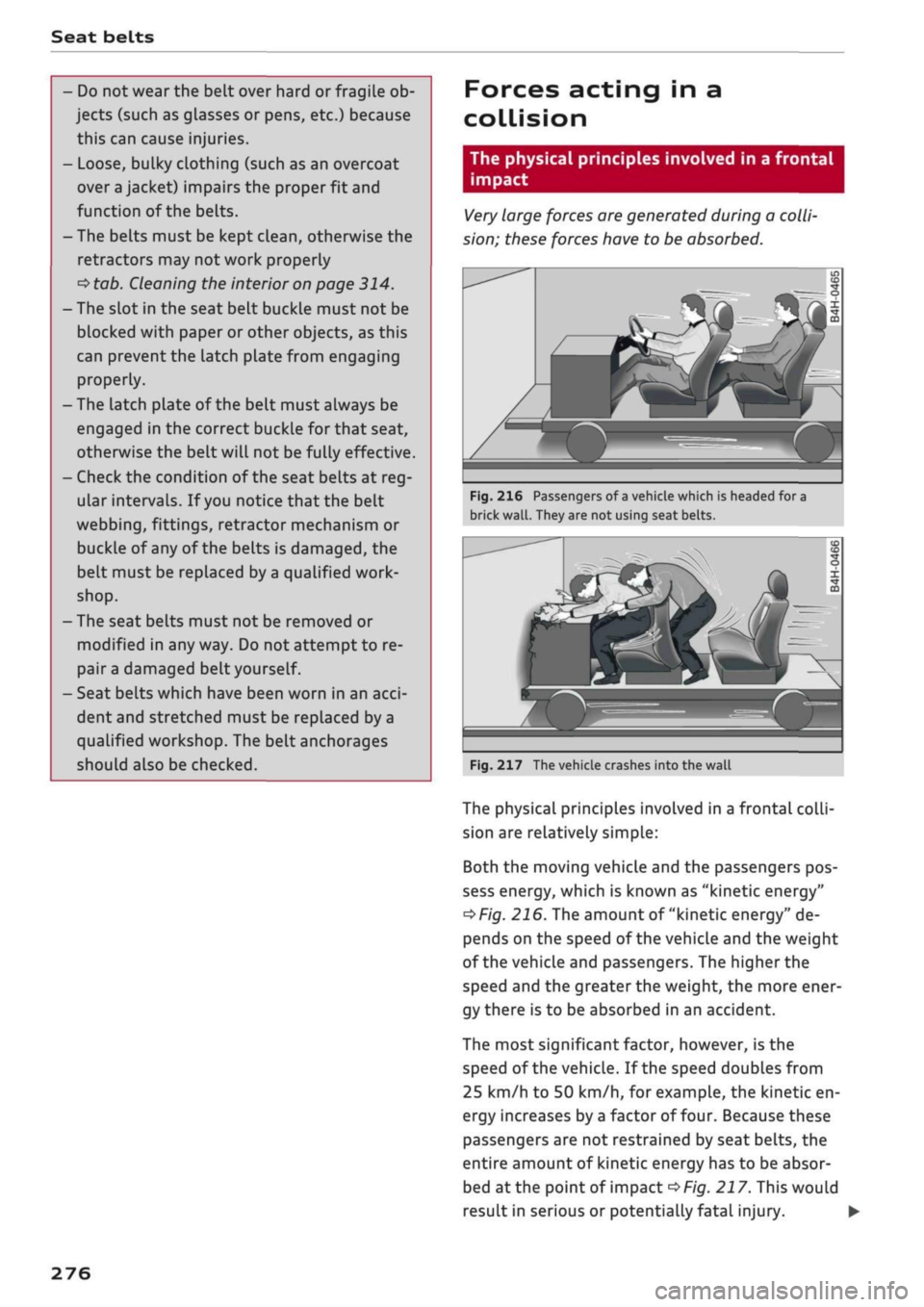
Fig.
216 Passengers of
a
vehicle which is headed for a
brick
wall.
They are not using seat belts.
Fig.
217 The vehicle crashes into the wall
The physical principles involved in a frontal
colli
sion are relatively simple:
Both the moving vehicle and the passengers pos
sess energy, which is known as "kinetic energy"
^>Fig.
216. The amount of "kinetic energy" de
pends on the speed of the vehicle and the weight
of the vehicle and passengers. The higher the
speed and the greater the weight, the more ener
gy there is to be absorbed in an accident.
The most significant factor, however,
is
the
speed of the vehicle. If the speed doubles from
25 km/h to 50 km/h, for example, the kinetic en
ergy increases by
a
factor of four. Because these
passengers are not restrained by seat belts, the
entire amount of kinetic energy has to be absor
bed
at
the point of impact
^>Fig.
217. This would
result in serious or potentially fatal injury.
276