turn AUDI Q2 2021 Owner´s Manual
[x] Cancel search | Manufacturer: AUDI, Model Year: 2021, Model line: Q2, Model: AUDI Q2 2021Pages: 364, PDF Size: 87.77 MB
Page 13 of 364
Instruments and controls
CO
<
o
IV
tN
t-H
o <
(D
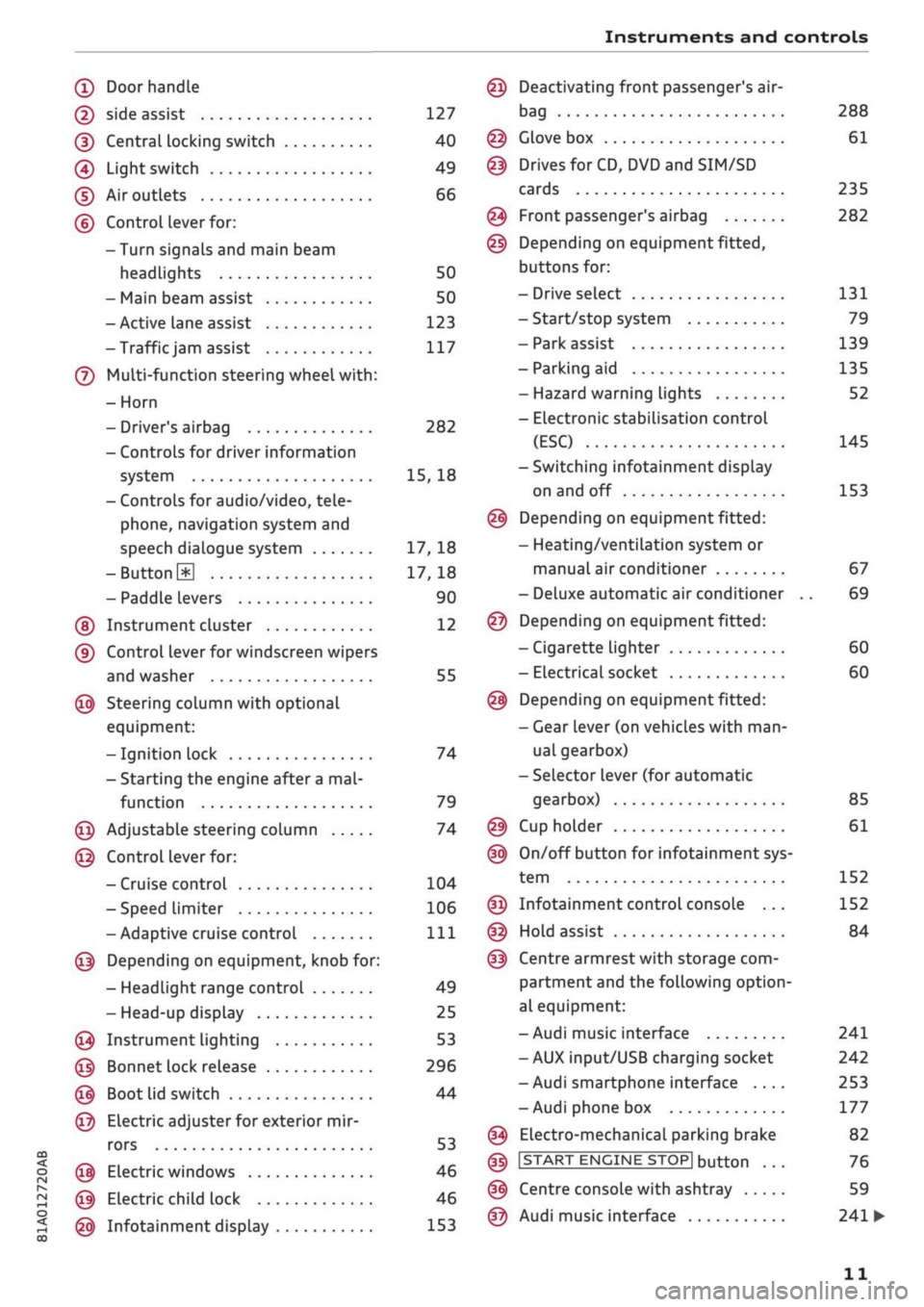
Doorhandle
(D side assist 127
(D CentraL
locking switch 40
@
Light switch 49
(D Air outlets 66
(?) Control lever for:
- Turn signals and main beam
headlights 50
- Main beam assist 50
- Active lane assist 123
-Trafficjam
assist 117
(7) Multi-function steering wheel
with:
- Horn
- Driver's airbag 282
- Controls for driver information
system 15, 18
- Controls for audio/video, tele
phone,
navigation system and
speech dialogue system 17, 18
-ButtonH
17,18
- Paddle levers 90
(5) Instrument cluster 12
(?) Control lever for windscreen wipers
and washer 55
@
Steering column with optional
equipment:
- Ignition lock 74
- Starting the engine after a
mal
function 79
@
Adjustable steering column 74
@
Control lever for:
- Cruise control 104
- Speed limiter 106
-Adaptive cruise control
Ill
@
Depending on equipment, knob for:
- Headlight range control 49
- Head-up display 25
@
Instrument lighting 53
@
Bonnet lock release 296
@
Boot lid switch 44
@
Electric adjuster for exterior mir
rors 53
@
Electric windows 46
@
Electric child lock 46
@
Infotainment display 153
Deactivating front passenger's air-
bag
Glove box
Drives for CD, DVD and
SIM/SD
cards
Front passenger's airbag
Depending on equipment fitted,
buttons for:
- Drive select
- Start/stop system
- Park assist
- Parking aid
- Hazard warning lights
- Electronic stabilisation control
(ESC)
-Switching infotainment display
on and off
Depending on equipment fitted:
- Heating/ventilation system or
manual air conditioner
- Deluxe automatic air conditioner
Depending on equipment fitted:
- Cigarette lighter
- Electrical socket
Depending on equipment fitted:
- Gear lever (on vehicles with
man
ual gearbox)
- Selector lever (for automatic
gearbox)
Cup holder
On/off button for infotainment sys
tem
Infotainment control console ...
Hold assist
Centre armrest with storage com
partment and the following option
al equipment:
- Audi music interface
- AUX input/USB charging socket
- Audi smartphone interface ....
- Audi phone box
Electro-mechanical parking brake
|START
ENGINE STOP] button
Centre console with ashtray
Audi music interface
288
61
235
282
131
79
139
135
52
145
153
67
69
60
60
85
61
152
152
84
241
242
253
177
82
76
59
241
•
11
Page 18 of 364
Instruments and controls
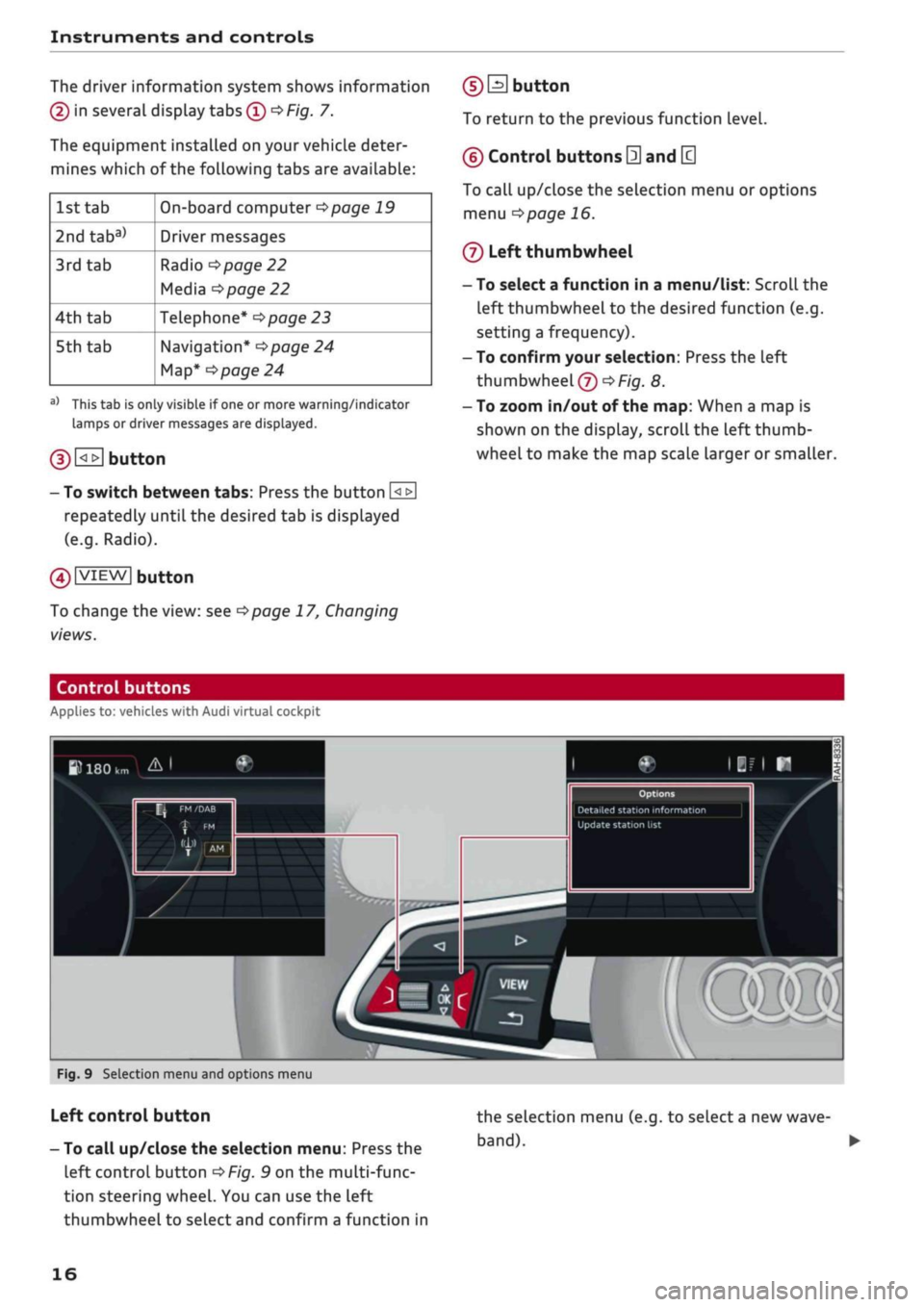
The driver information system shows information
(D
in several display tabs
(T)
^>Fig.
7.
The equipment installed on your vehicle deter
mines which of the following tabs are available:
1st tab
2ndtaba)
3rd
tab
4th
tab
5th tab
On-board computer
^>page
19
Driver messages
Radio
•=>page
22
Media
^>page
22
Telephone*
^>page
23
Navigation*
<^>page
24
Map*
<>page
24
a)
This tab is only visible if one or more warning/indicator
lamps or driver messages are displayed.
g) [<_>J
button
- To switch between tabs: Press the button
[<±]
repeatedly until the desired tab is displayed
(e.g.
Radio).
01
VIEW|
button
To change the view: see
Opage
17, Changing
views.
(DEI
button
To return to the previous function level.
©
Control buttons
0
and
[3
To call up/close the selection menu or options
menu
^>page
16.
®
Left thumbwheel
- To select a function in a menu/list: Scroll the
left thumbwheel to the desired function (e.g.
setting a frequency).
- To confirm your selection: Press the left
thumbwheel
(J)
^Fig.
8.
- To zoom in/out of the map: When a map is
shown on the display, scroll the left
thumb
wheel to make the map scale larger or smaller.
Control buttons
Applies to: vehicles with Audi virtual cockpit
W
180
km A I
Update station
list
mm
Fig.
9 Selection menu and options menu
Left control button
- To call up/close the selection menu: Press the
left control button
OF/g.
9 on the multi-func
tion steering wheel. You can use the left
thumbwheel to select and confirm a function in
the selection menu (e.g. to select
a
new
wave
band). •
16
Page 19 of 364
Instruments and controls
CO
s
r>
I-I
00
Right control button
- To call up/close the options menu: Press the
right control button
OF/g.
9 on the multi-func
tion steering wheel. You can use the left
thumbwheel in the options menu to select
con
text-sensitive functions or change certain set
tings (e.g. extended programme information).
®
Whether
a
selection menu or options menu is
available depends on the function you have
selected.
Changing views
Applies to: vehicles with Audi virtual cockpit
•
I
PTiF^ff
^1
-
Hi
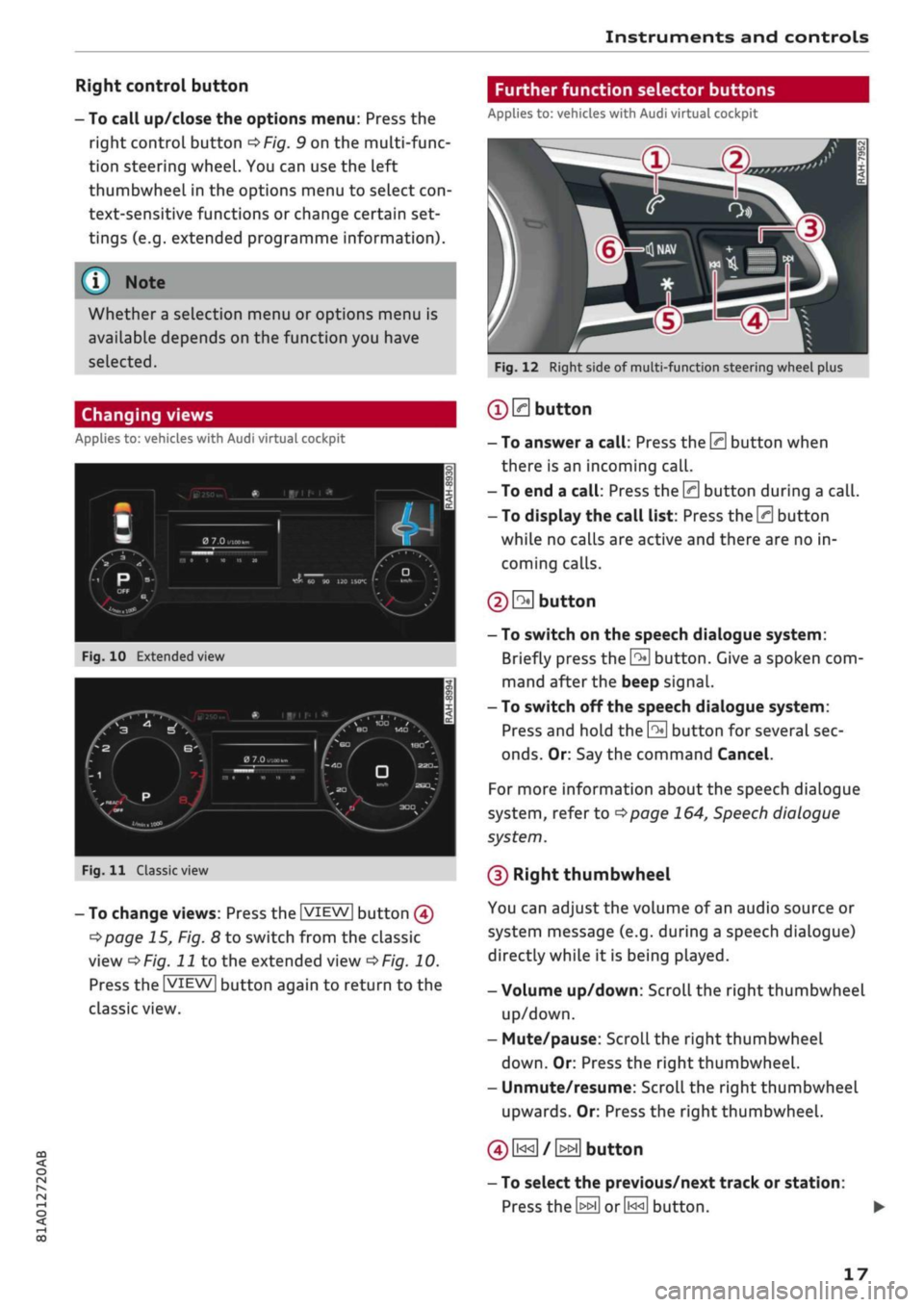
Fig.
10
Extended view
/f^
•,~r.
P
^••^J^nfci i
lOjjg^-^
«
iiiri*
i
A
1
/
a
7.o
„•.«,.„
/,
HI
i
w
it
»
N
\
BO
MD
^m •
Fig.
11
Classic view
- To change
views:
Press the |VIEW| button
@
Opage
15, Fig. 8 to switch from the classic
view
oF/'g.
J J
to the extended view
oF/g.
10.
Press the |VIEW| button again to return to the
classic view.
Further function selector buttons
Applies to: vehicles with Audi virtual cockpit
Fig.
12 Right side of multi-function steering wheel plus
®
0
button
- To answer a
call:
Press the 0 button when
there is an incoming
call.
- To end a
call:
Press the 0 button during a
call.
- To display the call list: Press the 0 button
while no calls are active and there are no in
coming calls.
© S
button
- To switch on the speech dialogue system:
Briefly press the
0
button. Give a spoken com
mand after the beep signal.
- To switch off the speech dialogue system:
Press and hold the
\2*\
button for several sec
onds.
Or: Say the command Cancel.
For more information about the speech dialogue
system,
refer to
^>page
164,
Speech
dialogue
system.
(D Right thumbwheel
You can adjust the volume of an audio source or
system message (e.g. during a speech dialogue)
directly while it is being played.
- Volume up/down: Scroll the right thumbwheel
up/down.
- Mute/pause: Scroll the right thumbwheel
down.
Or: Press the right thumbwheel.
- Unmute/resume: Scroll the right thumbwheel
upwards. Or: Press the right thumbwheel.
©
i«
/
»i
button
- To select the previous/next track or station:
Press
the \^\ or0<<]
button.
17
Page 20 of 364
![AUDI Q2 2021 Owner´s Manual
Instruments and controls
- To fast forward/rewind an audio file: Press
and hold
the[^i]or[>>!]
button until the desired
playing position has been reached.
0 B
button
- To call up the user-as](/img/6/40262/w960_40262-19.png "AUDI Q2 2021 Owner´s Manual
Instruments and controls
- To fast forward/rewind an audio file: Press
and hold
the[^i]or[>>!]
button until the desired
playing position has been reached.
0 B
button
- To call up the user-as")
Instruments and controls
- To fast forward/rewind an audio file: Press
and hold
the[^i]or[>>!]
button until the desired
playing position has been reached.
0 B
button
- To call up the user-assigned function: Press
the
S
button on the multi-function steering
wheel.
- To check which function is assigned: Press and
hold
the E
button.
- To change the assigned function: Select:
IMENUJ
button > Car
>
left control button
>
Ve
hicle settings
>
Steering wheel button.
(D H
button
- To have the last navigation cue repeated:
Press the
H
button while route guidance is ac
tive.
- To adjust the volume of the navigation cues:
Scroll the right thumbwheel up/down during
route guidance while a navigation cue is being
spoken.
Multi-function steering
wheel
How to use the multi-function steering
wheel
Applies
to: vehicles with analogue instrument cluster
You
can use the multi-function steering wheel to
control the driver information system and
cer
tain MMI functions and to adjust the volume.
Fig.
13 Left side of multi-function steering wheel
Fig.
14 Right side of multi-function steering wheel
Important: The ignition must be switched on.
(T)
How to use the driver information system
The driver information system shows information
(D
alpage
15, Fig. 7 in several display tabs
(Î)
^>page
15, Fig. 7.
The equipment installed on your vehicle deter
mines which of the following tabs are available:
1st
tab
2nd
taba)
3rd
tab
4th tab
5th
tab
On-board computer
<^>page
20
Driver messages
Radio
opage
22
Media
•=>page
22
Telephone*
opoge
23
Navigation*
opage
24
a'
This tab is only visible if one or more warning/indicator
lamps
or driver messages are
displayed.
- To switch between tabs: Press the
L±>]
button
repeatedly until the desired tab is displayed.
- To call up/close a menu: Press the
EH
button.
- To select a function in a menu/list: Scroll the
left thumbwheel to the desired function.
- To confirm the selection: Press the left
thumb
wheel to confirm your selection.
- To return to the previous function level: Press
the
Unbutton.
- To scroll through lists: Scroll the left
thumb
wheel quickly.
©0]
button
- To answer a
call:
Press the
0
button when
there is an incoming
call.
- To end a
call:
Press the 0 button during a
call.
- To display the call list: Press the 0 button
while no calls are active and there are no in
coming calls.
18
Page 22 of 364
Instruments and controls
-Totaljourney
memory summary
- Energy consumers
^>page
20
- Driver assistance
^>page
104
- Traffic sign recognition
<=>page
108
The single journey memory processes the infor
mation on
a
journey from the time the ignition is
switched on until it is switched off. If the journey
is resumed within two hours after the ignition is
switched off, the new figures are automatically
included in the calculation.
Unlike the
single
journey memory, the totaljour-
ney memory is not erased automatically. In this
way, you can determine the period for which you
wish the on-board computer to supply driving in
formation.
Fuel consumption
The current fuel consumption can be shown in a
bar display
^>Fig.
15. The average fuel consump
tion from the single journey memory can also be
displayed.
If the barturns green, yourvehicle is
saving fuel using the following function:
- Recuperation: Electrical energy can be stored in
the battery (recuperation) if the vehicle is trav
elling downhill or coasting in gear (overrun). In
this case, the bar will move towards the
Q
symbol.
- Active Cylinder Management*: The engine au
tomatically shuts down two cylinders when per
formance demand is low and certain other
con
ditions have been met. This process is imper
ceptible to the occupants. The driver message
2-cylinder
mode will appear if the average fuel
consumption display
^>Fig.
15 is selected in the
instrument cluster. The cylinders are reactiva
ted under heavier load conditions.
Energy consumers*
In the Energy consumers view, auxiliary equip
ment currently affecting the vehicle's fuel
con
sumption is listed. The display shows up to
three energy consumers. The energy consumer
drawing the most power appears at the top of
the list. If more than three energy consumers are
switched on, the ones currently using the most
power are displayed. In addition, a scale
indi
cates the overall current fuel consumption of all
energy consumers.
Economy tips
Applies to: vehicles with Audi drive select and efficiency mode
In efficiency mode, economy tips are shown
briefly on the instrument cluster display in cer
tain situations where fuel economy is affected.
By following these economy tips, you can save
fuel.
To clear an economy tip from the display immedi
ately, press the left thumbwheel on the multi
function steering wheel.
To activate/deactivate economy
tips:
Select the
following on the infotainment system:
|MENU|
button > Car
>
Audi drive select. Select: efficien
cy
>
right control button > Economy tips.
© Note
- The date, the time and the time/date dis
play format can be changed via the infotain
ment system
^page
255.
- The economy tips are not always displayed
in every conceivable situation, but are delib
erately spaced out over time.
- Once you have cleared an economy tip from
the display, it will not appear again until the
next time you switch on the ignition.
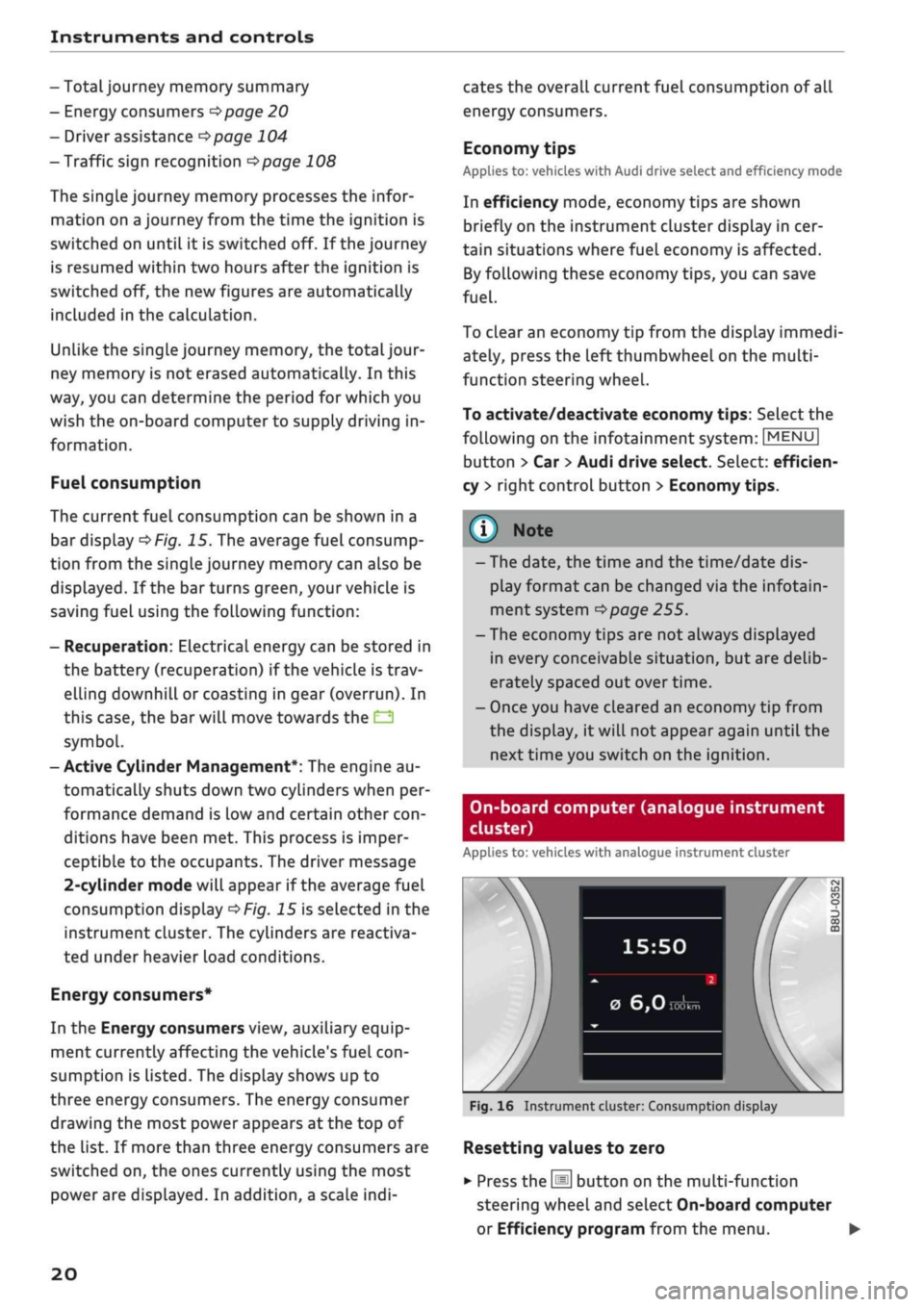
On-board computer (analogue instrument
cluster)
Applies to: vehicles with analogue instrument cluster
15:50
0
6,0
Fig.
16 Instrument cluster: Consumption display
Resetting values to zero
•
Press the
[Hi
button on the multi-function
steering wheel and select On-board computer
or Efficiency program from the menu. •
20
Page 23 of 364
Instruments and controls
CO
<
o
IV
tN
I-I
00
• To reset the figures in the selected memory to
zero,
press the left
thumbwheel (Î) •=>page
18,
Fig. 13 on the multi-function steering wheel for
one second.
Calling up vehicle functions
• Call up the first tab (on-board computer) using
the
0E]
button on the multi-function steering
wheel.
•
Press the
@
button on the multi-function
steering wheel and select Vehicle functions
from the menu.
The equipment installed on your vehicle deter
mines which of the following displays are availa
ble:
- On-board computer fl, B
opage
21
- Efficiency program
3
<^page
21
- Digital speedometer
- Assists
cépage
104
- Traffic signs
^>page
108
- Reduced display
On-board computer
On the on-board computer you can call up the
following displays in turn by scrolling the left
thumbwheel on the multi-function steering
wheel:
- Date
•=>
page 255
- Range
- AdBlue range*
^>page
292
-Short-term
memoryD
- Average fuel consumption
- Long-term memory B
The single journey memory processes the infor
mation on
a
journey from the time the ignition is
switched on until it is switched off. If the journey
is resumed within two hours after the ignition is
switched off, the new figures are automatically
included in the calculation.
Unlike the single journey memory, the
total
jour
ney memory is not erased automatically. In this
way, you can determine the period for which you
wish the on-board computer to supply driving in
formation.
The following additional display may be available
in the on-board computer, depending on the ve
hicle equipment:
- Active Cylinder Management: The engine auto
matically shuts down two cylinders when per
formance demand is low and certain other
con
ditions have been met. This process is imper
ceptible to the occupants. The driver message
2-cylinder
mode will appear if the current or
average fuel consumption display
oFig.
16 is
selected in the instrument cluster. The cylin
ders are reactivated under heavier load condi
tions.
Efficiency program
3
Applies to: vehicles with efficiency program
The efficiency program can help to save
fuel.
It
evaluates fuel efficiency data, shows a list of aux
iliary equipment affecting fuel consumption, and
suggests gear changes. It also provides economy
tips for saving
fuel.
The efficiency program uses the trip and fuel
con
sumption data from the short-term memory.
When you clear the data from the efficiency pro
gram,
the values in the short-term memory are
reset to zero.
The following additional displays are available in
the efficiency program, depending on the vehicle
equipment:
- Advanced gear-change indicator: The advanced
gear-change indicator is based on the same
log
ic as the "regular" gear-change indicator. The
"regular" gear-change indicator disappears
from the display when the advanced gear-
change indicator appears
^>page
14.
- Energy consumers: The efficiency program
shows a List of energy consumers currently af
fecting the vehicle's fuel consumption. The dis
play shows up to three energy consumers. The
energy consumer drawing the most power ap
pears at the top of the list. If more than three
energy consumers are switched on, the ones
currently using the most power are displayed.
In addition, a scale indicates the overall current
fuel consumption of all energy consumers.
- Economy
tips:
Economy tips will automatically
appear intermittently in the efficiency program •
21
Page 26 of 364
Instruments and controls
Navigation
Applies to: vehicles with navigation system
Important: The navigation tab must be dis
played.
If route guidance has not been started, the driver
information system display will show
a
compass.
On vehicles with the Audi virtual cockpit*, the
map will be displayed.
•
Press the
HH
button or the left control button
o^page
16, depending on the equipment in
your vehicle.
The following functions are available on the driv
er information system, depending on the vehicle
equipment:
- To call up recent destinations: Select and
con
firm Last destinations > desired destination.
- To call up favourites*: Select and confirm Fa
vourites
>
desired destination.
Applies to: vehicles with analogue instrument cluster
- To display the navigation screen when route
guidance is active: Select and confirm Route
guidance.
- To display the compass when route guidance
is not active: SeLect and confirm Compass.
- To start route guidance to the stored home
address: If applicable, first select and confirm
Stop route guidance, and then select Favour
ites > Home address.
- To cancel the active route guidance: Select and
confirm Stop route guidance.
Applies to: vehicles with Audi virtual cockpit
- To start route guidance to the stored home
address: If applicable, first select and confirm
Stop route guidance, and then select Favour
ites > Home address.
- To cancel the active route guidance: Select
right control button > Stop route guidance.
Other settings
Applies to: vehicles with Audi virtual cockpit
- Select: right control button > desired
entry.
The following settings are available depending
on the equipment on your vehicle and on which
function is selected:
- Map colours
^page
221
- Map orientation
^>page
221
- Automatic zoom
^>page
221
Navigation view when route guidance is
started
Applies to: vehicles with navigation system and Audi virtual
cockpit
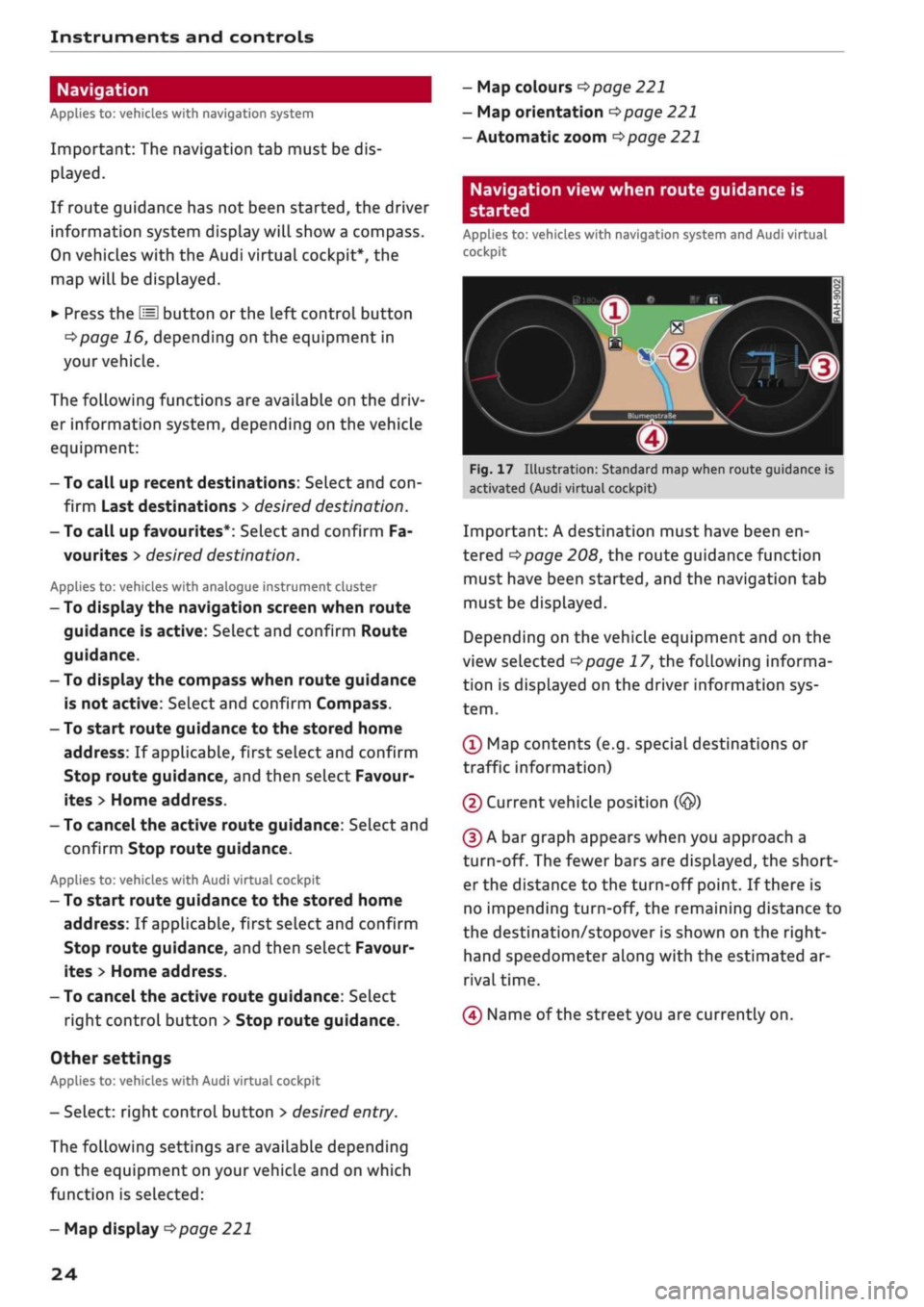
1
Fig.
17 Illustration: Standard map when route guidance is
activated (Audi virtual cockpit)
Important: A destination must have been en
tered
Opage
208, the route guidance function
must have been started, and the navigation tab
must be displayed.
Depending on the vehicle equipment and on the
view selected
Opage
17, the following informa
tion is displayed on the driver information sys
tem.
(Ï) Map contents (e.g. special destinations or
traffic information)
(2) Current vehicle position
(@)
(D A bar graph appears when you approach a
turn-off. The fewer bars are displayed, the short
er the distance to the turn-off point. If there is
no impending turn-off, the remaining distance to
the destination/stopover is shown on the right-
hand speedometer along with the estimated ar
rival time.
(4) Name of the street you are currently on.
- Map display
^>page
221
24
Page 27 of 364
Instruments and controls
CO
s
rN rN
I-I
00
Street view when route guidance is started
Applies to: vehicles with navigation system and analogue in
strument cluster
f»
Bayern
3
:OB16a/Inqolstadt
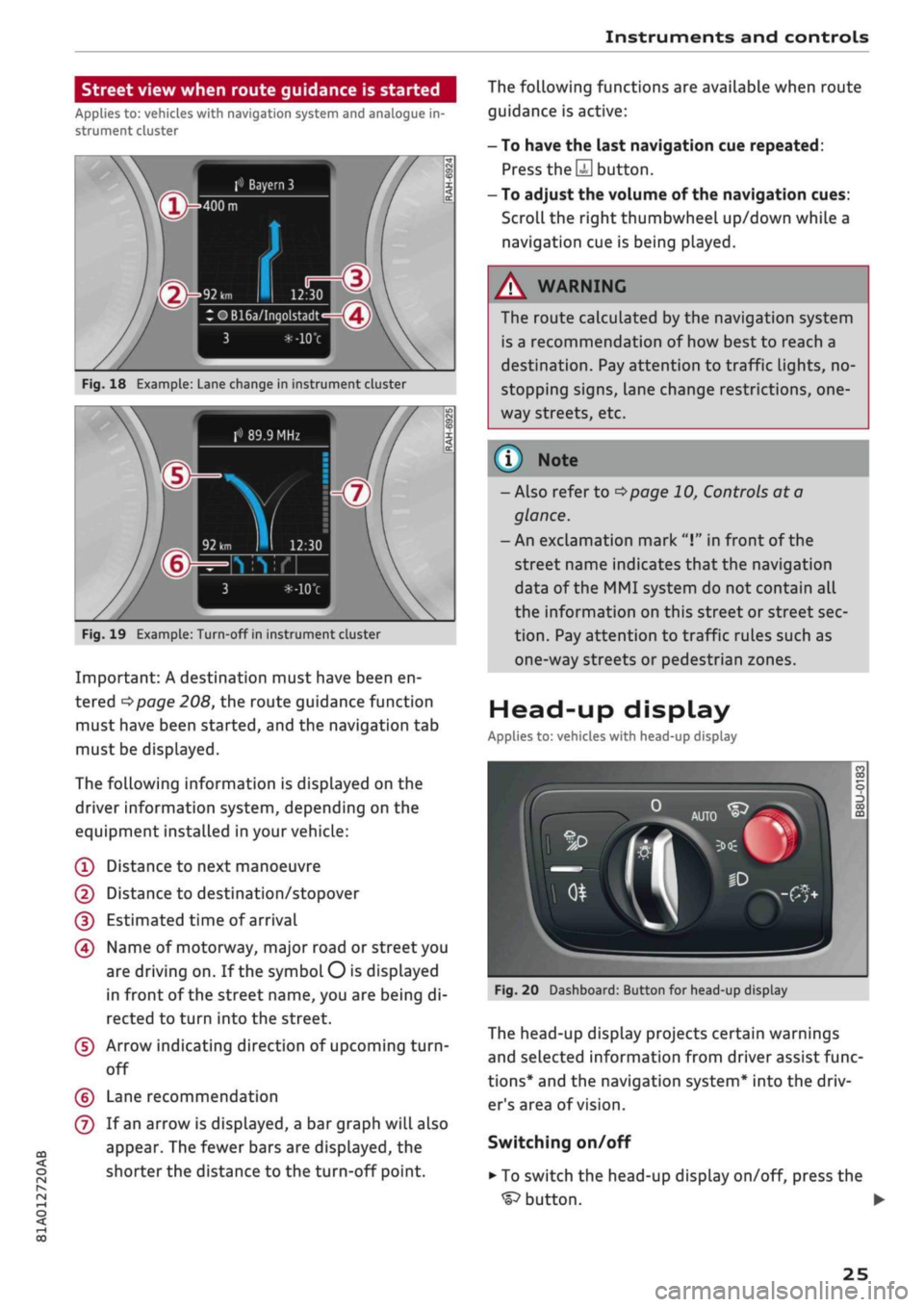
Fig.
18 Example: Lane change in instrument cluster
> 89.9 MHz
Fig.
19 Example: Turn-off in instrument cluster
Important: A destination must have been en
tered
^>page
208, the route guidance function
must have been started, and the navigation tab
must be displayed.
The following information is displayed on the
driver information system, depending on the
equipment installed in your vehicle:
(T)
Distance to next manoeuvre
@
Distance to destination/stopover
(D Estimated time of arrival
(4) Name of motorway, major road or street you
are driving on. If the symbol
O
is displayed
in front of the street name, you are being di
rected to turn into the street.
(5) Arrow indicating direction of upcoming
turn-
off
(?) Lane recommendation
(7) If an arrow is displayed, a bar graph will also
appear. The fewer bars are displayed, the
shorter the distance to the turn-off point.
The following functions are available when route
guidance is active:
- To have the last navigation cue repeated:
Press
the S
button.
- To adjust the volume of the navigation cues:
Scroll the right thumbwheel up/down while a
navigation cue is being played.
A
WARNING
The route calculated by the navigation system
is a recommendation of how best to reach a
destination. Pay attention to traffic lights, no-
stopping signs, lane change restrictions,
one
way streets, etc.
(T)
Note
- Also refer to
^>page
10, Controls at a
glance.
- An exclamation mark
"I"
in front of the
street name indicates that the navigation
data of the MMI system do not contain all
the information on this street or street sec
tion.
Pay attention to traffic rules such as
one-way streets or pedestrian zones.
Head-up display
Applies to: vehicles with head-up display
Fig.
20 Dashboard: Button for head-up display
The head-up display projects certain warnings
and selected information from driver assist func
tions*
and the navigation system* into the driv
er's area of vision.
Switching on/off
• To switch the head-up display on/off, press the
^button.
•
25
Page 28 of 364
Instruments and controls
Height adjustment
The height of the head-up display can be adjus
ted to your individual requirements.
•
Sit in the correct position in your seat
•=>
page 265.
• Turn the
Settings on infotainment system
•
Select the following on the infotainment sys
tem:
IMENU|
button > Car
>
left control button
> Driver assist
>
Head-up display.
Display contents
The settings on the infotainment system allow
you to specify which information is shown in the
display. Possible options include navigation mes
sages*, adaptive cruise control* and camera-
based traffic sign recognition*.
The display of certain information and some of
the red warning lamps cannot be deactivated on
the infotainment system.
Brightness
You can adjust the brightness of the display via
the infotainment system. In addition, the display
brightness is reduced automatically as the
day
light starts to fade. The basic level of brightness
is determined by the instrument lighting setting
•=>
page 53.
© CAUTION
Do not place any objects over the opening for
the head-up display to avoid scratching the
glass cover.
© Note
- The display may be harder to see in unfav
ourable light conditions or if
you
are wear
ing polarised sunglasses.
- To be able to see the display as clearly as
possible, adjust the position of your seat
and the height setting for the head-up dis
play.
- Notes on cleaning
^tab.
Cleaning the inte
rior on page 314.
Warning and indicator
Lamps
Description
The warning and indicator lamps light up or flash
in the instrument cluster to indicate functions or
faults.
Some of the warning and indicator lamps may be
accompanied by a driver message. The warning
display will be accompanied by the corresponding
warning chime. The warning/indicator lamps and
driver messages on the instrument
duster
dis
play can be masked by further displays. You can
have them displayed again on the driver informa
tion system* by calling up the second tab (driver
messages) via the
\<±\
button on the multi-func
tion steering wheel. If several malfunctions have
occurred,
you can use the Left thumbwheel to
scroll through them on the display.
Some of the warning lamps may be displayed in
different colours.
âs
Central warning/indicator lamps
If the warning/indicator lamp
|g or pq
lights
up,
observe the additional information on the in
strument cluster display.
Applies
to: vehicles with monochrome display
If
a
driver message appears and a central warn
ing [amp
Kfl/central
indicator
lamp^S
lights up,
the central warning/indicator lamp indicates the
priority level of the warning. If
a
white indicator
lamp also appears, the central warning/indicator
lamp indicates its actual colour. For example, if
g
lights up with
H.
read the description for
Overview
When you switch on the ignition, some of the
warning and indicator lamps Light up briefly to
show that the associated systems are working
properly. These systems are marked with a
•/
in
the following tables. If one of these warning/in
dicator lamps does not light up, there is a fault in
the associated system. •
26
Page 30 of 364
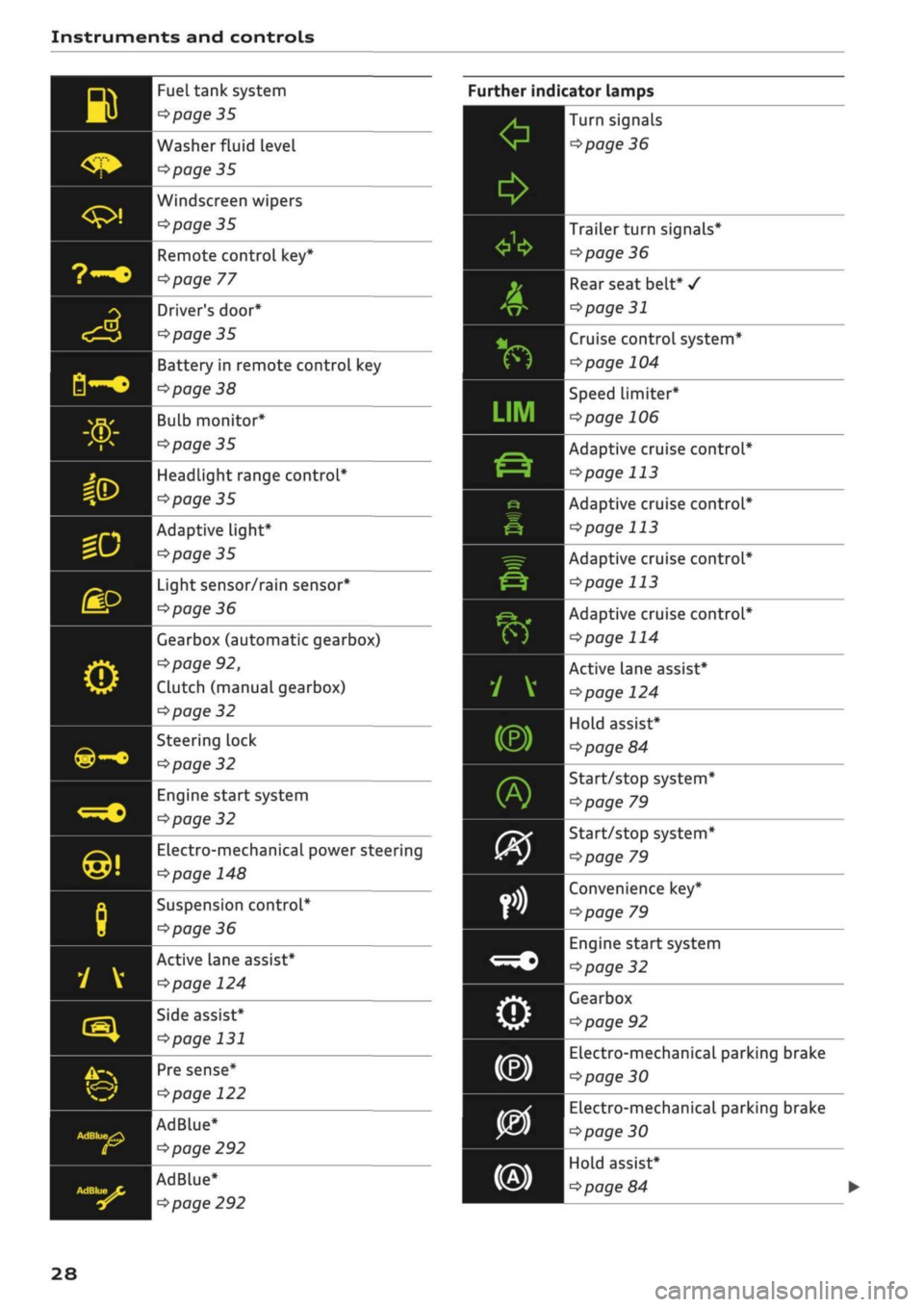
Instruments and controls
B
<$*
Fuel tank system
^page
35
Washer fluid level
^>page
35
1
Windscreen wipers
Éyal 1 ^poge
35
9~o
3
<£>
B-c
Sa
«D
Remote control key*
^>page
77
Driver's
door*
Opage
35
Battery in remote control key
^>page
38
Bulb monitor*
•=>
page 35
Headlight range control*
^>page
35
HP 1
Adaptive light*
^J |^poge35
gp
o
©-•
«•
@!
8
y
v
rs}
^* ^
v_^
AdBlue^
£2
Light sensor/rain sensor*
^>page
36
Gearbox (automatic gearbox)
^page
92,
Clutch (manual gearbox)
^>page
32
Steering lock
^>page
32
Engine start system
^>page
32
Electro-mechanical power steering
<=>page
148
Suspension control*
opage
36
Active lane assist*
\^>page
124
Side assist*
^>page
131
Pre sense*
^>page
122
AdBlue*
opage
292
AdBlue*
<^>page
292
28
Further indicator lamps
0
*
A
&
v*
f)
•
inn
LIM
jr~\.
Ë-?
e
ê
^=r
&
É?k*
f)
1 V
(®)
fi£
)
09
orit
fn
<=^c
o
Turn signals
^>page
36
Trailer turn signals*
^>page
36
Rear seat belt*
/
<3page
31
Cruise control system*
^>page
104
Speed Limiter*
ï>page
106
Adaptive cruise control*
^>page
113
Adaptive cruise control*
^>page
113
Adaptive cruise control*
^>page
113
Adaptive cruise control*
^>page
114
Active lane assist*
^>page
124
Hold assist*
^>page
84
Start/stop system*
<^page
79
Start/stop system*
^•page
79
Convenience key*
^page
79
Engine start system
<=>page
32
Gearbox
ï>page
92
Electro-mechanical parking brake
^>page
30
Electro-mechanical parking brake
^>page
30
Hold assist*
^>page
84