audio AUDI Q3 2019 User Guide
[x] Cancel search | Manufacturer: AUDI, Model Year: 2019, Model line: Q3, Model: AUDI Q3 2019Pages: 280, PDF Size: 72.73 MB
Page 129 of 280
83A012721BA
Parking and maneuvering
Parking and
maneuvering
Introduction
Depending on the vehicle equipment, various
parking aids will help you when parking and ma-
neuvering.
The parking system plus assists you while park-
ing using audio and visual signals to warn you
about objects detected in front of, behind, and
next to* the vehicle > page 127.
The rearview camera shows the area behind the
vehicle in the center display. The lines in the rear-
view camera image help you to park and maneu-
ver > page 129.
The peripheral cameras are an addition to the
rearview camera and help you to see various
areas around the vehicle while parking and ma-
neuvering > page 129.
The rear cross-traffic assist can warn you of ap-
proaching cross traffic when driving in reverse or
exiting a parking space > page 133.
Assisted parking
Park assist helps you to find suitable parking
spaces > page 134 and to park in and exit these
spaces while the driver monitors the area around
the vehicle and controls the parking process.
A WARNING
Follow the safety precautions and note the
limits of the assist systems, sensors, and
cameras > page 104.
@) Tips
Practicing parking in a traffic-free location or
parking lot to become familiar with the sys-
tems is recommended. When doing this,
there should be good light and weather condi-
tions.
Parking system plus
Sic Ee moll
Applies to: vehicles with parking system plus
2
3 3
> © oO
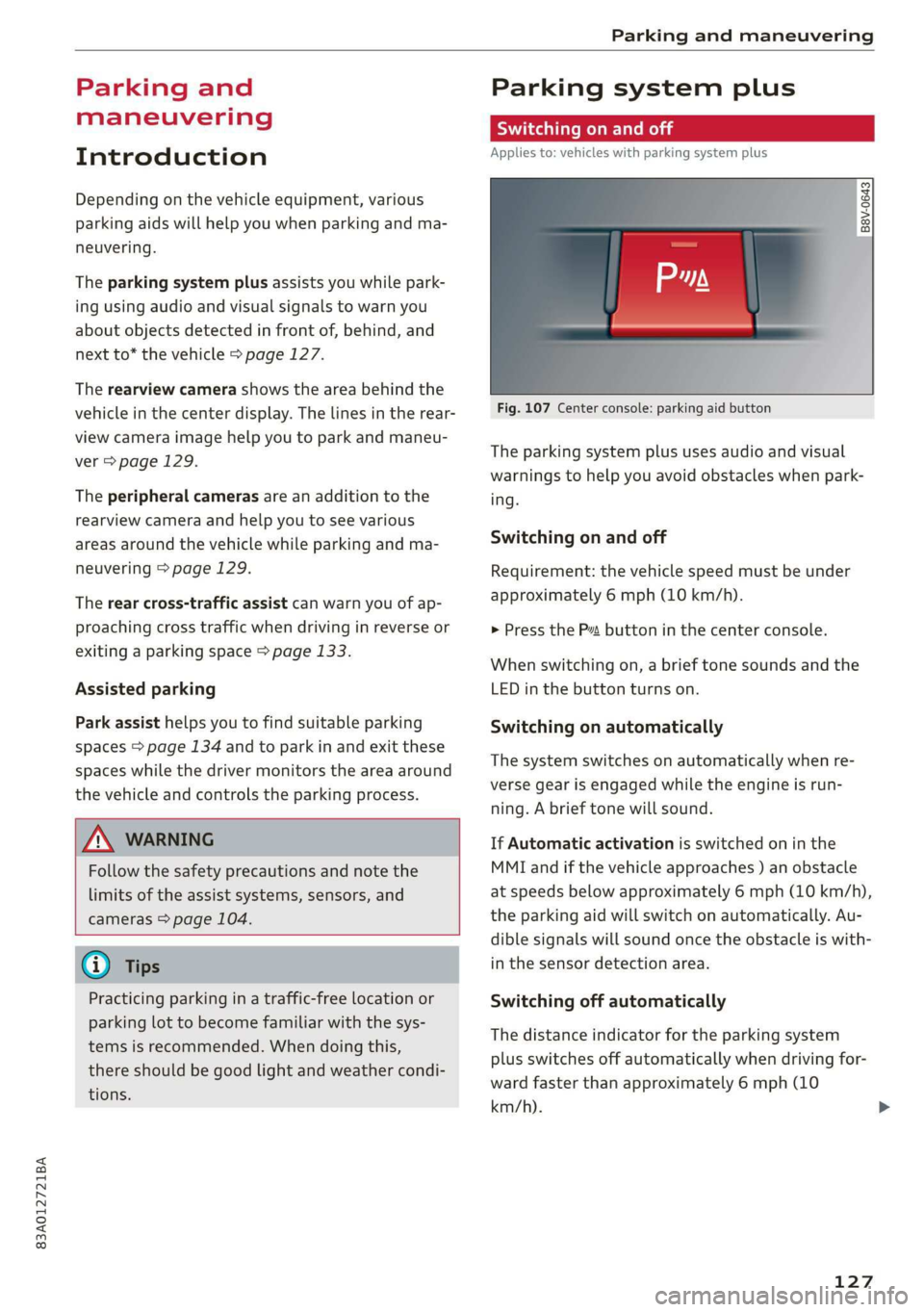
Fig. 107 Center console: parking aid button
The parking system plus uses audio and visual
warnings to help you avoid obstacles when park-
ing.
Switching on and off
Requirement: the vehicle speed must be under
approximately 6 mph (10 km/h).
> Press the Ps button in the center console.
When switching on, a brief tone sounds and the
LED in the button turns on.
Switching on automatically
The system switches on automatically when re-
verse gear is engaged while the engine is run-
ning. A brief tone will sound.
If Automatic activation is switched on in the
MMI and if the vehicle approaches ) an obstacle
at speeds below approximately 6 mph (10 km/h),
the parking aid will switch on automatically. Au-
dible signals will sound once the obstacle is with-
in the sensor detection area.
Switching off automatically
The distance indicator for the parking system
plus switches off automatically when driving for-
ward faster than approximately 6 mph (10
km/h).
127
Page 130 of 280
Parking and maneuvering
ZA WARNING
Follow the safety precautions and note the
limits of the assist systems, sensors, and
cameras > page 104.
@) Note
Keep enough distance from the curb to avoid
damage to the rims.
G) Tips
If the parking aid is switched off, it can only
be reactivated automatically when one of the
following conditions is met:
— The vehicle speed exceeds 6 mph (10 km/h)
— The ignition is switched off and back on
again
— The parking brake is set and then released
— The "P" gear is engaged and released again
Applies to: vehicles with parking system plus
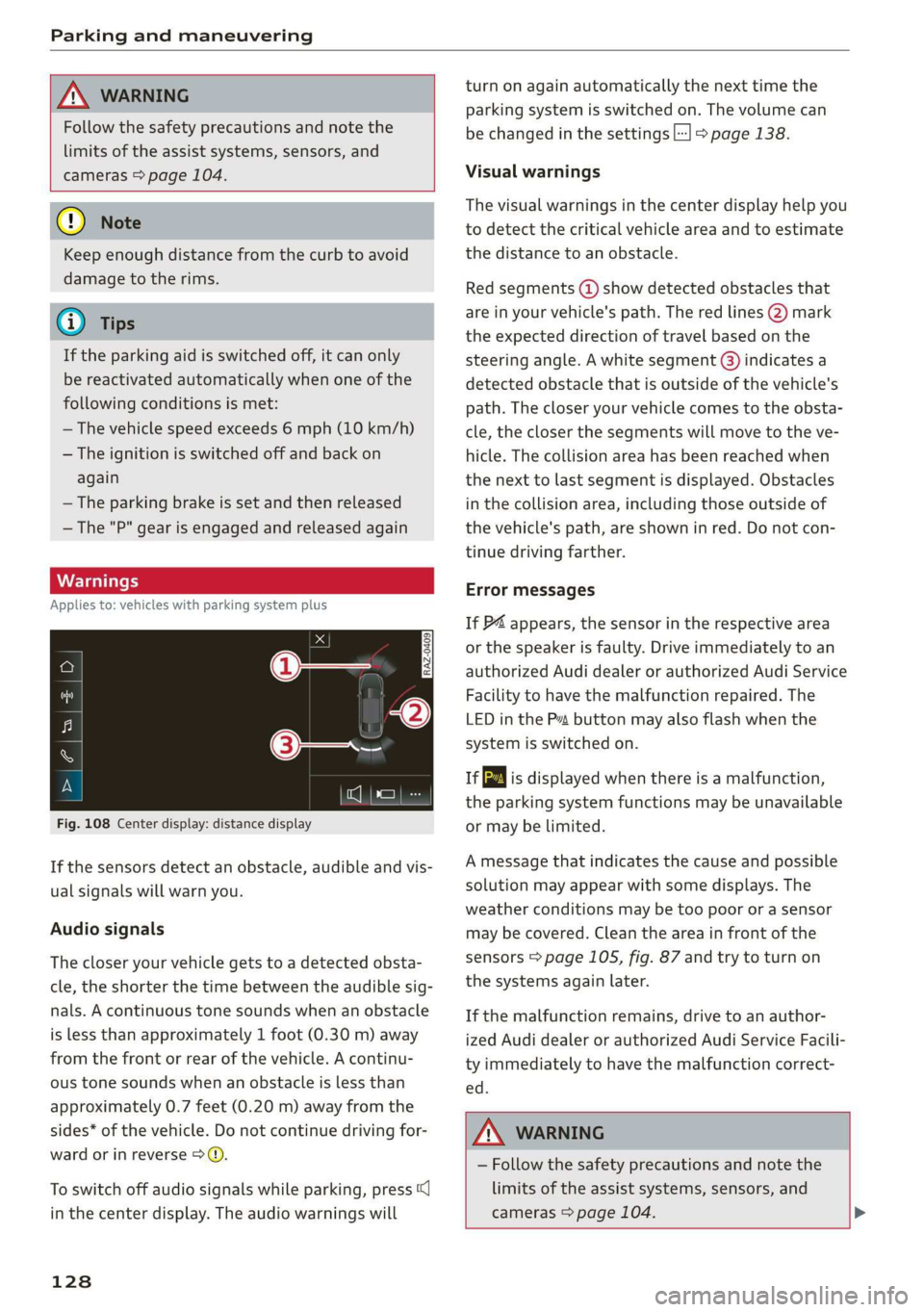
Fig. 108 Center display: distance display
If the sensors detect an obstacle, audible and vis-
ual signals will warn you.
Audio signals
The closer your vehicle gets to a detected obsta-
cle, the shorter the time between the audible sig-
nals. A continuous tone sounds when an obstacle
is less than approximately 1 foot (0.30 m) away
from the front or rear of the vehicle. A continu-
ous tone sounds when an obstacle is less than
approximately 0.7 feet (0.20 m) away from the
sides* of the vehicle. Do not continue driving for-
ward or in reverse >.
To switch off audio signals while parking, press
in the center display. The audio warnings will
128
turn on again automatically the next time the
parking system is switched on. The volume can
be changed in the settings |] > page 138.
Visual warnings
The visual warnings in the center display help you
to detect the critical vehicle area and to estimate
the distance to an obstacle.
Red segments (2) show detected obstacles that
are in your vehicle's path. The red lines (2) mark
the expected direction of travel based on the
steering angle. A white segment @) indicates a
detected obstacle that is outside of the vehicle's
path. The closer your vehicle comes to the obsta-
cle, the closer the segments will move to the ve-
hicle. The collision area has been reached when
the next to last segment is displayed. Obstacles
in the collision area, including those outside of
the vehicle's path, are shown in red. Do not con-
tinue driving farther.
Error messages
If P4 appears, the sensor in the respective area
or the speaker is faulty. Drive immediately to an
authorized Audi dealer or authorized Audi Service
Facility to have the malfunction repaired. The
LED
in the Ps button may also flash when the
system is switched on.
ff is displayed when there is a malfunction,
the parking system functions may be unavailable
or may be limited.
A message that indicates the cause and possible
solution may appear with some displays. The
weather conditions may be too poor or a sensor
may be covered. Clean the area in front of the
sensors > page 105, fig. 87 and try to turn on
the systems again later.
If the malfunction remains, drive to an author-
ized Audi dealer or authorized Audi Service Facili-
ty immediately to have the malfunction correct-
ed.
Z\ WARNING
— Follow the safety precautions and note the
limits of the assist systems, sensors, and
cameras > page 104. >
Page 132 of 280
Parking and maneuvering
> Press the P4 button in the center console. Or
> Select J on the center display if the visual dis-
tance indicator is shown > page 128, fig. 108.
When switching on, a brief tone sounds and the
LED in the button turns on.
Switching on automatically
The system switches on automatically when re-
verse gear is engaged while the engine is run-
ning. A brief tone will sound.
Switching off automatically
The system switches off automatically when driv-
ing forward faster than approximately 6 mph (10
km/h).
ZX WARNING
Follow the safety precautions and note the
limits of the assist systems, sensors, and
cameras > page 104.
Warnings
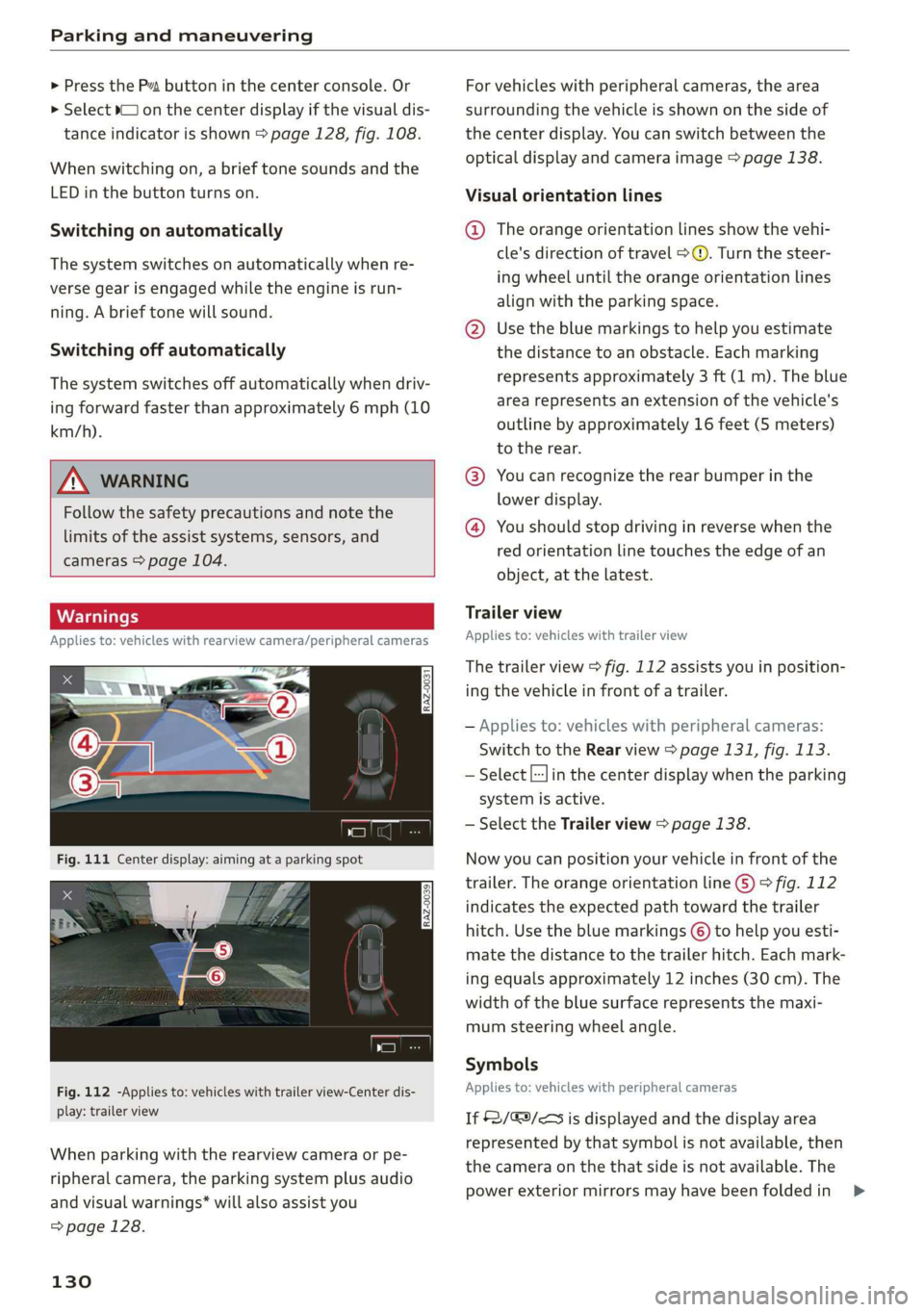
Applies to: vehicles with rearview camera/peripheral cameras
Fig. 112 -Applies to: vehicles with trailer view-Center dis-
play: trailer view
When parking with the rearview camera or pe-
ripheral camera, the parking system plus audio
and visual warnings* will also assist you
=> page 128.
130
For vehicles with peripheral cameras, the area
surrounding the vehicle is shown on the side of
the center display. You can switch between the
optical display and camera image > page 138.
Visual orientation lines
@ The orange orientation lines show the vehi-
cle's direction of travel > ©. Turn the steer-
ing wheel until the orange orientation lines
align with the parking space.
@ Use the blue markings to help you estimate
the distance to an obstacle. Each marking
represents approximately 3 ft (1 m). The blue
area represents an extension of the vehicle's
outline by approximately 16 feet (5 meters)
to the rear.
@® You can recognize the rear bumper in the
lower display.
@ You should stop driving in reverse when the
red orientation line touches the edge of an
object, at the latest.
Trailer view
Applies to: vehicles with trailer view
The trailer view > fig. 112 assists you in position-
ing the vehicle in front of a trailer.
— Applies to: vehicles with peripheral cameras:
Switch to the Rear view > page 131, fig. 113.
— Select |--Jin the center display when the parking
system is active.
— Select the Trailer view > page 138.
Now you can position your vehicle in front of the
trailer. The orange orientation line ©) ° fig. 112
indicates the expected path toward the trailer
hitch. Use the blue markings © to help you esti-
mate the distance to the trailer hitch. Each mark-
ing equals approximately 12 inches (30 cm). The
width of the blue surface represents the maxi-
mum steering wheel angle.
Symbols
Applies to: vehicles with peripheral cameras
If $2/&9/< is displayed and the display area
represented by that symbol is not available, then
the camera on the that side is not available. The
power exterior mirrors may have been folded in >
Page 140 of 280
Parking and maneuvering
Interrupting the park assists
Applies to: vehicles with park assist
Park assist will be canceled automatically in the
following scenarios:
— You switch the system off.
— You start steering.
— The speed is too high.
— The time limit is exceeded.
— An obstacle is detected.
— ESC intervenes.
Resume control of the vehicle, end the parking
Process manually, or:
— You can resume the parking process in some sit-
uations. Press the Pe button.
— To continue exiting the parking space, switch
the engine off and on. Press the Pe button.
Z\ WARNING
Follow the safety precautions and note the
limits of the assist systems, sensors, and
cameras > page 104.
Applies to: vehicles with park assist
If the roe" indicator light turns on, the park
assist is not available or was interrupted. The dis-
played message indicates the cause and possible
solutions. Try switching the systems on again lat-
er. If one of the messages does not turn off, drive
immediately to an authorized Audi dealer or au-
thorized Audi Service Facility to have the mal-
function repaired.
Adjusting the parking
aids
You can adjust the parking aid to your preferen-
ces. The settings depend on the vehicle equip-
ment.
> Applies to: MMI: Select on the home screen:
VEHICLE > Parking aid.
> Applies to: MMI: Select L-] in the center display
when the parking system is active.
Possible settings:
138
Activating automatically
Trailer view - Shows the trailer view. In vehicles
with peripheral cameras, this can only be opened
in the Rear view.
View - Switches between the visual display
(Graphic) and vehicle surroundings (Camera) in
the side view on the screen.
Front volume - Volume for the front and side*
area.
Rear volume - Volume for the rear area.
Entertainment fader - The volume of the audio/
video source is lowered when the parking system
is turned on.
Rear cross-traffic assist
@) Tips
The new level is demonstrated briefly* when
the volume is adjusted.
Page 184 of 280

Media
Media
General information
There may be different media drives and connec-
tions available depending on the vehicle equip-
ment. For example, you can play media files us-
ing the SD card reader or connect your mobile de-
vices to the Audi music interface and operate
them through the MMI.
Media and format restrictions: the MMI (includ-
ing the SD card reader and the USB storage de-
vice connection) was tested with a variety of
products and media on the market. However,
there may be cases where individual devices or
media and audio/video files may not be recog-
nized, may play only with restrictions, or may not
play at all.
Restricted functionality: reset the Media to the
factory default settings if functionality is restrict-
ed.
Digital Rights Management: please note that
the audio/video files are subject to copyright pro-
tection.
The media drives do not play files that are pro-
tected by DRM and are identified with the symbol
&.
Data security: never store important data on SD
cards, CDs/DVDs, or mobile devices. Audi AG is
not responsible for damaged or lost files and me-
dia.
Loading times: the more files/folders/playlists
there are on a storage medium, the longer it will
take to load. To reduce the amount of time it
takes the audio/video files to load, use a storage
medium that only contains audio/video files, and
create subfolders (for example, for each artist or
album).
Additional information: When playing, audio
files are automatically displayed with any addi-
tional information that is stored (such as the ar-
tist, track and album cover). If this information is
not available on the storage medium, the MMI
will check the Gracenote metadata database.
However, in some cases, the additional informa-
tion may not be displayed.
182
C@) Note
Read the information about Audi connect, and
be sure to note the connectivity costs section
=@ in General information on page 154.
SD card reader
The SD card reader is located in the glove com-
partment.
Inserting the SD card
>» The angled corner of the SD card must face to-
ward the right front side when being inserted.
> Slide the SD card into the card reader slot until
the SD card clicks into place.
The SD card reader is accessed and operated
through the MMI > page 185.
@) Note
— Only use one-piece SD cards. If adapter
cards (SD cards with more than one piece)
are used, the card could fall out of the
adapter when driving because of vibrations.
Individual pieces could then become stuck
in the drive and impair the functionality.
—To reduce the risk of damaging drives and
data carriers, always keep data carriers ina
sleeve and never expose them to direct sun-
light.
Bluetooth audio player
Applies to: vehicles with Bluetooth audio player
With the Bluetooth audio player, you can play
music wirelessly through the MMI from your
Bluetooth-capable mobile device (such as a cell
phone).
Requirement: The vehicle must be stationary and
the ignition must be switched on. The Bluetooth
settings will open on your mobile device during
the connection setup. The Bluetooth function and
visibility of the MMI > page 196 and mobile de-
vice must be switched on.
Page 185 of 280

83A012721BA
Media
Connecting a mobile device using the center
display
> Applies to: MMI: Select on the home screen:
MEDIA > Source > Connect external device >
New connection. The available Bluetooth devi-
ces will be displayed after several seconds.
> Press on the desired mobile device in the list of
displayed Bluetooth devices.
> To update the list, press O.
> A PIN for a secure Bluetooth connection will be
generated.
> Confirm the PIN on your mobile device, or enter
the PIN for the connection setup on your mo-
bile device. The time allowed for entering the
PIN is limited to approximately 30 seconds.
After connecting successfully, the mobile device
will be displayed in the Connected devices menu
as a Bluetooth audio player.
Playing media > page 185.
G) Tips
— Check for any connection requests on your
Bluetooth device.
— Multiple Bluetooth audio players can be
connected to the MMI, but only one ata
time can be active as a Bluetooth audio
player > page 196.
— The supported media functions (such as
shuffle, list view, categories, search, op-
tions) depend on the Bluetooth device being
used.
— Note the volume setting on your Bluetooth
device. AUDI AG recommends setting your
mobile device to the maximum volume
when using it as a Bluetooth audio player.
— For more information on supported devices,
visit www.audiusa.com/bluetooth or con-
tact an authorized Audi dealer or authorized
Audi Service Facility.
Online media
Applies to: vehicles with Audi connect Infotainment and on-
line media
You can play and operate various online media
services, such as music streaming services, using
the MMI.
Requirement: A supported online media service
must be available in the country where the vehi-
cle is being operated.
Connect online media
> Connect the MMI to the Internet > page 154.
> Switch on the Wi-Fi hotspot in the MMI
=> page 157.
> Applies to: MMI: Select on the home screen:
MEDIA > Source > Connect online media.
> Switch the Wi-Fi function on in your mobile de-
vice and connect it to the MMI Wi-Fi hotspot
=> page 155.
> Install and start the myAudi app on your mo-
bile device.
> Log in to your myAudi account in the myAudi
app and select your vehicle.
Your mobile device must be connected to the
MMI and must be highlighted. When you press
the highlighted device, it will be disconnected.
Starting online media
> Applies to: MMI: Select on the home screen:
MEDIA > Source. All online media services sup-
ported in your country will be displayed.
> Press on the desired online media service and
follow the system instructions.
ZA\ WARNING
— It is only safe to use tablets, laptops, mobile
devices and other similar devices when the
vehicle is stationary because, like all loose
objects, they could be thrown around the in-
side of the vehicle in a crash and cause seri-
ous injuries. Store these types of devices se-
curely while driving.
— Do not use any wireless devices on the front
seats within range of the airbags while driv-
ing. Also read and follow the warnings in
=>
page 61, Airbag system.
() Note
— Read the information about Audi connect,
and be sure to note the connectivity costs
section >@ in General information on
page 154.
183
Page 187 of 280
83A012721BA
Media
mobile devices while driving, because this in-
creases the risk of an accident.
@) Note
— Pull the cable out of the Audi music inter-
face carefully so that the USB ports are not
damaged.
— Use a USB extension cable to connect devi-
ces that have an integrated USB connector
(such as a USB stick) to reduce the risk of
damage to your USB device and the Audi
music interface.
— Extremely high or low temperatures that
can occur inside vehicles can damage mobile
devices and/or impair their performance.
Never leave mobile devices in the vehicle in
extremely high or low temperatures.
@ Tips
— Always follow the information found in
=> page 72.
— When you switch the ignition off, the USB
ports are still supplied with power until the
energy management intervenes.
— Do not use an additional adapter cable or
USB extension cable to connect mobile devi-
ces to the Audi music interface that already
have a cable or that must be connected with
a USB adapter cable (> page 184, fig. 134).
Using an additional adapter or US extension
cable may impair functionality.
— Functionality is not guaranteed for mobile
devices that do not conform to the USB 2.0
specification.
— USB hubs are not supported.
— Video playback through the Audi music in-
terface is not supported on Apple and MTP
devices (such as smartphones).
— iPod or iPhone malfunctions also affect the
operation of the MMI. Reset your mobile de-
vice in these situations.
— Audi recommends updating the iPod or
iPhone software to the latest version. Refer
to your mobile device owner's manual for
more information.
— The USB adapter on the Audi music inter-
face will support iPod touch or iPhone devi-
ces from the 5th generation or newer with
the lightning connector.
— For more information about the Audi music
interface and supported devices, check the
Audi database for mobile devices at www.
audiusa.com/mp3 or contact an authorized
Audi dealer or authorized Audi Service Fa-
cility.
Playing media
The following sources can be selected depending
on the vehicle equipment:
—SD card > page 182.
— USB © page 184.
— Connect external device: you can connect ex-
ternal devices via Bluetooth and use the Blue-
tooth audio player > page 182, or you can con-
nect an external device directly to the Audi mu-
sic interface > page 184.
— Connect online media > page 183.
Accessing media
Playing media files using the center display
> Applies to: MMI: Select on the home screen:
MEDIA > Source > a source. Depending on the
connected device or online media service”, the
symbol for a source may change. The device
name may be displayed (for example: my-
Phone).
>» Select a track from the categories in the media
center > page 186.
Playing media files using the multifunction
steering wheel
Requirement: a media drive must contain media
files > page 185.
> Select the Radio/Media tab using the multi-
function steering wheel.
> Turn the left thumbwheel to display the play-
list.
> To switch to a different source, press the
button.
> To select a media file or a source, turn and
press the left thumbwheel.
185
Page 189 of 280
83A012721BA
Media
Audio books
You can control your audio books on the MMI.
Press on an audio book.
Podcasts
You can control your podcasts through the MMI.
Select: a podcast > a podcast episode.
Genres
All available genres are displayed. Select: a genre
> an artist > an album > a song.
Videos
All available video files are displayed. Press ona
video.
Tracks
All available tracks are displayed. Press ona
track.
Albums
All available albums are displayed. Select: an al-
bum > a track.
@) Note
Applies to: vehicles with Audi connect Infotainment
— Cloud services and category radio always re-
quire an Internet connection.
elem irad (lary
— Read the information about Audi connect,
and be sure to note the connectivity costs
section >@ in General information on
page 154.
G@) Tips
— Only the categories supported by the medi-
um are available.
— For safety reasons, the video image is only
displayed when the vehicle is stationary. On-
ly the sound from the video plays while driv-
ing.
—When synchronizing a portable device with
Cloud services, playlists may display incor-
rectly
in the MMI. Use the media center in
the device.
(i) Tips
Applies to: iPod/iPhone
Also read the information on the Audi music
interface and the supported devices
=> page 184.
tae)
Hymn
Brad:
ait)
Orchestra
Divine
rae
rs
RAX-0098
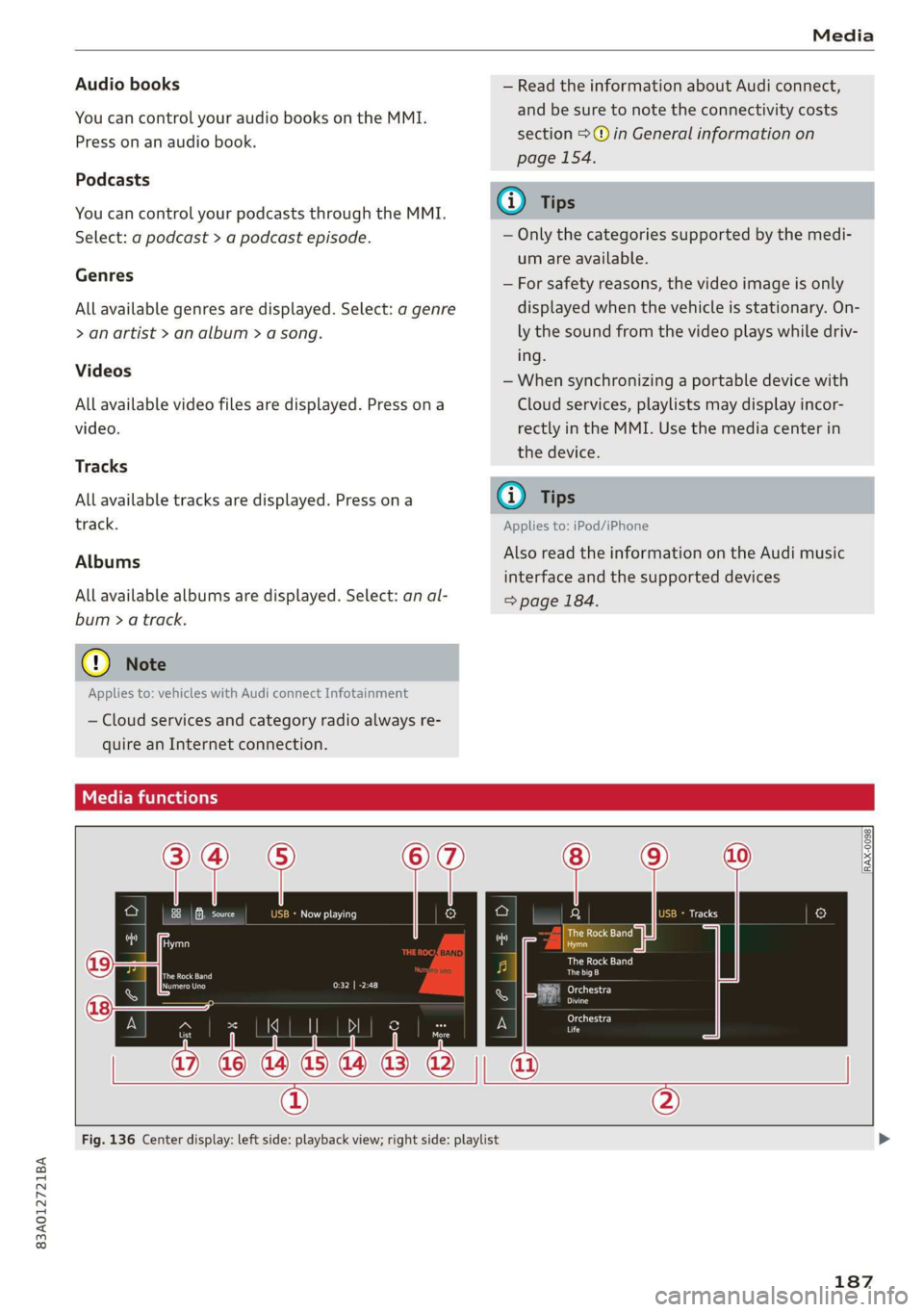
Fig. 136 Center display: left side: playback view; right side: playlist
187
Page 192 of 280
Media
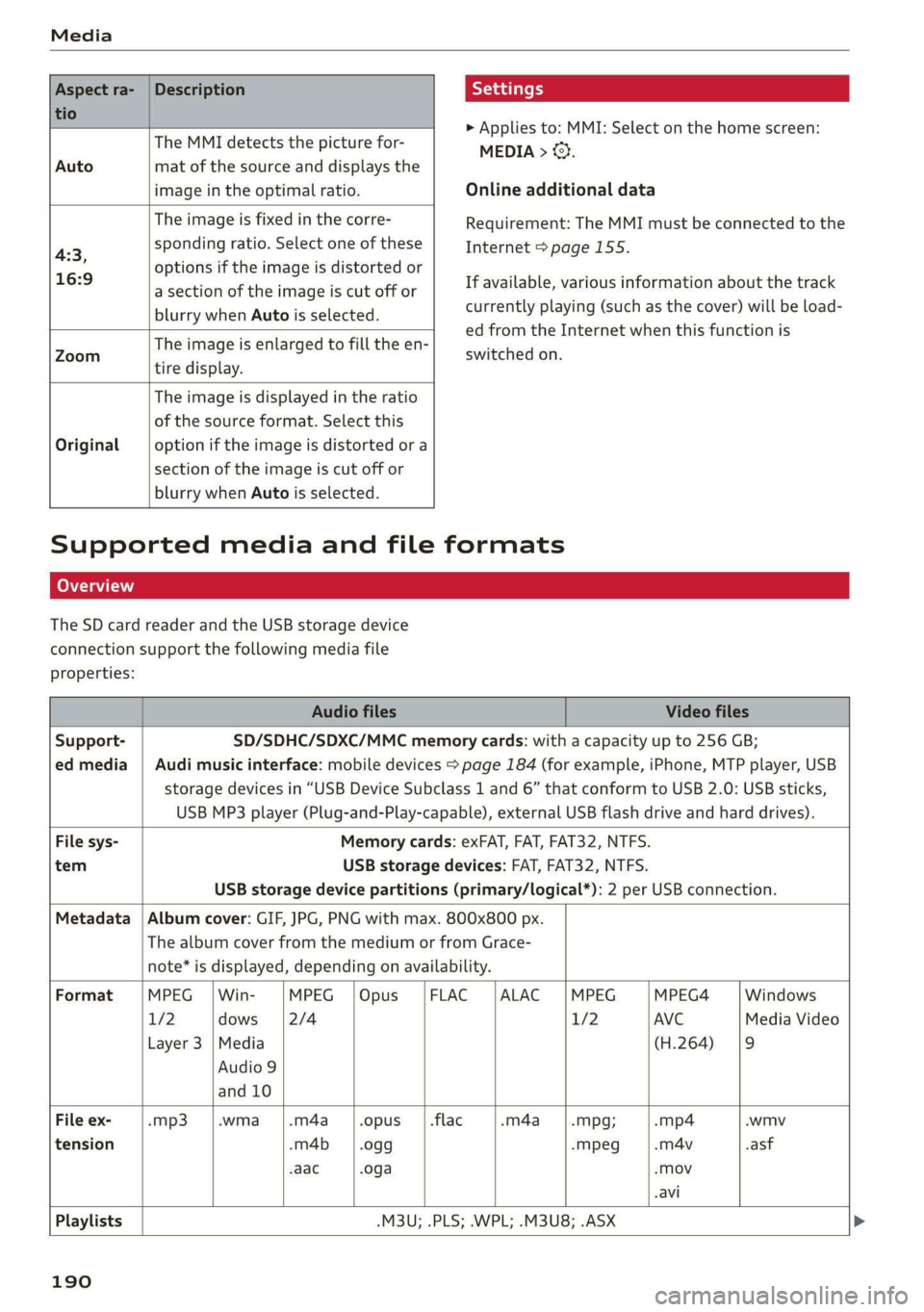
Aspect ra-
tio
Description Settings
Auto
The MMI detects the picture for-
mat of the source and displays the
image in the optimal ratio.
> Applies to: MMI: Select on the home screen:
MEDIA > ©}.
Online additional data
4:3,
16:9
The image is fixed in the corre-
sponding ratio. Select one of these
options if the image is distorted or
a section of the image is cut off or
blurry when Auto is selected.
Requirement: The MMI must be connected to the
Internet > page 155.
If available, various information about the track
currently playing (such as the cover) will be load-
Zoom
The image is enlarged to fill the en-
tire display.
ed from the Internet when this function is
switched on.
Original
The image is displayed in the ratio
of the source format. Select this
option if the image is distorted or a
section of the image is cut off or
blurry when Auto is selected.
Supported media and file formats
loa]
The SD card reader and the USB storage device
connection support the following media file
properties:
Audio files Video files
Support- SD/SDHC/SDXC/MMC memory cards: with a capacity up to 256 GB;
ed media | Audi music interface: mobile devices > page 184 (for example, iPhone, MTP player, USB
storage devices in “USB Device Subclass 1 and 6” that conform to USB 2.0: USB sticks,
USB MP3 player (Plug-and-Play-capable), external USB flash drive and hard drives).
File sys- Memory cards: exFAT, FAT, FAT32, NTFS.
tem USB storage devices: FAT, FAT32, NTFS.
USB storage device partitions (primary/logical*): 2 per USB connection.
Metadata | Album cover: GIF, JPG, PNG with max. 800x800 px.
The album cover from the medium or from Grace-
note* is displayed, depending on availability.
Format MPEG | Win- MPEG | Opus FLAC ALAC MPEG MPEG4 Windows
1/2 dows 2/4 1/2 AVC Media Video
Layer 3 |Media (H.264) |9
Audio 9
and 10
File ex- -mp3 |.wma_ |.m4a_|.opus__|.flac -m4a__—|.mpg; -mp4 .wmv
tension -m4b__|.ogg -Mpeg -m4v -asf
-aac .oga -Mov
avi
Playlists -M3U; .PLS; .WPL; .M3U8; .ASX
190
Page 193 of 280
83A012721BA
Media
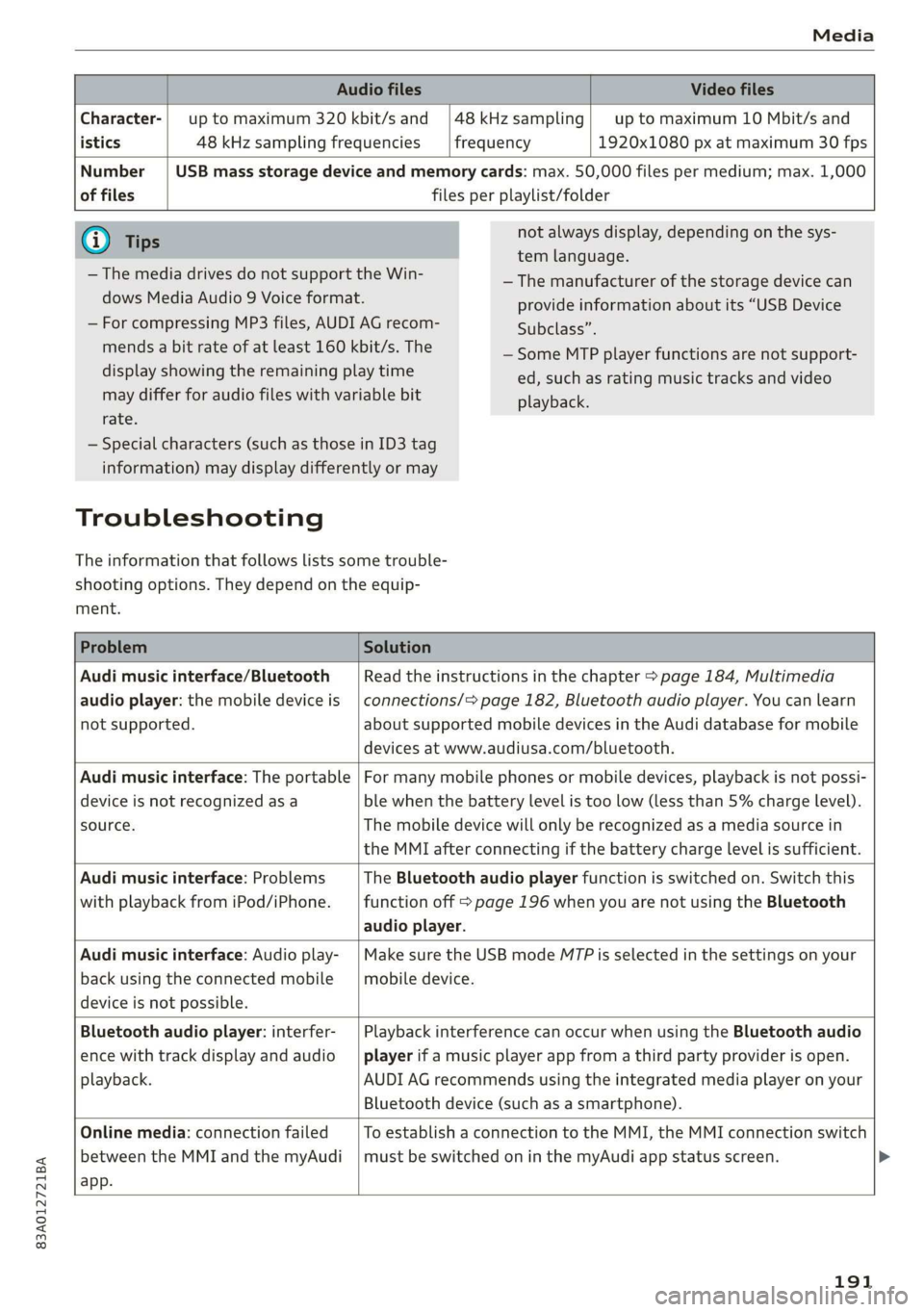
Audio files Video files
Character-| up to maximum 320 kbit/s and |48kHzsampling| up to maximum 10 Mbit/s and
istics 48 kHz sampling frequencies frequency 1920x1080 px at maximum 30 fps
Number | USB mass storage device and memory cards: max. 50,000 files per medium; max. 1,000
of files files per playlist/folder
G) Tips
— The media drives do not support the Win-
dows Media Audio 9 Voice format.
— For compressing MP3 files, AUDI AG recom-
mends a bit rate of at least 160 kbit/s. The
display showing the remaining play time
may differ for audio files with variable bit
rate.
not always display, depending on the sys-
tem language.
— The manufacturer of the storage device can
provide information about its “USB Device
Subclass”.
— Some MTP player functions are not support-
ed, such as rating music tracks and video
playback.
— Special characters (such as those in ID3 tag
information) may display differently or may
Troubleshooting
The information that follows lists some trouble-
shooting options. They depend on the equip-
ment.
Problem Solution
Audi music interface/Bluetooth
audio player: the mobile device is
not supported.
Read the instructions in the chapter > page 184, Multimedia
connections/=> page 182, Bluetooth audio player. You can learn
about supported mobile devices in the Audi database for mobile
devices at www.audiusa.com/bluetooth.
Audi music interface: The portable
device is not recognized as a
source.
For many mobile phones or mobile devices, playback is not possi-
ble when the battery level is too low (less than 5% charge level).
The mobile device will only be recognized as a media source in
the MMI after connecting if the battery charge level is sufficient.
Audi music interface: Problems
with playback from iPod/iPhone.
The Bluetooth audio player function is switched on. Switch this
function off > page 196 when you are not using the Bluetooth
audio player.
Audi music interface: Audio play-
back using the connected mobile
device is not possible.
Make sure the USB mode M7P is selected in the settings on your
mobile device.
Bluetooth audio player: interfer-
ence with track display and audio
playback.
Playback interference can occur when using the Bluetooth audio
player if a music player app from a third party provider is open.
AUDI AG recommends using the integrated media player on your
Bluetooth device (such as a smartphone).
Online media: connection failed
between the MMI and the myAudi
app.
To establish a connection to the MMI, the MMI connection switch
must be switched on in the myAudi app status screen.
191