stop start AUDI Q3 2019 Owner's Manual
[x] Cancel search | Manufacturer: AUDI, Model Year: 2019, Model line: Q3, Model: AUDI Q3 2019Pages: 280, PDF Size: 72.73 MB
Page 164 of 280
Navigation
@ Tips
The last route will be automatically deleted
from the list if you start a new route guidance
after canceling the route.
Setting a favorite as the destination
Applies to: vehicles with navigation system
You can access frequent destinations in the fa-
vorites. You can quickly and easily start route
guidance using the home address or business ad-
dress function.
Requirement: a favorite must be stored
=> page 168.
> Applies to: MMI: Select on the home screen:
NAVIGATION > (&8) > Favorites > select a de-
sired destination > Start. Or
> Applies to: multifunction steering wheel: Select
in the instrument cluster: Navigation tab > [=]
button > Favorites > desired destination.
POIs (point of interest)
Applies to: vehicles with navigation system and Audi connect
Infotainment
Search for points of interest such as restaurants.
If the MMI is connected to the Internet, points of
interest will be automatically included in the
search.
> Applies to: MMI: Select on the home screen:
NAVIGATION > (G5) > Points of interest.
The system always searches in the search area
that is currently selected > table on page 162.
> Searching for points of interest: enter the
name of a POI.
> Searching for a point of interest in a specific
category: Select: a category (for example, res-
taurants) > a point of interest.
> Changing the search area: Requirement: route
guidance must be active. Press (a)/2:9/B! repeat-
edly until the desired search area > table on
page 162 is selected.
Sorting points of interest
Requirement: The MMI must be connected to the
Internet > page 154, Audi connect. You must
have a category selected.
162
> Press on the respective symbol for sorting until
the desired sorting order is selected.
Search areas in detail
Symbol Meaning
@ Search nearby
9 Search along the route
Search at destination/Search at
Be stopover
Search nearby: The points of interest will be list-
ed starting from the immediate vicinity around
the vehicle position.
Search along the route: Points of interest along
the route can only be selected during active route
guidance. The points of interest are located di-
rectly along or in the immediate vicinity of the
calculated route. You can select points of interest
from various categories. For example, you can
search for a hotel or parking lot along route.
Search at destination/Search at stopover: points
of interest near a destination or a stopover can
only be selected during active route guidance.
You can select points of interest from various cat-
egories. For example, you can search for a hotel
or parking lot at the destination.
CG) Note
Read the information about Audi connect, and
be sure to note the connectivity costs section
=>@ in General information on page 154.
(i) Tips
Distances to points of interest are displayed
as a straight-line distance from your current
location. The actual distance from your cur-
rent location to the point of interest is updat-
ed automatically. The list of points of interest
that were found is not resorted when this
happens.
Page 165 of 280
83A012721BA
Navigation
Selecting contacts as destinations
Applies to: vehicles with MMI and navigation system
You can navigate directly to contacts.
Requirement: an address with navigation data or
a navigation destination must already be as-
signed to a contact > page 168.
> Applies to: MMI: Select on the home screen:
NAVIGATION > (8) > Contacts > a contact.
> Press on an address.
> Check the address and change it, if necessary.
Start navigation > page 161, Entering an ad-
dress.
Route guidance will be activated and the map will
be displayed > page 165, fig. 126.
Additional functions for contacts in navigation
can be found under > page 168.
@ Tips
— Addresses that have been imported from
your mobile device into the MMI can also be
used as a destination.
— Ifa contact is grayed out in the directory,
this contact has neither a destination nor an
address assigned to it.
Loading received destinations and routes
Applies to: vehicles with navigation system and Audi connect
Infotainment
You can search for destinations or routes in the
myAudi app and send to the vehicle.
Requirement: the MMI and the mobile device
must be connected to the Internet > page 154,
Audi connect. You must have the myAudi app in-
stalled on your mobile device.
» Send a destination or route in the myAudi app
to the vehicle.
> Applies to: MMI: Select on the home screen:
NAVIGATION > (Ga) > Received dests. & routes.
> Make sure you are logged into the vehicle and
the myAudi app with the same myAudi account.
The received destination and routes will be
loaded automatically.
> Navigating to a destination: press on a desti-
nation.
> Deleting destinations: select: Z > one or more
entries or Select all > Delete > (Done).
@) Note
Read the information about Audi connect, and
be sure to note the connectivity costs section
=@ in General information on page 154.
Destination details
Applies to: vehicles with navigation system
72.
Seu & a
ec rr
Rate)
og
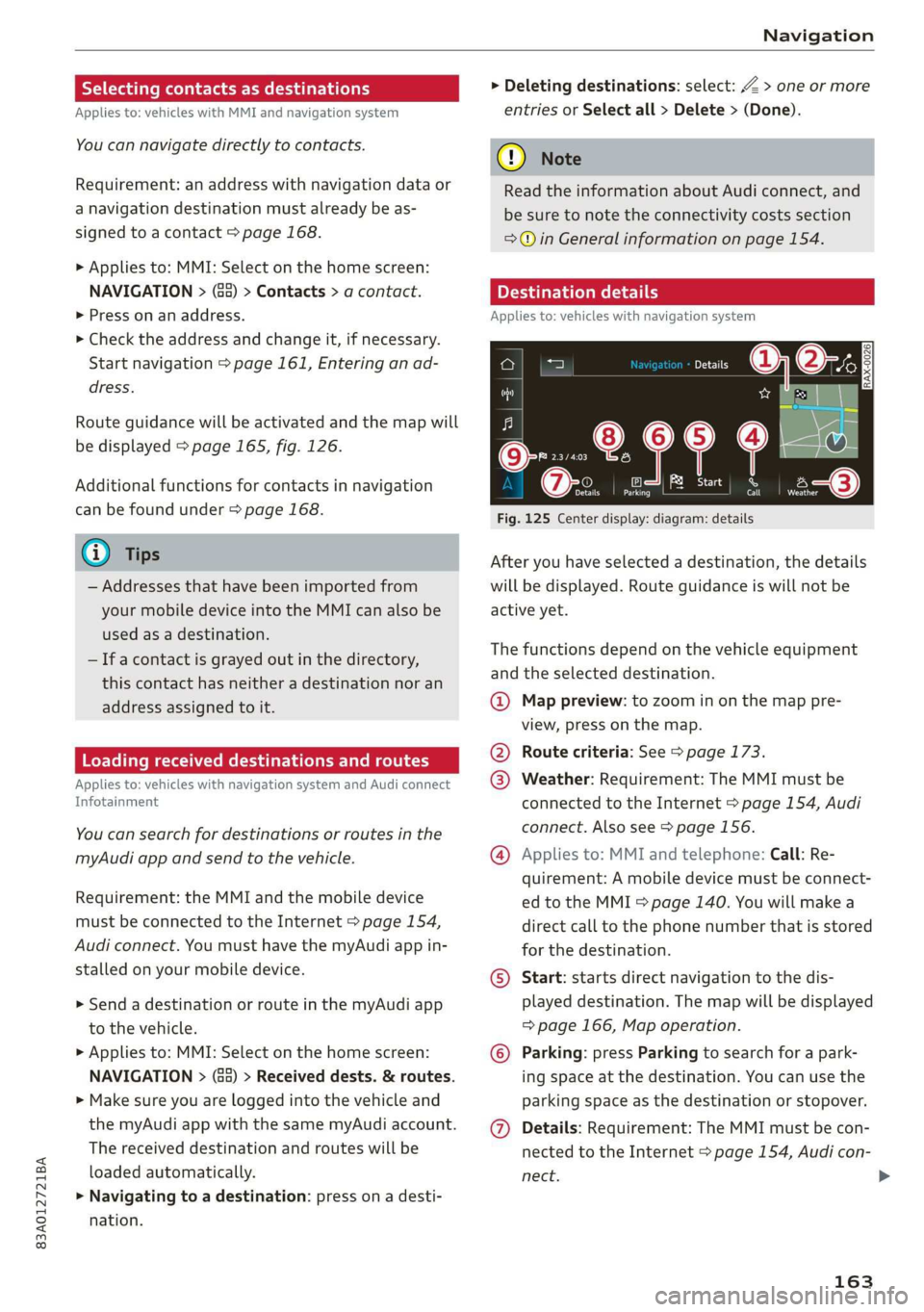
Fig. 125 Center display: diagram: details
After you have selected a destination, the details
will be displayed. Route guidance is will not be
active yet.
The functions depend on the vehicle equipment
and the selected destination.
@ Map preview: to zoom in on the map pre-
view, press on the map.
@ Route criteria: See > page 173.
@ Weather: Requirement: The MMI must be
connected to the Internet > page 154, Audi
connect. Also see > page 156.
@® Applies to: MMI and telephone: Call: Re-
quirement: A mobile device must be connect-
ed to the MMI > page 140. You will make a
direct call to the phone number that is stored
for the destination.
©) Start: starts direct navigation to the dis-
played destination. The map will be displayed
=> page 166, Map operation.
© Parking: press Parking to search for a park-
ing space at the destination. You can use the
parking space as the destination or stopover.
@ Details: Requirement: The MMI must be con-
nected to the Internet > page 154, Audi con-
nect.
163
Page 166 of 280
Navigation
Weather at destination: Requirement: The
MMI must be connected to the Internet
= page 154, Audi connect.
©) Display of distance/driving time to the des-
tination
@) Note
Read the information about Audi connect, and
be sure to note the connectivity costs section
=@ in General information on page 154.
Selecting a destination from the map
Applies to: vehicles with navigation system
A point on the map can be used as the destina-
tion.
Opening the map
Applies to: MMI
> Press NAVIGATION on the home screen.
> If necessary, press A to display the map.
Adjusting the scale
> Select: 9/ > select a scale.
Marking the destination
> Press and hold a point on the map until a mark-
ing appears @i) > page 165, fig. 127. Or: the
address of the selected destination is displayed
> page 165, fig. 127.
Setting the map content (such as POIs) as
the destination
Requirement: map content must be displayed
=> page 173.
> Press on map content on the map (for example,
@) > page 165, fig. 127).
Selecting the destination
> Select: @) > page 165, fig. 127. Or:
> To display destination details, press on 6)
=> page 165, fig. 127 > Start.
Route guidance will be activated and the map will
be displayed > page 165, fig. 126.
164
Stopovers and route plan
Applies to: vehicles with navigation system
You can enter additional destinations during ac-
tive route guidance.
Entering a stopover
Requirement: Route guidance must be active.
> Enter a destination > page 160.
Displaying stopovers or the route plan
All destinations are listed in the route plan.
> Press on (7) > page 165, fig. 126 on the map.
Editing stopovers
> Press on (7) > page 165, fig. 126 on the map.
> Adding a stopover: Select: Add destination >
select a destination > Add.
> Moving a stopover: Press Z. Touch the > sym-
bol and move the entry to the desired position.
Press Done.
> Deleting a stopover: Select: Z > one or more
entries or Select all > Delete > (Done).
Stopping route guidance
Applies to: vehicles with navigation system
Requirement: Route guidance must be active and
the map must be displayed.
> Applies to: MMI: Press € in the center display
@ = page 165, fig. 126. Or:
> Applies to: multifunction steering wheel: Select
in the instrument cluster: Navigation tab >
button > Cancel route guidance.
Page 167 of 280
83A012721BA
Navigation
Map
Map functions
Applies to: vehicles with navigation system
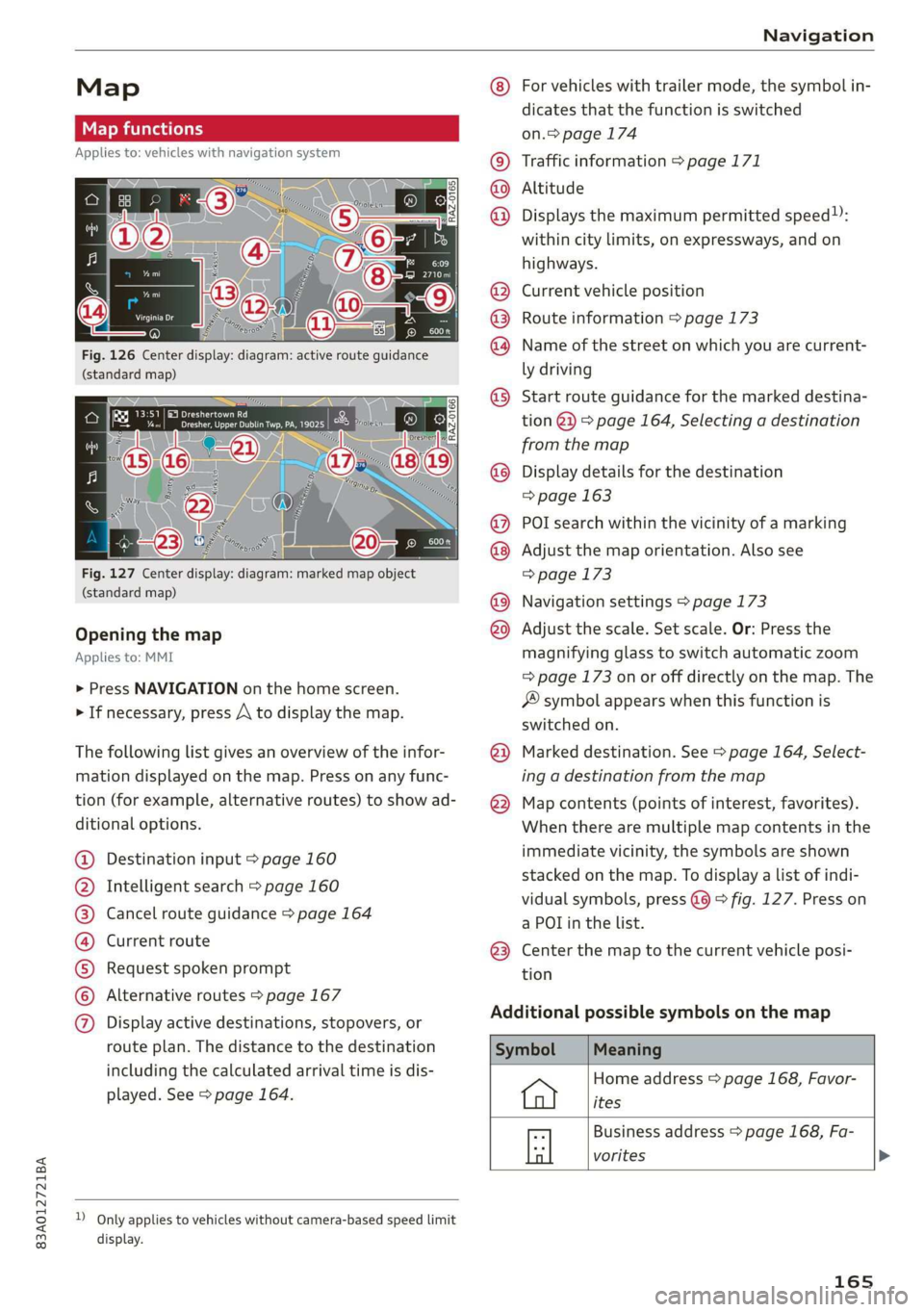
Fig. 126 Center display: diagram: active route guidance
(standard map)
Fig. 127 Center display: diagram: marked map object
(standard map)
Opening the map
Applies to: MMI
> Press NAVIGATION on the home screen.
> If necessary, press A to display the map.
The following list gives an overview of the infor-
mation displayed on the map. Press on any func-
tion (for example, alternative routes) to show ad-
ditional options.
Destination input > page 160
Intelligent search > page 160
Cancel route guidance > page 164
Current route
Request spoken prompt
Alternative routes > page 167
CGOOOOLOHO Display active destinations, stopovers, or
route plan. The distance to the destination
including the calculated arrival time is dis-
played. See > page 164.
D_ Only applies to vehicles without camera-based speed limit
display.
OOo
®
®0O®8
®®
O88
@
®
®
@
For vehicles with trailer mode, the symbol in-
dicates that the function is switched
on.> page 174
Traffic information > page 171
Altitude
Displays
the maximum permitted speed):
within city limits, on expressways, and on
highways.
Current vehicle position
Route information > page 173
Name of the street on which you are current-
ly driving
Start
route guidance for the marked destina-
tion @}) > page 164, Selecting a destination
from the map
Display details for the destination
=> page 163
POI search within the vicinity of a marking
Adjust the map orientation. Also see
=> page 173
Navigation settings > page 173
Adjust the scale. Set scale. Or: Press the
magnifying glass to switch automatic zoom
=> page 173 on or off directly on the map. The
® symbol appears when this function is
switched on.
Marked destination. See > page 164, Select-
ing a destination from the map
Map contents (points of interest, favorites).
When there are multiple map contents in the
immediate vicinity, the symbols are shown
stacked on the map. To display a list of indi-
vidual symbols, press @@ > fig. 127. Press on
a POT in the list.
Center the map to the current vehicle posi-
tion
Additional possible symbols on the map
Home address > page 168, Favor-
ites
Business address > page 168, Fa-
a vorites >
165
Page 169 of 280
83A012721BA
Navigation
calculated arrival time, and a direction arrow for
the upcoming maneuver will be displayed in the
right speedometer. If there is no upcoming ma-
neuver, the distance to the next maneuver will be
displayed.
@® Lane recommendation
Personal route
assistance
Applies to: vehicles with navigation system and personal
route assistance
Your MMI can learn the routes that you drive fre-
quently (such as your daily commute to work and
back) and suggest route guidance based on the
current vehicle position.
When the function is switched on, the MMI re-
cords the routes driven regardless of whether or
not you are using navigation.
Without starting route guidance, your MMI
checks the traffic conditions and shows possible
traffic incidents for the possible routes to be driv-
en.
Opening personal routes
Requirement: personal route assistance must be
switched on > page 174. Route guidance must
not be active. A notification is displayed.
> The MMI displays up to three suggestions.
Press on a suggestion. Route guidance will
start.
Better routes
If there are major traffic incidents, the MMI will
display a notification regardless of the selected
menu. If the MMI has calculated a better route,
you can select it as the route.
> Press on the notification.
As soon as you switch off personal route assis-
tance, your personal routes will no Longer be re-
corded. Routes that were already stored remain
stored.
Deleting personal routes
> Applies to: MMI: Select on the home screen:
NAVIGATION > & > Personal route assistance
> Delete recordings from the last 24 hours or
Delete all personal routes and destinations.
@ Tips
If personal route assistance is switched off
and you press F&, the personal route assis-
tance settings will be displayed > page 174.
Alternative routes
Applies to: vehicles with navigation system
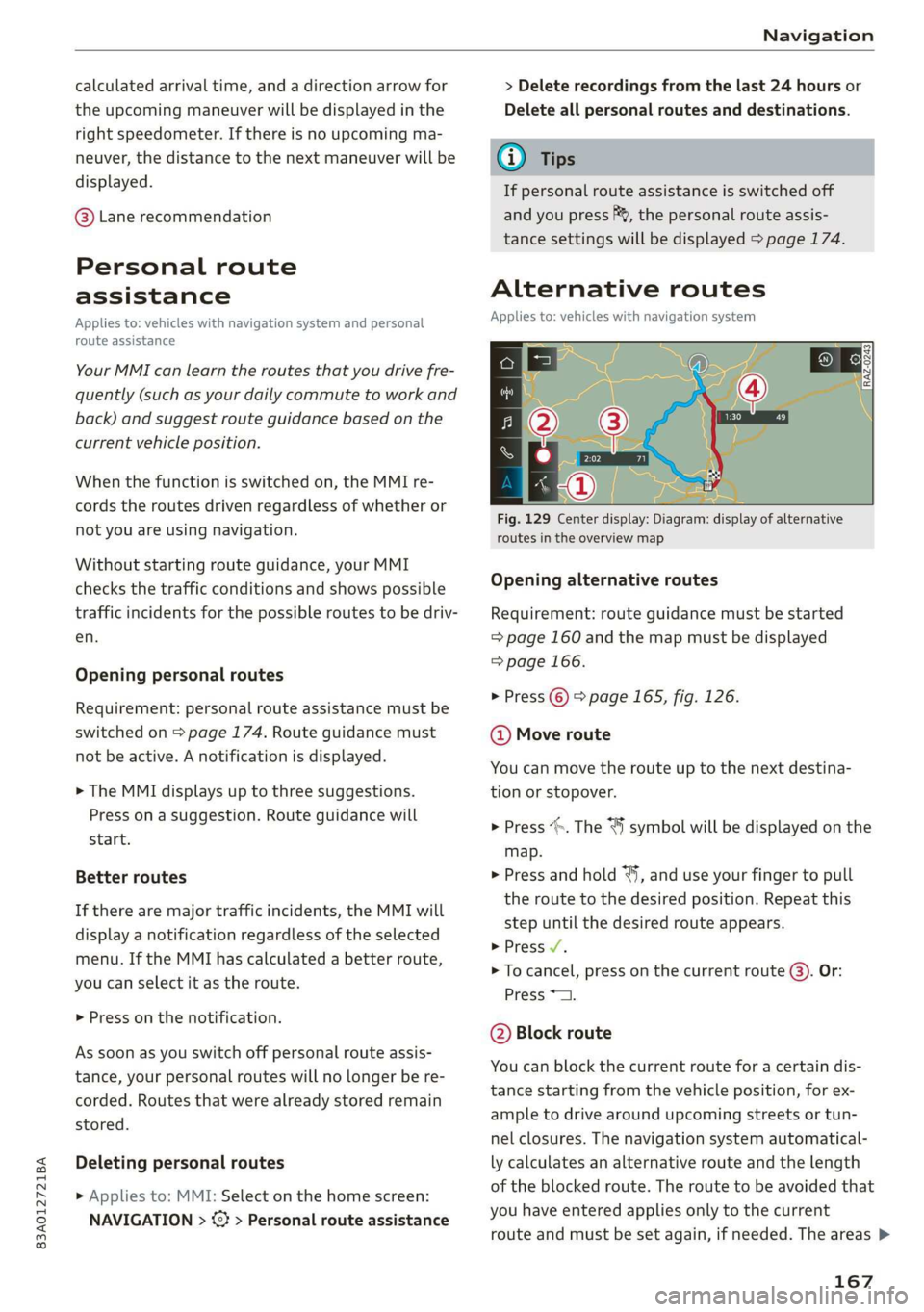
Fig. 129 Center display: Diagram: display of alternative
routes in the overview map
Opening alternative routes
Requirement: route guidance must be started
= page 160 and the map must be displayed
=> page 166.
> Press ©) > page 165, fig. 126.
@ Move route
You can move the route up to the next destina-
tion or stopover.
> Press “». The ¥ symbol will be displayed on the
map.
> Press and hold “, and use your finger to pull
the route to the desired position. Repeat this
step until the desired route appears.
> Press V.
> To cancel, press on the current route ©. Or:
Press *2.
@ Block route
You can block the current route for a certain dis-
tance starting from the vehicle position, for ex-
ample to drive around upcoming streets or tun-
nel closures. The navigation system automatical-
ly calculates an alternative route and the length
of the blocked route. The route to be avoided that
you have entered applies only to the current
route and must be set again, if needed. The areas >
167
Page 180 of 280
Radio
> To delete a preset, select: Z > select one or
more stations or Select all > Delete > (Done).
Requirement: the presets list must be displayed.
At least two favorites must be stored.
> To move a preset, press Z. Touch the symbol
and move the entry to the desired position.
Press Done.
Smart favorites
Applies to: vehicles with smart favorites
SiriusXM channels are stored in the presets as
smart favorites with the »% symbol. After switch-
ing the ignition and the MMI on, the smart favor-
ites store radio programs at a specific time. Press
ona smart favorite. You have the following op-
tions:
— Pause/Start: press |I/D.
— Selecting the previous or next track: press !I<
or >i.
— Going to the beginning of a recording or live
program: press and hold !I< or >i.
— Setting the playback point: you can adjust the
playback position using the knob.
— Going to a live program: press Lvé).
Applies to: vehicles with Audi connect Infotainment and on-
line radio
You can listen to various radio stations or pod-
casts on the Internet using online radio.
Requirement: The MMI must be connected to the
Internet > page 154, Audi connect.
> Applies to: MMI: Select on the home screen:
RADIO > Source > Online.
The following functions are available in the on-
line radio menu:
— Search: you only can search for online radio sta-
tions in this search. You can search for station
names and categories.
— Last played station: the station that was
played last will start playing.
— Top stations: select a station from the list of
popular online radio stations.
178
— Filtering the list: Select: © > (select a catego-
ry) > select a station name. The following cate-
gories are available:
— Countries
— Genres
— Languages
Other categories may be available depending on
the country and vehicle equipment.
Podcasts
— Applies to: MMI: Select on the home screen:
RADIO > Source > Online > Podcasts.
The following functions are available:
— Listening to a podcast: select: ag podcast >a
podcast episode.
— Search: press 2.
The following functions are available in the pod-
cast playback view:
— Displaying the podcast episodes: press List.
— Starting or stopping the podcast: press P orl.
— Previous or next podcast: press K/D\, or use one
finger to drag the center of the display to the
left or right.
— Changing the playback point: you can adjust
the playback position using the knob.
— Displaying the online radio menu: press 58.
— Switching to radio: press Source. The sources
in the Radio menu are displayed.
Podcast favorites
You can store podcasts in the Podcast favorites.
Storing a podcast favorite: requirement: the
podcast playback view must be displayed. Press
yy, or press Save podcast in the options
=> page 180, Options.
Requirement: at least one entry must be stored
in the Podcast favorites.
— Listening to a podcast favorite: press on the
desired podcast.
— Browsing podcast favorites: use your finger to
swipe to the Left or right.
— Displaying all podcast favorites: press All.
— Deleting a favorite: Select: All > Z > select one
or more podcasts or Select all > Delete >
(Done).
Page 190 of 280
Media
Operating
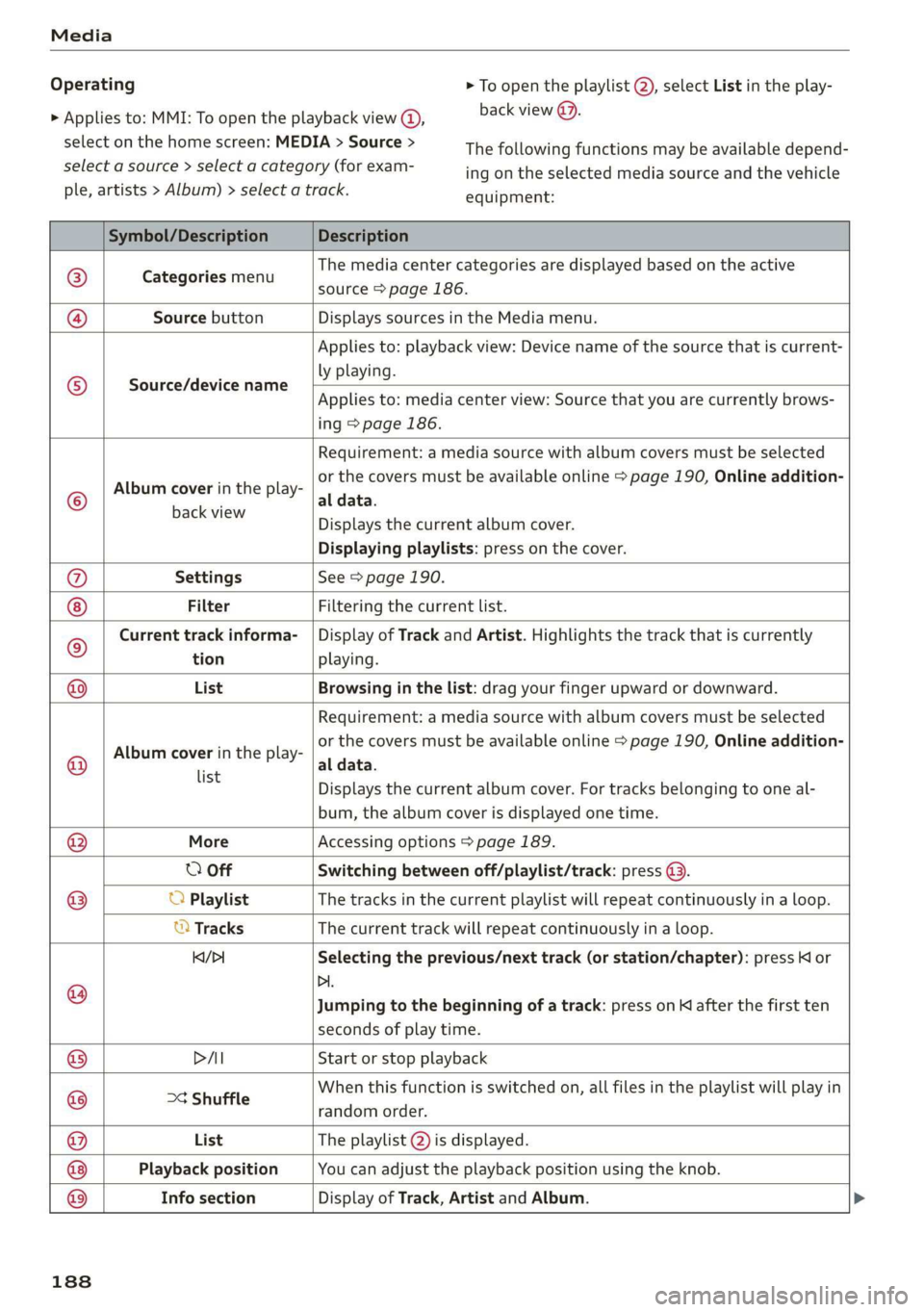
> Applies to: MMI: To open the playback view @,
select on the home screen: MEDIA > Source >
select a source > select a category (for exam-
ple, artists > Album) > select a track.
> To open the playlist @), select List in the play-
back view @.
The following functions may be available depend-
ing on the selected media source and the vehicle
equipment:
Symbol/Description Description
©) Categories menu
The media center categories are displayed based on the active
source > page 186.
@ Source button Displays sources in the Media menu.
Source/device name
Applies to: playback view: Device name of the source that is current-
ly playing.
Applies to: media center view: Source that you are currently brows-
ing > page 186.
©
Album cover in the play-
Requirement: a media source with album covers must be selected
or the covers must be available online > page 190, Online addition-
al data.
Eachvlew Displays the current album cover.
Displaying playlists: press on the cover.
@ Settings See > page 190.
Filter Filtering the current list.
© Current track informa- | Display of Track and Artist. Highlights the track that is currently
tion playing.
@ List Browsing in the list: drag your finger upward or downward.
©
Album cover in the play-
Requirement: a media source with album covers must be selected
or the covers must be available online > page 190, Online addition-
al data.
Info section
list
s Displays the current album cover. For tracks belonging to one al-
bum, the album cover is displayed one time.
® More Accessing options > page 189.
O Off Switching between off/playlist/track: press (9.
® UO Playlist The tracks in the current playlist will repeat continuously in a loop.
© Tracks The current track will repeat continuously in a loop.
KY/>1 Selecting the previous/next track (or station/chapter): press Kl or
@ Di.
Jumping to the beginning of a track: press on K after the first ten
seconds of play time.
® PAI Start or stop playback
When this function is switched on, all files in the playlist will play in
xs
© Shuffle random order.
@ List The playlist @ is displayed.
® Playback position You can adjust the playback position using the knob.
Display of Track, Artist and Album.
188
Page 204 of 280
Checking and Filling
® Note
— Remove fuel that has overflowed onto any
vehicle components immediately to reduce
the risk of damage to the vehicle.
— Never drive until the fuel tank is completely
empty. The irregular supply of fuel that re-
sults from that can cause engine misfires.
Uncombusted fuel will enter the exhaust
system and increase the risk of damage to
the catalytic converter.
@ For the sake of the environment
— Do not overfill the fuel tank, otherwise fuel
can leak out when the vehicle is warming
up.
— Fuel should never enter the sewer system or
come into contact with the ground.
@ Tips
The fuel filler door on your vehicle does not
lock if you lock the vehicle from the inside us-
ing
the central locking switch.
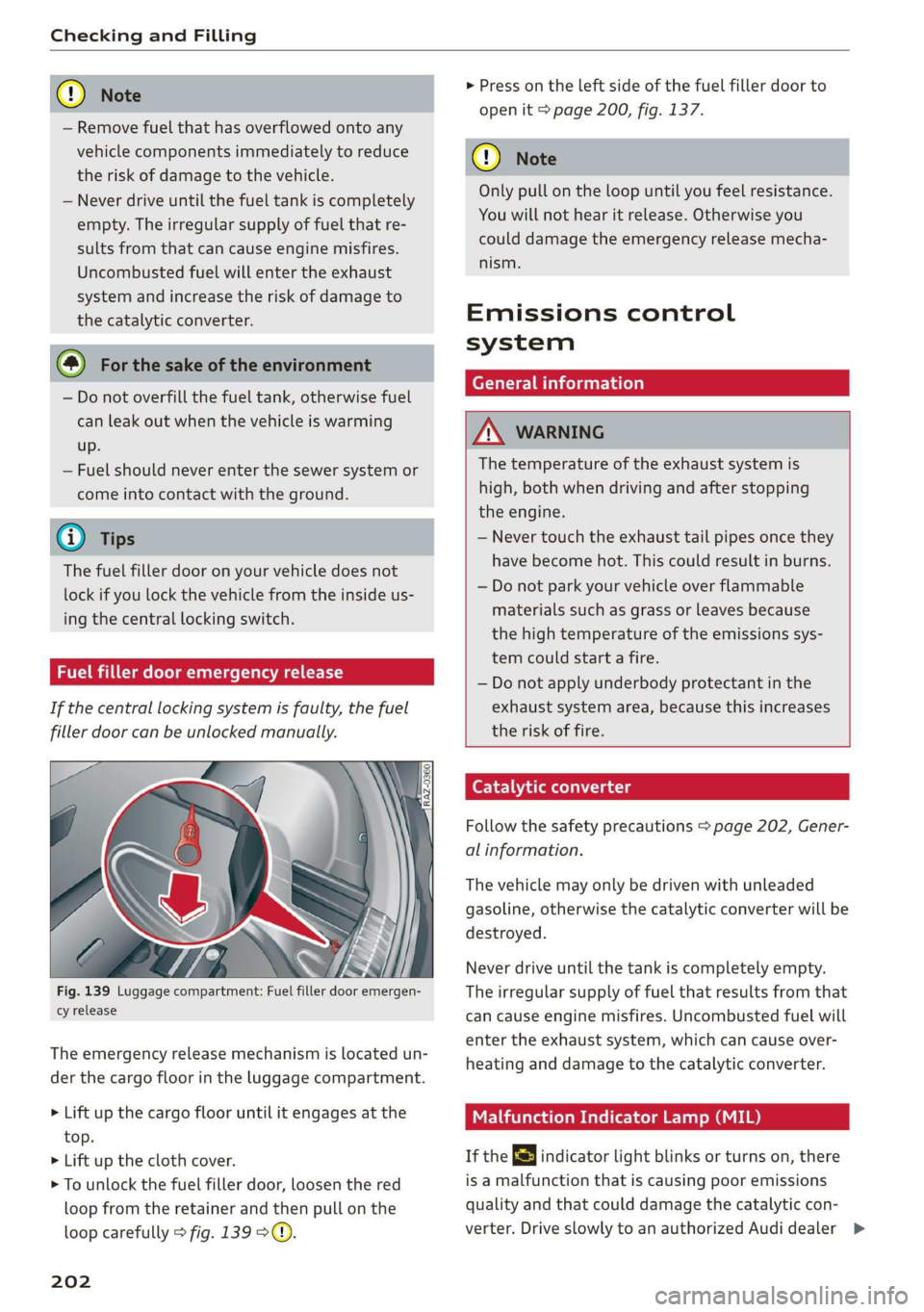
Fuel filler door emergency release
If the central locking system is faulty, the fuel
filler door can be unlocked manually.
Fig. 139 Luggage compartment: Fuel filler door emergen-
cy release
The emergency release mechanism is located un-
der the cargo floor in the luggage compartment.
> Lift up the cargo floor until it engages at the
top.
> Lift up the cloth cover.
> To unlock the fuel filler door, loosen the red
loop from the retainer and then pull on the
loop carefully > fig. 139 °@.
202
> Press on the left side of the fuel filler door to
open it > page 200, fig. 137.
@) Note
Only pull on the loop until you feel resistance.
You will not hear it release. Otherwise you
could damage the emergency release mecha-
nism.
Emissions control
system
General information
ZN WARNING
The temperature of the exhaust system is
high, both when driving and after stopping
the engine.
— Never touch the exhaust tail pipes once they
have become hot. This could result in burns.
— Do not park your vehicle over flammable
materials such as grass or leaves because
the high temperature of the emissions sys-
tem could start a fire.
— Do not apply underbody protectant in the
exhaust system area, because this increases
the risk of fire.
Catalytic converter
Follow the safety precautions > page 202, Gener-
al information.
The vehicle may only be driven with unleaded
gasoline, otherwise the catalytic converter will be
destroyed.
Never drive until the tank is completely empty.
The irregular supply of fuel that results from that
can
cause engine misfires. Uncombusted fuel will
enter the exhaust system, which can cause over-
heating and damage to the catalytic converter.
Malfunction Indicator Lamp (MIL)
If the S indicator light blinks or turns on, there
is a malfunction that is causing poor emissions
quality and that could damage the catalytic con-
verter. Drive slowly to an authorized Audi dealer >
Page 213 of 280
![AUDI Q3 2019 Owners Manual 83A012721BA
Checking and Filling
Brake fluid
BFV-0229]
Fig. 146 Engine compartment: cap on brake fluid reservoir
Follow the safety precautions > page 203, Gener-
al information.](/img/6/57626/w960_57626-212.png "AUDI Q3 2019 Owners Manual 83A012721BA
Checking and Filling
Brake fluid
BFV-0229]
Fig. 146 Engine compartment: cap on brake fluid reservoir
Follow the safety precautions > page 203, Gener-
al information.")
83A012721BA
Checking and Filling
Brake fluid
BFV-0229]
Fig. 146 Engine compartment: cap on brake fluid reservoir
Follow the safety precautions > page 203, Gener-
al information.
Checking the brake fluid level
Read the brake fluid level on the brake fluid res-
ervoir > page 205, fig. 142. The brake fluid level
must be between the MIN and MAX markings
>A.
The brake fluid level is monitored automatically.
Message
GG / @ Brakes: stop vehicle and check brake
fluid level
Stop the vehicle and check the brake fluid level.
See an authorized Audi dealer or authorized Audi
Service Facility for assistance.
Changing the brake fluid
Brake fluid should be changed at regular inter-
vals. Have the brake fluid changed by an author-
ized Audi dealer or authorized Audi Service Facili-
ty. The authorized Audi dealer or authorized Audi
Service Facility will inform you of the replace-
ment intervals.
/\ WARNING
— If the brake fluid level is below the MIN
marking, it can impair the braking effect and
driving safety, which increase the risk of an
accident. Do not continue driving. See an au-
thorized Audi dealer or authorized Audi
Service Facility for assistance.
— If the brake fluid is old, bubbles may form in
the brake system during heavy braking. This
would impair braking performance and driv-
ing safety, which increases the risk of an ac-
cident.
— The brake fluid in your vehicle must meet
the standard VW 501 14 and is available at
an authorized Audi dealer or authorized Au-
di Service Facility. If this brake fluid is not
available, another high-grade brake fluid of
equivalent quality may be used, and it must
meet the U.S. Federal Motor Vehicle Stand-
ard (FMVSS) 116 DOT 4, Class 6.
@) Note
— If the brake fluid level is above the MAX
marking, brake fluid may leak out over the
edge of the reservoir and result in damage
to the vehicle.
— Do not get any brake fluid on the vehicle
paint, because it will corrode the paint.
Electrical system
If the z= or fl indicator light turns on, there is a
malfunction in the generator, the battery, or the
vehicle electrical system.
[i Electrical system: malfunction! Safely stop
vehicle
Do not continue driving and switch the engine off
=
A\. See an authorized Audi dealer or authorized
Audi Service Facility for assistance.
= Electrical system: malfunction! Restart not
possible. Please contact Service
It will not be possible to restart the engine once
you turn it off. Vehicle functions/driving stability
may be limited. Drive to an authorized Audi deal-
er or authorized Audi Service Facility immediate-
ly.
=} Electrical system: malfunction! Please con-
tact Service
Switch off all electrical equipment that is not
needed. Vehicle functions/driving stability may
be limited. Drive to an authorized Audi dealer or
authorized Audi Service Facility immediately.
= Electrical system: low battery charge. Bat-
tery
will be charged while driving
211
>
Page 214 of 280
Checking and Filling
The starting ability may be impaired.
If this message turns off after a little while, the
vehicle battery charged enough while driving.
If this message does not turn off, drive immedi-
ately to an authorized Audi dealer or authorized
Audi Service Facility.
ZA WARNING
When there is an electrical system malfunc-
tion, vehicle functions may not work and driv-
ing stability may be limited, which increases
the risk of an accident. Stop driving and
switch the engine off. See an authorized Audi
dealer or authorized Audi Service Facility for
assistance.
Battery
rae Le cel)
Because of the complex power supply, all work on
batteries such as disconnecting, replacing, etc.,
should only be performed by an authorized Audi
dealer or authorized Audi Service Facility > A.
Multiple batteries with different technologies
may be installed in your vehicle:
— Vehicle battery (for example, for starting the
engine, basic power supply) > page 213, Lead
battery or > page 213, Other battery types
— Auxiliary battery (for example, for recuperation
or optional equipment) > page 213, Other bat-
tery types
Not running the vehicle for long periods of
time
The battery will gradually drain if the vehicle
does not run for long periods of time. To ensure
that the vehicle can still be started, the electrical
equipment will be reduced or switched off
= page 87. Some convenience functions, such as
interior lighting or power seat adjustment, may
not be available under certain circumstances.
These convenience functions will be available
again once you switch the ignition on and start
the
engine.
Even when electrical equipment is switched off,
the equipment can still drain the battery if the
212
vehicle is not driven for long periods of time.
Deep draining results in a chemical reaction that
destroys the inside of the battery. The battery
must be charged every month to prevent this
= page 213. Contact an authorized Audi dealer or
authorized Audi Service Facility for more infor-
mation.
Winter operation
Cold weather places higher demands on the bat-
tery. This results in reduced starting ability. Have
the battery checked by an authorized Audi dealer
or authorized Audi Service Facility before cold
weather begins.
ZA\ WARNING
All work on the battery or electrical system in
your vehicle can result in injuries, chemical
burns, accidents, or burns. Because of this, all
work must be performed only by an author-
ized Audi dealer or authorized Audi Service Fa-
cility.
ZA WARNING
California Proposition 65 Warning:
— Battery posts, terminals and related acces-
sories contain lead and lead compounds,
chemicals known to the State of California
to cause cancer and reproductive harms.
Wash hands after handling.
C) Note
— If the vehicle will be parked for long periods
of time, protect the battery against the cold
so that it will not be destroyed by “freezing”
= page 213, Charging the battery.
— There are electrical components under the
cargo floor behind a trim panel that warm
up during operation. To reduce the risk of
the components overheating, do not store
objects such as blankets under the cargo
floor. If the components overheat, they will
switch off temporarily. This will be indicated
by a message that will be displayed in the
instrument cluster until the temperature re-
turns to normal.