lock AUDI Q3 2019 Service Manual
[x] Cancel search | Manufacturer: AUDI, Model Year: 2019, Model line: Q3, Model: AUDI Q3 2019Pages: 280, PDF Size: 72.73 MB
Page 93 of 280
83A012721BA
Driving
> To start driving and release the parking brake
automatically, press the accelerator pedal as
usual.
In addition to releasing the parking brake auto-
matically, other convenience and safety functions
are available when you start driving > page 92,
Hold assist.
Preventing the automatic parking brake
release
The vehicle could begin rolling unintentionally,
depending on the hill or if towing a trailer.
> To prevent the parking brake from releasing au-
tomatically, pull and hold the switch and
press the accelerator pedal. The parking brake
remains set and prevents the vehicle from roll-
ing backward.
> You can release the ©) switch again once you
are sure that you are giving enough driving
force
to the wheels by pressing the accelerator
pedal.
Emergency braking function
You can use the emergency braking function in an
emergency situation, or if the standard brake op-
eration malfunctions or is disabled.
> Pull and hold the ©) switch.
> As soon as you release the ©) switch or acceler-
ate, the braking will stop.
Pulling and holding the ©) switch while driving
the vehicle activates the emergency braking func-
tion. The vehicle is braked at all four wheels by
activating the hydraulic brake system. The brak-
ing effect is similar to heavy braking > A\.
To reduce the risk of activating the emergency
braking by mistake, a warning tone (buzzer)
sounds when the ©) switch is pulled. Emergency
braking stops as soon as the ©) switch is released
or the accelerator pedal is pressed.
Parking
> Press the brake pedal to stop the vehicle.
> Pull the ©) switch to set the parking brake.
> Select “P”.
> Turn the engine off > A\.
> Turn the steering wheel when parking on in-
clines so that the wheels will roll into the curb
if the vehicle starts moving.
ZA\ WARNING
— Do not press the accelerator pedal inadver-
tently if a gear is selected when the vehicle
is stationary and the engine is running. Oth-
erwise, the vehicle will start to move imme-
diately and this could result in an accident.
— Emergency braking should only be used in
an emergency, when the normal brake pedal
has failed or the brake pedal is obstructed.
During emergency braking, your vehicle will
brake similar to heavy braking. ESC and the
associated components (ABS, ASR, EDL) can-
not overcome the laws of physics. Around
curves and when road or weather conditions
are bad, a full brake application can cause
the vehicle to skid or the rear end to swerve,
which increases the risk of an accident.
— Always set the parking brake when leaving
your vehicle, even if for a short period of
time. If the parking brake is not set, the ve-
hicle could roll away, increasing the risk of
an accident.
— If the power supply fails, you cannot set the
parking brake if it is released. In this case,
park the vehicle on level ground and secure
it by engaging the "P” gear. Contact an au-
thorized Audi dealer or authorized Audi
Service Facility for assistance.
— If you leave the vehicle, switch the ignition
off and take the key with you. This applies
particularly when children remain in the ve-
hicle. Otherwise, children could start the ve-
hicle, release the parking brake, or operate
electrical equipment such as power win-
dows, which increases the risk of an acci-
dent.
— No one, especially children, should remain in
the vehicle when it is locked. Locked doors
make it more difficult for emergency work-
ers to get into the vehicle, which puts lives
at risk.
91
Page 99 of 280
83A012721BA
Driving dynamic
the driving situation. The settings depend on the
selected Audi drive select* mode.
Ground clearance
The vehicle height and clearance can be influ-
enced by the following factors:
— Change in temperature
— Change in load
AN WARNING
To reduce the risk of injury, make sure no one
gets pinched when the vehicle level is chang-
ing, for example when cleaning the under-
body or the wheel housings.
() Note
Always make sure there is enough clearance
above and below the vehicle. This is especially
important for entrances with height restric-
tions, for example, before driving into under-
ground garages. You could also scrape the
ground when driving over the edges of curbs
or on steep ramps, which could damage your
vehicle.
Werle
Hi Suspension: malfunction! You can continue
driving
There is a malfunction. See an authorized Audi
dealer or authorized Audi Service Facility for as-
sistance.
Steering
Electromechanical steering supports the driver's
steering movements by electronically adapting
the power steering depending on the vehicle
speed. The settings depend on the selected Audi
drive select* mode.
Progressive steering
Applies to: vehicles with progressive steering
The driving dynamic and driving stability are in-
creased by the steering ratio based on the steer-
ing wheel angle. The steering is very direct when
the steering wheel angle is sharp, and indirect
when the angle is low. This enables comfortable
maneuvering and a precise steering response at
higher driving speeds.
Messages
a Steering: malfunction! Please stop vehicle
The power steering may have failed. Adapt your
driving style immediately to compensate for the
fact that it may be more difficult to turn the
steering wheel, and stop your vehicle in a safe lo-
cation as soon as possible. Do not continue driv-
ing. See an authorized Audi dealer or authorized
Audi Service Facility for assistance.
|e—e| Steering: malfunction! Please stop vehicle
There is a malfunction in the electronic steering
lock. You cannot turn the ignition on. Do not tow
your vehicle because it cannot be steered. See an
authorized Audi dealer or authorized Audi Service
Facility for assistance.
a Steering: malfunction! You can continue
driving
There is a malfunction. Steering may be more dif-
ficult or more sensitive. Adapt your driving style.
Have the steering system checked immediately
by an authorized Audi dealer or authorized Audi
Service Facility. Please note that the red indicator
light may turn on after restarting the engine. Do
not continue driving if it does.
|a—e] Steering lock: malfunction! Please contact
Service
There is a malfunction in the electronic steering
lock. Drive immediately to an authorized Audi
dealer or authorized Audi Service Facility to have
the malfunction repaired.
ZA WARNING
Do not tow your vehicle if there is a malfunc-
tion in the electronic steering lock because
this increases the risk of an accident. >
97
Page 100 of 280
Driving dynamic
@ Tips
If the & or Al indicator light only stays on
for a short time, you may continue driving.
All wheel drive (quattro)
Applies to: vehicles with all wheel drive
The all-wheel drive system distributes the driving
power variably to the front and rear axle to im-
prove the driving characteristics. It works togeth-
er with selective wheel torque control, which can
activate when driving through curves
=> page 99.
The all-wheel drive system is designed for high
engine power. Your vehicle is exceptionally pow-
erful and has excellent driving characteristics
both under normal driving conditions and on
snow and ice. Always read and follow safety pre-
cautions > A\.
ZA WARNING
— Even in vehicles with all wheel drive, you
should adapt your driving style to the cur-
rent road and traffic conditions to reduce
the risk of an accident.
— The braking ability of your vehicle is limited
to the traction of the wheels. In this way, it
is not different from a two wheel drive vehi-
cle. Do not drive too fast because this in-
creases the risk of an accident.
— Note that on wet streets, the front wheels
can “hydroplane” if driving at speeds that
are too high. Unlike front wheel drive vehi-
cles, the engine does not rev higher sudden-
ly when the vehicle begins hydroplaning. For
this reason, adapt your speed to the road
conditions to reduce the risk of an accident.
Messages
i All-wheel drive: malfunction! You can con-
tinue driving. Please contact Service
Drive immediately to an authorized Audi dealer
or authorized Audi Service Facility to have the
malfunction repaired.
98
73} All-wheel drive: too hot. Please adapt driv-
ing style. See owner's manual
The transmission temperature has increased sig-
nificantly due to the sporty driving manner. Drive
in a less sporty manner until the temperature re-
turns to the normal range and the indicator light
switches of.
Electronic Stabilization
Control
Electronic Stabilization Control (ESC) supports
driver safety. It reduces the risk of slipping and
improves driving stability. ESC detects critical sit-
uations, such as if the vehicle is oversteering or
understeering, or if the wheels are spinning. The
vehicle is stabilized by applying the brakes or re-
ducing engine torque.
If the Eq indicator light blinks while driving, the
ESC is actively regulating.
If the B indicator light turns on, the system has
switched the ESC off. In this case, you can switch
the ignition off and then on to switch the ESC on
again. The indicator light turns off when the sys-
tem is functioning fully.
If the B indicator light turns on, ESC was limit-
ed or switched off manually > page 99.
The following systems are integrated in the ESC:
Anti-lock braking system (ABS)
ABS prevents the wheels from locking when brak-
ing. The vehicle can still be steered even during
hard braking. Apply steady pressure to the brake
pedal. Do not pump the pedal. A pulsing in the
brake pedal indicates that the system is acting to
stabilize the vehicle.
Brake assist
The brake assist system can decrease braking dis-
tance. It increases braking power when the driver
presses the brake pedal quickly in emergency sit-
uations. You must press and hold the brake pedal
until the dangerous situation is over. Depending
on the activated driver assistance systems, the >
Page 101 of 280
83A012721BA
Driving dynamic
brake assist system may react with increased sen-
sitivity.
Anti-Slip Regulation (ASR)
ASR reduces drive power when the drive wheels
begin spinning and adapts the power to the road
conditions. This makes it easier to start, acceler-
ate and drive up hills.
Electronic Differential Lock (EDL)
The EDL applies the brakes to wheels that are
slipping and transfers the drive power to the oth-
er wheels. This function is not available at higher
speeds.
In extreme cases, EDL automatically switches off
to keep the brake on the braked wheel from over-
heating. The vehicle is still working correctly. EDL
will switch on again automatically when condi-
tions have returned to normal.
Power steering
The ESC can also support vehicle stability
through steering.
Selective wheel torque control
Selective wheel torque control is used when driv-
ing on curves. Braking is targeted toward the
wheels on the inside of the curve as needed. This
allows more precise driving in curves.
Automatic post-collision braking system
The automatic post-collision braking system can
help to reduce the risk of sliding and of addition-
al collisions after an accident. If the airbag con-
trol module detects a collision, the vehicle is
braked by the ESC.
The vehicle does not brake automatically if:
— The driver presses the accelerator pedal, or
— the braking force generated by the pressed
brake pedal is greater than the braking force
that
would be initiated by the system, or
— the ESC, the brake system or the vehicle electri-
cal system are not functioning.
physical laws. This is especially important on
slippery or wet roads. If the systems begin
acting to stabilize your vehicle, you should
immediately alter your speed to match the
road and traffic conditions. Do not let the in-
creased safety provided tempt you into tak-
ing risks. This could increase your risk of a
collision.
— Please note the risk of a collision increases
when driving fast, especially through curves
and on slippery or wet roads, and when driv-
ing too close to objects ahead. The ESC and
its integrated systems cannot always pre-
vent collisions - there is still a risk of acci-
dents!
— Accelerate carefully when driving on
smooth, slippery surfaces such as ice and
snow. The drive wheels can spin even when
these control systems are installed and this
can affect driving stability and increase the
ZA WARNING
— The ESC and its integrated systems cannot
overcome the limits imposed by natural
risk of a collision.
G) Tips
— The ABS and ASR only function correctly
when all four wheels have a similar wear
condition. Different tire sizes can lead to a
reduction in engine power.
— You may hear noises when the systems de-
scribed are working.
The So button is located above the selector lev-
er in the center console.
The ESC is automatically switched on when the
ignition is switched on. It may make sense in
some situations to limit the ESC so that the
wheels can spin:
— Rocking the vehicle to free it when it is stuck
— Driving in deep snow, on unpaved ground, or
with snow chains
— Driving downhill while braking on loose ground
— Driving with axle articulation
Limiting ESC (Offroad mode)
—To limit the ESD, press the £20 button briefly.
The B indicator light turns on.
99
>
Page 105 of 280
83A012721BA
Trailer towing
As the speed increases, the driving stability of
the trailer decreases. Therefore you should not
exceed the maximum legal speed limit when
there are unfavorable road, weather and/or wind
conditions. This especially applies when driving
downhill.
Hill
When transitioning to hills, trailers may tilt or
sway sooner than when driving on a level surface.
If small swaying movements have already occur-
red, you can stabilize the trailer by firmly braking
immediately. Never try to “straighten out” the
trailer by accelerating.
Downshift before driving on hills to utilize the en-
gine braking effect > A\.
Brakes
When using a trailer with overrun brakes, first
brake gently then quickly. This reduces the risk of
jerking while braking if the trailer wheels lock up.
Engine coolant temperature
Pay attention specifically to the coolant tempera-
ture display when there are high outside temper-
atures, and when driving on long inclines
=> page 13. Shift to a higher gear in a timely man-
ner.
ZA WARNING
Constant braking causes the brakes to over-
heat and substantially reduces braking per-
formance, increases braking distance or caus-
es complete failure of the brake system.
103
Page 113 of 280
83A012721BA
Driver assistance
Changing the cruise control speed
Applies to: vehicles with cruise control system
> To increase or decrease the cruise control speed
in increments, tap the lever toward @)/G)
=> page 110, fig. 91.
> To increase or decrease the cruise control speed
continuously, press and hold the lever to-
ward @/().
Overriding or deactivating the cruise
control speed
Applies to: vehicles with cruise control system
You can override or deactivate the cruise control
system. When you deactivate the system, your
cruise control speed will be stored and you can
resume that speed.
Requirement: the system must be switched on
and activated.
Overriding
> To temporarily override the cruise control
speed, press the accelerator pedal.
> Once you release the accelerator pedal, the sys-
tem will adjust back to the stored cruise control
speed.
If you override the cruise control system for a
long period of time, the cruise control system
will be deactivated. The indicator light will be
displayed and the cruise control speed will be
saved.
Deactivating
> To deactivate the cruise control speed, press
the lever toward (2) (not locked into place)
=> page 110, fig. 91.
> Press the brake pedal.
ZA\ WARNING
Resting your foot on the accelerator pedal
could override the cruise control. This will pre-
vent braking interventions by the system.
Seem Leal
Applies to: vehicles with cruise control system
When you switch the system off completely, the
cruise control speed will be deleted.
Requirement: the system must be switched on.
> To switch the system off, press the lever toward
@ (locked into place) > page 110, fig. 91, or
> Switch the ignition off.
Applies to: vehicles with cruise control system
Gk / 3) Speed control system: currently un-
available. See owner's manual
If the indicator light turns on and this message
appears, the cruise control system has been deac-
tivated. There is a temporary malfunction, for ex-
ample the brakes are overheating. Switch the
cruise control system on again later.
Adaptive speed/cruise
assist
General information
Applies to: vehicles with adaptive cruise assist
Depending on the vehicle equipment, the adap-
tive cruise assist may consist of the following
functions:
The adaptive speed/cruise assist (called only
adaptive cruise assist in the vehicle display and in
the rest of the Owner's Manual) consists of a
speed and distance control system. It assists the
driver by both regulating the speed and main-
taining the set distance to the vehicle driving
ahead, within the limits of the system. If the sys-
tem detects a vehicle driving ahead, the adaptive
cruise assist can brake and accelerate your vehi-
cle within the limits of the system. On open roads
with no traffic, it functions like a cruise control
system. The stored speed is maintained. When
approaching a vehicle driving ahead, the adaptive
cruise assist automatically brakes to match that
vehicle's speed and then maintains the set dis-
tance as much as possible. As soon as the system
does not detect a vehicle driving ahead, adaptive
cruise assist accelerates up to the set speed.
111
Page 133 of 280
83A012721BA
Parking and maneuvering
or a door or the luggage compartment lid may
have been opened.
If # is displayed, there is a system malfunction
and the display area represented by that symbol
is not available. The camera is not working in this
area.
If one of the symbols continues to be displayed,
drive immediately to an authorized Audi dealer or
authorized Audi Service Facility to have the mal-
function repaired.
IX WARNING
— Follow the safety precautions and note the
limits of the assist systems, sensors, and
cameras > page 104.
— Sensors and cameras have spots in which
the surrounding area cannot be detected.
Objects, animals, and people may only be
detected with limitations may not be detect-
ed at all. Always monitor the traffic and the
vehicle's surroundings directly and do not
become distracted.
@) Note
— The orange orientation lines @ show the di-
rection the rear of the vehicle will be travel-
ing, based on the steering wheel angle. The
front of the vehicle swings out more than
the rear of the vehicle. Maintain plenty of
distance so that an exterior mirror or a cor-
ner of the vehicle does not collide with any
obstacles.
— Keep enough distance from the curb to
avoid damage to the rims.
— Only use the images provided by the camera
on the rear of the vehicle when the luggage
compartment lid is completely closed. Make
sure any objects you may have mounted on
the luggage compartment lid do not block
the rearview camera.
@) Tips
There is no distance warning for the rear and
the sides* when trailer towing mode is detect-
ed. The front sensors remain activated. The
visual display switches to trailer mode. The
rearview camera image will not show the ori-
entation lines and the blue surfaces. There is
no guarantee the functions will switch off
when using a retrofitted trailer hitch.
CO) eee mat eel ee
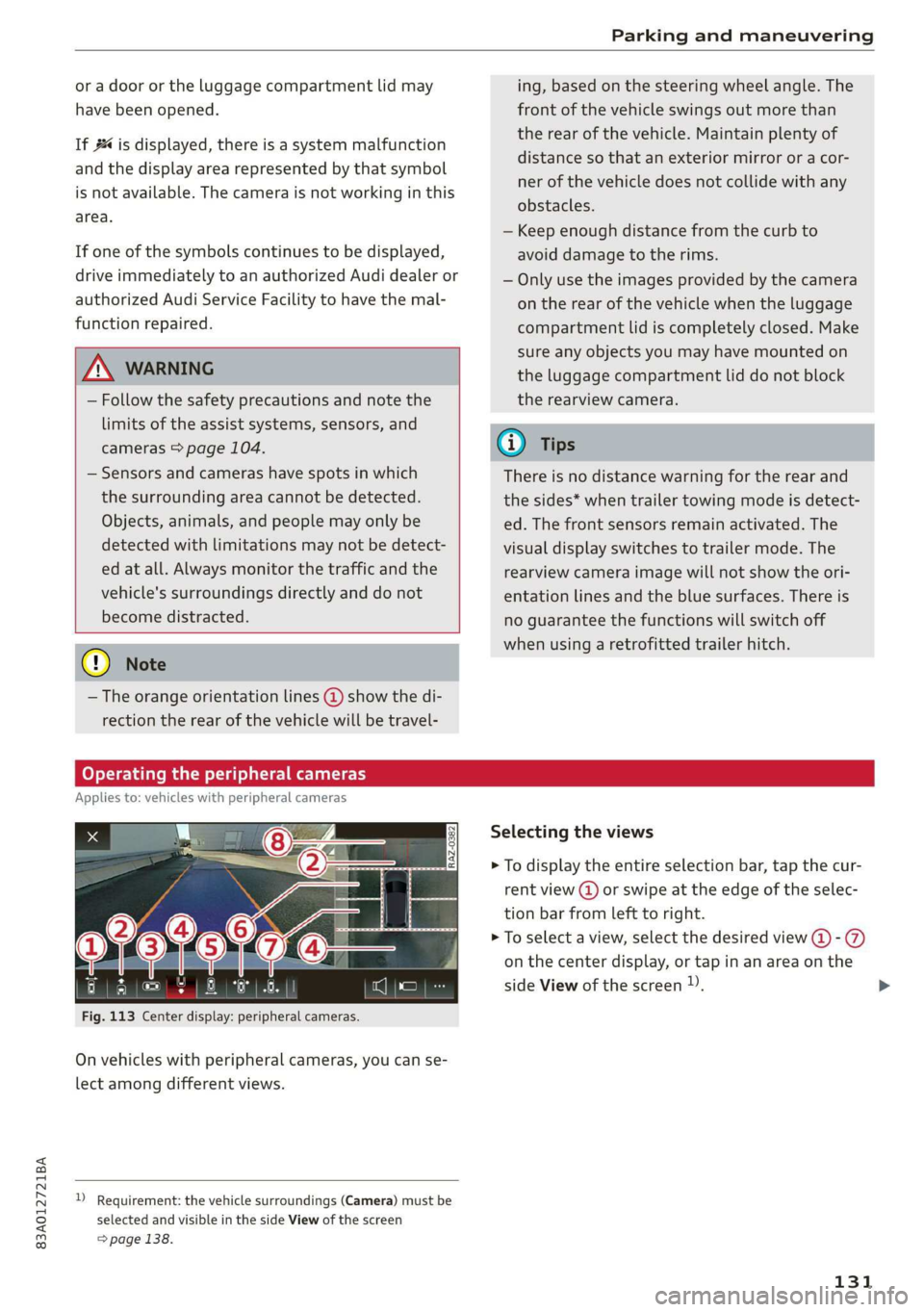
Applies to: vehicles with peripheral cameras
Fig. 113 Center display: peripheral cameras.
On vehicles with peripheral cameras, you can se-
lect among different views.
) Requirement: the vehicle surroundings (Camera) must be
selected and visible in the side View of the screen
=> page 138.
Selecting the views
> To display the entire selection bar, tap the cur-
rent view (@) or swipe at the edge of the selec-
tion bar from left to right.
> To select a view, select the desired view @-@
on the center display, or tap in an area on the
side View of the screen )).
131
Page 134 of 280
Parking and maneuvering
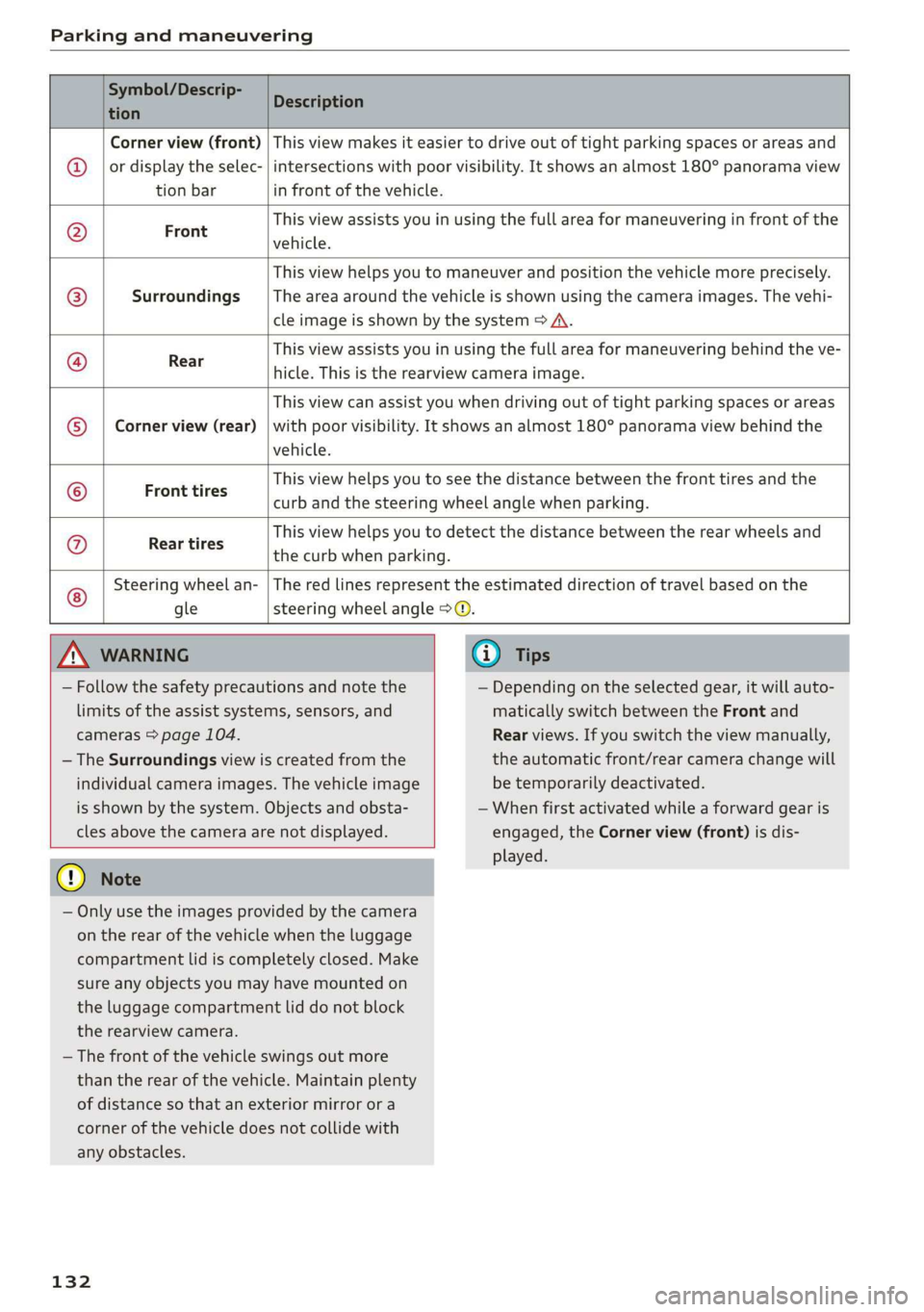
Symbol/Descrip-
tion
Description
Corner view (front)
or display the selec-
tion bar
This view makes it easier to drive out of tight parking spaces or areas and
intersections with poor visibility. It shows an almost 180° panorama view
in front of the vehicle.
Front
This view assists you in using the full area for maneuvering in front of the
vehicle.
Surroundings
This view helps you to maneuver and position the vehicle more precisely.
The area around the vehicle is shown using the camera images. The vehi-
cle image is shown by the system > A\.
Rear
This view assists you in using the full area for maneuvering behind the ve-
hicle. This is the rearview camera image.
Corner view (rear)
This view can assist you when driving out of tight parking spaces or areas
with poor visibility. It shows an almost 180° panorama view behind the
vehicle.
Front tires
This view helps you to see the distance between the front tires and the
curb and the steering wheel angle when parking.
G/@}
©
|O|}
©
|@]}]
©
Rear tires
This view helps you to detect the distance between the rear wheels and
the curb when parking.
Steering wheel an-
gle
The red lines represent the estimated direction of travel based on the
steering wheel angle >@.
Z\ WARNING
— Follow the safety precautions and note the
limits of the assist systems, sensors, and
cameras > page 104.
— The Surroundings view is created from the
individual camera images. The vehicle image
is shown by the system. Objects and obsta-
cles above the camera are not displayed.
@) Note
— Only use the images provided by the camera
on the rear of the vehicle when the luggage
compartment lid is completely closed. Make
sure any objects you may have mounted on
the luggage compartment lid do not block
the rearview camera.
— The front of the vehicle swings out more
than the rear of the vehicle. Maintain plenty
of distance so that an exterior mirror or a
corner of the vehicle does not collide with
any obstacles.
132
G) Tips
— Depending on the selected gear, it will auto-
matically switch between the Front and
Rear views. If you switch the view manually,
the automatic front/rear camera change will
be temporarily deactivated.
— When first activated while a forward gear is
engaged, the Corner view (front) is dis-
played.
Page 137 of 280
83A012721BA
Parking and maneuvering
Parking space search
Applies to: vehicles with park assist
zt + oS gz
3 & oO
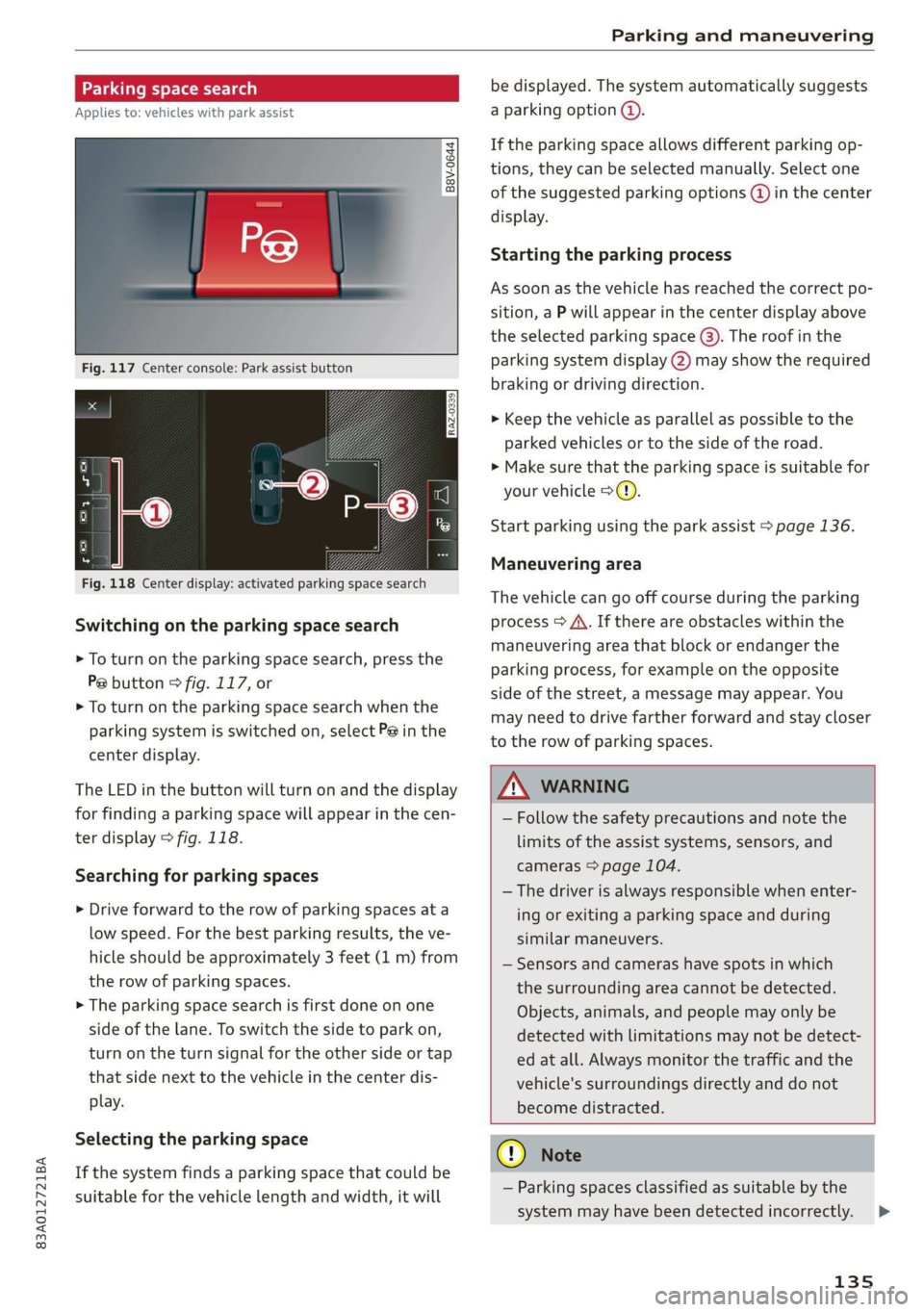
Fig. 117 Center console: Park assist button
RAZ-0339
a3
Fig. 118 Center display: activated parking space search
Switching on the parking space search
> To turn on the parking space search, press the
Pe button © fig. 117, or
> To turn on the parking space search when the
parking system is switched on, select P@ in the
center display.
The LED in the button will turn on and the display
for finding a parking space will appear in the cen-
ter display > fig. 118.
Searching for parking spaces
> Drive forward to the row of parking spaces ata
low speed. For the best parking results, the ve-
hicle should be approximately 3 feet (1 m) from
the row of parking spaces.
> The parking space search is first done on one
side of the lane. To switch the side to park on,
turn on the turn signal for the other side or tap
that side next to the vehicle in the center dis-
play.
Selecting the parking space
If the system finds a parking space that could be
suitable for the vehicle length and width, it will
be displayed. The system automatically suggests
a parking option @.
If the parking space allows different parking op-
tions, they can be selected manually. Select one
of the suggested parking options (@) in the center
display.
Starting the parking process
As soon as the vehicle has reached the correct po-
sition, a P will appear in the center display above
the selected parking space @). The roof in the
parking system display (2) may show the required
braking or driving direction.
> Keep the vehicle as parallel as possible to the
parked vehicles or to the side of the road.
>» Make sure that the parking space is suitable for
your vehicle >@).
Start parking using the park assist > page 136.
Maneuvering area
The vehicle can go off course during the parking
process > A\. If there are obstacles within the
maneuvering area that block or endanger the
parking process, for example on the opposite
side of the street, a message may appear. You
may need to drive farther forward and stay closer
to the row of parking spaces.
A WARNING
— Follow the safety precautions and note the
limits of the assist systems, sensors, and
cameras > page 104.
— The driver is always responsible when enter-
ing or exiting a parking space and during
similar maneuvers.
— Sensors and cameras have spots in which
the surrounding area cannot be detected.
Objects, animals, and people may only be
detected with limitations may not be detect-
ed at all. Always monitor the traffic and the
vehicle's surroundings directly and do not
become distracted.
CG) Note
— Parking spaces classified as suitable by the
system may have been detected incorrectly.
135
Page 142 of 280
Telephone
Setup
Connecting a mobile device to the MMI
Applies to: vehicles with telephone
Requirement
The vehicle must be stationary and the ignition
must be switched on.
The Bluetooth settings must be open on your
mobile device during the connection setup.
The Bluetooth function and visibility of the MMI
= page 197 and mobile device must be switched
on.
The mobile device that will be connected must
not be connected to any other Bluetooth device.
The MMI must only be connected to one mobile
device.
Connecting a cell phone using Bluetooth
» Applies to: MMI: Select on the home screen:
PHONE
> Follow the system instructions. The available
Bluetooth devices will be displayed after sever-
al seconds.
>» Press on the desired mobile device in the list of
displayed Bluetooth devices.
> To update the list, press O.
> A PIN for a secure Bluetooth connection will be
generated.
> Confirm the PIN on your mobile device, or
> Enter the PIN for connecting on your cell
phone. The time allowed for entering the PIN is
limited to approximately 30 seconds.
> If necessary, enter your SIM card PIN in the
MMI.
Connecting a mobile device via USB
> Applies to: MMI: Select on the home screen:
PHONE
> Follow the system instructions.
After connecting successfully
After connecting successfully, information about
the connected profiles will appear. You can also
change the profiles later > page 197.
In addition, the mobile device contacts will be
automatically loaded into the MMI. This process
140
can take several minutes, depending on the num-
ber of contacts.
@) Note
Always follow the information found in
=> page 154.
G) Tips
— You can apply additional settings to con-
nected mobile devices under Connected de-
vices > page 196.
— You can also search for the MMI on your mo-
bile device using the Bluetooth device
search.
— You only have to pair your device one time.
Bluetooth devices that are already paired
automatically connect to the MMI when the
Bluetooth function is switched on, when
they are within range, and when the ignition
is switched on. The last connected mobile
device is given first priority.
— Authorizing the MMI connection on your
mobile device will make it possible to con-
nect automatically.
— Pay attention to any system prompts dis-
played on your mobile device or the MMI,
for example if the system should connect
automatically in the future. Depending on
the mobile device, you may also need to
download contacts and confirm access to
your messages separately.
— You will receive the PIN (SIM) and the PUK
(Personal Unlocking Key) along with the SIM
card from your cell phone service provider.
If you enter a PIN (SIM) incorrectly multiple
times in a row, the SIM card will be locked
and must be unlocked by entering the PUK.
— When leaving the vehicle, the Bluetooth
connection to the mobile device will auto-
matically disconnect. Depending on your
mobile device, phone calls in progress may
be automatically redirected from the MMI
to your mobile device so that you can con-
tinue the call on your phone.
— You can obtain more information from your
mobile device service provider or from your
mobile device user guide. For information
on using the telephone, visit www.audiusa. >