ESP AUDI Q3 2019 Workshop Manual
[x] Cancel search | Manufacturer: AUDI, Model Year: 2019, Model line: Q3, Model: AUDI Q3 2019Pages: 280, PDF Size: 72.73 MB
Page 124 of 280
Driver assistance
@ Tips
— Depending on the dangerous situation that
is detected and the selected Audi drive se-
lect* mode, all preemptive safety measures
may not be initiated under certain circum-
stances. Certain functions can be adjusted
or skipped if necessary.
— Audi pre sense may also be limited or un-
available under certain circumstances, for
example if:
— There are passengers with unfastened
safety belts
— It has only been several seconds since the
ignition was switched on The
light turns on)2),
— When driving in reverse
— The front passenger's airbag is switched
off
— There is an airbag control module mal-
function
— The ESC is limited, switched off, or mal-
functioning > page 99
Oe eee
Applies to: vehicles with Audi pre sense basic
Audi pre sense basic is automatically active at
speeds of approximately 20 mph (30 km/h) and
higher. Audi pre sense basic can trigger the Audi
pre sense preemptive safety measures during
emergency braking and dangerous braking ma-
neuvers as well as in unstable driving situations,
such as oversteering or understeering.
Z\ WARNING
Follow the safety precautions and note the
limits of the assist systems, sensors, and
cameras > page 104.
D System availability may be limited depending on the mar-
ket.
2) In preparation at the time of printing.
3) This is not available in some countries.
122
Audi pre sense front
Applies to: vehicles with Audi pre sense front
The Audi pre sense front system uses the data
from the radar sensors and calculates the proba-
bility of a rear-end collision. Within the limits of
the system, an impending collision with the front
of the vehicle can be detected in both urban and
rural speed ranges.
Audi pre sense front is active at speeds of approx-
imately 3 mph (5 km/h) and higher. The system
can respond to pedestrians crossing the street or
going in the same direction of travel 3) at speeds
up to 40 mph (65 km/h). It can also respond to
stationary vehicles at speeds up to 52 mph (85
km/h) as well as to vehicles driving ahead or
stopped vehicles at speeds up to 155 mph (250
km/h).
Early warning/acute warning
The system can recognize various dangerous sit-
uations. The early warning occurs if:
—Avehicle driving ahead brakes suddenly
— Your vehicle is traveling at speeds between ap-
proximately 20 to 50 mph (30 to 85 km/h) and
it approaches a stationary vehicle.
— Your vehicle is traveling at speeds between ap-
proximately 20 to 155 mph (30 to 250 km/h)
and it approaches a vehicle that is clearly trav-
eling more slowly or a vehicle in your direction
of travel that is stopped.
— Ifa crossing pedestrian?) moves into the lane
and you are driving at speeds between approxi-
mately 18 to 40 mph (30 to 65 km/h).
— If a pedestrian is moving in your direction of
travel and in your lane 2) and you are driving at
speeds between approximately 18 to 40 mph
(30 to 65 km/h).
The message Audi pre sense o and a warning
tone will warn you about the danger.
If there is an impending collision with vehicles,
there may also be an acute warning inthe form >
Page 125 of 280
83A012721BA
Driver assistance
of sharp braking. You will also be warned by an
indicator in the instrument cluster display. When
this warning occurs, it may only be possible to
avoid a collision by swerving or braking strongly.
Automatic deceleration
If you do not react to the acute warning, Audi pre
sense front can brake the vehicle to a full stop
within the limits of the system. This reduces the
vehicle speed in the event of a collision.
Automatic braking force increase
If Audi pre sense determines that you are not
braking strongly enough when a collision is immi-
nent, it can increase the braking force based on
the situation.
Take-over
If the message oa Please take over! appears, the
vehicle has been braked to a stop by Audi pre
sense and you must resume control of the vehi-
cle.
Z\ WARNING
— Follow the safety precautions and note the
limits of the assist systems, sensors, and
cameras > page 104.
— Audi pre sense front cannot overcome natu-
ral physical laws. It is a system designed to
assist and it cannot prevent a collision in ev-
ery circumstance. The driver must always in-
tervene. The driver is always responsible for
braking at the correct time. Do not let the
increased safety provided tempt you into
taking risks. This could increase your risk of
a collision.
— Among other things, Audi pre sense front
does not react to pedestrians who are sta-
tionary, stopped, oncoming, and crossing at
an angle. It also does not react to cyclists,
groups of people, animals, crossing vehicles,
or oncoming vehicles and objects, such as
posts, guardrails, and railway vehicles.
— Audi pre sense front may be limited or un-
available when driving in curves.
D_ In certain countries
— Loose objects can be thrown around the ve-
hicle interior during sudden driving or brak-
ing maneuvers, which increases the risk of
an accident. Store objects securely while
driving.
—In trailer mode, the braking behavior of the
trailer can be different than usual during au-
tomatic braking.
G) Tips
— If you switch off the ESC, Audi pre sense al-
so switches off automatically > page 99.
— Certain Audi pre sense front functions are
unavailable or have limited availability for
approximately 20 seconds after starting the
vehicle (may be longer depending on the
driving situation).
Adjusting Audi pre sense
Applies to: vehicles with Audi pre sense
You can adjust the Audi pre sense functions to
your preferences. The settings depend on the ve-
hicle equipment.
> Applies to: MMI: Select on the home screen:
VEHICLE > Driver assistance > Audi pre sense.
Possible settings:
The system can be switched off and on.
Prewarning!) - The prewarning can be switched
off or the Audi pre sense warning time can be set
(Early/Medium/Late).
Set the warning time for the early warning to
Early at first. If you feel that the prewarnings ap-
pear too early, then set the warning time to Me-
dium. The Late warning time should only be set
in special circumstances.
@) Tips
— If Audi pre sense is switched off, it switches
on again automatically once the ignition is
switched on again.)
— Switch Audi pre sense off when you are not
using public streets, when loading the
123
>
Page 126 of 280
Driver assistance
vehicle onto a vehicle carrier, train, ship, or
other type of transportation, or when tow-
ing the vehicle. This can help to prevent an
undesired intervention from the Audi pre
sense system.
Messages
Applies to: vehicles with Audi pre sense
ry ° is displayed when there is a malfunc-
tion, the Audi pre sense functions may be un-
available or may be limited.
A message that indicates the cause and possible
solution may appear with some displays. The
weather conditions may be too poor or a sensor
may be covered. Clean the area in front of the
sensors > page 105, fig. 87 and try to turn on
the systems again later.
If the malfunction remains, drive to an author-
ized Audi dealer or authorized Audi Service Facili-
ty immediately to have the malfunction correct-
ed.
Side assist
pled foda Coda)
Applies to: vehicles with side assist
RAZ-0169|
Fig. 106 For example: driving situations and exterior mir-
ror display
124
General information
Side assist monitors the blind spot and traffic be-
hind your vehicle. Within the limits of the sys-
tem, side assist can detect traffic that is ap-
proaching from behind and provide a warning
when you are changing lanes. The system uses
the data from the radar sensors at the rear cor-
ners of the vehicle.
The side assist is active at walking speeds and
higher. If an object that is classified as critical is
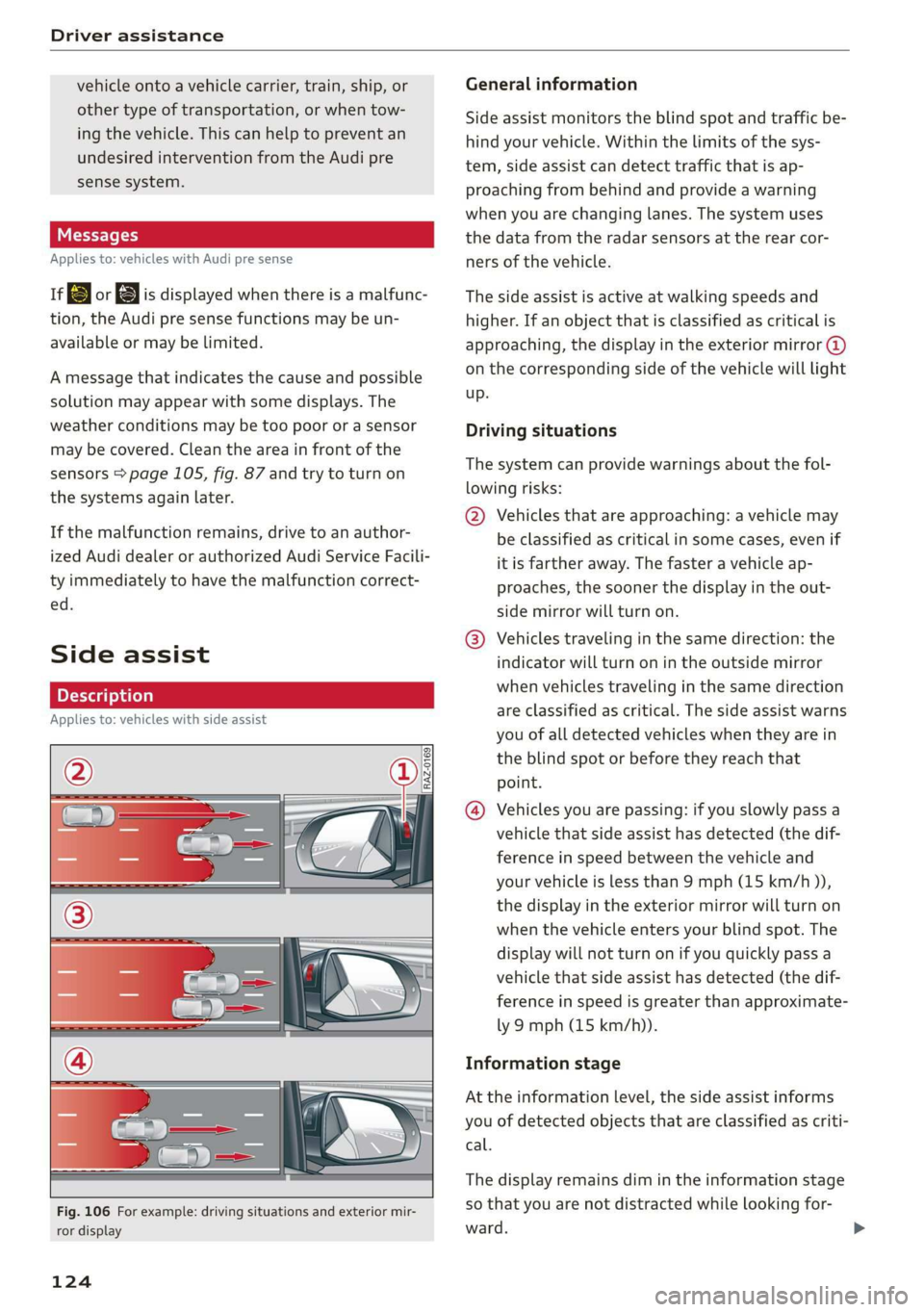
approaching, the display in the exterior mirror @)
on the corresponding side of the vehicle will light
up.
Driving situations
The system can provide warnings about the fol-
lowing risks:
@ Vehicles that are approaching: a vehicle may
be classified as critical in some cases, even if
it is farther away. The faster a vehicle ap-
proaches, the sooner the display in the out-
side mirror will turn on.
@® Vehicles traveling in the same direction: the
indicator will turn on in the outside mirror
when vehicles traveling in the same direction
are classified as critical. The side assist warns
you of all detected vehicles when they are in
the blind spot or before they reach that
point.
@ Vehicles you are passing: if you slowly pass a
vehicle that side assist has detected (the dif-
ference in speed between the vehicle and
your vehicle is less than 9 mph (15 km/h )),
the display in the exterior mirror will turn on
when the vehicle enters your blind spot. The
display will not turn on if you quickly pass a
vehicle that side assist has detected (the dif-
ference in speed is greater than approximate-
ly 9 mph (15 km/h)).
Information stage
At the information level, the side assist informs
you of detected objects that are classified as criti-
cal.
The display remains dim in the information stage
so that you are not distracted while looking for-
ward.
Page 130 of 280
Parking and maneuvering
ZA WARNING
Follow the safety precautions and note the
limits of the assist systems, sensors, and
cameras > page 104.
@) Note
Keep enough distance from the curb to avoid
damage to the rims.
G) Tips
If the parking aid is switched off, it can only
be reactivated automatically when one of the
following conditions is met:
— The vehicle speed exceeds 6 mph (10 km/h)
— The ignition is switched off and back on
again
— The parking brake is set and then released
— The "P" gear is engaged and released again
Applies to: vehicles with parking system plus
Fig. 108 Center display: distance display
If the sensors detect an obstacle, audible and vis-
ual signals will warn you.
Audio signals
The closer your vehicle gets to a detected obsta-
cle, the shorter the time between the audible sig-
nals. A continuous tone sounds when an obstacle
is less than approximately 1 foot (0.30 m) away
from the front or rear of the vehicle. A continu-
ous tone sounds when an obstacle is less than
approximately 0.7 feet (0.20 m) away from the
sides* of the vehicle. Do not continue driving for-
ward or in reverse >.
To switch off audio signals while parking, press
in the center display. The audio warnings will
128
turn on again automatically the next time the
parking system is switched on. The volume can
be changed in the settings |] > page 138.
Visual warnings
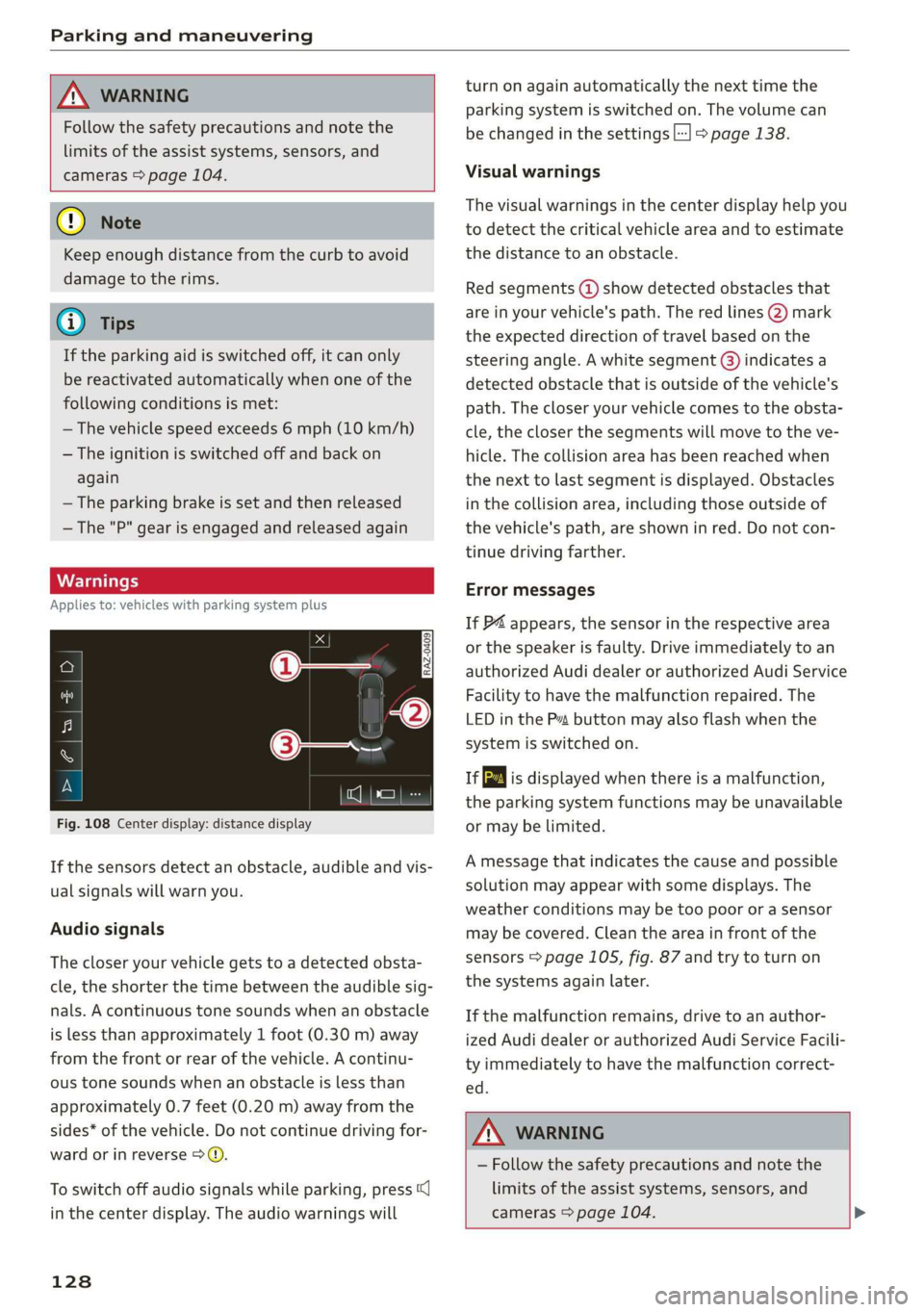
The visual warnings in the center display help you
to detect the critical vehicle area and to estimate
the distance to an obstacle.
Red segments (2) show detected obstacles that
are in your vehicle's path. The red lines (2) mark
the expected direction of travel based on the
steering angle. A white segment @) indicates a
detected obstacle that is outside of the vehicle's
path. The closer your vehicle comes to the obsta-
cle, the closer the segments will move to the ve-
hicle. The collision area has been reached when
the next to last segment is displayed. Obstacles
in the collision area, including those outside of
the vehicle's path, are shown in red. Do not con-
tinue driving farther.
Error messages
If P4 appears, the sensor in the respective area
or the speaker is faulty. Drive immediately to an
authorized Audi dealer or authorized Audi Service
Facility to have the malfunction repaired. The
LED
in the Ps button may also flash when the
system is switched on.
ff is displayed when there is a malfunction,
the parking system functions may be unavailable
or may be limited.
A message that indicates the cause and possible
solution may appear with some displays. The
weather conditions may be too poor or a sensor
may be covered. Clean the area in front of the
sensors > page 105, fig. 87 and try to turn on
the systems again later.
If the malfunction remains, drive to an author-
ized Audi dealer or authorized Audi Service Facili-
ty immediately to have the malfunction correct-
ed.
Z\ WARNING
— Follow the safety precautions and note the
limits of the assist systems, sensors, and
cameras > page 104. >
Page 137 of 280
83A012721BA
Parking and maneuvering
Parking space search
Applies to: vehicles with park assist
zt + oS gz
3 & oO
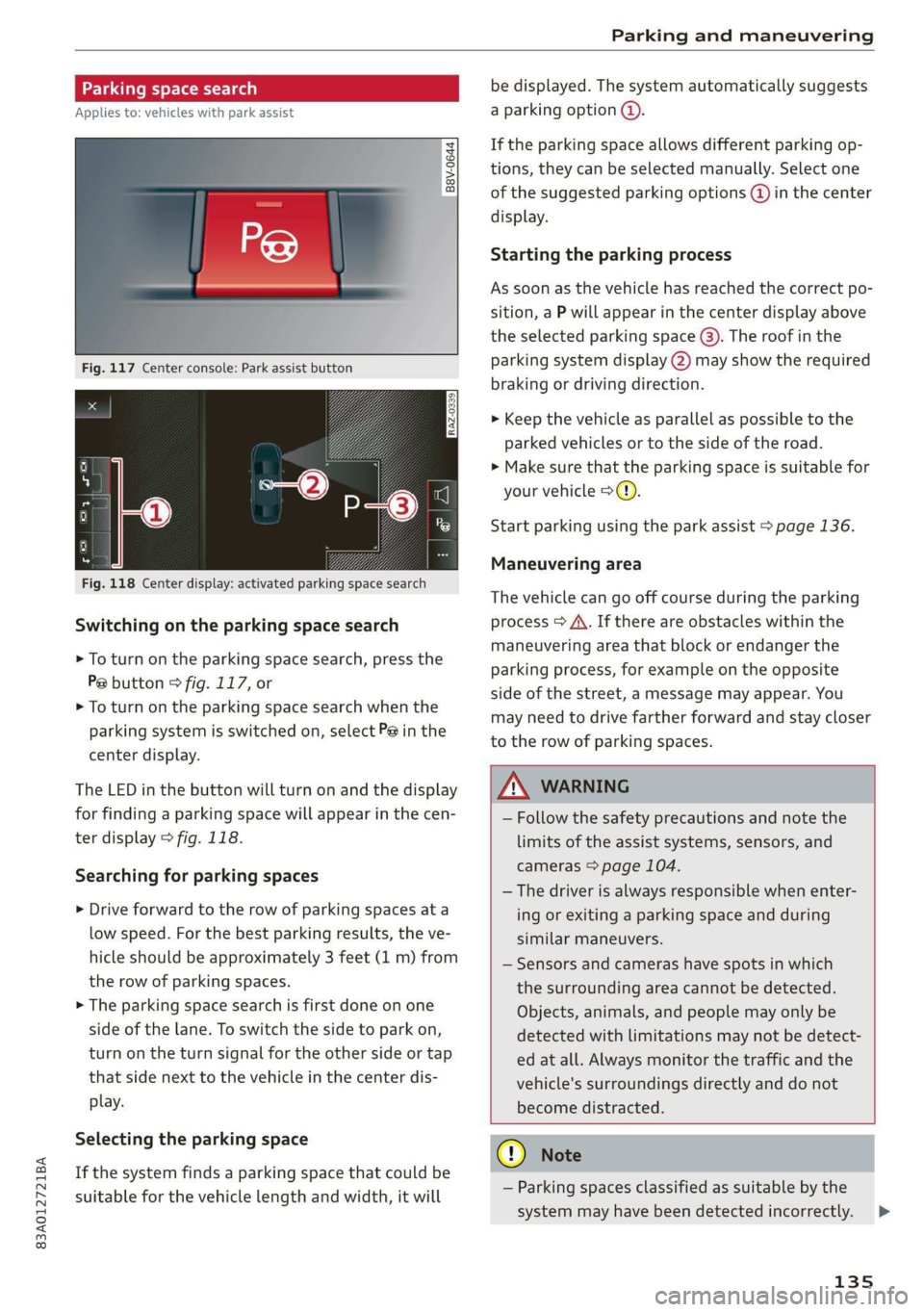
Fig. 117 Center console: Park assist button
RAZ-0339
a3
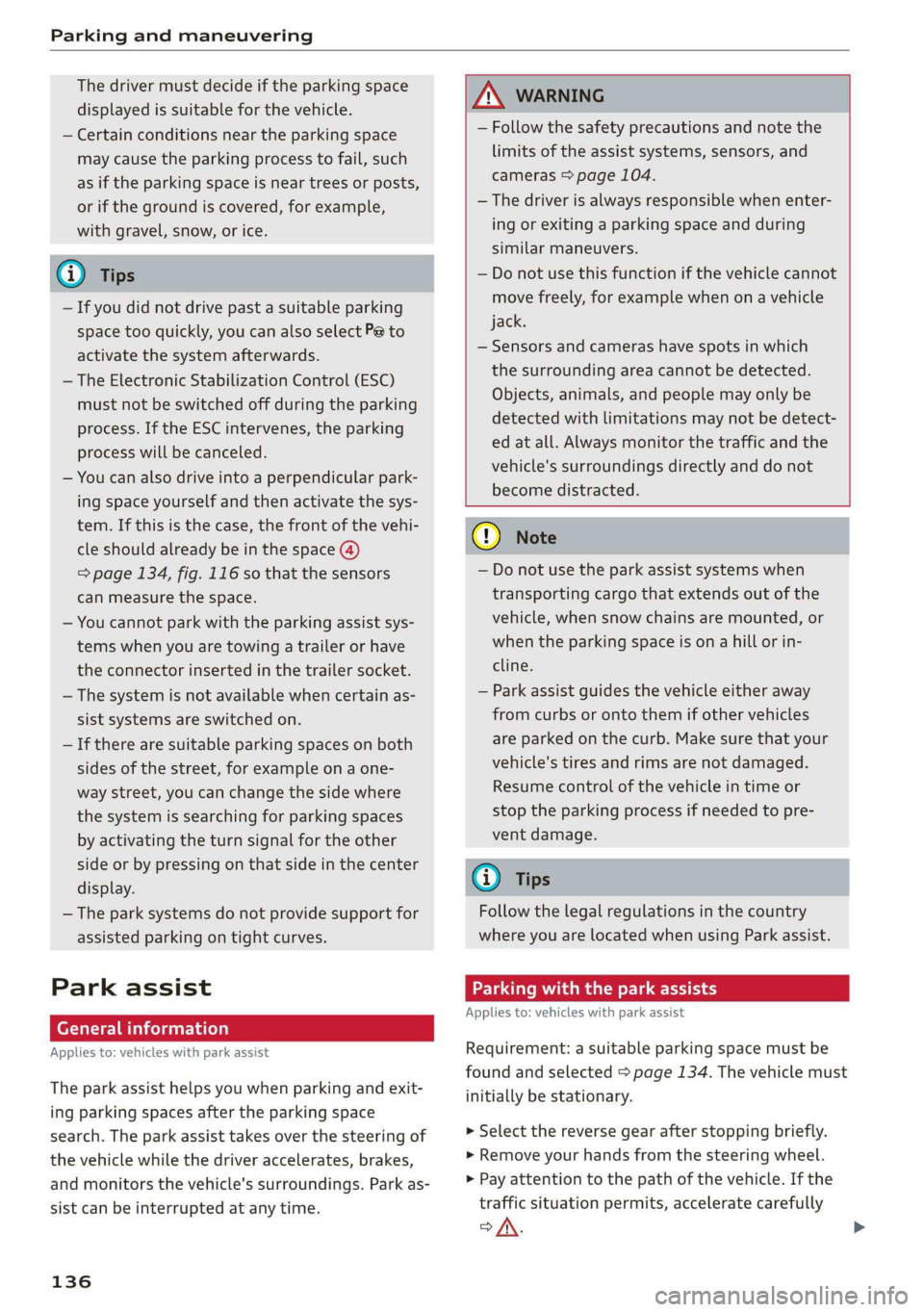
Fig. 118 Center display: activated parking space search
Switching on the parking space search
> To turn on the parking space search, press the
Pe button © fig. 117, or
> To turn on the parking space search when the
parking system is switched on, select P@ in the
center display.
The LED in the button will turn on and the display
for finding a parking space will appear in the cen-
ter display > fig. 118.
Searching for parking spaces
> Drive forward to the row of parking spaces ata
low speed. For the best parking results, the ve-
hicle should be approximately 3 feet (1 m) from
the row of parking spaces.
> The parking space search is first done on one
side of the lane. To switch the side to park on,
turn on the turn signal for the other side or tap
that side next to the vehicle in the center dis-
play.
Selecting the parking space
If the system finds a parking space that could be
suitable for the vehicle length and width, it will
be displayed. The system automatically suggests
a parking option @.
If the parking space allows different parking op-
tions, they can be selected manually. Select one
of the suggested parking options (@) in the center
display.
Starting the parking process
As soon as the vehicle has reached the correct po-
sition, a P will appear in the center display above
the selected parking space @). The roof in the
parking system display (2) may show the required
braking or driving direction.
> Keep the vehicle as parallel as possible to the
parked vehicles or to the side of the road.
>» Make sure that the parking space is suitable for
your vehicle >@).
Start parking using the park assist > page 136.
Maneuvering area
The vehicle can go off course during the parking
process > A\. If there are obstacles within the
maneuvering area that block or endanger the
parking process, for example on the opposite
side of the street, a message may appear. You
may need to drive farther forward and stay closer
to the row of parking spaces.
A WARNING
— Follow the safety precautions and note the
limits of the assist systems, sensors, and
cameras > page 104.
— The driver is always responsible when enter-
ing or exiting a parking space and during
similar maneuvers.
— Sensors and cameras have spots in which
the surrounding area cannot be detected.
Objects, animals, and people may only be
detected with limitations may not be detect-
ed at all. Always monitor the traffic and the
vehicle's surroundings directly and do not
become distracted.
CG) Note
— Parking spaces classified as suitable by the
system may have been detected incorrectly.
135
Page 138 of 280
Parking and maneuvering
The driver must decide if the parking space
displayed is suitable for the vehicle.
— Certain conditions near the parking space
may cause the parking process to fail, such
as if the parking space is near trees or posts,
or if the ground is covered, for example,
with gravel, snow, or ice.
G) Tips
— If you did not drive past a suitable parking
space too quickly, you can also select Pe to
activate the system afterwards.
— The Electronic Stabilization Control (ESC)
must not be switched off during the parking
process. If the ESC intervenes, the parking
process
will be canceled.
— You can also drive into a perpendicular park-
ing space yourself and then activate the sys-
tem. If this is the case, the front of the vehi-
cle should already be in the space (4)
= page 134, fig. 116 so that the sensors
can measure the space.
— You cannot park with the parking assist sys-
tems when you are towing a trailer or have
the connector inserted in the trailer socket.
— The system is not available when certain as-
sist systems are switched on.
— If there are suitable parking spaces on both
sides of the street, for example on a one-
way street, you can change the side where
the system is searching for parking spaces
by activating the turn signal for the other
side or by pressing on that side in the center
display.
— The park systems do not provide support for
assisted parking on tight curves.
Park assist
(eT eeeeue lela)
Applies to: vehicles with park assist
The park assist helps you when parking and exit-
ing parking spaces after the parking space
search. The park assist takes over the steering of
the vehicle while the driver accelerates, brakes,
and
monitors the vehicle's surroundings. Park as-
sist can be interrupted at any time.
136
Z\ WARNING
— Follow the safety precautions and note the
limits of the assist systems, sensors, and
cameras > page 104.
— The driver is always responsible when enter-
ing or exiting a parking space and during
similar maneuvers.
— Do not use this function if the vehicle cannot
move freely, for example when on a vehicle
jack.
— Sensors and cameras have spots in which
the surrounding area cannot be detected.
Objects, animals, and people may only be
detected with limitations may not be detect-
ed at all. Always monitor the traffic and the
vehicle's surroundings directly and do not
become distracted.
@) Note
— Do not use the park assist systems when
transporting cargo that extends out of the
vehicle, when snow chains are mounted, or
when the parking space is on a hill or in-
cline.
— Park assist guides the vehicle either away
from curbs or onto them if other vehicles
are parked on the curb. Make sure that your
vehicle's tires and rims are not damaged.
Resume control of the vehicle in time or
stop the parking process if needed to pre-
vent damage.
G) Tips
Follow the legal regulations in the country
where you are located when using Park assist.
dem ne eee
Applies to: vehicles with park assist
Requirement: a suitable parking space must be
found and selected > page 134. The vehicle must
initially be stationary.
> Select the reverse gear after stopping briefly.
> Remove your hands from the steering wheel.
> Pay attention to the path of the vehicle. If the
traffic situation permits, accelerate carefully
of.
Page 139 of 280
83A012721BA
Parking and maneuvering
> Follow the visual instructions in the center dis-
play and the warning tones until the parking
process has ended.
> The indicators in the center display show the
necessary direction of travel. Drive in the direc-
tion indicated by the arrows or symbols on the
roof in the parking aid image @) & page 135,
fig. 118.
Park assist automatically steers the vehicle into
the parking space while the driver presses the
pedals. The maximum parking speed is approxi-
mately 4 mph (7 km/h).
Z\ WARNING
— Follow the safety precautions and note the
limits of the assist systems, sensors, and
cameras > page 104.
— The park assist is an assist system. The driv-
er is still responsible for monitoring the ve-
hicle's surroundings and preventing colli-
sions when using the system.
— When using park assist to drive into or out
of a parking space, the steering wheel turns
quickly on its own. Reaching into the steer-
ing wheel spokes while this is happening can
result in injury.
@ Tips
You can also cancel the direction of travel
specified by the system by switching between
forward and reverse gears. Based on the posi-
tion of the vehicle, the system then calculates
the additional steering and driving directions
for maneuvering.
ten Ldn ek Led
Applies to: vehicles with park assist
If you parked the vehicle in a parallel parking
space, park assist can help you drive out of it.
> Start the engine.
> Press the Pe button > page 135, fig. 117.
> Wait until a message appears in the center dis-
play that specifies the direction of travel re-
quired to exit the parking space.
> Activate the turn signal on the desired side or
press that side next to the vehicle in the center
display.
> Remove your hands from the steering wheel.
> Pay attention to the path of the vehicle. If the
traffic situation permits, accelerate carefully
oA.
> Follow the visual instructions in the center dis-
play and the warning tones until the vehicle has
finished exiting the parking space.
> The indicators in the center display show the
necessary direction of travel. Drive in the direc-
tion indicated by the arrows or symbols on the
roof in the parking aid image @) > page 135,
fig. 118.
> The process of exiting the parking space has
ended if additional corrective movements are
no longer necessary and the specified steering
wheel angle is sufficient to drive out of the
parking space. Resume control of the steering
wheel >@).
Park assist automatically steers the vehicle out of
the parking space while the driver presses the
pedals. The maximum speed for exiting a parking
space is 3 mph (5 km/h).
Z\ WARNING
— Follow the safety precautions and note the
limits of the assist systems, sensors, and
cameras > page 104.
— The park assist is an assist system. The driv-
er is still responsible for monitoring the ve-
hicle's surroundings and preventing colli-
sions when using the system.
— When using park assist to drive into or out
of a parking space, the steering wheel turns
quickly on its own. Reaching into the steer-
ing wheel spokes while this is happening can
result in injury.
@) Note
Resume steering immediately after the last
corrective movement and the takeover
prompt, so that the specified steering wheel
angle is not recentered.
137
Page 149 of 280
83A012721BA
Telephone
During a phone call
Applies to: vehicles with telephone
The following options may be possible during a
call depending on the mobile device being used
and the type of connection:
> End call: end the current phone call.
> Mute: the other person on the call will no lon-
ger be able to hear you. You will still be able to
hear the other person. To switch the micro-
phone back on, press Unmute.
> Hold/Resume: place your current phone call on
hold and answer another.
» Send tone sequence: press Numbers. You can
enter tone sequences (DTMF) and send them to
the other party on the call.
> Answering an incoming call: if there is an in-
coming call while another call is active, you can
select Replace to put the existing call on hold
and answer the incoming call.
> Declining an incoming call: press Decline to
decline an incoming call.
> Muting the incoming call: press Mute.
> Other call options: press More.
Requirement: two phone calls must be in prog-
ress.
> Conference call*: add a call on hold and up to
five active parties (depending on the cell phone
service provider) to the conference call.
> Swap call: alternate between two phone calls
while one of the calls is on hold. Press on the
respective call. Selecting End call will end the
active phone call. A call that was placed on hold
stays on hold and can be taken off hold with Re-
sume.
> Answering an incoming call: if there is an in-
coming call while a call is active and another
one is on hold, select Replace to replace the ex-
isting call with the incoming call.
Press More.
— Transferring a call*: press Transfer call to mo-
bile device to transfer the existing call from the
MMI to your mobile device or Bluetooth® head-
ser,
— Switch to hands-free mode*: Requirement: you
must have a phone call in progress on your cell
phone. Press Switch to hands-free to transfer
the call from your cell phone back to the MMI.
— Add call: Select: Call list/Contacts/Favorites >
select an entry from the list or press Dial
phone number and enter a phone number.
Then the active call will be on hold.
— Remove conf. member*: Requirement: you
must have started a conference call. You can re-
move conference call members individually
when a conference call is active. Press on the
contact you would like to remove.
— Microphone input level: you can adjust the mi-
crophone input during a phone call using the
slider.
Connected devices > page 196.
Telephone settings > page 150.
@) Tips
—To be notified of an incoming call during a
phone call, the call waiting function in your
mobile device must be switched on when
using the Handsfree profile. You can obtain
more information from your mobile device
service provider or from your mobile device
user guide.
— You can have one active call at a time.
— When leaving the vehicle, the Bluetooth
connection to the mobile device will auto-
matically disconnect. Depending on your
mobile device, phone calls in progress may
be automatically redirected from the MMI
to your mobile device so that you can con-
tinue the call on your phone.
— The display of an incoming phone callin the
MMI may still be visible for a few seconds
after a call is answered or ignored depend-
ing on the mobile device in use.
Messages
Text messages
Applies to: vehicles with car phone function
Depending on the mobile device being used and
the mobile network contract, you may be able to
receive and send text messages using the MMI.
147
>
Page 153 of 280
83A012721BA
Telephone
Enable VoLTE
When this function is switched on, Voice over
LTE* will be supported.
Network settings
— Login to mobile phone network: select to log
into your cell phone service provider network
automatically or manually.
— Network selection: Requirement: the data
module must be switched on and Login to mo-
bile phone network must be set to Manual. Se-
lect a network manually from the list of availa-
ble networks at the present location.
Car phone serial number (IMEI):
Applies to: vehicles with car phone
The serial number (IMEI) of your car phone is dis-
played.
G) Tips
— Several mobile devices can be paired with
the MMI, but only two* mobile devices can
be actively connected.
—To delete all paired Bluetooth devices, the
Bluetooth function can be reset to the fac-
tory default settings > page 196.
Directory settings
Applies to: vehicles with telephone
> Applies to: MMI: Select on the home screen:
PHONE > Contacts > ©).
Switching between two mobile devices
Requirement: telephone 1 and telephone 2 must
be connected.
Switch telephones: The device name of your ac-
tive mobile device will be displayed. You can
switch the phone by pressing the button.
The directory for the selected phone will be dis-
played.
Hide grayed-out contacts
When this function is switched on, contacts that
have no phone numbers stored for them will be
hidden.
Sort order
You can sort the contacts in alphabetical order by
Last name or First name.
Download contacts
Requirement: A cell phone must be connected to
the MMI.
To update the contacts in the MMI, you can man-
ually download your mobile device contacts. De-
pending on the mobile device, you may need to
disconnect and reconnect the Bluetooth connec-
tion to update the contacts.
Memory capacity
You can manage up to 23,000 contacts. You can
also download up to 5,000 contacts from maxi-
mum four mobile devices. You can also import up
to 3,000 contacts from a storage medium.
Importing and exporting contacts
Requirement: an SD card must be in the SD card
reader* > page 182 or a USB storage device must
be connected to the Audi music interface
> page 184.
Contacts in vCard format (.vcf) can be imported
or exported from the MMI.
— Applies to: MMI: Importing contacts from a
storage device: Select: Import contacts >
Search for import data > SD card 1 or USB de-
vice 1/USB device 2 > desired contacts or Se-
lect all contacts > Start import.
— Applies to: MMI: Exporting contacts to a stor-
age device: Requirement: Only previously im-
ported contacts can be exported. Select: Export
contacts > Find source for exporting > SD card
1 or USB device 1/USB device 2 > desired con-
tacts or Select all contacts > Start export.
G) Tips
— Always read the chapter > page 154.
— For additional information on the myAudi
account, visit my.audi.com.
— The imported contacts are stored in the lo-
cal MMI memory.
— Never save important data on memory cards
or USB storage devices. Audi is not responsi-
ble for damaged or lost files and media.
151
>
Page 156 of 280
Audi connect
Audi connect
General information
Depending on the country and the vehicle equip-
ment, the following functions may be available:
— Audi connect Infotainment
You can also find more information on Audi con-
nect
online at www.audiusa.com.
ZA\ WARNING
— To reduce the risk of an accident, only use
Audi connect services when road and traffic
conditions permit. Always read and follow
the notes in > page 18, Traffic safety infor-
mation.
— It is only safe to use tablets, laptops, mobile
devices and other similar devices when the
vehicle is stationary because, like all loose
objects, they could be thrown around the in-
side of the vehicle in a crash and cause seri-
ous injuries. Store these types of devices se-
curely while driving.
— As the driver, do not allow usage of the Wi-
Fi hotspot to distract you from driving, as
this could increase the risk of an accident.
— Do not use any wireless devices on the front
seats within range of the airbags while driv-
ing. Also read the warnings in the chapter
=> page 61, Airbag system.
—To reduce the risk of an accident, use the Au-
di connect Infotainment services with a Wi-
Fi hotspot only in the rear seat when the ve-
hicle is in motion, or only when the vehicle is
stationary.
@) Note
— Applies to: embedded SIM card usage: The
connection costs of Audi connect Infotain-
ment services are included in the price of
Audi connect Infotainment during the sub-
scription period with some exceptions.
Please note that there may be additional
charges when using some services. For ex-
ample, this applies to Internet radio/
podcasts or for Internet connections and
services that use the Wi-Fi hotspot, such as
154
online media sources. Depending on the
country, data plans may need to be pur-
chased for these services > page 157. For
additional information, see my.audi.com.
— In certain situations, the Wi-Fi hotspot data
connection may be established as a replace-
ment for the SIM card on your Wi-Fi device.
This feature depends on the configuration
of your Wi-Fi device and operating system.
This could result in fees depending on your
cell phone service provider, especially if you
are using this feature while abroad. A flat
rate data plan is strongly recommended. For
more information, contact your cell phone
service provider or refer to the owner's man-
ual for your Wi-Fi device.
— You are responsible for all precautions taken
for data protection, anti-virus protection,
and protection against loss of data on mo-
bile devices that are used, for example, to
access the Internet through the Wi-Fi hot-
spot.
G) Tips
— The availability of services depends on the
subscription.
— AUDI AG provides access to services from
third party providers. Permanent availability
cannot be guaranteed, because that de-
pends on the third party provider.
— Use of the most up-to-date mobile network
standard is not available in every country.
Contact an authorized Audi dealer or au-
thorized Audi Service Facility or your cell
phone service provider for additional infor-
mation.
— Audi connect Infotainment services are only
available within the cell phone network cov-
erage from your cell phone service provider.
— Availability, scope, providers, screen display,
and costs of services may vary depending on
the country, model, model year, end device
and rates.