ESP AUDI Q3 2019 Repair Manual
[x] Cancel search | Manufacturer: AUDI, Model Year: 2019, Model line: Q3, Model: AUDI Q3 2019Pages: 280, PDF Size: 72.73 MB
Page 163 of 280
83A012721BA
Navigation
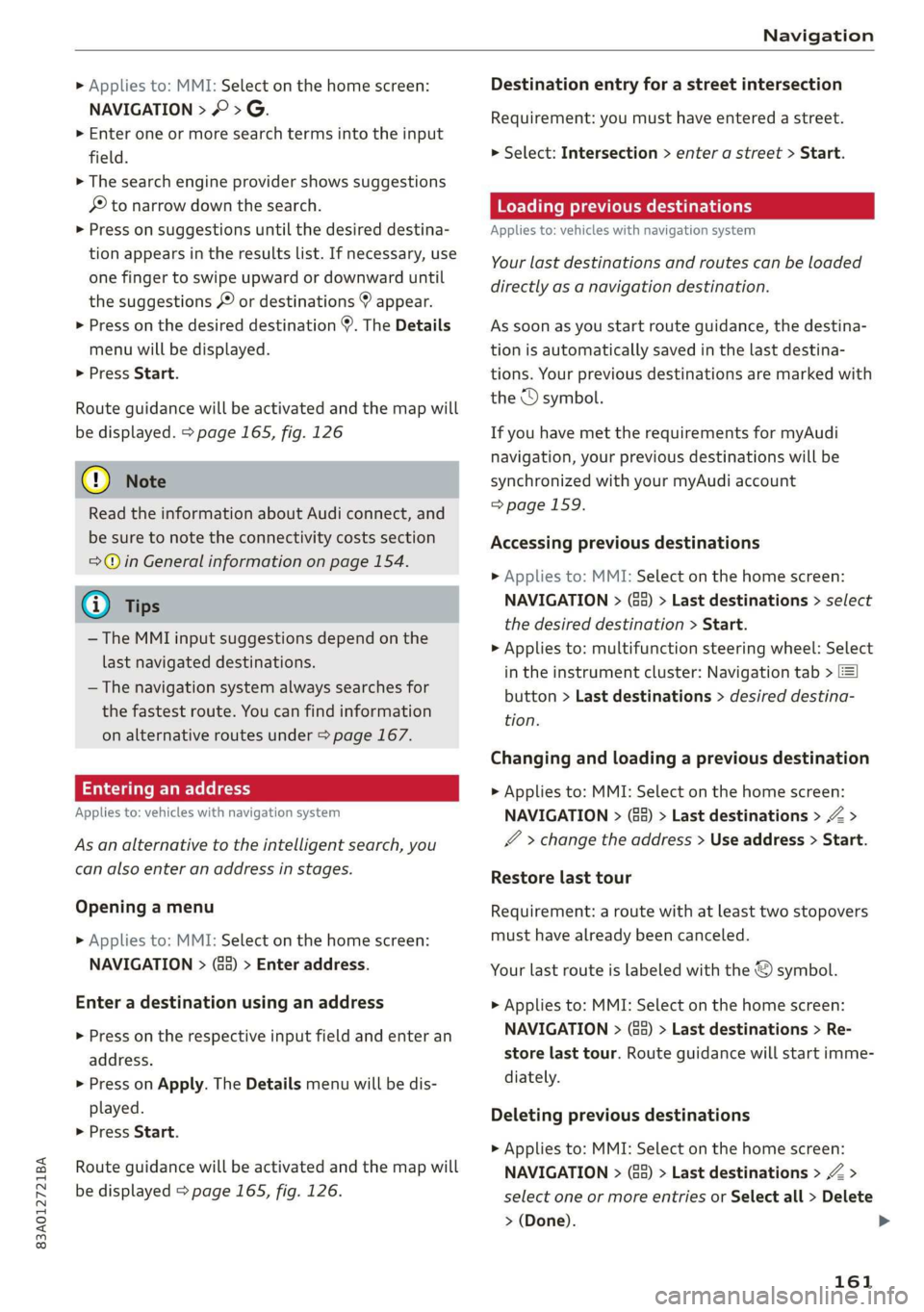
» Applies to: MMI: Select on the home screen:
NAVIGATION > © >G.
> Enter one or more search terms into the input
field.
> The search engine provider shows suggestions
£ to narrow down the search.
> Press on suggestions until the desired destina-
tion appears in the results list. If necessary, use
one finger to swipe upward or downward until
the suggestions © or destinations 9 appear.
> Press on the desired destination 9. The Details
menu will be displayed.
> Press Start.
Route guidance will be activated and the map will
be displayed. > page 165, fig. 126
@) Note
Read the information about Audi connect, and
be sure to note the connectivity costs section
=@ in General information on page 154.
@) Tips
— The MMI input suggestions depend on the
last navigated destinations.
— The navigation system always searches for
the fastest route. You can find information
on alternative routes under > page 167.
uate REL Lee)
Applies to: vehicles with navigation system
As an alternative to the intelligent search, you
can also enter an address in stages.
Opening a menu
> Applies to: MMI: Select on the home screen:
NAVIGATION > (G8) > Enter address.
Enter a destination using an address
> Press on the respective input field and enter an
address.
> Press on Apply. The Details menu will be dis-
played.
> Press Start.
Route guidance will be activated and the map will
be displayed > page 165, fig. 126.
Destination entry for a street intersection
Requirement: you must have entered a street.
> Select: Intersection > enter a street > Start.
Loading previous destinations
Applies to: vehicles with navigation system
Your last destinations and routes can be loaded
directly as a navigation destination.
As soon as you start route guidance, the destina-
tion is automatically saved in the last destina-
tions. Your previous destinations are marked with
the © symbol.
If you have met the requirements for myAudi
navigation, your previous destinations will be
synchronized with your myAudi account
=>page 159.
Accessing previous destinations
> Applies to: MMI: Select on the home screen:
NAVIGATION > (68) > Last destinations > select
the desired destination > Start.
> Applies to: multifunction steering wheel: Select
in the instrument cluster: Navigation tab > [|
button > Last destinations > desired destina-
tion.
Changing and loading a previous destination
> Applies to: MMI: Select on the home screen:
NAVIGATION > (88) > Last destinations > Z >
¥ > change the address > Use address > Start.
Restore last tour
Requirement: a route with at least two stopovers
must have already been canceled.
Your last route is labeled with the ® symbol.
> Applies to: MMI: Select on the home screen:
NAVIGATION > (68) > Last destinations > Re-
store last tour. Route guidance will start imme-
diately.
Deleting previous destinations
> Applies to: MMI: Select on the home screen:
NAVIGATION > (Gs) > Last destinations > Z >
select one or more entries or Select all > Delete
> (Done).
161
>
Page 164 of 280
Navigation
@ Tips
The last route will be automatically deleted
from the list if you start a new route guidance
after canceling the route.
Setting a favorite as the destination
Applies to: vehicles with navigation system
You can access frequent destinations in the fa-
vorites. You can quickly and easily start route
guidance using the home address or business ad-
dress function.
Requirement: a favorite must be stored
=> page 168.
> Applies to: MMI: Select on the home screen:
NAVIGATION > (&8) > Favorites > select a de-
sired destination > Start. Or
> Applies to: multifunction steering wheel: Select
in the instrument cluster: Navigation tab > [=]
button > Favorites > desired destination.
POIs (point of interest)
Applies to: vehicles with navigation system and Audi connect
Infotainment
Search for points of interest such as restaurants.
If the MMI is connected to the Internet, points of
interest will be automatically included in the
search.
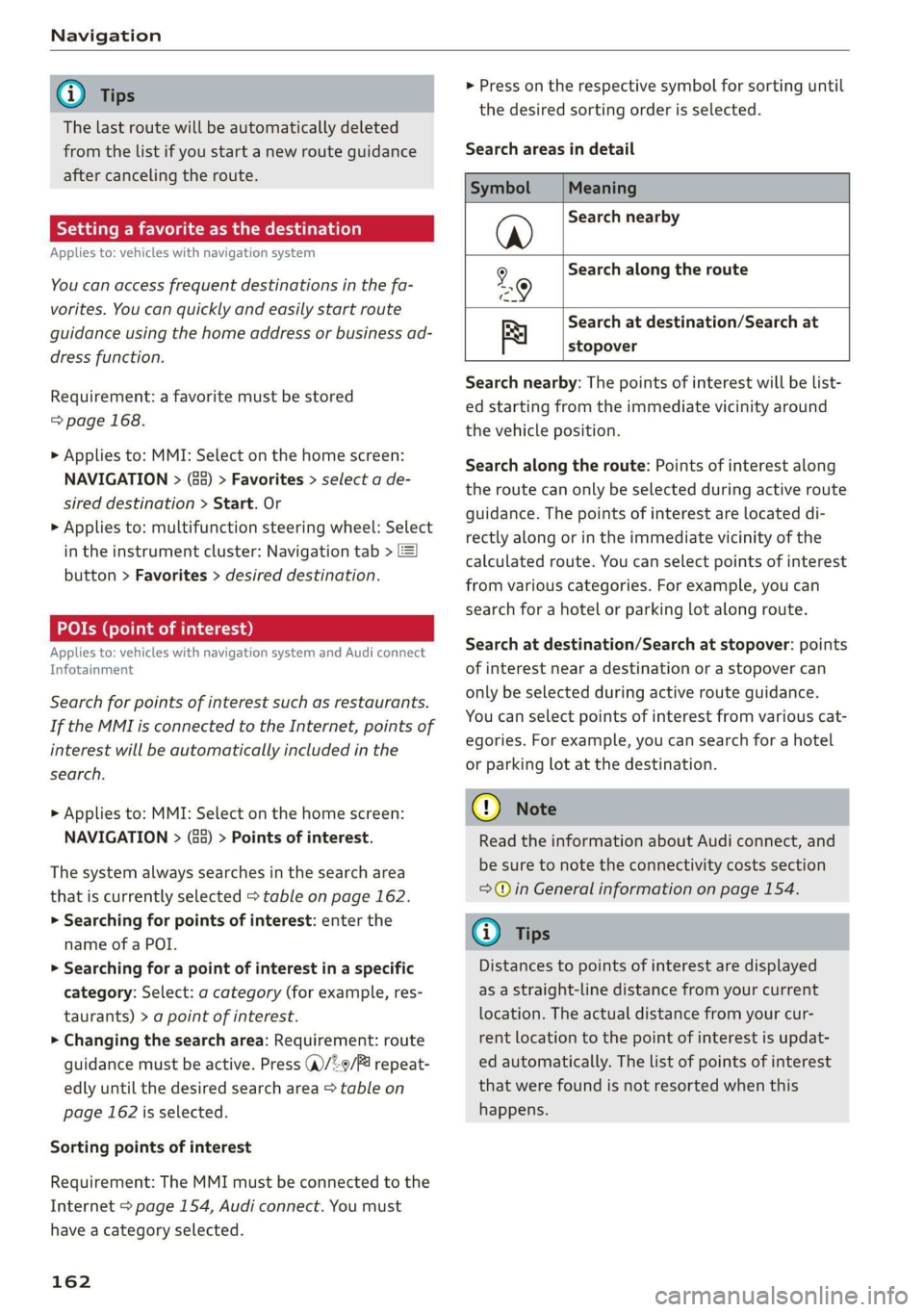
> Applies to: MMI: Select on the home screen:
NAVIGATION > (G5) > Points of interest.
The system always searches in the search area
that is currently selected > table on page 162.
> Searching for points of interest: enter the
name of a POI.
> Searching for a point of interest in a specific
category: Select: a category (for example, res-
taurants) > a point of interest.
> Changing the search area: Requirement: route
guidance must be active. Press (a)/2:9/B! repeat-
edly until the desired search area > table on
page 162 is selected.
Sorting points of interest
Requirement: The MMI must be connected to the
Internet > page 154, Audi connect. You must
have a category selected.
162
> Press on the respective symbol for sorting until
the desired sorting order is selected.
Search areas in detail
Symbol Meaning
@ Search nearby
9 Search along the route
Search at destination/Search at
Be stopover
Search nearby: The points of interest will be list-
ed starting from the immediate vicinity around
the vehicle position.
Search along the route: Points of interest along
the route can only be selected during active route
guidance. The points of interest are located di-
rectly along or in the immediate vicinity of the
calculated route. You can select points of interest
from various categories. For example, you can
search for a hotel or parking lot along route.
Search at destination/Search at stopover: points
of interest near a destination or a stopover can
only be selected during active route guidance.
You can select points of interest from various cat-
egories. For example, you can search for a hotel
or parking lot at the destination.
CG) Note
Read the information about Audi connect, and
be sure to note the connectivity costs section
=>@ in General information on page 154.
(i) Tips
Distances to points of interest are displayed
as a straight-line distance from your current
location. The actual distance from your cur-
rent location to the point of interest is updat-
ed automatically. The list of points of interest
that were found is not resorted when this
happens.
Page 181 of 280
83A012721BA
Radio
Requirement: At least two favorites must be stor-
ed.
— Moving a favorite: Select: All > Z. Touch the
symbol and move the entry to the desired posi-
tion. Press Done.
@) Note
Read the information about Audi connect, and
be sure to note the connectivity costs section
=@ in General information on page 154.
G) Tips
— Depending on the Internet connection and
network traffic, the connection may be lost
when online radio is playing.
— Online radio reception may not be possible
if Internet service is throttled.
— The use of online radio depends on the serv-
ice availability of the third party provider.
— The range and screen display of online me-
dia services from third party providers in the
vehicle can vary.
— AUDI AG only provides access to online radio
and does not assume any responsibility for
the content of these services.
Radio text
Applies to: vehicles with radio text
Program information (for example, general text
messages, artist, composer, song) is displayed in
the radio text.
Opening radio text
> Applies to: MMI: Select on the home screen:
RADIO > select a frequency band (such as FM)
> select a station > More > Radio text.
Displaying previous radio text entries: drag your
finger downward. The last radio text entries are
displayed if they are available.
Browsing through radio text entries: drag your
finger upward or downward on the screen.
If a radio text entry is displayed with a color, a
phone number or a navigation destination for the
station is available as radio text plus information.
@) Tips
The availability of radio text and RadioText
Plus depends on the radio station.
TMi a cy
Applies to: vehicle with SiriusXM
You can see an overview of your favorite artists,
favorite songs, or teams that are currently being
broadcast on a SiriusXM channel.
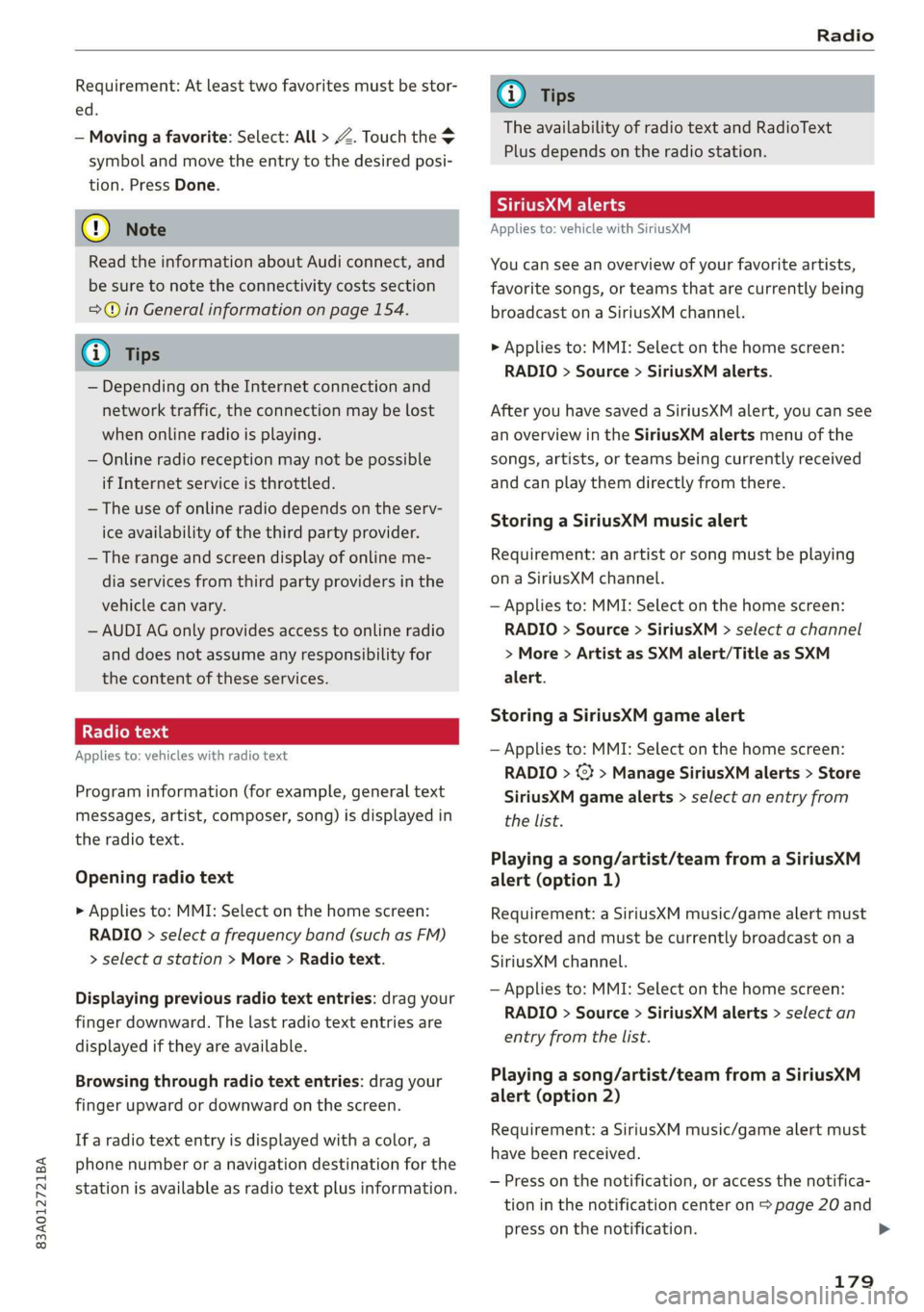
> Applies to: MMI: Select on the home screen:
RADIO > Source > SiriusXM alerts.
After you have saved a SiriusXM alert, you can see
an overview in the SiriusXM alerts menu of the
songs, artists, or teams being currently received
and can play them directly from there.
Storing a SiriusXM music alert
Requirement: an artist or song must be playing
ona SiriusXM channel.
— Applies to: MMI: Select on the home screen:
RADIO > Source > SiriusXM > select a channel
> More > Artist as SXM alert/Title as SXM
alert.
Storing a SiriusXM game alert
— Applies to: MMI: Select on the home screen:
RADIO > © > Manage SiriusXM alerts > Store
SiriusXM game alerts > select an entry from
the list.
Playing a song/artist/team from a SiriusXM
alert (option 1)
Requirement: a SiriusXM music/game alert must
be stored and must be currently broadcast on a
SiriusXM channel.
— Applies to: MMI: Select on the home screen:
RADIO > Source > SiriusXM alerts > select an
entry from the list.
Playing a song/artist/team from a SiriusXM
alert (option 2)
Requirement: a SiriusXM music/game alert must
have been received.
— Press on the notification, or access the notifica-
tion in the notification center on > page 20 and
press on the notification.
179
>
Page 184 of 280

Media
Media
General information
There may be different media drives and connec-
tions available depending on the vehicle equip-
ment. For example, you can play media files us-
ing the SD card reader or connect your mobile de-
vices to the Audi music interface and operate
them through the MMI.
Media and format restrictions: the MMI (includ-
ing the SD card reader and the USB storage de-
vice connection) was tested with a variety of
products and media on the market. However,
there may be cases where individual devices or
media and audio/video files may not be recog-
nized, may play only with restrictions, or may not
play at all.
Restricted functionality: reset the Media to the
factory default settings if functionality is restrict-
ed.
Digital Rights Management: please note that
the audio/video files are subject to copyright pro-
tection.
The media drives do not play files that are pro-
tected by DRM and are identified with the symbol
&.
Data security: never store important data on SD
cards, CDs/DVDs, or mobile devices. Audi AG is
not responsible for damaged or lost files and me-
dia.
Loading times: the more files/folders/playlists
there are on a storage medium, the longer it will
take to load. To reduce the amount of time it
takes the audio/video files to load, use a storage
medium that only contains audio/video files, and
create subfolders (for example, for each artist or
album).
Additional information: When playing, audio
files are automatically displayed with any addi-
tional information that is stored (such as the ar-
tist, track and album cover). If this information is
not available on the storage medium, the MMI
will check the Gracenote metadata database.
However, in some cases, the additional informa-
tion may not be displayed.
182
C@) Note
Read the information about Audi connect, and
be sure to note the connectivity costs section
=@ in General information on page 154.
SD card reader
The SD card reader is located in the glove com-
partment.
Inserting the SD card
>» The angled corner of the SD card must face to-
ward the right front side when being inserted.
> Slide the SD card into the card reader slot until
the SD card clicks into place.
The SD card reader is accessed and operated
through the MMI > page 185.
@) Note
— Only use one-piece SD cards. If adapter
cards (SD cards with more than one piece)
are used, the card could fall out of the
adapter when driving because of vibrations.
Individual pieces could then become stuck
in the drive and impair the functionality.
—To reduce the risk of damaging drives and
data carriers, always keep data carriers ina
sleeve and never expose them to direct sun-
light.
Bluetooth audio player
Applies to: vehicles with Bluetooth audio player
With the Bluetooth audio player, you can play
music wirelessly through the MMI from your
Bluetooth-capable mobile device (such as a cell
phone).
Requirement: The vehicle must be stationary and
the ignition must be switched on. The Bluetooth
settings will open on your mobile device during
the connection setup. The Bluetooth function and
visibility of the MMI > page 196 and mobile de-
vice must be switched on.
Page 186 of 280
Media
— There generally are additional costs when
using an online media service account,
especially when it is used internationally.
G) Tips
— Depending on the Internet connection and
network traffic, the connection may discon-
nected when online media sources are play-
ing.
— Online media usage depends on the service
availability of the third party provider.
— Audi AG simply makes the access to online
media services possible through the MMI
and does not take any responsibility for the
contents of the online media services.
— Always read the chapter > page 154.
— Depending on the mobile device being used,
there may be interruptions during media
playback and when using the myAudi app.
To avoid interruptions when using a mobile
device, do not lock the screen on your mo-
bile device and keep the myAudi app in the
foreground.
Multimedia connections
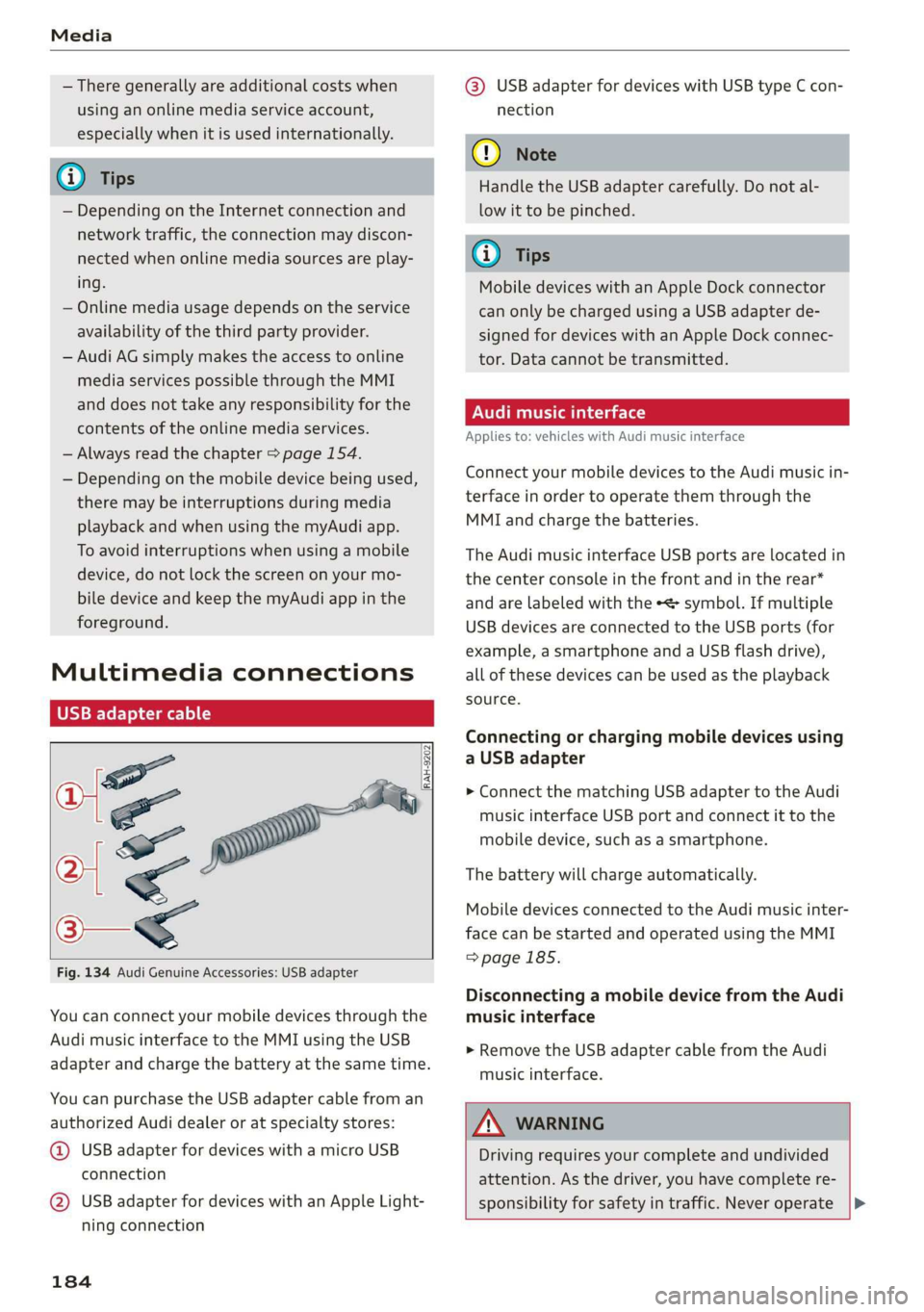
USB adapter cable
[RAH-9202
Fig. 134 Audi Genuine Accessories: USB adapter
You can connect your mobile devices through the
Audi music interface to the MMI using the USB
adapter and charge the battery at the same time.
You can purchase the USB adapter cable from an
authorized Audi dealer or at specialty stores:
@ USB adapter for devices with a micro USB
connection
@ USB adapter for devices with an Apple Light-
ning connection
184
@® USB adapter for devices with USB type C con-
nection
() Note
Handle the USB adapter carefully. Do not al-
low it to be pinched.
G) Tips
Mobile devices with an Apple Dock connector
can only be charged using a USB adapter de-
signed for devices with an Apple Dock connec-
tor. Data cannot be transmitted.
ONT Tae 1a 1e)
Applies to: vehicles with Audi music interface
Connect your mobile devices to the Audi music in-
terface in order to operate them through the
MMI and charge the batteries.
The Audi music interface USB ports are located in
the center console in the front and in the rear*
and are labeled with the «> symbol. If multiple
USB devices are connected to the USB ports (for
example, a smartphone and a USB flash drive),
all of these devices can be used as the playback
source.
Connecting or charging mobile devices using
a USB adapter
> Connect the matching USB adapter to the Audi
music interface USB port and connect it to the
mobile device, such as a smartphone.
The battery will charge automatically.
Mobile devices connected to the Audi music inter-
face can be started and operated using the MMI
=>page 185.
Disconnecting a mobile device from the Audi
music interface
> Remove the USB adapter cable from the Audi
music interface.
ZA WARNING
Driving requires your complete and undivided
attention. As the driver, you have complete re-
sponsibility for safety in traffic. Never operate |>
Page 196 of 280
Audi smartphone interface
— The menu language shown in the MMI is
based on the settings in your smartphone.
— Some MMI functions are not available when
there is an active Audi smartphone interface
connection.
— You cannot connect any mobile devices via
Bluetooth when an Apple CarPlay connec-
tion is active.
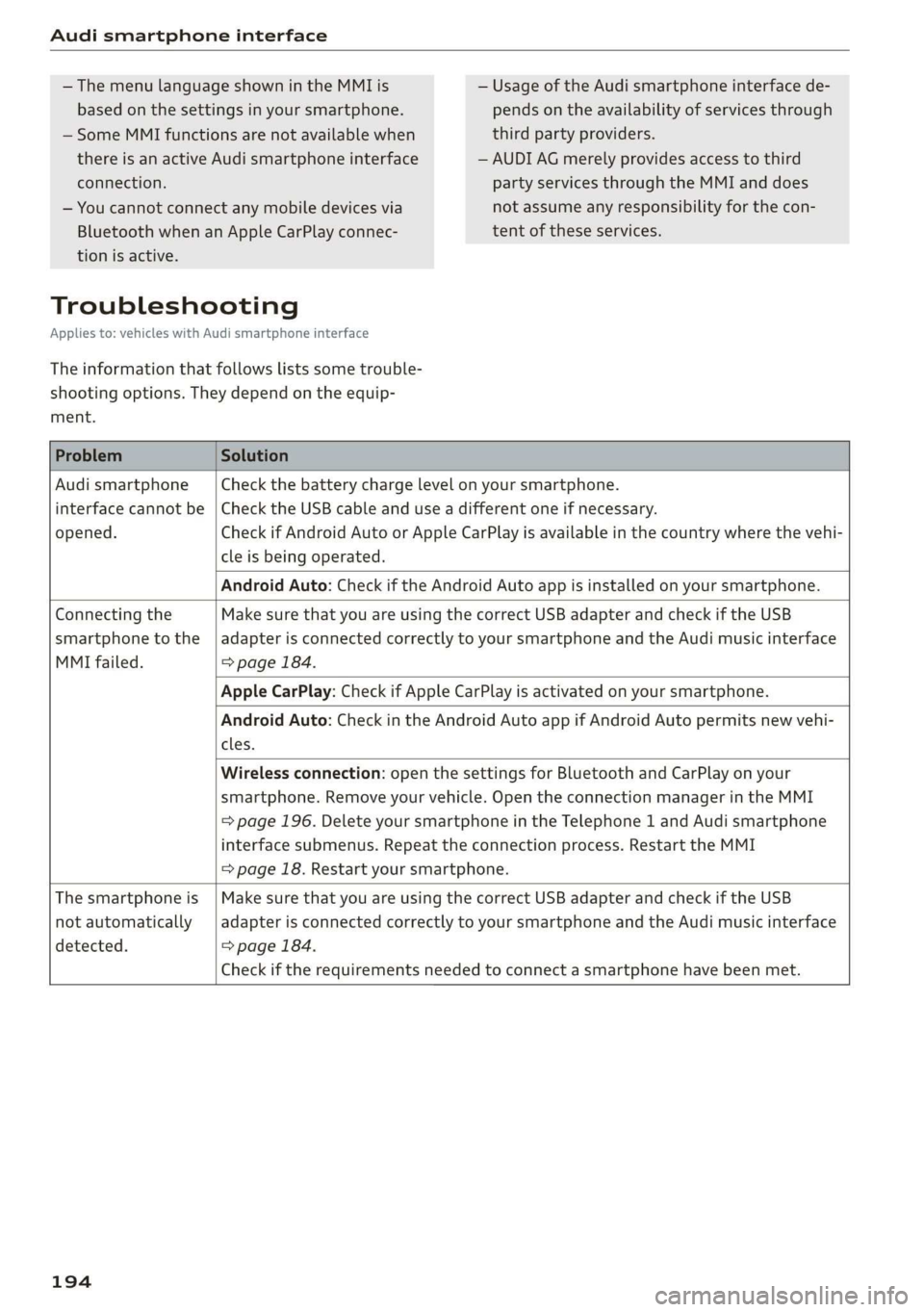
Troubleshooting
Applies to: vehicles with Audi smartphone interface
The information that follows lists some trouble-
shooting options. They depend on the equip-
ment.
— Usage of the Audi smartphone interface de-
pends on the availability of services through
third party providers.
— AUDI AG merely provides access to third
party services through the MMI and does
not assume any responsibility for the con-
tent of these services.
Problem Solution
Audi smartphone Check the battery charge level on your smartphone.
interface cannot be | Check the USB cable and use a different one if necessary.
opened.
cle is being operated.
Check if Android Auto or Apple CarPlay is available in the country where the vehi-
Android Auto: Check if the Android Auto app is installed on your smartphone.
Connecting the Make sure that you are using the correct USB adapter and check if the USB
smartphone to the | adapter is connected correctly to your smartphone and the Audi music interface
MMI failed. => page 184.
Apple CarPlay: Check if Apple CarPlay is activated on your smartphone.
cles.
Android Auto: Check in the Android Auto app if Android Auto permits new vehi-
Wireless connection: open the settings for Bluetooth and CarPlay on your
smartphone. Remove your vehicle. Open the connection manager in the MMI
= page 196. Delete your smartphone in the Telephone 1 and Audi smartphone
interface submenus. Repeat the connection process. Restart the MMI
= page 18. Restart your smartphone.
The smartphone is | Make sure that you are using the correct USB adapter and check if the USB
not automatically
detected. => page 184.
adapter is connected correctly to your smartphone and the Audi music interface
Check if the requirements needed to connect a smartphone have been met.
194
Page 198 of 280
Additional settings
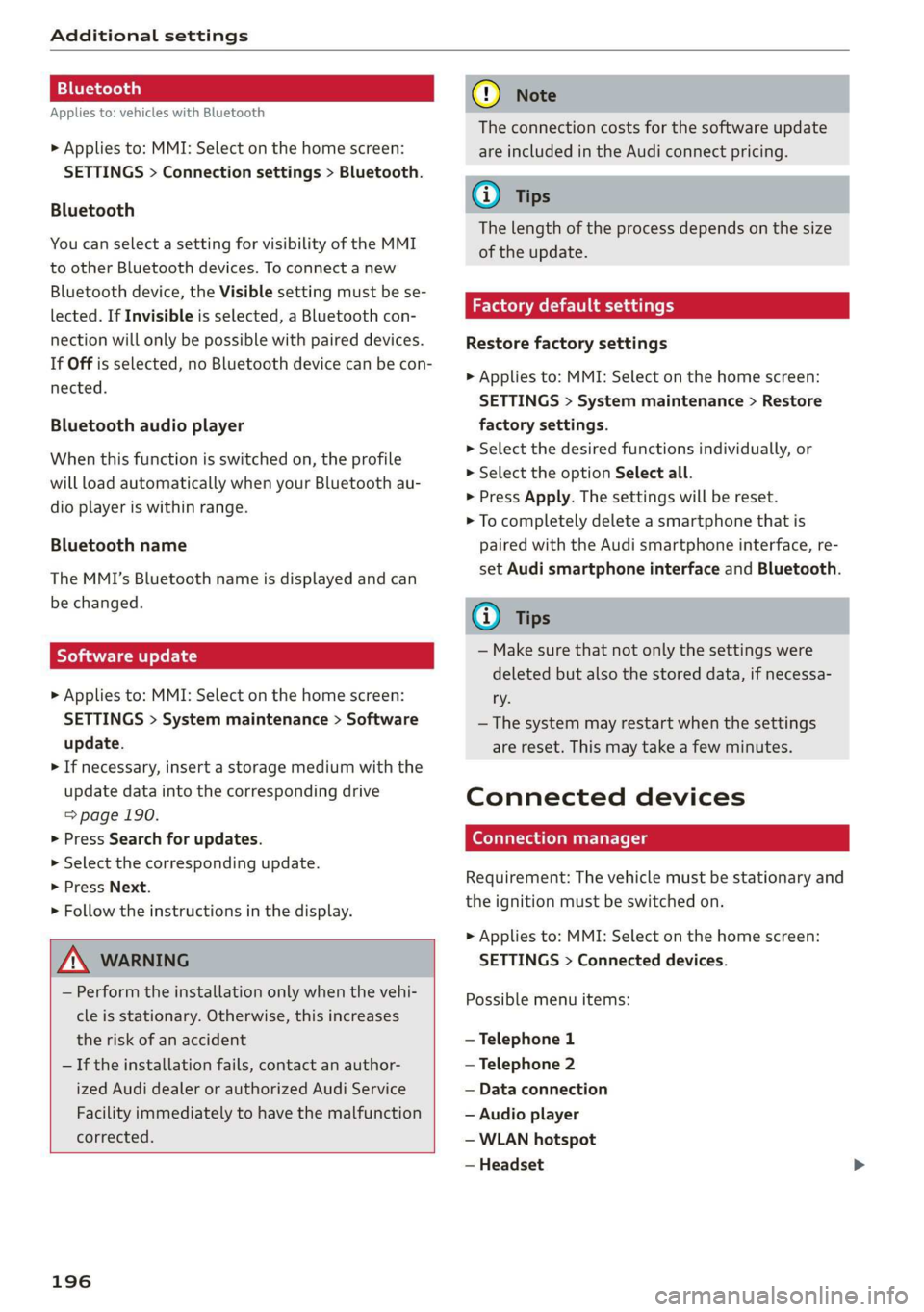
Bluetooth
Applies to: vehicles with Bluetooth
> Applies to: MMI: Select on the home screen:
SETTINGS > Connection settings > Bluetooth.
Bluetooth
You can select a setting for visibility of the MMI
to other Bluetooth devices. To connect a new
Bluetooth device, the Visible setting must be se-
lected. If Invisible is selected, a Bluetooth con-
nection will only be possible with paired devices.
If Off is selected, no Bluetooth device can be con-
nected.
Bluetooth audio player
When this function is switched on, the profile
will load automatically when your Bluetooth au-
dio player is within range.
Bluetooth name
The MMI’s Bluetooth name is displayed and can
be changed.
Toya MU olor ha)
> Applies to: MMI: Select on the home screen:
SETTINGS > System maintenance > Software
update.
> If necessary, insert a storage medium with the
update data into the corresponding drive
=> page 190.
> Press Search for updates.
> Select the corresponding update.
> Press Next.
> Follow the instructions in the display.
A WARNING
— Perform the installation only when the vehi-
cle is stationary. Otherwise, this increases
the risk of an accident
— If the installation fails, contact an author-
ized Audi dealer or authorized Audi Service
Facility immediately to have the malfunction
corrected.
196
@) Note
The connection costs for the software update
are included in the Audi connect pricing.
G) Tips
The length of the process depends on the size
of the update.
Factory default settings
Restore factory settings
> Applies to: MMI: Select on the home screen:
SETTINGS > System maintenance > Restore
factory settings.
> Select the desired functions individually, or
> Select the option Select all.
> Press Apply. The settings will be reset.
> To completely delete a smartphone that is
paired with the Audi smartphone interface, re-
set Audi smartphone interface and Bluetooth.
G) Tips
— Make sure that not only the settings were
deleted but also the stored data, if necessa-
ry.
— The system may restart when the settings
are reset. This may take a few minutes.
Connected devices
(atau ele (1s
Requirement: The vehicle must be stationary and
the ignition must be switched on.
> Applies to: MMI: Select on the home screen:
SETTINGS > Connected devices.
Possible menu items:
— Telephone 1
— Telephone 2
— Data connection
— Audio player
— WLAN hotspot
— Headset
Page 201 of 280
83A012721BA
Checking and Filling
Checking and Filling
Fuel
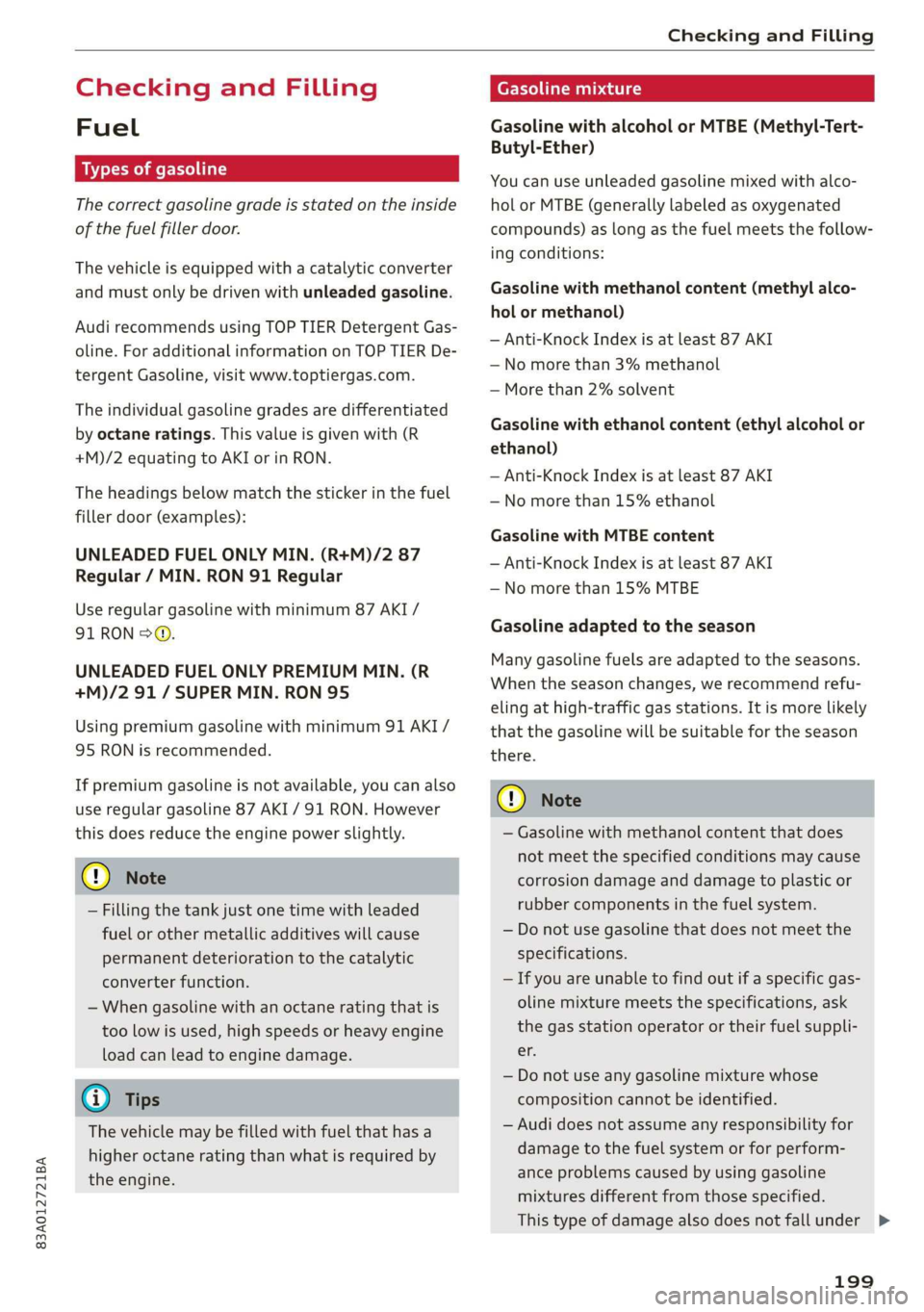
Types of gasoline
The correct gasoline grade is stated on the inside
of the fuel filler door.
The vehicle is equipped with a catalytic converter
and must only be driven with unleaded gasoline.
Audi recommends using TOP TIER Detergent Gas-
oline. For additional information on TOP TIER De-
tergent Gasoline, visit www.toptiergas.com.
The individual gasoline grades are differentiated
by octane ratings. This value is given with (R
+M)/2 equating to AKI or in RON.
The headings below match the sticker in the fuel
filler door (examples):
UNLEADED FUEL ONLY MIN. (R+M)/2 87
Regular / MIN. RON 91 Regular
Use regular gasoline with minimum 87 AKI /
91 RON > ©.
UNLEADED FUEL ONLY PREMIUM MIN. (R
+M)/2 91 / SUPER MIN. RON 95
Using premium gasoline with minimum 91 AKI /
95 RON is recommended.
If premium gasoline is not available, you can also
use regular gasoline 87 AKI / 91 RON. However
this does reduce the engine power slightly.
@) Note
— Filling the tank just one time with leaded
fuel or other metallic additives will cause
permanent deterioration to the catalytic
converter function.
— When gasoline with an octane rating that is
too low is used, high speeds or heavy engine
load can lead to engine damage.
@ Tips
The vehicle may be filled with fuel that has a
higher octane rating than what is required by
the engine.
Gasoline mixture
Gasoline with alcohol or MTBE (Methyl-Tert-
Butyl-Ether)
You can use unleaded gasoline mixed with alco-
hol or MTBE (generally labeled as oxygenated
compounds) as long as the fuel meets the follow-
ing conditions:
Gasoline with methanol content (methyl alco-
hol or methanol)
— Anti-Knock Index is at least 87 AKI
—No more than 3% methanol
— More than 2% solvent
Gasoline with ethanol content (ethyl alcohol or
ethanol)
— Anti-Knock Index is at least 87 AKI
—No more than 15% ethanol
Gasoline with MTBE content
— Anti-Knock Index is at least 87 AKI
—No more than 15% MTBE
Gasoline adapted to the season
Many gasoline fuels are adapted to the seasons.
When the season changes, we recommend refu-
eling at high-traffic gas stations. It is more likely
that the gasoline will be suitable for the season
there.
() Note
— Gasoline with methanol content that does
not meet the specified conditions may cause
corrosion damage and damage to plastic or
rubber components in the fuel system.
— Do not use gasoline that does not meet the
specifications.
— If you are unable to find out if a specific gas-
oline mixture meets the specifications, ask
the gas station operator or their fuel suppli-
er.
— Do not use any gasoline mixture whose
composition cannot be identified.
— Audi does not assume any responsibility for
damage to the fuel system or for perform-
ance problems caused by using gasoline
mixtures different from those specified.
This type of damage also does not fall under
199
>
Page 203 of 280
83A012721BA
Checking and Filling
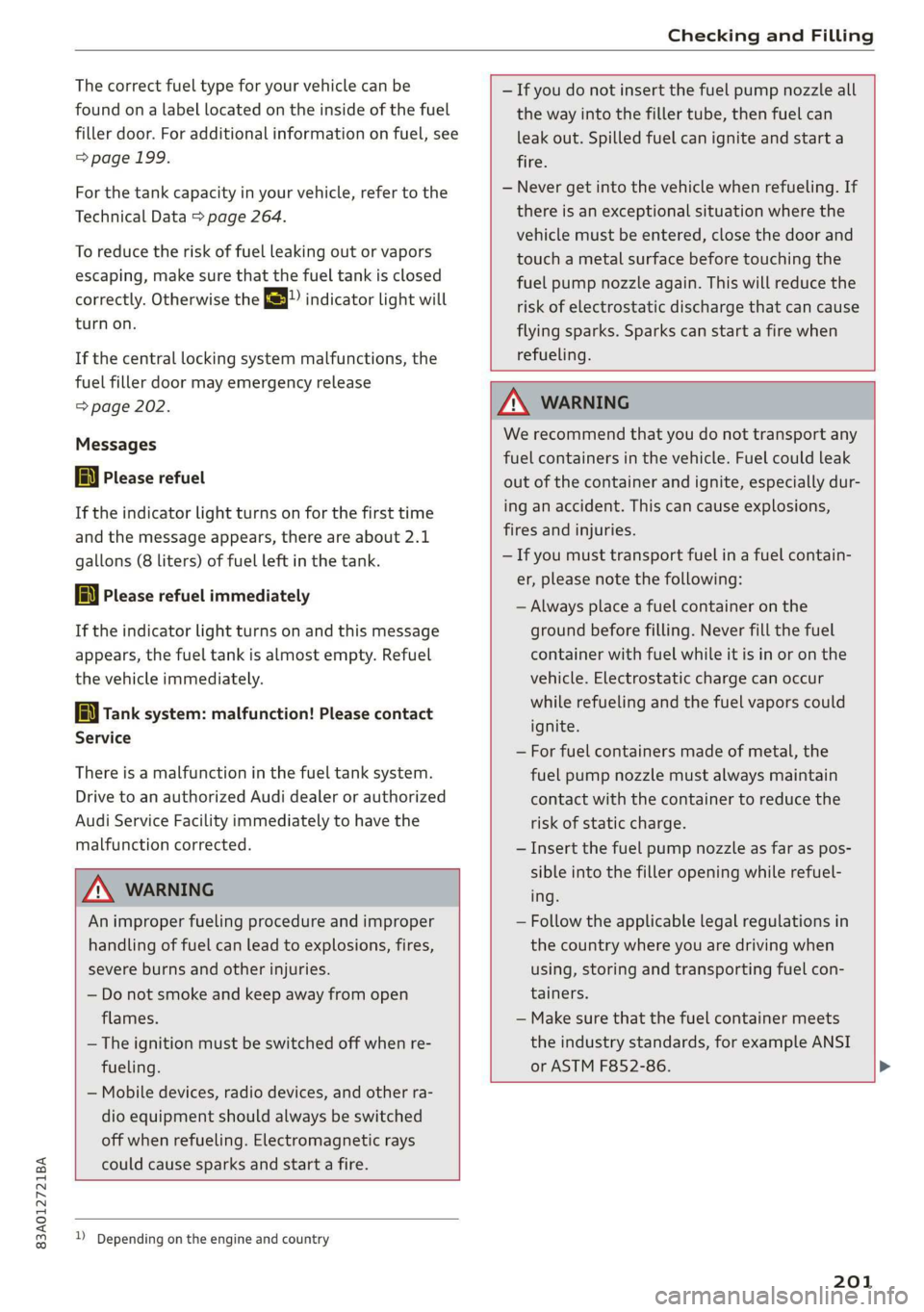
The correct fuel type for your vehicle can be
found ona label located on the inside of the fuel
filler door. For additional information on fuel, see
=> page 199.
For the tank capacity in your vehicle, refer to the
Technical Data > page 264.
To reduce the risk of fuel leaking out or vapors
escaping, make sure that the fuel tank is closed
correctly. Otherwise the Ey indicator light will
turn on.
If the central locking system malfunctions, the
fuel filler door may emergency release
=> page 202.
Messages
li Please refuel
If the indicator light turns on for the first time
and the message appears, there are about 2.1
gallons (8 liters) of fuel left in the tank.
ly Please refuel immediately
If the indicator light turns on and this message
appears, the fuel tank is almost empty. Refuel
the vehicle immediately.
fi Tank system: malfunction! Please contact
Service
There is a malfunction in the fuel tank system.
Drive to an authorized Audi dealer or authorized
Audi Service Facility immediately to have the
malfunction corrected.
— If you do not insert the fuel pump nozzle all
the way into the filler tube, then fuel can
leak out. Spilled fuel can ignite and start a
fire.
— Never get into the vehicle when refueling. If
there is an exceptional situation where the
vehicle must be entered, close the door and
touch a metal surface before touching the
fuel pump nozzle again. This will reduce the
risk of electrostatic discharge that can cause
flying sparks. Sparks can start a fire when
refueling.
ZA WARNING
An improper fueling procedure and improper
handling of fuel can lead to explosions, fires,
severe burns and other injuries.
— Do not smoke and keep away from open
flames.
— The ignition must be switched off when re-
fueling.
— Mobile devices, radio devices, and other ra-
dio equipment should always be switched
off when refueling. Electromagnetic rays
could cause sparks and start a fire.
ZA\ WARNING
We recommend that you do not transport any
fuel containers in the vehicle. Fuel could leak
out of the container and ignite, especially dur-
ing an accident. This can cause explosions,
fires and injuries.
—If you must transport fuel in a fuel contain-
er, please note the following:
— Always place a fuel container on the
ground before filling. Never fill the fuel
container with fuel while it is in or on the
vehicle. Electrostatic charge can occur
while refueling and
the fuel vapors could
ignite.
— For fuel containers made of metal, the
fuel pump nozzle must always maintain
contact with the container to reduce the
risk of static charge.
— Insert the fuel pump nozzle as far as pos-
sible into the filler opening while refuel-
ing.
— Follow the applicable legal regulations in
the country where you are driving when
using, storing and transporting fuel con-
tainers.
— Make sure that the fuel container meets
the industry standards, for example ANSI
or ASTM F852-86.
) Depending on the engine and country
201
Page 211 of 280
83A012721BA
Checking and Filling
— Maintain enough distance when you are re-
moving the oil drain plug. While doing this,
keep your forearm parallel to the ground to
reduce the risk of hot oil dripping down your
arm.
— Drain the oil into a container designed for
this purpose that is large enough to hold the
full amount of oil in your engine.
— Engine oil is poisonous. Always store out of
reach of children.
— Prolonged contact of used engine oil with
the skin may cause skin damage. Always
wash oil off immediately with soap and wa-
ter to protect your skin.
@) Note
Do not mix any additives with the engine oil.
Additives may cause engine damage that is
not covered by your New Vehicle Limited War-
ranty.
() For the sake of the environment
— Before changing the engine oil, make sure
you can dispose of the used engine oil cor-
rectly.
— Engine oil must always be disposed of cor-
rectly. Do not dump it in the yard, in the for-
est, or in open water, river channels, or sew-
ers.
— Have your used engine oil recycled by bring-
ing it to a used oil collection site or contact
a gas station.
Cooling system
The engine cooling system is filled with a mixture
of purified water and coolant additive at the fac-
tory. This coolant must not be not changed.
The coolant level is monitored using the B indi-
cator light. However, we do recommend occa-
sionally checking the coolant level manually.
Messages
& Turn off engine and check coolant level. See
owner's manual
The coolant level is too low.
Do not continue driving and switch the engine
off. Check the coolant level > page 210.
— If the coolant level is too low, add coolant
=> page 210. Only continue driving once the in-
dicator light turns off.
/_E| Coolant temperature: too high. Let engine
run while vehicle is stationary
Let the engine run at idle for a few minutes to
cool off, until the indicator light turns off.
— If the indicator light does not turn off, do not
continue driving the vehicle. See an authorized
Audi dealer or authorized Audi Service Facility
for assistance.
Coolant additive
The coolant additive is made of anti-freezing and
corrosion protection agents. Only use the follow-
ing coolant additives. These additives may be
mixed with each other.
Coolant additive
G12++
G13
Specification
TL774G
TL774)
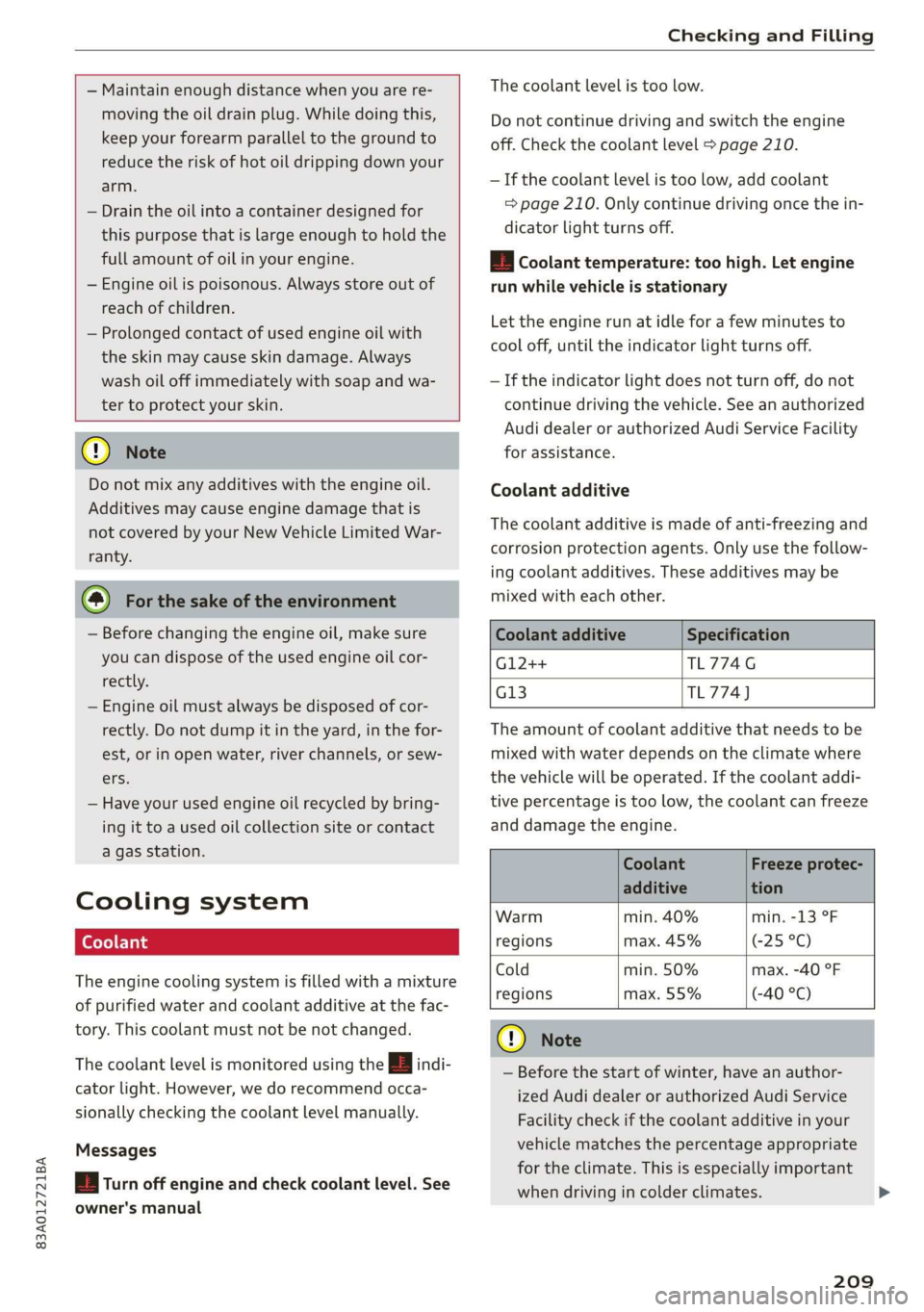
The amount of coolant additive that needs to be
mixed with water depends on the climate where
the vehicle will be operated. If the coolant addi-
tive percentage is too low, the coolant can freeze
and damage the engine.
Coolant Freeze protec-
additive tion
Warm min. 40% min. -13 °F
regions max. 45% (-25 °C)
Cold min. 50% max. -40 °F
regions max. 55% (-40 °C)
CG) Note
— Before the start of winter, have an author-
ized Audi dealer or authorized Audi Service
Facility check if the coolant additive in your
vehicle matches the percentage appropriate
for the climate. This is especially important
when driving in colder climates.
209