phone AUDI Q3 2020 Owner's Manual
[x] Cancel search | Manufacturer: AUDI, Model Year: 2020, Model line: Q3, Model: AUDI Q3 2020Pages: 278, PDF Size: 72.66 MB
Page 152 of 278
Telephone
Car phone serial number (IMEI):
Applies to: vehicles with car phone
The serial number (IMEI) of your car phone is dis-
played.
@ Tips
— Several mobile devices can be paired with
the MMI, but only two* mobile devices can
be actively connected.
—To delete all paired Bluetooth devices, the
Bluetooth function can be reset to the fac-
tory default settings > page 194.
Directory settings
Applies to: vehicles with telephone
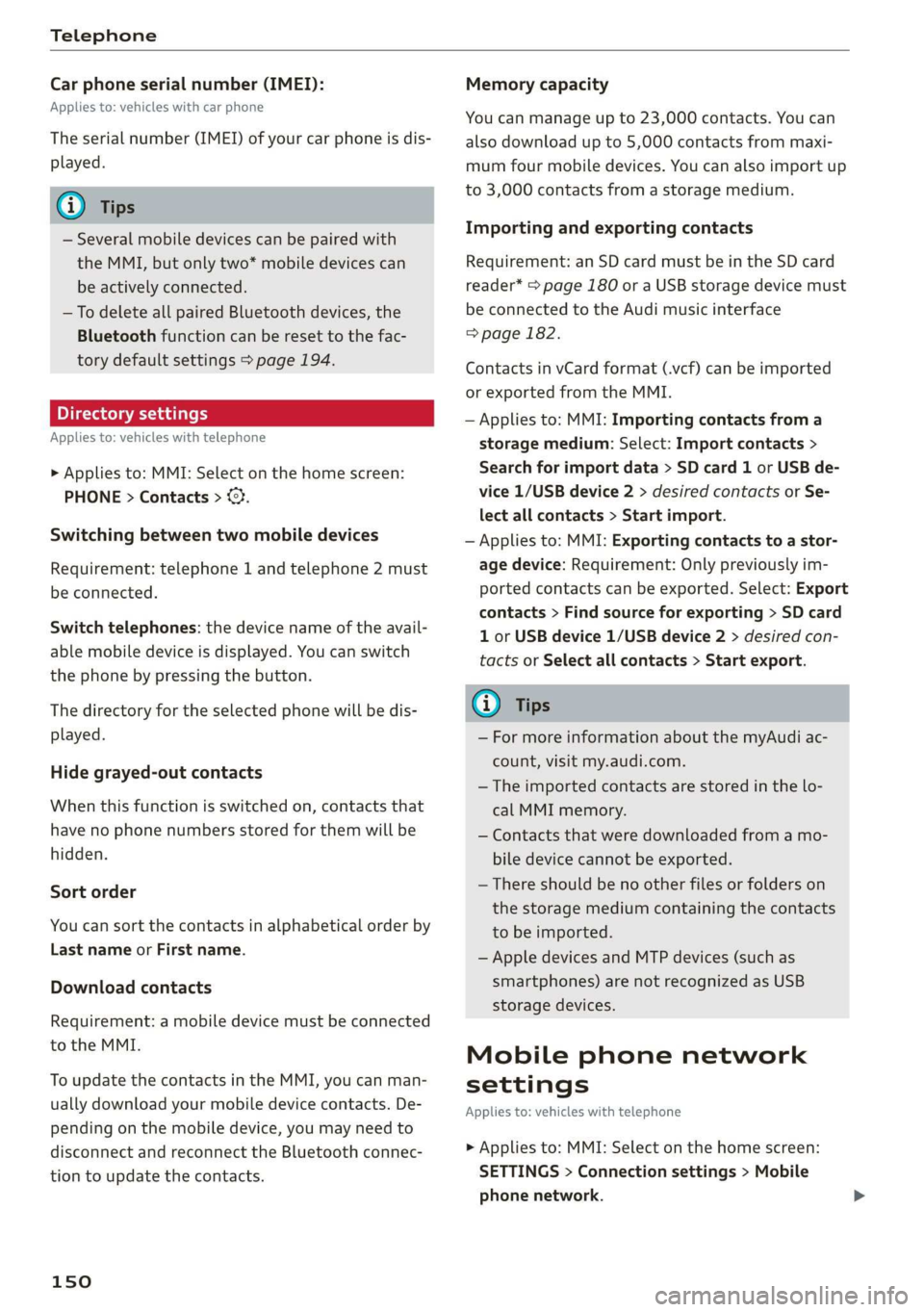
> Applies to: MMI: Select on the home screen:
PHONE > Contacts > >.
Switching between two mobile devices
Requirement: telephone 1 and telephone 2 must
be connected.
Switch telephones: the device name of the avail-
able mobile device is displayed. You can switch
the phone by pressing the button.
The directory for the selected phone will be dis-
played.
Hide grayed-out contacts
When this function is switched on, contacts that
have no phone numbers stored for them will be
hidden.
Sort order
You can sort the contacts in alphabetical order by
Last name or First name.
Download contacts
Requirement: a mobile device must be connected
to the MMI.
To update the contacts in the MMI, you can man-
ually download your mobile device contacts. De-
pending on the mobile device, you may need to
disconnect and reconnect the Bluetooth connec-
tion to update the contacts.
150
Memory capacity
You can manage up to 23,000 contacts. You can
also download up to 5,000 contacts from maxi-
mum four mobile devices. You can also import up
to 3,000 contacts from a storage medium.
Importing and exporting contacts
Requirement: an SD card must be in the SD card
reader* > page 180 or a USB storage device must
be connected to the Audi music interface
=> page 182.
Contacts in vCard format (.vcf) can be imported
or exported from the MMI.
— Applies to: MMI: Importing contacts from a
storage medium: Select: Import contacts >
Search for import data > SD card 1 or USB de-
vice 1/USB device 2 > desired contacts or Se-
lect all contacts > Start import.
— Applies to: MMI: Exporting contacts to a stor-
age device: Requirement: Only previously im-
ported contacts can be exported. Select: Export
contacts > Find source for exporting > SD card
1 or USB device 1/USB device 2 > desired con-
tacts or Select all contacts > Start export.
G@) Tips
— For more information about the myAudi ac-
count, visit my.audi.com.
— The imported contacts are stored in the lo-
cal MMI memory.
— Contacts that were downloaded from a mo-
bile device cannot be exported.
— There should be no other files or folders on
the storage medium containing the contacts
to be imported.
— Apple devices and MTP devices (such as
smartphones) are not recognized as USB
storage devices.
Mobile phone network
settings
Applies to: vehicles with telephone
> Applies to: MMI: Select on the home screen:
SETTINGS > Connection settings > Mobile
phone network.
Page 153 of 278
![AUDI Q3 2020 Owners Manual 83A012721BB
Telephone
Switching the car phone or data module on > Press the [=] button.
Applies to: vehicles with car phone/data module
See > page 149.
Instrument cluster
Telephone
Applies t](/img/6/57625/w960_57625-152.png "AUDI Q3 2020 Owners Manual 83A012721BB
Telephone
Switching the car phone or data module on > Press the [=] button.
Applies to: vehicles with car phone/data module
See > page 149.
Instrument cluster
Telephone
Applies t")
83A012721BB
Telephone
Switching the car phone or data module on > Press the [=] button.
Applies to: vehicles with car phone/data module
See > page 149.
Instrument cluster
Telephone
Applies to: vehicles with multifunction steering wheel and
telephone
In the instrument cluster display, you can control
the MMI functions with the multifunction steer-
Possible options:
— Call list: Requirement: the call list must con-
tain a phone number.
— Favorites: Requirement: favorites must be stor-
ed in the MMI.
— Switch telephones: Requirement: two cell
phones must be connected to the MMI.
— Back to call: Requirement: there must be a call
in progress.
ing wheel. Operating > page 12 and > page 26,
Additional function buttons.
Requirement: the Telephone tab must be select-
ed in the instrument cluster.
Troubleshooting
Applies to: vehicles with telephone
(i) Tips
Depending on the selected function, it may be
necessary to use the MMI.
The information that follows lists some trouble-
shooting options. They depend on the equip-
ment.
Problem Solution
Pairing the mobile device to the
MMI failed.
Make sure the requirements for connecting a cell phone have been
met > page 139, or
make sure you did not accidentally decline the PIN for establishing
a connection on your cell phone. If necessary, repeat the pairing
process > page 139.
After pairing, not all contacts or
no contacts have been loaded in-
to the MMI.
Avoid using special characters in names.
Avoid using contact groups on your cell phone.
Check for prompts on your mobile device when connecting via
Bluetooth.
Certain telephone functions are
grayed out or not available.
The telephone functions depend on the mobile device service pro-
vider and the mobile device you are using.
Some telephone functions may
be switched off or not available,
even though the mobile device is
supported.
Check if the Bluetooth settings on your cell phone are limited or
individual Bluetooth settings are deactivated. This may be the
case with business cell phones.
Wireless cell phone charging is
not working or is interrupted.
Check if wireless charging with the Audi phone box is switched on.
Check if your mobile device is Qi-capable.
Check if your mobile device is positioned correctly in the Audi
phone box > page 141 and no other objects are between them.
The MESSAGES menu is not avail-
able.
Check if the Show messages option is on your mobile device and it
is enabled.
151
Page 154 of 278
Audi connect
Audi connect
General information
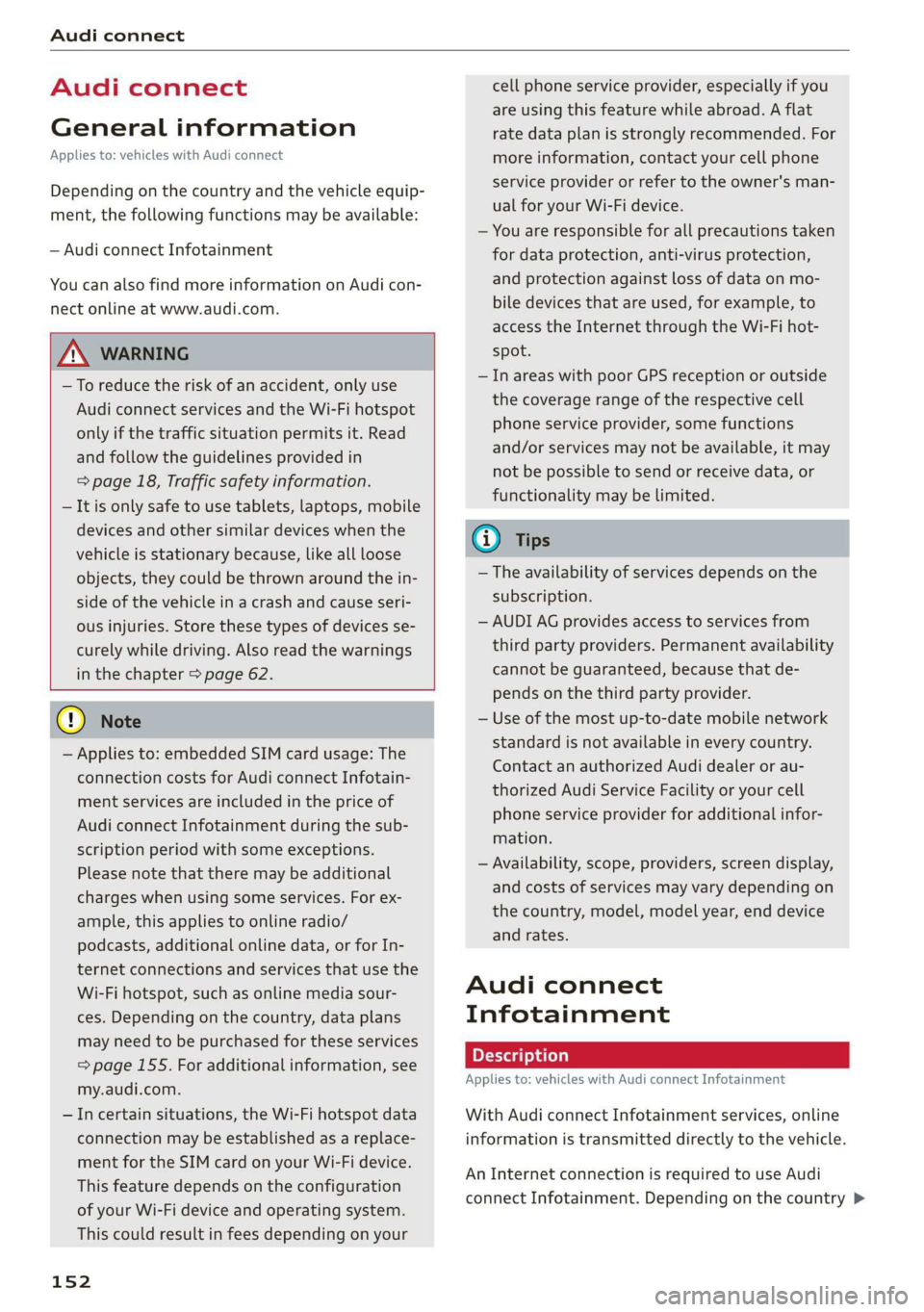
Applies to: vehicles with Audi connect
Depending on the country and the vehicle equip-
ment, the following functions may be available:
— Audi connect Infotainment
You can also find more information on Audi con-
nect online at www.audi.com.
ZA\ WARNING
—To reduce the risk of an accident, only use
Audi connect services and the Wi-Fi hotspot
only if the traffic situation permits it. Read
and follow the guidelines provided in
= page 18, Traffic safety information.
— It is only safe to use tablets, laptops, mobile
devices and other similar devices when the
vehicle is stationary because, like all loose
objects, they could be thrown around the in-
side of the vehicle in a crash and cause seri-
ous injuries. Store these types of devices se-
curely while driving. Also read the warnings
in the chapter > page 62.
©) Note
— Applies to: embedded SIM card usage: The
connection costs for Audi connect Infotain-
ment services are included in the price of
Audi connect Infotainment during the sub-
scription period with some exceptions.
Please note that there may be additional
charges when using some services. For ex-
ample, this applies to online radio/
podcasts, additional online data, or for In-
ternet connections and services that use the
Wi-Fi hotspot, such as online media sour-
ces. Depending on the country, data plans
may need to be purchased for these services
=> page 155. For additional information, see
my.audi.com.
—Incertain situations, the Wi-Fi hotspot data
connection may be established as a replace-
ment for the SIM card on your Wi-Fi device.
This feature depends on the configuration
of your Wi-Fi device and operating system.
This could result in fees depending on your
152
cell phone service provider, especially if you
are using this feature while abroad. A flat
rate data plan is strongly recommended. For
more information, contact your cell phone
service provider or refer to the owner's man-
ual for your Wi-Fi device.
— You are responsible for all precautions taken
for data protection, anti-virus protection,
and protection against loss of data on mo-
bile devices that are used, for example, to
access the Internet through the Wi-Fi hot-
spot.
— In areas with poor GPS reception or outside
the coverage range of the respective cell
phone service provider, some functions
and/or services may not be available, it may
not be possible to send or receive data, or
functionality may be limited.
@ Tips
— The availability of services depends on the
subscription.
— AUDI AG provides access to services from
third party providers. Permanent availability
cannot be guaranteed, because that de-
pends on the third party provider.
— Use of the most up-to-date mobile network
standard is not available in every country.
Contact an authorized Audi dealer or au-
thorized Audi Service Facility or your cell
phone service provider for additional infor-
mation.
— Availability, scope, providers, screen display,
and costs of services may vary depending on
the country, model, model year, end device
and rates.
Audi connect
Infotainment
Applies to: vehicles with Audi connect Infotainment
With Audi connect Infotainment services, online
information is transmitted directly to the vehicle.
An Internet connection is required to use Audi
connect Infotainment. Depending on the country >
Page 155 of 278
83A012721BB
Audi connect
and the vehicle equipment, the following options
may be available:
— Embedded SIM card
ZA WARNING
Always follow the information found in > AV
in General information on page 152.
@) Note
Always follow the information found in >@ in
General information on page 152.
Embedded SIM card
Applies to: vehicles with Audi connect Infotainment and an
embedded SIM card
The data connection for Audi connect Infotain-
ment services is made through an embedded SIM
card (eSIM card) that is installed in the vehicle.
You can use the Audi connect Infotainment serv-
ices immediately.
@) Note
Always follow the information found in >@ in
General information on page 152.
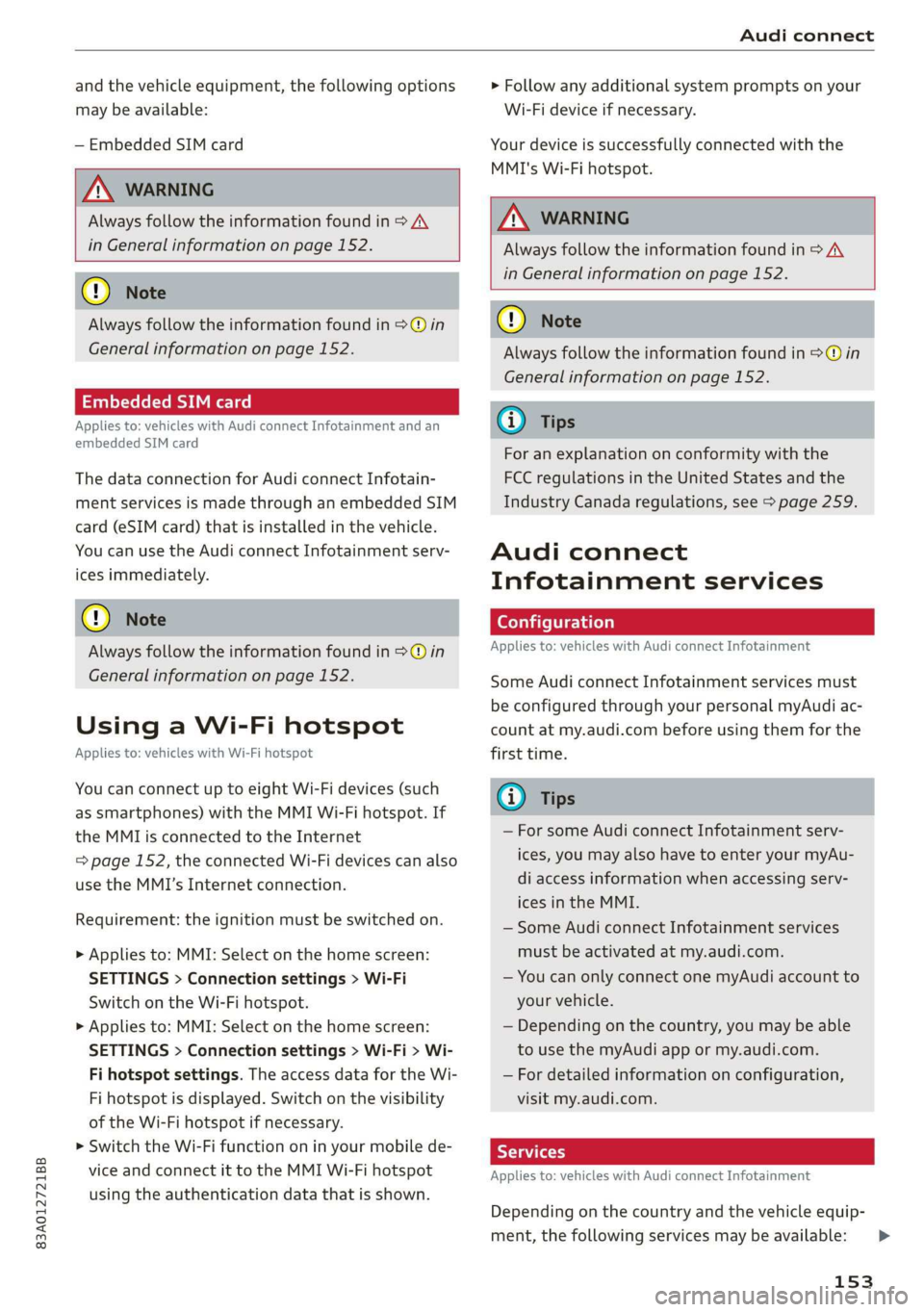
Using a Wi-Fi hotspot
Applies to: vehicles with Wi-Fi hotspot
You can connect up to eight Wi-Fi devices (such
as smartphones) with the MMI Wi-Fi hotspot. If
the MMI is connected to the Internet
= page 152, the connected Wi-Fi devices can also
use the MMI’s Internet connection.
Requirement: the ignition must be switched on.
> Applies to: MMI: Select on the home screen:
SETTINGS > Connection settings > Wi-Fi
Switch on the Wi-Fi hotspot.
> Applies to: MMI: Select on the home screen:
SETTINGS > Connection settings > Wi-Fi > Wi-
Fi hotspot settings. The access data for the Wi-
Fi hotspot is displayed. Switch on the visibility
of the Wi-Fi hotspot if necessary.
> Switch the Wi-Fi function on in your mobile de-
vice and connect it to the MMI Wi-Fi hotspot
using the authentication data that is shown.
> Follow any additional system prompts on your
Wi-Fi device if necessary.
Your device is successfully connected with the
MMI's Wi-Fi hotspot.
ZA WARNING
Always follow the information found in > A\
in General information on page 152.
C) Note
Always follow the information found in >@ in
General information on page 152.
@) Tips
For an explanation on conformity with the
FCC regulations in the United States and the
Industry Canada regulations, see > page 259.
Audi connect
Infotainment services
Applies to: vehicles with Audi connect Infotainment
Some Audi connect Infotainment services must
be configured through your personal myAudi ac-
count at my.audi.com before using them for the
first time.
Gi) Tips
— For some Audi connect Infotainment serv-
ices, you may also have to enter your myAu-
di access information when accessing serv-
ices in the MMI.
— Some Audi connect Infotainment services
must be activated at my.audi.com.
— You can only connect one myAudi account to
your vehicle.
— Depending on the country, you may be able
to use the myAudi app or my.audi.com.
— For detailed information on configuration,
visit my.audi.com.
Applies to: vehicles with Audi connect Infotainment
Depending on the country and the vehicle equip-
ment, the following services may be available: >
153
Page 156 of 278
Audi connect
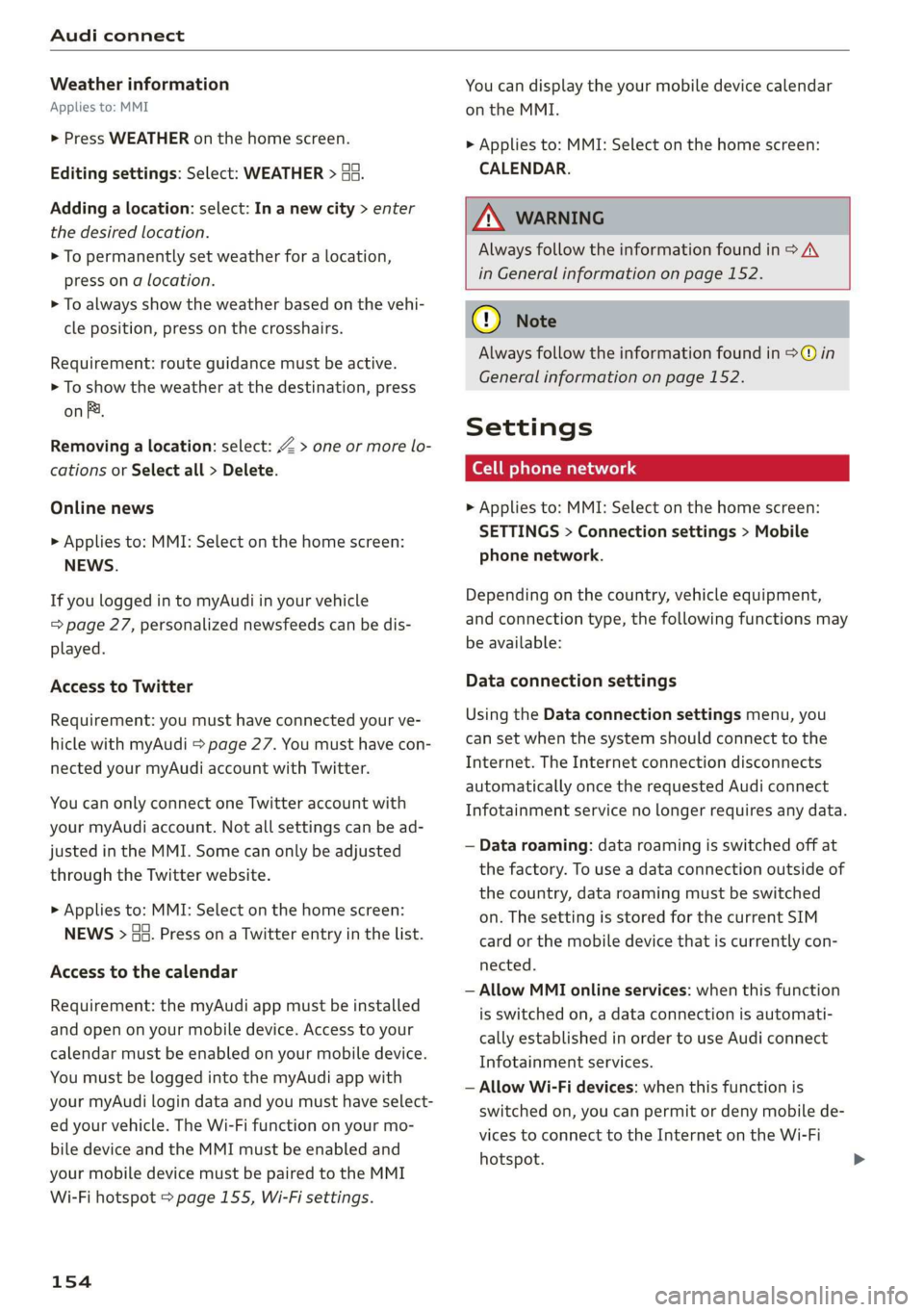
Weather information
Applies to: MMI
> Press WEATHER on the home screen.
Editing settings: Select: WEATHER > Ga.
Adding a location: select: In a new city > enter
the desired location.
> To permanently set weather for a location,
press on a location.
> To always show the weather based on the vehi-
cle position, press on the crosshairs.
Requirement: route guidance must be active.
> To show the weather at the destination, press
on B.
Removing a location: select: Z > one or more lo-
cations or Select all > Delete.
Online news
> Applies to: MMI: Select on the home screen:
NEWS.
If you logged in to myAudi in your vehicle
= page 27, personalized newsfeeds can be dis-
played.
Access to Twitter
Requirement: you must have connected your ve-
hicle with myAudi > page 27. You must have con-
nected your myAudi account with Twitter.
You can only connect one Twitter account with
your myAudi account. Not all settings can be ad-
justed in the MMI. Some can only be adjusted
through the Twitter website.
> Applies to: MMI: Select on the home screen:
NEWS > aa. Press ona Twitter entry in the list.
Access to the calendar
Requirement: the myAudi app must be installed
and open on your mobile device. Access to your
calendar must be enabled on your mobile device.
You must be logged into the myAudi app with
your myAudi login data and you must have select-
ed your vehicle. The Wi-Fi function on your mo-
bile device and the MMI must be enabled and
your mobile device must be paired to the MMI
Wi-Fi hotspot > page 155, Wi-Fi settings.
154
You can display the your mobile device calendar
on the MMI.
> Applies to: MMI: Select on the home screen:
CALENDAR.
Z\ WARNING
Always follow the information found in > AV
in General information on page 152.
C) Note
Always follow the information found in © in
General information on page 152.
Settings
Ce oan Mari nucle
> Applies to: MMI: Select on the home screen:
SETTINGS > Connection settings > Mobile
phone network.
Depending on the country, vehicle equipment,
and connection type, the following functions may
be available:
Data connection settings
Using the Data connection settings menu, you
can set when the system should connect to the
Internet. The Internet connection disconnects
automatically once the requested Audi connect
Infotainment service no longer requires any data.
— Data roaming: data roaming is switched off at
the factory. To use a data connection outside of
the country, data roaming must be switched
on. The setting is stored for the current SIM
card or the mobile device that is currently con-
nected.
— Allow MMI online services: when this function
is switched on, a data connection is automati-
cally established in order to use Audi connect
Infotainment services.
— Allow Wi-Fi devices: when this function is
switched on, you can permit or deny mobile de-
vices to connect to the Internet on the Wi-Fi
hotspot.
Page 157 of 278
83A012721BB
Audi connect
Access point
The connection is configured automatically based
on the SIM card being used. The following values
can be changed. You can obtain more information
from your cell phone service provider.
— Access Point Name (APN): the access point de-
pends on the cell phone service provider and is
assigned automatically.
— User name: your cell phone service provider as-
signs the user name for your online profile.
— Password: your cell phone service provider as-
signs the password for your online profile.
— Apply settings: saves the changed settings.
— Reset configuration: resets the connection set-
tings.
Data usage counter
Your current data usage is displayed.
— Reset counter: you can reset your usage statis-
tics to zero.
— Warning limit: you can set a warning limit for
your data usage (GB/MB).
Z\ WARNING
Always follow the information found in > A\
in General information on page 152.
@) Note
Always follow the information found in >@ in
General information on page 152.
G) Tips
For more information on roaming charges,
contact your cell phone service provider.
Wi-Fi settings
Applies to: vehicles with Wi-Fi hotspot
Requirement: the ignition must be switched on.
> Applies to: MMI: Select on the home screen:
SETTINGS > Connection settings > Wi-Fi
Depending on the country and the vehicle equip-
ment, the following functions may be available:
))_ Not available in every market.
Wi-Fi
When the function is switched on, the MMI's Wi-
Fi hotspot is active and Wi-Fi devices can be con-
nected to the hotspot.
Wi-Fi hotspot settings
The Wi-Fi connection between the MMI and your
Wi-Fi device is encrypted. You can change the fol-
lowing information if needed.
— Access point (SSID): name of the Wi-Fi hot-
spot.
— Password: a random password was set at the
factory in the MMI. The password can be
changed. The encryption method requires a
password to be at least eight characters long.
Choose a secure password.
— Visible to others: you can switch the visibility
of the Wi-Fi hotspot on or off.
Z\ WARNING
Always follow the information found in > AV
in General information on page 152.
@) Note
Always follow the information found in >@ in
General information on page 152.
Applies to: vehicles with data plans
Requirement: you must have created a myAudi
account at my.audi.com. Your vehicle must be
registered in your myAudi account.
You can purchase data plans at my.audi.com.
ZA\ WARNING
Always follow the information found in > AV
in General information on page 152.
C) Note
Always follow the information found in >@ in
General information on page 152.
155
>
Page 163 of 278
83A012721BB
Navigation
Selecting contacts as destinations
Applies to: vehicles with MMI and navigation system
You can navigate directly to contacts.
Requirement: an address with navigation data or
a navigation destination must already be as-
signed to a contact > page 166.
> Applies to: MMI: Select on the home screen:
NAVIGATION > (8) > Contacts > a contact.
> Press on an address.
> Check the address and change it, if necessary.
Start navigation > page 159, Entering an ad-
dress.
Route guidance will be activated and the map will
be displayed > page 163, fig. 125.
Additional functions for contacts in navigation
can be found under > page 166.
@ Tips
— Addresses that have been imported from
your mobile device into the MMI can also be
used as a destination.
— Ifa contact is grayed out in the directory,
this contact has neither a destination nor an
address assigned to it.
Loading received destinations and routes
Applies to: vehicles with a navigation system and Audi con-
nect Infotainment
You can search for destinations or routes in the
myAudi app and send to the vehicle.
Requirement: the MMI and the mobile device
must be connected to the Internet > page 152,
Audi connect. You must have the myAudi app in-
stalled on your mobile device.
» Send a destination or route in the myAudi app
to the vehicle.
> Applies to: MMI: Select on the home screen:
NAVIGATION > (Ga) > Received dests. & routes.
> Make sure you are logged into the vehicle and
the myAudi app with the same myAudi account.
The received destination and routes will be
loaded automatically.
> Navigating to a destination: press on a desti-
nation.
> Deleting destinations: select: Z > one or more
entries or Select all > Delete > (Done).
@) Note
Read the information about Audi connect, and
be sure to note the connectivity costs section
=@ in General information on page 152.
Destination details
Applies to: vehicles with navigation system
i
bi de we
Selig
aes | as ! Pt Uo ae Cd
Fig. 124 Center display: details
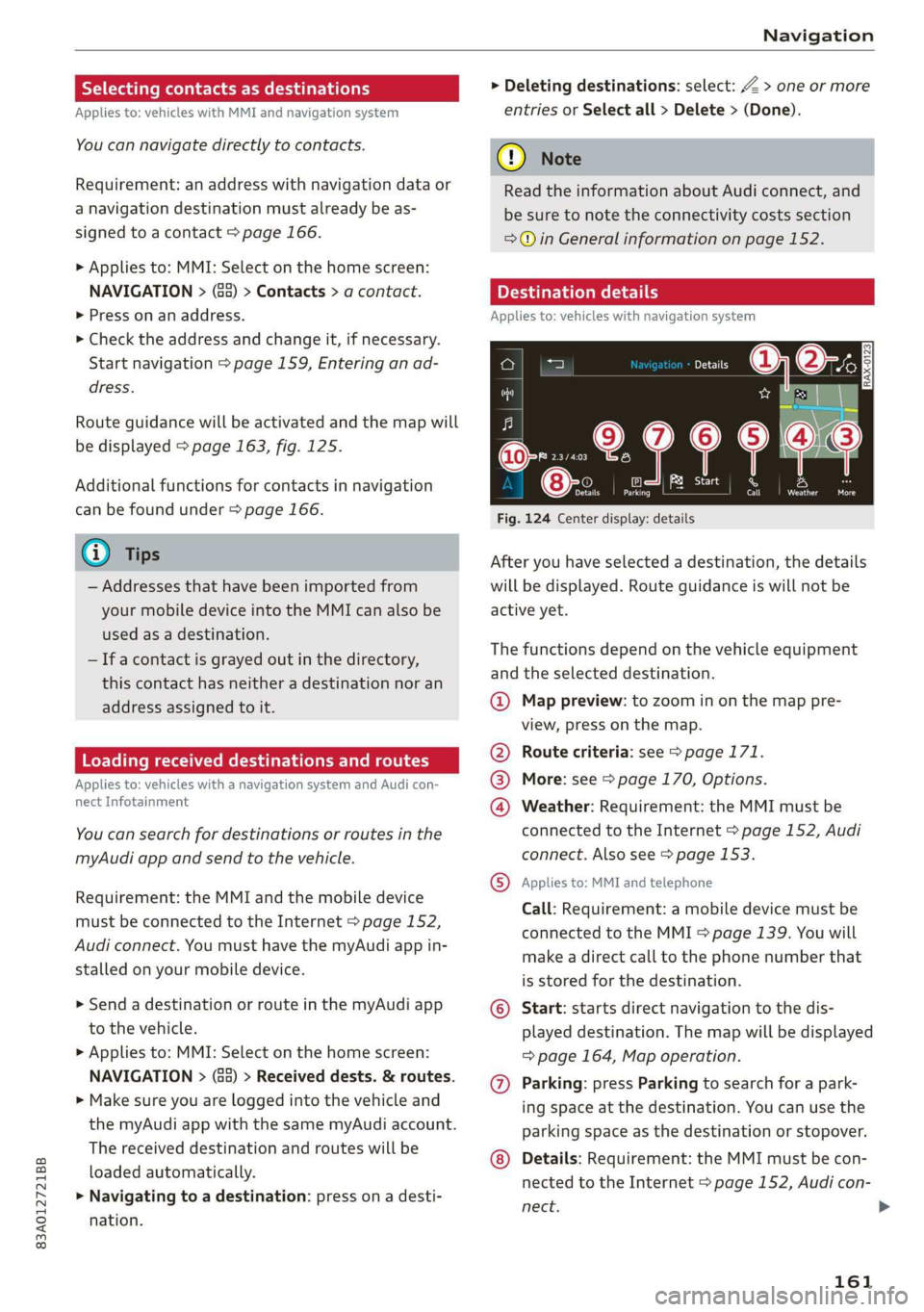
After you have selected a destination, the details
will be displayed. Route guidance is will not be
active yet.
The functions depend on the vehicle equipment
and the selected destination.
@ Map preview: to zoom in on the map pre-
view, press on the map.
@ Route criteria: see > page 171.
@® More: see > page 170, Options.
@ Weather: Requirement: the MMI must be
connected to the Internet > page 152, Audi
connect. Also see > page 153.
® Applies to: MMI and telephone
Call: Requirement: a mobile device must be
connected to the MMI > page 139. You will
make a direct call to the phone number that
is stored for the destination.
© Start: starts direct navigation to the dis-
played destination. The map will be displayed
=> page 164, Map operation.
Parking: press Parking to search for a park-
ing space at the destination. You can use the
parking space as the destination or stopover.
Details: Requirement: the MMI must be con-
nected to the Internet > page 152, Audi con-
nect.
161
>
Page 169 of 278
83A012721BB
Navigation
Adding a destination to a contact
Requirement: a mobile device must be connected
to the MMI > page 139. Or: you must have im-
ported contacts > page 150, Importing and ex-
porting contacts. The Hide grayed-out contacts
option must be switched off > page 167. There
must be no business address or private address
stored for the desired contact.
> Select: a contact > |---| > Add destination.
> Follow the system instructions.
Settings
> Applies to: MMI: Select on the home screen:
NAVIGATION > (88) > Contacts > ©.
Hide grayed-out contacts
When the function is switched on, contacts that
have no address or navigation destination stored
will be hidden in navigation. You can find infor-
mation for additional settings under > page 150,
Directory settings.
G) Tips
If you add a navigation destination to a con-
tact, the destination will only be stored in the
MMI. The MMI does not change any contacts
on your phone.
Coy de 1a or le ai le)
Applies to: navigation system and on-street parking
In supported areas, you can display parking
along the route.
Requirement: the Parking notification must be
switched on > page 20, Notification center. The
MMI must be connected to the Internet
= page 152, Audi connect. Route guidance must
be active, you must be close to your destination,
and a notification must be displayed. Or: a point
is marked on the map.
> Press on the notification. Or: press on §j on the
map.
) Audi provides access to services from third party provid-
ers. Permanent availability cannot be guaranteed, because
that depends on the third party provider.
> To navigate to a parking: space, press ona col-
ored marking on the map.
> Select: F2 > Start.
Depending on availability, colored markings on
the map indicate the probability of open parking
spaces.
Color Meaning
Green | High probability
Orange |Medium probability
Red Low probability
@) Note
Read the information about Audi connect, and
be sure to note the connectivity costs section
=@ in General information on page 152.
Satellite map
Applies to: vehicles with navigation system and satellite map
You can display the navigation map with satel-
lite images.
Requirement: the MMI must be connected to the
Internet > page 152, Audi connect.
> Applies to: MMI: Select on the home screen:
NAVIGATION > <} > Map settings > Satellite
map).
The map view is based on data packets received
from the Internet in the form of satellite images,
which are then combined with the roadways from
the > page 163, fig. 125 standard map view.
@) Note
Read the information about Audi connect, and
be sure to note the connectivity costs section
=@ in General information on page 152.
@) Tips
—The satellite map) is updated regularly
whenever the function is opened. The proc-
ess may take several seconds.
167
Page 173 of 278
83A012721BB
Navigation
Accessing settings
> Applies to: MMI: Select on the home screen:
NAVIGATION > ©.
Accessing settings using the multifunction
steering wheel
> Applies to: multifunction steering wheel: Select
in the instrument cluster: Navigation tab >
button.
Please note that a setting applied to the multi-
function steering wheel is only valid for the in-
strument cluster map.
Map settings
Satellite map: see > page 167.
Traffic: you can display current traffic informa-
tion on the map. See > page 164, Traffic infor-
mation display on the map or map preview
— Free flow of traffic
— Traffic obstructions
— Traffic information
Map colors
— Automatic: the map display adapts to the light-
ing conditions (for example, by changing from
day to night when driving through a tunnel).
— Day or Night
Map orientation
— 2D map or 2D north: the current vehicle posi-
tion is displayed. The map is oriented in the di-
rection of travel or to the north.
— 3D map: the current vehicle position is shown
ona three-dimensional map and is oriented in
the direction of travel.
— Overview: the entire route from the vehicle po-
sition to the destination or the next stopover is
displayed on the map. The map is oriented to
the north.
Automatic zoom
— On: the map scale is adapted automatically de-
pending on the type of road being traveled (ex-
pressway, highway, other roads) so that you al-
ways have an optimal overview of the road
ahead. When route guidance is active, the scale
is adjusted automatically for a better detailed
view when there are upcoming maneuvers.
— Intersection: when route guidance is active, the
scale is adjusted automatically for a better de-
tailed view when there are upcoming maneu-
vers.
— Off
MMI map contents/Map content: you can switch
the display of additional information (such as
POIs) on the map in the center display on or off.
Note the following for the 3D city model > ©.
Voice guidance
Voice guidance: you can adjust the navigation
prompts. With the Traffic setting, the MMI will
only give prompts if there are traffic incidents on
your route.
Voice guidance during phone call
Entertainment fader during navigation: the au-
dio playback volume is temporarily lowered when
navigation prompts are active.
Route criteria
You can adjust which route criteria should be al-
lowed or avoided for the route calculation.
HOV/carpool lanes
Highways
Toll roads
Ferries
Route information
When this function is switched on and route
guidance is active, route information ®
=> page 163, fig. 125 is displayed. The next ma-
neuver will be displayed at the bottom. POIs and
traffic information will also be displayed. Press
route information to display a preview of the next
maneuver on the map. You can switch the follow-
ing information on or off in route information.
— POIs along the route
— Traffic information
Personal route assistance
Personal route assistance is switched off at the
factory.
171
Page 179 of 278
83A012721BB
Radio
Requirement: at least one entry must be stored
in the Podcast favorites.
— Listening to a podcast favorite: press on the
desired podcast.
— Browsing podcast favorites: use your finger to
swipe to the left or right.
— Displaying all podcast favorites: press All.
— Deleting a favorite: Select: All > Z > select one
or more podcasts or Select all > Delete >
(Done).
Requirement: at least two favorites must be stor-
ed.
— Moving a favorite: Select: All > Z. Touch the
symbol and move the entry to the desired posi-
tion. Press Done.
@) Note
Read the information about Audi connect, and
be sure to note the connectivity costs section
=@ in General information on page 152.
G) Tips
— Depending on the Internet connection and
network traffic, the connection may be lost
when online radio is playing.
— Online radio reception may not be possible
if Internet service is throttled.
— The use of online radio depends on the serv-
ice availability of the third party provider.
— The range and screen display of online me-
dia services from third party providers in the
vehicle can vary.
— AUDI AG only provides access to online radio
and does not assume any responsibility for
the content of these services.
Radio text
Program information (for example, general text
messages, artist, composer, song) is displayed in
the radio text.
Requirement: the selected radio station must
support the radio text function.
Opening radio text
> Applies to: MMI: Select on the home screen:
RADIO > select a frequency band (such as FM)
> select a station > More > Radio text.
Displaying previous radio text entries: drag your
finger downward. The last radio text entries are
displayed if they are available.
Browsing through radio text entries: drag your
finger upward or downward on the screen.
If a radio text entry is displayed with a color, a
phone number or a navigation destination for the
station is available as radio text plus information.
G) Tips
The availability of radio text and RadioText
Plus depends on the radio station.
TT UE
Applies
to: vehicles with SiriusXM
You can see an overview of your favorite artists,
favorite songs, or teams that are currently being
broadcast on a SiriusXM channel.
Accessing SiriusXM alerts
> Applies to: MMI: Select on the home screen:
RADIO > Source > SiriusXM alerts.
After you have saved a SiriusXM alert, you can see
an overview in the SiriusXM alerts menu of the
songs, artists, or teams being currently received
and can play them directly from there.
Storing a SiriusXM music alert
Requirement: an artist or song must be playing
ona SiriusXM channel.
> Applies to: MMI: Select on the home screen:
RADIO > Source > SiriusXM > select a channel
> More > Artist as SXM alert/Title as SXM
alert.
Storing a SiriusXM game alert
> Applies to: MMI: Select on the home screen:
RADIO > © > Manage SiriusXM alerts > Store
SiriusXM game alerts > select an entry from
the list.
177