navigation AUDI Q5 2018 User Guide
[x] Cancel search | Manufacturer: AUDI, Model Year: 2018, Model line: Q5, Model: AUDI Q5 2018Pages: 392, PDF Size: 60.56 MB
Page 159 of 392
u co ..... N r--N ..... 0 <( 0 00
Free text search
Applies to: vehicles wit h free text search
Using the free text search, you can select the or
der that the search terms are entered in the in
put field.
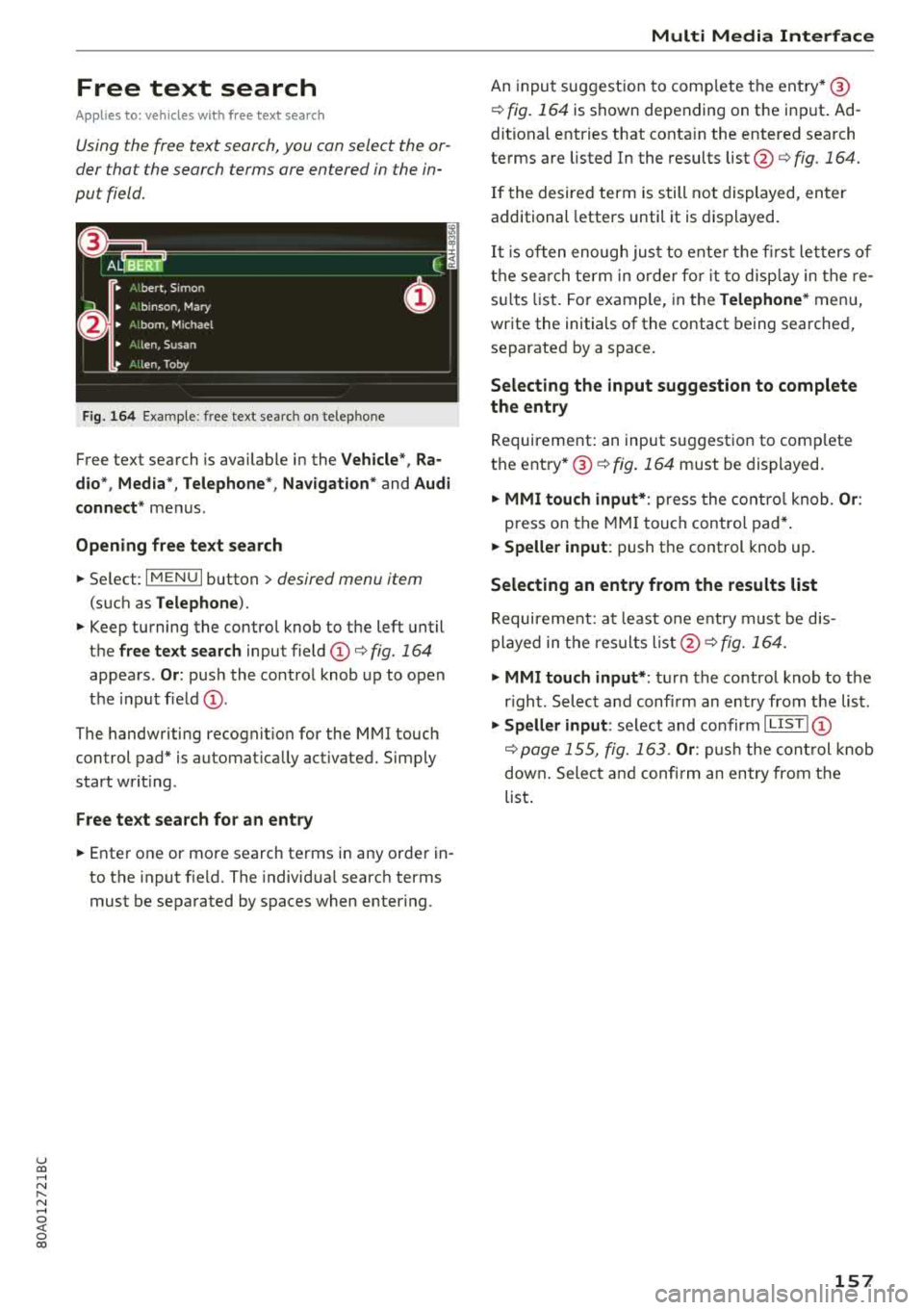
Fig. 164 E xample: free text searc h on telep hone
Free text search is available in the Vehicle*, Ra
dio* , Media *, Telephone *, Navigation *
and Audi
connect*
menus .
Opening free text search
~ Select : IMENUI button> desired menu item
(such as Telephone ).
~ Keep turning the contro l knob to the left until
th@ free text search input field (D c::> fig. 164
appears . Or: push the control knob up to open
the input field
(D .
The handwriting recognition for the MMI touch
control pad* is automat ically act ivated. Simply
start wr iting.
Free text search for an entry
~ Enter one or more search terms in any order in
to the input f ield. The individ ua l search terms
must be separated by spaces when enter ing .
Multi Media Interface
An input suggestion to comp lete the entry* ®
¢fig. 164 is shown depending on the input . Ad
ditional entries that conta in the entered search
terms are listed In the results
list@¢ fig. 164.
If the desired term is still not displayed, enter
additional letters until it is displayed.
It is often enough just to ente r the first letters of
the search term in order for it to display in the re
s ul ts list. For example, in the
Telephone* menu,
write the initials of the contact being searched,
separated by a space.
Selecting the input suggestion to complete
the entry
Requirement: an input suggestion to comp lete
the
entry* ®¢ fig. 164 must be displayed.
~ MMI touch input* : press the control knob. Or:
press on the MMI touch contro l pad*.
~ Speller input : push th e control knob up.
Selecting an entry from the results list
Requirement: at least one entry must be dis
played in the res ults
list @¢ fig. 164.
~ MMI touch input* : turn the control knob to the
r ight . Select and confirm an entry from the list.
~ Speller input: select and confirm I LIS T! (D
¢ page 155, fig. 163 . Or: push the control knob
down. Select and confirm an entry from the
list .
157
Page 164 of 392
Multifunction steering wheel
c all* .
By press ing the left contro l butto n, you can
make additional calls from t he directo ry o r th e
call list .
Resume* takes all pa rties off hold.
@ Tips
- The telephone functions can only be con
tro lled w it h the mu ltifunction stee ring
whee l if t he telep ho ne eq uipment was in
stalled
at the factory.
- The telephone functions de pend on the cell
phone and whether they are suppo rted by
your cell phone se rvice provider o r not .
- The
Call waiting* function must be activat
ed in your cell phone and in the M MI in or
der to be alerted w hen t here is an incoming
call duri ng an active call. T he call options
depen d on t he ce ll phone and servic e pro
v ider. You can o btain mor e in fo rm ation
fro m your cell ph one se rvi ce pr ovider.
Navigation
Operation in the driver information system
App lies to: ve hicles w ith multifunction steering wheel and
navigation system
Requ ir ement: a destination mus t be e nte red
¢ page 20 4 and the route g uidance must be
started .
.. Pres s th e l 1 bu tto n on t he mult if u nct io n
stee ring wheel repeate dly un til the Navigation
ta b is displayed .
.. Press the left co ntro l but ton ¢ page 13 .
Depending on vehicle eq uipment, the following
fu nctions may be availab le in t he driver informa
tion system .
-Displaying navigation during active route
guidance:
selec t and confirm Map* / Street
view * or Arrow view* .
- Showing the map when route guidance is not
active* :
select and co nfirm Map *.
- Acces sing last destinations :
sele ct and co nfirm
Last destinations > the desired destination .
-Ac ces sing favorites *: selec t and confi rm Favor
ites >
the de sired destina tion.
162
- Starting route guidance to the stored home
address :
select and co nfirm Cancel route guid·
ance
i f necessa ry and then Home address .
If you have not st arted any rou te g uidance, a
com pass (a na log instrument cluster) or the ar
row view (monoc hrome instrument cluster) is
displayed depending on t he eq uipme nt. The map
i s d isp layed in the Audi virtua l cockpit *.
Canceling active route guidance
- S elect: r ight control button> Cancel route
guidance
Additional settings
- Select: r igh t con trol b utton> d esi red entry .
Depending o n the function se lected, the follow
i ng additional settings may be possible :
-Map disp lay ¢ page 214 .
-Map colo rs ¢ page 214 .
- Map orien ta ti on ¢ page 21 4.
- Au tom atic z oom ¢ page 215 .
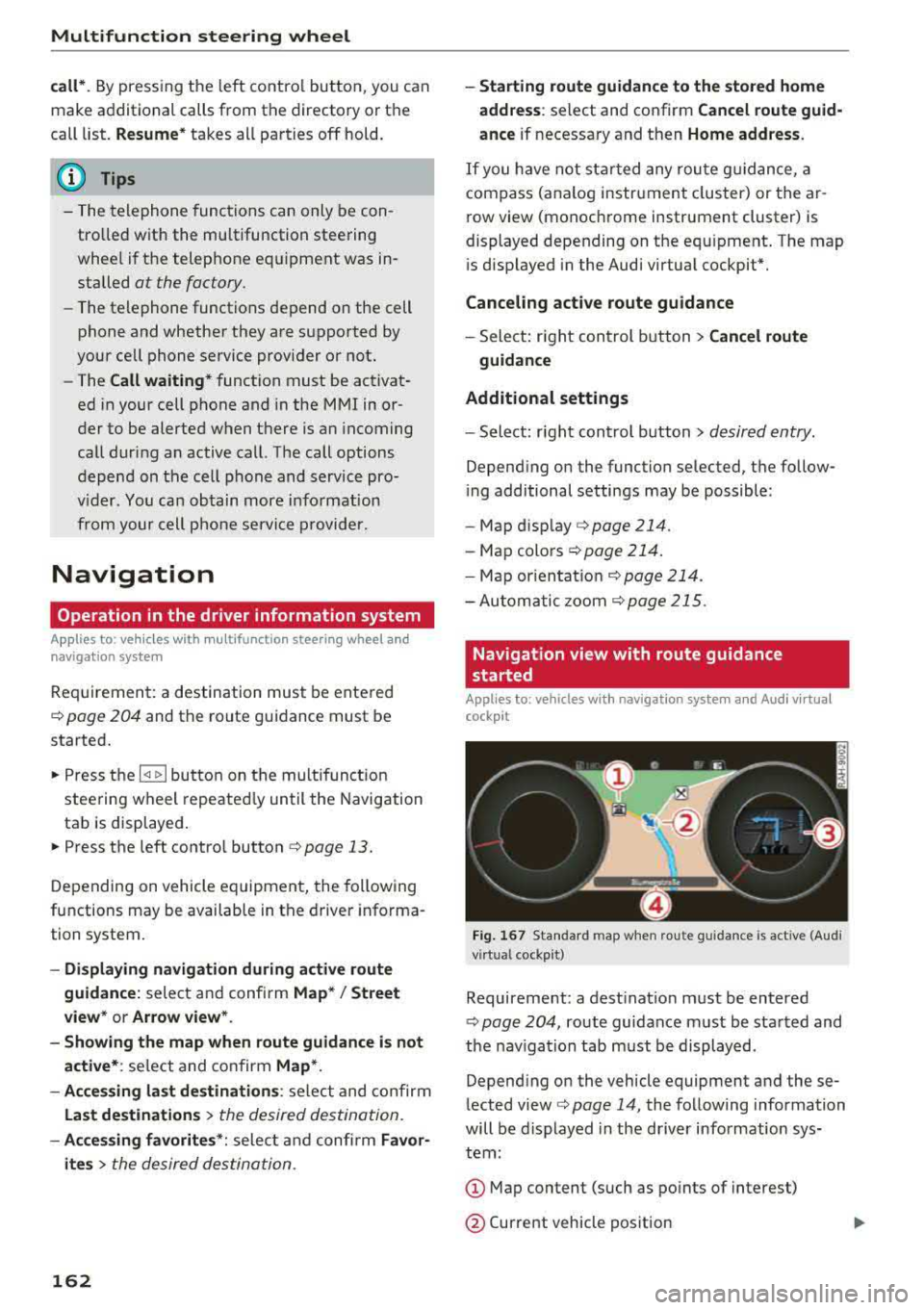
Navigation view with route guidance
started
Appl ies to: vehicles with navigat ion system a nd Aud i v ir tual
cockp it
Fig. 16 7 Standard map when ro ute gu idance is act ive (Aud i
virt ual cockpit)
Requireme nt: a dest inat ion m ust be entered
¢ pag e 204, route guidance must be sta rted and
the nav iga tion tab must be display ed .
Depend ing o n the vehicle equipment and these
l ected view
cc> page 14, the fo llow ing information
will be d isplayed in th e driver info rmation sys
tem :
(D Map content (such as po ints of interest)
@ Current vehicle pos ition
Page 165 of 392
u co ..... N r-N .....
~ 0 co
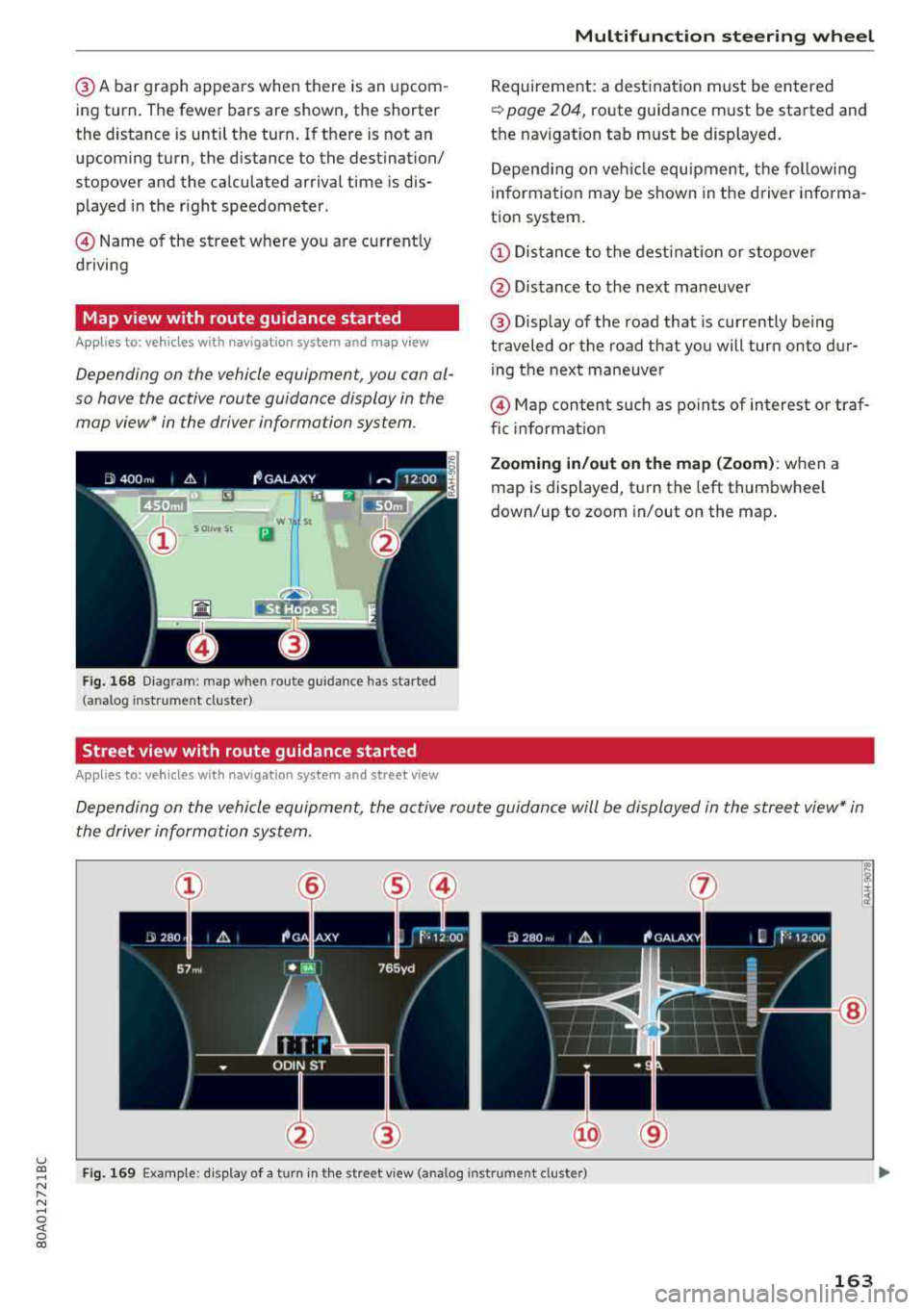
@A bar graph appears when there is an upcom
ing tu rn. The fewer bars are shown, the shorter
the distance is until the turn. If there is not an
upcoming turn, the distance to the dest ination/
stopover and the ca lculated arrival time is dis
played in the right speedometer .
© Name of the street where you are currently
driving
Map view with route guidance started
Ap plies to: ve hicles with navigation system and map v iew
Depending on the vehicle equipment, you con al
so hove the active route guidance display in the
mop view* in the driver informa tion system .
w 1 St
Ill
Ho est
Fig. 168 Diagram : map when rou te g uidance has started
( an alog inst rum en t cluster)
Street view with route guidance started
Applies to: veh icles with navigation system and street view
Multifunction steering wheel
Requirement: a destination must be entered
<=> page 204, route guidance must be started and
the navigation tab must be displayed.
Depending on vehicle equ ipment, the following
information may be shown in the d river i nforma
tion system.
(D Distance to the destination or stopo ver
@ Distance to the next maneuver
@ Display of the road that is currently being
traveled or the road that you will turn onto dur ing the next maneuver
© Map content such as points of interest or traf
fic informat ion
Zooming in/out on the map (Zoom): when a
map is displayed, turn the left thumbwhee l
down/up to zoom in/out on the map .
Depending on the vehicle equipment, the active route guidance will be displayed in the street view* in
the driver information system.
@
Fig. 169 Example: d is play of a t urn in th e street v iew (a nalog instr um ent cl ust er)
163
Page 166 of 392
Multifunctio n ste ering whe el
Requirement: a destination must be entered
r::!> page 204, route guidance must be started and
the navigation tab must be disp layed.
Depending on vehicle equipment, the following
information may be shown in the driver informa
tion system
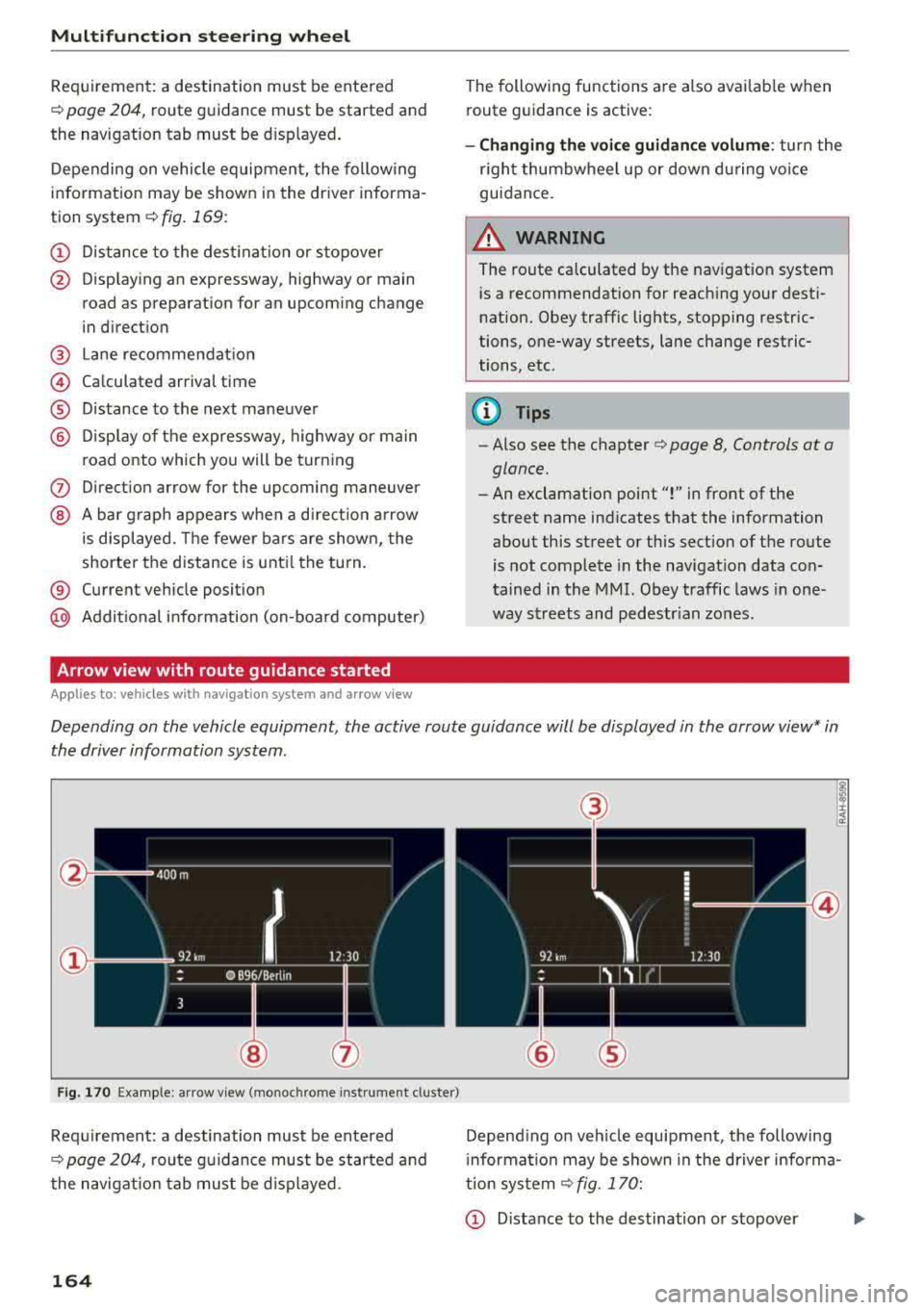
r::!> fig . 169 :
CD Distance to the dest inat ion or stopover
@ Disp laying an expressway, highway or main
road as preparation for an upcoming change
in direction
@ L ane recommendation
@ Ca lculated arrival time
® D istance to the next maneuver
@ D isp lay of the expressway, highway or main
road onto which you will be turning
(J) Direct ion arrow for the upcoming maneuver
@ A bar graph appears when a di rect io n arrow
is displayed. The fewer bars are shown, the
shorter the d istance is unt il the turn .
® Current vehicle posit ion
@ Addit ional info rmation (on-board computer)
Arrow view with route guidance started
Applies to: ve hicles with navigat ion system and arrow view
The following functions are also avai lab le when
route guidance is act ive :
-Changing the voice guidance volume : turn the
r igh t thumbwheel up or down du ring voice
guidance.
A WARNING
The route calculated by the nav igation system
is a recommendation for reaching your desti
nation. Obey traffic lights, stopp ing restric
tions, one-way streets, lane change restric
tions, etc .
@ Tips
- Also see the chapter
r::!> page 8, Controls at a
glance.
- An exclamation point ''!'' in front of the
street name indicates that the information
about this street or this sect ion of the route
is not complete in the navigation data con
tained in the
MMI. Obey traffic laws in one
way streets and pedestr ian zones.
Depending on the vehicle equipment , the active route guidance will be displayed in the arrow view* in
the driver information system.
F ig . 170 Example : a rr ow v iew (monoc hrome inst rument cluster)
Requirement: a destination must be entered
r::!> page 204, route gu idance must be started and
the navigation tab mus t be d isp layed .
164
(3)
@
Depend ing on veh icle equipment, the following
i nformation may be shown in the driver info rma
tion system
r::!> fig . 170:
CD Distance to the destination or stopover ...,
Page 167 of 392
u co .... N r--N .... 0 <( 0 00
@ Distance to the next maneuver
® Direct ion arrow for the upcoming maneuver
@ A bar grap h appears when a d irect ion arrow
i s disp layed. The fewe r bars are show n, the
shorter t he distance is unti l the turn .
® Lane recommendat ion
@ Addit ional in fo rmat ion (on-board computer)
(J) Calculated arrival time
@ Display of the street currently be ing driven
on If a point is displayed before the street, it
i s ind icating the street you w ill be on w ith the
n ext maneuve r.
The follow ing funct ions are also available when
route guidance is act ive:
- Changing the voice guidance volume : turn the
rig ht thumbwhee l up or down during voice
guidance.
A WARNING
The route calculated by the navigation system
is a recommendation fo r reaching your desti
nation. Obey t raff ic lights, stopping rest ric
tions, one-way streets, lane change restr ic
tions, etc.
(D Tips
- Also see the chapter~ page 8, Controls at a
glance.
- An exclamation point" !" in front of the
street name indicates that the informat ion
abo ut this street or this section of the route
i s no t complete in the navigation da ta con
tained in the M MI. Obey traffic laws in one
way streets and pedestrian zones.
Multifunction ste ering wheel
165
Page 168 of 392
Voice recognition system
• Telephone
• Audi connect •
Favorites
• Call (XV)
• Navigation
• Directory
• Radio
• Media
• Enter number
• Redial
• Read new text message
• Nav igate to
(XY)
• Sound • Enter address/destination
• Help • Online destinations
• Help Speech dialog system
• Help Telephone •
Cancel route guidance
• Map
• Help Aud i connect •
Line
(XY)
• Help Navigation
• Help
Map
• Help Radio •
Next page/ previous page
• Cancel
• No. I meant (XV)
• Help Media • Correction
TE ~EPflON ~
• Enter number • Call list
• Delete number/ correction
• Redial
• Directory
• Call
(XV)
• Call mailbox
• Telephone favorites
• business
I private/ land tine I mobile
N~~It ~JION
• Nav igate to (XY)
• Start/ cancel route guidance
• Directory
• Last destinations • Block
route for
(XV) miles I Block
the next section
• Route list
• Calculate alternative routes
• Nav igation favorites
• Drive home
• Enter address •
Online destinations
• Special destination
• Enter country
I town I street I state
• Exclude route/ Exclude route for
(XV) km/ m
• Map
• Day map/ Night map
• 2D driving position map/ 2D north position map/ 3D map/ Destination map
I Overview map
~l!IDI CONNECT
• Audi connect
• Travel Information/ Parking Information
• Fuel prices
• Weather
RADIO
• Radio presets
• FM
• FM /AM/ SIRIUS XM
• Station (XV) / Frequency (XV)
• Traffic announcement on/ off
Fig. 171 Comm and overv iew
166
• Flight Informa tion
•
City events
• Online news
• Twitter
MEDIA
• Jukebox
• CD
I DVD
• SD card
l / SD card 2
• Audi music Interface/ I Pod/ USB / Bluetooth
I
WI -Fl I Med ium (XV)
• Media favorites
I Artists/ Albums/ Genres I
Tracks I Playll sts / Videos
• Folder up
• Random playback on / off
Page 169 of 392
u co ..... N r--N ..... 0 <( 0 00
Voice recognition system Operating
Applies to: vehicles with voice recognitio n system
You con operate many Infotainment functions
conveniently by speaking.
Requirement: the ignition and the MM I must be
switched on ¢
page 148, there must not be any
phone call in progress and the park ing system
must not be active .
~ Switching on: press the~ button @
¢page 14, fig . 11 o r ¢ page 15, fig. 13 br iefly
on the mu ltifunction stee ring wheel and say
the des ired command after the
Beep .
~ Switching off : press and hold the [2;J b utton.
Or : press the [2] but to n.
~ Pausing : say the command Pause . To resume,
press the
[2;J b utton .
~ Correcting : say the com mand Correction . Or :
simp ly say a new comm and d uring an an
no uncement
¢ page 245.
Input assistance
The system gu ides you throug h the input with
v isua l and audio feedbac k.
- Visual input assistance : after switching on
vo ice recogn it ion, a display w ith a selection of
poss ible commands appea rs . This command
display can be sw itched on o r off. Se lec t:
IMEN UI butt on> Settings > left cont ro l button
> MMI settings > Speech dialog system .
- Audio input assistance :
to have the poss ible
comm ands read, tu rn th e voice rec ogn ition sys
tem o n and say
Help.
For the system to understand you:
Speak clearly and dis tinct ly a t a normal vo lume .
Speak lo uder when d riving faste r.
Emphasize the words in the commands even ly
a n d do no t leave long pauses .
C lose the doors, the windows and the sunroof* to
reduce background noise . Make s ure that passen
gers a re not speaking when you a re giving a voice
command .
Voice recognition system
D o not d irect the vents towa rd the hands -free mi
c ro p hone, wh ich is in the roof head liner nea r the
front interior lig hts.
O nly use the system from the dr ive r's sea t be
ca use the hands -free microphone is di rected to
ward that seat .
Additional settings
See¢ page 245, Speech dialog system .
_&. WARNING
- Dir e ct y ou r full a tte ntio n to dr iv in g. A s the
d river, you have com ple te re sponsibili ty fo r
safety in t raff ic . O nly use the functions in
such a way t hat you a lways maintai n com
p lete contro l over your vehicle in all traffic
situations.
- Do not use t he voice recognition system in
emergencies beca use your voice may change
in st ressfu l situations. It may take longe r to
d ia l the number o r th e system may not be
ab le to d ia l it at all. Dia l the emergency
number manually.
(D Tips
-The d ialog pauses w hen the re is a n incom
ing phone call a nd will con tinue if yo u ig
nore the ca ll. The dia log ends if yo u answer
t he ca ll.
- Yo u can select an item in the list using ei
t her the vo ice recogn it io n sys tem o r the
cont ro l knob .
Command overview
information
Applies to: vehicles with voice recognition system
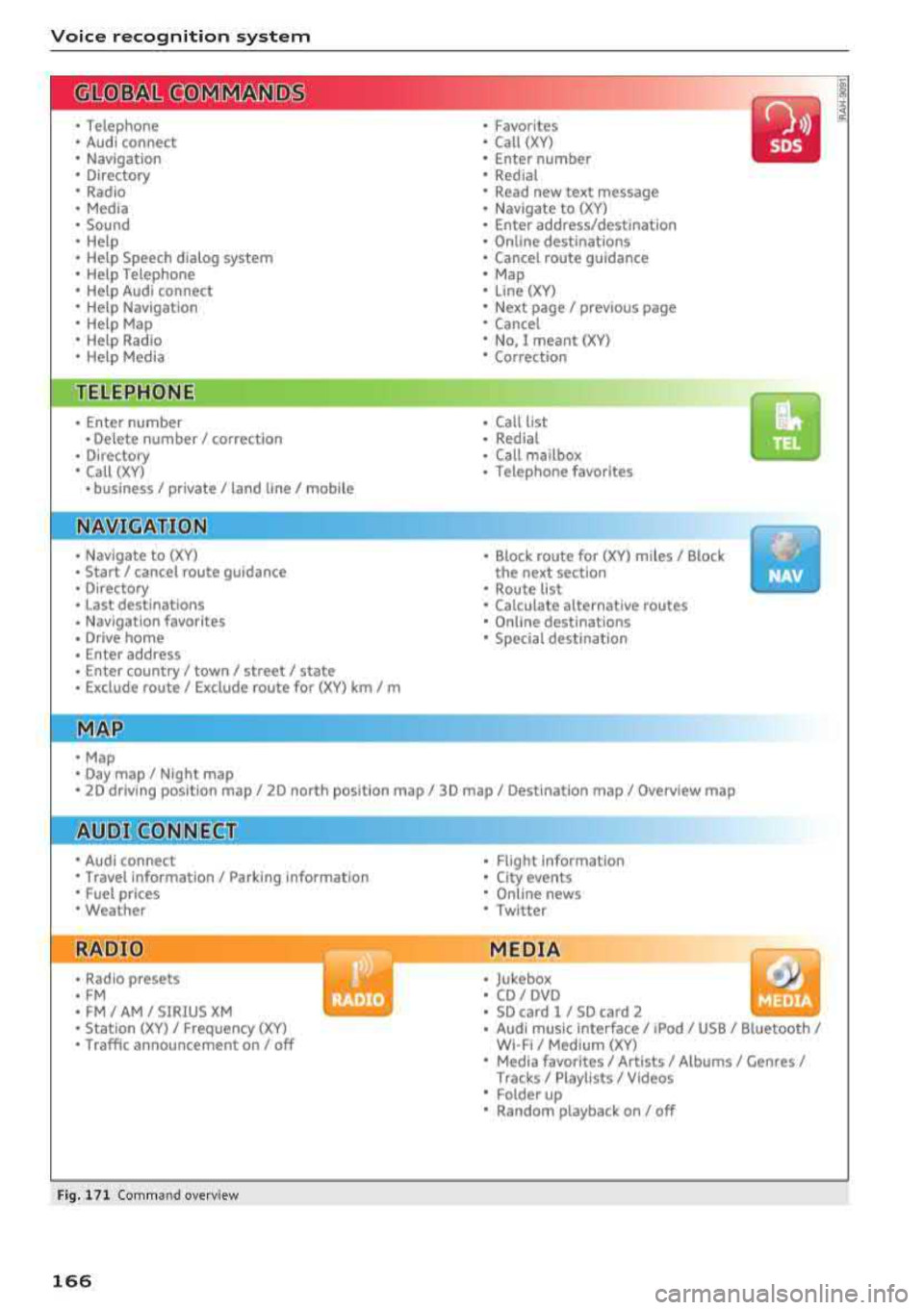
T he following overv iews des cribe the comm ands
t h at can be used to ope rate the MMI using the
vo ice recognit ion system.
Alte rnative co m mand s ar e separate d using
a"/ ",
fo r ex ample say: Telephone / (or) Navigation /
(or) Radio.
Sequences of com mands used to perfo rm an a c
t io n a re iden tified w it h
a ">", fo r ex am ple s ay:
Enter address > ( then) Enter country/state . ..,
167
Page 170 of 392
Voice recognition system
The major ity shown are main commands. This
system also recognizes synonyms in certain cas -es
. F or a Business address , you can also say busi
ness , work , office or at the office .
Commands
Global commands
App lies to: ve hicles w it h vo ice recogn ition system
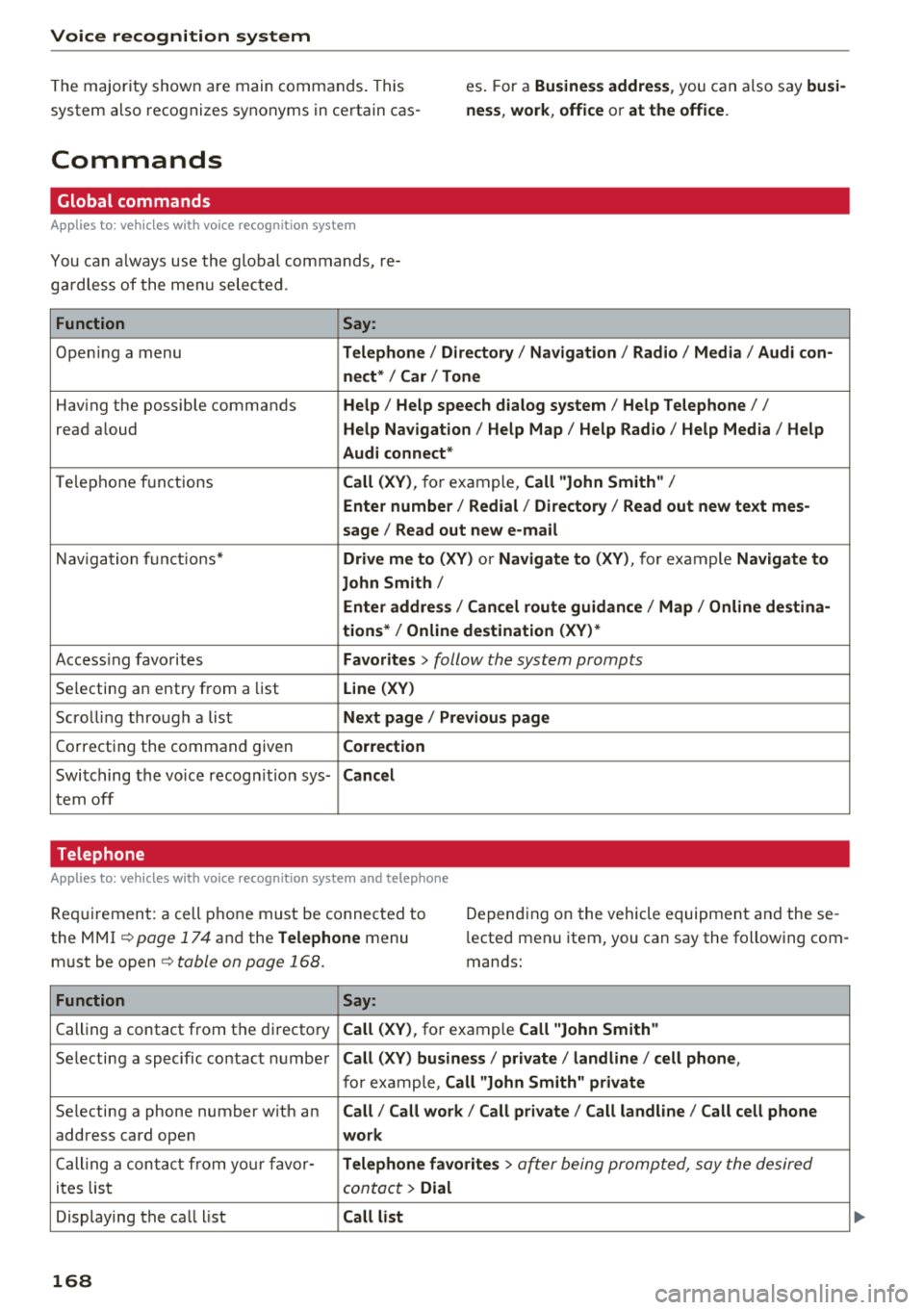
You can a lways use the global commands, re
ga rdless of the menu selected.
Function Say:
Opening a menu Telephone / Directory / Navigation / Radio / Media / Audi con-
nect * /Car / Tone
Hav ing the possible commands Help / Help speech dialog system / Help Telephone //
read aloud Help Navigation / Help Map / Help Radio / Help Media / Help
Audi connect *
Telephone f unctions Call (XV), for example, Call "John Smith" /
Enter number / Redial / Directory / Read out new text mes-
sage
I Read out new e-mail
Navigation functions* Drive me to (XV) or Navigate to (XV) , for example Navigate to
John Smith/
Enter address / Cancel route guidance / Map / Online destina-
tions* / Online destination (XV) *
Accessing favorites Favorites > follow the system prompts
Selecting an entry from a list Line (XV)
Scrolling through a list Next page / Previous page
Correcting the command given Correction
Switching the voice recogn ition sys-Cancel
tern off
Telephone
A pp lies to: ve hicles w ith vo ice recog nition sys te m and telep hone
Req uir ement: a cell phone must be connected to
the
MMI ~ page 174 and the Telephone menu
must be
open ~ table on page 168.
Depending on the vehicle equipment and these
l ected menu item, you can say the following com
mands:
Function Say:
Calling a contact from the directory Call (XV), for example Call "John Smith"
Selecting a specific contact number Call (XV) business / private / land line / cell phone ,
for example, Call "John Smith" private
Selecting a phone number w ith an Call/ Call work/ Call private/ Call land line / Call cell phone
address card open work
Calling a contact from your favor-Telephone favorites > a~er being prompted, say the desired
ites list contact > Dial
Displaying the call list Call list
168
Page 172 of 392
Voice recognition s ystem
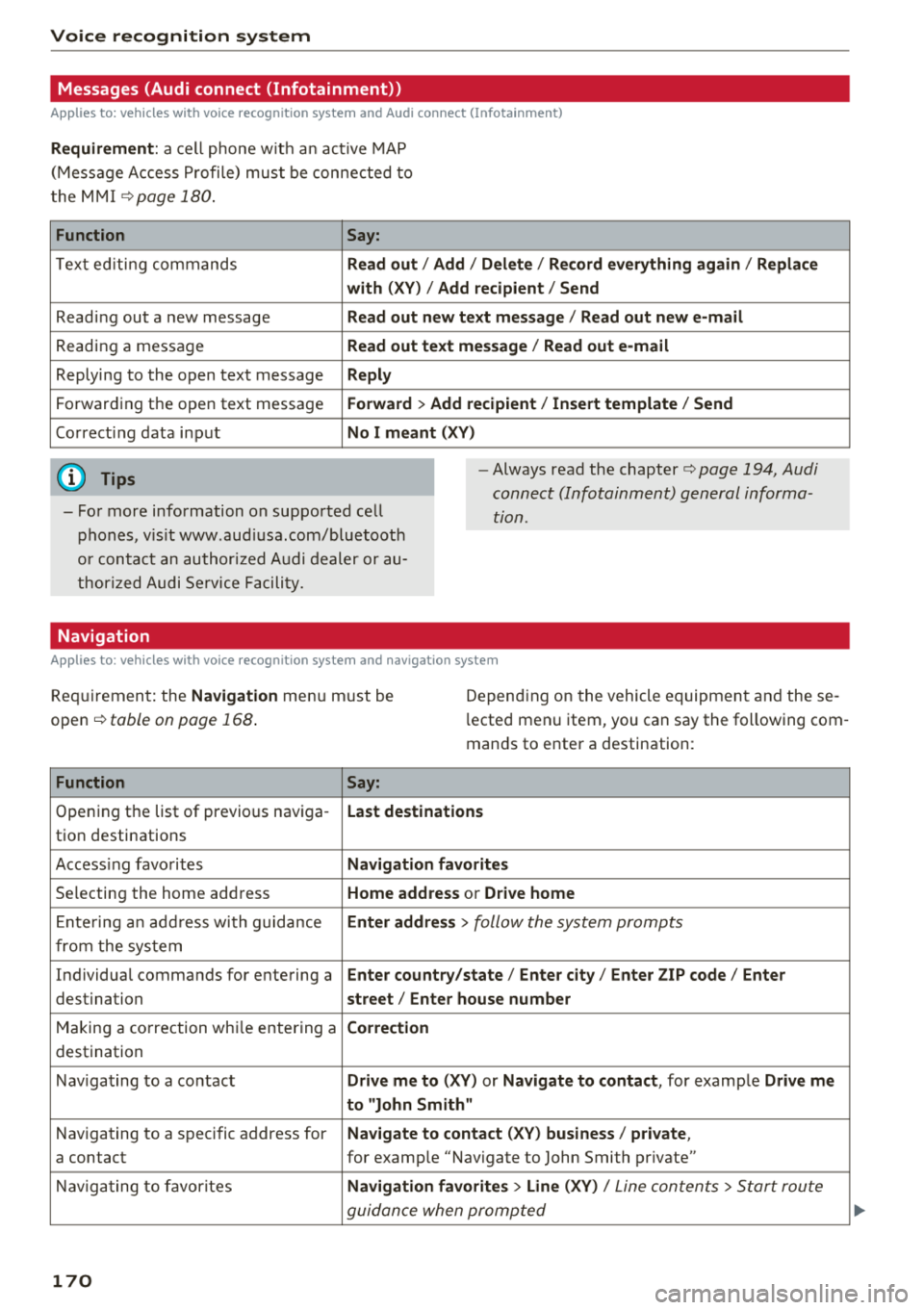
Messages (Audi connect (Infotainment))
Applies to: vehicles with voice recognition system and Audi connect (Infotainment)
Requirement : a ce ll phone w it h an ac tive MAP
(Mess age Access P rofi le) must be connected to
t he MMI
¢page 180 .
Function Say:
T ex t ed iti ng commands Read out
I Addi/ Delete / Re cord everything ag ain / Replac e
w ith (XV ) / Add recipient / Send
Reading out a new message Read out new text me ssage
I Read out ne w e-mail
Reading a message Read out text me ssage / Read out e-m ail
Replying to the open text message Reply
Forwarding the open text message Forward > Add recipient / In sert template / Send
Correcti ng data input No I meant (XV)
(D Tips
-Fo r more information on supported cell
phones, v is it www .aud iusa .com/bluetooth
or contact an author ized A udi dealer or au
thor ized Audi Se rvice Facility.
-Always read the chapter¢ page 194 , Audi
connect (Infotainment) general informa
tion.
Navigation
Applies to: vehicles with voice recognition system and navigation system
Requiremen t: the Navigation menu m ust be
open
¢ table on page 168 .
Depending on the vehicle equipmen t an d these
l ected menu item, you can say the following com
mands to enter a destination:
Function Say:
Opening the list of previous naviga -Last destinati ons
tion destinations
Access ing favo rites Navigation fa vori tes
Selecting the home add ress Home address or Driv e home
E nte ring a n add ress wi th guidance Enter address
> follow the system prompts
from the system
Individual commands for entering a Enter countr y/state / Ente r cit y/ Enter ZIP code / Enter
destination street/ Ent er hou se numb er
Making a correction wh ile entering a Correction
destination
Nav igating to a co ntact Drive me to
(XY) or Na vigate to contac t, for example Drive me
to "John Sm ith"
Navigating to a specific address for Na
vigate to co nta ct (X V) bu sine ss/ private ,
a contact for example "Navigate to John Smith pr ivate"
Nav igating to favorites Navigation favorite s> Line (XV) /
Line contents> Start route
guidance when prompted
170
Page 173 of 392
u co .... N r--N ..... 0 <( 0 00
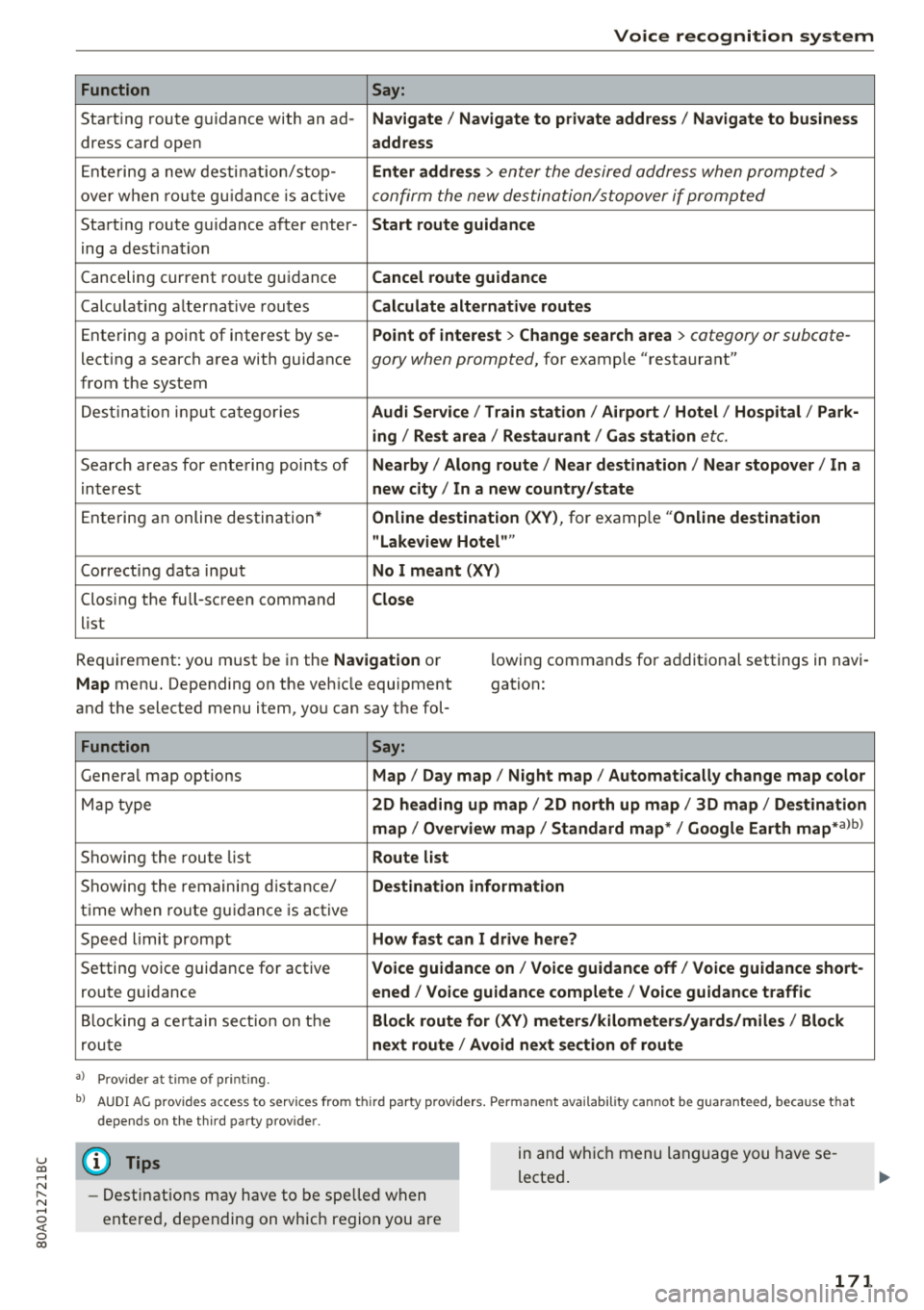
Voice recognition system
Function
Say:
Start ing route g uidance with an ad- Navigate/ Navigate to p riv ate addre ss/ Navig ate to business
dress card open address
E nte ring a new desti nat ion/stop -Enter addr ess
> enter the desired address when prompted>
over w hen ro ut e gu idance is ac tive confirm the new destination/stopover if prompted
Start ing route guidance after enter- Start route guidance
ing a dest ination
Canceling current ro ute g uidance Cancel route guidance
Calc ulat ing a lternat ive routes Calculate alternative route s
Ente ring a point of interest by se -Point of intere
st
> Change sea rch a rea > category or subcote-
lecting a search area with guidance gory when prompted, for example "restaurant"
from the system
Dest ina tion input ca tegor ies Audi Service / Train station /Airport / Hot el / Ho spital / Park-
ing / Re st area / Restaurant / Gas station
etc.
Search areas for entering points of Nearby/ Along route / Near de stination / Near stopover / In a
interest new city/ In a new country /state
Entering an online destination* Online dest
ination (XV), for examp le "Online de stination
" Lakeview Hotel" "
Correct ing data input No I meant (XV)
Clos ing the full -screen command
Close
list
Requirement: you must be in the Navigation or
Map menu. Depending on the veh icle equipment
and the selected menu item, you can say t he fol- l
owing commands for additional settings in navi
gation:
Function Say:
Genera l map options Map/ Day map / Night map / Automat ically change map color
Map type 2D heading up map/ 2D north up map / 3D map / De stination
map / Overview map / Standard map */ Google Earth
map* albl
Showing the route list Route list
Showing the remaini ng d istance/ Destination information
time w hen route guidance is active
Speed limit prompt How fast can I drive here?
Setting voice guidance for active Voice guidance on/ Voice guidance off / Voice guidance short-
route guidance ened / Voice guidance complete / Voice guidan ce traffic
B locking a ce rtain sect ion on t he Block route for (XV) meter s/kilometers /yards /miles / Block
rou te next route / Avoid n ext se ction of route
a ) Pro vid er a t tim e of pr inting .
bl AU DI AG provi des acc ess to s ervi ce s fro m thir d par ty prov id ers. P ermane nt a vailabi lity canno t be guarant eed, beca use tha t
de pen ds on the th ird party p ro vid er.
(D Tips
- Destinations may have to be spelled when
entered, depending on which region you are in and wh
ich menu language you have se
lected .
171