navigation AUDI Q5 2018 Owner's Manual
[x] Cancel search | Manufacturer: AUDI, Model Year: 2018, Model line: Q5, Model: AUDI Q5 2018Pages: 392, PDF Size: 60.56 MB
Page 185 of 392
u co ..... N r-N .....
~ 0 co
Directory
Opening the directory
Applies to: veh icles with telephone
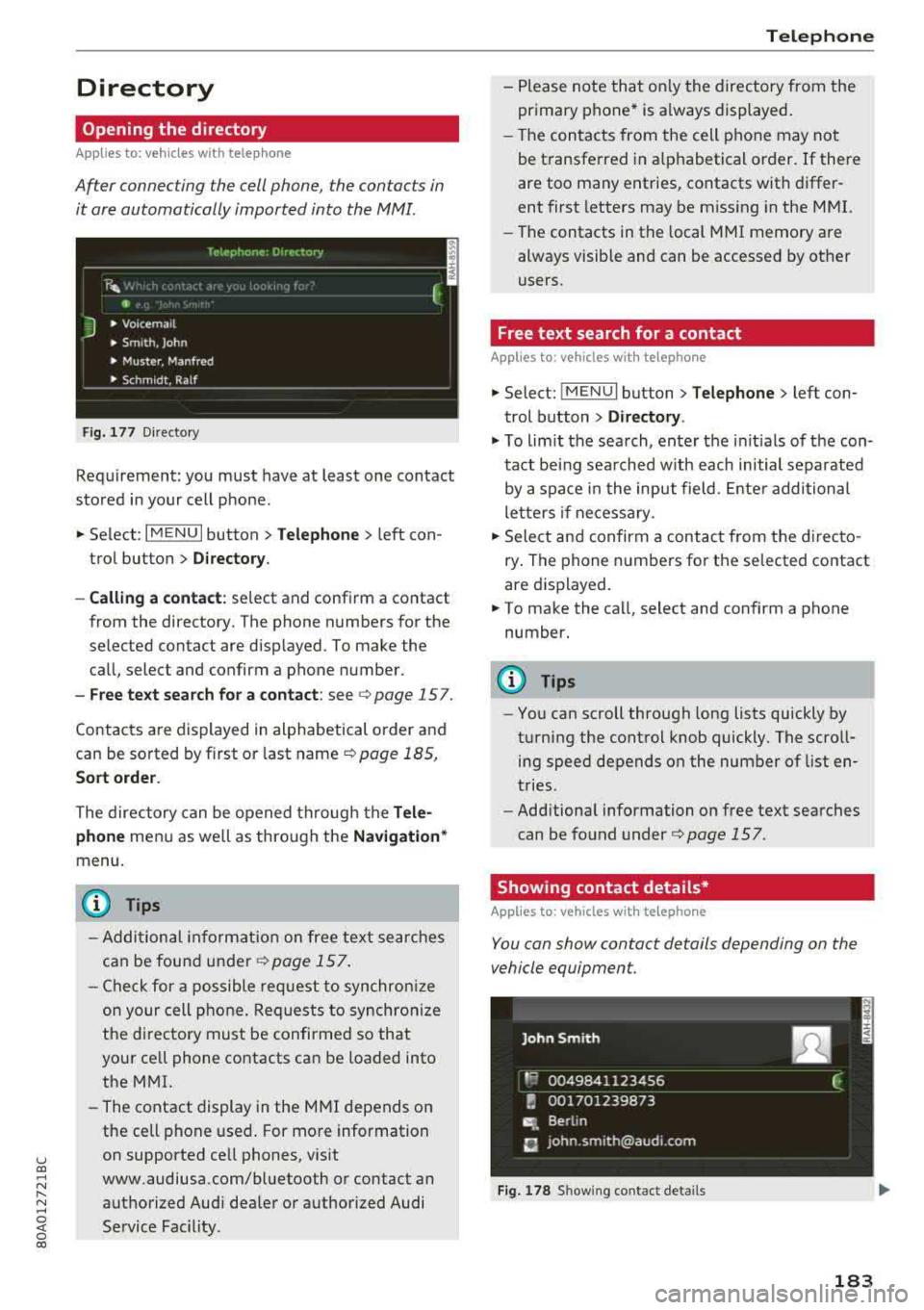
After connecting the cell phone, the contacts in
it are automatically imported into the
MMI.
__________ T_e_,e_p_h_o_n_e_· _ o_,_,e_,_,_o_,_Y _________ ,
' E 41>
J • Voicema il
• Smith, John
• Muster, Manfred
• Schm idt, Ralf
Fig . 177 Di recto ry
Requirement: you must have at least one contact
stored in your cell phone.
... Select : IM ENU I button > Telephone > left con
trol button >
D irecto ry.
- Calling a contact :
select and confirm a contact
from the directory. The phone numbers for the
selected contact are displayed. To make the
call, select and confirm a phone number.
-Free text search for a contact: see c;, page 157.
Contacts are displayed in alphabetical order and
can be sorted by first or last name
c:> page 185,
Sort order.
The directory can be opened through the Tele
phone
menu as well as through the Navigation *
menu.
(D Tips
- Additional information on free text searches
can be found under
r::;, page 157.
- Check for a possible request to synchronize
on your cell phone. Requests to synchronize
the di rectory must be confirmed so that
your ce ll phone contacts can be loaded into
the MMI.
- The contact display in the MMI depends on
the cell phone used. For more information
on supported cell phones, visit
www.audiusa.com/bluetooth or contact an
authorized Audi dealer or authorized Audi
Service Fac ility .
Telephone
-Please note that only the directory from the
primary phone* is always displayed.
- The contacts from the cell phone may not
be transferred in alphabetical order. If there
are too many entries, contacts with differ
ent first letters may be missing in the MMI.
- The contacts in the local MMI memory are
always visible and can be accessed by other
users.
Free text search for a contact
Applies to : vehicles wi th telepho ne
... Select: IMENUI button> Telephone> left con
trol button >
Directory .
.,. To limit the search, enter the initials of the con
tact being sea rched w ith each initial separated
by a space in the input field . Enter additional
letters if necessary .
... Select and confirm a contact from the directo
ry . The phone numbers for the selected contact
are displayed.
... To make the call, select and confirm a phone
number.
(D Tips
- You can scroll through long lists quickly by
turning the control knob quickly. The scroll ing speed depends on the number of list en
tries.
- Additional information on free text searches
can be found under
c:> page 157.
Showing contact details*
Applies to: vehicles wit h te lepho ne
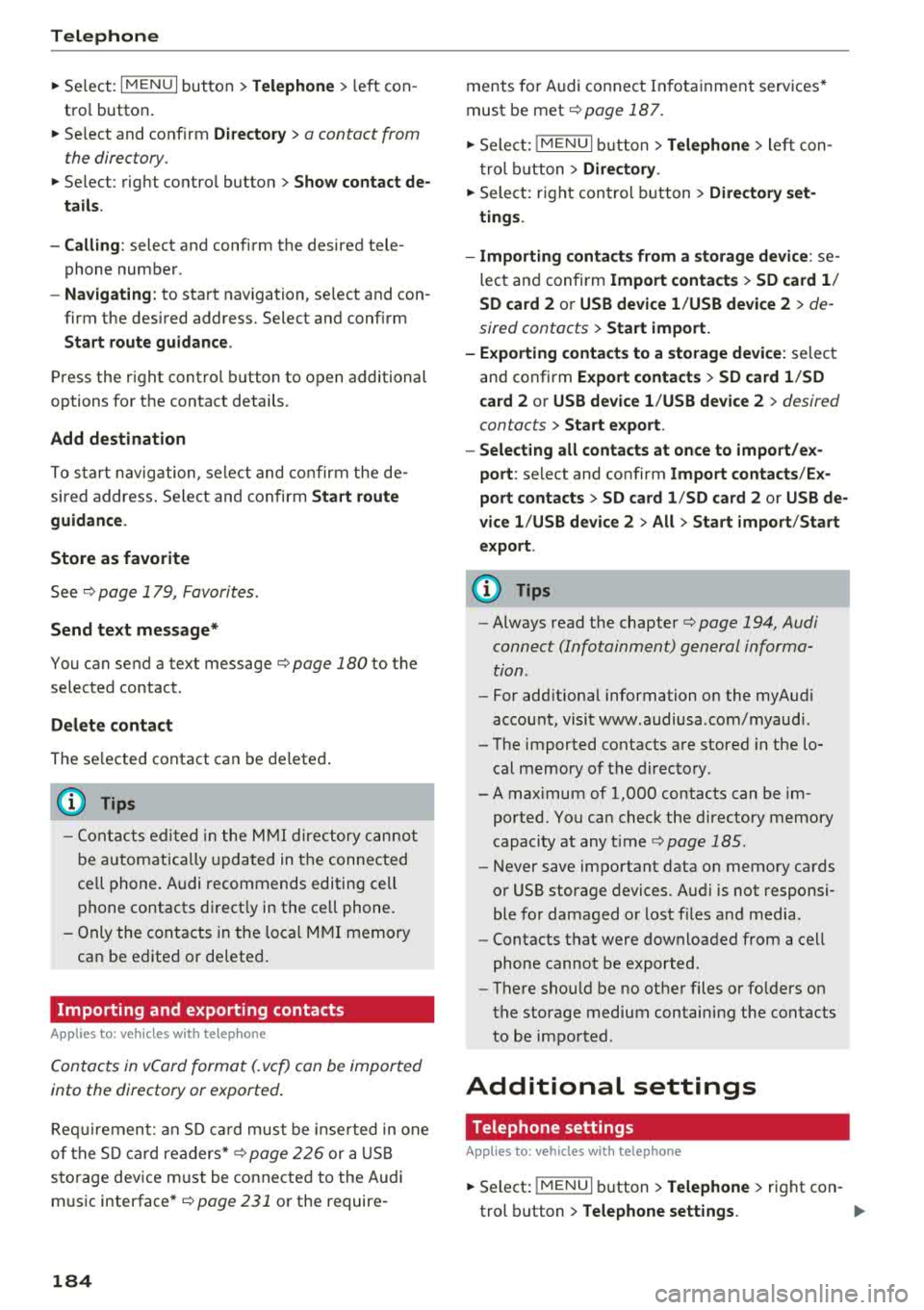
You can show contact details depending on the
vehicle equipment.
Fig. 178 Showing contact details
183
Page 186 of 392
Telephone
~ Select: I M ENUI button> Telephone > left con
tro l button .
~ Select and confirm Directory > a contact from
the directory.
~ Se lect : rig ht contro l butto n > Show contact de·
tails .
- Calling:
select and confirm the desired tele
phone numbe r.
- Navigating : to start navigation, se lect and con
firm the desi red address. Select and confirm
Start route guidance .
Press the r ight cont rol button to o pen additional
options fo r th e contact details.
Add destination
To st art na vigatio n, se le ct and co nf irm the de
sired ad dress . Se le ct and confirm
Start route
guidance .
Store as favorite
S ee ¢ page 1 79, Favorites .
Send text message*
You can send a text message¢ page 180 to the
selected contact .
Delete contact
The selected contact can be delete d.
(D Tips
- Contacts edit ed in th e MMI d irecto ry cannot
b e autom atic all y up dat ed in t he connec ted
ce ll p hone. Audi recommends editing cell
ph one contacts direct ly in t he ce ll phone .
- On ly the co nt acts in the lo ca l MM I memory
ca n be e dite d or de leted .
Importing and exporting contacts
App lies to: ve hicles w ith telep hone
Con tacts in vCard forma t (. vcf) can be impo rted
into the directory or e xported .
Requir em en t: an S D car d m us t b e in se rted in o ne
of the S D card
readers *¢ page 22 6 or a USB
s to rage dev ice m ust be connecte d to the Audi
m usic
interface *¢ page 231 or the require -
184 ments
fo r Audi connect In fota inme nt serv ices*
must be met
¢ page 187.
~ Sele ct: !ME NUI butto n> Telephone > le ft co n
t rol butt on >
Directory .
~ Select: r ight con trol button> Directory set
tings.
- Importing contacts from a storage device :
se
le ct and con fir m
Import contacts > SD card 1 /
SD card 2 or USB device 1 /USB device 2
> de
sired contacts
> Start import.
- Exporting contacts to a storage device:
selec t
an d confirm
Export contacts > SD card 1 /SD
card 2 or USB device 1 /USB device 2
> desired
contacts
> Start export .
- Selecting all contacts at once to import/ex
port :
select and confirm Import contacts /Ex
port contacts > SD card 1 /SD card 2 or USB de·
vice 1 /USB device 2 > All > Start import /Start
export .
(D Tips
-Always read the chapter¢ page 194, Audi
connect (Infotainment) gen eral informa
tion.
- Fo r add itiona l information o n the myAu di
accou nt, visi t www .a udiusa .com/myaud i.
- Th e imported contacts a re stored in the lo
cal memory of t he dire ctory.
- A ma ximum of 1, 000 contacts can be im
p orted. Yo u ca n check t he directory memory
capaci ty at any t ime
¢pag e 185.
-Never save important data on memory ca rds
o r U SB storage devices. Audi is not responsi
b le fo r damaged o r los t fil es a nd media.
- Contacts t hat were dow nloa ded from a ce ll
p hon e cannot be e xpo rted.
- Th ere s houl d be no ot her f iles or fo lders on
t h e st ora ge m ediu m co ntain ing th e contacts
to be importe d.
Additional settings
Telephone settings
App lies to: vehicles wi th telepho ne
~ S elect: IME NUI button> Telephone > righ t co n-
trol button >
Telephone settings. .,,.
Page 190 of 392
Audi connect (Infotainment)
,.. Enter your myAudi user data. Or: enter your
eight-digit myAudi PIN .
,.. Confirm your entry with OK.
Then yo u can open yo ur persona l se tt ings from
your myAudi account in you r vehicle .
(D Tips
You can re ceive you r myAudi P IN if you have
se t up a myAud i account. For addi tional infor
mation, see www.audi usa .com/mya udi.
Opening Audi connect
(Infotainment)
A pp lies to ve hicles with A udi co nnect (Infotainment)
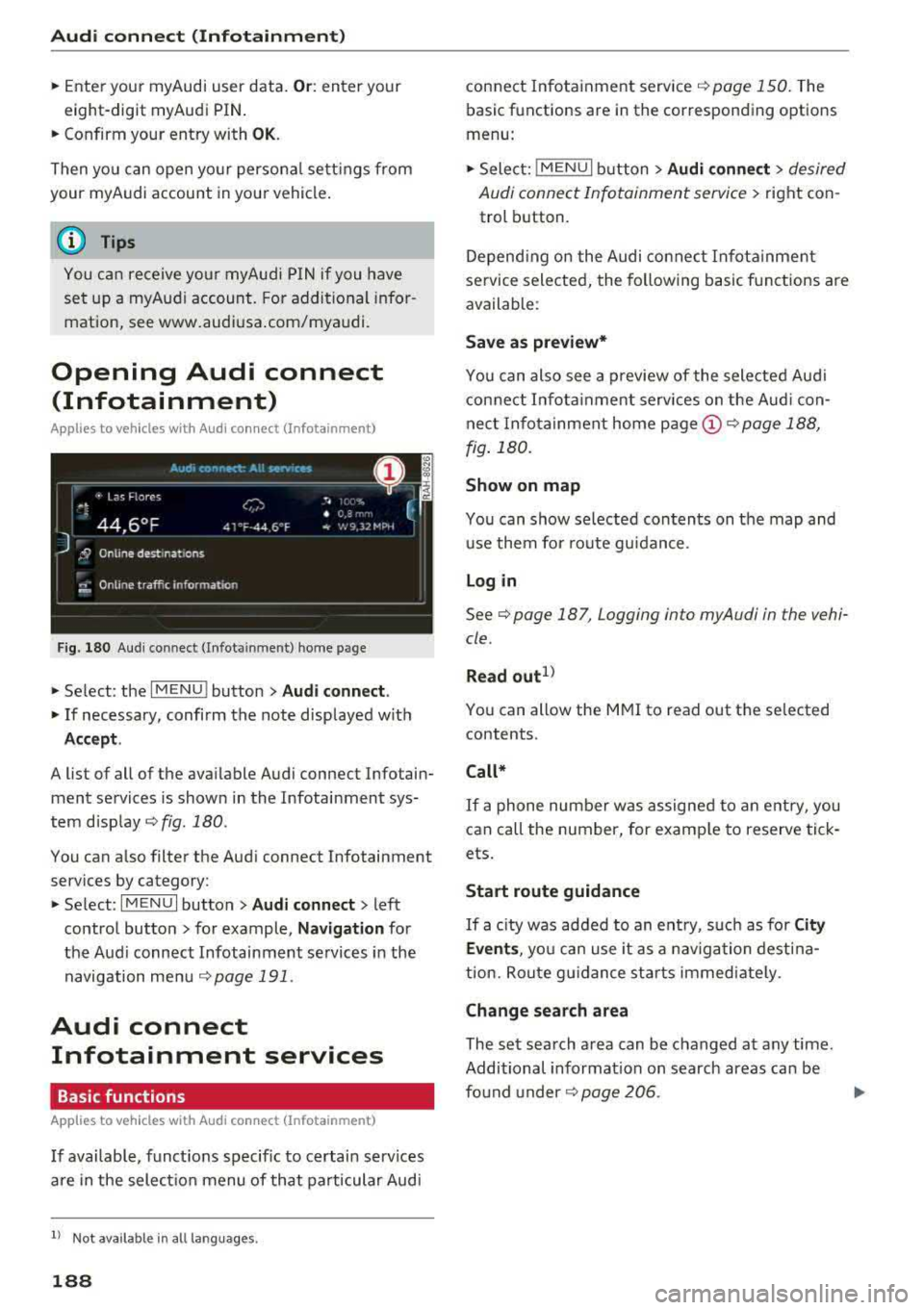
Fig . 180 Aud i co nn ect (I n fota inment) ho m e p age
,.. Se lect : the IMENU ! button> Audi connect .
,.. If necessary, confi rm the note disp layed wit h
Accept.
A list of all of the ava ilable Audi connect Infotain
ment services is shown in the Infotai nment sys
tem
d isp lay ¢ fig. 180 .
You can a lso filte r the Aud i connect Infotainment
services by category:
,.. Se lect : I MENU I button> Audi connect > left
contro l button> for example,
Navigation for
the Aud i connect Infotainment se rvices in the
navigation me nu
¢page 191 .
Audi connect
Infotainment services
Basic functions
A pp lies to veh icles with A udi co nnect (Infota inment)
If available, funct ions specific to certain services
a re in the selec tion menu of that particular Aud i
ll Not availa ble in a ll la n guage s.
188
connect In fota inme nt service ¢ page 150. The
basic functions are in the correspon ding options
menu:
,.. Sele ct: !ME NUI butt on> Audi connect > desired
Audi connect Infotainment servi ce>
right con
trol b utton .
Depend ing o n the Audi connect In fota inme nt
se rvice selected, the follow ing basic f unc tions are
available :
Save as preview*
You can also see a preview of the selected Aud i
con nect In fo tai nment services on the Aud i con
nect In fo ta inment home
page @¢ page 188,
fig . 180.
Show on map
You can show selected con ten ts on the map and
u se them fo r route gu idan ce .
Log in
See¢ page 187, Logging into myAudi in the vehi
cle .
Read
out1>
You can a llow the M MI to read out the selected
contents .
Call*
If a p hone num ber w as assigne d to an e ntry, you
can call the number, for e xamp le to reserve tick
ets.
Start route guidance
If a city was ad ded to an e ntry, suc h as fo r City
Events ,
you ca n use it as a navig ation dest ina
t ion. Rou te g uidance st art s immediate ly.
Change search area
The se t sea rch area can be changed at any time.
Additional informat io n on search areas can be
fo und
u nder ¢ page 206 .
Page 193 of 392
u co ..... N ,..._
N ..... 0 <( 0 00
You must have connected your vehicle with myAudi
r=>page 187.
.,. Select Twi tter > left co ntrol button > desired
function
(for example, T rend s).
The fo llow ing categories can be selected in the
Twitt er menu:
-M y tw eets: News Feed and the Tweets you have
posted are l isted.
-Home: the Tweets for everyone you follow are
displayed.
-T rend s: topics on Twitter that are currently
popular w ith in a country .
Different functions are availab le depending on
the Twitter category you have selected:
-New tweet : you can post a new tweet using
pre -made templates or using myAudi tem
plates that you have created yourse lf.
-R efre sh : the selected Twitter function is re
freshed.
-Fa vo rite : mark a Tweet as favorite to show you
liked it.
-Retwee t: you can quote a Tweet to share it with
others.
(D Tips
-Other se tt in gs such as accoun t, la ng uage,
Tweet security and location settings
cannot
be changed in the MMI. These c hanges must
be made on the Twitter website .
-You can only connect one Twitter account
with your myAudi acco unt .
-Audi con nect (Infotainment) makes i t possi
b le to access Twitter . Permanent avai lability
ca nnot be guaranteed, because t hat de
pends on Twitter.
Travel (travel guide)
Applies to: vehicles with Travel (travel guide)
You can use the Audi MMI connect opp to store
points of interest on your mobile device (such as a smartphone) and then use them for route
guidance in the
MMI.
Requirement:
Audi conn ect (Inf otainment )
The Audi MMI connect app must be insta lled and
open on your mobi le device .
Yo u m ust be logged into your myA udi account in
the
Audi MMI conne ct app and you must have se
l ected your vehicle.
T he Wi-Fi function on your mob ile dev ice and on
t h e M MI m ust be switched on.
T he MMI must be connected to the network.
.,. Press: !MENU ! button> Audi connect > left con-
trol button
> Information catego ry > Trav el.
After opening the trave l guide, trave l tips in your
area wi ll be displayed including current ratings as
well as the corresponding category.
.,. Press the left control button to change the cat
egory (such as bars nearby).
A WARNING
-
-It is only safe to use tablets, laptops, mo b ile dev ices and o ther sim ila r devices when
the vehicle is s tat ionary because, l ike all
loose objec ts, they co uld be thrown aroun d
the inside o f the ve hicle in a c rash and cause
serio us inj uries . Store these types of devices
secure ly while driving .
-Do not use any wireless devices on the front
seats within range of the airbags whi le driv
ing. A lso read the warnings in the chapter
r::> page 2 73, Front airbags.
@ Note
Always fo llow the information found in¢ (!) in
Wi -Fi hotspot on page 194.
(D Tips
U ni ts of measurement, language se tt ings and
time are shown in the Infotainment system
display based on how they were set in the
MMI system sett ings
r::> page 245.
Audi connect (Infotainment) in navigation
Applies to: vehicles with a navigation system and Audi con
nec t (Infotainment)
.,. Select: !MENU! button> Audi connect > left
control button >
N avigation.
191
Page 194 of 392
Audi conn ect (Infotainment)
The fo llowing A udi connect Infotainment services
are current ly availab le:
- Nav igat ion with
s atellit e map1> ¢page 215.
- Po int of Int eres t (POI) online search with
v o ic e re cogni tion
(such as restaurants) : plan
r oute g uidance using t he M MI con trol panel
¢ pag e 207 and the voice recognition system
¢ page 167 .
- Set up dest ina tions in your MMI using yo ur
myAudi account or the satellite map vie w l)
¢ page 215 .
-Onlin e traffic inform ation : receive up-to -the
minute traffic information about accidents,
road construction and other incidents
¢ page 219.
- Map updat e: import navigation map updates
directly to your v ehicl e using an SD card or as
an on line
update ¢ page 216.
(D Tips
-For the map update Audi connect Infotain
ment service via SD card, check the current
software vers ion in your vehicle and then
check www.aud iusa.com/myaudi to see if a
newer version is ava ilable. You can a lso have
the new navigation data installed by an Audi
dealer, wh ich can be done for an additional
ch arge.
- You can find add itiona l information abo ut
the
map updat e on line at
www.audiusa.com/myaud i.
Audi connect (Infotainment) in Media
menu
Applies to vehicles with Audi connect (Infotainment)
~ Select : IMENUI button> Audi conne ct > right
cont rol button >
Ente rt a inment .
- Online m edia and Internet radio :
offers access
to different online media servic es as we ll as In
ternet radio and operation through the MM I us
ing the
Audi MMI connect app ¢ page 230.
ll AU DI AG pr ovide s access to services fro m third party pro
v ider s. Pe rma ne nt ava ilabil ity c anno t be guara nteed, be
c a use that depen ds on th e th ird party provider.
192
Applies to: vehicles with Wi-Fi audio player
-Wi -F i audio pla yer: you can access the med ia
center through a Wi-Fi connected media player (such as a smartphone)
¢ page 229.
& WARNING
It is only safe to use tablets, laptops, mobile
devices and other simi lar devices when the ve
hicle is stationary beca use, like a ll loose ob
jects, they could be thrown around the inside
of the vehicle in a crash and cause serious in
juries . Store these types of devices securely
while driv ing .
@ Note
Always fo llow the information fo und in ¢ \@ in
Wi-Fi hotspot on page 194.
(D Tips
-Also see the chapter ¢ page 194, Audi con
nect (Infotainment) general information.
- For more information on t he Wi -Fi audio
player and supported devices, contact an
authori zed Aud i dealer or autho riz ed Aud i
Service Facility.
Additional options
Applies to vehicles with Audi connect (Infotainment)
~ Select: ! M ENUI button> Audi conn ect > right
cont rol button .
The following options are available in the Aud i
connect In fota inment services overview :
About Audi connect
Here you wi ll find lega l information for Audi con
nect (Infotainment) usage.
L o g in *
See ¢page 187, Logging into myAudi in the vehi
cle.
Connection manager
See ¢ page 246 .
Page 196 of 392
Audi conn ect (Infotainment)
@ Note
- Under some conditions, certain mobile devi
ces and operat ing systems may a utomati
cally switch from your vehicle's Wi-Fi hot
spot to the device's mobile data connection.
In that event, standard text and data usage
rates would apply while t he dev ice's mob ile
data connection is in use . P lease refer to
documentat ion p rovided by yo ur mobi le de
v ice 's man ufac tur e and yo ur d ata ca rr ie r for
d eta ils, re lated terms and privacy state
ment.
- You are responsible fo r all p re caut io ns tak
en fo r data p rotection, an ti- v irus pro tec tion
and protection against loss of data on mo
bile devices that are used to access the In
ternet thro ugh the W i-F i hotspot.
(D Tips
- In vehicles without Audi connect ( Infotain
ment)*, the use of the Wi -Fi hotspot is only
possib le for the Wi-Fi audio p layer*. A data
connection to the Internet cannot be estab
li shed.
- For additional informat ion about the Aud i
connect Infotai nment services, visit
www .audiusa .com/myaud i.
Configuring the data
connection
Applies to vehicles with Audi connect (Infotainment)
The data connection for Audi connect Infotain
ment servic es is pr e-configured at the factory.
However, if o configuration should be n ecessary,
you con adjust the following settings .
"Se lect: I M ENUI button> right control b utton>
Connection manager.
" Se lect : right contro l button > Online settings >
Data connection settings .
Using the Data connection settings menu, you
can set when an Internet connection shou ld be
made. The Int ernet conn ection disconnects auto
mat ica lly once the requested Audi connect Info
tainment service no longer requires any d ata.
The fo llowing settings can be selected:
194
Audi connect (MMI)
With the Audi conne ct (MMI) func tion, you can
Allow or Den y the use of Audi connect Info tain
ment services if the connection is set to
No re
que st or With request.
Wi-Fi devices*
U sing the Wi -Fi d evice s function, yo u can Allow
or Deny a co n ne cti on t o the Inte rnet .
& WARNING
- As t he driver, do not a llow usage o f the Wi
F i hotspot to distract yo u from driving, as
this could increase the r is k of an accide nt.
- It is on ly safe to use tablets, laptops, mo
bi le devices and other simi lar devices when
the vehicle is stat ionary because, like a ll
loose objects, they co uld be thrown around
the inside of the ve hicle in a crash and cause
serious injuries . Store these types of devices
securely wh ile d riving .
- Do not use any wireless devices on the front
seats within range of the airbags while dr iv
ing . Also read the warnings in t he chapter
r:!) page 2 73, Front airbags .
@ Note
Always fo llow the information found in ¢ (!) in
Wi-Fi hotspot on page 194 .
Audi connect
(Infotainment) general
information
Audi connect Infotainment services
Applies to vehicles with Audi connect (Infotainment)
(D Tips
-Yo u ca n only use serv ices suppo rte d b y Aud i
connect (In fotainment) if yo u have the op
tional MMI Navigation plus eq uipment with
M MI touch* and A udi connect (Infotain
ment).
- Use of the L TE* mobile network standard is
not ava ilab le in every country. Contact an
authorized Audi dealer o r autho rized Aud i
Page 200 of 392
Audi connect vehicle control
-Pay attention to upper-and lower -case let
ters when entering the vehicle code.
-If you do not have the 10-digit vehicl e code,
contact an authorized Audi dealer or author
ized Audi Service Facility .
Additional options
Applies to vehicles with Audi co nnect vehicle control
License subscription
The validity and expirat ion date of you r subscrip
tions are displayed. When
Warning before sub
scription expires
is activated, a message wi ll be
disp layed warning you that your license is about
to expire.
Select :
!MENU ! button> Audi connect > Display
available functions >
right control button> Li
cense subscription.
Resetting the primary user
F or examp le, you ca n reset the key user when
selling your vehicle in order to deactivate these
services .
Requirement: the ignition must be switched o n.
Select :
!M ENU ! button> Audi connect > right
control button
> Audi connect user management
> Key user > Reset key user .
Warning levels
Requirement: the primary user must have set one
or more warning levels. Secondary users can only
see if a warning level is active or not .
Select:
! MENU ! button> Audi connect > right
control button
> Alerts.
Remote locking and
unlocking
Applies to veh icles with Audi connect vehicle control
You can lock and unlock your veh icle using this
service .
Requirement
-This requires the 4-dig it PIN that you specified
during the verification on www.audiusa.com/
myaud i.
-The vehicle must be stationary.
198
-The ignition must be switched off.
Vehicle status report
Applies to vehicles w ith Aud i connect ve hicle control
The Dr iver Informat ion System collects data un
der certain conditions and sends it to a server.
When data is sto red, you can access va lues such
as these using the service :
-Remaining range,
-Fuel tank level,
-Oil level,
-If the vehicle doors are open/closed or locked/
un locked,
-mi leage,
-Next oil change
-Next service,
-Warning messages,
-If the parking lights are on/off .
A WARNING
Do not ignore messages and warning or ind i
cator lights that turn on in the vehicle be
cause of the info rmation in the status report.
This could lead to break downs in on the road ,
accidents and serious injuries.
Parking location
Applies to vehicles w it h Aud i connect ve hicle co ntrol
The vehicle collects data unde r ce rta in cond it ions
and sends it to a server .
When data is stored, you can access values such
as these using the service :
-Vehicle location display
-Display of one's own location
-Route to your vehicle
If your mob ile dev ice also has a navigation func
tion, you can nav igate to your last known parking
l ocation.
Deactivating and activating parking position
-Select: ! MENU!> Audi connect> Car Finder
parking position .
If you do not set./, no location information will
be sent to the server.
Page 205 of 392
Navigation
Opening navigation
Applies to: vehicles with navigation system
The navigation system directs you to your desti
nation, around traffic incidents and on alterna
tive routes, if desired .
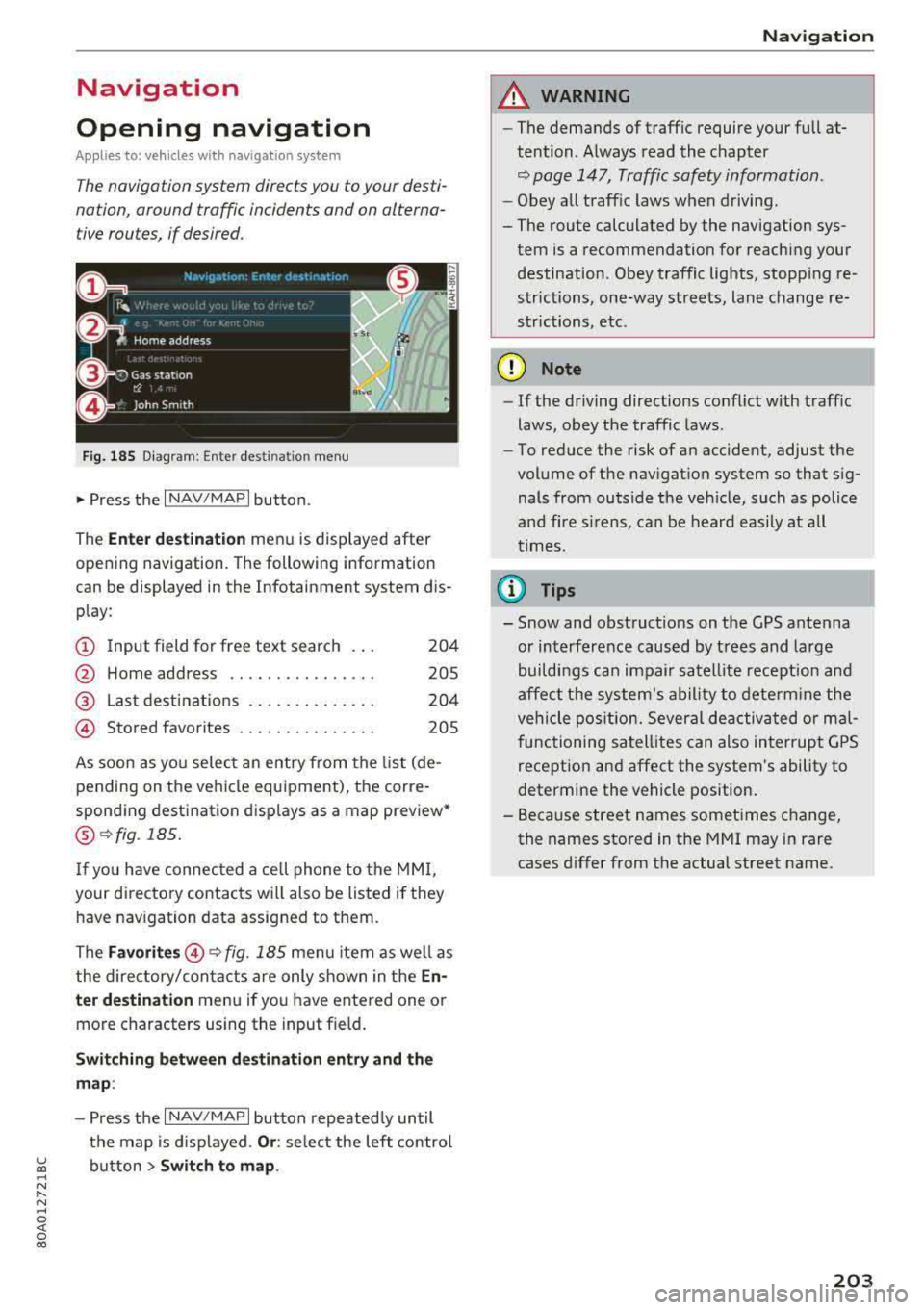
Fig. 185 Diagram: Ente r dest ination menu
.. Press the I NAV/MAPI button.
The
Ente r des tinatio n menu is displayed after
opening navigation. The following information
can be displayed in the Infotainment system dis
play:
(D I nput field for free text search 204
@ Home address . . . . . . . . . . . . . . . . 205
@ Last dest inatio ns . . . . . . . . . . . . . . 204
@ Stored favorites . . . . . . . . . . . . . . . 205
As soon as yo u select an entry from the list (de
pending on the ve hicle equipment), the corre
spond ing destination displays as a map preview*
@ r:::>fig .185.
If you have connec ted a cell phone to the MM I,
your di rectory contacts will also be listed if they
have navigation data assigned to them.
The
Fav orites @r::> fig. 185 menu item as we ll as
the directory/contacts are only shown in the
En
t e r d estination
menu if you have entered one or
more characters using the input field.
Swi tching betw een d estination entr y and th e
map :
-Press the I NAV/MAPI button repeated ly until
the map is d isplayed .
Or: select the left contro l
~ button > Swi tch to map . ..... N r-N .....
~ 0 co
Naviga tion
A WARNING
-The demands of traffic require your full at
tention. Always read the chapter
r:::> page 147, Traffic safety information.
- Obey all traff ic laws when driving.
- The route calculated by the navigation sys-
tem is a recommendation for reaching your
destination. Obey traffic lights, stopp ing re
strictions, one-way streets, lane change re
strictions, etc.
(D Note
- If the driving directions conflict with traffic
laws, obey the traffic laws .
- To reduce the risk of an accident, adjust the
volume of the nav igation system so that sig
nals from outs ide the veh icle, such as police
and f ire s irens, can be heard easily at all
times.
Ci) Tips
- Snow and obstruct ions on the GPS antenna
or interference caused by t rees and large
buildings can impair satell ite recept ion and
affect the system's ability to dete rm ine the
veh icle pos it ion. Several deactivated or mal
functioning satell ites can also interrupt G PS
recept ion and affect the system's ability to
determine the vehicle position.
- Because street names sometimes change, the names stored in the MMI may in rare
cases d iffer from the actual street name.
203
Page 207 of 392
u co ..... N r--N ..... 0 <( 0 00
Or: search for a country/state using the input
field.
- Ent ering a d estination u sin g th e Ci ty/ ZIP
c o de :
select and confirm Cit y/ZIP code . Enter a
city or a ZIP code .
Or: select and confirm a city
from the list.
- Se lect and confirm additional detai ls about the
destination such as
Street , House number or
Dow nto wn.
- Destination ent ry using a st reet inter se ction* :
Requirement: you must enter a street. Se lect
and confirm
Inte rsection . Select and confirm a
street d irectly from the list.
Or : search for a
street using the input field .
- Se lect and confirm
Start ro ut e guidance .
Selecting a destination on the map
A pp lies to: ve hicles with navigation system and MMI touch
A point on the map can be used as the destina
tion.
- Adju sting th e scale : turn the contro l knob to
the left or rig ht.
- Acti vating c rosshairs : press the control knob.
T he crosshairs are shown on the map .
-Mov ing the c rosshairs: move the crosshairs to
the destination using the MM I touch contro l
pad*
¢ page 152.
- Setting as desti nation : press the control knob
when the crosshairs are s hown. If necessary,
select and confirm
Add as stopo ve r and then
Start route guidance .
- Hiding the cro sshai rs:
press the I BACK I button.
Additional information about th e loc ation of
the cro sshai rs:
when you select map con tent us
ing the crosshairs, a display of avai lable informa
tion appears (such as street name , address or
points of
interest) @c>page 213, fig. 193.
Na vigation
Setting a home address/favorite as the
destination
App lies to : vehicles wi th navigat io n syste m
You can quickly and easily start route guidance
to your home address using the home address
function. Favorites allow easier ac cess to fre
quently used destinations.
"' Press the INAV/MAPI button repeatedly u nti l
t he
En ter d estination men u is displayed
c>
page 203, fig . 185 .
Setting a home address as the destination
Requirement: a home address must be stored
c>page 210.
Your Home address is shown directly in the Ente r
d estination
menu @c>page 203 , fig . 185 .
-Select: Home address > Sta rt route g uidance .
Setting a favorit e as the destination
Requirement: a favo rite must be s tored as a des
tination
c> page211.
- Enter at least the fi rst three letters of the de
sired favo rite in the free text sea rch inpu t field.
The favo rites fo und a re shown in the Infotain
ment system
disp lay @ ¢ page 203, fig. 185 .
-Select and co nfirm the des ired entry.
- Select and confirm
St art route guidance.
(D Tips
- Add itiona l settings for the home address
can be fo und
under ¢page210 .
-Add itiona l setti ngs for the favorites can be
found unde r
¢page 211 .
205
Page 208 of 392
Navigat ion
Transferring a destination from the
directory
A pp lies to: ve hicles w ith naviga tion system
You can navigat e directly to d estinations in th e
directory.
Option•, • ~.,how co11t.Ht dl't.1il•,
0
, ;== Jo;i hn Smith
~ :-Audi Beverly Hills
~ ,. Hawthorn Ave, Los Angeles, CA
&=9t<;'l, Wilshire B lvd, Beverly Hills, CA
t
9, ~
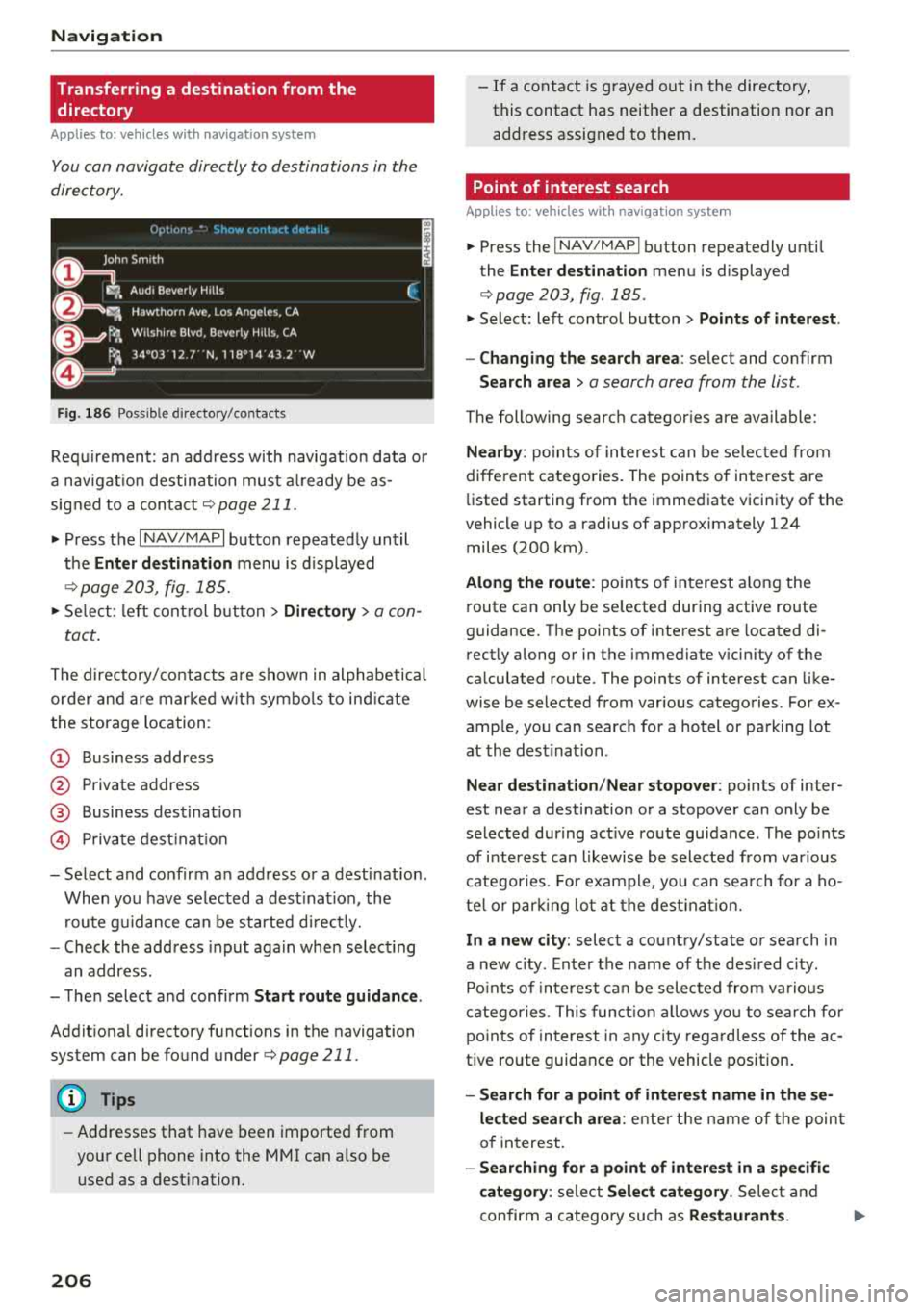
Fig . 186 Possible directory/contacts
(,
~
~
Requirement: an address with navigat ion data o r
a nav igat io n destination must a lready be as
signed to a conta ct
¢ page 211 .
i. Press the I NAV/MAPI button repeatedly until
t h e
Enter de stination menu is displayed
¢ page 203, fig . 185.
i. Se lect: left con trol button > Director y > a con-
tact.
The d irectory/contacts a re shown in alphabetical
order and are marked w it h symbo ls to ind ic a te
the storage location:
(D Business address
@ Private address
@ Business dest ination
© Pr ivate dest inat io n
-Select and confirm a n address or a destination.
When you have se lected a dest inat ion, the
r oute g uidance can be started d irect ly.
-Check the address input aga in whe n select ing
an address.
-The n select and confirm Start rout e guid ance .
Addit iona l directory functions in the navigation
system can be found
under¢ page 211.
(D Tips
-Addresses that have been imported from
your cell phone into the MMI can a lso be
used as a dest ination.
206
-If a contact is g rayed out in the directory,
this contact has neither a destination nor an address assigned to them.
Point of interest search
App lies to : vehicles wit h navigat ion syste m
i. Press the I NAV/MAPI button repeatedly until
the
Enter des tinat ion me nu is displayed
¢page 203, fig . 185 .
.. Select: left control button > Points of intere st.
-Changing the search area : select and confirm
Search area > a search area from the list .
The following search categor ies are available:
Nearby : poin ts of in teres t can be se lec ted from
diffe rent categories. The points of interest are
li sted starting from the immediate vicinity of the
vehicle up to a radius of approximately 124
miles (200 km).
Along the route : points o f interest a long the
route can only be se lected during active route
guidance. The points of interest are located di
rectly a long or in the immediate vicin ity of the
ca lculated route. The points of interest can like
wise be selected from various categories . For ex
ample, you can searc h for a hotel or parking lot
at the dest inat ion .
Near destination /Near stopo ver : points of inter
est near a destination or a stopover can only be
selected dur ing act ive route guidance. The po ints
of i nterest can likewise be selected from var ious
catego ries. Fo r example, you can sea rch fo r a ho
te l o r par king lo t a t the dest inat io n .
In a new city: select a co untry/state or sea rch in
a new c ity. Enter the name of the des ired c ity .
Po ints o f inte rest ca n be selected from va rio us
c a tego ries. This funct ion a llows yo u to se arch fo r
po ints of in terest in any city rega rd less of the a c
tive ro ute guidance or the vehicle position.
-Search for a point of intere st name in the se
l ec ted search ar ea :
ente r the name of the poin t
o f in terest.
-Searching for a point of interest in a specific
c ategory :
select Sel ect category . Select and
confirm a category such as
Re staurant s. .,.