change time AUDI Q5 2018 Owner's Manual
[x] Cancel search | Manufacturer: AUDI, Model Year: 2018, Model line: Q5, Model: AUDI Q5 2018Pages: 392, PDF Size: 60.56 MB
Page 177 of 392
u co ..... N r--N ..... 0 <( 0 00
button > Settings > left control button > MMI
settings
> Connection manager ¢ page 246.
~ Select and confirm the desired cell phone from
the list of displayed Bluetooth devices.
~ The MMI generates a PIN for the connection
setup
¢fig . 172.
~ Select and confirm Yes.
~ Enter the PIN for connecting on your cell
phone.
Or : when the PIN is displayed on your
cell phone, confirm the PIN on your cell phone
and in the MMI. The time allowed for entering
the PIN is limited to approximately 30 seconds.
~ Pay attention to any additional system prompts
displayed on your cell phone, for example if the
system should connect automatically in the fu
ture. Depending on the cell phone, you may
have to confirm downloading the directory sep
arately .
After connecting successfully
After connecting successfully, information about
the connected profiles will appear. You can also
change the profiles later. Select:
!MENUI button>
Settings > left control button > MMI settings >
Connection manager ¢ page 246 .
In addition, the cell phone contacts are automat
ically loaded in the MMI directory. This process
can take several minutes, depending on the num
ber of contacts .
You can also make your connected cell phone the
default phone by selecting
Set as default tele
phone
in the Connection manager ¢ page 248 .
@ Note
Always follow the information found in¢@) in
Wi-Fi hotspot on page 194.
(D Tips
-Making phone calls through the MMI is only
possible using the
Handsfree Bluetooth pro
file.
- You can apply additional settings to con
nected mobile devices using the
Connection
manager¢ page 246.
-You can also search for the MMI in your cell
phone using the Bluetooth device search.
Telephone
-You only have to pair your device one time.
Bluetooth devices that are already paired
automatically connect to the MMI when the
Bluetooth function is switched on, they are
within range and the ignition is switched on.
The last connected cell phone is given first
priority.
- Authorizing the MMI connection in your cell
phone will make automatic connection pos
sible .
- Pay attention to any system prompts dis
played on your cell phone, for example if
the system should connect automatically in
the future. Depending on the cell phone,
you may also need to download the directo
ry and confirm access to your text messages
separately.
- When leaving the vehicle, the Bluetooth
connection to the cell phone will automati
cally disconnect. Depending on your cell
phone, phone calls in progress may be auto
matically redirected from the MMI to your
cell phone and you can continue the call on
your phone.
- You can obtain more information from your
cell phone service provider or from your cell
phone user guide. For information on using
the telephone, visit www.audiusa.com/
bluetooth or contact an authorized Audi
dealer or authorized Audi Service Facility.
- Applies to: veh icles without secondary
phone: Several cell phones can be paired to
the MMI, but only one cell phone can be ac
tively connected to the MMI.
- App lies to: veh icles without seconda ry
phone: If a Bluetooth device is already con
nected to the MMI, it will be disconnected
when another device connects to the MMI.
175
Page 190 of 392
Audi connect (Infotainment)
,.. Enter your myAudi user data. Or: enter your
eight-digit myAudi PIN .
,.. Confirm your entry with OK.
Then yo u can open yo ur persona l se tt ings from
your myAudi account in you r vehicle .
(D Tips
You can re ceive you r myAudi P IN if you have
se t up a myAud i account. For addi tional infor
mation, see www.audi usa .com/mya udi.
Opening Audi connect
(Infotainment)
A pp lies to ve hicles with A udi co nnect (Infotainment)
Fig . 180 Aud i co nn ect (I n fota inment) ho m e p age
,.. Se lect : the IMENU ! button> Audi connect .
,.. If necessary, confi rm the note disp layed wit h
Accept.
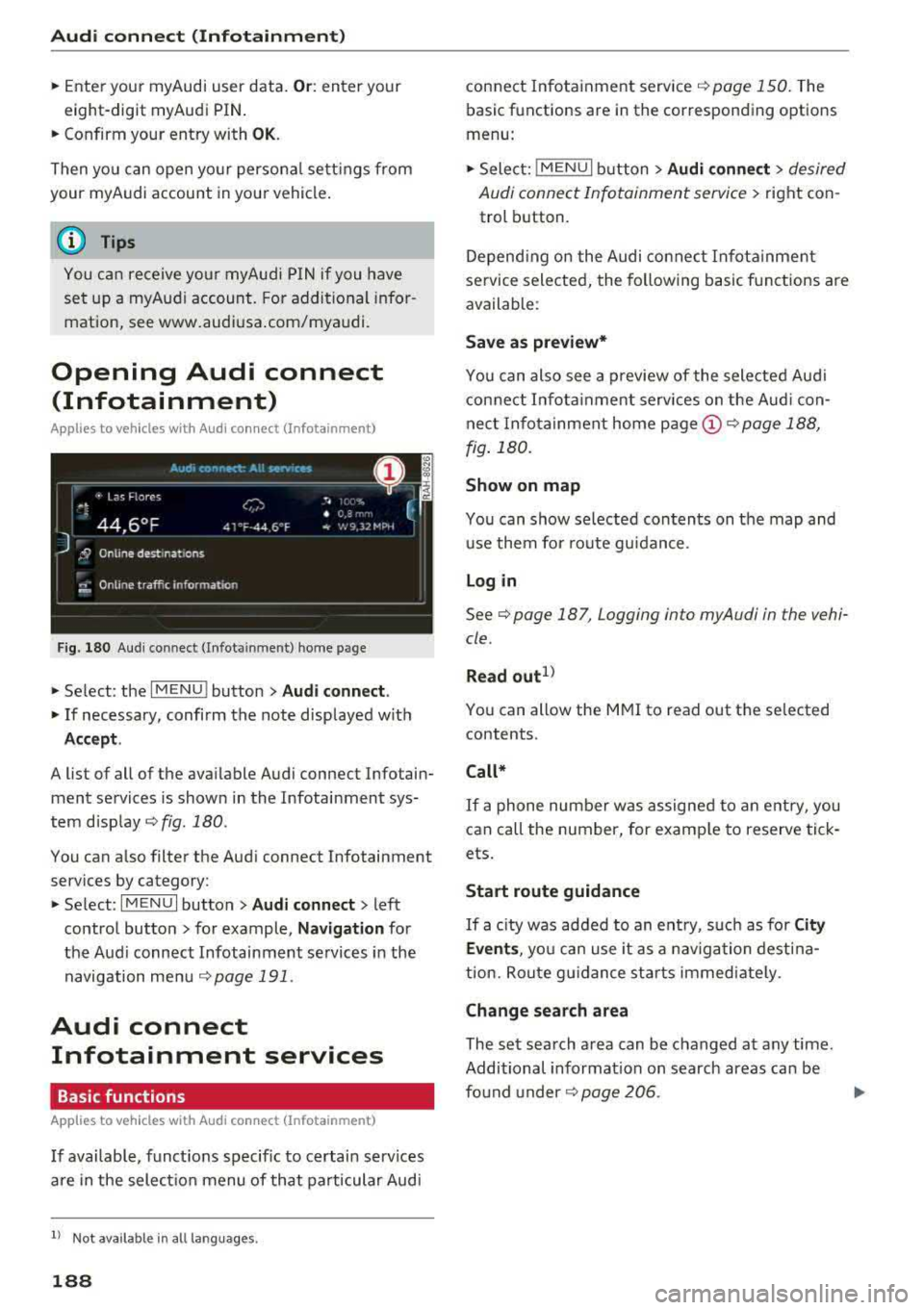
A list of all of the ava ilable Audi connect Infotain
ment services is shown in the Infotai nment sys
tem
d isp lay ¢ fig. 180 .
You can a lso filte r the Aud i connect Infotainment
services by category:
,.. Se lect : I MENU I button> Audi connect > left
contro l button> for example,
Navigation for
the Aud i connect Infotainment se rvices in the
navigation me nu
¢page 191 .
Audi connect
Infotainment services
Basic functions
A pp lies to veh icles with A udi co nnect (Infota inment)
If available, funct ions specific to certain services
a re in the selec tion menu of that particular Aud i
ll Not availa ble in a ll la n guage s.
188
connect In fota inme nt service ¢ page 150. The
basic functions are in the correspon ding options
menu:
,.. Sele ct: !ME NUI butt on> Audi connect > desired
Audi connect Infotainment servi ce>
right con
trol b utton .
Depend ing o n the Audi connect In fota inme nt
se rvice selected, the follow ing basic f unc tions are
available :
Save as preview*
You can also see a preview of the selected Aud i
con nect In fo tai nment services on the Aud i con
nect In fo ta inment home
page @¢ page 188,
fig . 180.
Show on map
You can show selected con ten ts on the map and
u se them fo r route gu idan ce .
Log in
See¢ page 187, Logging into myAudi in the vehi
cle .
Read
out1>
You can a llow the M MI to read out the selected
contents .
Call*
If a p hone num ber w as assigne d to an e ntry, you
can call the number, for e xamp le to reserve tick
ets.
Start route guidance
If a city was ad ded to an e ntry, suc h as fo r City
Events ,
you ca n use it as a navig ation dest ina
t ion. Rou te g uidance st art s immediate ly.
Change search area
The se t sea rch area can be changed at any time.
Additional informat io n on search areas can be
fo und
u nder ¢ page 206 .
Page 193 of 392
u co ..... N ,..._
N ..... 0 <( 0 00
You must have connected your vehicle with myAudi
r=>page 187.
.,. Select Twi tter > left co ntrol button > desired
function
(for example, T rend s).
The fo llow ing categories can be selected in the
Twitt er menu:
-M y tw eets: News Feed and the Tweets you have
posted are l isted.
-Home: the Tweets for everyone you follow are
displayed.
-T rend s: topics on Twitter that are currently
popular w ith in a country .
Different functions are availab le depending on
the Twitter category you have selected:
-New tweet : you can post a new tweet using
pre -made templates or using myAudi tem
plates that you have created yourse lf.
-R efre sh : the selected Twitter function is re
freshed.
-Fa vo rite : mark a Tweet as favorite to show you
liked it.
-Retwee t: you can quote a Tweet to share it with
others.
(D Tips
-Other se tt in gs such as accoun t, la ng uage,
Tweet security and location settings
cannot
be changed in the MMI. These c hanges must
be made on the Twitter website .
-You can only connect one Twitter account
with your myAudi acco unt .
-Audi con nect (Infotainment) makes i t possi
b le to access Twitter . Permanent avai lability
ca nnot be guaranteed, because t hat de
pends on Twitter.
Travel (travel guide)
Applies to: vehicles with Travel (travel guide)
You can use the Audi MMI connect opp to store
points of interest on your mobile device (such as a smartphone) and then use them for route
guidance in the
MMI.
Requirement:
Audi conn ect (Inf otainment )
The Audi MMI connect app must be insta lled and
open on your mobi le device .
Yo u m ust be logged into your myA udi account in
the
Audi MMI conne ct app and you must have se
l ected your vehicle.
T he Wi-Fi function on your mob ile dev ice and on
t h e M MI m ust be switched on.
T he MMI must be connected to the network.
.,. Press: !MENU ! button> Audi connect > left con-
trol button
> Information catego ry > Trav el.
After opening the trave l guide, trave l tips in your
area wi ll be displayed including current ratings as
well as the corresponding category.
.,. Press the left control button to change the cat
egory (such as bars nearby).
A WARNING
-
-It is only safe to use tablets, laptops, mo b ile dev ices and o ther sim ila r devices when
the vehicle is s tat ionary because, l ike all
loose objec ts, they co uld be thrown aroun d
the inside o f the ve hicle in a c rash and cause
serio us inj uries . Store these types of devices
secure ly while driving .
-Do not use any wireless devices on the front
seats within range of the airbags whi le driv
ing. A lso read the warnings in the chapter
r::> page 2 73, Front airbags.
@ Note
Always fo llow the information found in¢ (!) in
Wi -Fi hotspot on page 194.
(D Tips
U ni ts of measurement, language se tt ings and
time are shown in the Infotainment system
display based on how they were set in the
MMI system sett ings
r::> page 245.
Audi connect (Infotainment) in navigation
Applies to: vehicles with a navigation system and Audi con
nec t (Infotainment)
.,. Select: !MENU! button> Audi connect > left
control button >
N avigation.
191
Page 205 of 392
Navigation
Opening navigation
Applies to: vehicles with navigation system
The navigation system directs you to your desti
nation, around traffic incidents and on alterna
tive routes, if desired .
Fig. 185 Diagram: Ente r dest ination menu
.. Press the I NAV/MAPI button.
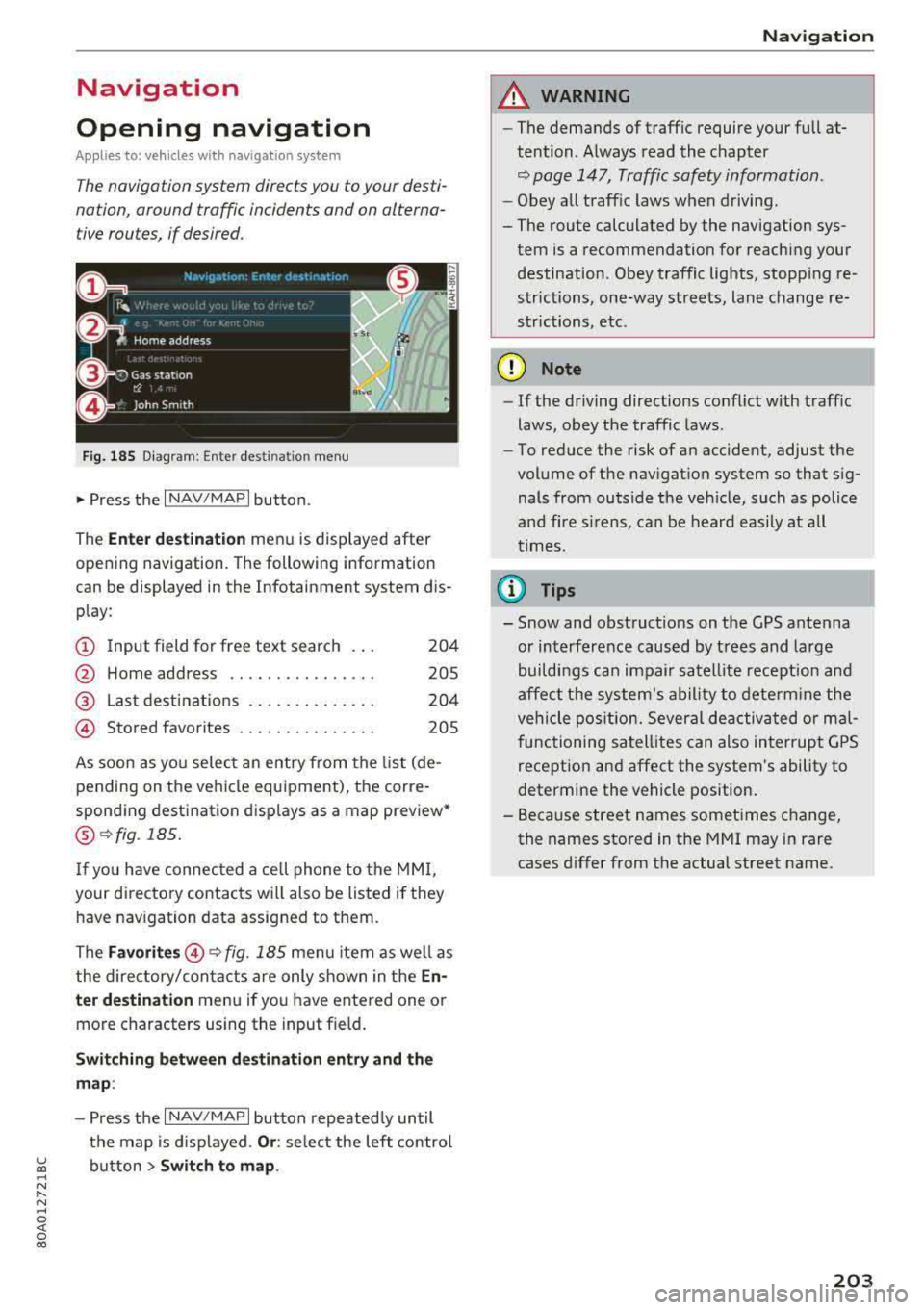
The
Ente r des tinatio n menu is displayed after
opening navigation. The following information
can be displayed in the Infotainment system dis
play:
(D I nput field for free text search 204
@ Home address . . . . . . . . . . . . . . . . 205
@ Last dest inatio ns . . . . . . . . . . . . . . 204
@ Stored favorites . . . . . . . . . . . . . . . 205
As soon as yo u select an entry from the list (de
pending on the ve hicle equipment), the corre
spond ing destination displays as a map preview*
@ r:::>fig .185.
If you have connec ted a cell phone to the MM I,
your di rectory contacts will also be listed if they
have navigation data assigned to them.
The
Fav orites @r::> fig. 185 menu item as we ll as
the directory/contacts are only shown in the
En
t e r d estination
menu if you have entered one or
more characters using the input field.
Swi tching betw een d estination entr y and th e
map :
-Press the I NAV/MAPI button repeated ly until
the map is d isplayed .
Or: select the left contro l
~ button > Swi tch to map . ..... N r-N .....
~ 0 co
Naviga tion
A WARNING
-The demands of traffic require your full at
tention. Always read the chapter
r:::> page 147, Traffic safety information.
- Obey all traff ic laws when driving.
- The route calculated by the navigation sys-
tem is a recommendation for reaching your
destination. Obey traffic lights, stopp ing re
strictions, one-way streets, lane change re
strictions, etc.
(D Note
- If the driving directions conflict with traffic
laws, obey the traffic laws .
- To reduce the risk of an accident, adjust the
volume of the nav igation system so that sig
nals from outs ide the veh icle, such as police
and f ire s irens, can be heard easily at all
times.
Ci) Tips
- Snow and obstruct ions on the GPS antenna
or interference caused by t rees and large
buildings can impair satell ite recept ion and
affect the system's ability to dete rm ine the
veh icle pos it ion. Several deactivated or mal
functioning satell ites can also interrupt G PS
recept ion and affect the system's ability to
determine the vehicle position.
- Because street names sometimes change, the names stored in the MMI may in rare
cases d iffer from the actual street name.
203
Page 235 of 392
u C0 .... N ,..._
N
adapter(¢ page 231). They may impair the
functionality.
- You can purchase the AUX connector cable
from an authorized Audi dealer or at spe
cialty stores.
- Audi recommends setting the volume of a
mobile device connected to the AUX input to
approximately 70% of the maximum vol ume .
- Functionality is not guaranteed for mobile
devices that do not conform to the USB 2.0
specification.
- USB hubs are not supported.
- Some versions of the iPod such as the iPod
shuffle cannot be connected to the USB
adapter for devices with Apple Dock connec
tor. Connect these devices using a AUX con nector cable.
- Changed content on a mobile device
l) that
is connected to the Audi music interface
may not be displayed in the media center.
In this case, reset the
Media settings back
to
Factory settings ¢ page 246.
- Video playback through the Audi music in
terface is only supported if the connected
device is recognized as a USB storage device
(for example a USB stick). Apple devices and
MTP devices (such as smartphones) are not
recognized as USB storage devices.
- iPod/iPhone malfunctions also affect the
operation of the MMI. Reset your iPod/
iPhone if this happens.
- Audi recommends updating the iPod/iPhone
software to the latest version. For impor
tant information on operating your iPod/ iPhone, refer to the user guide for the de
vice.
- The USB adapter on the Audi music inter
face will support iPod touch/iPhone from
the 5th generation or later with the light
ning connector.
- For more information about the Audi music
interface and supported devices, check the
Audi database for mobile devices at
www .audiusa .com/mp3 or contact an au -
.... o l) A ppli es o nly t o MTP devic e s. Doe s not a pply to Ap ple de vi
thorized Audi dealer or authorized Audi
Service Facility.
USB charging ports in the rear
Applies to: vehicles with USB charging ports in the rear
You con charge the battery on your mobile device
through a USB charging port.
Two USB charging ports are located at the back
of the center console .
-USB adapter: refer to ¢ page 2 31, USB adopter
for Audi music interface or USB charging port.
- Charging a mobile device using the USB
adapter:
connect your mobile device to a USB
charging port using a suitable USB adapter.
- Disconnecting a mobile device from the charg
ing port:
remove the USB adapter from the USB
charging port .
-Disconnecting mobile devices with an Apple
Dock connector :
remove the Apple Dock con
nector from the Apple device with the release
tabs pressed in.
A WARNING
= -
Driving requires your complete and undivided
attention. As the driver, you have complete
responsibility for safety in traffic. Never oper
ate your mobile devices while driving, because
this increases the risk of an accident.
@ Note
Extremely high or low temperatures that can
occur inside vehicles can damage mobile devi
ces and/or impair their performance . Never
leave mobile devices in the vehicle in ex
tremely high or low temperatures .
(D Tips
-In preparation at the time of printing.
- Always follow the information found in
<=> page 60 .
-When you switch the ignition off, the USB
ports are still supplied with power until the
energy management intervenes .
233
Page 237 of 392
-Playing audio/video files : select a source in the
Media menu > Category (such as artists > al
bum> track) .
-Moving one leve l up in the folder structure :
press the I BACKI button. Or: select and confirm
Folder up .
- Selecting the previous or ne xt track/chapter*
1>: press the On/Off knob on the M MI cont rol
panel br iefly to the left
l«1 or right l»t.
-Fast-forwarding and rewinding audio/video*
file s:
press and hold the On/Off knob on the
MMI control panel to the left
l«1 or right l»t for
a longer time.
-Pausing or resum ing playb ack : press the On/
Off knob on the MMI contro l pane l br iefly.
@ Tips
- You can scro ll th rough long lists quickly by
turning the contro l knob q uick ly. The scroll
i ng speed depends on the number of list e n
tries.
- Fo r safety reasons, the video image is only
displayed when the vehicle is stationary . On
l y the sound from t he v ideo plays while driv
i ng .
Media center
Various categories for selecting audio/video*
files are available in the media center .
Fig. 212 Exa mple: USB stick cate gories
u co ..... N r-N ..... ~ 1l Depe ndi ng on the DVD, this m ay not be poss ib le d urin g
~ playba ck .
Media
Fi g. 21 3 Examp le: USB stick cat egories
.,. Press the I MEDIA i button. Press the left cont rol
button unti l the sources overv iew is d isplayed .
Select and confirm the desired source.
(D Active source
The active source is hig hlighted . The ac tive
sou rce symbol
(D may change depending on the
connected dev ice, the on line media service * or
Internet radio*. The device name may be dis
played (for example: myPhone). As an example, a
U SB stick is shown
c:::;, fig. 212 connected to the
Audi music inte rface *.
Depend ing on the act ive source, yo u can select
audio/v ideo fi les* from the follow ing categories
and add them to the playlist:
@ Favo rites
T he Favorites category ap pears if at least one e n
try is stored in the favo rites list . See
c:::;, page 237,
Favorites.
@ Artists
All av ailable art ists a re displayed . Sele ct and con
firm an a rtist, an album and then a t rack .
@ Albums
All ava ilab le albums are d isplayed. Se lect and
c o nfirm an alb um and then a track .
® Genres
All ava ilab le ge nres are disp layed. Select and
confirm a gen re (s uc h as
Pop ), an artist, an al
bum and then a so ng .
235
Page 244 of 392
Media
Problem Solution
Audi music interface :
the porta-For many ce ll phones or mobile devices, playback is not possible
ble device is not recogni zed as a when the battery level is too low (less than 5% of its capacity).
source. The mobile device will only be recogn ized as a source in the MMI
after connecting if the battery charge is sufficient .
Audi music interface: malfunc-
The Bluetooth audio player function is switched on. Switch this
tions during audio playback function off¢
page 248 when you are not using the Bluetooth
through an iPod/ iPhone. audio player.
Audi music interface:
contents Reset the Media settings to the factory default settings
that are changed on a mobile de -
¢page 246.
vice connected to the Audi music
interface
a l are not disp layed in
the media center .
AUX input: there is stat ic when When connecting a nd disconnecting, the External audio player
connecting and disconnect ing the source is already selected. Before connecting or disconnecting the
AUX connection cable. mobile device, either mute the device (see ¢
page 249) or sw itch
to a different audio source (for example ¢
page 220, Opening the
radio).
Bluetooth audio player* /Wi-Fi
Only one interface should be act ively used at a time to ensure
audio player*: audio playback in- problem-free playback.
terference.
Jukebox* : tracks on the imported When importing playlists, a ll of the files themselves must be im-
playlist are grayed out. ported.
Jukebox*: imported tracks cannot If you cannot find imported tracks in the media center, they may
be played or found. not be supported. Only copy supported files"*
page 240 to the
Jukebox.
Online media *: connection fa iled To establish a connection to the MMI, the MMI connection switch
between the MMI and the
Audi must be switched on in the Audi MMI connect app status sc ree n.
MMI connect app.
Bluetooth audio player *: interfer- Playback interference can occur when using the Bluetooth audio
ence with track d isp lay and aud io player if a music player app from a third party provider is open.
playback . Audi recommends using the integrated media player on your Blue-
tooth device (such as a smartphone) .
Wi-Fi hotspot*: your Wi-Fi device
Make sure the network optimization functions are switched off in
is disconnected from the Wi -Fi the Wi-Fi settings or in the network settings for your Wi -Fi device .
hotspot . For additional information refer to the user guide for your Wi-Fi
dev ice.
Audi music interface: audio play-Make sure the USB mode MTP is selected in the settings on your
back through the connected mo- mobile device.
bile device is not possible.
al Applie s onl y to MTP dev ice s. Does not apply to App le dev ices and USB mass s torage dev ice s.
242
Page 245 of 392
u co ..... N r--N ..... 0 <( 0 00
Audi smartphone interface
Setup
Applies to: vehicles with Audi smartphone interface
You con connect your smortphone to the MM I us
ing the Audi smortphon e int erfac e. Certain con
t e n t on you r sm ortphone is ado pted to th e Info
tainme nt system d is p lay while driving and con
be operated through the
MMI control panel .
Requirement
The vehicle must be stat ionary and the ignition
must be switched on .
iPhone generation 5 or h igher w ith Lightning
connector and iOS 7 .1.2 operating system or h igher.
O r:
Smartphone with Android Auto app and Android
5 .0 Loll ipop operating system or higher.
.,. Connec t your sma rtphone to the Audi music in
terface ¢ page 232 using a USB adapte r
¢page 231, fig. 208 .
.. Select and confirm A ctivate Apple CarPlay or
Acti vate And roid Auto now .
.. Follow the system instruct ions.
.. Pay attention to any additiona l system prompts
on your smartphone if applicable .
If yo u chose not to use Apple CarP lay or Android
Auto when connecting your smartphone for the
first time, you can start the Audi smartphone in
terface later on using the
Connection manager.
.,. Se lect : I MENU I button > Audi smartphone in-
terfa ce
> Change to connection manager .
.. Connect your sma rtphone to the A udi music in
terface using a USB
ad apter ¢ page 231,
fig . 208.
.. Se lect and confirm Audi smartphone in t he
Connection manager ¢ page 246. You can se
l ect your smartphone in the list of devices that
are already
paired¢ page 247.
.,. Follow the system instruct ions .
@ Note
Always follow the i nformat ion found in¢ @) in
Wi-Fi hotspot on page 194 .
Audi smartph one interfac e
(D Tips
-The functions that can be used depen d on
the fo llow ing factors, among others:
- the brand of your smartphone
- the vers io n of the ope rating system in
your smartphone
- the software ve rsion of the app used
- the USB adapter cab le and correct connec-
tion
- your cell phone se rvice provide r
- the customized settings on yo ur sma rt -
phone
- One of the factors above o r a com bina tion
of any of them could cause your sma rtphone
to be incompatib le wit h the Audi smart
phone inter face. Compatibility cannot be
guaranteed for all types of smartp hones.
For more informat io n and assistance, refer
t o the user guide and the man ufactu rer of
yo ur sma rtphone .
- If the connected smartphone has voice con
tr ol, you can ope rate yo ur smartp hon e usi ng
the ex ter nal voic e recognition system
¢page 172.
- Th e menu language show n in t he MMI is
based on t he sett ings in you r smartp ho ne .
- Th e time d is p layed in the M MI is based o n
the settings in yo ur sma rtphone .
- Severa l M MI functions a re not avai lab le
when Apple Car Play o r Andro id A uto is ac
t ive.
- Yo u ca nnot co nnect any mob ile dev ices via
B lu etooth whe n an App le CarPlay connec
tion is a ctive .
Operating
Applies to: vehicles with Audi smartphone interface
Opening a menu
Apple CarPlay :
you can go back to t he Apple Car
Play main me nu regardless of the se lected me nu
i tem by p ressing and holdi ng the
I B ACKI button .
Android Auto : to go back to the Andro id Auto
me nu bar, push the control knob down .
243
Page 251 of 392
-Version information : information on the MM I
software version and the nav igat io n database *
software vers ion is disp laye d. The
Software in·
formation function a lso provides information
on the software con tained i n the MMI and t he
li cens ing agreeme nt.
Sound settings
The sound distribution and volume of the MMI
can b e adjust ed individually . The settings d epend
on vehicle equipme nt.
----- 1
J -~+ ~-
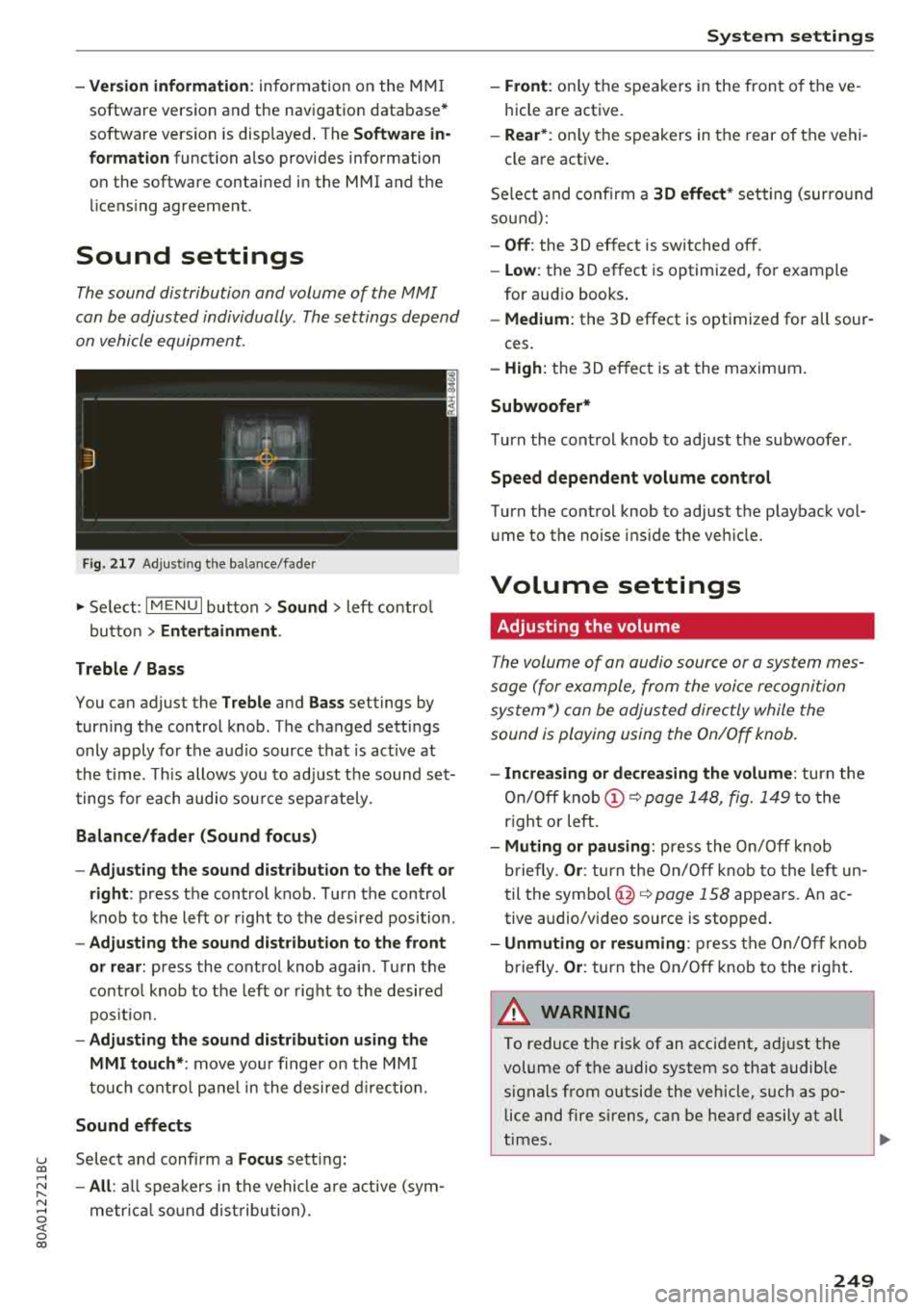
F ig. 217 A dj ustin g the ba la nce /fade r
"'Se lect : I MENU I bu tton >Sound > le ft contro l
b utt on
> Entertainment .
Treble / Bass
You can ad just the Treble and Bass settings by
turn ing t he control knob. The changed se ttings
only apply fo r the a ud io source tha t is ac tive at
t he time . T his allows you to ad just t he soun d set
t ings for each audio sou rce se para tely .
Balance/fader (Sound focus)
- Adjusting the sound d istribution to the left or
right :
press the control knob. Tur n the control
k nob to the left or right to the des ire d posi tion .
-Adjusting the sound distribution to the front
or rear:
press the cont rol knob again . T urn the
contro l knob to the left o r right to the desired
p os it io n.
- Adjusting the sound distribution using the
MMI touch* :
move your finger on the MM I
touch co ntro l pan el in th e desire d directio n.
Sound effects
u Selec t and confi rm a Focus se tt in g: co ...
~ -All : all sp eakers i n th e vehi cle ar e active (sym -
~ metrical sound dist ribu tion) . 0 <( 0 00
System settings
-Front : only t he s pea ke rs in the fron t of the ve
hicle are active.
- Rear* : only the s peakers in the rear of the vehi -
cle a re act ive .
Se lect a nd co nfir m a
30 effect * setting (su rround
so un d):
-Off : the 30 effect is switched off .
-Low : the 30 effect is optimized , fo r exam ple
for au dio books .
-Medium: the 30 effect is optimized for all sour -
ces .
-High : the 3 0 eff ect is at the ma ximum .
Subwoofer*
Turn the con trol knob to ad just t he subwoofer .
Speed dependent volume control
Turn the cont rol knob to ad just t he p layback vol
u me to the noise ins ide the ve hicle.
Volume settings
Adjusting the volume
Th e volum e of an audio source or a syst em mes
sage (f or example, from the voice recognition
sy stem *) can be adjus ted direc tly while the
sound is playing using the On/Off knob.
- Increasing or decreasing the volume : turn the
On /O ff knob
(D ~ page 1 48, fig. 1 49 to the
r igh t or left.
- Muting or pausing: press the On/ Off knob
b riefly .
Or: tur n t he On/Off knob to the le ft un
t il the
sym bo l@ ~ page 158 appe ars. An ac
tive audio/v ideo source is stoppe d.
-Unmuting or resuming : press the On/O ff knob
b riefly .
Or: turn the On/O ff knob to the right .
A WARNING ~ -
To reduce t he ris k of an acci den t, a djust t he
volume of t he a udio syst em so that audib le
signals from o utside the vehicle, such as po
lice and fire s irens, can be hea rd easily at all
times.
249
Page 260 of 392
Driving safety
A WARNING
Heavy loads will influence the way your vehi
cle handles . To help reduce the risk of a loss
of control leading to serious personal injury:
- Always keep in mind when transporting
heavy objects, that a change in the center of
gravity can also cause changes in vehicle
handling:
- Always distribute the load as evenly as
possible.
-Place heavy objects as far forward in the
luggage compartment as possible.
- Never exceed the Gross Axle Weight Rating
or the Gross Vehicle Weight Rating specified
on the safety compliance sticker on th e driv
er's side B-pillar. Exceeding permissible
weight standards can cause the vehicle to
slide and handle differently .
- Please observe information on safe driving
<=) page 252.
A WARNING
To help prevent poisonous exhaust gas from
being drawn into the vehicle, always keep the
rear lid closed while driving .
- Never transport objects larger than those
fitting completely into the luggage area be cause the rear lid cannot be fully closed .
- If you absolutely must drive with the rear lid
open, observe the following notes to reduce
the risk of poisoning:
- Close all windows,
- Close the sunroof*,
-Open all air outlets in the instrument pan-
el,
- Switch off the air recirculation,
- Set the fresh air fan to the highest speed .
A WARNING
Always make sure that the doors, all win
dows, the sunroof* and the rear lid are se
curely closed and locked to reduce the risk of
injury when the vehicle is not being used .
-After closing the rear lid , always make sure
that it is properly closed and locked.
258
-Never leave your vehicle unattended espe
cially with the rear lid left open. A child
could crawl into the vehicle through the lug
gage compartment and close the rear lid be
coming trapped and unable to get out . Be
ing trapped in a vehicle can lead to serious
personal injury.
- Never let children play in or around the vehi
cle .
- Never let passengers ride in the luggage
compartment . Vehicle occupants must al
ways be properly restrained in one of the
ve
hicle 's seating positions.
@ Note
If you are transporting large items with the
backrest folded down*, you should remove
the Rear Seat Entertainment (RSE)* and its
holder* to avoid damage.
© Tips
-Air circulation helps to reduce window fog
ging. Stale air escapes to the outside
through vents in the trim panel. Be sure to
keep these slots free and open .
-The tire pressure must correspond to the
load. The tire pressure label lists the recom
mended cold tire inflation pressures for the
vehicle at its maximum capacity weight and
the tires that were on your vehicle at the
time it was manufactured. For recommend ed tire pressures for normal load condi
tions, please see chapter
Q page 336 .
Tie-downs
The luggage compartmen t is equipped with four
t ie-downs to secure luggage and o ther i tems.
Use the tie-downs to secure your cargo properly
Qpage 25 7, L oading the luggage compartment.
In a collision , the laws of physics mean that even
smaller items that are loose in the vehicle will
become heavy missiles that can cause serious in
jury. Items in the vehicle possess ene rgy which
vary with vehicle speed and the weight of the
item . Vehicle speed is the mos t significant fac tor .
..,.