warning lights AUDI Q5 2018 Owner's Manual
[x] Cancel search | Manufacturer: AUDI, Model Year: 2018, Model line: Q5, Model: AUDI Q5 2018Pages: 392, PDF Size: 60.56 MB
Page 103 of 392

u co ..... N I' N ..... 0 <( 0 00
Description
The predictive cont rol 1 l uses the map info rma
tion from the navigation system in order to react proactive ly when driving. Information from the
cam era-based traffic sign recognition * is a lso ap
plied to recognize traffic
signs ¢ page 97. When
coming up to areas wi th speed limits or changes
in the course of the road (such as curves, inter
sections or traffic c ircles), the system brakes au
tomatically and then accelerates back up to the
set speed .
Overriding control
The driver can override the predict ive control at
a ny time by press ing the accelerator or brake
pedal. If the system changes the vehicle speed to
adapt to speed limits, you ca n cha nge the speed
usi ng the lever
¢ page 106, fig. 105 .
Always switch off the predictive control in
the following situations:
- When increased atte ntion is needed from the
drive r.
- In poor weat her cond it ions such as snow or
heavy ra in.
- When driving on roads in poor condition .
Indicator in the instrument cluster display
When switching on the adaptive cru ise cont rol
for the first time, the message
ACC: R + B ac
ti ve
in the instrument cluste r indicates the ava il
ab ility of the predictive control.
T he
'?·;SOmh symbo l appears when the system
is reg ulating the speed to match a speed lim it. If
this is the case, the system is regulating a speed
of SO mph (80 km/h) . The speed is then taken
over by the adaptive cru ise control. The speed in
the speedomete r LE D ring ad justs to the speed to
be maintained
¢ page 104, fig. 104 . The ..
¢fig. 98 sym bo l appe ars whe n there is an adap
ta tion to t he ro ute ahea d.
I f you are in the
Driver assistance d isp lay in the
in str ument cluster, then the fo llow ing symbols
w ill in dica te w hic h oc currence t he sys tem is cu r
r en tly responding to:
ll Thi s is not availa ble in so m e co untri es.
A ss istance systems
Symbol Meaning
MPH
USA models:
Speed limit
km/h
Canada model s:
Speed limi t
ll
Curve
_J!L Intersection
,:r
w
T raffic ci rcle
A WARNING
-
- Read the wa rnin gs on ¢ .&. in General infor
mation on page 103
and on¢ & in De
scription on page
97.
- Pay attent ion to traffic and the a rea around
your veh icle when pred ictive cont rol is
sw itched on. The driver is always responsi
ble for assessing the traffic situation.
- There is an increase in the risk of an acci
dent, because the system does not consider
"right of way" rules and also does not re
spond to traffic lights .
- The system only cons iders t raff ic signs that
g ive a speed lim it .
- The permitted speed can be exceeded if the
adaptation to a speed lim it is incorrect . The
d river is responsible for adher ing to the pe r
mitte d speed .
- The s peed at w hich a curve is dr iven th rough
does not necessarily match your own driving
s tyle. Brake the vehicle yo urself whe n need
e d t o redu ce the risk of an a ccid en t.
0) Tips
- If a speed lim it is detected, the stored
speed is also adjusted in the speedometer
LE D line when the ada ptive cru ise control is
n ot a ctive .
- The adaptat ion by the system depends on
t he driving mode se t in dr ive se lec t*.
- Switching off predict ive con trol, fo r exam
ple whe n driving in low t raff ic zones, does
101
Page 107 of 392

You can set any speed between 20 mph and 95 mph (30 km/h and 150 km/h).
I ndicato r lights and messages in t he i nstr ument
cluste r display inform you abou t the cur ren t sit
uation and setting.
An addit ional ind icator appears in the head- up
d isp lay* .
Switching adaptive cruise control on
"' Pull the lever toward you into position @
<=>fig . 103 .
Storing the speed and acti vating regul ation
"' To store the c urrent speed, press the !SE TI but
ton
<=> fig. 103. The stored speed is shown in the
speedometer in the LED
line @ and appears
briefly i n the status line @<=>
fig. 104 .
"'To activate the regu lation wh ile stat ionary, also
press the b rake peda l.
Switching adaptive cruise control off
"' Push the lever away from you into position @
unt il i t clicks i nto place . The message
ACC: off
appears .
® Indicator light s
II-Adaptive cruise control is switched on. No
ve hicles are detected ahead. The stored speed is
maintained.
•-A vehicle driving ahead was detected . The
adaptiv e cruis e control system regulates the
speed and distance to the vehicle dr iv ing ahead
and accelerates/brakes automatically.
•-Adaptive cruise control is switched on. Ave
h icle was detect ed ahead. You r vehicle is station
ary and will not start driving automatically.
ti)-Adaptive cru ise con trol is switched on. No
ve hicles were detected ahead. Yo ur vehicle is sta
tionary and will not start driving automatically .
•-The autom atic br aking is no t en ough to
main tain a sufficient distance to a veh icle dr iving
ahead. You must intervene
c:!;> page 108, Driver
u intervention request . co ..... N ,..._
N ..... 0 <( 0 00
Ass istance systems
© Instrument cluster display
If the Driver a ssistance displ ay is not shown in
the instr ument cluster d isp lay, you can open it
u sing the m ultif unction steering whee l buttons
c:!;> page 12.
Ba sed on the gr aphic disp lay, you c an dete rm ine
i f th e system is maintain ing a d istance to the ve
hicle driving a head and what t hat distance is .
No vehicle -no vehicle was detec ted dr iv ing
ahe ad.
Silver vehicle -a vehicle was detected driving
ahead.
Red v ehicle -reques t for driver interve ntion
<=> page 108 .
The five distan ce bars on the gauge © represent
the set distance (refer to
c:!;> page 107for infor
ma tion o n how to change t he d istance). If you
fall below the selected d ista nce, the distance
bars become red from the bottom upwa rd .
A WARNING
If yo u press the !SET I butto n w hen dr iv ing at
speed s below 20 mph (30 km/h), t he ve hicle
a ccelera tes au tom atic ally u p to 2 0 mph (30
k m/h), w hich is the minim um speed tha t can
b e set.
(D Tips
- If you swi tch t he ig nit io n o r th e adaptive
cr uise cont ro l sys tem o ff, t he set s peed is
erased fo r safe ty reasons .
- Th e Elect ronic S tab ili za tion Control ( ES C)
and the An ti- Slip -Reg ula tion (ASR) are a uto
matically swi tched o n when the adap tive
c ruise cont ro l is switched on .
105
Page 111 of 392
u co ..... N r-N .....
~ 0 co
Traffic jam assist
Applies to: ve hicles with traff ic jam ass ist
Traffic jam assist supports the driver when driv
ing in traffic jams or in heavy traffic.
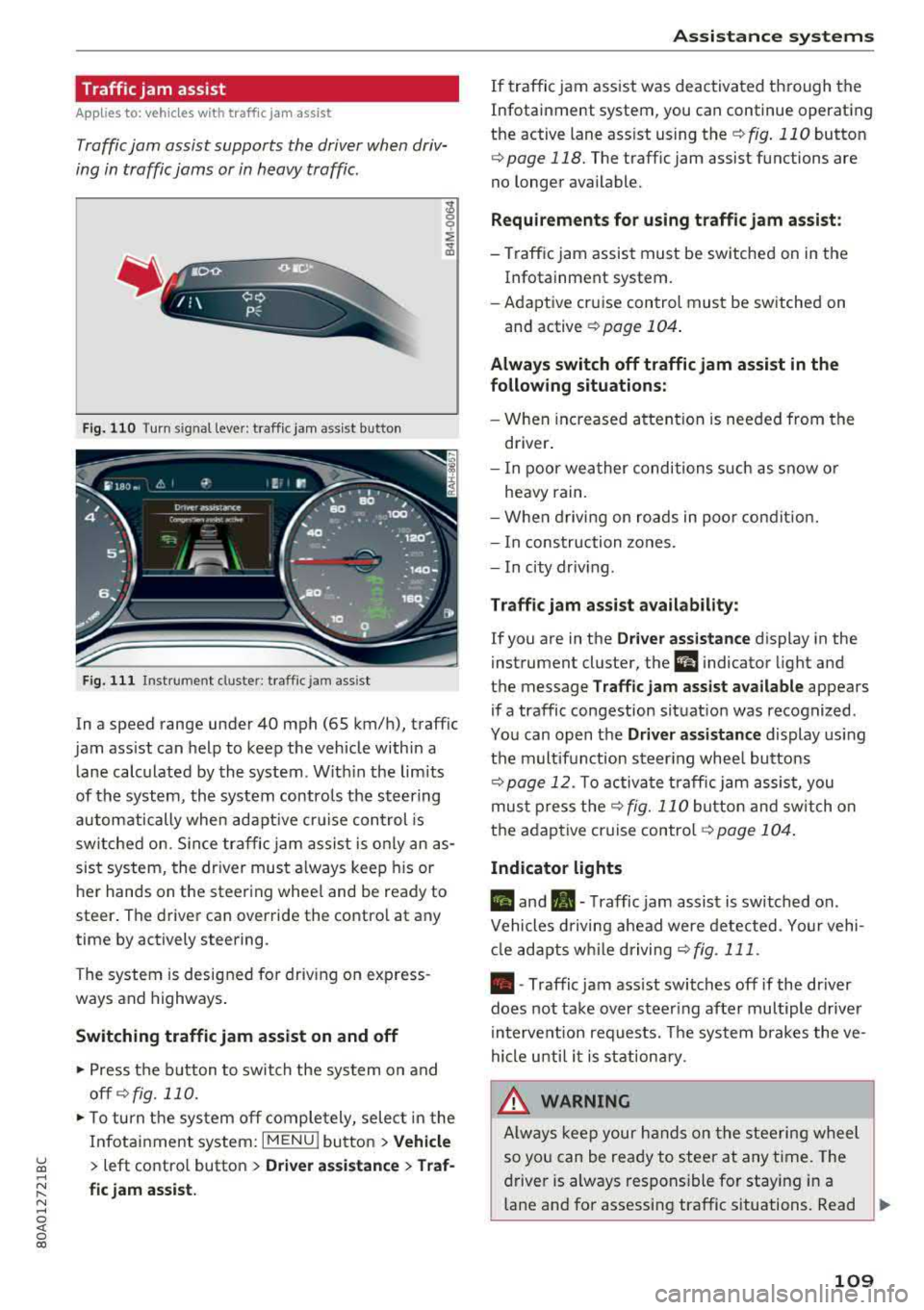
Fig. 110 Turn s ig n al leve r: traffic ja m ass ist button
F ig. 111 I nst ru ment duste r: tra ffic jam a ssist
In a speed range under 40 mph (65 km/h), traffic
jam ass ist can help to keep the vehicle within a
l ane calc ulated by the system . W ith in the lim its
of the system, the system contro ls the steering
automatically whe n adapt ive cr uise control is
switched on . S ince traffic jam assist is only an as
sist system, the dr iver must a lways keep his or
he r hands on the steer ing whee l and be ready to
steer . The driver can override the contro l at any
time by actively steering.
The system is designed for driv ing on express
ways and highways .
Switching traffic jam assist on and off
~ Press the b utton to switch the system on and
off ¢fig. 110.
~ To tu rn t he sys tem off comple tely, selec t in the
Infotai nment system:
I MENU ! button > Vehicle
> left contro l button > Driver a ssistance > Traf
fic jam assist.
A ssi st a nce systems
If traffic jam ass ist was deactivated through the
Infotainment system, you can continue operating
the active lane ass ist using
the ¢ fig. 110 button
¢ page 118. The traffic jam assist functions are
no longer available.
Requirements for using t raffic jam assi st :
-Traffic jam assist must be switched on in the
Infotainment system.
- Adapt ive cr uise con trol must be sw itched on
and active
r:::;, page 104 .
Always switch off traffic jam assist in the
following situations:
- When in cr eased a ttent ion is needed from the
driver .
- I n poor wea ther condi tions such as snow o r
heavy rain .
- When d riving on roads in poo r condit ion.
- I n construction zones.
- In city driv ing .
Traffic jam as sis t availabil ity :
If you are in the Dri ver assista nce display in the
instrument cluster, the
a i ndicator light and
the message
Traffi c jam as sist ava ilable appears
if a traffic congestion situat ion was recognized.
Yo u can open the
Driver assi stance display using
the m ultifunction steering whee l buttons
r:::;,page 12. To activa te traffic jam assist, you
mus t press the
r:::;, fig. 110 button and sw itch on
the adaptive cruise
contro l¢ page 104 .
Indicator lights
II and•-Traffic jam assist is switched on .
Vehicles d riving ahead were detected. Yo ur vehi
cl e adapts w hile driving
r:::;,fig . 111 .
•-Traffic jam ass ist switches off if the dr iver
does not take over steer ing after multiple driver
in terve ntion requests. The system b rakes the ve
hicle u nti l it is st ationary .
_& WARNING
Always keep y our hands on the stee ring whee l
so yo u can be ready to steer at any t ime . T he
driver is always respons ible fo r staying in a
lane and for assessi ng traffic situations . Read
..,.
109
Page 143 of 392
u co ..... N r--N ..... 0 <( 0 00
-Press t he acce lerato r pedal ca refully whe n
acce le ratin g on smooth , sli ppery sur faces
s u ch as ice and snow. The dr ive whee ls can
spin even w hen th ese con trol systems are
ins tall ed a nd th is can a ffect drivi ng s tabili ty
a nd incr ease the r is k of a coll is io n.
(D Tips
- The ABS and ASR only function co rrectly
whe n all fo ur whee ls have a s imilar wear
Switching on and off
Intelligent Technology
c ondi tion . Diff erent tir e si zes can lea d to a
re duction in eng ine power.
- You may hear n oises when t he systems de
sc ribe d are wor king.
- Applies to: vehicles with roof racks supplied
by the factory: when in st alli ng the roof rac k
s upplie d by t he factory on t he roof rail, se n
so r tec hno logy is use d to adjust the ESC to
any poss ible c hange in t he ve hicle's cente r
of grav ity resu lting from the load.
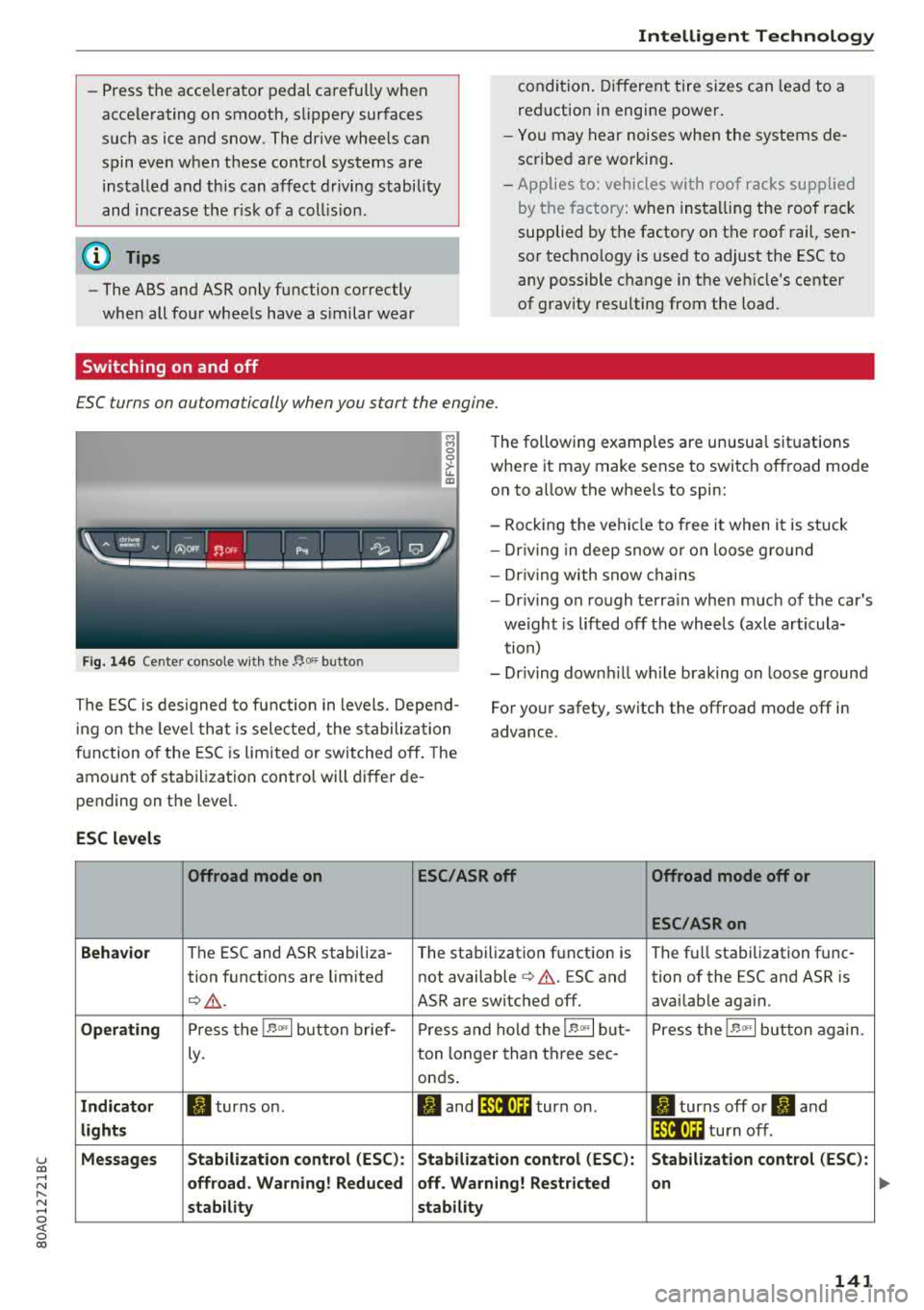
ESC turns on automatically when you start the engine.
F ig. 146 Ce nte r co nso le w it h th e 1',oFF butto n
The following examp les are unusua l situations
whe re it may make se nse to switch off road mode
o n to a llow the whee ls to spin:
- Rock ing t he veh icle to free i t when it is stuck
- Dr iv ing in deep snow o r on loose g ro und
- Dr iv ing with snow c hains
- Dr iv ing on ro ugh te rra in when much of the car 's
we ight is lifted off the wheels (axl e art icula
t ion)
- Dr iv ing down hill while b raking on loose g round
T he ES C is des igned to fu nction in levels . Depe nd
in g on the leve l that i s sele cted , the s ta b ili zat io n
f u nction o f the ES C i s lim ite d or sw it c hed off . The
amo unt o f sta biliza tio n control will differ de
pending on t he leve l. For yo
ur safety, switch the offroad mode off in
advance.
ESC levels
Offroad mode on ESC/ASRoff Offroad mode off or
ESC/ASRon
Behavior
T he ESC and ASR stabiliza -
The sta bilization f unction is T
h e f ull stabilizatio n fu nc -
tion f unct ions are limited not available
c> & . ESC and tion of the ESC and ASR is
Q _& . ASR are switc hed off . availab le aga in.
Operating P ress the 1.$ <>, I button brief - Pr ess and hold t he 1.$ <>, I but- P ress the 1.$ <>, I button again .
Ly. ton
lo n ge r than th ree sec -
on ds.
Indicator II turns on . JI and lf'lii•)H turn on. II turns off or II and
lights lf'lii•)~~ tu rn off.
Messages Stabilization control (ESC
): Stabil .ization control (ESC): Stabilization control (ESC ):
offroad . Warning! Reduced off . Warning! Restricted on
stability stability
141
..
Page 166 of 392
Multifunctio n ste ering whe el
Requirement: a destination must be entered
r::!> page 204, route guidance must be started and
the navigation tab must be disp layed.
Depending on vehicle equipment, the following
information may be shown in the driver informa
tion system
r::!> fig . 169 :
CD Distance to the dest inat ion or stopover
@ Disp laying an expressway, highway or main
road as preparation for an upcoming change
in direction
@ L ane recommendation
@ Ca lculated arrival time
® D istance to the next maneuver
@ D isp lay of the expressway, highway or main
road onto which you will be turning
(J) Direct ion arrow for the upcoming maneuver
@ A bar graph appears when a di rect io n arrow
is displayed. The fewer bars are shown, the
shorter the d istance is unt il the turn .
® Current vehicle posit ion
@ Addit ional info rmation (on-board computer)
Arrow view with route guidance started
Applies to: ve hicles with navigat ion system and arrow view
The following functions are also avai lab le when
route guidance is act ive :
-Changing the voice guidance volume : turn the
r igh t thumbwheel up or down du ring voice
guidance.
A WARNING
The route calculated by the nav igation system
is a recommendation for reaching your desti
nation. Obey traffic lights, stopp ing restric
tions, one-way streets, lane change restric
tions, etc .
@ Tips
- Also see the chapter
r::!> page 8, Controls at a
glance.
- An exclamation point ''!'' in front of the
street name indicates that the information
about this street or this sect ion of the route
is not complete in the navigation data con
tained in the
MMI. Obey traffic laws in one
way streets and pedestr ian zones.
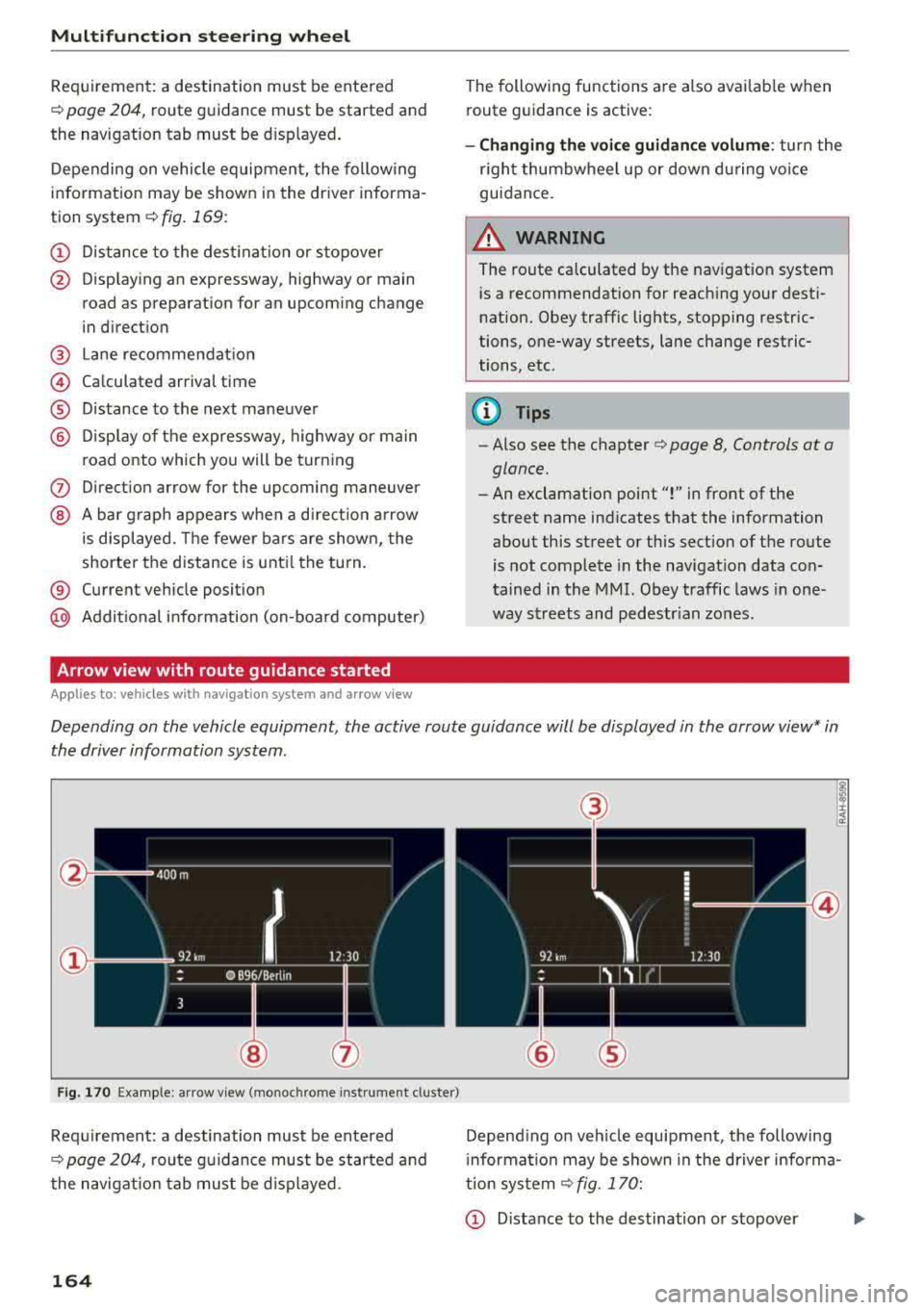
Depending on the vehicle equipment , the active route guidance will be displayed in the arrow view* in
the driver information system.
F ig . 170 Example : a rr ow v iew (monoc hrome inst rument cluster)
Requirement: a destination must be entered
r::!> page 204, route gu idance must be started and
the navigation tab mus t be d isp layed .
164
(3)
@
Depend ing on veh icle equipment, the following
i nformation may be shown in the driver info rma
tion system
r::!> fig . 170:
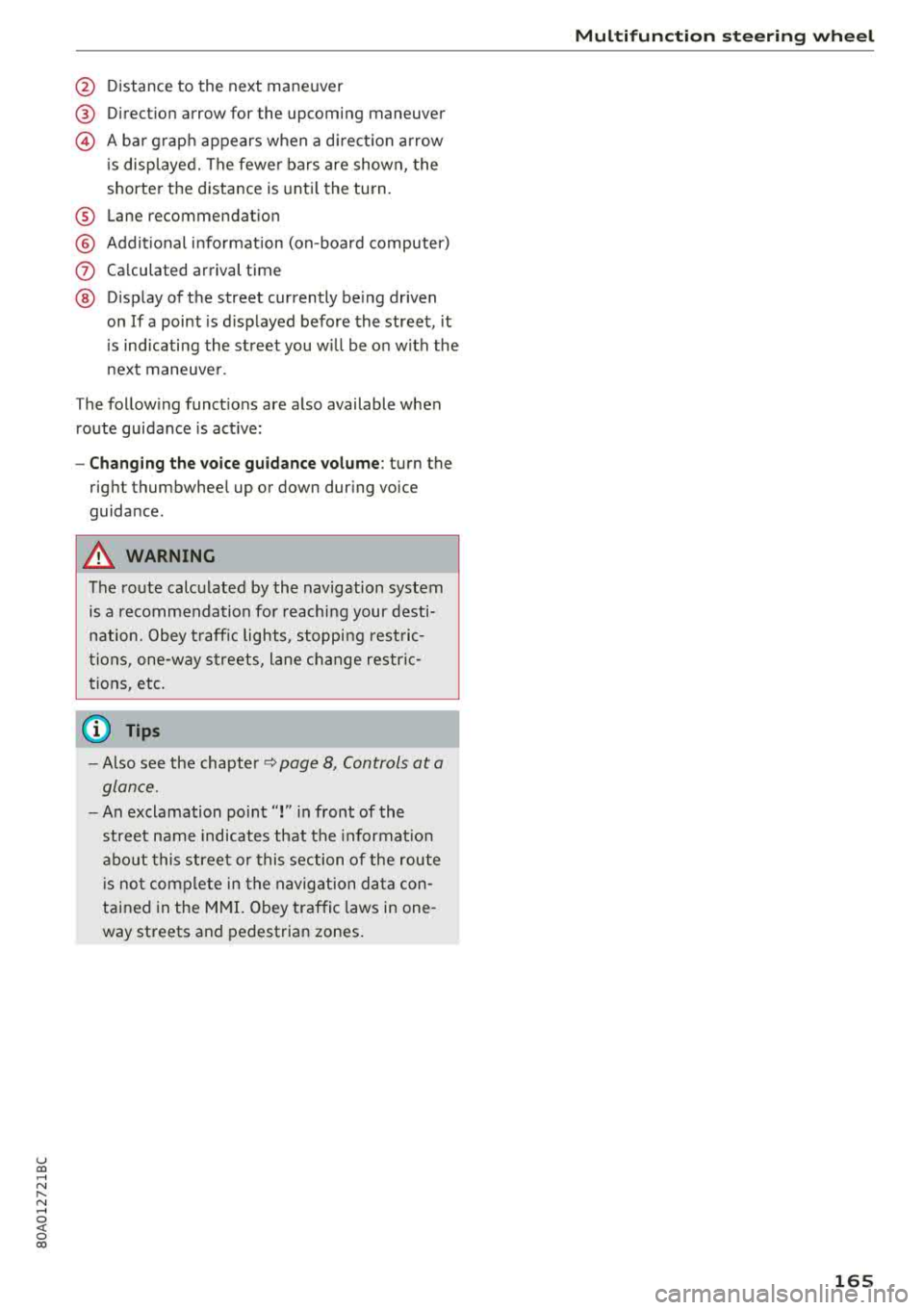
CD Distance to the destination or stopover ...,
Page 167 of 392
u co .... N r--N .... 0 <( 0 00
@ Distance to the next maneuver
® Direct ion arrow for the upcoming maneuver
@ A bar grap h appears when a d irect ion arrow
i s disp layed. The fewe r bars are show n, the
shorter t he distance is unti l the turn .
® Lane recommendat ion
@ Addit ional in fo rmat ion (on-board computer)
(J) Calculated arrival time
@ Display of the street currently be ing driven
on If a point is displayed before the street, it
i s ind icating the street you w ill be on w ith the
n ext maneuve r.
The follow ing funct ions are also available when
route guidance is act ive:
- Changing the voice guidance volume : turn the
rig ht thumbwhee l up or down during voice
guidance.
A WARNING
The route calculated by the navigation system
is a recommendation fo r reaching your desti
nation. Obey t raff ic lights, stopping rest ric
tions, one-way streets, lane change restr ic
tions, etc.
(D Tips
- Also see the chapter~ page 8, Controls at a
glance.
- An exclamation point" !" in front of the
street name indicates that the informat ion
abo ut this street or this section of the route
i s no t complete in the navigation da ta con
tained in the M MI. Obey traffic laws in one
way streets and pedestrian zones.
Multifunction ste ering wheel
165
Page 192 of 392
Audi conn ect (Infotainment)
- when the camera-based traffic sign recogni
tion* is malfunctioning ¢
page 97
- when the re are warnings from t he camera-
based traffic sign recognition*
Switching traffic light information on and
o ff
- Se lect: I MENU I button > Audi connect > Tra ffi c
li g ht info rmati on >
On (~ ) or Off (0 ).
A WARNING
-When traffic light information is shown, a l
so always pay attention to the traffic situa
t ion, the distance to other vehicles and the
area around the ve hicle. The driver is always
respons ible for assessing the traff ic situa
t ion .
- Always adapt your speed to the current
weather, road and traff ic conditions. The
displayed information must never cause you
to ignore lega l traffic regulations and pose a
safety risk.
- Regardless of the traffic light info rmat ion,
yo u should always monitor yo ur speed using
the speedometer and make su re yo u are ad
her ing to the legal speed lim it .
- T he traffic light information does not adjust
yo ur vehicle 's speed to the speed recom
mendat ion shown in the display.
(D Tips
- Traffic light information is not yet ava ilable
i n all cit ies and is not nationw ide .
- Un its of measurement and language set
ti ngs a re d isplayed based on how they were
set in the MMI sys tem set tings
¢ page 245 .
-Always read the chap ter¢ page 194, Audi
connect (Infotainment) general informa
tion .
Weather
Applies to: vehicles with weather information
Information on current weather cond itions as
well as weathe r fo recasts for the selected sea rch
area .
190
-
.. Select and confirm Weather .
You can also disp lay the current weat her condi
t ions on the map , fo r example.
.,. Select: left control button > on entry .
Flight information
Applies to: vehicles with flight information
Information on flights and current arrival/depar
ture times in the selected search area .
.,. Select and confirm Flight inform ation .
City events
Applies to: vehicles with City events
Information on events in various categories in
the desired search area.
.,. Select Cit y Event s > left co ntro l button > cate
gory.
Online news
Applies to: vehicles with on line news
You can check the c urrent headlines of your fa
vorite publications in the MMI.
Requirement: yo ur myAud i acco un t must be s ub
scribed to news feeds and your vehicle must be
connected to myAudi
¢ page 187 .
.,. Select: Online n ew s > desired newsfeed > a
headline.
The entire news a rticle w ill be dis
played .
© Tips
If yo u ha ve not s ubs cribe d to a ny pe rsonal
n ewsfeeds in your myA udi account, pre -con
figured newsfeeds will be disp layed .
Twitter
Applies to: vehicles with Twitter
You can access the most important fun ctions in
your Twitter account through your
MMI.
Requirement:
You must have co nnected your myAudi account
with Tw itter. You can f ind additional information
fo r th is on line at www .audiusa .com/myaud i.
.,.
Page 200 of 392
Audi connect vehicle control
-Pay attention to upper-and lower -case let
ters when entering the vehicle code.
-If you do not have the 10-digit vehicl e code,
contact an authorized Audi dealer or author
ized Audi Service Facility .
Additional options
Applies to vehicles with Audi co nnect vehicle control
License subscription
The validity and expirat ion date of you r subscrip
tions are displayed. When
Warning before sub
scription expires
is activated, a message wi ll be
disp layed warning you that your license is about
to expire.
Select :
!MENU ! button> Audi connect > Display
available functions >
right control button> Li
cense subscription.
Resetting the primary user
F or examp le, you ca n reset the key user when
selling your vehicle in order to deactivate these
services .
Requirement: the ignition must be switched o n.
Select :
!M ENU ! button> Audi connect > right
control button
> Audi connect user management
> Key user > Reset key user .
Warning levels
Requirement: the primary user must have set one
or more warning levels. Secondary users can only
see if a warning level is active or not .
Select:
! MENU ! button> Audi connect > right
control button
> Alerts.
Remote locking and
unlocking
Applies to veh icles with Audi connect vehicle control
You can lock and unlock your veh icle using this
service .
Requirement
-This requires the 4-dig it PIN that you specified
during the verification on www.audiusa.com/
myaud i.
-The vehicle must be stationary.
198
-The ignition must be switched off.
Vehicle status report
Applies to vehicles w ith Aud i connect ve hicle control
The Dr iver Informat ion System collects data un
der certain conditions and sends it to a server.
When data is sto red, you can access va lues such
as these using the service :
-Remaining range,
-Fuel tank level,
-Oil level,
-If the vehicle doors are open/closed or locked/
un locked,
-mi leage,
-Next oil change
-Next service,
-Warning messages,
-If the parking lights are on/off .
A WARNING
Do not ignore messages and warning or ind i
cator lights that turn on in the vehicle be
cause of the info rmation in the status report.
This could lead to break downs in on the road ,
accidents and serious injuries.
Parking location
Applies to vehicles w it h Aud i connect ve hicle co ntrol
The vehicle collects data unde r ce rta in cond it ions
and sends it to a server .
When data is stored, you can access values such
as these using the service :
-Vehicle location display
-Display of one's own location
-Route to your vehicle
If your mob ile dev ice also has a navigation func
tion, you can nav igate to your last known parking
l ocation.
Deactivating and activating parking position
-Select: ! MENU!> Audi connect> Car Finder
parking position .
If you do not set./, no location information will
be sent to the server.
Page 205 of 392
Navigation
Opening navigation
Applies to: vehicles with navigation system
The navigation system directs you to your desti
nation, around traffic incidents and on alterna
tive routes, if desired .
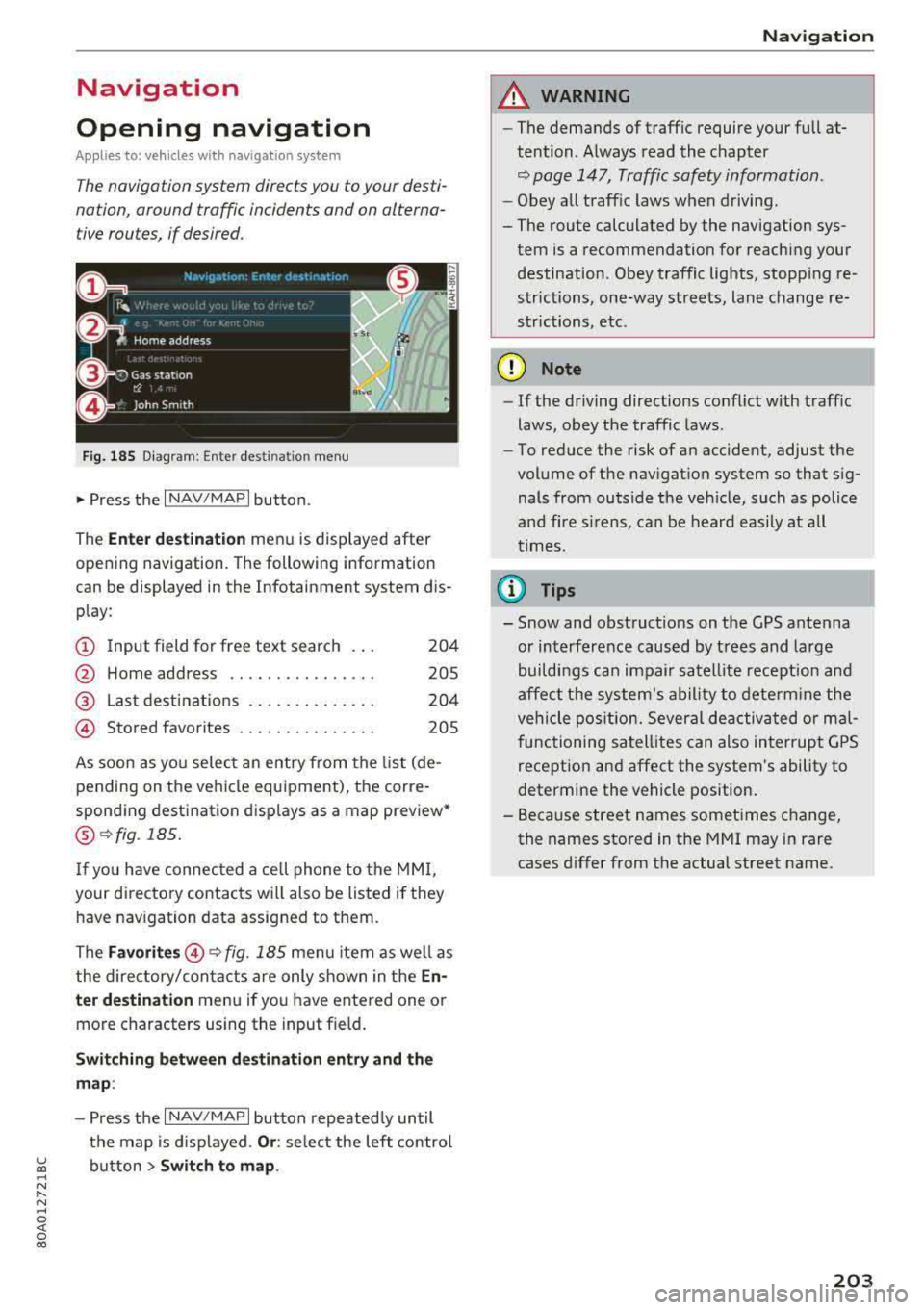
Fig. 185 Diagram: Ente r dest ination menu
.. Press the I NAV/MAPI button.
The
Ente r des tinatio n menu is displayed after
opening navigation. The following information
can be displayed in the Infotainment system dis
play:
(D I nput field for free text search 204
@ Home address . . . . . . . . . . . . . . . . 205
@ Last dest inatio ns . . . . . . . . . . . . . . 204
@ Stored favorites . . . . . . . . . . . . . . . 205
As soon as yo u select an entry from the list (de
pending on the ve hicle equipment), the corre
spond ing destination displays as a map preview*
@ r:::>fig .185.
If you have connec ted a cell phone to the MM I,
your di rectory contacts will also be listed if they
have navigation data assigned to them.
The
Fav orites @r::> fig. 185 menu item as we ll as
the directory/contacts are only shown in the
En
t e r d estination
menu if you have entered one or
more characters using the input field.
Swi tching betw een d estination entr y and th e
map :
-Press the I NAV/MAPI button repeated ly until
the map is d isplayed .
Or: select the left contro l
~ button > Swi tch to map . ..... N r-N .....
~ 0 co
Naviga tion
A WARNING
-The demands of traffic require your full at
tention. Always read the chapter
r:::> page 147, Traffic safety information.
- Obey all traff ic laws when driving.
- The route calculated by the navigation sys-
tem is a recommendation for reaching your
destination. Obey traffic lights, stopp ing re
strictions, one-way streets, lane change re
strictions, etc.
(D Note
- If the driving directions conflict with traffic
laws, obey the traffic laws .
- To reduce the risk of an accident, adjust the
volume of the nav igation system so that sig
nals from outs ide the veh icle, such as police
and f ire s irens, can be heard easily at all
times.
Ci) Tips
- Snow and obstruct ions on the GPS antenna
or interference caused by t rees and large
buildings can impair satell ite recept ion and
affect the system's ability to dete rm ine the
veh icle pos it ion. Several deactivated or mal
functioning satell ites can also interrupt G PS
recept ion and affect the system's ability to
determine the vehicle position.
- Because street names sometimes change, the names stored in the MMI may in rare
cases d iffer from the actual street name.
203
Page 254 of 392
Drivin g saf ety
Driving safety
Basics
Safe driving habits
Please remember -safety first!
The individua l safety features of your vehicle can
work together as a system to help protect you
and your passengers in a wide range of accidents.
These features cannot work as a system if they
are not always correctly adjusted and correctly
used .
This chapter contains important informat ion,
tips, instruct ions and warn ings that you need to
read and observe for your own safety, the safety
of you r passengers and others . We have summar
ized here w hat you need to know about safety
be lts, a irbags, child restra ints as well as child
safety. Yo ur safety is for us priority number 1. Al
ways observe the information and warnings in
this section -for your own safety as we ll as that
of your passengers.
The information in this section applies to all
model versions of your vehicle . Some of the fea
tures described in this sections may be standard
equipment on some models, or may be optional
equ ipment on others. If you are not sure, ask
your author ized Audi dealer.
A WARNING
- Always make sure that you follow the in
structions and heed the WARNINGS in th is
manual.
It is in your inte rest and in the in
te rest of your passengers .
-
-Always keep all of the Owner's L iterature
manuals in yo ur Audi when you lend o r sell
yo ur vehicle so that this import ant informa
t ion w ill alw ays be availab le to the dr iver
and passengers.
- Always keep the Owner 's Lite ra ture han dy
so that you can find it easi ly if yo u have
questions .
252
Important things to do before driving
Safety is everybody's job! Vehicle and occupant
safety always depends on the informed and care
ful driver .
For your safety and the safety of your passen
gers,
bef ore dri ving alw ays:
.. Make sure that a ll lights and signals are operat
ing correctly .
.. Make sure that the tire pressure is correct.
.. Make sure that all windows are clean and afford
good vis ibility to the outs ide .
.. Sec ure all luggage and othe r items ca refully
¢ page 257 .
.. Make sure tha t noth ing ca n interfere wi th the
peda ls .
.. Adjust front seat, head restraint and mirrors
correctly for your height.
.. Instruct passengers to adjust the head re
straints according to their he ight.
.. Make sure to use the right child restraint cor
rectly to protect
children ¢ page 291, Child
safety .
• Sit proper ly in yo ur seat a nd make sure t hat
your passenge rs do the same
¢ page 56, Front
seats .
.. Fasten your sa fety belt and wear it p roperly . Al
so instruct your passengers to fasten their safe
ty be lts
properly ¢ page 261 .
What impairs driving safety?
Safe driving is directly related to the condition of
the vehicle, the driver as well as the driver's abili
ty to concentrate on the rood without being dis
tracted.
The driver is responsib le for the safety of the ve
hicle and a ll of its occupants. If your ability to
drive is impa ired, safety risks for everybody in the
vehicle increase and you a lso become a hazard to
everyone else on the road
¢ _&. . Therefore:
.. Do not let yourse lf be distracted by passenge rs
or by using a cellular telephone .
.. NEVER drive when your driving ability is im
paired (by med ications, alcohol, drugs, etc .) .
.. Observe all traffic laws, rules of the road and
speed lim its and plain common sense .
.,.