phone AUDI Q5 2018 Owners Manual
[x] Cancel search | Manufacturer: AUDI, Model Year: 2018, Model line: Q5, Model: AUDI Q5 2018Pages: 392, PDF Size: 60.56 MB
Page 5 of 392
u co ..... N ,..._
N ..... 0 <( 0 00
MMI On/Off knob with joystick function . . 148
Infotainm ent system display . . . . . . . . . . 148
MMI operat ion . . . . . . . . . . . . . . . . . . . . . . 149
MMI touc h . . . . . . . . . . . . . . . . . . . . . . . . . 151
Contro l knob with joystick function . . . . . 153
Shortcut keys . . . . . . . . . . . . . . . . . . . . . . . 155
L etter/number speller . . . . . . . . . . . . . . . . 155
F ree text sea rch . . . . . . . . . . . . . . . . . . . . . 157
M enus and Symbols . . . . . . . . . . . . . . . . . . 158
Multifunction steering wheel . . . 16 0
I ntroduction . . . . . . . . . . . . . . . . . . . . . . . . 160
Rad io . . . . . . . . . . . . . . . . . . . . . . . . . . . . . 160
M edia . . . . . . . . . . . . . . . . . . . . . . . . . . . . . 160
Telephone . . . . . . . . . . . . . . . . . . . . . . . . . . 16 1
Navigation . . . . . . . . . . . . . . . . . . . . . . . . . 162
Voice recognition system . . . . . . . . 167
Operating . . . . . . . . . . . . . . . . . . . . . . . . . . 16 6
Command overview information . . . . . . . . 167
Commands . . . . . . . . . . . . . . . . . . . . . . . . . 168
External vo ice operat ion 172
Telephone . . . . . . . . . . . . . . . . . . . . . . . . 174
Introduction . . . . . . . . . . . . . . . . . . . . . . . . 17 4
Se tup . . . . . . . . . . . . . . . . . . . . . . . . . . . . . 174
Using the telephone . . . . . . . . . . . . . . . . . 177
Favorites . . . . . . . . . . . . . . . . . . . . . . . . . . . 179
Messages . . . . . . . . . . . . . . . . . . . . . . . . . . 180
Lis tening to voicema il . . . . . . . . . . . . . . . . 182
Dir ectory . . . . . . . . . . . . . . . . . . . . . . . . . . . 183
Addit ional set tings . . . . . . . . . . . . . . . . . . 184
Troubleshooting . . . . . . . . . . . . . . . . . . . . . 186
Audi connect (Infotainment) . . . . 18 7
I ntroduction . . . . . . . . . . . . . . . . . . . . . . . . 18 7
Setup . . . . . . . . . . . . . . . . . . . . . . . . . . . . . 187
Conf iguration through myA udi . . . . . . . . . 187
Opening Aud i connect (Infotainment) . . . 188
Aud i connec t Infotainmen t services . . . . . 188
W i- F i hotspot . . . . . . . . . . . . . . . . . . . . . . . 193
Conf igur ing the data connect ion . . . . . . . . 194
Aud i connect (Infotainment) general
in fo rmat ion . . . . . . . . . . . . . . . . . . . . . . . . 194
T roubleshoot ing . . . . . . . . . . . . . . . . . . . . . 196
Table of content s
Audi connect vehicle control . . . .
197
Introd uction ..... .. ... .. ..... ... .. .. 197
Setup . . . . . . . . . . . . . . . . . . . . . . . . . . . . . 197
Additional options . . . . . . . . . . . . . . . . . . . 198
Remo te locking and un lock ing . . . . . . . . . 198
Vehicle status report . . . . . . . . . . . . . . . . . 198
Parki ng locat io n . . . . . . . . . . . . . . . . . . . . . 198
Geofencing Alert . . . . . . . . . . . . . . . . . . . . 199
Speed Ale rt . . . . . . . . . . . . . . . . . . . . . . . . . 1 99
Valet Alert . . . . . . . . . . . . . . . . . . . . . . . . . 199
Stolen Vehicle Lo cato r . . . . . . . . . . . . . . . . 199
Online Audi service request ..... ... .. .. 199
Emergency call . . . . . . . . . . . . . . . . . . . 20 1
I n trod uction . . . . . . . . . . . . . . . . . . . . . . . . 201
Emergency ca ll . . . . . . . . . . . . . . . . . . . . . . 201
Online roads ide assistance . . . . . . . . . . . . 202
Navigation . . . . . . . . . . . . . . . . . . . . . . . . 2 03
Opening navigation . . . . . . . . . . . . . . . . . . 203
Entering a destination . . . . . . . . . . . . . . . . 204
Persona l route ass istance . . . . . . . . . . . . . 209
Alternative routes . . . . . . . . . . . . . . . . . . . 210
Additional settings . . . . . . . . . . . . . . . . . . 210
Map ....... ... .. .. ................ . 213
Sate llite map .. .. .. ............... .. 21S
Map upd ate . . . . . . . . . . . . . . . . . . . . . . . . 216
T raffic informa tion . ............... .. 217
T roub leshooting .... ... .. ..... ... .. .. 219
Radio .... .. .. .. ............... .. .. 220
Open ing the radio . . . . . . . . . . . . . . . . . . . 220
Radio functions . . . . . . . . . . . . . . . . . . . . . 221
Radio menu . . . . . . . . . . . . . . . . . . . . . . . . 223
Presets . . . . . . . . . . . . . . . . . . . . . . . . . . . . 223
Additional settings . . . . . . . . . . . . . . . . . . 223
Troub leshoo ting . . . . . . . . . . . . . . . . . . . . . 224
Media ...... .. .. ................. .. 225
Introduction . . . . . . . . . . . . . . . . . . . . . . . . 225
Notes . . . . . . . . . . . . . . . . . . . . . . . . . . . . . 22S
Med ia drives . . . . . . . . . . . . . . . . . . . . . . . . 226
B luetooth aud io p layer . . . . . . . . . . . . . . . 228
Wi-Fi audio p laye r . . . . . . . . . . . . . . . . . . . 229
Online med ia and Interne t radio . . . . . . . . 230
Mult imed ia connections . . . . . . . . . . . . . . 231
Playing media . . . . . . . . . . . . . . . . . . . . . . . 234
Additional settings . . . . . . . . . . . . . . . . . . 23 7
3
Page 6 of 392
Table of contents
Supported media and fi le forma ts 2
4 0
T roubleshooting . . . . . . . . . . . . . . . . . . . . . 241
Audi smartphone interface . . . . . . 243
Setup ... ...... ... .. ..... ... .. .. ... 243
Op erating . . . . . . . . . . . . . . . . . . . . . . . . . . 243
Troubleshoot ing . . . . . . . . . . . . . . . . . . . . . 244
System settings ... ..... ... .. .. ... 24 5
Sett ing the date and time . . . . . . . . . . . . . 245
MMI sett ings . . . . . . . . . . . . . . . . . . . . . . . 245
Con nection manager . . . . . . . . . . . . . . . . . 246
System update . . . . . . . . . . . . . . . . . . . . . . 248
Sound setti ngs . . . . . . . . . . . . . . . . . . . . . . 249
Volume sett ings . . . . . . . . . . . . . . . . . . . . . 249
R estart ing the M MI . . . . . . . . . . . . . . . . . . 250
Softw are license i nfo rm atio n 250
Safety first . . . . . . . . . . . . . . . . . . . . . . . 25 2
Driving safety . . . . . . . . . . . . . . . . . . . . 2 52
B asics . . . . . . . . . . . . . . . . . . . . . . . . . . . . . 252
Correct passenger seating positions . . . . . 253
Peda l area . . . . . . . . . . . . . . . . . . . . . . . . . . 256
Storing cargo correctly . . . . . . . . . . . . . . . 257
Report ing Safety Defects . . . . . . . . . . . . . . 259
Safety belts . . . . . . . . . . . . . . . . . . . . . . 26 1
Gene ral information . . . . . . . . . . . . . . . . . 261
W hy use safety belts? . . . . . . . . . . . . . . . . 262
Safety belts . . . . . . . . . . . . . . . . . . . . . . . . 264
Belt tensioners . . . . . . . . . . . . . . . . . . . . . . 267
Airbag system . . . . . . . . . . . . . . . . . . . . 269
Important information . . . . . . . . . . . . . . . 269
F ront a irbags . . . . . . . . . . . . . . . . . . . . . . . 273
M on itor ing t he Advanced Airbag System . 28 1
Side airbags . . . . . . . . . . . . . . . . . . . . . . . . 285
Side curtain air bags . . . . . . . . . . . . . . . . . . 288
Child safety . . . . . . . . . . . . . . . . . . . . . . 29 1
I mpo rtant inform ation . . . . . . . . . . . . . . . 29 1
Ch ild safety sea ts . . . . . . . . . . . . . . . . . . . . 297
Securing c hild safety seats . . . . . . . . . . . . 302
L A TCH system (lower anchorages and
tethers for chi ldren) . . . . . . . . . . . . . . . . . 305
Addit ional information . . . . . . . . . . . . . . . 309
4
Maintenance and Care . . . . . . . . . . . 3 10
Checking and Filling . . . . . . . . . . . . . 310
Fuel... ... .. .. .... .. ... .. ..... ... .. 310
Refueling . . . . . . . . . . . . . . . . . . . . . . . . . . 311
Emissions control system . . . . . . . . . . . . . 313
On Board D iagnost ic System (OBD) . . . . . 313
E ngine compartment .. ............... 314
Engine o il .... ... .. .. ............... 317
Cooli ng sys tem. .. .. .. ............. .. 319
B rake fl uid . . . . . . . . . . . . . . . . . . . . . . . . . 32 1
Battery . . . . . . . . . . . . . . . . . . . . . . . . . . . . 3 21
Windshie ld washer system . . . . . . . . . . . . 3 23
Service interva l display 324
Wheels
.. .. .. .... .. ... .. ..... ... .. 3 25
Whee ls and Tires . . . . . . . . . . . . . . . . . . . . 325
Tire p ressure mo nitoring system 342
Care and cleaning . . . . . . . . . . . . . . . . 3 44
Genera l information . . . . . . . . . . . . . . . . . 344
Car washes . . . . . . . . . . . . . . . . . . . . . . . . . 344
Cleaning and care i nfo rmation . . . . . . . . . 345
Plac ing your vehicle out of serv ice . . . . . . 349
Troubleshooting . . . . . . . . . . . . . . . . . 350
Emergency assistance . . . . . . . . . . . 350
General information . . . . . . . . . . . . . . . . . 350
Eq uipment . . . . . . . . . . . . . . . . . . . . . . . . . 350
T ire mobility ki t . . . . . . . . . . . . . . . . . . . . . 350
Repla cing a whee l . . . . . . . . . . . . . . . . . . . 352
Co llapsibl e sp are t ire . . . . . . . . . . . . . . . . . 356
Fuses and bulbs . . . . . . . . . . . . . . . . . . 3 58
F u ses ..... .. .. .. .. .. ............. .. 358
B ul bs . . . . . . . . . . . . . . . . . . . . . . . . . . . . . . 3 62
Emergency situations . . . . . . . . . . . . 3 63
Gener al . . . . . . . . . . . . . . . . . . . . . . . . . . . . 363
Start ing by p ushi ng o r tow ing . . . . . . . . . . 3 63
Starting with jumper cab les . . . . . . . . . . . 363
U sing the jump start cable . . . . . . . . . . . . 364
Towing with a tow truck . . . . . . . . . . . . . . 365
Raising the vehicle . . . . . . . . . . . . . . . . . . . 367
Accessories and Technical Data . 369
Technical data . . . . . . . . . . . . . . . . . . . . 369
Vehicle specificat ions . . . . . . . . . . . . . . . . 369
Notes about technical data . . . . . . . . . . . . 369
Page 11 of 392
u co ..... N ,..._
N ..... 0 <( 0 00
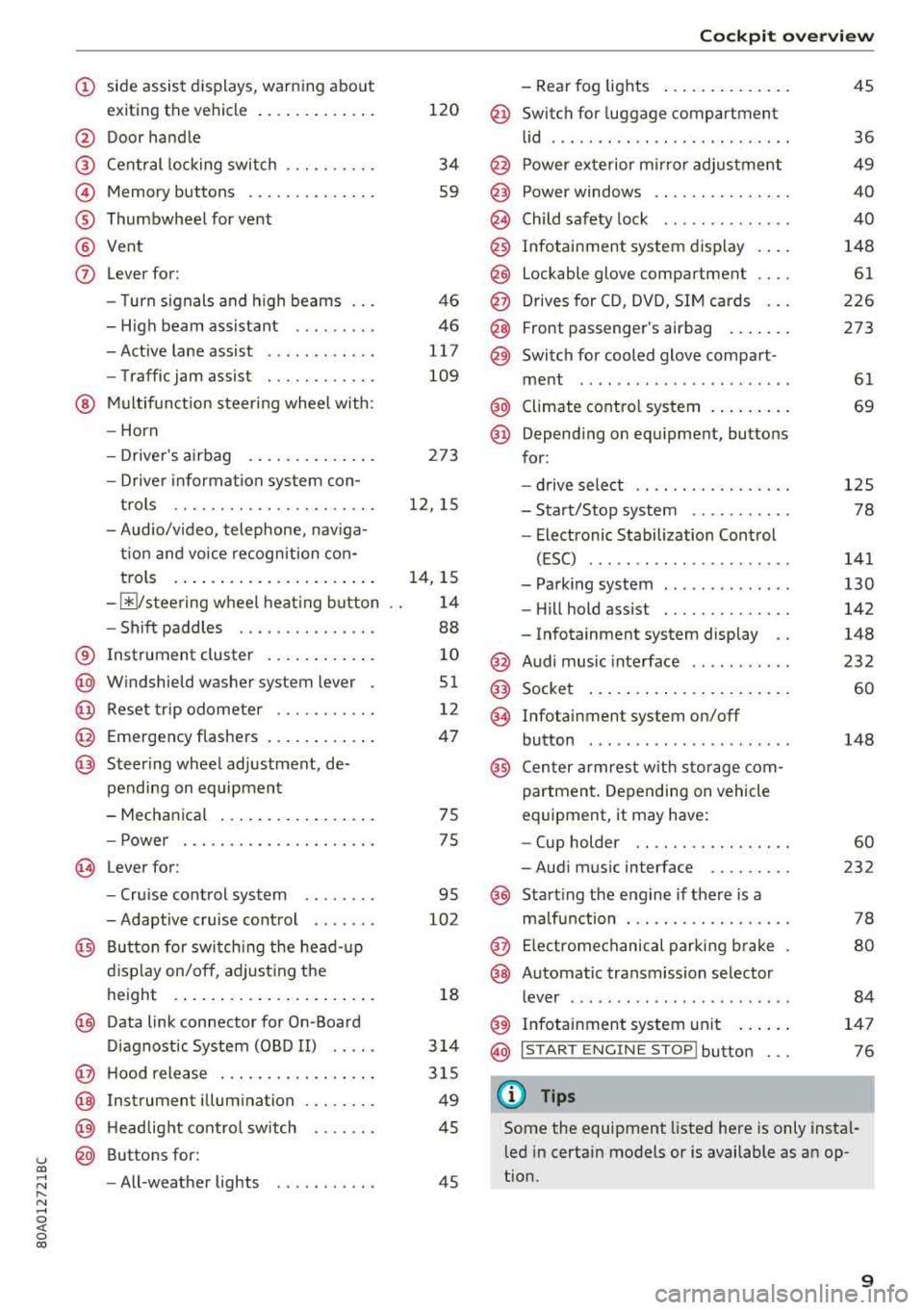
(D side assist displays, warn ing abo ut
exiting the vehicle ..... ... .. .. .
@ Door handle
@ Cen tral locking swit ch ....... .. .
@ Memory buttons ........... .. .
® Thumbwheel for vent
@ Vent
(J) Leverfor:
- T urn s ignals and high beams
- High beam assistant ........ .
- Active lane assist ........... .
- Traffic jam assist ......... .. .
@ Mul tifunct ion steer ing wheel with:
- Horn
- Drive r's airbag . ..... ... .. .. .
- Drive r informa tion system con -
t rols .. .. ............... .. .
- Audio/v ideo, telephone, nav iga
t io n and voice recogn ition con -
t rols .... ... .. ..... ... .. .. .
- ~/ stee ring wheel heat ing b utton
- Sh ift paddles ............. . .
® Instrument cluster .... ... .. .. .
@) W indshield washer system lever
@ Reset trip odometer ...... .. .. .
@ Emergency flashe rs .... ... .. .. .
@ Steer ing whee l adjustment, de-
pending on equipment
- Mechanica l .... ..... ... .. .. .
- Power . .. ............... .. .
@ Lever for:
- Cru ise cont rol system
- Adaptive cruise control ...... .
@ Bu tton for sw itch ing the hea d-up
d isp lay on/o ff, adjust ing t he
h eight .... ... .. ..... ... .. .. .
@) Data link connector for On -Board
D iagnostic System (OBD II) .... .
@ H oo d release .. .. ..... ... .. .. .
@ Instrument illum ination
@) H eadlight cont rol sw itch
@ Buttons for :
- All -weather lights
120
34
S9
4 6
46
117
109
273
12 , 15
1 4, 15
1 4
88
1 0
51
12
47
75
75
95
102
18
3 14
3 15
49
45
45
Coc kpit o ver view
- Rear fog lights .... .. ..... .. .
@ Switch for luggage compartment
lid ...... ... .. .. ............ .
@ Power exte rior m irro r adjustment
@) Power windows .............. .
@ Child safety lock ............. .
@ Infotainment system display . .. .
@ Lockable glove compartment ... .
@ D rives for CD, DVD, S IM cards .. .
@ Front passenger's airbag .... .. .
@ Switch for cooled glove compart -
me nt ... ... .. .. ............ .
@ Climate contro l system . ..... .. .
@ Depend ing o n equ ipment, buttons
for:
- drive select .. .............. .
- Sta rt/Stop system .......... .
- Electronic Stabilization Cont rol
( E SC) ..... .. .. ............ .
- Park ing system ............. .
- Hi ll hold ass ist . ............ .
- Infotainment system display ..
@ Audi music inte rface .......... .
@ Socket ... .... .. ... .. ..... .. .
@ Infotai nment system on/off
button ..... .. .. ............ .
@ Cen ter armrest w it h sto ra ge com
p artmen t. Depending on vehicle
equipment, it may have:
- Cup holder .. .. ... .. ..... .. .
- Aud i m usic interface ........ .
@ Start ing t he e ngine if the re is a
m alfu nction . .. .. ............ .
@ E lectromechanical par king brake
@ Automa tic transmission selector
lever ....... .. .. ............ .
@ Infotainment system unit ... .. .
@ I START E N GINE STOP I button
(D Tips
45
36
49
40
40
148
61
2 26
273
61
69
1 2 5
78
141
130
142
148
232 60
148
60
232
78
80
84
14 7
76
Some the equipment listed he re is only insta l
l ed in certa in models or is available as an op
tion.
9
Page 15 of 392
u co ..... N r-N .....
~ 0 co
Fourth tab Telephone* c:>page 161
Fifth ta b Navigation* c:> page 162
Map* c:>page 163
a) This ta b is onl y visible when t here is at least one ind ica to r
l igh t or mess ag e di splaye d.
@ ~ Button
-Switching tabs : press the~ button repeated
ly until the des ired tab is shown (for example,
Radio) .
@IVIE W ! button
Sw itch ing v iews or reducing the display
c:> page 14.
@ [2] Button
Return to funct io ns at higher leve ls.
Control buttons
Applies to: ve hicles with multifunction steering wheel plus
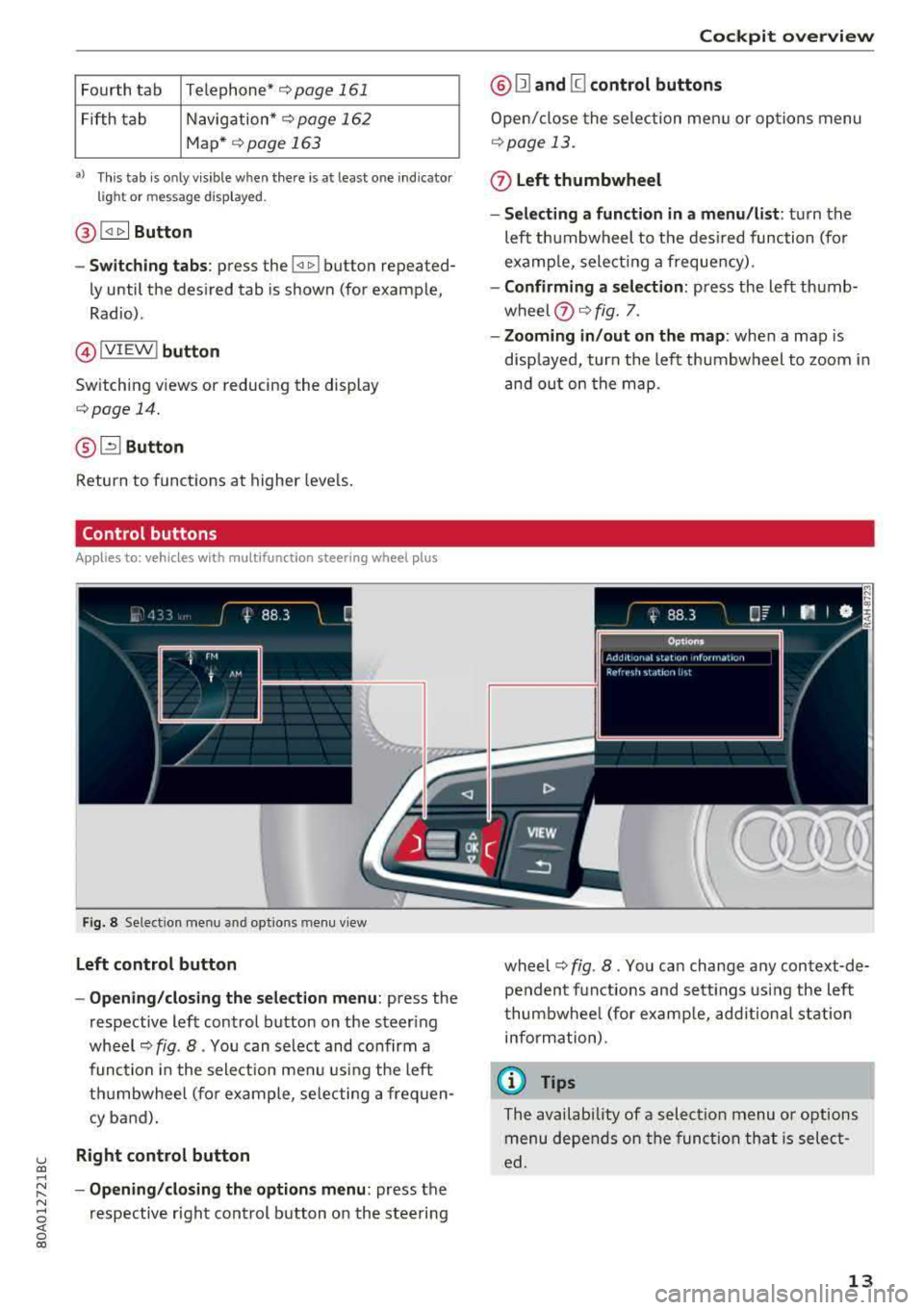
Fig . 8 Se lect ion men u a nd opt io ns m enu v iew
Left control button
- Opening /closing the selection menu :
press the
respective lef t control button on the steer ing
wh eel
c:> fig . 8. You can select and co nfirm a
func tion in the sele ct ion me nu using the left
t hu mbwheel (fo r ex ample , se le cting a fre quen
cy b and).
Right control button
- Opening /closing the options menu :
press the
re spectiv e righ t control b utton o n the ste ering
Cockpit overview
@ Ill and [g control buttons
Open/ close the se le ction me nu or op tions menu
c:> page 13.
0 Left thumbwheel
- Selecting a function in a menu /list :
tur n the
left th umbwheel to the des ired function (fo r
e xamp le, select ing a freque ncy).
- Confirming a selection: press the lef t thumb
w heel
(?) c:> fig. 7.
- Zooming in /out on the map : when a map is
disp layed , turn the lef t thumbw heel to zoom i n
and ou t on t he map.
wheel
c:> fig . 8. You ca n change a ny con text-de
pe nden t fu nctions and se tt ings using the left
t humbwhee l (for examp le, add ition al stat ion
info rm ation).
© Tips
The availab ility of a s ele ct ion menu or options
me nu depe nds on the funct io n th at is selec t
ed.
13
Page 16 of 392
Cockpit overv iew
Switching views
Applies to: ve hicles w ith mu ltifunction steering wheel p lus
App lies to : vehicles wit h Audi vir tu a l coc kpit
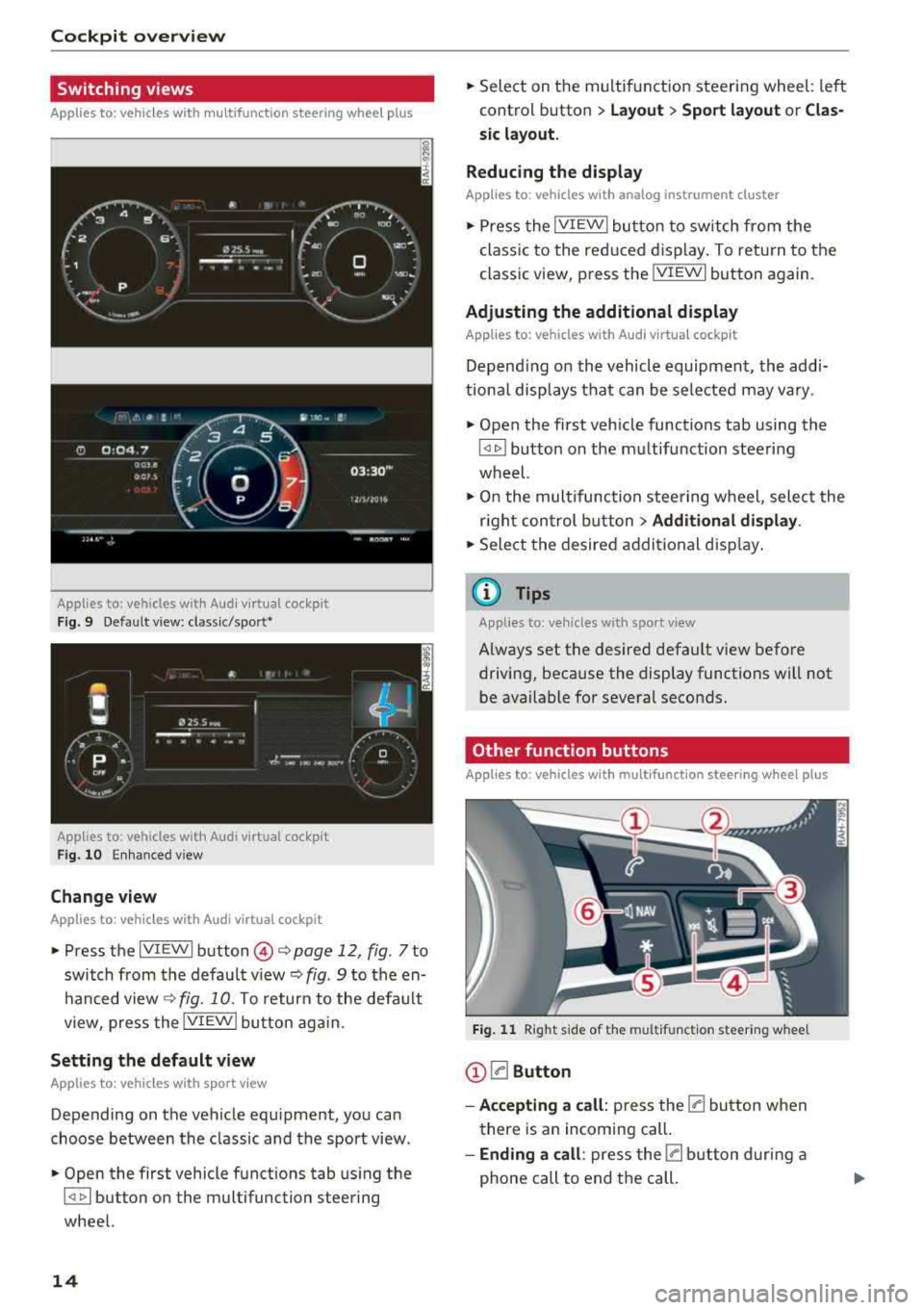
Fig. 9 Default v iew: classic/sport•
App lies to: vehicles with A udi v ir tu a l coc kpit
Fig . 10 Enhanced view
Change view
A ppl ies to: ve hicles w ith Audi virtual cockpit
~ Press the IVIEWI button @~ page 12, fig. 7 to
switch from the default
v iew ~ fig. 9 to the en
hanced
view ~ fig. 10. To return to the default
view, press the
IVIEW ! button aga in.
Setting the default view
A pp lies to: ve hicles w ith spor t view
Depending on the vehicle equ ipment, you can
choose between the classic and the sport view .
~ Open the first vehicle functions tab using the
I <1 1> I button on the multifunction steering
wheel.
14
~ Select on the multif unction steering whee l: left
control button
> L ay out > Sp ort layout or Clas
s ic layout.
Reducing the display
App lies to: vehicles wi th analog instrumen t cl uster
~ Press the IVIEW I bu tton t o sw itch from the
class ic to the red uced d isplay . To return to the
classic view, press the
! VIEWI button again.
Adjusting the additional display
App lies to: vehicles wit h Aud i v ir tu a l coc kpit
Depend ing on the vehicle equipment, the addi
tional displays tha t can be selected may va ry .
~ Open the first vehicle functions tab using the
~ button on the mu ltifunction steering
wheel.
~ O n t he multifunction steering wheel, selec t the
r igh t control button
> Addition al displ ay .
~ Sele ct the desired additional disp lay .
(i) Tips
Appl ies to: veh icl es wi th spo rt vi ew
Always set the desired default view before
driving, because the display functions will not be available fo r several seconds.
Other function buttons
App lies to: vehicles wit h mult ifunct ion steeri ng w hee l pl us
Fi g.
11 R ight side of the multifunct ion steer ing w heel
@ la Button
- Accepting a c all :
press the 0 button w hen
there is an incoming call.
- Ending a call: press the 0 button duri ng a
phone call to end t he call .
Page 17 of 392
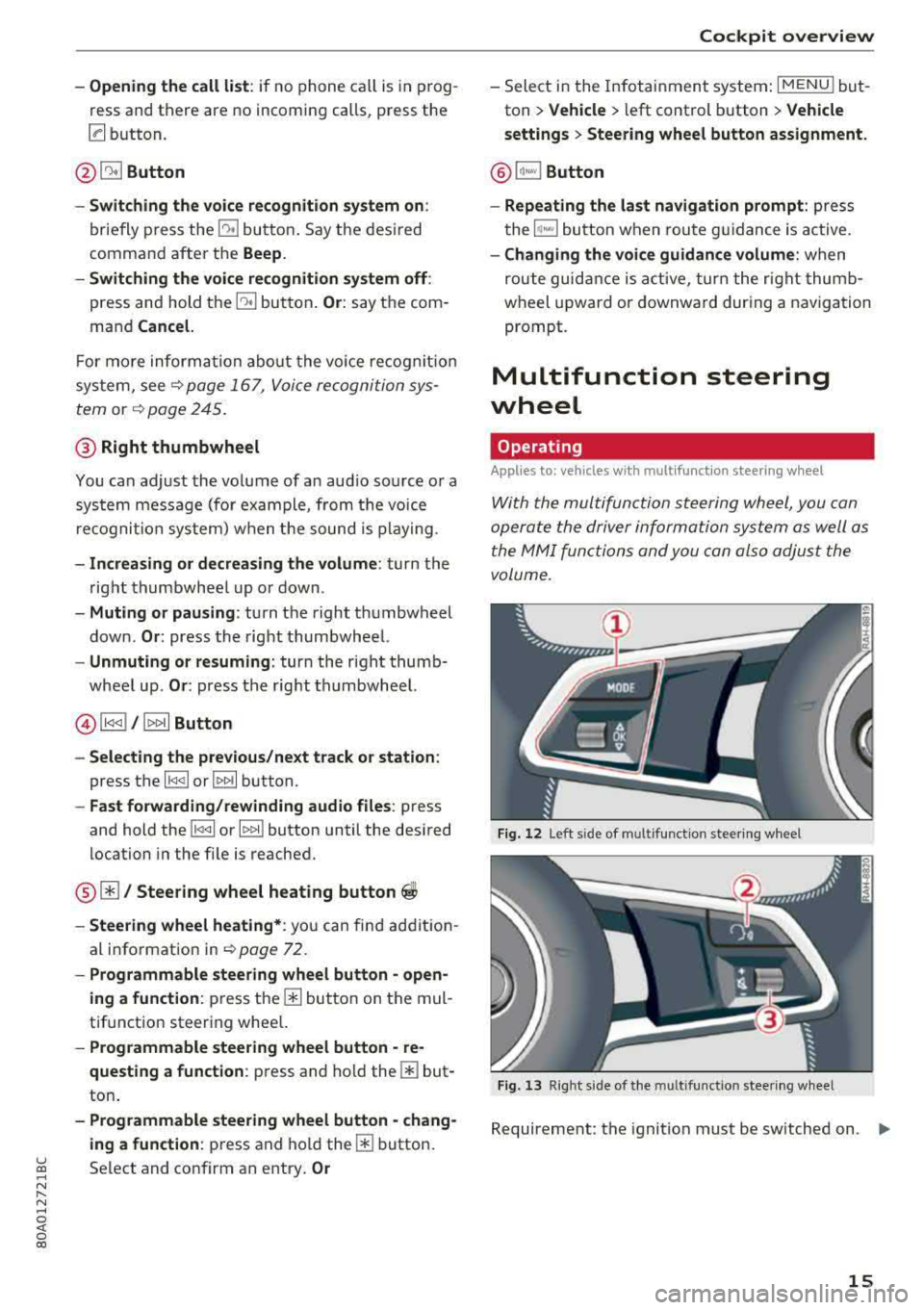
-Opening the call list : if no phone call is in prog
ress and there are no incoming calls, p ress the
[a button.
@ 51 Button
-Switching the voice recognition system on :
briefly press the 51 bu tto n. Say t he des ired
comma nd after t he
Beep.
- Switching the voice recognition system off :
press and hold the 51 but ton . Or : say t he com
mand
Cancel.
F or m ore inform ation abo ut the vo ice recog nitio n
sys tem, see
¢ p age 16 7, V oic e re cogni tion sys
tem
or ¢ page 2 45.
@ Right thumbwheel
You can adjust the vo lume of a n aud io so urce o r a
sys tem mess age (for exa mple, from the voice
r e cogni tion sy stem ) when t he s ound is play ing .
-Increasing or decreasing the volume : turn the
righ t thumbwhee l up o r down .
-Muting or pausing : turn the right thumbwheel
down.
Or : press the right th umbwhee l.
-Unmuting or resuming : turn the right thumb
wheel up.
Or : press the rig ht thu mbwheel.
@ l1<1<1 I / lt> t>II Button
- Selecting the previous/next track or station :
press the l1<1 <1 I or lt>1>1 I button.
-Fast forwarding/rewinding audio files : press
and hold the
l 1<1 <1 I or 11» 1! button until the desired
location in the fi le is reached .
@01 Steering wheel heating button ~
-Steering wheel heating* : you c an fin d ad dit io n
al i nfo rmation in
¢ page 7 2 .
- Programmable steering wheel button -open
ing a function:
p ress the m button on the mul
tifunctio n steer ing whee l.
-Programmable steering wheel button -re
questing a function :
press and hol d them but
ton .
-Programmable steering wheel button -chang-
ing a function :
press and ho ld them button.
u ~ Select and confirm an e ntry . Or
N r-N ......
~ 0 co
Cockpit overview
- Sele ct in the Infotain ment system: I MENU ! but
ton
> Vehicle > l eft control b utton > Vehicle
settings
> Steering wheel button assignment.
@ lq,~,I Button
- Repeating the last navigation prompt:
press
t he
1~...,I bu tton w hen rou te g uidan ce is active.
- Changing the voi ce guidance volume : when
rou te guid ance is ac tive, tur n t he r ig ht thu mb
w heel upw ard or downward dur ing a naviga tion
prompt.
Multifunction steering
wheel
Operating
Appl ies to: vehicles with multifunctio n steering wheel
With the mul tifuncti on st eering wheel, you can
opera te the driver inform ation system as well a s
the MM I functions and you can also adjus t the
volume.
Fig . 12 Lef t side of m ultifu nct io n st ee rin g w hee l
Fig . 13 R ig ht side of the m ultif unction s tee rin g w heel
Requireme nt: the ignition must be sw itched on . ..,.
15
Page 18 of 392
Cockpit overv ie w
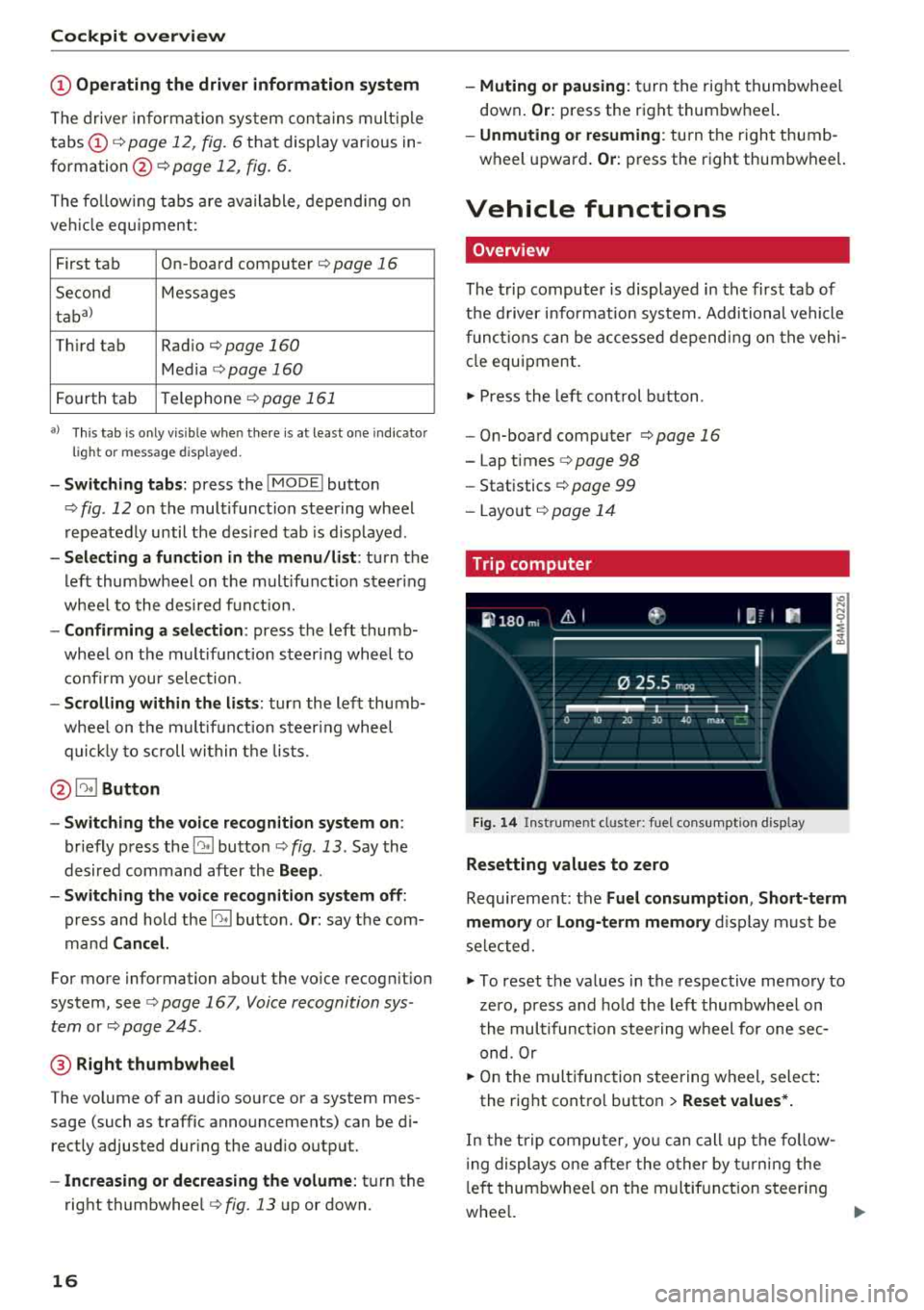
(D Operating the driv er inform ation s yst em
The drive r informat ion system conta ins mult ip le
tabs
(D c::> page 12, fig. 6 that display various in
formation @c::>
page 12, fig. 6.
The fo llow ing tabs are ava ilable, depend ing on
ve hicle equ ipment :
First tab On-board computer
c::> page 16
Seco nd Messages
taba l
Third tab Rad io c::> page 160
Media c::> page 160
Fourth tab Telephone c::> page 161
al T
h is t ab is onl y v is ibl e w hen there is at lea st one ind ic a to r
light or mess age dis playe d.
-Sw itching t abs: press the !MODE ! button
c::> fig. 12 on the mult ifunction steer ing wheel
repeatedly until the des ired tab is d isp layed .
-Selec ting a fun ction in the m enu /li st: turn the
left thumbwheel on the multifunct ion steer ing
whee l to the desired f unct ion.
-Confirming a selection : press the left thumb
wheel on the mu ltifunction steering whee l to
confi rm your select ion.
-Scrolling within the li sts: turn the left thumb
whee l on t he multifunct ion steer ing whee l
quic kly to scroll within the lists.
@ ~ Button
-Switching th e voi ce recognition sy stem on :
briefly press the 51 button c::> fig. 13 . Say the
desired command after the
B eep .
-Switching th e voice r ecogn ition sy st e m off :
press and hold the 51 button . Or: say the com
mand
Canc el.
Fo r more information about the vo ice recog nition
system, see
c::> page 16 7, Voice recognition sys
tem
or c::> page 245 .
@ Right thumbwheel
The volume of an audio source o r a system mes
sage ( such as traffic announcements) can be di
rect ly adjusted dur ing the aud io output.
-In creas ing or dec reasing the volume : turn the
right thumbwhee l
c::>fig. 13 up o r down.
16
-Muting o r pausing: turn the right thumbwhee l
down .
Or: press the right thumbwhe el.
-Unmuting o r re suming : turn the right thumb
wheel upward.
Or : press the right thumbwheel.
Vehicle functions
Overview
The t rip computer is displayed in the first tab of
t h e d river i nfo rmat ion system . Additional vehicle
funct ions can be accessed depend ing on the vehi
cle equ ipment .
.,. Press the left cont rol button .
-On-board computer c::>page 16
-Lap times c::> page 98
-Statistics c:> page 99
-Layo ut c::> page 14
Trip computer
F ig. 1 4 In str umen t cl uste r: fue l co nsu m pt io n disp lay
Resetting values to zero
Requirement: the Fuel con sumption , Short -term
memor y or Long -t e rm memor y
disp lay must be
selected.
.,. To reset the values in the respective memory to
zero, press and ho ld the left thumbwheel on
the mult ifunct ion stee ring w heel for one sec
ond. Or
.,. On the multifunction steering w heel, selec t:
the rig ht contro l button
> Re set value s*.
In the t rip compu ter, yo u can call up the fo llow
i ng displays one afte r the other by t urning the
l eft thumbwhee l on t he multif unction steering
whee l.
..,.
Page 34 of 392
Opening and clo sin g
in the same frequency range (such as a ce ll
phone or radio equipment). A lways check if
your vehicle is locked!
- For an explanation on conformity with the
FCC regulations in the United States and the
Industry Canada regu lations, see
c::>page374.
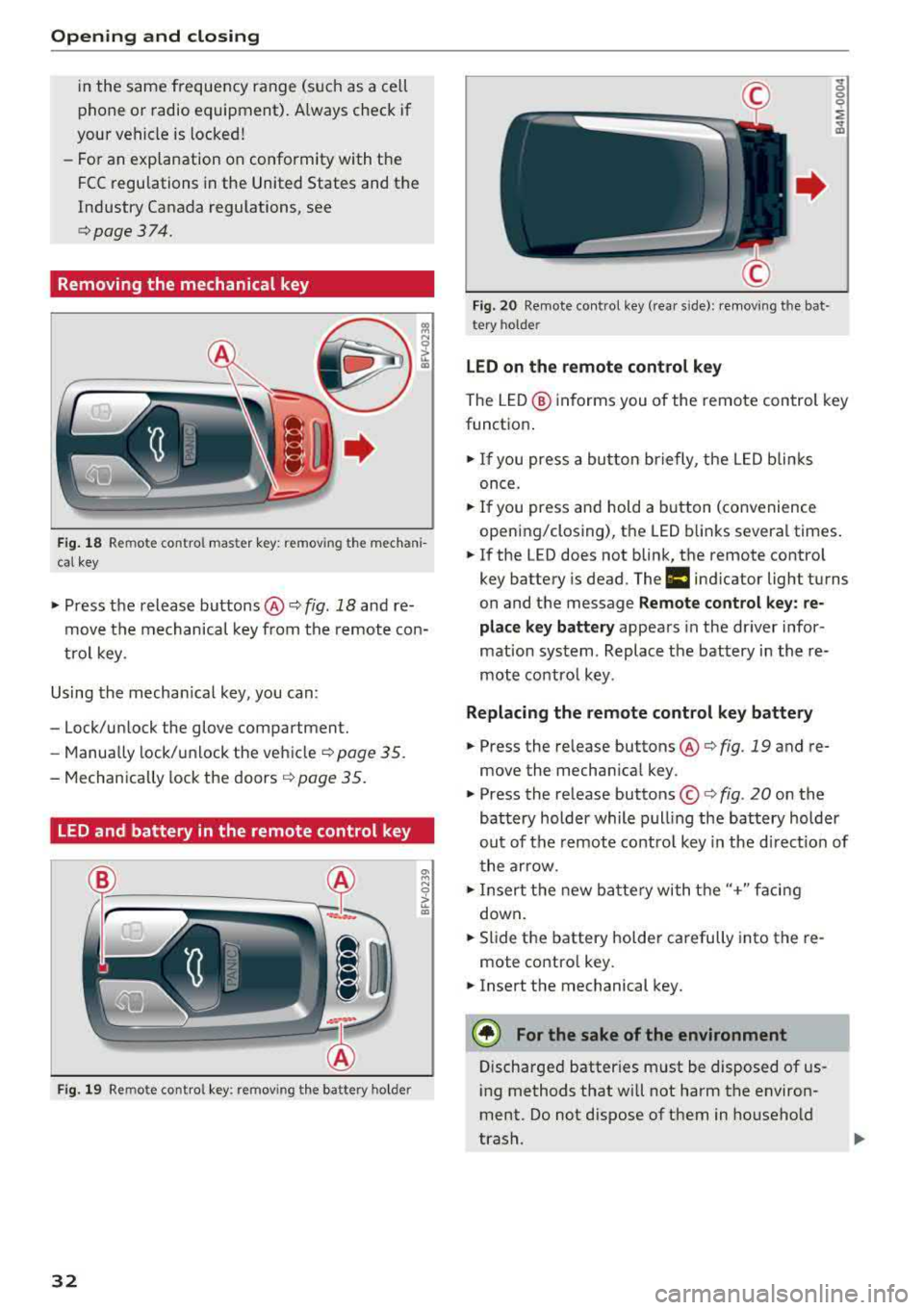
Removing the mechanical key
F ig . 1 8 Remote control master key: removing the mechani
cal key
• Press the release buttons @ c::> fig. 18 and re
move the mechanical key from the remote con
trol key.
Using the mecha nical key, you can:
-Lock/un lock the glove compartment.
- Manually lock/u nlock the vehicle
c::> page 35.
-Mechanically lock the doors.!> page 35.
LED and battery in the remote control key
Fig . 19 Remote control key: removing the battery holder
32
"' M
"' 0
~ a,
F ig. 20 Remote contro l key (rea r side): removing the bat·
tery holder
LED on the remote control key
The LED @ informs you of the remote control key
function .
• If you press a bu tton briefly, the LED blin ks
once.
• If you press and hold a button (convenience
opening/closing), the LED blinks several times .
• If the LED does not blink, the remote contro l
key battery is dead.
The m indicator light turns
on and the message
Remote contro l ke y: re
p la ce k ey batt ery
appears in the dr iver infor
mation system. Replace the battery in the re
mote control key.
Replacing the rem ote control key batte ry
• Press the release buttons @ c::> fig. 19 and re·
move the mechan ica l key.
• Press the release buttons © c::> fig. 20 on the
battery holder while pull ing the battery holder
out of the remote contro l key in the d irec tion of
the arrow.
• Insert the new ba ttery with the"+" facing
down .
• Slide the battery holder carefully into the re
mote contro l key.
• Insert the mechanical key.
@ For the sake of the environment
Discharged batter ies m ust be disposed of us
ing methods that wi ll not harm the environ
ment. Do not dispose of them in household
trash.
Page 41 of 392
u co ..... N r-N .....
~ 0 co
-When the trailer socket is being used (for
example, for a bicycle rack), the luggage
compartment lid can be opened and closed using the handle or the foot motion activa
tion (vehicles with convenience key*).
Opening/closing the luggage compartment
lid with foot motion activation (kicking
movement)
Applies to: veh icles with conven ience key and sensor-control
led luggage compartment lid
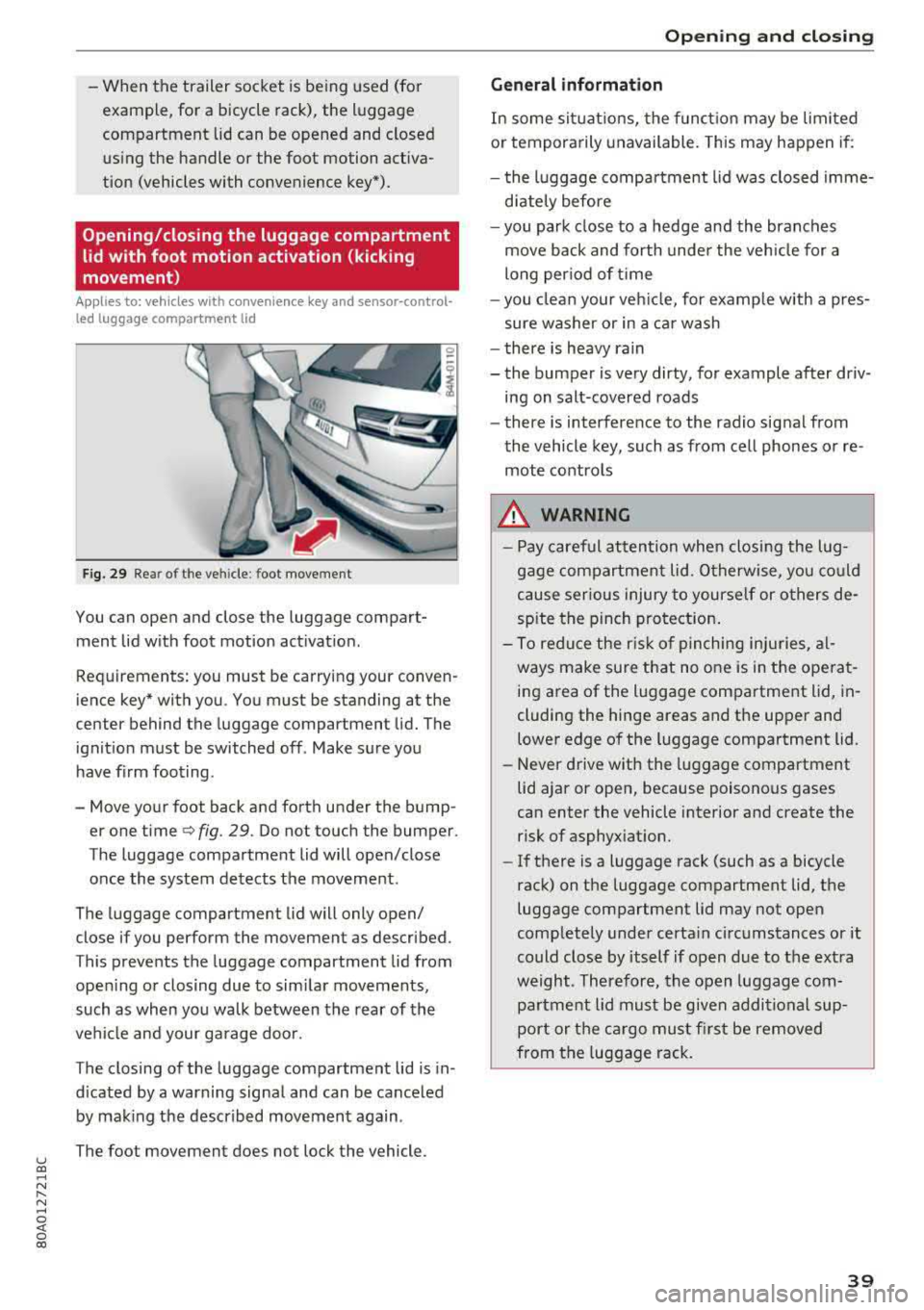
Fig. 29 Rea r of t he ve hicle : foot movement
You can open and close the luggage compart
ment lid w ith foot motion activat ion .
Requirements: you must be carrying your conven
ience key* with you . You must be standing at the
center behind the luggage compartment lid. The
ignition must be switched off . Make sure you
have f irm foot ing.
- Move your foot back and forth under the bump er one time
q fig. 29. Do not touch the bumper.
The luggage compartment lid will open/close
once the system detects the movement.
The luggage compartment lid will only open/
close if you perform the movement as described.
This prevents the luggage compartment lid from open ing or closing due to sim ilar movements,
such as when you walk between the rear of the
vehicle and your garage door.
The closing of the luggage compartment lid is in
d icated by a warning signa l and can be cance led
by making the described movement again .
The foot movement does not lock the vehicle.
Op eni ng and clos ing
General informat ion
In some sit uations, the funct ion may be limited
or temporarily unavailable. This may happen if:
- the l uggage compartment lid was closed imme
d iately before
- you park close to a hedge and the branches
move back and forth under the veh icle for a
long per iod of t i me
- you clean your veh icle, for example w ith a pres
sure washer or in a car wash
- there is heavy rain
- the bumper is very dirty, for example after driv- ing on salt-covered roads
- there is interference to the radio signal from
the vehicle key, such as from cell phones or re
mote controls
8,. WARNING
-Pay careful attention when closing the lug
gage compartment lid . O therwise, you co uld
cause serious injury to yourself or others de
spite the pinch protection .
-To reduce the risk of pinching inju ries, al
ways make sure that no o ne is in the ope rat
ing area of the luggage compartment lid, in
cluding the hinge areas and the upper and
lower edge of the luggage compartment lid.
-Never drive with the luggage compartment
lid ajar or open, because poisonous gases
can enter the vehicle interior and create the risk of asphyxiat ion.
-If there is a luggage rack (such as a bicycle
rack) on the luggage compartment lid, the
luggage compartment lid may not open
comp letely under certa in circumstances or it
could close by itself if open due to the ext ra
weight. Therefore, the open luggage com
partment lid must be given additional sup
port or the ca rgo must fi rst be removed
from the luggage rack.
3 9
Page 159 of 392
u co ..... N r--N ..... 0 <( 0 00
Free text search
Applies to: vehicles wit h free text search
Using the free text search, you can select the or
der that the search terms are entered in the in
put field.
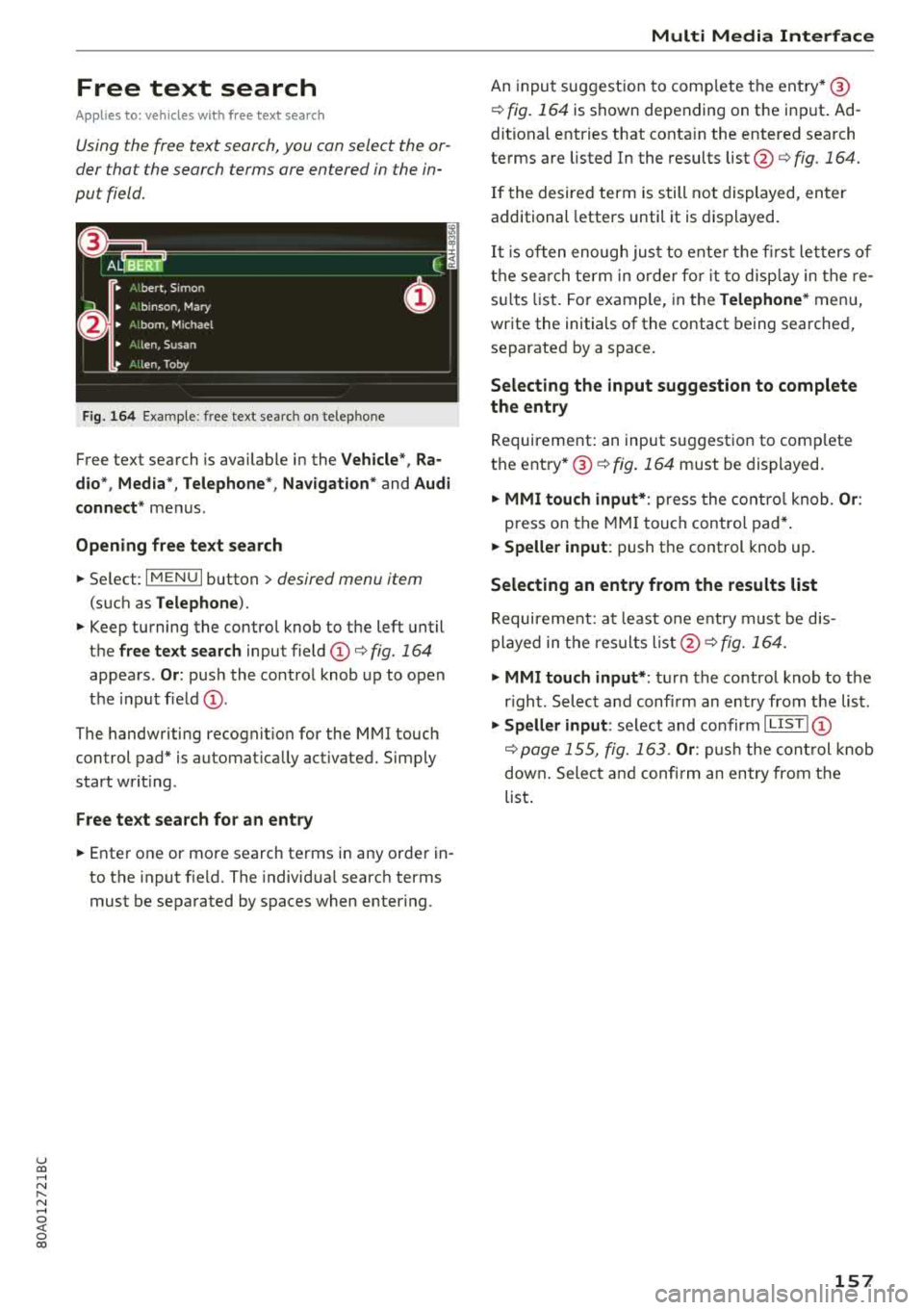
Fig. 164 E xample: free text searc h on telep hone
Free text search is available in the Vehicle*, Ra
dio* , Media *, Telephone *, Navigation *
and Audi
connect*
menus .
Opening free text search
~ Select : IMENUI button> desired menu item
(such as Telephone ).
~ Keep turning the contro l knob to the left until
th@ free text search input field (D c::> fig. 164
appears . Or: push the control knob up to open
the input field
(D .
The handwriting recognition for the MMI touch
control pad* is automat ically act ivated. Simply
start wr iting.
Free text search for an entry
~ Enter one or more search terms in any order in
to the input f ield. The individ ua l search terms
must be separated by spaces when enter ing .
Multi Media Interface
An input suggestion to comp lete the entry* ®
¢fig. 164 is shown depending on the input . Ad
ditional entries that conta in the entered search
terms are listed In the results
list@¢ fig. 164.
If the desired term is still not displayed, enter
additional letters until it is displayed.
It is often enough just to ente r the first letters of
the search term in order for it to display in the re
s ul ts list. For example, in the
Telephone* menu,
write the initials of the contact being searched,
separated by a space.
Selecting the input suggestion to complete
the entry
Requirement: an input suggestion to comp lete
the
entry* ®¢ fig. 164 must be displayed.
~ MMI touch input* : press the control knob. Or:
press on the MMI touch contro l pad*.
~ Speller input : push th e control knob up.
Selecting an entry from the results list
Requirement: at least one entry must be dis
played in the res ults
list @¢ fig. 164.
~ MMI touch input* : turn the control knob to the
r ight . Select and confirm an entry from the list.
~ Speller input: select and confirm I LIS T! (D
¢ page 155, fig. 163 . Or: push the control knob
down. Select and confirm an entry from the
list .
157