phone AUDI Q5 2018 User Guide
[x] Cancel search | Manufacturer: AUDI, Model Year: 2018, Model line: Q5, Model: AUDI Q5 2018Pages: 392, PDF Size: 60.56 MB
Page 160 of 392
Multi Media Interface
Menus and Symbols
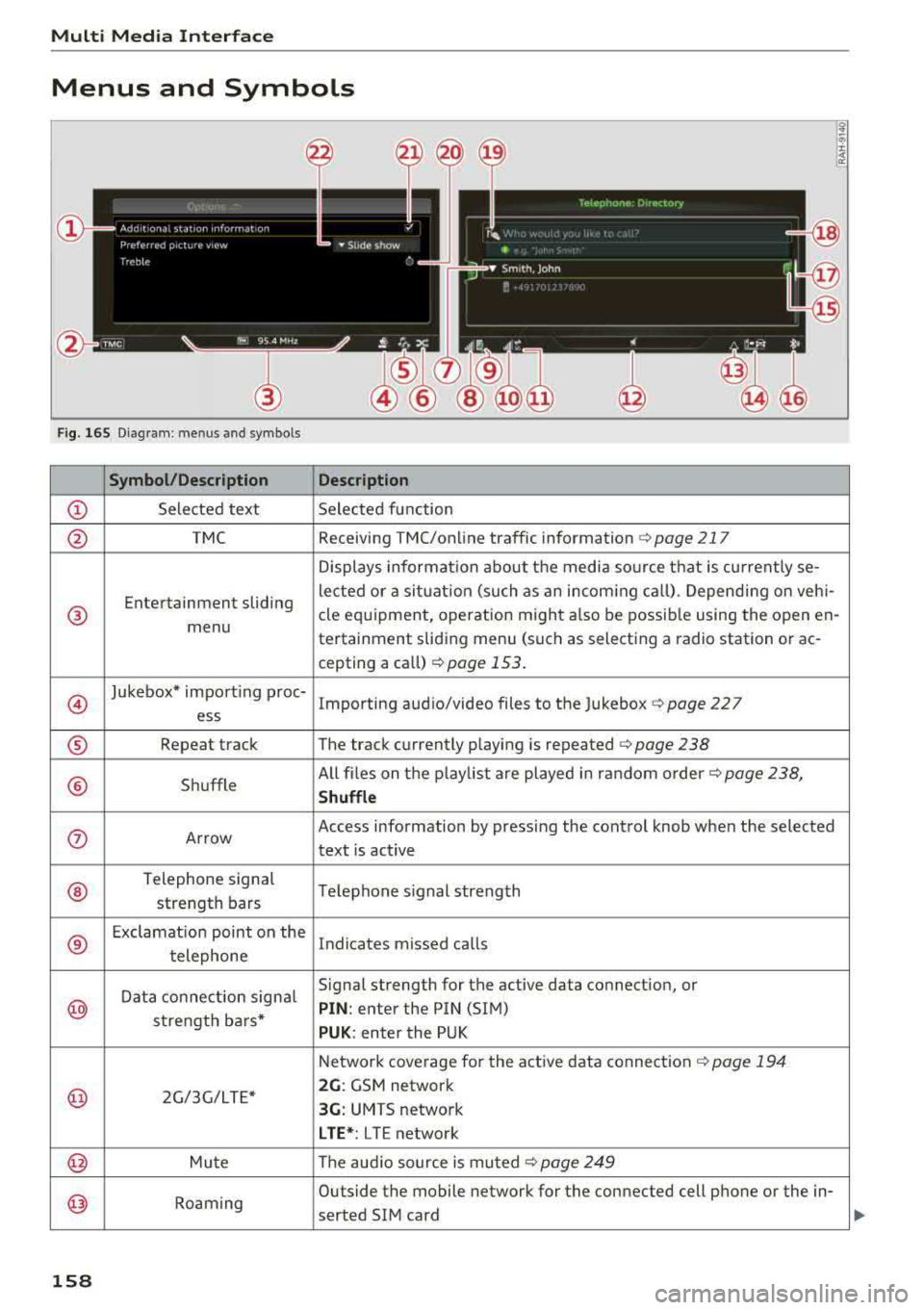
Fig. 165 Diagram: menus and symbols
Symbol /Description Description
CD Selected text Selected function
@ TMC Receiving TMC/online traffic information c> page 217
Displays informat ion about the media so urce that is currently se-
Entertainment sliding lected or
a situat ion (such as an incom ing ca ll). Depending on veh i-
® cle equipment, operation might also be possible using the open en-
menu tertainment sliding menu (such as select ing a radio station or ac-
cepting a call)
<=> page 153 .
@
Jukebox* import ing proc-
Importing audio/video files to the Jukebox <=>page 227
ess
® Repeat track The track currently playing is repeated c> page 238
® Shuffle All files on
the playlist are played in random order c> page 238,
Shuffle
0 Arrow Access information by pressing the control knob when the selected
text is active
®
Telephone signal
Telephone signal strength
strength bars
®
Exclamation point on the
Indicates missed calls
telephone
Data connection signal Signal strength for the active data connection, or
@ PIN
: enter the PIN (SIM)
strength bars*
PUK : enter the PUK
Network coverage for the active data connection
c> page 194
@ 2G/3G/LTE* 2G: GSM network
3G: UMTS network
LTE* : LTE network
@ Mute The aud io source is muted <=>page 249
@) Roaming Outside the mobile network for the
connected cell phone or the in-
serted SIM card
158
Page 163 of 392
(D Tips
-Always fo llow the information found in
~ page 225 .
-Please note that w ith in a media sou rce in
t h e driver i nfo rmation system, on ly playlists
that we re se lected throug h the MMI contro l
panel can be
p layed~ page 235.
- Pay attention to t he Infotainment system
d isplay if necessary . Dependi ng on these
l ected function, it may be necessary to use
the M MI co ntrol panel.
Telephone
App lies to: ve hicles with multifunction steering wheel and
telepho ne
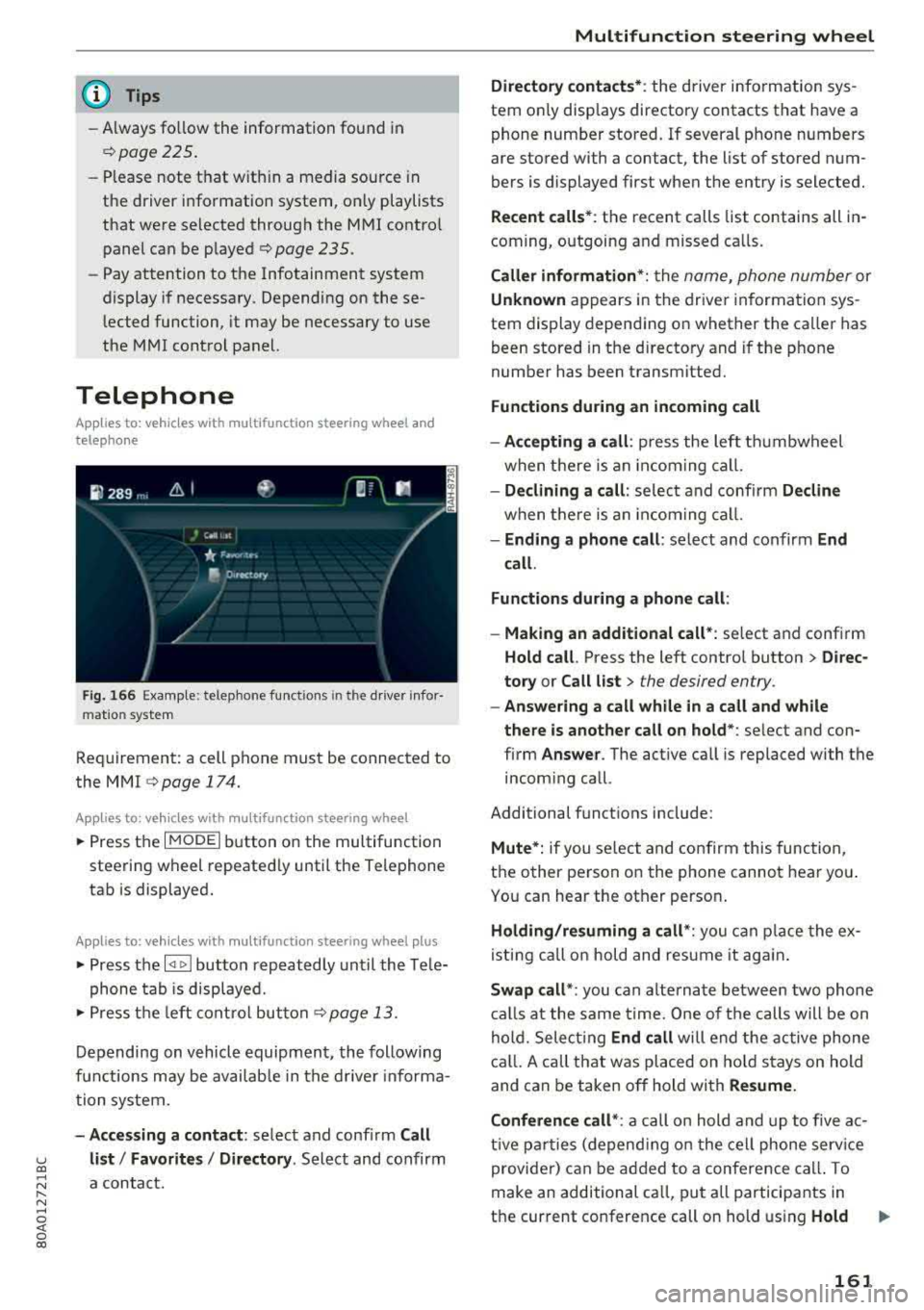
F ig . 166 Exa mpl e: t e lep hone fu nct ions in t he d river infor
mat io n system
Req uirement: a cell p hone must be connected to
the MMI
~ page 174.
Ap plies to: ve hicles with multifunction steering wheel
• Press t he I M ODE i butto n on the multifunction
stee rin g wheel repeate dly until the Te lephone
tab is displayed .
Applies to: vehicles w ith multifunction steering wheel plus
• Press the l
phone ta b is disp laye d.
• Press t he left co ntro l but ton ~ p age 13.
D epending on vehicle equip men t, the following
f unc tions may be availab le in the dr ive r informa
tio n syste m.
-Accessing a contact : select and confir m Call
u list/ Favorite s I Directory . Select and confirm co
~ a contact. r--N ......
~ 0 co
Multifunction steering wheel
Directory contacts *: the driver inform ation sys
tem on ly disp lays directory contacts that have a
phone num ber stored . If several phone numbers
are stored with a contact, the list o f stored n um
bers is displayed first when the entry is selected .
Recent calls*: the recent calls list contains all in
com ing, outgoing a nd missed ca lls.
Caller information* : the name , phone number or
Unknown a ppe ars in the drive r informa tion sys
tem dis play depend ing on whether the ca ller has
been stored in t he d irecto ry and if the p hone
numbe r has been transmitted.
Functions during an incoming call
-Accepting a call : press the left th umbwheel
w hen there is an incomi ng cal l.
-Declining a call : selec t and conf irm Decline
w hen t he re is an incom ing ca ll.
-Ending a phone call : se lect and confirm End
call.
Functions during a phone call :
-Making an additional call*: select and conf irm
Hold call. Press the left contro l bu tton > Direc
tory or Call list >
the desired entry.
-Answering a call while in a call and while
there is another call on hold *:
select and con
firm
Answer . The active ca ll is replaced with the
incom ing ca ll.
Additional funct ions include:
Mute*: if you se lect a nd co nfirm this func tio n,
t h e o ther person on the phone canno t hear yo u.
Yo u can hear the ot her perso n.
Holding/resuming a call *: you can p lace the ex
i s ting ca ll on hold and res ume it aga in.
Swap call* : you can alterna te betwee n two phone
calls at t he same time. One o f the calls will be on
hol d. Sele ct ing
End call will end the acti ve ph one
c a ll. A c all th at was pl aced on ho ld st ays on hold
and can be taken o ff hold wi th
Resume.
Conference call *:
a ca ll o n hold and up to five a c
ti ve p arties ( depen ding o n the ce ll phone serv ice
provider) can be add ed to a conference call . To
m ake an ad ditional ca ll, pu t all participants in
t h e current co nference call on hold using
Hold ..,
161
Page 164 of 392
Multifunction steering wheel
c all* .
By press ing the left contro l butto n, you can
make additional calls from t he directo ry o r th e
call list .
Resume* takes all pa rties off hold.
@ Tips
- The telephone functions can only be con
tro lled w it h the mu ltifunction stee ring
whee l if t he telep ho ne eq uipment was in
stalled
at the factory.
- The telephone functions de pend on the cell
phone and whether they are suppo rted by
your cell phone se rvice provider o r not .
- The
Call waiting* function must be activat
ed in your cell phone and in the M MI in or
der to be alerted w hen t here is an incoming
call duri ng an active call. T he call options
depen d on t he ce ll phone and servic e pro
v ider. You can o btain mor e in fo rm ation
fro m your cell ph one se rvi ce pr ovider.
Navigation
Operation in the driver information system
App lies to: ve hicles w ith multifunction steering wheel and
navigation system
Requ ir ement: a destination mus t be e nte red
¢ page 20 4 and the route g uidance must be
started .
.. Pres s th e l 1 bu tto n on t he mult if u nct io n
stee ring wheel repeate dly un til the Navigation
ta b is displayed .
.. Press the left co ntro l but ton ¢ page 13 .
Depending on vehicle eq uipment, the following
fu nctions may be availab le in t he driver informa
tion system .
-Displaying navigation during active route
guidance:
selec t and confirm Map* / Street
view * or Arrow view* .
- Showing the map when route guidance is not
active* :
select and co nfirm Map *.
- Acces sing last destinations :
sele ct and co nfirm
Last destinations > the desired destination .
-Ac ces sing favorites *: selec t and confi rm Favor
ites >
the de sired destina tion.
162
- Starting route guidance to the stored home
address :
select and co nfirm Cancel route guid·
ance
i f necessa ry and then Home address .
If you have not st arted any rou te g uidance, a
com pass (a na log instrument cluster) or the ar
row view (monoc hrome instrument cluster) is
displayed depending on t he eq uipme nt. The map
i s d isp layed in the Audi virtua l cockpit *.
Canceling active route guidance
- S elect: r ight control button> Cancel route
guidance
Additional settings
- Select: r igh t con trol b utton> d esi red entry .
Depending o n the function se lected, the follow
i ng additional settings may be possible :
-Map disp lay ¢ page 214 .
-Map colo rs ¢ page 214 .
- Map orien ta ti on ¢ page 21 4.
- Au tom atic z oom ¢ page 215 .
Navigation view with route guidance
started
Appl ies to: vehicles with navigat ion system a nd Aud i v ir tual
cockp it
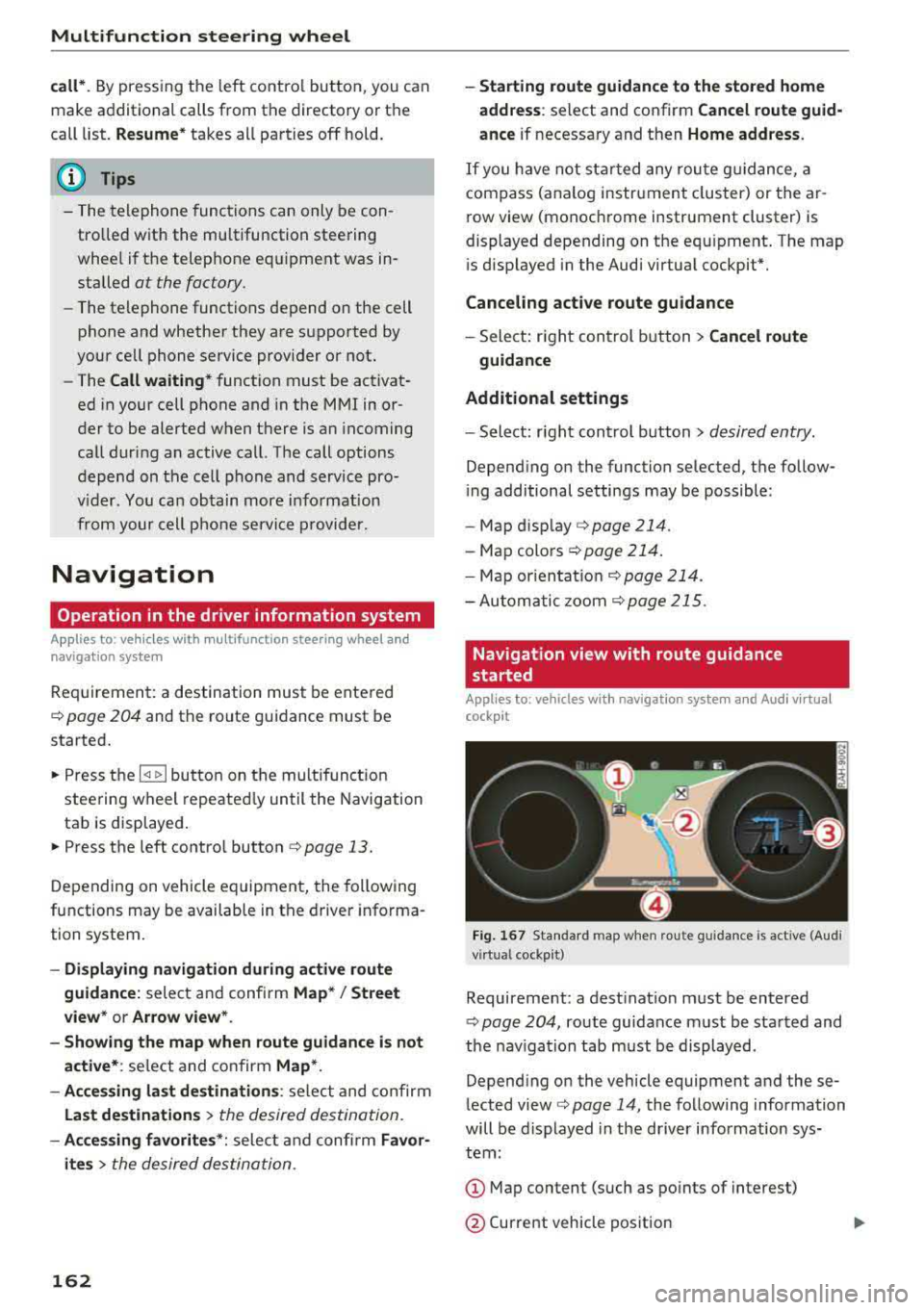
Fig. 16 7 Standard map when ro ute gu idance is act ive (Aud i
virt ual cockpit)
Requireme nt: a dest inat ion m ust be entered
¢ pag e 204, route guidance must be sta rted and
the nav iga tion tab must be display ed .
Depend ing o n the vehicle equipment and these
l ected view
cc> page 14, the fo llow ing information
will be d isplayed in th e driver info rmation sys
tem :
(D Map content (such as po ints of interest)
@ Current vehicle pos ition
Page 168 of 392
Voice recognition system
• Telephone
• Audi connect •
Favorites
• Call (XV)
• Navigation
• Directory
• Radio
• Media
• Enter number
• Redial
• Read new text message
• Nav igate to
(XY)
• Sound • Enter address/destination
• Help • Online destinations
• Help Speech dialog system
• Help Telephone •
Cancel route guidance
• Map
• Help Aud i connect •
Line
(XY)
• Help Navigation
• Help
Map
• Help Radio •
Next page/ previous page
• Cancel
• No. I meant (XV)
• Help Media • Correction
TE ~EPflON ~
• Enter number • Call list
• Delete number/ correction
• Redial
• Directory
• Call
(XV)
• Call mailbox
• Telephone favorites
• business
I private/ land tine I mobile
N~~It ~JION
• Nav igate to (XY)
• Start/ cancel route guidance
• Directory
• Last destinations • Block
route for
(XV) miles I Block
the next section
• Route list
• Calculate alternative routes
• Nav igation favorites
• Drive home
• Enter address •
Online destinations
• Special destination
• Enter country
I town I street I state
• Exclude route/ Exclude route for
(XV) km/ m
• Map
• Day map/ Night map
• 2D driving position map/ 2D north position map/ 3D map/ Destination map
I Overview map
~l!IDI CONNECT
• Audi connect
• Travel Information/ Parking Information
• Fuel prices
• Weather
RADIO
• Radio presets
• FM
• FM /AM/ SIRIUS XM
• Station (XV) / Frequency (XV)
• Traffic announcement on/ off
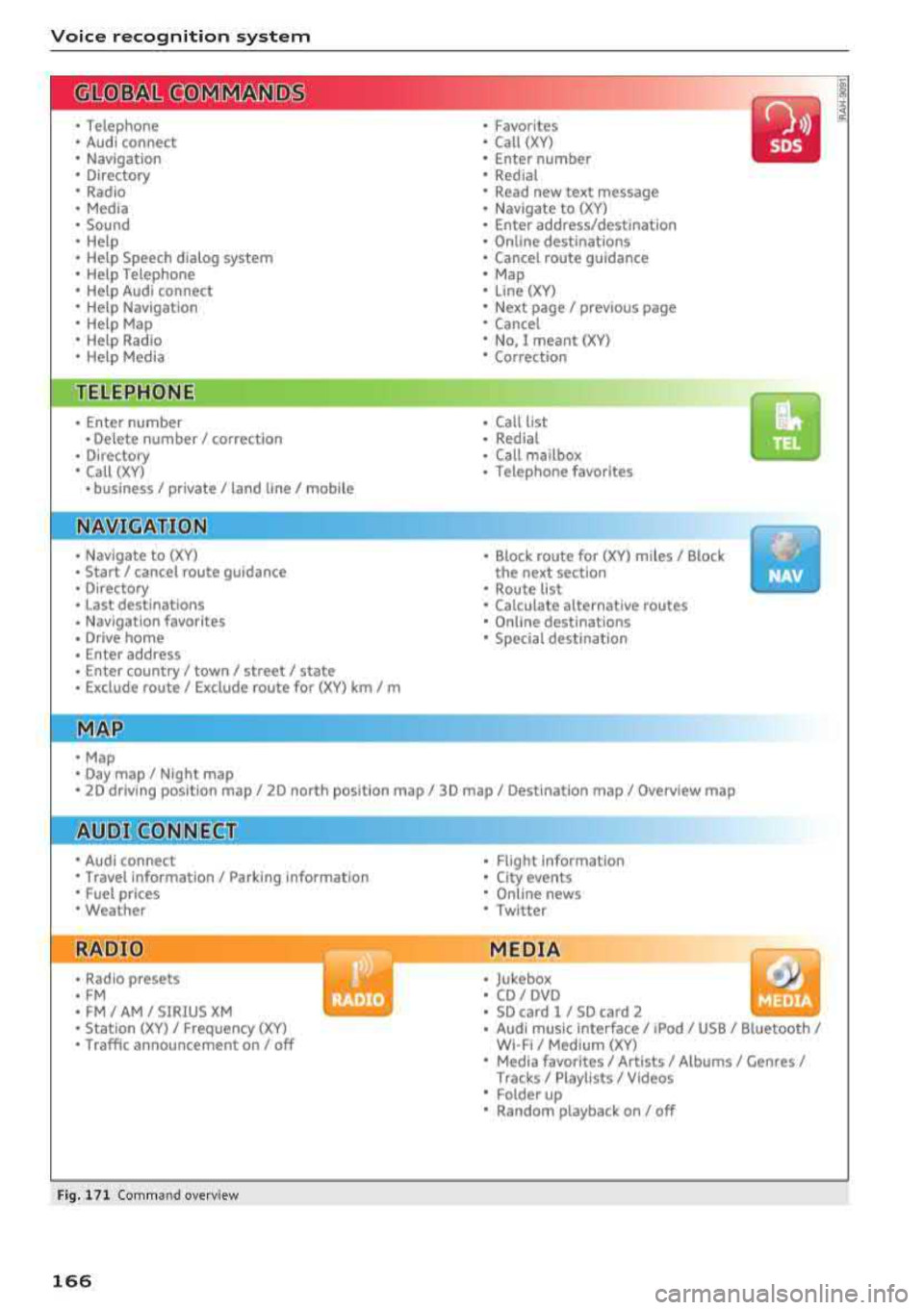
Fig. 171 Comm and overv iew
166
• Flight Informa tion
•
City events
• Online news
• Twitter
MEDIA
• Jukebox
• CD
I DVD
• SD card
l / SD card 2
• Audi music Interface/ I Pod/ USB / Bluetooth
I
WI -Fl I Med ium (XV)
• Media favorites
I Artists/ Albums/ Genres I
Tracks I Playll sts / Videos
• Folder up
• Random playback on / off
Page 169 of 392
u co ..... N r--N ..... 0 <( 0 00
Voice recognition system Operating
Applies to: vehicles with voice recognitio n system
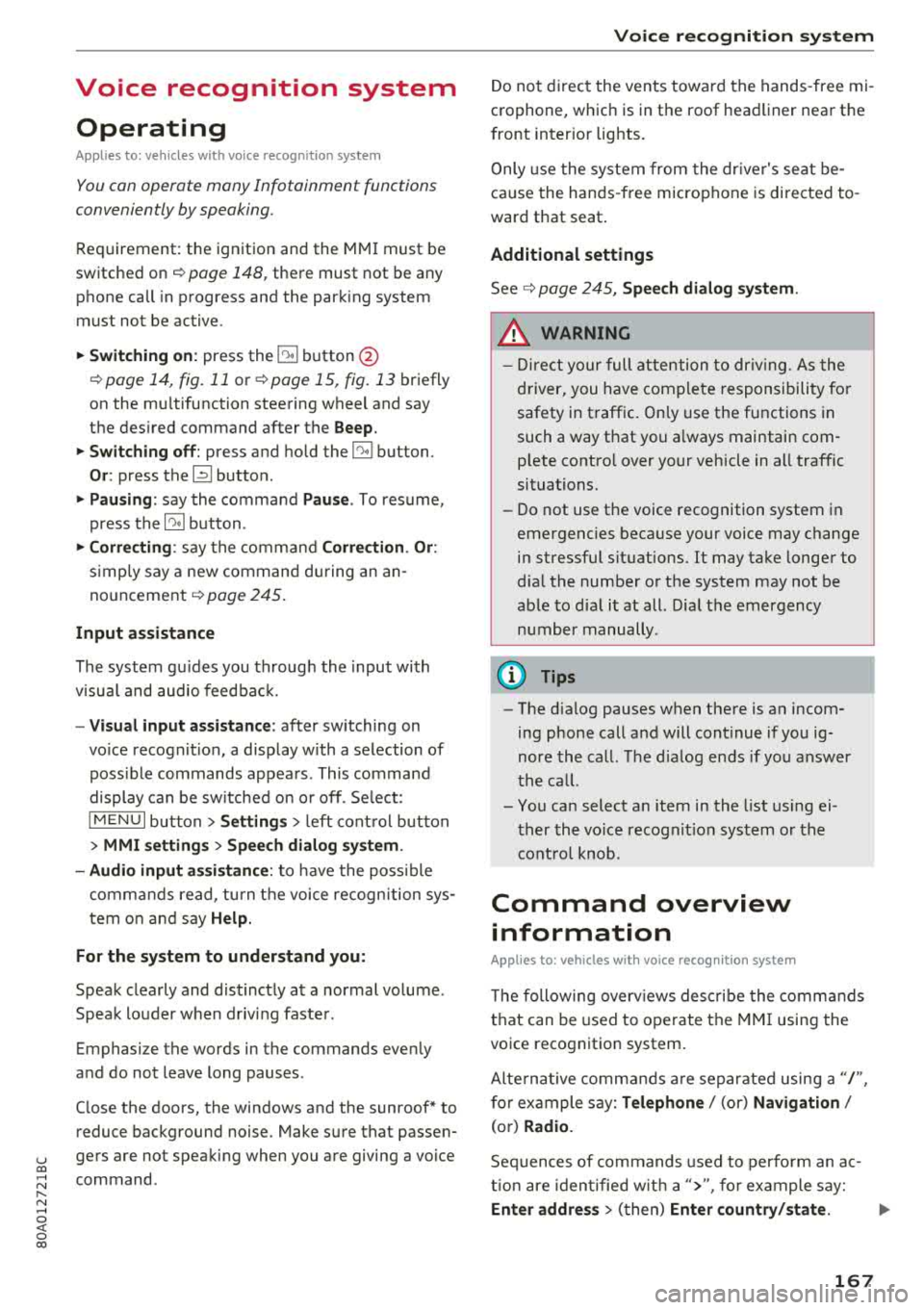
You con operate many Infotainment functions
conveniently by speaking.
Requirement: the ignition and the MM I must be
switched on ¢
page 148, there must not be any
phone call in progress and the park ing system
must not be active .
~ Switching on: press the~ button @
¢page 14, fig . 11 o r ¢ page 15, fig. 13 br iefly
on the mu ltifunction stee ring wheel and say
the des ired command after the
Beep .
~ Switching off : press and hold the [2;J b utton.
Or : press the [2] but to n.
~ Pausing : say the command Pause . To resume,
press the
[2;J b utton .
~ Correcting : say the com mand Correction . Or :
simp ly say a new comm and d uring an an
no uncement
¢ page 245.
Input assistance
The system gu ides you throug h the input with
v isua l and audio feedbac k.
- Visual input assistance : after switching on
vo ice recogn it ion, a display w ith a selection of
poss ible commands appea rs . This command
display can be sw itched on o r off. Se lec t:
IMEN UI butt on> Settings > left cont ro l button
> MMI settings > Speech dialog system .
- Audio input assistance :
to have the poss ible
comm ands read, tu rn th e voice rec ogn ition sys
tem o n and say
Help.
For the system to understand you:
Speak clearly and dis tinct ly a t a normal vo lume .
Speak lo uder when d riving faste r.
Emphasize the words in the commands even ly
a n d do no t leave long pauses .
C lose the doors, the windows and the sunroof* to
reduce background noise . Make s ure that passen
gers a re not speaking when you a re giving a voice
command .
Voice recognition system
D o not d irect the vents towa rd the hands -free mi
c ro p hone, wh ich is in the roof head liner nea r the
front interior lig hts.
O nly use the system from the dr ive r's sea t be
ca use the hands -free microphone is di rected to
ward that seat .
Additional settings
See¢ page 245, Speech dialog system .
_&. WARNING
- Dir e ct y ou r full a tte ntio n to dr iv in g. A s the
d river, you have com ple te re sponsibili ty fo r
safety in t raff ic . O nly use the functions in
such a way t hat you a lways maintai n com
p lete contro l over your vehicle in all traffic
situations.
- Do not use t he voice recognition system in
emergencies beca use your voice may change
in st ressfu l situations. It may take longe r to
d ia l the number o r th e system may not be
ab le to d ia l it at all. Dia l the emergency
number manually.
(D Tips
-The d ialog pauses w hen the re is a n incom
ing phone call a nd will con tinue if yo u ig
nore the ca ll. The dia log ends if yo u answer
t he ca ll.
- Yo u can select an item in the list using ei
t her the vo ice recogn it io n sys tem o r the
cont ro l knob .
Command overview
information
Applies to: vehicles with voice recognition system
T he following overv iews des cribe the comm ands
t h at can be used to ope rate the MMI using the
vo ice recognit ion system.
Alte rnative co m mand s ar e separate d using
a"/ ",
fo r ex ample say: Telephone / (or) Navigation /
(or) Radio.
Sequences of com mands used to perfo rm an a c
t io n a re iden tified w it h
a ">", fo r ex am ple s ay:
Enter address > ( then) Enter country/state . ..,
167
Page 170 of 392
Voice recognition system
The major ity shown are main commands. This
system also recognizes synonyms in certain cas -es
. F or a Business address , you can also say busi
ness , work , office or at the office .
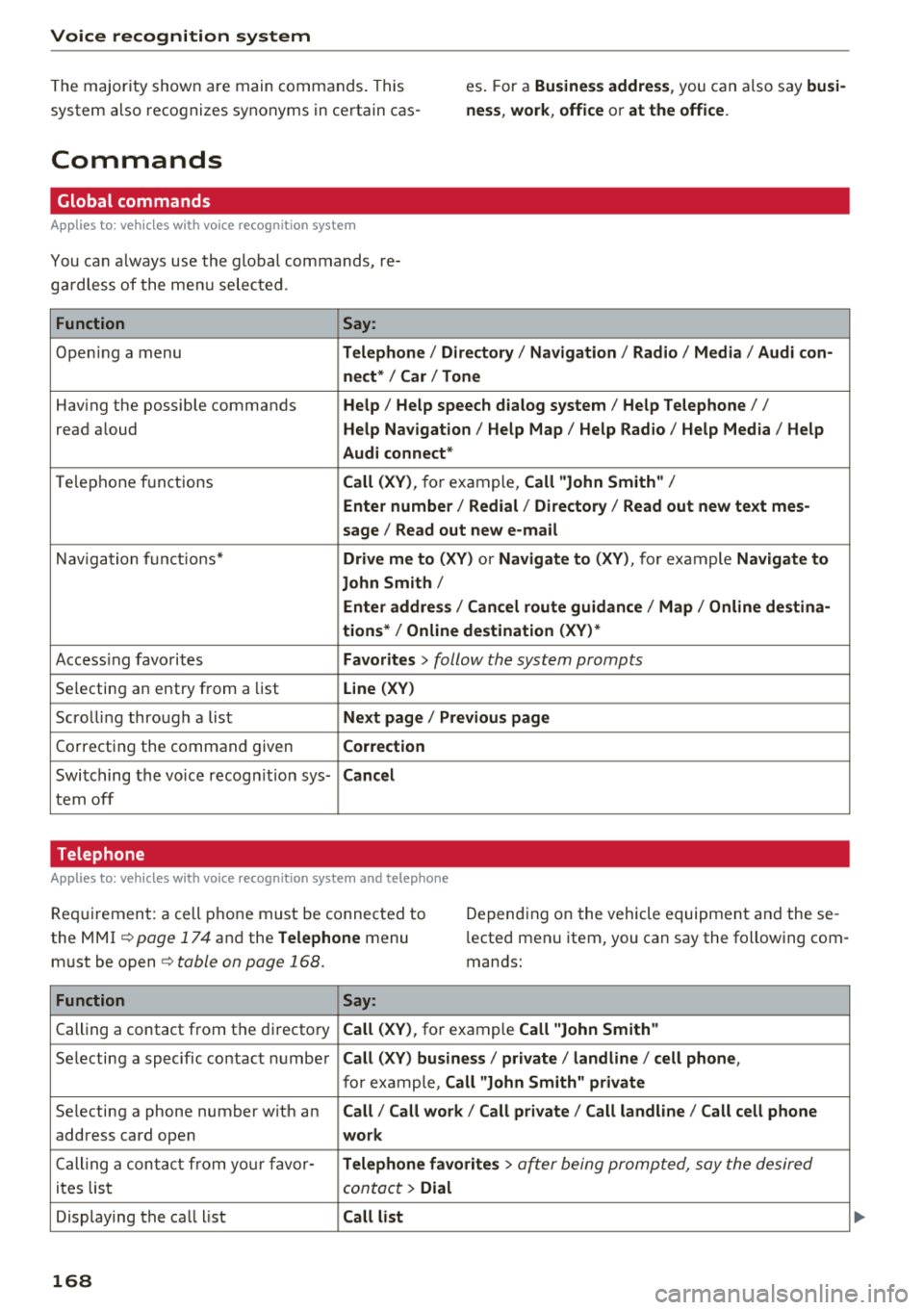
Commands
Global commands
App lies to: ve hicles w it h vo ice recogn ition system
You can a lways use the global commands, re
ga rdless of the menu selected.
Function Say:
Opening a menu Telephone / Directory / Navigation / Radio / Media / Audi con-
nect * /Car / Tone
Hav ing the possible commands Help / Help speech dialog system / Help Telephone //
read aloud Help Navigation / Help Map / Help Radio / Help Media / Help
Audi connect *
Telephone f unctions Call (XV), for example, Call "John Smith" /
Enter number / Redial / Directory / Read out new text mes-
sage
I Read out new e-mail
Navigation functions* Drive me to (XV) or Navigate to (XV) , for example Navigate to
John Smith/
Enter address / Cancel route guidance / Map / Online destina-
tions* / Online destination (XV) *
Accessing favorites Favorites > follow the system prompts
Selecting an entry from a list Line (XV)
Scrolling through a list Next page / Previous page
Correcting the command given Correction
Switching the voice recogn ition sys-Cancel
tern off
Telephone
A pp lies to: ve hicles w ith vo ice recog nition sys te m and telep hone
Req uir ement: a cell phone must be connected to
the
MMI ~ page 174 and the Telephone menu
must be
open ~ table on page 168.
Depending on the vehicle equipment and these
l ected menu item, you can say the following com
mands:
Function Say:
Calling a contact from the directory Call (XV), for example Call "John Smith"
Selecting a specific contact number Call (XV) business / private / land line / cell phone ,
for example, Call "John Smith" private
Selecting a phone number w ith an Call/ Call work/ Call private/ Call land line / Call cell phone
address card open work
Calling a contact from your favor-Telephone favorites > a~er being prompted, say the desired
ites list contact > Dial
Displaying the call list Call list
168
Page 171 of 392
u co ..... N r--N ..... 0 <( 0 00
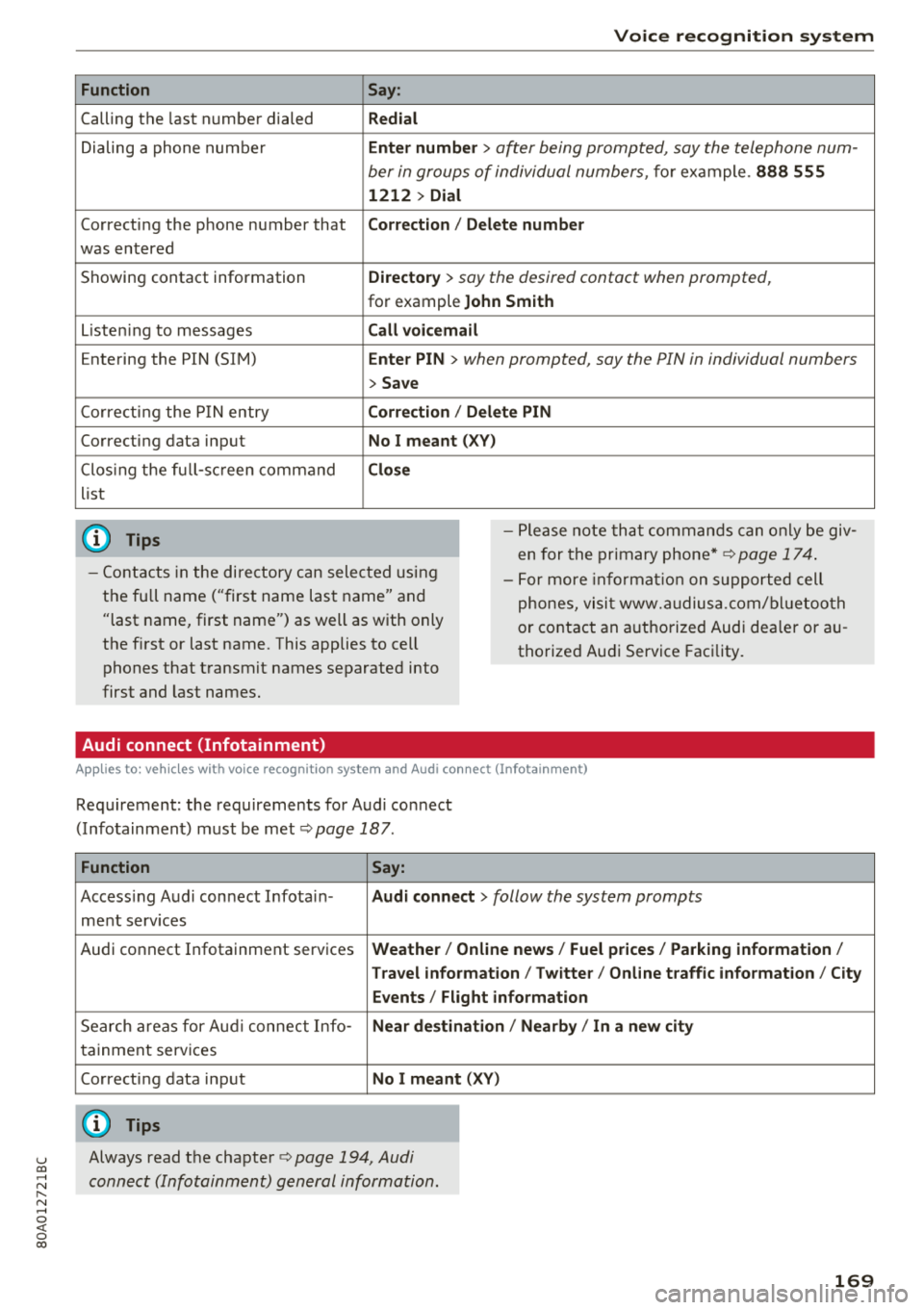
Function
Calling the last number dialed
Dialing a phone num ber
Correcti ng the p hone number that
was entered
Showing contact information
L isten ing to messages
Entering the PIN (SIM)
C orre ct in g the P IN entry
Correcting data input
C los ing the f ull -s cr een command
list
(D Tips
Voice recognition system
Say :
Redial
Enter number
> after being prompted, say the telephone num-
ber in group s of individual numbers,
fo r example. 888 555
1212 > Dial
Correction / Delete number
Directory
> say the desired contact when prompted,
for example John Smith
Call voicemail
Enter PIN
> when prompted, say the PIN in individual numbers
> Save
Correction / Delete PIN
No I meant ( XV)
Close
- P lease note th at comm an d s can o nly be giv
en for the primary
phone *¢ page 1 74.
- Cont acts in the dire ctory can sele cted using
the fu ll name ("first name las t name" and
"last name, first name") as well as with only
the f irst or last nam e. This applies to cell
phones that t ransmit names separate d into
first and last names . -
For more informat io n on s uppo rted cell
phone s, vi sit www.audius a.c om/ blu etoo th
or cont act an a uthorized Audi dea ler or au
thorized Audi Service Fac ility.
Audi connect (Infotainment)
A pp lies to: ve hicles with vo ice recognition syste m and Audi co nnect (Infotainment)
Req uirement: the requirements fo r A udi co nnect
(Info tainmen t) must be met
¢ page 187.
Function Say:
Accessing A udi con nect I nfota in-Audi connect > follow the system prompts
me nt serv ices
Audi co nnect Infotainment services
Weather / Online news / Fuel prices / Parking information /
T ravel infor mation / Twitter / Online traffic information / City
Events / Flight information
Search areas for Au di connec t Info -Near destination / Nearby / In a new city
ta inment serv ices
Correcting data inp ut
No I meant (XV)
(D Tips
Always read t he cha pte r¢ page 194, Audi
connect (Infotainm ent) g en eral information .
169
Page 172 of 392
Voice recognition s ystem
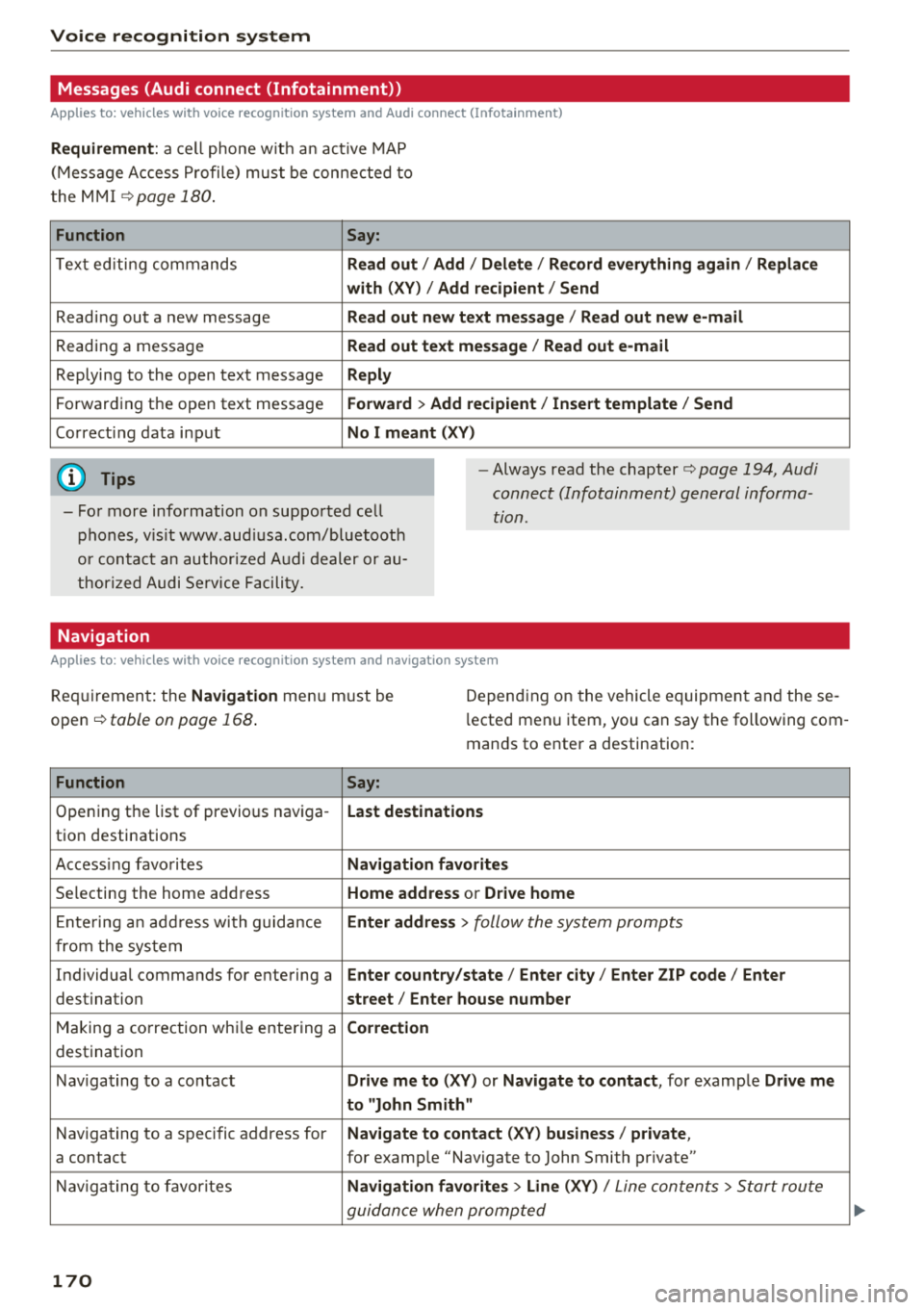
Messages (Audi connect (Infotainment))
Applies to: vehicles with voice recognition system and Audi connect (Infotainment)
Requirement : a ce ll phone w it h an ac tive MAP
(Mess age Access P rofi le) must be connected to
t he MMI
¢page 180 .
Function Say:
T ex t ed iti ng commands Read out
I Addi/ Delete / Re cord everything ag ain / Replac e
w ith (XV ) / Add recipient / Send
Reading out a new message Read out new text me ssage
I Read out ne w e-mail
Reading a message Read out text me ssage / Read out e-m ail
Replying to the open text message Reply
Forwarding the open text message Forward > Add recipient / In sert template / Send
Correcti ng data input No I meant (XV)
(D Tips
-Fo r more information on supported cell
phones, v is it www .aud iusa .com/bluetooth
or contact an author ized A udi dealer or au
thor ized Audi Se rvice Facility.
-Always read the chapter¢ page 194 , Audi
connect (Infotainment) general informa
tion.
Navigation
Applies to: vehicles with voice recognition system and navigation system
Requiremen t: the Navigation menu m ust be
open
¢ table on page 168 .
Depending on the vehicle equipmen t an d these
l ected menu item, you can say the following com
mands to enter a destination:
Function Say:
Opening the list of previous naviga -Last destinati ons
tion destinations
Access ing favo rites Navigation fa vori tes
Selecting the home add ress Home address or Driv e home
E nte ring a n add ress wi th guidance Enter address
> follow the system prompts
from the system
Individual commands for entering a Enter countr y/state / Ente r cit y/ Enter ZIP code / Enter
destination street/ Ent er hou se numb er
Making a correction wh ile entering a Correction
destination
Nav igating to a co ntact Drive me to
(XY) or Na vigate to contac t, for example Drive me
to "John Sm ith"
Navigating to a specific address for Na
vigate to co nta ct (X V) bu sine ss/ private ,
a contact for example "Navigate to John Smith pr ivate"
Nav igating to favorites Navigation favorite s> Line (XV) /
Line contents> Start route
guidance when prompted
170
Page 174 of 392
Voice recognition s ystem
-Always read the chapter ¢ page 194, Audi
connect (Infotainment) general informa tion .
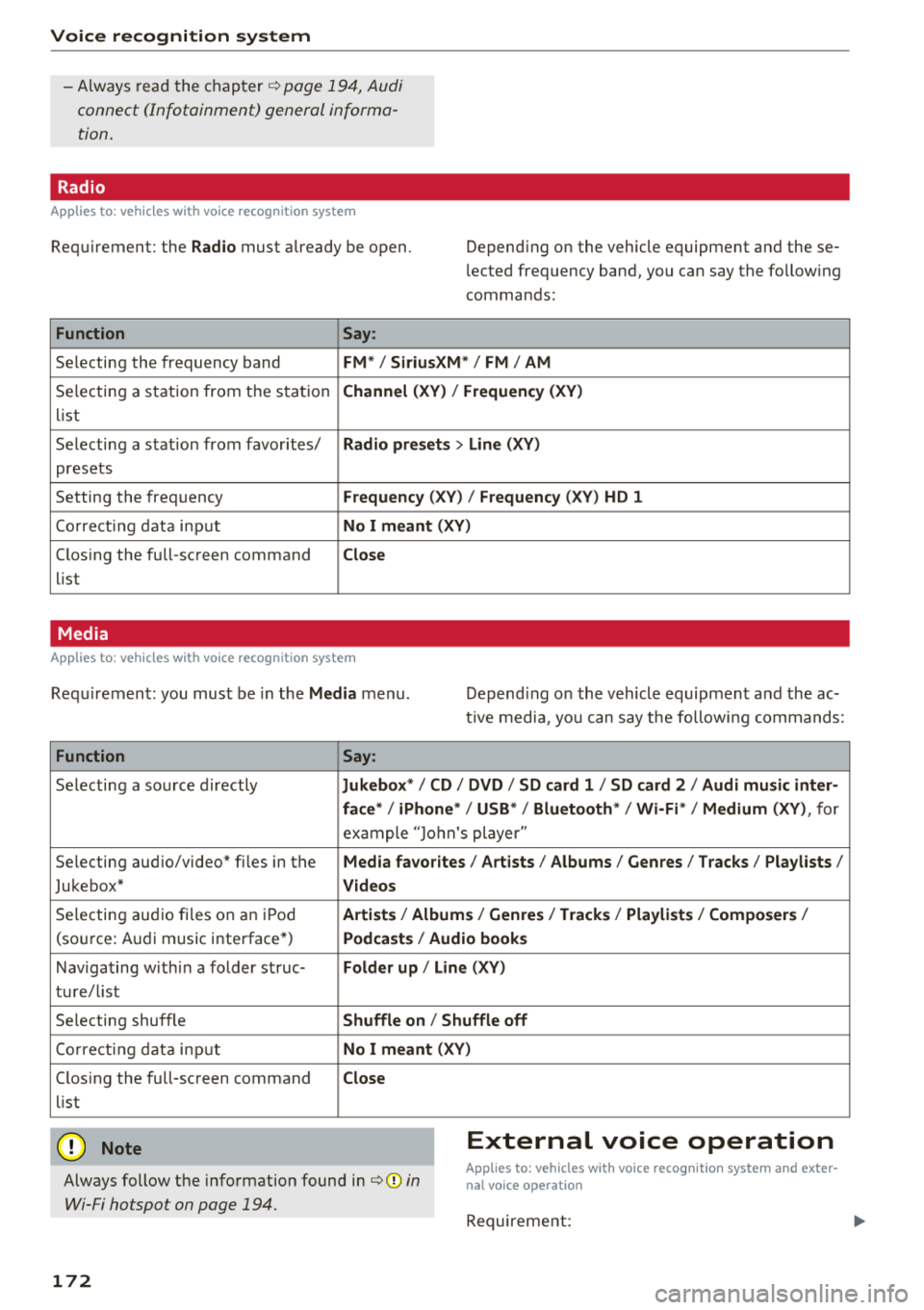
Radio
Applies to: vehicles with voice recognition system
Requirement: the Radio must already be open. Depend ing on the vehicle equipment and these
lected frequency band, you ca n say the fo llow ing
commands :
Function Say:
Selecting the frequency band FM*/ Siriu sXM* / FM / AM
Selecting a station from t he s ta tion Channel (XV ) / !Frequenc y (XV)
list
Selecting a stat ion from favorites/
Radio presets > Line (XV)
presets
Setting the frequency
F requency (X V ) / Frequency ( XV) HO 1
Correct ing data inp ut No I meant (XV )
Closing the full-screen command Close
list
Media
Applies to: vehicles with voice recognition system
Requirement: you mus t be in the Media menu . Depending on the vehicle equipment and the ac
t ive media, yo u can say the following commands :
Function Say:
Selecting a sou rce directly Ju kebox* / CO / DVD / SO card 1 / SO card 2 / Audi music inter-
face */ iPhone * / USB * / Bluetooth * / Wi -Fi * / Medium (XV) ,
for
exa mple "J o hn's player "
Selecting aud io/video" fi les in the
Media fa vorites I Artists / Albums / Genres I Tracks / Playlists /
Jukebox* Videos
Selecting aud io fi les on a n iP od Artists / Albu m is/ Genres I Track s/ Playlists / Compo sers I
(so urce: A udi music i nterface*) Podca st s / Aud io books
Nav iga ting with in a folder s truc-Folder up / Line (XV )
tu re/l ist
Selecting shuffle
Shuffle on / Shuffle off
Co rre ct in g data inp ut No I meant (XV )
Closing the full-screen command Close
list
@ Note External voice operation
Always follow the info rmation found in ¢@) in
Wi-Fi hotspot on page 194.
Applies to: vehicles with voice recognition system and exter·
nal voice operation
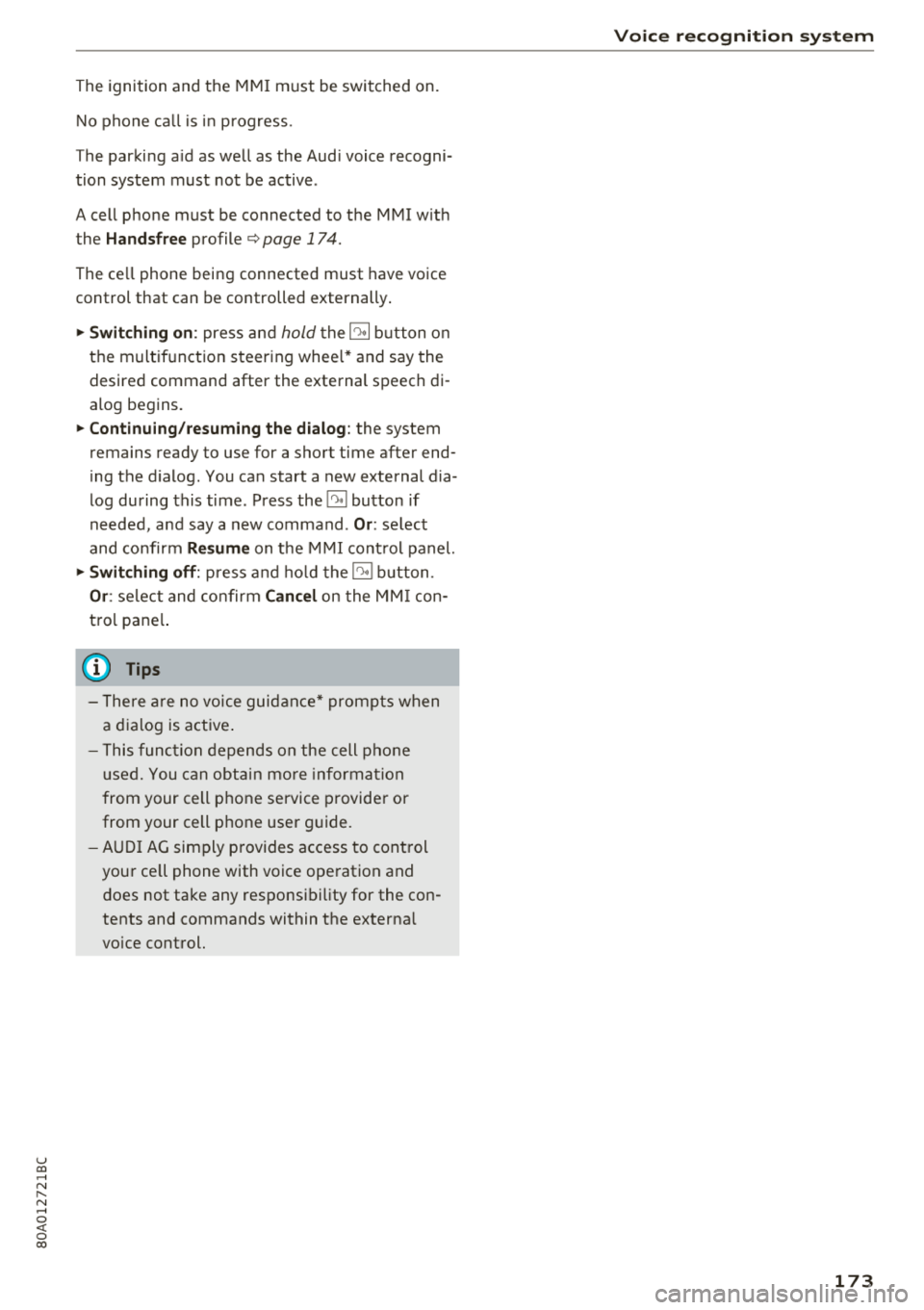
Requireme nt:
172
Page 175 of 392
u co ..... N ,..._
N ..... 0 <( 0 00
The ignition and the MMI must be switched on.
No phone call is in progress.
The parking aid as well as the Audi voice recogni
tion system must not be active .
A cell phone must be connected to the MMI with
the
Handsfree profile ¢page 174.
The cell phone being connected must have voice
control that can be controlled externally .
.. Switching on: press and hold the 5) button on
the multifunction steering wheel* and say the
desired command after the external speech di
alog begins .
.. Continuing/resuming the dialog: the system
remains ready to use for a short time after end
ing the dialog. You can start a new external dia
log during this time. Press the
51 button if
needed, and say a new command .
Or: select
and confirm
Resume on the MMI control panel.
.,. Switching off: press and hold the 5) button .
Or: select and confirm Cancel on the MMI con
trol panel.
(D Tips
- There are no voice guidance* prompts when
a dialog is active.
- This function depends on the cell phone
used. You can obtain more information
from your cell phone service provider or
from your cell phone user guide.
- AUDI AG simply provides access to control
your cell phone with voice operation and
does not take any responsibility for the con
tents and commands within the external
voice control.
Voice recognition system
173