service AUDI Q5 2021 Owner´s Manual
[x] Cancel search | Manufacturer: AUDI, Model Year: 2021, Model line: Q5, Model: AUDI Q5 2021Pages: 332, PDF Size: 118.86 MB
Page 215 of 332
80B012721BA
Navigation
display automatically switches to the 2D
map type when driving through tunnels.
— Depending on the Internet connection, the
standard map may also be displayed when
the satellite map is switched on )).
Map update
Applies to: vehicles with navigation system
You can update the map data in the MMI witha
map update. The functions depend on the coun-
try and vehicle equipment.
— Map update through online map update
> page 213.
— Map update through the myAudi app.
— Import a map update from the USB connection
to your MMI > page 214.
— Map update at an authorized Audi dealer or au-
thorized Audi Service Facility. This can result in
additional costs.
Online map update
Applies to: vehicles with online map update
Using map update online, you can update the
map material in your navigation system directly
from your vehicle.
The MMI determines regions based on the vehicle
position. Based on this, update data for these re-
gions are available for your MMI.
Start map update
Applies to: MMI
Requirement: the MMI must be connected to the
Internet > page 197, Audi connect.
> To always allow automatic map updates, select
on the home screen: SETTINGS > System main-
tenance > Automatic online map update. The
MMI starts the map update automatically in
the background when new map material is
available.
)) Audi provides access to services from third party provid-
ers. Permanent availability cannot be guaranteed, because
that depends on the third party provider.
You can check the status of the download process
and the installation in the notification center
> page 23.
@) Note
Read the information about Audi connect, and
be sure to note the connectivity costs section
=> in General information on page 197.
@ Tips
Because of the high volume of data, Audi rec-
ommends performing the map update using
the USB connection > page 214.
Map update through the myAudi App
Applies to: vehicles with map update through the myAudi app
With the map update through the myAudi app,
you can update the map material in your naviga-
tion system.
Downloading updates
Requirement: you must have a registered myAudi
account. Your vehicle must be registered in your
myAudi account.
> Install the myAudi app on your mobile device
and log in with your login information. Use the
same myAudi account that you use in the vehi-
cle for your myAudi user.
> Download the map material in the myAudi app.
Installing updates
> Log in as a myAudi user in the vehicle
=> page 31.
> Connect your smartphone to the vehicle’s Wi-Fi
hotspot > page 198. The MMI detects the map
material on your smartphone. The map update
will start automatically.
You can check the status of the installation in the
notification center > page 23.
213
Page 223 of 332

80B012721BA
Radio
Opening radio text
> Applies to: MMI: Select on the home screen:
RADIO > select a frequency band (such as FM)
> select a station > More > Radio text.
Depending on vehicle equipment, the following
functions
may be available:
Displaying previous radio text entries
> Swipe downward with one finger. The last radio
text entries are displayed if they are available.
Scrolling through radio text entries
> Swipe upward or downward with one finger.
Showing Radio Text Plus information
If a radio text entry is displayed with a color, a
phone number or a navigation destination for the
station is available as radio text plus information.
You have the following options:
Selecting the destination
> Select: a navigation destination marked in col-
or > Set as destination.
Call
> Select: d phone number marked in color > Call.
@ Tips
A call to a phone number stored in the radio
text will start immediately.
Online radio
General information
Applies to: vehicles with Audi connect Infotainment and on-
line radio
You can listen to various radio stations or pod-
casts on the Internet using online radio.
Requirement: the MMI must be connected to the
Internet. A data plan must be available
=> page 201.
Accessing online radio through the MMI
> Applies to: MMI: Select on the home screen:
RADIO > Source > Online.
The following functions are available:
Previous selection
The station/podcast list for the last station or
podcast that was playing will be displayed.
Top stations
The favorite online radio stations are displayed.
Filter list
> Select: 2 > (a category) > a station/podcast.
The following categories are available:
— Countries
— Genres
— Languages
— Editor's picks
— Themes
— Nearby
@) Note
Read the information about Audi connect, and
be sure to note the connectivity costs section
=@ in General information on page 197.
@) Tips
— Depending on the Internet connection and
network traffic, the connection may be lost
when online radio is playing.
— Online radio reception may not be possible
if Internet service is throttled.
— Online media usage depends on the service
availability of the third party provider.
—The range and screen display of online me-
dia services from third party providers in the
vehicle can vary.
— Please note that it may not be possible to
play some online radio stations in certain
countries.
— Audi only provides access to online radio
and does not assume any responsibility for
the content of these services.
221
Page 231 of 332
80B012721BA
Media
Podcasts
You can control your podcasts through the MMI.
> Select: a podcast > a podcast episode.
Genres
All available genres are displayed.
>» Select: a genre > an artist > an album > a song.
Videos
All available video files are displayed.
> Press on a video.
Tracks
All available tracks are displayed.
> Press on a track.
Albums
All available albums are displayed.
> Select: an album > a track.
@ Note
Applies to: vehicles with Audi connect Infotainment
— Cloud services and the iTunes radio category
always require an Internet connection.
tele mitardatela ry
— Read the information about Audi connect,
and be sure to note the connectivity costs
section >@ in General information on
page 197.
G@) Tips
— Only the categories supported by the medi-
um are available.
— For safety reasons, the video image is only
displayed when the vehicle is stationary. On-
ly the sound from the video plays while driv-
ing.
—When synchronizing a portable device with
Cloud services, playlists may display incor-
rectly in the MMI. Use the media center in
the device.
— Applies to: iPod touch/iPhone: Note the in-
formation about the Audi music interface
and the supported devices > page 226.
[RAX-0037,
Baa aeCit)
Ca
The Rock Band
The big B
eee)
ns
eae)
nc
@
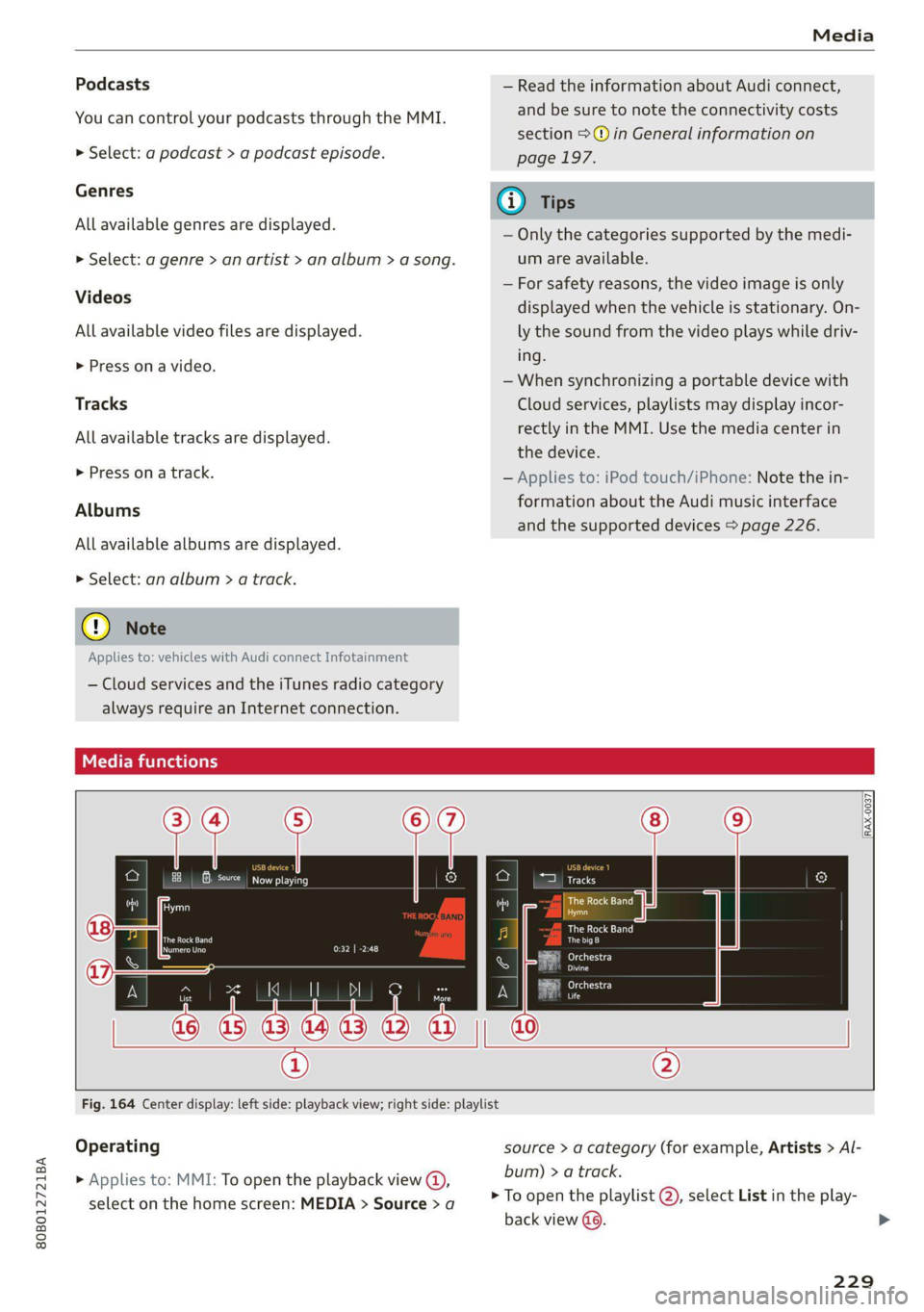
Fig. 164 Center display: left side: playback view; right side: playlist
Operating
> Applies to: MMI: To open the playback view (),
select on the home screen: MEDIA > Source > a
source > a category (for example, Artists > Al-
bum) > a track.
> To open the playlist @, select List in the play-
back view @..
229
Page 236 of 332
Audi smartphone interface
Audi smartphone
interface
Setup
Applies to: vehicles with Audi smartphone interface
You can connect your smartphone to the MMI
with a cable or wirelessly* using the Audi smart-
phone interface. Certain content on your smart-
phone is adapted in the MMI while driving and
can be operated through the MMI.
Requirement: the vehicle must be stationary and
the ignition must be switched on. iPhone genera-
tion 5 or higher with Lightning connector and iOS
7.1.2 operating system or higher, or smartphone
with Android Auto app and Android 5.0 Lollipop
operating system or higher.
> Applies to: MMI: Select on the home screen:
SETTINGS > Connected devices > Audi smart-
phone interface > New connection.
> Connect your smartphone to the Audi music in-
terface > page 226 using a USB adapter
=> page 226, fig. 162, or
> To connect your iPhone wireless*, switch on the
Bluetooth function and Wi-Fi on your iPhone.
Open the Apple CarPlay settings in your iPhone.
In the MMI, press on your iPhone in the list of
displayed devices.
> To update the list, press O.
> Follow the system instructions.
> Pay attention to any additional system prompts
on your smartphone, if applicable.
> Applies to: MMI: If you declined use of Apple
CarPlay or Android Auto the first time you con-
nected your smartphone, then select on the
home screen: SETTINGS > Connected devices >
Audi smartphone interface > a smartphone.
> Follow the system instructions.
Z\ WARNING
Driving requires your complete and undivided
attention. As the driver, you have complete re-
sponsibility for safety in traffic. Never operate
mobile devices while driving, because this in-
creases the risk of an accident.
234
@) Note
Read the information about Audi connect, and
be sure to note the connectivity costs section
=> page 197.
@) Tips
— The functions that can be used depend on
the following factors, among others:
— The brand of your smartphone
— The version of the operating system in
your smartphone
— The software version of the app used
— The USB adapter cable and correct connec-
tion
— Your cell phone service provider
— The customized settings on your smart-
phone
— One of the factors above or a combination
of any of them could cause your smart-
phone to be incompatible with the Audi
smartphone interface. Compatibility cannot
be guaranteed for all types of smartphones.
For more information and assistance, refer
to the user guide and the manufacturer of
your smartphone.
— Please note that you can only connect your
smartphone via the front Audi music inter-
face in order to use the Audi smartphone in-
terface.
— Wireless Apple CarPlay* is not available in
all countries.
— Wireless Apple CarPlay* was a planned func-
tion at the time this manual was printed.
Wireless Apple CarPlay* is not available in
your vehicle.
— Wireless Apple CarPlay* is only possible in
vehicles without a navigation system or
without a detected vehicle position (GPS da-
ta) if the following requirement is met: the
embedded SIM card for the vehicle must be
logged into the mobile phone network
=> page 197.
— If the connected smartphone has voice con-
trol, you can operate your smartphone using
the external voice recognition system
=> page 28.
Page 237 of 332
80B012721BA
Audi smartphone interface
— The menu language shown in the MMI is
based on the settings in your smartphone.
— Some MMI functions are not available when
there is an active Audi smartphone interface
connection.
— You cannot connect any mobile devices via
Bluetooth when an Audi smartphone inter-
face connection is active.
Do It Yourself
Applies to: vehicles with Audi smartphone interface
The information that follows lists some trouble-
shooting options. They depend on the equip-
ment.
— Usage of the Audi smartphone interface de-
pends on the availability of services through
third party providers.
— Audi merely provides access to third party
services through the MMI and does not as-
sume any responsibility for the content of
these services.
Problem Solution
Audi smartphone
opened.
cle is being operated.
Check the battery charge level on your smartphone.
interface cannot be | Check the USB cable and use a different one if necessary.
Check if Android Auto or Apple CarPlay is available in the country where the vehi-
Android Auto: check if the Android Auto app is installed on your smartphone.
Connecting the
smartphone to the
MMI failed. => page 226.
Make sure that you are using the correct USB adapter and check if the USB
adapter is connected correctly to your smartphone and the Audi music interface
Apple CarPlay: check if Apple CarPlay is activated on your iPhone.
vehicles.
Android Auto: check in the Android Auto app if Android Auto permits new
start your iPhone.
Wireless connection: open the settings for Bluetooth and Apple CarPlay on your
iPhone. Remove your vehicle. Open the connection manager in the MMI
= page 238. Delete your iPhone in the Telephone 1 and Audi smartphone inter-
face submenus. Repeat the connection process. Restart the MMI > page 20. Re-
The smartphone is
not automatically
detected. => page 226.
Make sure that you are using the correct USB adapter and check if the USB
adapter is connected correctly to your smartphone and the Audi music interface
Check if the requirements needed to connect a smartphone have been met.
235
Page 239 of 332
80B012721BA
Additional settings
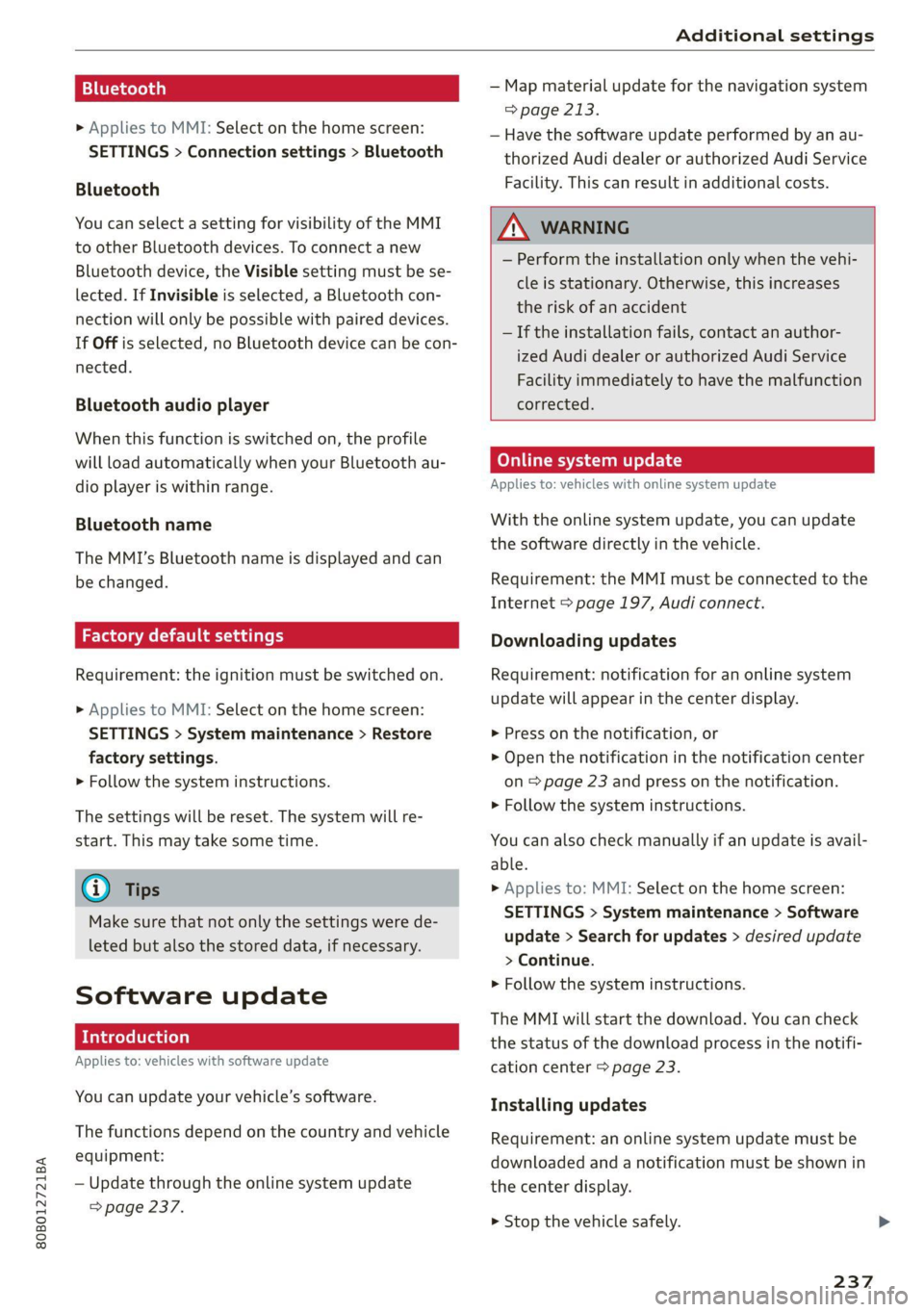
Bluetooth
> Applies to MMI: Select on the home screen:
SETTINGS > Connection settings > Bluetooth
Bluetooth
You can select a setting for visibility of the MMI
to other Bluetooth devices. To connect a new
Bluetooth device, the Visible setting must be se-
lected. If Invisible is selected, a Bluetooth con-
nection will only be possible with paired devices.
If Off is selected, no Bluetooth device can be con-
nected.
Bluetooth audio player
When this function is switched on, the profile
will load automatically when your Bluetooth au-
dio player is within range.
Bluetooth name
The MMI’s Bluetooth name is displayed and can
be changed.
Factory default settings
Requirement: the ignition must be switched on.
> Applies to MMI: Select on the home screen:
SETTINGS > System maintenance > Restore
factory settings.
> Follow the system instructions.
The settings will be reset. The system will re-
start. This may take some time.
@ Tips
Make sure that not only the settings were de-
leted but also the stored data, if necessary.
Software update
Introduction
Applies to: vehicles with software update
You can update your vehicle’s software.
The functions depend on the country and vehicle
equipment:
— Update through the online system update
=> page 237.
— Map material update for the navigation system
> page 213.
— Have the software update performed by an au-
thorized Audi dealer or authorized Audi Service
Facility. This can result in additional costs.
ZA\ WARNING
— Perform the installation only when the vehi-
cle is stationary. Otherwise, this increases
the risk of an accident
— If the installation fails, contact an author-
ized Audi dealer or authorized Audi Service
Facility immediately to have the malfunction
corrected.
Online system update
Applies to: vehicles with online system update
With the online system update, you can update
the software directly in the vehicle.
Requirement: the MMI must be connected to the
Internet > page 197, Audi connect.
Downloading updates
Requirement: notification for an online system
update will appear in the center display.
> Press on the notification, or
> Open the notification in the notification center
on & page 23 and press on the notification.
> Follow the system instructions.
You can also check manually if an update is avail-
able.
> Applies to: MMI: Select on the home screen:
SETTINGS > System maintenance > Software
update > Search for updates > desired update
> Continue.
> Follow the system instructions.
The
MMI will start the download. You can check
the status of the download process in the notifi-
cation center > page 23.
Installing updates
Requirement: an online system update must be
downloaded and a notification must be shown in
the center display.
> Stop the vehicle safely.
237
Page 240 of 332
Additional settings
> Press on the notification, or
> Open the notification in the notification center
on > page 23 and press on the notification.
> Follow the system instructions.
Depending on the scope of the update, the online
system update may only be started if you follow
these instructions:
> Switch the emergency flashers off, if necessary
> Make sure that the starter battery is charged.
> To start the update, exit and lock the vehicle.
The MMI will start the installation. When the up-
date has ended, a notification will be displayed.
Z\ WARNING
Depending on the scope of the installation,
the ignition must not be switched on during
the installation to ensure the installation
completes successfully.
©) Note
Read the information about Audi connect, and
be sure to note the connectivity costs section
=@ in General information on page 197.
@ Tips
The software update may take some time.
WEE Tel
Applies to: vehicles with online system update
Online system update: incomplete. Warning!
Vehicle functions limited
If an error occurs when installing an online sys-
tem update, certain functions such as the emer-
gency call function may not be available. Drive to
an authorized Audi dealer or authorized Audi
Service Facility immediately to have the error cor-
rected.
Connected devices
Displayed connected devices
Requirement: the vehicle must be stationary and
the ignition must be switched on.
> Applies to: MMI: Select on the home screen:
SETTINGS > Connected devices.
238
Possible menu items:
— Telephone 1
— Telephone 2
— Audio player
— Wi-Fi hotspot
— Headset
Audi smartphone interface
You can connect your smartphone to the MMI
=> page 234.
myAudi app
This function is available if the myAudi app is in-
stalled on your mobile device and started, and if
the mobile device is connected with the vehicle’s
Wi-Fi hotspot.
() Note
Read the information about Audi connect, and
be sure to note the connectivity costs section
=> page 197.
Managing connected devices
Requirement: the connected devices menu must
be displayed > page 238.
Connecting a device
Requirement: Bluetooth visibility must be acti-
vated in the MMI & page 237 and mobile device.
> Press on a menu item, such as Telephone 1.
> To search for and connect your mobile device,
press New connection > page 186.
Selecting a connected device
> Press on a menu item, such as Telephone 1.
> Press on the desired mobile device in the list of
displayed devices. The connection will be made.
Disconnecting a connected device
> Press on a menu item, such as Telephone 1.
> Press on the connected mobile device. The se-
lected mobile device will be disconnected from
the MMI.
Deleting a device
> Press on a menu item, such as Telephone 1. >
Page 244 of 332
Checking and Filling
corrosion damage and damage to plastic or
rubber components in the fuel system.
— Do not use gasoline that does not meet the
specifications.
— If you are unable to find out if a specific gas-
oline mixture meets the specifications, ask
the gas station operator or their fuel suppli-
er.
— Do not use any gasoline mixture whose
composition cannot be identified.
— Audi does not assume any responsibility for
damage to the fuel system or for perform-
ance problems caused by using gasoline
mixtures different from those specified.
This type of damage also does not fall under
the New Vehicle Limited Warranty or under
the emissions control system warranty.
— If you notice a higher fuel consumption or
poor handling or performance problems due
to such gasoline mixtures, Audi recom-
mends fueling with unblended gasoline.
Gasoline additives
An important issue for many automobile manu-
facturers is combustion residue in the engine
that results from the use of certain fuels.
Although types of gasoline differ depending on
the manufacturer, there are similarities. Certain
substances in the gasoline may cause deposits in
the engine. Additives in the gasoline that should
keep the engine and fuel system clean do not all
function equally.
Audi recommends using TOP TIER Detergent Gas-
oline. For additional information on TOP TIER De-
tergent Gasoline, visit www.toptiergas.com.
If you use incorrect fuels over a long period of
time, the maximum engine performance may be
impaired by combustion residue.
@) Note
— Damage or malfunctions caused by the use
of incorrect types of gasoline are not cov-
ered by the New Vehicle Limited Warranty.
— Only gasoline additives that have been ap-
proved by Audi may be used.
242
Refueling
Messages
A Tank system: malfunction! Please contact
Service
There is a malfunction in the fuel tank system.
Drive to an authorized Audi dealer or authorized
Audi Service Facility immediately to have the
malfunction corrected.
Messages
Applies to: vehicles with plug-in hybrid drive
A Fuel filler door: malfunction! Unlock fuel
filler door manually. See owner's manual
There is a malfunction. You must manually un-
lock the fuel filler door > page 245.
Al Warning! Vehicle performance may be limit-
ed
The fuel tank is almost empty. You must antici-
pate a significant power loss. Refuel immediate-
ly.
& Please refuel and charge battery. Total
range: x mi (km)
or
f& Tank system: please refuel immediately and
charge battery. Total range: x mi (km)
If this indicator light turns on and this message
appears, refuel as soon as possible. Otherwise,
the high-voltage battery is drained > page 123.
AY Fuel filler door open. Please press button
again to refuel
Fueling is possible for a little while after pressing
the fi) button. You must press the fd button
again if the time limit is exceeded.
Page 247 of 332
80B012721BA
Checking and Filling
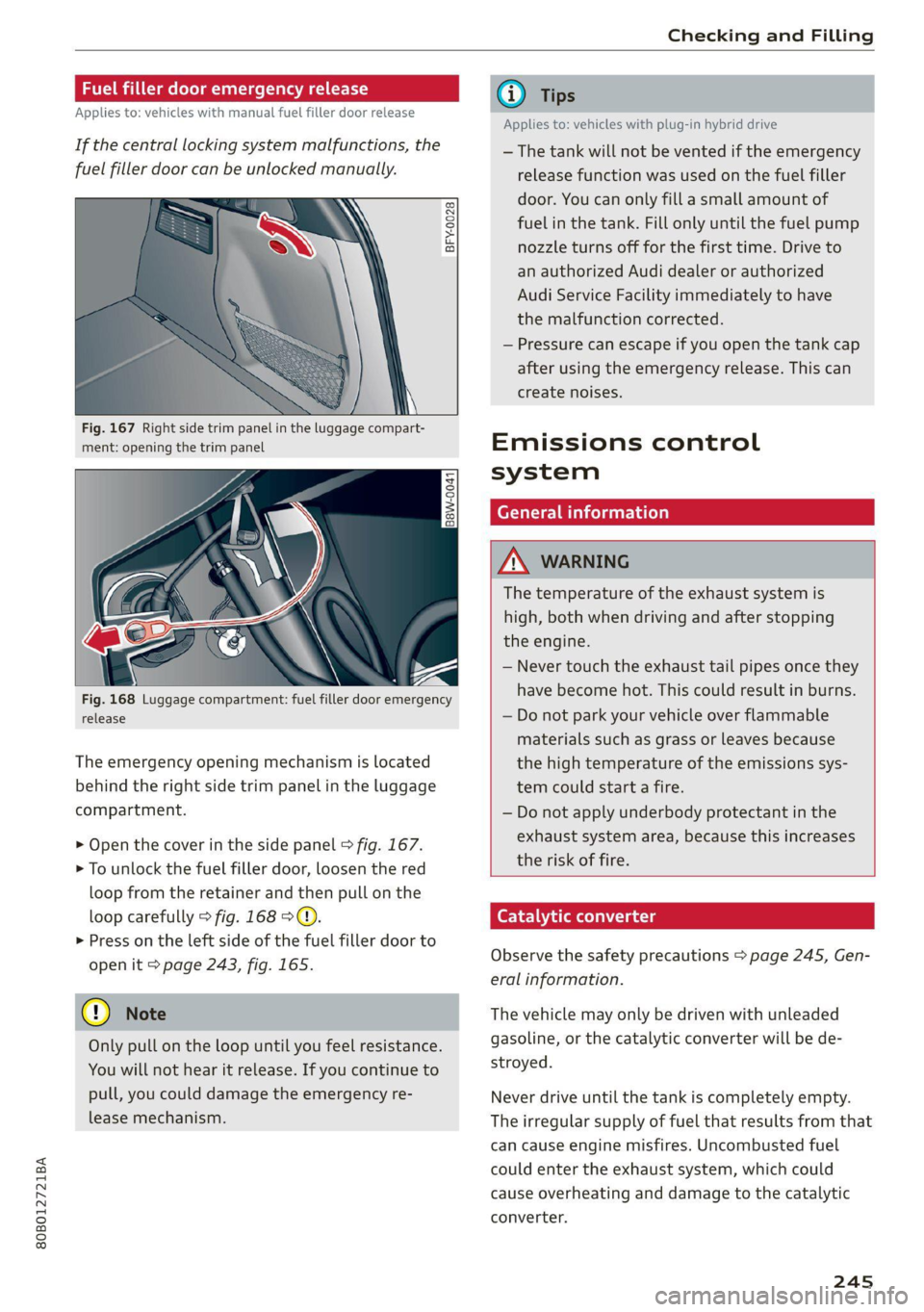
Fuel filler door emergency release
Applies to: vehicles with manual fuel filler door release
If the central locking system malfunctions, the
fuel filler door can be unlocked manually.
BFY-0028
Fig. 167 Right side trim panel in the luggage compart-
ment: opening the trim panel
Fig. 168 Luggage compartment: fuel filler door emergency
release
The emergency opening mechanism is located
behind the right side trim panel in the luggage
compartment.
> Open the cover in the side panel > fig. 167.
> To unlock the fuel filler door, loosen the red
loop from the retainer and then pull on the
loop carefully > fig. 168 >©.
> Press on the left side of the fuel filler door to
open it > page 243, fig. 165.
@) Note
Only pull on the loop until you feel resistance.
You
will not hear it release. If you continue to
pull, you could damage the emergency re-
lease mechanism.
iG) Tips
Applies to: vehicles with plug-in hybrid drive
— The tank will not be vented if the emergency
release function was used on the fuel filler
door. You can only fill a small amount of
fuel in the tank. Fill only until the fuel pump
nozzle turns off for the first time. Drive to
an authorized Audi dealer or authorized
Audi Service Facility immediately to have
the malfunction corrected.
— Pressure can escape if you open the tank cap
after using the emergency release. This can
create noises.
Emissions control
system
General information
Z\ WARNING
The temperature of the exhaust system is
high, both when driving and after stopping
the engine.
— Never touch the exhaust tail pipes once they
have become hot. This could result in burns.
— Do not park your vehicle over flammable
materials such as grass or leaves because
the high temperature of the emissions sys-
tem could start a fire.
— Do not apply underbody protectant in the
exhaust system area, because this increases
the risk of fire.
Catalytic converter
Observe the safety precautions > page 245, Gen-
eral information.
The vehicle may only be driven with unleaded
gasoline, or the catalytic converter will be de-
stroyed.
Never drive until the tank is completely empty.
The irregular supply of fuel that results from that
can cause engine misfires. Uncombusted fuel
could enter the exhaust system, which could
cause overheating and damage to the catalytic
converter.
245
Page 248 of 332
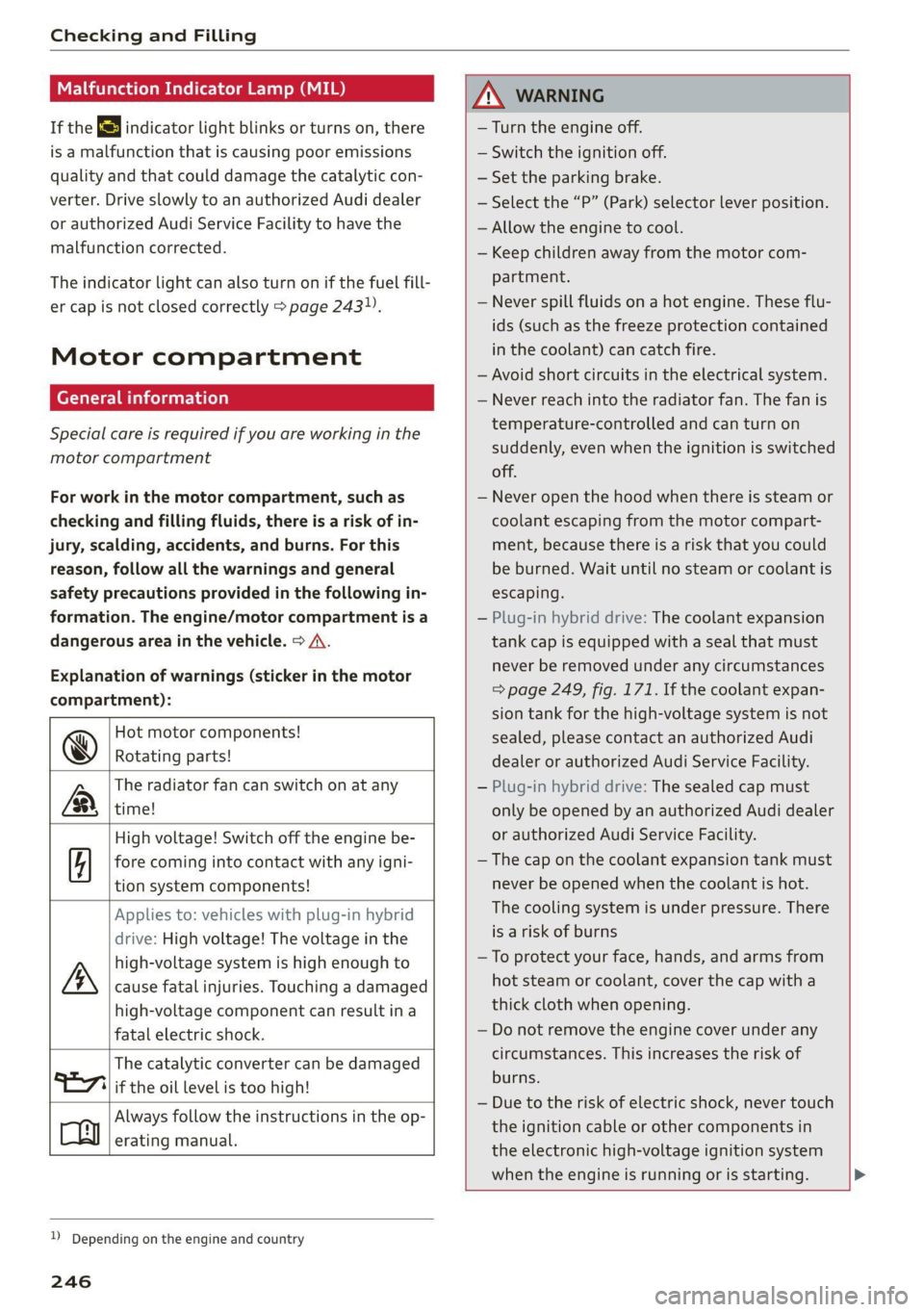
Checking and Filling
Malfunction Indicator Lamp (MIL)
If the S indicator light blinks or turns on, there
is a malfunction that is causing poor emissions
quality and that could damage the catalytic con-
verter. Drive slowly to an authorized Audi dealer
or authorized Audi Service Facility to have the
malfunction corrected.
The indicator light can also turn on if the fuel fill-
er cap is not closed correctly > page 2431).
Motor compartment
General information
Special care is required if you are working in the
motor compartment
For work in the motor compartment, such as
checking and filling fluids, there is a risk of in-
jury, scalding, accidents, and burns. For this
reason, follow all the warnings and general
safety precautions provided in the following in-
formation. The engine/motor compartment is a
dangerous area in the vehicle. > A\.
Explanation of warnings (sticker in the motor
compartment):
Hot motor components!
@ Rotating parts!
The radiator fan can switch on at any
a time!
High voltage! Switch off the engine be-
5 fore coming into contact with any igni-
tion system components!
Applies to: vehicles with plug-in hybrid
drive: High voltage! The voltage in the
high-voltage system is high enough to
cause fatal injuries. Touching a damaged
high-voltage component can result ina
fatal electric shock.
The catalytic converter can be damaged
Always follow the instructions in the op-
erating manual.
"127i if the oil level is too high!
D_ Depending on the engine and country
246
ZA WARNING
— Turn the engine off.
— Switch the ignition off.
— Set the parking brake.
— Select the “P” (Park) selector lever position.
— Allow the engine to cool.
— Keep children away from the motor com-
partment.
— Never spill fluids on a hot engine. These flu-
ids (such as the freeze protection contained
in the coolant) can catch fire.
— Avoid short circuits in the electrical system.
— Never reach into the radiator fan. The fan is
temperature-controlled and can turn on
suddenly, even when the ignition is switched
off.
— Never open the hood when there is steam or
coolant escaping from the motor compart-
ment, because there is a risk that you could
be burned. Wait until no steam or coolant is
escaping.
— Plug-in hybrid drive: The coolant expansion
tank cap is equipped with a seal that must
never be removed under any circumstances
=> page 249, fig. 171. If the coolant expan-
sion tank for the high-voltage system is not
sealed, please contact an authorized Audi
dealer or authorized Audi Service Facility.
— Plug-in hybrid drive: The sealed cap must
only be opened by an authorized Audi dealer
or authorized Audi Service Facility.
— The cap on the coolant expansion tank must
never be opened when the coolant is hot.
The cooling system is under pressure. There
is a risk of burns
—To protect your face, hands, and arms from
hot steam or coolant, cover the cap with a
thick cloth when opening.
— Do not remove the engine cover under any
circumstances. This increases the risk of
burns.
— Due to the risk of electric shock, never touch
the ignition cable or other components in
the electronic high-voltage ignition system
when the engine is running or is starting.