lock AUDI Q5 2021 Owner´s Manual
[x] Cancel search | Manufacturer: AUDI, Model Year: 2021, Model line: Q5, Model: AUDI Q5 2021Pages: 332, PDF Size: 118.86 MB
Page 133 of 332
80B012721BA
High-voltage system
Audi e-tron compact charging system
Applies to: vehicles with Audi e-tron compact charging system
a |
m=)
[RAZ-0726|
72
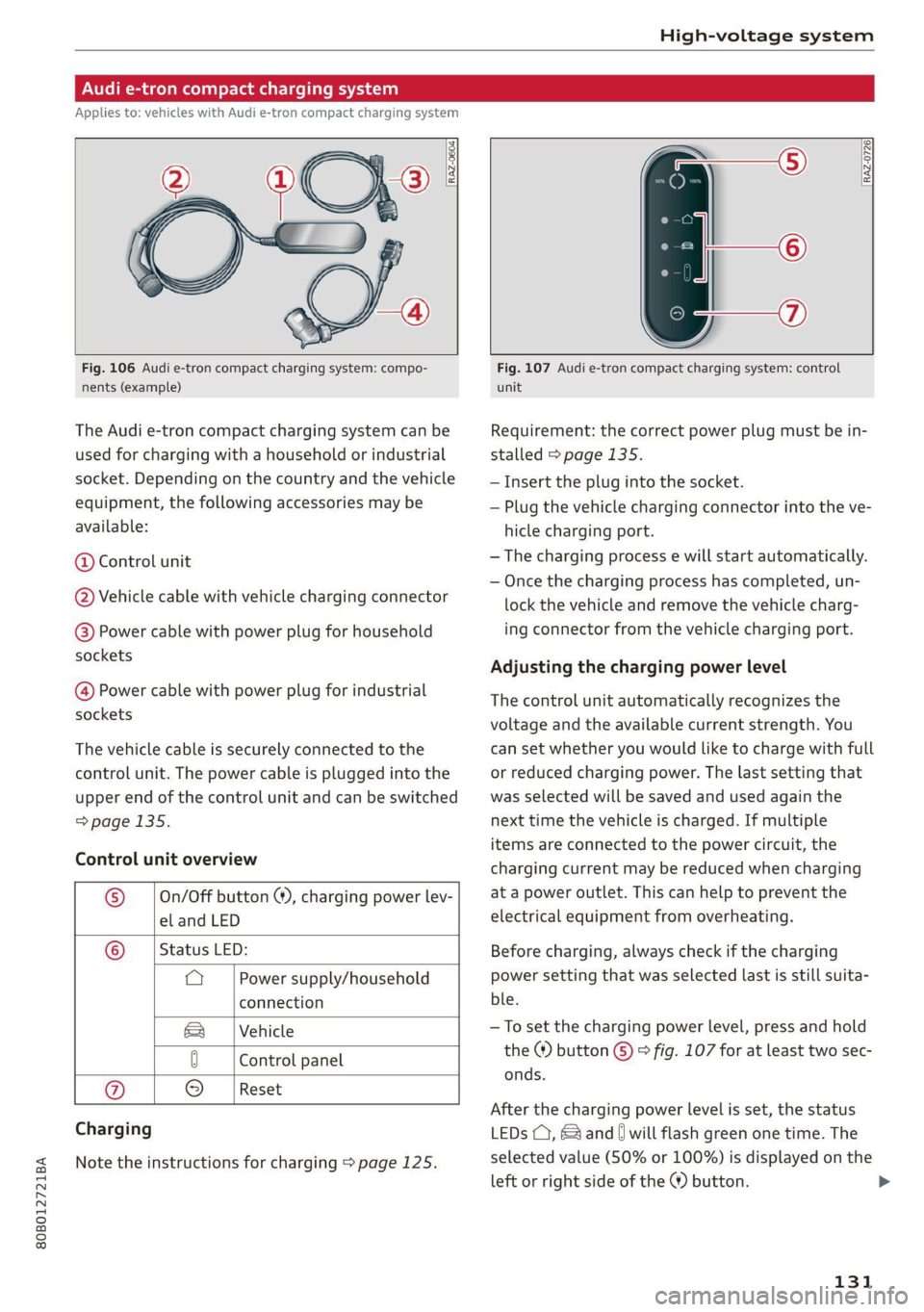
Fig. 106 Audi e-tron compact charging system: compo-
nents (example)
The Audi e-tron compact charging system can be
used for charging with a household or industrial
socket. Depending on the country and the vehicle
equipment, the following accessories may be
available:
@ Control unit
@ Vehicle cable with vehicle charging connector
@®) Power cable with power plug for household
sockets
@ Power cable with power plug for industrial
sockets
The vehicle cable is securely connected to the
control unit. The power cable is plugged into the
upper end of the control unit and can be switched
=> page 135.
Control unit overview
© | On/Off button @, charging power lev-
el and LED
© _ |Status LED:
a Power supply/household
connection
& | Vehicle
0 Control panel
Reset
® 9
Charging
Note the instructions for charging > page 125.
Fig. 107 Audi e-tron compact charging system: control
unit
Requirement: the correct power plug must be in-
stalled > page 135.
— Insert the plug into the socket.
— Plug the vehicle charging connector into the ve-
hicle charging port.
— The charging process e will start automatically.
— Once the charging process has completed, un-
lock the vehicle and remove the vehicle charg-
ing connector from the vehicle charging port.
Adjusting the charging power level
The control unit automatically recognizes the
voltage and the available current strength. You
can set whether you would like to charge with full
or reduced charging power. The last setting that
was selected will be saved and used again the
next time the vehicle is charged. If multiple
items are connected to the power circuit, the
charging current may be reduced when charging
at a power outlet. This can help to prevent the
electrical equipment from overheating.
Before charging, always check if the charging
power setting that was selected last is still suita-
ble.
—To set the charging power level, press and hold
the ® button © © fig. 107 for at least two sec-
onds.
After the charging power level is set, the status
LEDs (, {and [| will flash green one time. The
selected value (50% or 100%) is displayed on the
left or right side of the ® button.
131
>
Page 138 of 332
High-voltage system
> The power cable must be removed from the
socket.
Loosening the cable
> If necessary, loosen the screw (8) using the
screwdriver provided.
> Lift the lever @ all the way up.
> Pull the connector (2) out just until you feel re-
sistance.
> Close the lever @ until it is resting on the con-
nector @).
> Remove the connector (2) completely.
Attaching the cable
> Lift the lever @ up slightly.
> Insert the connector @) into the control unit
just until you feel resistance.
> Lift the lever @ all the way up.
> Insert the connector (2) all the way into the
control unit.
> Close the lever @).
> Tighten the screw @) using the screwdriver pro-
vided.
Z\ WARNING
— Note the warnings for charging > A\ in
Charging on page 126.
— Before switching a cable, always unplug the
power cable from the socket.
— Only change cables in a dry environment.
— The Audi charging system may only be used
as a complete unit consisting of the power
cables, the control unit, and the vehicle ca-
ble. Depending on the country, the total
length of the power cable, control panel and
vehicle cable may be restricted, for example
to 24.6 ft (7.5 m) in the USA. Audi recom-
mends using only cables approved by Audi.
@) Tips
The power cable with the power connector for
industrial sockets and the Audi charging sys-
tem control unit are designed to work togeth-
er. Changing the power cable to another con-
nector type may reduce the available charging
power of the entire system. Limitations on
the ability to transfer power (current capacity)
depending on the phase and the number of
136
available phases may affect the available
charging power.
Applies to: vehicles with plug-in hybrid drive and wall mount
clip
RAZ-0638,
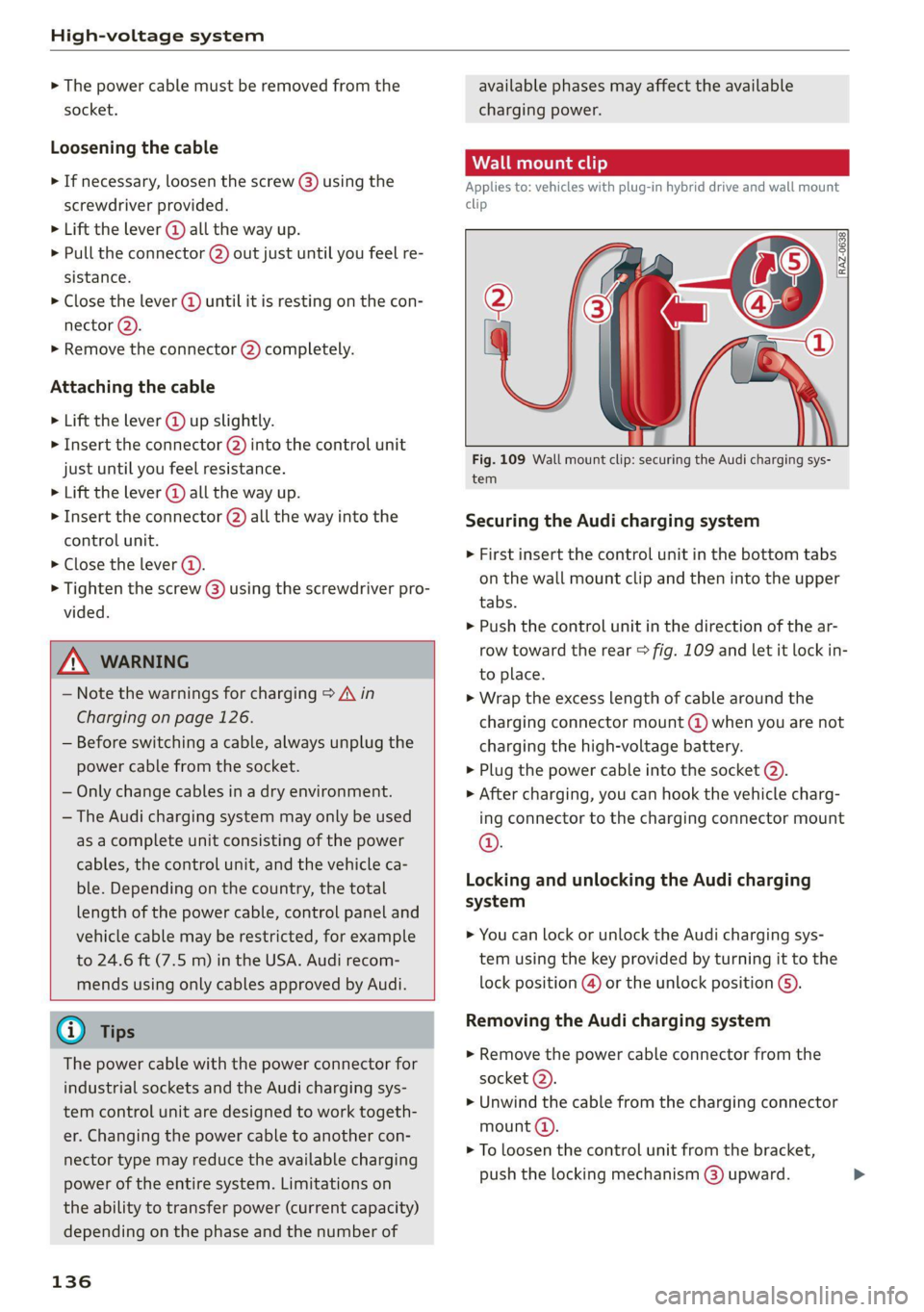
Fig. 109 Wall mount clip: securing the Audi charging sys-
tem
Securing the Audi charging system
> First insert the control unit in the bottom tabs
on the wall mount clip and then into the upper
tabs.
> Push the control unit in the direction of the ar-
row toward the rear > fig. 109 and let it lock in-
to place.
> Wrap the excess length of cable around the
charging connector mount @ when you are not
charging the high-voltage battery.
> Plug the power cable into the socket @).
> After charging, you can hook the vehicle charg-
ing connector to the charging connector mount
©.
Locking and unlocking the Audi charging
system
> You can lock or unlock the Audi charging sys-
tem using the key provided by turning it to the
lock position @) or the unlock position ().
Removing the Audi charging system
> Remove the power cable connector from the
socket (2).
> Unwind the cable from the charging connector
mount (4).
> To loosen the control unit from the bracket,
push the locking mechanism @) upward.
Page 142 of 332
Trailer towing
You can also increase ground clearance by select-
ing the Audi drive select* Offroad or allroad
modes > page 115.
@) Note
Applies to: vehicles with air suspension
— Changes in temperature or load can affect
the height of the vehicle.
— If the standard vehicle height is not used,
the tongue weight specification is no longer
applicable.
©) Note
Attachments retrofitted on the vehicle may
cause damage, especially on the trailer hitch
ball head. In cases of damage, have the func-
tion checked by an authorized Audi dealer or
authorized Audi Service Facility.
@) Tips
— Block the wheels with chocks when parking
on inclines if the trailer is loaded.
— Audi recommends having the vehicle in-
spected between the inspection intervals if
you tow a trailer frequently.
— Avoid driving with a trailer during the vehi-
cle break-in period.
PTL RR CT Coe
Driving with a trailer requires extra caution.
Speed
Adhere to the legal speed limits. Follow the legal
regulations that are applicable in the country
where you are operating the vehicle.
As the speed increases, the driving stability of
the trailer decreases. Therefore you should not
exceed the maximum legal speed limit when
there are unfavorable road, weather, and/or wind
conditions. This especially applies when driving
downhill.
Hill
When you start driving uphill or downhill, trailers
may tilt or sway sooner than when driving ona
level surface. If small swaying movements have
140
already occurred, you can stabilize the trailer by
firmly braking immediately. Never attempt to
“straighten out” the trailer by accelerating.
Downshift before driving on hills to utilize the en-
gine braking effect > A\.
Brakes
When using a trailer with overrun brakes, first
brake gently then quickly. This reduces the risk of
jerking while braking if the trailer wheels lock up.
Engine coolant temperature
Pay attention specifically to the coolant tempera-
ture display when there are high outside temper-
atures, and when driving on long inclines
= page 14. Shift to a higher gear in a timely man-
ner.
Z\ WARNING
Constant braking causes the brakes to over-
heat and can substantially reduce braking per-
formance, increase braking distance, or cause
complete failure of the brake system.
Page 154 of 332
Driver assistance
An additional indicator appears in the head-up
display*.
Changing the cruise control speed
Applies to: vehicles with cruise control system
Requirement: the system must be switched on.
> To increase or decrease the cruise control speed
in small increments, tap the lever up to the
first level toward @)/G) > page 151, fig. 116.
> To increase or decrease the cruise control speed
in larger increments, tap the lever up to the
second level toward @)/G).
> To increase or decrease the cruise control speed
continuously, tap and hold the lever at the first
or second level toward @)/G).
Overriding or deactivating the cruise
control speed
Applies to: vehicles with cruise control system
You can override or deactivate the cruise control
system. When you deactivate the system, your
cruise control speed will be stored and you can
resume that speed.
Requirement: the system must be switched on
and the regulated speed must be activated.
Overriding
> To temporarily override the cruise control
speed, press the accelerator pedal.
> To resume the stored regulated speed, remove
your foot from the accelerator pedal.
If you override the cruise control system for a
long period of time, the cruise control system
will be deactivated. The [Ud or [RM indicator
light will be displayed and the cruise control
speed will be saved.
Deactivating
> To deactivate the cruise control speed, press
the lever toward @) (not locked into place)
=> page 151, fig. 116, or
> Press the brake pedal.
152
ZA WARNING
Resting your foot on the accelerator pedal
could override the cruise control. This will pre-
vent braking interventions by the system.
See me Lai
Applies to: vehicles with cruise control system
When you switch the system off, the cruise con-
trol speed will be erased.
Requirement: the system must be switched on.
> To switch the system off, press the lever toward
@ (locked into place) > page 151, fig. 116, or
> Switch the ignition off.
Applies to: vehicles with cruise control system
Gir / 3) Speed control system: currently un-
available. See owner's manual
If the indicator light turns on and this message
appears, the cruise control system has been deac-
tivated. There is a temporary malfunction, for ex-
ample the brakes are overheating. Switch the
cruise control system on again later.
Efficiency assist
Applies to: vehicles with efficiency assist
Efficiency assist can assist the driver with predic-
tive information in order to reduce fuel consump-
tion. Depending on vehicle equipment, the sys-
tem may access data from the navigation system,
the camera behind the windshield, and the radar
sensors.
Adjusting the efficiency assist
You can adjust efficiency assist functions individ-
ually. The settings depend on the vehicle equip-
ment.
— Predictive messages > page 153.
— Accelerator pedal feedback > page 101.
— Interactive accelerator > page 101.
— Predictive control > page 157.
Page 175 of 332
80B012721BA
Driver assistance
Exit warning
Applies to: vehicles with exit warning system
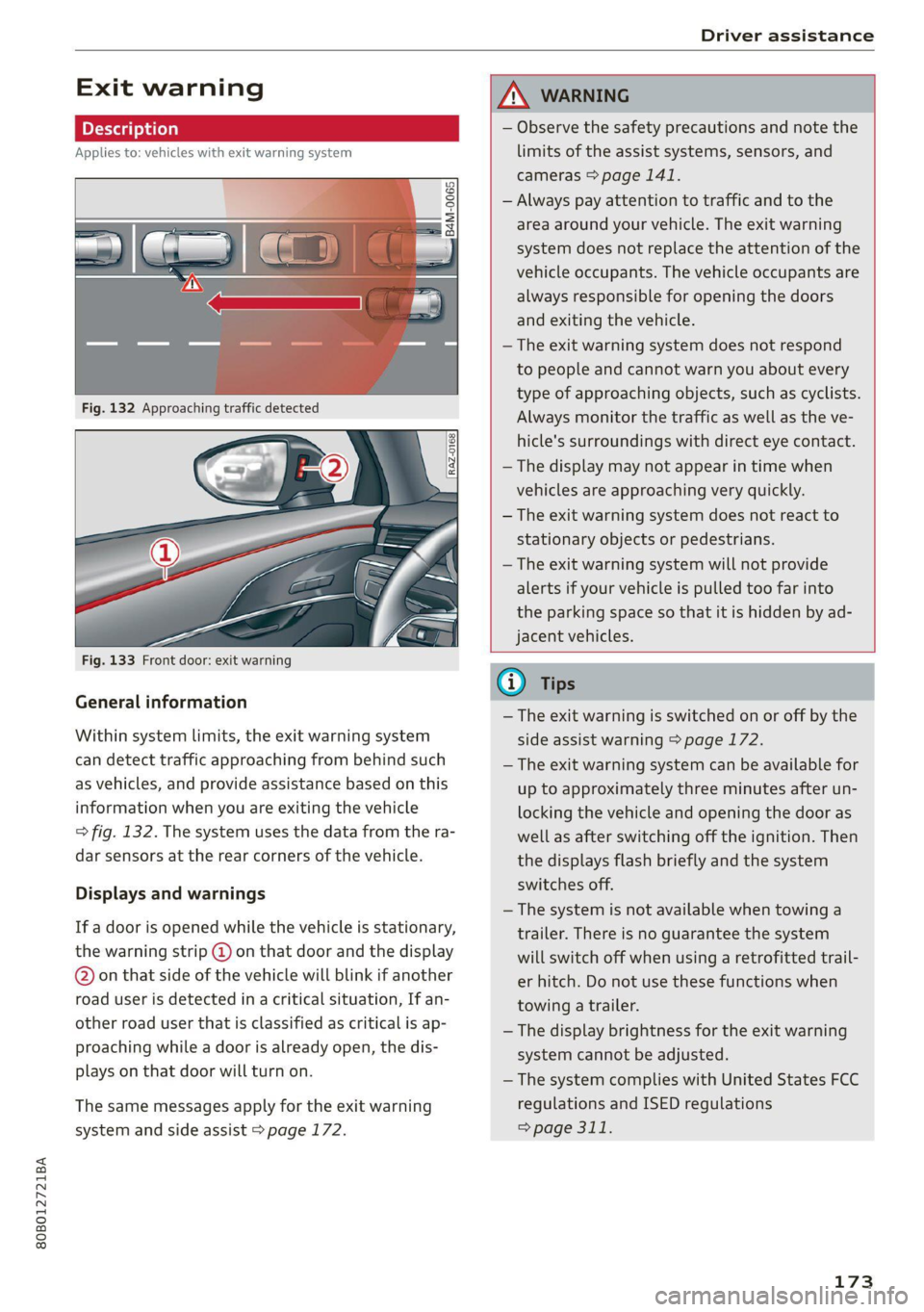
Fig. 133 Front door: exit warning
General information
Within system limits, the exit warning system
can detect traffic approaching from behind such
as vehicles, and provide assistance based on this
information when you are exiting the vehicle
=> fig. 132. The system uses the data from the ra-
dar sensors at the rear corners of the vehicle.
Displays and warnings
If a door is opened while the vehicle is stationary,
the warning strip @ on that door and the display
@ on that side of the vehicle will blink if another
road user is detected in a critical situation, If an-
other road user that is classified as critical is ap-
proaching while a door is already open, the dis-
plays on that door will turn on.
The same messages apply for the exit warning
system and side assist > page 172.
ZX WARNING
— Observe the safety precautions and note the
limits of the assist systems, sensors, and
cameras > page 141.
— Always pay attention to traffic and to the
area around your vehicle. The exit warning
system does not replace the attention of the
vehicle occupants. The vehicle occupants are
always responsible for opening the doors
and exiting the vehicle.
— The exit warning system does not respond
to people and cannot warn you about every
type of approaching objects, such as cyclists.
Always monitor the traffic as well as the ve-
hicle's surroundings with direct eye contact.
— The display may not appear in time when
vehicles are approaching very quickly.
— The exit warning system does not react to
stationary objects or pedestrians.
— The exit warning system will not provide
alerts if your vehicle is pulled too far into
the parking space so that it is hidden by ad-
jacent vehicles.
iG) Tips
— The exit warning is switched on or off by the
side assist warning > page 172.
— The exit warning system can be available for
up to approximately three minutes after un-
locking the vehicle and opening the door as
well as after switching off the ignition. Then
the displays flash briefly and the system
switches off.
— The system is not available when towing a
trailer. There is no guarantee the system
will switch off when using a retrofitted trail-
er hitch. Do not use these functions when
towing a trailer.
— The display brightness for the exit warning
system cannot be adjusted.
— The system complies with United States FCC
regulations and ISED regulations
=> page 311.
173
Page 180 of 332

Parking and maneuvering
steering wheel until the orange orientation
lines align with the parking space.
@ You can use the horizontal blue markings to
help you estimate the distance to an obsta-
cle. Each marking represents approximately 3
feet (1 meter). The blue area represents an
extension of the vehicle's outline by approxi-
mately 16 feet (5 meters) to the rear.
@® You can recognize the rear bumper in the
lower display.
@ You should stop driving in reverse when the
red orientation line touches the edge of an
object, at the latest.
Trailer view
Applies to: vehicles with trailer view
The trailer view > fig. 139 assists you in position-
ing the vehicle in front of a trailer.
— Applies to: vehicles with peripheral cameras:
Switch to the Rear view > page 179, fig. 140.
— Select -| > Trailer view in the center display
when the parking system is active.
Now you can position your vehicle in front of the
trailer. The orange orientation line ©) > fig. 139
indicates the expected path toward the trailer
hitch. Use the blue markings ©) to help you esti-
mate the distance to the trailer hitch. Each mark-
ing represents approximately 1 foot (0.30 me-
ters). The width of the blue surface represents
the maximum steering wheel angle.
Symbols
Applies to: vehicles with peripheral cameras
If $2/&®/< is displayed and the display area
represented by that symbol is not available, then
the camera on the that side is not available. The
power exterior mirrors may have been folded in
or a door or the luggage compartment lid may
have been opened.
If # is displayed, there is a system malfunction
and the display area represented by that symbol
is not available. The camera is not working in this
area.
If one of the symbols continues to be displayed,
drive immediately to an authorized Audi dealer or
178
authorized Audi Service Facility to have the mal-
function repaired.
ZA\ WARNING
— Observe the safety precautions and note the
limits of the assist systems, sensors, and
cameras > page 141.
— Sensors and cameras have spots in which
the surrounding area cannot be detected.
Objects, animals, and people may only be
detected with limitations may not be detect-
ed at all. Always monitor the traffic and the
vehicle's surroundings directly and do not
become distracted.
@) Note
— The orange orientation lines @ show the di-
rection the rear of the vehicle will be travel-
ing, based on the steering wheel angle. The
front of the vehicle swings out more than
the rear of the vehicle. Maintain plenty of
distance so that an exterior mirror or a cor-
ner of the vehicle does not collide with any
obstacles.
— Keep enough distance from the curb to
avoid damage to the rims.
— Only use the images provided by the camera
on the rear of the vehicle when the luggage
compartment lid is completely closed. Make
sure any objects you may have mounted on
the luggage compartment lid do not block
the rearview camera.
G) Tips
— Applies to vehicles with air suspension: The
accuracy of the orientation lines and blue
surfaces on the camera display decreases
when the vehicle is raised or lowered with
the air suspension.
— There is no distance warning for the rear
and the sides* when trailer towing mode is
detected. The front sensors remain activat-
ed. The visual display switches to trailer
mode. There is no guarantee the functions
will be deactivated when using a retrofitted
trailer hitch.
Page 182 of 332
Parking and maneuvering
A WARNING
— Observe the safety precautions and note the
limits of the assist systems, sensors, and
cameras > page 141.
— The Surroundings view is created from the
individual camera images. The vehicle image
is shown by the system. Objects and obsta-
cles above the camera are not displayed.
@® _ Note
— Only use the images provided by the camera
on the rear of the vehicle when the luggage
compartment lid is completely closed. Make
sure any objects you may have mounted on
the luggage compartment lid do not block
the rearview camera.
— The front of the vehicle swings out more
than the rear of the vehicle. Maintain plenty
of distance so that an exterior mirror or a
corner of the vehicle does not collide with
any obstacles.
Gy Tips
— Depending on the selected gear, it will auto-
matically switch between the Front and
Rear views. If you switch the view manually,
the automatic front/rear camera change will
be temporarily deactivated.
— When first activated while a forward gear is
engaged, the Front corner is displayed.
Rear cross-traffic assist
Applies to: vehicles with rear cross-traffic assist
Fig. 141 Sensor detection range for rear cross-traffic assist
180
Fig. 142 Center display: rear cross-traffic assist display
General information
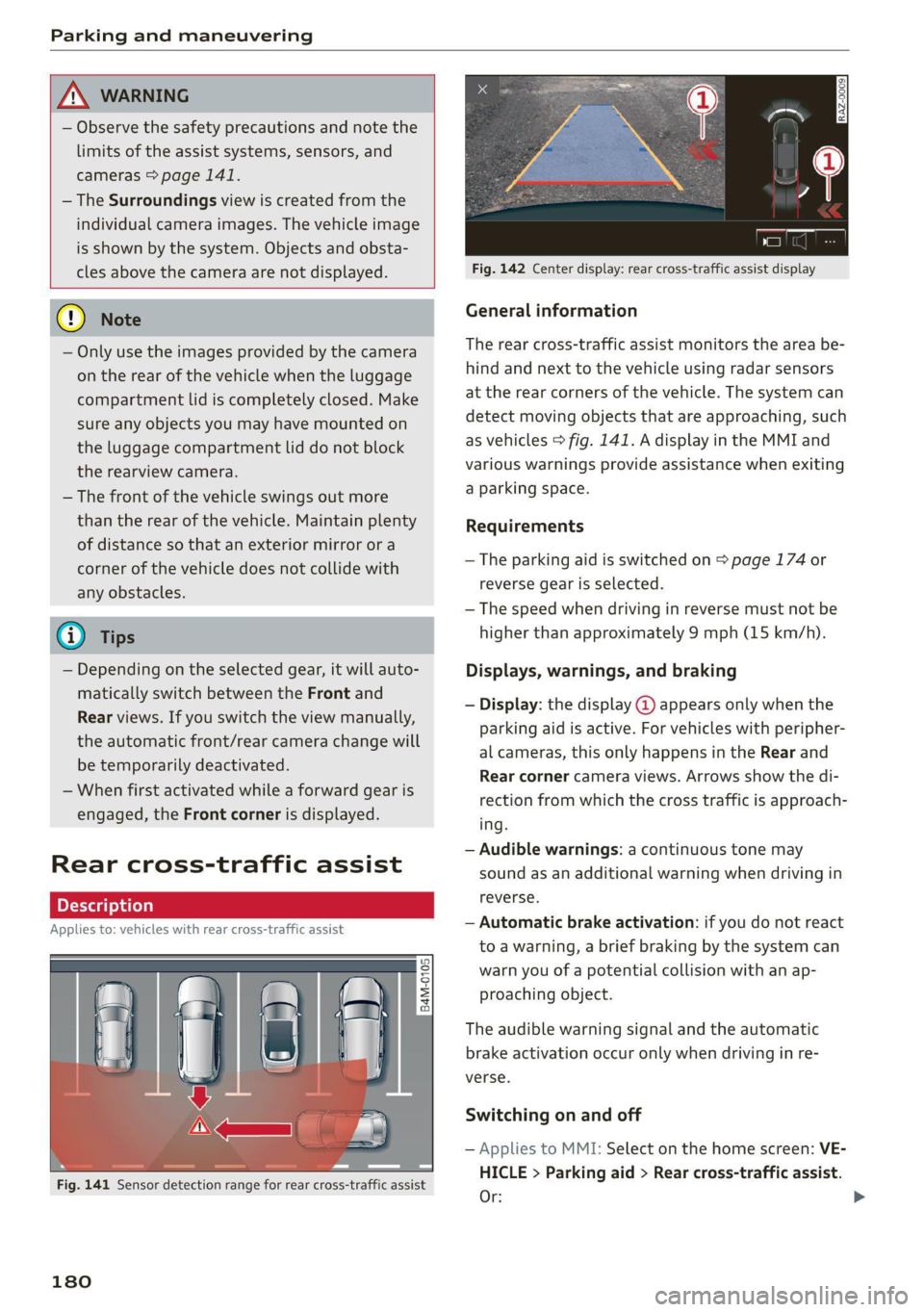
The rear cross-traffic assist monitors the area be-
hind and next to the vehicle using radar sensors
at the rear corners of the vehicle. The system can
detect moving objects that are approaching, such
as vehicles > fig. 141. A display in the MMI and
various warnings provide assistance when exiting
a parking space.
Requirements
— The parking aid is switched on > page 174 or
reverse gear is selected.
— The speed when driving in reverse must not be
higher than approximately 9 mph (15 km/h).
Displays, warnings, and braking
— Display: the display @ appears only when the
parking aid is active. For vehicles with peripher-
al cameras, this only happens in the Rear and
Rear corner camera views. Arrows show the di-
rection from which the cross traffic is approach-
ing.
— Audible warnings: a continuous tone may
sound as an additional warning when driving in
reverse.
— Automatic brake activation: if you do not react
to a warning, a brief braking by the system can
warn you of a potential collision with an ap-
proaching object.
The audible warning signal and the automatic
brake activation occur only when driving in re-
verse.
Switching on and off
— Applies to MMI: Select on the home screen: VE-
HICLE > Parking aid > Rear cross-traffic assist.
Or:
Page 185 of 332

80B012721BA
Parking and maneuvering
be displayed. The system automatically suggests
a parking option @.
If the parking space allows different parking op-
tions, they can be selected manually. Press one of
the suggested parking options @ in the center
display.
Starting the parking process
As soon as the vehicle has reached the correct po-
sition, a P will appear in the center display above
the selected parking space @). The roof in the
parking aid display @) may show the required
braking or driving direction.
> Keep the vehicle as parallel as possible to the
parked vehicles or to the side of the road.
> Make sure that the parking space is suitable for
your vehicle >@.
> Start the assisted parking process > page 184.
Maneuvering area
The vehicle can go off course during the parking
process > A\. If there are obstacles within the
maneuvering area that block or endanger the
parking process, for example on the opposite
side of the street, a message may appear. You
may need to drive farther forward and stay closer
to the row of parking spaces.
ZA WARNING
— Observe the safety precautions and note the
limits of the assist systems, sensors, and
cameras > page 141.
— The driver is always responsible when enter-
ing or exiting a parking space and during
similar maneuvers.
— Sensors and cameras have spots in which
the surrounding area cannot be detected.
Objects, animals, and people may only be
detected with limitations may not be detect-
ed at all. Always monitor the traffic and the
vehicle's surroundings directly and do not
become distracted.
@) Note
— Parking spaces classified as suitable by the
system may have been detected incorrectly.
The driver must decide if the parking space
displayed is suitable for the vehicle.
— Certain conditions near the parking space
may cause the parking process to fail, such
as if the parking space is near trees or posts,
or if the ground is covered, for example,
with gravel, snow, or ice.
(i) Tips
— If you did not drive past a suitable parking
space
too quickly, the parking space search
can also be activated afterward by pressing
Pe.
—The Electronic Stabilization Control (ESC)
must not be switched off during the parking
process. If the ESC intervenes, the parking
process
will be canceled.
— You can also drive into a perpendicular park-
ing space yourself and then activate the sys-
tem. If this is the case, the front of the vehi-
cle should already be in the space @)
=> page 182, fig. 143 so that the sensors
can measure the space.
— You cannot park with the parking assist sys-
tems when you are towing a trailer or have
the connector inserted in the trailer socket.
— The system is not available when certain as-
sist systems are switched on.
—If there are suitable parking spaces on both
sides of the street, for example on a one-
way street, you can change the side where
the system is searching for parking spaces
by activating the turn signal for the other
side or by pressing on that side in the center
display.
— The park systems do not provide support for
assisted parking on tight curves.
Park assist
General information
Applies to: vehicles with park assist
The park assist helps you when parking and exit-
ing parking spaces after the parking space
search. The park assist takes over the steering of
the vehicle while the driver accelerates, brakes,
and monitors the vehicle's surroundings. Park as-
sist can be interrupted at any time.
183
>
Page 240 of 332
Additional settings
> Press on the notification, or
> Open the notification in the notification center
on > page 23 and press on the notification.
> Follow the system instructions.
Depending on the scope of the update, the online
system update may only be started if you follow
these instructions:
> Switch the emergency flashers off, if necessary
> Make sure that the starter battery is charged.
> To start the update, exit and lock the vehicle.
The MMI will start the installation. When the up-
date has ended, a notification will be displayed.
Z\ WARNING
Depending on the scope of the installation,
the ignition must not be switched on during
the installation to ensure the installation
completes successfully.
©) Note
Read the information about Audi connect, and
be sure to note the connectivity costs section
=@ in General information on page 197.
@ Tips
The software update may take some time.
WEE Tel
Applies to: vehicles with online system update
Online system update: incomplete. Warning!
Vehicle functions limited
If an error occurs when installing an online sys-
tem update, certain functions such as the emer-
gency call function may not be available. Drive to
an authorized Audi dealer or authorized Audi
Service Facility immediately to have the error cor-
rected.
Connected devices
Displayed connected devices
Requirement: the vehicle must be stationary and
the ignition must be switched on.
> Applies to: MMI: Select on the home screen:
SETTINGS > Connected devices.
238
Possible menu items:
— Telephone 1
— Telephone 2
— Audio player
— Wi-Fi hotspot
— Headset
Audi smartphone interface
You can connect your smartphone to the MMI
=> page 234.
myAudi app
This function is available if the myAudi app is in-
stalled on your mobile device and started, and if
the mobile device is connected with the vehicle’s
Wi-Fi hotspot.
() Note
Read the information about Audi connect, and
be sure to note the connectivity costs section
=> page 197.
Managing connected devices
Requirement: the connected devices menu must
be displayed > page 238.
Connecting a device
Requirement: Bluetooth visibility must be acti-
vated in the MMI & page 237 and mobile device.
> Press on a menu item, such as Telephone 1.
> To search for and connect your mobile device,
press New connection > page 186.
Selecting a connected device
> Press on a menu item, such as Telephone 1.
> Press on the desired mobile device in the list of
displayed devices. The connection will be made.
Disconnecting a connected device
> Press on a menu item, such as Telephone 1.
> Press on the connected mobile device. The se-
lected mobile device will be disconnected from
the MMI.
Deleting a device
> Press on a menu item, such as Telephone 1. >
Page 244 of 332
Checking and Filling
corrosion damage and damage to plastic or
rubber components in the fuel system.
— Do not use gasoline that does not meet the
specifications.
— If you are unable to find out if a specific gas-
oline mixture meets the specifications, ask
the gas station operator or their fuel suppli-
er.
— Do not use any gasoline mixture whose
composition cannot be identified.
— Audi does not assume any responsibility for
damage to the fuel system or for perform-
ance problems caused by using gasoline
mixtures different from those specified.
This type of damage also does not fall under
the New Vehicle Limited Warranty or under
the emissions control system warranty.
— If you notice a higher fuel consumption or
poor handling or performance problems due
to such gasoline mixtures, Audi recom-
mends fueling with unblended gasoline.
Gasoline additives
An important issue for many automobile manu-
facturers is combustion residue in the engine
that results from the use of certain fuels.
Although types of gasoline differ depending on
the manufacturer, there are similarities. Certain
substances in the gasoline may cause deposits in
the engine. Additives in the gasoline that should
keep the engine and fuel system clean do not all
function equally.
Audi recommends using TOP TIER Detergent Gas-
oline. For additional information on TOP TIER De-
tergent Gasoline, visit www.toptiergas.com.
If you use incorrect fuels over a long period of
time, the maximum engine performance may be
impaired by combustion residue.
@) Note
— Damage or malfunctions caused by the use
of incorrect types of gasoline are not cov-
ered by the New Vehicle Limited Warranty.
— Only gasoline additives that have been ap-
proved by Audi may be used.
242
Refueling
Messages
A Tank system: malfunction! Please contact
Service
There is a malfunction in the fuel tank system.
Drive to an authorized Audi dealer or authorized
Audi Service Facility immediately to have the
malfunction corrected.
Messages
Applies to: vehicles with plug-in hybrid drive
A Fuel filler door: malfunction! Unlock fuel
filler door manually. See owner's manual
There is a malfunction. You must manually un-
lock the fuel filler door > page 245.
Al Warning! Vehicle performance may be limit-
ed
The fuel tank is almost empty. You must antici-
pate a significant power loss. Refuel immediate-
ly.
& Please refuel and charge battery. Total
range: x mi (km)
or
f& Tank system: please refuel immediately and
charge battery. Total range: x mi (km)
If this indicator light turns on and this message
appears, refuel as soon as possible. Otherwise,
the high-voltage battery is drained > page 123.
AY Fuel filler door open. Please press button
again to refuel
Fueling is possible for a little while after pressing
the fi) button. You must press the fd button
again if the time limit is exceeded.