media AUDI Q5 2021 Owner´s Manual
[x] Cancel search | Manufacturer: AUDI, Model Year: 2021, Model line: Q5, Model: AUDI Q5 2021Pages: 332, PDF Size: 118.86 MB
Page 231 of 332
80B012721BA
Media
Podcasts
You can control your podcasts through the MMI.
> Select: a podcast > a podcast episode.
Genres
All available genres are displayed.
>» Select: a genre > an artist > an album > a song.
Videos
All available video files are displayed.
> Press on a video.
Tracks
All available tracks are displayed.
> Press on a track.
Albums
All available albums are displayed.
> Select: an album > a track.
@ Note
Applies to: vehicles with Audi connect Infotainment
— Cloud services and the iTunes radio category
always require an Internet connection.
tele mitardatela ry
— Read the information about Audi connect,
and be sure to note the connectivity costs
section >@ in General information on
page 197.
G@) Tips
— Only the categories supported by the medi-
um are available.
— For safety reasons, the video image is only
displayed when the vehicle is stationary. On-
ly the sound from the video plays while driv-
ing.
—When synchronizing a portable device with
Cloud services, playlists may display incor-
rectly in the MMI. Use the media center in
the device.
— Applies to: iPod touch/iPhone: Note the in-
formation about the Audi music interface
and the supported devices > page 226.
[RAX-0037,
Baa aeCit)
Ca
The Rock Band
The big B
eee)
ns
eae)
nc
@
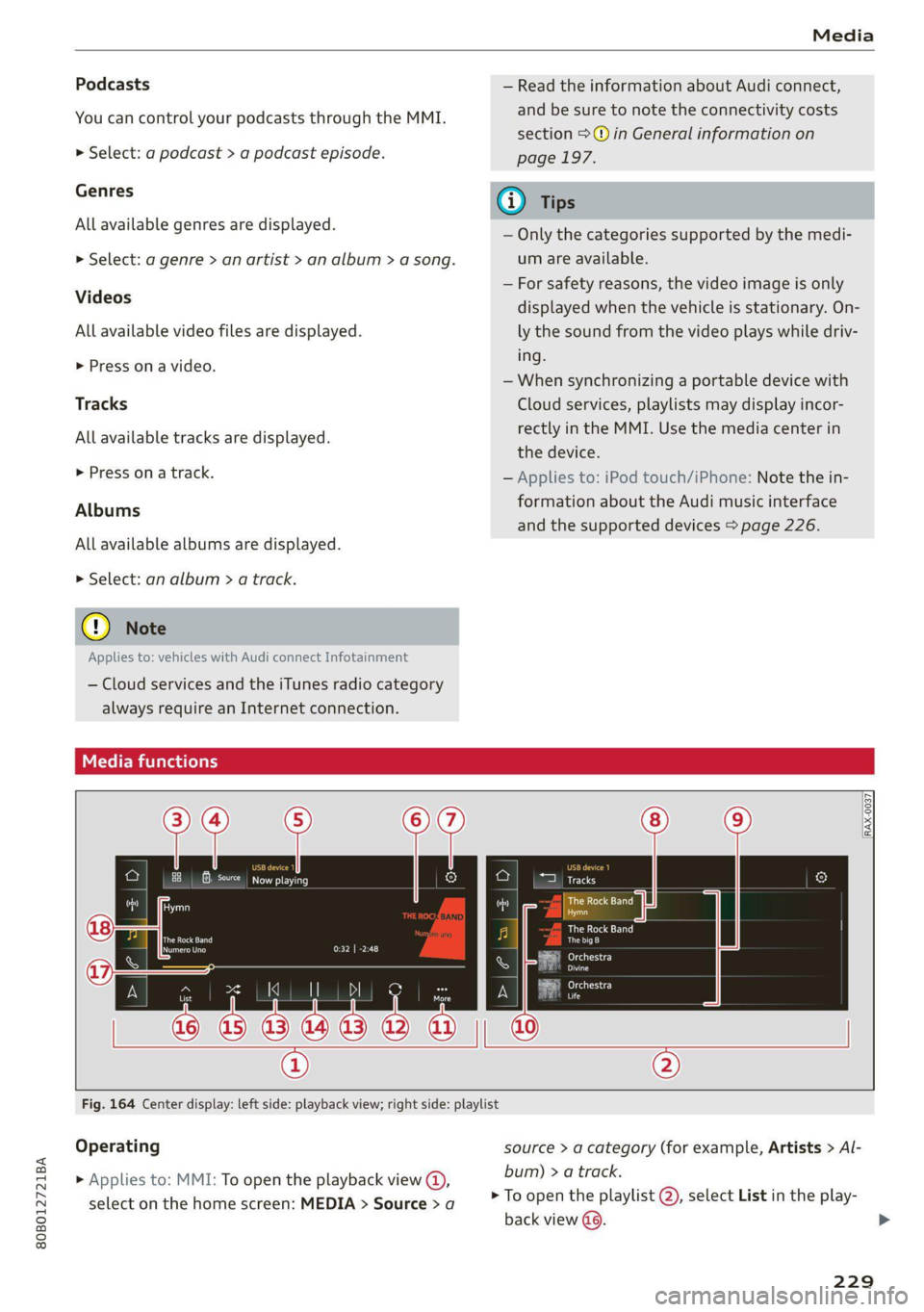
Fig. 164 Center display: left side: playback view; right side: playlist
Operating
> Applies to: MMI: To open the playback view (),
select on the home screen: MEDIA > Source > a
source > a category (for example, Artists > Al-
bum) > a track.
> To open the playlist @, select List in the play-
back view @..
229
Page 232 of 332
Media
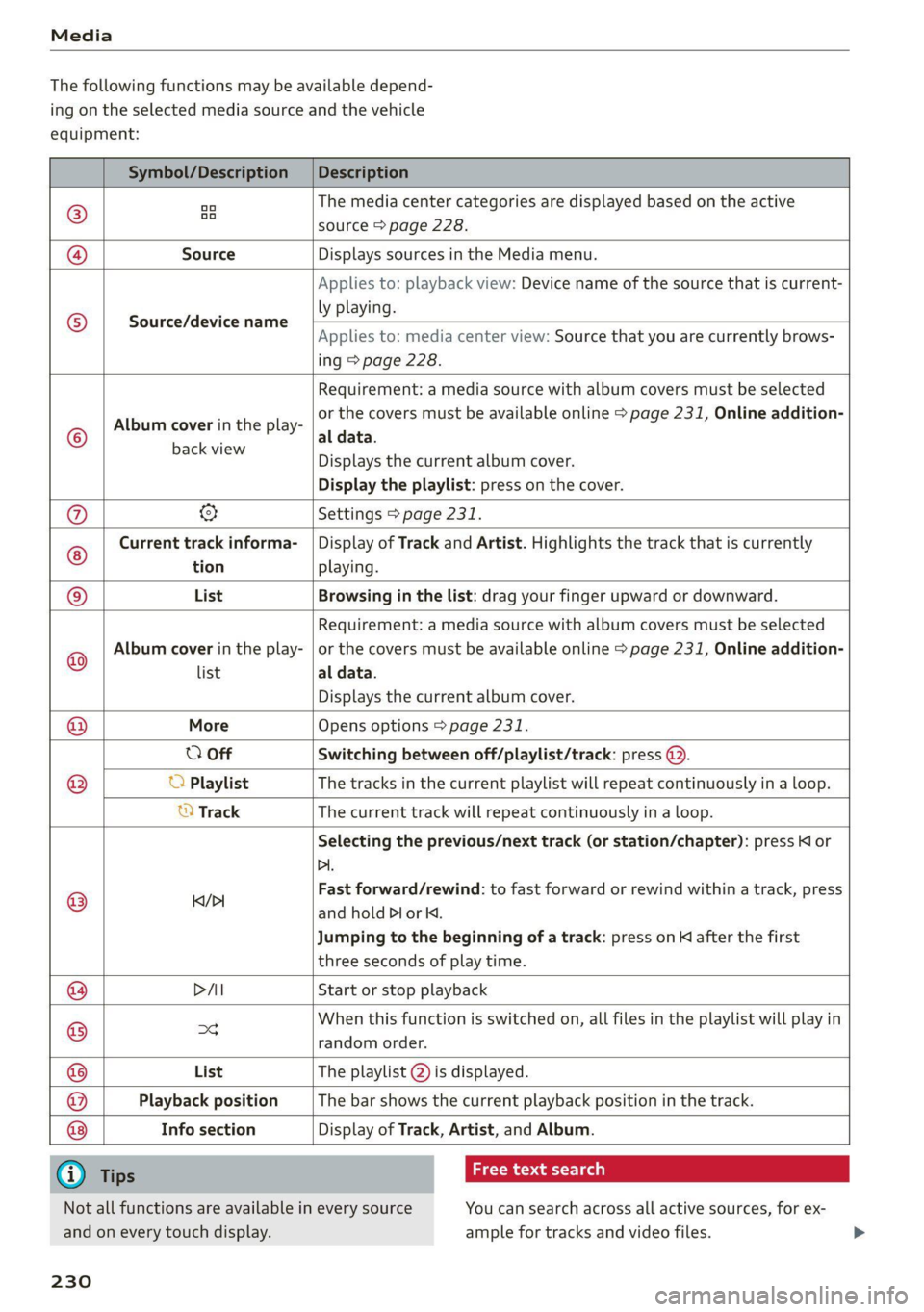
The following functions may be available depend-
ing on the selected media source and the vehicle
equipment:
Symbol/Description Description
©)
oo oo The media center categories are displayed based on the active
source > page 228.
@ Source Displays sources in the Media menu.
Source/device name
Applies to: playback view: Device name of the source that is current-
ly playing.
Applies to: media center view: Source that you are currently brows-
ing > page 228.
©
Album cover in the play-
Requirement: a media source with album covers must be selected
or the covers must be available online > page 231, Online addition-
al data.
Sanaa Displays the current album cover.
Display the playlist: press on the cover.
@ & Settings > page 231.
Current track informa- | Display of Track and Artist. Highlights the track that is currently
tion playing.
List Browsing in the list: drag your finger upward or downward.
Album cover in the play-
Requirement: a media source with album covers must be selected
or the covers must be available online > page 231, Online addition-
Playback position The bar shows the current playback position in the track.
©
© list al data.
Displays the current album cover.
@ More Opens options > page 231.
O Off Switching between off/playlist/track: press @.
® O Playlist The tracks in the current playlist will repeat continuously in a loop.
© Track The current track will repeat continuously in a loop.
Selecting the previous/next track (or station/chapter): press Kl or
Dl.
@ lea/D Fast forward/rewind: to fast forward or rewind within a track, press
and hold PI or K.
Jumping to the beginning of a track: press on K after the first
three seconds of play time.
@ DAI Start or stop playback
@ =d When this function is switched on, all files in the playlist will play in
random order.
@ List The playlist @) is displayed.
@
@ Info section
Display of Track, Artist, and Album.
G) Tips
Not all functions are available in every source
and on every touch display.
230
aay aay laa)
You can search across all active sources, for ex-
ample for tracks and video files.
Page 233 of 332
80B012721BA
Media
Opening the search
Requirement: the selected source must support
the search function.
> Applies to: MMI: Select on the home screen:
MEDIA > Search.
Entries that contain the entered search term are
listed in the results list. Each result is marked
with the symbol for a category in the media cen-
ter > page 228.
You can search for the following categories:
— Artists
— Albums
— Tracks
— Genres
— Videos
Options and settings
Context-dependent functions and settings may
be available depending on the selected source,
the connected mobile device, and the connection
type.
Requirement: the playback view must be dis-
played @) > page 229, fig. 164.
> Press More @).
Play more like this
The track currently playing is quickly analyzed for
features such as artist, genre, mood, and beat,
and a smart playlist with similar tracks will be
shown.
Aspect ratio
Audi recommends the Auto setting for the pic-
ture format. If you press on an aspect ratio, you
will see a preview of the setting on the screen.
Press OK to apply the selected aspect ratio.
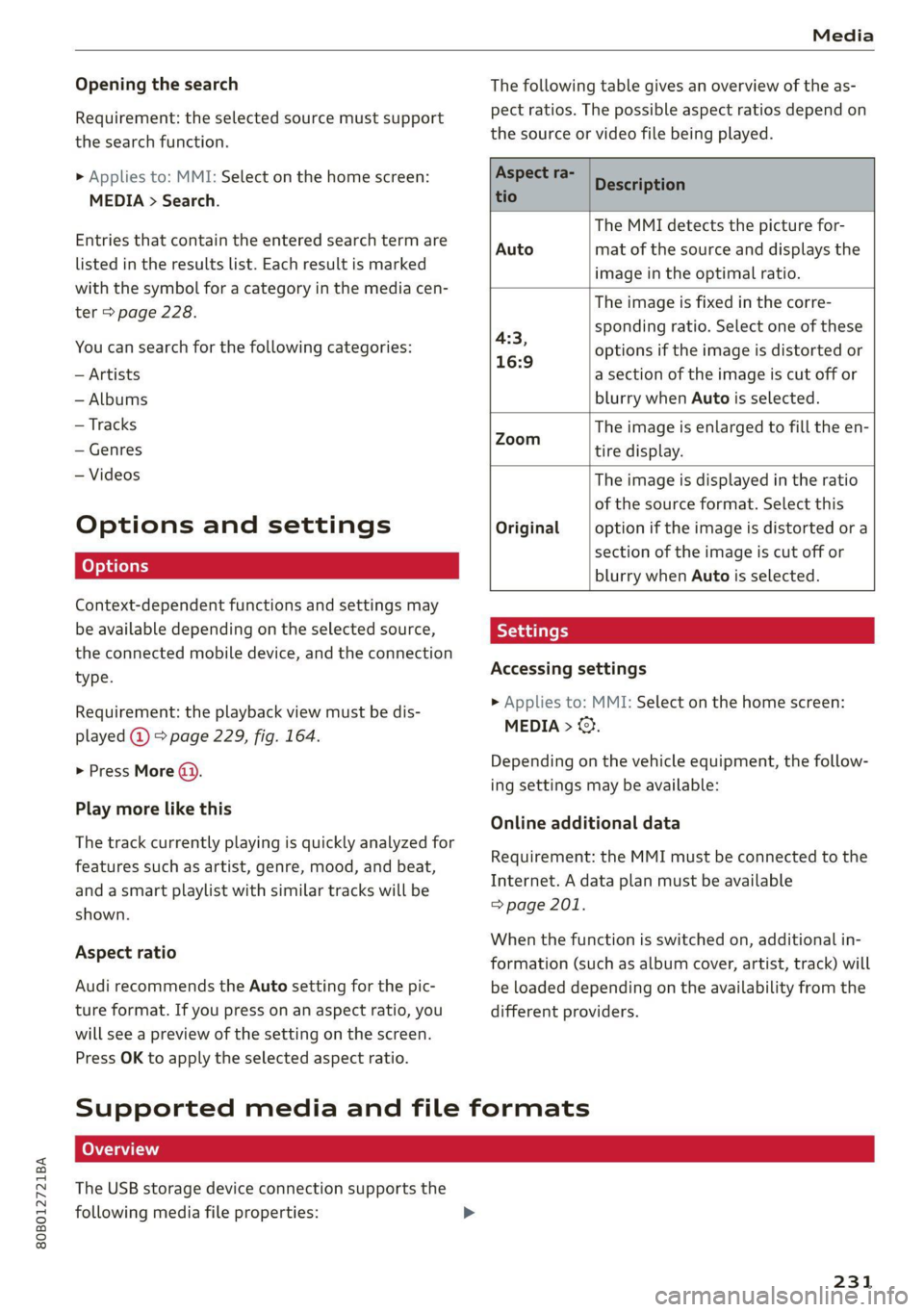
The following table gives an overview of the as-
pect ratios. The possible aspect ratios depend on
the source or video file being played.
Aspect ra-
Description
tio B
The MMI detects the picture for-
mat of the source and displays the
image in the optimal ratio.
Auto
The image is fixed in the corre-
sponding ratio. Select one of these
options if the image is distorted or
a section of the image is cut off or
blurry when Auto is selected.
4:3,
16:9
The image is enlarged to fill the en-
an tire display.
The image is displayed in the ratio
of the source format. Select this
option if the image is distorted or a
section of the image is cut off or
blurry when Auto is selected.
Accessing settings
Original
> Applies to: MMI: Select on the home screen:
MEDIA > ©.
Depending on the vehicle equipment, the follow-
ing settings may be available:
Online additional data
Requirement: the MMI must be connected to the
Internet. A data plan must be available
=> page 201.
When the function is switched on, additional in-
formation (such as album cover, artist, track) will
be loaded depending on the availability from the
different providers.
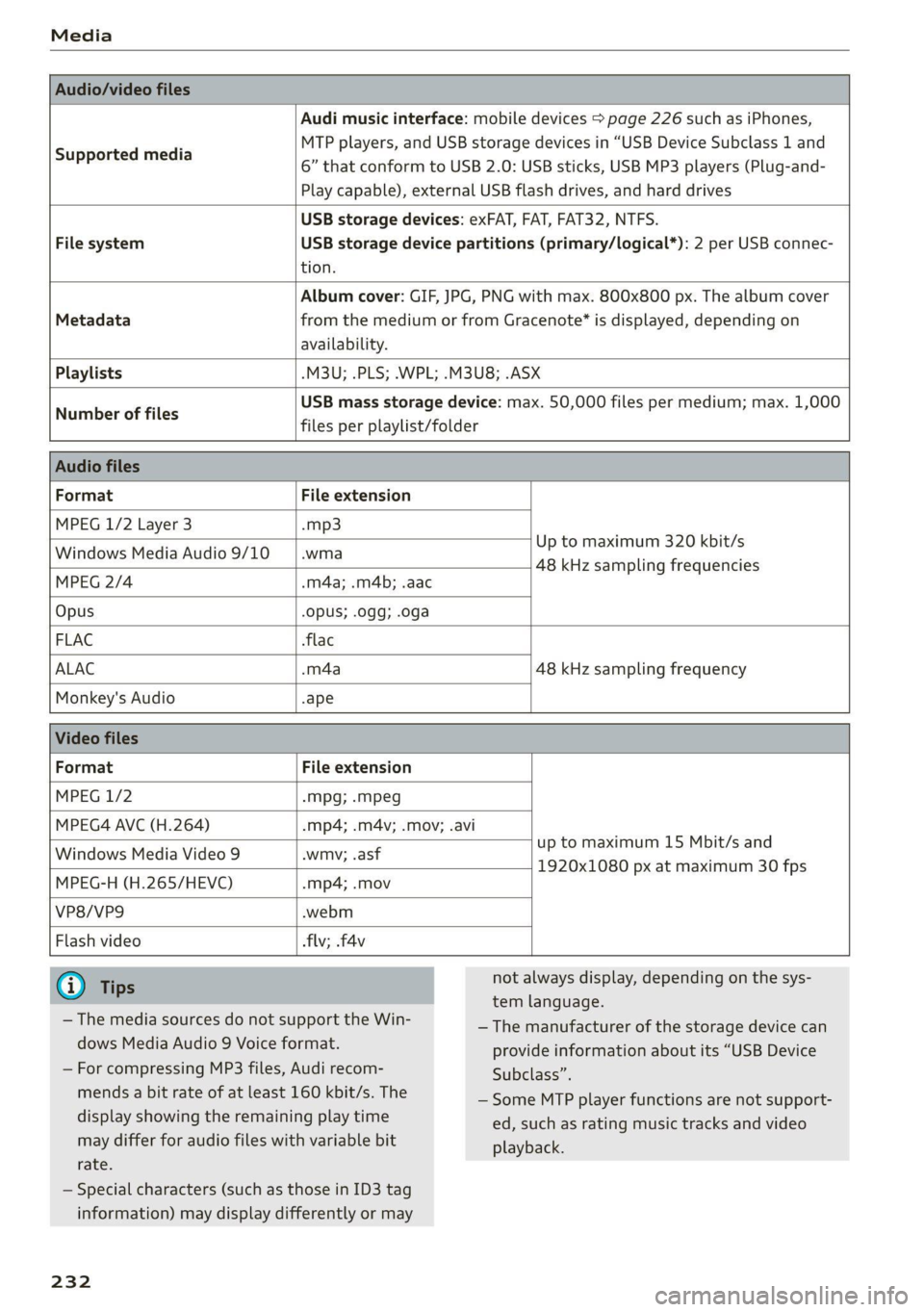
Supported media and file formats
The USB storage device connection supports the
following media file properties:
231
Page 234 of 332
Media
Audio/video files
Supported media
Audi music interface: mobile devices > page 226 such as iPhones,
MTP players, and USB storage devices in “USB Device Subclass 1 and
6” that conform to USB 2.0: USB sticks, USB MP3 players (Plug-and-
Play capable), external USB flash drives, and hard drives
USB storage devices: exFAT, FAT, FAT32, NTFS.
File system USB storage device partitions (primary/logical*): 2 per USB connec-
tion.
Album cover: GIF, JPG, PNG with max. 800x800 px. The album cover
Metadata from the medium or from Gracenote® is displayed, depending on
availability.
Playlists -M3U; .PLS; .WPL; .M3U8; .ASX
Number of files
USB mass storage device: max. 50,000 files per medium; max. 1,000
files per playlist/folder
Audio files
Format File extension
MPEG 1/2 Layer 3 -mp3
Windows Media Audio 9/10
Up to maximum 320 kbit/s
wis 48 kHz sampling frequencies
MPEG 2/4 .m4a; .m4b; .aac
Opus Opus; .0gg; .oga
FLAC flac
ALAC .m4a 48 kHz sampling frequency
Monkey's Audio -ape
Video files
Format File extension
MPEG 1/2 -Mpg; .mpeg
MPEG4 AVC (H.264) -.mp4; .m4v; .mov; .avi
Windows Media Video 9
up to maximum 15 Mbit/s and
wmv; .asf
warn, 285 1920x1080 px at maximum 30 fps
MPEG-H (H.265/HEVC) -mp4; .mov
VP8/VP9 .webm
Flash video
flv; .f4v
G) Tips
— The media sources do not support the Win-
dows Media Audio 9 Voice format.
not always display, depending on the sys-
tem language.
— The manufacturer of the storage device can
provide information about its “USB Device
— For compressing MP3 files, Audi recom-
mends a bit rate of at least 160 kbit/s. The
display showing the remaining play time
may differ for audio files with variable bit
rate.
— Special characters (such as those in ID3 tag
information) may display differently or may
232
Subclass”.
— Some MTP player functions are not support-
ed, such as rating music tracks and video
playback.
Page 235 of 332
80B012721BA
Media
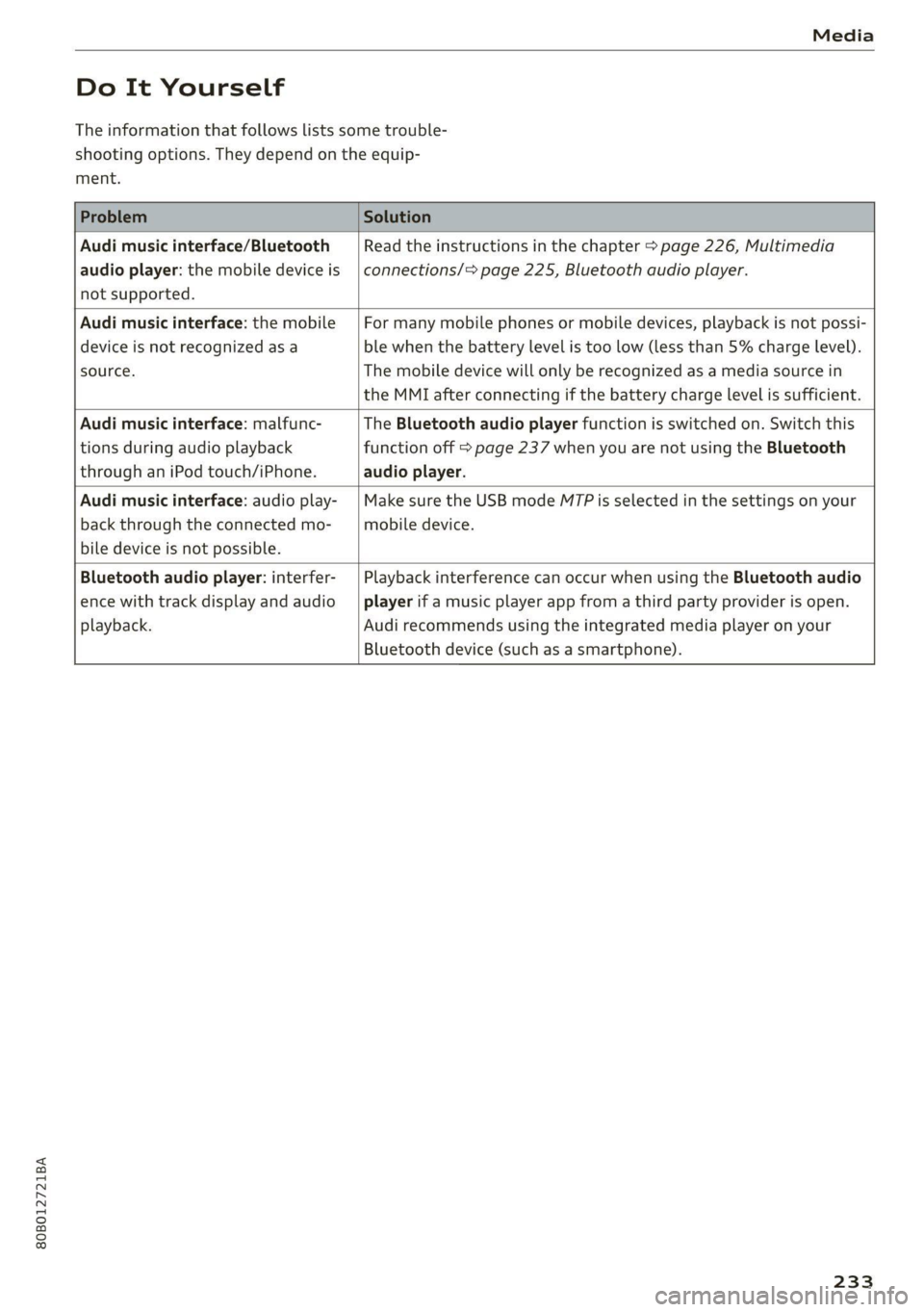
Do It Yourself
The information that follows lists some trouble-
shooting options. They depend on the equip-
ment.
Problem Solution
Audi music interface/Bluetooth
audio player: the mobile device is
not supported.
Read the instructions in the chapter > page 226, Multimedia
connections/> page 225, Bluetooth audio player.
Audi music interface: the mobile
device is not recognized as a
source.
For many mobile phones or mobile devices, playback is not possi-
ble when the battery level is too low (less than 5% charge level).
The mobile device will only be recognized as a media source in
the MMI after connecting if the battery charge level is sufficient.
Audi music interface: malfunc-
tions during audio playback
through an iPod touch/iPhone.
The Bluetooth audio player function is switched on. Switch this
function off > page 237 when you are not using the Bluetooth
audio player.
Audi music interface: audio play-
back through the connected mo-
bile device is not possible.
Make sure the USB mode M7P is selected in the settings on your
mobile device.
Bluetooth audio player: interfer-
ence with track display and audio
playback.
Playback interference can occur when using the Bluetooth audio
player if a music player app from a third party provider is open.
Audi recommends using the integrated media player on your
Bluetooth device (such as a smartphone).
233
Page 239 of 332
80B012721BA
Additional settings
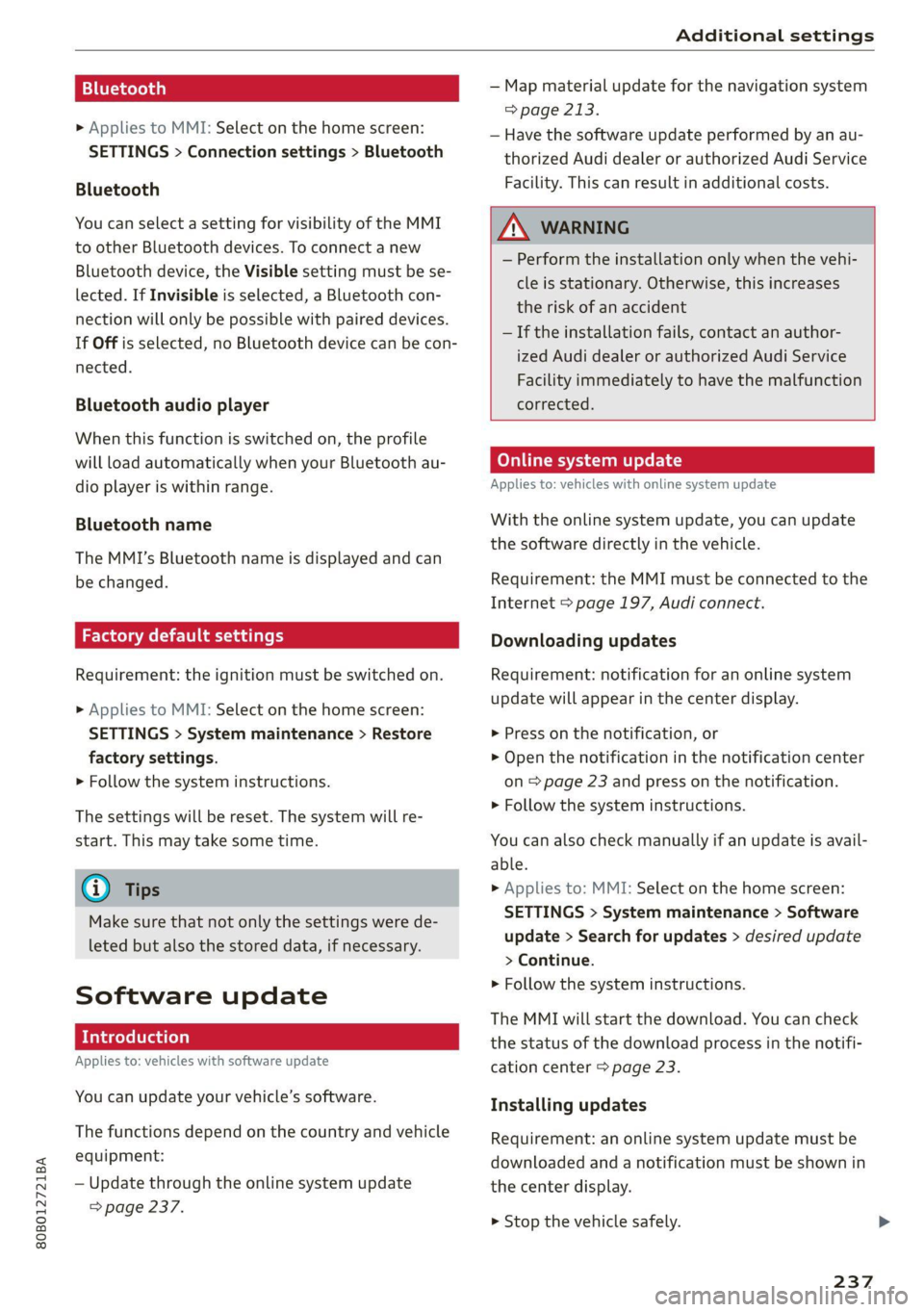
Bluetooth
> Applies to MMI: Select on the home screen:
SETTINGS > Connection settings > Bluetooth
Bluetooth
You can select a setting for visibility of the MMI
to other Bluetooth devices. To connect a new
Bluetooth device, the Visible setting must be se-
lected. If Invisible is selected, a Bluetooth con-
nection will only be possible with paired devices.
If Off is selected, no Bluetooth device can be con-
nected.
Bluetooth audio player
When this function is switched on, the profile
will load automatically when your Bluetooth au-
dio player is within range.
Bluetooth name
The MMI’s Bluetooth name is displayed and can
be changed.
Factory default settings
Requirement: the ignition must be switched on.
> Applies to MMI: Select on the home screen:
SETTINGS > System maintenance > Restore
factory settings.
> Follow the system instructions.
The settings will be reset. The system will re-
start. This may take some time.
@ Tips
Make sure that not only the settings were de-
leted but also the stored data, if necessary.
Software update
Introduction
Applies to: vehicles with software update
You can update your vehicle’s software.
The functions depend on the country and vehicle
equipment:
— Update through the online system update
=> page 237.
— Map material update for the navigation system
> page 213.
— Have the software update performed by an au-
thorized Audi dealer or authorized Audi Service
Facility. This can result in additional costs.
ZA\ WARNING
— Perform the installation only when the vehi-
cle is stationary. Otherwise, this increases
the risk of an accident
— If the installation fails, contact an author-
ized Audi dealer or authorized Audi Service
Facility immediately to have the malfunction
corrected.
Online system update
Applies to: vehicles with online system update
With the online system update, you can update
the software directly in the vehicle.
Requirement: the MMI must be connected to the
Internet > page 197, Audi connect.
Downloading updates
Requirement: notification for an online system
update will appear in the center display.
> Press on the notification, or
> Open the notification in the notification center
on & page 23 and press on the notification.
> Follow the system instructions.
You can also check manually if an update is avail-
able.
> Applies to: MMI: Select on the home screen:
SETTINGS > System maintenance > Software
update > Search for updates > desired update
> Continue.
> Follow the system instructions.
The
MMI will start the download. You can check
the status of the download process in the notifi-
cation center > page 23.
Installing updates
Requirement: an online system update must be
downloaded and a notification must be shown in
the center display.
> Stop the vehicle safely.
237
Page 240 of 332
Additional settings
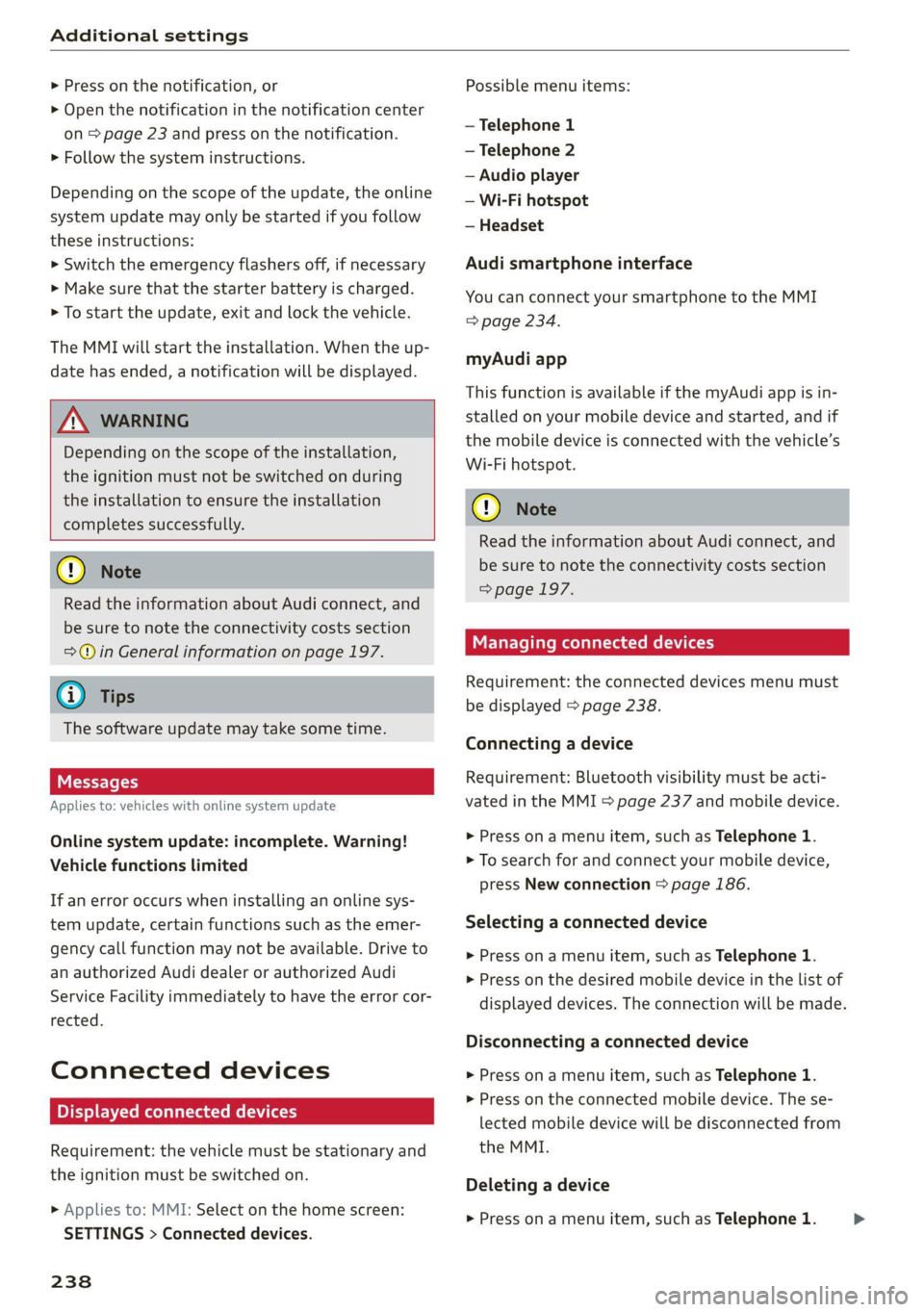
> Press on the notification, or
> Open the notification in the notification center
on > page 23 and press on the notification.
> Follow the system instructions.
Depending on the scope of the update, the online
system update may only be started if you follow
these instructions:
> Switch the emergency flashers off, if necessary
> Make sure that the starter battery is charged.
> To start the update, exit and lock the vehicle.
The MMI will start the installation. When the up-
date has ended, a notification will be displayed.
Z\ WARNING
Depending on the scope of the installation,
the ignition must not be switched on during
the installation to ensure the installation
completes successfully.
©) Note
Read the information about Audi connect, and
be sure to note the connectivity costs section
=@ in General information on page 197.
@ Tips
The software update may take some time.
WEE Tel
Applies to: vehicles with online system update
Online system update: incomplete. Warning!
Vehicle functions limited
If an error occurs when installing an online sys-
tem update, certain functions such as the emer-
gency call function may not be available. Drive to
an authorized Audi dealer or authorized Audi
Service Facility immediately to have the error cor-
rected.
Connected devices
Displayed connected devices
Requirement: the vehicle must be stationary and
the ignition must be switched on.
> Applies to: MMI: Select on the home screen:
SETTINGS > Connected devices.
238
Possible menu items:
— Telephone 1
— Telephone 2
— Audio player
— Wi-Fi hotspot
— Headset
Audi smartphone interface
You can connect your smartphone to the MMI
=> page 234.
myAudi app
This function is available if the myAudi app is in-
stalled on your mobile device and started, and if
the mobile device is connected with the vehicle’s
Wi-Fi hotspot.
() Note
Read the information about Audi connect, and
be sure to note the connectivity costs section
=> page 197.
Managing connected devices
Requirement: the connected devices menu must
be displayed > page 238.
Connecting a device
Requirement: Bluetooth visibility must be acti-
vated in the MMI & page 237 and mobile device.
> Press on a menu item, such as Telephone 1.
> To search for and connect your mobile device,
press New connection > page 186.
Selecting a connected device
> Press on a menu item, such as Telephone 1.
> Press on the desired mobile device in the list of
displayed devices. The connection will be made.
Disconnecting a connected device
> Press on a menu item, such as Telephone 1.
> Press on the connected mobile device. The se-
lected mobile device will be disconnected from
the MMI.
Deleting a device
> Press on a menu item, such as Telephone 1. >
Page 241 of 332
80B012721BA
Additional settings
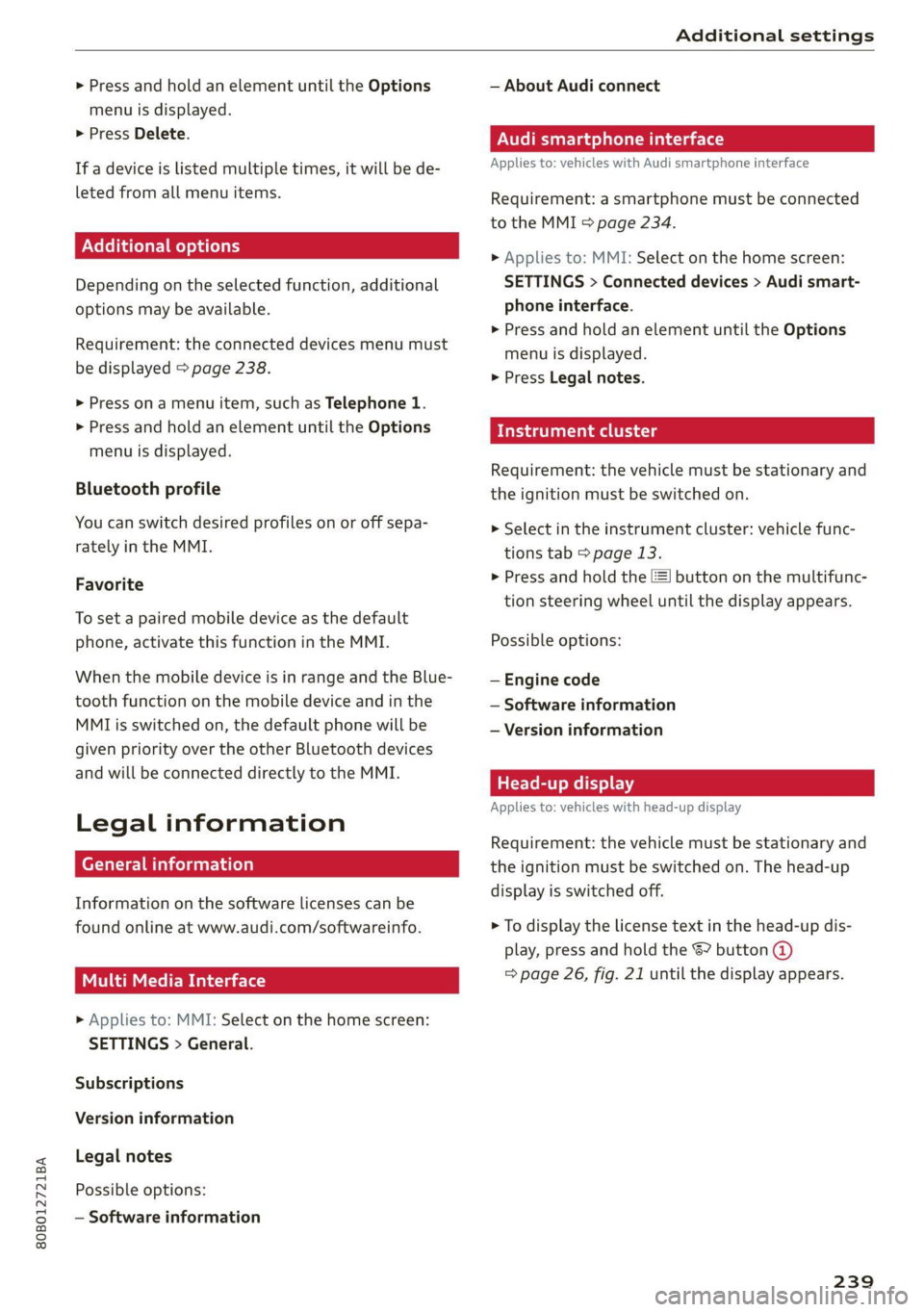
> Press and hold an element until the Options
menu is displayed.
> Press Delete.
If a device is listed multiple times, it will be de-
leted from all menu items.
PXe Keli a Cela] Mey Lately
Depending on the selected function, additional
options
may be available.
Requirement: the connected devices menu must
be displayed > page 238.
> Press ona menu item, such as Telephone 1.
» Press and hold an element until the Options
menu is displayed.
Bluetooth profile
You can switch desired profiles on or off sepa-
rately in the MMI.
Favorite
To set a paired mobile device as the default
phone, activate this function in the MMI.
When the mobile device is in range and the Blue-
tooth function on the mobile device and in the
MMI is switched on, the default phone will be
given priority over the other Bluetooth devices
and will be connected directly to the MMI.
Legal information
General information
Information on the software licenses can be
found online at www.audi.com/softwareinfo.
Multi Media Interface
> Applies to: MMI: Select on the home screen:
SETTINGS > General.
Subscriptions
Version information
Legal notes
Possible options:
— Software information
— About Audi connect
ONC lad nel M nail
Applies to: vehicles with Audi smartphone interface
Requirement: a smartphone must be connected
to the MMI > page 234.
> Applies to: MMI: Select on the home screen:
SETTINGS > Connected devices > Audi smart-
phone interface.
> Press and hold an element until the Options
menu is displayed.
> Press Legal notes.
Requirement: the vehicle must be stationary and
the ignition must be switched on.
> Select in the instrument cluster: vehicle func-
tions tab > page 13.
>» Press and hold the E=] button on the multifunc-
tion steering wheel until the display appears.
Possible options:
— Engine code
— Software information
— Version information
Head-up display
Applies to: vehicles with head-up display
Requirement: the vehicle must be stationary and
the ignition must be switched on. The head-up
display is switched off.
> To display the license text in the head-up dis-
play, press and hold the S? button @
=> page 26, fig. 21 until the display appears.
239
Page 244 of 332
Checking and Filling
corrosion damage and damage to plastic or
rubber components in the fuel system.
— Do not use gasoline that does not meet the
specifications.
— If you are unable to find out if a specific gas-
oline mixture meets the specifications, ask
the gas station operator or their fuel suppli-
er.
— Do not use any gasoline mixture whose
composition cannot be identified.
— Audi does not assume any responsibility for
damage to the fuel system or for perform-
ance problems caused by using gasoline
mixtures different from those specified.
This type of damage also does not fall under
the New Vehicle Limited Warranty or under
the emissions control system warranty.
— If you notice a higher fuel consumption or
poor handling or performance problems due
to such gasoline mixtures, Audi recom-
mends fueling with unblended gasoline.
Gasoline additives
An important issue for many automobile manu-
facturers is combustion residue in the engine
that results from the use of certain fuels.
Although types of gasoline differ depending on
the manufacturer, there are similarities. Certain
substances in the gasoline may cause deposits in
the engine. Additives in the gasoline that should
keep the engine and fuel system clean do not all
function equally.
Audi recommends using TOP TIER Detergent Gas-
oline. For additional information on TOP TIER De-
tergent Gasoline, visit www.toptiergas.com.
If you use incorrect fuels over a long period of
time, the maximum engine performance may be
impaired by combustion residue.
@) Note
— Damage or malfunctions caused by the use
of incorrect types of gasoline are not cov-
ered by the New Vehicle Limited Warranty.
— Only gasoline additives that have been ap-
proved by Audi may be used.
242
Refueling
Messages
A Tank system: malfunction! Please contact
Service
There is a malfunction in the fuel tank system.
Drive to an authorized Audi dealer or authorized
Audi Service Facility immediately to have the
malfunction corrected.
Messages
Applies to: vehicles with plug-in hybrid drive
A Fuel filler door: malfunction! Unlock fuel
filler door manually. See owner's manual
There is a malfunction. You must manually un-
lock the fuel filler door > page 245.
Al Warning! Vehicle performance may be limit-
ed
The fuel tank is almost empty. You must antici-
pate a significant power loss. Refuel immediate-
ly.
& Please refuel and charge battery. Total
range: x mi (km)
or
f& Tank system: please refuel immediately and
charge battery. Total range: x mi (km)
If this indicator light turns on and this message
appears, refuel as soon as possible. Otherwise,
the high-voltage battery is drained > page 123.
AY Fuel filler door open. Please press button
again to refuel
Fueling is possible for a little while after pressing
the fi) button. You must press the fd button
again if the time limit is exceeded.
Page 246 of 332
Checking and Filling
out of the container and ignite, especially dur-
ing an accident. This can cause explosions,
fires, and injuries.
— If you must transport fuel in a fuel contain-
er, note the following:
— Always place the fuel container on the
ground before filling. Never fill the fuel
container with fuel while it is inside or on
the vehicle. Electrostatic discharge can oc-
cur while refueling and the fuel vapors
could ignite.
— When using fuel containers made of met-
al, the fuel pump nozzle must always re-
main in contact with the container to re-
duce the risk of static charge.
— Insert the fuel pump nozzle as far as pos-
sible into the filler opening while refuel-
ing.
— Follow the applicable legal regulations in
the country where you are driving when
using, storing and transporting fuel con-
tainers.
— Make sure that the fuel container meets
the industry standards, for example ANSI
or ASTM F852-86.
©) Note
— Remove fuel that has overflowed onto any
vehicle components immediately to reduce
the risk of damage to the vehicle.
— Never drive until the fuel tank is completely
empty. The irregular supply of fuel that re-
sults from that can cause engine misfires.
Uncombusted fuel may enter the exhaust
system and increase the risk of damage to
the catalytic converter.
@) For the sake of the environment
— Do not overfill the fuel tank, or fuel could
leak out when the vehicle is warming up.
— Fuel should never enter the sewer system or
come into contact with the ground.
@) Tips
The fuel filler door on your vehicle does not
lock if you lock the vehicle from the inside us-
ing
the central locking switch.
244
G) Tips
Applies to: vehicles with plug-in hybrid drive
— When inserting the fuel pump nozzle, make
sure that you do not press on the fuel filler
door opener @) with the fuel pump nozzle.
See the label in the fuel filler door @)
> fig. 166. Otherwise, a valve will close in
the fuel filler neck and fueling will stop even
if the tank is not full.
— You must vent the tank system again if you
press on the fuel filler door opener. The fuel
pump nozzle can stay in the fuel filler neck
when doing this. Vent the tank system by
pulling the EQ) switch in the driver's door
again.
— If the engine turned off because the fuel
level was too low, then you may need to re-
fuel with up to 4.0 gallons (15 liters) of fuel
in order for the vehicle to detect the new
fuel level. Otherwise, the engine may not
restart.
— Fuel can age and may lead to problems
when starting. Audi recommends replacing
the fuel in your vehicle within six months.