media AUDI Q5 2021 Owner´s Manual
[x] Cancel search | Manufacturer: AUDI, Model Year: 2021, Model line: Q5, Model: AUDI Q5 2021Pages: 332, PDF Size: 118.86 MB
Page 127 of 332
80B012721BA
High-voltage system
— GB/T 18487.1 and GB/T 20234 (China)
— IEC 61851 and IEC 62196 (Europe)
— SAE J1772 (North America, Japan)
— You can use your Audi charging system if
there is a household or industrial connec-
tion available at the charging station.
@ Tips
Applies to: Audi charging systems
— For an uninterrupted charging process, we
recommend only charging using sockets
that are connected to a separately protected
circuit.
— It is recommended to use Audi charging sys-
tems in the wall mount clip* during opera-
tion. If this is not possible, always position
Audi charging systems on a secure surface
during the charging process > A\.
—To reduce the risk of overheating during op-
eration, do not place Audi charging systems
in direct sunlight for long periods of time. If
the control unit is overheated, the charging
process is automatically paused until the
temperature has lowered back within the
normal range.
Charging
Applies to: vehicles with plug-in hybrid drive
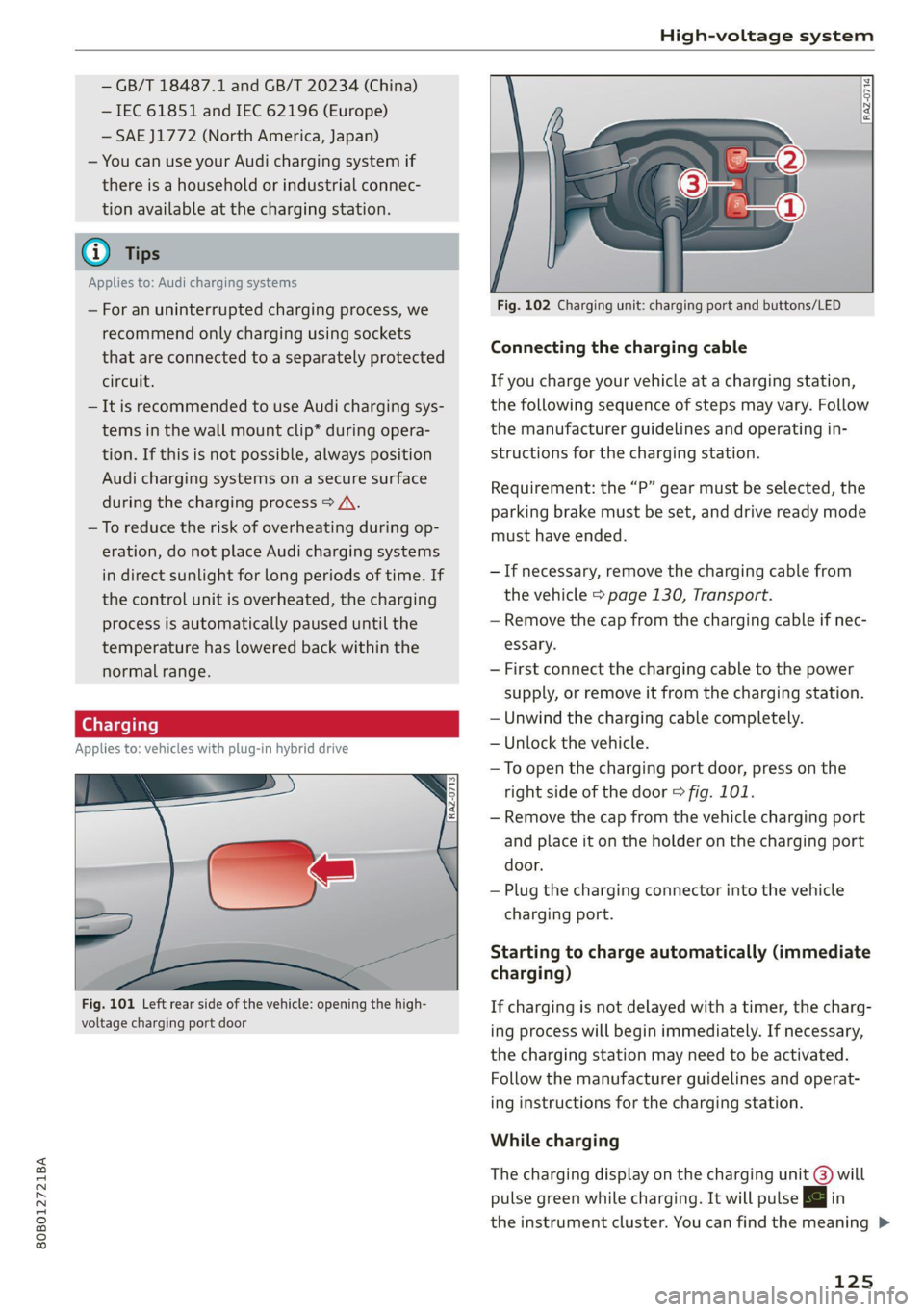
Fig. 101 Left rear side of the vehicle: opening the high-
voltage charging port door
Fig. 102 Charging unit: charging port and buttons/LED
Connecting the charging cable
If you charge your vehicle at a charging station,
the following sequence of steps may vary. Follow
the manufacturer guidelines and operating in-
structions for the charging station.
Requirement: the “P” gear must be selected, the
parking brake must be set, and drive ready mode
must have ended.
— If necessary, remove the charging cable from
the vehicle > page 130, Transport.
— Remove the cap from the charging cable if nec-
essary.
— First connect the charging cable to the power
supply, or remove it from the charging station.
— Unwind the charging cable completely.
— Unlock the vehicle.
— To open the charging port door, press on the
right
side of the door > fig. 101.
— Remove the cap from the vehicle charging port
and place it on the holder on the charging port
door.
— Plug the charging connector into the vehicle
charging port.
Starting to charge automatically (immediate
charging)
If charging is not delayed with a timer, the charg-
ing process will begin immediately. If necessary,
the charging station may need to be activated.
Follow the manufacturer guidelines and operat-
ing instructions for the charging station.
While charging
The charging display on the charging unit @) will
pulse green while charging. It will pulse |<} in
the instrument cluster. You can find the meaning >
125
Page 128 of 332
High-voltage system
of the possible charging display colors under
=> page 127.
The charging connector is locked while charging
and cannot be removed.
If the driver's door is opened while the ignition is
switched off, the current battery charge level and
the high-voltage battery range will be displayed
in the instrument cluster. If charging is in prog-
ress, the remaining charging time will also be
displayed.
Immediate charging and timer charging
You can switch between the immediate charging
@ and charging timer @ options during the
charging process if a charging timer is set
= page 127. Press the corresponding button to
do this.
Ending the charging process
You can interrupt the charging process at any
time.
— Unlock the vehicle or press the @/@) button
when the vehicle is unlocked, and the LED will
turn on.
— Remove the charging connector. If the charging
connector is not removed within 30 seconds, it
will automatically relock and the charging proc-
ess may continue.
— Put the cap back on the charging port.
— Close the charging port door.
— Disconnect the charging cable from the power
supply if necessary or return it securely to the
charging station.
— Install the protective caps on the charging ca-
ble again.
— Ifyou are transporting the charging cable in
the vehicle, store it securely > page 130.
If the charging connector cannot be removed,
you must unlock it manually > page 128.
If you cannot disconnect the charging connector
from the charging station, authenticate yourself
126
again at the charging station and then try again
to disconnect the charging connector. If you still
cannot disconnect the charging connector from
the charging station, contact the charging sta-
tion operator.
ZA WARNING
— Do not disconnect the charging cable from
the socket or the vehicle charging port while
the vehicle is charging. End the charging
process before removing the charging cable
from the socket in order to reduce the risk of
damaging the connector contacts from
sparks.
—If the charging unit is damaged, do not
charge using the charging port to reduce the
risk of injury.
— If the charging unit is damaged or the
charging port door cannot close or is miss-
ing, drive immediately to an authorized Audi
dealer or authorized Audi Service Facility
and have the malfunction corrected to re-
duce the risk of injury.
C) Note
If you drive with the charging unit open, both
the charging port door and the electronics in-
stalled behind it could be damaged. Check
each time after charging if the port door is
locked before you start driving the vehicle.
@ Tips
— If the parking brake is set, it could create
noises
when the charging connector is con-
nected.
— Remove ice and snow in the charging unit
using a hand brush and solvent-free deicing
spray.
— The vehicle radio and TV systems may have
limited reception when charging the vehicle.
Page 130 of 332
High-voltage system
> To also activate the climate control with a tim-
er, select CD.
> Select Next and follow the instructions in the
menu.
> To turn ona timer, select CD.
> To activate an enabled timer, select s+ until the
Timer charging mode is displayed.
If the set departure time on the timer is too
close, it may not be possible to charge the vehicle
fully.
It is not possible to charge using the timer at
some charging stations.
Emergency release
Applies to: vehicles with plug-in hybrid drive
In case of malfunction, you can manually release
the charging port door or the charging connec-
tor.
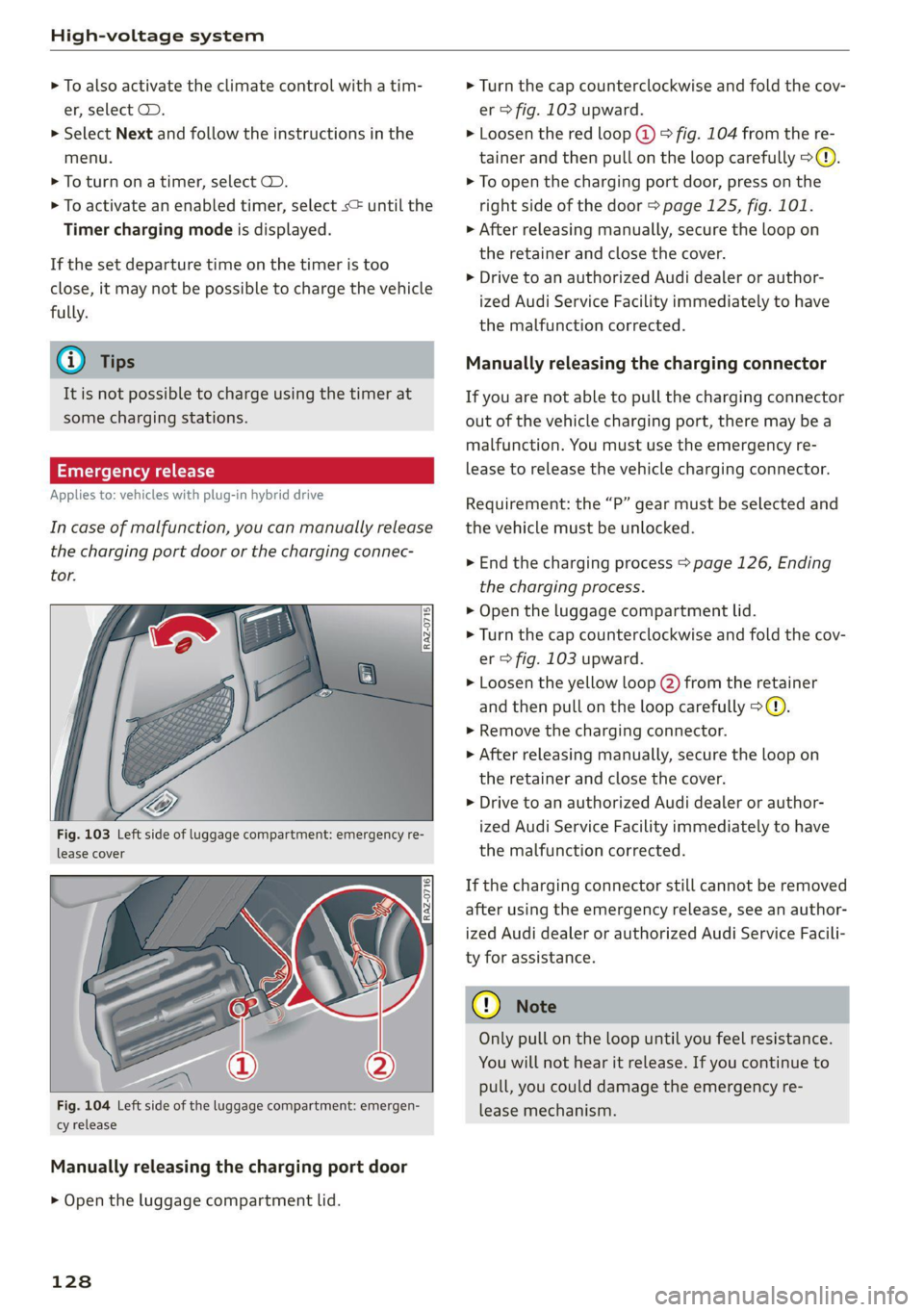
Fig. 103 Left side of luggage compartment: emergency re-
lease cover
[RAz-0716]
Fig. 104 Left side of the luggage compartment: emergen-
cy release
Manually releasing the charging port door
> Open the luggage compartment lid.
128
> Turn the cap counterclockwise and fold the cov-
er > fig. 103 upward.
> Loosen the red loop @) > fig. 104 from the re-
tainer and then pull on the loop carefully >@.
> To open the charging port door, press on the
right side of the door > page 125, fig. 101.
» After releasing manually, secure the loop on
the retainer and close the cover.
> Drive to an authorized Audi dealer or author-
ized Audi Service Facility immediately to have
the malfunction corrected.
Manually releasing the charging connector
If you are not able to pull the charging connector
out of the vehicle charging port, there may bea
malfunction. You must use the emergency re-
lease to release the vehicle charging connector.
Requirement: the “P” gear must be selected and
the vehicle must be unlocked.
> End the charging process > page 126, Ending
the charging process.
> Open the luggage compartment lid.
> Turn the cap counterclockwise and fold the cov-
er > fig. 103 upward.
> Loosen the yellow loop (2) from the retainer
and then pull on the loop carefully >@®.
> Remove the charging connector.
>» After releasing manually, secure the loop on
the retainer and close the cover.
> Drive to an authorized Audi dealer or author-
ized Audi Service Facility immediately to have
the malfunction corrected.
If the charging connector still cannot be removed
after using the emergency release, see an author-
ized Audi dealer or authorized Audi Service Facili-
ty for assistance.
Only pull on the loop until you feel resistance.
You
will not hear it release. If you continue to
pull, you could damage the emergency re-
lease mechanism.
Page 142 of 332
Trailer towing
You can also increase ground clearance by select-
ing the Audi drive select* Offroad or allroad
modes > page 115.
@) Note
Applies to: vehicles with air suspension
— Changes in temperature or load can affect
the height of the vehicle.
— If the standard vehicle height is not used,
the tongue weight specification is no longer
applicable.
©) Note
Attachments retrofitted on the vehicle may
cause damage, especially on the trailer hitch
ball head. In cases of damage, have the func-
tion checked by an authorized Audi dealer or
authorized Audi Service Facility.
@) Tips
— Block the wheels with chocks when parking
on inclines if the trailer is loaded.
— Audi recommends having the vehicle in-
spected between the inspection intervals if
you tow a trailer frequently.
— Avoid driving with a trailer during the vehi-
cle break-in period.
PTL RR CT Coe
Driving with a trailer requires extra caution.
Speed
Adhere to the legal speed limits. Follow the legal
regulations that are applicable in the country
where you are operating the vehicle.
As the speed increases, the driving stability of
the trailer decreases. Therefore you should not
exceed the maximum legal speed limit when
there are unfavorable road, weather, and/or wind
conditions. This especially applies when driving
downhill.
Hill
When you start driving uphill or downhill, trailers
may tilt or sway sooner than when driving ona
level surface. If small swaying movements have
140
already occurred, you can stabilize the trailer by
firmly braking immediately. Never attempt to
“straighten out” the trailer by accelerating.
Downshift before driving on hills to utilize the en-
gine braking effect > A\.
Brakes
When using a trailer with overrun brakes, first
brake gently then quickly. This reduces the risk of
jerking while braking if the trailer wheels lock up.
Engine coolant temperature
Pay attention specifically to the coolant tempera-
ture display when there are high outside temper-
atures, and when driving on long inclines
= page 14. Shift to a higher gear in a timely man-
ner.
Z\ WARNING
Constant braking causes the brakes to over-
heat and can substantially reduce braking per-
formance, increase braking distance, or cause
complete failure of the brake system.
Page 148 of 332
Driving information
— If traffic signs do not conform to the standard
format
— If traffic signs are damaged or bent
— If traffic signs are displayed on sign holders
with electronic signs
— If the traffic signs or the roadways have
changed, and the navigation data is no longer
up-to-date
Z\ WARNING
— Observe the safety precautions and note the
limits of the assist systems, sensors, and
cameras > page 141.
— Under some circumstances, traffic sign rec-
ognition may not detect traffic signs correct-
ly or detect them at all. As a result, the sys-
tem may not display the correct speed limit
or any speed limit.
@) Tips
— Traffic sign recognition does not adapt your
vehicle's speed to match the speed Limit.
— The display in the instrument cluster is
based on the units of measurement used for
speed in the country where the vehicle is be-
ing operated. As a result, a display of 50 in
the instrument cluster can mean either mph
or km/h, depending on the country.
Applies to: vehicles with camera-based traffic sign recognition
Accessing traffic sign recognition
> Select in the instrument cluster: vehicle func-
tions tab > Traffic signs.
Setting a traffic sign based speed warning
> Applies to: MMI: Select on the home screen:
VEHICLE > Driver assistance > Speed warning.
You can select a warning threshold. If you exceed
this, then the current detected speed limit will be
shown in the display with an exclamation point
for the duration that it is exceeded and it will
blink for a short time.
146
IY ett Tel -1
Applies to: vehicles with camera-based traffic sign recognition
Traffic sign recognition: unavailable. Camera
view limited due to environm. conditions
The camera’s visual field is covered. Clean the
windshield.
Traffic sign recognition: currently limited.
See owner's manual
This message appears if navigation system data
is not available, for example on newly-construct-
ed roads. The speed limit display will be tempo-
rarily limited, which increases the risk of an incor-
rect display. If this message continues to appear,
drive immediately to an authorized Audi dealer or
authorized Audi Service Facility to have the mal-
function repaired.
No traffic sign information available
Depending on the area, there is no valid naviga-
tion data and no speed limits were detected. This
may also appear if there is a recommended
speed, but no speed limit (for example when
driving on and off the expressway).
Malfunction! See owner's manual
The system may not function correctly so it has
been switched off. See an authorized Audi dealer
or authorized Audi Service Facility for assistance.
Function currently unavailable. See owner's
manual
If this message appears on vehicles without cam-
era-based traffic sign recognition, then the traffic
light
information function is currently unavaila-
ble. See > page 148.
Page 152 of 332

Driving information
deactivate the ITM based on the laws applicable
in the area where you are driving.
> To enter the number of passengers, select the
appropriate button in the MMI.
> To deactivate the ITM, press © in the MMI.
@) Tips
— The driver is responsible for specifying the
correct number of passengers and activat-
ing or deactivating the ITM.
— Malfunctions can occur when detecting tolls
if both the ITM and transponder are activat-
ed. Deactivate the system not being used or
remove it as necessary.
—If a rearview mirror is replaced, you must
register the new ITM and remove the old
ITM from the account.
Display
Applies to: vehicles with Integrated Toll Module
The selected number of passengers is displayed
in the MMI status bar > page 23.
The i symbol in the status bar and a notifica-
tion in the MMI will indicate if there is a faulty
connection between the ITM and the MMI or if
the ITM is faulty. If the connection interference
continues or the ITM is faulty, drive immediately
to an authorized Audi dealer or authorized Audi
Service Facility.
150
Page 160 of 332
Driver assistance
Messages
If and a message with Predictive control is
displayed when there is a malfunction, the effi-
ciency assist functions are unavailable or limited.
A message that indicates the cause and possible
solution may appear with some displays. The
weather conditions may be too poor or a sensor
may be covered. Clean the area in front of the
sensors > page 143 and try to turn on the sys-
tems again later.
If the malfunction remains, drive to an author-
ized Audi dealer or authorized Audi Service Facili-
ty immediately to have the malfunction correct-
ed.
ZA WARNING
— Observe the safety precautions and note the
limits of the assist systems, sensors, and
cameras > page 141.
— Pay attention to traffic and the area around
your vehicle when predictive control is
switched on. The driver is always responsible
for assessing the traffic situation.
— The system does not consider “right of way”
rules and does not respond to traffic lights,
so lack of driver attention in these situations
can increase the risk of an accident.
— The speed when driving through curves may
be different from what you as a driver would
do or may not be suitable for the weather
and road conditions. If necessary, apply the
brakes and reduce the selected speed to be
maintained in the Adjustment to curves
along route setting to reduce the risk of an
accident.
@ Tips
— Predictive control can exceed or drop below
the maximum permitted speed. The driver
is responsible for adhering to the permitted
speed limit.
— The traffic signs on the road always take pri-
ority over the display. The driver is always
responsible for adhering to the regulations
D_ In certain countries
158
applicable in the country where the vehicle
is being operated.
— Ifa speed limit is detected, the marking @
= page 155 of the set speed limit will be ad-
justed even if Audi adaptive cruise control is
not actively regulating.
— Control by the system depends on which
adaptive cruise control driving program is
set or on the selected Audi drive select*
mode.
— After switching on the ignition and first
driving onto a freeway or similar road with-
out a speed limit, the system will regulate
the speed to 80 mph (130 km/h). Then
the system adjusts to the last speed set by
the driver.
— There is no adaptation to speed limits when
driving through highway interchanges and
when driving on or off the expressway.
— The system can fail to provide control or the
control may be faulty if the values from the
camera-based traffic sign recognition* are
incorrect or the navigation system map data
is outdated.
— When route guidance is switched on, the
system adapts to the route provided by the
navigation system. Driving without route
guidance or leaving a route can result in
faulty control.
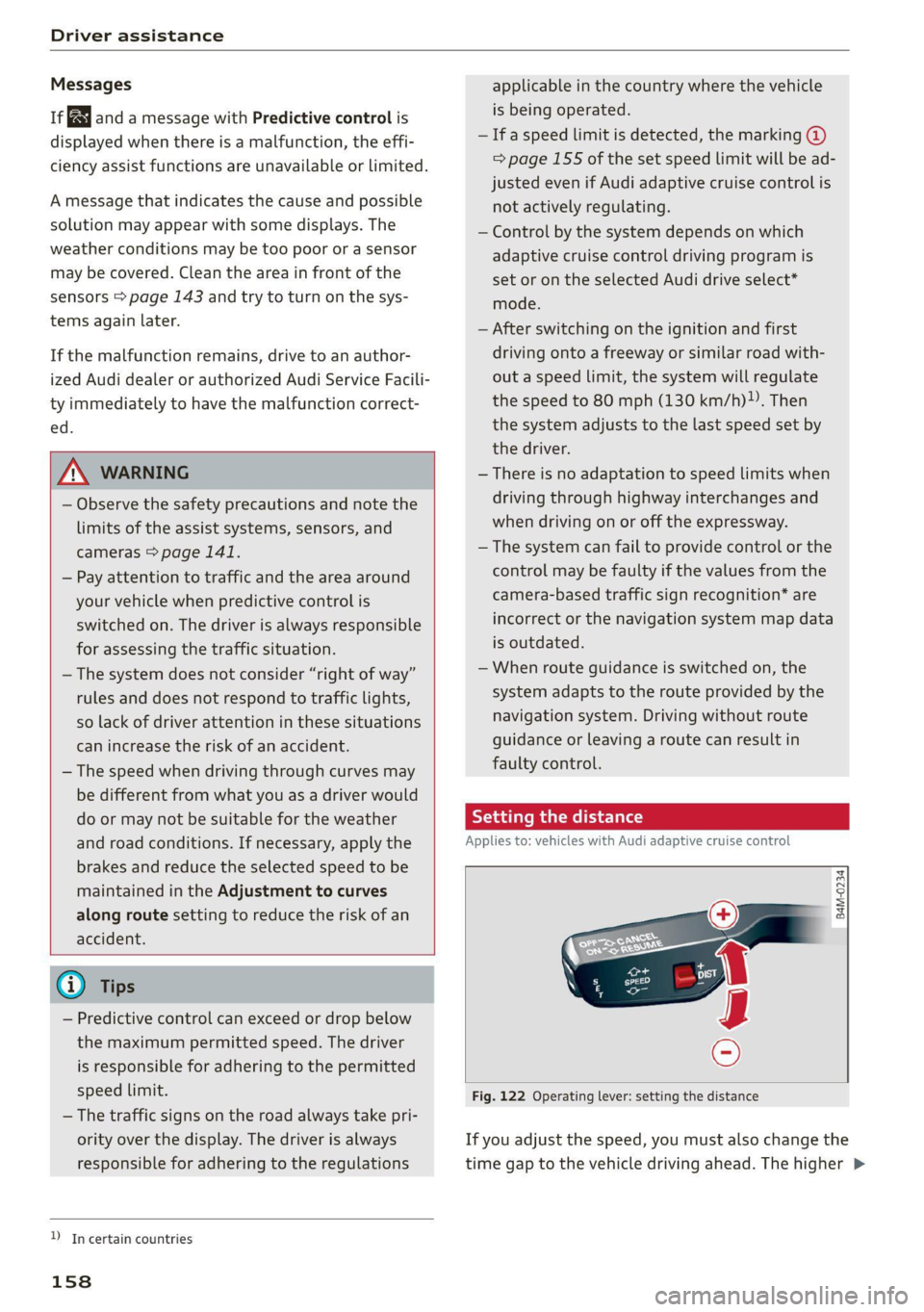
Setting the distance
Applies to: vehicles with Audi adaptive cruise control
B4M-0234
Fig. 122 Operating lever: setting the distance
If you adjust the speed, you must also change the
time gap to the vehicle driving ahead. The higher >
Page 164 of 332
Driver assistance
handling with predictive control, for example the
speed for driving through curves.
@) Tips
Certain settings are automatically stored and
assigned to the remote control key being
used.
Applies to: vehicles with Audi adaptive cruise control
If or is displayed when there is a mal-
function, the adaptive cruise control or traffic
jam assist functions may be unavailable or may
be limited.
A message that indicates the cause and possible
solution may appear with some displays. The
weather conditions may be too poor or a sensor
may be covered. Clean the area in front of the
sensors > page 143 and try to turn on the sys-
tems again later.
If the malfunction remains, drive to an author-
ized Audi dealer or authorized Audi Service Facili-
ty immediately to have the malfunction correct-
ed.
Please take over!
This message appears if the vehicle rolls back
when starting on a slight incline, even though the
systems are active. Press the brake pedal to pre-
vent the vehicle from rolling or starting to move.
Traffic jam assist
Applies to: vehicles with traffic jam assist
B8V-0692
Fig. 126 Turn signal lever: button for traffic jam assist and
Audi active lane assist
162
Traffic jam assist supports the driver when driv-
ing in traffic jams or in heavy traffic.
In a speed range under 40 mph (65 km/h), the
system can help to keep the vehicle within a lane
calculated by the system. Within the limits of the
system, the system controls the steering auto-
matically when adaptive cruise control is switch-
ed on. Since traffic jam assist is only an assist
system, the driver must always keep his or her
hands on the steering wheel and be ready to
steer. The driver can override the control at any
time by actively steering.
The system is designed for driving on express-
ways and highways.
Requirements for using traffic jam assist:
> The traffic jam assist is preselected in the MMI
settings: Select on the home screen: VEHICLE >
Driver assistance > Traffic jam assist.
> Adaptive cruise control must be switched on
and active > page 156.
If you open the Driver assist display in the on-
board computer = page 17, the indicator
light and the message Traffic jam assist will turn
on when a traffic jam is detected.
Activating or deactivating traffic jam assist
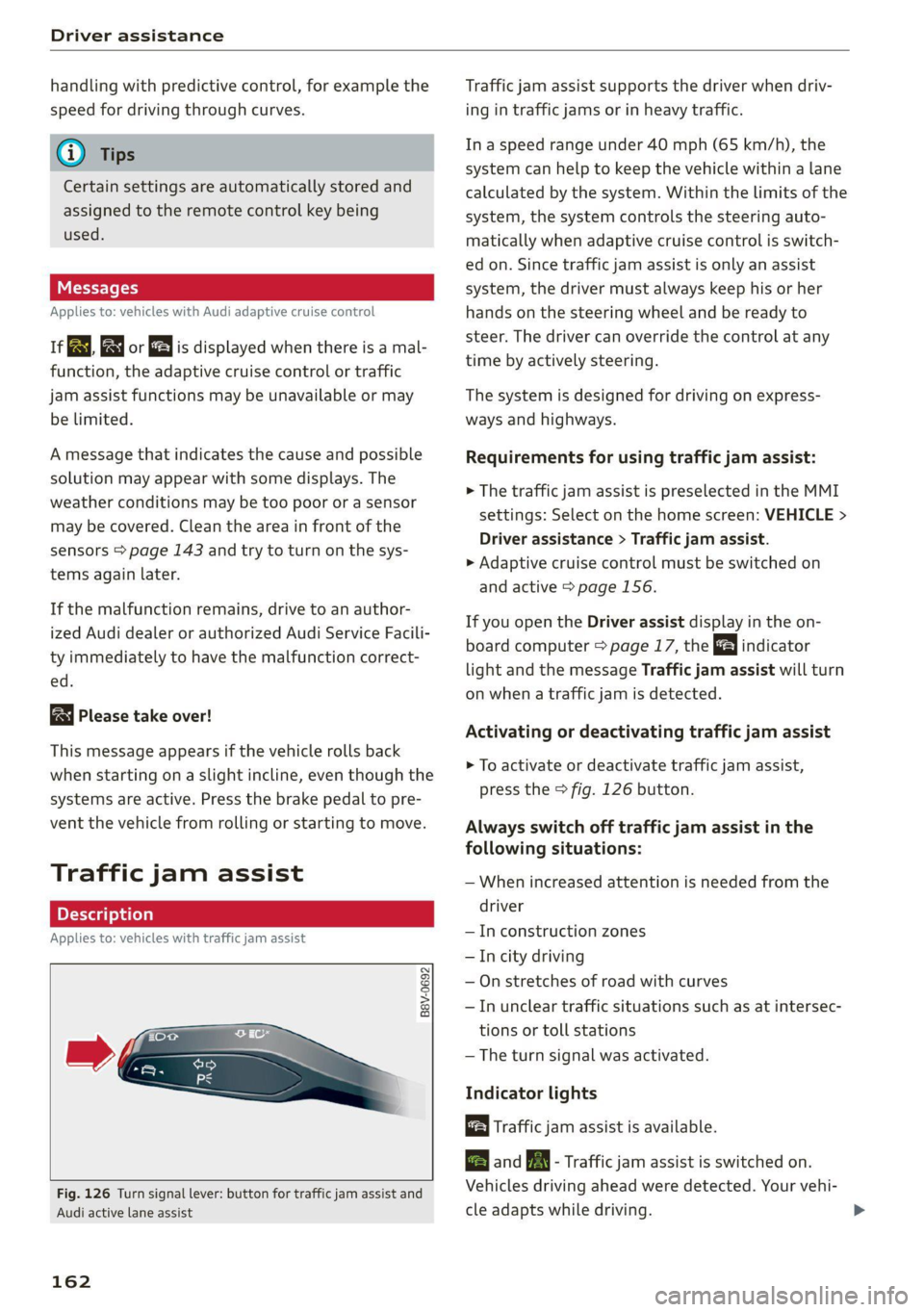
> To activate or deactivate traffic jam assist,
press the > fig. 126 button.
Always switch off traffic jam assist in the
following situations:
— When increased attention is needed from the
driver
— In construction zones
— In city driving
— On stretches of road with curves
—In unclear traffic situations such as at intersec-
tions or toll stations
— The turn signal was activated.
Indicator lights
Traffic jam assist is available.
B and B - Traffic jam assist is switched on.
Vehicles driving ahead were detected. Your vehi-
cle adapts while driving.
Page 165 of 332
80B012721BA
Driver assistance
B - Traffic jam assist switches off if the driver
does not take over steering after multiple driver
intervention requests. The system brakes the ve-
hicle until it is stationary.
Steering intervention request
If no steering activity is detected or the steering
power from the system is not sufficient, the driv-
er steering intervention request will alert the
driver using audio and visual signals, such as
or E. Take over the steering and keep your
hands on the steering wheel so that you will be
ready to steer at any time.
If the driver does not take over steering, adaptive
cruise control (with traffic jam assist) will be
switched off. The system brakes the vehicle until
it is stationary.*
ZA WARNING
— Observe the safety precautions and note the
limits of the assist systems, sensors, and
cameras © page 141.
— The activated traffic jam assist is only an as-
sist system, and the driver is still responsi-
ble for controlling the vehicle. The driver is
especially responsible for braking, steering,
starting to drive, and controlling the speed
and the distance from other vehicles.
— Turn on the traffic jam assist only if the sur-
rounding conditions permit it. Always adapt
your driving style to the current visual,
weather, road, and traffic conditions.
— Switch the traffic jam assist off temporarily
when driving in turning lanes or highway ex-
its. This prevents the vehicle from accelerat-
ing to the stored speed when in these situa-
tions.
@) Tips
— Always keep your hands on the steering
wheel. The driver is always responsible for
adhering to the regulations applicable in
the country where the vehicle is being oper-
ated.
— Pay attention to applicable local regulations
relating to driving tasks, leaving space for
emergency vehicles, etc. The driver is always
responsible for following the laws that are
applicable in the location where the vehicle
is being operated.
— If traffic jam assist was deactivated through
the MMI, you can continue operating the
Audi active lane assist using the > fig. 126
button > page 165. The traffic jam assist
functions are no longer available.
— You are not necessarily guided to the center
of your lane.
Messages
Applies to: vehicles with traffic jam assist
if &. or |i is displayed when there is a mal-
function, the traffic jam assist functions may be
unavailable or may be limited.
A message that indicates the cause and possible
solution may appear with some displays. The
weather conditions may be too poor or a sensor
may be covered. Clean the area in front of the
sensors > page 143 and try to turn on the sys-
tems again later.
If the malfunction remains, drive to an author-
ized Audi dealer or authorized Audi Service Facili-
ty immediately to have the malfunction correct-
ed.
163
Page 166 of 332
![AUDI Q5 2021 Owner´s Manual Driver assistance
Distance warning
Applies to: vehicles with distance warning
S| iS 9] nN ‘|
ja
Applies to: vehicles with adaptive cruise control:
Fig. 127 Instrument cluster: display o](/img/6/40263/w960_40263-165.png "AUDI Q5 2021 Owner´s Manual Driver assistance
Distance warning
Applies to: vehicles with distance warning
S| iS 9] nN ‘|
ja
Applies to: vehicles with adaptive cruise control:
Fig. 127 Instrument cluster: display o")
Driver assistance
Distance warning
Applies to: vehicles with distance warning
S| iS 9] nN ‘|
ja
Applies to: vehicles with adaptive cruise control:
Fig. 127 Instrument cluster: display of the current dis-
tance
RAZ-0400
Applies to: vehicles with Audi adaptive cruise control
Fig. 128 Instrument cluster: distance warning
General information
At speeds above approximately 40 mph (65
km/h), this function measures the distance to the
vehicle ahead as time. If the distance falls below
the warning threshold and remains there, the
system will warn you of the hazard with the &
indicator light.
Image in the Driver assistance display
Applies to: vehicles with Audi adaptive cruise control
The display only appears if the Driver assistance
display is selected in the on-board computer
= page 17 and the adaptive cruise control is not
actively controlling the vehicle.
@ Detected vehicle driving ahead
@ Use the markings to help you estimate the
distance to an obstacle. Each marking repre-
sents approximately one second.
@® Set warning threshold. Depending on the set-
tings, the display will be colored in from the
bottom to the top.
164
@ The actual distance is smaller than the set
distance and you will be informed about the
danger.
Adjusting the distance warning
The system can be switched off or on in the MMI
and you can customize the distance warning
threshold. The settings depend on the vehicle
equipment.
— Applies to: MMI: Select on the home screen:
VEHICLE > Driver assistance > Distance warn-
ing.
Messages
1f Bo is displayed when there is a malfunc-
tion, the distance warning functions may be un-
available or may be limited.
A message that indicates the cause and possible
solution
may appear with some displays. The
weather conditions may be too poor or a sensor
may be covered. Clean the area in front of the
sensors > page 143 and try to turn the system on
again later.
If the malfunction remains, drive to an author-
ized Audi dealer or authorized Audi Service Facili-
ty immediately to have the malfunction correct-
ed.
ZA\ WARNING
Observe the safety precautions and note the
limits of the assist systems, sensors, and
cameras > page 141.
Gi) Tips
— The driver is always responsible for adhering
to the regulations applicable in the country
where the vehicle is being operated.
— You may fall below the warning threshold
briefly when passing or when quickly ap-
proaching a vehicle driving ahead. There is
no warning in this scenario. A warning is giv-
en only if you fall below the warning thresh-
old for an extended period of time.