remote control AUDI Q7 2012 Owner´s Manual
[x] Cancel search | Manufacturer: AUDI, Model Year: 2012, Model line: Q7, Model: AUDI Q7 2012Pages: 342, PDF Size: 86.42 MB
Page 70 of 342

68 Clear vision
Mirrors
Adjusting the exterior mirrors
Fig. 70 Fo rwa rd sect ion of driver's armrest: powe r mir
ror controls
Adjusting exterior mirrors
.,. Rotate the knob to the© posit ion (driver's
exterio r mirror) or to the ® position (pas
senger's exterior mir ror)
9 fig. 70.
.,. Rotate the knob and the mirror so that you
have a clear view to the rear.
Heated mirrors
.,. Rotate the knob to pos it ion @.
Folding both exterior mi rrors flat*
.,. Rotate the knob to position @.
Depending on the outside temperature, the
mirror surfaces are heated until the ignition is
switched off -even if the knob is no longer in
position @.
You are well-advised to fold the exterior m ir
rors in when maneuvering in tight spaces or
when leaving the car parked close to other ve
h icles.
Memory setting for the exterior mirrors*
When the seat position is saved in the memo
ry, the position of the exterior mirrors is saved
at the same time
9 poge 73.
If the position of the passenger mirror is
changed when the vehicle is in reverse gear
and the switch is in the ® position, this new
tilted position will be automat ically saved to
the remote key when the vehicle is taken out
of reverse gear. To save, the rotary knob for
mirror adjustment must be in the ® position, the selector lever must
be in the P pos ition
and the ignition must be off . This will now be
come the stored setting when the vehicle is
put in reverse gear again.
Tilt ing the passenger's side exterior
mirror (only with seat memory)
When you move the selector lever into R (Re
verse), the mirror on the front passenger's door (knob turned to® ¢
fig. 70) will tilt
s light ly downward . This make is easier for you
to see the curb when you are backing into a
parking space .
The m irror returns to its initial position as
soon as reverse gear is d isengaged and veh icle
speed is above about 9 mph (15 km/h). The
mirror also returns to its initial position if the
switch is moved to the driver's ex ter ior mirror
© or the ignition is switched off .
(D Note
-Curved (i .e . convex) mirror surfaces in
crease your field of view. Remember that
vehicles or other objects will appear
smaller and farther away than when
seen in a flat mirror. If you use this mir
ror to estimate distances of following ve
hicles when changing lanes, you could
estimate incorrectly and cause an acci
dent.
- If the mirror housing is moved uninten
tionally (for examp le, while parking your
vehicle), then you must first fold the mir
ror electrically. Do not readjust the mir
ror housing manually. You could damage
the motor which controls the mirror.
-If you take the vehicle to an automatic
car wash, you must fold the exter ior mir
rors flat to prevent damaging them.
Power folding exterior mirrors* must not
be folded in or out by hand. Use the pow
er function!
(D Tips
If t here should be a malfunction in the
electr ical system, you can still adjust the
exterior mirrors by pressing the edge of
the mirror .
Page 72 of 342

70 Clear vis ion
The digital compass only works with the igni
tion turned on. The directions are displayed as
in itia ls:
N (North), NE (Northeast), E (East),
S E (Southeast), S (South), SW (Southwest),
W (West), NW (Northwest).
(D Tips
To avo id inaccurate directions, do not al
low any remote controls, electrical sys
tems, or metal parts close to t he mirror.
Setting the magnetic deflection zone
App lies to vehicles: with digital compass
The correct magnetic deflection zone must be
set in order to display the directions correctly.
©
F ig . 73 Nort h Amer ica: magnet ic deflect ion zo ne
bou nda ries
.. Hold the®~ page 69, fig. 72 button down
u nti l the number of the set magnetic deflec
t ion zone appears on the inter io r r ear view
mirror .
.. Adjust the magnetic deflection zone by re
peatedly pressing on the ® button. The set
mode automatically deactivates after a few
seconds.
Calibrating the compass
App lies to vehicles : w it h dig ita l compass
The compass has to be recalibrated if the dis
play is wrong or inaccurate.
.. Hold the ® button down unt il the letter C
is displayed on the inter ior rear view mirror .
.. Drive in a circle at a speed of about 5 mph
(10 km/h) until a d irect ion is shown on the
interio r rear view mirro r.
8, WARNING
The digital compass is to be used as a di
r ectiona l aid only . Even though you may
want to look at i t while you are driving, you
must still pay atte ntion to traffic, road a nd
weather conditions as well as other possi b le hazards.
-
Page 75 of 342
unattended in the vehicle -they could be
injured!
- Exercise caution when adjusting the seat
height. Unsupervised or careless seat ad
justment can pinch fingers or hands
causing injur ies.
- While the vehicle is moving, the seat
backs of the front seats must not be in
clined too far to the rear because the ef
fectiveness of the safety belts and the
airbag system is severely compromised -
there is a risk of injury.
- To reduce the r isk of injury in the case of
sudden braking or accident, front pas
sengers must never ride in a moving ve
hicle wi th the seatback reclined. Safety
belts and the airbag system only offer
maximum protection when the seatback
is upright and the safety be lts are prop
erly positioned on the body. The more
the seatback is reclined, the greater the
risk of personal injury from an incorrect
seating pos ition and improperly posi
t ioned safety belts.
Seat memory
Driver's seat memory
Ap plies to vehicles: with seat memo ry
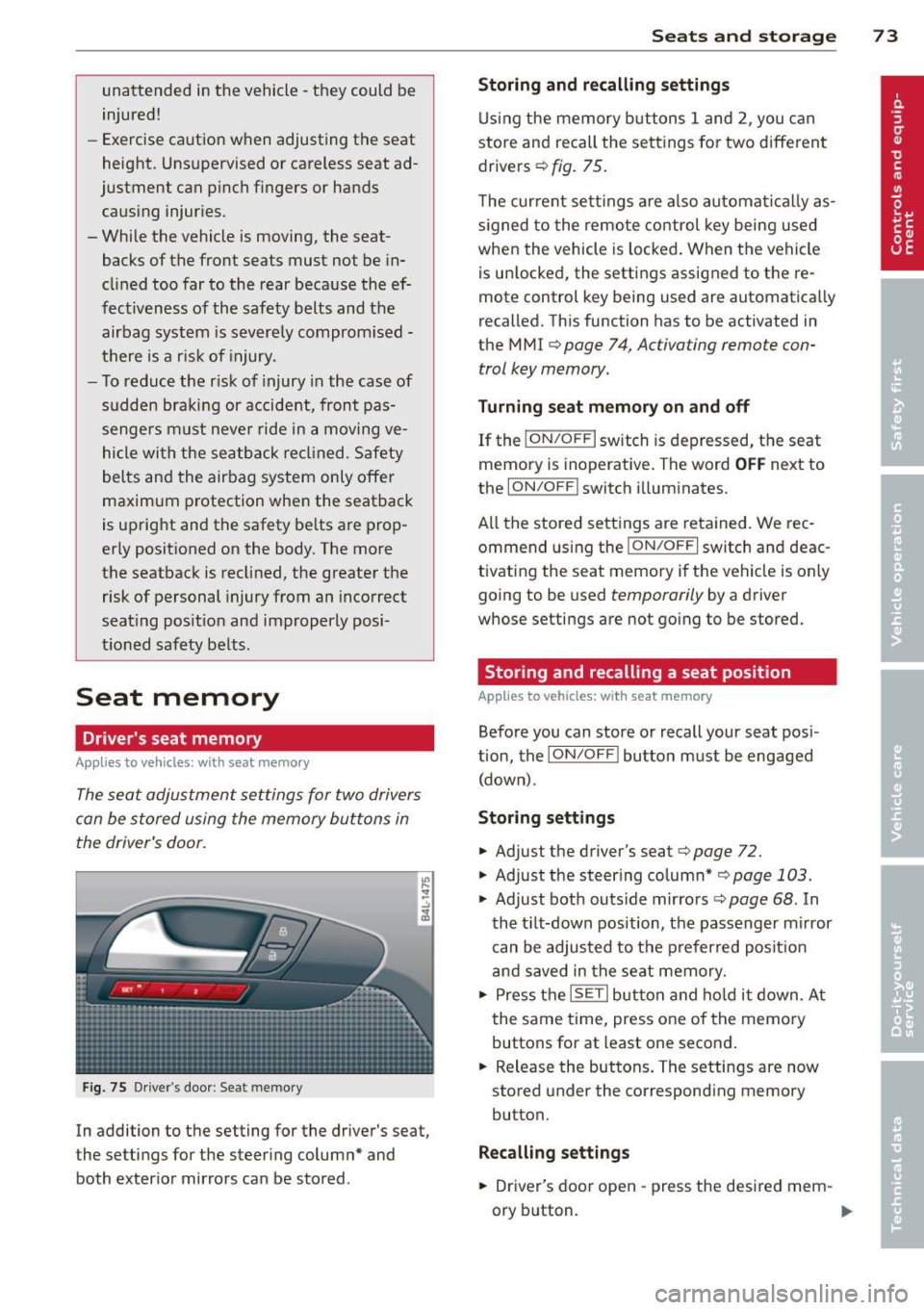
The seat adjustment settings for two drivers
can be stored using the memory buttons in
the driver's door.
F ig. 75 Driver's door : Seat memory
In addition to the setting for the driver's seat,
the settings for the steering column* and
both exterior mirrors can be stored .
Seats and storage 73
Storing and recalling settings
Using the memory buttons 1 and 2, you can
store and recall the settings for two different drivers ¢
fig. 75.
The current settings are also automatical ly as
s ig ned to the remote control key being used
when the vehicle is locked. When the vehicle
is un locked, the settings assigned to the re
mote control key being used are automatically
recalled. This function has to be activated in
the M MI ¢
page 7 4, Activating remote con
trol key memory.
Turning seat memory on and off
If the I ON/O FF I switch is depressed, the seat
memory is inoperative. The word
OFF next to
the
ION/O FF I switch illuminates.
All the stored settings are retained. We rec
ommend using the
ION/OF F I switch and deac
tivating the seat memory if the vehicle is only
going to be used
temporarily by a driver
whose settings are not going to be stored.
Storing and recalling a seat position
App lies to vehicles: wit h seat memory
Before you can store or recall your seat pos i
tion, the
ION /OFF! button must be engaged
(down) .
Storing settings
.,. Adjust the driver's seat¢ page 72 .
.,. Adjust the steer ing column* ,=;, page 103 .
.,. Adjust both outs ide mirro rs ¢ page 68 . In
the tilt-down position, the passenger mirror
can be adjusted to the preferred posit ion
and saved in the seat memory .
.,. Press the
ISETI button and hold it down . At
the same time, press one of the memory
buttons for at least one second .
... Release the buttons. The settings are now
stored under the corresponding memory
button.
Recalling settings
.,. Driver's door open -press the desired mem-
ory b utton.
ll-
Page 76 of 342
7 4 Seats and stor age
• Driver's door closed -press the correspond
ing memory button unti l the stored position
is reached.
Successf ul s torage is conf irmed a ud ibly and
by the l ight i n the
!SET ! button illuminating .
When the ve hicle is
locked , the cur rent set
tings are stored and ass igned to the remo te
control key. Bu t th e set tings stored on memo
ry buttons 1 and 2 are not deleted. They can
be reca lled at any time . When the vehicle is
unlocked , the settings assigned to the remote
control key are restored.
If you r vehicle is driven by other persons using
your remote control key, you should save yo ur
individua l seat position on one of the memory
buttons. You can reca ll your settings aga in
simply and conve niently by pressing the corre
spond ing memory butto n. When the vehicle is
l oc ked, these setti ngs are automatically re-as
signed to t he remote control key and stored.
.&_ WARNING
- F or safe ty re ason s, the sea t sett in g can
only be rec alled w hen the veh icle is st a
t ionary -othe rwise you r isk having an ac
cident.
- In an emergency, the recall operation
can be stoppe d by pressin g the
!ON/OFF I
button or by br iefly p ress ing any given
memory button.
Activating remote control key memory
App lies to vehicles: with seat memo ry
To assign the driver's seat settings to the re
mote contro l key when locking the vehicle, the
function must be activated in the MMI.
• Se lect: Funct ion button
ICARI > Cont ro l but
ton
Systems * > Seat adjustment > Driver 's
seat > Key mem. p rofile > On .
Or
• Se lect: Funct io n button
ICA RI > Cont ro l but
ton
Car system s* > Vehicle settings > Seats
> Driver's seat > Remote control key > On .
(D Tips
If you do not want anothe r driver's set
tings to be assigned to the remote control key, switch off the memory function using
the MMI or the
I ON/OF F! button
c> page 73.
Rear seats
General information
Safe transportation of passengers on the rear
seats requires proper safety pre cautions.
All passengers on the rear seats mus t be seat
ed in comp lian ce with the safety guide lines
exp lained in c>
page 170 and c> page 179 .
The co rrec t seating pos ition is cr it ic al f or the
sa fe ty of front
and rear seat passenge rs a like
c> page 163 .
A WARNING
--Occupants in the f ront and rear seats
m ust always be proper ly restrained.
- Do not let anyone ride in the ve hicle
witho ut the head restraints prov ided.
Head restraints help to reduce injuries .
- Loose items inside the passenge r com
pa rtment, can fly forward in a crash or
sudden maneuve r and injure occupants.
Always store a rticles i n the luggage com
pa rtment an d use the fastening eyes, es
pecially w he n the rea r seatbac ks hav e
been fo lded down.
- Read and heed all WARNI NGS
c> pag e 163, Prop er s eating positions
for passengers in rear sea ts.
Page 126 of 342
124 Adaptive cruise control
control is turned off . A warning tone also
sounds as a reminder.
ACC off: manual control !
The text message ACC off: manual control !
appears after the vehicle has been brought to
a standstill by the adaptive cruise control. In
this case you must depress the brake pedal to
prevent the vehicle from rolling . A warning
tone sounds as a reminder .
Selector lever position !
The text message Selector lever position ! ap
pears when the selector lever is moved to po
sition
N . In this position, adaptive cruise con
trol is not available .
Driver intervention prompt
Applies to vehicles: with adaptive cruise co ntrol
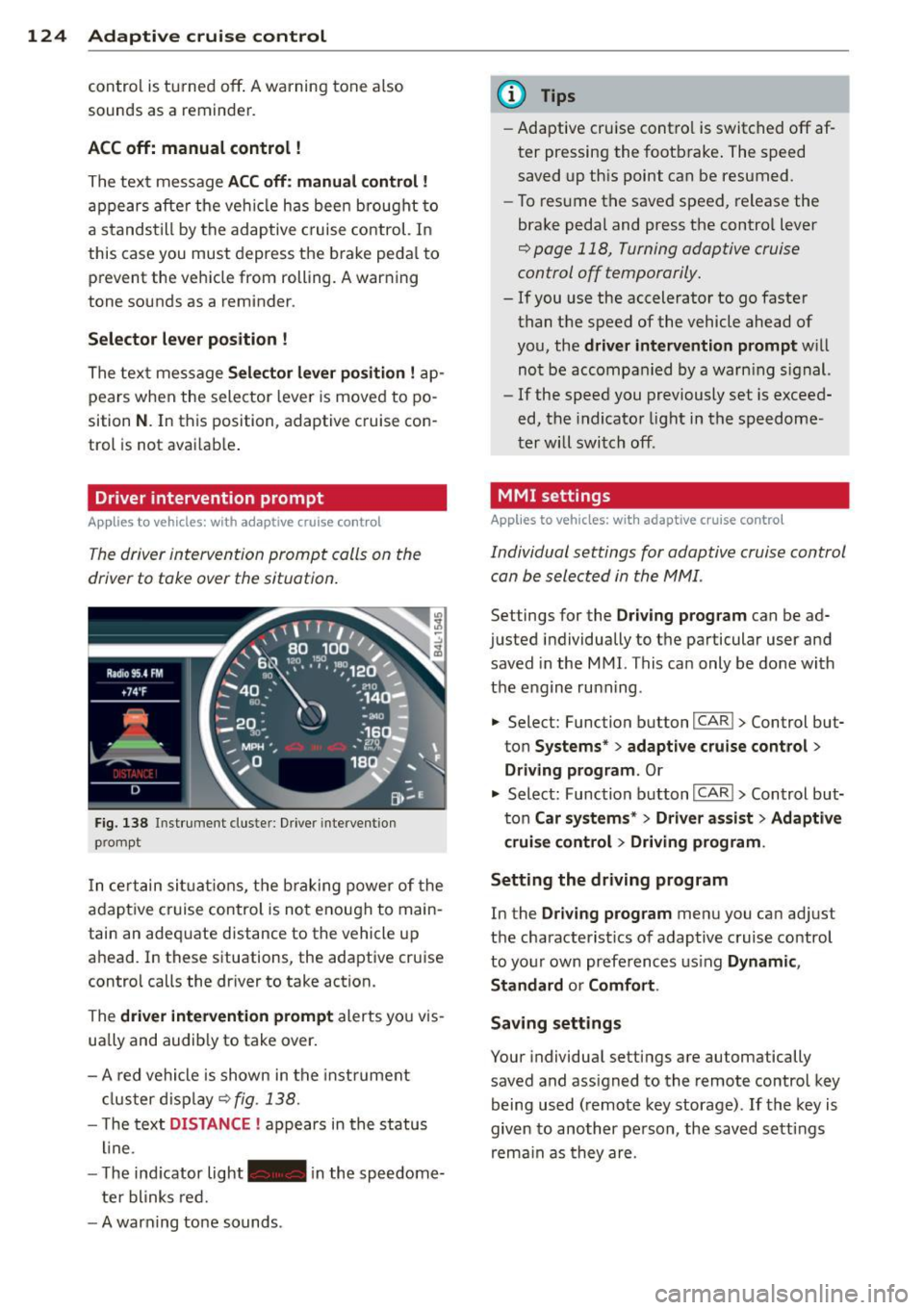
The driver intervention prompt calls on the
driver to toke over the situation.
Fig. 138 Inst rument clus te r: Driv er in tervent ion
p romp t
In certain situations, the braking power of the
adapt ive cr uise control is not enough to main
tain an adequate distance to the vehicle up
ahead . In these situat ions, the adaptive cruise
contro l calls the dr iver to take action.
The
driver intervention prompt alerts you vis
ually and audib ly to take over.
- A red vehicle is shown in the instrument
cluster display ¢
fig. 138.
- T he text DISTANCE ! appears in the status
line .
- T he indicator light- in the speedome
ter blinks red.
- A warning tone sounds .
(D Tips
-Adaptive cruise contro l is switched off af
ter pressing the footbrake. The speed
saved up this point can be resumed.
- To resume the saved speed, release the
brake pedal and press the control lever
¢ page 118, Turning adaptive cruise
control off temporarily.
- If you use the accelerator to go faster
than the speed of the vehicle ahead of
you, the
driver intervention prompt w ill
not be accompanied by a warn ing s ign al.
- If the speed you previously set is exceed
ed, the indicator light in the speedome
ter will switch off.
MMI settings
Applies to vehicles: wit h adaptive cruise contro l
Individual settings for adaptive cruise control
can be selected in the MMI.
Settings for the Driving program can be ad
justed individually to the particular user and
saved in the MMI. This can only be done with
the engine ru nning .
• Select: Function button
I CAR !> Control but
ton
Systems * > adaptive cruise control >
Driving program . Or
.,. Select: Function b utton I CAR !> Control but
ton
Car systems* > Driver a .ssist > Adaptive
cruise control
> Driving program .
Setting the driving program
In the Driving program menu you can adjus t
the characterist ics of adaptive cruise control
to your own preferences using
Dynamic,
Standard
o r Comfort .
Saving settings
Your individual settings are automatically
saved and ass igned to the remote control key
being used (remote key storage) .
If the key is
given to another person , the saved settings
remain as they are .
Page 136 of 342
134 Audi side assist
but is not considered notable in the event of a
l ane change, because it is dropping back so
qu ickly. The s ignal on the outside m irror does
not light up¢.&.
in Safe ty tips on page 136.
@ Signal on outs ide mirror does not light
up
If you activate your turn signal in driving sit
uation @, the signa l st ill does not light up on
the outside mirror¢.&.
in Safe ty tips on
page 136 .
MMI settings
Applies to vehicles: with side assist
The basic brightness se tting of the signal on
t he ou tside mirror can be adjusted via the
MMI .
.. Select : Function button ICARI > Contro l but
ton
Systems* > Audi side assist . Or
.. Select : Function button
ICARI > Control but
ton
Car systems* > Driver assist > Audi side
assist.
The brightne ss of the signal light for both the
in format ional and alert stages is automatical
ly adjusted to amb ient light conditions. In ad
d ition, you can adjust the
basic brightness
sepa rately, via the brigh tness function.
Wh ile making the adjustment, the new
brightness setting is displayed briefly . The
brightness displayed is that of the informa
tional stage signal. The alert stage signal
brightness is linked to the informational stage
signal brightness.
The informational stage signal br ightness
should be adjusted so that you not ice the sig
nal illuminat ion when yo u loo k in the outside
mirror, but not when you look forward
through the windshield.
I n very dark or l ight surroundings , the auto
mat ic brightness setting adjusts signal light
brightness to maximum or minimum intensi
ty, as needed. In circumstances such as these,
you may not notice any change in the bright
ness on the outside mirror when ad justing the
basic brightness .
You may not notice the change until lighting
conditions are normal again.
(D Tips
-Side ass ist is not active when the basic
brightness is adjusted . The s ignal light
comes on briefly to help you make the
adjustment .
- Yo ur settings are automatically stored
and assigned to the remote contro l key
being used.
· General information '
App lies to vehicles : wit h side assist
Side assist has limits and canno t detect vehi
cles under all road and weather condit ions .
Please remember system limitations and nev
er rely on the system , especially when :
- driving through curves¢
page 134,
-lanes are of different widths¢ page 135.
' When driving through curves
Applies to vehicles: wit h side assist
Side assist cannot detect vehicles in curves
with a turning rad ius of less than 328 feet
(100 m).
When driving through a curve, it is poss ible
that side assi st m ay reg ister a veh icle two
lanes over, and the signal on the outside mir
ror will light up.
Page 151 of 342
-On -when the parking system is switched
on, either the visual display or the picture
from the rearview camera is disp layed .
Warning tones
- Front volume* -
front sensor vo lume
- Front frequency* -front sensor frequency
-Rear volume -rear sensor volume
-Rear frequency -rear sensor frequency
-In -ca r entertainment fader/Music volume
while parking -
when the parking system is
switched on, the volume of the active audio source is lowered.
The newly adjusted value is briefly heard from
the signal generator.
(D} Tips
- The warning tones can also be adjusted
direct ly by the v isual disp lay* or the pic
ture from the rearview camera*. Simply
press the
Settings* control button .
- Changed settings are activated when
parking system is switched on aga in.
- The settings are automatically stored
and ass igned to the remote control key.
Trailer hitch
Applies to vehicles: with rear park assist/Audi parking sys·
tem plus with rearview camera and trailer hitch
For vehicles with a factory installed trai ler
hitch, or a trai ler hitch installed according to
factory specifications, the parking system rear
sensors do not come on whenever you shift in
to reverse gear or when you press the P
11,
switch*. If you install a hitch yourself, th is
function may not work . In general the follow
limitations may come up:
Rear park assist*
There is no warning for distances to the rear.
Audi parking system plus with rearview
came ra*
There is no warning for distances to the rear .
The front sensors remain activated. The visual
display switches to the trailer towing mode.
The picture from the rearview camera will not
Parking system 149
show the orientation lines nor the blue surfa
ces.
Error messages
Applies to vehicles: with rear park assist/Audi parking sys
tem plus with rearview camera
There is an error in the system if the LED on
the
P" 1! switch* is blinking and you hear a con
tinuous alarm for a few seco nds after switch
ing on the park ing system or when the park
ing system is already activated. Have your au
thorized Audi dea ler correct the error .
(D Tips
If the error is not corrected before you
switch off the ignition, when you switch on
the parking system again, the LED in the
p,,1, switch* will blink .
Page 158 of 342
156 Hom eli nk®
Homelink ®
Universal remote
control
General information
Applies to vehicles: with Home link® universal remote
control
The Homelink ® feature can learn up to three
radio frequency codes for most current trans
mitters used for operating garage doors, es tate gates, home or outdoor lighting sys
tems, and other devices.
You must first program the Homelink ® trans
mitter before you can use the system
~ page 157, Programming the Homelink ®
transmitter.
In order to program the Home link ® transmit
ter for devices utilizing rolling code, a second
person on a ladder who can safe ly reach the
garage door opener motor is recommended. I t is also necessary to locate the "learn" but
ton on your garage door opener motor . Refer
to the operating instructions for the opener,
as the location and color of this button may
vary by manufacturer.
You can still use the origina l remote control
for the device at any time .
.&_ WARNING
-
- Never use the Homelink ® transmitter
with any garage door opener that does
have not the safety stop and reverse fea
ture as requ ired by federa l safety stand
ards. Th is includes any garage door open
er model manufactured before April 1,
1982.
- A garage door opener which cannot de
tect an object, signa ling the door to stop
and reverse does not mee t current feder
al safety s tandards. Using a garage doo r
opener without these features increases
risk of serious inj ury or death.
- F or sa fety reasons never release the
parking brake or start the engine w hile
anyone is stand ing in front of the vehicle . -
A garage door or an estate gate may
sometimes be set in mot ion when the
Homelink ® remote control is being pro
grammed. If the device is repeatedly ac
tivated, this can overstrain motor and
damage its e lectr ical components -an
overheated moto r is a fire hazard!
- To avo id possible injuries or property
damage, please always make abso lutely
certain that no persons o r objects are lo
cated in the range of motion o f any
equ ipment being ope rated .
(D Tips
-If you would like more information on
Homel ink ®, where to purchase the
Homel ink ® compatib le produc ts, or
would like to purchase the Homelink ®
Home Lighting Package, please call to ll
free: 1-800-355-3515 .
- For Declaration of Compliance to United States FCC and Ind ustry Canada reg ula
tions~
page 322.
Page 159 of 342
Programming the Homelink®
transmitter
A pplies to vehicles: with Home link® universa l remote
co ntrol
The transmitter is programmed in two phas·
es. For rolling code transmitters, a third
phase is also necessary .
.- :-::::: . ... ........ -. ----· . ...... ........ .l
-·-·-· -·-· -·..: ··-· ---- -·- ·· ..._~ -- · ····
111111
-
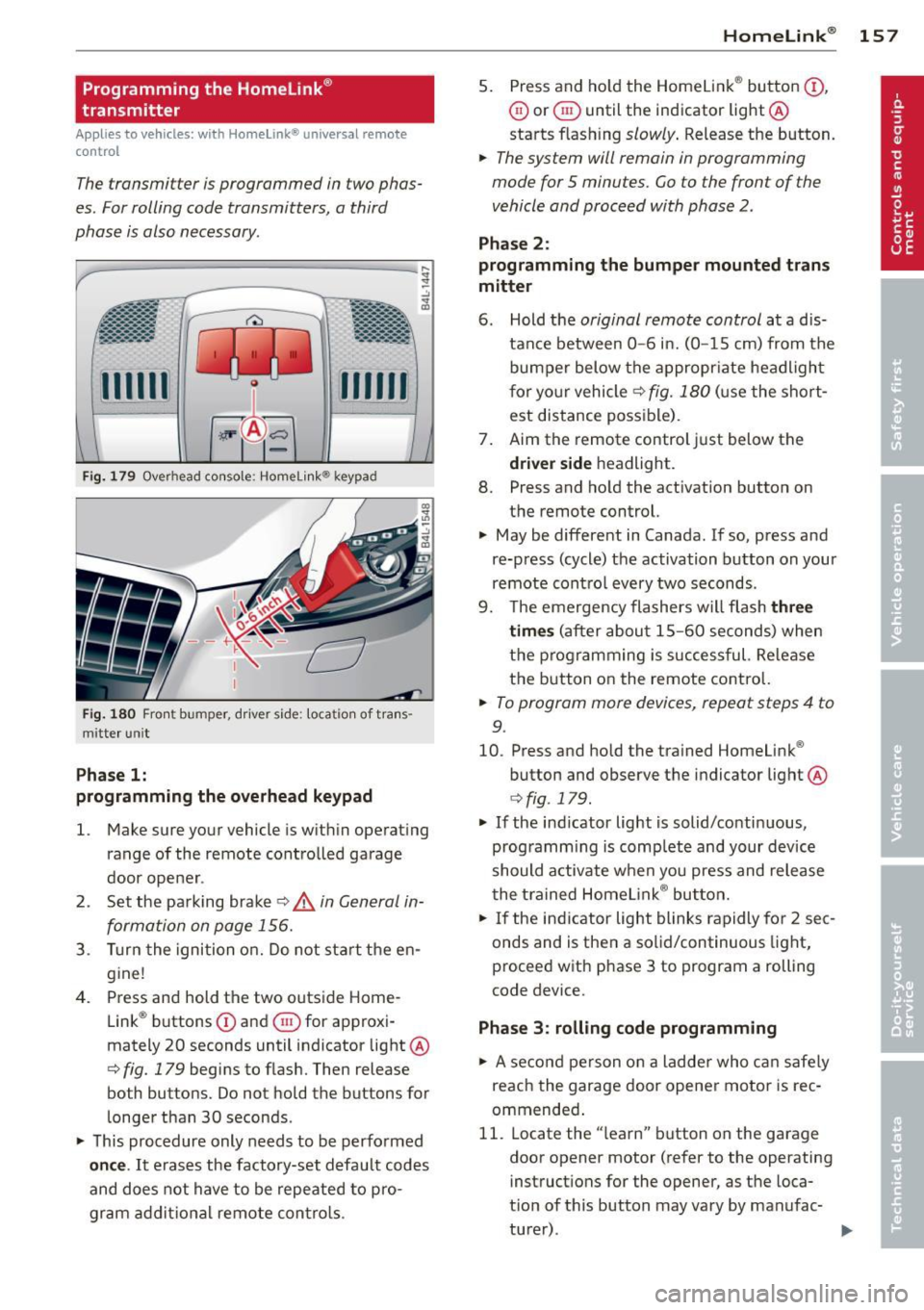
Fi g. 1 79 Overhead console: Homelink ® keypad
Fig. 1 80 Front bumper, d rive r side: loca tion of tra ns
mitter un it
Pha se 1:
programming the o verhead keypad
l. Make sure your vehicle is wit hin ope rating
range of the remote controlled garage
door ope ner .
2 . Set the pa rking brake
c:> .& in General in
formation on page 156.
3 . Turn the ignition o n. D o not sta rt the en
g ine!
4. Press and hold the two outs ide Home
Link ® buttons
(D and ® for approxi
mately 20 seconds until indicator light @
c:> fig. 179 begins to flash. Then release
both buttons. Do not hold the buttons for
l onger than 30 seconds .
~ This procedure only needs to be perfo rmed
on ce .
It erases the factory-set default codes
and does not have to be repeated to p ro
gram ad dit io na l remote contro ls .
Homelink ® 15 7
5. Press and ho ld the Homelink ® button (D ,
0 or ® until the indicator light@
starts flash ing
slowly . Release the button.
~ The system will remain in programming
mode for 5 minutes.
Go to the front of the
vehicle and proceed with phase 2 .
Phase 2 :
programming the bumper mounted trans
mitter
6 . Hold the
original remote control at a d is
tance between
0 -6 in. (0 -15 cm) from the
bumper below the appropr iate headligh t
f or yo ur vehicle
c:> fig. 180 (u se the short
est distance possible) .
7 . Aim the remote control just below the
driver s ide headlight.
8. Press and ho ld the activation button on
the remote control.
~ May be different in Canada. If so, press and
re-press (cycle) the activation button on your
remote cont ro l every two seconds .
9. The emergency flashers w ill flash
three
time s
(a fter about 15 -60 seconds) when
the programming is successful. Re lease
t h e button on the remote contro l.
~ To program more devices, repeat steps 4 to
9.
10. Press and hold the trained Homelink ®
button and observe the indicator light @
c:>fig . 179 .
~ If the indicator light is solid/contin uous,
programm ing is comp lete and your device
should a ctivate when you press and release
t he t rained Homelink ® bu tton.
~ If the ind icator light blinks rapidly for 2 sec
onds and is then a solid/continuous light,
proceed w ith phase 3 to program a rolling
code device.
Phase
3: rolling code programming
~ A se con d person o n a ladde r who c an safe ly
reach the garage door opener motor is rec
ommended .
11. Locate the "learn" button on the garage
door opener motor (refer to the operating
instruct ions for the opener, as the loca·
t ion of t his button may vary by manufac-
turer) . .,.
Page 160 of 342
158 Homelin k®
12. Press and release the learn button on the
garage door opener motor.
• Note: once the button is pressed, there are
30 seconds in which to initiate the next
step.
13 . On the Homelink ® keypad inside the vehi
cle, firmly p ress a nd hold the Homelink ®
button previously p rogramm ed in phases
1 and 2 for two seconds and release. Re
pea t this sequence
twi ce .
• Some vehi cles may require the p ress/hold/
release sequence up to t hree times to com
plete the training p rocess.
• HomeLink ® should now activate your rolling
code equipped device.
If t h e 5 minute time limit is exceeded, the
emergen cy flashers will flash one time to in
d icate that the process has been terminated.
In th is case, repeat steps 4 through 9.
If t he emergency flashers do not flas h
three
times (after about 15-60 seconds), program
ming was not successful. In this case, repeat
steps 4 through 9.
Remote control units for ga rage doo r openers
in Canada are set to stop transmitting radio
frequency signals after two seconds. This time
may not be sufficient for the Homelink ® sys
tem to learn the radio frequency s ignal. Per
form all other steps as described above .
Operating the Homelink® transmitter
App lies to vehicles: with Home link® universa l remote
co ntrol
The HomeLink ® transmitter works in the
some manner as the original hondheld re mote control that come with the system.
- ·······-··
········-·· •••••• . -.-.----·-·..: ··-·-·-·-·-··
··-·-·-·-·-·· .. -.... - - - ~-. -
fillTI ffUll
-
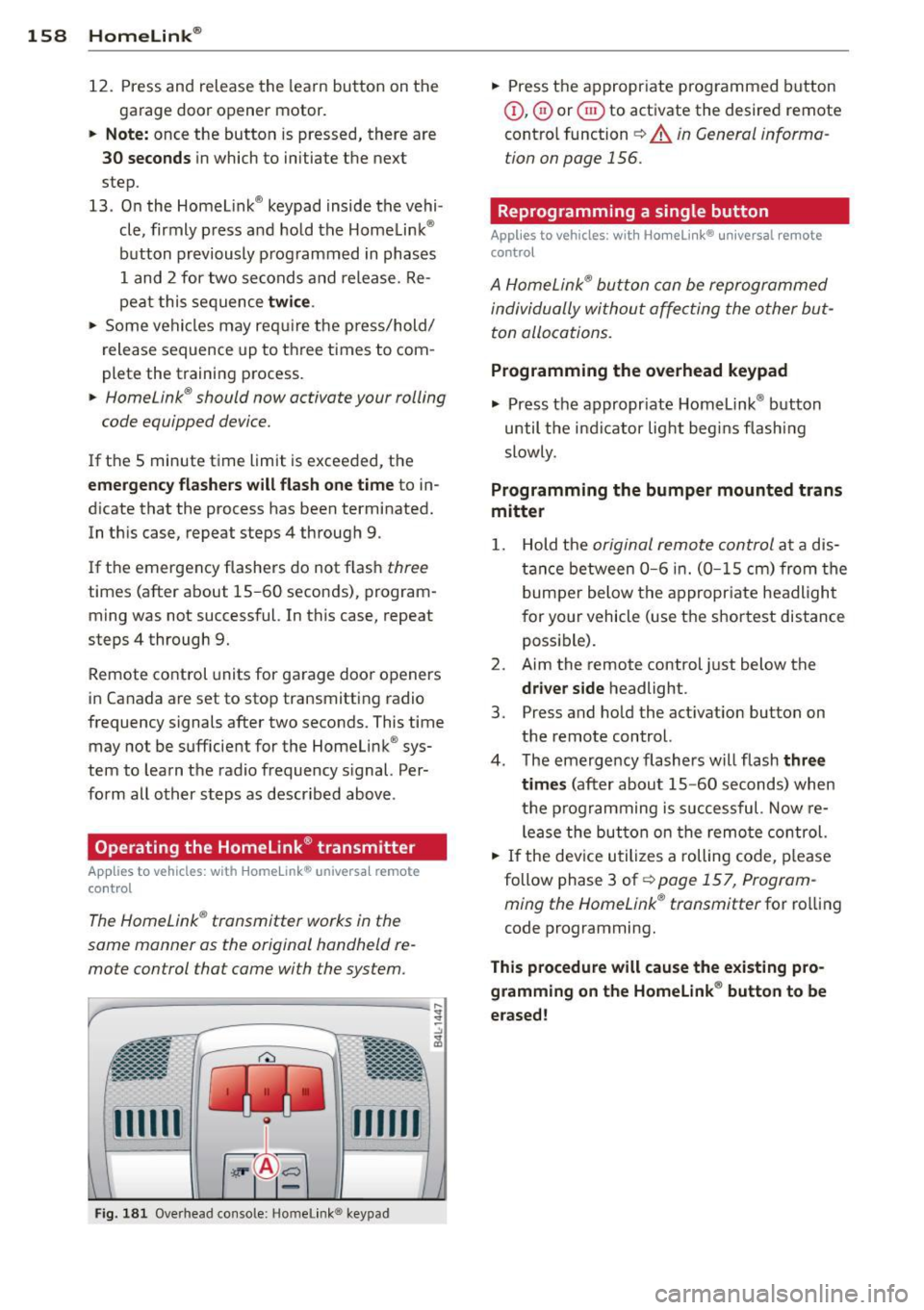
Fi g. 18 1 Overhead co nsole: Homelink ® keypad
• Press the appropr iate programmed b utton
(D , ® or@ to activate the desired remote
cont ro l function
~ A in General informa
tion on page 156.
Reprogramming a single button
Applies to vehicles: wit h Ho meli nk® uni versal remote
contro l
A HomeLink ® button can be reprogrammed
individually wi thou t affe cting the o ther but
ton allocations .
Programming the overhead keypad
.. Press the appropr iate Homelink ® button
until the i ndicator light begi ns flashi ng
slowly .
Programming the bumper mounted trans
mitter
1. Hold the original remote control at a dis
tance between 0-6 i n. (0 -15 cm) from the
bum pe r below the appropr iate headlight
f or yo ur vehicle (use the shor test dis tance
possible).
2. Aim the remote control just below the
driver s ide headlight .
3. Press and ho ld the act ivation button on
the remote control.
4 . The emergency flashers w ill flash
three
tim es
(after about 15 -60 seconds) when
the p rog ramming is successful. Now re
l ease the button on the remo te control.
.. If the dev ice utilizes a rolling code, p lease
follow phase 3 of¢
page 157, Program
ming the Home Link ® transmitter
for ro lling
code programming.
This procedure will cause the existing pro
gramming on the Homelink ® button to be
erased !