change time AUDI Q7 2017 Owner´s Manual
[x] Cancel search | Manufacturer: AUDI, Model Year: 2017, Model line: Q7, Model: AUDI Q7 2017Pages: 402, PDF Size: 100.39 MB
Page 115 of 402
u (0 ..... N r--. N ..... 0
0
:E
(efficiency assist)
Description
App lies to: ve hicles with Audi adaptive cruise co ntro l an d pr e·
di ctive efficiency assist
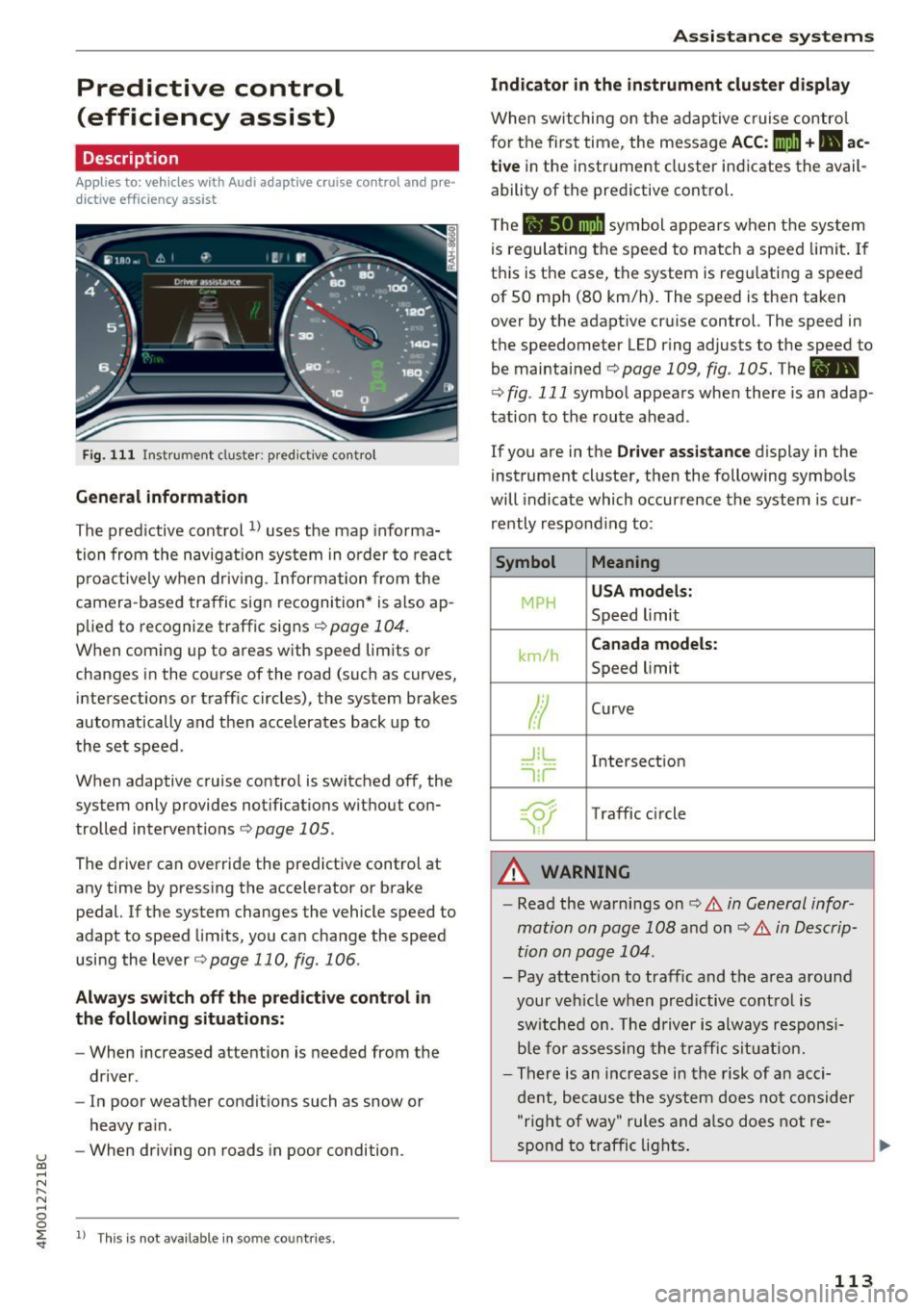
Fig. 111 Instrument cluster: pred ictive control
General information
The predictive control 1l uses the map informa
tion from the navigation system in order to react
proact ively when driv ing. Information from the
camera-based traffic sign recognition* is also ap plied to recognize traffic signs
<:!)page 104.
When coming up to areas with speed limits or
changes in the course of the road (such as curves,
intersections or traffic circles), the system brakes
automatically and then accelerates back up to
the set speed .
When adaptive cruise control is switched off, the
system only provides notifications without con
trolled interventions ¢
page 105.
The driver can override the predictive control at
any time by pressing the accelerator or brake
pedal. If the system changes the vehicle speed to
adapt to speed limits, you can change the speed
using the lever
¢ page 110, fig. 106 .
Always switch off the predictive control in
the following situations:
- When increased attention is needed from the
driver .
- In poor weather conditions such as snow or
heavy rain.
- When driving on roads in poor condition .
ll This is not ava ila ble in some co untrie s.
Assistance systems
Indicator in the instrument cluster display
When switching on the adaptive cruise contro l
for the first time, the message
ACC: 11D + B ac
tive
in the instrument cluster indicates the avail·
ability of the predictive control.
T he symbol appears when the system
is regulating the speed to match a speed limit . If
this is the case, the system is reg ulating a speed
of 50 mph (80 km/h). The speed is then taken
over by the adaptive cruise control. The speed in
the speedometer LED ring adjusts to the speed to
be maintained
¢ page 109, fig . 105. The ..
¢
fig . 111 symbo l appears when there is an adap
tation to the route ahead .
If you are in the Driver assistance display in the
instrument cluster, then the following symbols
will indicate which occurrence the system is cur
rently responding to:
Symbol Meaning
MPH USA
models:
Speed limit
km/h
Canada models:
Speed limit
Ir
Curve
_l!L
1i1
Intersection
~ ): Traffic c ircle
A WARNING
- Read the warnings on ¢.&. in General infor
mation on page 108
and on¢ .&. in Descrip
tion on page 104 .
- Pay attention to traffic and the area around
your veh icle when predictive control is
switched on. The driver is always responsi
ble for assessing the traffic situation.
- There is an increase in the risk of an acci
dent, because the system does not consider
"right of way" rules and also does not re-
spond to traffic lights. ._.
113
Page 125 of 402
u co ...... N r-... N ...... 0
0
:E: '
Description
Applies to: vehicles wit h Aud i act ive lane ass ist
Active lane ass ist (lane departure warning) de
tects lane marker lines within the limits of the
system using a camera in the w indshield .
If you
are approaching a detected lane marker line and
it appears likely that you will leave the lane, the
system wi ll warn you with corrective steering .
You can override this steering at any time . If you
pass over a line, the steering wheel will vibrate
lightly . In order for this warning vibration to oc
cur, it must f irst be sw itched on in the Infotain
ment system. Active lane assist is ready for oper
ation when the lane marker line is detected on at
l east one side of the vehicle.
The system is designed for driv ing on express
ways and highways and therefore only activates
at speeds above approximately 40 mph (65 km/
h).
Applies to: vehicles with side assist: if you acti
vate a turn s ignal when active lane assist is ready
and it classifies a lane change as critical because
of vehicles traveling alongside you or approach
ing you, there w ill be not iceable cor rect ive steer
ing short ly before you leave the lane . This will at
tempt to keep your vehicle in the lane .
Applies to: vehicles without side assist: the ready
system does not warn yo u if you activate a tu rn
signal befo re crossing the lane marker line. In
this case, it assumes that you are changing lanes
intentiona lly .
Applies to: vehicles with adaptive cruise control:
there is no corrective steering or warnings if the
system recogn izes a distinct passing maneuver.
If the conditions are met, traffic jam assist
switches on at speeds under approximately
40 mph (65 km/h)
¢ page 114.
A WARNING
- The system warns the driver that the veh icle
is leav ing the lane using corrective steer ing.
T he driver is always responsib le for keep ing
the vehicle within the lane.
A ss ista nce sys te m s
-The system can assist the driver in keeping
the vehicle in the lane, but it does not drive
by itself. Always keep your hands on the
steer ing wheel.
- Corrective steering may not occur in certain
situations, such as during heavy braking.
- There may be cases where the camera does not recognize all lane marker lines. Correc
tive steering can only take place on the s ide
of the vehicle where lane marker lines are
detected .
- Other road structures or objects could poss i
b ly be identified unintentionally as lane
marker lines. As a result, corrective steering
may be unexpected or may not occur.
- The camera view can be restricted, for ex
ample by vehicles driving ahead or by ra in,
snow, heavy spray or light shining into the
camera. Th is can result in active lane ass ist
not detecting the lane marker lines or de
tecting them incorrectly.
- I n certain situations where visibility is low,
the vehicle may switch from an "early" to
"late" steering correction .
- Under certain conditions such as r uts in the
road, an inclined roadway or crosswinds, the
corrective steer ing alone may not be enough
to keep the vehicle in the middle of the lane.
- For safety reasons, active lane assist must
not be used when there are poor road and/
or weather conditions such as slippery
roads, fog, gravel, heavy rain, snow and the
potential for hydroplaning. Using active lane
assist under these condit ions may increase
the risk of a crash.
123
Page 129 of 402

u (0 ...... N r--. N ...... 0
0
:E
Applies to: vehicles with Audi side assist
®
@
©
Fig. 121 Dr iving s ituatio ns
AUD I
Fig. 122 Rear of the vehicle: position of the senso rs
Side assist functions at speeds above approxi
mately 9 mph ( 15 km/h) .
@ Vehicles that are approaching
N
0
0
:i;
" al
In certain cases, a vehicle will be classified as
critical for a lane change even if it is still some
what far away. The faste r a veh icle approaches,
t he sooner the display in the exterio r mirror w ill
turn on.
@ Vehicles traveling with you
Vehicles traveli ng with you are ind icated in the
exte rior mi rror if they are classified as critical for
a lane change. All vehicles detected by side assist
Assistance systems
are indicated by the time they ente r your "blind
spot", at the latest.
© Vehicles you are passing
If you s low ly pass a vehi cle that side assist has
de tected (the difference in speed between the
vehicle and your vehicle is less than approximate
ly 9 mph (15 km/h)), the disp lay in the exterior
mirror turns on as soon as the vehicle enters your
blind spot.
T he display w ill not turn on if you quickly pass a
vehicle that side assist has detected (the differ ence in speed is greater than approximate ly 9
mph (15 km/h)) .
Functional limitations
The radar sensors are designed to detect the left
and right adjacent lanes when the road lanes are
the normal width. In some situations, the display
in the exterior mirror may turn on even though
there is no veh icle located in the area that is criti
cal for a lane change. For example :
- If the lanes are narrow or if your are driving on
the edge of your lane. If this is the case, the
system may have detected a vehicle in another lane that is
not adjacent to your current lane .
- If you are driving through a curve . Side assist
may react to a vehicle that is in the same lane
or one lane over from the adjacent lane .
- If side assist reacts to other objects (such as
roadside structures like guard rails).
- In poor weather conditions. The side assist
functions are limited.
Do not cover the radar sensors
c:> fig. 122 with
stickers, deposits, bicycle wheels or other ob
jects, because th is will impair the function . Do
not use s ide assist when towing a trai ler. For in
formation on cleaning, see
c:> page 354.
A WARNING
-- Always pay attention to traffic and to the
area around your vehicle . S ide assist cannot
replace a driver's attention. The driver alone
is always responsible for lane changes and
-
similar driving maneuvers . IJI,
127
Page 130 of 402

Ass is tan ce sys tems
-In some situations, the system may not
function or its funct ion may be limited. For
example:
- I f vehicles are approach ing or being left
behind very quickly. The display may not
turn on in time.
- I n poor weather conditions such as heavy
rain, snow or heavy mist.
- On very wide lanes, in tight curves, or if
there is a rise in the road su rface. Vehicles
in the adjacent lane may not be detec ted
because they are outside of the sensor
range.
@ Note
The sensors can be displaced by impacts o r
damage to the bumper, whee l housing and
underbody. This can impair the system . Have
an authorized Audi dealer or authorized Audi
Service Facility check their function.
(D Tips
- If the window g lass in the driver's doo r or
front passenger's door has been tinted, the
display in the exterior mirror may be incor
rect.
- For an explanation on conformity with the
FCC regulations in the United States and the
Industry Canada regulations, see
c::> page384.
Switching on/off
Applies to: veh icles with Audi side assist
The system can be switched on/off in the Info
tainment system.
If the system is activated, the displays in the ex
ter ior mirrors will turn on briefly when the ign i
tion is sw itched on .
.,. Se lect in the Infotainment system:
IMENU I but
ton
> V ehicle > left contro l button > Driver a s
sistance
> Audi side ass ist . Off switches the
system off.
128
(D Tips
When you switch side assist on or off, the ex it
warning system activates or deact ivates
c::> page 129.
Setting the display brightness
Applies to: vehicles with Audi side ass ist
The display brightness con be adjusted in the In
fotainment system.
.,. Select in the Infotainment system : IMENU! but
ton
> V eh icle > left control button > Dri ver as
s ist ance
> Audi side a ssist.
The display br ightness adjusts au tomatically to
the brightness of the surroundings, both in the information and in the warni ng stage. In very
dark or very bright surroundings, the automatic
adjustment will set the display to the minimum or max imum level. In such cases, you may notice
no change when ad justing the br ightness, or the
change may only be noticeab le once the sur
r oundi ngs change.
Adjust the brightness to a level where the display
i n the information stage will not disrupt your
view ahead. If you change the br ightness, the dis
play in the exterior mirror w ill briefly show the
br ightness leve l in t he i nfo rmation stage . The
brightness of the warning st age is linked to the
brightness in the information stage and is adjust
ed a long with the information stage .
(D Tips
-Side ass ist is not a ctive while you are mak
ing the adjustment.
- Yo ur setti ngs are a utomat ica lly stored and
assigned to the remote control key being
used .
Page 137 of 402
u (0 ...... N r--. N ...... 0
0
:E
The air suspension* is an electronically-control
l ed air suspens ion and damping sys tem . The ad
justment depends on the driving mode selected, steer ing movements, the driver's braking and ac
celeration, and as the road surface, vehicle speed
and load. The vehicle ground clearance depends
on the mode selected and the speed .
The ground clearance increases s ignificantly
when the vehicle is in the
Allroad mode . At
speeds from approximately 50 mph (80 km/h) to
75 mph (120 km/h), the ground clearance re
duces in stages. When the speed decreases, the
ground clearance increases again automat ically .
The ground clearance is the lowest in
Dynamic
mode.
Steering
The power steering adapts. Ind irect steer ing that
moves easily as in
Comfort mode is especially
suited to long drives on highways. The
Dynamic
mode provides sporty, direct steering.
All-wheel steering*
All-wheel steer ing increases driving comfort by
providing addit ional steering ability at the rear
axle . Steer ing in the opposite d irection at low
speeds decreases the turning rad ius. Steering in
the same d irect io n at high speeds improves the
response time while increasing driving stability at
the same time .
Sport differential*
As a component of the all wheel drive system
(quattro)
~ page 152, the sport diffe rential dis
tributes the dr iv ing power to the rear axle de
pending on the situation. The distribution of
power varies depending on the selected mode
from moderate
( Comfort ) to sporty (Dynamic ).
The goal is a high level of agility and ability to ac
celerate on curves . The vehicle is very responsive
to steering.
Adaptive cruise control (ACC)*
The behavior when accelerating can be adjusted
from comfortab le to sporty, depending on the
drive select mode. Adaptive cruise control also
Assistance systems
responds to the driving behavior of the vehicle
ahead in a more conservative or sporty manner.
Engine sound*
T he eng ine sound adapts to the current mode
and can be subtle to sporty .
(D Note
Applies to: vehicles wi th air suspensio n
-Make sure there is enough clearance above
and below the vehicle when parking. The
height of the ve hicle (gro und clearance) can
change once it is parked due to temperature
fluctuations, changes to the load conditions
and changes to the dr iving modes.
- When transporting the vehicle on a car car
rier, train, ship or by other means, only tie
the vehicle down at the running surface of
the tires, which is the outer c ircumference.
Sec uring the vehicle at the axle compo
nents, suspension struts o r towing eyes is
not permitted because the pressure in the
air suspens ion struts can change during
transport. The vehicle may not be secured
sufficiently if this happens.
@ Tips
The S selecto r lever position automatically en
gages when the
Dynamic mode is selected .
Selecting the driving mode
Applies to: vehicles w ith Aud i dr ive select
~- ------ -
~
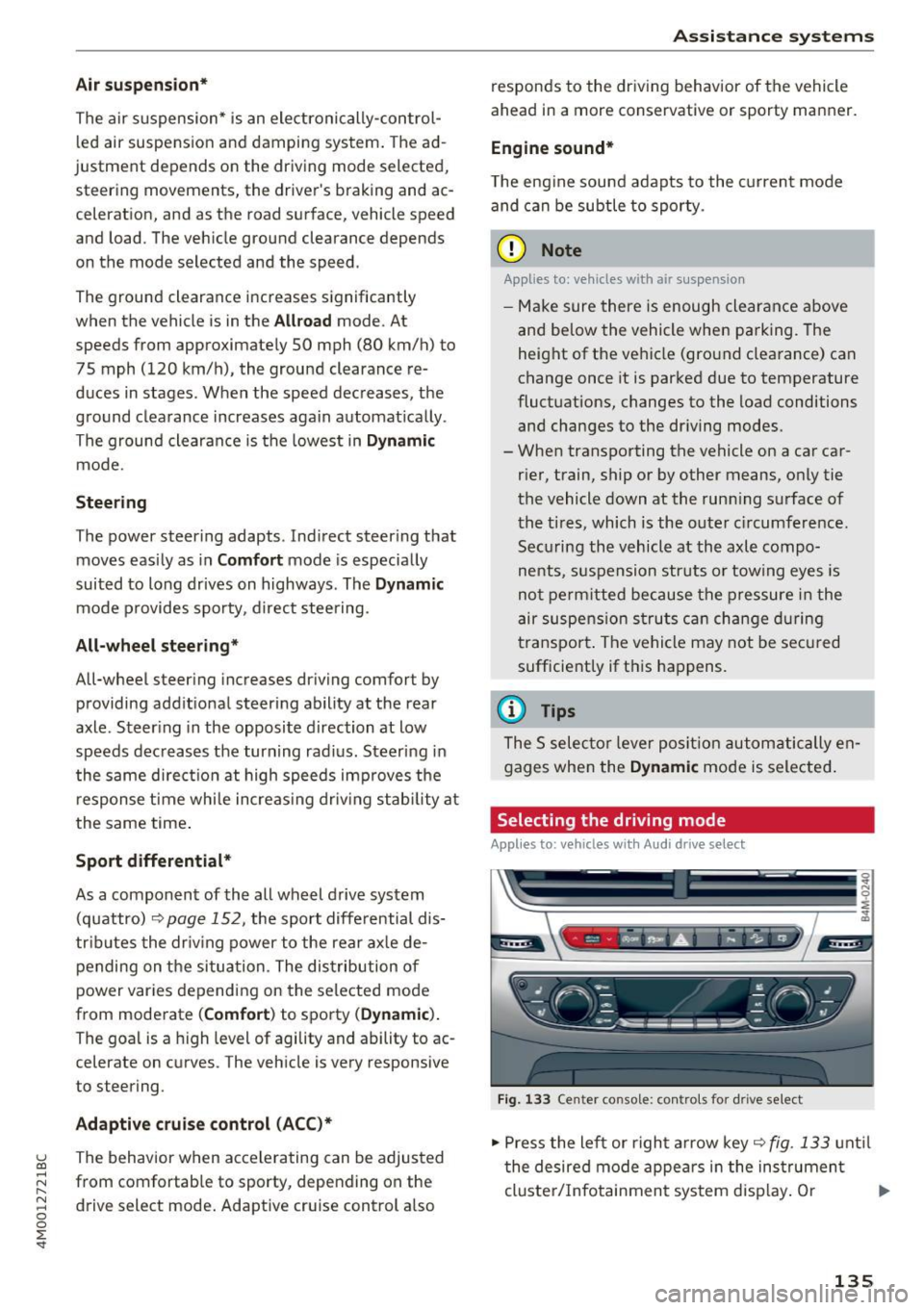
Fig. 133 Center console: co ntro ls for d rive select
.,. Press the left or right arrow key~ fig. 133 until
the desired mode appears in the instrument
cluste r/Infotainment system disp lay. Or
II>-
135
Page 140 of 402

Parking systems
Parking systems
General information
A ppl ies to: ve hicles w ith a rea r parking sys te m /pa rking sys
tem p lus/rearv iew camera/peripheral ca meras
Depending on your vehicle's equipment , various
parking aids will help you when parking and ma
neuvering.
The
rear parking system is an audible parking aid
that warns you of obstacles
behind the vehicle
¢ page 139.
The
parking system plus assists you when park
ing by audibly and visually indicating objects de
tected
in front of and behind the veh icle
¢ page 139.
The
rearview camera shows the area behind the
vehicle in the Infotainment system display . The
lines in the rearview camera image help you to
park or maneuver
¢ page 140. The parking sys
tem plus functions are also available
¢ page 139.
The
peripheral cameras give various views to
help you when parking or maneuvering
¢ page 143. The parking system plus functions
are also available
¢page 139.
A WARNING i-==
- Always look for traffic and check the area
around your vehicle by looking at it directly
as well. The parking system cannot replace
the driver's attention. The driver is always
responsible when entering or leaving a park
ing space and during similar maneuvers.
-
- Please note that some surfaces , such as
clothing, are not detected by the system .
- Sensors and cameras have blind spots in
which people and objects cannot be detect
ed . Be especially cautious of small children
and animals .
- Always keep your eyes on the vehicle's sur
roundings, using the rearview mirror as
well.
- The sensors can be displaced by impacts or
damage to the radiator grille, bumper,
wheel housing and the underbody. The park ing system may be impa ired as a result.
138
Have an authorized Audi dealer or author
ized Audi Service Facility check their func
tion.
(D Note
- Some objects are not detected or displayed
by the system under certain circumstances:
- objects such as barrier chains, trailer draw
bars, vertical poles or fences
- objects above the sensors such as wall ex
tensions
- objects with certain surfaces or structures
such as chain link fences or powder snow
- If you continue driving closer to a low ob
ject, it may disappear from the sensor
range. Note that you will no longer be
warned about this obstacle.
- Keep enough distance from the curb to re
duce the risk of damage to the rims.
{i) Tips
- The system may provide a warning even
though there are no obstacles in the cover
age area in some situations, such as:
- certain road surfaces or when there is tall
grass
- external ultrasonic sources such as from
cleaning vehicles
- in heavy rain, snow, or thick vehicle ex
haust
- We recommend that you practice parking in
a traffic-free location or parking lot to be
come familiar with the system . When doing
this, there should be good light and weath
er conditions.
- You can change the volume of the signals
and the display ¢
page 146.
- Please refer to the instructions for towing a
trailer located in
¢page 147.
- What appears in the infotainment display is
somewhat time-delayed.
- Th e sensors must be kept clean and free of
snow and ice for the parking aid to operate .
Page 175 of 402
u co ...... N r-... N ...... 0
0
:E: '
Function Say:
Starting route g uidance with an ad-Navigate / Navigate to p riv ate addre ss / Navig ate to bu siness
dress card open address
Ente ring a new desti nat ion/stop-Enter addre ss > enter the desired address when prompted>
over when ro ute gu idance is ac tive confirm the new des tination/stopover if prompted
Start ing route guidance after enter-Start rout e guidance
ing a dest ination
Canceling current route guidance
Cancel route guidance
Calculat ing alternative routes Calculate alternative route s
Entering a point of interest by se-POI > Change search area > category or subcategory when
lecting a search area with guidance prompted, for example "restaurant"
from the system
Dest ina tion i nput ca tegor ies
Audi Service / Train station /Airport / Hot el / Ho spita l / Park-
ing / Re st area / Restaurant / G as station
etc.
Search areas for entering points of Nearby/ Along the route I Near destination / Ne ar stopover /
interest In a new city/ In a new stat e/country
Entering an online destination* Online de stinat ion (XV), for examp le " Online de stination
" Lake view Hotel" "
Correcting data inp ut No I meant (XV)
Clos ing the full-screen command C lo se
list
Requirement: you must be in the
Navigation or
Map menu. Depending on the vehicle equipment
and the selected menu item, you can say the fol-l
owing commands for additional settings in navi
gation:
Function Say:
General map options Map/ Da y map / N ight map / Automat icall y chang e map color
Map type 2D heading up map / 2D north up map / 3D map / De stination
map / Ov ervi ew map / Standard map* / Googl e Earth map *
Showing the route list Route list
Showing the remaining distance/ Destination information
time when route guidance is active
Speed limit prompt
How fa st can I dri ve her e?
Setting voice guidance for active Voice guidance on I Vo ice guidance off I V oice guidance short-
route guidance ened I Voi ce guidance complete I V oice guidance traffic
Blocking a ce rtain section on the Block route for (XV ) m ete rs/ kilometers /yards /mil es/ Block
route next rou te I Avoid n ext se ction of r oute
(D Tips
- Destinations may have to be spe lled when
entered, depending on which region you are
i n and which men u lang uage you have se
l ected. -
Always read the chapter
¢ pag e 196, Audi
conne ct (Infotainment) general informa
tion.
173
Page 179 of 402
u co ...... N r-... N ...... 0
0
:E: '
the list of displayed Bluetooth devices.
~ The MMI generates a PIN for the connection
setup
¢ fig. 176 .
~ Select and confirm Yes.
~ Enter the PIN for connecting on your cell
phone.
Or: when the PIN is displayed on your
cell phone, confirm the PIN on your cell phone
and in the MMI. The time allowed for entering
the PIN is limited to approximately 30 seconds.
~ Pay attention to any additional system prompts
displayed on your cell phone, for example if the
system should connect automatically in the fu
ture . Depending on the cell phone, you may
have to confirm downloading the directory sep
arately .
After connecting successfully
After connecting successfully, information about
the connected profiles will appear. You can also
change the profiles later. Select:
!MENUI button>
Settings> left control button > MMI settings>
Connection manager¢
page 250.
In addition, the cell phone contacts are automat
ically loaded in the MMI directory. This process
can take several minutes, depending on the num
ber of contacts .
You can also make your connected cell phone the
default phone by selecting
Set as default tele
phone
in the Connection manager ¢ page 251.
@ Note
Always follow the information found in ~CD in
Wi-Fi hotspot on page 195.
(D Tips
- Making phone calls through the MMI is only
possible using the
Handsfree Bluetooth pro
file.
- You can apply additional settings to con
nected mobile devices using the
Connection
manager
¢ page 250.
-You can also search for the MMI in your cell
phone using the Bluetooth device search.
- You only have to pair your device one time.
Bluetooth devices that are already paired
automatically connect to the MMI when the
Telephone
Bluetooth function is switched on, they are
within range and the ignition is switched on.
The last connected cell phone is given first
priority.
- Authorizing the MMI connection in your cell
phone will make automatic connection pos
sible .
- Pay attention to any system prompts dis
played on your cell phone, for example if
the system should connect automatically in
the future . Depending on the cell phone,
you may also need to download the directo
ry and confirm access to your text messages
separately.
- When leaving the vehicle, the Bluetooth
connection to the cell phone will automati
cally disconnect . Depending on your cell
phone, phone calls in progress may be auto
matically redirected from the MMI to your
cell phone and you can continue the call on
your phone.
- You can obtain more information from your
cell phone service provider or from your cell
phone user guide. For information on using
the telephone, visit
www.audiusa.com/
bluetooth
or contact an authorized Audi
dealer or authorized Audi Service Facility.
- Applies to: vehicles without secondary
phone: Several cell phones can be paired to
the
MMI, but only one cell phone can be ac
tively connected to the MMI.
- Applies to : vehicles without seconda ry
phone : If a Bluetooth device is already con
nected to the MMI, it will be disconnected
when another device connects to the MMI.
'
Operating two telephones through the
MMI
You can connect two cell phones to the MMI, for
example your business cell phone as the primary
phone and your private cell phone as the secon
dary phone. You can be reached in your vehicle
through both cell phones.
The first connected cell phone is displayed as the
primary phone in the MMI. The second cell phone
is connected as the secondary phone. .,.
177
Page 192 of 402
Audi connect (Infotainment)
~ Enter your myAudi user data. Or: enter your
eight-digit myAudi PIN .
~ Confirm your entry with OK.
Then you can open your persona l settings from
your myAudi account in your vehicle.
(D Tips
You can receive your myAudi P IN if you have
set up a myAudi account. For additional infor
mation, see
www.audiusa .com/myaudi .
Opening Audi connect
(Infotainment)
A pp lies to veh icles with Audi co nnect (Infotainment)
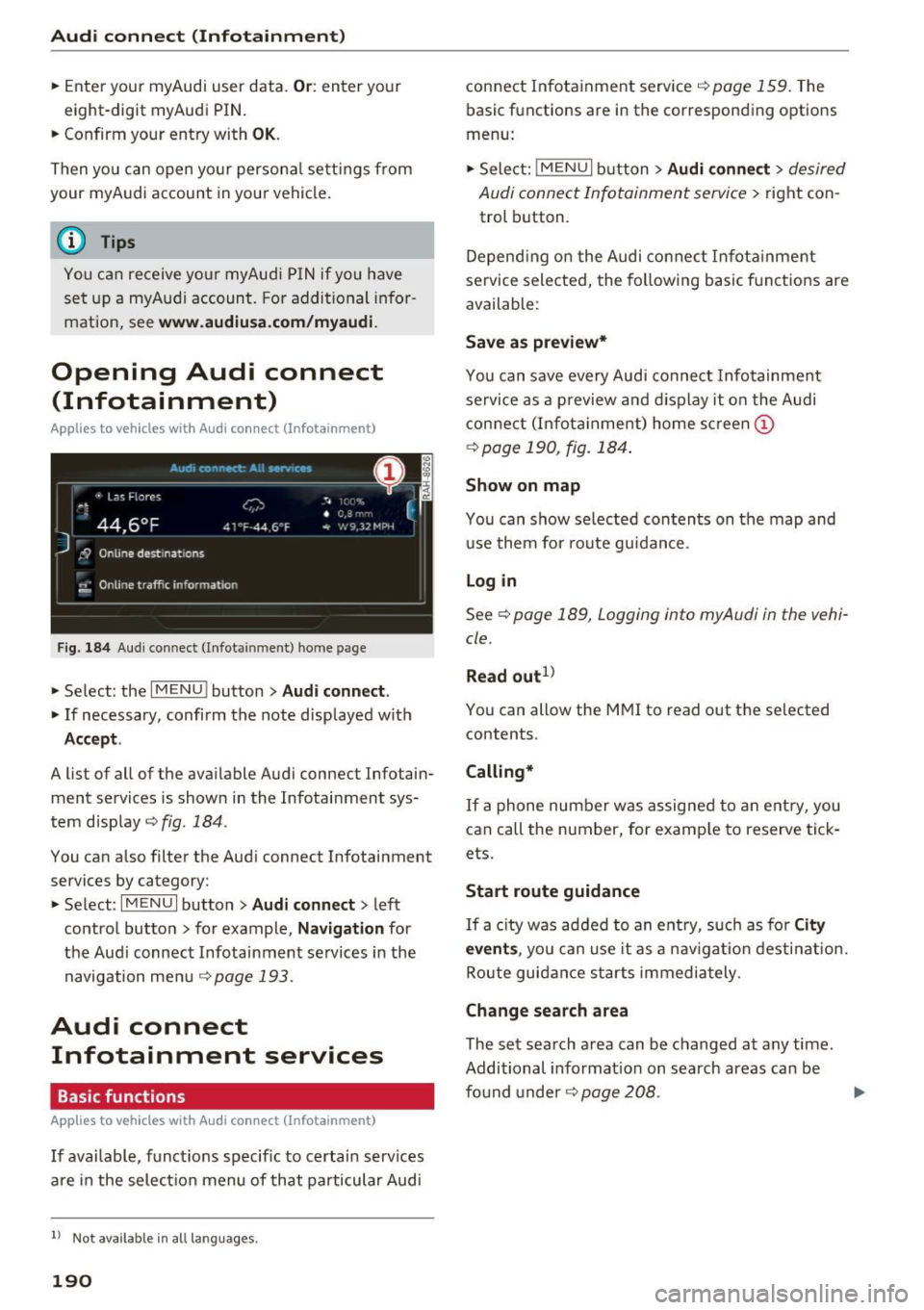
Fig. 184 Aud i connect ( Infotainmen t) ho me page
~ Select: the IMENU ! button> Audi connect .
~ If necessary, confirm the note displayed with
Accept.
A list of all of the available Audi connect Infotain
ment services is shown in the Infotainment sys
tem display
~ fig. 184.
You can also filter the Audi connect Infotainment
services by category:
~ Select: I M ENU I button > Audi connect > left
contro l button> for example,
Navigation for
the Aud i connect Infotainment services in the
navigation menu¢
page 193.
Audi connect
Infotainment services
Basic functions
Applies to veh icles with Audi co nnect (Infotainment)
If available, funct ions specific to certain services
are in the selection menu of that particular Audi
l) Not available in all languages.
190
connect Infotainment service¢ page 159. The
basic functions are in the corresponding options
menu:
~ Select: ! MENUI button> Audi connect> desired
Audi connect Infotainment service>
right con
trol button .
Depending on the Audi connect Infotainment
service selected, the following basic functions are
available :
Save as preview*
You can save every Audi connect Infotainment
service as a preview and display it on the Audi
connect (Infotainment) home screen
(D
¢ page 190, fig. 184 .
Show on map
You can show selected contents on the map and
use them for route guidance.
Log in
See¢ page 189, Logging into myAudi in the vehi
cle .
Read out
1>
You can allow the MMI to read out the selected
contents .
Calling*
If a phone number was assigned to an entry, you
can call the number, for examp le to reserve tick
ets.
Start route guidance
If a city was added to an entry, such as for City
events,
you can use it as a nav igation destination.
Route guidance starts immediately.
Change search area
The set search area can be changed at any time.
Additional information on search areas can be
fo und under ¢
page 208 . ..,.
Page 195 of 402
u co ...... N r-... N ...... 0
0
:E: '
r=> page 189.
.,. Se lect: I MENU I button> Audi connect > Twitter
> left contro l button > desired function (for ex
amp le,
Trends ).
The follow ing categories can be selected in the
Twitter menu:
- My tweets : News Feed and the Tweets you have
posted are listed.
- Home: the Tweets for everyone you follow are
displayed.
- Trends : topics on Twitter that are currently
popular w ith in a country .
Different functions are available depending on
the Twitter category you have selected:
- New tweet : you can post a new tweet using
pre-made templates or using myAudi tem
plates that you have created yourself.
- Refresh : the selected Twitter function is re
freshed.
- Favorite: mark a Tweet as favorite to show you
liked it.
- Retweet: you can quote a Tweet to share it with
others.
@ Tips
- Other settings such as account, language,
Tweet security and location settings
cannot
be changed in the MMI. These changes must
be made on the Twitter website.
- You can only connect
one Twitter account
with your myAudi account.
- Audi connect (Infotainment) makes it possi
ble to access Twitter . Permanent avai lability
cannot be guaranteed, because that de pends on Twitter.
Travel (travel guide)
A pplies to vehicles with Aud i connect (Infotainment)
You can use the Audi MMI connect opp to store
points of interest on your mobile device (such as
a smartphone) and then use them for route
guidance in the MMI.
Requirement:
Audi connect (Infotainment)
The Audi MMI connect app must be installed and
open on your mobile device .
You must be logged into your myAudi account in
the
Audi MMI connect app and you must have se
lected your vehicle.
T he Wi-Fi function on your mob ile device and on
the MMI must be switched on.
The MMI must be connected to the network.
... Press:
!MENU ! button> Audi connect > left con-
trol button >
Information category> Travel.
After opening the trave l guide, trave l tips in your
area wi ll be displayed including current ratings as
well as the corresponding category. ... Press the left control button to change the cat
egory (such as bars nearby).
_& WARNING '---
-It is only safe to use tablets, laptops, mo
bi le dev ices and other similar devices when
the vehicle is stationary because, lik e all
loose objects, they could be thrown around
the inside of the vehicle in a crash and cause
serious inj uries. Store these types of devices
securely while driving.
- Do not use any wireless devices on the front
seats within range of the airbags while driv
ing. Also read the warnings in the chapter
r::> page 277, Front airbags.
(D Note
Always follow the information found in r=>(i) in
Wi-Fi hotspot on page 195.
(D Tips
Units of measurement, language setting s and
time are shown in the Infotainment system
display based on how they were set in the
MMI system settings
r=> page 249.
Audi connect (Infotainment) in navigation
Applies to : vehicles wit h a navigat ion syste m and Audi co n·
nec t (I nfota inment)
... Select: !MENUI button> Audi connect > left
control button >
Navigation .
-
193