reset AUDI Q7 2017 Owner´s Manual
[x] Cancel search | Manufacturer: AUDI, Model Year: 2017, Model line: Q7, Model: AUDI Q7 2017Pages: 402, PDF Size: 100.39 MB
Page 189 of 402
u co ...... N r-... N ...... 0
0
:E: '
an entry from the list. For the
Ringtone volume/
Message volume
settings, refer to¢ page 254 .
The Microphone input level can be adjusted dur
ing a phone call using the control knob.
- Several cell phones can be paired to the
MMI, but only two* cell phones can be ac
tive ly connected.
- To delete all paired Bluetooth devices, the
Bluetooth function can be reset to the fac
tory default settings¢
page 250.
Additional options
.,. Select: I MENU I button> Telephone > right co n-
trol button.
Connection manager
See ¢ page 250.
Bluetooth settings*
See C) page 251.
Online settings*
See C) page252.
Wi-Fi settings*
See q page 195, Wi-Fi hotspot.
Directory settings
A ppl ies to: ve hicles w ith tele phone
.. Select : I MENU I button >Telephone > left con
trol button
> Directory > right control button>
Directory settings.
Telephone
Memory capacity
Shows the Memory capacity for the directory.
You can manage up to 17,000 contacts with the
directory. You can load up to 4,000 contacts
from your cell phone into each directory. You can
also impo rt up to 1,000 contacts from a storage
device.
Sort order
You can sort the contacts in your d irectory alpha
betically according to
Last name or First name .
Import contacts/Export contacts
See¢ page 186.
Download directory
To update the contacts in the MMI, you can man
ually download your cell phone contacts . De
pending on the ce ll phone, the Bluetooth connec
t ion may need to be disconnected and reconnect
ed to update the contacts.
Hide contacts without phone number
When this function is switched on~, contacts
that do not have any numbers assigned to them
will be grayed out in the directory.
187
Page 201 of 402

u co ...... N r-... N ...... 0
0
:E: '
Introduction
A ppl ies to veh icles with A ud i co nn ect vehicle cont rol
With the Audi connect vehicle control services l) ,
you can access various information or use individ
ual functions in the
Audi MMI connect app or in
myAudi .
Audi connect vehicle control includes the follow
ing services:
- Remote locking and unlocking ¢
page 200.
-Vehicle status report¢ page 200.
-Parking location ¢ page 200.
-Geofencing Alert ¢ page 201.
-Speed Alert ¢ page 201.
-Valet Alert¢ page 201 .
- Stolen Vehicle Locator ¢ page 201.
-Online Audi service request ¢ page 201.
(D Tips
-Accessing specific data or controlling func
tions remote ly depends on the charge level
of the vehicle battery. Therefore, these
functions only have limited availability after
switching off the ignition.
- The services are provided through a SIM
card installed in the vehicle . The cost of the
call and data connections is included in the
price for the services. Services are provided
assuming that the cell phone network re
quired for the installed S IM card is funct ion
i ng and ready to operate. The available serv
ic es set by Audi AG are only available within
the cell phone network coverage area for
the cell phone service provider selected by
Audi AG .
- You can also find more information on Audi
connect on line at www.audiusa.com.
l) In pre parat io n at the time of pri nting. T he ava ilab ilit y of
the services offe red depends on th e co untry an d may
c hang e over tim e.
Audi connect vehicle control
Setup
Applies to vehicles w it h Au di connec t ve hicle co ntr o l
To use Audi connect vehicle control services 1l,
please note the following:
Creating and verifying a user account
"'Create an account at www.audiusa.com/myaudi
and verify it.
Setting a key user in the vehicle
Requirements: the ignition must be switched on .
Another key user must not be set in the vehicle .
If necessary, reset the key user¢
page 200.
"'Select in the Infotainment system: I MENU ! but-
ton >
Audi connect > if necessary, Display
available functions >
right control button>
Audi connect user management > Key user >
Set key u ser.
"' Enter the user name for your ve rified account
and enter the 10-digit vehicle code. You can rub
the key tag for your remote control key to re
veal the vehicle code ¢
page 35.
"'Select and confirm Log in.
You can now use the vehicle control services
through the
Audi MMI connect app or thro ugh
www.audiusa.com/myaudi.
Using vehicle control services in the Audi
MMI connect app
Requirement: your mobile devices must be com
patible.
"' Install and start the
Audi MMI connect app on
your mobi le device .
"' Log in to the
Audi MMI connect app using your
user name and Audi online password and select
your vehicle.
(D Tips
- Store the vehicle code in a secure place. It
may be necessary to re-enter the vehicle
code.
199
Page 202 of 402

Audi connect vehicle control
-Pay attention to upper- and lower-case let
ters when entering the vehicle code.
- If you do not have the 10-digit vehicle code,
contact an authorized Audi dealer or author
ized Audi Service Facility.
Additional options
Applies to vehicles with Audi connect vehicle control
License subscription
The validity and expirat ion date of you r subscrip
tions are displayed. When
Warning before sub
scription expires
is activated, a message wi ll be
d isp layed warning you that your license is about
to expire.
Select:
! MENU ! button> Audi connect > Display
available functions >
right control button> Li
cense subscription.
Resetting the primary user
F or examp le, you ca n reset the key user when
selling your vehicle in order to deactivate these
services .
Requirement: the ignition must be switched on.
Select :
!MENU ! button> Audi connect > right
control button
> Audi connect user management
> Key user> Reset key user .
Warning levels
Requirement: the primary user must have set one
or more warning levels. Secondary users can only
see if a warning level is act ive or not .
Select:
! MENU ! button> Audi connect > right
control button
> Alerts.
Remote locking and
unlocking
Applies to vehicles with Audi connect vehicle control
You can lock and unlock your veh icle using this
service.
Requirement
- This requires the 4-dig it PIN that you specified
during the verification on www.audiusa.com/
myaudi.
- The vehicle must be stationary.
200
- The ignition must be switched off.
Vehicle status report
Applies to vehicles w ith Audi connect vehicle control
The Driver Information System collects data un
der certain conditions and sends it to a server.
When data is stored, yo u can access va lues such
as these using the service:
- Remaining range
- Fue l tank level
- Oil level
- Vehicle doors are open/closed or locked/un-
locked
- Mi leage
- Next oil change
- Next inspection
- Warning messages
- Side marker lights/parking lights on/off
For additional information on the Driver Informa
tion System, refer to
c:> page 15, Driver informa
tion system.
A WARNING
Do not ignore messages and warning or ind i
cator lights that turn on in the vehicle be
cause of the information in the status report .
This could lead to break downs in on the road,
accidents and serious injuries.
Parking location
Applies to vehicles with Audi connect vehicle control
The vehicle collects data under certain cond it ions
and sends it to a serve r.
When data is stored, you can access values such
as these using the service :
- Vehicle location display,
- Display of one's own location,
- Route to you r vehicle .
If your mobile device also has a navigation func
tion, you ca n navigate to your last kno wn parking
lo ca tion .
Page 225 of 402
u (0 .-I N r--. N .-I 0
0
:E
Opening the radio
The radio supports the FM , A M and SiriusXM *
(satellite radio) bands. Using the HO Radio re
ceiver also allows you to receive radio stations
on the FM and AM bands in digital format.
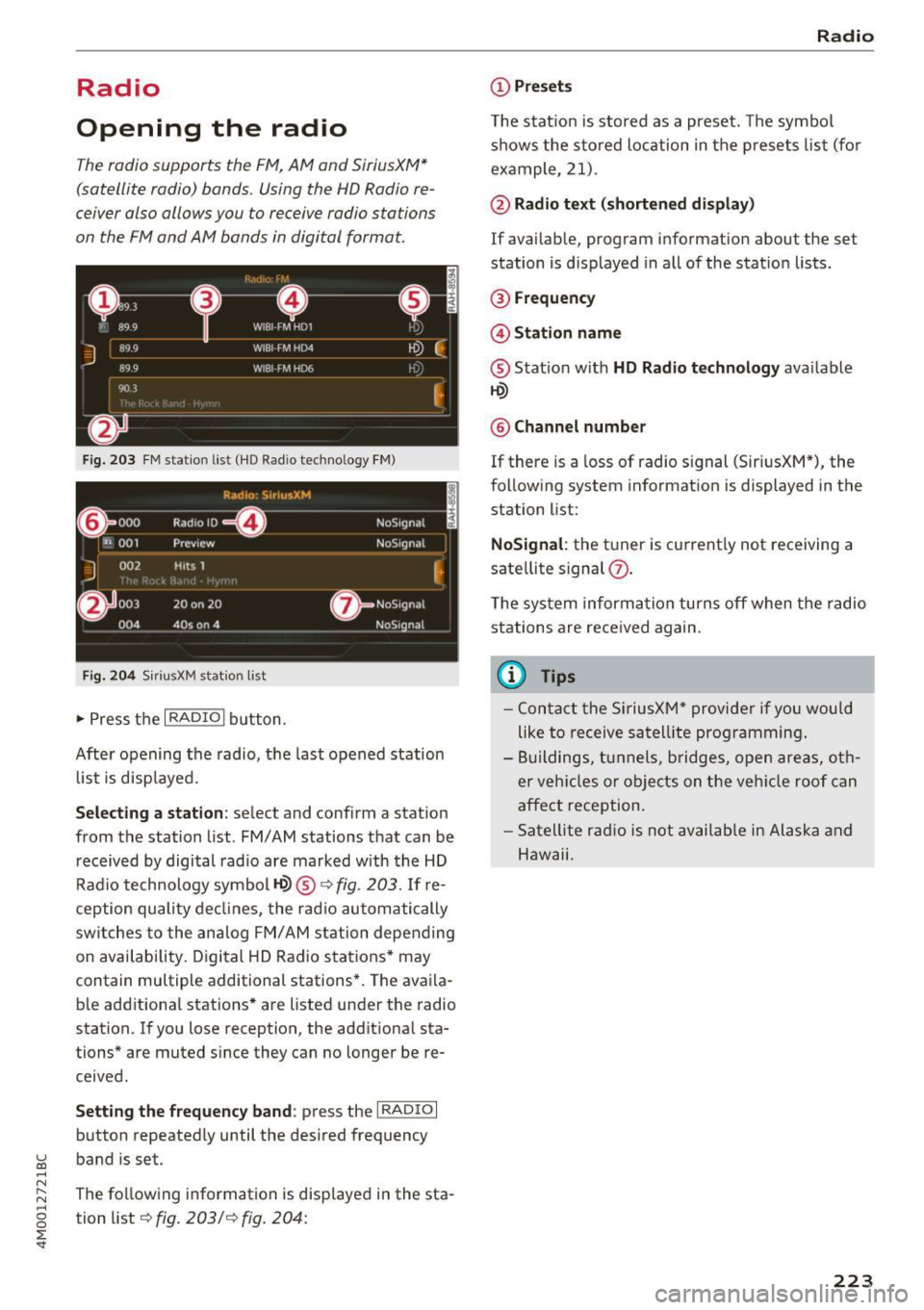
Fig . 203 F M stat ion list ( HO Ra dio tec hn ology FM)
R.td10: SiriusXM
~000 ---=0---Radio ID ,
NoS19nal
... 001 Prev iew N oS19nal
J 002 H its 1
~
f) 003 20 on 20 N
oS19na l
004 40s on 4 NoS19nal
F ig. 204 S iri usXM station list
.. Press the I RAD IO I bu tton .
Afte r opening the rad io, t he last opened station
lis t is disp laye d.
.
I
Selecting a station : select and confirm a stat io n
from the station list . FM/ AM stations t hat can be
received by digital rad io are ma rked w ith the HD
R adio technology symbol
tQ) ® ¢fig. 203 . If re
ception quality decl ines, the r adio automatically
switches to the analog FM/AM station depe nding
on availability . D igi tal HD Radio s ta tions * may
contain multiple additional stations* . The ava ila
b le add itiona l stations* are listed under the radio
station. I f you lose reception, the add it iona l sta
tions* are muted since they can no longer be re
ceived.
Setting the frequency band : press the I RADIO I
button repeated ly until the desired frequency
band is set.
The follow ing information is displayed in the sta
tion list ¢
fig. 203/ ¢ fig . 204:
Radio
(D Presets
The s tat ion is stored as a preset. The symbo l
shows the s to red lo cation in the prese ts list (fo r
example, 21) .
@Radio text (shortened display )
If avai lab le, program info rmation about the set
station is d isplayed in a ll of the statio n lists.
@ Frequency
@ Station name
® Stat io n w ith HD Radio t echnolog y available
tQ)
® Channel number
If there is a loss of radio signal (Sir iusXM*), the
fo llowing system in format ion is displayed in the
station list:
NoSignal : the tu ner is cu rrent ly not receiving a
sate llite s ignal
(j) .
The system informa tion turns off when the radio
st ations are rece ived again.
(D Tips
- Con tact the SiriusXM" provider if you would
like to receive sa tel lit e programming .
- B uilding s, tu nnels, b ridges, ope n area s, oth
er veh icles or objects o n the veh icle roof can
affect reception.
- Satel lite ra dio is not availab le in Alaska and
Hawaii.
223
Page 226 of 402
Radio
Radio functions
Free text search
App lies to: ve hicles w ith free text search
Using the free text search, you can select the or
der that the search terms are entered in the in
put field. Search in all frequency bands for a sta
tion name or program type such as
News ).
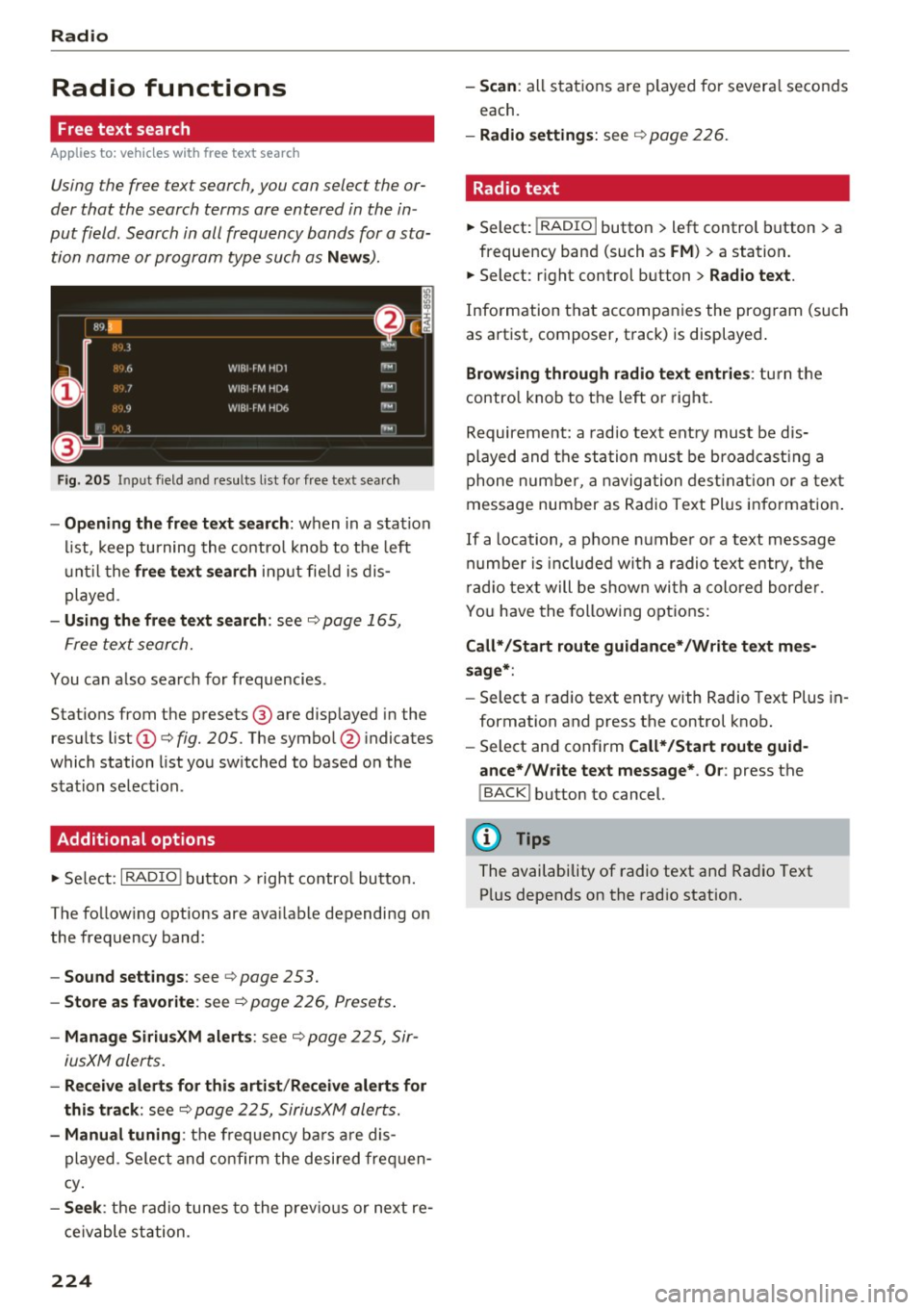
Fig . 20 5 Input field a nd results l ist fo r free tex t sea rch
- Opening the free text search : when in a s ta tion
l ist, keep turning the contro l knob to the left
u nt il the
free tex t search inp ut fie ld is dis
played .
-Using the free text sear ch : see c::> page 165,
Free text search.
You can a lso search for frequencies .
Stat ions from the presets @ are disp layed in the
results list
(D c::> fig. 205. The symbo l@ indicates
which station list you sw itched to based on the
station selection.
Additional options
.,. Se lect : I RADIO I button > right contro l button.
The follow ing options are ava ilable depending on
the frequency band:
- Sou nd settings : see c::>page 253.
-Store a s fa vorite : see c::> page 226 , Pr esets .
-Manage Siriu sXM al ert s: see c::> page 225, Sir-
iusXM alerts.
- Re ceive alert s for thi s arti st/ Re cei ve alert s fo r
thi s tr ack :
see c::> page 225, SiriusXM alerts.
-Manu al tuning : the frequency ba rs a re dis
played . Se lect and confirm the desired frequen
cy .
-See k: the radio tunes to the prev ious or next re
ce ivable station .
224
-Scan : all s tations are p layed for severa l seconds
each.
- Radio settin gs: see c::> page 226.
Radio text
.,. Select: I RADIO I button > left control button > a
frequency band (such as
FM ) > a station.
.,. Select: r ight control button>
Rad io te xt.
Information that accompanies the program (such
as artist, composer, t rack) is displayed .
Browsing through radio text entrie s: turn the
contro l knob to t he left or right.
Requirement: a rad io text entry must be dis
played and the station must be broadcast ing a
phone number, a navigation dest inat ion or a text
message number as Radio Text Plus in formation .
If a location, a phone number or a text message
numbe r is included with a radio text entry, the
r ad io text will be shown wi th a colored borde r.
You have the following opt ions:
Call* /Start route gu idance */Write t ext mes
s age *:
-Sel ect a radio text entry with Radio Text Plus in
formation and press the control knob.
- Select and confirm
Call */Start route guid
a nce* /W rite te xt me ssage* . O r:
press the
I BACK I button to cancel.
(!') Tips
The availability of radio text and Radio Text
P lus depends on the radio station.
Page 228 of 402
Radio
Radi o te xt
is availab le for the selected stat ion.
See
c::> page 224.
@ FM HD Radio technolo gy
The station is received through FM HD Radio
technology .
@ Screen view
Display Cov er a rt or Station log o. See
c::> page 22 7, Pr efer red p icture vie w *.
Di splaying the station list:
T ur n the control knob. Or : press the !BACK ! but
ton .
Radio menu
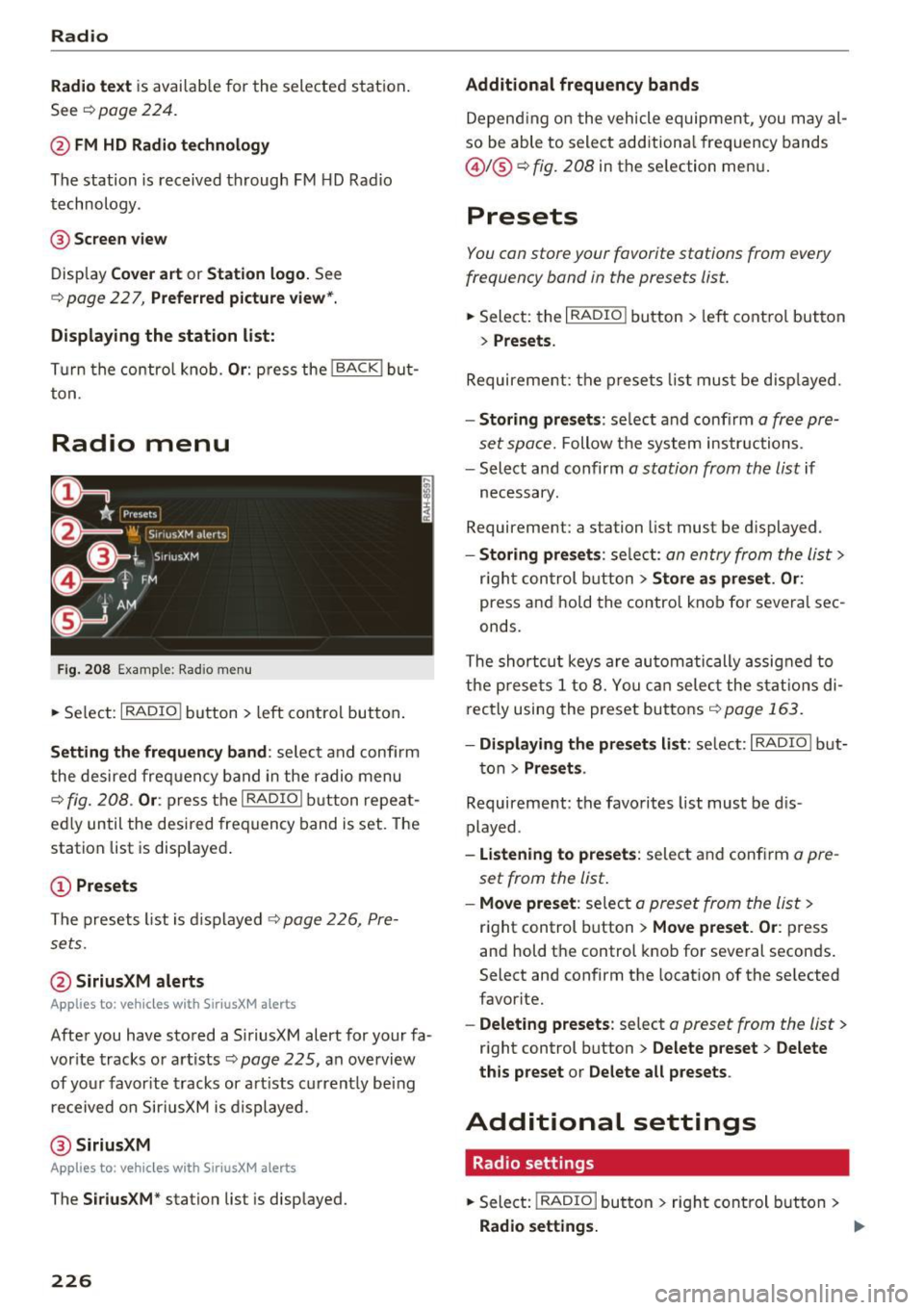
Fig. 208 Example : Rad io menu
.,. Se lect: I RADIO I button > left cont rol but ton .
Setting the frequen cy band : select and confi rm
the desired freq uency band in the radio menu
c::> fig. 208 . Or: press the I RADIO ! button repeat
ed ly until the desired frequency band is set. The
station list is displayed .
© Presets
The presets list is d isplayed c::> page 226, Pre
sets.
@ SiriusXM alerts
Appl ies to: ve hicles w ith SiriusXM alerts
After you have stored a S iriusXM alert for your fa
vor ite tracks or artists
c::> page 225 , an overview
of your favor ite tracks or artists current ly being
received on Siri usXM is displayed.
@ Siriu sXM
A ppl ies to: ve hicles w ith SiriusXM alerts
The S iri usX M * station list is displayed.
226
Additional frequency bands
Depend ing o n the vehicle equipment, you may al
so be able to select additiona l frequency bands
@ l@ c::> fig. 208 in the selection men u.
Presets
You can store your favorite stations from every
frequency band in the presets list.
.. Select: the I RADIO I button > left control button
> Pre set s.
Requirement: the p resets list must be disp layed.
- Storing pr esets : select and confirm a free pre
set space.
Follow the system instructions.
- Select and confirm
a station from the list if
necessary.
Requirement: a station list must be d isplayed .
-Sto ring pre set s: se lect: an entry from the list>
r igh t con trol b utton > Store as pr eset . Or :
press and ho ld the contro l knob for severa l sec
onds .
The shortcut keys are au tomatically assig ned to
the p rese ts 1 to 8. You ca n select the stat ions di
rectly using the preset buttons
c::> page 163 .
-Di spl aying the pr esets list: se lect: I RADIO! b ut-
ton
> Pre sets .
Requirement: the favorites list must be d is
played .
-Listening to p re sets : select and confirm a pre
set from the list.
- Mo ve pre set : select a preset from the list >
right control button > Move pre set . Or : press
and hold the control knob for several seconds .
Select and confirm the location of the selected
favorite.
- Deleti ng p resets: select a preset from the list >
right control button > Delete p reset > Delete
th is p reset or Delete all pres ets .
Additional settings
Radio settings
.. Select: I RADIO I button > rig ht control button >
Radio setting s. Ill>
Page 229 of 402
u co ...... N r-... N ...... 0
0
:E: -
Station names (FM )
Variabl e:
scroll ing text transmitted by the FM
stations is shown in the Infotainment system d is
p lay .
Fixe d: scro lling text transm itted by the FM sta
tions is no t shown in the Infotainment system
d isp lay. On ly the cu rrent sect ion of the scro lling
text is displayed .
FM/ AM HD Radio*
You can switch HD Radio recept ion on or off .
Station sorting (Sirius XM* )
You can set the station so rt ing for SiriusXM sta
tion lists* by:
- Channel number : the stations are sorted in as
cending order according to their cha nnel num
ber.
- Channel name : the stations are listed in a lpha
betica l order.
- First category, then channel number : the sta
tions are sorted by their category and then by
their channe l numbers.
- First category, then channel name : the sta
t ions are sorted by their category and then by
their channe l names.
Cat egory filter (Siriu sXM* )
The stations shown in the s ta ti on list c an be fi l
tered by your personal prefe re nces and by pro
gram type. The program categories that you can
select depend on what is offered by your provid
er. Select the
All catego ries option to deactivate
all filter opt ions and disp lay all available stations
in the sate llite station list .
Troubleshooting
Problem Solution
Radio
Show "Now Playing" screen
When the funct io n is switched on@' and the sta
t ions or presets list is open, the disp lay w ill
switch to the
Show "Now Playing" screen view
after approximate ly five seconds ¢
page 225. De
pending on availab ility, information about the
set station (such as station name, artist and sta
t ion logo) is displayed in this v iew .
Prefe rred picture view*
You can set your preferred screen v iew for the
Show "Now Playing " screen ¢page 225 .
-Stati on lo go : the station logo is displayed, de
pending on availability .
-Cov er ar t: the album cover is displayed if availa
b le.
Gracenote online database*
Requirement: the MMI must be connected to t he
Internet . T he
Cover art opt ion m ust be selected
¢ page 22 7, Preferred pictur e view *.
When the funct io n is switched on@', the album
cove r or genre cover for the song that is p lay ing
is loaded from the Gracenote online database,
depe nd ing on ava ilabil ity.
Subscription status (SiriusXM )*
This opt io n is available when your subscription is
about to expire or has already expired . The expi
ration date fo r your license is displayed .
Call to SiriusXM *: the contact info rmat ion for
your sate llite rad io prov ider is displayed . To call
your satellite rad io prov ider using the MMI, press
Call to SiriusXM *.
A station with poo r reception is no longer Store the stat ion as a preset in advance . Access the pre-
displayed in the station list once you se ts usi ng the presets list
¢ page 226 .
switch to a d ifferen t sta tion.
227
Page 230 of 402
Media
Media
Introduction
There are various media drives and connections
avai lab le in the MMI. For example, you can p lay
aud io/video* fi les from the Jukebox* or connect
your mob ile dev ice to the Aud i m usic interface *
and operate it through the MMI.
Notes
General information
Media and format restrictions :
the MMI (includ
in g the SD card reade r and the USB storage de
vice co nnect ion *) was tested w ith a var iety of
products and media on the market. However,
there may be cases where ind iv idual devices or
media and audio/video files" may not be recog
n ized, may play o nly w ith restr ictions, o r may not
p lay a t all.
Dig ital Rights Management : please note that
t he audio/v ideo" files are subject to copyright
protection .
The media drives do not p lay f iles that a re pro
tected by OR M and that are ident ified with the
symbo l
!'.TI.
Data secu rity : never store im portant data on SD
cards, the Ju kebox *, CDs/DVDs o r mobile devices.
Aud i AG is not responsib le for damaged or lost
fi les and media .
Loading times : th e mo re files/fo lde rs/ play lists
that are on a sto rage medium, the longer it will
take to load the audio/video* files . Audi recom
mends us ing storage media tha t on ly conta in au
d io/video files* . T o decrease the t ime it takes to
load audio/v ideo f iles*, crea te subfo lders ( fo r ex
a m ple , fo r th e a rt ist o r album). The loading time
will also increa se whe n importing fi les.
Additional information : when playing, audio
fil es are automatically displayed with any add i
tional informa tion that is s to red (such as the ar
tis t, track and al bum cover).
If this in forma tio n is
no t a vai lable o n the storage mediu m, t he MMI
wi ll check the Gr ace no te met adata database .
228
However, in some cases, the additional in forma
tion may not be dis played.
Restri cted functionality : reset the Media set
tings
t o the facto ry de fault se ttings i f func tional
i ty is restric ted ¢
page 250 .
If functionality is restr icte d, reset the Jukebox*
to t he fa ctory defa ult se tt in gs ¢ page 250.
Fo r informa tion abo ut the propert ies of s upport
ed med ia and fi le formats, see
¢ page 243 .
W Note
Always fo llow the information fo und in c::> (D in
W i- Fi
hotspot on page 195 .
CD/DVD operation
CD /DVD and format restrictions :
th e f unct iona li
ty o f indivi dual sto rage media m ay be limi ted due
to t he v ariety of b lank C Ds/DV Ds av a ila b le and
t h e v arious cap acities. Audio CDs or video DV Ds
with copy protection, CDs/D VDs that do not con
form to the standard and mult isess ion CDs may
hav e limit ed playback or may not play at all. Audi
r ecommends finali zing the recording process
whe n creat ing mult isess ion CDs . Mult isess ion is
not supported for DVDs .
Using CDs/DVDs, the CD dr ive or the DVD drive :
to ensure correct, hig h-q uality playback and to
prevent damage to the dr ive or disc read ing er
r ors, always store CDs/DVDs in a protec tive
s leeve and do no t expose them to direct s unlight .
Do
not u se:
- Damaged, dirty or sc ratched CDs/DVDs
- Single CDs/DVDs with 3 in (8 cm) d iameter
- CD/DVDs that a re not roun d
- CDs/DV Ds w ith labe ls
- Protec tive rings
- Clean ing CDs
Thermal protection switch : CD/DVD playback
may be temporarily unavailable if o utside tem
p eratures a re extremely hot or co ld. A t hermal
pro tect io n sw itch is insta lled t o protect the C D/
DVD and t he laser.
Laser devices : las er devices a re divide d into safe -
ty classes 1 to 4 in accordance with DI N IE C 76 .,..
Page 233 of 402
u co ...... N r--... N ...... 0
0
:E: '
ly sorted into the media center categories based
on the stored additional information
c:>
page 238. The copied video files are stored in
the media center under the
Videos category.
Playing the Jukebox
Requirement: the Jukebox must contain audio/
video files c:>
page 230, Adding files to the Juke
box.
The Jukebox is accessed and operated through
the MMI (Dc:>page237,
fig. 215.
Displaying Jukebox memory capacity
Select: right control button > Jukebox memory
capacity.
Information about the Jukebox memory
capacity and the number of stored tracks is dis
played.
Deleting tracks from the Jukebox1 )
Requirement: the Jukebox must contain audio/
video files.
- Deleting an entry : select an entry from the
Jukebox media center. Select: right control but
ton
> Delete from jukebox> This entry or En
tire list .
- The status of the deleting process is shown in
the MMI. Jukebox playback stops during the de
leting process and starts again automatically
once the deletion is complete.
(D Note
Do not import audio/video files when the en
gine is turned off because this will drain the
vehicle battery.
(D Tips
- Tracks from audio CDs cannot be imported
to the Jukebox for legal reasons .
- Files that have already been imported are
automatically recognized and cannot be
copied to the Jukebox again.
-It is not possible to play audio/video* files
in the CD/DVD* drive while importing them.
l) Not in the Playback view.
Media
- The Jukebox does not provide an export
function due to legal reasons.
- Files or tracks without additional stored in
formation are listed as
Unknown. Audi rec
ommends adding additional information
(such as ID3 tags) to audio files.
- Reset the
Jukebox to the factory default
settings when selling your vehicle
<=:>page 250.
Bluetooth audio player
Applies to: vehicles with Bluetooth audio player
With the Bluetooth audio player, you con ploy
music wirelessly from your Bluetooth-capoble
device (such as a cell phone) through the MMI.
Requirement: the vehicle must be stationary and
the Bluetooth function on your Bluetooth device
and the
Bluetooth audio player c:> page 251 in
the MMI must both be switched on.
-Connecting a Bluetooth device: press the
!MEDIAi button. Press the left control button
until the sources overview is displayed. Select
and confirm Bluetooth audio player ®
<=:>page 237, fig. 216 .
-If necessary, select and confirm, Not connected
> Connect Bluetooth audio player . The Blue
tooth device search starts. Follow the instruc
tions in the MMI.
- Select and confirm the desired Bluetooth de
vice from the list. The MMI generates a PIN for
the connection.
- Select and confirm
Yes.
- Enter the PIN for connecting on your Bluetooth
device.
Or: if the PIN is already displayed on
your Bluetooth device, confirm it in the Blue
tooth device and in the MMI. The time allowed
for entering the PIN is limited to approximately
30 seconds.
The media is started and operated through the
mobile device or the MMI, depending on the de-
vice being used. ..,.
231
Page 238 of 402
Media
-You can purchase the AUX connector cable
from an authorized Audi dealer or at spe
cialty stores.
- Functionality is not guaranteed for mobile
devices that do not conform to the USB 2.0
specification.
- USB hubs are not supported.
- Some versions of the iPod such as the iPod
shuffle cannot be connected to the USB
adapter for devices with Apple Dock connec
tor. Connect these devices using a AUX con nector cable.
- Changed content on a mobile device
l) that
is connected to the Audi music interface
may not be displayed in the media center.
In this case, reset the
Media settings back
to
Factory settings Q page 250.
- Video playback through the Audi music in
terface is only supported if the connected
device is recognized as a USB storage device
(for example a USB stick) . Apple devices and
MTP devices (such as smartphones) are not
recognized as USB storage devices .
- iPod/iPhone malfunctions also affect the
operation of the MMI. Reset your iPod/
iPhone if this happens.
- Audi recommends updating the iPod/iPhone
software to the latest version. For impor
tant information on operating your iPod/
iPhone, refer to the user guide for the de
vice.
- The USB adapter on the Audi music inter
face will support iPod touch/iPhone from the 5th generation or later with the light
ning connector.
- For more information about the Audi music
interface and supported devices, check the
Audi database for mobile devices at
www.audiusa.com/mp3 or contact an au
thorized Audi dealer or authorized Audi
Service Facility .
1
> A pp lies o nly to MTP de vice s. Doe s not apply to A pple de vi
ces and U SB mass s torage device s.
236
· Rear Seat Entertainment preparation
App lies to: vehicles with Rear Seat Entertainment preparation
T he Rear Seat Entertainment preparation in
cludes cables and a mount for Audi Entertain
ment mobile in the driver's and front passenger's
seat backrests.
T he suitable Audi Entertainment mobile Rear
Seat Entertainment package is available through
Audi Genuine Accessories .
Using Audi Genuine Accessories is recommended.
Audi has established their reliability, safety and
suitability.
We cannot evaluate or endorse other produ cts in
this way , even if the product is approved by acer
tified testing agency or government agency .
~ Note
Only use devices that are approved for the
Rear Seat Entertainment preparation . Unap
proved devices may cause damage to the vehi
cle electronics.
(D Tips
- Contact an authorized Audi dealer or au
thorized Audi Service Facility for additional information about
Audi Entertainment mo
bile.
- Always read the chapter~ page 383.
-The Rear Seat Entertainment preparation is
not intended to charge external electronic
devices .