start stop button AUDI Q7 2017 Owner´s Manual
[x] Cancel search | Manufacturer: AUDI, Model Year: 2017, Model line: Q7, Model: AUDI Q7 2017Pages: 402, PDF Size: 100.39 MB
Page 88 of 402
Driving
[jj indicator light appears in the instrument clus
ter disp lay, the engine will not be stopped, for
examp le in the follow ing s ituations:
- T he eng ine has not reached the minimum re
quired temperature for Start/Stop mode .
- The inter io r temperature selected by the cli-
mate contro l system has not been reached.
- The outs ide temperature is ext remely high/low.
- The w indshield is being defrosted .
- The vehicle battery charge level is too low .
- The steering wheel is turned at a sharp angle or
is mov ing.
- After engaging the reverse gear .
- On sharp inclines.
-At high a ltitudes.
Engine automaticall y restarts
The standard Start/Stop mode will be cance led
during a stop phase in the fo llow ing s ituations.
The engine resta rts wit hout any action by the
d river.
- The vehicle rolls, for examp le while on a s lope.
- The inter ior temperature differs from the tem-
perature se lected in the A/C system.
- The w indshield is being defrosted.
- The brake pedal is pressed several times in a
row.
- The vehicle battery charge level is too low.
- Power consumption is high.
The engine can tu rn off again when the condi
tions for Start/Stop mode are met .
Ignition is switched off automatically
To prevent the veh icle bat tery from d rain ing, the
ign it ion wi ll switch off a utomat ica lly under the
following conditions:
- The Sta rt/Stop system has stopped the eng ine .
- The vehicle is stationary.
- You left the vehicle and the eng ine was not re-
started within approximate ly 30 seconds.
I f this happens, you wi ll see the message
Igni
tion turn s off automaticall y in the instrument
cluster and the activated low beams are replaced
by the parking lig ht. The parking lights will
sw itch off after approx imately 30 minutes or
when you lock the vehicle.
86
The ignition also sw itches o ff when you lock the
vehicle from the outside during a stop phase.
If t he Start/Stop system has not tu rned off the
engine or if yo u have switched the S tart/Stop sys
tem off manually, the ignition wi ll not be auto
matically switched off and the engine will contin
u e to run
Q .&. .
_& WARNING
To reduce the risk of poisoning, never allow
the engine to run in confined spaces.
(D Tips
- If you leave the ve hicle with the D/S or R se
lector lever position engaged, the parking
brake is automatically set.
- If you select the D or N selector lever posi
t ion after sh ifting into reverse, the vehicle
must be driven faster than 6 mph (10 km/h)
in order fo r the engine to switch off again .
Manually switching the Start/Stop system
off /on
Applies to: vehicles with Start/Stop system
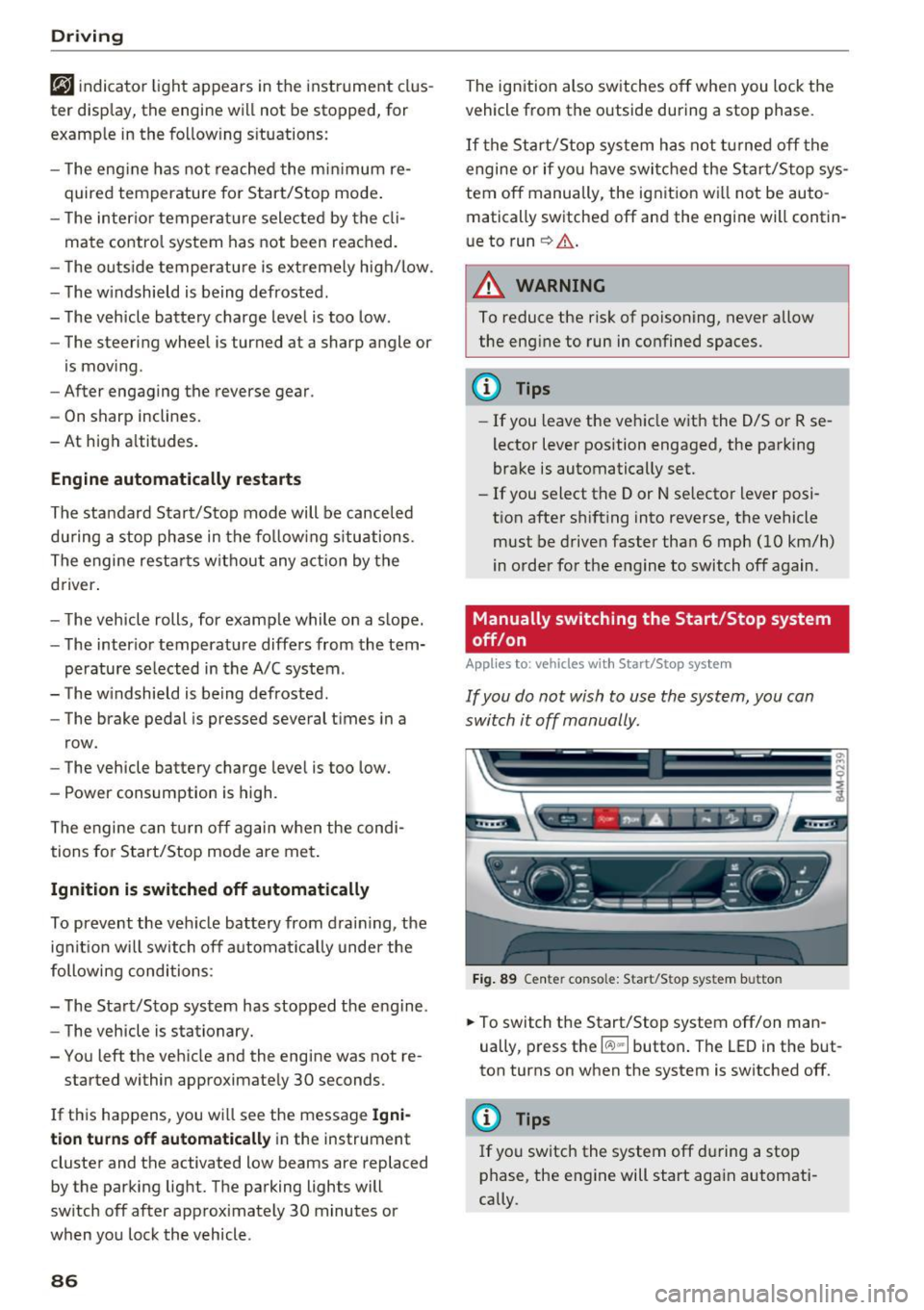
If you do not wish to use the system, you can
switch it off manually.
-- -- - --=-
,__ -~-----__ ...
~. ~- • - ,,,.. ~ .. 'l> '* A ·- -- ~ -
Fig . 89 Ce nter console: Start/Sto p system button
-
.,. To switch the Start/Stop system off/on man
ually, press t he
l(:.l) .. I button . The LED in the but
ton turns on when the system is switched off.
@ Tips
If you switch the system off du ring a stop
phase, the engine will start aga in automati
cally.
Page 89 of 402
u co .... N r-... N .... 0
0
:E: '
Applies to: vehicles wit h Start/Stop system
Automatic start /stop deacti vated: Please
restart engine manually
This message appears whe n specific condi tions
are not met dur ing a stop phase. The Star t/Stop
system wi ll not be ab le to restart the engine . The
engine must be started with the
I STAR T ENGINE STOPI button.
Automatic st art /stop system: malfunct ion!
Function unavailable. Pl ease contact Service
There is a malfunction in the Start/Stop system .
Drive the ve hicle to an author ized A udi dealer or
author iz ed Service Facility as soon as poss ible to
have the ma lfunction corrected.
Electromechanical
parking brake
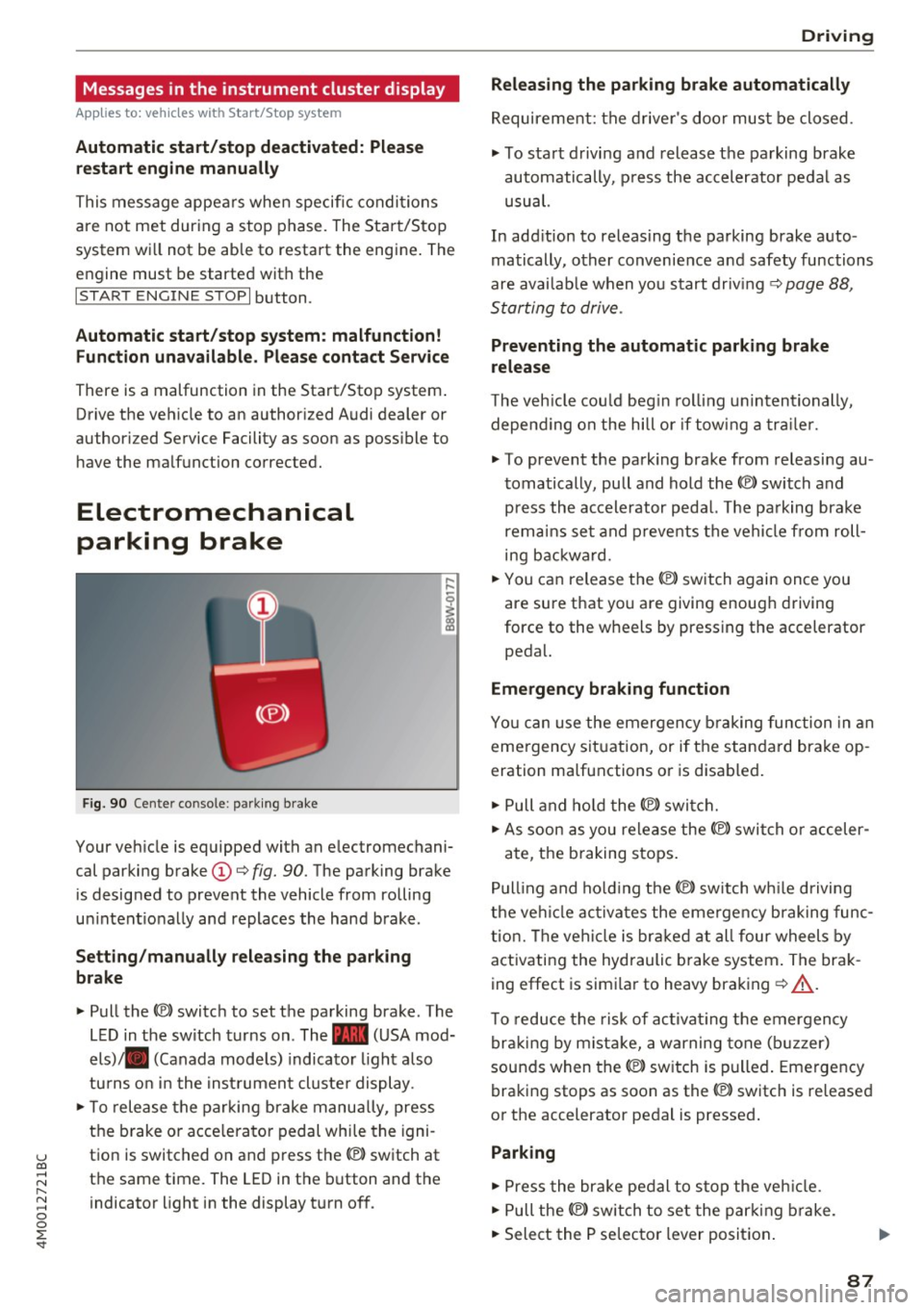
F ig . 90 Cen ter co nso le: park ing brake
Your veh icle is equipped with an electromechani
cal parki ng brake
(D ¢ fig. 90. The parking brake
is designed to prevent the vehicle from rolling
u ni ntent io nally and replaces the hand brake.
Setting /manually releasing the parking
brake
"' Pull the(®) switch to set the pa rking brake . The
L ED in t he switch turns on. The -(USA mod
els) . (Canada mode ls) indicato r light a lso
tu rns o n in the inst rument cl uste r display .
"'T o release the parking b rake manu ally, press
the b rake o r acce lera to r pedal whi le the igni
t ion is switched on and press th e® ) switch at
the same time. The LED in the b utton and the
indicator light in the display t urn of f.
D riving
Releasing the parking brake automatically
Requirement: the d rive r's doo r mus t be closed.
"' To start d rivi ng and release the parking brake
automatically, p ress the accelerator pedal as
usual.
In add it ion to releas ing the parking brake auto
matically, other convenie nce a nd safety functions
are avai lab le when you start driving ¢
page 88,
S tarting to drive .
Preventing the automatic parking brake
release
The veh icle cou ld beg in rol ling u nintentionally,
depe nding on the hill or if tow ing a traile r.
"' To prevent the park ing brake from releasi ng au
t omatically, pu ll and hold the®) switch and
p ress the accele rator peda l. The parking brake
remain s se t a nd p revents the vehi cle from roll
ing b ackwa rd.
"' You can release the®) switch again once you
are sure that yo u are giving enoug h driving
force to the wheels by pressing the accelerator
peda l.
Emergency braking function
You ca n use the emergency b raking function in an
eme rgency sit uation, or if the standard brake op
eration ma lfunctions o r is disab led .
"' Pull and ho ld the(®) switch .
"' As soon as you release the ®> switch or acceler -
ate, t he b raking stops .
Pu lling and ho ld ing the®) switch w hile driving
t h e ve hicl e ac tiva tes the eme rge ncy brak ing func
tion. The ve hicl e is brak ed a t all four wheels by
activating the hydraulic b rake system . The brak
ing effect is simi lar to heavy braking ¢
A_.
To reduce the risk of ac tivat ing the emergency
b raki ng by mist ake, a war ning tone (b uzzer)
sounds when the®) switch is p ulled . Emergency
braking stops as soon as the(®) switch is released
o r the accelerator pedal is pressed .
Parking
"'Press the bra ke pedal to stop the veh icle .
"' Pull the®) switch to set the par king brake.
"' Select the P se lec tor lever position .
87
Page 95 of 402
A WARNING ,~
Read and follow all WARNINGS.
- The vehicle can roll even if the ignition is switched off.
- Power is st ill transmitted to the wheels
when the engine is running at idle. To pre
vent the veh icle from "creeping", you must
keep your foot on the brake in all selector
lever positions (except P and N) when the
engine is running.
- Before opening the hood, select the P selec tor lever position and set the parking brake.
T his reduces the risk of an accident. Always
read and follow the applicable warnings
¢ page 322, Working in the engine com
partment.
@ Tips
If you accidentally se lect N while d riving, take
your foot off the acce le rator pedal and wa it
for the engine to slow down to idle before se
lect ing Dor S.
Driving tips
Starting the engine
.. Th e P or N position must be selected.
Starting from a stop
.. Press and hold the brake pedal.
.. Start the engine
c:> page 82.
.. Press the lock ing button @on the selector lev
er and select the D, E, Sor R position
¢page 91.
.. Wait a moment until the transmission shifts.
You wi ll notice a slight movement when the
gear engages .
.. Release the brake pedal and press the accelera-
tor pedal ¢
&-
Various convenience functions are avai lab le for
starting on hills
c:> page 88.
Stopping temporarily
~ .. Press the brake pedal to stop the vehicle, for
~ example at a traffic light. Do not press the ac-
~ celerator peda l when doing this. 0
0
:E: '
.. To prevent the vehicle from ro ll ing when you
start driving, set the parking brake when stop
ping on steep hills¢
A-
.. The parking brake will release automatically
and the vehicle will start moving once you press
the accelerator pedal.
Stopping/parking
If the selector lever is not in the P position when
you open the driver's door, the vehicle could roll.
.. Press and hold the brake pedal
c:> A-
.. Set the parking brake.
.. To select the P se lector lever position, press the
P button
@ on the selector lever c:> page 91 ,
fig. 92.
Under certain conditions, such as driving in the
mountains or when towing a trailer, it may be
helpful to switch to manua l mode temporarily
and shift
manually to adapt to the driving condi
tions
c:> page 94.
On hills, activate the parking brake first and then
shift into the P position
c:> page 87. This prevents
too much stress from being p laced on the lock ing
mechanism .
A WARNING
--The vehicle can roll even when the eng ine is
sw itched off.
- Unintended vehicle movement can lead to
serious injuries .
- To reduce the r isk of an accident, do not
press the accelerator pedal when changing
the selector lever position while the vehicle
is stationa ry and the engine is running .
- To reduce the r isk of an accident, never se
lect the R or P positions while dr iv ing.
- Do not inadvertently press the accelerator pedal when the vehicle is stationary . Other
wise the r is k of an accident increases be
cause the vehicle will start to move immedi
ately, even if the parking brake is set.
(D Tips
Fo r safety reasons, the park ing brake only re
leases automatically when the drive r's door is
closed.
93
Page 112 of 402
Ass is tance sy stems
fall below the se lected distance, the distance
bars become red from the bottom upward.
A WARNING
--:-- ~~ If you press the ISETI button when driving at
speeds below 20 mph (30 km/h), the vehicle
accelerates automat ica lly up to 20 mph (30
km/h), which is the m inimum speed that can
be set.
(D Tips
- If you switch the ignition or the adapt ive
cruise control system off, the set speed is
erased for safety reasons.
- The electronic stabilization control (ESC)
and the anti-slip-regulation (ASR) are auto
matically sw itched on when the adaptive
cruise control is switched on .
Changing the speed
Applies to: vehicles with Audi adaptive cruise contro l
0
f
J
0
F ig. 106 Operat ing lever: c hanging th e speed
"To increase/decrease the speed in 1 mph (1
km/ h) increments, br iefly
tap the lever toward
0 10 ¢ fig . 106 to the first level.
• To increase/decrease the speed in S mph
(5 km/h or 10 km/h) increments, briefly
tap
the leve r toward 0 10 to the second level.
" To increase or decrease the speed quickly, hold
the lever towards
0 10 up to the first or sec
ond level until the red LED@ reaches the de
sired speed
¢ page 109, fig. 105.
You can a lso prese lect the speed when adaptive
cruise control is not active by moving the lever in
l) Th is is not ava ilab le in some countries.
110
the desired direction G) !Q . Activate the previ
ously selected speed by pulling the lever into po
s ition (I)¢
page 109, fig. 104 .
After each change, the new stored speed appears
briefly in the status line ¢
page 109, fig. 105 @.
When adaptive cruise control is active, the B in
dicator light turns on and when adapt ive cruise
contro l is not active, the
ii ind icator light turns
on. In the Aud i virtual cockp it*, the
II indicator
light turns on instead .
Driving in stop-and-go traffic
Applies to: vehicles with A udi adapt ive cr uise control
F ig. 107 Instrument cl uster: safe start monitor
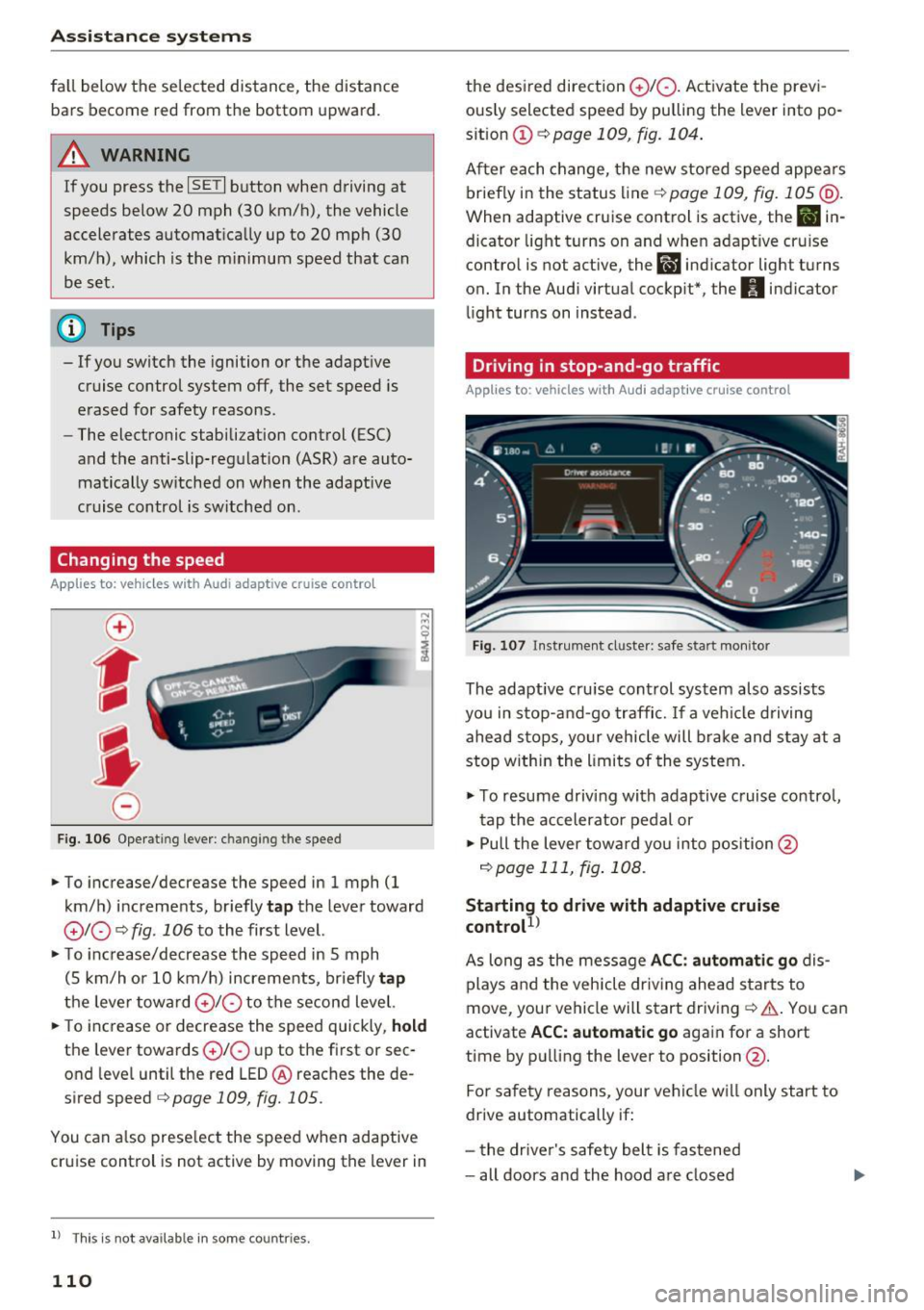
The adaptive cru ise control system also assists
you in stop-and-go traffic. If a vehicle driving
ahead stops, yo ur vehicle will brake and stay at a
stop within the limits of the system.
" To resume driving with adaptive cruise contro l,
tap the accelerator pedal or
• Pull the lever toward yo u into position @
¢page 111, fig. 108.
Starting to dr ive with adaptive cruise
control
1 )
As long as the message A CC: aut omati c go dis
plays and the veh icle dr iv ing ahead starts to
move, your vehicle will start driving¢& . You can
activate
ACC: automatic go again for a short
time by pulling the lever to position @.
Fo r safety reasons, your vehicle w ill only start to
drive automatically if:
- the drive r's safety belt is fastened
- all doors and the hood are closed
Page 138 of 402
Assistance systems
"'Se lect in the In fo tainment sys tem: I MENU I but-
ton
> Vehicle > Audi dri ve select.
"' Se lect and confirm the desired setting .
You can cha nge t he d riving mode when the vehi
cle is stat ionary or whi le d riving. If traffic per
mits, after changing modes, briefly take you r
foot off the accele rator peda l so that the recent ly
selected mode is a lso activated for the eng ine.
Offroad * or Lift/ Offroad* -activates offroad
functions to s upport dr iv in g o n ro ug h terra in.
The engine, transmission and steering adjust and
the Start/Stop system* switches off. Applies to
a ir suspe nsion*: t he vehicle also lifts for passing
over obstacles to maintain maximum ground
clearance.
Adjusting the Individual mode
Applies to: veh icles w ith Audi drive select
Allroad * -on ly for air suspension *: the vehicle
li fts to maintain hi ghe r g round clearance for d if
fic ult st retc hes of roa d.
Comfort -provides a c omfor t-or ien ted ve hicle
setu p and is s uit ed fo r long drives on hi ghw ays.
Auto -provides a n overa ll comfortab le yet dy
n amic driv in g feel a nd i s s uited f or everyd ay use.
Dynamic -gives the driver a sporty driving fee l
and is suited to a spo rty d rivi ng s tyle .
Individual -c::;, page 136.
A WARNING
Pay attention to traffic whe n ope rating t he
d rive select to reduce th e ris k of an accide nt.
-
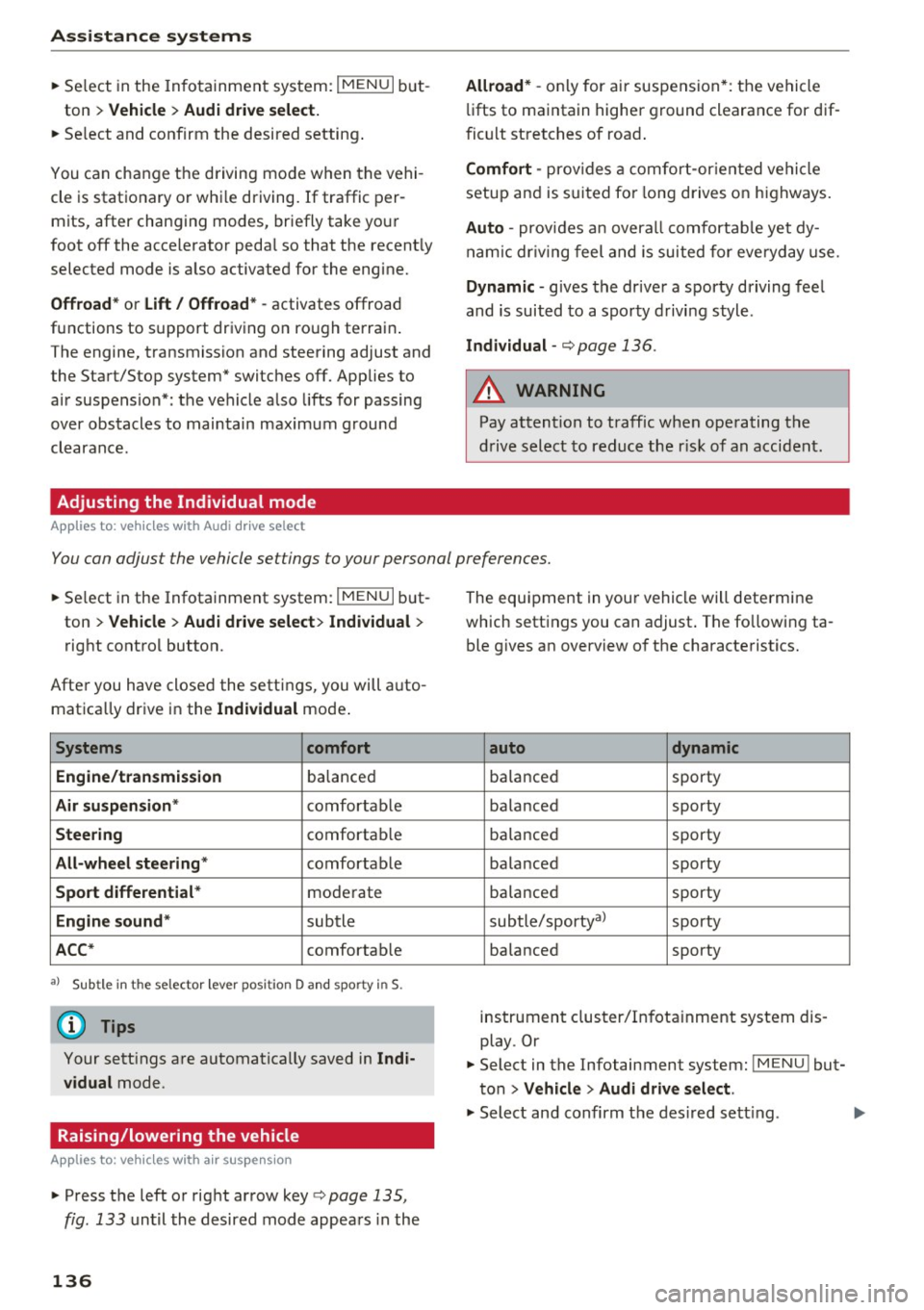
You can adjust the vehicle settings to your personal preferences.
"'Se lect in the Infotainment system: IME NUI but
ton
> Vehicle > Audi drive select > Individual >
rig ht contro l button.
After you have close d the settings, you will a uto
mat ica lly dr ive i n the
Individual mode .
Systems comfort
Engine /transmission
ba lance d
Air suspension * comfortable
Steering comforta ble
All-wheel steering * comfortable
Sport differential * moderate
Engine sound * subtle
ACC* comforta ble
al Sub tle i n th e se lecto r leve r pos it ion D a nd sporty in S.
(D Tips
Y our sett ings a re automa tica lly saved in Indi
vidual
mode.
Raising/lowering the vehicle
Applies to: veh icles w ith air suspens ion
"' Press th e left or right ar row key c::;, page 135,
fig . 133
u nti l the desired mode app ea rs in the
136
The equi pment in you r vehi cle will determine
which sett ings you can adjust . T he fo llow ing ta
ble gives a n overview o f the characte ristics .
auto dynamic
ba
la nce d sporty
ba la nced sporty
ba la nce d sporty
ba la nced sporty
ba lanced sporty
sub tle/sportyal
sporty
ba lance d sporty
instrument cluster/I nfota inment system dis
play. Or
"' Select in the Infotainment system :
IMENU! but
ton
> Vehicle > Audi drive select.
"' Select and confirm the des ired se tting.
Page 209 of 402
u co ...... N r-... N ...... 0
0
:E: '
field.
- Entering a d estinati on u sing the City/ ZIP
c o de :
select and confirm City /ZIP . Ente r a city
or a ZIP code .
Or: select and confirm a city from
the list.
- Select and confirm additional detai ls about the
destination such as
St reet , House number or
Dow nto wn.
- Destinati on ent ry using a street inter section* :
Requirement: you must ente r a street . Se lect
and confirm
Inte rsection . Select and confirm a
street d irectly from the list.
Or : search for a
street using the input field.
- Se le ct and confirm
S tart ro ut e guidance .
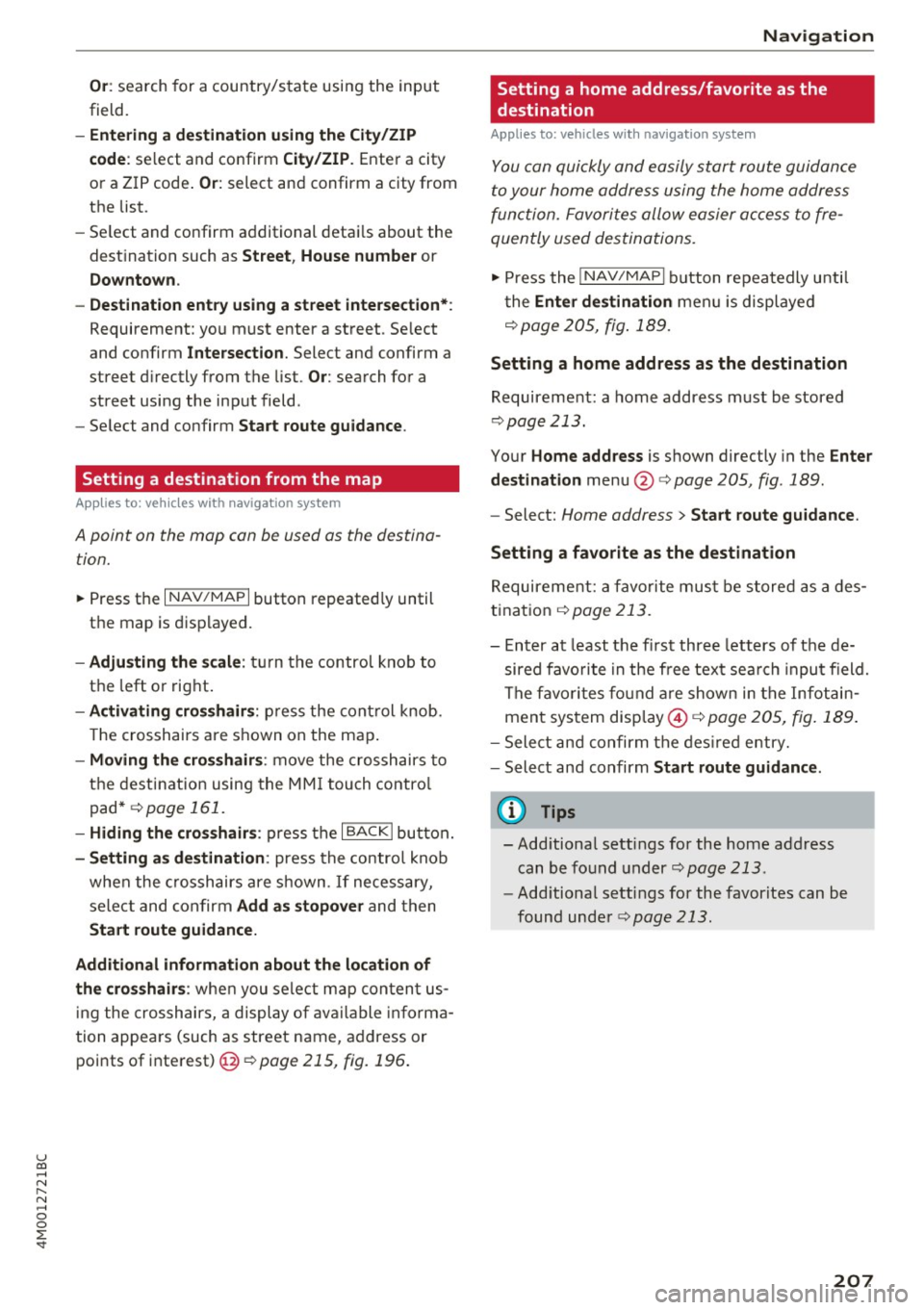
Setting a destination from the map
A pplies to: ve hicles with navigation system
A point on the mop con be used as the destina
t ion.
~ Press the I NAV /MAPI button repeated ly until
th e map is displayed.
- Adju sting the scal e: turn the contro l knob to
the left or right.
- Activating cross hair s: p ress the cont rol knob.
T he crosshairs are shown on the map .
-Moving the cro ss hair s: move the crosshairs to
the dest ination using the MM I touch contro l
pad* ¢
page 161.
-Hiding the cro sshai rs: press the I BACKI button.
-Setting a s dest inat ion : press the control knob
when the crosshairs are shown . If necessary,
select and confirm
Add as stopo ver and then
Start route guidance.
Additional informati on about th e loca tion of
the cro sshair s:
when you select map content us
in g the crosshairs, a display of available informa
tion appea rs (such as street name, address or
points of interest)@¢poge
215, fig. 196 .
Navigation
Setting a home address/favorite as the
destination
Applies to: vehicles wi th navigat ion syste m
You con quickly and easily start route guidance
to your home address using the home address
function. Favorites allow easier access to fre
quently used destinations.
~ Press the I NAV/MAPI button repeatedly until
t he
Enter d estination men u is displayed
r::opage205, fig .189 .
Setting a home address as the destination
Requirement: a home address must be stored
¢page 213.
Your Home address is shown directly in the Ente r
d estination
menu @r::opage 205 , fig . 189 .
-Select: Home address > Sta rt route guidance .
S ett ing a favo rite as the destination
Requirement: a favorite must be s tored as a des
t ination
r:o page 213.
- Enter at least the fi rst three letters of the de
sired favo rit e in the free text sea rch input field.
The favo rites fo und are shown in the Infotain
ment system display @ ¢
page 205, fig. 189 .
-Select and confirm the des ired entry.
- Select and confirm
Start route guidance .
(D Tips
-Additiona l settings for the home address
can be fo und under
r:o page 213 .
-Add itiona l settings for the favorites can be
found under
¢ page 213.
207
Page 210 of 402
Navig ation
Transferring a destination from the directory
Applies to: vehicles with navigation system
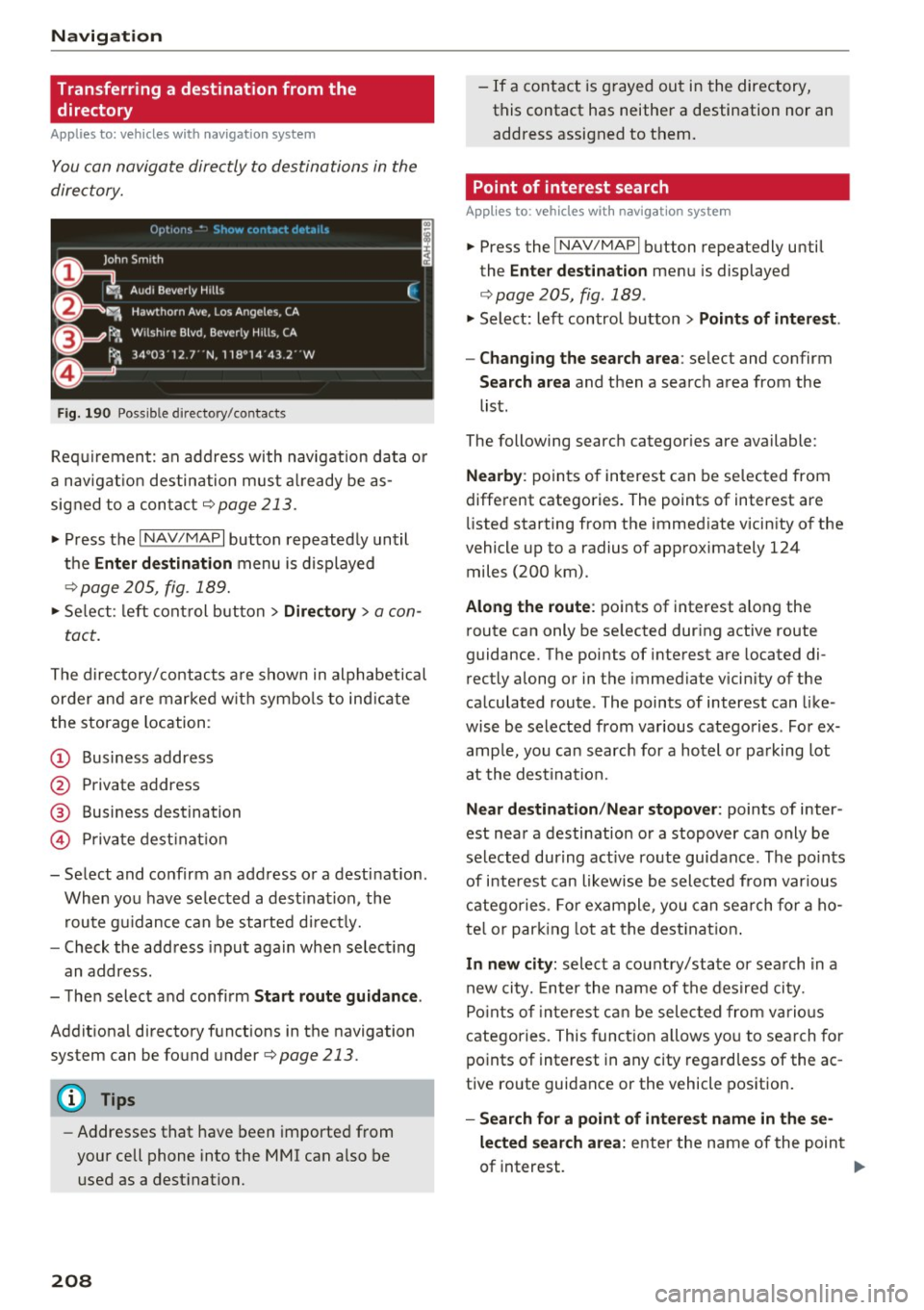
You can navigate directly to destinations in the
directory.
F ig . 190 Po ssible directory /contacts
Req uir ement: an address with navigation data o r
a nav igat ion destination must a lready be as
sig ned to a con tact
¢ page 213.
.,. Press t he I N AV/MAPI button repeated ly until
the
Enter de stination menu is d isplayed
"* page 205, fig . 189.
.,. Se lect : left cont rol button > Director y > a con-
tact.
The d irectory/contacts a re s hown in alphabetical
order and are marked w it h symbo ls to ind ic a te
the storage location :
(D Business address
@ Private address
@ Business destination
© Private dest inat io n
- Se lect and confirm a n address or a destinat ion.
When you have se lected a dest ination , the
r ou te g uidance can be started di rect ly.
- Check the address input again when select ing
an address.
- Then select and confirm
Start route guidan ce .
Addit ional directory f unctions in the navigation
system can be found under¢page213.
(D Tips
-Addresses that have been imported from
your cell phone into the MMI can a lso be
used as a dest ination.
208
- If a contact is g rayed out in the directory,
this contact has neither a destination nor an address assigned to them.
Point of interest search
App lies to: vehicles with navigat ion system
.,. Press the I NAV/MAP I button repeatedly until
the
Enter des tinat ion me nu is displayed
¢ page 205, fig . 189 .
.,. Select: left control button > Points of intere st.
- Changing the search area :
select and confirm
Search area and then a search area from the
list.
The following search categor ies are available:
Nearby : points of interest can be se lected from
different categories. The points of interest are
li sted starting from the immed iate vicin ity of the
vehicle up to a radius of app roximately 124
miles (200 km).
Along the route : points of interest along the
route can only be se lected dur ing active route
guidan ce. The points of interest are located di
r ectly along or in the immediate vicin ity of the
ca lculated route . The points of interest can like
wise be selected from various catego ries . Fo r ex
amp le, yo u can searc h for a hotel or pa rking lot
at the dest ina tion.
Near destination /Near stopover : points of inter
est near a destination or a stopover can only be selected dur ing act ive ro ute guidance. The po ints
of i nteres t can likewise be sele cted from var ious
c a tego ries . Fo r example , you can sea rch for a ho
te l o r par king lot at the dest inat ion .
In new city: select a cou ntry/state or sea rch in a
new city. En ter the name of the des ired ci ty.
Po ints of inte rest ca n be selec ted from vario us
catego ries. This funct ion a llows yo u to se arch for
po ints of interest in any city regard less of the ac
tive ro ute guidance or the vehicle position.
- Search for a point of intere st name in the se
lected sear ch area :
enter the n ame of the point
of interest. ..,_
Page 212 of 402
Navig ation
Entering a destination using geo
coordinates
Applies to: veh icles with navigation system
~ Press the I NAV/MAPI button repeated ly until
the
Ent er de stin ation menu is displayed
¢page 205, fig.189 .
~ Select: left control button > G eo coordi nates.
- Se lect L a titude /Lo ng itude.
- Press the control knob to set the individua l val -
u es .
- T urn the cont rol knob to the left/r ight to
change the se lected value.
- Se lect and confirm
Start rout e guidance .
Adding a stopover
Applies to : vehicles with navigation system
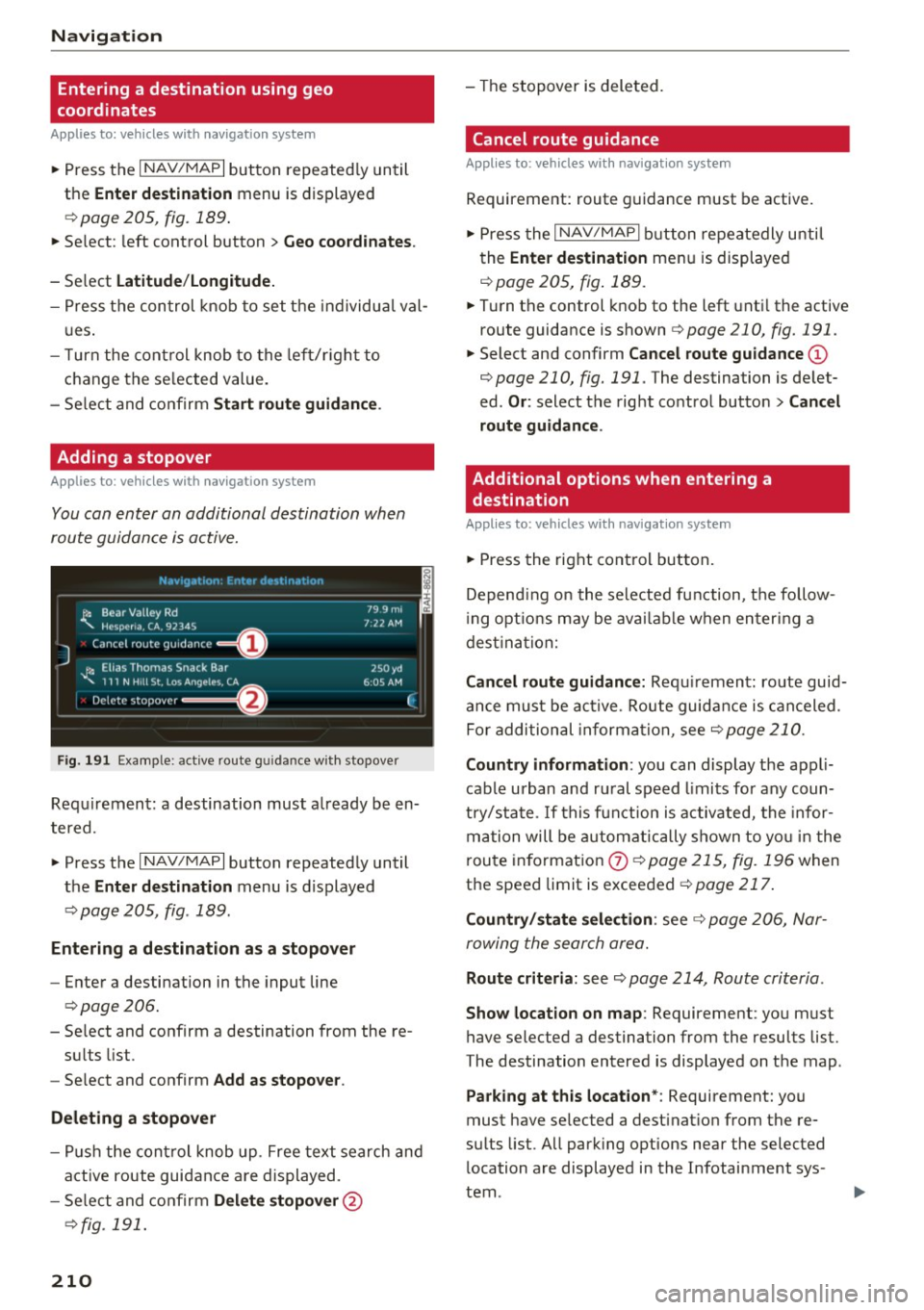
You can enter an additional destination when
route guidance is active.
N.-tviy,ltion . Fnh.•r d1_• in,,tion
l~ Bear Valley Rd
'"'-. HC'sp -cna , CA, 92345
J Cance l route guidance ==O
JI, Elias Thomas Snack Bar
' 111 N H1ll St , Lo o; Ange l~ !.. CA
Delete stopover ====~lfJ
79.9mi
7 ,12 AM
250 yd
6 005 AM
Fig . 191 Exa mple: active route g uidance w ith stopover
C ·
Requ irement: a destination must a lready be en
tered.
~ Press the I NAV/MAPI button repeatedly until
the
Ent er de stination menu is displayed
¢ page 205, fig . 189.
Entering a de stin ation as a stopo ver
- Enter a destination in the input line
¢ page 206.
- Select and confirm a destination from the re-
su lts list .
- Se lect and confirm
Add as stopo ver .
De leting a stopover
I
F
- Push the cont rol knob up . Free text search and
active route guidan ce are displayed.
- Se lect and confirm
De lete s topov er@
¢ fig. 191.
210
-The stopover is deleted.
Cancel route guidance
Applies to: vehicles with navigat ion system
Requirement: route guidance must be active.
~ Press the I NAV/MAPI b utton repeatedly unti l
the
Enter de stination menu is displayed
r=;, page 205, fig . 189 .
~ Turn the control knob to the left unti l the active
route guidance is shown
r:::> page 210, fig. 191.
~ Select and confirm Can cel route guidance @
r=;,page 210, fig. 191 . The destination is de let
ed .
Or : select the right control butto n > Cancel
route guidance .
Additional options when entering a
destination
Applies to: vehicles with navigation system
~ Press the right con trol but ton.
Depend ing on the selected fu nction, the follow
i ng opt ions may be avai lab le when entering a
dest ina tion:
Cancel route guidance: Requ irement: route guid
an ce must be ac tive. Route guida nce is canceled.
Fo r addi tional information, see
r=;, page 210.
Countr y information : you can display t he appli
cable urban and ru ral speed limits for any coun
t ry/sta te . If this f unction is activated, the infor
ma tion will be automat ically shown to yo u in the
route in format ion
0 ¢ page 215, fig. 196 when
the speed limit is exceeded
r=;, page 217 .
Country/state sele ction : see¢ page 206, Nar
rowing the search area.
Route criteria: see r=;, page 214, Route criteria .
Show location on map : Requirement: you must
have selected a destination from the results list.
The destination entered is displayed on the map .
Parking at this locat ion *: Requirement: you
must have selected a dest inat ion from the re
su lts list. All park ing options near the selected
location are displayed in the Infotainment sys
tem.
Page 214 of 402
Navigation
with all applicable personal routes will be fac
tored into the trip aga in only after stopping the
vehicle and switching the ignition on again .
-Ignore all messages: all personal routes are no
longer factored into the current trip. No more
messages a re disp layed. Messages for personal
route s when there is increased traffic will ap
pear again after the vehicle is stopped and the
ignition is sw itched on again .
As soon as you switch off personal route assis
tance, the symbol in the status line turns
off and
your trips are no longer recorded. Trips that were
already stored remain stored .
Deleting personal routes:
-Select the desired personal route in the Enter
destination
menu q fig. 192.
-Select : right control button > Delete destina
tion.
Deleting all personal routes :
-Select : I MENU I button >Settings > left control
button >
MMI settings > Factory settings .
-Select : Navigation and on line memory > Re·
store factory settings
q page 250.
(D Tips
-Personal routes are learned based on the ve
hicle position. The route is prioritized ac
cording to how frequently you drive to a
destination .
- A maximum of three personal routes are
displayed in the
Enter destination menu.
Based on the current vehicle position, the
traffic situation for the route that is most
likely to be driven out of the three routes
will always be monitored.
- Please note that personal routes that have
already been stored will remain stored after
the ignition is switched off and they must
be deleted manually.
212
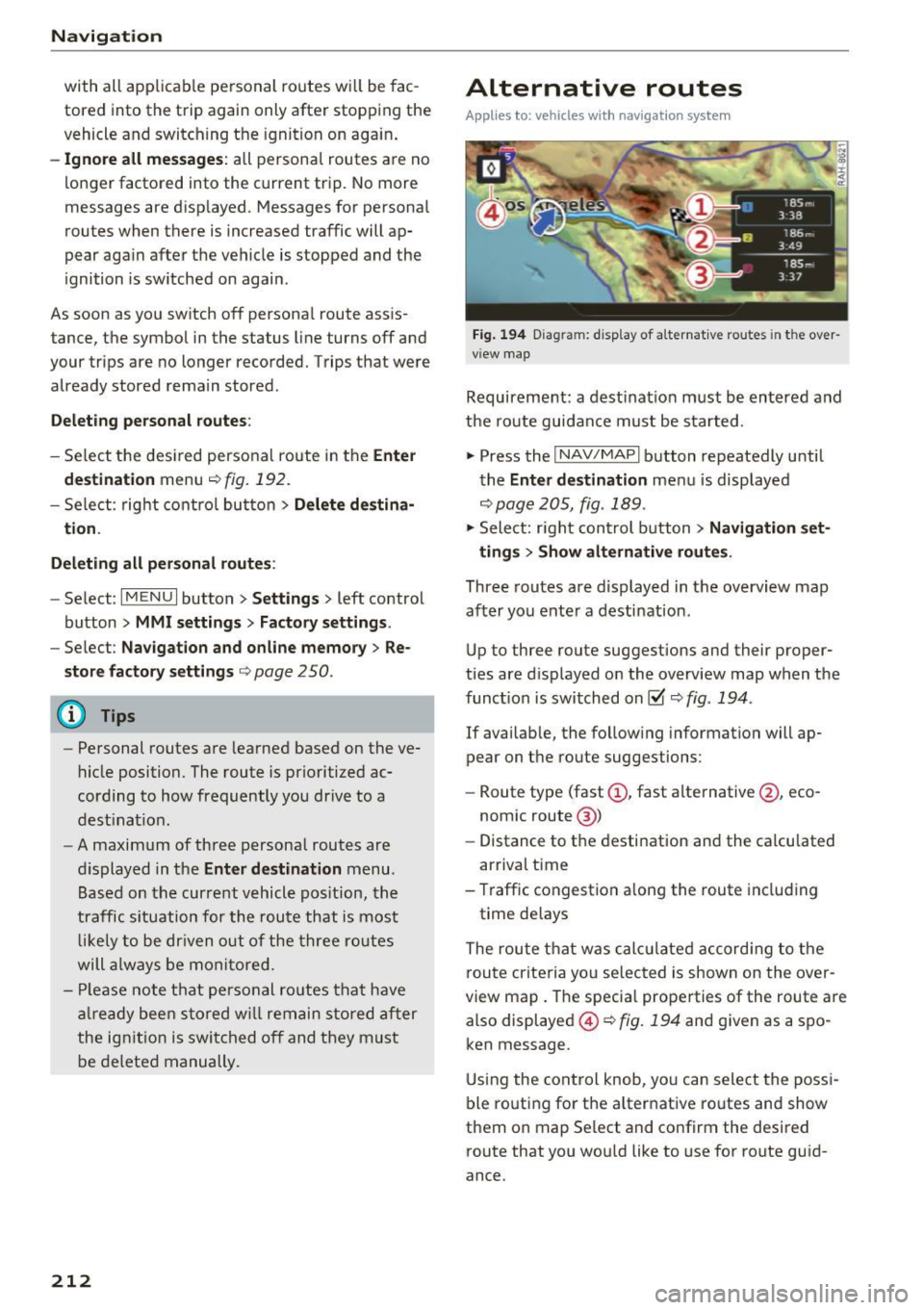
Alternative routes
Applies to: vehicles with navigation system
Fig. 194 D iag ram : disp lay of a lternat ive ro ute s in the over
view map
Requirement: a destination must be entered and
the route guidance must be started .
.,. Press the
I NAV/MAPI button repeatedly until
the
Enter destination menu is displayed
qpage 205, fig . 189 .
.,. Sele ct: right control b utton> Navigation set·
ting s
> Show alternative routes.
Three routes are displayed in the overview map
after you enter a destination .
Up to th ree route suggestions and their proper
ties are displayed on the overview map when the
funct io n is switched on~
q fig. 194 .
If availab le, the follow ing information will ap
pear on the route suggestions :
- Route type (fast
(D , fast alternative @, eco
nomic route@)
- Distance to the desti nation and the calcu lated
arr ival time
- Traffic congestion along the route including
time delays
The route that was calc ulated according to the
route criteria you selected is shown on the over
view map. The specia l properties of the route are
also displayed @
Q fig. 194 and given as a spo
ken message .
Using the control knob, you can select the possi
ble routing for the alternative routes and show
them on map Se lect and confirm the desired
route that you would like to use for route guid
ance.
Page 221 of 402
Online map update
Appl ies to: ve hicles with a nav igatio n system an d Au di con
nect (I nfotainment)
Using the online mop updote, you con update
the mop material in your navigation system di
rectly from your vehicle.
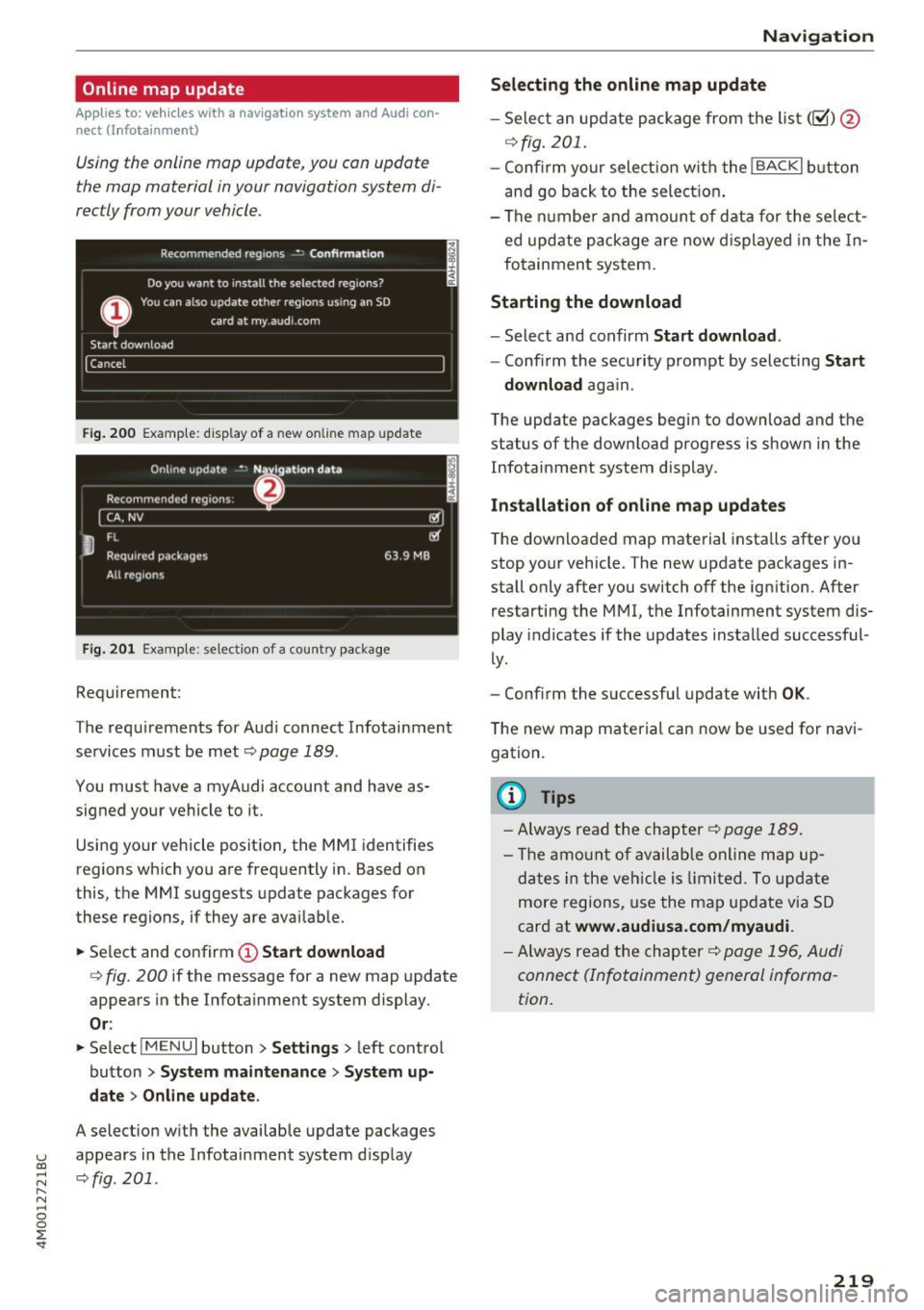
Fig. 200 Example: display of a new o nline map update
Fig. 201 Example : select ion of a count ry package
Requirement:
The requirements for Audi connect Infotainment services must be met
Qpoge 189.
You must have a myAudi account and have as
signed your vehicle to it.
Using your vehicle position, the MMI identifies
regions which you are frequently in. Based on
this, the MMI suggests update packages for
these regions, if they are available.
• Select and confirm(!)
Start download
Q fig. 200 if the message for a new map update
appears in the Infotainment system display.
Or :
• Select I MENU I button> Settings> left control
button >
System maintenance > System up
date > Online update .
A selection with the available update packages
u appears in the Infotainment system d isplay (0
;::j Qfig.201 . r--. N ~ 0
0
:E
Selecting the online map update
- Select an update package from the list (~) @
qfig. 201.
-Confirm your select ion with the IBACKI button
and go back to the selection.
- The number and amount of data for the select
ed update package are now displayed in the In
fotainment system .
Starting the download
-Select and confirm Start download .
-Confirm the security prompt by selecting Start
download
aga in .
The update packages begin to download and the
status of the download progress is shown in the
Infotainment system display.
Installat ion of online map updates
The downloaded map material installs after you
stop your vehicle . The new update packages in
stall only after you switch
off the ignition. After
restarting the
MMI, the Infotainment system dis
play indicates if the updates installed successful
ly.
- Confirm the successful update with
OK .
The new map material can now be used for navi
gation.
(D Tips
- Always read the chapter q page 189.
-The amount of available online map up-
dates in the vehicle is limited. To update
more regions, use the map update via SD
card at
www.audiusa.com/myaudi.
- Always read the chapter ¢page 196, Audi
connect (Infotainment) general informa
tion.
219