change time AUDI Q7 2018 Owner´s Manual
[x] Cancel search | Manufacturer: AUDI, Model Year: 2018, Model line: Q7, Model: AUDI Q7 2018Pages: 398, PDF Size: 185.58 MB
Page 131 of 398
a co ...... N r--. N ...... 0
0
:E '
The air suspension* is an electronically-control
l ed air suspension and damping sys tem . The ad
justment depends on the driving mode selected, steering movements, the driver's braking and ac
celerat ion, and as the road surface, vehicle speed
and load. The veh icle ground clearance depends
on the mode selected and the speed.
The ground clearance increases s ignificantly
when the vehicle is in the
All road mode . At
speeds from approximate ly 50 mph (80 km/h) to
75 mph (120 km/h), the ground clearance re
duces in stages . When the speed decreases, the
g round clea rance increases again a utomat ically.
The ground clearance is the lowest in
Dynamic
mode.
Steering
The power steering adapts. Ind irect steer ing that
moves easily as in
Comfort mode is especia lly
suited to long drives on highways. The
Dynam ic
mode provides sporty, direct steering.
All-wheel steer ing*
All-wheel steer ing increases dr iving comfort by
providing add it ional steering ability at the rear
axle. Steer ing in the opposite d irection at low
speeds dec reases the turning rad ius. Steering in
the same d irect io n a t high speeds imp roves the
r e sponse t ime whi le increas ing dr iv ing stab ility at
the same time .
Sport differential*
As a componen t of the all wheel d rive system
(quattro)
~ page 146, the sport diffe rential dis
tr ib utes the dr iv ing power to the rear ax le de
pending on the situa tion. The dis tribution of
power var ies dependi ng on the selected mode
from moderate
(Comfort ) to sporty (Dynamic ).
The goa l is a high level of agility and ability to ac
celerate on curves . The veh icle is very responsive
to steer ing.
Adaptive cruise control (ACC)*
The behavior when accelerating can be adjusted
from comfortab le to sporty, depending on the
drive select mode . Adaptive cru ise control a lso
A ssi st a nce systems
responds to the driv ing behavior of the vehicle
ahead in a more conservative or sporty manner.
Engine sound*
T he eng ine sound adap ts to the c urren t mode
and can be subtle to sporty .
(D Note
Applies to: vehicles with air suspensio n
-Make sure there is enough clearance above
and below the vehicle when pa rk ing. The
height of the ve hicle (gro und clea rance) can
change once it is par ked due to temperature
fluctuations, changes to the load conditions
and changes to the dr iving modes.
- When transporting the vehicle on a car car
r ier, train, ship or by other means, o nly tie
the vehicle down at the runn ing s urface of
the ti res, which is the outer c ircumference.
Sec uring the vehicle at the axle compo
ne nts , sus pension str uts o r towing eyes is
no t pe rm itted because the pres sure in the
air suspens ion s truts ca n change d uring
tr anspo rt . The ve hicle may not be secu red
sufficiently if this ha ppens.
(D Tips
The "S" se lector lever posi tion automatic ally
engages w hen the
Dynamic mode is selected.
Selecting the driving mode
Applies to: vehicles wi th Aud i drive select
~- ------ -
~
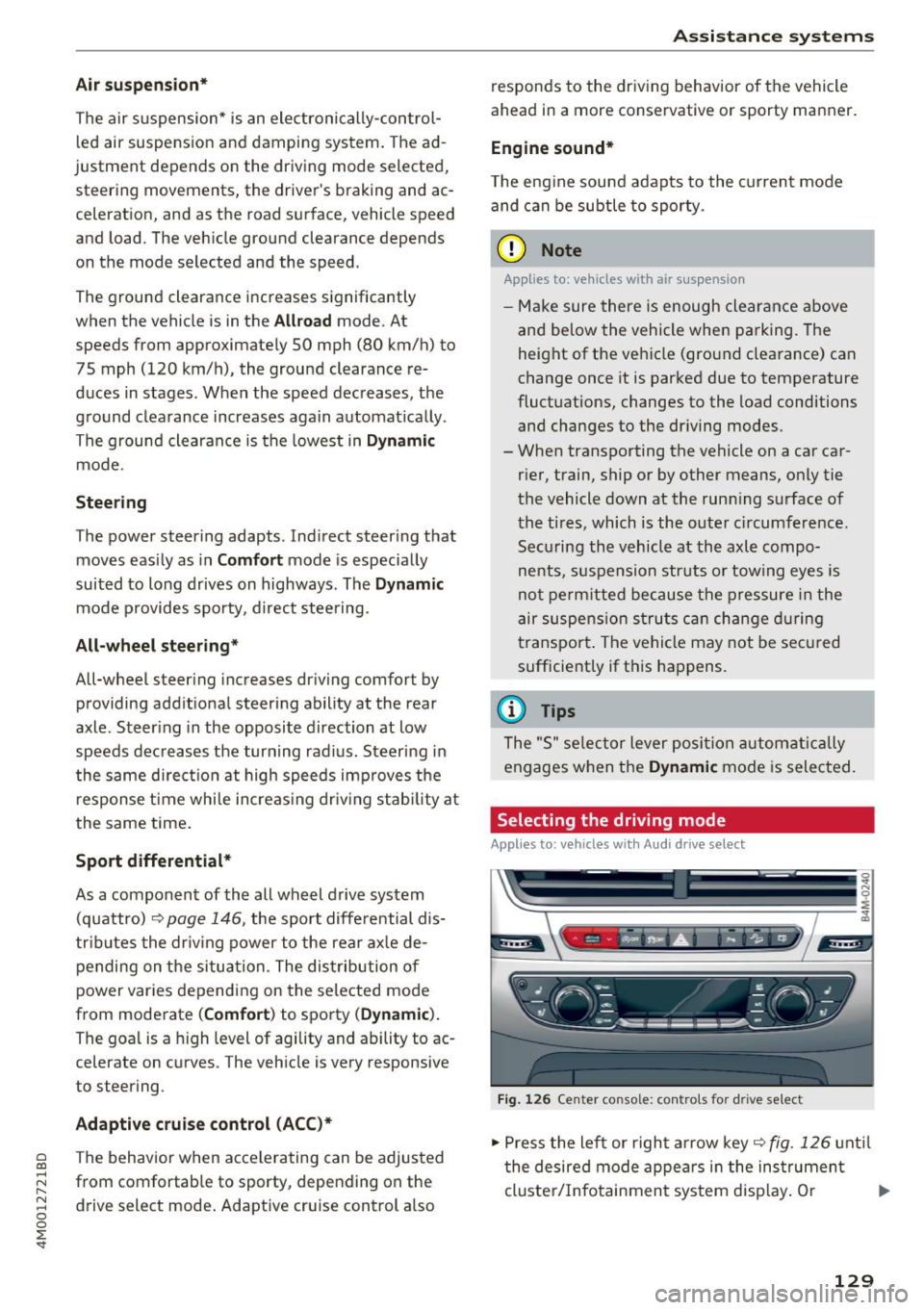
Fig. 1 26 Ce nter console: co ntro ls for d rive select
.,,. Press the le ft or righ t arrow key~ fig. 126 unt il
t he desired mode appe ars in the ins trumen t
cluste r/ Infotainmen t system disp lay. O r ..,,.
129
Page 134 of 398
Parking syste m s
Parking systems
General information
A pplies to: ve hicles w ith a rea r parking sys te m /parking sys
tem p lus/rearv iew camera/peripheral cameras
Depending on your vehicle 's equipment , various
parking aids will help you when parking and ma
ne uvering.
The
rea r pa rki ng sys te m is an aud ible parking a id
that warns you of obstacles
behind the vehicle
¢ page 133.
The parki ng sys te m plu s assists you when park
ing by aud ibly and visually indicating objects de
tected
in front of and behind the veh icle
¢ page 133.
The rea rv iew ca mera shows the area behind the
veh icle in the Infotainment system d isplay . The
lines in the rearv iew camera image he lp you to
pa rk or maneuve r
¢page 134.
The pe riph eral ca meras give various views to
help you when parking or maneuvering
¢ page 137 . The parking system plus functions
are also available ¢
page 133.
_& WARNING
-Always look for t raff ic and check the area
around your vehicle by looking at it direct ly
as well. The parking system cannot replace
the driver's attention . The driver is always
responsib le when entering or leaving a park
ing space and during similar maneuvers.
- Please note that some surfaces, such as
clothing, are not detected by the system.
-
-Sensors and cameras have blind spots in
which people and objects cannot be detect
ed . Be especially caut ious of small children
and animals.
- Always keep your eyes on the vehicle 's sur
round ings, using the rearview mirror as
well.
- The sensors can be displaced by impacts or
damage to the radiator gr ille, bumper,
wheel housing and the underbody . The park
ing system may be impa ired as a result .
Have a n author ized Audi dealer or author-
132
ized Audi Service Facility check their func
tion .
@ Note
-Some objects are not detected or disp layed
by the system under certain circumstances:
- objects such as barrier chains, trailer draw
bars, vertical poles or fences
- objects above the sensors such as wall ex
tensions
- objects with certain surfaces or structures
such as cha in link fences or powder snow
- If you continue driving closer to a low ob
ject, it may disappear from the sensor range . Note that you will no longer be
warned about th is obstacle .
- Keep enough distance from the curb to re
duce the risk of damage to the rims .
(D Tips
-The system may provide a warning even
though there are no obstacles in the cover
age area in some situations, such as :
- certa in road s urfaces or whe n the re is tall
grass
- externa l ult rasonic sources such as from
cleaning vehicles
- in heavy rain, snow, or th ick vehicle ex
ha ust
- We recommend that you practice par king in
a traffic -free location o r parking lot to be
come familiar with the system . When doing
this, there shou ld be good light and weath
er conditions.
- You can change the vo lume of the signa ls
and the display ¢
page 140.
-Please refer to the instructions for towing a
trai ler located in
¢ page 141.
-What appea rs in the infotainment d isplay is
somewhat time -de layed.
- T he sensors m ust be kept clean and free of
snow and ice for the parking aid to operate .
Page 166 of 398
Multifunction steering wheel
Map view with route guidance started
Applies to: vehicles with navigation system and map view
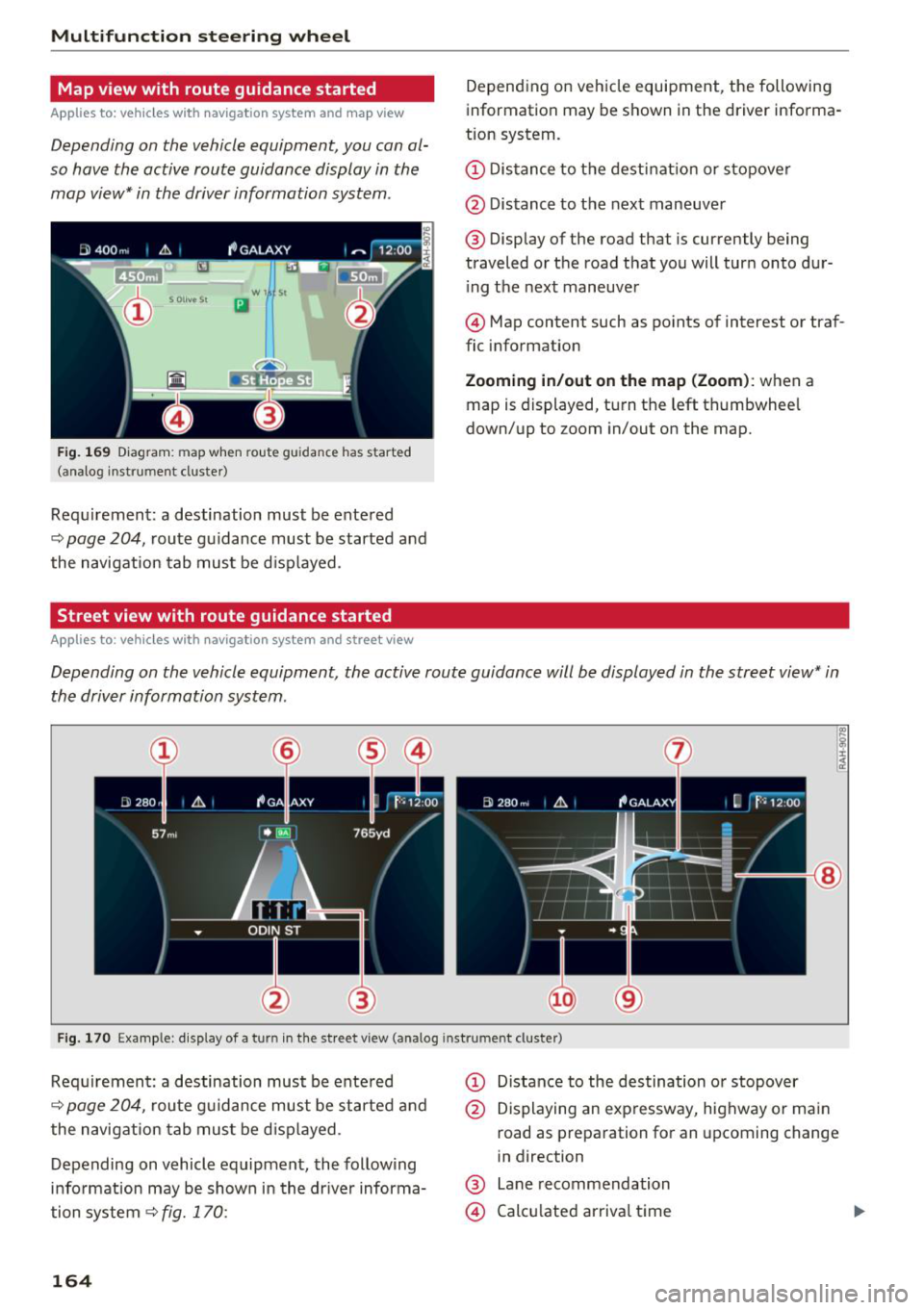
Depending on the vehicle equipment , you con al
so hove the active route guidance display in the mop view* in the driver information system .
W 1 St
Ill
Fig. 169 Diagram : map when route gu idan ce has start ed
( a na log i nst rum ent cluste r)
Requirement: a destination must be entered
~ page 204, route guidance must be started and
the navigation tab must be displayed.
Street view with route guidance started
Applies to: vehicles with navigation system and street view
Depending on vehicle equipment, the following
information may be shown in the driver informa
tion system .
CD Distance to the destination or stopover
@ Distance to the next maneuver
@ Display of the road that is currently being
traveled or the road that you will turn onto dur
i ng the next maneuver
@ Map content such as points of interest or traf
fic information
Zooming in/out on the map (Zoom): when a
map is displayed, turn the left thumbwheel
down/up to zoom in/out on the map.
Depending on the vehicle equipment, the active route guidance will be displayed in the street view* in
the driver information system .
@
Fig. 170 Example : d isplay of a t urn in the stre et view (a nalog instr um en t cl uster )
Requirement: a destination must be entered
~ page 204, route guidance must be started and
the navigation tab must be displayed.
Depending on vehicle equipment, the following
information may be shown in the driver informa
tion system
~ fig. 170:
164
CD Distance to the destination or stopover
@ Displaying an expressway, highway or main
road as preparation for an upcoming change
in direction
@ Lane recommendation
@ Calculated arrival time
Page 173 of 398
Cl a:, ...... N
" N ...... 0
0
::r '
Function
Say:
Start ing route g uidance with an ad- Navigate/ Navigate to p riv ate addre ss/ Navig ate to business
dress card open address
E nte ring a new desti nat ion/stop -Enter addr ess
> enter the desired address when prompted>
over w hen ro ut e gu idance is ac tive confirm the new destination/stopover if prompted
Start ing route guidance after enter- Start route guidance
ing a dest ination
Canceling current ro ute g uidance Cancel route guidance
Calc ulat ing a lternat ive routes Calculate alternative route s
Ente ring a point of interest by se -Point of intere
st
> Change sea rch a rea > category or subcote-
lecting a search area with guidance gory when prompted, for example "restaurant"
from the system
Dest ina tion input ca tegor ies Audi Service / Train station /Airport / Hot el / Ho spital / Park-
ing / Re st area / Restaurant / Gas station
etc.
Search areas for entering points of Nearby/ Along the route / Near destination / Near stopover /
interest In a new
city/ In a new stat e/country
Entering an online destination* Online dest
ination (XV), for examp le "Online de stination
" Lakeview Hotel" "
Correct ing data input No I meant (XV)
Clos ing the full -screen command
Close
list
Requirement: you must be in the Navigation or
Map menu. Depending on the veh icle equipment
and the selected menu item, you can say t he fol- l
owing commands for additional settings in navi
gation:
Function Say:
Genera l map options Map/ Day map / Night map / Automat ically change map color
Map type 2D heading up map/ 2D north up map / 3D map / De stination
map / Overview map / Standard map */ Google Earth map*albl
Showing the route list Route list
Showing the remaini ng d istance/ Destination information
time w hen route guidance is active
Speed limit prompt How fast can I drive here?
Setting voice guidance for active Voice guidance on
I Voice guidance off I Voice guidance short-
route guidance ened
I Voice guidance complete I Voi ce guidance traffic
B locking a ce rtain sect ion on t he Block route for (XV) meter s/kilometers /yards /miles / Block
rou te next route / Avoid n ext se ction of route
a ) Pro vid er at tim e of pr inting .
bl AU DI AG provi des acc ess to s ervi ce s fro m thir d par ty prov id ers. P ermane nt a vailabi lity canno t be guarant eed, beca use tha t
de pen ds on the th ird party p ro vid er.
(D Tips
- Destinations may have to be spelled when
entered, depending on which region you are in and wh
ich menu language you have se
lected .
171
Page 177 of 398
Cl a:, ...... N
" N ...... 0
0
::r '
settings
> Connection manager¢ page 246.
~ Se lect and confirm the desired cell phone from
the list of disp layed Bluetooth devices.
~ The MMI generates a PIN for the connect ion
setup
¢fig . 172.
~ Select and confirm Yes.
~ Enter the PIN for connecting on your ce ll
phone.
Or : whe n the PIN is displayed on your
cell phone, confirm the PIN on your cell phone
and in the MMI. The time allowed for entering
the PIN is limited to approximately 30 seconds.
~ Pay attention to any additiona l system prompts
displayed on your cell phone, for example if the
system should connect automatically in the fu
ture . Depend ing on the cell phone, you may
have to confirm downloading the directory sep
arately .
After connecting successfully
After connecting successfully, information about
the connected profiles will appear. You can a lso
change the profiles later. Select:
!MENUI button>
Settings > left control button > MMI settings >
Connection manager¢ page 246 .
In addition, the cell phone contacts are automat
ically loaded in the MMI directory. T his process
can take several minutes, depend ing on the num
ber of contacts .
You can a lso make your connected cell phone the
default phone by select ing
Set as default tele
phone
in the Connection manager¢ page 248 .
@ Note
Always follow the information found in¢@) in
Wi-Fi hotspot on page 194.
(D Tips
- Making phone calls through the MMI is only
possible using the
Handsfree Bluetooth pro
file.
- You can apply additional settings to con
nected mobile devices using the
Connection
manager ¢ page 246 .
-You can also search for the MMI in your ce ll
phone using the Bluetooth device search.
Telephone
-You only have to pair your device one time.
B lu etooth devices that are already paired
automatically connect to the MMI when the
Bluetooth funct ion is switched on, they are
w ith in range and the ignition is switched on.
The last connected cell phone is given first
pr iority.
- Authorizing the MMI connection in your cell
phone w ill make automatic connection pos
sible .
- Pay attention to any system prompts dis
played on your cell phone, for example if
the system should connect automatically in
the future. Depending on the cell phone,
yo u may also need to download the directo
ry and confirm access to your text messages
separately.
- When leaving the vehicle, the Bluetooth
connection to the cell phon e will automati
cally disconnect. Depending on your cell
phone, phone calls in progress may be auto
matically redirected from the MMI to your
cell phone and you can continue the ca ll on
your phone.
- You can obtain more information from your
cell phone service provider or from your cell
phone user gu ide. For information on using
the telephone, vis it www.aud iusa .com/
bluetooth or contact an authorized Audi
dealer or authorized Audi Service Facility.
- Applies to: veh icles without secondary
phone: Several cell p ho nes can be paired to
th e MM I, but only one cell phon e can be ac
tively connected to the MMI.
- App lies to: veh icles without seconda ry
phone: If a Bluetooth device is already con
nected to the MMI , it will be disconnected
when another device connects to the MMI.
175
Page 190 of 398
Audi connect (Infotainment)
,.. Enter your myAudi user data. Or : enter your
eight-digit myAudi PIN .
,.. Confirm your entry with
OK .
Then yo u can open yo ur persona l se tt ings from
your myAudi account in you r vehicle .
(D Tips
You can re ceive you r myAudi P IN if you have
se t up a myAud i account. For addi tional infor
mation, see www.audi usa .com/mya udi.
Opening Audi connect
(Infotainment)
A pp lies to ve hicles with A udi co nnect (Infotainment)
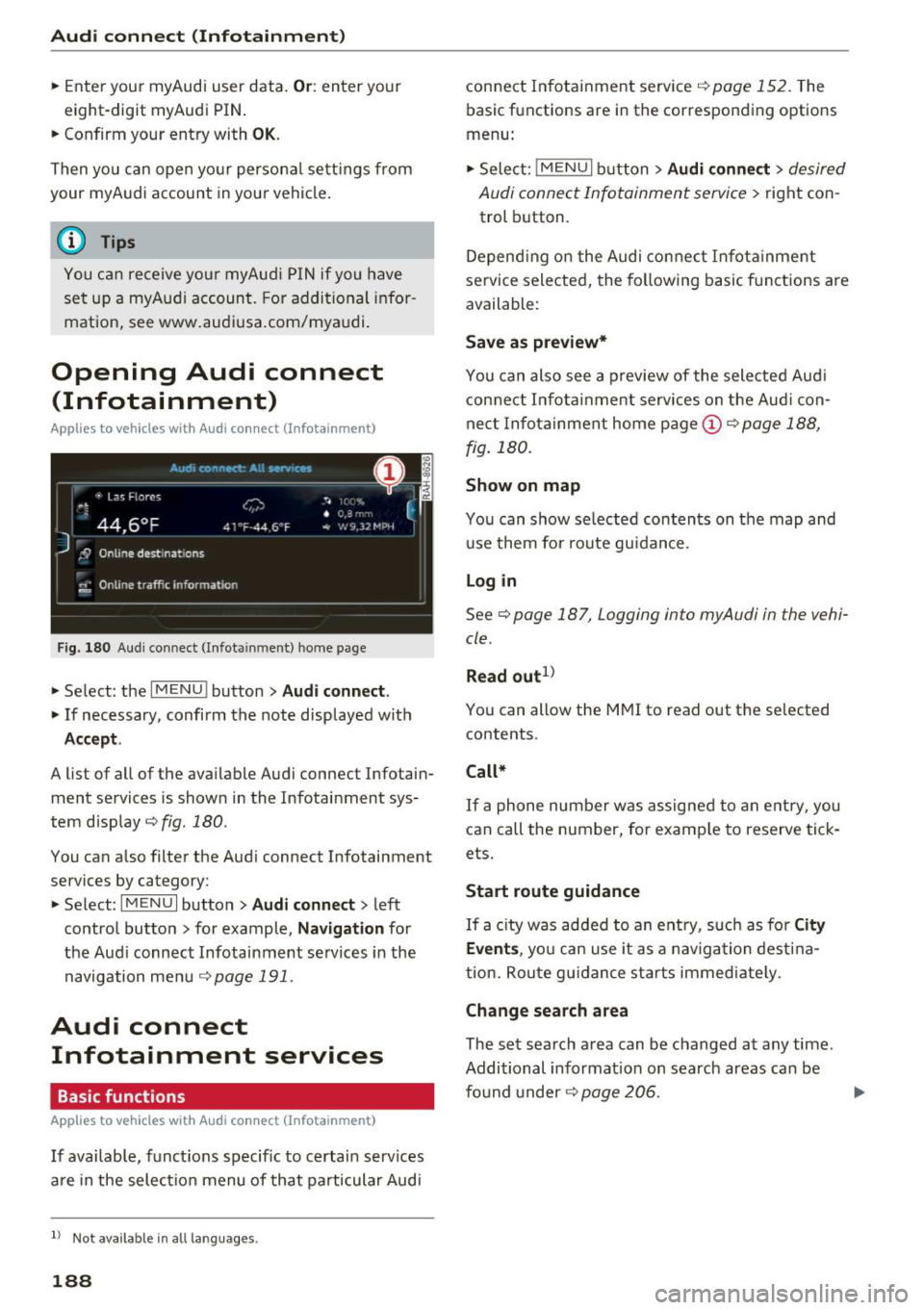
Fig . 180 Aud i co nn ect (I n fota inment) ho m e p age
,.. Se lect : the IMENU ! button> Audi connect .
,.. If necessary, confi rm the note disp layed wit h
Accept.
A list of all of the ava ilable Audi connect Infotain
ment services is shown in the Infotai nment sys
tem disp lay ¢
fig. 180 .
You can a lso filte r the Aud i connect Infotainment
services by category:
,.. Se lect :
I MENU I button> Audi connect > left
contro l button> for example,
Navigation for
the Aud i connect Infotainment se rvices in the
navigation me nu
¢page 191.
Audi connect
Infotainment services
Basic functions
A pp lies to veh icles with A udi co nnect (Infota inment)
If available, funct ions specific to certain services
a re in the selec tion menu of that particular Aud i
ll Not availa ble in a ll la n guage s.
188
connect In fota inme nt service ¢ page 152. The
basic functions are in the correspon ding options
menu:
,.. Sele ct:
!ME NUI butt on> Audi connect > desired
Audi connect Infotainment servi ce>
right con
trol b utton .
Depend ing o n the Audi connect In fota inme nt
se rvice selected, the follow ing basic f unc tions are
available :
Save as preview*
You can also see a preview of the selected Aud i
con nect In fo tai nment services on the Aud i con
nect In fo ta inment home page@¢
page 188,
fig . 180.
Show on map
You can show selected con ten ts on the map and
u se them fo r route gu idan ce .
Log in
See¢ page 187, Logging into myAudi in the vehi
cle .
Read out
1>
You can a llow the M MI to read out the selected
contents .
Call*
If a p hone num ber w as assigne d to an e ntry, you
can call the number, for e xamp le to reserve tick
ets.
Start route guidance
If a city was ad ded to an e ntry, suc h as fo r City
Events ,
you ca n use it as a navig ation dest ina
t ion. Rou te g uidance st art s immediate ly.
Change search area
The se t sea rch area can be changed at any time.
Additional informat io n on search areas can be
fo und under ¢
page 206 .
Page 193 of 398
Cl a:, ...... N
" N ...... 0
0
::r '
r=> page 187 .
.,. Se lect Twi tter > left co ntrol button > desired
function
(for example, T rend s).
The fo llow ing categories can be selected in the
Twitt er menu:
- My tw eets: News Feed and the Tweets you have
posted are l isted.
- Home: the Tweets for everyone you follow are
displayed .
-Trend s: topics on Twitter that are currently
popular w ith in a country .
Different functions are availab le depending on
the Twitter category you have selected:
- New tweet : you can post a new tweet using
pre -made templates or using myAudi tem
plates that you have created yourse lf.
- Refre sh : the selected Twitter function is re
freshed.
- Fa vo rite : mark a Tweet as favorite to show you
liked it.
- Retwee t: you can quote a Tweet to share it with
others.
(D Tips
- Other se tt in gs such as accoun t, la ng uage,
Tweet security and location settings
cannot
be changed in the MMI. These c hanges must
be made on the Twitter website .
- You can on ly connect
one Twitter account
with your myAudi acco unt .
- Audi con nect (Infotainment) makes i t possi
b le to access Twitter . Permanent avai lability
ca nnot be guaranteed, because t hat de
pends on Twitter.
Travel (travel guide)
Applies to: vehicles with Travel (travel guide)
You can use the Audi MMI connect opp to store
points of interest on your mobile device (such as a smartphone) and then use them for route
guidance in the MMI.
Requirement:
Audi connect (Inf otainment )
The Audi MMI connect app must be insta lled and
open on your mobi le device .
Yo u m ust be logged into your myA udi account in
the
Audi MMI conne ct app and you must have se
l ected your vehicle.
T he Wi-Fi function on your mob ile dev ice and on
t h e M MI m ust be switched on.
T he MMI must be connected to the network .
.,. Select:
!MENUI button> Audi connect > left
control button >
Information category> Tra v
el.
After opening the trave l guide, trave l tips in your
area w ill be displayed including current ratings as
well as the corresponding category .
.,. Press the left control button to change the cat
egory (such as bars nearby) .
A WARNING
-
-It is o nly safe to use tablets, laptops, mo
b ile dev ices and other sim ila r devi ces when
t he vehicle is s ta ti onary bec ause, li ke a ll
loose objec ts, they co uld be thrown around
the inside of the ve hicle in a crash and cause
serio us inj uries . Store these types of devices
securely while driving.
- Do not use any wireless devices on the front
seats within range of the airbags whi le dr iv
ing. Also read the warnings in the chapte r
r::> page 2 73, Front airbags.
@ Note
Always fo llow the information fo und in ¢ @ in
Wi -Fi hotspot on page 194.
(D Tips
Units o f measurement, language settings and
time are shown in the Infotainment system
display based on how they were set in the
M MI system sett ings
r::> page 245.
Audi connect (Infotainment) in navigation
Applies to: vehicles with a navigation system and Audi con
nec t (Infotainment)
.,. Select: !MENUI button> Audi connect > left
control button >
Na vigation .
191
Page 205 of 398
Navigation
Opening navigation
Applies to: vehicles with navigation system
The navigation system directs you to your desti
nation, around traffic incidents and on alterna
tive routes, if desired .
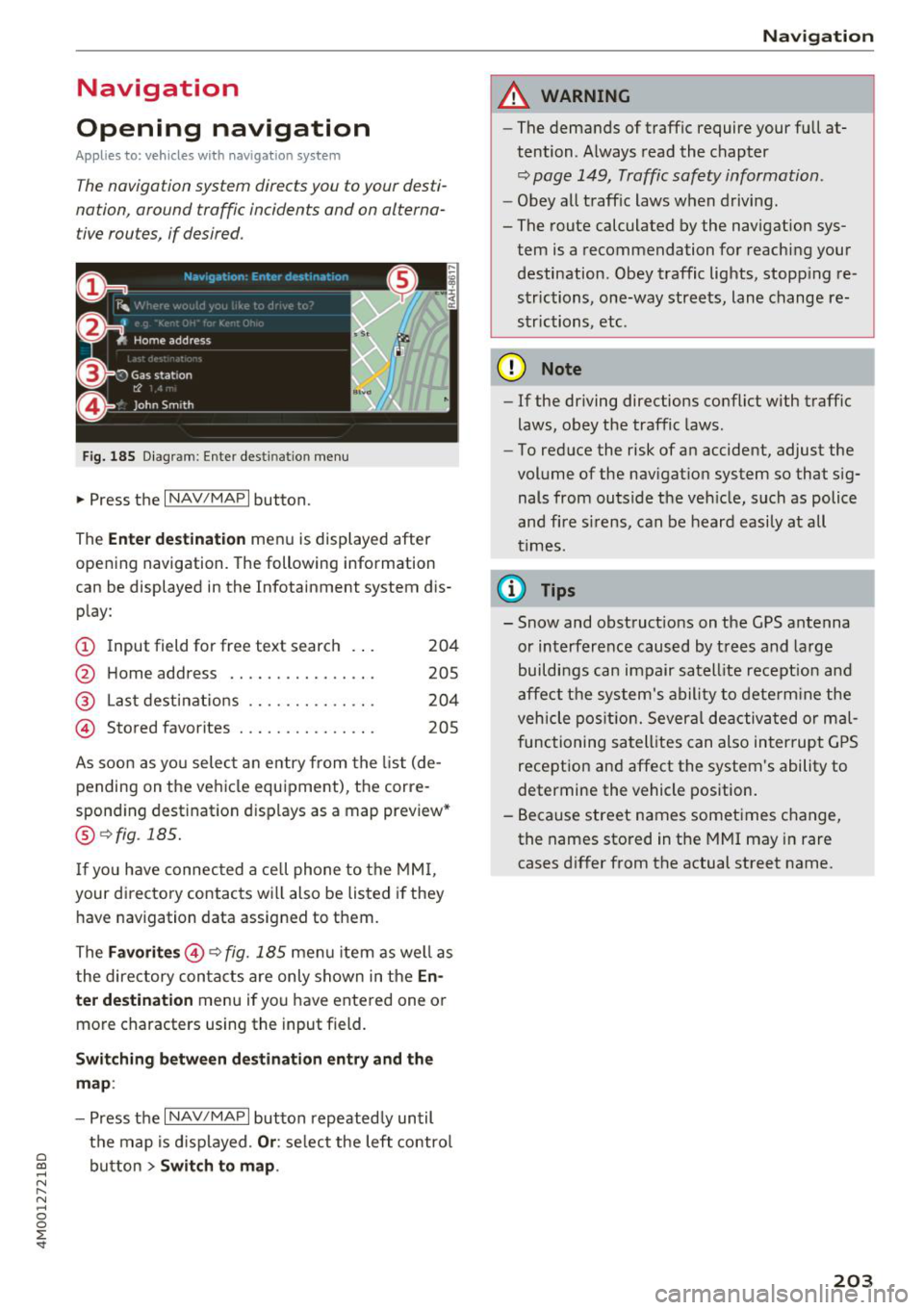
Fig. 185 Diagram: Ente r dest ination menu
.. Press the I NAV/MAPI button.
The
Ente r des tinatio n menu is displayed after
opening navigation. The following information
can be displayed in the Infotainment system dis
play:
(D I nput field for free text search 204
@ Home address . . . . . . . . . . . . . . . . 205
@ Last dest inatio ns . . . . . . . . . . . . . . 204
@ Stored favorites . . . . . . . . . . . . . . . 205
As soon as yo u select an entry from the list (de
pending on the ve hicle equipment), the corre
spond ing destination displays as a map preview*
@ r:::>fig .185.
If you have connec ted a cell phone to the MM I,
your di rectory contacts will also be listed if they
have navigation data assigned to them.
The
Fav orites @r::> fig. 185 menu item as we ll as
the directory contacts are only shown in the
E n
t e r d estination
menu if you have entered one or
more characters using the input field.
Swi tching betw een d estination entr y and th e
map :
-Press the I NAV/MAPI button repeated ly until
the map is d isplayed .
Or: select the left contro l
a ~ button > Switch to map .
N r--. N ~ 0
0
:E '
A WARNING
-The demands of traffic require your full at
tention. Always read the chapter
r:::> page 149, Traffic safety information.
-Obey all traff ic laws when driving.
- The route calculated by the navigation sys-
tem is a recommendation for reaching your
destination. Obey traffic lights, stopp ing re
strictions, one-way streets, lane change re
strictions, etc.
(D Note
- If the driving directions conflict with traffic
laws, obey the traffic laws .
- To reduce the risk of an accident, adjust the
volume of the nav igation system so that sig
nals from outs ide the veh icle, such as police
and f ire s irens, can be heard easily at all
times.
Ci) Tips
- Snow and obstruct ions on the GPS antenna
or interference caused by t rees and large
buildings can impair satell ite recept ion and
affect the system's ability to dete rm ine the
veh icle pos it ion. Several deactivated or mal
functioning satell ites can also interrupt G PS
recept ion and affect the system's ability to
determine the vehicle position.
- Because street names sometimes change, the names stored in the MMI may in rare
cases d iffer from the actual street name.
203
Page 244 of 398
Media
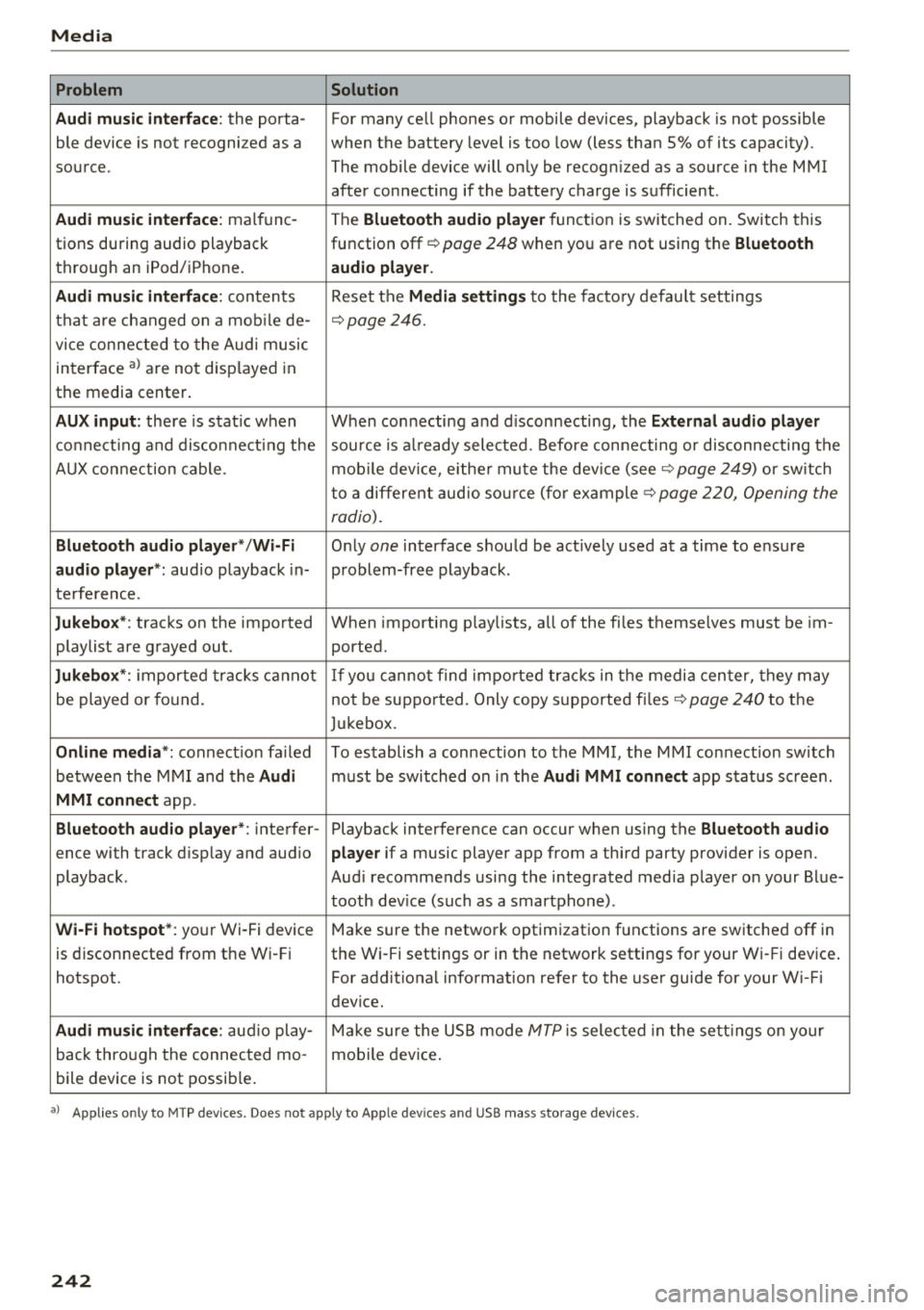
Problem Solution
Audi music interface :
the porta-For many ce ll phones or mobile devices, playback is not possible
ble device is not recogni zed as a when the battery level is too low (less than 5% of its capacity).
source. The mobile device will only be recogn ized as a source in the MMI
after connecting if the battery charge is sufficient .
Audi music interface: malfunc-
The Bluetooth audio player function is switched on. Switch this
tions during audio playback function off¢
page 248 when you are not using the Bluetooth
through an iPod/ iPhone. audio player.
Audi music interface:
contents Reset the Media settings to the factory default settings
that are changed on a mobile de -
¢page 246.
vice connected to the Audi music
interface al are not disp layed in
the media center .
AUX input: there is stat ic when When connecting a nd disconnecting, the External audio player
connecting and disconnect ing the source is already selected. Before connecting or disconnecting the
AUX connection cable. mobile device, either mute the device (see ¢
page 249) or sw itch
to a different audio source (for example ¢
page 220, Opening the
radio).
Bluetooth audio player* /Wi-Fi
Only one interface should be act ively used at a time to ensure
audio player*: audio playback in- problem-free playback.
terference.
Jukebox* : tracks on the imported When importing playlists, a ll of the files themselves must be im-
playlist are grayed out. ported.
Jukebox*: imported tracks cannot If you cannot find imported tracks in the media center, they may
be played or found. not be supported. Only copy supported files"*
page 240 to the
Jukebox.
Online media *: connection fa iled To establish a connection to the MMI, the MMI connection switch
between the MMI and the
Audi must be switched on in the Audi MMI connect app status sc ree n.
MMI connect app.
Bluetooth audio player *: interfer- Playback interference can occur when using the Bluetooth audio
ence with track d isp lay and aud io player if a music player app from a third party provider is open.
playback . Audi recommends using the integrated media player on your Blue-
tooth device (such as a smartphone) .
Wi-Fi hotspot*: your Wi-Fi device
Make sure the network optimization functions are switched off in
is disconnected from the Wi -Fi the Wi-Fi settings or in the network settings for your Wi -Fi device .
hotspot . For additional information refer to the user guide for your Wi-Fi
dev ice.
Audi music interface: audio play-Make sure the USB mode MTP is selected in the settings on your
back through the connected mo- mobile device.
bile device is not possible.
al Applie s onl y to MTP dev ice s. Does not apply to App le dev ices and USB mass s torage dev ice s.
242
Page 245 of 398
Cl a:, ...... N
" N ...... 0
0
::r '
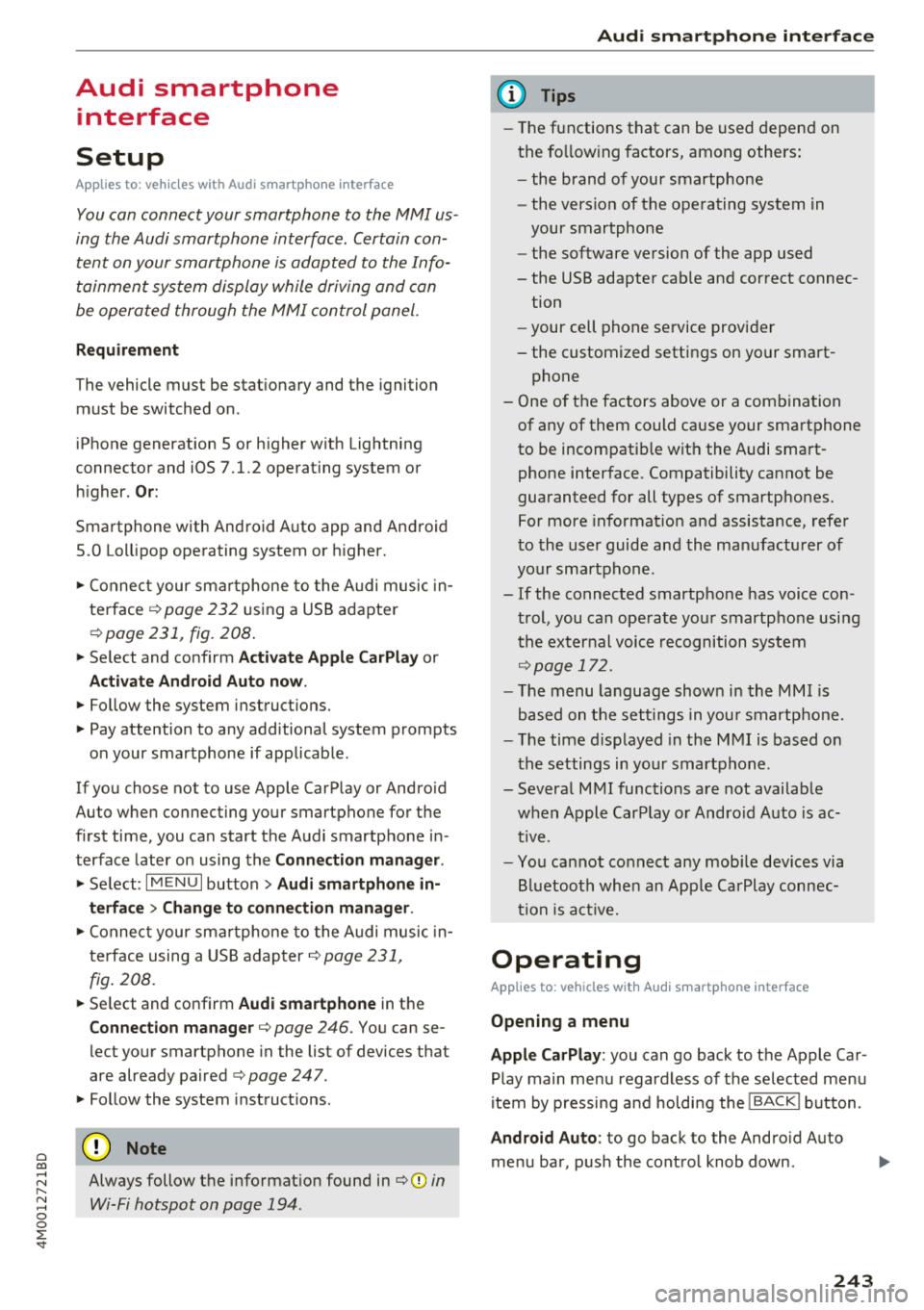
Setup
Applies to: vehicles with Audi smartphone interface
You con connect your smortphone to the MMI us
ing the Audi smortphon e int erfac e. Certain con
t e n t on you r sm ortphone is ado pted to th e Info
tainme nt system d is p lay while driving and con
be operated through the MMI control panel .
Requirement
The vehicle must be stat ionary and the ignition
must be switched on .
iPhone generation 5 or h igher w ith Lightning
connector and iOS 7 .1.2 operating system or h igher.
Or:
Smartphone with Android Auto app and Android
5 .0 Loll ipop operating system or higher.
.,. Connec t your sma rtphone to the Audi music in
terface ¢
page 232 using a USB adapte r
¢page 231, fig. 208 .
.. Se lect and confirm A ctivate Apple CarPlay or
Acti vate And roid Auto now .
.. Follow the system instruct ions.
.. Pay attention to any additiona l system prompts
on your smartphone if applicable .
If yo u chose not to use Apple CarP lay or Android
Auto when connecting your smartphone for the
first time, you can start the Audi smartphone in
terface later on using the
Connection manager.
.,. Se lect : I MENU I button > Audi smartphone in-
terfa ce
> Change to connection manager .
.. Connec t your sma rtphone to the A udi music in
terface using a USB ad apter ¢
page 231,
fig . 208.
.. Se lect and confirm Audi smartphone in t he
Connection manager¢ page 246. You can se
l ect your smartphone in the list of devices that
are already paired¢
page 247.
.,. Follow the system instruct ions .
@ Note
Always follow the i nformat ion found in¢@) in
Wi-Fi hotspot on page 194 .
Audi smartph one interfac e
(D Tips
-The functions that can be used depen d on
the fo llow ing factors, among others:
- the brand of your smartphone
- the vers io n of the ope rating system in
your smartphone
- the software ve rsion of the app used
- the USB adapter cab le and correct connec-
tion
- your cell phone se rvice provide r
- the customized settings on yo ur sma rt -
phone
- One of the factors above o r a com bina tion
of any of them could cause your sma rtphone
to be incompatib le wit h the Audi smart
phone inter face. Compatibility cannot be
guaranteed for all types of smartp hones.
For more informat io n and assistance, refer
t o the user guide and the man ufactu rer of
yo ur sma rtphone .
- If the connected smartphone has voice con
trol, you can ope rate yo ur smartp hon e usi ng
the ex ter nal voic e recognition system
¢page 172.
- The menu language show n in t he MMI is
based on t he sett ings in you r smartp ho ne .
- Th e time d is p layed in the M MI is based o n
the settings in yo ur sma rtphone .
- Severa l M MI functions a re not avai lab le
when Apple Car Play o r Andro id A uto is ac
t ive.
- Yo u ca nnot co nnect any mob ile dev ices via
B lu etooth whe n an App le CarPlay connec
tion is a ctive .
Operating
Applies to: vehicles with Audi smartphone interface
Opening a menu
Apple CarPlay :
you can go back to t he Apple Car
Play main me nu regardless of the se lected me nu
i tem by p ressing and holdi ng the
I B ACKI button .
Android Auto : to go back to the Andro id Auto
me nu bar, push the control knob down .
243