instrument cluster AUDI Q7 2018 Owner´s Manual
[x] Cancel search | Manufacturer: AUDI, Model Year: 2018, Model line: Q7, Model: AUDI Q7 2018Pages: 398, PDF Size: 185.58 MB
Page 103 of 398

Cl a:, ...... N
" N ...... 0
0
::r '
The predictive cont rol 1 l uses the map info rma
tion from the navigation system in order to react proactive ly when driving. Information from the
cam era-based traffic sign recognition * is a lso ap
plied to recognize traffic signs¢ page 97. When
coming up to areas wi th speed limits or changes
in the course of the road (such as curves, inter
sections or traffic c ircles), the system brakes au
tomatically and then accelerates back up to the
set speed .
Overriding control
The driver can override the predict ive control at
a ny time by press ing the accelerator or brake
pedal. If the system changes the vehicle speed to
adapt to speed limits, you ca n cha nge the speed
usi ng the lever ¢page 106, fig. 100 .
Always switch off the predictive control in
the following situations:
-When increased atte ntion is needed from the
drive r.
- In poor weat her cond it ions such as snow or
heavy ra in.
- When driving on roads in poor condition .
Indicator in the instrument cluster display
When switching on the adaptive cru ise cont rol
for the first time, the message
ACC: R + B ac
ti ve
in the instrument cluste r indicates the ava il
ab ility of the predictive control.
T he
'?·;SOmh symbo l appears when the system
is reg ulating the speed to match a speed lim it. If
this is the case, the system is regulating a speed
of SO mph (80 km/h) . The speed is then taken
over by the adaptive cru ise control. The speed in
the speedomete r LE D ring ad justs to the speed to
be maintained ¢page 104, fig. 99.
Thell.II
¢ fig. 93 symbo l appe ars whe n there is an adap
ta tion to t he ro ute ahea d.
I f you are in the
Driver assistance d isp lay in the
in str ument cluster, then the fo llow ing symbols
w ill in dica te w hic h oc currence t he sys tem is cu r
r en tly responding to:
ll This is not availa ble in s om e co untri es.
A ss istance systems
Symbol Meaning
MPH
USA models:
Speed limit
km/h
Canada model s:
Speed limi t
ll
Curve
_J!L Intersection
,:r
w
T raffic ci rcle
A WARNING
-
- Read the wa rnin gs on ¢.&. in General infor
mation on page 103 and on¢
& in De
scription on page 97.
- Pay attent ion to traffic and the a rea around
your veh icle when pred ictive cont rol is
sw itched on. The driver is always responsi
ble for assessing the traffic situation.
- There is an increase in the risk of an acci
dent, because the system does not consider
"right of way" rules and also does not re
spond to traffic lights .
- The system only cons iders t raff ic signs that
g ive a speed lim it .
- The permitted speed can be exceeded if the
adaptation to a speed lim it is incorrect . The
d river is responsible for adher ing to the pe r
mitte d speed .
- The s peed at w hich a curve is dr iven th rough
does not necessarily match your own driving
s tyle. Brake the vehicle yo urself whe n need
e d t o redu ce the risk of an a ccid en t.
0) Tips
- If a speed lim it is detected, the stored
speed is also adjusted in the speedometer LE D line when the ada ptive cru ise control is
n ot a ctive .
- The adaptat ion by the system depends on
t he driving mode se t in dr ive se lec t*.
- Switching off predict ive con trol, fo r exam
ple whe n driving in low t raff ic zones, does
101
Page 107 of 398
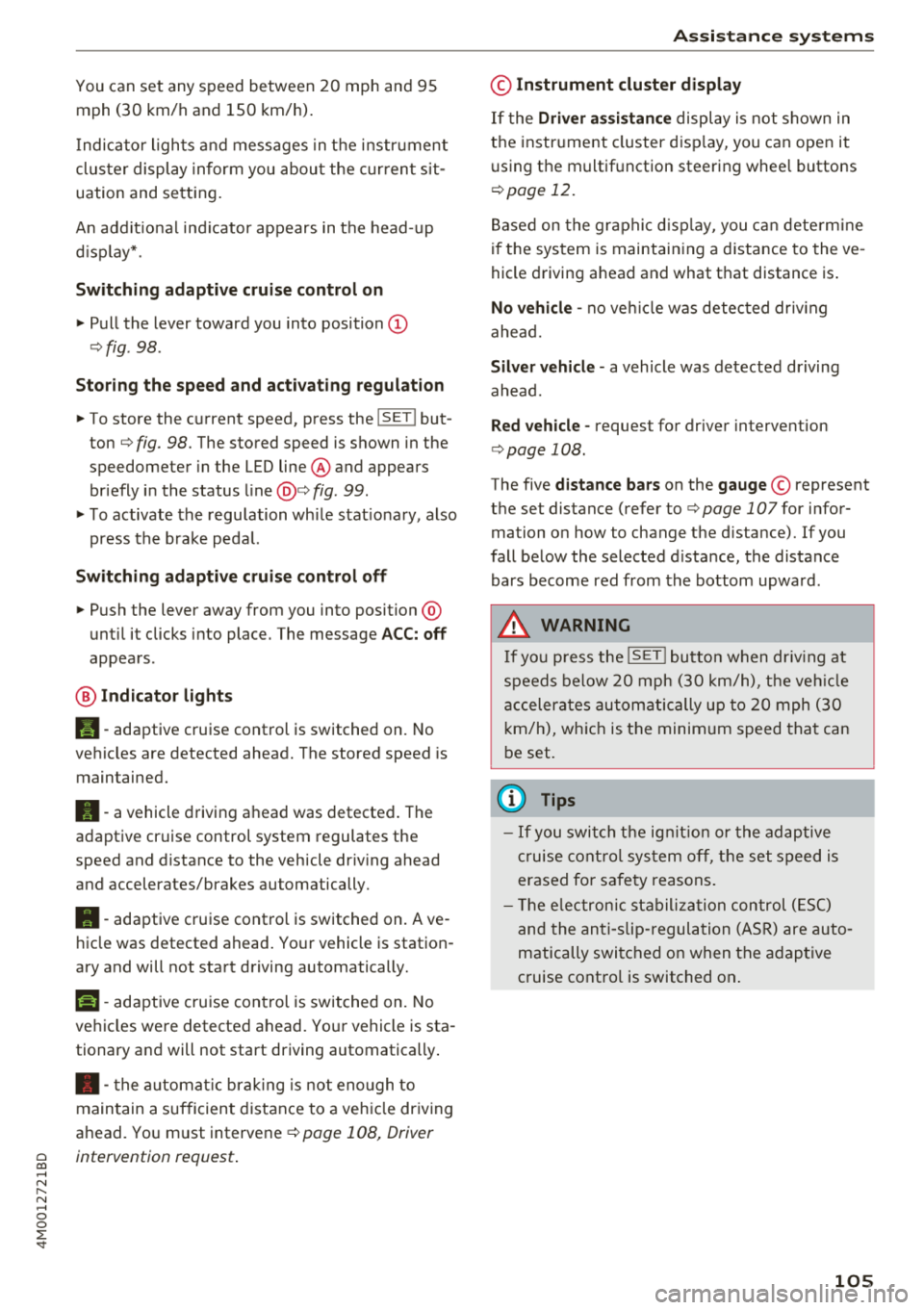
You can set any speed between 20 mph and 95 mph (30 km/h and 150 km/h).
I ndicato r lights and messages in t he i nstr ument
cluste r display inform you abou t the cur ren t sit
uation and setting.
An addit ional ind icator appears in the head- up
d isp lay* .
Switching adaptive cruise control on
"' Pull the lever toward you into position@
¢fig . 98 .
Storing the speed and acti vating regulation
"' To store the c urrent speed, press the !SE TI but
ton ¢
fig. 98 . The stored speed is shown in the
speedometer in the LED line@ and appears
briefly i n the status line@¢
fig . 99.
"'T o activate the regu lation wh ile stat ionary, also
press the b rake peda l.
Switching adapti ve cruise control off
"' Push the lever away from you into position @
unt il i t clicks i nto place . The message
ACC: off
appears .
® Indicator light s
II-adaptive cruise control is switched on. No
ve hicles are detected ahead. The stored speed is
maintained.
•- a vehicle driving ahead was detected . The
adaptiv e cruis e control system regulates the
speed and distance to the vehicle dr iv ing ahead
and accelerates/brakes automatically.
•- adaptive cruise control is switched on. Ave
h icle was detect ed ahead. You r vehicle is station
ary and will not start driving automatically.
ti)-adaptive cru ise con trol is switched on. No
ve hicles were detected ahead. Yo ur vehicle is sta
tionary and will not start driving automatically .
• -the automat ic brak ing is not eno ugh to
main tain a sufficient distance to a veh icle dr iving
ahead. You must intervene
c:!;> page 108, Driver
~ intervention request .
...... N
" N ...... 0
0
::r '
© Instrument cluster display
If the Driver a ssistance displ ay is not shown in
the instr ument cluster d isp lay, you can open it
u sing the m ultif unction steering whee l buttons
¢ page 12.
Based on the gr aphic disp lay, you c an dete rm ine
i f th e system is maintain ing a d istance to the ve
hicle driving a head and what t hat distance is .
No vehicle -no vehicle was detec ted dr iv ing
ahe ad.
Silver vehicle -a vehicle was detected driving
ahead.
Red v ehicle -reques t for driver interve ntion
¢ page 108 .
The five distance bars on the gauge© represent
the set distance (refer to
c:!;> page 107for infor
ma tion o n how to change t he d istance). If you
fall below the selected d ista nce, the distance
bars become red from the bottom upwa rd .
A WARNING
If yo u press the !SET I butto n w hen dr iv ing at
speed s below 20 mph (30 km/h), t he ve hicle
a ccelera tes au tom atic ally u p to 2 0 mph (30
k m/h), w hich is the minim um speed tha t can
b e set.
(D Tips
- If you swi tch t he ig nit io n o r th e adaptive
cr uise cont ro l sys tem o ff, t he set s peed is
erased fo r safe ty reasons .
- Th e elec tron ic st abili za tion con trol ( ESC)
and the an ti- slip -regul ation (ASR) are auto
matically swi tched o n when the adap tive
c ruise cont ro l is switched on .
105
Page 110 of 398
Assistance systems
The distances provided are specified values . De
pending on the driving situation and how the ve
h icle ahead is dr iv ing, the actual d istance may be
more or less than these target d istances.
If you change the time gaps, the newly set value
appears briefly in the instrument cluster disp lay
II for Distance 3. T his only occurs if the Driver
assistance
display is not currently shown in the
d isplay
c::;, page 104, fig. 99.
Distance 1: this setting corresponds to a distance
of 92 ft (28 m) when traveling at 62 mph (100 km/h), or a time d istance of 1 second.
Distance 2 : this setting corresponds to a distance
of 118 ft (36 m) when traveling at 62 mph (100
km/h), or a time d istance of 1.3 seconds .
Distance 3: this setting corresponds to a distance
of 164 ft (SO m) when traveling at 62 mph (100
km/h), or a time distance of 1.8 seconds .
Distance 4: this setting corresponds to a distance
of 219 ft (67 m) when traveling at 62 mph (100
km/h), or a time dista nce o f 2.4 seconds .
Distance 5 : this setting corresponds to a distance
of 328 ft (100 m) when traveling at 62 mph (100
km/h), o r a time distance of 3.6 seco nds.
A WARNING
When setting the distance, the driver is re
sponsible for adhering to any applicab le lega l
regulations.
(D Tips
Depending on the selected driving mode in
drive se lect* and the set distance, the driving
behavior will vary from dynamic to comforta
ble when accelerating
c::;, page 129.
Setting Audi adaptive cruise control
App lies to: ve hicles w ith Aud i adapt ive cruise co ntro l
-
.. Se lect in the Infotainment system: I MENU I but
ton
> Vehicle > left control button > Driver as
sistance
> Audi adaptive cruise control.
1) In prepa ra tio n at the t ime of print ing. T his funct ion is not
ava ilable in every vehicle .
108
Storing the last distance1
)
The last distance that was set will be stored after
the ignition is switched off. If the distance is not
stored,
Distance 3 is a utomatica lly set eve ry time
the ignit ion is switched on.
(D Tips
Your settings are automatically stored and as
signed to the remote control key being used.
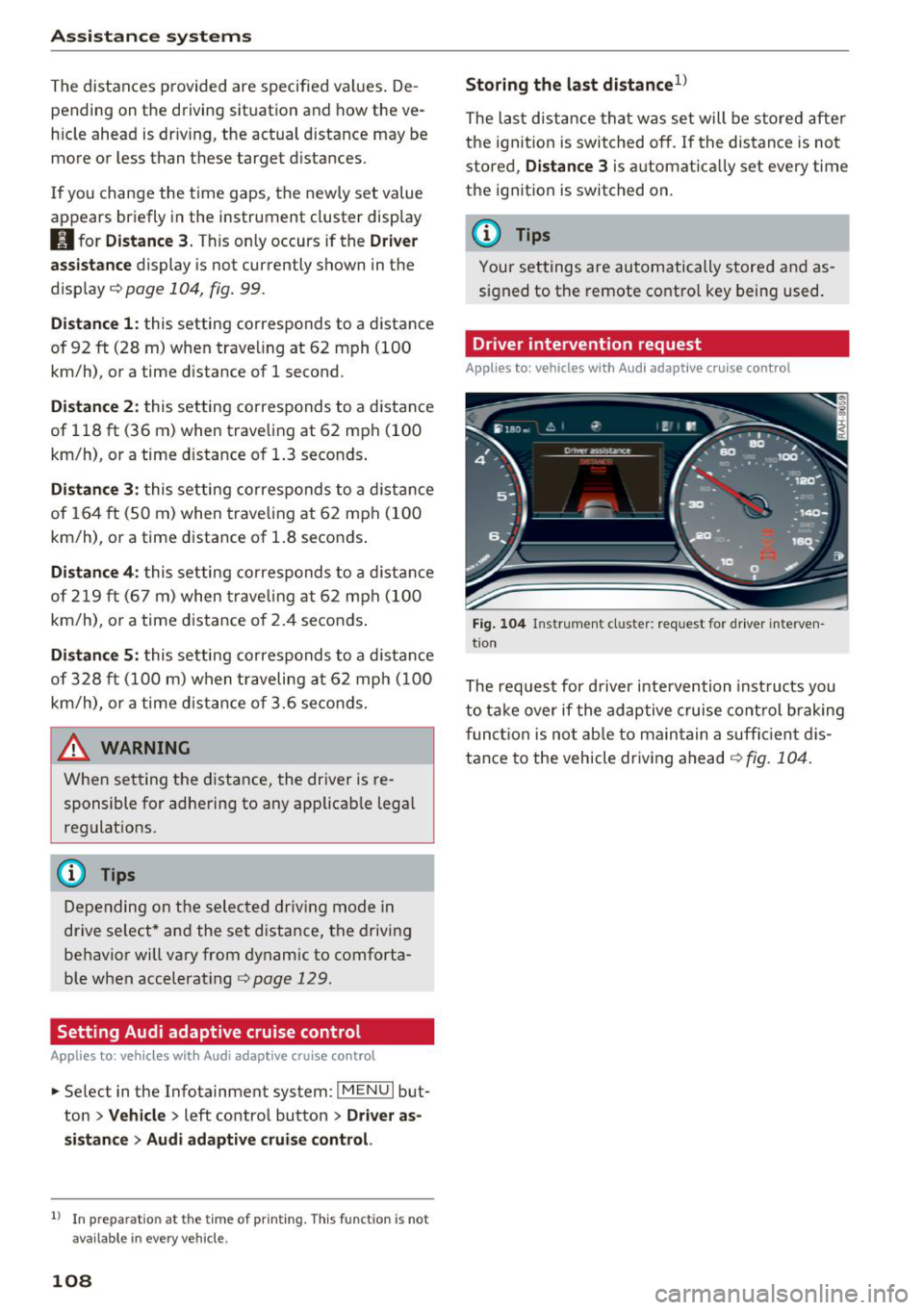
Driver intervention request
Applies to : vehicles wi th Aud i adap tive c ru ise con trol
Fig. 104 Instrument cluster: request for driver interve n
t ion
The reques t for driver in tervention inst ructs you
to take over if the adaptive cruise control braking
function is not able to maintain a suffic ient dis
tance to the vehicle driving ahead
r:!> fig. 104.
Page 111 of 398
a co ...... N r--. N ...... 0
0
:E -
Applies to: ve hicles with traff ic jam ass ist
Traffic jam assist supports the driver when driv
ing in traffic jams or in heavy traffic.
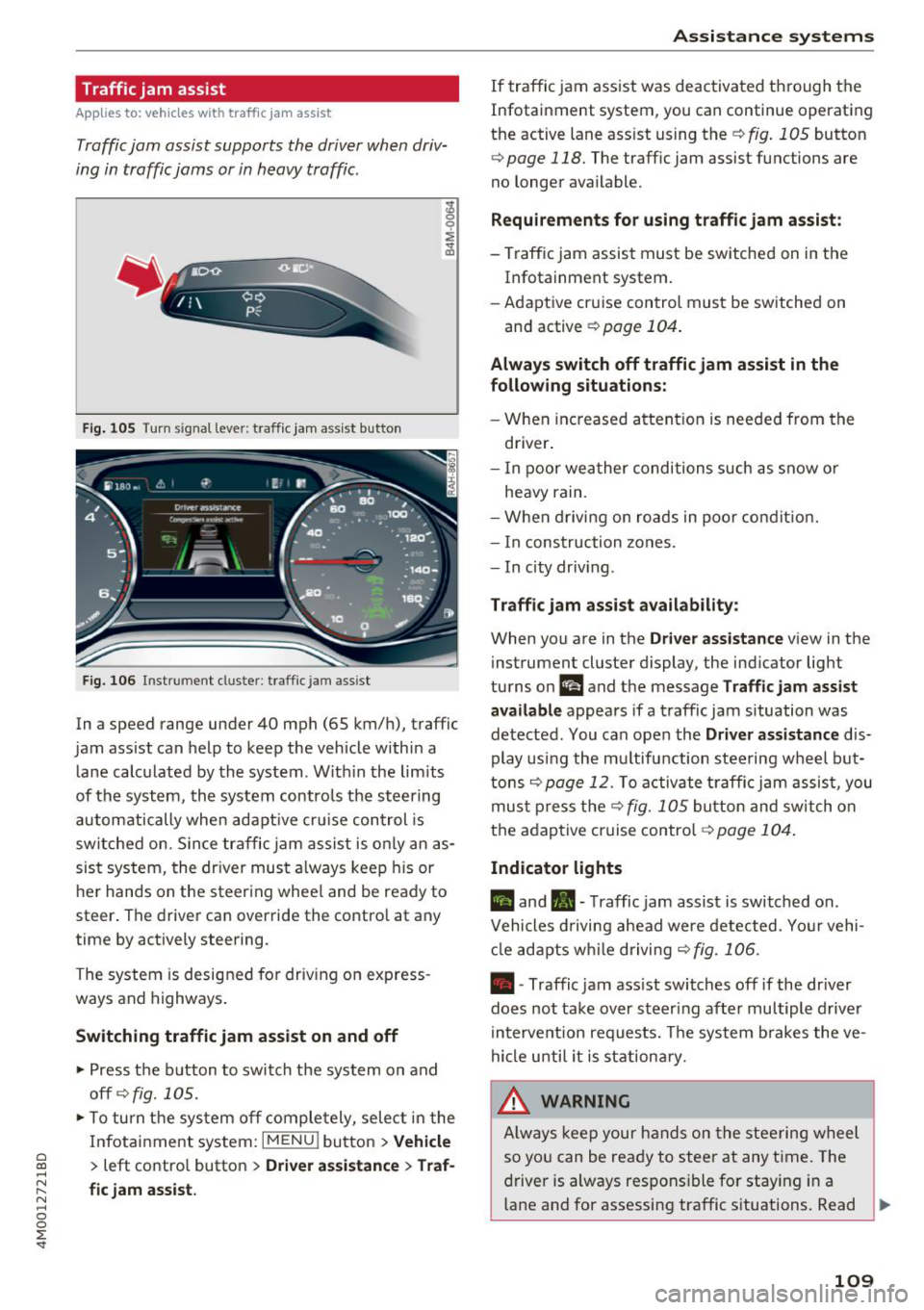
Fig. 10 5 Turn signal leve r: traffic ja m ass ist button
F ig. 106 Inst rument duster: traffic jam ass ist
In a speed range under 40 mph (65 km/h), traffic
jam ass ist can help to keep the vehicle within a
l ane calc ulated by the system. W ith in the lim its
of the system, the system contro ls the steering
automatically whe n adapt ive cr uise con trol is
sw itched on. S in ce traffic jam assist is only an as
sist system, the dr iver must a lways keep his or
he r hands on the steer ing whee l and be ready to
steer . The driver can override the contro l at any
time by actively steering.
The system is designed for driv ing on express
ways and highways .
Switching traffic jam assist on and off
~ Press the b utton to switch the system on and
off¢fig. 105.
~ To tu rn t he sys tem off comple tely, selec t in the
Infotai nment system:
I MENU ! button > Vehicle
> left contro l button > Driver a ssistance > Traf
fic jam assist.
A ssi st a nce systems
If traffic jam ass ist was deactivated through the
Infotainment system, you can continue operating
the active lane assist using the
¢ fig . 105 button
¢
page 118. The traffic jam assist functions are
no longer available.
Requirements for using t raffic jam assi st :
- Traffic jam assist must be switched on in the
Infotainment system.
- Adapt ive cr uise con trol must be sw itched on
and active
r:::;,page 104 .
Always switch off traffic jam assist in the
following situations:
-W hen in cr eased attent ion is needed from the
driver .
- I n poor wea ther condi tions such as snow o r
heavy rain.
- When d riving on roads in poo r condit ion.
- I n construction zones.
- In city driv ing .
Traffic jam as sis t availabil ity :
When you are in the Driver ass istan ce v iew in the
instrument cluster display, the indicator light
turns on
I! and the message Traffic jam assist
available
appears if a traffic jam situation was
detected. You can open the
Drive r assi stance dis
play using the mu ltifunction steering wheel but
tons
r:::;,page 12. To a ctivate t raff ic jam assis t, you
mus t press the
r:::;, fig. 105 button and sw itch on
the adaptive cruise control¢
page 10 4.
Indicator lights
II and •-T raffic jam assist is switched on.
Vehicles d riving ahead were detected. Yo ur vehi
cl e adapts w hile driving
r:::;, fig. 106.
• -Traffic jam ass ist switches off if the dr iver
does not take over steer ing after multiple driver
i n terve ntion requests. The system b rakes the ve
hicle u nti l it is st ationary.
_& WARNING
A lways keep y our hands on the stee ring whee l
so yo u can be rea dy to steer at any t ime. The
driver is always respons ible fo r staying in a
lane and for assessi ng traffic s ituations. Read ..,.
109
Page 121 of 398
a
Display in the instrument cluster
Applies to: ve hicles with Audi active lane assist
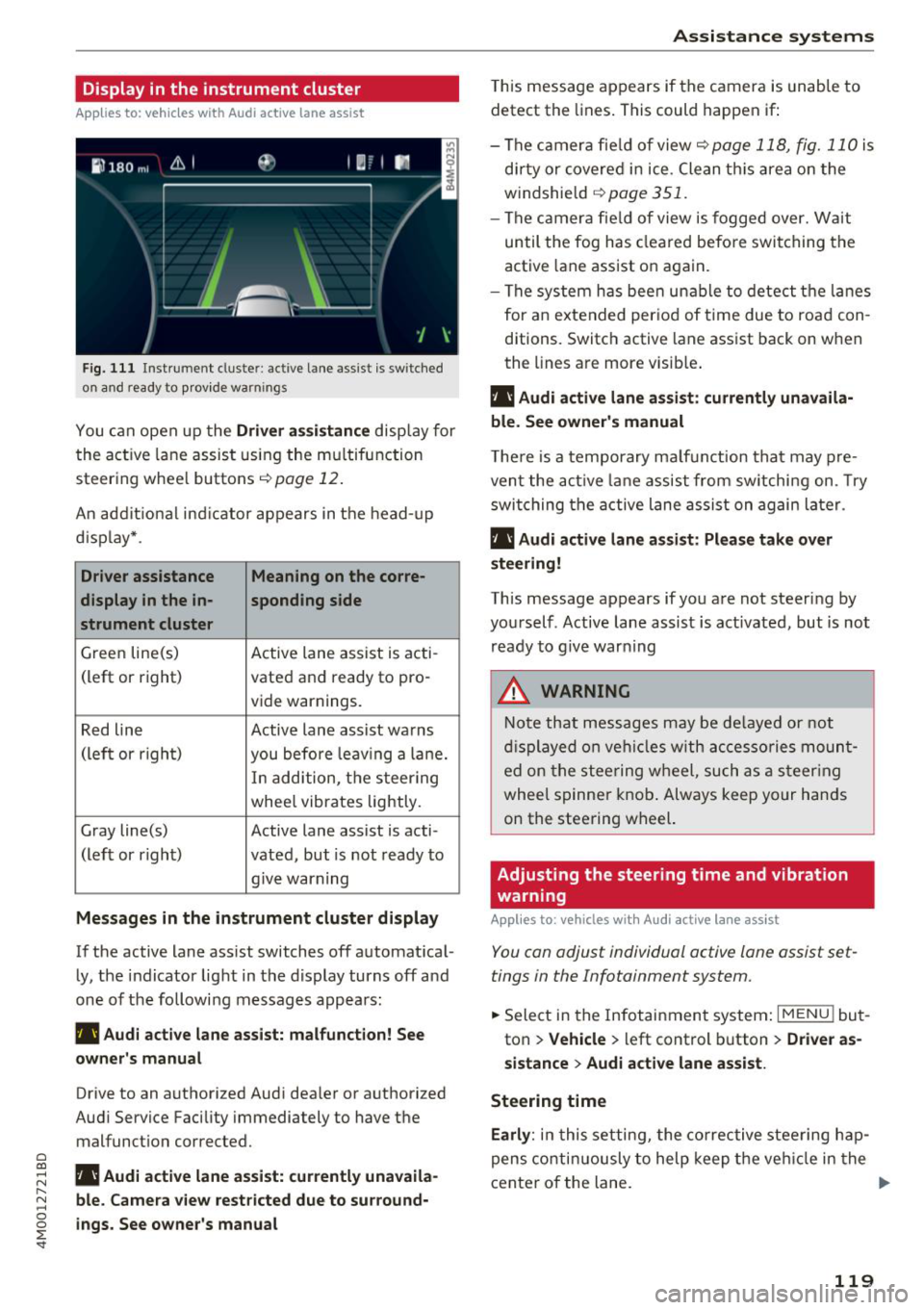
Fig. 1 11 Instrument cluster: active lane ass ist is switched
on a nd ready to provid e warn ings
You can open up the Driver a ssis tanc e display for
the act ive lane assist us ing the mu ltifunction
steer ing whee l buttons
c;,page 12 .
An addit ional ind icator appears in the head-up
d isp lay* .
Driver assistance Meaning on the corre-
display in the in -sponding side
s t rument cluster
Green line(s) Active lane assist is acti-
(left or right) vated and ready to pro-
vide warnings.
Red line Active lane assist warns
(left or righ t)
you before leav ing a la ne.
In add ition, t he steering
whee l vibrates lightly.
Gray line(s) Active lane assist is acti-
(left or r ight) vated, but is not ready to
. . give warning
Messages in the instrument cluster display
If the active lane ass ist switches off automat ical
ly, the indicator light in the display turns off and
one of the followi ng messages appears :
rl1 Audi acti ve lane assist: m alfunction! See
owner 's manual
Drive to an authorized Aud i dea ler or authorized
Aud i Service Facility immediately to have the
malfunct ion corrected.
~ rl1 Aud i a ctive lane assist: currently unavaila
r---N ble. Came ra vie w restricted due to su rround-~ 0 ~ ings. See owne r's manual
'
T his message appears if the camera is unable to
detect the lines . This could happen if:
- The camera fie ld of view
c;, page 118, fig. 110 is
di rty or covered in ice . Clean th is area on the
windshield
c;, page 351.
- The c amera fie ld of view is fogged over. Wait
until the fog has cleared befo re switching the
active lane assist on again.
- The system has bee n unable to detect t he la nes
for an e xtended per iod of time due to road con
ditions. Switch active lane assist back on when
the lines are more visib le .
rl1 Audi active lane a ssist : currently unavaila
ble. See owner's manual
T he re is a temporary ma lf u nction tha t may p re
vent the act ive lane assist from sw itchi ng on. Try
swi tching the active lane assist on again later.
rl1 Audi active lane a ssist : Pl ease take over
steering!
This message appears if you are not steering by
you rself . Active lane assist is activated, but is not
ready to g ive warning
A WARNING
N ote that messages may be de layed or not
d isplayed o n ve hicl es w ith ac cessories moun t
ed on the stee ring w heel, such as a steer ing
wheel spinne r knob . Always keep your hands
on the steering wheel.
Adjusting the steering time and vibration
warning
App lies to : vehicles with Audi active la ne ass ist
You can adjust individual active lane assist set
tings in the Infotainment system.
-
.. Select in the Infotainment system: I MENU ! but
ton
> Vehicle > left control b utton > Dri ver as
si stance
> Audi a ctive l ane assist.
Steering time Earl y:
in t his setting, the corrective stee ring hap
pens contin uously to help keep the veh icle in the
center of the lane. ..,_
119
Page 128 of 398
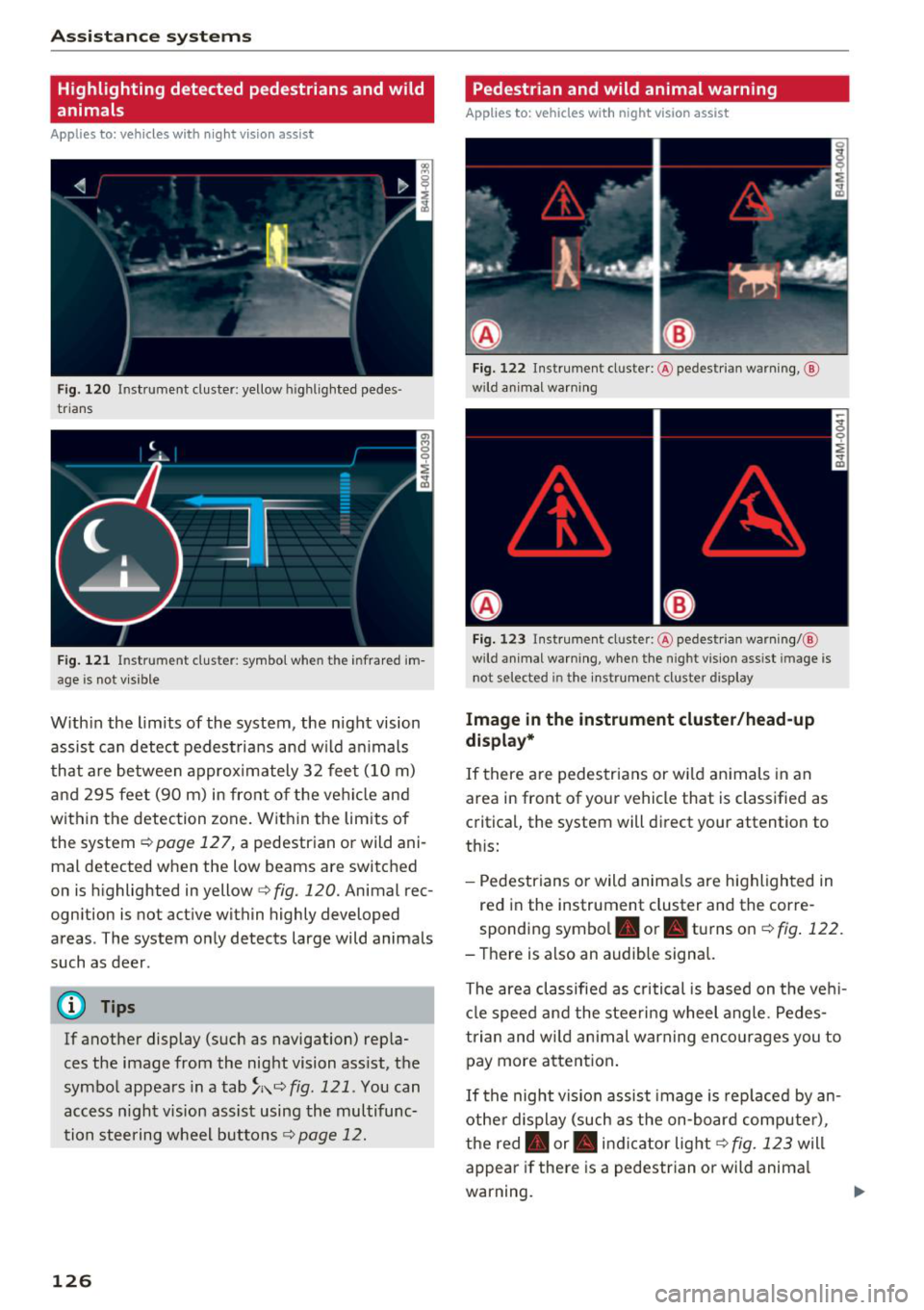
Ass is tance sy stem s
Highlighting detected pedestrians and wild
animals
A pplies to: ve hicles w ith nigh t vision ass ist
F ig. 120 Instrument cluster: yellow highlighted pedes
trians
F ig. 121 Instrument cluster: symbol when the infrared im
age is not vi sible
With in the limits of the system, the night vision
assist ca n detect pedestria ns and w ild an imals
that are between approximately 32 feet (10 m)
and 295 feet (90 m) in front of the vehicle and
within the detection zone. Within the limits of
the system
¢page 127, a pedestrian or wild ani
mal detected when the low beams are switched
on is highlighted in yellow
c> fig. 120. Animal rec
ognition is not active within highly developed
areas . The system only detects large wild animals
such as deer .
(D Tips
If another display (such as navigation) repla
ces the image from the night vision ass ist, the
symbol appears in a
tab ~;\: =~ fig. 121 . You can
access n ight vision assist using the multifunc
tion steering wheel buttons¢
page 12.
126
Pedestrian and wild animal warning
Applies to : vehicles wit h night vision assis t
Fig. 122 In str ument cluster: @pedestrian warning, @
wild anim al wa rnin g
Fig . 123 Instru ment clus ter: @pedestria n warning/ @
w ild animal warning, when the nigh t vision ass ist im age is
not selected in the instru ment cluster display
Image in the instrument cluster /head-up
di spl ay *
If there are pedestrians or wild an imals in an
area in front of your vehicle that is classified as
critical, the system will direct your attention to
th is:
- Pedestrians or wild anima ls are highlighted in
red in the instrument cluster and the corre
sponding symbol. or. turns on
c::> fig. 122 .
-There is also an audible signal.
The area classified as critical is based on the veh i
cle speed and the steeri ng wheel angle . Pedes
trian and wi ld animal warning enco urages you to
pay more attention .
If the night vision assist image is rep laced by an
othe r display (such as the on-board compute r),
the red. or. in dicator light
c::> fig. 123 will
appear if there is a pedestr ian or wild anima l
warning.
Page 129 of 398
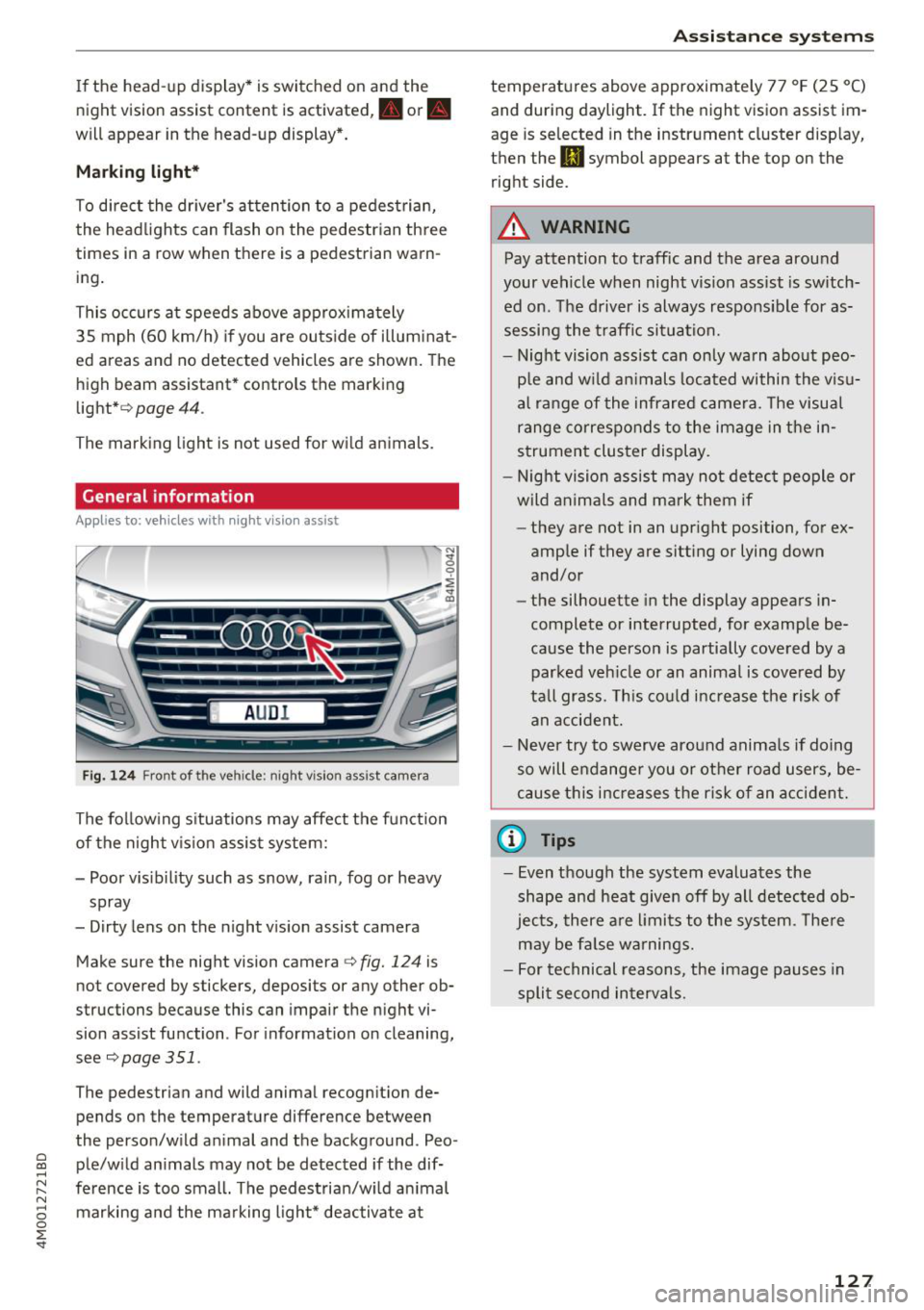
If the head-up display* is switched on and the
night vision assist content is activated, . or.
will appear in the head-up display*.
Marking light*
To direct the driver's attention to a pedestrian,
the headlights can flash on the pedestrian three
times in a row when there is a pedestrian warn ing.
This occurs at speeds above approximately
35 mph (60 km/h) if you are outside of illuminat
ed areas and no detected vehicles are shown. The
high beam assistant* controls the marking
light* <=>
page 44.
The marking light is not used for wild animals.
General information
A ppl ies to: ve hicles w ith nigh t visio n ass ist
Fig. 124 Front of the ve hicle: night vision ass ist camera
The following situations may affect the function
of the night vision assist system:
- Poor visibility such as snow, rain, fog or heavy spray
- Dirty lens on the night vision assist camera
Make sure the night vision camera <=>
fig. 124 is
not covered by stickers, deposits or any other ob
structions because this can impair the night vi
sion assist function . For information on cleaning,
see<=>
page 351 .
The pedestrian and wild animal recognition de
pends on the temperature difference between
the person/wild animal and the background . Peo -
~ ple/wild animals may not be detected if the dif-,.....
~ ference is too small. The pedestrian/wild animal N
8 marking and the marking light* deactivate at 0 :E '
temperatures above approximately 77 °F (25 °C)
and during daylight. If the night vision assist im
age is selected in the instrument cluster display,
then the
II symbol appears at the top on the
right side.
A WARNING
-Pay attention to traffic and the area around
your vehicle when night vision assist is switch
ed on. The driver is always responsible for as
sessing the traffic situation.
- Night vision assist can only warn about peo
ple and wild animals located within the visu
al range of the infrared camera. The visual
range corresponds to the image in the in
strument cluster display.
- Night vision assist may not detect people or
wild animals and mark them if
- they are not in an upright position, for ex
ample if they are sitting or lying down
and/or
- the silhouette in the display appears in
complete or interrupted, for example be
cause the person is partially covered by a
parked vehicle or an animal is covered by
tall grass. This could increase the risk of
an accident.
- Never try to swerve around animals if doing
so will endanger you or other road users, be
cause this increases the risk of an accident.
@ Tips
- Even though the system evaluates the
shape and heat given off by all detected ob
jects, there are limits to the system . There
may be false warnings.
- For technical reasons, the image pauses in
split second intervals.
-
127
Page 130 of 398
Ass is tance sy stem s
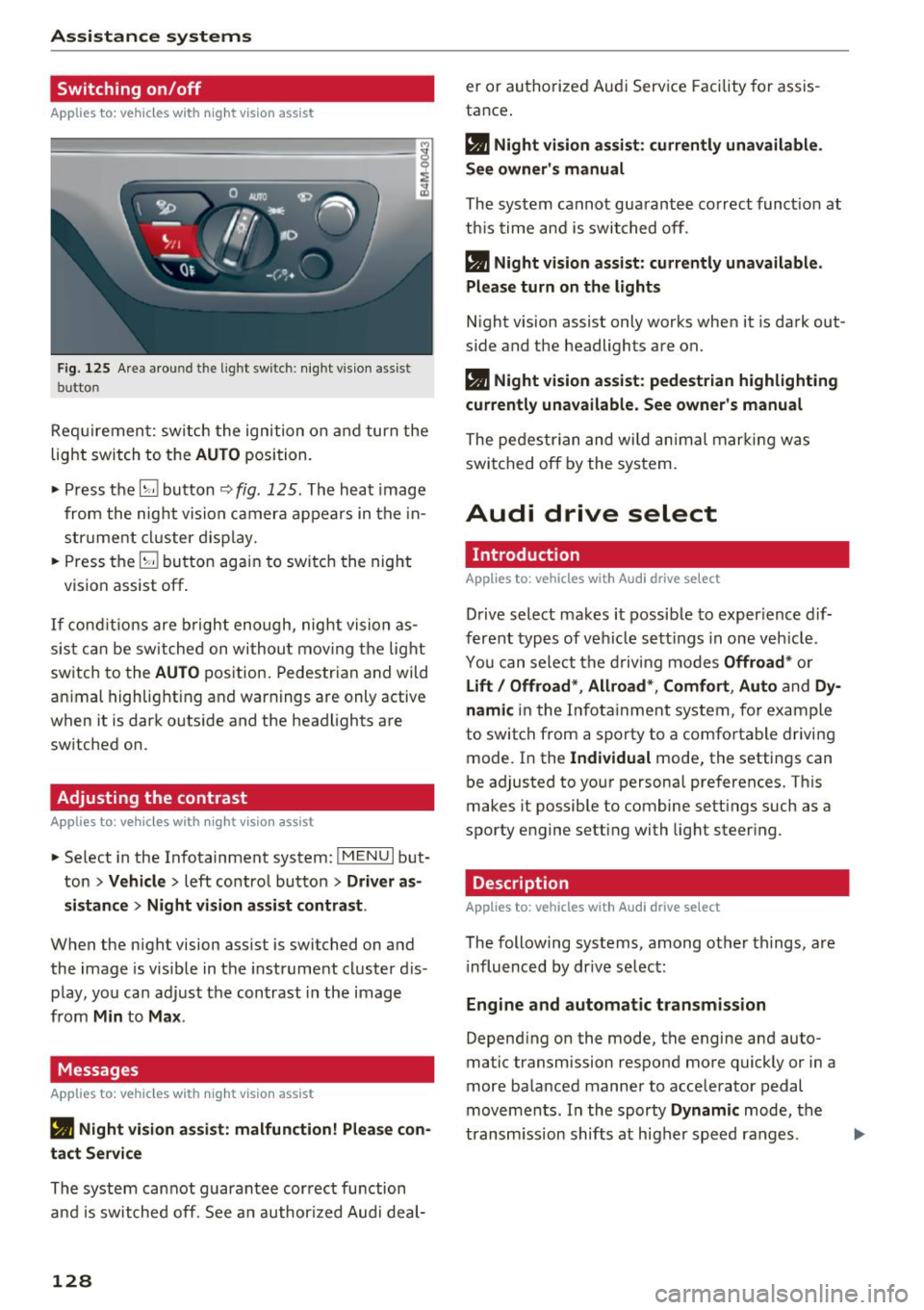
Switching on/off
Applies to: vehicles with night vision assist
F ig. 125 Are a aro und th e light sw itc h: night vis ion assist
butto n
Requiremen t: sw itch the ignition on and turn the
light switch to the
AUTO position.
.. Press the~ button ~
fig. 125 . The heat image
from the nig ht vision camera appears in the in
str ument cluster d isplay.
.. Press the~ button again to switch the night
vision assist off .
If condit ions are b right enough, night vision as
sis t can be sw itched on withou t mov ing the light
switch to the
AUTO position. Pedestrian and wild
an imal highlighting and warnings are only active
when it is dark outside and the headlights are
sw itched on .
Adjusting the contrast
Applies to: vehicles with night vision assist
.. Select in the Infotainment system: IM ENU I but
ton
> Vehicl e > left control button > Driver a s
si stance
> Nig ht vis ion as sist contra st .
When the night vision assist is switched on and
the image is visible in the instrument cluster d is
p lay , you can adjust the contrast in the image
from
Min to Ma x.
Messages
App lies to: vehicles with night vision assist
• Night vi sion a ssist : malfunction! Plea se con
tact Ser vic e
The system cannot guarantee correct function
and is switched off. See a n author ized Audi deal-
128
er or authori zed Aud i Service Facility fo r assis
tance .
a Night vi sio n assi st: c urrently unav ail able .
See owner's manual
The system cannot guarantee correct funct ion at
th is time and is switched off .
a Night vision ass ist: currently un av ailabl e.
Plea se turn on the lights
Night vision assist only works when it is dark out
side and the headlights are on.
a Night vision ass ist: pedestr ian h ighlighting
curr ent ly unavailable. See owne r's manual
The pedestrian and wi ld animal marki ng was
switched off by the system .
Audi drive select
Introduction
App lies to: vehicles with Aud i drive se lect
Drive select makes it possible to exper ience dif
ferent types of vehicle sett ings in one veh icle .
You can select the d riving modes
Offroad * or
Lift / Offroad *, Allroad *, Comfort , Auto and Dy
namic
in the Infota inment system, for example
to switch from a sporty to a comfo rtable driving
mode. In the
I ndividual mode, the settings can
be adjusted to your personal preferences. This
makes it possible to combine sett ings such as a
sporty engine setting with light steer ing .
Description
Applies to: vehicles with Audi drive select
The following systems, among other th ings, are
i nfluenced by dr ive se lec t:
Engine and automatic tran smis sion
Depend ing on the mode, the engine and auto
matic transmission respond more quickly or in a
more balanced manner to accelerator pedal
movements . In the sporty
Dynam ic mode, the
transm iss ion shifts at higher speed ranges .
Page 132 of 398
Assistance systems
~ Select in the Infotainment system: IMENUI but-
ton
> Vehicle > Audi drive select.
~ Select and confirm the desired setting .
You can change the driving mode when the vehi
cle is stationary or whi le driving. If traffic per
mits, after changing modes, briefly take your
foot off the accelerator pedal so that the recent ly
selected mode is a lso activated for the engine.
Offroad * or Lift/ Offroad* -activates offroad
functions to support driving on rough terrain .
The engine, transmission and steering adjust and
the Start/Stop system* switches off. Applies to
air suspension*: the vehicle also lifts for passing
over obstacles to maintain maximum ground
clearance.
Adjusting the Individual mode
A pp lies to: ve hicles w ith Audi drive select
Allroad * -on ly for air suspension*: the vehicle
li fts to maintain higher ground clearance for dif
ficult stretches of road .
Comfort -provides a comfort-oriented vehicle
setup and is suited fo r long drives on highways.
Auto -provides an overa ll comfortable yet dy
namic driv in g feel and is suited for everyday use.
Dynamic -gives the driver a sporty driving feel
and is suited to a spo rty driving style.
Individual -c::;,page 130.
A WARNING
Pay attention to traffic when operating the
drive select to reduce the risk of an accident .
-
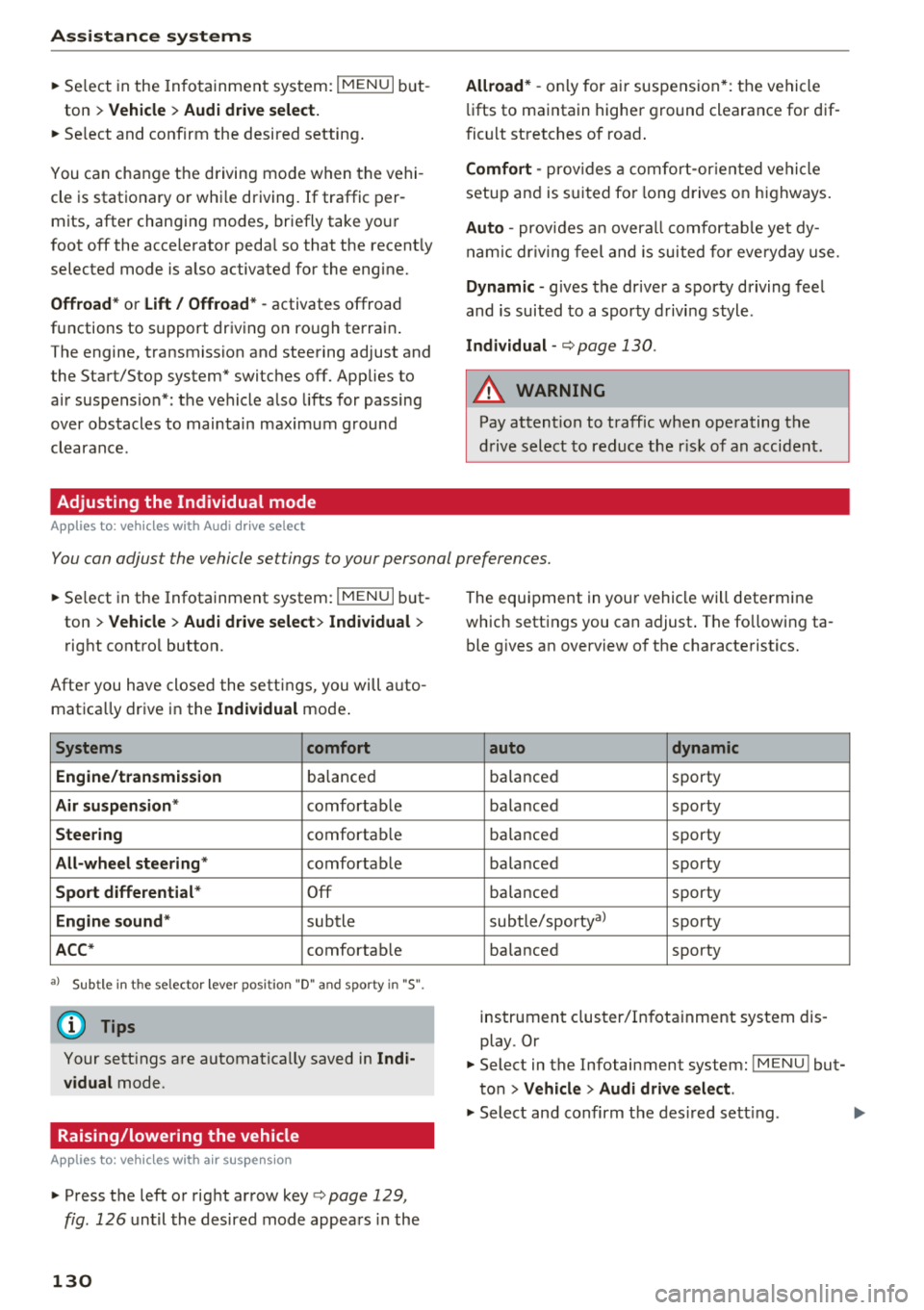
You can adjust the vehicle settings to your personal preferences.
~ Select in the Infotainment system: IMENU I but
ton
> Vehicle > Audi drive select > Individual >
right control button.
Afte r you have closed the settings, you will auto
matica lly drive in the
Individual mode .
Systems comfort
Engine/transmission
ba lanced
Air suspension * comfortable
Steering comfortable
All-wheel steering* comfortable
Sport differential * Off
Engine sound * subtle
ACC* comfortable
a l Sub tle in t he se lecto r lever posit ion "D" and sporty in "S".
(D Tips
Your settings are automatica lly saved in Indi
vidual
mode.
Raising/lowering the vehicle
A pp lies to: ve hicles w ith air susp en sion
~ Press the left or right arrow key c> page 129 ,
fig . 126
until the desired mode appears in the
130
The equipment in your vehicle will determine
which settings you can adjust . The fo llowing ta
ble gives an overview of the characteristics.
auto dynamic
ba
lanced sporty
balanced sporty
ba lanced sporty
ba la nced sporty
ba lanced sporty
subtle/sportyal sporty
ba lanced sporty
instrument cluster/Infotainment system dis
play. Or
~ Select in the Infotainment system: IMENU ! but
ton
> Vehicle > Audi drive select.
~ Select and confirm the desired setting .
Page 146 of 398
Intelligent Technology
A WARNING
You should only switch offroad mode on or switch ESC/ ASR off if your driving abilities
and the traff ic conditions perm it. There is a
r isk of slid ing.
- The stabilization function is limited when
offroad mode is switched on. The dr iving
wheels co uld spin and the vehicle could
swerve, especially on slick or slippery road
surfaces.
- T here is no vehicle stab ilizat ion when ESC/
ASR are switched off.
Hill descent assist
Hill descent assist makes it possible to drive
down a hill at a constant speed.
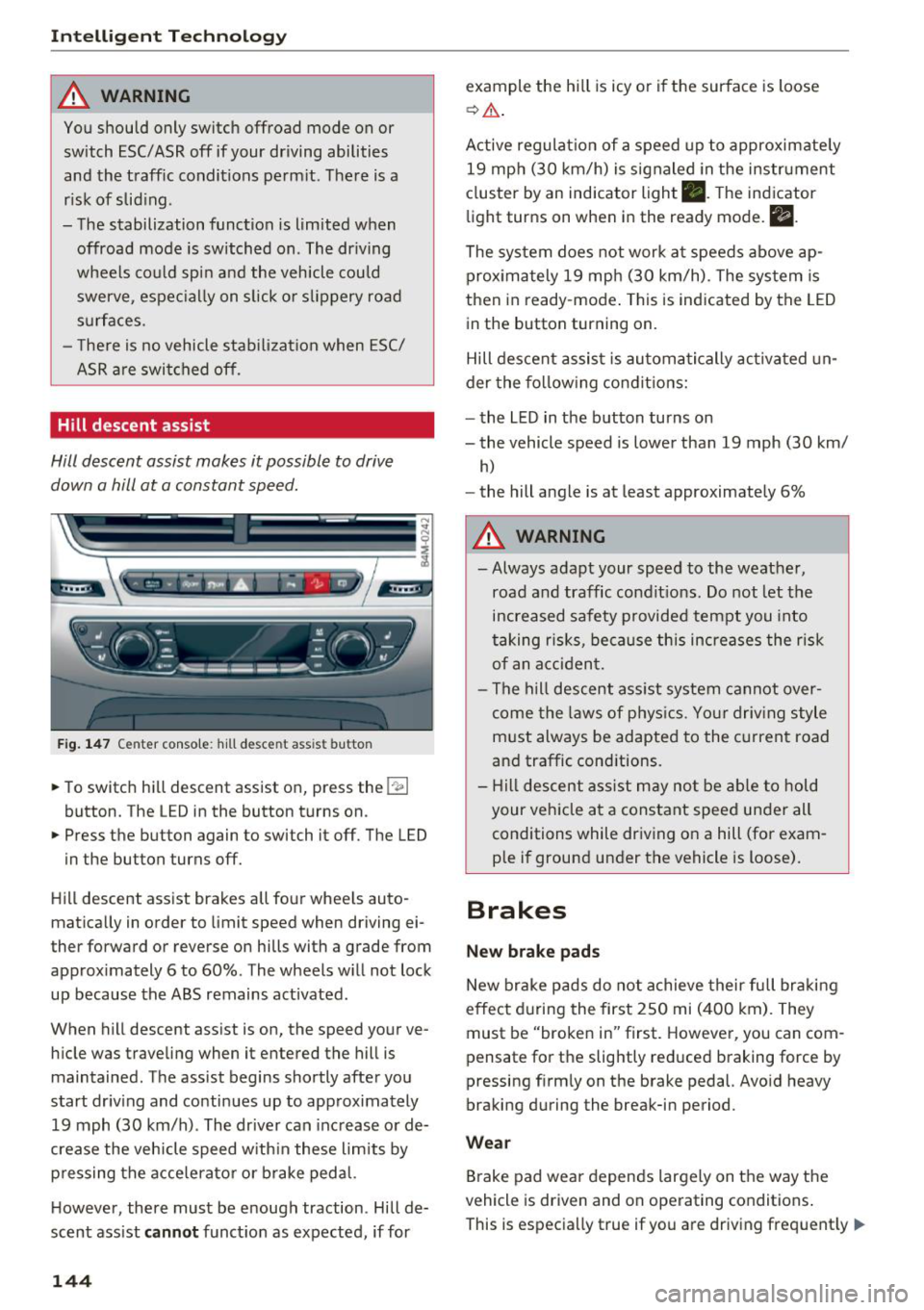
Fig. 147 Center console: hill desce nt ass ist button
.. To switch hill descent assist on, press the !~ I
button. The LED in the button turns on.
.. Press the button again to switch it off. The LED
in the button turns off.
Hill descent assist brakes all four wheels auto
matically in order to limit speed when driving ei
ther forward or reverse on hills with a grade from
approximately 6 to 60%. The wheels w ill not lock
up because the ABS remains activated.
When hill descent assist is on, the speed your ve
hicle was traveling when it entered the hill is maintained. The assist begins shortly after you
start driv ing and continues up to approximately
19 mph (30 km/h) . The driver can increase or de
crease the vehicle speed w ith in these limits by
pressing the accelerator or brake pedal.
However, there must be enough traction . Hill de
scent assist
cannot function as expected, if for
144
example the hill is icy or if the surface is loose
~ .&. .
Active regulat ion of a speed up to approximately
19 mph (30 km/h) is signaled in the instrument
cluster by an indicator light •. T he indicator
light turns on when in the ready mode.
II.
The system does not work at speeds above ap
prox imately 19 mph (30 km/h) . The system is
then in ready-mode . This is indicated by the LED
in the button turning on.
Hill descent assist is automatically activated un
der the following conditions:
- the LED in the button turns on
- the vehicle speed is lower than 19 mph (30 km/
h)
-the hill angle is at least approximately 6%
A WARNING
-
- Always adapt your speed to the weather,
road and traffic conditions. Do not let the
increased safety provided tempt you into
taking risks, because this increases the risk
of an accident.
- The hill descent assist system cannot over
come the laws of phys ics. Your driving style
must always be adapted to the current road
and traffic cond itions .
- Hill descent assist may not be able to hold
your veh icle at a constant speed under all
conditions while driving on a hill (for exam
ple if ground under the vehicle is loose).
Brakes
New brake pads
New brake pads do not achieve their full braking
effect during the first 250 mi (400 km). They
must be "broken in" first. However, you can com
pensate for the slightly reduced braking force by
pressing f irmly on the brake pedal. Avo id heavy
braking during the break-in period.
Wear
Brake pad wear depends largely on the way the
vehicle is driven and on operating conditions .
This is especially true if you are driving frequently .,.