steering wheel AUDI Q7 2018 Owner´s Manual
[x] Cancel search | Manufacturer: AUDI, Model Year: 2018, Model line: Q7, Model: AUDI Q7 2018Pages: 398, PDF Size: 185.58 MB
Page 111 of 398
a co ...... N r--. N ...... 0
0
:E -
Applies to: ve hicles with traff ic jam ass ist
Traffic jam assist supports the driver when driv
ing in traffic jams or in heavy traffic.
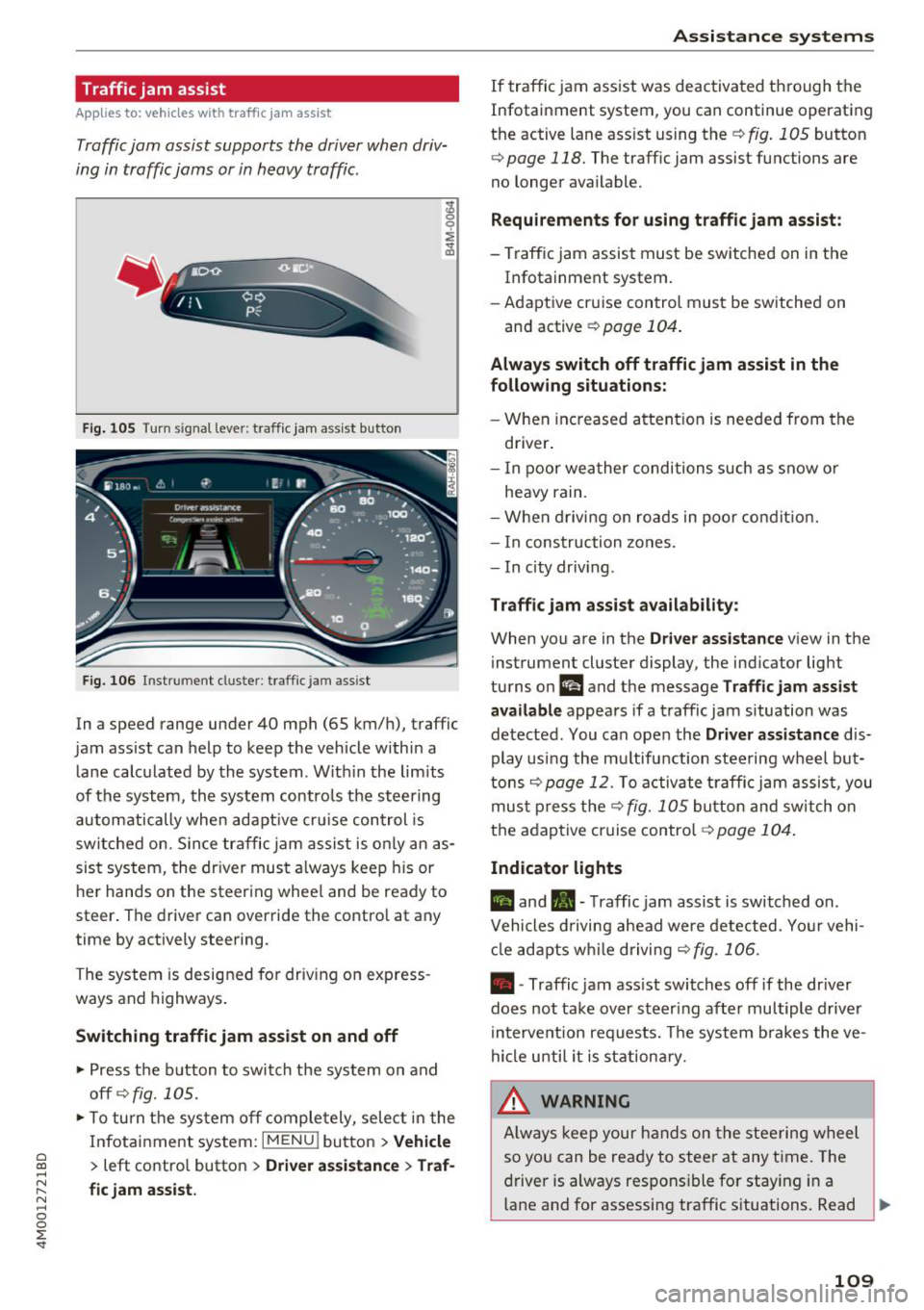
Fig. 10 5 Turn signal leve r: traffic ja m ass ist button
F ig. 106 Inst rument duster: traffic jam ass ist
In a speed range under 40 mph (65 km/h), traffic
jam ass ist can help to keep the vehicle within a
l ane calc ulated by the system. W ith in the lim its
of the system, the system contro ls the steering
automatically whe n adapt ive cr uise con trol is
sw itched on. S in ce traffic jam assist is only an as
sist system, the dr iver must a lways keep his or
he r hands on the steer ing whee l and be ready to
steer . The driver can override the contro l at any
time by actively steering.
The system is designed for driv ing on express
ways and highways .
Switching traffic jam assist on and off
~ Press the b utton to switch the system on and
off¢fig. 105.
~ To tu rn t he sys tem off comple tely, selec t in the
Infotai nment system:
I MENU ! button > Vehicle
> left contro l button > Driver a ssistance > Traf
fic jam assist.
A ssi st a nce systems
If traffic jam ass ist was deactivated through the
Infotainment system, you can continue operating
the active lane assist using the
¢ fig . 105 button
¢
page 118. The traffic jam assist functions are
no longer available.
Requirements for using t raffic jam assi st :
- Traffic jam assist must be switched on in the
Infotainment system.
- Adapt ive cr uise con trol must be sw itched on
and active
r:::;,page 104 .
Always switch off traffic jam assist in the
following situations:
-W hen in cr eased attent ion is needed from the
driver .
- I n poor wea ther condi tions such as snow o r
heavy rain.
- When d riving on roads in poo r condit ion.
- I n construction zones.
- In city driv ing .
Traffic jam as sis t availabil ity :
When you are in the Driver ass istan ce v iew in the
instrument cluster display, the indicator light
turns on
I! and the message Traffic jam assist
available
appears if a traffic jam situation was
detected. You can open the
Drive r assi stance dis
play using the mu ltifunction steering wheel but
tons
r:::;,page 12. To a ctivate t raff ic jam assis t, you
mus t press the
r:::;, fig. 105 button and sw itch on
the adaptive cruise control¢
page 10 4.
Indicator lights
II and •-T raffic jam assist is switched on.
Vehicles d riving ahead were detected. Yo ur vehi
cl e adapts w hile driving
r:::;, fig. 106.
• -Traffic jam ass ist switches off if the dr iver
does not take over steer ing after multiple driver
i n terve ntion requests. The system b rakes the ve
hicle u nti l it is st ationary.
_& WARNING
A lways keep y our hands on the stee ring whee l
so yo u can be rea dy to steer at any t ime. The
driver is always respons ible fo r staying in a
lane and for assessi ng traffic s ituations. Read ..,.
109
Page 120 of 398
Ass is tance sy stem s
potential for hydroplaning . Using active lane
assist under these conditions may increase
the risk of a crash.
Switching on /off
A pp lies to: ve hicles w ith Audi active lane assist
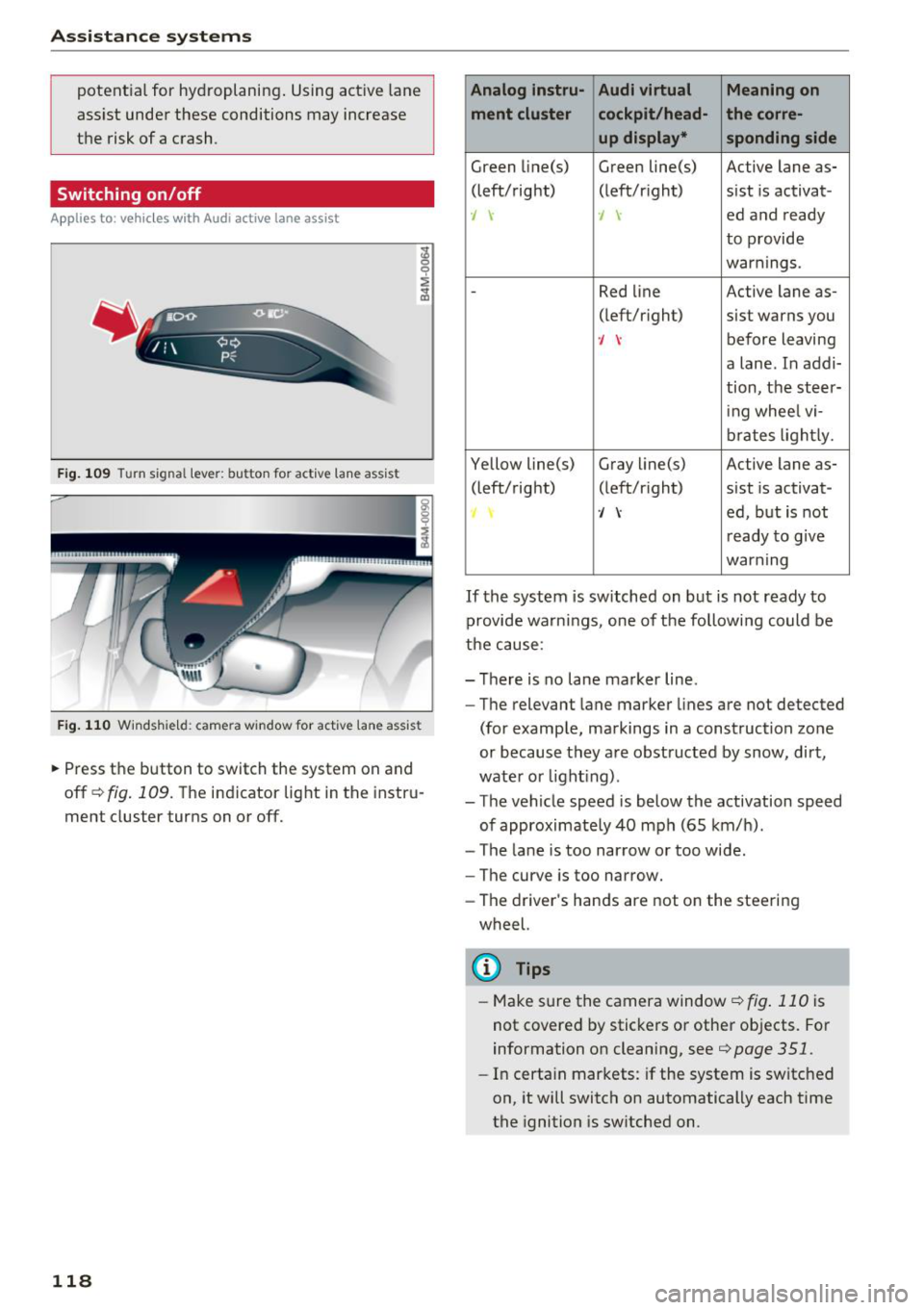
F ig. 109 Turn signal lever: button for active lane ass ist
F ig .1 10 Windsh ie ld: camera window for act ive lane ass ist
.,.. Press the button to switch the system on and
off
c!;> fig. 109. The indicator light in the instru
ment cluster turns on or off.
118
Analog lnstru- Audi virtual Meaning on
ment cluster cockpit /head- the corre-
up display* sponding side
Green Li ne(s) Green line(s) Active lane as-
(left/right) (left/r ight) sist is activat-
., -J ed and ready
to provide
warnings.
-Red line Active lane as-
(left/r ight) sist warns you
-J before leaving
a lane. In addi-
tion, the steer-
i ng whee l vi-
brates light ly.
Yellow line(s) Gray
li ne(s) Active lane as-
(left/right) (left/r ight) sist is activat-
·/ ed, but is not
r eady to g ive
warning
If the system is switched on but is not ready to
provide warnings, one of the following could be
the cause:
- There is no lane marker line .
- The relevant lane marker lines are not detected
(for example, markings in a construction zo ne
or because they are obstructed by snow, dirt,
wate r or light ing) .
- The vehicle speed is below the activation speed
of approximately 40 mph (65 km/h).
- The lane is too narrow or too wide .
- The curve is too narrow.
- The driver's hands are not on the steering
wheel.
(D Tips
- Make sure the camera window ¢fig . 110 is
not covered by stickers or other objects. For
information on cleaning, see
¢ page 351.
- In certain markets: if the system is switched
on, it will switch on automatically each time
the ignition is sw itched on.
Page 121 of 398
a
Display in the instrument cluster
Applies to: ve hicles with Audi active lane assist
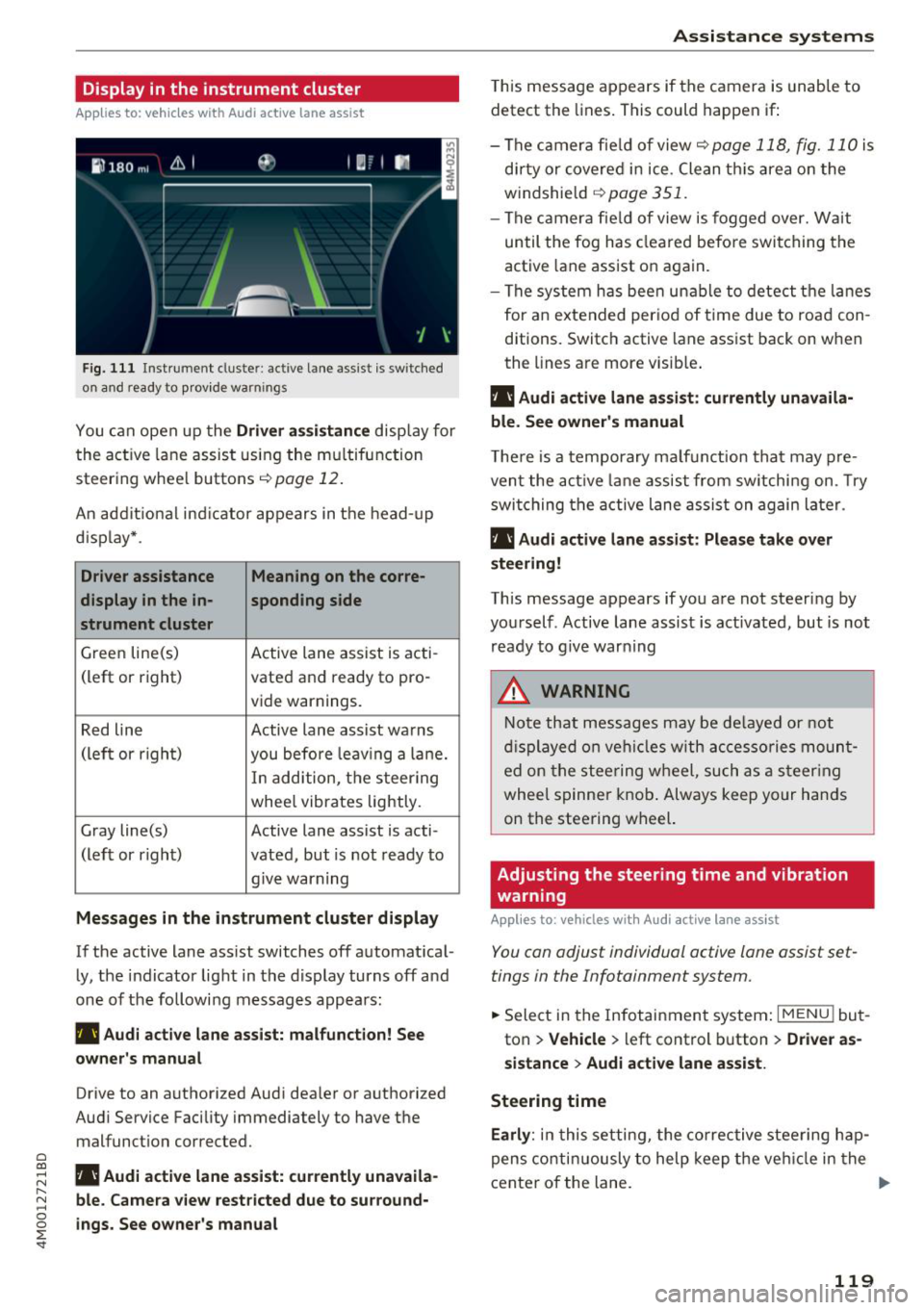
Fig. 1 11 Instrument cluster: active lane ass ist is switched
on a nd ready to provid e warn ings
You can open up the Driver a ssis tanc e display for
the act ive lane assist us ing the mu ltifunction
steer ing whee l buttons
c;,page 12 .
An addit ional ind icator appears in the head-up
d isp lay* .
Driver assistance Meaning on the corre-
display in the in -sponding side
s t rument cluster
Green line(s) Active lane assist is acti-
(left or right) vated and ready to pro-
vide warnings.
Red line Active lane assist warns
(left or righ t)
you before leav ing a la ne.
In add ition, t he steering
whee l vibrates lightly.
Gray line(s) Active lane assist is acti-
(left or r ight) vated, but is not ready to
. . give warning
Messages in the instrument cluster display
If the active lane ass ist switches off automat ical
ly, the indicator light in the display turns off and
one of the followi ng messages appears :
rl1 Audi acti ve lane assist: m alfunction! See
owner 's manual
Drive to an authorized Aud i dea ler or authorized
Aud i Service Facility immediately to have the
malfunct ion corrected.
~ rl1 Aud i a ctive lane assist: currently unavaila
r---N ble. Came ra vie w restricted due to su rround-~ 0 ~ ings. See owne r's manual
'
T his message appears if the camera is unable to
detect the lines . This could happen if:
- The camera fie ld of view
c;, page 118, fig. 110 is
di rty or covered in ice . Clean th is area on the
windshield
c;, page 351.
- The c amera fie ld of view is fogged over. Wait
until the fog has cleared befo re switching the
active lane assist on again.
- The system has bee n unable to detect t he la nes
for an e xtended per iod of time due to road con
ditions. Switch active lane assist back on when
the lines are more visib le .
rl1 Audi active lane a ssist : currently unavaila
ble. See owner's manual
T he re is a temporary ma lf u nction tha t may p re
vent the act ive lane assist from sw itchi ng on. Try
swi tching the active lane assist on again later.
rl1 Audi active lane a ssist : Pl ease take over
steering!
This message appears if you are not steering by
you rself . Active lane assist is activated, but is not
ready to g ive warning
A WARNING
N ote that messages may be de layed or not
d isplayed o n ve hicl es w ith ac cessories moun t
ed on the stee ring w heel, such as a steer ing
wheel spinne r knob . Always keep your hands
on the steering wheel.
Adjusting the steering time and vibration
warning
App lies to : vehicles with Audi active la ne ass ist
You can adjust individual active lane assist set
tings in the Infotainment system.
-
.. Select in the Infotainment system: I MENU ! but
ton
> Vehicle > left control b utton > Dri ver as
si stance
> Audi a ctive l ane assist.
Steering time Earl y:
in t his setting, the corrective stee ring hap
pens contin uously to help keep the veh icle in the
center of the lane. ..,_
119
Page 122 of 398

Assistance systems
Late: in this setting, the system provides correc
tive steering just before a wheel goes over a de
tected lane marker line.
Vibration warning
You can switch the additional vibration warning
in the steering wheel on or off.
&_ WARNING
With the vibration warning switched off,
there will also be no visual warning in the in
strument cluster display when crossing a lane
marker line.
(D Tips
In certain markets: you r settings are stored
automatically and assigned to the remote
control key in use.
Audi side assist
Description
Applies to: vehicles with Aud i side ass ist
Fig . 112 Senso r de tection range
Fig. 113 D isplay on the exte rior mirror
Side assist (lane change assist) helps you monitor
your blind spot and traffic behind your vehicle.
Within the limits of the system, it warns you
120
about vehicles that are coming closer or that are
traveling with you within sensor range
(D
¢ fig. 112 . If a lane change is classif ied as cr iti
ca l, the display @in the exterior mirror turns on
¢fig. 113.
The display in the left exterior mirror provides as
s istance when making a lane change to the left,
while the display in the right exterior m irror pro
vides assistance when making a lane change to
the right.
Information stage
As long as you do not activate the turn signal,
s ide assist
informs you about vehicles that are
detected and classified as critical. The display in
the mirror turns on, but is dim.
The display remains dim in the information stage
so that your view toward the front is not distur
bed.
Warning stage
If the display in a mirror blinks brightly when you
activate a turn signal, side assist is
warning you
about detected vehicles that it has classified as
critica l. If this happens, check traffic by glancing
in the exterior m irrors and over your shoulder
¢ .& in General information on page 121 .
Applies to: vehicles with active lane assist: the
display in the m irror can a lso b link if you have not
activated a turn signal: if you are approaching a
detected lane marker line and it appears you will be leaving the lane, side assist will warn you
about detected vehicles that it has classified as
critical.
@ Tips
You can adjust the brightness on of the dis
play on the rearview mirror¢
page 122.
Page 128 of 398
Ass is tance sy stem s
Highlighting detected pedestrians and wild
animals
A pplies to: ve hicles w ith nigh t vision ass ist
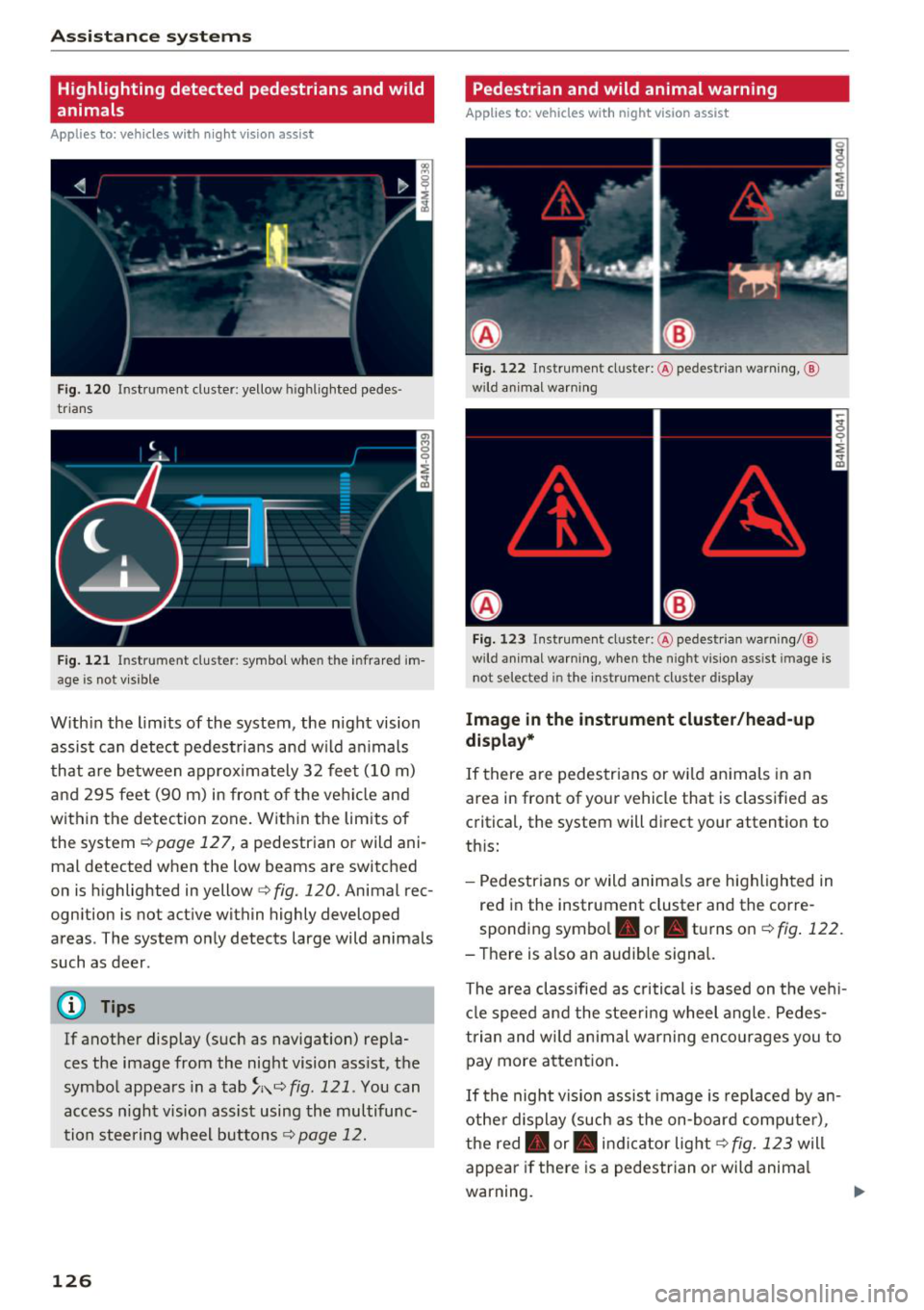
F ig. 120 Instrument cluster: yellow highlighted pedes
trians
F ig. 121 Instrument cluster: symbol when the infrared im
age is not vi sible
With in the limits of the system, the night vision
assist ca n detect pedestria ns and w ild an imals
that are between approximately 32 feet (10 m)
and 295 feet (90 m) in front of the vehicle and
within the detection zone. Within the limits of
the system
¢page 127, a pedestrian or wild ani
mal detected when the low beams are switched
on is highlighted in yellow
c> fig. 120. Animal rec
ognition is not active within highly developed
areas . The system only detects large wild animals
such as deer .
(D Tips
If another display (such as navigation) repla
ces the image from the night vision ass ist, the
symbol appears in a
tab ~;\: =~ fig. 121 . You can
access n ight vision assist using the multifunc
tion steering wheel buttons¢
page 12.
126
Pedestrian and wild animal warning
Applies to : vehicles wit h night vision assis t
Fig. 122 In str ument cluster: @pedestrian warning, @
wild anim al wa rnin g
Fig . 123 Instru ment clus ter: @pedestria n warning/ @
w ild animal warning, when the nigh t vision ass ist im age is
not selected in the instru ment cluster display
Image in the instrument cluster /head-up
di spl ay *
If there are pedestrians or wild an imals in an
area in front of your vehicle that is classified as
critical, the system will direct your attention to
th is:
- Pedestrians or wild anima ls are highlighted in
red in the instrument cluster and the corre
sponding symbol. or. turns on
c::> fig. 122 .
-There is also an audible signal.
The area classified as critical is based on the veh i
cle speed and the steeri ng wheel angle . Pedes
trian and wi ld animal warning enco urages you to
pay more attention .
If the night vision assist image is rep laced by an
othe r display (such as the on-board compute r),
the red. or. in dicator light
c::> fig. 123 will
appear if there is a pedestr ian or wild anima l
warning.
Page 131 of 398
a co ...... N r--. N ...... 0
0
:E '
The air suspension* is an electronically-control
l ed air suspension and damping sys tem . The ad
justment depends on the driving mode selected, steering movements, the driver's braking and ac
celerat ion, and as the road surface, vehicle speed
and load. The veh icle ground clearance depends
on the mode selected and the speed.
The ground clearance increases s ignificantly
when the vehicle is in the
All road mode . At
speeds from approximate ly 50 mph (80 km/h) to
75 mph (120 km/h), the ground clearance re
duces in stages . When the speed decreases, the
g round clea rance increases again a utomat ically.
The ground clearance is the lowest in
Dynamic
mode.
Steering
The power steering adapts. Ind irect steer ing that
moves easily as in
Comfort mode is especia lly
suited to long drives on highways. The
Dynam ic
mode provides sporty, direct steering.
All-wheel steer ing*
All-wheel steer ing increases dr iving comfort by
providing add it ional steering ability at the rear
axle. Steer ing in the opposite d irection at low
speeds dec reases the turning rad ius. Steering in
the same d irect io n a t high speeds imp roves the
r e sponse t ime whi le increas ing dr iv ing stab ility at
the same time .
Sport differential*
As a componen t of the all wheel d rive system
(quattro)
~ page 146, the sport diffe rential dis
tr ib utes the dr iv ing power to the rear ax le de
pending on the situa tion. The dis tribution of
power var ies dependi ng on the selected mode
from moderate
(Comfort ) to sporty (Dynamic ).
The goa l is a high level of agility and ability to ac
celerate on curves . The veh icle is very responsive
to steer ing.
Adaptive cruise control (ACC)*
The behavior when accelerating can be adjusted
from comfortab le to sporty, depending on the
drive select mode . Adaptive cru ise control a lso
A ssi st a nce systems
responds to the driv ing behavior of the vehicle
ahead in a more conservative or sporty manner.
Engine sound*
T he eng ine sound adap ts to the c urren t mode
and can be subtle to sporty .
(D Note
Applies to: vehicles with air suspensio n
-Make sure there is enough clearance above
and below the vehicle when pa rk ing. The
height of the ve hicle (gro und clea rance) can
change once it is par ked due to temperature
fluctuations, changes to the load conditions
and changes to the dr iving modes.
- When transporting the vehicle on a car car
r ier, train, ship or by other means, o nly tie
the vehicle down at the runn ing s urface of
the ti res, which is the outer c ircumference.
Sec uring the vehicle at the axle compo
ne nts , sus pension str uts o r towing eyes is
no t pe rm itted because the pres sure in the
air suspens ion s truts ca n change d uring
tr anspo rt . The ve hicle may not be secu red
sufficiently if this ha ppens.
(D Tips
The "S" se lector lever posi tion automatic ally
engages w hen the
Dynamic mode is selected.
Selecting the driving mode
Applies to: vehicles wi th Aud i drive select
~- ------ -
~
Fig. 1 26 Ce nter console: co ntro ls for d rive select
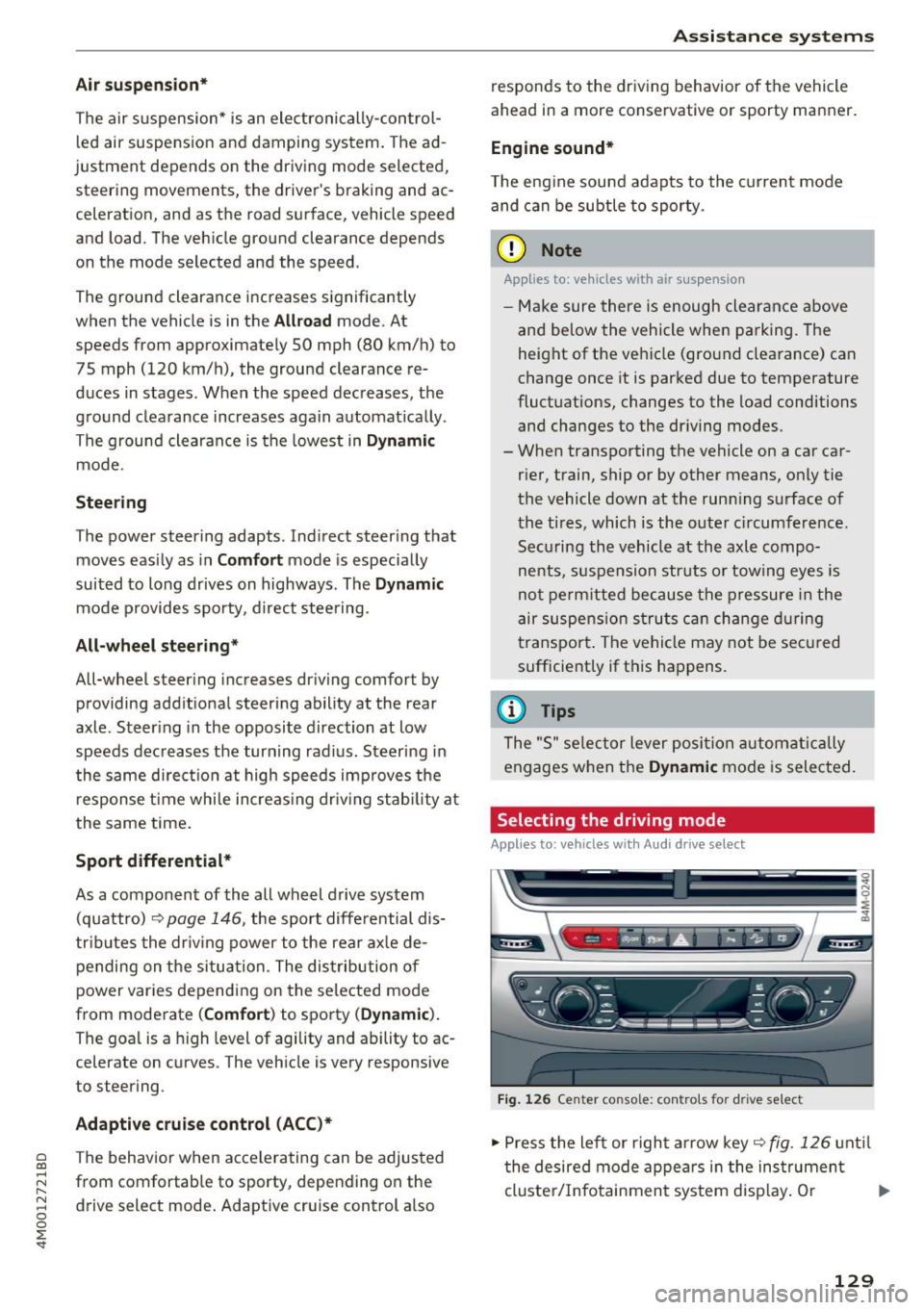
.,,. Press the le ft or righ t arrow key~ fig. 126 unt il
t he desired mode appe ars in the ins trumen t
cluste r/ Infotainmen t system disp lay. O r ..,,.
129
Page 132 of 398
Assistance systems
~ Select in the Infotainment system: IMENUI but-
ton
> Vehicle > Audi drive select.
~ Select and confirm the desired setting .
You can change the driving mode when the vehi
cle is stationary or whi le driving. If traffic per
mits, after changing modes, briefly take your
foot off the accelerator pedal so that the recent ly
selected mode is a lso activated for the engine.
Offroad * or Lift/ Offroad* -activates offroad
functions to support driving on rough terrain .
The engine, transmission and steering adjust and
the Start/Stop system* switches off. Applies to
air suspension*: the vehicle also lifts for passing
over obstacles to maintain maximum ground
clearance.
Adjusting the Individual mode
A pp lies to: ve hicles w ith Audi drive select
Allroad * -on ly for air suspension*: the vehicle
li fts to maintain higher ground clearance for dif
ficult stretches of road .
Comfort -provides a comfort-oriented vehicle
setup and is suited fo r long drives on highways.
Auto -provides an overa ll comfortable yet dy
namic driv in g feel and is suited for everyday use.
Dynamic -gives the driver a sporty driving feel
and is suited to a spo rty driving style.
Individual -c::;,page 130.
A WARNING
Pay attention to traffic when operating the
drive select to reduce the risk of an accident .
-
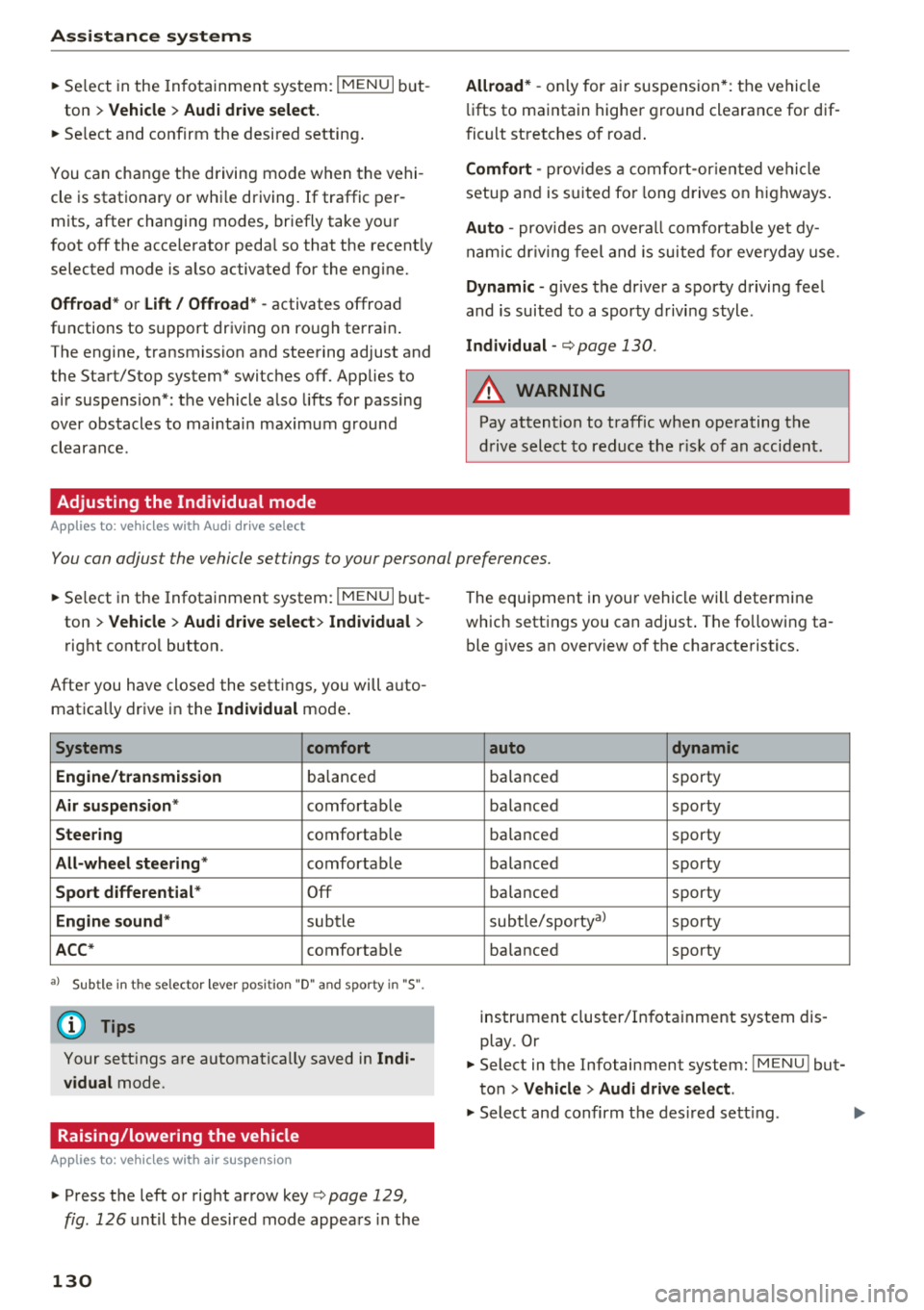
You can adjust the vehicle settings to your personal preferences.
~ Select in the Infotainment system: IMENU I but
ton
> Vehicle > Audi drive select > Individual >
right control button.
Afte r you have closed the settings, you will auto
matica lly drive in the
Individual mode .
Systems comfort
Engine/transmission
ba lanced
Air suspension * comfortable
Steering comfortable
All-wheel steering* comfortable
Sport differential * Off
Engine sound * subtle
ACC* comfortable
a l Sub tle in t he se lecto r lever posit ion "D" and sporty in "S".
(D Tips
Your settings are automatica lly saved in Indi
vidual
mode.
Raising/lowering the vehicle
A pp lies to: ve hicles w ith air susp en sion
~ Press the left or right arrow key c> page 129 ,
fig . 126
until the desired mode appears in the
130
The equipment in your vehicle will determine
which settings you can adjust . The fo llowing ta
ble gives an overview of the characteristics.
auto dynamic
ba
lanced sporty
balanced sporty
ba lanced sporty
ba la nced sporty
ba lanced sporty
subtle/sportyal sporty
ba lanced sporty
instrument cluster/Infotainment system dis
play. Or
~ Select in the Infotainment system: IMENU ! but
ton
> Vehicle > Audi drive select.
~ Select and confirm the desired setting .
Page 137 of 398
a co ...... N r--. N ...... 0
0
:E '
ver using the orientation lines .
General information
Applies to: vehicles with rearview camera
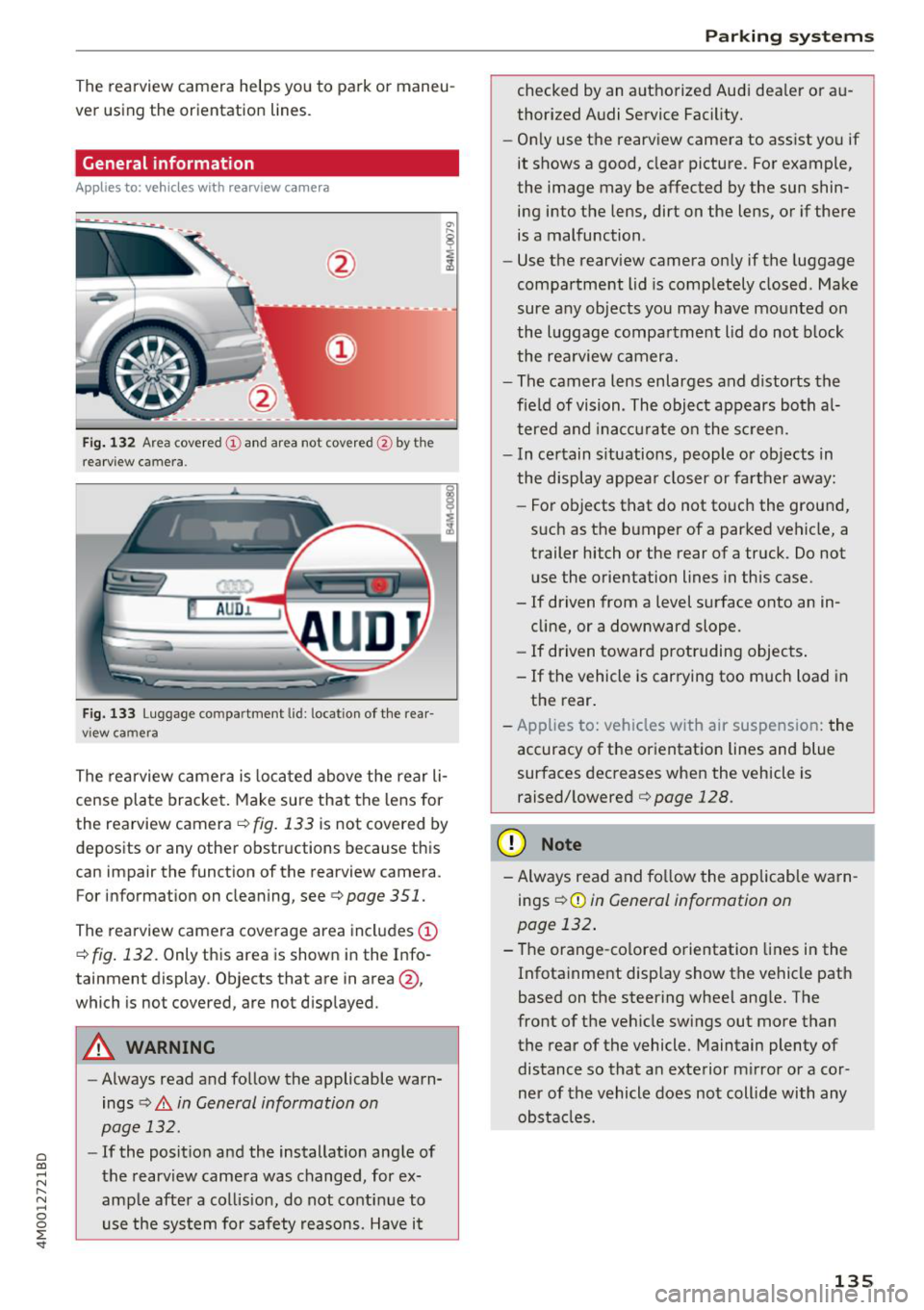
Fig. 132 Area covered (!) and area no t covered @ by the
r earview c amera.
AU D .L
Fig. 133 Luggage co mpar tment lid : lo ca ti on of the rear
view ca mera
The rearview camera is located above the rear li
cense plate bracket. Make sure that the lens for
the rearview camera .=;,
fig. 133 is not covered by
deposits or any other obstructions because this
can impair the function of the rearview camera .
For information on cleaning , see .=;,
page 351.
The rearview camera coverage area includes (D
.=;, fig. 132 . Only this area is shown in the Info
ta inment display . Objects that are in area @,
which is no t covered, are not displayed .
A WARNING
- Always read and follow the applicable warn
ings
.=;, A in General information on
page 132.
- If the position and the installation angle of
the rearview camera was changed , for ex
ample after a collision, do not continue to use the system for safety reasons. Have it
Parking systems
checked by an authorized Audi dealer or au
thorized Audi Service Facility.
- Only use the rearview camera to assist you if
it shows a good, clear picture. For example,
the image may be affected by the sun shin ing into the lens, dirt on the lens, or if there
is a malfunction .
- Use the rearview camera only if the luggage
compartment lid is completely closed . Make
sure any objects you may have mounted on
the luggage compartment lid do not block
the rearview camera.
- The camera lens enlarges and distorts the
field of vision . The object appears both al
tered and inaccurate on the screen.
- In certain situations, people or objects in
the display appear closer or farther away:
- For objects that do not touch the ground,
such as the bumper of a parked vehicle, a trailer hitch or the rear of a truck . Do not
use the orientation lines in this case.
- If driven from a level surface onto an in
cline, or a downward slope.
- If driven toward protruding objects.
- If the vehicle is carrying too much load in the rear.
- Applies to: vehicles with air suspension: the
accuracy of the orientation lines and blue
surfaces decreases when the vehicle is raised/lowered
.=;, page 128.
(D Note
- Always read and follow the applicable warn
i ngs
i=;, (D in General information on
page 132.
- The orange-colored orientation lines in the
Infotainment display show the vehicle path
based on the steering wheel angle. The
front of the vehicle swings out more than
the rear of the vehicle. Maintain plenty of
distance so that an exterior mirror or a cor
ner of the vehicle does not collide with any
obstacles .
135
Page 138 of 398
Parking systems
Switching on/off
Applies to: vehicles with rearview camera
Switching on/off
• Press the P,11.A button in the center console
¢ page 134, fig . 129. A short confirmat ion
tone sounds and the LED in the button turns
on.
Switching on automatically
The system switches on automat ically when re
verse gear is engaged while the engine is run
n ing. A brief confirmation tone will sound.
Switching off automatically
The system switches off automatically when driv
ing forward faster than 6 mph (10 km/h) .
Perpendicular parking
Applies to: vehicles with rearview camera
This view may be used when parking in a garage
or in a parking space .
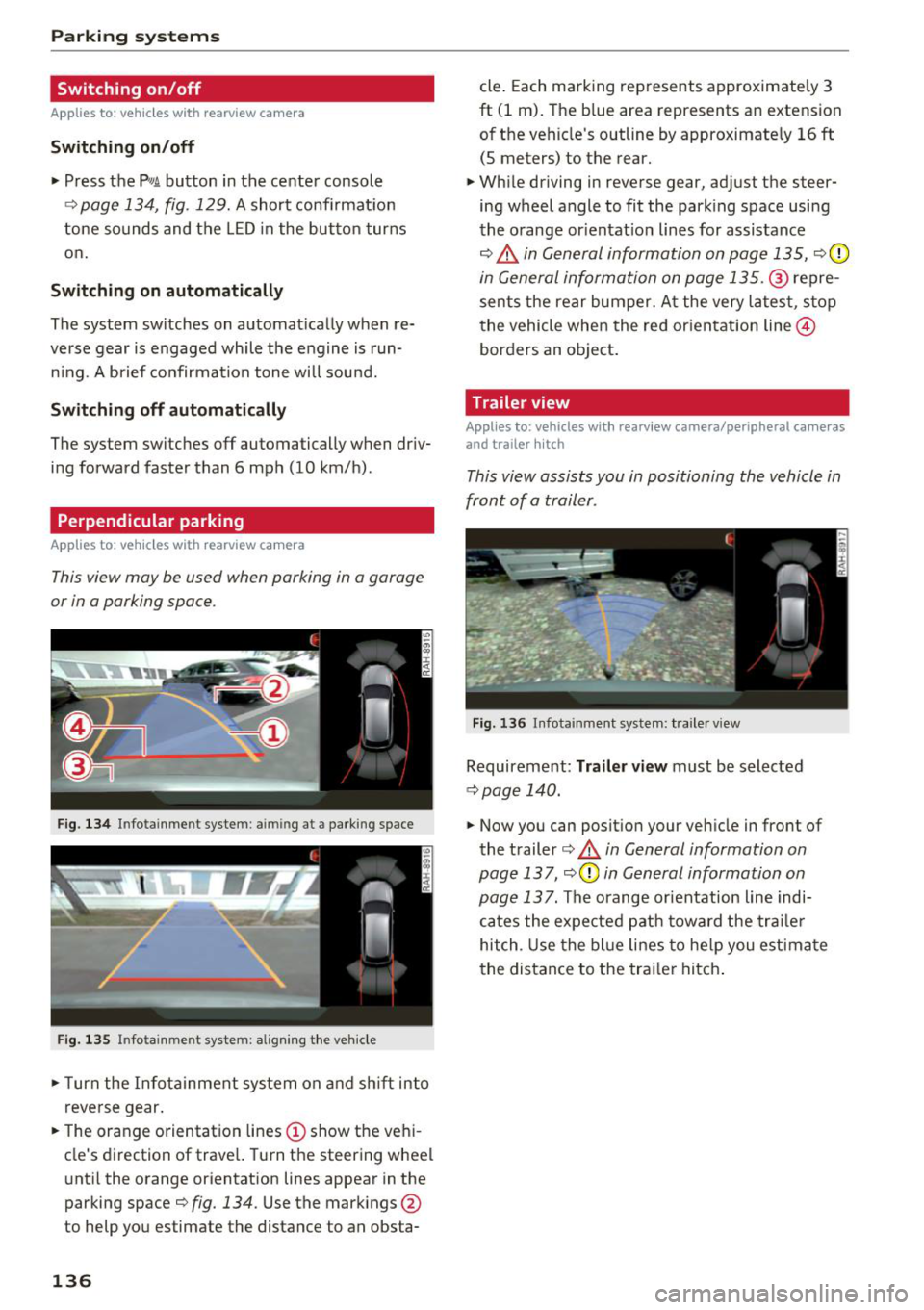
Fig. 134 In fotainme nt system : aimin g at a parking space
Fig. 135 Infotainment system: alig ning the vehicle
• Turn the Infota inment system on and shift into
reverse gear.
• The orange orientation lines
(D show the vehi
cle's direction of travel. Turn the steering wheel
until the orange orientation lines appear in the
parking space¢
fig. 134. Use the markings @
to help you estimate the distance to an obsta-
136
cle. Each marking represents approximately 3
ft (1 m). The blue area represents an extension
of the vehicle's outline by approximately
16 ft
(5 meters) to the rear.
• While driving in reverse gear, adjust the steer
ing wheel angle to fit the park ing space using
the orange or ientat io n lines for assistance
¢.&, in General information on page 135, ¢0
in General information on page 135 .@ repre
sents the rear bumper. At the very latest, stop
the vehicle when the red or ientation line@
borders an object.
Trailer view
Applies to: vehicles with rearv iew camera/peripheral cameras
and trailer hitch
This view assists you in positioning the vehicle in
front of a trailer.
Fig. 136 Infota inment system: trailer view
Requirement: Tra iler view must be selected
¢ page 140.
• Now you can position your vehicle in front of
the trailer
¢ .&, in General information on
page 137 ,
¢(\[) in General information on
page 13
7. The orange orientation line indi
cates the expected path toward the trailer
hitch . Use the blue lines to help you estimate
the distance to the trailer hitch.
Page 139 of 398
a co ...... N r--. N ...... 0
0
:E '
Introduction
Applies to: vehicles with peripheral cameras
With this equipment, the park ing system p lus*
¢
page 133 is supplemented w ith various pe riph
e ral cameras. The four cameras give you the fol
l owing views: area around the vehicle, front cor
ner view and rear corner view, view in front of the
vehicle and behind the vehicle .
General information
Applies to: vehicles with peripheral cameras
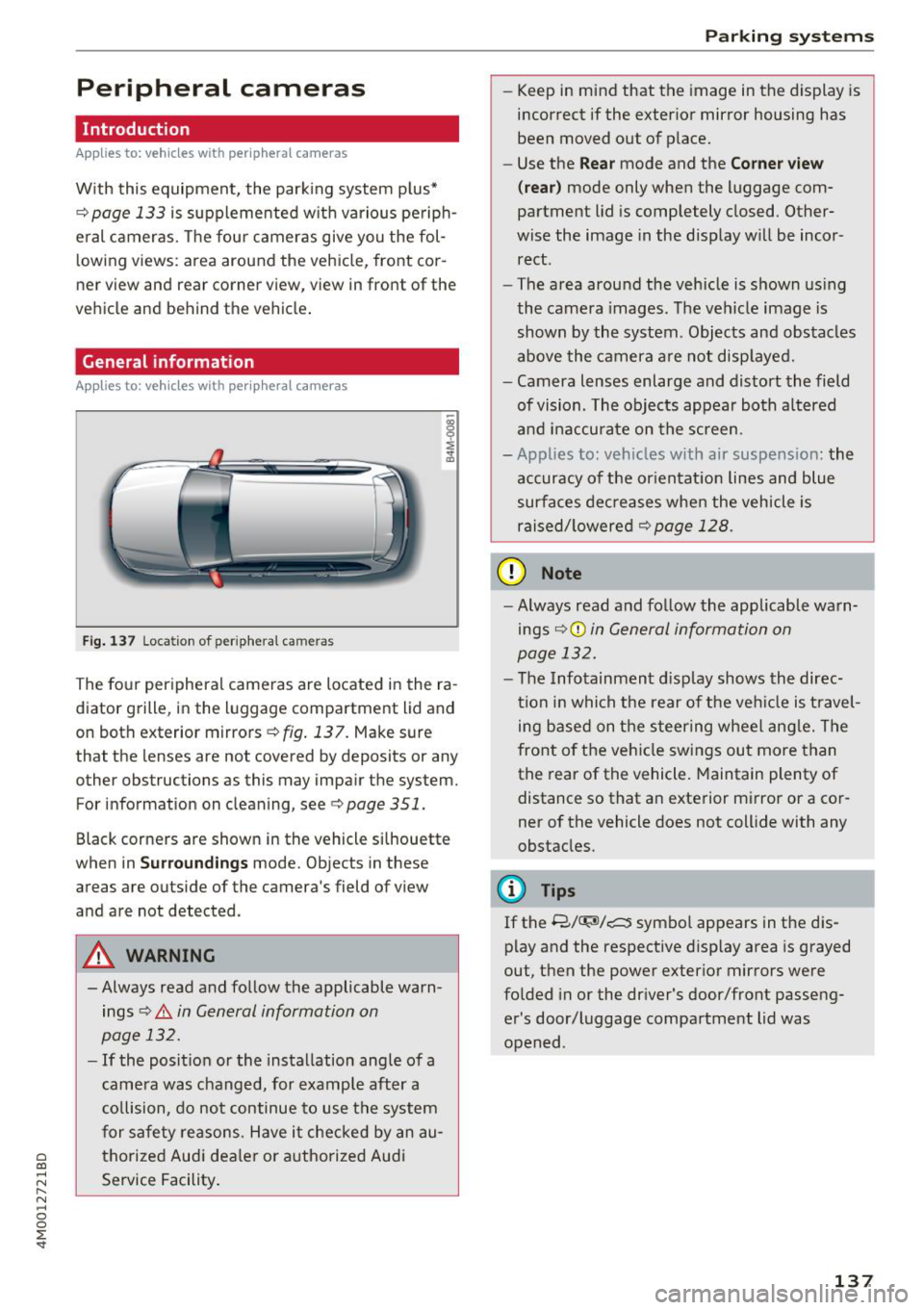
Fig. 137 Location of periphera l cameras
The four peripheral cameras are located in the ra
diator grille, in the luggage compartment lid and
on both exterior mirrors
¢ fig. 137. Make sure
that the lenses are not covered by deposits or any
other obstructions as this may impair the system. For information on cleaning, see¢
page 351.
Black corners are shown in the vehicle si lhouette
when in
S u rro und ing s mode. Objects in these
areas are outside of the camera's field of view
and are not detected.
A WARNING
-Always read and follow the applicable warn ings
¢.&. in General information on
page 132.
- If the position or the installation angle of a
came ra was changed, for example after a
co llision, do not continue to use the system
for safety reasons. Have it checked by an au
thorized Audi dea le r or authorized Audi
Service Facility .
Parking systems
- Keep in mind that the image in the display is
incorrect if the exterior mirror housing has
been moved out of p lace.
- Use the
Re ar mode and the Co rner view
(r ea r)
mode only when the luggage com
partment lid is completely closed. Other
wise the image in the display will be incor
rect.
- The area around the vehicle is shown using
the camera images. The vehicle image is
shown by the system . Objects and obstacles
above the camera a re not disp layed.
- Camera lenses enlarge and distort the field
of vision. The objects appear both a ltered
and ina ccurate on the screen.
- Applies to: vehicles with air suspension: the
accuracy of the or ientat ion lines and blue
surfaces dec reases whe n the veh icle is
raised/ lowered¢
page 128.
(D Note
- Always read and fo llow the applicable wa rn
ings ¢Ci)
in General information on
page 132.
- The Infotainment d isplay shows the direc
tion in which the rear of the veh icle is travel
ing based on the steering wheel ang le. The
front of the vehicle swings out more than
the rear of the vehicle. Maintain plenty of distance so that an exterior mirror or a cor
ner of the vehicle does not collide with any
obstacles.
(l) Tips
If the 8/~/c::; symbol appears in the dis
play and the respective disp lay area is grayed
out, then the power exterior mirrors were
fo lded in or the dr iver's door/front passeng
er's door/luggage compartment lid was
opened .
137