buttons AUDI Q7 2018 Owner´s Manual
[x] Cancel search | Manufacturer: AUDI, Model Year: 2018, Model line: Q7, Model: AUDI Q7 2018Pages: 398, PDF Size: 185.58 MB
Page 11 of 398
Cl a:, ...... N
" N ...... 0
0
::r '
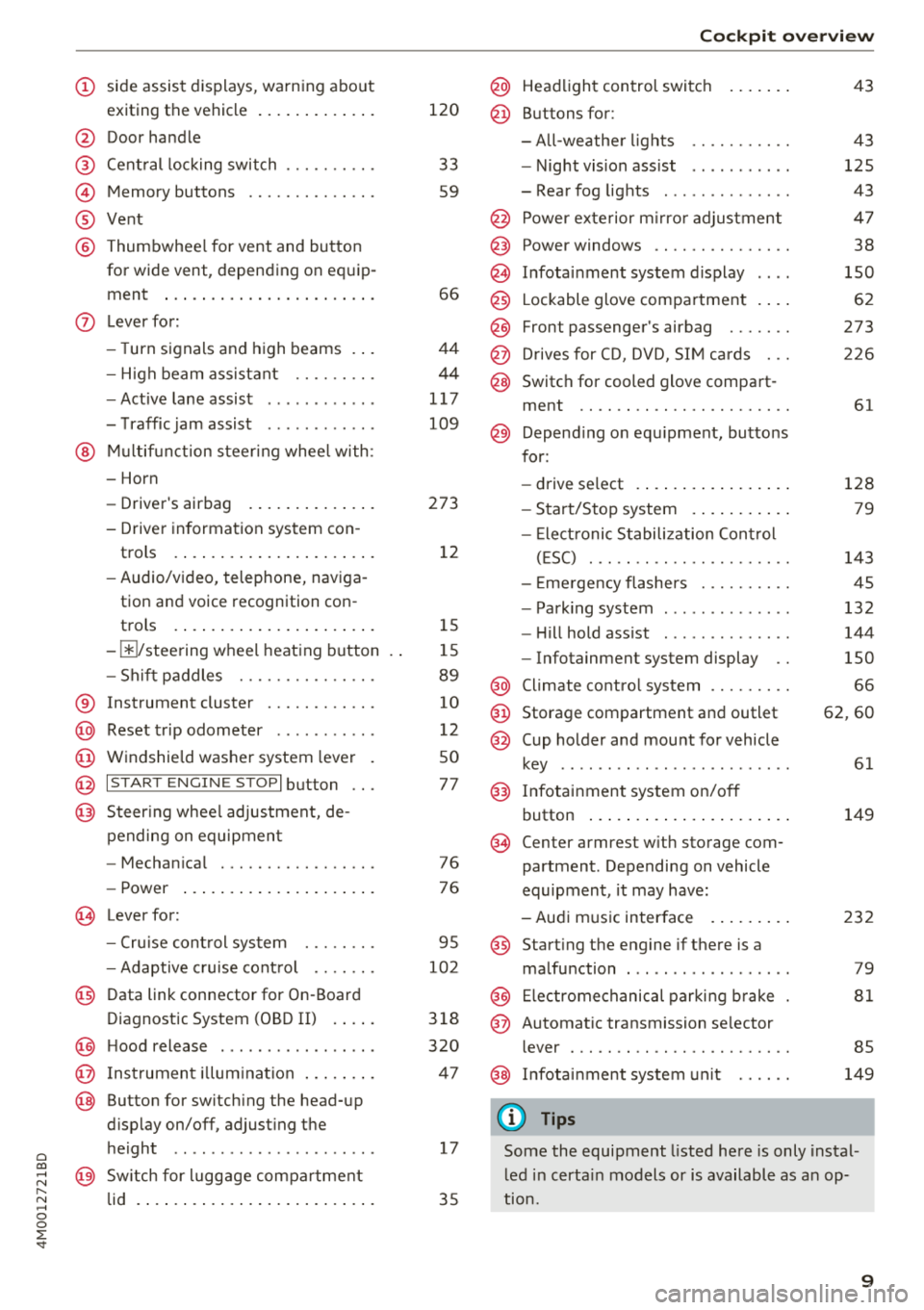
exiting the vehicle ..... ... .. .. .
@ Door handle
@ Cen tral locking swit ch ....... .. .
@ Memory buttons ........... .. .
® Vent
@ Thumbwhee l for vent and button
for wide vent, depending on eq uip -
ment ..... ... .. ..... ... .. .. .
- High beam assistant .... .. .. .
- Active lane assist ........... .
- T raffic jam assist ........... .
@ Mul tifunct ion steer ing whee l with:
- Horn
- Driver's airbag . ..... ... .. .. .
- Driver in formation sys tem con -
trols .... ... .. ..... ... .. .. .
- Audio/v ideo, telephone, nav iga
tion and voice recognition con -
trols .... ... .. ..... ... .. .. .
- III/ steering wheel heat ing b utton
- Sh ift paddles .......... .. .. .
® Instrument cluster ......... .. .
@ Reset t rip odometer .......... .
@ W indshie ld was her system lever
@ !S TAR T ENGIN E ST OPI button .. .
@ Steer ing whee l adjustment, de-
pending on equipmen t
- Mechan ica l .............. .. .
- Power ... ... .. ..... ... .. .. .
~ Lever for:
- Cru ise cont rol sys tem ... .. .. .
- Adaptive c ruise cont rol .. .. .. .
@ Data link connector for On -Board
Diagnostic System (OBD II) . ... .
@) H ood release ............... . .
@ Ins trumen t il lum ina tion ... .. .. .
@ Button for switch ing the head-up
d isplay on/off, adjust ing the
h eight .. .. ................ . .
@ Sw itch for lugg age compar tment
lid . ..... .. ... .. ..... ... .. .. .
120
33
59
66
4 4
44
1 17
109
273 12
1 5
1 5
89
10
12
50
77
76 76
95
102
3 18
320
4 7
17
35
Coc kpit o ver view
@ Head light control switc h
@ Buttons for:
- All-weathe r lights
- Night vis ion ass ist .......... .
- Rear fog lights ............. .
@ Power exte rior m irro r adjustment
@) Power windows .............. .
@ In fota inment system display
@ Lockable glove compa rtment . .. .
@ Front passenger's airbag ...... .
@ D rives for CD, DVD, S IM cards .. .
@ Switch for cooled glove compa rt-
ment .. .. .. .. .............. .
@ Depend ing o n equ ipment, butto ns
for:
- drive select .... ... .. ..... .. .
- Start/Stop system . .. ..... .. .
- Ele ct ronic S tabiliz ation Con trol
( E SC) . .. .. .. .............. .
- E me rgency flashers ......... .
- Park ing system ............. .
- Hi ll hold ass ist ............. .
- Infotainment system display ..
@ Climate cont ro l system ........ .
@ Storage compartment and outlet
@ Cup holder and mount for vehicle
key ..... ... .. .. ............ .
@) Infotainment system on/off
button ... .... .. ... .. ..... .. .
(§ Cen ter armrest w ith storage com
partment . Depending on vehicle
equipment , it may have:
- Aud i m usic interface . ..... .. .
@ Start ing t he engine if there is a
malfunction ... .. ............ .
@ Electromechanical parki ng b rake
@ Automatic transmission se lector
lever ... .. .. .. .. ............ .
@ In fota inment system un it
(D Tips
43
43
125
43
4 7
38
150
62
273
2 26
61
128 79
143
45
132
144
150
66
62 ,60
61
149
232
79
81
85
149
Some the equipment listed here is only insta l
l ed in certa in models or is available as a n op
t ion.
9
Page 15 of 398
a co ...... N r--. N ...... 0
0
:E '
tabs
(D c::> fig . 6 that display various information
@.
The follow ing tabs are available, depending on
vehicle equ ipment:
First tab Vehicle functions
c::> page 15
Second Messages
tab
a )
Third tab b) Night vision assist* c::> page 125
Fourth tab Radio c::>page 161
Media c::> page 161
Fifth tab Telephone* c::> page 174
Sixth tab Navigation* c::> page 203
Map*
a } Thi s tab is only visible when t here is at least one indi cator
ligh t or mess age displ ayed .
bl Thi s ta b is onl y vi sible if N ig ht vi sio n assist * has b een a cti
va te d.
@ l<11> I Button
- Switching tabs:
press the !<11> ! button repeated
ly until the desired tab is shown (for example,
Radio).
Control buttons
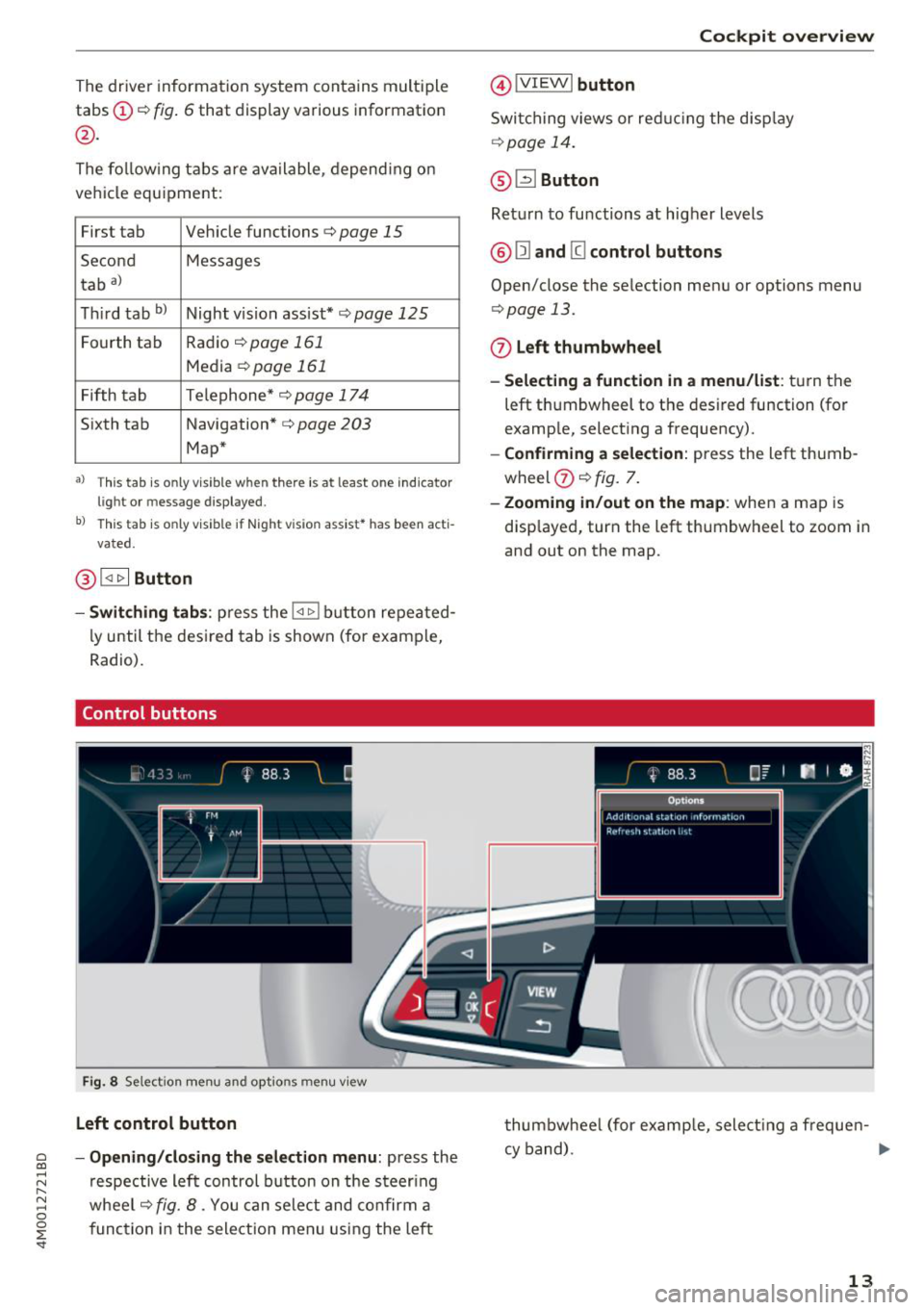
Fig. 8 Select ion menu and opt io ns m enu view
Left control button
- Opening/closing the selection menu:
press the
respective left control button on the steer ing
wheel
c::> fig. 8 . You can select and confirm a
function in the selection menu using the left
Cockpit overview
@IVIEWI button
Switching views or reduc ing the display
c::> page 14.
@~ Button
Return to functions at higher levels
@ Ill and [g control buttons
Open/close the selection menu or options menu
r:=>page 13.
0 Left thumbwheel
- Selecting a function in a menu/list :
turn the
left thumbwheel to the des ired function (for
example, selecting a frequency).
- Confirming a selection: press the left thumb
wheel
(J) c::> fig. 7.
- Zooming in/out on the map : when a map is
disp layed, turn the left thumbwheel to zoom in
and out on the map.
thumbwhee l (for examp le, select ing a frequen-
cy band) . ..,.
13
Page 17 of 398

Other function buttons
Fig . 11 R ig ht s ide of t he mul tifun ctio n stee ring wheel
(D [a Button
-Accepting a call : press the [a button when
the re is an incoming cal l.
-Ending a call : press the [a button during a
phone ca ll to end the cal l.
-Opening the call list: if no phone ca ll is in p rog
ress and there are no incoming calls, press the
[a button.
@ 51 Button
-Switching the voice recogn ition system on :
briefly press the 51 butto n. Say t he des ired
command afte r the
Beep .
- Switching the voice recognition system off :
press and hold the 51 button. Or: say t he com
mand
Cancel.
F or mo re inform ation ab out the vo ice re cog nitio n
system, see
¢ page 167, Voice recognition sys
tem
or ¢ page 245.
@ Right thumbwheel
You can adju st the v olum e of a n audio s our ce o r a
sys tem mess age (fo r ex amp le, from the vo ice
r e co g ni tion system) when t he sound is play ing .
-Increasing or decreasing the volume : turn t he
r ig ht t hu m bwhee l up or down.
-Muting or pausing : turn t he right th umbwheel
down.
Or : press the right th umbwhee l.
-Unmuting or resuming : turn the r ight thumb-
whee l up.
Or : pre ss the rig ht t hum bwheel.
~ © 11<1<1 ! / l1>1>1 I Button
...... N ~ -Selecting the previous /next track or station :
g press the l1<1<1 I or l1>1>1I b utton.
:E '
- Fast forwarding/rewinding audio files : press
and hold the
1 1<1<1 ! or l1>1>1 I button u nti l the desired
locat ion in the file is reac hed.
® lil button / steering wheel heating~
-Steering wheel heating*: yo u can find addi tion
al infor mation in
¢page 72 .
-Programmable steering wheel button · open
ing a function :
press the III butt on o n the mu l
t ifunc tion stee ring wheel.
- Programmable steering wheel button -re
questing a function :
press and hold the III but
ton .
-Programmable steering wheel button · chang
ing a function :
press and hold t he III but ton .
Select and confirm an ent ry.
Or
- Sele ct in the In fotai nmen t sys tem: I MENU ! but
t on
> Vehicle > le ft con trol b utton > Vehicle
settings
> Steering wheel button assignment.
@ 1~···1 Button
- Repeating the last navigation prompt : press
t he
1~ .. ,1 bu tton w hen route g uidance is active .
-Changing the voice guidance volume : when
rou te guid ance is a ctive, tur n t he ri ght thumb
w heel upward or downwa rd dur ing a nav ig at ion
promp t.
Vehicle functions
Overview
T he t rip computer is displayed in the first tab of
the driver info rmation system . Additional vehicle
f un ctions c an be ac cessed depend ing on the vehi
cl e equ ipment .
• Press the le ft con trol b utton .
- On-board computer
¢ page 16
- Layout ¢ page 14
15
Page 33 of 398
a co ...... N r--. N ...... 0
0
:E '
Protect the remote control key against high
temperatures and d irect sunlight.
@ Tips
- The operation of the remote control key can
be temporarily disrupted by interference
from transmitters near the vehicle working in the same frequency range (such as a cell
phone or radio equipment). Always check if
your vehicle is locked!
- For an explanation on conformity with the
FCC regulations in the United States and the
Industry Canada regulations, see
Qpage380.
Removing the mechanical key
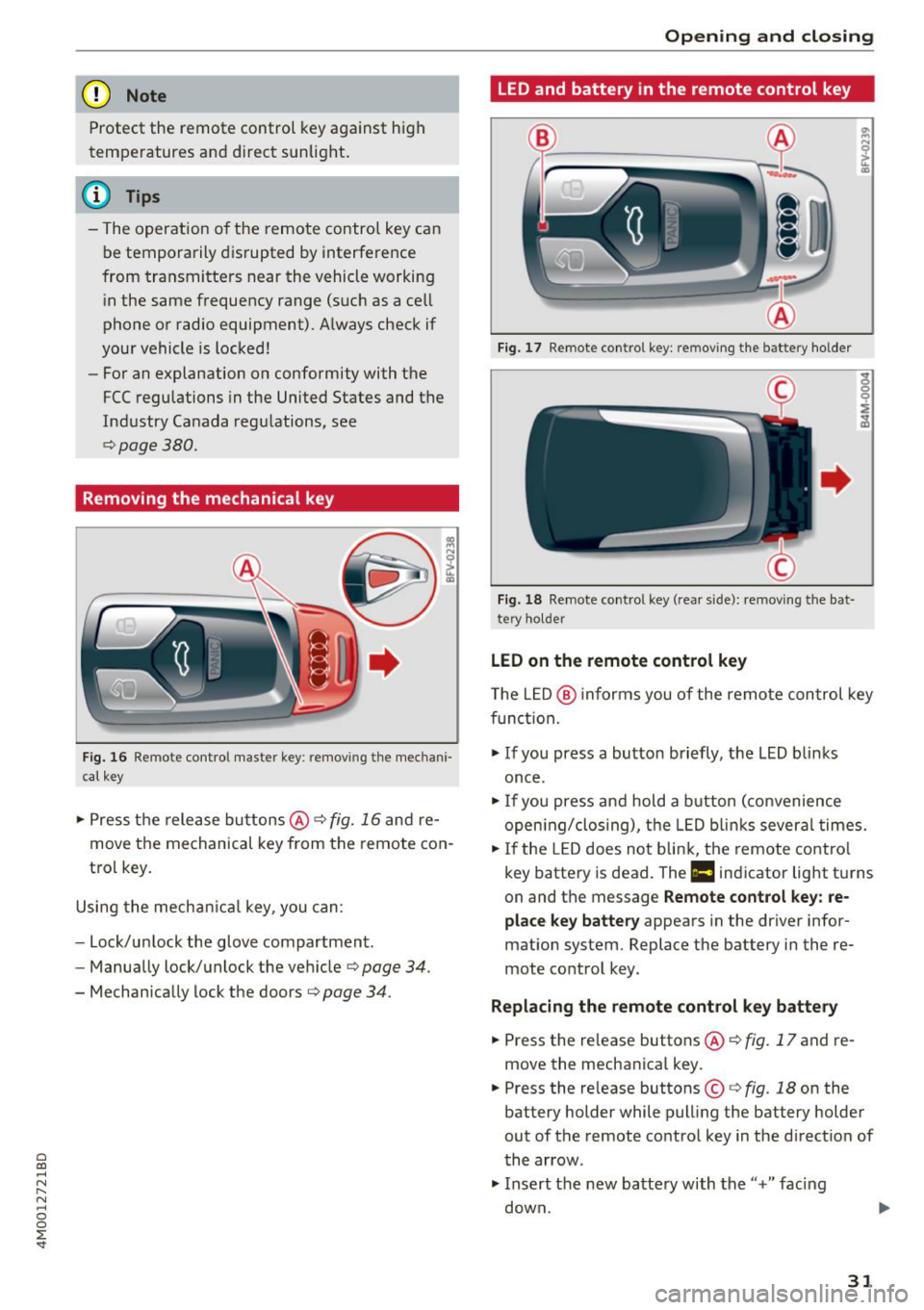
F ig. 16 Remote control master key: removing the mechani
ca l key
... Press the release buttons@¢ fig. 16 and re
move the mechanical key from the remote con
trol key.
Using the mechanical key, you can:
- Lock/unlock the glove compartment.
- Manually lock/unlock the vehicle
¢page 34.
-Mechan ically lock the doors¢ page 34.
Opening and closing
LED and battery in the remote control key
Fig. 17 Remote control key: removing the batte ry holder
Fig. 18 Remote control key (rear side): removing the bat
tery holder
LED on the remote control key
The L ED@ informs you of the remote con trol key
function .
... If you press a button briefly, the LED blinks
once .
... If you press and hold a button (convenience
open ing/closing), the LED b links several times.
... If the LED does not blink, the remote control
key battery is dead. The
Ill in dicator light turns
on and the message
Remote control key: re
place key battery
appears in the driver infor
mation system. Replace the battery in the re
mote control key.
Replacing the remote control key battery
... Press the re lease buttons @¢ fig. 17 and re
move the mechanical key .
... Press the release buttons ©¢
fig. 18 on the
battery holder while pull ing the battery holder
out of the remote control key in the direct ion of
the arrow .
... Insert the new batte ry with the"+" facing
down .
31
Page 40 of 398

Opening and clo sin g
Luggage compartment lid emergency
release
Fig. 27 Inner luggage compart men t lid : acces s to the
emergency rel ease
.. Remove the mechanica l key ¢ page 31 .
.. Pry out the cover using the mechanical key
¢fig . 27.
.. Press the lever in the direction of the arrow to
release the luggage compartment lid .
Child safety lock
The child safety lock prevents the rear doors
from being opened from the inside and the rear
power windows from be operated.
Fig . 28 Sect io n of drive r's door: c hild safety lock butto ns
a,
~ co a,
.. To activate/deactivate the inner door handle
and the power window switch for the respective
rear door , press the left/right
t button in the
driver 's door ¢
fig. 28 . The indicator light in the
button turns on/b links .
.. To activate/deact ivate the child safety lock on
both sides, you must press the
T buttons one
after the othe r.
It is not possible to operate the rear climate con
trol system* when the child safety lock is switch
ed on . T he
S ET REAR function allows you to app ly
38
a ll settings to the rear using the climate control
system controls in the cockpit
¢ page 72.
Message in th e instrument cluster di splay
(BJ Childproof catch : ma lfun ction! Plea se con
tac t Service
There is a ma lfunction in the ch ild safety lock .
Press the
t button aga in .
If the message stays on, dr ive immediately to an
authorized Audi dealer or authorized Audi Serv ice
Facility to have the malfunction repaired.
A WARNING
- If you leave the vehicle, sw itch the ignition
off and take the veh icle key with you. This
app lies pa rtic ula rly whe n children remain in
the vehicle. Otherwise chi ldren cou ld start
the engine or operate e lectrica l equipment
(such as power windows), which increases
the risk of an accident.
- A ma lfunction in the chi ld safety lock could
allow the rear doors to be opened from the
inside, which increases the risk of an acci
dent.
Power windows
Controls
The driver can control all power windows .
Fig. 29 D river 's doo r: pow er w indow con trols
A ll power window switches are equipped with a
two-stage function:
Opening and closing the windows
co ~ M 0
=> co a,
.. To open o r close the window comp letely, press
the swit ch down o r pull the swit ch up b riefly to .,.
Page 43 of 398
a co ...... N r--. N ...... 0
0
:E '
Description
Applies to: vehicles with garage door opener (Homelink)
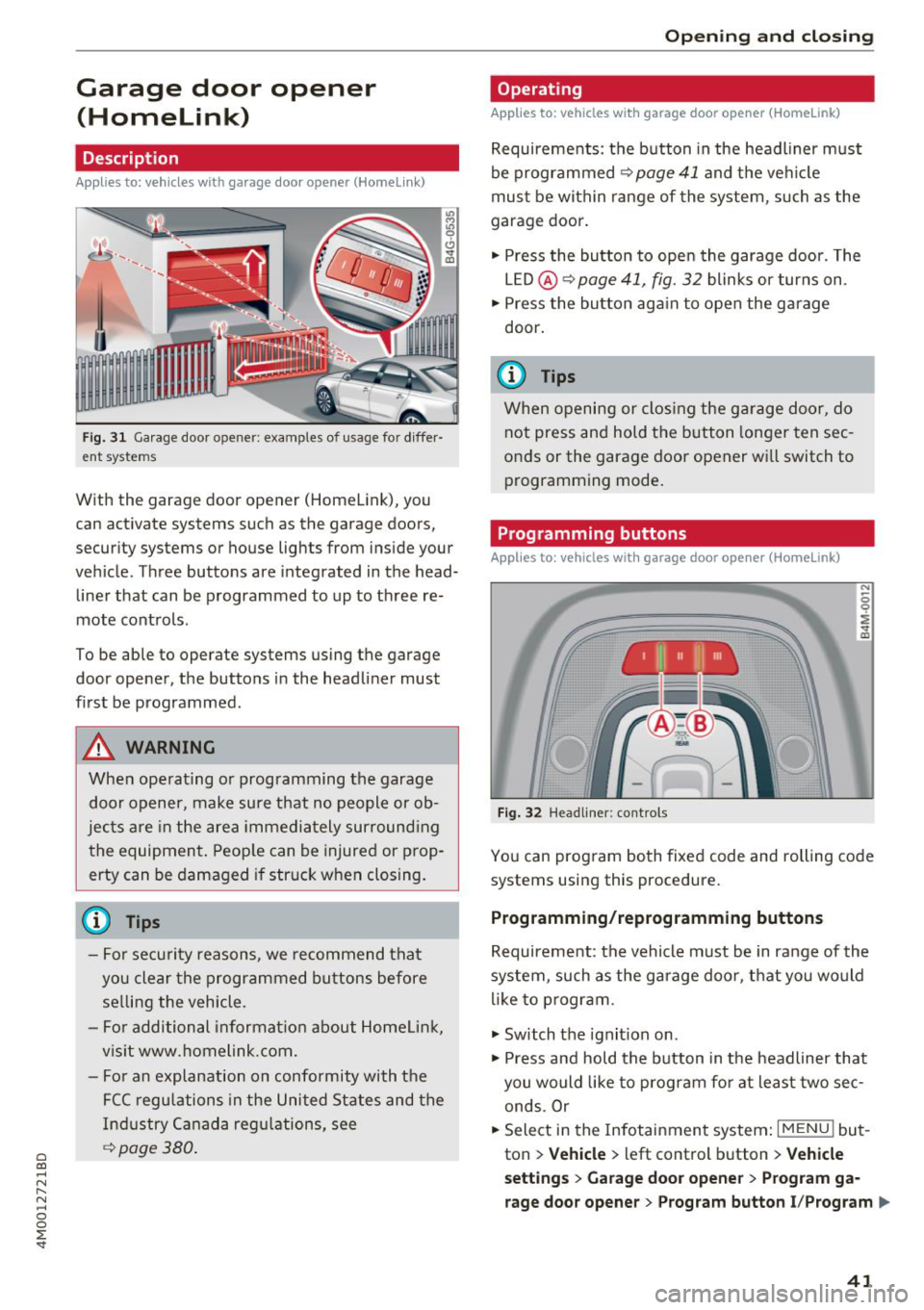
Fig. 31 Garage door opener: examples of usage for diffe r·
ent systems
With the garag e door opener (Homelink), you
can activate systems such as the garage doors,
security systems or house lights from inside your
vehicle. Three buttons are integrated in the head·
liner that can be programmed to up to three re
mote controls .
To be able to operate systems using the garage
door opener, the buttons in the headliner must
first be programmed .
A WARNING
When operating or programming the garage
door opener, make sure that no people or ob·
jects are in the area immediately surround ing
the equipment. Peop le can be injured or prop
erty can be damaged if struck when closing.
- For security reasons, we recommend that you clear the programmed buttons before selling the vehicle.
- For additional informat ion about Homelink,
visit www.homelink.com.
- Fo r an explanation on conformity with the
FCC regulations in the United States and the
Industry Canada regu lations, see
¢ page 380 .
Openi ng and clos ing
Operating
Applies to: vehicles with garage door opener (Home link)
Requirements : the button in the headl iner must
be programmed
<>page 41 and the veh icle
must be within range of the system, such as the
garage door .
., Press the button to open the garage door. The
LED @<>
page 41, fig. 32 blinks or turns on .
.. Press the button aga in to open the garage
door.
@ Tips
When opening or closing the garage door, do not press and hold the button longer ten sec
onds or the garage door opener wi ll switch to
programming mode.
Programming buttons
Applies to: vehicles with garage door opener (Home Link)
Fig . 32 H eadlin er: controls
You can prog ram both fixed code and rolling code
systems using this procedure.
Programming /reprogramming buttons
Requirement: the vehicle must be in range of the
system , such as the garage door, that you would
li ke to p rogram.
., Switch the ignit ion on .
., Press and hold the button in the headliner that
you would like to program fo r at least two sec·
ends .Or
.. Select in the Infotainment system:
I MENU ! but
ton
> Ve hicle > left control button > V ehi cle
s et tin g s
> G arage doo r opener > Pro gra m g a
rage do or opener
> Program butto n I/Prog ram ll>
41
Page 44 of 398
Opening and clo sing
button II /P rogram button III (reprogram) .
The yellow LED @ blinks.
~ Follow the instructions in the Infotainment sys -
tem.
S y nchronizing a button1>
Requirement: the button must already be pro
grammed and must be synchronized with the
system that you would like to program.
~ Switc h the ign ition on.
~ Press the button in the head liner that you
would like to synchronize.
~ Fo llow the instructions in the Infotainment sys -
tem.
Del eting button prog ramming
The programmed buttons cannot be de leted ind i
vidua lly. They must be deleted all at once . Rep ro
gram the buttons if necessary .
~ Switch the ign ition on.
~ Se lect in the Infota inment system: I MENU I but
ton
> Vehi cle > left contro l button > Vehicl e
settings > Garage d oor o pene r > Delete button
programming > Yes, delete no w.
Di splaying the version /statu s/country code
~ Se lect in the Infota inmen t system: IM ENU I but
ton
> Vehi cle> left contro l button >Vehicl e set
tings > Garage d oor o pener > Version inf orma
ti on.
(D Tips
- The garage door opener may need to be
synchronized with the system motor after
the programming . Follow the manufactur
er's instructions for doing t his.
- The programming process can take up to 30
seconds . The hand transmitter may need to
be operated again during the process.
- Make sure the batteries in the hand trans
mitter are charged before starting the pro
gramming process.
- In some cases, the system must be pro
grammed using an alternative mode. Select i n the Infota inment system :
IMENUI > Vehi-
1> On ly appl ies to ro lling code sy stem s
42
cle > left control button > Vehicle settings >
Garage door opener > Progr am garage door
open er >
right control b utton > UR- Mode /
D-Mode .
Page 45 of 398
a co ...... N r--. N ...... 0
0
:E "
Exterior Lighting
Switching the lights on and off
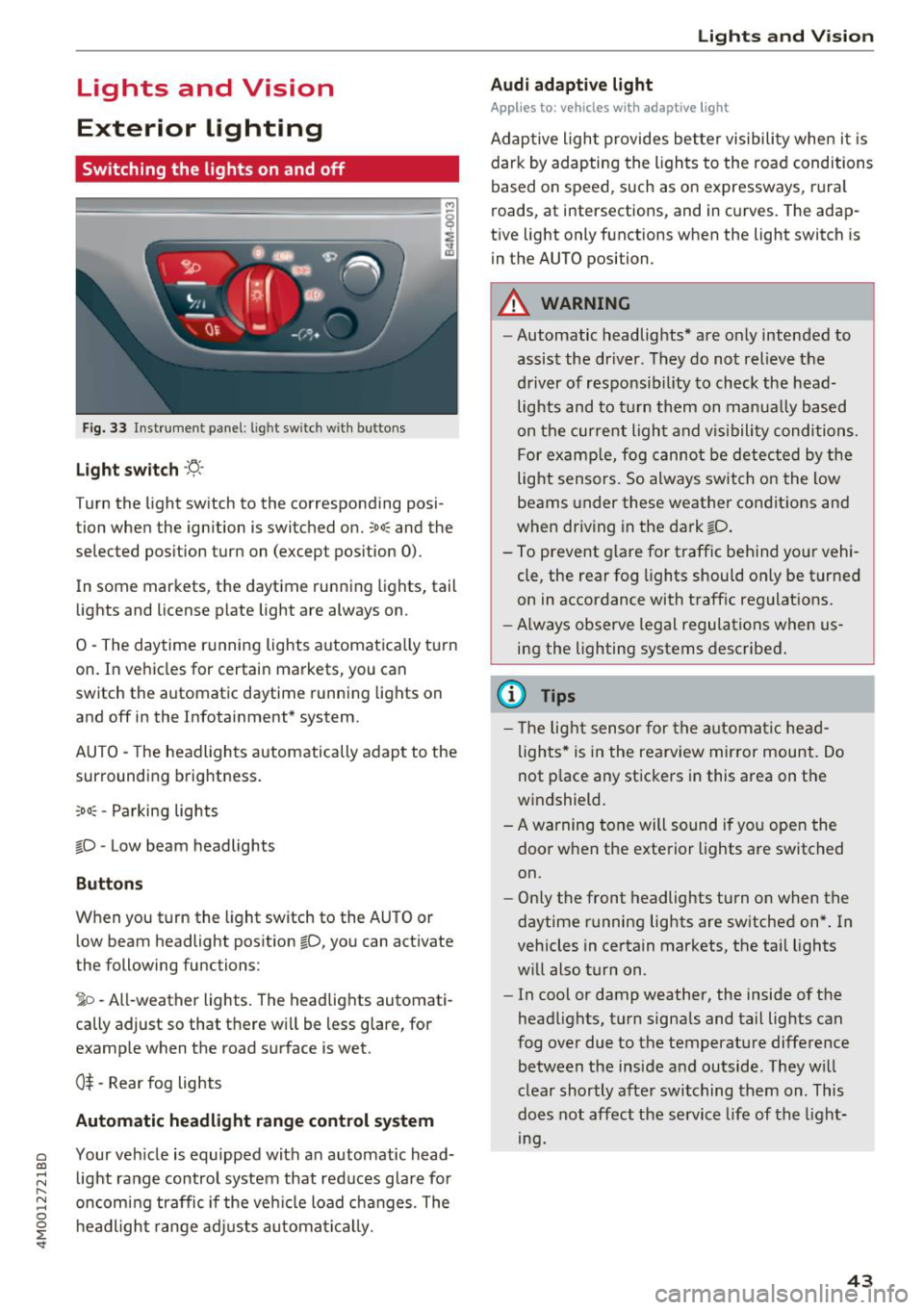
Fig. 33 Instrument pa nel: lig ht switc h with buttons
Light switch ·'!:! ·
Turn the light sw itch to the corresponding posi
tion when the ignition is switched on.
:oo: and the
selected pos ition turn on (except pos ition 0).
In some markets, the daytime running lights, tail
lights and license plate light are always on .
0 -The daytime running lights automatica lly t urn
on. In vehicles for certain markets, you can
switch the a utomat ic daytime running lights on
and off in the Infotainment* system.
A UTO -The headlights automatic ally adapt to the
surrounding brightness.
:o o: -Parking lights
io -Low beam headlights
Buttons
When you t urn the light switch to the AU TO or
low beam headlight pos ition
io, you can activate
the following functions:
1o -All-weather lights. The headlights automati
cally adjust so that t here w ill be less glare, for
examp le when the road surface is wet.
0$ -Rear fog lights
Automatic headlight range control system
Your veh icle is equipped with an automatic head
light range control system that red uces g lare fo r
oncom ing traffic if the veh icle load c hanges . The
headl ig ht ra nge ad justs automa tic a lly.
Lights and V ision
Audi adaptive light
Appl ies to: vehicles with adaptive light
Adaptive ligh t provides better visibili ty whe n it i s
dark by adapting the lights to the road conditions
based on speed , such as on e xpressways, rura l
roads, at intersections, and in c urves. The adap
t ive light only functions when the light sw itch is
i n the AUTO position .
A WARNING
--Automatic headlights* are on ly intended to
assist the driver. They do not relieve the
driver of responsibil ity to check the head
lights and to t urn t hem on manua lly based
on t he curren t ligh t and v is ibility condition s.
For examp le, fog canno t be detec ted by the
light sensors. So always switch on the low
beams under these weather co nditions and
when driv ing in the da rk
io .
- To prevent glare for traffic behind yo ur vehi
cle, the rear fog lights should only be turned
on in accordance with traff ic regulat ions.
- Always observe legal regulations when us
ing the lighting systems desc ribed .
(D Tips
- The lig ht sensor for the automat ic he ad
lights * is in the rearview mir ror mount. Do
not p lace any st ickers in this area on the
windshield.
- A warning tone will sound if you open the door when the exte rior lights a re switched
on .
- Only t he front headlights turn on when t he
daytime running lights are switched on *. In
vehicles in certain markets, the tail lights
w ill also turn on .
- In cool or damp weather, the inside of the
head lights, turn signa ls and tail lights can
fog over due to the temperature diffe rence
between the inside and outside . They will
clear shortly afte r swi tching them on . This
does not aff ect the service life of the light
mg.
43
Page 59 of 398
Folding the backrest down/up (third row
seats)
Ap plies to vehicles w it h th ird row seats
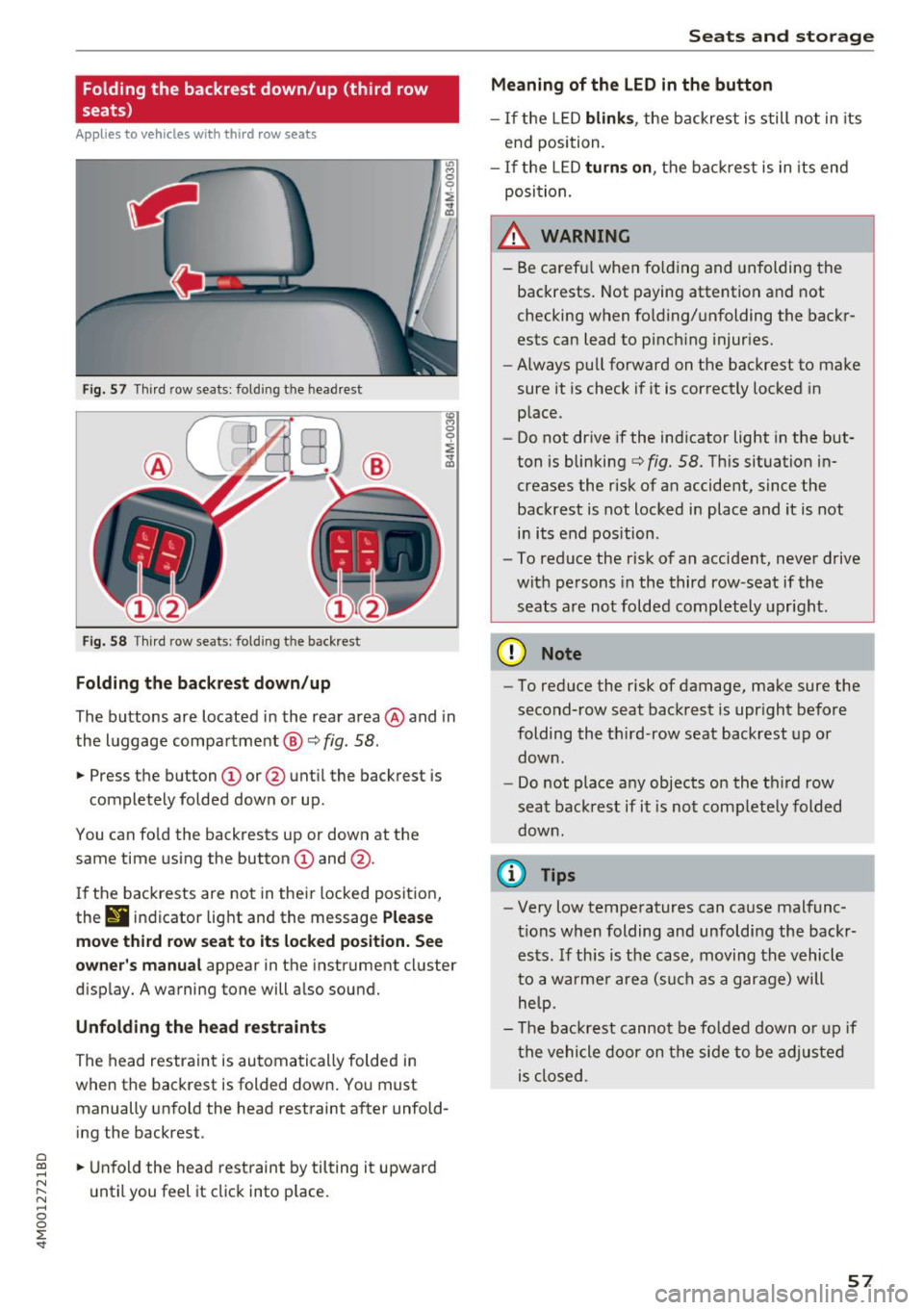
F ig . 57 Thir d row seats : fol ding the headrest
Fig. 58 Th ird row seat s: fol ding t he backrest
Folding the backrest down /up
The buttons are located in the rear area @and in
the luggage compa rtment @
c::> fig. 58.
... Press the button CD or @ unt il the backrest is
completely folded down or up .
You can fo ld the backrests up or down at th e
same time using the button
CD and @.
I f the backrests are not in their locked position,
the
9 indicator light and the message Ple ase
mo ve third ro w s eat to it s locked po siti on . See
owner 's manual
appear in the instrument cluster
d isplay. A warning tone will a lso sound.
Unfold ing the head r estraints
The head restraint is automatically folded in
when the backrest is folded down. You must manually unfold the head restraint after unfold
ing the backrest .
a
~ ... Unfold the head rest raint by tilting it upward
N ~ u ntil you feel it click into p lace.
~ 0
0
:E '
Meaning of the LED in the button
- If the LED blink s, the backrest is still not in its
end position.
- I f the L ED
turn s on , the bac krest is in its end
posi tion.
A WARNING
- Be carefu l when fo lding and unfolding the
backrests. Not paying attention and not
checking when fo lding/unfolding the backr
ests can lead to pinch ing injur ies.
- Always pull forward on the backrest to make
sure it is check if it is correctly locked in place.
- Do not drive if the indicator light in the but
ton is blinking
c::> fig. 58. Th is situation in
creases the risk of an accident, since the
backrest is not locked in place and it is not
in its end position .
- To reduce the r isk of an accident, never drive
with pe rsons in the third row -seat if the
seats are not folded completely upright .
(D Note
-To reduce the risk of damage, make sure the
second-row seat backrest is upr ight before
folding the th ird -row seat backrest up or
down .
- Do not place any objects on the third row
seat backrest if it is not comp letely folded
down .
(D Tips
-Very low temperatures can cause malfunc
tions when folding and unfoldi ng the backr
ests. If th is is the case, moving the vehicle
to a warmer a rea (s uch as a garage) will
help.
- The backrest canno t be fo lded down o r up if
the vehicle door on the side to be adjusted is closed .
57
Page 61 of 398
• Press the release point c::> fig . 61 using the me
chanical key
c::> page 30, Key set and press the
button -arrow-
c::> fig . 60 . Pull the head restraint
out of the backrest at the same time
c::> ,&. .
In stall ing th e head rest raints
• Slide the posts on the head restraint dow n into
the guides until the posts click into place.
• Press the b utton -arrow-
c::> fig. 60 and slide the
head restraint all the way down. You should not
be able to remove the head restraint from the
backrest without pressing the button .
A WARNING
-Always read and follow the applicable warn
ings
c::> page 255 , Proper adjustment of
head restraints.
- Only remove the head restraints fo r the sec
ond row seats when it is necessary for in
sta lling a child safety seat
c::> page 291,
Child safety.
Install the head restraint agai n
immediately once the child safety seat is re
moved. Driving with the head restraints re
moved or not in the upr ight position in
creases the risk of serious injury.
Memory function
Description
Applies to: vehicles with memory function
Using the memo ry function, you can qu ick ly and
eas ily store a pe rsonal seat profile for the driver
and recall the settings later. The memory func
tion is controlled by the remote control key and
the memory buttons in the driver's door.
The drive r's seat profile is stored again and as
signed to the remote contro l key each time the
vehicle is locked. When you open the door, the
seat profi le is automat ica lly reca lled . If two peo
p le use the vehicle, it is recommended that each
person always uses their "own" remote control
key.
Two seat profiles can be stored each us ing the
~ memory buttons. Once they are stored, these
...... N seat prof iles can be se lected at any time. r--. N ...... g The fo llowing settings are stored :
:E '
Remote con- Memory but-
trol key ton
Driver Drive r
Seat X X
Steering
X X wheel*
Both exterior
mirrors*
X X
Remote control key
Applies to : vehicles with memory function
The driver's seat profile con be assigned to the
remote control key when the vehicle is locked.
• Select in the Infotainment system: I MENU ! but
ton
> Vehicle > l eft control button > Vehicle
s etting s
> Seats > Driver 's seat > Store set
ting s on r emote cont rol ke y.
(D Tips
If you do not wish to have the seat profi le for
another driver assigned to the remote control key, sw itch the memory f unction off in the In
fotainment system.
Memory buttons
Applies to : vehicles with memory function
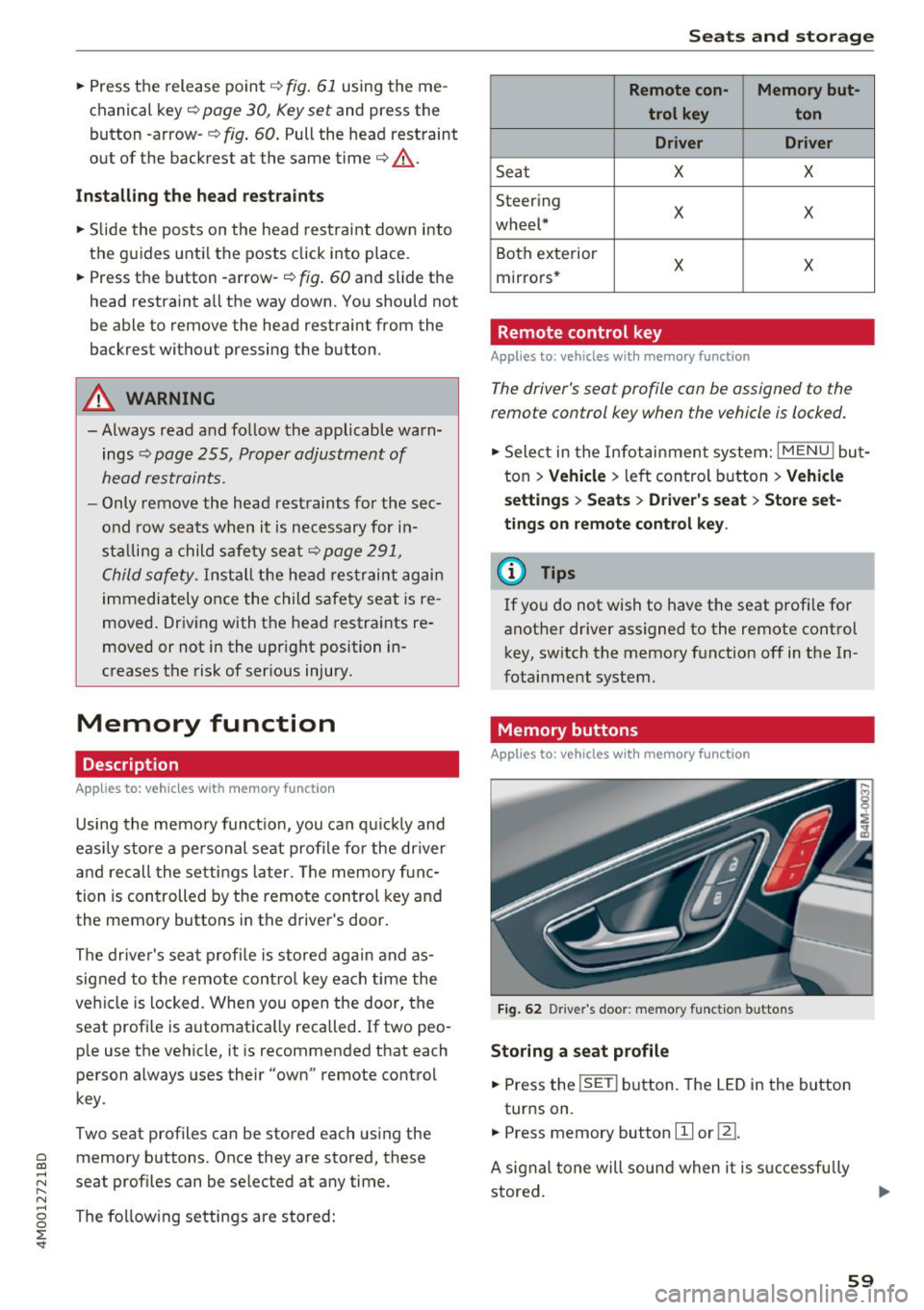
F ig . 62 Driver 's door : memo ry f unc tion buttons
Storing a seat p rofil e
• Press the !SET I button. The LED in the button
turns on.
• Press memory button
[II or ill.
A signal tone will sound when it is s uccessfu lly
stored.
59